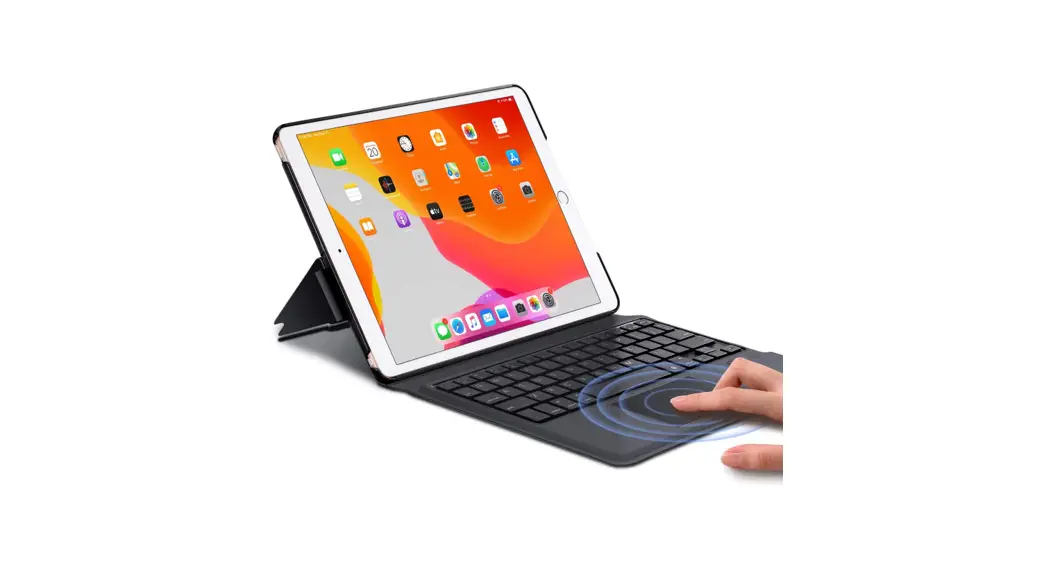
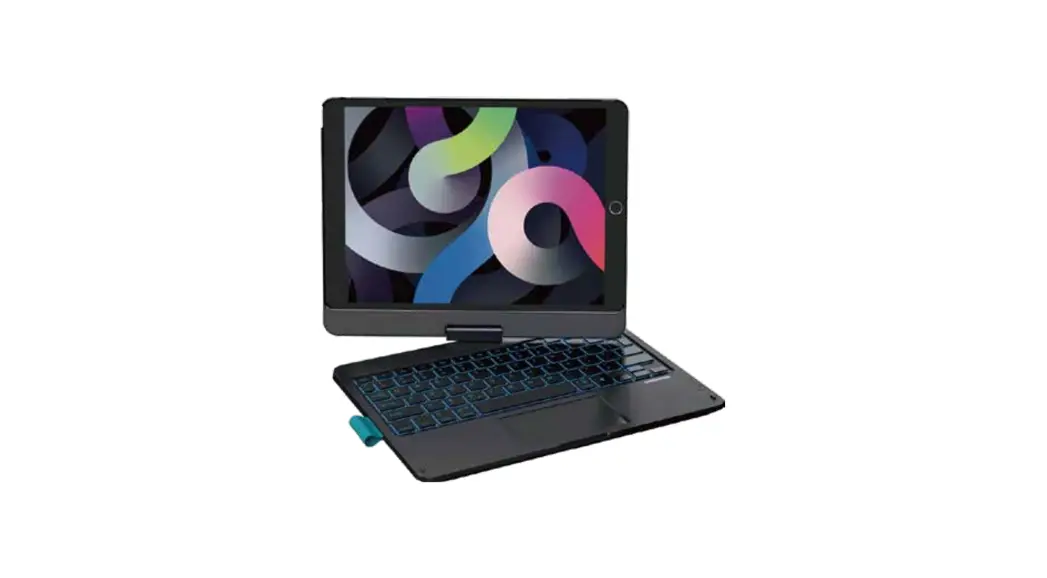
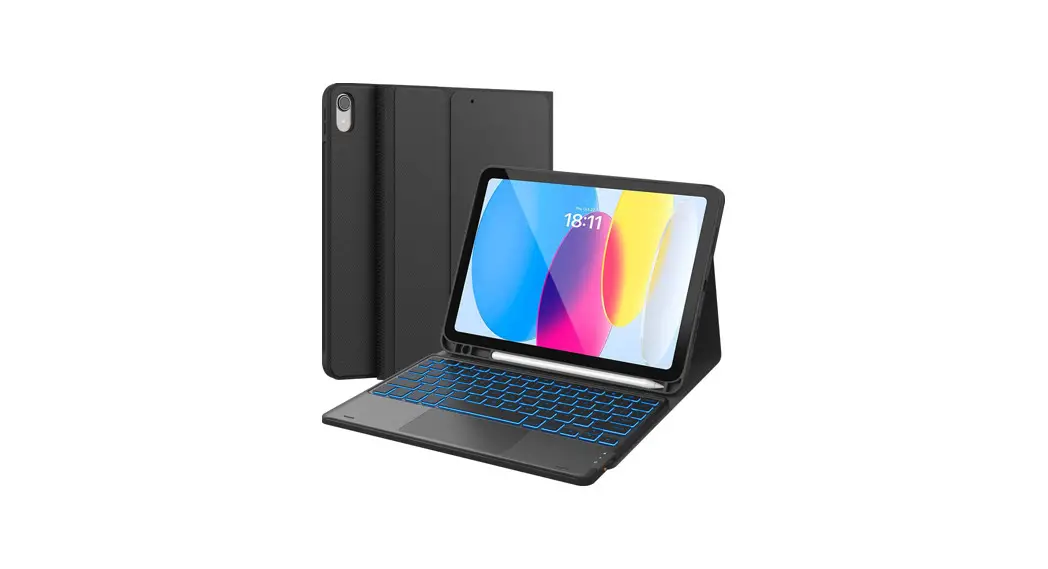
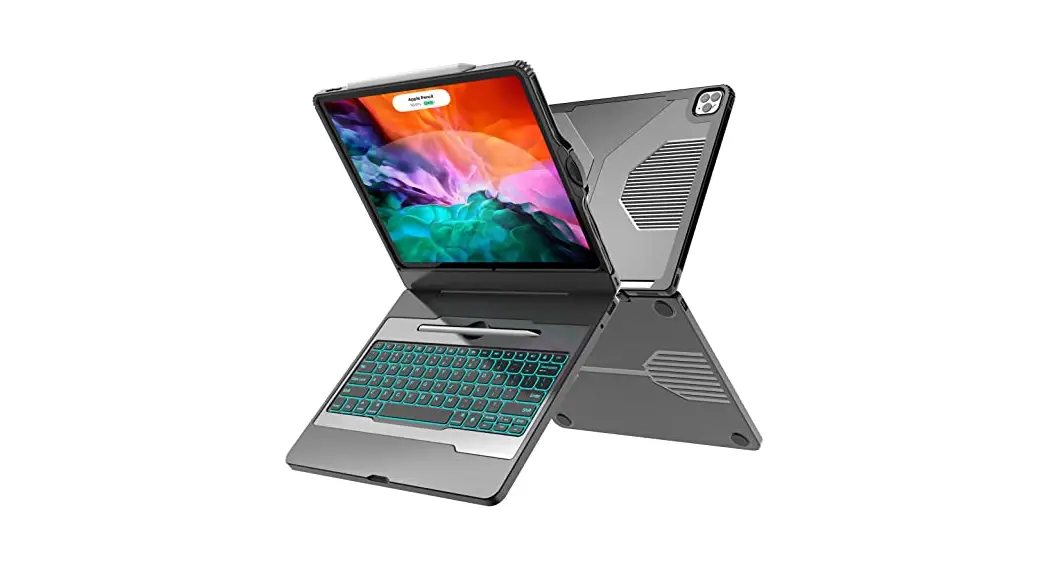
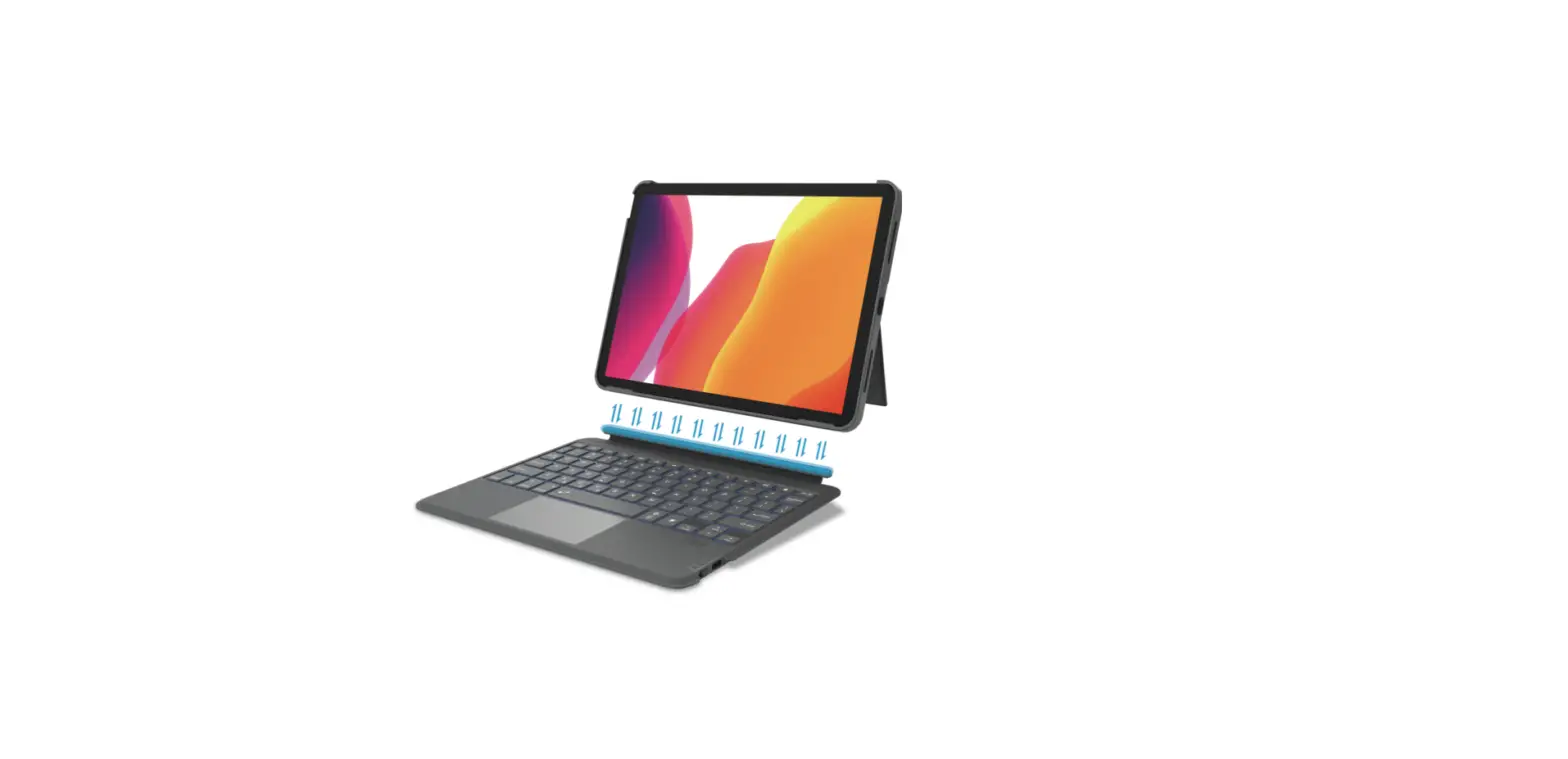
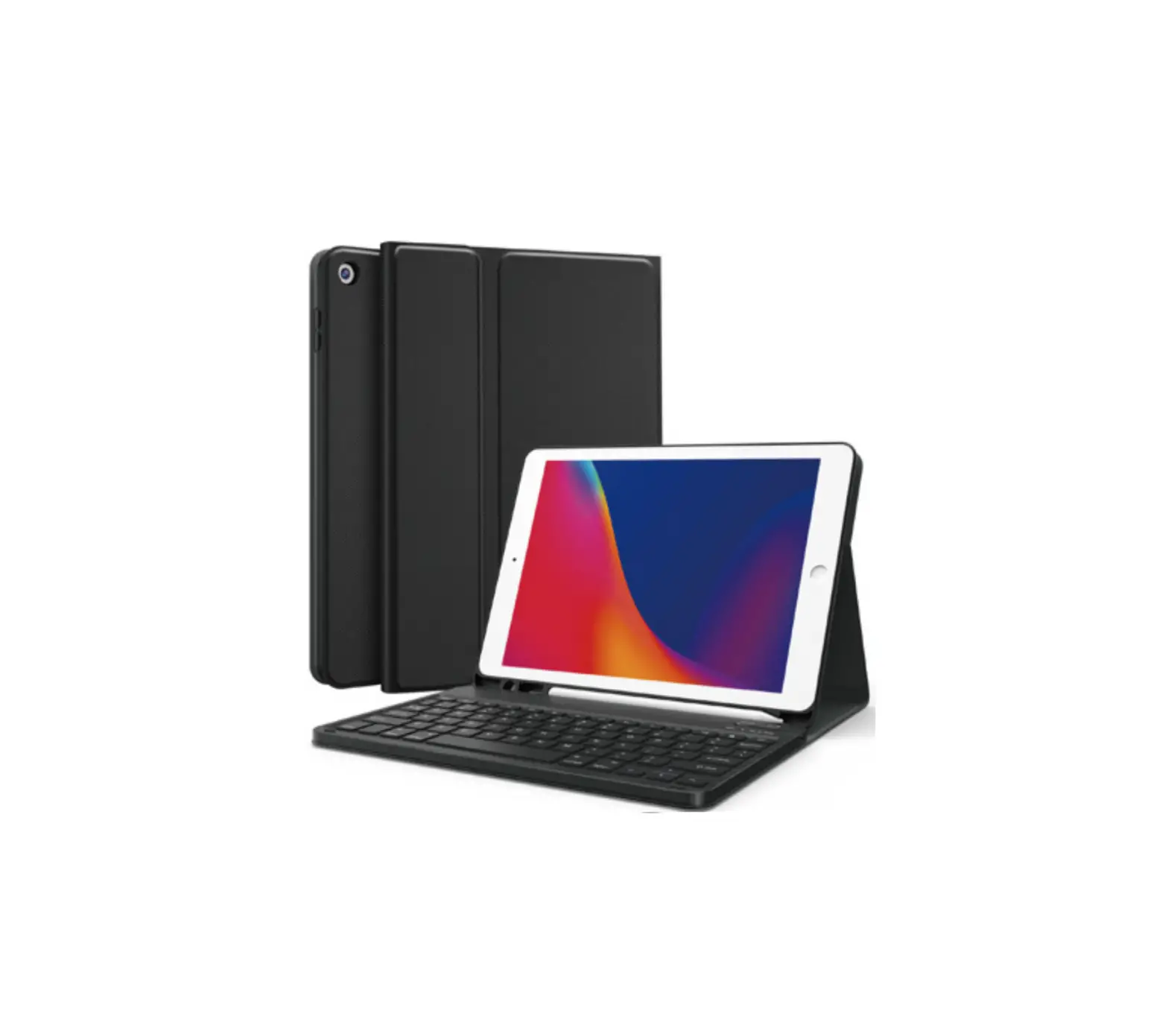
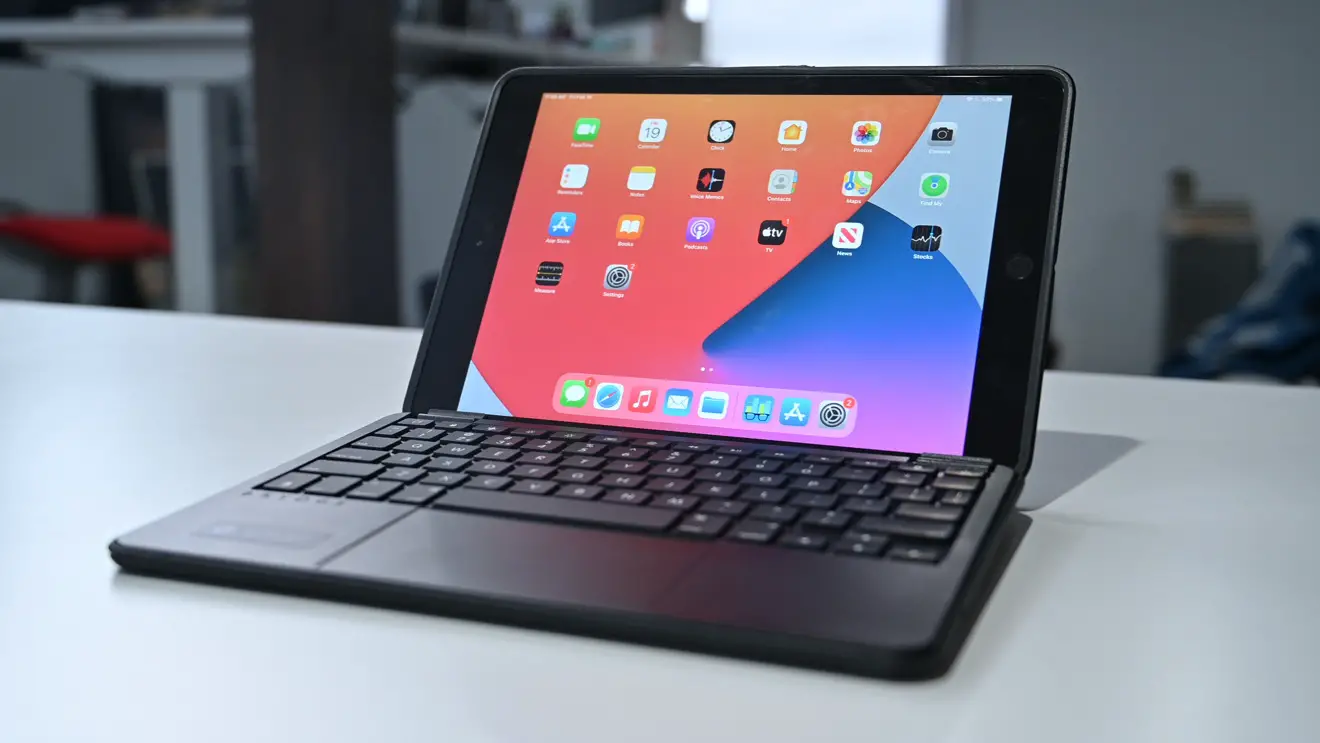
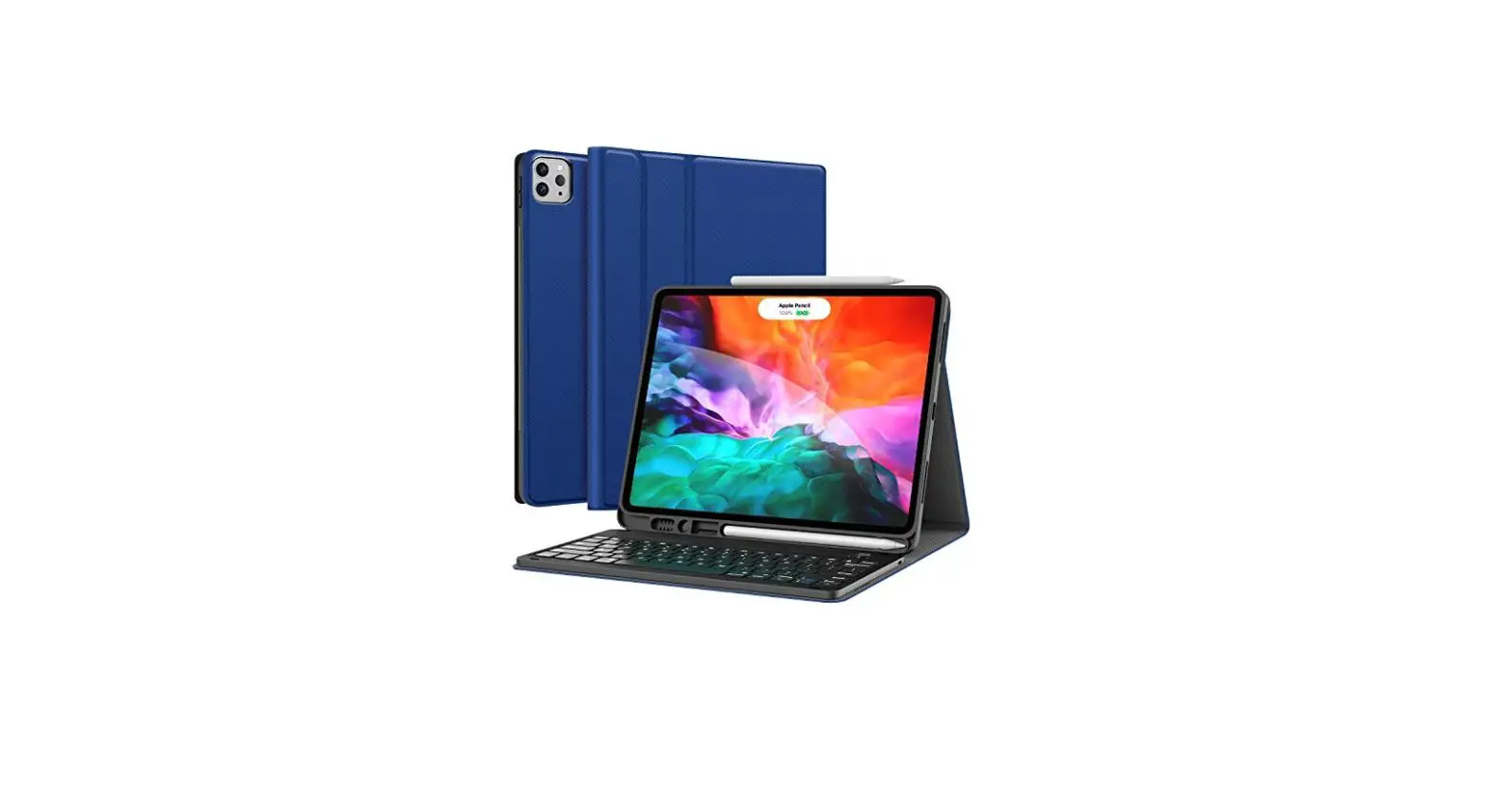
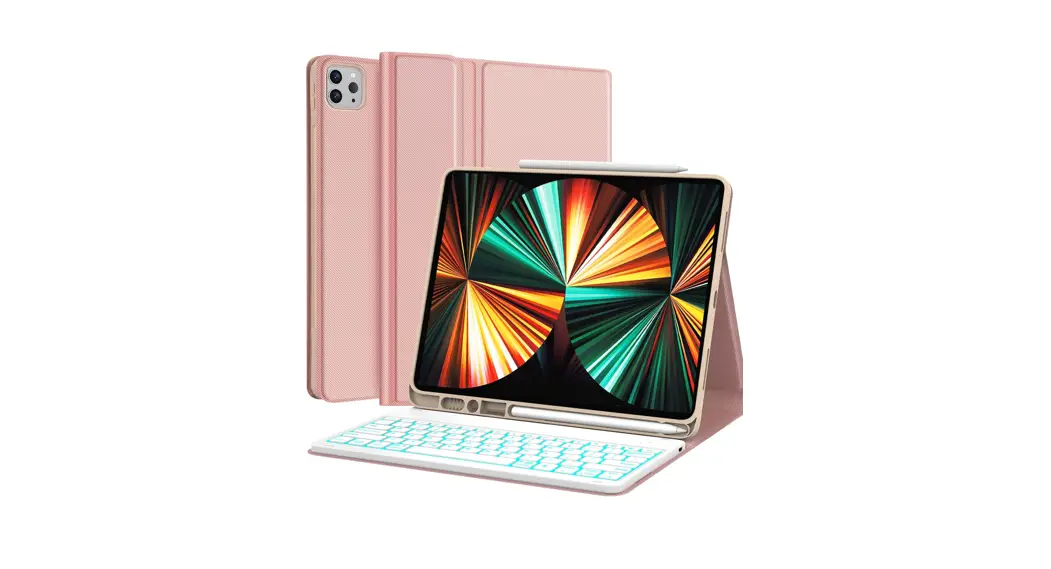
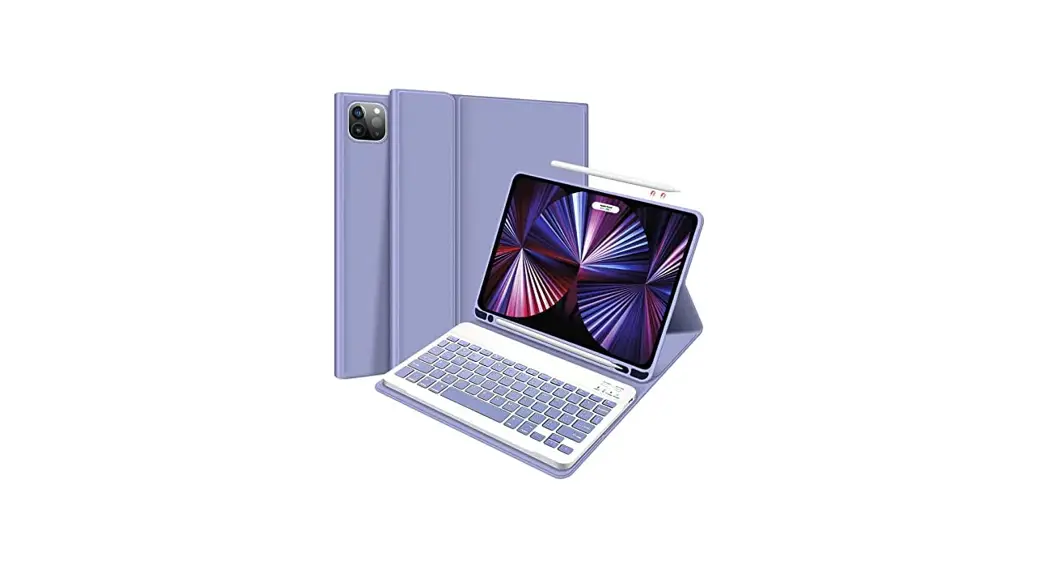
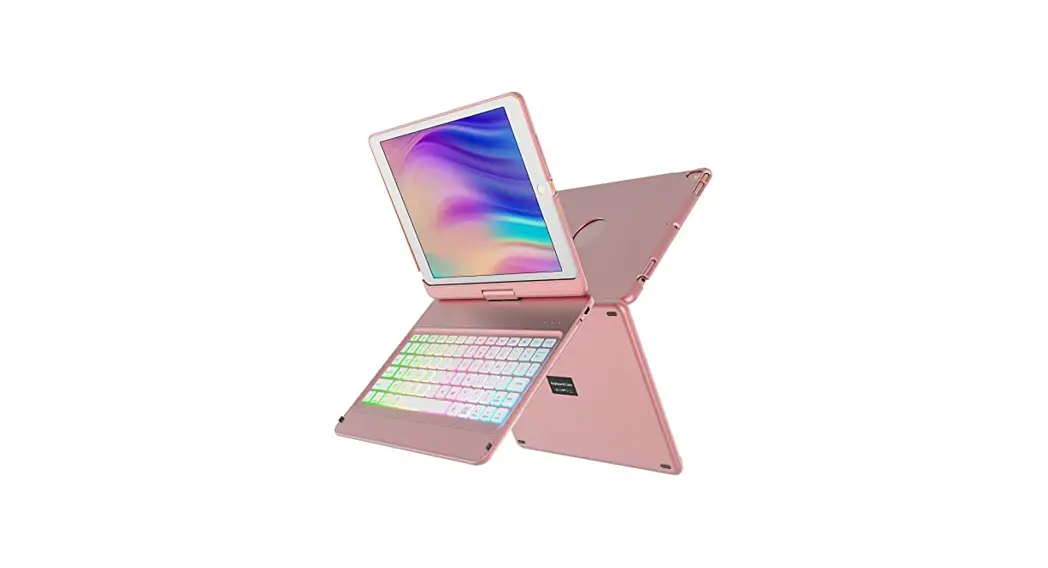
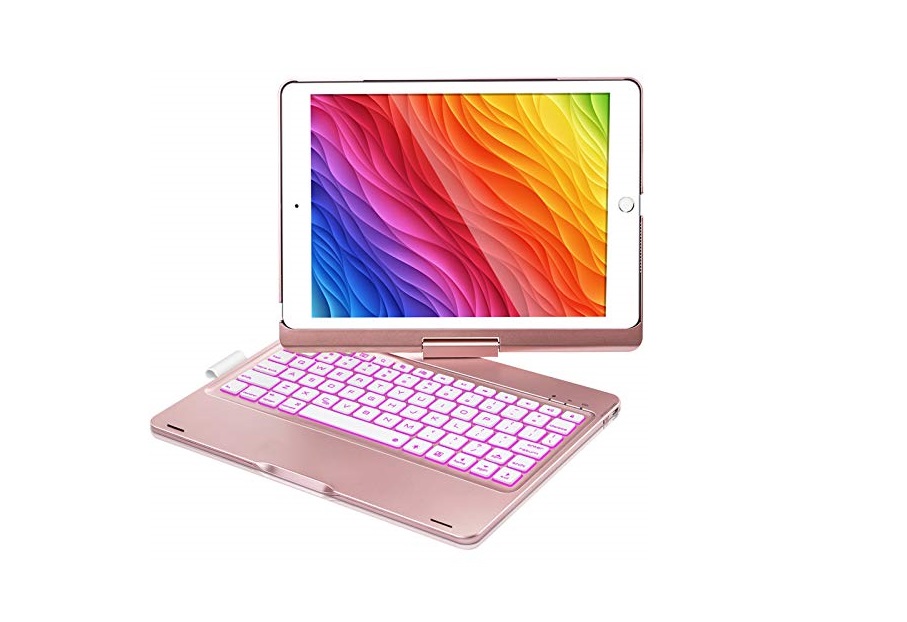
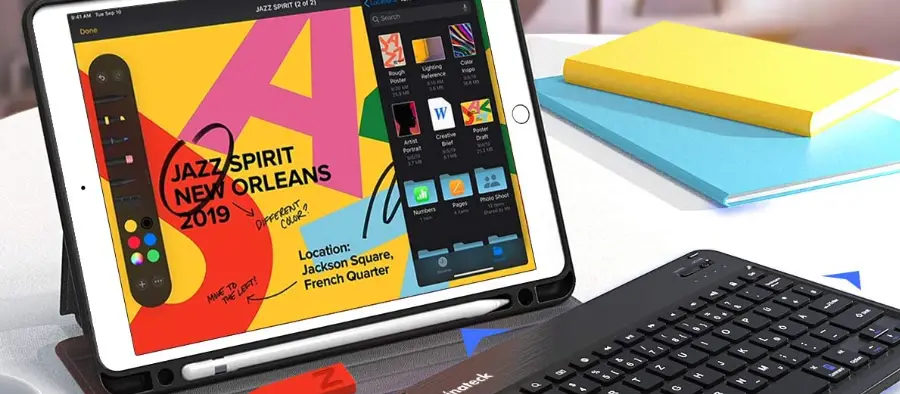
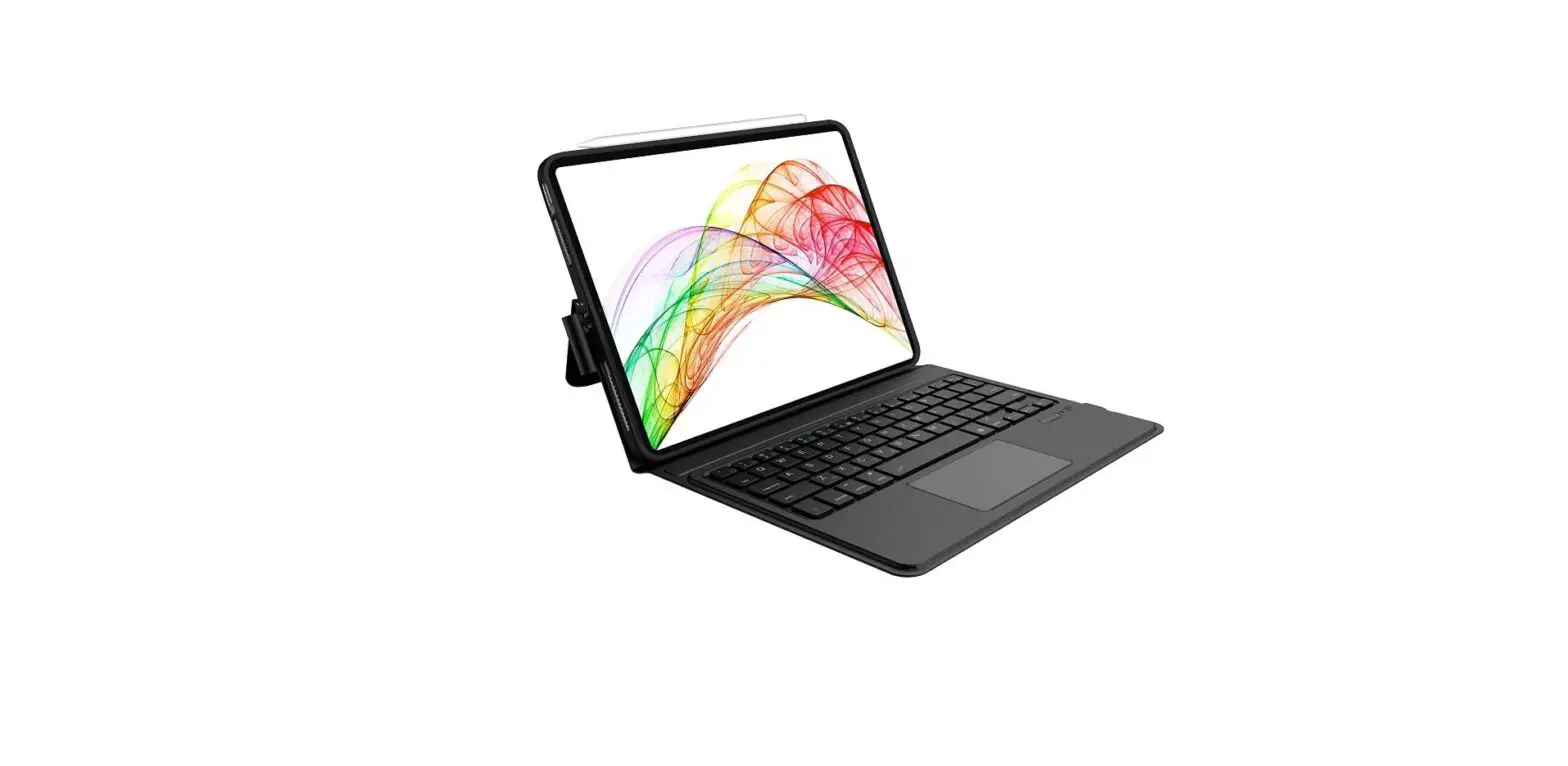
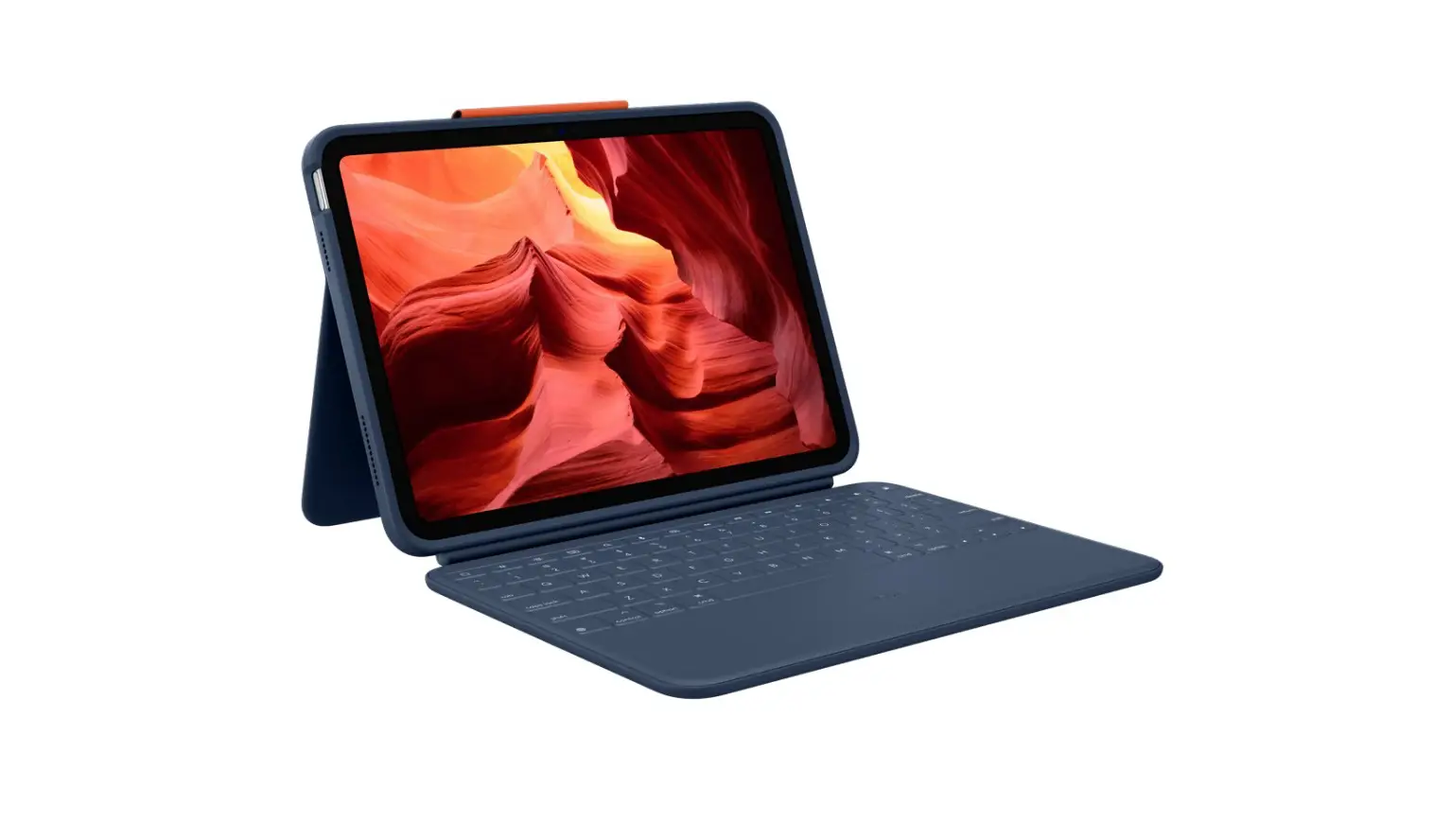
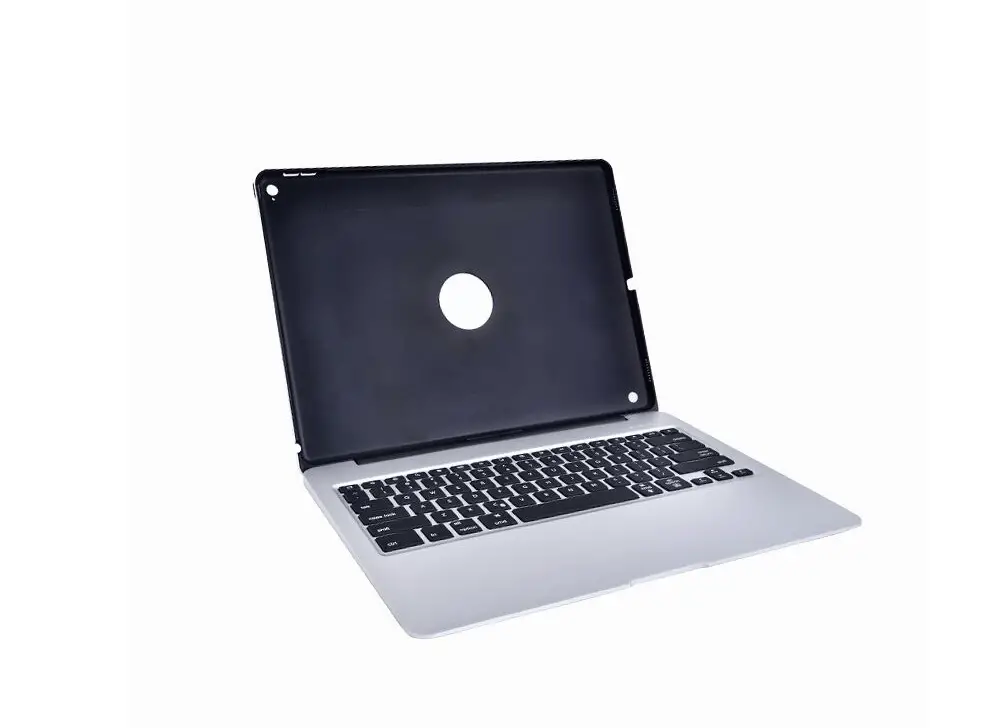
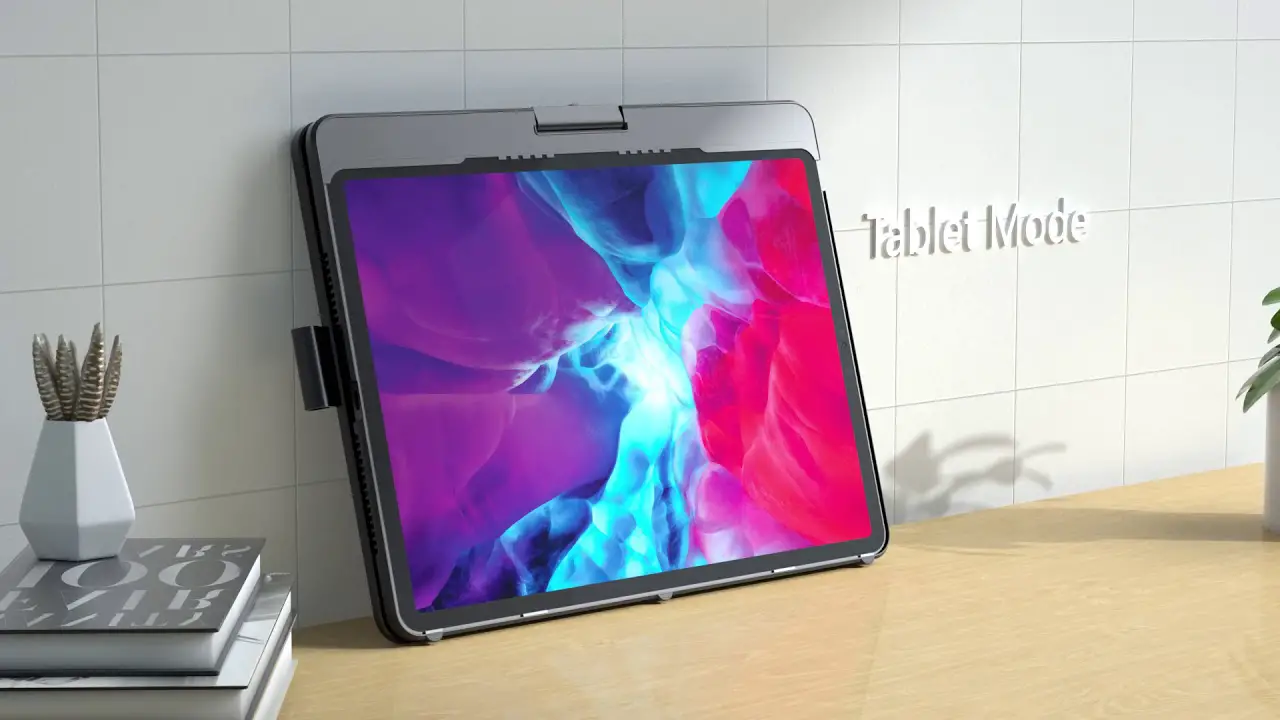
Air Exec Keyboard Case for iPad 10 Gen
Product Information
Congratulations on your purchase of this keyboard case. This
product is designed to provide a convenient and efficient typing
experience for your device. Please read the following instructions
to ensure proper care, maintenance, and usage of the product.
Package Contents:
- Keyboard case
- Micro USB cable
- User manual
Safety Instructions:
Before using the product, please take note of the following
safety instructions:
- While cleaning the product, always unplug it from the power
supply. - Use only a dry soft cloth to wipe the product. Avoid water or
any other liquids. - If not using the product for an extended period of time, unplug
it. - Avoid using harsh cleansers or detergents.
Product Usage Instructions
Preparation for Use:
Follow these steps to prepare the keyboard case for use:
- Unpack the accessories carefully, and keep the box and packing
materials for future storage.
Setup Keyboard for Use:
Follow the steps below to set up the keyboard:
- Place the keyboard case in the stationary position as shown in
Figure A. - To adjust the operating position angle, refer to Figure
B. - To charge the keyboard case, follow these steps as shown in
Figure C:
- Connect the included micro USB cable to a powered USB hub, USB
port on your computer, or any USB power adapter. - While charging, the LED indicator light will be illuminated in
red. - When fully charged, the LED indicator will not be illuminated.
When charging is required, the LED indicator will flash red.
Getting to Know Your Keyboard:
Familiarize yourself with the keyboard features:
- CAPS Indicator Light: When lit blue, indicates
UPPERCASE mode. If not lit, you are typing in lowercase mode. - Charging Indicator Light: When lit red,
indicates the keyboard is charging. - Power Indicator Light: When flashing,
indicates the need to charge the keyboard. When first powered on,
the light will stay lit for 4 seconds to show power but will turn
off to save energy.
Reset Pairing:
If you need to reset the pairing of your device with the
keyboard case, follow these steps:
- Tap on the “More Information” icon on your device’s
screen. - Select “Forget This Device” on your device’s screen.
Keyboard Shortcuts:
Use the following keyboard shortcuts for different system
functions:
| Button Icon | Android System Function | Windows System Function | IOS System Function |
|---|---|---|---|
| Main page | Main page | Main page | Search |
| Select all Copy | Select all Copy | Select all Copy | Paste |
| Cut | Cut | Cut | Previous Track Play/Pause |
| Next Track | Next Track | Next Track | Volume – |
| Volume + | Volume + | Volume + | Brightness Brightness + |
| Brightness Brightness + | Brightness Brightness + | Brightness Brightness + | Lock screen Virtual keyboard |
| Lock trackpad Language switch | Lock trackpad Language switch | Lock trackpad Language switch | – |
Multimedia Function Instructions and Switches:
To access multimedia functions, press the corresponding buttons
directly for Android/Windows/IOS systems. For Windows system, press
Fn+F1~F12 to achieve system functions. To shift between different
systems, press Fn and Q (Android), W (Windows), or E (IOS) keys
together.
Follow these instructions and guidelines to maximize your
experience with the keyboard case. If you have any further
questions or need assistance, please refer to the user manual or
contact our customer support.
Package contents:
1x Case with built-in Bluetooth®keyboard 1x Micro USB charging cable * DOES NOT INCLUDE Apple iPad®
Safety instructions
Congratulations on your purchase of this keyboard case. To get the most from your product, please take a few minutes to read these instructions.
· Always follow basic safety precautions
1. Care and maintenance instructions
While cleaning the product, you should first unplug them from the power supply (where applicable) Use only a dry soft cloth to wipe the product. Never allow water or any other liquids to get inside the product while cleaning. Unplug the product if you are not using it for an extended period of time. Avoid using harsh cleansers or detergents.
2. Preparation for use
Unpack the accessories carefully. We recommend that you save the box and packing materials in case you wish to store the products.
How to setup keyboard for use
Place your iPad® inside of the case making sure you align the camera hole on the case with the camera on the back of the iPad® and clip into place. The keyboard case has a stationary position and an operating position.
Stationary position (Figure A) and operating position (Figure B). The stationary position is for when you are transporting and storing the iPad®and the operating position is designed to provide the user with a preferred viewing angle while you are typing.
FIGURE A:
STATIONARY POSITION
FIGURE B:
OPERATING POSITION ANGLE
Stationary position to operating position
The case will be moved from the stationary position to the operating position by opening the keyboard case with the iPad® case on top and the keyboard on the bottom (Figure C). The top of the keyboard should be aligned with the bottom of the case. You will feel the magnets hold the keyboard in place, then angle the iPad® case so that it rests on top of the keyboard case. This can be adjusted based on your preferred viewing angle. (Figure B)
FIGURE C:
Charging
It is critically important to make sure both your iPad®and keyboard case are fully charged before use. To charge your Keyboard Case; 1. Locate the micro USB slot that is on the (right) side of the keyboard case
(parallel to the power switch). 2. Use the included micro USB cable and plug it into a powered USB hub, USB
port on your computer or any USB power adapter (not included) 3. While the keyboard is being charged, the LED indicator light will be illuminated
with a RED color. When they keyboard case is fully charged, the LED indicator will not be illuminated. When the keyboard case requires charging, the LED indicator will flash RED.
Getting to know your keyboard
1. CAPS indicator light; when lit blue, will show you are in UPPERCASE mode. If not lit, you are typing in lowercase mode.
2. Bluetooth® indicator light; when connecting a blue light will flash. Once connected, the light will stop flashing.
3. Charging Indicator Light: When lit red, indicates keyboard is charging. 4. Power Indicator Light: when flashing, indicates you need to charge the
keyboard. When first powered on, the light will stay lit for 4 seconds to show power but will turn off to save energy.
Connecting your keyboard with your iPad® for the first time
Note: This keyboard is designed with shortcut keys (the keys that have blue color writing/icons) that are only optimized for the Apple iOS iPad®operating system). This keyboard will operate on other Bluetooth® enabled devices however the aforementioned shortcut keys will not function according to the table outlined below in this manual as this keyboard is designed for use with Apple® mobile devices. 1. Turn on your iPad® and go to your settings. In settings, select Bluetooth®and
make sure you have Bluetooth® enabled (in the ON position). 2. Turn on the power button on your keyboard case by moving the toggle switch
to the right. Note, even though the power LED indicator will illuminate in blue color and will turn off after 4 seconds; the keyboard is still on and will remain on until you toggle the power switch to the OFF position. 3. Press and hold down the “Fn+Connect” button ( + ) for 3 seconds. The LED indicator over the Bluetooth® icon will flash in a blue color. 4. In Bluetooth®settings on your iPad®, you will see a new device “Bluetooth® keyboard” appear. Select this and it will begin to pair. 5. You will now see the word “Connected” next to the “Bluetooth® keyboard” in your Bluetooth® setting. You are now paired. Note: If you lose the connection (such as when your keyboard case depletes battery and needs to be recharged); to reconnect, simply find the Bluetooth® keyboard in your Bluetooth® settings, select “Not connected” and your iPad® will search for the keyboard case. Make certain the keyboard case is powered on. The status of your Keyboard in Bluetooth® settings should change to “Connected”.
How to reset pairing
If your iPad® displays “Connection Unsuccessful”, make certain the Bluetooth® keyboard is powered on and in range (within approximately 30 feet) of the iPad®. If after checking the above and it will still not pair, simply delete the profile by selecting the Bluetooth® keyboard, then select “Delete This Device” and repeat the pairing process again.
Tap on the More Information icon your iPad screen
Tap on Forget This Device on your iPad screen
* Repeat steps 1-6 to connect the keyboard to your iPad®
Keyboard shortcuts
The blue icons on the keys of the keyboard, indicate that you will need to hold down the “Fn”button on the bottom left of the keyboard at the same time as selecting the shortcut you would like.the “Fn” button.
Button icon
+ + +
Android System function Windows System function IOS System function
Main page
Main page
Main page
Search
Search
Search
Select all Copy
Select all Copy
Select all Copy
Paste
Paste
Paste
Cut
Cut
Cut
Previous Track Play/Pause
Previous Track Play/Pause
Previous Track Play/Pause
Next Track
Next Track
Next Track
Volume –
Volume –
Volume –
Volume +
Volume +
Volume +
Brightness Brightness +
Brightness Brightness +
Brightness Brightness +
Lock screen Virtual keyboard
Lock screen Virtual keyboard
Lock screen Virtual keyboard
Lock trackpad Language switch
Lock trackpad Language switch
Lock trackpad Language switch
Button icon + + + +
Android System function Windows System function
Home page
Home page
Page up Page down End page
Page up Page down End page
IOS System function Home page
Page up Page down End page
Multimedia Function Instructions and Switches
Android/Windows/IOS, press directly to acheive the multimedia function; Win system, press Fn+F1~F12 to achieve the system function. NOTE:Press Fn and Q(Android),W(Windows),E(IOS)keys together to shift between
Android/Windows or IOS,systems after connected successfully with a corresponding device.
Energy saver/sleep mode
The keyboard will go into sleep mode automatically when it is inactive for 15 minutes. To wake, simply press any key on the keyboard and wait for 3 seconds. The keyboard will turn back on
Trackpad Gesture Function Description
Note: Please upgrade iPad to iOS version 13.4.1 for best experience
Gestures Android Windows
IOS
Gestures Android Windows
IOS
Move cursor Move cursor Move cursor
Slide finger
Move up with
/
3 fingers
Switch to recent program
Switch to recent program
pOrneessfinger
Select
Select
Select
Switch back to Switch back to Switch back to Move down home screen home screen home screen with 3 fingers
Click with 2 fingers
/
Move Right button
Move Right
Switch to
Switch to
Switch to
button
Move left with activity center activity center activity center
h3ofilndgers and
Click with
/
3 fingers
Search
/
Switch to
Switch to
Switch to
Move left with activity center activity center activity center
3 fingers and
hold down
Quick click
/
Select left click target drag
/
aDnodubdlreagclick
Move fingers caltoasnegtloeg, ether
/
Scroll up or
Swipe two fingers up or down
Swipe two fingers up or down
Swipe two fingers up or down
afonrdzoaowmayinfor zoom out
down
If you have any confusions, please feel free to contact us for technical support.
Zoom in or out
Zoom in or out
Operating position to stationary position
Once you are finished using your keyboard case, it must be closed properly to avoid damage to your keyboard or iPad®. Make sure the bottom of the iPad® case while in operating mode is positioned on the top of the keyboard. Next, while closing the keyboard case, make sure the top of the iPad®case is evenly aligned with the bottom of the keyboard. Once closed completely, the two magnets on the case strap will hold the case together in stationary position until you are ready to use the keyboard and/or iPad® again. (See figure A & B)
Specifications
Bluetooth® 4.2 interface Operating Distance-Up to approx. 30 feet Operating Voltage: 3.0-4.2V Operating Current: <2.5MA Charging Time: (approx.) 2-4 hours Battery Life: (approx.) 8-10 hours Battery Capacity: 180mAh Operating Temp: 14°F-131°F
This device complies with Part 15 of the FCC Rules. Operation is subject to the following two conditions: (1) This device may not cause harmful interference, and (2) This device must accept any interference received, including interference
that may cause undesired operation.
Support
If you are having problems with your product, please contact customer support before contacting your retailer.
Digital Gadgets
866-843-6460
Digital Gadgets Limited Warranty Statement
Digital Gadgets warrants this product against defects in workmanship and material for a period of 12 months from the original date of purchase. If the product fails during normal and proper use within the warranty period, Digital Gadgets will repair or replace any products or parts determined to be defective in workmanship or material at its option. All components repaired or replaced by Digital Gadgets’ service will be under warranty for the remaining warranty period.
This Limited Warranty covers only the accessory components packaged with this product. This Limited Warranty does not include failure caused by improper installation, operation, cleaning or maintenance, accident, damage caused by extreme temperature, humidity or extreme electrical stress, misuse, abuse, modifications to the product, software faults, normal wear and tear or any other event, act, default or omission outside of Digital Gadgets’ control or if the unit casing has been opened. Any attempt to repair this product will void your limited warranty.
Caution: Changes or modifcations not expressly approved by the party responsible for compliance could void your authority to operatethe equipment.
To obtain warranty service, please contact Digital Gadgets for specific instructions at the telephone number below. Dated, documented proof of the original purchase is required.
Digital Gadgets customer service representatives are available by calling 866-843-6460 Apple® and iPad® are trademarks of Apple Inc., registered in the U.S. and other countries.
Bluetooth®is a registered trademark of Bluetooth SIG Inc. The Bluetooth® word mark and logos are owned by the Bluetooth SIG Inc..
All other trademarks and trade names are owned by their respective owners. ©2023 by Digital Gadgets, LLC
MADE IN CHINA