OWNER’S MANUAL
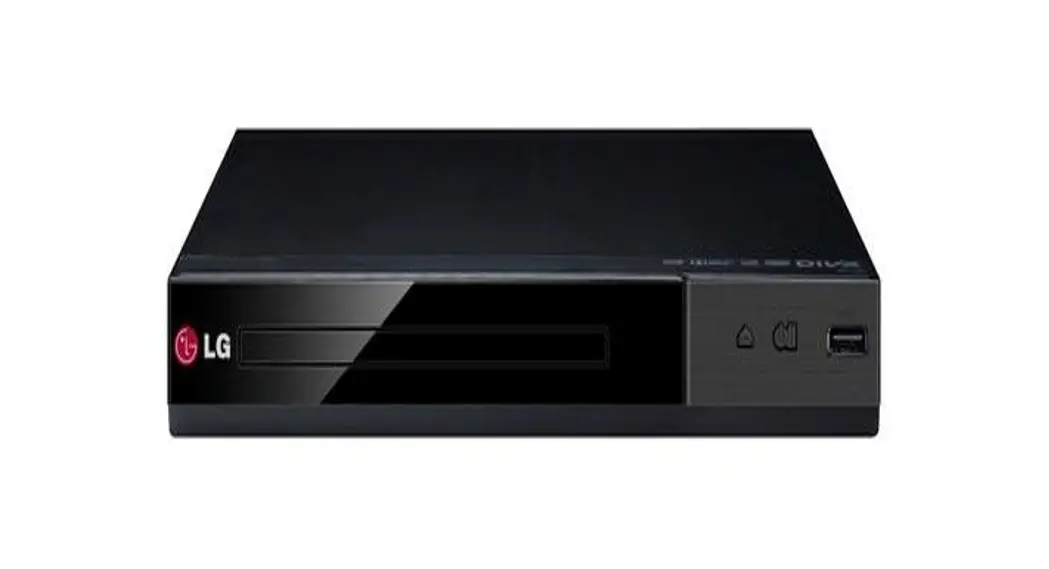
DVD Player
Please read this manual carefully before operating your set and retain it for future reference.
DP132
Safety Information
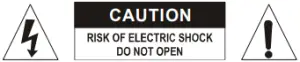
CAUTION: TO REDUCE THE RISK OF ELECTRIC SHOCK DO NOT REMOVE THE COVER (OR BACK) NO USER-SERVICEABLE PARTS INSIDE REFER SERVICING TO QUALIFIED SERVICE PERSONNEL.
 This lightning flash with an arrowhead symbol within an equilateral triangle is intended to alert the user to the presence of uninsulated dangerous voltage within the product’s enclosure that may be of sufficient magnitude to constitute a risk of electric shock to persons.
 The exclamation point within an equilateral triangle is intended to alert the user to the presence of important operating and maintenance (servicing) instructions in the literature accompanying the product.
WARNING: TO PREVENT FIRE OR ELECTRIC SHOCK HAZARDS, DO NOT EXPOSE THIS PRODUCT TO RAIN OR MOISTURE.
WARNING: Do not install this equipment in a confined space such as a bookcase or similar unit.
CAUTION: Do not block any ventilation openings.
Install in accordance with the manufacturer’s instructions.
Slots and openings in the cabinet are provided for ventilation to ensure the reliable operation of the product and to protect it from overheating. The openings shall never be blocked by placing the product on a bed, sofa, rug, or another similar surface. This product shall not be placed in a built-in installation such as a bookcase or rack unless proper ventilation is provided or the manufacturer’s instruction has been adhered to.
CAUTION: This product employs a Laser System.
To ensure proper use of this product, please read this owner’s manual carefully and retain it for future reference. Shall the unit require maintenance, contact an authorized service center.
Use of controls, adjustments, or the performance of procedures other than those specified herein may result in hazardous radiation exposure. To prevent direct exposure to the laser beam, do not try to open the enclosure.
CAUTION concerning the Power Cord
Most appliances recommend they be placed upon a dedicated circuit;
That is a single outlet circuit that powers only that appliance and has no additional outlets or branch circuits. Check the specification page of this owner’s manual to be certain. Do not overload wall outlets. Overloaded wall outlets, loose or damaged wall outlets, extension cords, frayed power cords, or damaged or cracked wire insulation are dangerous. Any of these conditions could result in electric shock or fire. Periodically examine the cord of your appliance, and if its appearance indicates damage or deterioration, unplug it, discontinue use of the appliance, and have the cord replaced with an exact replacement part by an authorized service center. Protect the power cord from physical or mechanical abuse, such as being twisted, kinked, pinched, closed in a door, or walked upon. Pay particular attention to plugs, wall outlets, and the point where the cord exits the appliance. To disconnect power from the mains, pull out the main cord plug. When installing the product, ensure that the plug is easily accessible.
This device is equipped with a portable battery or accumulator.
Safety way to remove the battery or the battery from the equipment: Remove the old battery or battery pack, follow the steps in reverse order than the assembly. To prevent contamination of the environment and bring on possible threats to human and animal health, the old battery or the battery is put in the appropriate container at designated collection points. Do not dispose of batteries or batteries together with other waste. It is recommended that you use local, free reimbursement systems batteries, and accumulators. The battery shall not be exposed to excessive heat such as sunshine, fire, or the like.
CAUTION: The apparatus should not be exposed to water (dripping or splashing) and no objects filled with liquids, such as vases, should be placed on the apparatus.
Notes on Copyrights
- This item incorporates copy protection technology that is protected by U.S. patents and other intellectual property rights of Rovi Corporation. Reverse engineering and disassembly are prohibited.
- Under the U.S. Copyright laws and Copyright laws of other countries, unauthorized recording, use, display, distribution, or revision of television programs, videotapes, DVDs, CDs, and other materials may subject you to civil and/or criminal liability.
Notes on Discs
- Do not touch the playback side of the disc. Hold the disc by the edges so that fingerprints do not get on the surface. Never stick paper or tape on the disc.
- After playing, store the disc in its case. Do not expose the disc to direct sunlight or sources of heat and never leave it in a parked car exposed to direct sunlight.
Notes on the Unit
- Please save the original shipping carton and packing materials. If you need to ship the unit, for maximum protection, re-pack the unit as it was originally packed at the factory.
- To clean the unit, use a soft, dry cloth. If the surfaces are extremely dirty, use a soft cloth lightly moistened with a mild detergent solution. Do not use strong solvents such s alcohol, benzine, or thinner, as these might damage the surface of the unit.
- The unit is a high-tech, precision device. If the optical pick-up lens and disc drive parts are dirty or worn, the picture quality could be diminished. For details, please contact your nearest authorized service center.
Important Safety Instructions
- Read these instructions.
- Keep these instructions.
- Heed all warnings.
- Follow all instructions.
- Do not use this apparatus near water.
- Clean only with a dry cloth.
- Do not block any ventilation openings. Install in accordance with the manufacturer’s instructions.
- Do not install near any heat sources such as radiators, heat registers, stoves, or other apparatus (including amplifiers) that produce heat.
- Do not defeat the safety purpose of the polarized or grounding-type plug. A polarized plug has two blades one wider than the other. A grounding-type plug has two blades and a third grounding prong. The wide blade or the third prong is provided for your safety. If the provided plug does not fit into your outlet, consult an electrician for the replacement of the obsolete outlet. 1
- Protect the power cord from being walked on or pinched particularly at plugs, convenience receptacles, and the point where they exit from the apparatus.
- Only use attachments/accessories specified by the manufacturer.
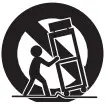
- Use only the cart, stand, tripod, bracket, or table specified by the manufacturer, or sold with apparatus. When a cart is used, use caution when moving the cart/ apparatus combination to avoid injury from tip-over.

Introduction
About the “ ” Symbol Display
“” may appear on your TV display during operation and indicates that the function explained in this owner’s manual is not available on that specific media.
Symbols Used in this Manual
A section whose title has one of the following symbols is applicable only to the disc or file represented by the symbol.
DVD | DVD-Video, DVD±R/RW |
ACD | Audio CDs |
MOVIE | Video files contained in the USB/Disc |
MUSIC | Audio files contained in the USB/Disc |
PHOTO | Photo files contained in the USB/Disc |
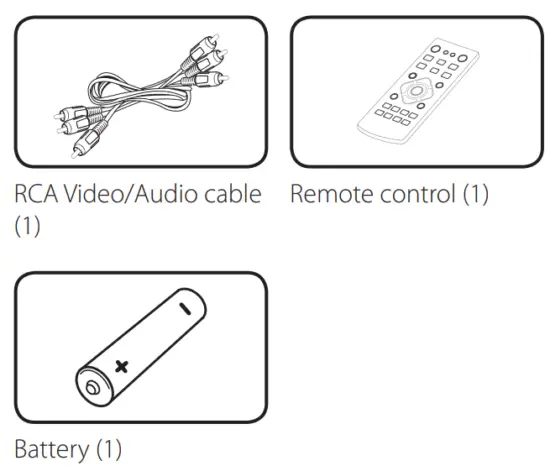
Supplied Accessories
Playable Discs
 | DVD-VIDEO (8 cm / 12 cm disc) Discs such as movies that can be purchased or rented. |
| DVD±R (8 cm / 12 cm disc) – Video mode and finalized only – Supports the dual-layer disc also – DVD±R discs that contain Video, Audio, or Photo files. | |
| DVD-RW (8 cm / 12 cm disc) – VR mode, Video mode, and finalized only – DVD-RW discs that contain Video, Audio, or Photo files. | |
| DVD+RW (8 cm / 12 cm disc) – Video mode and finalized only – DVD+RW discs that contain Video, Audio, or Photo files. | |
 | Audio CD (8 cm / 12 cm disc) |
 | CD-R/RW (8 cm / 12 cm disc) – CD-R/RW discs that contain audio titles, Video, Audio, or Photo files. |
Regional Code
This unit has a regional code printed on the rear of the unit. This unit can play only DVD discs labeled the same as the rear of the unit or “ALL”.
File Compatibility
Overall
Available File extensions: “.avi”, “.mpg”, ”.mpeg”, “.mp3”, “.wma”, “.jpg”, “.jpeg”
- The file name is limited to 20 characters.
- Depending on the size and number of the files, it may take several minutes to read the contents on the media.
Maximum Files/Folder: Less than 600 (total number of files and folders)
CD-R/RW, DVD±R/RW Format: ISO 9660
Video Files
Available resolution size: 720 x 576 (W x H) pixels
Playable subtitle: SubRip (.srt/ txt), SAMI (.smi), SubStation Alpha (.ssa/.txt), MicroDVD (.sub/ .txt), SubViewer 2.0 (.sub/.txt), TMPlayer (.txt), DVD Subtitle System (.txt)
Playable Codec format:
“Xvid”, “MPEG-1”, “MPEG-2”
Playable Audio format: “Dolby Digital”, “PCM”,“MP3”, “WMA”
Sampling frequency: within 8 to 48 kHz (MP3), within 32 to 48 kHz (WMA)
Bit rate (MP3/WMA): within 8 to 320 kbps (MP3), within 32 to 192 kbps (WMA)
Audio Files
Sampling frequency: within 8 to 48 kHz (MP3), within 32 to 48 kHz (WMA)
Bit rate: within 8 to 320 kbps (MP3), within 32 to 192 kbps (WMA)
Photo Files
Photo size: Less than 2M recommended.
- Progressive and lossless compression photo image files are not supported.
Notes of USB Device
- This unit supports USB devices with FAT16 or FAT32 format.
- Do not extract the USB device during operation (play, etc.).
- A USB device that requires additional program installation when you have connected it to a computer is not supported.
- USB device: USB device that supports USB1.1 and USB2.0.
- Movie, music, and photo files can be played. For details of operations on each file, refer to relevant pages.
- Regular backup is recommended to prevent data loss.
- If you use a USB extension cable, USB HUB, USB Multi-reader, or External HDD, the USB device may not be recognized.
- Some USB devices may not work with this unit.
- Digital cameras and mobile phones are not supported.
- The USB Port of the unit cannot be connected to a PC.
The unit cannot be used as a storage device.
Remote Control
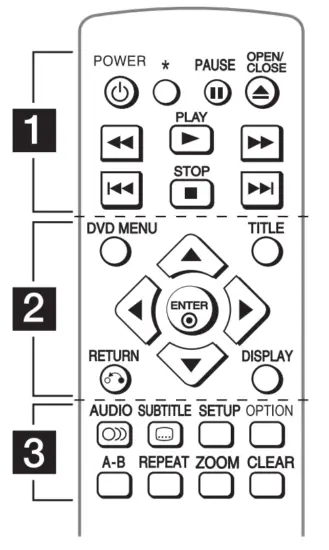
POWER ( ): Switches the unit ON or OFF.
 : This button is not available.
PAUSE (11): Pauses playback.
OPEN/CLOSE (▲): Opens and closes the disc tray.
SCAN (◄◄/►►): Searches backward or forward.
PLAY (►): Starts playback.
SKIP ( /
/ ): Goes to the next or previous
chapter / track / file.
STOP (■): Stops playback.
DVD MENU: Accesses or exits the DVD menu.
TITLE: Accesses the disc’s title menu, if available. /
/ /
/ /
/ : Navigates the menus.
ENTER : Confirms menu selection.
DISPLAY: Accesses or exits On-Screen Display.
RETURN  : Moves backward or exits the menu.
AUDIO : Selects an audio language or audio channel.
SUBTITLE : Selects a subtitle language.
SETUP: Accesses or exits the setup menu.
OPTION: Shows OPTION menu.
A-B: Repeats a section.
REPEAT: Repeats a chapter, track, title, or all.
ZOOM: Enlarges video image
CLEAR: Erases the password.
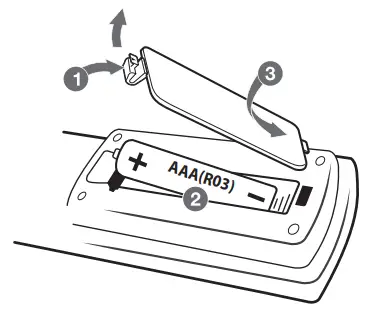
Battery Installation
Remove the battery cover on the rear of the Remote Control, and insert an R03 (size AAA) battery with 4 and 5 matched correctly.
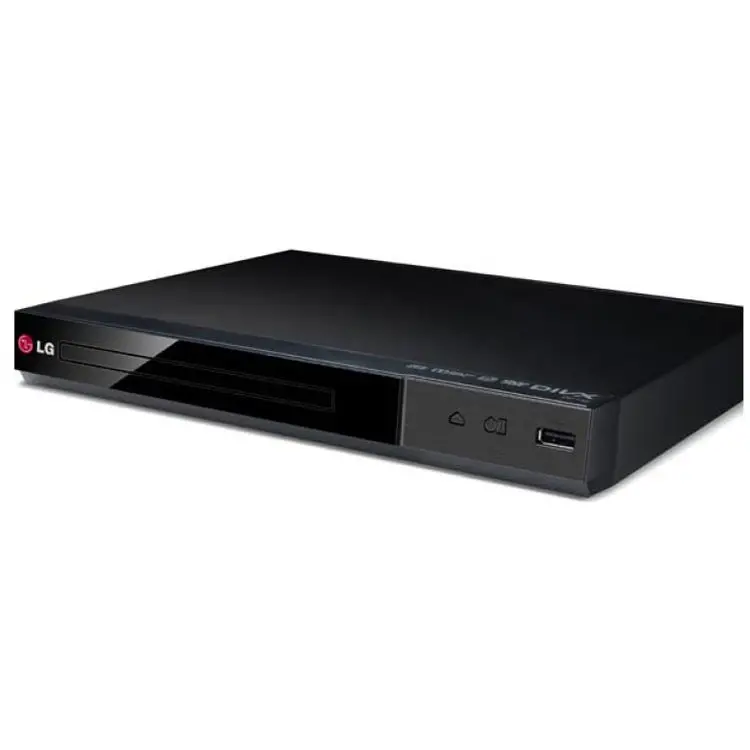
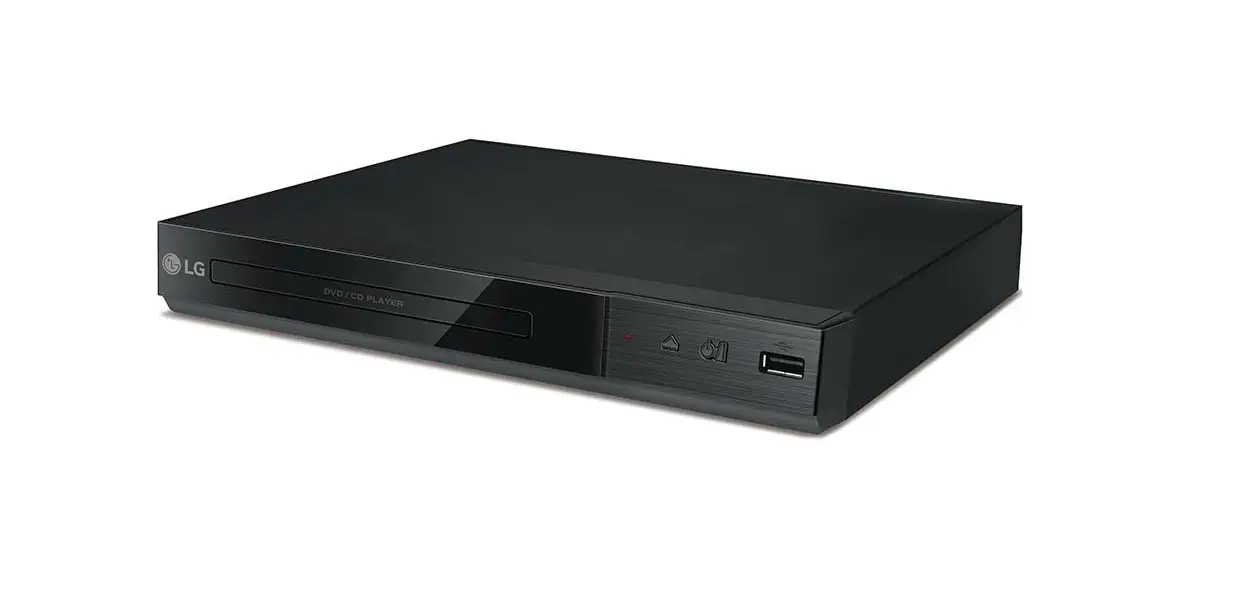
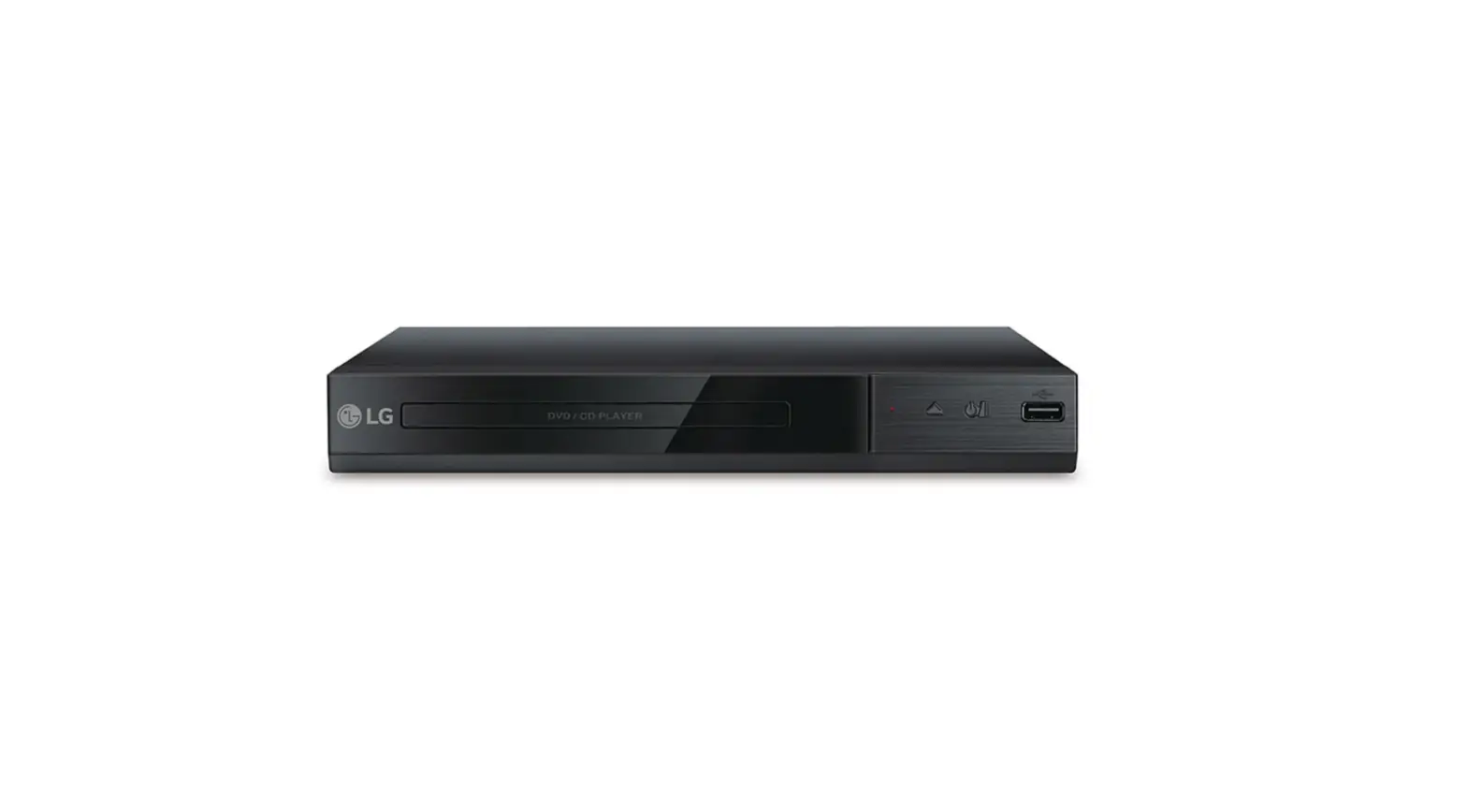
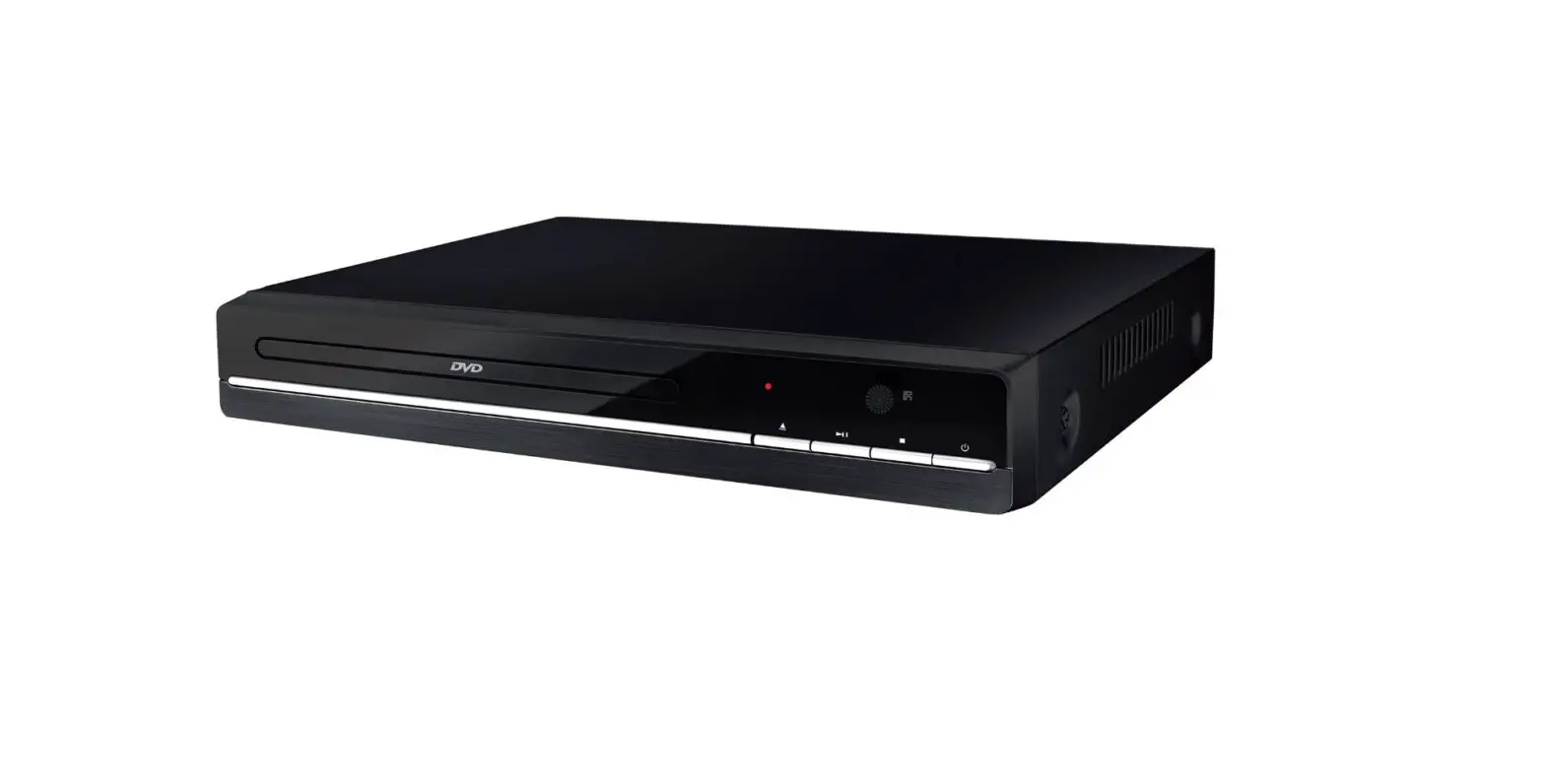
Front Panel
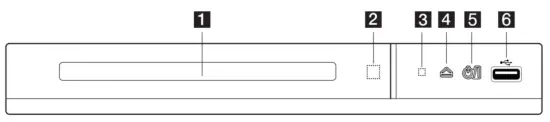
- Disc Tray
- Remote sensor
- Power indicator
 (Open/Close)
 (Power)
- USB Port
 (Open/Close)
 (Power)
Rear Panel
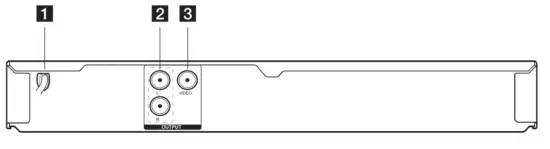
- AC power cord
- AUDIO OUTPUT (Left/Right)
- VIDEO OUTPUT
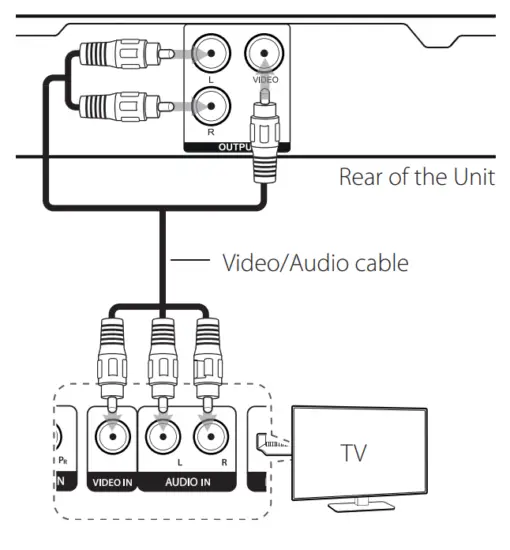
Connecting to your TV
Connecting Video / Audio Cable
Connect the VIDEO/AUDIO OUTPUT on the unit to VIDEO/AUDIO IN on TV with Video/Audio cable, such as VIDEO with yellow, AUDIO Left/Right with white/red.
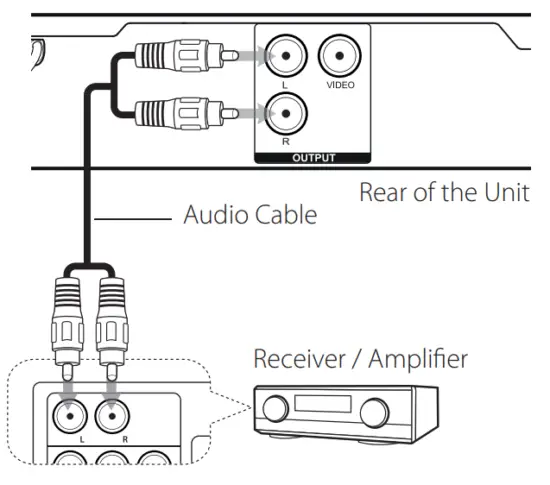
Connecting to an Amplifier
Connecting Audio Cable
Connect the AUDIO OUTPUT (L/R) on the unit to 2CH AUDIO IN on amplifier with Audio cable, such as AUDIO Left/Right with white/red.
 Note
Note
- To see the audio format of the current disc on the on-screen display, press AUDIO.
- The DTS is not supported. In the case of DTS audio format, audio is not output.
Settings
When the unit is turned on for the first time, you have to select the desired language. (Optional)
Adjust the Setup Settings
You can change the settings of the unit in the [Setup] menu.
- Press SETUP.
- Use
 /
/ to select the first setup option, and
Press d to move to the second level. - Use/ to select a second setup option, and
Press d to move to the third level. - Use / to select the desired setting and press
ENTER to confirm your selection.
[LANGUAGE] Menu
Menu Language
Select a language for the Setup menu and onscreen display.
Disc Audio/Subtitle/Menu
Select a language for the Disc Audio/Subtitle/ Menu.
[Original]: Refers to the original language in
which the disc was recorded.
[Other]: To select another language, enter
the corresponding 4-digit number using /// For the language code list, refer to page 19.
[Off] (for Disc Subtitle): Turn off Subtitle.
[DISPLAY] Menu
TV Aspect
Select which screen aspect to use based on the shape of your TV screen.
[4:3]: Select when a standard 4:3 TV is connected.
[16:9]: Select when a 16:9 wide TV is connected.
Display Mode
If you selected 4:3, you’ll need to define how you would like widescreen programs and films to be displayed on your TV screen.
[Letterbox]: This displays a widescreen picture with black bands at the top and bottom of the screen.
[Panscan]: This fills the entire 4:3 screen, cropping the picture as necessary.
[AUDIO] Menu
Set the player’s Audio options according to the various disc output types you use.
DRC (Dynamic Range Control)
Make the sound clear when the volume is turned down (Dolby Digital only). Set to [On] for this effect.
Vocal
Set to [On] only when a multi-channel karaoke DVD is playing. The karaoke channels on the disc mix into normal stereo sound.
[LOCK] Menu
Firstly, you have to create the 4-digit password on [Area Code] to use the LOCK menu.
If you forget the password
Remove the disc and press SETUP and OPTION in order. Then input “2104” using //◀/▶and ENTER The password will be cleared.
Rating
Select a rating level. The lower the level, the stricter the rating. Select [Unlock] to deactivate the rating.
Password
Sets or changes the password for lock settings.
Area Code
To input, the standardized area code referring the
Area Code List on page 18.
[OTHERS] Menu
B.L.E (Black Level Expansion)
Select On or Off to expand the black level or not.
REC Bitrate
You can choose a bit rate for USB direct recording. A higher bit rate gives the better sound quality but uses more space on the USB Flash Drive. For USB direct recording, see page 16.
General Playback
Playing a Disc 
- Press OPEN/CLOSE (), and place a disc on the disc tray.
- Press OPEN/CLOSE () to close the disc tray
For most DVD-ROM discs, playback starts automatically.
For the Audio CD, select a track using and press PLAY (►) or ENTER to play the Track.
To search the desired track, press OPTION, input the tracking number using , and press ENTER .
Playing a File 
- Press OPEN/CLOSE () to place a disc on the disc tray or connect the USB device.
- Select a file using and press PLAY (►) or ENTER to play the file.
| RETURN | Changes between Disc and USB Device. |
| TITLE | Changes the mode. (Music  Photo Movie) Photo Movie) |
On-Screen Display
You can display and adjust various information and settings about the content.
- While playback, press DISPLAY to show various playback information.
- Select an option using /.
- Use
 / to adjust the selected option value.
 - Press DISPLAY to exit the On-Screen display.
 | Current title number/total number of titles |
 | Current chapter number/total number of chapters |
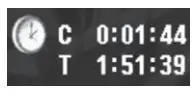 | Elapsed playing time Selected total time of current title/file |
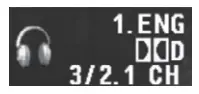 | Selected audio language or channel |
 | Selected subtitle |
 | Selected angle/total number of angles |
General Operation
| To | Do this |
| Playback | Press PLAY (►) |
| Pause | Press PAUSE/STEP (II) |
| Stop | Press STOP (■) |
| Skip to the next or previous | Press or during playback. |
| Fast forward or fast reverse | Press 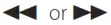 during playback. during playback. |
| Resume playback | Press STOP (■) during playback to save the stopped point. • Press STOP (■) once: Displayed II ■ on the screen (Resume Stop) • Press STOP (■) twice: Displayed ■ on the screen (Complete Stop) |
| Screen Saver | Leave the unit in Stop mode for about five minutes, then the screen saver appears. If the Screen Saver is displayed for five minutes, the unit auto- matically turns itself off. |
| Last Scene Memory | Turn off the unit, then the unit memorizes the lastly viewed scene even if the disc is inserted again after removal of the unit is turned on after off with the same disc. (DVD/ Audio CD only) |
Advanced Playback
Movie
| To | Do this |
| Display disc menu | Press DVD MENU. (DVD Only) |
| Play repeatedly | Press REPEAT during playback. To select an option to be repeated, Press REPEAT repeatedly. DVD: Chapter/Title/ Off MOVIE: Track/ All/ Off |
| Play frame-by- frame | Press PAUSE(II) while the Video file playback and press PAUSE(II) repeatedly to play Frame- by- Frame playback. |
| Repeat a specific portion | Press A-B at the beginning of the portion you wish to repeat and again at the end of the portion. To return to normal playback, press A-B to select [Off]. |
| Set the desired starting time of playback | Searches for the starting point of entered time code. Press DISPLAY then selects the clock icon. Press OPTION and enter a time using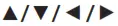 . Select [OK] then press ENTER(®). . Select [OK] then press ENTER(®).For example, to find a scene at 1 hour, 10 minutes, and 20 seconds, enter”11020″ and press ENTER |
| Change the subtitle code page (Video file only) | Press and hold SUBTITLE for 3 seconds during playback. The language code will appear. Press / to select another language code until the subtitle is displayed properly and then press ENTER |
| Slow down the playing speed (Forward only) | While the playback is paused, press►►repeatedly to play various speeds of slow motion. Press PLAY (►) to continue to play at normal speed. |
| Watch an enlarged video | During playback or pause mode, press ZOOM repeatedly to select zoom mode. ZOOM: 100% 200% 300% 400% 100%: Move through the zoomed picture. |
Music
| To | Do this |
| Play repeatedly | Press REPEAT during playback. To select an item to be repeated, Press REPEAT repeatedly. • TRACK/ ALL/ (REPEAT Off ) |
| Create or delete your own program | Select the desired file in [List] and press ▶ to move to “ “, and then press ENTER to create the music lists. “, and then press ENTER to create the music lists.To delete music programmed, select the undesired file in [Program] and press ▶ to move to  , and then press ENTER. , and then press ENTER.To delete all from programmed lists, select [Clear All], and then press ENTER . |
| Display file information (ID3 TAG). | While playing an MP3 file containing file information, you can display the information by pressing DISPLAY repeatedly. • Depending on the MP3 files, information may not be displayed on the screen. |
| Record the Audio CD to a USB device | Connect USB Flash Drive to the unit before recording. Insert an Audio CD, and then select a track using /, DVD MENU.• For track recording: Press AUDIO in play, pause or resume stop mode.• For all track recordings: Press AUDIO in complete stop mode.• For program list recording: In stop mode, press AUDIO after selecting a track on the program list. |
Operating
Note
- If you use this function, the “CD_REC” folder will be created automatically in the USB Flash Driver then the music file(s) is saved in it.
- If you remove USB Flash Drive, and turn it off or open the unit while recording, it can make a malfunction.
- If the remaining space on the USB Flash Drive is insufficient, the recording is not available. To increase the free space, delete files in it using your PC.
- CD-G discs and Audio CDs encoded in DTS cannot be recorded.
- External HDD, Multi Card reader, Multi Partition USB, Locked device, and MP3 player are not supported.
- You can set the recording speed by pressing OPTION during USB direct recording.
– X1 Track: While normal speed recording, you can listen to the music.
– X4 Track: While 4X speed recording, you can not listen to the music. - Recording format: MP3 file
- Encoding Bit rate: 128 Kbps / 160 Kbps /192 Kbps / 256 Kbps / 320 Kbps
The making of unauthorized copies of copy-protected material, including computer programs, files, broadcasts, and sound recordings, may be an infringement of copyrights and constitute a criminal offense. This equipment should not be used for such purposes.
Be responsible Respect copyrights
Photo 
| To | Do this |
| View photo files as a slide show | Use to highlight  the icon then press ENTER to start the slide show. the icon then press ENTER to start the slide show. |
| Adjust slide show speed | You can change the slide show speed using ◀ /► when  the icon is highlighted. the icon is highlighted. |
| Rotate a photo | Use ▲/ ▼ to rotate the photo in full screen counterclockwise or clockwise while viewing a photo on full screen. |
| Watch an enlarged Photo | While viewing a photo on full screen, press ZOOM repeatedly to select zoom mode. ZOOM: 100%
|
| Listen to music during the slide show | You can listen to music during the slide show if the disc contains music and photo files together. Use |
 icon then press ENTER
 Troubleshooting
| Symptom | Cause | Solution |
| No power. | The power cord is disconnected. | Plug the power cord into the wall outlet securely. |
| The power is on, but the unit does not work. | No disc is inserted. | Insert a disc. |
| The unit does not start playback. | An unplayable disc is inserted. | Insert a playable disc. (Check the disc type and regional code.) |
| The rating level is set. | Change the rating level. | |
| The remote control does not work properly. | The remote control is not pointed at the remote sensor on the unit. | Point the remote control at the remote sensor of the unit. |
| The remote control is too far from the unit. | Operate the remote control closer to the unit. | |
| Poor picture quality and sound distortion. | Fingerprints and dust are stained on the disc. | Wipe the disc from the center out with a clean cloth. Do not use strong solvents. (alcohol, benzine, thinner, commercially available cleaners) |
| No picture. | The TV is not set to receive the signal from the unit. | Select the appropriate video input mode on the TV. |
| The video cable is not connected securely. | Connect the video cable securely. | |
| No sound. | The equipment connected with the audio cable is not set to receive the signal from the unit. | Select the correct input mode of the audio amplifier. |
| The AUDIO options are set to the wrong position. | Set the AUDIO settings to the correct position. |
Area Code List
Choose an area code from this list.
| Area | Code | Area | Code | Area | Code | Area | Code |
| Afghanistan | AF | Fiji | FJ | Monaco | MC | Singapore | SG |
| Argentina | AR | Finland | FI | Mongolia | MN | Slovak Republic | SK |
| Australia | AU | France | FR | Morocco | MA | Slovenia | SI |
| Austria | AT | Germany | DE | Nepal | NP | South Africa | ZA |
| Belgium | BE | Great Britain | GB | Netherlands | NL | South Korea | KR |
| Bhutan | BT | Greece | GR | Antilles | AN | Spain | ES |
| Bolivia | BO | Greenland | GL | New Zealand | NZ | Sri Lanka | LK |
| Brazil | BR | Hong Kong | HK | Nigeria | NG | Sweden | SE |
| Cambodia | KH | Hungary | HU | Norway | NO | Switzerland | CH |
| Canada | CA | India | IN | Oman | OM | Taiwan | TWO |
| Chile | CL | Indonesia | ID | Pakistan | PK | Thailand | TH |
| China | CN | Israel | IL | Panama | PA | Turkey | TR |
| Colombia | CO | Italy | IT | Paraguay | PY | Uganda | UG |
| Congo | CG | Jamaica | JM | Philippines | PH | Ukraine | UA |
| Costa Rica | CR | Japan | JP | Poland | PL | United States | US |
| Croatia | HR | Kenya | KE | Portugal | PT | Uruguay | UY |
| Czech Republic | CZ | Kuwait | NO | Romania | RO | Uzbekistan | UZ |
| Denmark Ecuador | DK EC | Libya Luxembourg | LY LU | Russian Federation | RU | Vietnam Zimbabwe | VAN ZW |
| Egypt | EG | Malaysia | MY | Saudi Arabia | SA | ||
| El Salvador | SV | Maldives | MV | Senegal | SN | ||
| Ethiopia | ET | Mexico | MX |
Language Code List
Use this list to input your desired language for the following initial settings: [Disc Audio], [Disc Subtitle], and [Disc Menu].
| Language | Code | Language | Code | Language | Code | Language | Code |
| Afar | 6565 | French | 7082 | Lithuanian | 7684 | Sindhi | 8368 |
| Afrikaans | 6570 | Frisian | 7089 | Macedonian | 7775 | Singhalese | 8373 |
| Albanian | 8381 | Galician | 7176 | Malagasy | 7771 | Slovak | 8375 |
| Amharic | 6577 | Georgian | 7565 | Malay | 7783 | Slovenian | 8376 |
| Arabic | 6582 | German | 6869 | Malayalam | 7776 | Spanish | 6983 |
| Armenian | 7289 | Greek | 6976 | Maori | 7773 | Sudanese | 8385 |
| Assamese | 6583 | Greenlandic | 7576 | Marathi | 7782 | Swahili | 8387 |
| Aymara | 6588 | Guarani | 7178 | Moldavian | 7779 | Swedish | 8386 |
| Azerbaijani | 6590 | Gujarati | 7185 | Mongolian | 7778 | Tagalog | 8476 |
| Bashkir | 6665 | Hausa | 7265 | Nauru | 7865 | Tajik | 8471 |
| Basque | 6985 | Hebrew | 7387 | Nepali | 7869 | Tamil | 8465 |
| Bengali; Bangla | 6678 | Hindi | 7273 | Norwegian | 7879 | Telugu | 8469 |
| Bhutani | 6890 | Hungarian | 7285 | Oriya | 7982 | Thai | 8472 |
| Bihari | 6672 | Icelandic | 7383 | Panjabi | 8065 | Tonga | 8479 |
| Breton | 6682 | Indonesian | 7378 | Pashto, Pushto | 8083 | Turkish | 8482 |
| Bulgarian | 6671 | Interlingua | 7365 | Persian | 7065 | Turkmen | 8475 |
| Burmese | 7789 | Irish | 7165 | Polish | 8076 | Twi | 8487 |
| Byelorussian | 6669 | Italian | 7384 | Portuguese | 8084 | Ukrainian | 8575 |
| Chinese | 9072 | Japanese | 7465 | Quechua | 8185 | Urdu | 8582 |
| Croatian | 7282 | Kannada | 7578 | Rhaeto-Romance | 8277 | Uzbek | 8590 |
| Czech | 6783 | Kashmiri | 7583 | Rumanian | 8279 | Vietnamese | 8673 |
| Danish | 6865 | Kazakh | 7575 | Russian | 8285 | Volapük | 8679 |
| Dutch | 7876 | Kirghiz | 7589 | Samoan | 8377 | Welsh | 6789 |
| English | 6978 | Korean | 7579 | Sanskrit | 8365 | Wolof | 8779 |
| Esperanto | 6979 | Kurdish | 7585 | Scots Gaelic | 7168 | Xhosa | 8872 |
| Estonian | 6984 | Laotian | 7679 | Serbian | 8382 | Yiddish | 7473 |
| Faroese | 7079 | Latin | 7665 | Serbo-Croatian | 8372 | Yoruba | 8979 |
| Fiji | 7074 | Latvian, Lettish | 7686 | Shona | 8378 | Zulu | 9085 |
| Finnish | 7073 | Lingala | 7678 |
Specifications
| Power requirements | AC 120 V, 60 Hz |
| Power consumption | 9 W |
| Dimensions (W x H x D) | (250 x 37.5 x 203) mm |
| Net Weight (Approx.) | 0.9 Kg |
| Operating temperature | 0 °C to 40 °C |
| Operating humidity | 5 % to 90 % |
| Laser | Semiconductor laser |
| Signal system | NTSC |
| Bus Power Supply (USB) | DC 5 V 200 mA 200 mA |
| VIDEO OUTPUT | 1.0 V (p-p), 75 Ω, sync negative, RCA jack x 1 |
| ANALOG AUDIO OUTPUT | 2.0 Vrms (1 kHz, 0 dB), 600 Ω, RCA jack (L, R) x 1 |
Design and specifications are subject to change without prior notice.
Trademarks and Licenses
All other trademarks are trademarks of their respective owners.

Manufactured under license from Dolby Laboratories. Dolby and the double-D symbol are trademarks of Dolby Laboratories.
“DVD Logo” is a trademark of DVD Format/Logo Licensing Corporation.