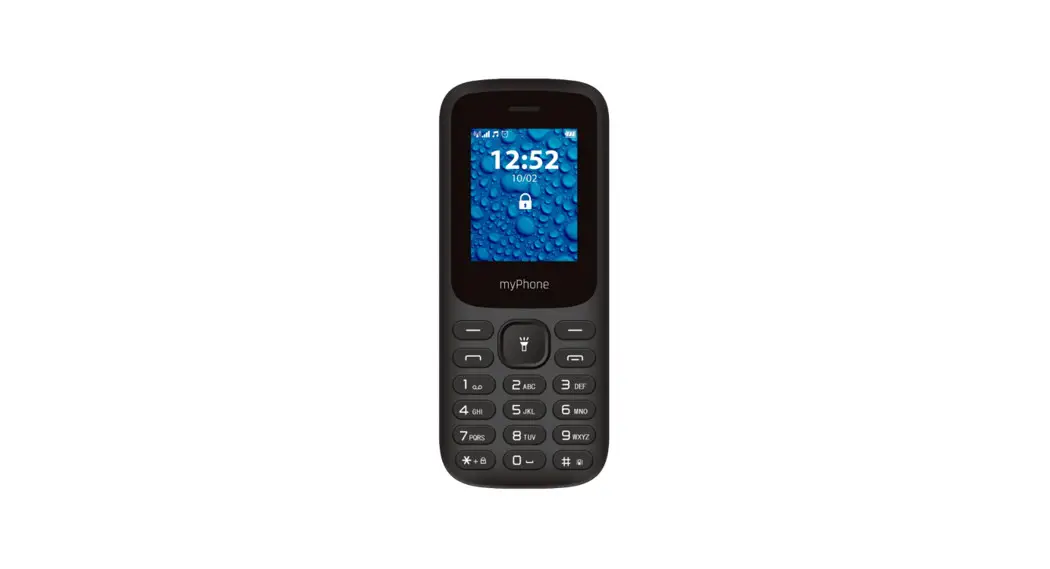
 2220 2G Mobile Phone
Instruction Manual
2220 2G Mobile Phone
©2022 mPTech. All rights reserved.
Thank you for choosing 2220 device.
Please read the manual carefully.
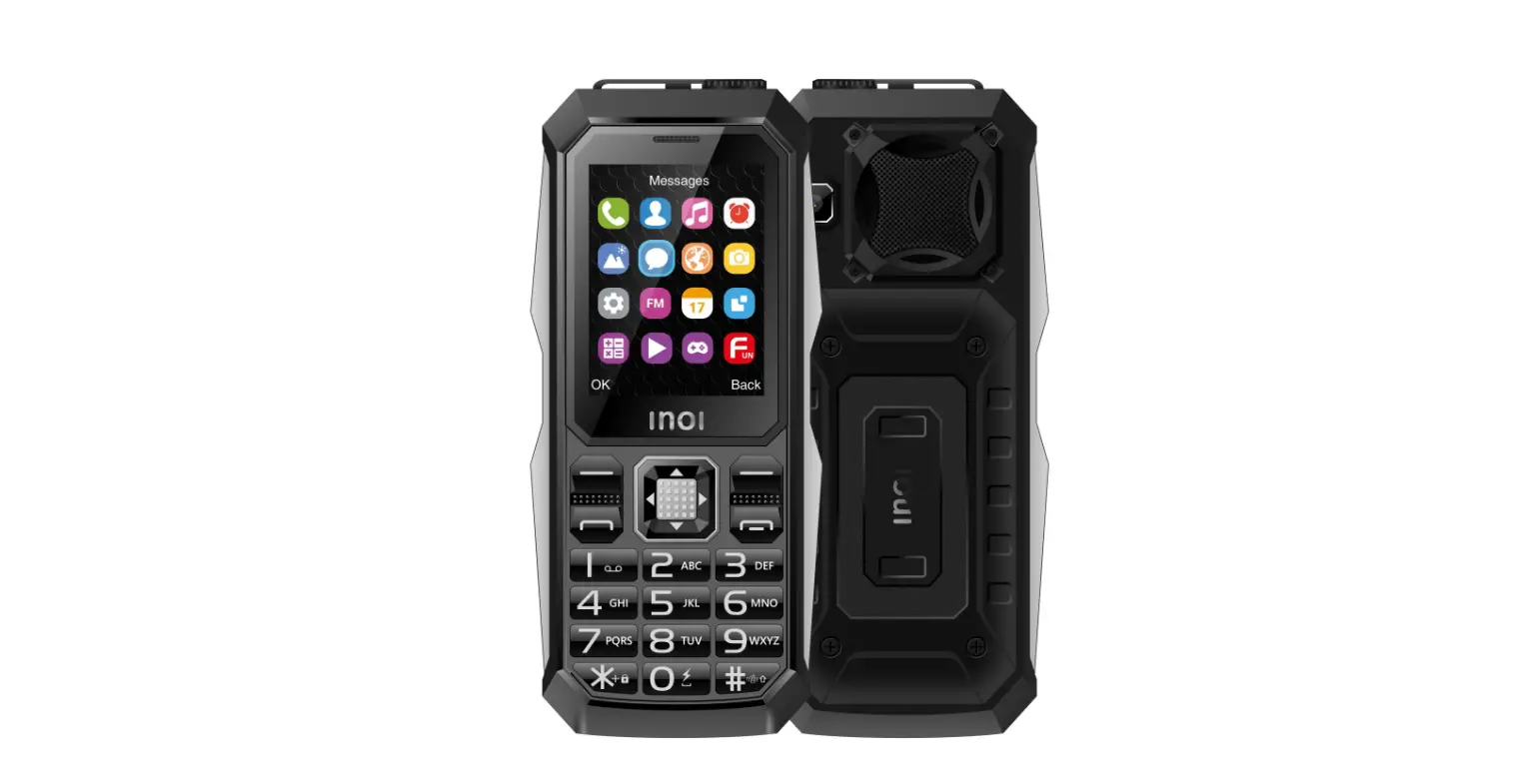
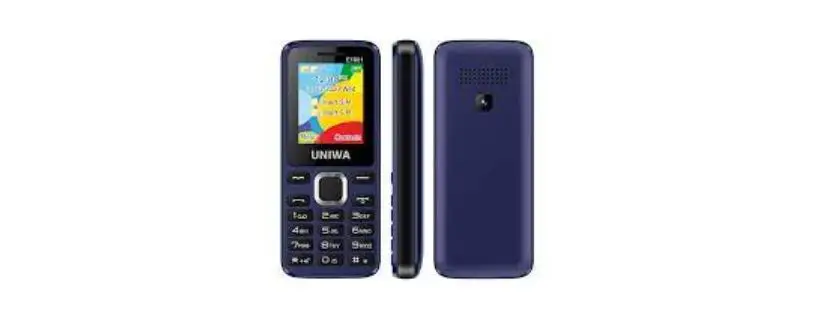
myPhone 2220 has a contrasting, colorful display, a torch, Bluetooth and support for dual SIM.
Without prior written consent of the manufacturer, no part of this manual may be photocopied, reproduced, translated or transmitted in any form or by any means, electronic or mechanical, including photocopying, recording or storing in any systems of storing and sharing information.
Safety
Read these guidelines carefully. Not following them may be dangerous or illegal. Depending on the installed version of the software, service provider, SIM card or country, some of the descriptions in this manual may not match your phone, and the phone itself and its accessories might differ from the one included in the illustrations in this manual
—DO NOT RISK—
All wireless devices may cause interferences, which could affect the quality of other connections. Do not switch the device on in places which are prohibited from using cell phones, or when it may cause interferences or other dangers. Always abide by any kinds of prohibitions, regulations and warnings conveyed by the staff.
—RESTRICTED AREAS—
Switch OFF your telephone in an airplane since it may disturb the operation of other equipment located therein. The telephone may interfere with operation of the medical equipment in hospitals and health protection entities. Abide by any kinds of prohibitions, regulations and warnings conveyed by the medical staff or warning sings.
—QUALIFIED SERVICE—
Only qualified personnel or an authorized service center may install or repair this product. Repairing the device by an unqualified or unauthorized service technician may result in damage to the device and void the warranty.
—WATER AND OTHER LIQUIDS—
Protect the device from water and other liquids. It can influence work and the life span of electronic components. Avoid using the device in environments with high humidity like kitchens, bathrooms or during rainy weather. Particles of water can cause the liquefaction of moisture in the device, and this may have a negative impact on the work of electronic components.
—CHILDREN AND PHYSICALLY OR MENTALLY DISABLED PEOPLE—
The device must not be used by children under 8 years of age without the supervision of adults responsible for their safety and by persons with limited motor or mental predispositions if they prevent them from operating the device safely. Remember, the device is not a toy. The memory card and SIM card are small enough to be swallowed by a child or cause choking. Keep the device and its accessories away from children.
—ALARM CALLS—
Making alarm calls may not be possible in some areas or circumstances. It is recommended to find an alternative way to notify emergency services if you are going to this type of remote areas.
—ROAD SAFETY—
Do not use this device while driving any kind of vehicle.
—BATTERY AND ACCESSORIES—
Avoid exposing the battery to very high/low temperatures (below 0°C/32°F and over 40°C/104°F). Extreme temperatures may influence capacity and battery life. Avoid contact with liquids and metal objects as it may cause partial or complete battery damage. The battery should be used according to its purpose. Do not destroy, impair or throw the battery into flames – it might be dangerous and may cause fire. Worn-out or impaired battery should be placed in a dedicated container. Excessive charging the battery can cause damage. Therefore, a single battery charge should not last longer than 1 day. Installing an incorrect battery type can cause an explosion. Never open the battery. Please dispose of battery according to the instructions. Disconnect an unused charger from power grid. In case of the charger wire damage, it should not be repaired but replaced with a new one. Use the original manufacturer’s accessories only.
—PETROL STATIONS—
Always turn off the phone while refueling your car on petrol station. Do not use your device close to chemicals. —HEARING—
To avoid hearing damage, do not use the device at high volume levels for a long period of time, do not put operating device directly to an ear. —EYESIGHT—
To avoid eyesight damage do not look closely onto the flash light during its work. A strong bean of light may cause permanent eye damage!
| Manufacturer: mPTech Sp. z o.o. Nowogrodzka 31 street 00-511 Warszawa, Polska www.myphone-mobile.com | Equipment delivery location: mPTech Sp. z o.o. Krakowska street 119 50-428 Wrocław, Poland Helpline: (+48 71) 71 77 400 |
Package content
Before you start using your phone, make sure all of the following items are included in the box:
- myPhone 2220,
- battery,
- charger,
- user manual,
 If any of the above items is missing or damaged, please contact your dealer. It is recommended to keep the packaging in case of any complaint. Keep the container out of reach of children.
The current manual or a more detailed version of this manual is also available on the manufacturer’s website: www.myphone.pl/qr/myphone-2220
Depending on the installed version of the software, service provider, SIM card or country, some of the descriptions in this manual may not match your phone.
Depending on the country, service provider, SIM card or device version, the phone and its accessories may differ from the illustrations included in manual. The descriptions contained in this manual are based on the default settings of the phone.
Technical Specifications
- Two SIM card slots, speakerphone mode, a torch, FM radio, Bluetooth
- Display: 1’77”
- Battery capacity: 600 mAh
- Dimensions: 112,8 x 46,8 x 14,9 mm
- Weight: 66 g
- Additional features: Voice keys, calculator, alarm clock, calendar
- Input parameters chargers: 100-240 V~ 0.3A, 50/60 Hz
- Output parameters ładowarki: 5.0V 0.55A, 2.75W
- Average efficiency during operation (for 230V, 50hz): 73.33%
- Energy consumption in no-load condition: less than 0.3W
Introduction
Appearance of the phone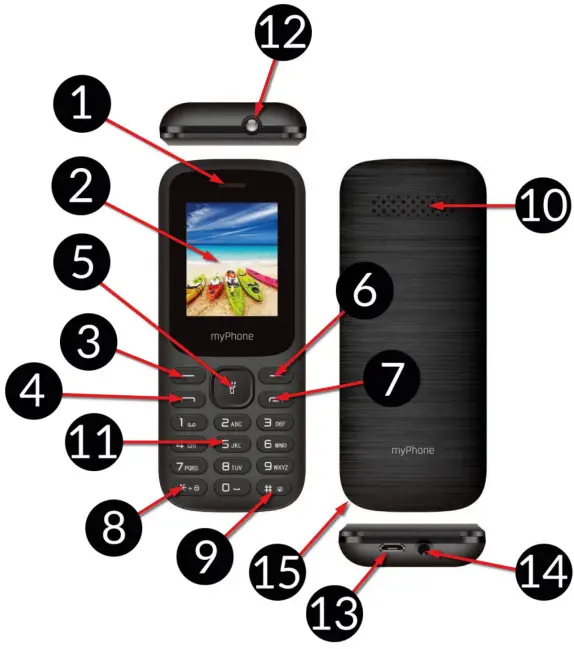
| 1 | Speaker | A speaker used in phone conversations. |
| 2 | Display | LCD display |
| 3 | <Menu> button | While on the main screen enables entering the Menu, and confirms choice while in the Menu, |
| 4 | <Green handset> button | Allows you to receive an Incoming call or look through the list of all calls, |
| 5 | Navigation button up / down / left / right | While in menu enables navigating around the menu. On the main screen Hunches shortcuts to selected functions, |
| 6 | <Contacts> button | On the Main screen it Hunches the Phonebook, While in the menu you can exit or opt out, |
| 7 | <Red handset> button | Allows you to reject an incoming call, While in the menu allows you to return to the main screen, When held for a long time, it turns off the phone or, if it is switched off, turns it on. |
| 8 | </e> button | Press the Menu key to lock or unlock the phone. Decreases volume in multimedia apps When writing an SMS, it displays symbols for insertion into the content. |
| 9 | <#> button | Switches between audio modes and character input modes for texting, increases the volume in multimedia applications. |
| 10 | External speaker | Loudspeaker for system sounds, ringtones, music. |
| 11 | Phone keypad | Buttons allowing you to dial a phone number and, in the text message mode, type letters and digits. |
| 12 | LED | Diode is used as a torch. |
| 13 | Micro USB port | When connected, the charger enables recharging the battery. You can transfer data (photos, videos, music) when you connect it to your computer. |
| 14 | Headphone port minijack 3.5 mm | Allows you to connect headphones to the phone, so you can listen to the radio (they improve the quality of reception – they work as an additional antenna), music, as well as make calls (when headphones are equipped with a microphone). |
| 15 | Gap | Allows to take off a cover of the phone. |
Turning the phone on/off
To turn the phone on/off press and hold the <Red handset> button. If you are prompted to enter a PIN code as soon as the phone is switched on, enter the PIN code (you will see it as ****) and press the [Menu] key.
Inserting SIM, memory cards and the battery If the phone is switched on – switch it off. Remove the back cover of the phone – use your fingernail to raise it using the gap in the case. Insert the SIM card – It is supposed to be placed with its gold contacts facing down, the way in which the slot is embossed. Insert the memory card – to open the cover of the card reader slide it gently up. Insert the microSD memory card with its gold contacts facing down, the way in which the slot is embossed. Close the flip by sliding it delicately downwards. Insert the battery so that its gold contacts touch the triple connector in the phone bay. Put on and gently press down the cover until you hear the click of the latches. Make sure the cover is well attached.
Charging the battery
Connect the micro USB plug of the charger to the charging connector on the phone, then plug the charger into a power outlet.
*Attention: Improper connection of the charger cable can cause serious damage to the phone and/or the charger. Damage caused by improper use of the phone and its accessories is not covered by the warranty.
The icon  (or similar) will appear during charging and when the battery is fully charged. When charging is complete unplug the charger from the power outlet. Unplug the cable from the socket on the phone.
Using the basic functions
Keypad lock
To lock the keyboard press [Menu] > <*> To unlock the keyboard press [Unlock] > <*>.
Phone menu access
To access the phone menu, press the <Menu> button above the <green handset> or <OK> button with the phone’s main desktop activated.
By pressing navigation buttons <up>, <down>, <left> or <right>, move to the wanted menu icon.
Press <Menu> or <OK> button to confirm your choice (and enter the menu item) or <back> to return to previous menu/desktop.
Customize your phone
The myPhone 2220 can be customized to suit your needs. This makes its use more enjoyable and easier.
Sounds and user profiles
To set ringtones and volume in the phone use [Profiles] option. To activate it, select [Menu] > [Profiles] > <OK>. Choose the appropriate sound profile from the list and select <OK> to activate the selected profile or [Options] > [Customize] > [Select] to edit the profile according to your preferences. Available sound profile options:
- [Alert type] – allows to choose from: Ring only, Vibrations only or both.
- [Ring type] – allows to choose ring type, – “repeat” or “once” mode.
- [SIM 1 Ringtone] or [SIM 2 Ringtone] – this option allows to change incoming call ringtone melody for SIM 1 or SIM 2. Enter choose the melody and confirm with <OK> button.
- [Ringtone volume] – allows to adjust the volume of the ringtone with <up> and <down> buttons. Confirm your choice with <OK> button.
- [SIM1 message] or [SIM2 message] – this option allows you to change the notification sound for SIM 1 or SIM 2. Enter, select the sound and confirm with <OK>.
- [Message volume] – allows to adjust the volume of the ringtone with <up> and <down> buttons. Confirm your choice with <OK> button.
- [Keyboard] – allows you to select the type of key sound (Silent, Click, Sound).
Confirm your choice with <OK> button. - [Keytone volume] – allows to adjust the volume of the keypad with <up> and <down> buttons. Confirm your choice with <OK> button.
- Power on] – allows you to enable sounds when starting the phone.
- [Power off] – allows you to enable sounds when turning off the phone.
- [System alert] – allows you to turn on or off system sounds of the phone.
Save the changes by [Options] > [Save].
Turning the „Silent” mode on and off
The <#> key is used to switch sounds to vibration in the standby mode. Press and hold it for approx. 2 seconds until a profile activation message and profile symbol icon appear. By pressing and holding the <#> key again will return to the previous sound profile.
Call handling functions
Calling
To call a number stored in the [Contacts] submenu (phonebook), select [Menu] > [Contacts] > search for the desired contact (by typing the contact name using the keypad) in standby mode, then highlight the contact and make the call by pressing the <Green Handset> button, and then select the SIM card.
We recommend that you enter the area code prior to the telephone number.
Unlock your phone and select a contact from the phonebook – [Phonebook]. Press <green handset> button to start the call. Press <red handset> button to finish the call.
Answering
Press <green handset> to answer an incoming call. Press <red handset> to finish/ reject the call.
Messages
Creating and sending text messages
Enter: [Menu] > [Messages] > [Write message]. Type in the message using the keypad.
Sings are typed in letter by letter.
The phone is not equipped with a dictionary. <#> button is used to change the writing mode. You can choose from, among others Abc – the first letter will be capital, the rest lower case, abc – only lowercase, ABC – only uppercase, 123 – digits only. To enter a diacritical character i.e. period, comma, dash, etc., press <*> and choose from the list, or press the 1 a correct number of times. To enter a space between the words press <0> button.
When you have entered the message, press [Options] > [Send to] and enter the number using the keypad or add it from the phone list. After entering the number/choosing a contact enter: [Options] > [Send], to send the message.
Messages display
Enter: [Menu] > [Messages] > [Inbox], choose a message from the list and select <OK> or [Options] > [View] to see the message itself.
List of contacts
Adding a new contact
Enter [Menu] > [Phonebook] > [Add new contact]. Enter the contact details: name, phone number, photo. You can also assign a ringtone to a contact.
Press [Options] > [Save] to save the contact.
Search for a contact
Enter [Menu] > [Phonebook]. Enter the first letter of the contact. Phone numbers beginning with that letter will appear in the list. To find another contact use navigation buttons <Up> and <Down>. After searching and chosing a contact enter [Options] a list of available options will appear:
- [View] – to see the details of a chosen contact.
- [Send message] – to send text message to a chosen contact.
- [Call] – to make a call
- [Edit] – to edit the contact details.
- [Delete] – to delete a chosen contact.
- [Copy] – to copy a chosen contact.
- [Send business card] – to send information about a given contact.
- [Add to blacklist] – to add to chosen contact to unwanted and blocked numbers.
- [Mark several] – to mark several to send text messages to multiple contacts
- [Phonebook settings] – allows you to set the location of contacts (SIM cards, phone memory, both), view the memory status, copy, move, delete contacts and also set up speed dial on the phone.
Deleting contacts
To delete all contacts from the phone enter: [Menu] > [Contacts] > [Options] > [Phonebook settings] > [Delete all contacts] > [Ok] choose from [from SIM 1], [from SIM 2] or [from Phone] To delete a single contact enter: [Menu] > [Contacts] and search for the contact you wish to erase, then enter [Options] > [Delete] and confirm using <OK>.
Using the basic functions
Missed calls
Missed calls are displayed on the screen of the phone. An appropriate icon on the screen will inform you about a missed call. To check who called, press [View]. Another option is to enter [Menu] > [Calls] > [Call history] > [Missed Calls]. To connect to the sender of an unanswered call, select it from the list, press the <green handset> button on your phone’s keypad, and select the SIM card.
Speakerphone mode
During a call press [Speaker], to activate speakerphone mode.
Dual SIM open
Dual SIM function enables using 2 SIM cards simultaneously. To use that function one should mount two SIM cards in the phone (SIM slots are placed beneath the phone battery). Subsequently enter [Menu] > [Settings] > [Dual SIM settings] . You have the following options to choose from:
- [Dual SIM open] – so that both SIM cards are enabled,
- [SIM 1 only] and [SIM 2 only] – to activate SIM 1 or SIM 2.
If the Dual SIM option has been chosen on the phone, each time a call is made or a message sent, the phone will display a question about which SIM card to use. Connecting your phone to the computer
myPhone 2220 can be plugged to the PC computer using a USB cable. This allows you to view and exchange data between your computer and your phone when a microSD card is installed. To do this, you must:
- Connect the micro USB connector to USB port in your phone then connect the USB connector to a USB port on your computer.
- An information about USB connection should be displayed on your phone screen.
- Choose [Mass storage].
The phone is now connected to the computer. The contents of the phone memory can be viewed using Windows Explorer.
International calls
While on the main screen press the <*> button twice until the “+” sign appears. Enter the full phone number of the recipient (the country code and the telephone number), and then press <green handset> to make a call.
Other phone features
Time and date settings
To set time and date enter: [Menu] > [Settings] > [Phone settings] > [Time and date] and a list will apear:
- [Set default city] – to adjust the time zone.
- [Set time/date] – to change the date and/or time.
- [Set format] – to set format of date and time.
- [Update with time zone] – to set the automatic time update.
Power on/off scheduling
Allows you to set the phone to automatically start up and shut down. To set scheduling, select [Power on] or [Power off] and set the time.
Menu language Menu
To set the device’s language, go to [Menu] > [Settings] > [Phone settings] > [Language] and then select the desired menu language.
Emergency language change
To set the user’s language when someone has accidentally selected an unfamiliar one, press the [Menu] > <OK> > <Down> > <OK> > <Down> > <OK> button sequence while the main screen is active, and then select the desired menu language
Displays setting
Select [Menu] > [Settings] > [Phone settings] > [Display], and you will see options:
- [Wallpapers] > [System] if you want to choose from system wallpapers or [User defined] if you want to add your own wallpaper from microSD memory card and choose any picture from the list. To see a preview of given picture select <OK>. To select the chosen picture as a wallpaper press: [View] > [OK].
- [Auto. screen lock] – set after what time the screen should lock.
- [LCD backlight] – allows you to adjust the brightness and backlight time of the screen.
- [Key backlight] – allows you to set the keypad backlighting time.
- [Animation for turning the phone on] and [Animation for turning the phone off] – allows you to edit the animation when turning the phone on or off.
- [Show date and time] – allows you to set date and time display on the home screen
- [Show carrier name] – allows you to set the display of SIM card network carriers’ names on the home screen.
Call settings
Enter [Menu] > [Call center] > [Call settings]. You can set up a waiting call, forwarding call and call barring and line change. In [Advanced settings] you can set and edit the list of blocked phone numbers – [Blacklist] and allowed phone numbers [Whitelist], auto redial, call length timer, and select SMS call reject mode, call answering method and automatic call recording.
Call logs
To view the call register select [Menu] > [Call Center] > [Call logs]. The following positions are placed in there:
- Dialed calls
- Missed calls
- Received calls
- All calls
- Delete call logs
The positions are changed using the <Up> and <Down> buttons.
Configuration of the alarm
From main menu enter [Menu] > [Extras] > [Alarm]. Select any item in the list and press <OK> or [Edit]. You can enable/disable the alarm, set the time of its activation, repeat (once, every day, custom), select snooze time, select the alarm volume and sound, type of alarm (combinations of ringing and vibration). To confirm alarm setting press <Save>.
Calculator
Enter [Menu] > [Calculator].
Basic arithmetic operations can be performed using the numeric keypad (typing numbers, digits). Actions can be set using navigation buttons: <Up> – addition, <Down> – subtraction, <Left> – multiplication and <Right> – division. To see the result press <OK>.
Factory settings
To get back to factory settings enter [Menu] > [Settings] > [Restore settings], input the phone password and confirm by pressing <OK>. Password required to restore the factory settings is 1122.
Torch
To turn on the flashlight, hold down the <OK> key on the unlocked main screen. You can also activate the flashlight in [Menu] > [Flashlight] by selecting [Enable] or [Disable].
Attention: The light emitted by the LED has a strong focus therefore it is unadvisable to look directly into the light. Not following this instruction may cause damage to your eyesight.
FM Radio
To use a build-in FM Radio, enter [Menu] > [Multimedia] > [FM Radio]. Choose [Options] > [Auto search] > <Select> to search and save the radio stations. All found radio stations will be saved and available at [Options] > [Channel list]. Listening to FM radio does not require headphones with a 3.5 mm mini-jack plug to be plugged into the headphone jack, but they do help when the reception of the station is weak – they act as an additional antenna. The headphones are not an element of the set.
Radio control is done using the following buttons:
| Button | Functions |
| <OK> | On/off |
| <down> | 0.1 MHz down |
| <Up> | 0.1 MHz up |
| <#> | Louder |
| <*> | Quieter |
| <Right> | Searching for stations of a higher frequency |
| <Left> | Searching for stations on lower frequency |
Calendar
To switch on the calendar, select [Menu] > [Extras] > [Calendar].
You can add events to the calendar, to which you can set reminders. Use the <down>, <up>, <left>, <right> buttons to navigate between calendar dates.
Bluetooth
The phone is equipped with a Bluetooth. It is used to wirelessly connect and exchange files with other devices equipped with Bluetooth. To use Bluetooth enter: [Menu] > [Settings] > [Bluetooth]. The following options are available:
- [Power] – by pressing <OK> the Bluetooth signal is switched off/on. When the module is switched on, it is indicated by an icon in the upper status bar.
- [Visibility] – enabling this function allows you to see your phone in the list of other Bluetooth enabled devices.
- [My device] – an option [Search new device] is situated here which allows you to display a list of available Bluetooth devices in range. This feature allows you to connect to a device from the list.
- [Search Audio Devices] – this option allows you to search for Bluetooth enabled music playback devices.
- [My name] – the name visible to other Bluetooth devices can be typed in here.
Default name is “myPhone 2220”. - [Advanced] – this option allows you to select the audio track, save files sent via Bluetooth, check the address of the Bluetooth module.
Pairing bluetooth devices
To connect to a Bluetooth device, select it from the list of available devices by going to [Menu] > [Settings] > [Bluetooth] > [My device] > [Search new device], then select a device from the list and press [Pair]. Both devices will display a message asking you whether your password is compatible or correct. Enter the same data on both devices or confirm compatibility and press [OK] to pair the devices.
Sending files via Bluetooth
To send files situated on the memory card to a paired (connected) device enter:
[Menu] > [Organizer] > [Files] > [Memory card] or [Phone] and choose a file you want to send. Then choose [Options] > [Send] > [Bluetooth] and search the device you wish to send the file to or add it from the list of paired devices. The file will be send after recipient’ approval.
Troubleshooting
| Message | Possible solution |
| Insert SIM card | Make sure SIM card has been correctly installed. |
| Input PIN | If the SIM card is secured with the PIN code you have to enter the PIN when turning the phone on and press <OK>. |
| Network fail | In areas where signal or reception is weak, calls may not be possible. Also receiving calls may not be possible. Move to another location and try again. |
| No one can call me | The phone has to be on and within GSM network reach. |
| I cannot hear the caller./The caller cannot hear me. | The mic. should be close to mouth. Check if the built-in mic. is not covered. When a headset is un use, check if it has been connected correctly. Check if the built-in speaker isn’t covered. |
| Poor sound quality while on the phone. | Make sure that the speaker and mic. are not covered. |
| The connection cannot be established. | Check if the typed-in phone number is correct. Check if the phone number entered to the [Phonebook] is correct. Enter the correct phone number if necessary. |
Proper phone maintenance.
Proper use of the battery
Battery in this device can be charged with a charger. If the battery level is low, charge it. To prolong battery life, let it discharge beneath 20% of the battery capacity before connecting the charger and charge it up to 100%. If not used, unplug the charger from the phone and power grid. Overcharging or leaving in a too low/too high temperature or within magnetic field may shorten battery life cycle. The temperature of the battery has an impact on its charging cycle. Cool the battery or raise its temperature so that it is similar to the room temperature (approx. 20°C/68°F). If the battery temperature exceeds 40°C/104°F the battery must not be charged! Use the battery only according to its intended purpose. Do not use a damaged battery. Do not throw the battery into flames! Do not throw a worn-out battery – send it or return it to an authorized recycling point.
Device maintenance
Keep your phone and accessories out of reach of children in a dry place, away from moisture, for extended the life of your phone. Avoid using the phone in high and low temperatures; it can shorten the life of phone electronic components, melt the plastic parts and destroy the battery. It is recommended that the phone is not used at temperatures higher than 40°C/104°F.
Do not try to disassemble the phone. Tampering with its structure in an unprofessional manner may cause serious damage to the phone or destroy it completely.
For cleaning use only a dry cloth. Never use any agent with a high concentration of acids or alkalis. Use the original accessories only. Breaking those rules might cause a loss of warranty.
| Attention | Statement |
| The manufacturer is not responsible for any consequences caused by improper usage of the phone and not obeying the above instructions. | The software version can be upgraded without earlier notice. The manufacturer retains the right to determine the correct interpretation of the above instructions. |
Information on certificates (SAR)
Your mobile phone is a transmitter and receiver of radio waves. It is designed and manufactured according to current safety standards, so that exposure to radio waves never exceeds the limits set by the Council of European Union. Those limits establish the permitted levels of RF energy for the general population and were developed by independent scientific organizations on the basis of detailed scientific studies, including a large safety margin. Their purpose is to ensure the safety of all people, regardless of age and health. With regard to cell phones the level of exposure to radio waves is measured by the value SAR (Specific Absorption Rate). SAR is a value indicating the amount of radiation emitted by the phone. The SAR limit recommended by the Council of the European Union is 2 W/kg. The highest SAR value for myPhone 2220 equals.
| Head | Body | Limb | |
| GSM 900 | 0.399 | 0.335 | 0.656 |
| DCS 1800 | 0.203 | 0.457 | 0.796 |
The maximum radio frequency power emitted in the frequency range.
| Frequency Range | GSM 850/900/1800/1900 MHz | Bluetooth 2402-2480 MHz |
| Transmit Power | 2W/1W | 1.82 dBm EIRP |
Correct disposal of used equipment.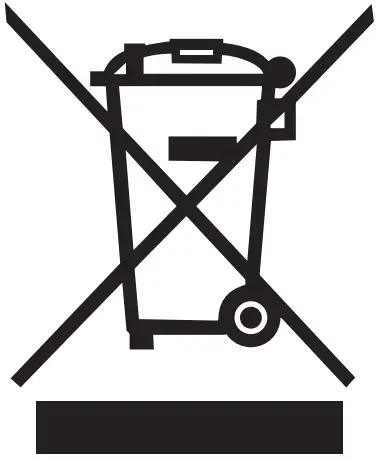 The device is marked with a crossed-out garbage bin, in accordance with the European Directive 2012/19/EU on used electrical and electronic Equipment (Waste Electrical and Electronic equipment – WEEE). Products marked with this symbol should not be disposed of or dumped with other household waste after a period of use. The user is obliged to get rid of used electrical and electronic equipment by delivering it to designated recycling point in which dangerous waste are being recycled. Collecting this type of waste in designated locations, and the actual process of their recovery contribute to the protection of natural resources.
Proper disposal of used electrical and electronic equipment is beneficial to human health and environment. To obtain information on where and how to dispose of used electrical and electronic equipment in an environmentally friendly manner user should contact their local government office, the waste collection point, or point of sale, where the equipment was purchased.
Correct disposal of used batteries
According to the EU directive 2006/66/EC with changes contained in EU directive 2013/56/UE on the disposal of batteries, this product is marked with crossed-out garbage bin symbol. The symbol indicates that the batteries used in this product should not be disposed with regular household waste, but treated according to the legal directives and local regulations. It is not allowed to dispose of accumulators with unsorted municipal waste. Users of batteries and accumulators must use the available collection points of these items, which allows them to return, recycle and disposal.
Within the EU, the collection and recycling of batteries and accumulators is a subject to separate procedures. To learn more about existing procedures of recycling of batteries and accumulators please contact your local office or an institution for waste disposal or landfill.
Declaration of conformity with European Union Directives mPTech Ltd. hereby declares that myPhone 2220 cellular phone is compliant with Directive 2014/53/EU. The full text of the EU Declaration of Conformity is available at the following Internet address:
www.myphone.pl/qr/myphone-2220
 myPhone: making mobile technology accessible
 myPhone 2220