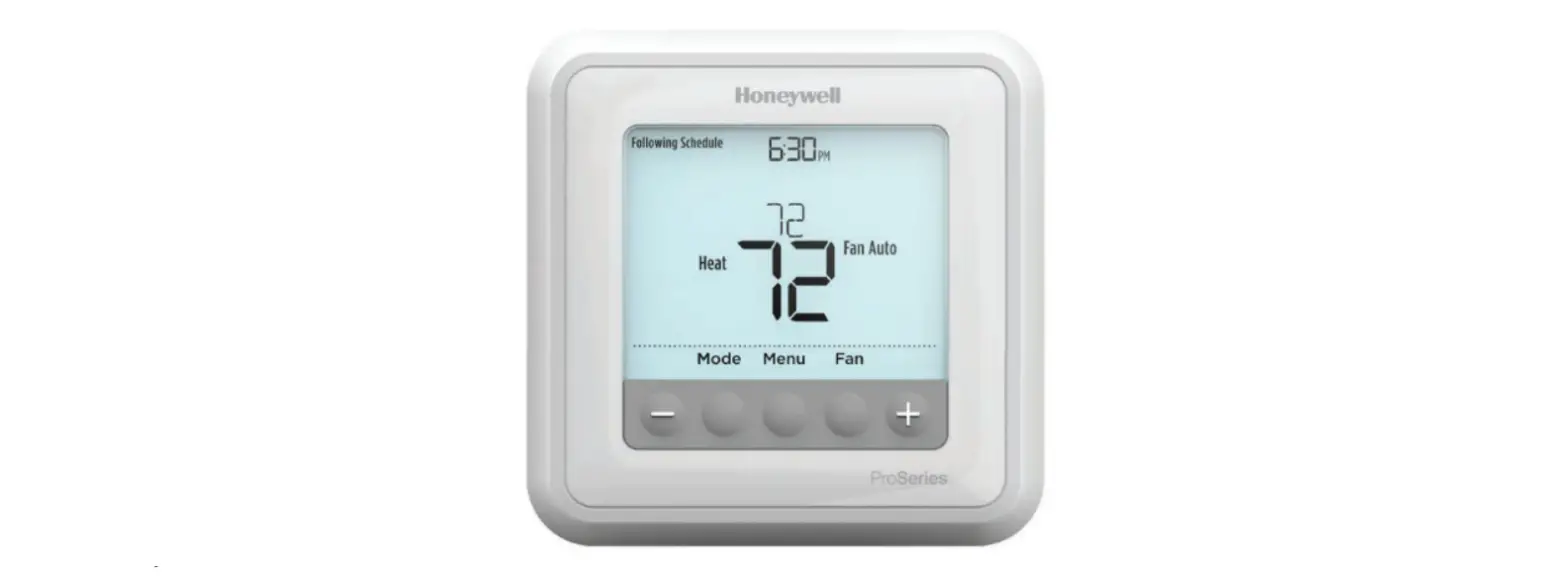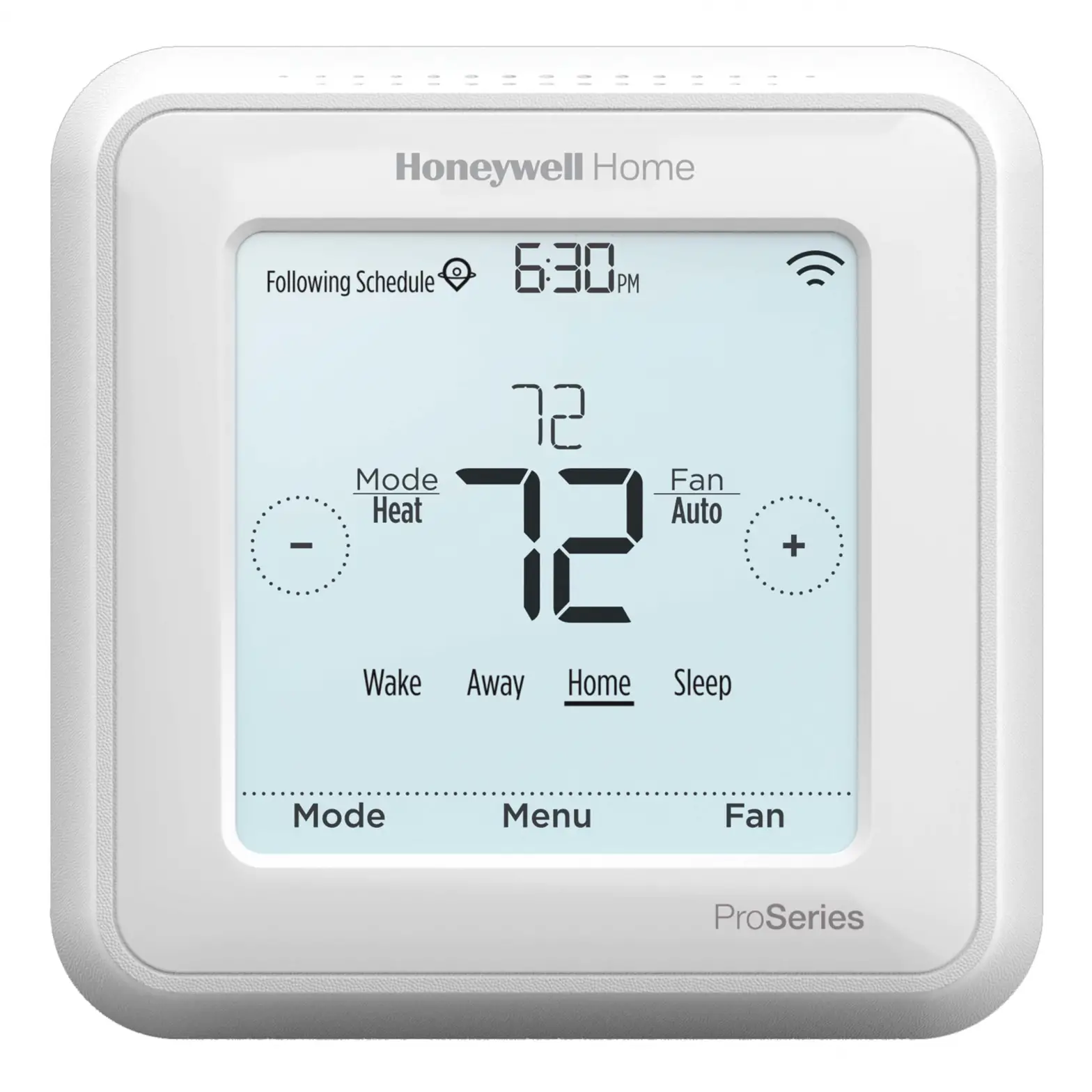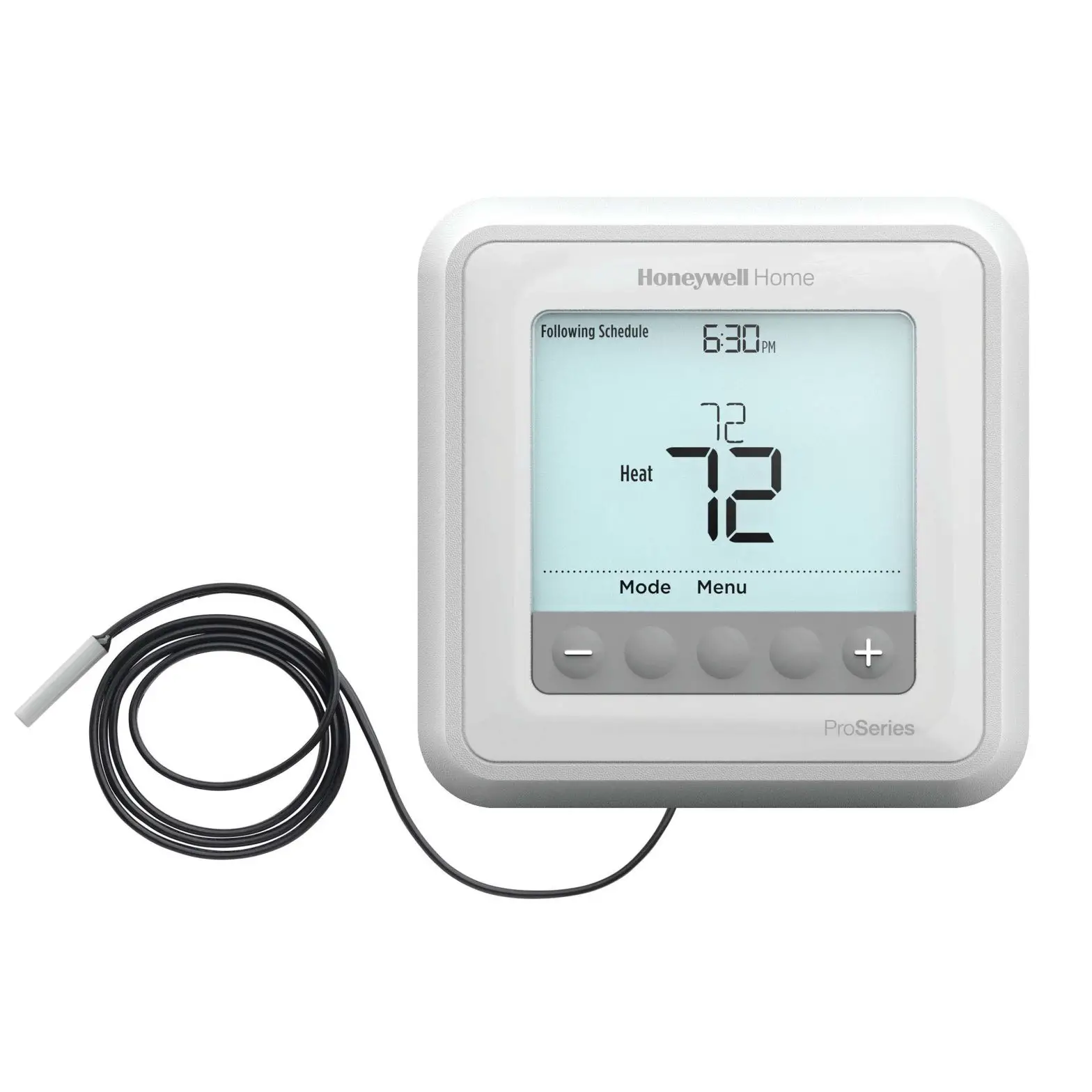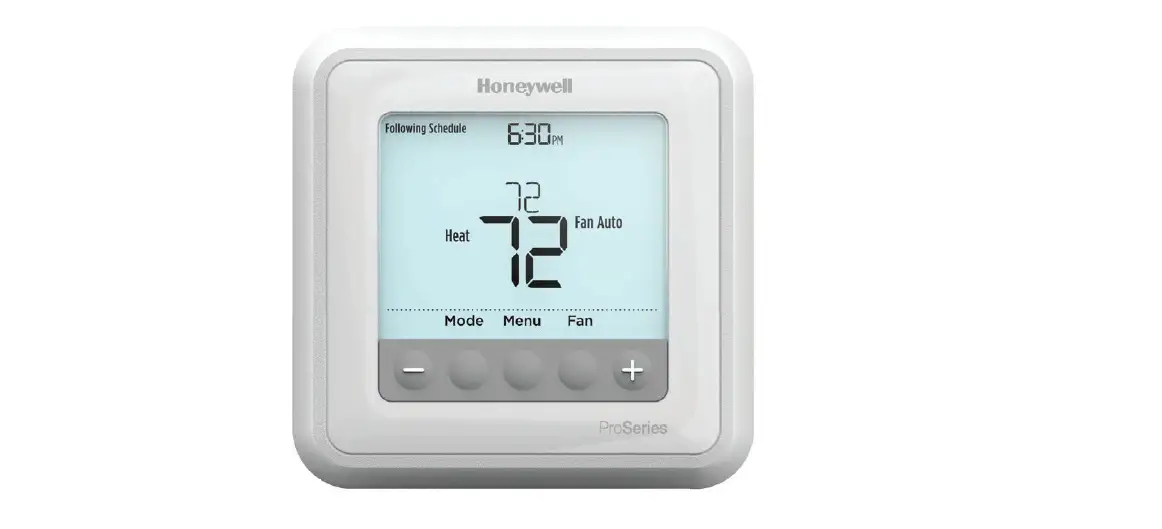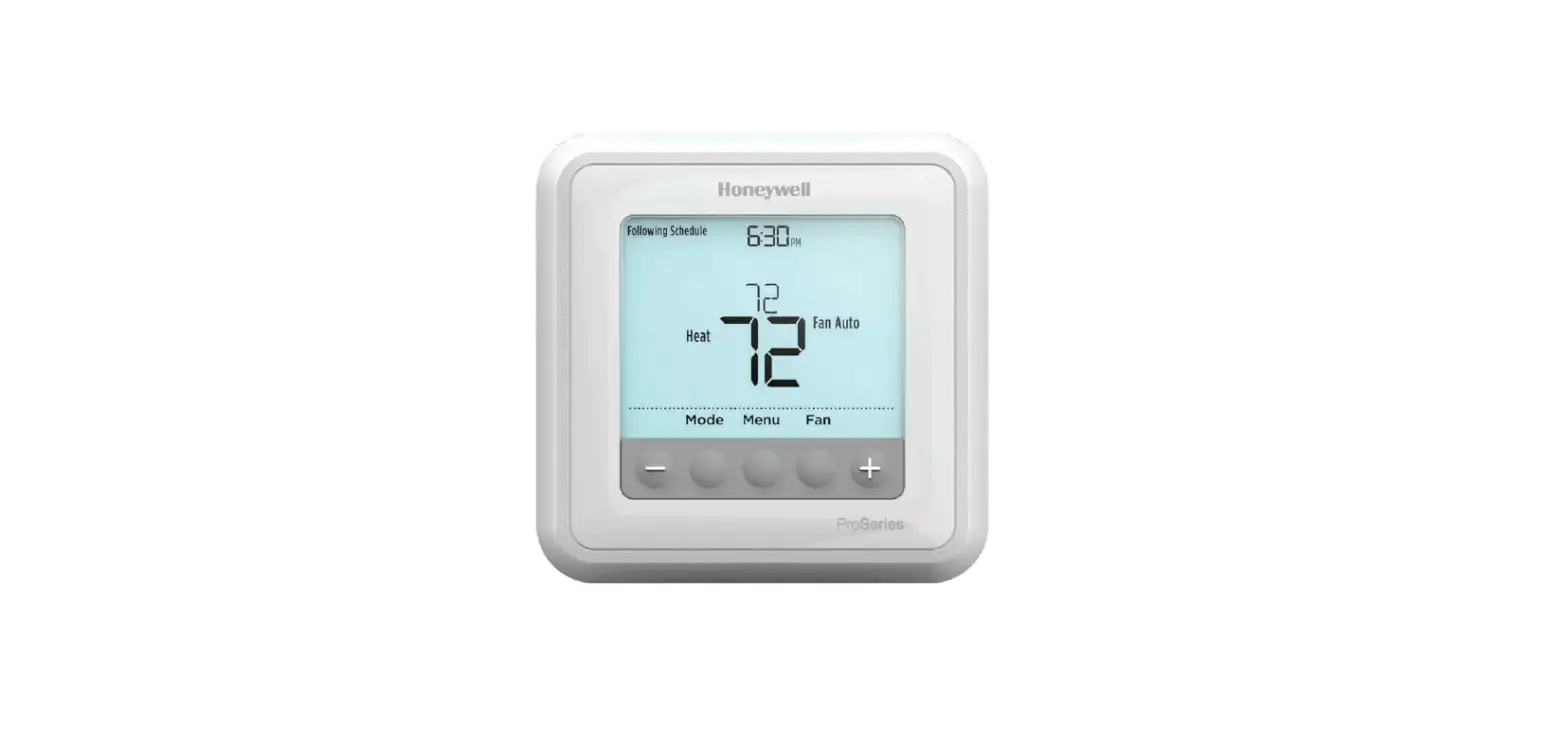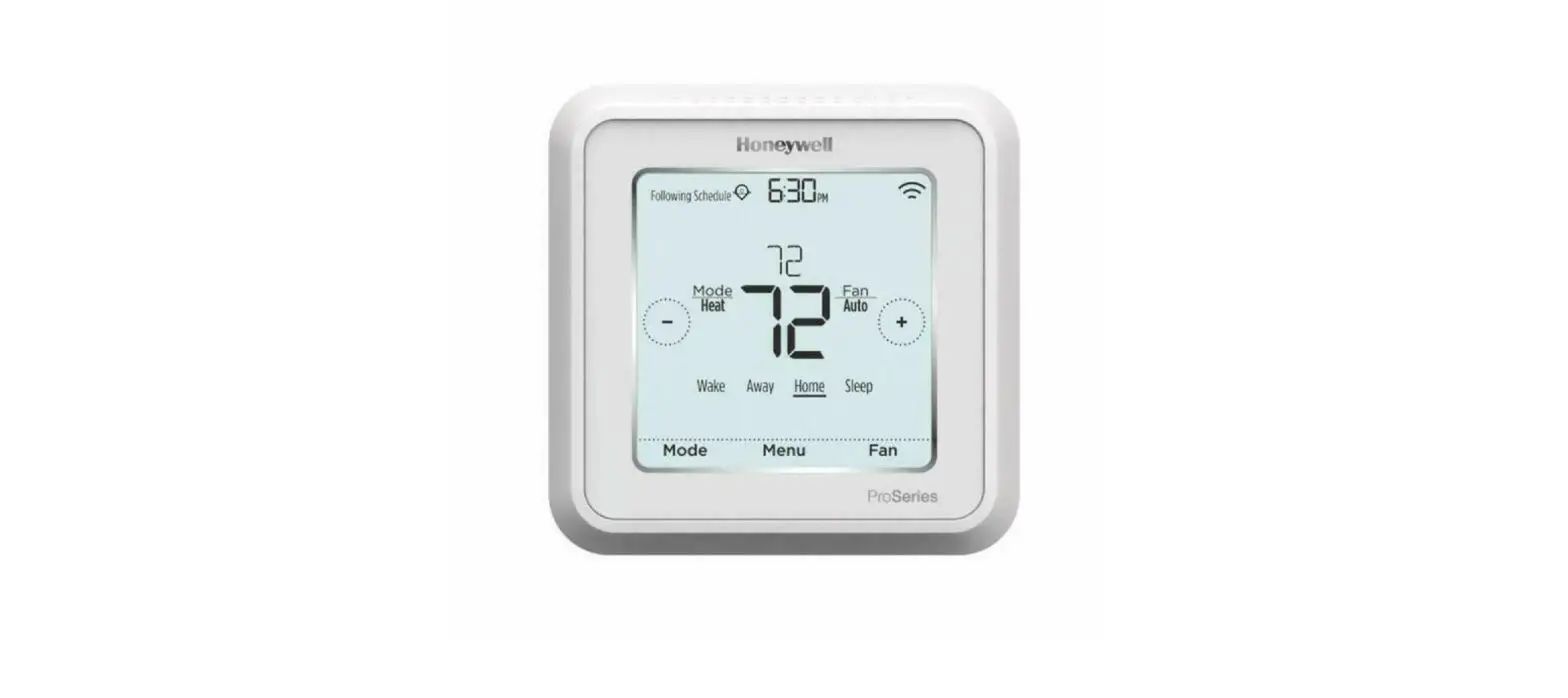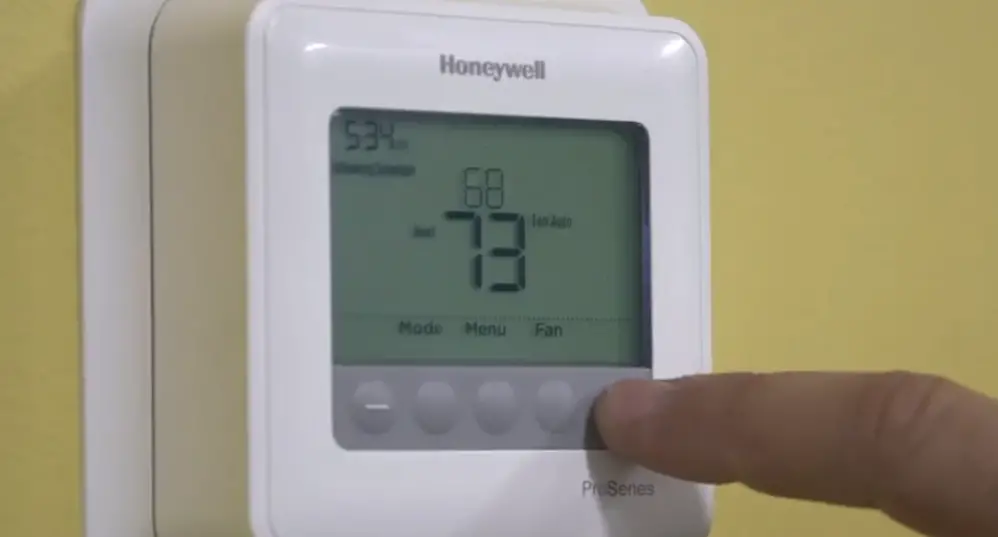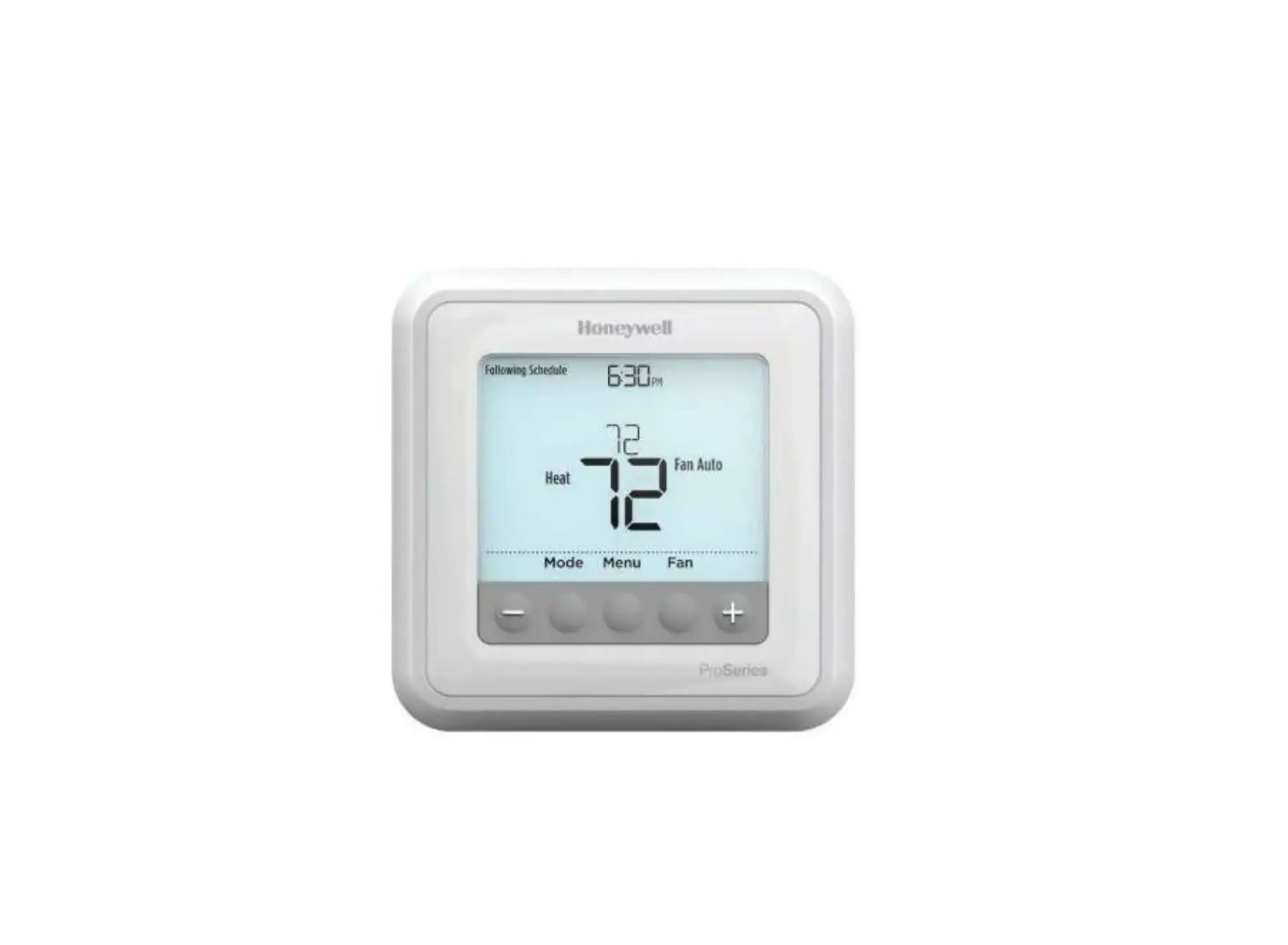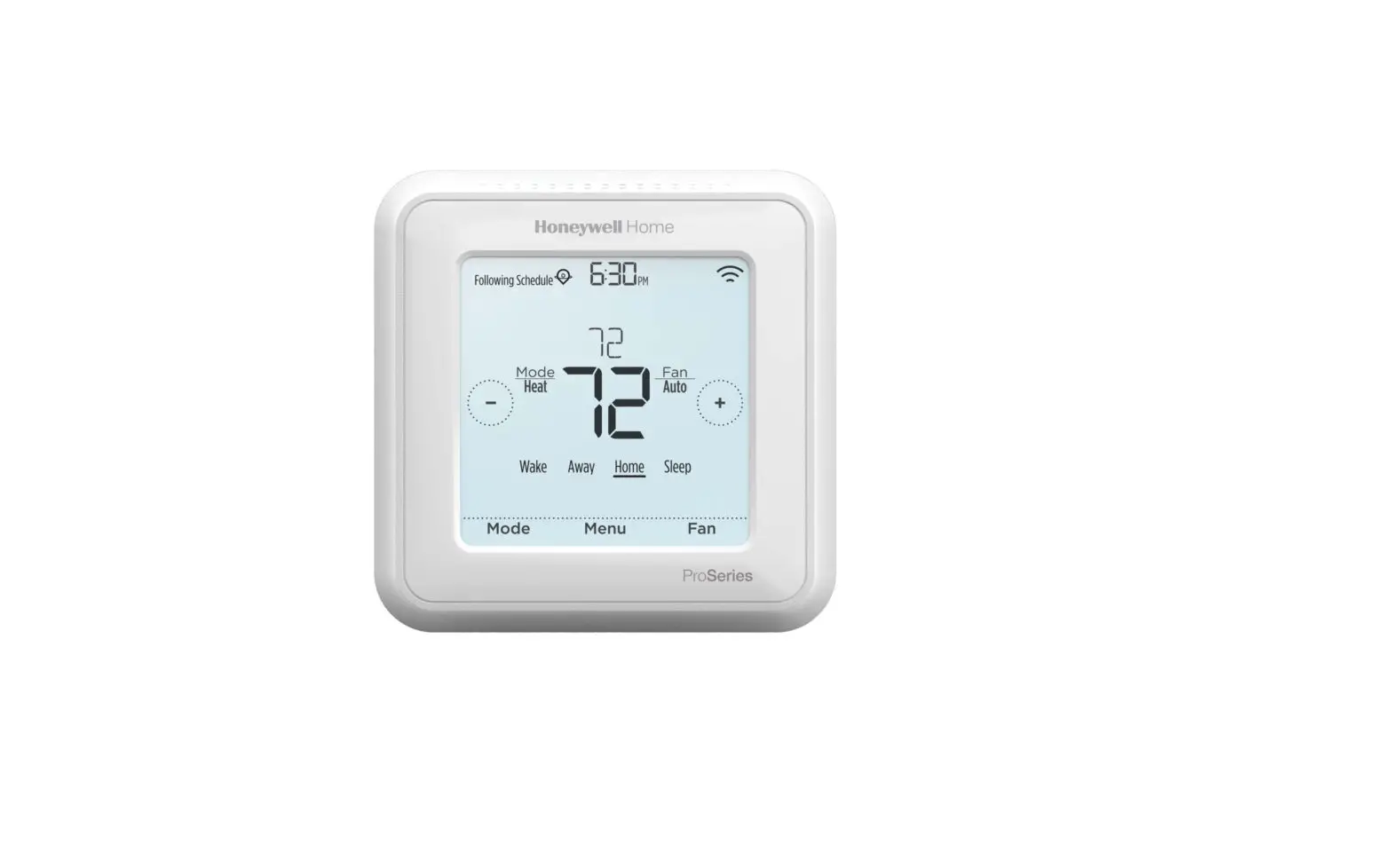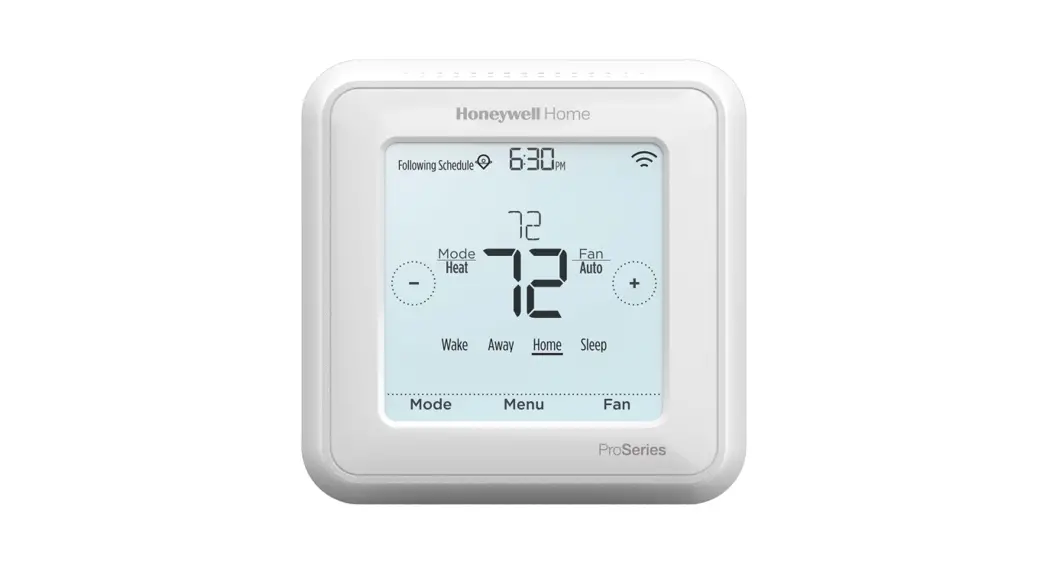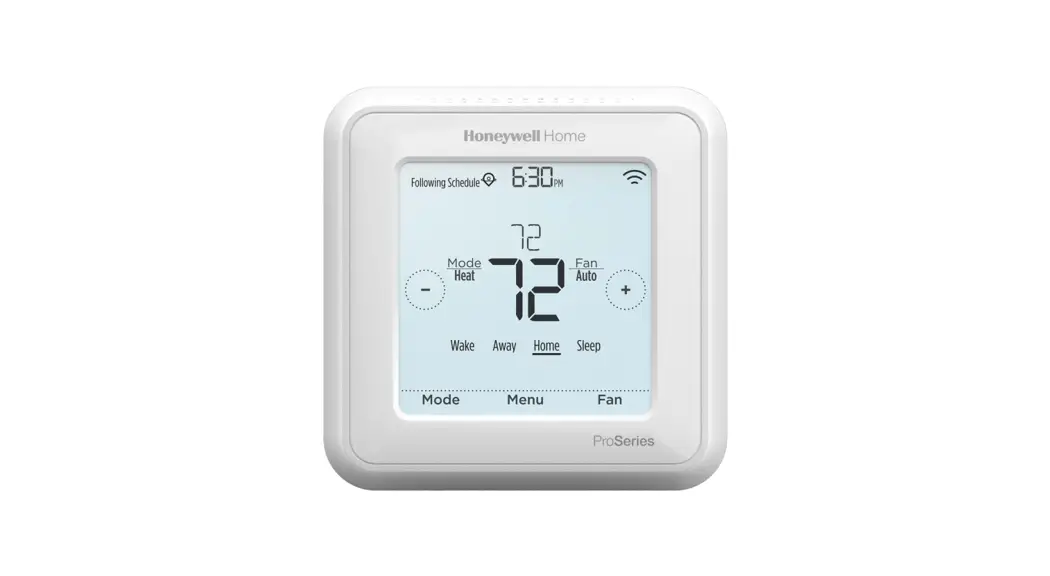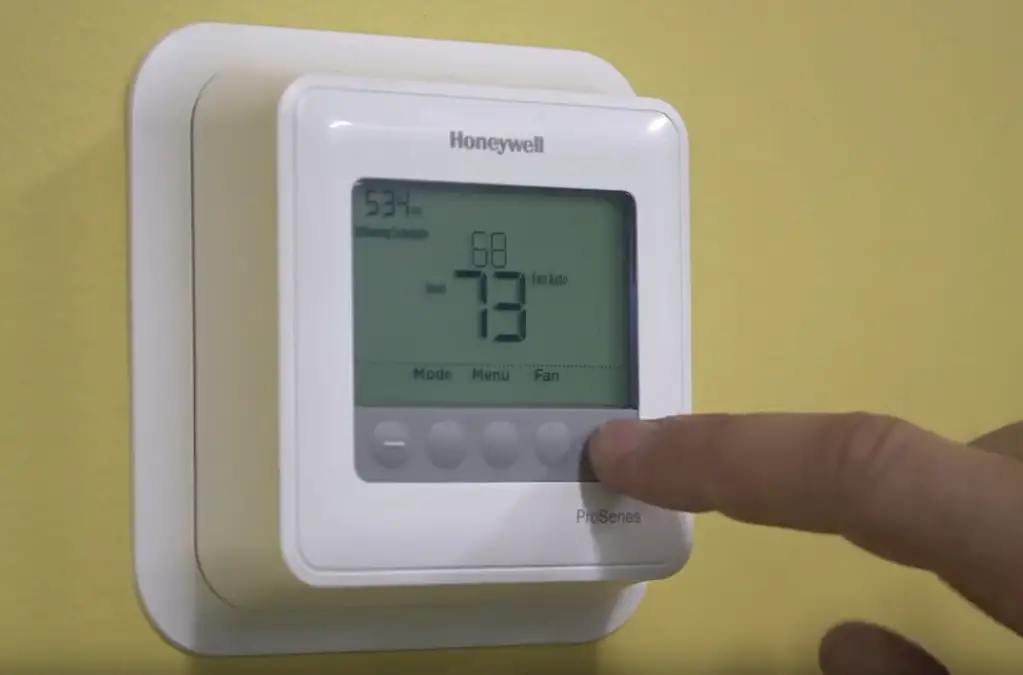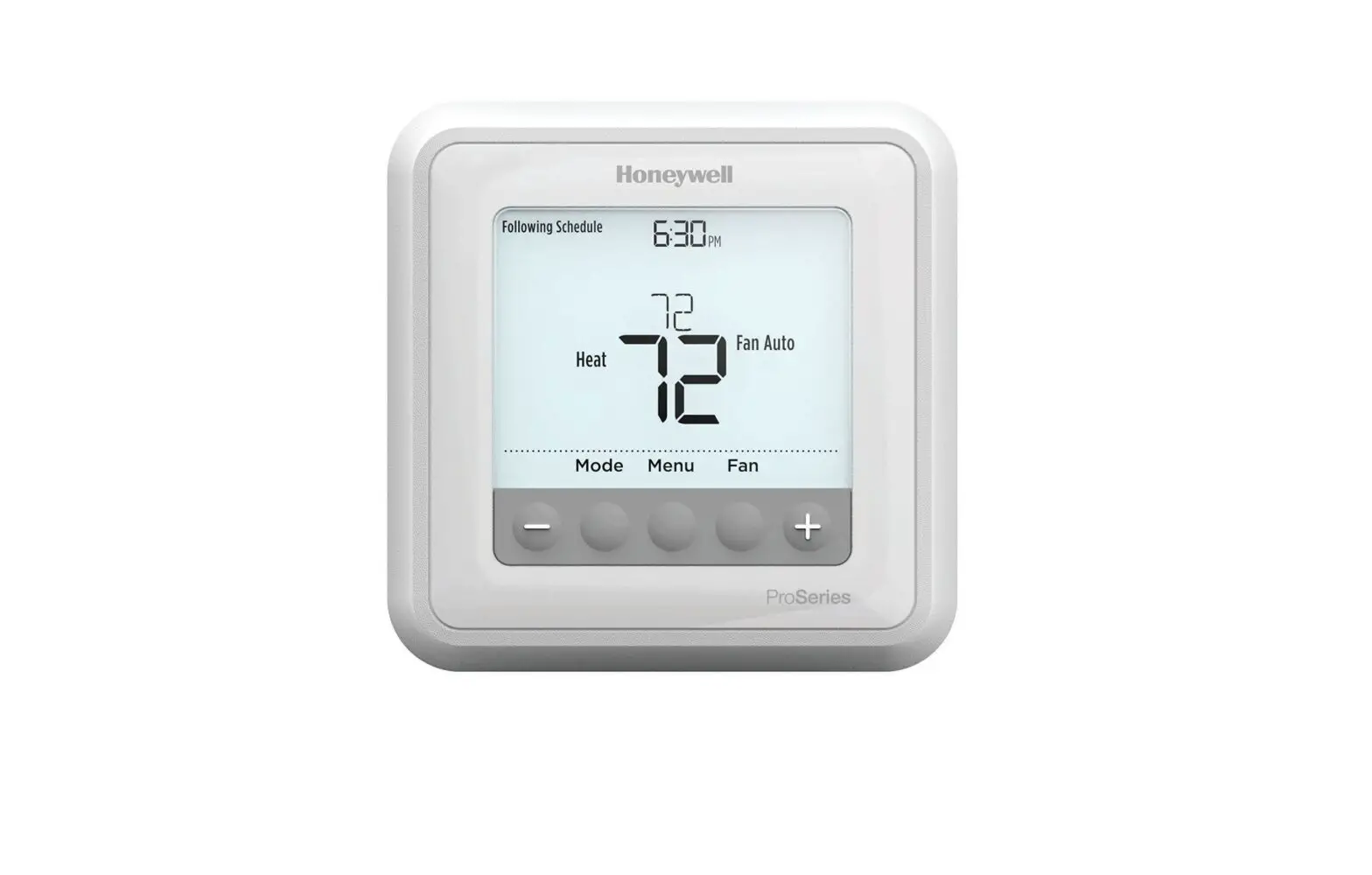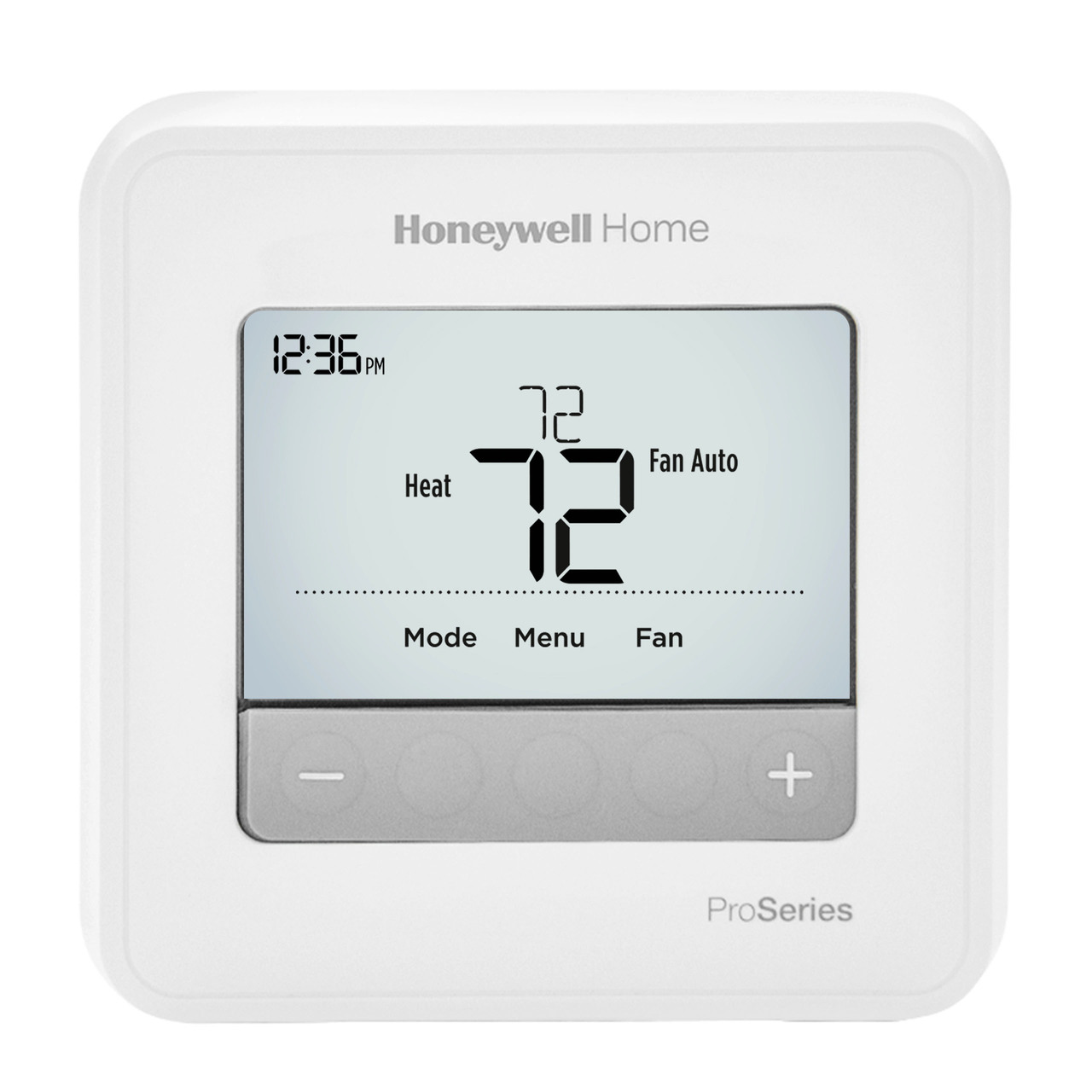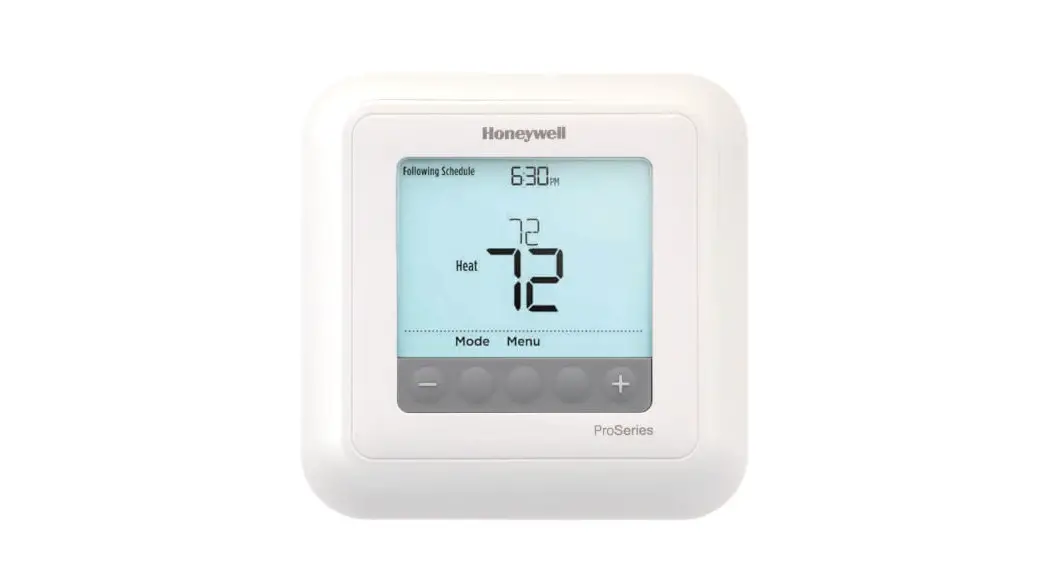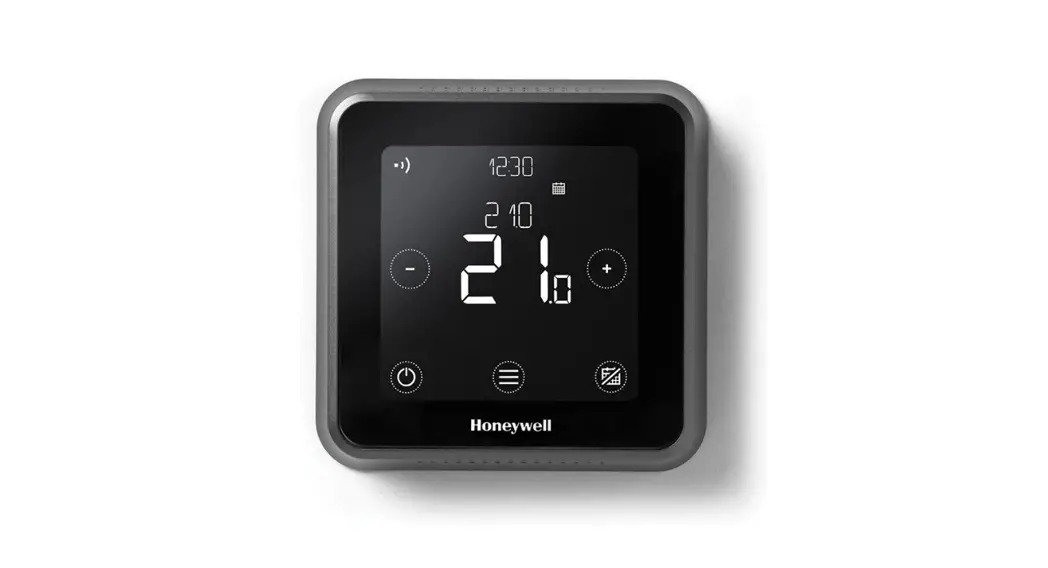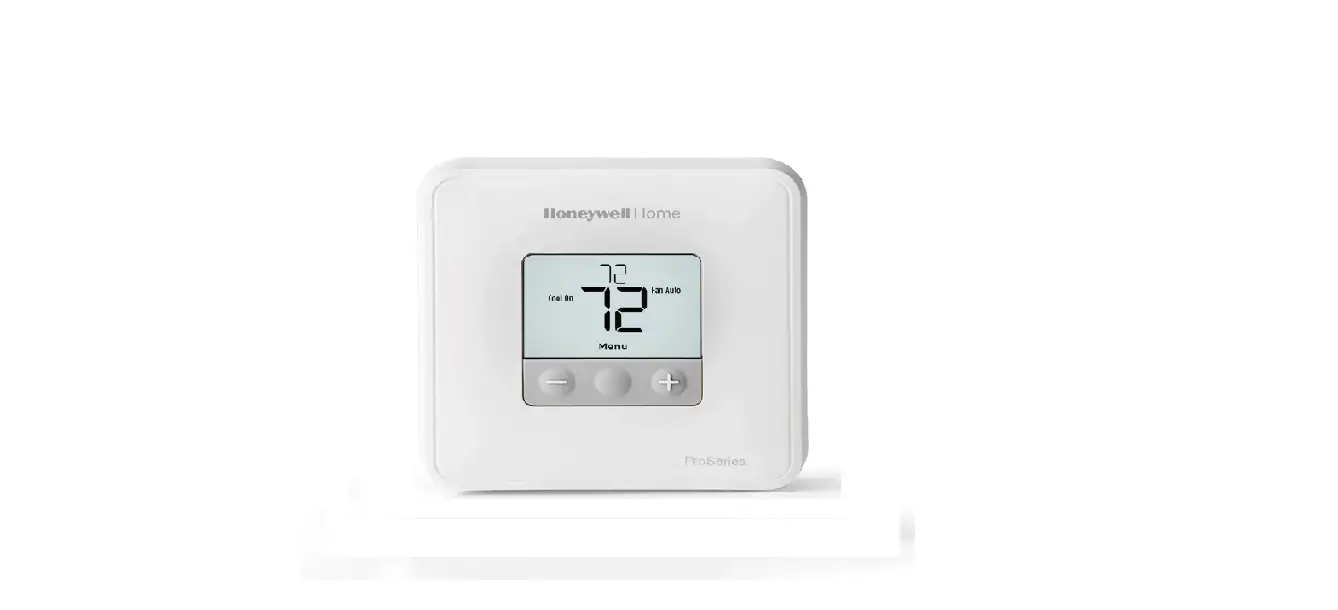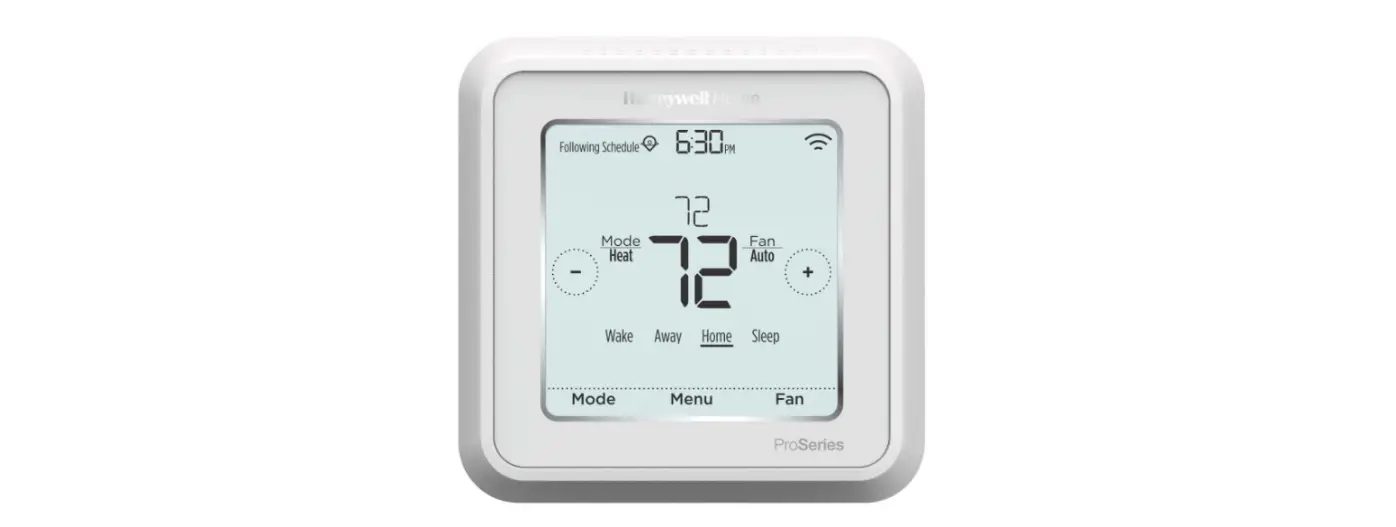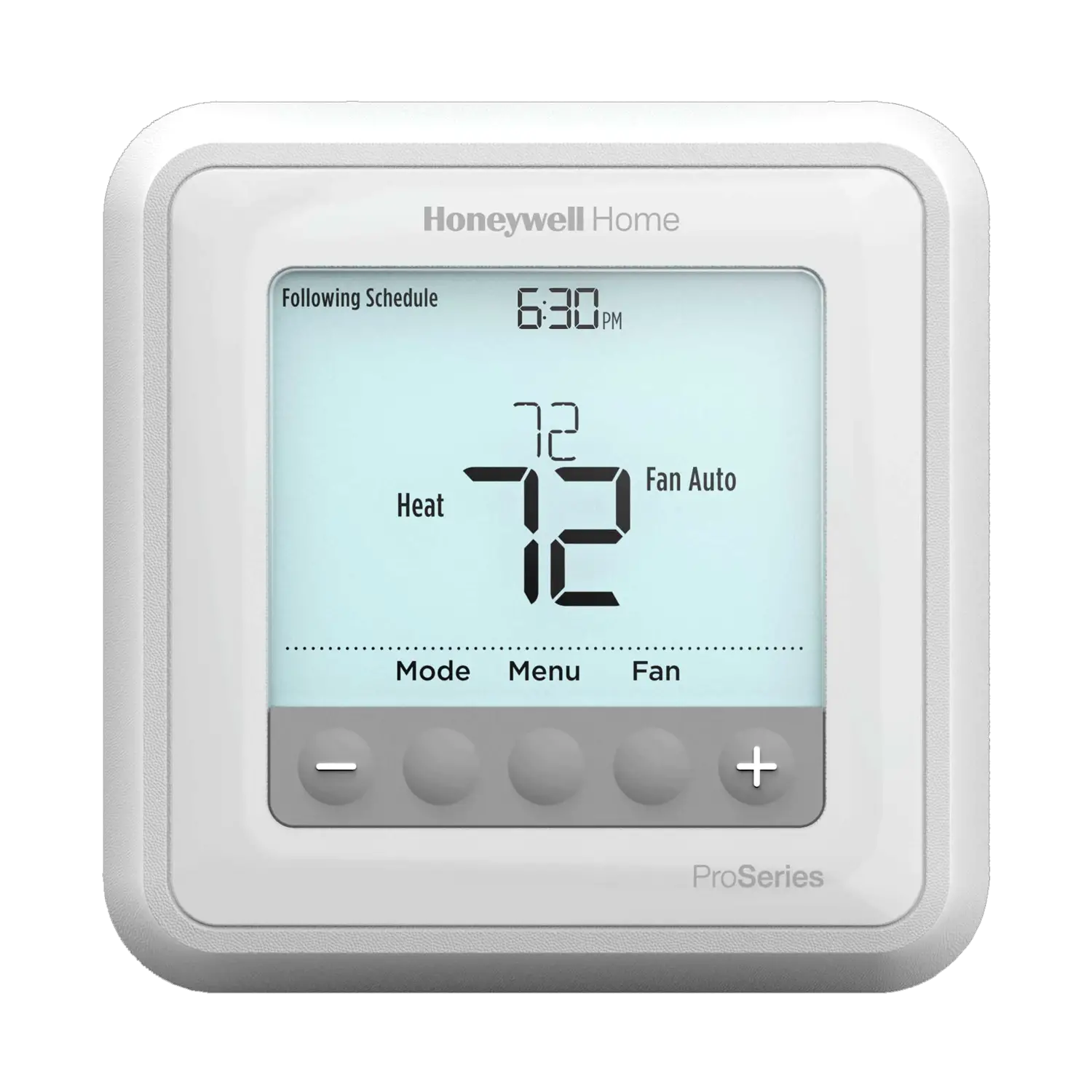
TH6210U2001/U
TH6320U2008/U
TH6220U2000/U
User Guide [pdf]: T6 Pro User Guide
Installation Instructions [pdf]: T6 Pro Installation Instruction
Is the RTH6360 Heat pump compatible?
Yes. The RTH6360 will operate a heat pump, including a heat pump with backup heat.
Are the TH6210U2001, TH6220U2000, TH6320U2008 Heat pump compatible?
Yes. All T6 Pro non connected thermostats will operate a heat pump, including a heat pump with backup heat
How do I enable auto change over on the TH6210U2001, TH6220U2000, TH6320U2008?
1 Press and hold Menu and + buttons for approximately 5 seconds to enter advanced menu.
2 Press Select to enter System Setup (ISU) menu.
3 Press Select to cycle through System Setup numbers.
4 Press + or – to change values or select from available options.
5 Press Select to save changes and advance to the next System Setup number.
6 Once you have cycled through all of the System Setup numbers, “Done” is displayed. Press Select to save and exit. To save and exit early, press Home to return to the Home screen.
Setup Step 300 needs to be set to 1 for Auto System Change Over
Is the RTH6360 Heat pump compatible?
Yes. The RTH6360 will operate a heat pump, including a heat pump with backup heat.
How do I lock/unlock the screen on my TH6210U2001, TH6220U2000, TH6320U2008?
The thermostat has 3 settings for the screen lock: Unlocked, Partial Lock, and Full Lock
- Unlocked: All settings are adjustable
- Partial: Setpoint changes are allowed. All other settings are locked
- Full: No changes are allowed
When SCREEN LOCK is active, a “lock” icon will be displayed on the thermostat display.
- Press Menu on the thermostat.
- Press + or – to go to LOCK. Press Select.
- Press + or – to go to OFF, PART, or ON, and then press Select.
- To unlock the keypad, press the CENTER button and then enter the password “1234”. To enter the password, press + or – to change the first digit of the number. Then press Select. Repeat this process to enter the second through fourth digits of the number. Once all four numbers have been entered, press Select again.
- This will unlock the keypad.
- If the code is incorrect, the screen will flash the lines “”–“”.
- Press Back to go back a step to enter the correct number and press Select.
Note the RTH6360 does not have a keypad/screen lock/unlock feature
How do I enable auto change over on the RTH6360?
- Press and hold Menu and + buttons for approximately 5 seconds to enter advanced menu.
- Press Select to enter System Setup (ISU) menu.
- Press Select to cycle through System Setup numbers.
- Press + or – to change values or select from available options.
- Press Select to save changes and advance to the next System Setup number.
- Once you have cycled through all of the System Setup numbers, “Done” is displayed. Press Select to save and exit. To save and exit early, press Home to return to the Home screen.
Setup Step 300 needs to be set to 1 for Auto System Change Over
How do I adjust the screen brightness on my TH6210U2001, TH6220U2000, TH6320U2008?
Note this does not apply for the RTH6330.
Brightness options and Brightness levels are in the ISU settings.
- Press and hold CENTER and + buttons for approximately 3 seconds to enter advanced menu.
- Press Select to enter ISU.
- Press Select to cycle through menu setup options.
- Press + or – to change values or select from available options.
- Press Select and confirm your settings or press Back to ignore changes and return to ISU menu screen to continue editing another setup option.
- To finish setup process and save your setting, press Home and return to Home screen.
How do I access the installer setup (ISU) on a RTH6360 thermostat?
- Press and hold Menu and + buttons for approximately 5 seconds to enter advanced menu.
- Press Select to enter System Setup (ISU) menu.
- Press Select to cycle through System Setup numbers.
- Press + or – to change values or select from available options.
- Press Select to save changes and advance to the next System Setup number.
- Once you have cycled through all of the System Setup numbers, “Done” is displayed. Press Select to save and exit. To save and exit early, press Home to return to the Home screen.
The ISU table is on page 8 on this User Manual
How do I access the installer setup (ISU) on a TH6210U2001, TH6220U2000, TH6320U2008?
1 Press and hold Menu and + buttons for approximately 5 seconds to enter advanced menu.
2 Press Select to enter System Setup (ISU) menu.
3 Press Select to cycle through System Setup numbers.
4 Press + or – to change values or select from available options.
5 Press Select to save changes and advance to the next System Setup number.
6 Once you have cycled through all of the System Setup numbers, “Done”” is displayed. Press Select to save and exit. To save and exit early, press Home to return to the Home screen.
The ISU table is on page 8 on this user manual.
Are the TH6210U2001, TH6220U2000, TH6320U2008 Heat pump compatible?
Yes. All T6 Pro non connected thermostats will operate a heat pump, including a heat pump with backup heat
How do I enable auto change over on the TH6210U2001, TH6220U2000, TH6320U2008?
1 Press and hold Menu and + buttons for approximately 5 seconds to enter advanced menu.
2 Press Select to enter System Setup (ISU) menu.
3 Press Select to cycle through System Setup numbers.
4 Press + or – to change values or select from available options.
5 Press Select to save changes and advance to the next System Setup number.
6 Once you have cycled through all of the System Setup numbers, “Done” is displayed. Press Select to save and exit. To save and exit early, press Home to return to the Home screen.
Setup Step 300 needs to be set to 1 for Auto System Change Over
How do I lock/unlock the screen on my TH6210U2001, TH6220U2000, TH6320U2008?
The thermostat has 3 settings for the screen lock: Unlocked, Partial Lock, and Full Lock
- Unlocked: All settings are adjustable
- Partial: Setpoint changes are allowed. All other settings are locked
- Full: No changes are allowed
When SCREEN LOCK is active, a “lock” icon will be displayed on the thermostat display.
- Press Menu on the thermostat.
- Press + or – to go to LOCK. Press Select.
- Press + or – to go to OFF, PART, or ON, and then press Select.
- To unlock the keypad, press the CENTER button and then enter the password “1234”. To enter the password, press + or – to change the first digit of the number. Then press Select. Repeat this process to enter the second through fourth digits of the number. Once all four numbers have been entered, press Select again.
- This will unlock the keypad.
- If the code is incorrect, the screen will flash the lines “”–“”.
- Press Back to go back a step to enter the correct number and press Select.
Note the RTH6360 does not have a keypad/screen lock/unlock feature.
How do I bypass the schedule on the TH6210U2001, TH6220U2000, TH6320U2008?
Program schedule override (temporary)
1 Press + or – to adjust the temperature.
2 Once at the desired setpoint temperature, no further action is needed. The new setpoint temperature will be held until the next scheduled time period begins.
3 To cancel the Temporary Hold, Press + or – and then press Cancel.
Program schedule override (permanent)
1 Press + or – to adjust the temperature.
2 TEMPORARY HOLD is displayed and the setpoint temperature flashes.
While it’s flashing, press Hold (Mode) button to change to Permanent Hold.
3 To cancel the Permanent Hold, press + or – and then press Cancel
To Remove the Schedule completely
1 Press and hold Menu and + buttons for approximately 5 seconds to enter advanced menu.
2 Press Select to enter System Setup (ISU) menu.
3 Press Select to cycle through System Setup numbers.
4 Press + or – to change values or select from available options.
5 Press Select to save changes and advance to the next System Setup number.
6 Once you have cycled through all of the System Setup numbers, “Done” is displayed. Press Select to save and exit. To save and exit early, press Home to return to the Home screen.
ISU 120 needs to be set to 0 to disable the schedule.
How do I enable auto change over on the RTH6360?
- Press and hold Menu and + buttons for approximately 5 seconds to enter advanced menu.
- Press Select to enter System Setup (ISU) menu.
- Press Select to cycle through System Setup numbers.
- Press + or – to change values or select from available options.
- Press Select to save changes and advance to the next System Setup number.
- Once you have cycled through all of the System Setup numbers, “Done” is displayed. Press Select to save and exit. To save and exit early, press Home to return to the Home screen.
Setup Step 300 needs to be set to 1 for Auto System Change Over
How do I adjust the screen brightness on my RTH6360 thermostat?
For the RTH6360
Pressing any button will cause the screen to light up for a period of time and will dim over time if no button is pressed.
How do I adjust the screen brightness on my TH6210U2001, TH6220U2000, TH6320U2008?
Note this does not apply for the RTH6330.
Brightness options and Brightness levels are in the ISU settings.
- Press and hold CENTER and + buttons for approximately 3 seconds to enter advanced menu.
- Press Select to enter ISU.
- Press Select to cycle through menu setup options.
- Press + or – to change values or select from available options.
- Press Select and confirm your settings or press Back to ignore changes and return to ISU menu screen to continue editing another setup option.
- To finish setup process and save your setting, press Home and return to Home screen.
ISU 1400 and 1401 cover screen brightness.
How do I access the installer setup (ISU) on a RTH6360 thermostat?
- Press and hold Menu and + buttons for approximately 5 seconds to enter advanced menu.
- Press Select to enter System Setup (ISU) menu.
- Press Select to cycle through System Setup numbers.
- Press + or – to change values or select from available options.
- Press Select to save changes and advance to the next System Setup number.
- Once you have cycled through all of the System Setup numbers, “Done” is displayed. Press Select to save and exit. To save and exit early, press Home to return to the Home screen.
The ISU table is on page 8 on this user manual
How do I fix a blank display on my TH6210U2001, TH6220U2000, TH6320U2008 thermostat?
If the thermostat is battery powered, check/replace your batteries. If the device is common wired, try and power it up with batteries. If that fails to power up the thermostat, you may need to involve a technician. If batteries do power up your common wired thermostat, check your breakers, furnace power switch, furnace door kill switch to insure your system is powered. If your system is fine, and the thermostat only works on batteries, you may need to involve a technician.
How do I program the schedule on a TH6210U2001, TH6220U2000, TH6320U2008?
To Set your schedule:
Touch MENU on the thermostat display, select SCHEDULE
Each Day / Period will be displayed. Touch SELECT to edit each period.
Touch the TIME displayed and use the +/ – icons to adjust the start time for the desired period (adjustable in 15-minute increments). Touch the TEMPERATURE displayed to adjust the desired heating or cooling temperature (Touch the TEMPERATURE display again to alternate between the cooling and heating temperature setting) Press SELECT when complete.
After adjusting the TEMPERATURE and TIME for each schedule day and period, DONE will be displayed on the screen. Touch SELECT to save your new schedule
To Modify your schedule:
Touch MENU on the thermostat display, select SCHEDULE
Each Day / Period will be displayed. Touch < or > to locate the desired period you wish to edit.
Touch SELECT to edit each period.
Touch the TIME displayed and use the +/ – icons to adjust the start time for the desired period (adjustable in 15-minute increments). Touch the TEMPERATURE displayed to adjust the desired heating or cooling temperature (Touch the TEMPERATURE display again to alternate between the cooling and heating temperature setting) Touch SELECT when complete.
Touch the > icon until DONE is displayed. Touch SELECT to save your settings.
How do I fix a blank display on my RTH6360 thermostat?
If the thermostat is battery powered, check/replace your batteries. If the device is common wired, try and power it up with batteries. If that fails to power up the thermostat, you may need to involve a technician. If batteries do power up your common wired thermostat, check your breakers, furnace power switch, furnace door kill switch to insure your system is powered. If your system is fine, and the thermostat only works on batteries, you may need to involve a technician.
Why is my TH6210U2001, TH6220U2000, TH6320U2008 thermostat showing an error message Batt? What does it mean?
Replace the Battery.
How do I fix a blank display on my TH6210U2001, TH6220U2000, TH6320U2008 thermostat?
If the thermostat is battery powered, check/replace your batteries. If the device is common wired, try and power it up with batteries. If that fails to power up the thermostat, you may need to involve a technician. If batteries do power up your common wired thermostat, check your breakers, furnace power switch, furnace door kill switch to insure your system is powered. If your system is fine, and the thermostat only works on batteries, you may need to involve a technician.
How do I fix a blank display on my RTH6360 thermostat?
If the thermostat is battery powered, check/replace your batteries. If the device is common wired, try and power it up with batteries. If that fails to power up the thermostat, you may need to involve a technician. If batteries do power up your common wired thermostat, check your breakers, furnace power switch, furnace door kill switch to insure your system is powered. If your system is fine, and the thermostat only works on batteries, you may need to involve a technician.
Downloads
User Guide [pdf]: T6 Pro User Guide
Installation Instructions [pdf]: T6 Pro Installation Instruction
ISU 1400 and 1401 cover screen brightness.