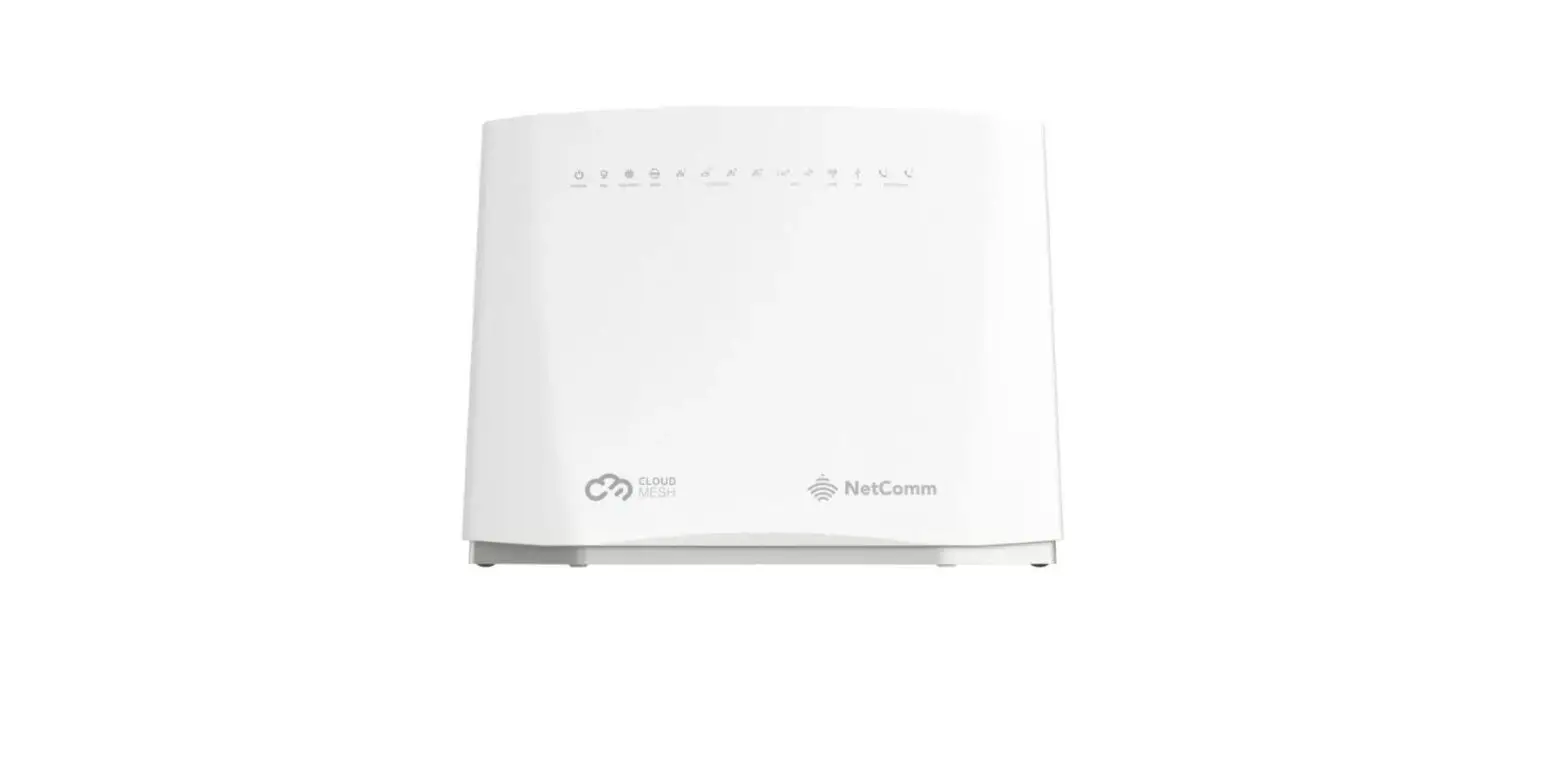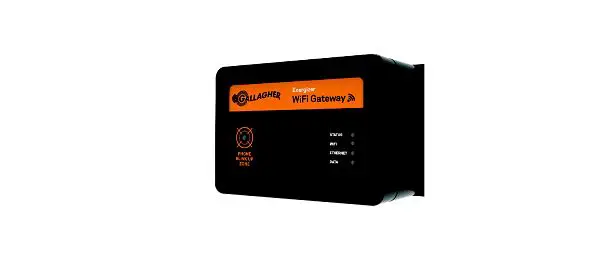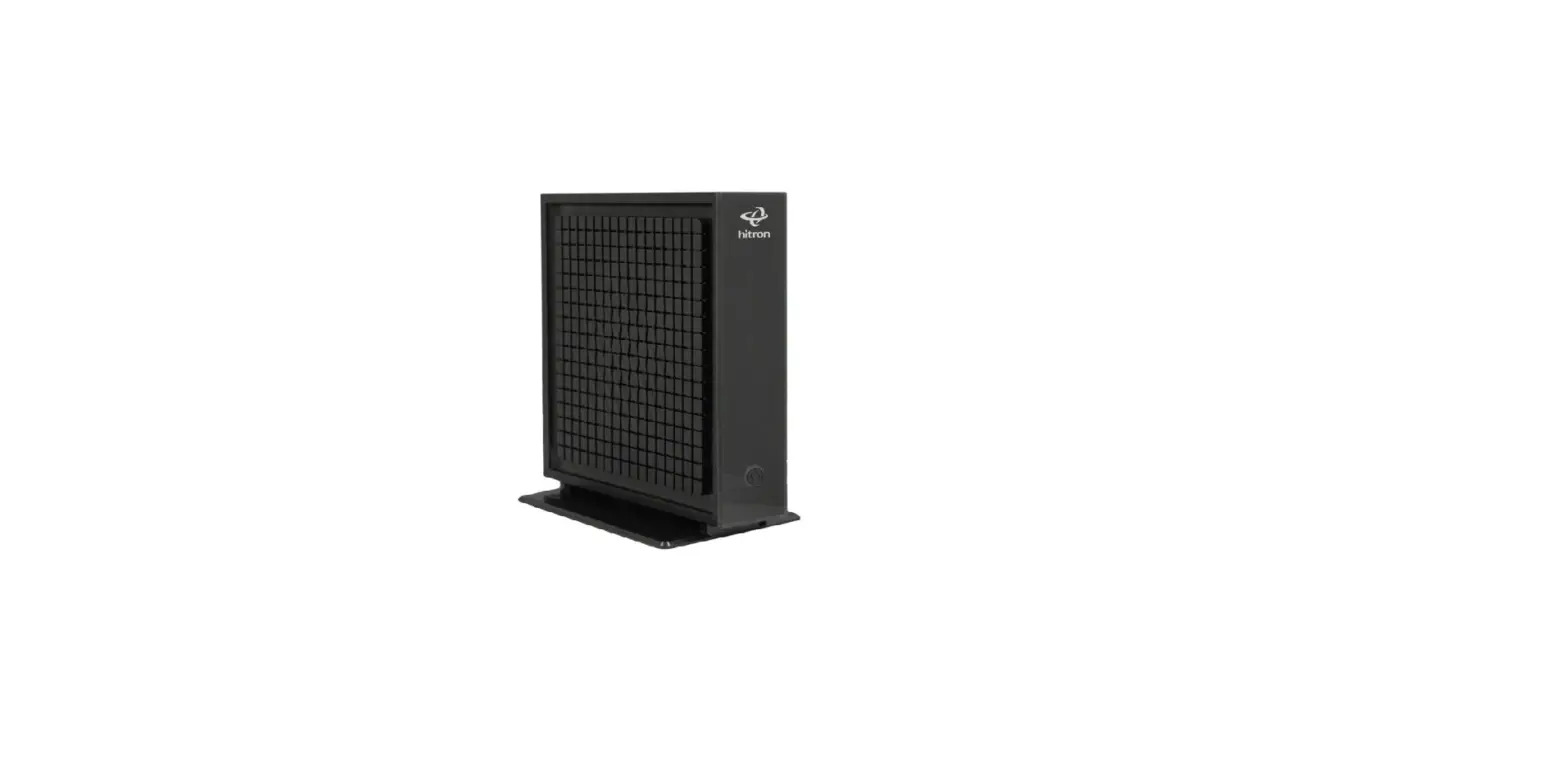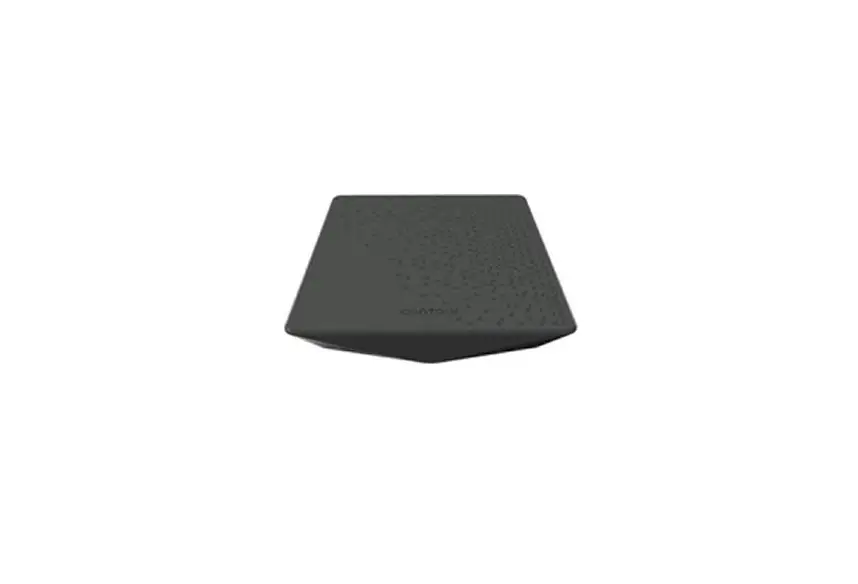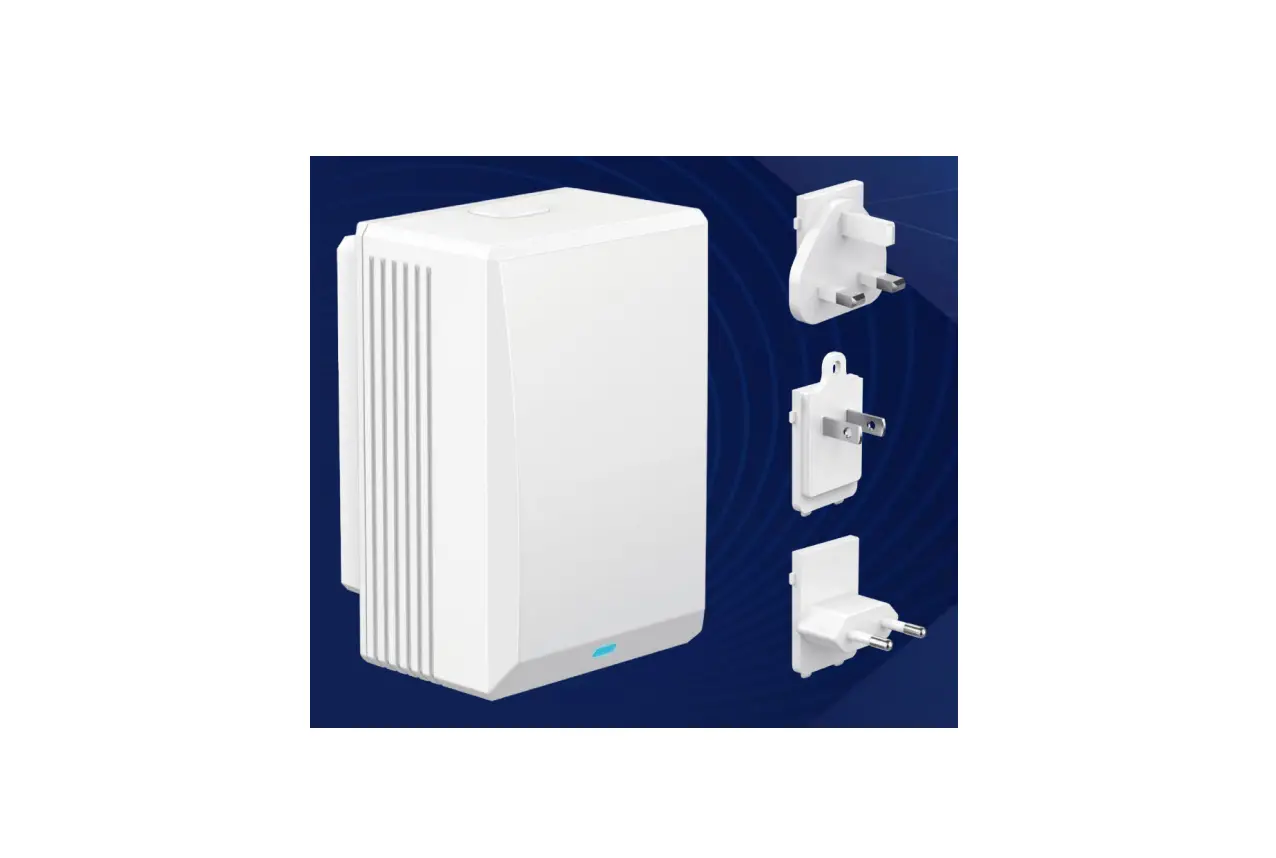

Getting started is easy.
Instructions
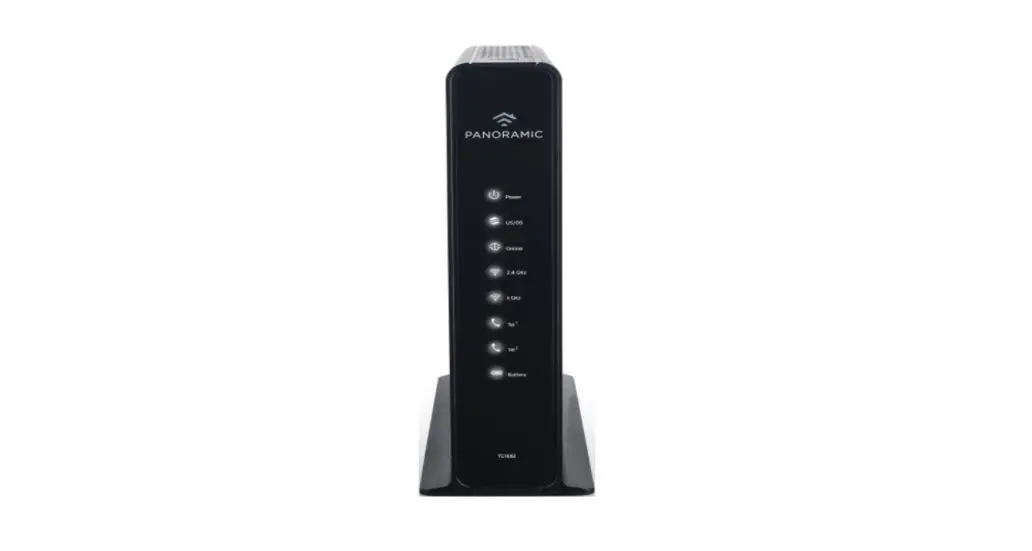
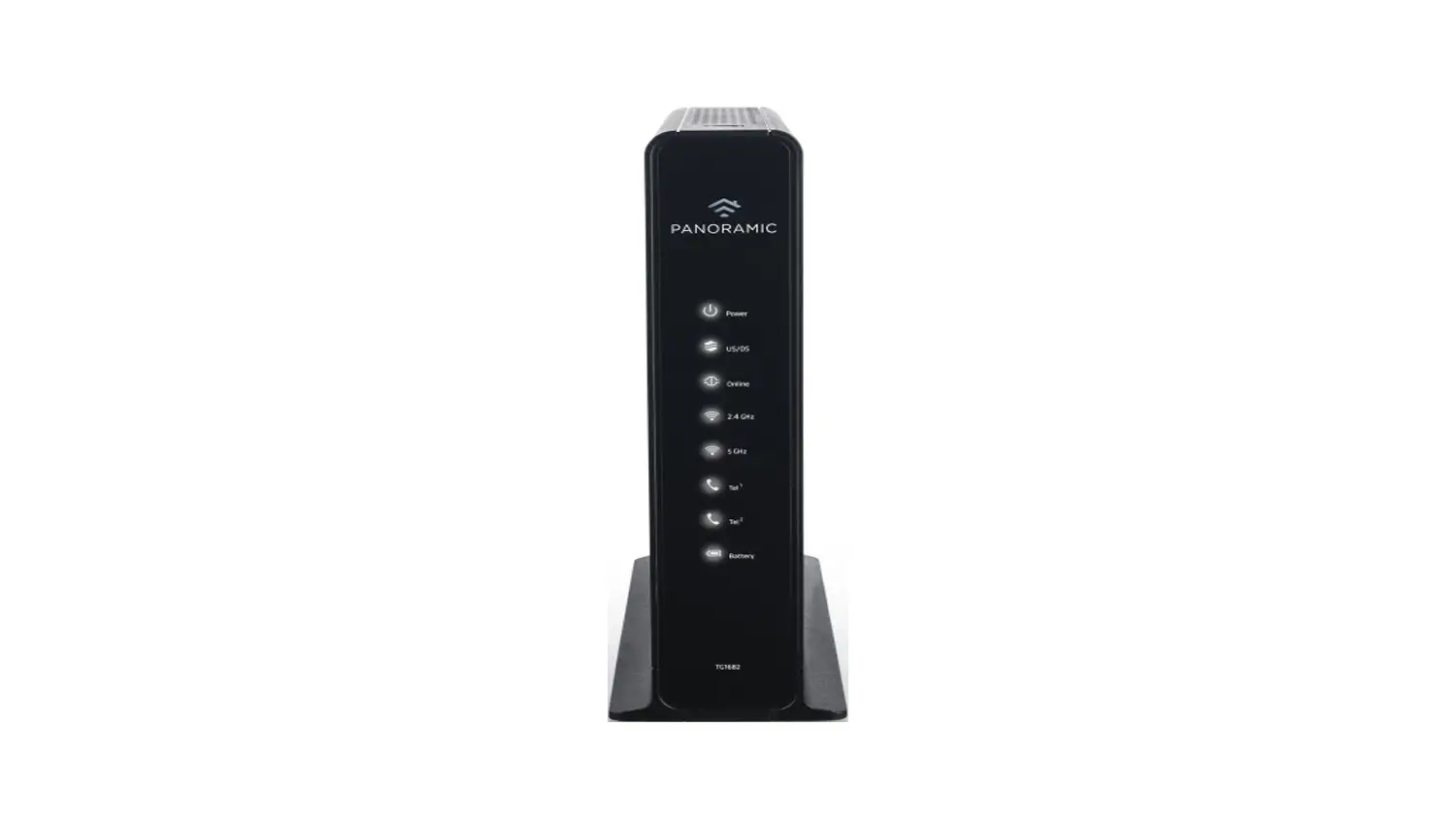
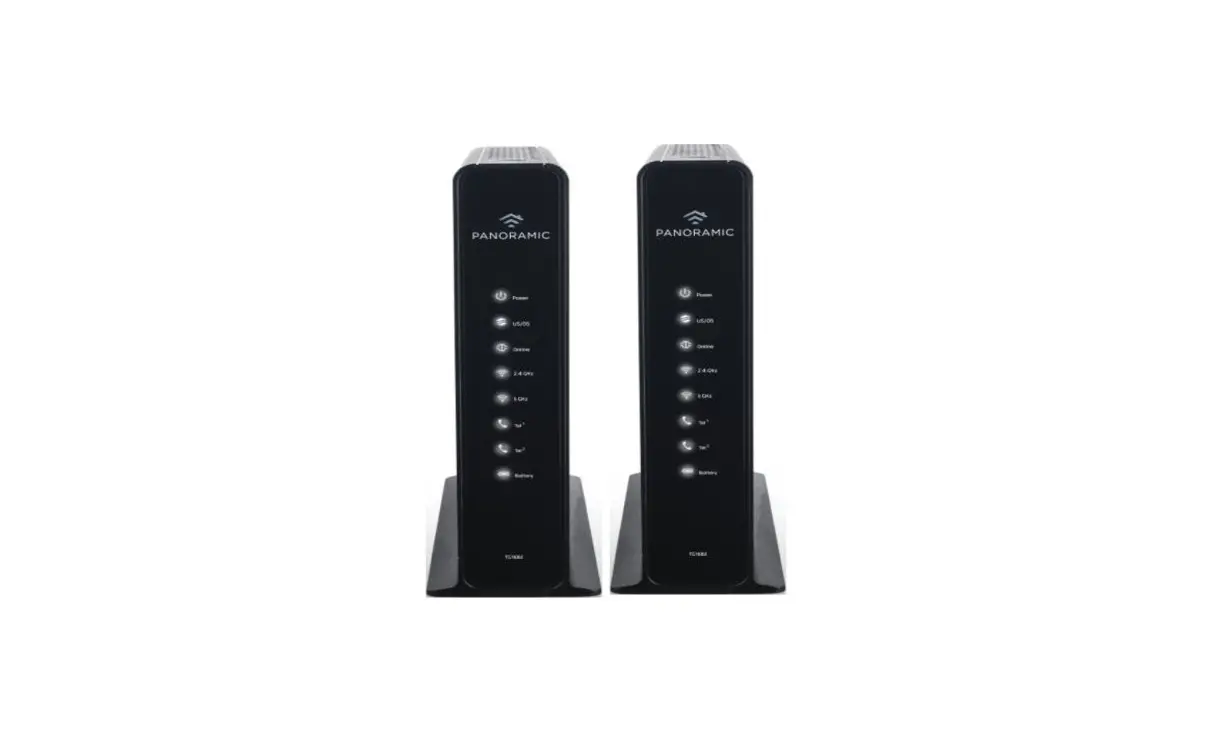
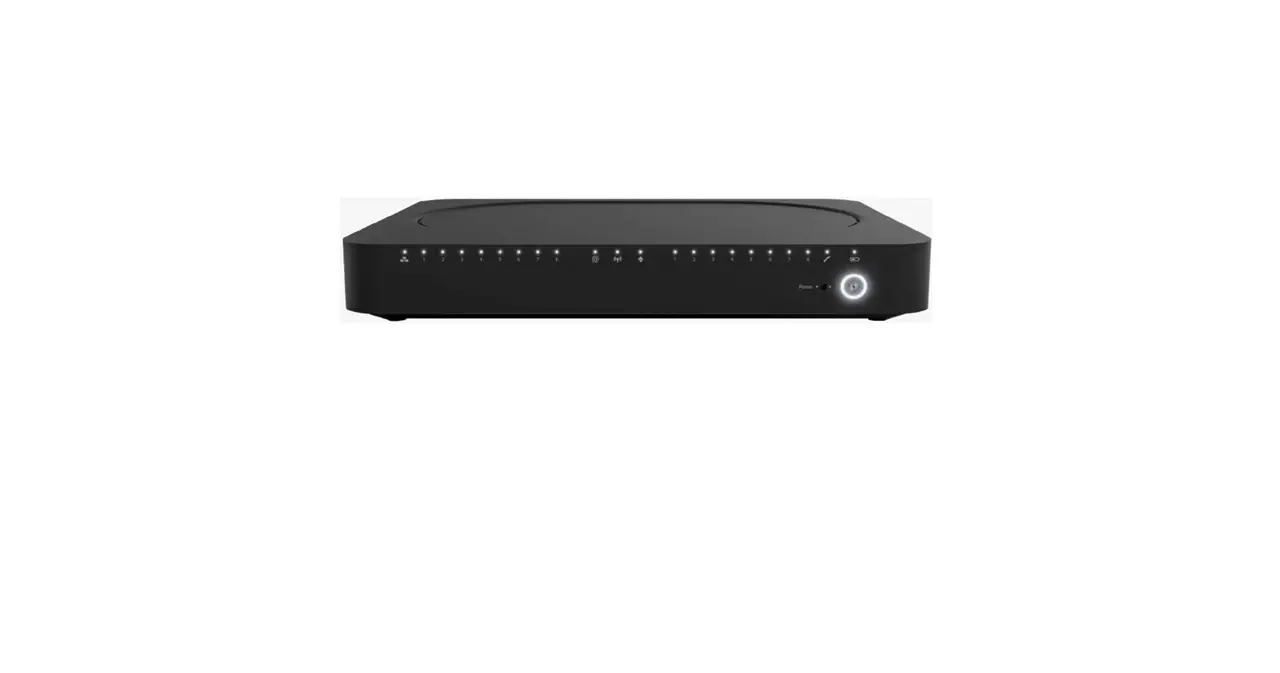
Panoramic Wifi Gateway
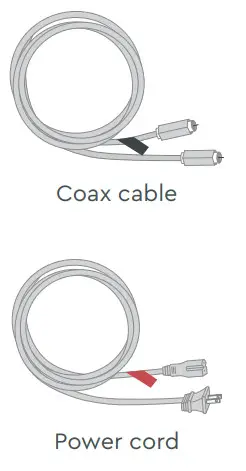
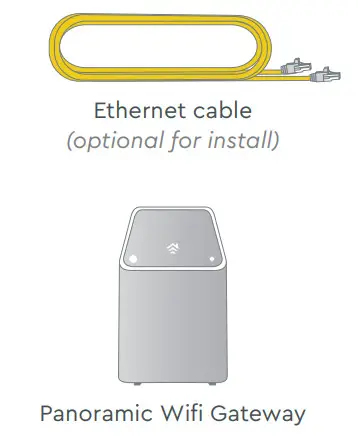
Here’s what’s in your kit:
 |  |
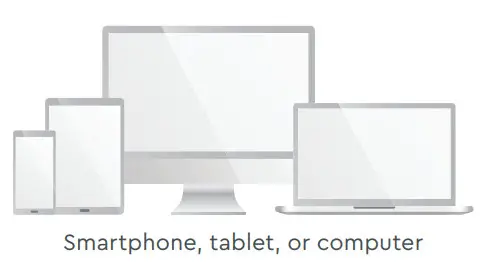
Here’s what you’ll need:
Here’s what to do:
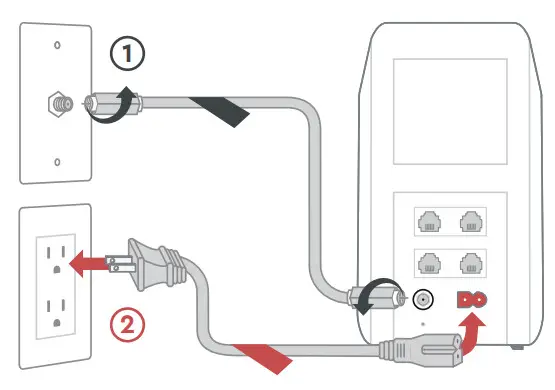
Plugin the Gateway
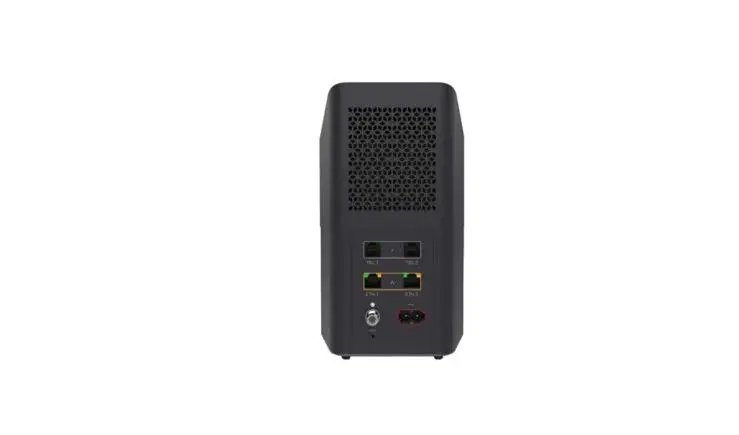
Connect the coax cable 1 to the Gateway and to an active cable outlet.
Then connect the power cord 2 to the Gateway and to an electrical outlet. Make sure the electrical outlet isn’t connected to a dimmer.
TIP: Plug the coax cable into a centrally located cable outlet or use the same outlet where the old device was connected.
Connect to the network
Wait about 10 minutes for the Gateway to power on. Then open the wifi settings on your smartphone, tablet, or computer.
Connect to the network using the network name (SSID) and the password from the label on the bottom of the Gateway.
Once it’s connected to the network, open a browser and surf the web to verify that your internet is good to go.
TIP: If you’re having trouble connecting, then just wait a few minutes and try again.
Personalize your wifi experience
We recommend you download the Cox Panoramic Wifi app. The app will help you personalize your network and optimize your wifi experience.
We’re here to help.
 Tips
Tips
 Tips
Tips- Place the Gateway at least 3 feet above the ground and avoid cramped spaces in order to get the strongest wifi signal.
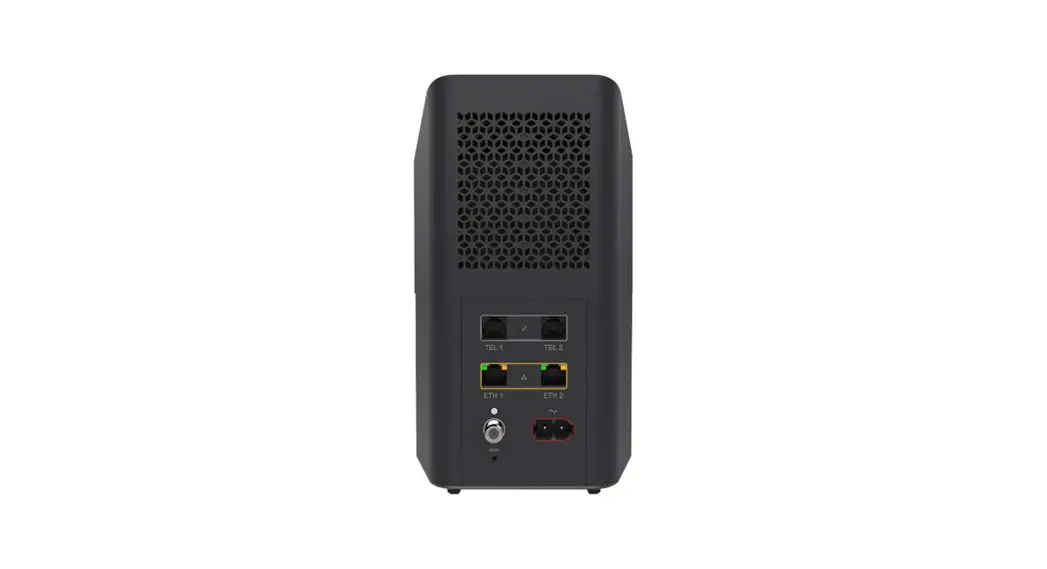
- If you have Cox phone service and want to use the Gateway for it, insert your phone cord into the TEL 1 port on the back of the Gateway.
- For Cox Homelife customers, after your Gateway is installed, please reboot your router by removing the power cord and plugging it back in.
 FAQs
FAQs
 FAQs
FAQsWhy isn’t my Gateway working?
Try rebooting— just unplug the power cord from the wall, wait about 10 seconds, then plug it back in. It may take a few minutes to reset. Also, make sure all of the connections are tight and completely plugged in.
Which coax outlet should I use?
It needs to be an active outlet. It should be centrally located and not surrounded by metal objects. It’s common to have inactive outlets so try a different one if it’s not working.
What’s the Ethernet cable for?
It’s an optional cable to connect your computer to the Gateway via a wire, rather than wirelessly.
 APP: Cox app has 24/7 support & help videos
 WEB: Cox.com/installhelp, Cox.com/wifisupport
 CHAT: live chat on Cox.com/chat or text 54512
 CALL: 1–888–556–1193
 ACCESSIBILITY: Cox.com/accessibility
 Help us send zero waste to landfi by recycling the kit once you’re fi nished.
It’s made with 100% recyclable materials.