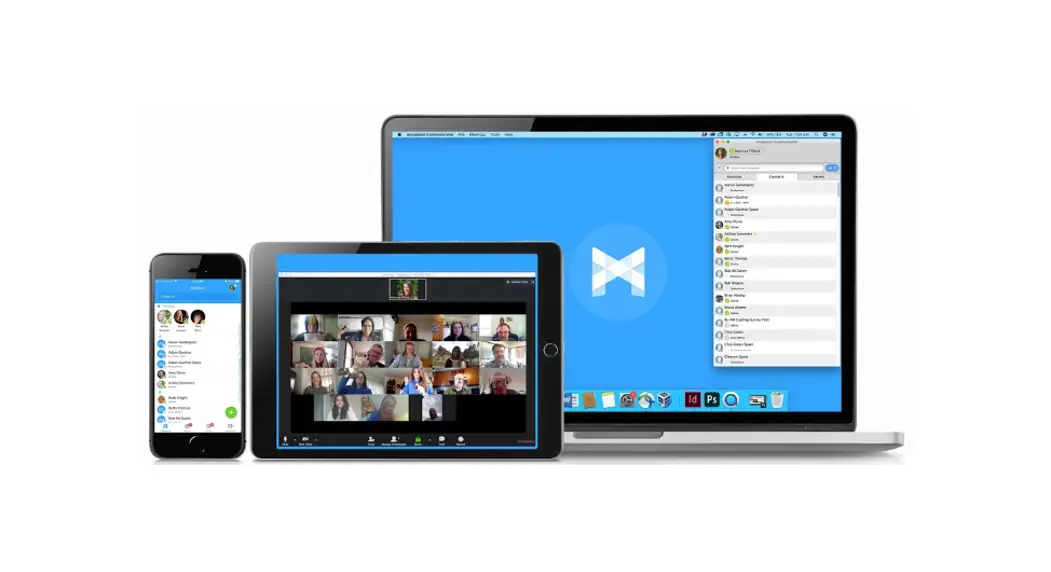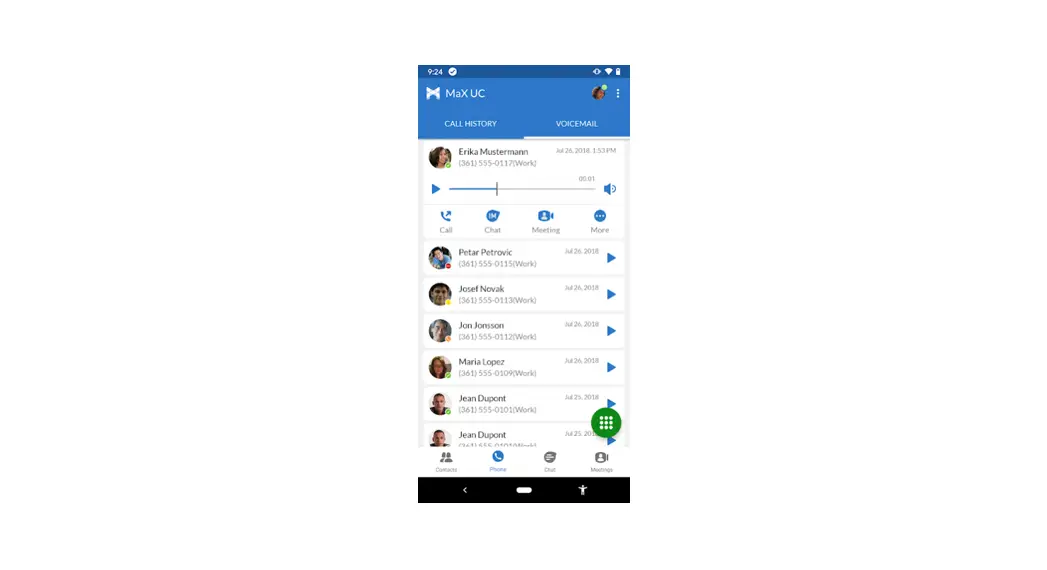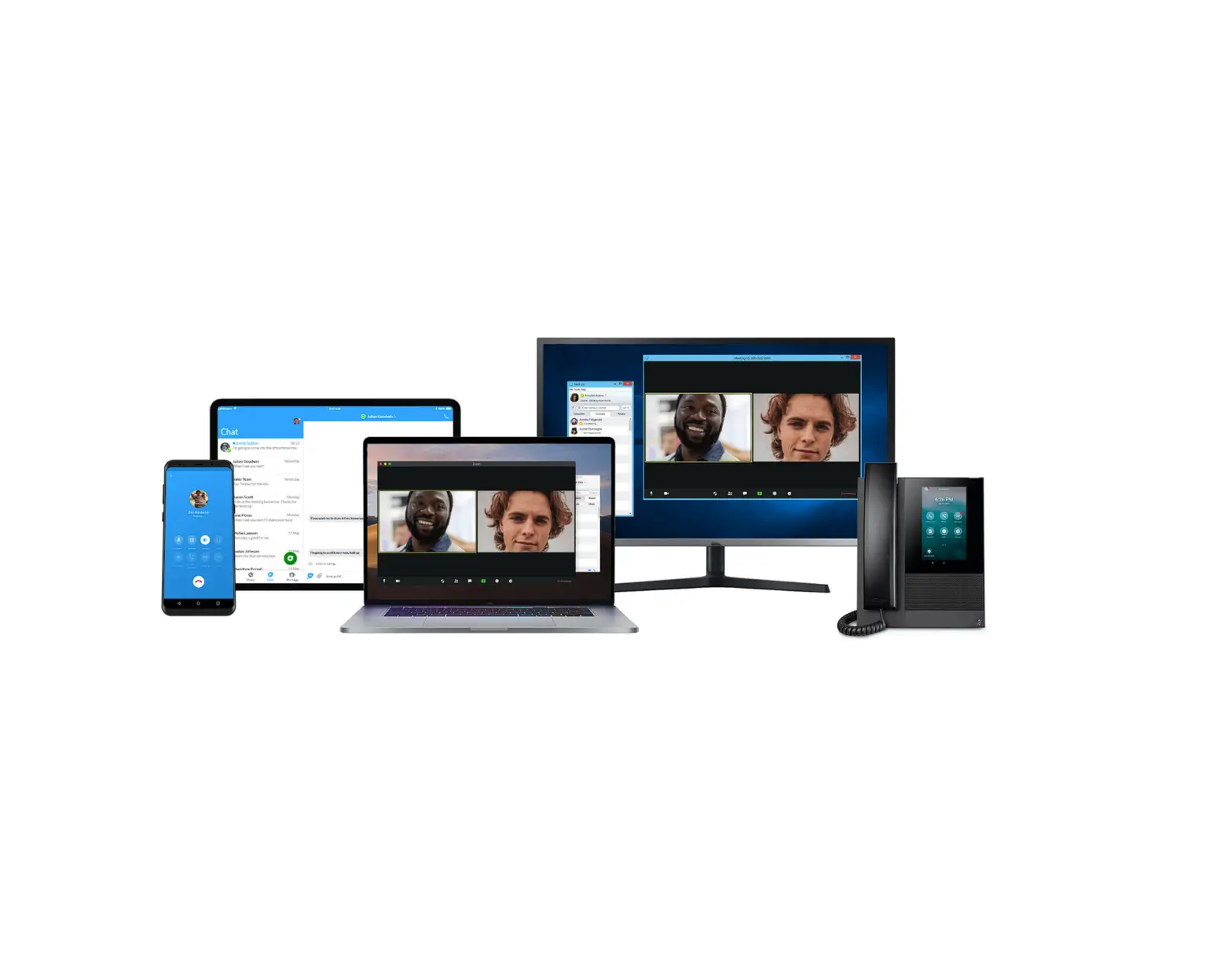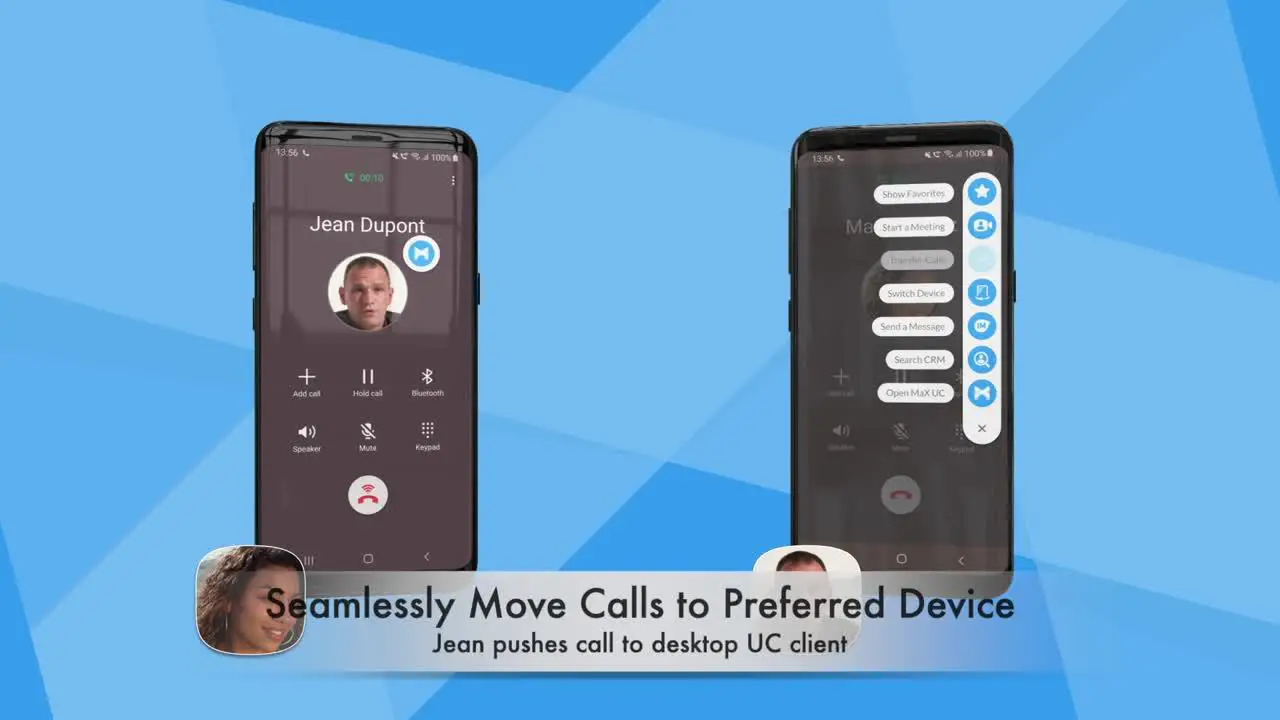
 MaX UC for Mobile Devices
User Guide
MaX UC for Mobile Devices
- Search for MaX UC on your phone’s app store.

- After downloaded, if you get prompted to, Allow MaX UC to send you Notifications choose Allow.
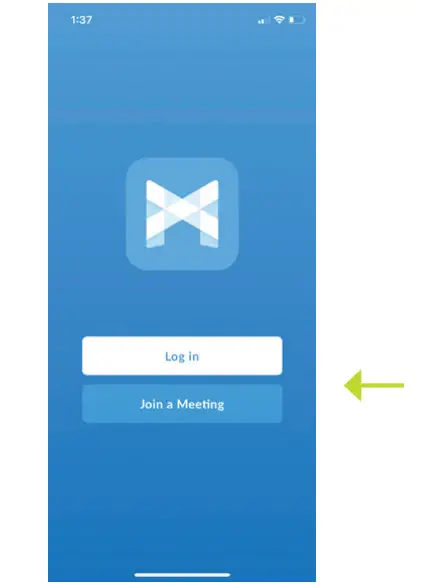
- Click Log in.

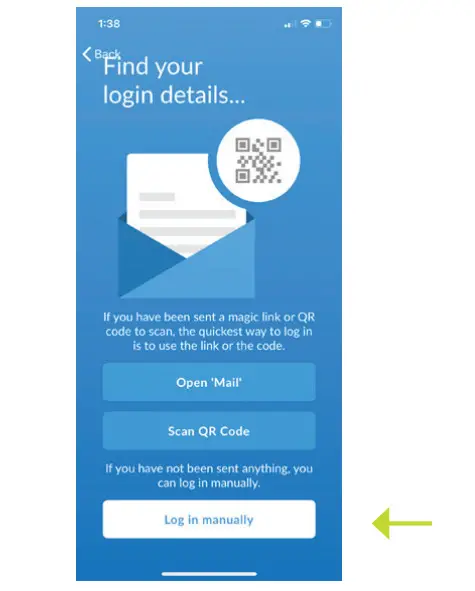
- Click Log in Manually.

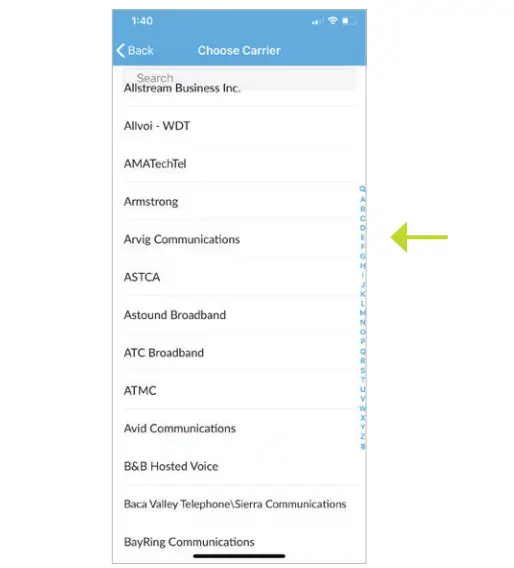
- Choose Carrier and select Arvig Communications.

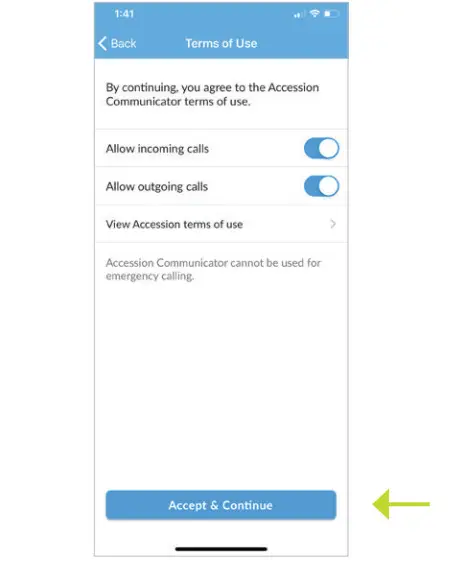
- Click Accept & Continue.

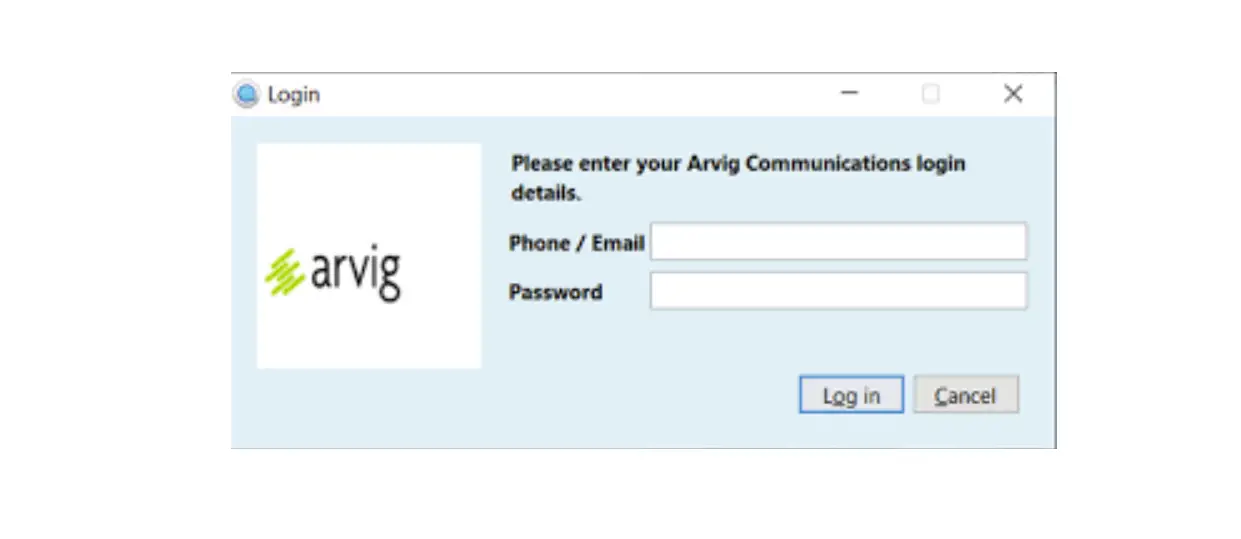
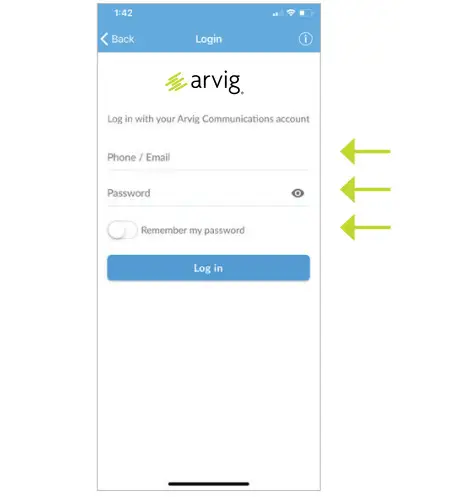
- Enter your 10-digit phone number and password. The default password will be given to you from your System Administrator or an Arvig Employee. Select Remember my password.

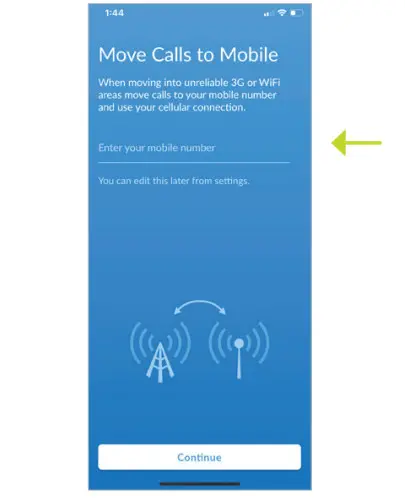
- Enter your cell phone number.

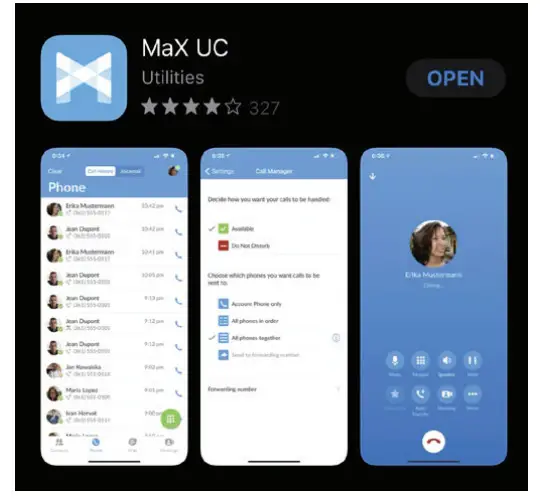
You are now ready to use your MaX UC for your mobile device.
218.346.8014 | arvig.net/hostedpbx
©Arvig 2022