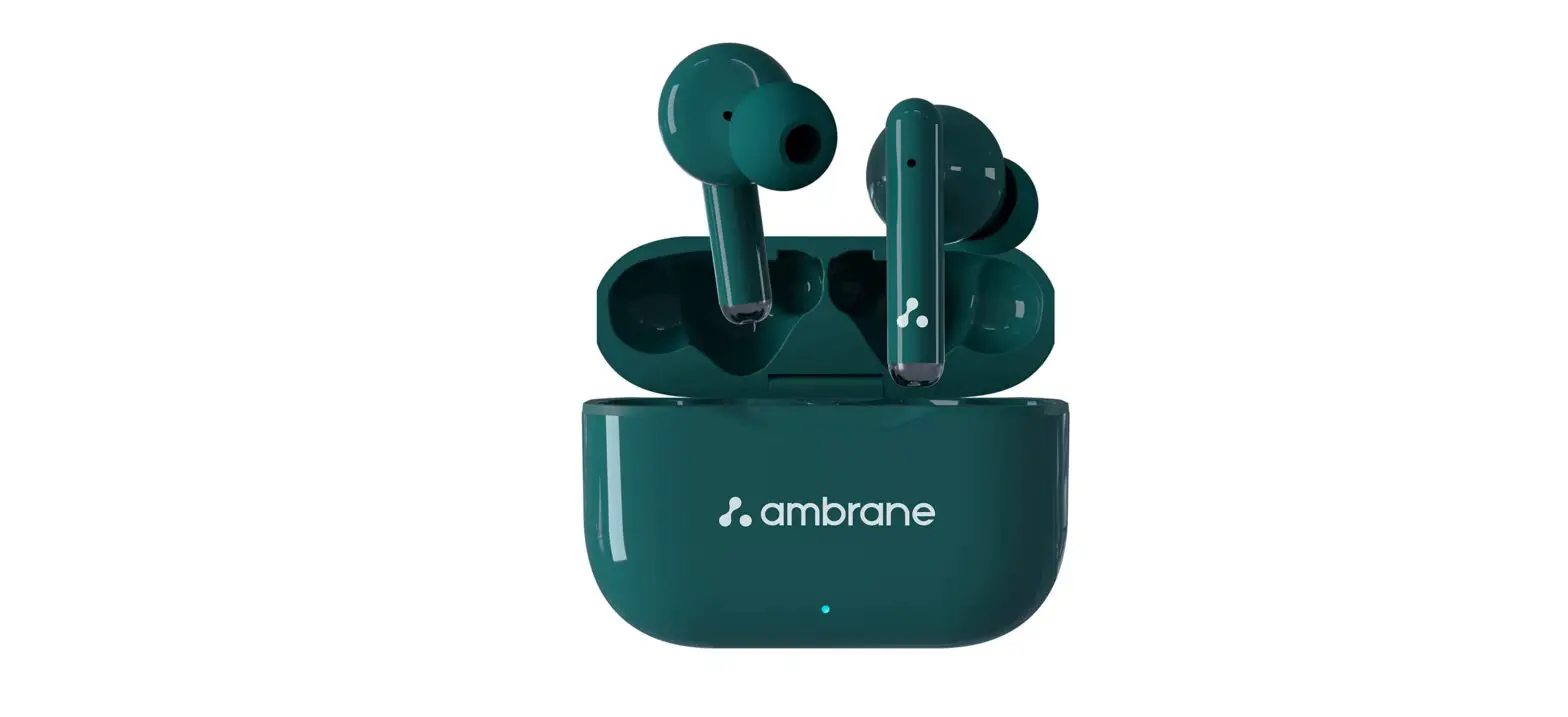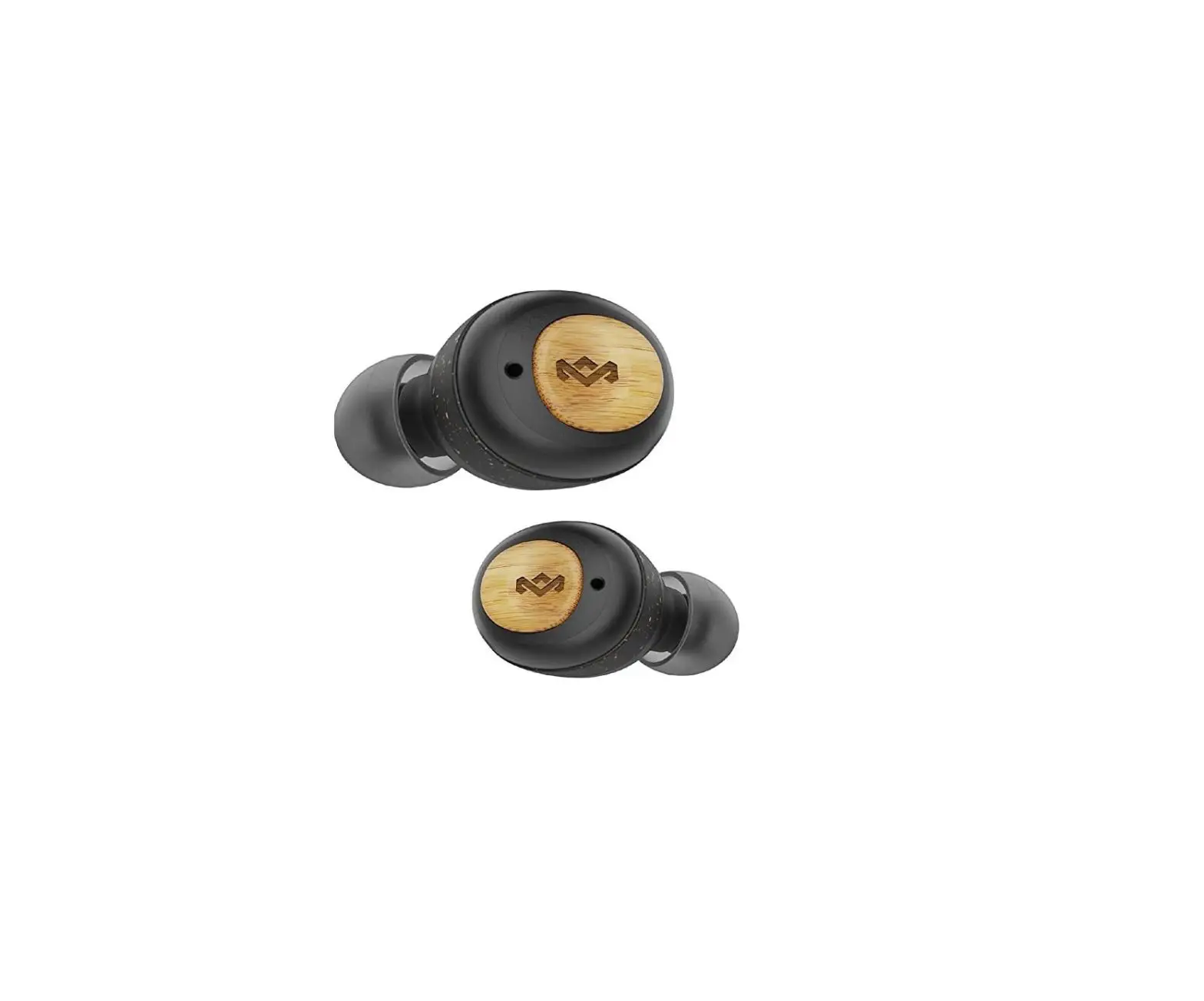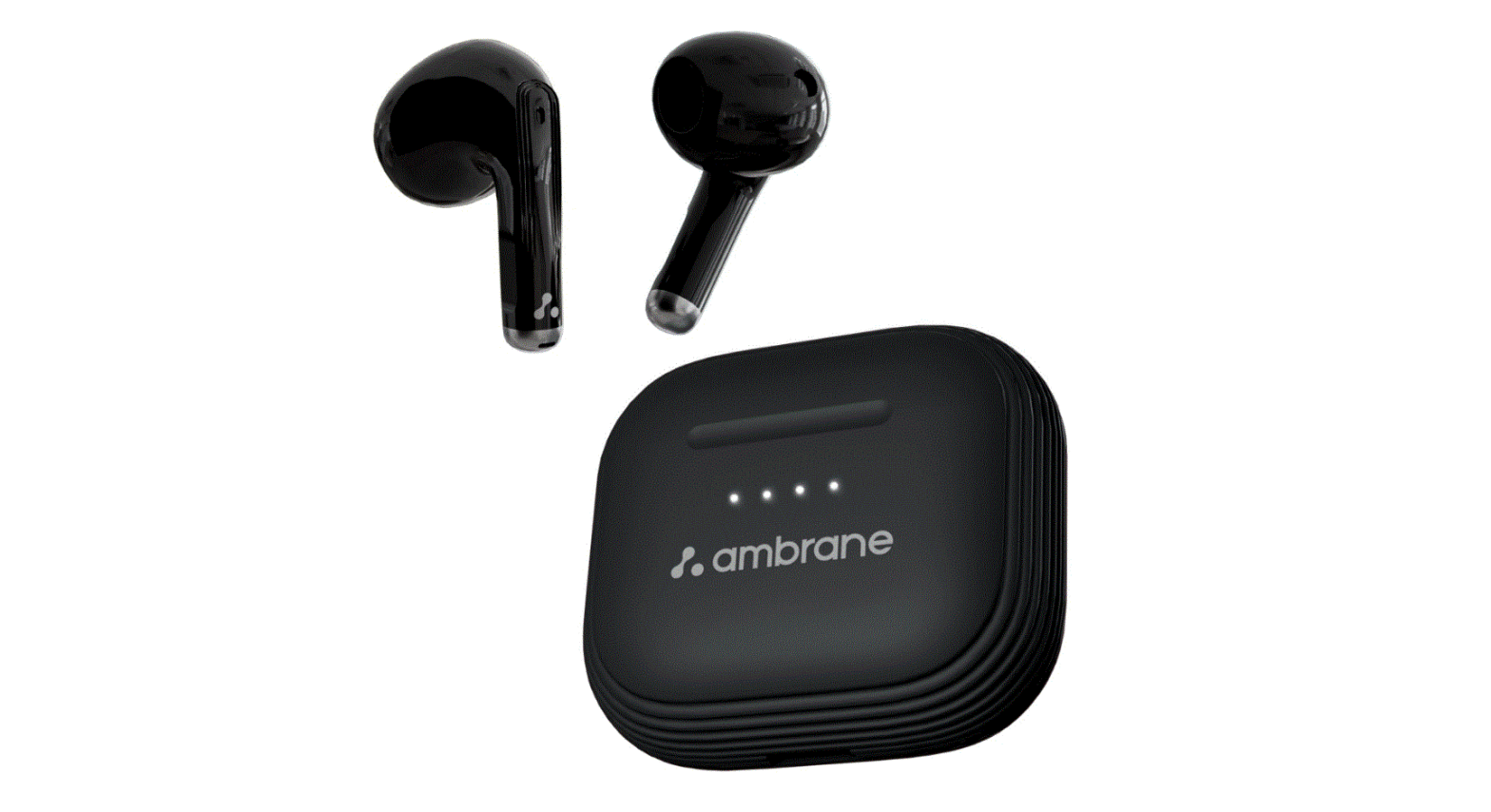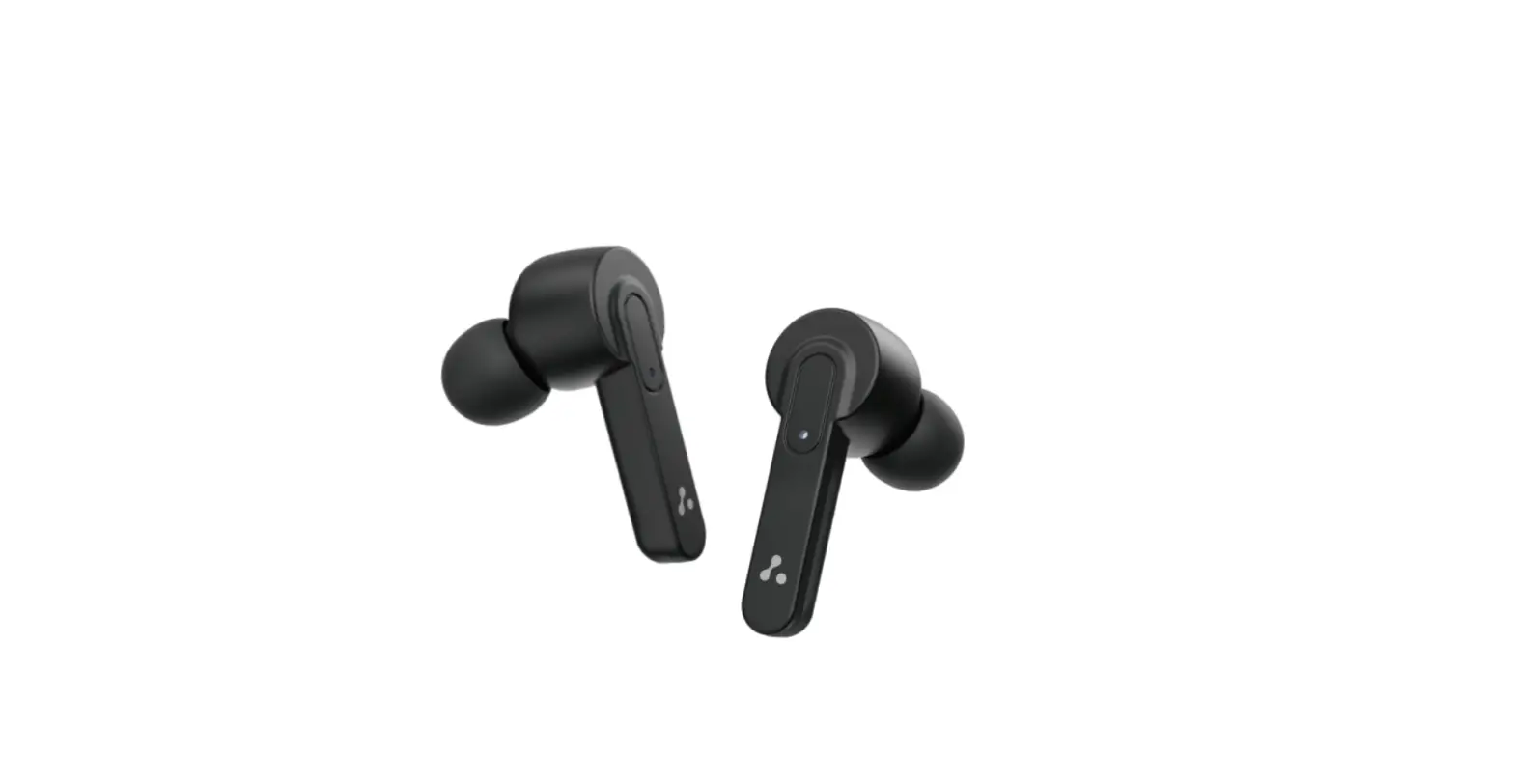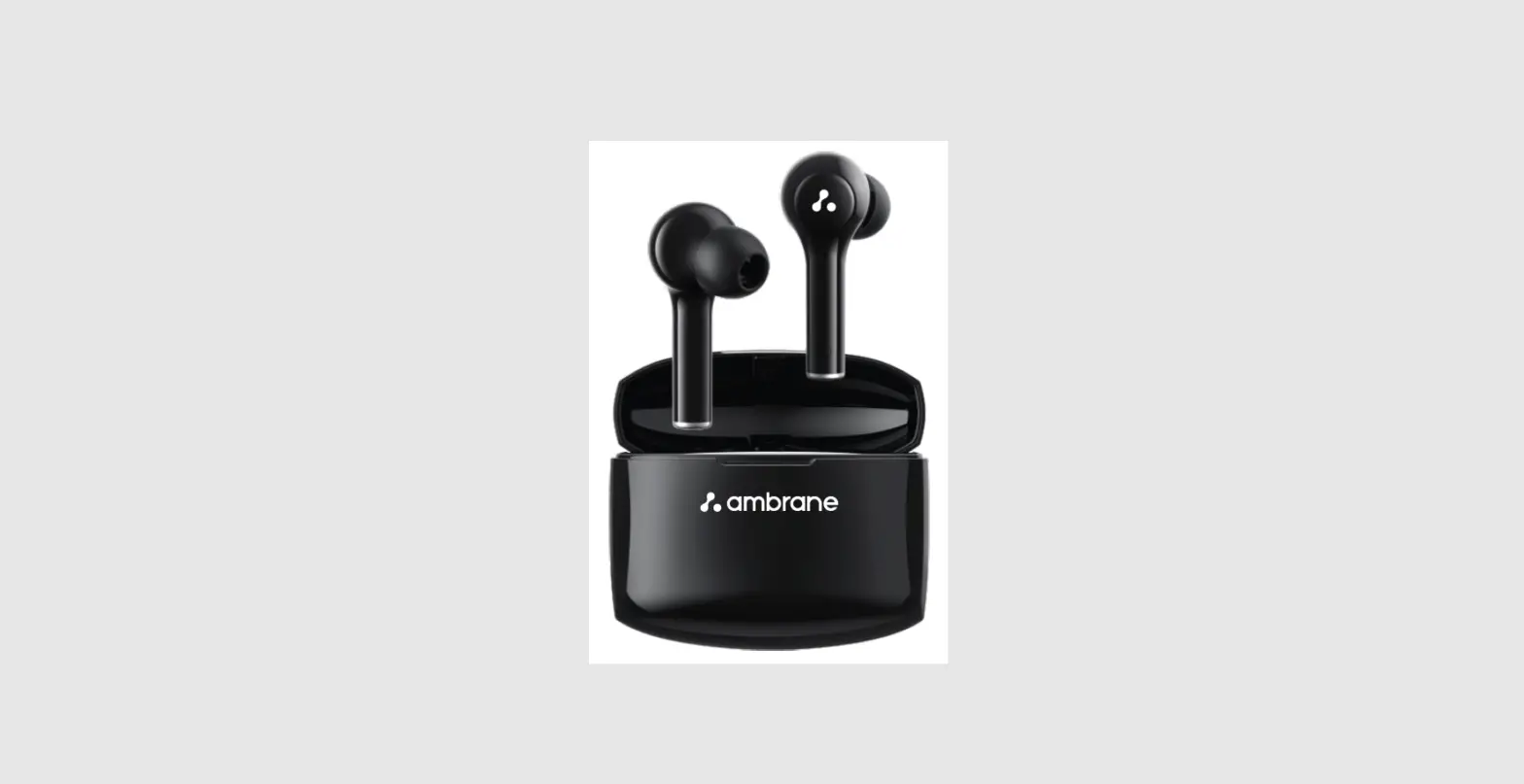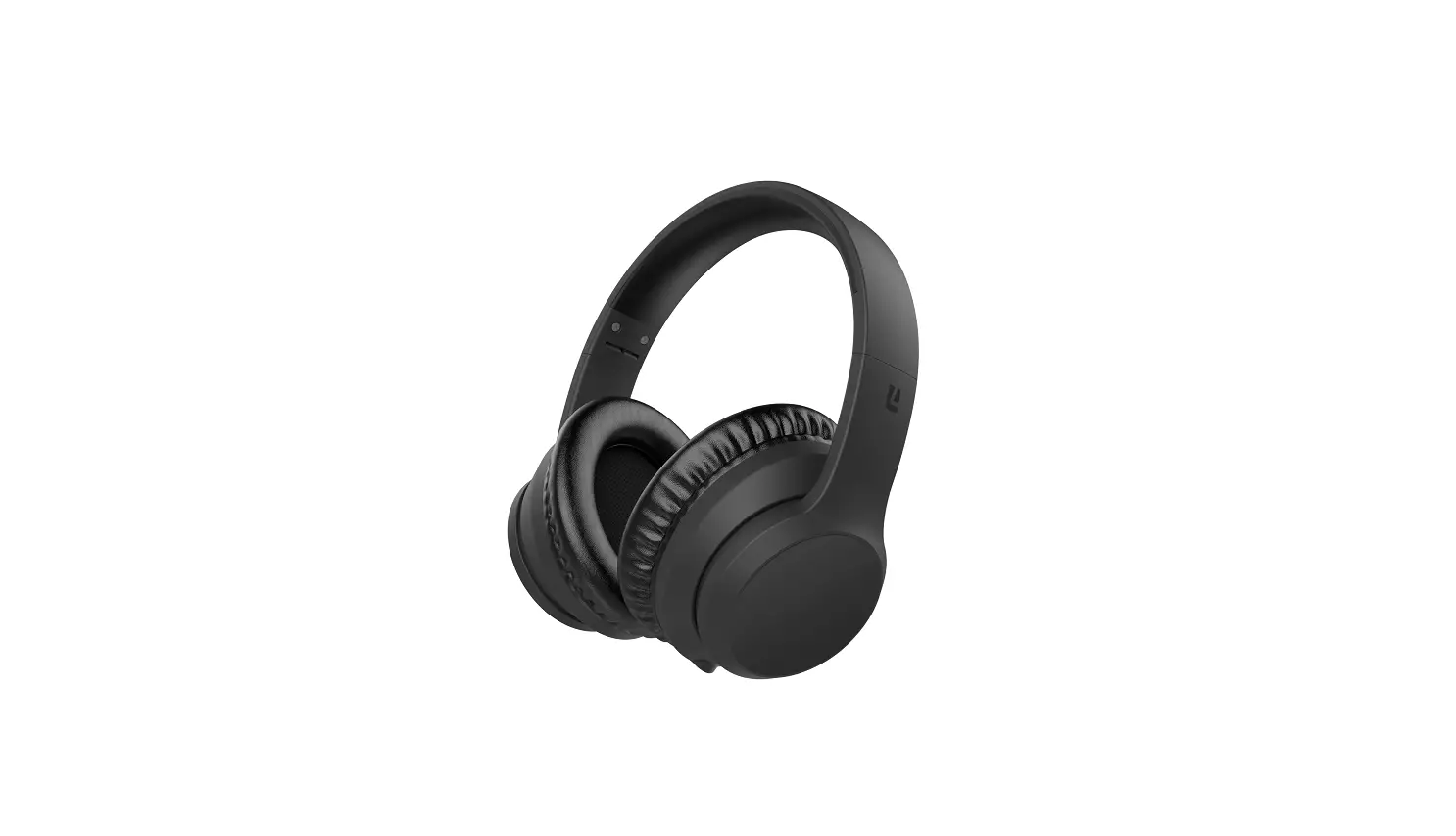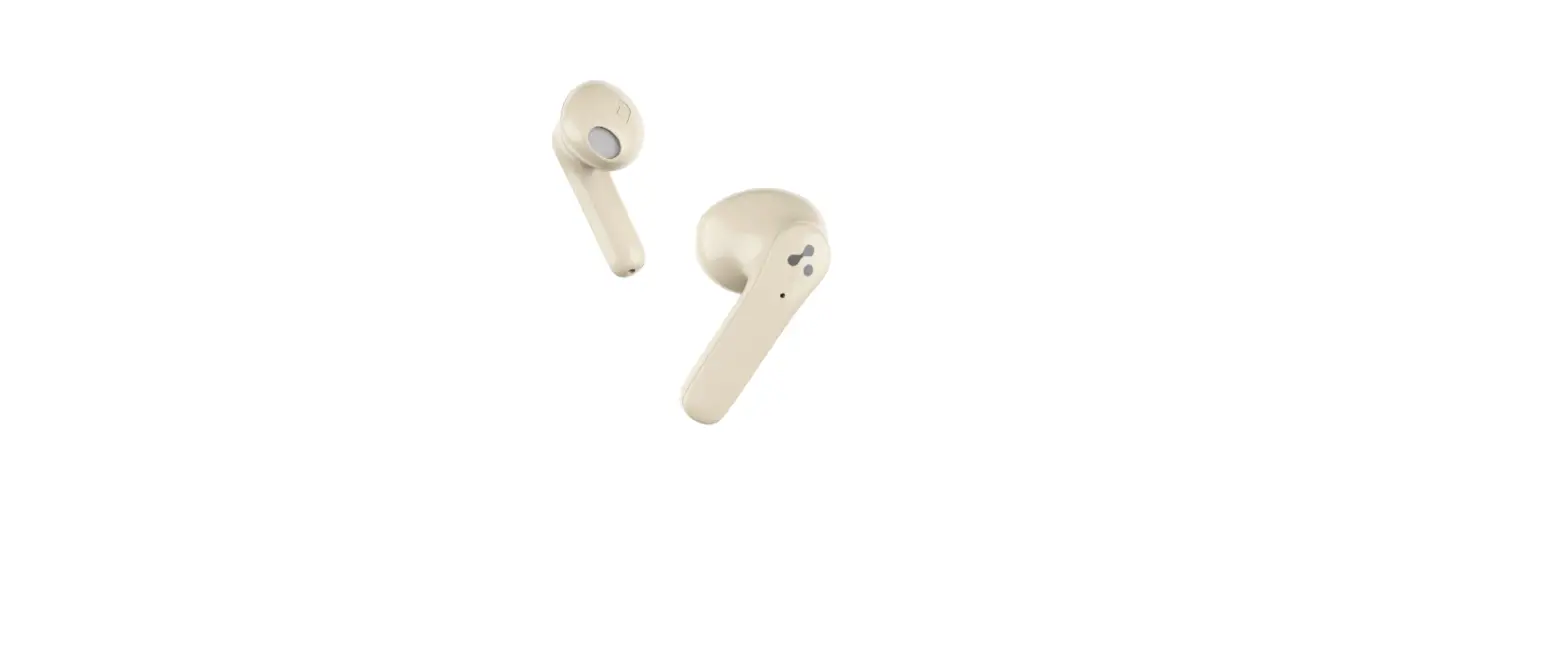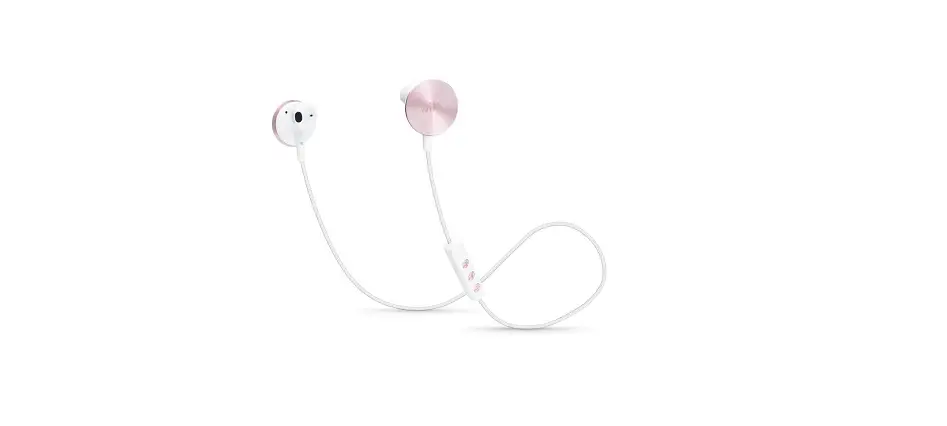
 i.am+ BUTTONS Wireless Earphones Rose Gold
 i.am+ BUTTONS Wireless Earphones Rose Gold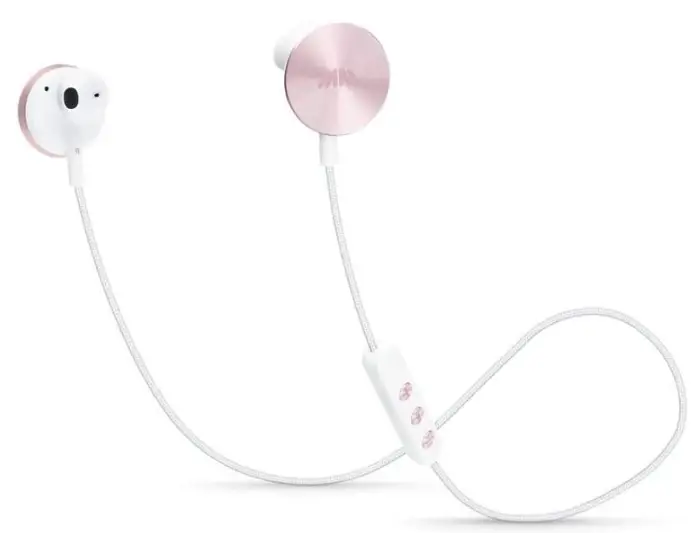
Warning letter
This device complies with Part 15 of the FCC Rules. Operation is subject to the following two conditions:
- this device may not cause harmful interference, and
- this device must accept any interference received, including interference that may cause undesired operation.
Product Description
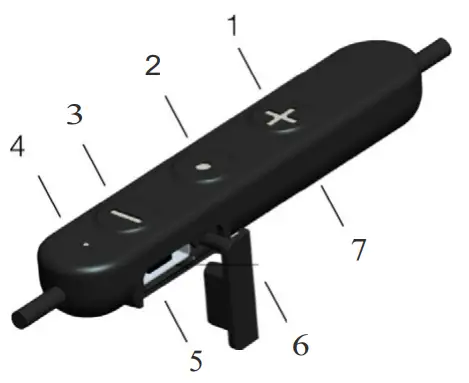
- + Button
- Power On / Pairing / Function Button
- Button
- LED indicator
- Micro USB(only for charging)
- USB door
- Microphone
Headphones Operation
Phone call modeAnswer call
| Item | Requirement and Description | |||
| Power On/Off | l Power On: Press and hold the Function button for 3 seconds. (release the button after the blue LED bright, the red LED and blue LED start flashing means the device enter pairing mode) l Power Off: Press and hold the Function button until the red LED light up. Red LED turn off means the device power off | |||
| Pairing | l First paring: Press and hold Function button for 3 sec. to power on, earphones auto-enter pairing mode – LED alternates flashing Red and White. l To paring with your PULS or phone, go to settings on your PULS or phone, make sure Bluetooth is switched on. l The ear-phones appears as “DOTS by i.am+” Select to pair. l Bluetooth pairing after a successful first pairing: n Power off then Press and hold Function button for 5 sec. to place earphones in pairing mode – LED alternates flashing Red and White, mobile phone search the Bluetooth device to connect the headphones (headphones ID is “ DOTS by i.am+ ”
n If the earphones are outside Bluetooth range and disconnect from PULS or your phone, the headphones will automatically try to re-connect. If reconnection is unsuccessful for more than 5 mins, the headset will power off. l Set up use of DOTS headphones with multiple devices such as your PULS and your smartphone. | |||
| Pair headphones to PULS or phone 1
Turn off the Bluetooth on PULS phone 1, and turn on Bluetooth on phone 2 Search and pair the headset to phone 2
Turn on Bluetooth on PULS phone 1 and connect to headset | ||||
| Charging | Open USB door “6” on controller and connect micro USB cable “5” The headset will power off then enter charging mode – LED signal red while charging Solid white when full charge is reached | |||
| Using Headphones with Aneeda voice assistant | Use the Aneeda button on your PULS device to speak to and hear Aneeda on your headphones | |||
| LED Indication | l LED turned off when headset powered off or not charging l Power on: white LED on 1s l Power off: red LED on 1s l Pairing: LED alternates flashing Red and White l Connected: white LED 0.1s on/4s off l Disconnected: white LED 0.1s on 2 times/2s off l Incoming call: white LED 0.5s on /0.5s off l Outgoing call: white LED 0.5s on /0.5s off l Active call: white LED 1s on /1s off l Music play: white LED 1s on /4s off l LED is changed from white blinking to Red blinking when battery low l Charging:The headset will power off and enter charging mode – LED signal red while charging, Solid white when full charge is reached. | |||
| Music Mode | Function | Status | Sound indication | Operation |
| Volume up | Music or phone call mode | No | Press volume + | |
| Volume down | Music or phone call mode | No | Press volume – | |
| Play/Pause | Music mode | No | Short press Function button | |
| Next song | Music mode | No | Double press Function button | |
| Previous song | Music mode | No | – | |
| Incoming call | ‘Beep’ sound once | Press Function button 1 time | ||
| Reject incoming call | Incoming call | No | Press and hold Function button for 2 seconds | |
| Hang up phone call | During phone call | ‘Beep’ sound one time | Press Function button 1 time | |
| Switch call between headset and phone | During phone call | No | Double press Function button | |
| Mute | During phone call | ‘Beep’ sound two times | Fast press volume down button for 2 timE | |
| Cancel Mute | During phone call | No | Fast press volume up button for 2 times | |
| l Incoming call status:
n When mobile phone connected to headset through Bluetooth, mobile phone will stop music player and play ring tone when have incoming call n Mobile phone to resume playing music after hanging up phone call l 3 party phone call: – Short press Function button to connect the waiting phone call and hang off current call – Long press 1s the Function button to connect the waiting phone call and hold current call. Long press 1s again to switch the two phone call status | ||||
Labeling requirements
This device complies with part 15 of the FCC Rules. Operation is subject to the following two conditions:
- This device may not cause harmful interference, and
- this device must accept any interference received, including interference that may cause undesired operation.
Information to user
Any Changes or modifications not expressly approved by the party responsible for compliance could void the user’s authority to operate the equipment.
Note: This equipment has been tested and found to comply with the limits for a Class B digital device, pursuant to part 15 of the FCC Rules. These limits are designed to provide reasonable protection against harmful interference in a residential installation. This equipment generates uses and can radiate radio frequency energy and, if not installed and used in accordance with the instructions, may cause harmful interference to radio communications. However, there is no guarantee that interference will not occur in a particular installation. If this equipment does cause harmful interference to radio or television reception, which can be determined by turning the equipment off and on, the user is encouraged to try to correct the interference by one or more of the following measures:
- Reorient or relocate the receiving antenna.
- Increase the separation between the equipment and receiver.
- Connect the equipment into an outlet on a circuit different from that to which the receiver is connected.
- Consult the dealer or an experienced radio/TV technician for help.
The device has been evaluated to meet the general RF exposure requirements. The device can be used in portable exposure conditions without restriction. This device complies with Industry Canada license-exempt RSS standard(s).
Operation is subject to the following two conditions:
- This device may not cause interference, and
- This device must accept any interference including interference that may cause undesired operation of the device.
FAQs
What is the use of the buttons in i.am earphones?
The volume should rise gradually each time the volume-up button is pressed until the maximum volume is reached, if the headset supports volume control controls. The volume should rise gradually to its highest level if the volume-up button is pressed and held.
How do you know if my i.am wireless earphones is fully charged?
Each time, you can charge it for two to three hours. It often has a red charging indicator light. The battery is fully charged when the light goes off, indicating.
What is multi-function button headphones?
It provides a hearing experience unlike any other, providing high-quality sound and situational awareness, and is so light and comfy that you may forget you’re wearing them.
How do I change my i.am earphones function?
To do this, enter the settings menu, select Accessibility, then click Sound Balance. Examine the options and choose one that best suits the music that is now playing. However, the smartphone has to have an app installed in order to operate the headphones or earphones.
How long do i.am wireless headphones last?
True wireless headphones typically have a battery life of 3 hours or less before they run out of juice. Charger cases come in handy in this situation. A good charging case can extend the listening period of your headphones by at least 5 to 6 hours.
How long does it take to charge i.am wireless headphones?
The majority of batteries for wireless over-ear headphones can take anywhere from 2 to 5 hours to fully charge. On the other hand, the battery life of wireless in-ear headphones can range from 20 hours to 1 to 3 hours before they need to be recharged.
Can you overcharge i.am wireless headphones?
Unfortunately, overcharging your Bluetooth headset is a possibility. Unfortunately, this could weaken the battery or perhaps completely fry it. So that you don’t end up holding a broken piece of technology in your hands, it’s critical to understand the warning signs to look for when charging your gadget.
How do you use a multifunction button?
Simply said, the multifunction button on your headphones is essentially your personal assistant. You can access a number of commands and shortcuts for taking and making calls, managing your music, and more with just a few taps of your finger, making daily life simpler and even more hands-free.
How do I control Bluetooth volume?
By pushing the volume control button on a Bluetooth device or a linked phone, you can adjust the device’s volume.
Do earbuds have volume control?
While typical wireless earbuds with an audio cord connecting two earpieces include integrated volume controls, true wireless earbuds have touch-sensitive or conventional buttons on their housings.
How do I increase the volume on my i.am wireless earphones?
You may adjust the volume on your Android device by pressing the “volume up” and “volume down” buttons until it is loud enough for you to comfortably hear. Go to Settings > Sound & vibration if it doesn’t work or if you want to access your settings and change other audio settings.
Why is the button on my i.am earphones not working?
Volume Buttons should be cleaned. Checking for dust and debris on the volume buttons is the simplest remedy you can try. If there is dust, you can get rid of it with rubbing alcohol, a q-tip, or a vacuum nozzle. Because the buttons are quite delicate, if you find any dirt there, carefully brush it away.
How long do i.am earphones battery last?
The Bluetooth headphones we suggest have batteries that can last seven to forty hours between charges. Depending on how loud you listen and if you engage in active noise cancellation, you’ll get a different amount of battery life.
What does the M button do on Bluetooth headphones?
Three distinct equaliser presets can be switched between using the M-button, your phone’s voice assistant, or Google Assistant.
Why do wireless earbuds fall out?
Your earbuds’ ability to stay put depends heavily on the type of material and form of the ear tips. If they are excessively large, they won’t properly fit inside your ears and may eventually damage them. Try silicone, which is flexible and supple but not as rigid as rubber.