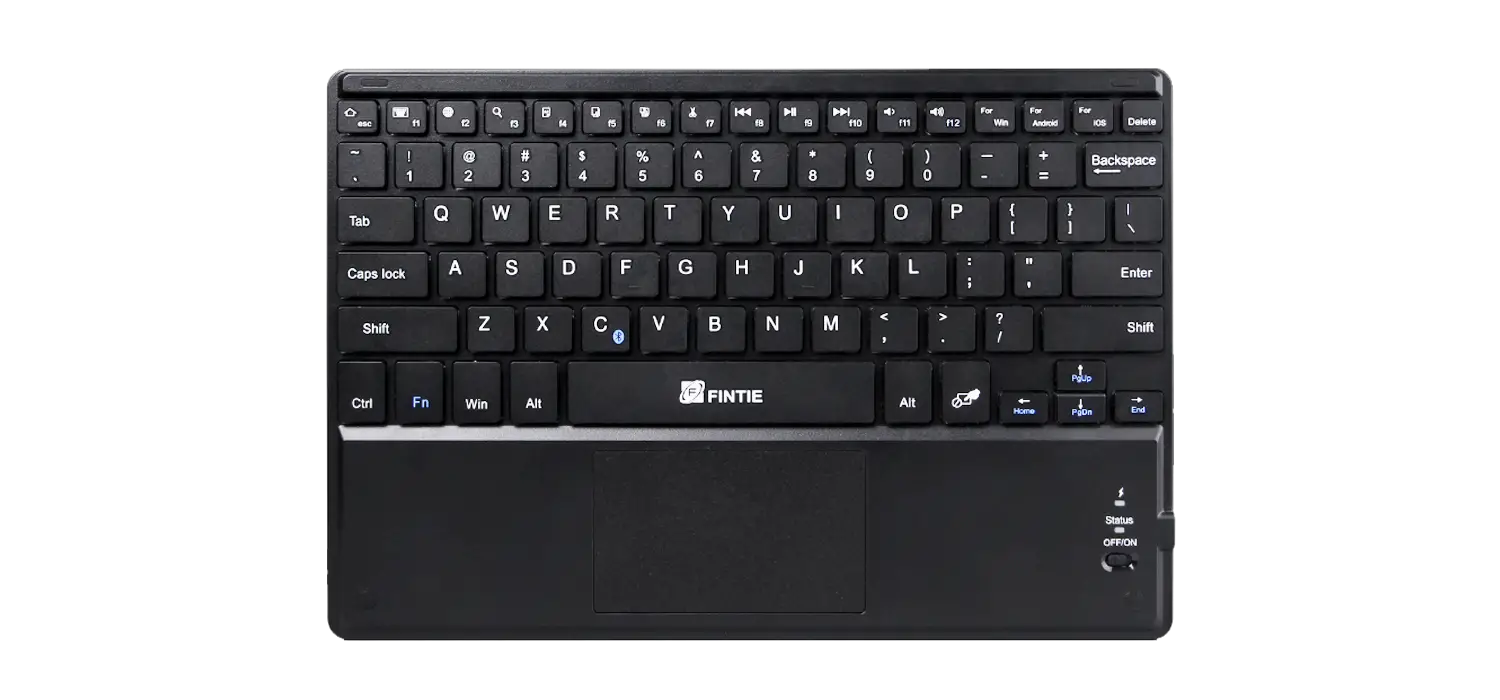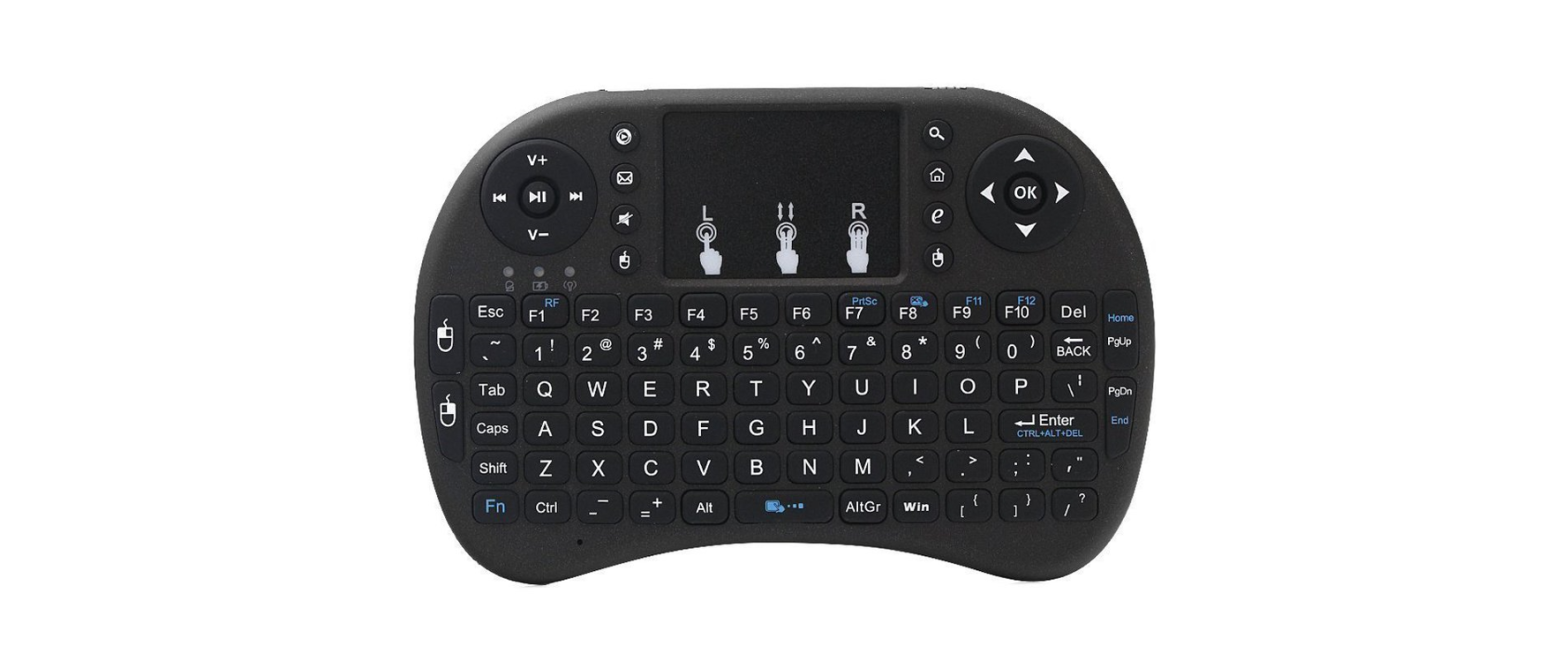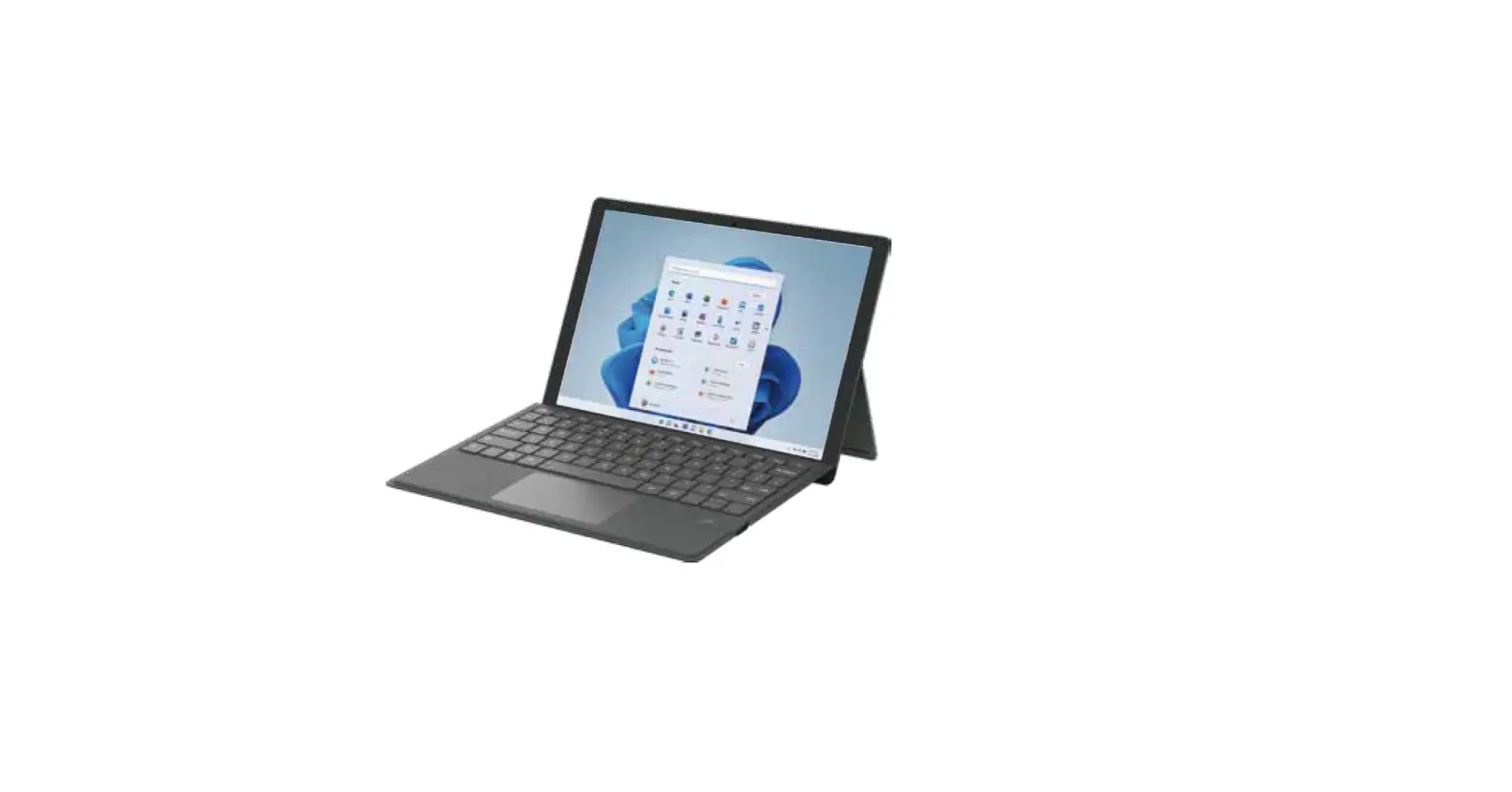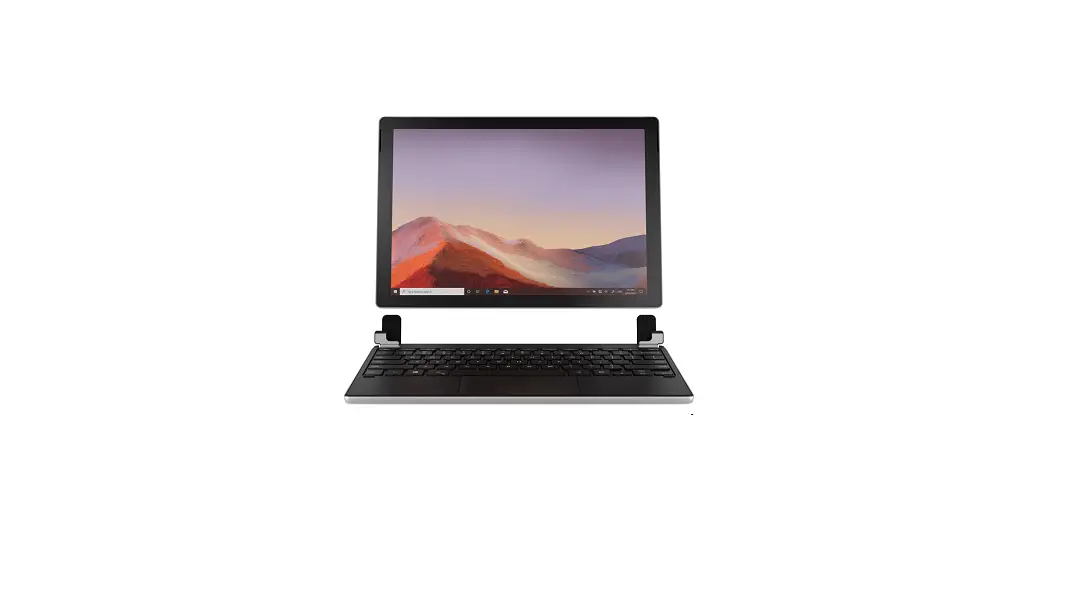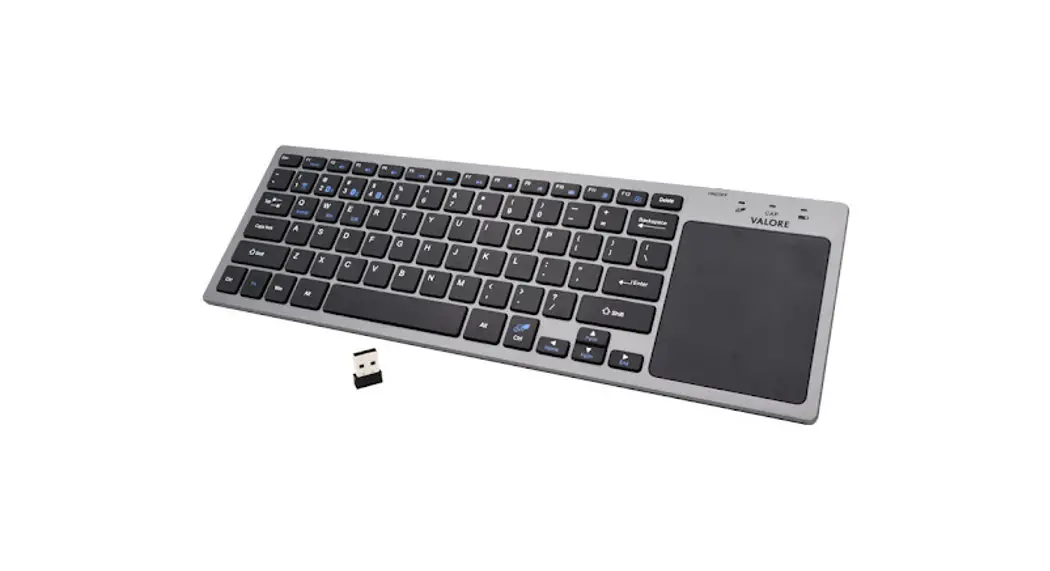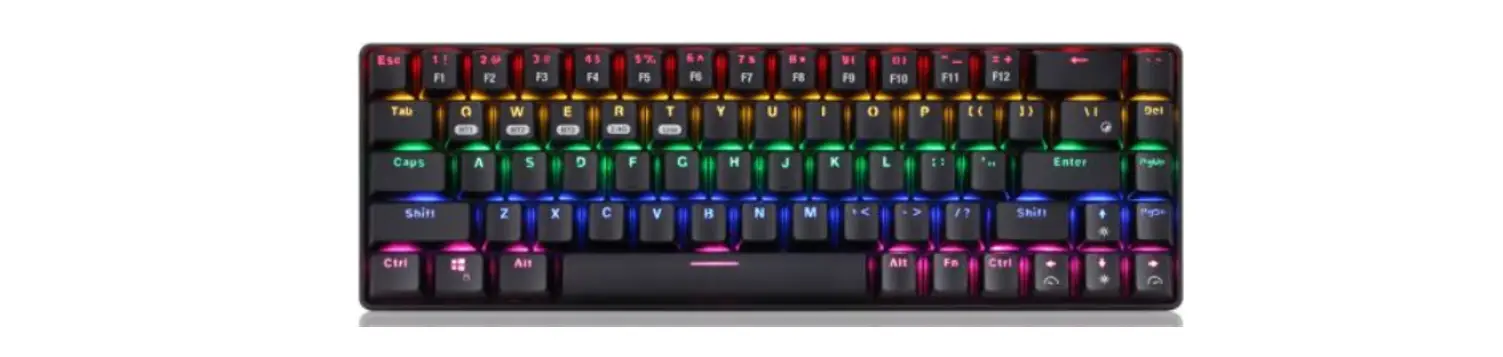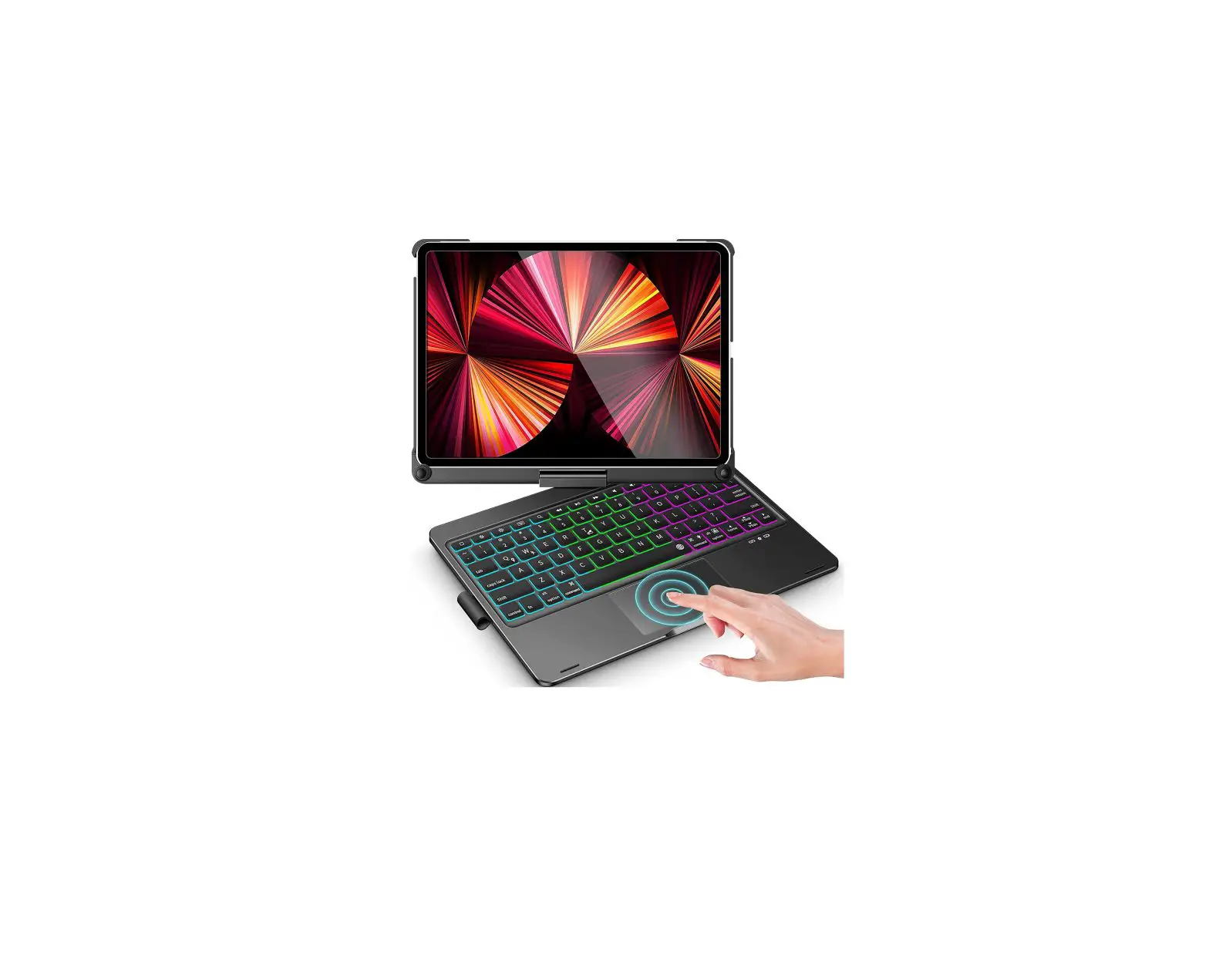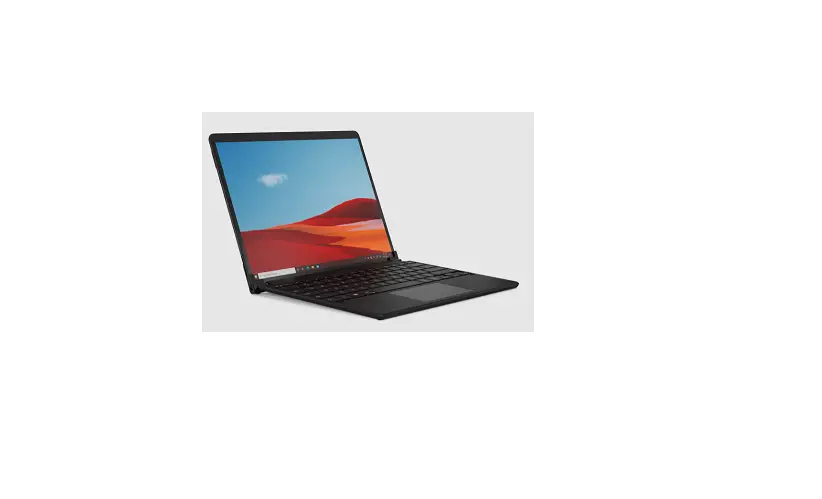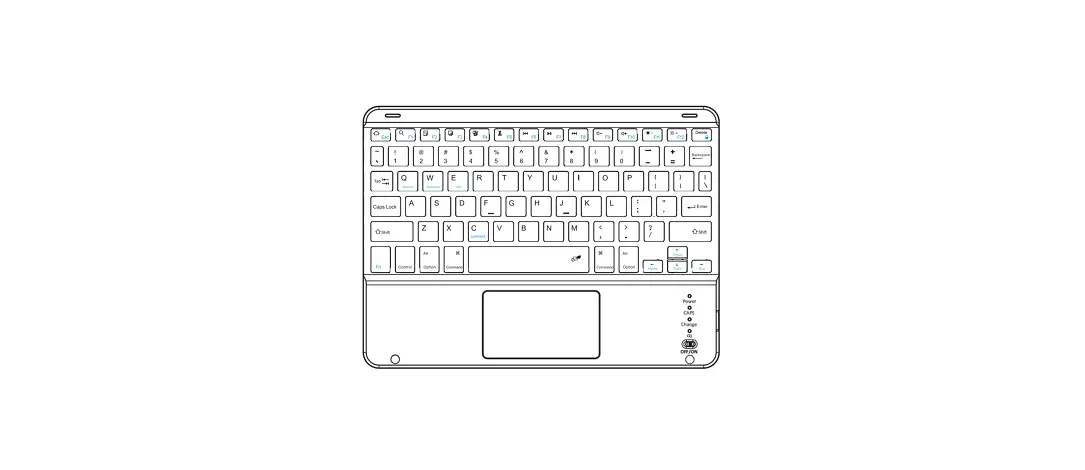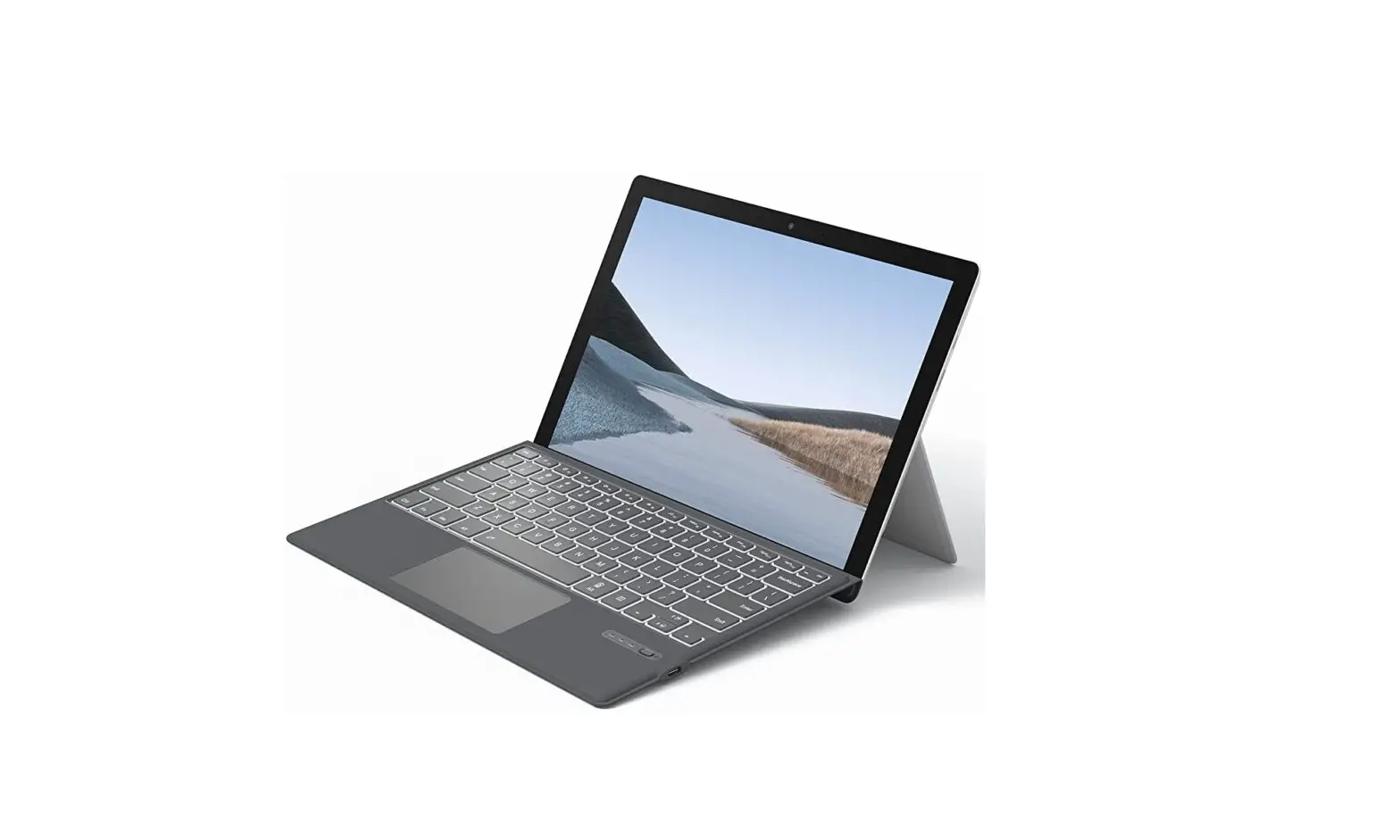
GREENLAW YF133-X7 Multi-Function Keyboard with Touchpad User Manual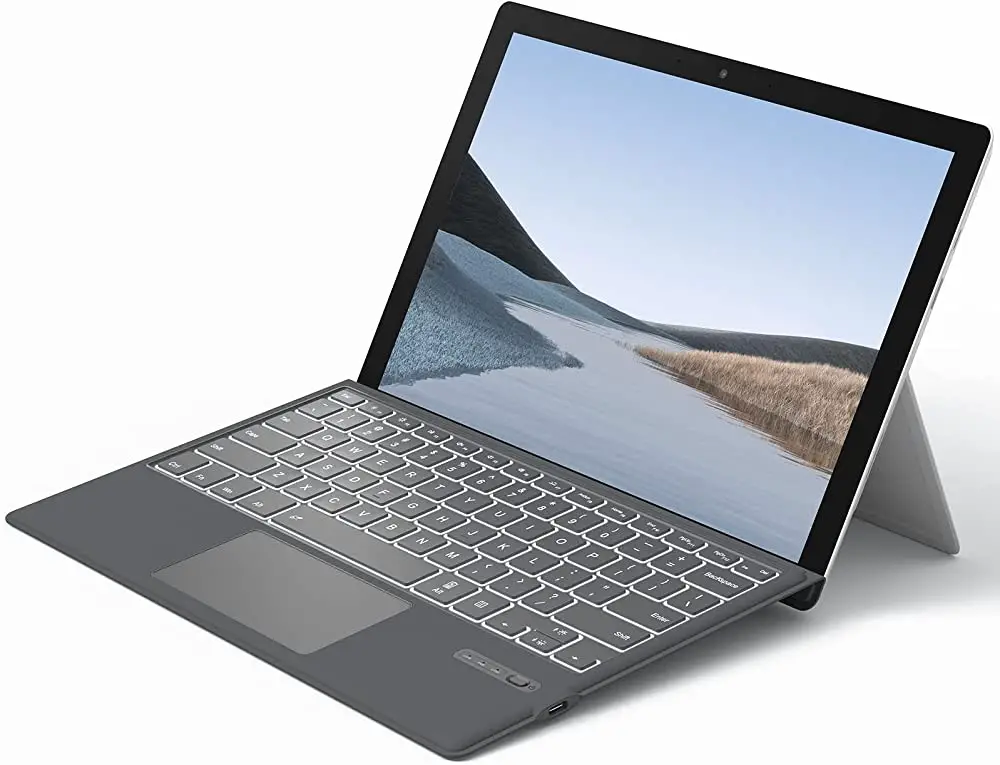
Note: Please read the manual carefully before using.
Package Included
- 1 x Keyboard
- 1 x Tablet Case
- 1 x Type-C Charging Cable
- 1 x User Manual
- 1 x Cell Phone Stand
Pairing Steps
- Toggle the keyboard switch to On.
- Turn on BT1: Press and hold
 +
+  for 3 seconds, the blue indicator flashes quickly to enter the pairing state
Turn on BT2: Press and hold +
+  for 3 seconds, the green indicator flashes quickly to enter the pairing state (The keyboard supports connecting two Bluetooth devices, you can switch BT1/BT2 devices by short pressing
  +
+  /
/  +
+ )
) - Turn on the tablet’s Bluetooth: select Settings – Bluetooth – On.
- Search and select “Bluetooth Keyboard” to complete pairing.
- After the pairing is successful, the indicator light turns off.
 +
+  for 3 seconds, the blue indicator flashes quickly to enter the pairing state
 +
+  for 3 seconds, the green indicator flashes quickly to enter the pairing state (The keyboard supports connecting two Bluetooth devices, you can switch BT1/BT2 devices by short pressing
  +
+  /
/  +
+ )
)Charge
- Please use the charging cable in the package to charge.
- When charging, the power indicator will turn red, and it will turn off when fully charged (about 3-4 hours)
- When the battery is low, the indicator light will flash red slowly.
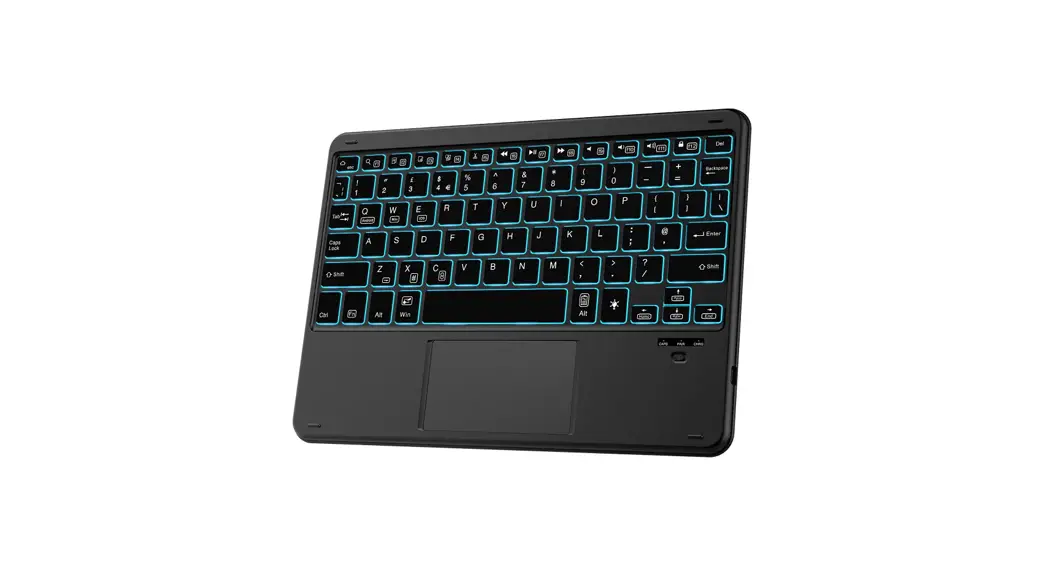
Backlight Switching
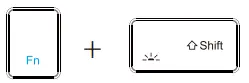 Adjust the brightness three-level adjustable.
 Switch color
Specifications
| Working Current | ≤70mA | Keyboard Working Voltage | 3.0-4.2V |
| Touchpad Working Current | ≤6mA | Working Time | ≥70 Hours |
| Battery Standby Time | ≤300 Days | Sleeping Current | ≤40uA |
| Charging Port | Type-C USB | Battery Capacity | 500mA |
| Charging Time | 3-4 Hours | Connect Distance | ≤33 feet |
| Awaken Time | 2-3 seconds | Charging Current | ≤300mA |
| Working Temperature | 10℃~+55℃ | Key Strength | 50g-70g |
| Bluetooth Version | BT5.0 | Keyboard Size | 242.5*169.5*6.7mm |
| Touchpad | PixArt chip, with left and right click control keyboard | ||
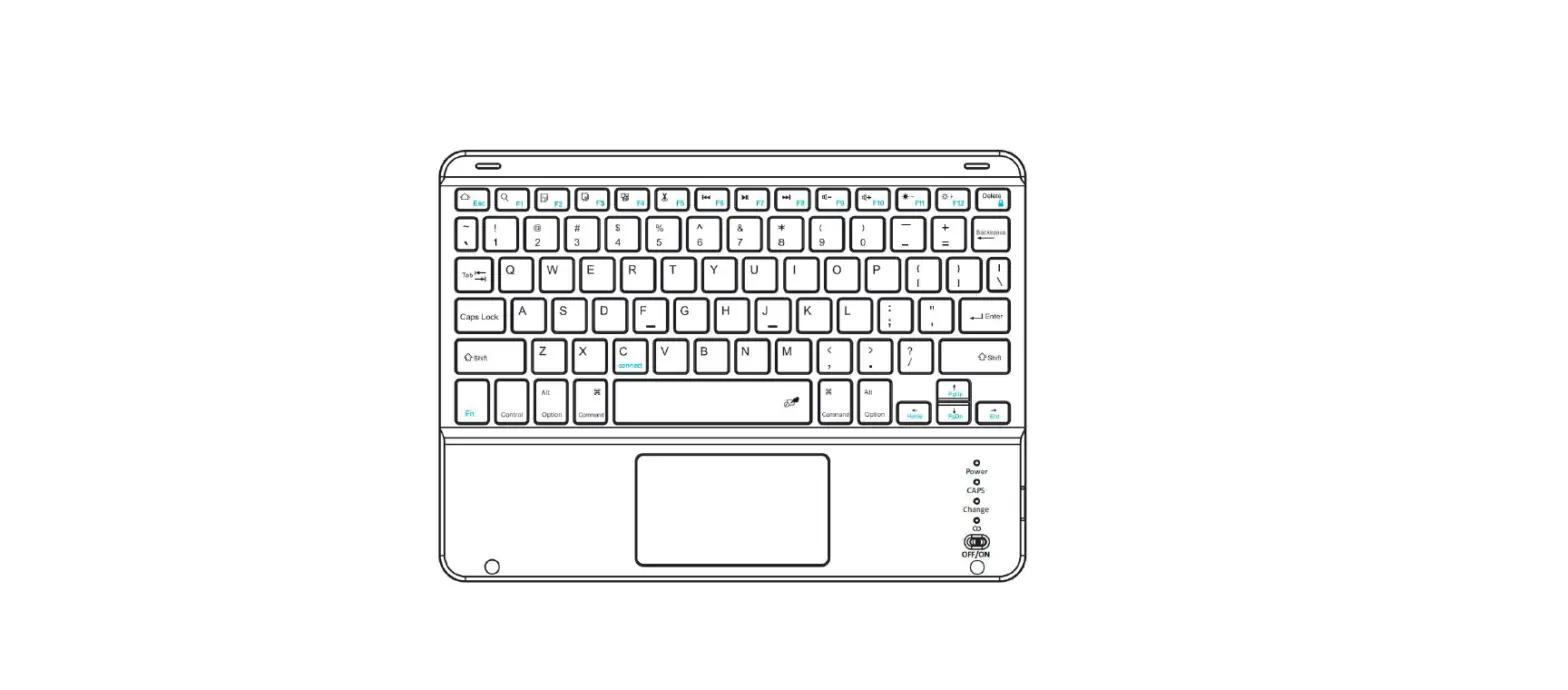
Function Keys
NOTE:
- The keyboard is compatible with two systems: Android, iOS. When you connect the keyboard, it will automatically recognize your system and adjust it to the shortcut keys of the corresponding system.
- When you need to connect to a device of other systems, short press
 +
+  or
or  +
+  or to switch channels, then follow the pairing steps.
 +
+  or
or  +
+  or to switch channels, then follow the pairing steps.
iOS
Android
Indicator Light
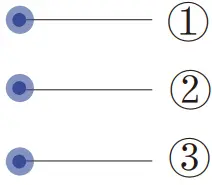
- Connection indicator
BT1: +
+  The indicator light will flash quickly with blue light while pairing and go out while pairing successfully.
BT2: +
+  The indicator light will flash quickly with green light while pairing and go out while pairing successfully.
 - Caps indicator
Press the keyboard Caps Lock, the green light is on. - Power indicator
Power On: The blue indicator light is on for 3 seconds.
Charging: The red light stays on when charging, and the fully charged indicator goes off. (When charging is abnormal, the red indicator light flashes)
Low Power: The indicator light will flash slowly with red light
 +
+  The indicator light will flash quickly with blue light while pairing and go out while pairing successfully.
 +
+  The indicator light will flash quickly with green light while pairing and go out while pairing successfully.
Touchpad Gestures
Gestures support iOS and Android systems, please refer to the gesture table for use.
| Gesture | Finger action picture | iOS 14.1 | Android |
| Single-finger tap |  | Mouse left button | Mouse left button |
| Single-finger slide |  | Move the cursor | Move the cursor |
| Tap and hold, then move on the trackpad |  | Left button select the target to drag | Left button select the target to drag |
| Two-fingers tap |  | Mouse right button | Mouse right button |
| Two-finger along a straight line outward move | | Zoom in | N/A |
| Two-finger along a straight line inward move |  | Zoom out | N/A |
| Two fingers vertical movement |  | Scroll up or down | Scroll up or down |
| Two fingers horizontal movement | 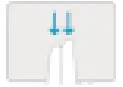 | Scroll left or right | Scroll left or right |
| Two-fingers slide down |  | Open Search from the Home Screen | Open Search |
| Three-fingers slide up |  | Open the App Switcher | Open the App Switcher |
| Three-fingers slide to the left |  | Switch active window | Switch active window |
| Three-fingers slide to the right | | Switch active window | Switch active window |
Power Saving Mode
When the keyboard is idle for 30 seconds, the backlight will enter sleep mode. After 30 minutes, the keyboard will enter deep sleep mode. To activate it, press any key and wait for 3 seconds.
Troubleshooting
If the keyboard is not working correctly, please check the following:
- The BT function on the tablet (or other BT devices) is enabled
- The BT keyboard is within 33 feet
- The BT keyboard is charged
If certain keys or commands begin to fail, work sporadically or lag in response time, please restart your tablet (power on and power off).
If a problem persists, please try the following steps:
- Press and hold
 +
+ together, the red, green and blue indicators light up at the same time and then release, the keyboard has been restored to factory settings +
 - Delete all the BT devices on the tablet
- Switch off the BT function on the tablet
- Reboot the tablet (shutdown and power on)
- Re-open the BT function on the tablet
- Repeat the steps on page 1 to connect the keyboard
 +
+ together, the red, green and blue indicators light up at the same time and then release, the keyboard has been restored to factory settings +
Support
If you have problems with keyboard usage or improvement opinions, please do not hesitate to contact us. We would love to get you taken care of and happy right away! Thank you!