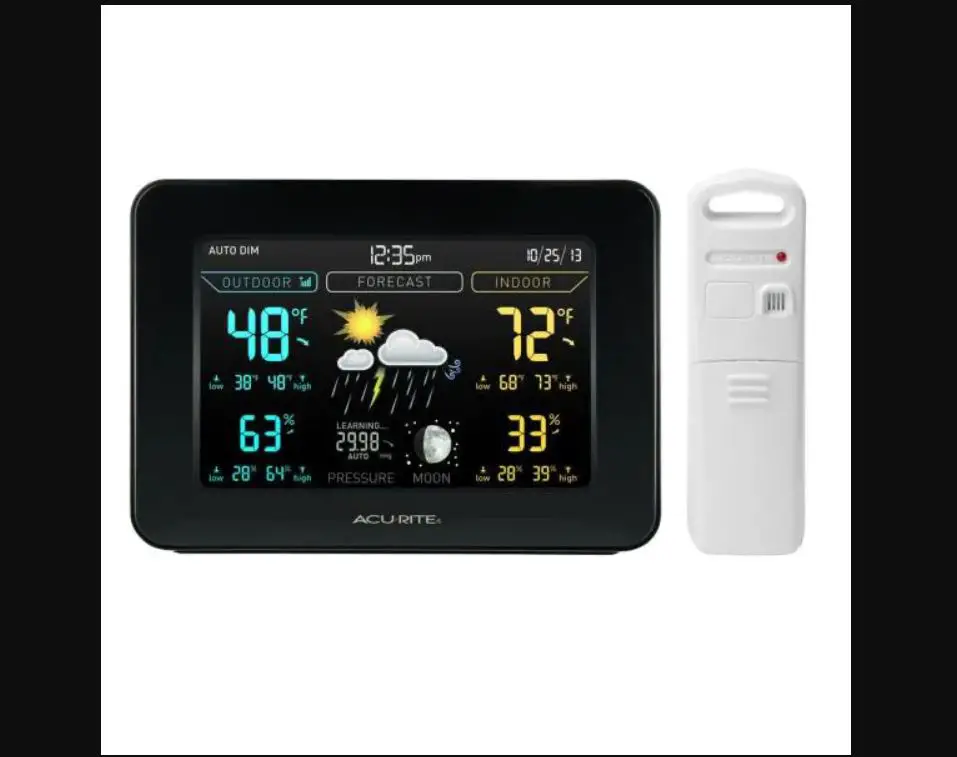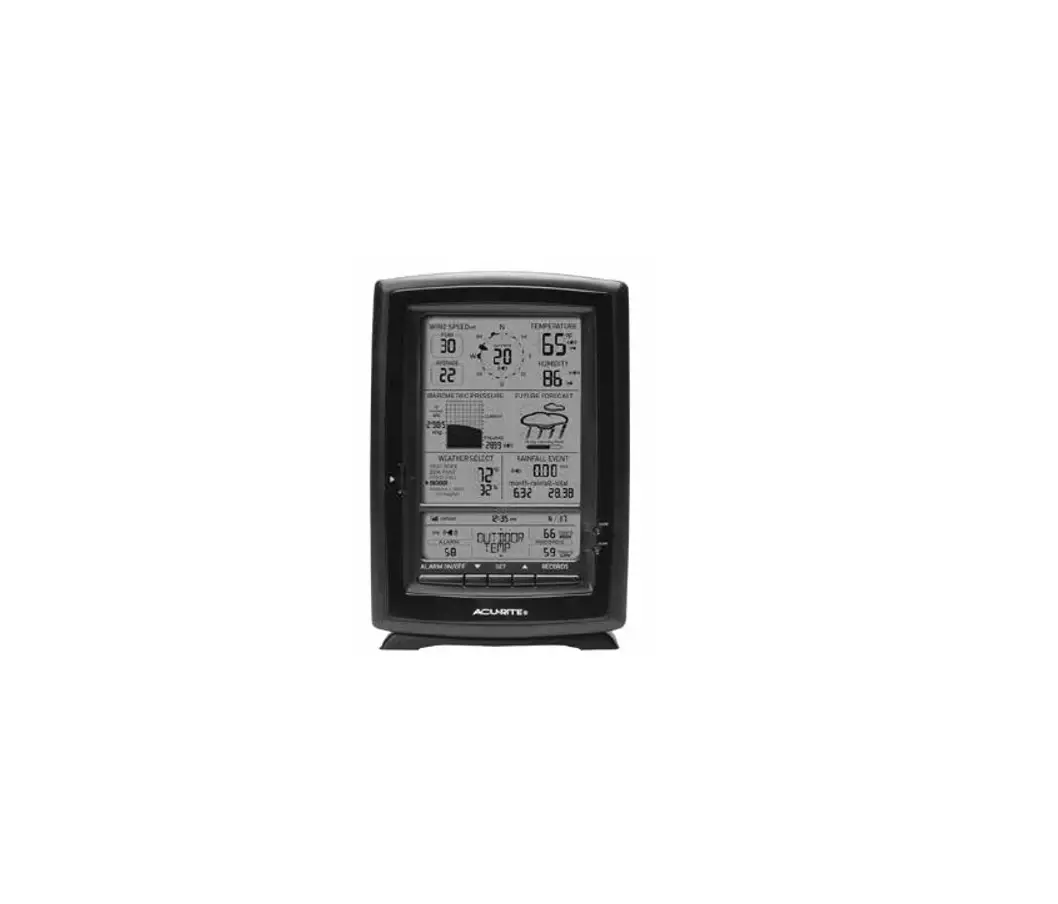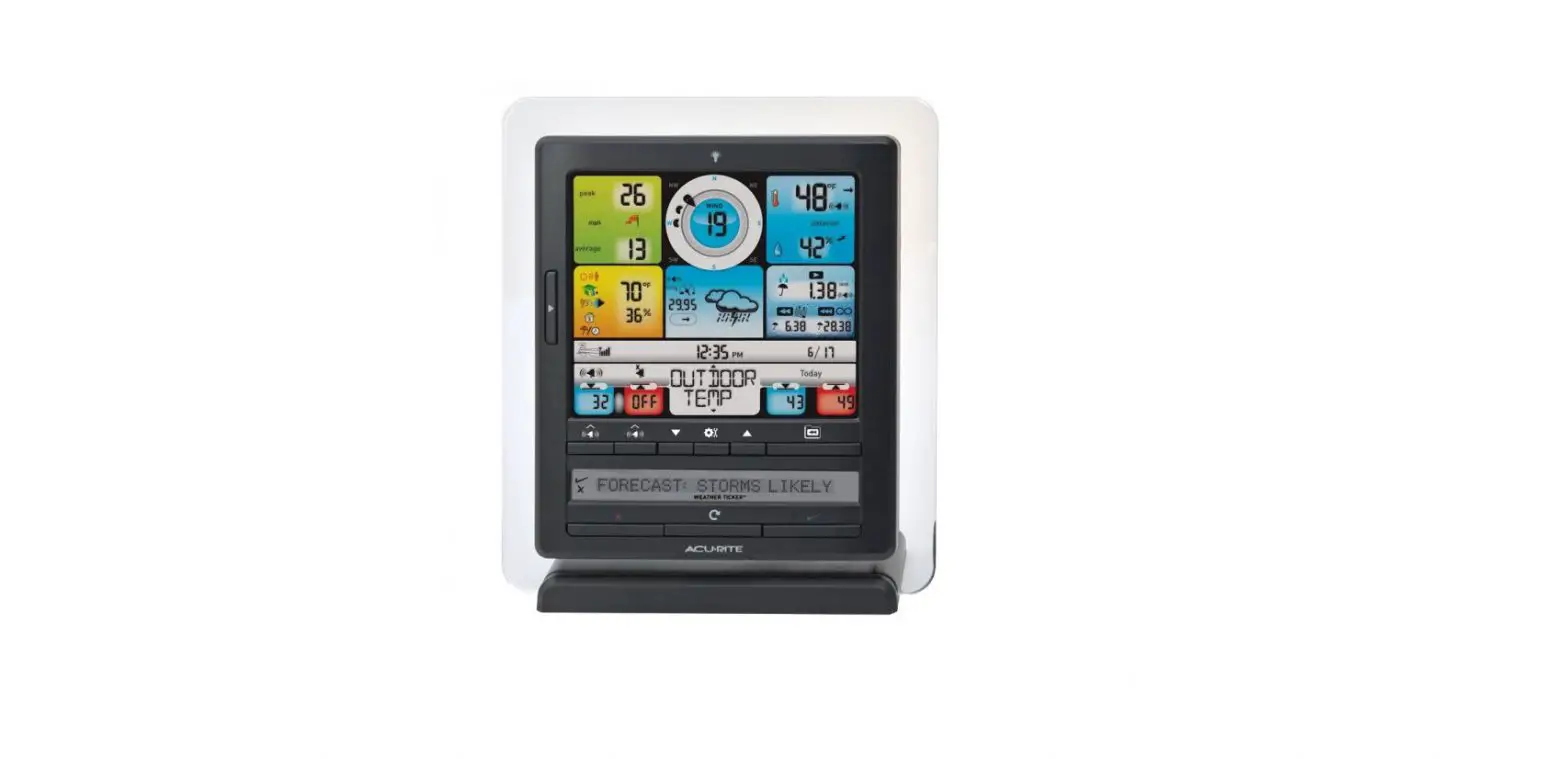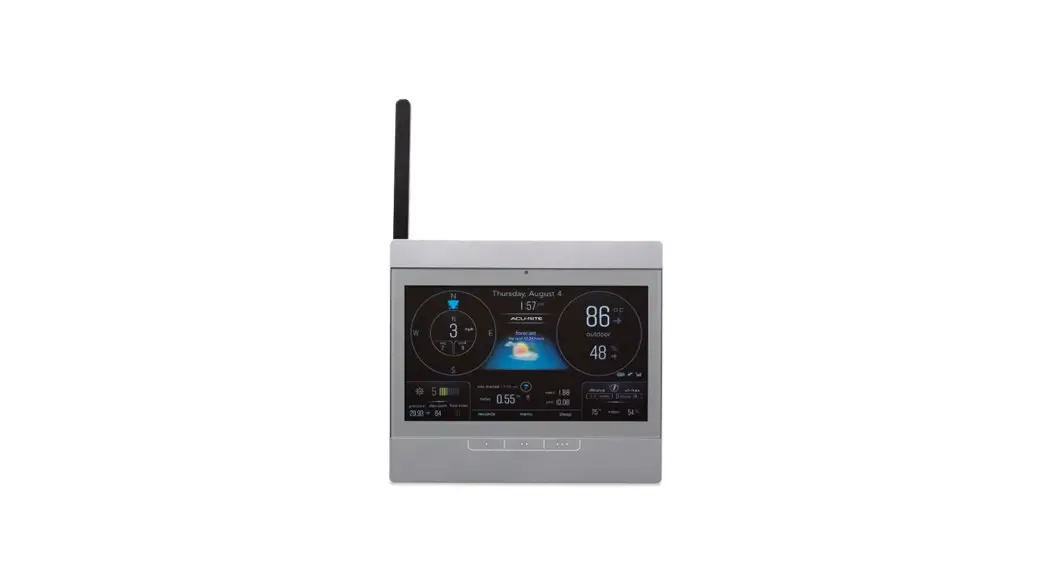
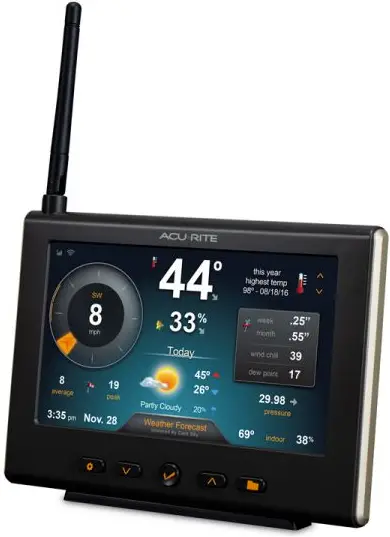
ACU-RITE High Resolution Weather Station Display 06088
Unpacking Instructions
Remove the protective film that is applied to the LED screen prior to using this product. Peel off to remove.
Package Contents
- Display with Tabletop Stand
- Power Adapter
- Mounting Bracket
- Instruction Manual
Wi-Fi Setup for Weather Underground and Dark Sky Forecast
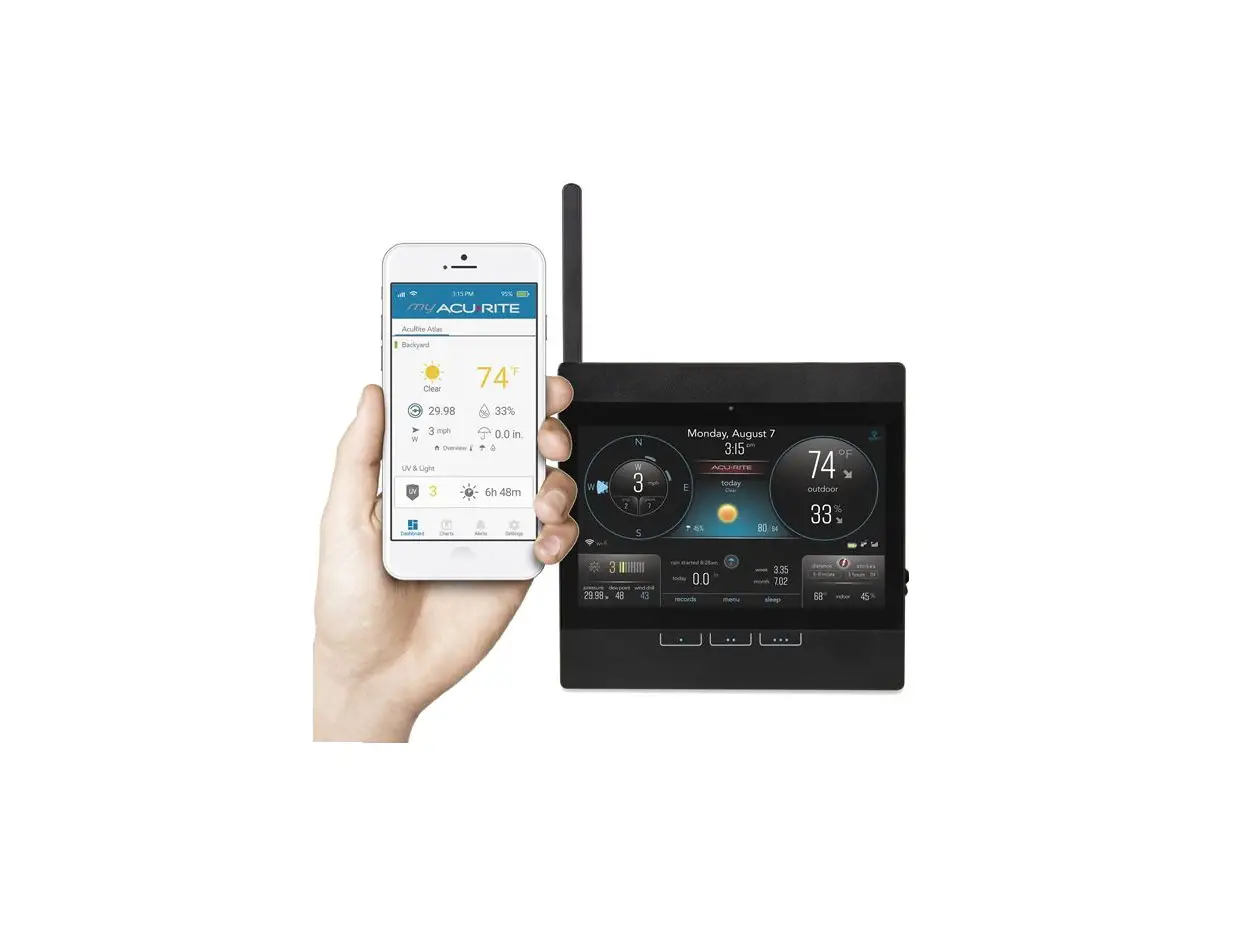
This weather station features wireless internet connectivity in order to connect and down-load forecasts from Dark Sky. You also have the option to share your weather data with Weather Underground, but this is not required to get a forecast.
- (OPTIONAL) If you do not already have a WU (Weather Underground) account and would like to send your data to WU, please create your account at wunderground.com prior to following the next steps. To add this weather station to your WU account:
- Sign in to your Weather Underground account.
- Navigate to My Profile > My Weather Stations > Add New PWS.
- Enter all required location info.
- When prompted for “Station Hardware”, select “AcuRite Pro Weather Center”.
- You will be provided with a WU Station ID and Station Key once you have submitted all required info (record for step 5, below).
- Power on the display using included power cord. If the unit has been powered on for more than 30 minutes, press and release the “Setting” button to re-activate Wi-Fi setup. *
- Connect to the Wi-Fi signal (named AcuRite 06088M) of the AcuRite display from your computer or mobile device.
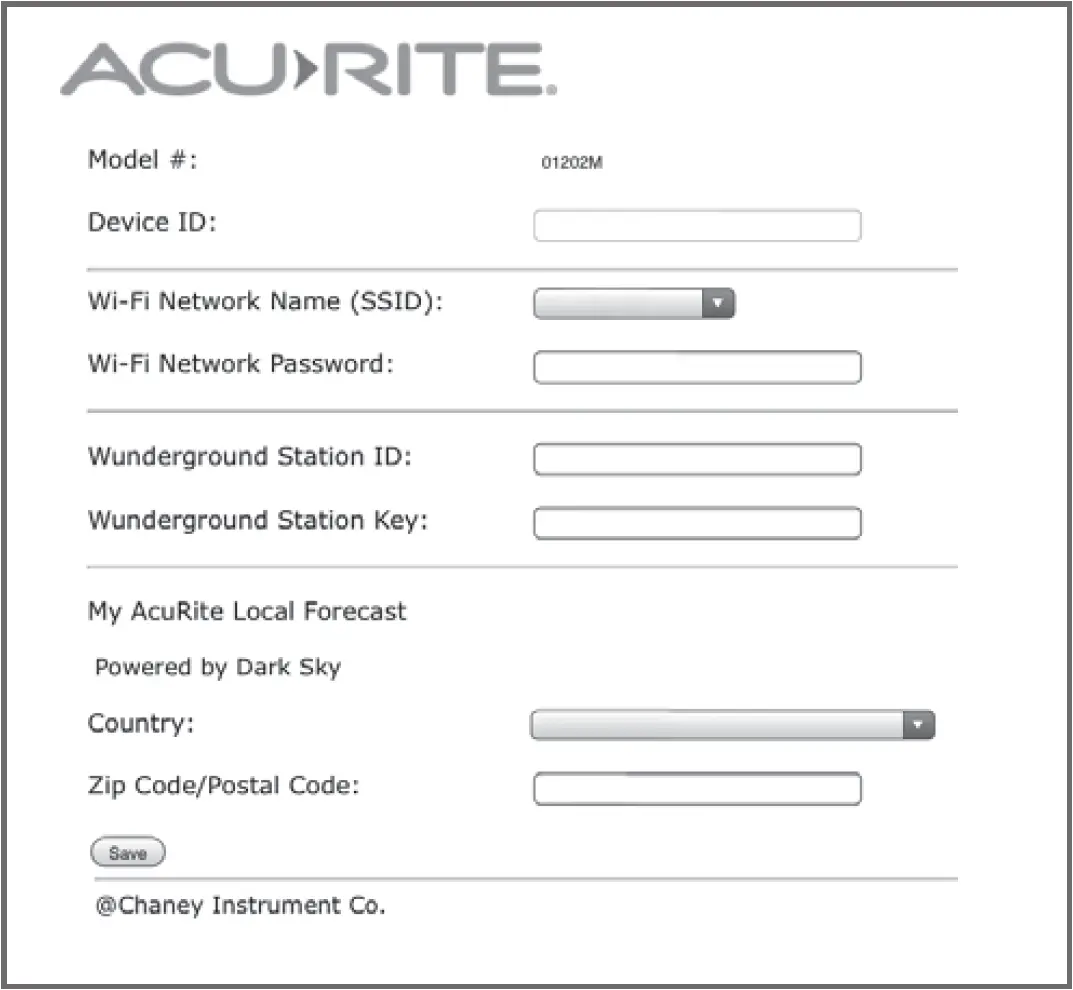
- Open your web browser on the device that is connected to the AcuRite display. Type “192.168.4.1” in the address bar and hit enter to access the AcuRite Wi-Fi display settings website.

- Select or enter your wireless network name and password. Fill in your country and postal code to download your 2-day forecast from Dark Sky. If you want to send data to Weather Underground, enter your Station ID and Station Key. Press “Save” to save your credentials.
NOTE: This weather station display only supports 2.4 GHz wireless networks. - A Wi-Fi status message will appear confirming your connection to the display. If the connection was not successful, please verify your credentials and/or visit the Troubleshooting section.
- Within an hour after the display is connected to Wi-Fi, forecasts from Dark Sky will be shown on your display. If you entered your WU credentials, data from your sensor will automatically begin to upload to Weather Underground. Monitor sensor data remotely at www.wunderground.com or from a mobile device using the Weather Underground app, available from the iOS App Store or Google Play Store.
*In order to re-activate Wi-Fi setup, Wi-Fi needs to be set to ON. See “Connections” sub-menu.
Features & Benefits
Display
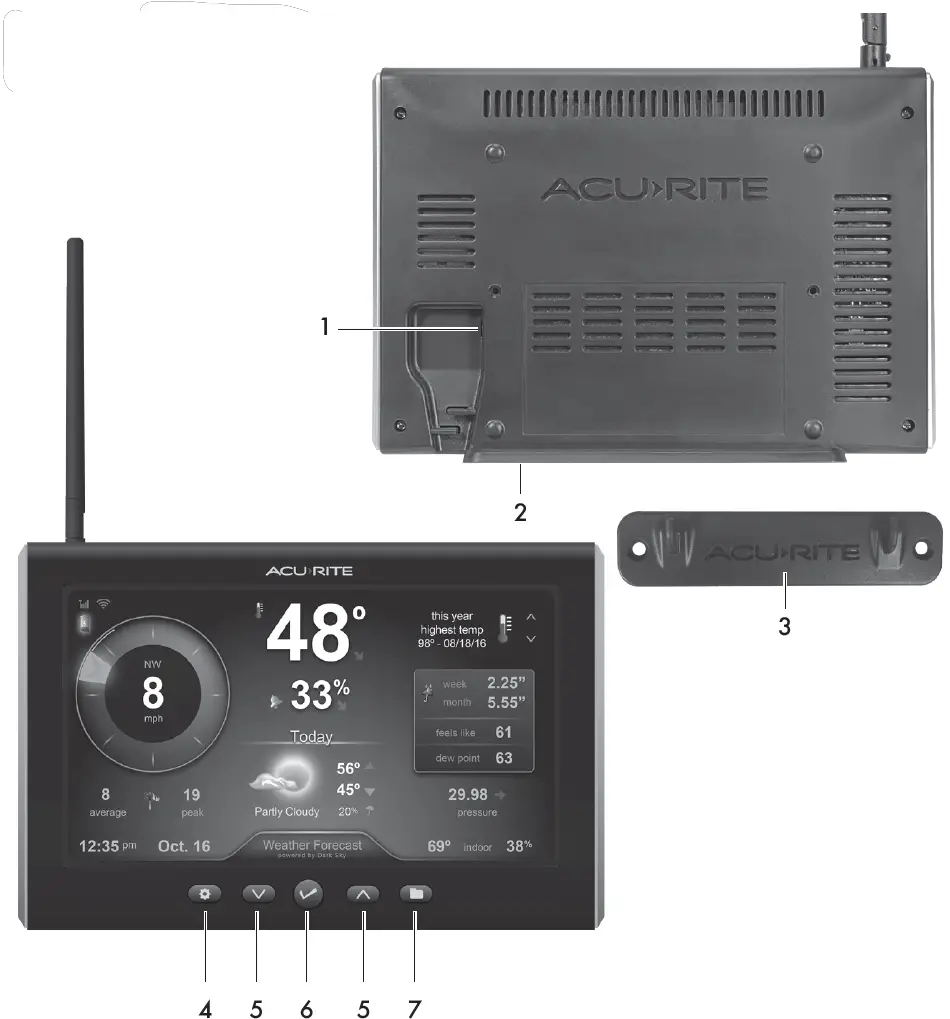
BACK OF DISPLAY
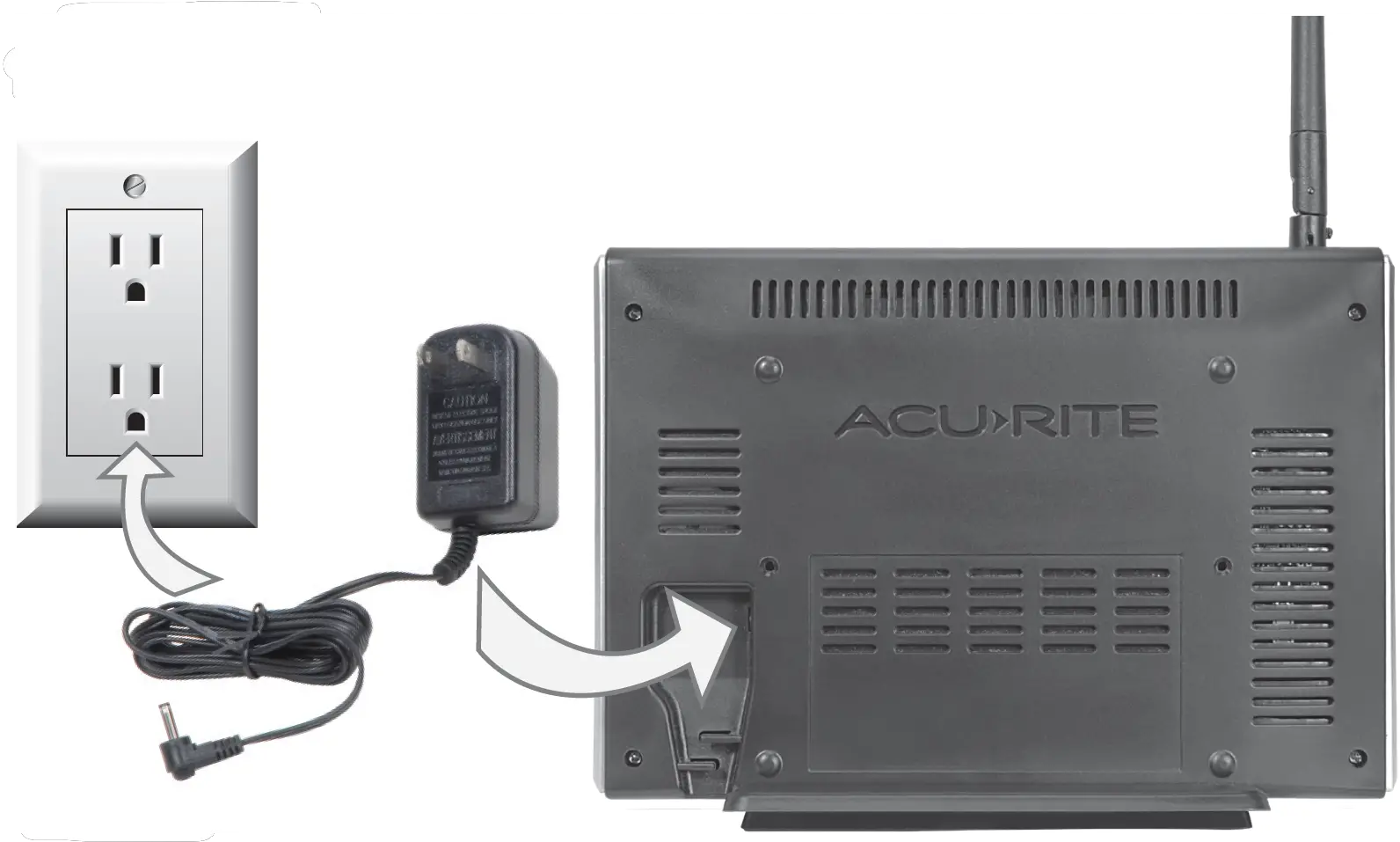
- Plug-in for Power Adapter
- Display Stand
- Mounting Bracket
For easy wall mounting.
FRONT OF DISPLAY
- Setting Button
For menu access and setup preferences. - ∨ and ∧ Buttons
For setup preferences and manually cycling through messages. - Tick Button
For setup preferences. - Folder Button
For viewing high & low records.
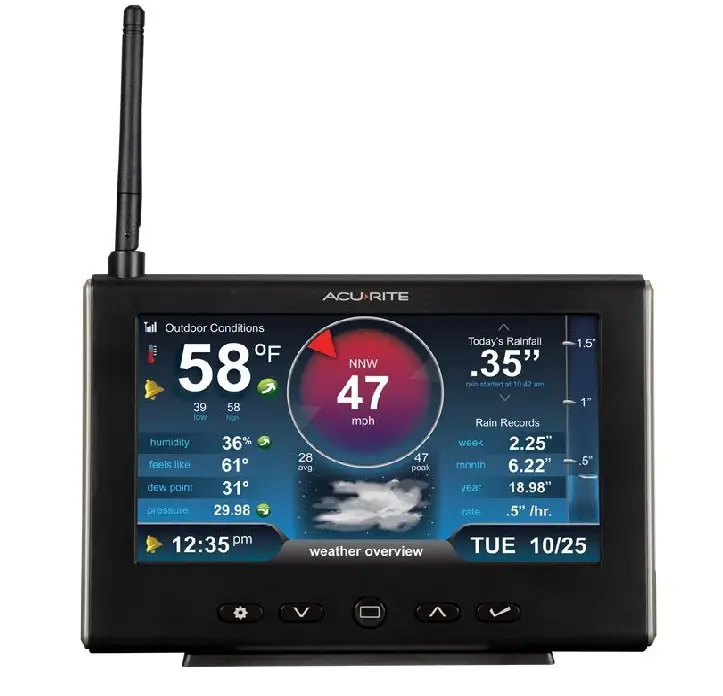
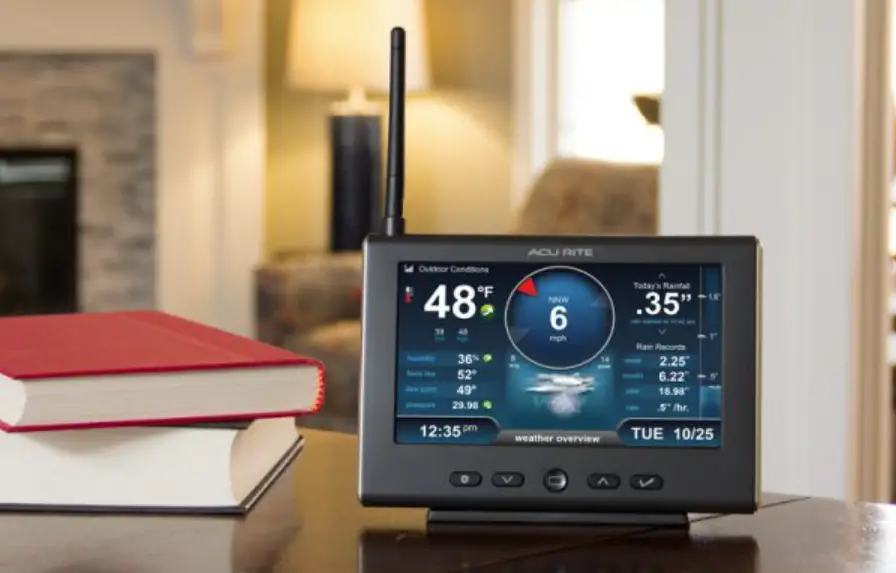
Weather Overview Dashboard
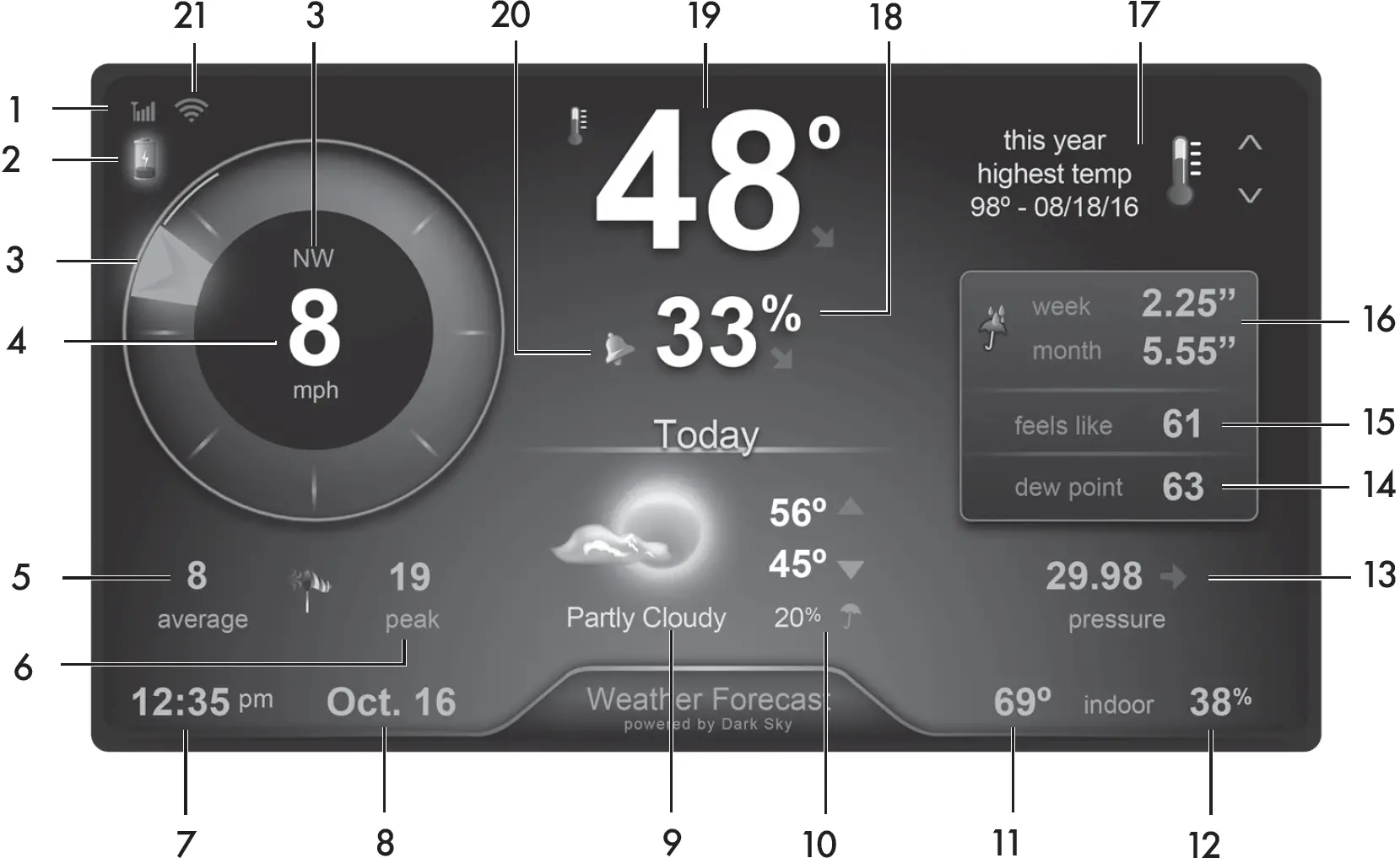
- 5-in-1 Sensor Signal Strength
- Sensor Low Battery Indicator
- Current Wind Direction
- Current Wind Speed
Background color changes based on current wind speed. - Average Wind Speed
Average wind speed over the past 2 minutes. - Peak Wind Speed
Highest speed from the last 60 minutes. - Clock
- Date
- Today’s Forecast
Includes forecasted high & low temperatures. Powered by Dark Sky when connected to Wi-Fi. - Chance of Rain Indicator
Indicates the likelihood of rain when connected to Wi-Fi. - Current Indoor Temperature
- Current Indoor Humidity
- Barometric Pressure
Arrow icon indicates direction pressure is trending. - Seasonal Information
Heat Index calculation displays when temperature is 80°F (27°C) or higher Dew Point calculation displays when temperature is 79°F (26°C) or lower. Wind chill calculation displays when temperature is 40°F (4°C) or lower. - Current “Feels Like” Temperature
- Rainfall History
Displays most recent rainfall and rainfall records for current week, month & year. - Messages
Displays weather information and messages. - Current Outdoor Humidity
Arrow icon indicates direction humidity is trending. - Current Outdoor Temperature
Arrow indicates direction temperature is trending. - Alarm ON Indicator
Indicates alarm is activated to emit an audible alert when conditions exceed your presets. - WiFi Signal Icon
Indicates display is connected to your wireless network in addition to the signal strength. - Tomorrow’s Forecast
(not shown)
Display automatically toggles between today and tomorrow’s forecast, or press the button to manually switch between forecasts. Includes forecasted high & low temperatures. Powered by Dark Sky when connected to Wi-Fi.
Setup
Display Setup
Plug Power Adapter into Electrical Outlet
Settings
After powering on for the first time, the display will automatically enter setup mode. Follow the on-screen instructions to set up the display.
To adjust the currently selected item, press and release the “∧” or “∨” buttons.
To save your adjustments, press and release the TICK button again to adjust the next preference. The preference set order is as follows:
TIME ZONE (PST, MST, CST, EST, AST, HAST, NST, AKST)
AUTO DST (Daylight Saving Time YES or NO)*
CLOCK HOUR
CLOCK MINUTE
CALENDAR MONTH
CALENDAR DATE
CALENDAR YEAR
PRESSURE UNITS (inHg or hPa)
TEMPERATURE UNITS (ºF or ºC)
WIND SPEED UNITS (mph, km/h, knots)
RAINFALL UNITS (inches or mm)
DISTANCE UNITS (miles or kilometers)
AUTO DIM (YES or NO)**
AUTO CYCLE (OFF, 15 sec., 30 sec., 60 sec., 2 min., 5 min.)
ALERT VOLUME
*If you live in an area that observes Daylight Saving Time, DST should be set to YES, even if it is not currently Daylight Saving Time.
**For more information see “Display” section.
Enter setup mode at any time by pressing the Setting button to access the menu, then navigate to “Setup” and press and release the TICK button.
Placement for Maximum Accuracy
AcuRite sensors are sensitive to surrounding environmental conditions. Proper placement of both the display and the sensor are critical to the accuracy and performance of this unit.
Display Placement
Place the display in a dry area free of dirt and dust. Display stands upright for tabletop use and is wall-mountable.
Important Placement Guidelines
- To ensure accurate temperature measurement, place units out of direct sunlight and away from any heat sources or vents.
- Display and sensor(s) must be within 330 feet (100 m) of each other.
- To maximize wireless range, place units away from large metallic items, thick walls, metal surfaces, or other objects that may limit wireless communication.
- To prevent wireless interference, place units at least 3 feet (.9 m) away from electronic devices (TV, computer, microwave, radio, etc.).
Operation
Using the Weather Station
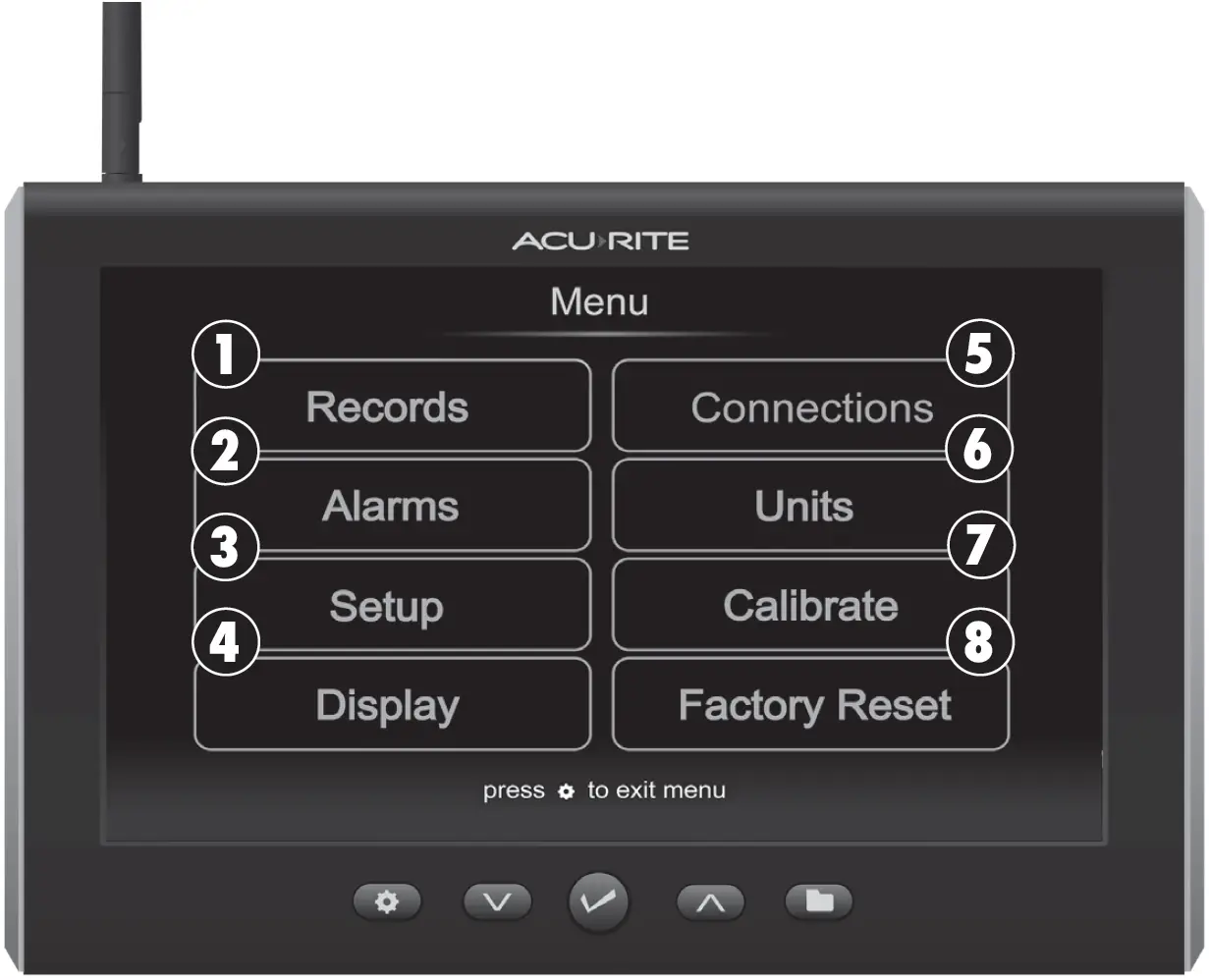
Navigate to the main menu at any time by pressing the Setting button. From the main menu, you can view records, set alarms, setup an additional sensor and more.
- Records
Access the “Records” sub-menu to view high and low values recorded for each location by date and view trends for the sensor’s readings on a graphic chart. - Alarms
Access the “Alarms” sub-menu to set and edit alarm values, including temperature, humidity, wind speed and rainfall. The display also includes an alarm clock feature (time alarm) and storm alarm (activated when barometric pressure drops). - Setup
Access the “Setup” sub-menu to enter the initial setup process. - Display
Access the “Display” sub-menu to adjust display settings (brightness, contrast, tint), display mode (screen cycle) and backlight (auto dim, sleep mode). When auto dim mode is activated in display setup, the backlight automatically dims the brightness based on the time of day. When “Sleep Mode” is activated, the display automatically dims during the timeframe you choose and shows only the most important readings for at-a-glance viewing.AUTO DIM MODE:
Automatically adjusts display brightness based on time of day.6:00 a.m. – 9:00 p.m. = 100% brightness 9:01 p.m. – 5:59 a.m.= 15% brightness - Connections
Access the “Connections” sub-menu to add, remove or view information about a sensor, or enable Wi-Fi setup. - Units
Access the “Units” sub-menu to change measurement units for barometric pressure, temperature, wind speed, rainfall and distance. - Calibrate
Access the “Calibrate” sub-menu to adjust display or sensor data. First, select the display or sensor for which you wish to calibrate readings. Second, select the reading you wish to calibrate. Lastly, follow the on-screen prompts to adjust the value. - Factory Reset
Access the “Factory Reset” sub-menu to revert the display back to factory defaults. Follow the on-screen prompts to perform the reset.
Weather Forecast
While connected to Wi-Fi, weather forecasts for today and tomorrow are downloaded from Dark Sky. Dark Sky is one of the most accurate sources of hyperlocal weather information. It is backed by a wide range of weather data sources, which are aggregated together to provide the most accurate forecast possible for a given location. With down-to-the-minute forecasts, you’ll know exactly when conditions will change so you can plan your day.
If the weather station is not connected to Wi-Fi, the forecast is generated using data from the outdoor sensor. Self-calibrating forecasting uses a unique algorithm to analyze changes in pressure over a time period (called Learning Mode) to determine your altitude. After 14 days, the self-calibrated pressure is tuned in to your location and the unit is ready for superior weather prediction.
Moon Phase
The moon phase is displayed between 7:00 p.m. to 5:59 a.m. when conditions allow for moon visibility. The phases of the moon are conveyed through simple lunar phase icons:

Expand the System
This weather station measures temperature, humidity, wind speed, wind direction and rainfall. The weather station can be expanded to include lightning detection by connecting a compatible AcuRite Lightning Sensor
(optional; sold separately).
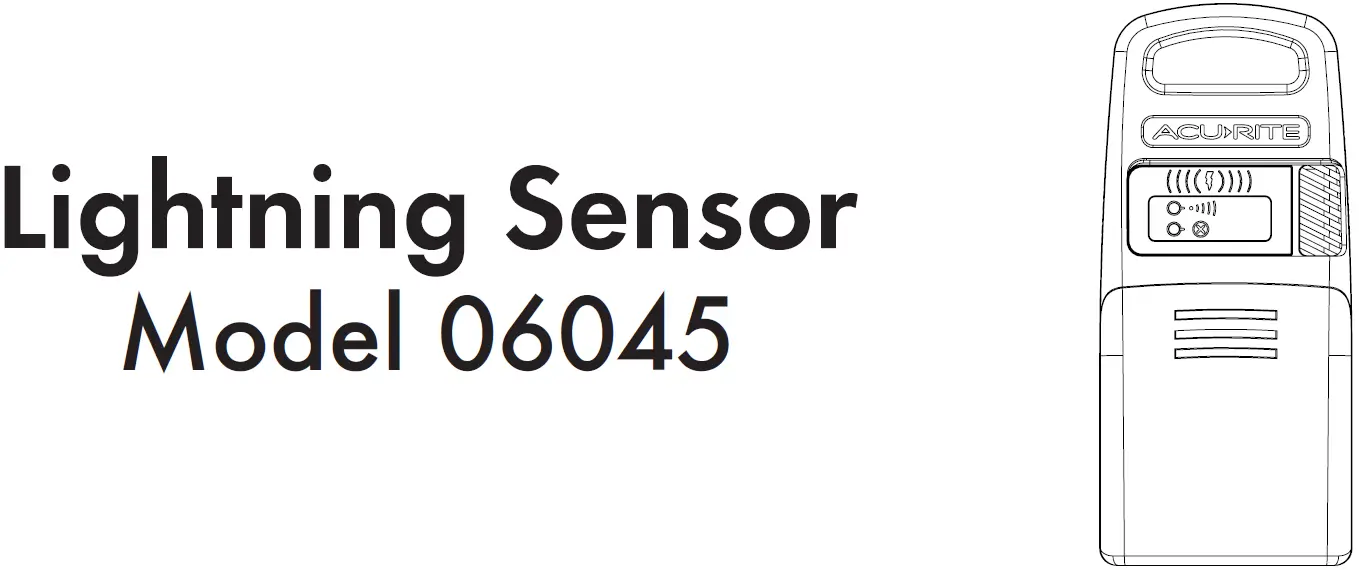
Compatible Lightning Sensor available at: www.AcuRite.com
NOTE: Access the “Connections” sub-menu to add sensor(s) to the display if being connected after initial setup.
Messages
This display shows real-time weather information and alert messages on the Weather Dashboard. Manually cycle through all available messages by pressing and releasing the “∧” or “∨” buttons while viewing the Weather Overview
dashboard.
Default messages are pre-loaded as follows:
HEAT INDEX – XX
WIND CHILL – XX
DEW POINT – XX
IT FEELS LIKE XX OUTSIDE
TODAY’S HIGH HUMIDITY . . . OUTDOOR XX / INDOOR XX
TODAY’S LOW HUMIDITY . . . OUTDOOR XX / INDOOR XX
TODAY’S HIGH TEMP. . . OUTDOOR XXX / INDOOR XXX
TODAY’S LOW TEMP. . . OUTDOOR XXX / INDOOR XXX
7 DAY HIGH TEMP. XX – MM/DD
7 DAY LOW TEMP. XX – MM/DD
30 DAY HIGH TEMP. XX – MM/DD
30 DAY LOW TEMP. XX – MM/DD
ALL TIME HIGH TEMP. XXX… RECORDED MM/DD/YY
ALL TIME LOW TEMP. XXX… RECORDED MM/DD/YY
24 HOUR TEMP. CHANGE +XX
ALL TIME HIGH WIND XX MPH… RECORDED MM/DD/YY
7 DAY AVERAGE WIND XX MPH
TODAY’S AVERAGE WIND XX MPH
NEW LOW TEMP. RECORD XX
NEW HIGH TEMP. RECORD XX
NEW WIND RECORD TODAY XX
5-IN-1 SENSOR BATTERIES LOW
5-IN-1 SENSOR SIGNAL LOST… CHECK BATTERIES AND PLACEMENT
CAUTION – HEAT INDEX IS XXX
CAUTION – WIND CHILL IS XXX
WARMEST DAY THIS WEEK
COLDEST DAY THIS WEEK
TODAY’S RAINFALL – XX
Troubleshooting
Problem | Possible Solution |
| No reception |
|
| Temperature is showing dashes | When the outdoor temperature is showing dashes, it may be an indication of wireless interference between the sensor and display.
|
| Inaccurate forecast |
*If the display is not connected to Wi-Fi, the forecast will be generated using the outdoor sensor. Refer to “Inaccurate temperature or humidity” section below. |
| Inaccurate wind readings |
|
| Inaccurate temperature or humidity |
|
| Display screen not working |
|
| Display not connecting to Wi-Fi |
|
| Data not uploading to Weather Underground |
|
| Can’t load Wi-Fi setup page |
|
If your AcuRite product does not operate properly after trying the troubleshooting steps, visit www.AcuRite.com/support or email [email protected] for assistance.
Care & Maintenance
Display Care
Clean with a soft, damp cloth. Do not use caustic cleaners or abrasives. Keep away from dust, dirt and moisture. Clean ventilation ports regularly with a gentle puff of air.
Specifications
| DISPLAY’S BUILT-IN TEMPERATURE SENSOR RANGE | 32ºF to 122ºF; 0ºC to 50ºC |
| DISPLAY’S BUILT-IN HUMIDITY SENSOR RANGE | 1% to 99% |
| OPERATING FREQUENCY | 433 MHz |
| POWER | 5V Power Adapter |
| DATA REPORTING | Display: Indoor temperature & humidity: 60 second updates |
| WIFI | Weather Underground and Dark Sky connectivity require an active 2.4 GHz broadband internet connection |
FCC Information
This device complies with part 15 of FCC rules. Operation is subject to the following two conditions:
- This device may NOT cause harmful interference, and
- This device must accept any interference received, including interference that may cause undesired operation.
WARNING: Changes or modifications to this unit not expressly approved by the party responsible for compliance could void the user’s authority to operate the equipment.
NOTE: This equipment has been tested and found to comply with the limits for a Class B digital device, pursuant to Part 15 of the FCC rules. These limits are designed to provide reasonable protection against harmful interference in a residential installation. This equipment generates, uses and can radiate radio frequency energy and, if not installed and used in accordance with the instructions, may cause harmful interference to radio communications. However, there is no guarantee that interference will not occur in a particular installation. If this equipment does cause harmful interference to radio or television reception, which can be determined by turning the equipment off and on, the user is encouraged to try to correct the interference by one or more of the following measures:
- Reorient or relocate the receiving antenna.
- Increase the separation between the equipment and the receiver.
- Connect the equipment into an outlet on a circuit different from that to which the receiver is connected.
- Consult the dealer or an experienced radio/TV technician for help.
NOTE: The manufacturer is not responsible for any radio or TV interference caused by unauthorized modifications to this equipment. Such modifications could void the user authority to operate the equipment.
This device complies with Industry Canada license-exempt RSS standard(s).
Operation is subject to the following two conditions:
- This device may not cause interference, and
- This device must accept any interference received, including interference that may cause undesired operation of the device.
Customer Support
AcuRite customer support is committed to providing you with best-in-class service. For assistance, please have the model number of this product available and contact us in any of the following ways:
[email protected]
Visit us at www.AcuRite.com
- Installation Videos
- Instruction Manuals
- Replacement Parts
- Register your Product
- Support User Forum
- Submit Feedback & Ideas

 TreasuryPay
 Local Weather Forecast, News and Conditions | Weather Underground
 AcuRite Weather Monitoring | #1 Weather Station Brand in North America
 Local Weather Forecast, News and Conditions | Weather Underground