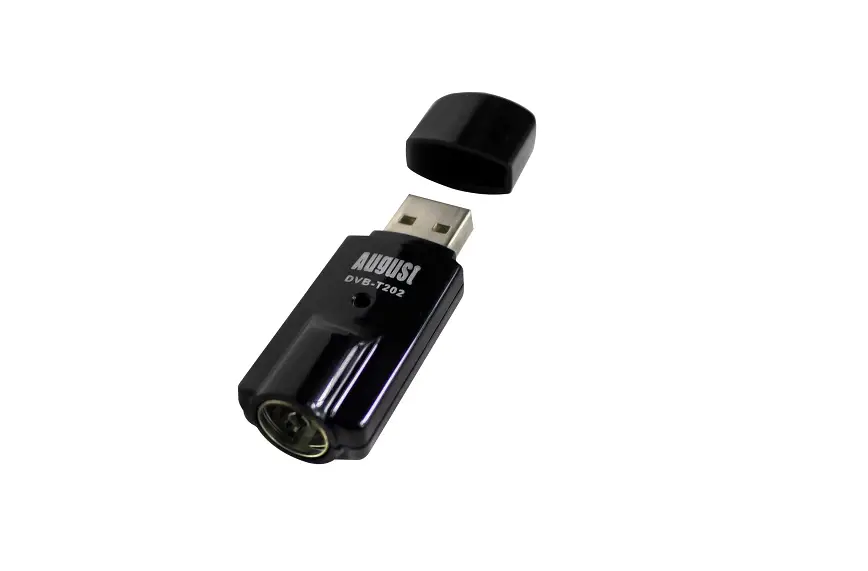
HAUPPAUGE PCG-35 Win TV-Dual HD Dual USB – Black
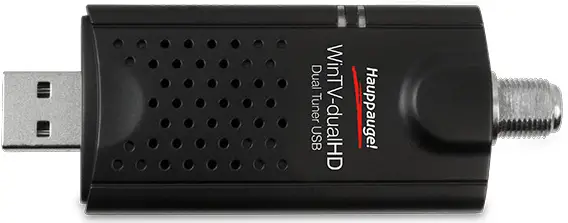
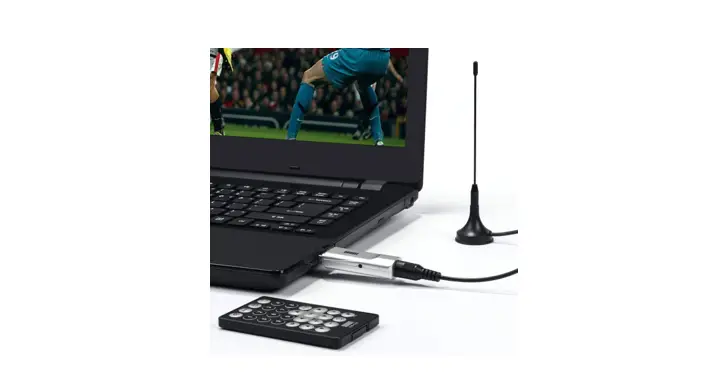
Contents of the WinTV-dual HD package
- WinTV-dual HD Dual Tuner ATSC/clear QAM receiver
- USB extension cable
- Portable TV antenna (on some models)
- Credit card size remote control (on some models)
- WinTV Installation CD-ROM including the WinTV v8 application
Note: Please keep the WinTV v8 serial number in a safe place. It will be required for future installations.
What is ATSC and QAM digital TV, and how does the WinTV-dual HD work?
ATSC digital TV is over-the-air digital TV for North America. ATSC digital TV typically requires an antenna for reception, and is currently broadcast in 200 cities, with over 1500 TV stations. ATSC digital TV is transmitted in several resolutions, from “standard definition” which is similar to cable TV, up to high definition which has about 16 times the resolution of normal cable TV. In any resolution, ATSC digital TV gives sharper pictures than analog cable TV and near CD quality sound. Clear QAM TV channels are digital cable TV channels that are broadcast on cable TV “in the clear”. These digital cable TV channels are broadcast in various resolutions, from standard definition up to high definition. Please check with your local cable TV operator on the availability of clear QAM TV channels. WinTV-dualHD has two built-in tuners for digital ATSC and digital clear QAM TV. To receive ATSC, you will need an antenna. To receive digital clear QAM or analog cable TV, you will need a cable TV connection. It uses your PC or laptop’s CPU for displaying both analog and digital TV programs on your PC screen. The decoding of high definition ATSC is very processor intensive, and the smoothness of high-definition TV programs depends upon how fast your PC or laptop system is. Other PC activities that consume CPU resources might affect the display of ATSC digital TV. Slow video, jerky video and momentary pausing of video are all results of a CPU which is temporarily being used by other activities. The supplied portable antenna is designed for ATSC digital TV reception and will work within 10 miles of an ATSC transmitter (reception might be limited by obstructions such as steel buildings). For the best ATSC TV reception, a roof top ‘High gain’ antenna is recommended. In the U.S., a good ATSC digital antenna selector can be found at www.antennaweb.org
Installing the WinTV-dual HD device
Locate a free USB 2.0 port (normally located at the side or back on the laptop or desktop). Plug the WinTV-dual HD into the USB 2.0 port. The USB extension cable can be used to position the WinTV-dualHD away from your USB slot. Note: we do not recommend connecting via a USB Hub. Plug an antenna for ATSC digital TV reception, or cable TV for clearQAM digital TV reception, into the TV connector on WinTVdualHD. If you are using ATSC HD TV, it is recommended using a roof top antenna during the first time installation. This will provide better signal quality then a portable antenna. Signal Strength Indicator LEDs The Signal Strength LEDs are green when you are tuned to a strong digital TV signal, yellow when tuned to a moderate TV signal and off when there is no (or a weak) TV signal. Each tuner inside the WinTV-dualHD has an LED showing the signal strength of the TV channels its tuned to.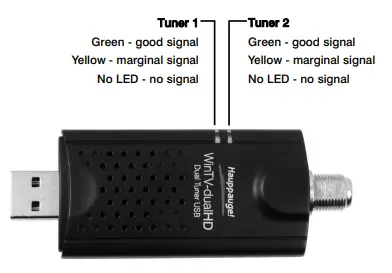
Installing the WinTV-dualHD software
Install your WinTV products (step 3). Turn on your PC, and boot into Windows. For Windows 10, 8 or 7: You will see an AutoPlay message. Click Run Setup.exe
For Windows XP installations:
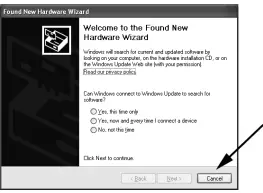
After you install your WinTV device and boot Windows, a ‘Found New Hardware’ wizard will appear. Please cancel it and allow Windows to load fully before proceeding. With some WinTV products, you might see this message two or three times. Please click ‘Cancel’ each time you see the New Hardware Wizard.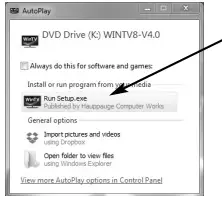
For all versions of Windows:
The “Hauppauge WinTV Installation CD-ROM” window will appear on the screen.
Install the WinTV applications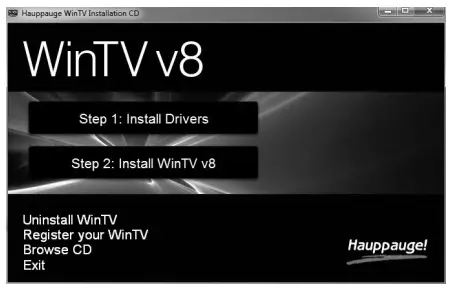
Click the button labeled
Step 2: Install WinTV Click Next. The setup application will then open and begin automattically installing the WinTV application components. The main applications installed are the WinTV v8 application for TV watching and recording. Once complete, click OK then Exit.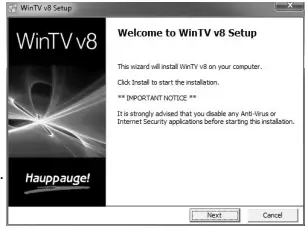
Running WinTV v8 for the first time
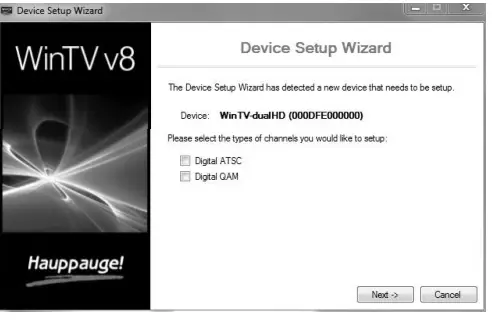
To run the WinTV v8 application, double click on the WinTV icon on your Windows desk top. When you run WinTV for the first time, the WinTV Device Setup Wizard appears. Select the TV source that you are using
If your TV source is ATSC digital over-the-air TV Select
Digital ATSC and click Next. In the ATSC Setup menu, click Next. You will see the Digital ATSC Scan scanning for digital over-the-air channels. The digital TV scanning process will scan from channels 2 to 51. As TV channels are found, they will appear in the Channel box. When complete, click Next / Next and OK.
Note: if you do not receive any ATSC digital TV channels, an antenna signal booster might be needed. After adding a signal booster, see below for instructions on rescanning and the Troubleshooting section for information on choosing an antenna.
If your TV source is Clear QAM Digital Cable TV
Clear QAM digital cable TV channels are those TV channels broadcast on a digital cable network which are unencrypted (‘free to view’). If you are using cable TV with clear QAM programs, chose Digital QAM and Next. Encrypted channels are automatically not selected. The resulting channels in the list might be both standard and high definition channels.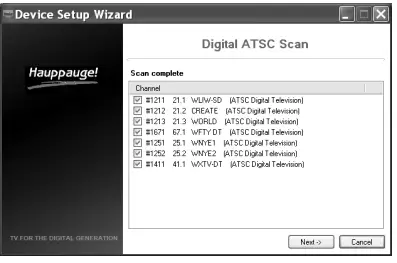
Rescanning TV channels
If you want to rescan for TV channels, click the Configuration menu (Gear button in the lower left corner of WinTV v8). Then click on the Devices tab. Chose your WinTV device by clicking on it, then click Tuner setup. Chose the TV format you want to scan, then click Next. Click Next and a new scan will be started. When the scan is complete, click Next / Next and OK.
Using the WinTV v8 application
Once the WinTV v8 application is open, click the Watch TV button to watch TV . To see the TV Channel list, click your right mouse button in the TV window to display the Options menu. Select Find Channel. You will see the channel list. To display the channel list all the time, while the channel list is displayed, click the Channel list display always on button.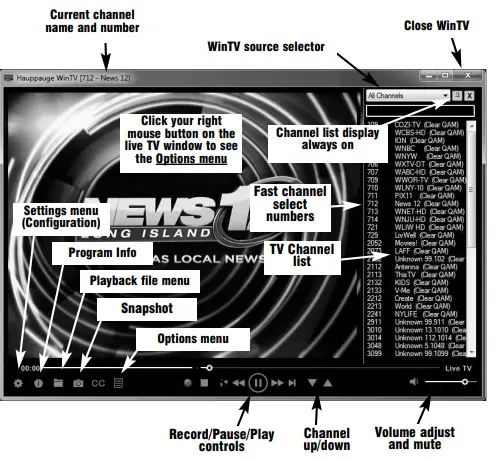
Options menu
- The Options menu is the main menu where you can select channels, turn on close captions, open the TV Scheduler, show the TV Guide and many other of the most important TV control functions.
- To bring up the Options Menu, click your right mouse button once in the TV window.
- To see the channel list, click on Find channel. You will see the list of channels which have been scanned. To show the
- Channel menu as part of the TV window, click the Channel list always on icon at the top of the channel list.
- To turn on Close captions, click on Show Captions.
- To manually schedule a TV recording, or to see which programs have been scheduled, click on Scheduler.
- To turn on the Always on Top mode, click on Stay on Top.
Watch, Pause and Record TV
WinTV v8 is always recording video to your PC’s hard drive while TV is being displayed. In this way, you can immediately skip back and replay the TV program you are watching. Clicking on the Pause button will cause the video to pause, while clicking the Record button will cause the current TV program to be recorded to hard disk.
Recording your TV shows
- If you want to record a TV show you are watching:
- Click the Record button. The recorded file name will popup on the video for a few seconds as the recording starts.
- When you are finished recording, click the Stop button.
- Click the Playback file button and select the last file recorded to play the video you just recorded
- To play a video you recorded earlier, click the Playback
- File button and then move your mouse and click once on the video you want to play. Click Open and the file will start playing.
The recorded video file is saved in the directory set in Recordings directory. The default directory is MyVideos. To change this directory, click the Settings button and then the Folders tab. Every time you record a file, a new file is automatically created. The file will be formatted as: (ChannelNumber)_(ChannelName)YearMonthDay_TIme. For digital TV programs, the quality level recorded is the same as it is transmitted by the TV station. For example, if the TV station is transmitting a high-definition program, WinTV will record the program in high-definition. Close captions, parental control information and SAP audio is recorded with digital TV programs.
If you want to pause a TV show you are watching:
- Click the Pause button. Your TV video will stop and the Time counter will start counting.
- To start the video from where you paused, click the Play button
- To rewind the video to the beginning, click the Skip to the beginning button. If your video was paused, click the Play button.
- To rewind the video 1 minute, click the Skip back 1 minute button. If your video was paused, click the Play button.
- The Delay counter displays how much time you are behind the live video. For example, if the delay counter says 00:01:23, then the video window is showing video 1 minute and 23 seconds behind live video.
Picture in Picture
- To set the Picture in Picture (PIP), go to the Options menu (click your right mouse button once in the TV window) and click
- Picture in Picture.
Note: if you cannot see the Picture in Picture option in the Options menu, go the Settings -> Advanced Options and make sure Enable Picture in Picture is checked.
Note: If you record a file using the TV scheduler, the PIP window will tune to the channel being recorded.
- To select the channel, click Find Channel
- To open a file for playback in the PIP, click Open File andbrowse for your file
- To set the position of the Picture in Picture, select the position
- Bottom Right, etc. To set the size, select Small, Medium or Large
- To close the PIP window, click Stop
Image capture
To capture still images from video, click the Snapshot button. To configure the formats for still image capture, click the Settings menu button, then click on the Capture folder. You will see the settings for image capture under Snapshots. You can chose between BMP and JPEG formats. The name of the files will be: capture_’date’_’time’.jpg or capture_’date’_’time’.bmp
TV Scheduler
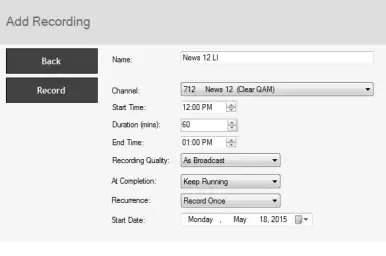
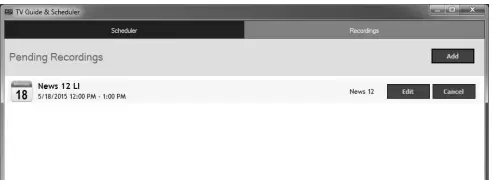
- WinTV v8’s built-in TV Scheduler allows you to schedule the recording of TV shows. Once a record event is set, WinTV v8 can be closed and will “wake up” at the desired time and tuned to the desired channel.
Note: your PC needs to be turned on for scheduled recording to work.
- When a scheduled record event takes place, the WinTV v8 application records “in background” so that you can continue to watch your live TV program, even as the recording progresses.
- The TV Scheduler can be found in the WinTV v8 Options menu. Right click your mouse button in the TV window to see the Options menu. Click Scheduler.
- To set up an event for timed watching or recording, click the Add button.
- The items that need to be set for each event are:
- Name: you can add a name to the recording. If you do not enter a name, the name will be in the channel/date format.
- Channel: chose one of your scanned channels.
- Start time: set to the desired start time. Click on the hour to set the hour, the minute to set the minute. Note: It takes about 15 seconds to launch the WinTV and start recording.
- Duration: number of minutes in the recorded program.
- Recurrance: one time, daily, weekly. Note: If you set for
- Record Weekly, you must also specify the Day of the Week for the recording.
- Date to Begin Program: today’s date is the default.
- Change this if you want to schedule on another date.
- Source selection: leave set at WinTV to bring up the WinTV at the requested time and on the requested channel.
- Once these are set, click OK. You can add more recordings, clicking OK after each event is set. When you are finished click Close.
Troubleshooting
Some notes on system compatibility
Decoding high definition ATSC and clear QAM HD TV is very CPU intensive. A graphics card with at least 64MBytes of memory and the latest graphics driver from the manufacturer makes the decoding task easier. Typically a 2.2 GHz Pentium 4 processor or equivalent with a graphics card having 64MBytes of memory is required to properly decode ATSC digital TV on your PC. A 1.6GHz AMD Sempro laptop computer tested in the Hauppauge lab used 50% of the CPU for playing ATSC 640i format, and 90% of the CPU when playing ATSC 1080i, the highest definition ATSC format. In some cases, either a faster processor or more graphics memory might be required. Slow or jerky video and a noisy TV picture indicate system performance problems.
Jerky video with live ATSC or clear QAM digital TV
Jerky or distorted video can be caused by two things in your PC or laptop: a slow CPU which cannot decode the ATSC TV signal fast enough, and a graphics system which cannot keep up with the high datarates of ATSC TV. Many times, improving the performance of the graphics display will fix the jerky video display of ATSC digital TV. Here are some tips on improving graphics performance
Use the latest graphics driver: graphics drivers are often ‘tweaked’ to improve performance, especially the built-in graphics on laptops. Check the Microsoft Windows update site to download the latest graphics driver for your computer. For Dell computers, check the Dell website for the latest graphics driver.
Use WinTV v8 Video Renderer settings to optimize graphics performance:
The Video Renderer is found in the General tab of WinTV v8, and is used to change the display mode of a graphics card for TV watching. This setting does not affect any other Windows program. The default mode is EVR. The other modes are VMR9, VMR7 and Overlay. Each mode uses a different process to render video. Try each mode and use the one which gives you the best results.
To use hardware graphics acceleration, put a check in the tick box Use hardware acceleration when possible. This will allow your graphics system to use hardware acceleration for video decode. Note: graphics hardware acceleration does not work on all systems. If this setting does not help, or if you experience WinTV not responding after a channel change, then your graphics system cannot use hardware graphics acceleration. In this case go back to settings and uncheck “use hardware acceleration” and rerun WinTV.
Only some channels are found during ATSC channel scan Ctrl < Skip back
If you are only receiving some known TV channels when scanning, it means your TV antenna is not adequate to pick up the channel. You will need either an antenna signal booster (a Radio Shack antenna amplifier will work) or a high gain antenna. Here’s a link to an ATSC antenna selector: http://www.antennaweb.org/aw/address.aspx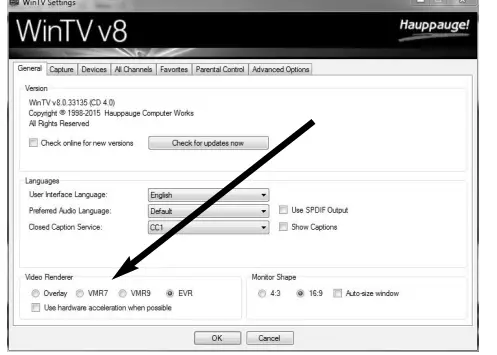
Black window when selecting an ATSC channel
A black window when selecting an ATSC channel means that the TV tuner is not getting a signal. This is most often due to poor over-the-air TV reception. See “Only some channels are found during ATSC channel scan” above.
Uninstalling the WinTV driver and applications
Run the hcwclear.exe from the installation CD. Select OK A black screen will briefly appear and once it has disappeared the software will be removed. If you now re-start the computer you will be at Step 4 of the installation.
Keyboard shortcuts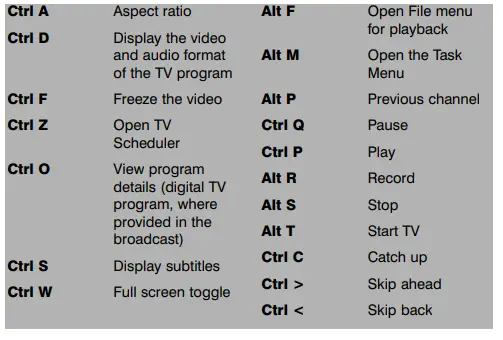
FCC Statement
Radio Interference Statement:
The WinTV products have been tested and found to comply with the limits for a Class B digital device, pursuant to part 15 of the FCC Rules. These limits are designed to provide reasonable protection against harmful interference in a residential installation.
FCC ID: H90WINTV
CE Statement: This equipment has been tested and complies with EN 55013, EN 55020 and IEC 801-3 part 3 standards.
CAUTION: Changes or modifications not expressly approved by the party responsible for compliance to the FCC Rules could void the user’s authority to operate the equipment
FAQS
Hauppauge WinTV-DualHD has, as the name suggests, two tuners. With software such as Kaffeine (for Linux), you will be able to record all of the subchannels on two frequencies
Roku and fire stick do not have the specs to handle that on lower cost ones. But newer ones may be possible with correct application
My 9500 Hybrid TV stick can utilize Win Media Center application or it can be configured to use its own software;as I have mine set up.
No. This is a digital-only tuner designed for the US market.
It should run on it. I used it on my Nvidia Shield to watch over the air channels. As long as there is a usb port.
There is a model: Hauppauge Digital TV for Xbox One – Digital TV tuner – ATSC – USB – for Xbox One, manufacturer #1578 that is for the Xbox One
You can use this tuner on any windows machine, laptop or desktop, and switch the device between computers. Just be sure to install the drivers and software.
There is no guide button on the device, but there is a guide within the software that comes with it. My husband loves it and uses it every day
Will this work dish hopper ?
It should if it has a tv antenna connector. Best to Google or ask Dish
That antenna is a WiFi antenna not a TV antenna.
No. To receive the paid channels you need to pay and have a box/converter for those channels. This is a digital TV tuner for connection to an antenna.
Green LED = good signal, Yellow LED = marginal and no LED = no signal. No signal to noise ratio though. If you were using a media center remote before, it doesn’t work with this unless you are still using windows 7 and media center, so if you are using windows 10 you will have to use the remote
The first two commenters are wrong. It works with the Android TV live channels app or with the Plex app.
There is no guide button on the device, but there is a guide within the software that comes with it. My husband loves it and uses it every day.
You can use this tuner on any windows machine, laptop or desktop, and switch the device between computers. Just be sure to install the drivers and software.