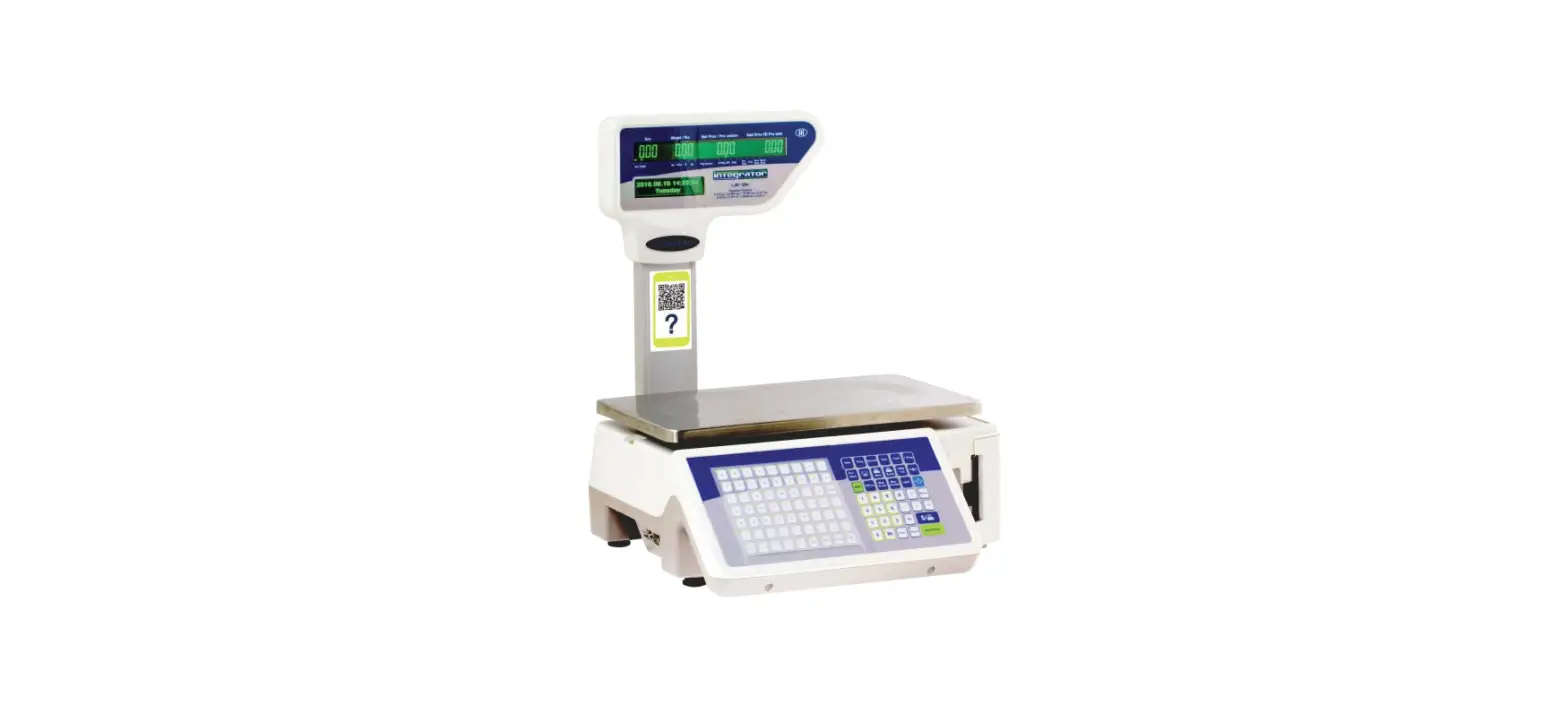

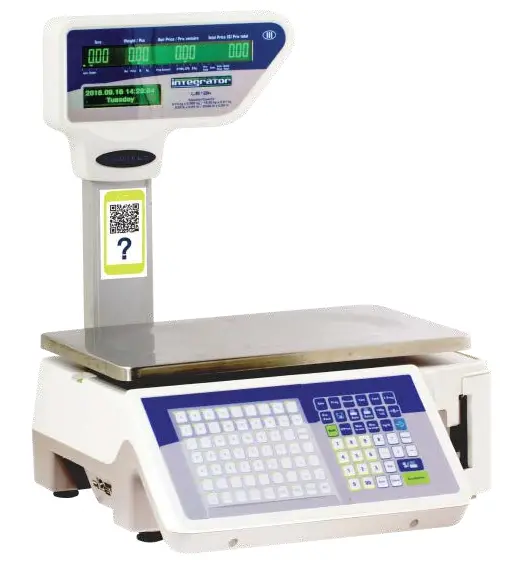
KILOTECH LE.3K Labelling Scale
Introduction
Thank you for choosing a Kilotech Scale. We appreciate your business and hope that you will enjoy using your scale. Should you require support, we have a range of video’s available on Kilotech academy or you can contact your local dealer from whom you have purchased. Happy Weighing
General Precautions
| Avoid lengthy exposure to heat or cold. | Allow the scale to acclimate to normal room temperature before use. |
| Allow sufficient warm up time. | Turn the scale on and wait for a few minutes to allow the internal components a chance to stabilize before weighing. |
| Do not leave a load or weight on a scale for a prolonged period of time. | |
| Do not tamper with the scale yourself. | This will void the warranty. Contact your local distributor to properly repair your scale. |
| Do not dissemble the scale yourself. | This will void the warranty. Contact your local distributor to properly repair your scale. |
| Do not load beyond max cap the maximum weight limit. | |
| Do not pull the plug by its cord when unplugging. | |
| Do not use the scale near fire or corrosive gas. | |
| Avoid contact with water and DO NOT immerse the scale in water. | |
| Avoid placing the scale near a heater. | It could cause a fluctuation to the indicator reading. |
| Always make sure to use a Kilotech approved adapter. | |
| Do not drop the scale or apply a sudden shock. | |
| Do not drag the scale. | |
| Avoid exposing to other electromagnetic devices. | These devices emit RF and can cause unstable readings. If your scale should perform poorly, try moving the scale to a different room or location. |
| Level the scale or make sure it is on an even surface. | A scale used on an uneven surface may provide an unstable reading. |
| Scale should be used within stated temperature & humidity limits. |
Specifications
| Product Number | 851340 / 881340 |
| Product Name | Integrator LE.3k |
| Capacity | 30kg / 60lb |
| Graduation | 0-15kg:5g/15-30kg:10g 0-30lb: 0.01lb/30-60lb:0.02lb |
| Weighing Modes | kg, lb |
| Display | Display Pole mounted, window displays including 4 LED screens and a dot matrix text screen for PLU descriptions |
| Display Digits | Display Digit 4 digit Tare / 5 digit Weight / 6 digit Unit Price / 6 digit Total Price |
| Power | 21 V DC, AC adaptor |
| Product Dimensions | 43 cm x 48 cm x 51 cm / 17 x 19 x 20 “ |
| Platter Size | 15.5 x 10″ / 39 x 25 cm |
| Operating Temperature / Humidity | 0°C – 40°C / 50°F – 104°F <60% RH non condensing 15% -85% Relative humidity non condensing |
| Pricing Units | $/kg , $/100g, $/lb, pcs |
| Unit price range | 0.00 – 9999.99 $/kg or $/lb |
| Total price range | 0-999.99$ (limited by bar code) |
| USB , Ethernet, WIFI and Serial Port | Yes, USB is for data transfer only |
| PLU | Max PLU 6500 PLUs (maximum 875 characters per PLU) |
| Printer Barcode Formats | EAN 13, EAN 8, UPC A, UPC E, EA -128 C, Customized by Authorized Dealer: QR, ITF25, PDF 417, EAN -128, EAN 28 char mode. As well, 20 preprogrammed barcodes |
| Printer | Direct Thermal Print |
| Image Formats | Maximum 15 images compatible with all common image files: BMP, JPEG, TFT, etc. Customized by Authorized Dealer |
| Speed Keys | 126 with shift key, 63 without shift key |
| Label Formats | 12 Preformatted , 3 sizes gap labels, 1 label for Nutritional Facts Canada, 1 label for Nutrional Facts USA. Labels are bilingual. Many more size options available for customized labels Programmed by your Authorized Dealer |
| Measurement Canada and NTEP approval | AM-5818 |
| Warranty | 2 year |
Unpack and Setup
- Remove the scale from the box and place it on a firm, level surface.
- Avoid locations with rapid temperature changes, excessive dust, moisture, air currents, vibrations, electromagnetic fields, heat or direct sunlight.
- Adjust the leveling feet until the bubble is centered in the circle of the level indicator (located under the platter on the left hand side of the scale)
- NOTE: Ensure that the scale is level each time its location is changed.
- Connect the supplied AC adapter to the power input receptacle underneath the scale. Plug the AC adapter into a power outlet,
- If the scale will be stored or transported in the future, save the packaging material to ensure the best possible protection for the scale.
Contents
- Scale
- Adaptor
- This Manual
Display and Keypad
Faceplate
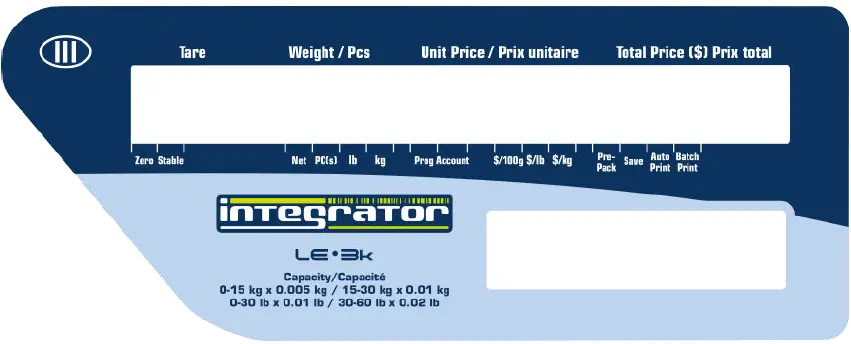
Symbols on the Display
TARE Weight display window
- Zero Centre-of-zero annunciator
- Stable Scale stable annunciator
Weight/Pcs Weight /Pieces display window
- Net Net weight annunciator
- PC(s) Pieces mode annunciator
- lb/kg Unit price per kg/lb annunciator
Unit price / Prix unitaire Unit price display window
- Prog Program mode annunciator
- Account Account mode annunciator
- $/100g, $/lb, $/kg Pricing mode annunciator
TOTAL PRICE($) Prix total – Total price display window
- Pre-pack Pre-pack mode annunciator
- Save Save mode annunciator
- Auto print Auto print mode annunciator
- Batch Print Batch print mode annunciator
Keypad
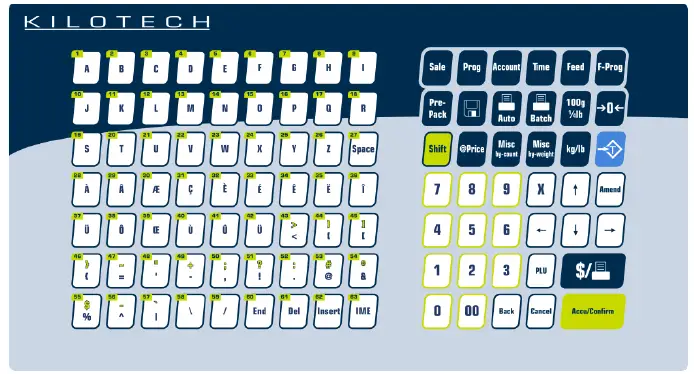
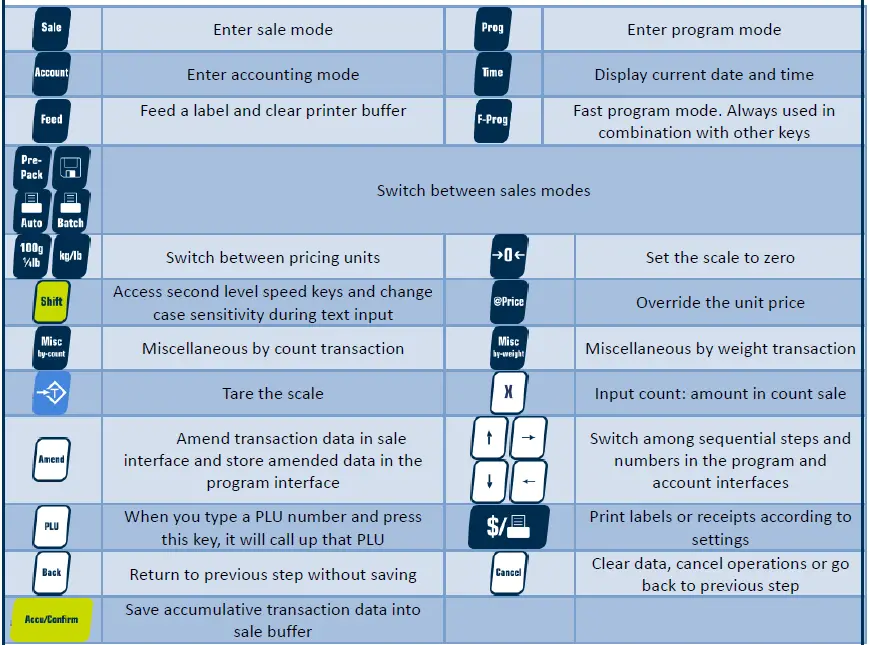
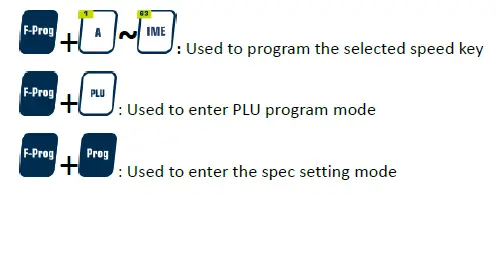
Fast Program Mode
Press both key simultaneously
Weighing Operations
Key Functions
Zero
The zero key is used to zero out the small difference on the weight display. The scale will display “Err” when the weight to be zeroed is outside the range. If a tare is set, the ZERO key function is not available.
Tare
- Weight tare: Place the receptacle (box, bowl etc…) on the scale, and when the reading is stable, press tare key to tare the weight.
- Key tare: Key in known tare weight and press tare key. To clear Zero or Tare, press their respective buttons. The tare weight and unit price will be auto cleared after transaction is completed and item has been removed from the platter.
Save
When activated, this function will prevent auto clearing of the unit price or tare-weight. When active, the save indicator is activated.
Units key
Use the key to shift between “kg”, “lb”. Note: Unit price will be set to zero during switching You cannot switch units when a tare is active.
PLU Programming
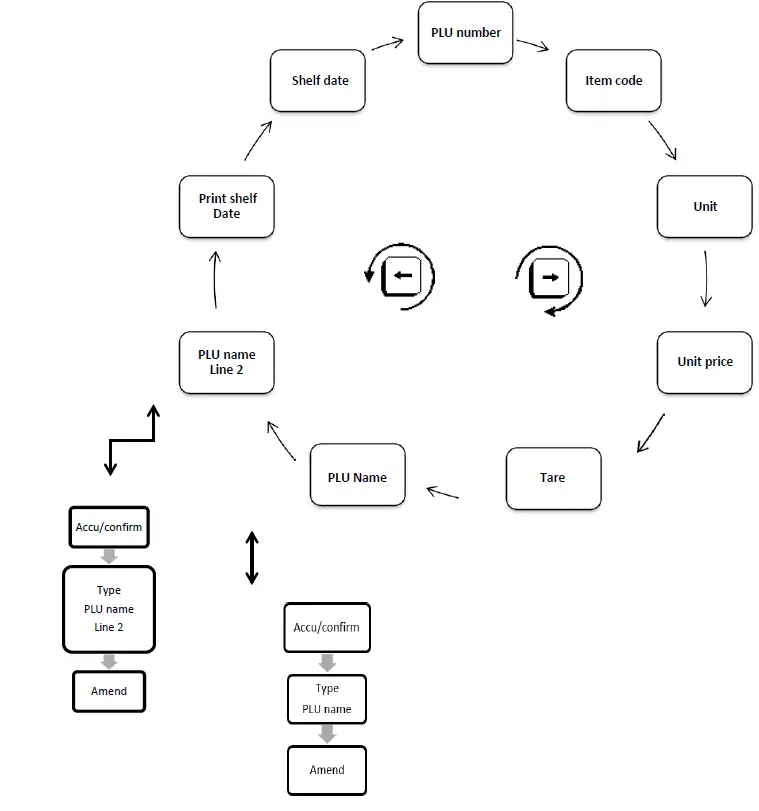 To program a PLU with the F-program press the F-prog and PLU button You can press the right and left arrow keys to navigate up and down the PLU program menu, but you must provide a PLU number. Every PLU has 37 data fields. Many of the fields have been hidden by default. See “Select active PLU fields” for more details. At any time, you may press the AMEND key to save or press CANCEL and return to the beginning of menu. To exit programing mode, press the SALE key
How to program a PLU:
- Press the F-prog and PLU key simultaneously

- Select PLU number to be programmed and press right arrow key

- Enter Item code and press right arrow key

- Enter weight unit code and press right arrow key


Available unit codes are:
- 2: $/pcs
- 3: $/kg
- 6: $/lb
- 8:$/100g
- 9: $//¼lb (USA only
- Enter unit price and press right arrow key

- Enter cost and press right arrow key

- Enter tare weight and press right arrow key

- To program the PLU name press the Accu/Confirm key or press the right arrow key to skip

- Program PLU name and press Amend and right arrow key when finished

- To program the second line of the PLU name Press the Accu/Confirm key (Behavior is the same as the PLU name field) Or press right arrow key to skip
- Program Secondary PLU name and press Amend and then right arrow key when finished
- Program best before date
- 0: Do not print
- 1: print

- Program Nutritional facts table number Press amend to save edited PLU and return to the beginning of the PLU editing screen (leave at 0 when not in use)
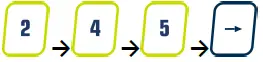
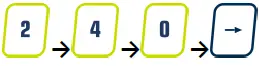

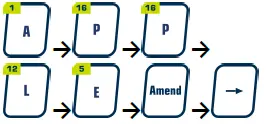

Speed Key Programming
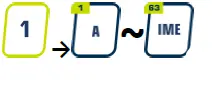
NB: To access the second level, press the shift key prior to selecting the speed key
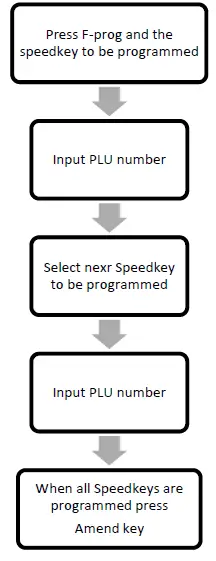
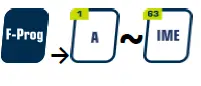
- Select PLU number to be linked to the speed key and select the next speed key.

- Press Amend to save and return to normal mode.


Barcodes
The LE.3k has predefined barcodes. To select a global barcode please do the following:
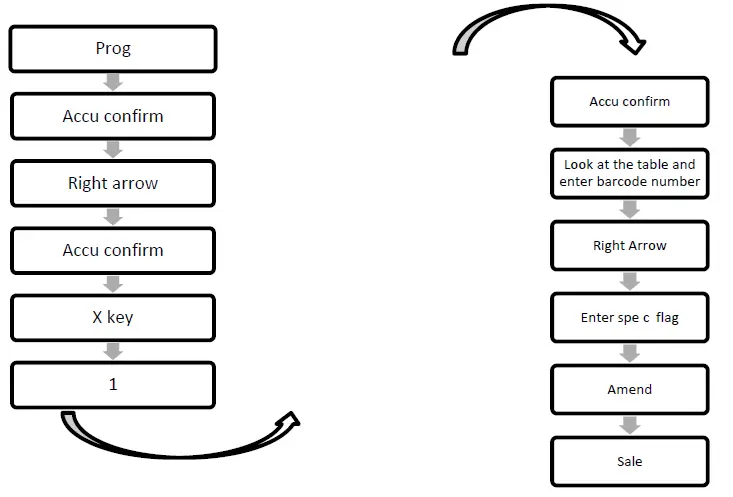
| Number | Format | Flag | Item Code | Price/Weight | Barcode digits | ||||||||||||
| 1 | 2 | 3 | 4 | 5 | 6 | 7 | 8 | 9 | 10 | 11 | 12 | 13 | |||||
| 1 | UPC-A | Flag= 1 Digit | Item Code= 5 Digits | Price= 5 Digits | F | I | I | I | I | I | P | P | P | P | P | C | |
| 2 | UPC-A | Flag= 1 Digit | Item Code= 5 Digits | Weight= 5 Digits | F | I | I | I | I | I | W | W | W | W | W | C | |
| 3 | UPC-A | Flag= 1 Digit | Item Code= 6 Digits | Price= 4 Digits | F | I | I | I | I | I | I | P | P | P | P | C | |
| 4 | UPC-A | Flag= 1 Digit | Item Code= 6 Digits | Weight= 4 Digits | F | I | I | I | I | I | I | W | W | W | W | C | |
| 5 | UPC-A | Flag= 2 Digit | Item Code= 5 Digits | Price= 4 Digits | F | F | I | I | I | I | I | P | P | P | P | C | |
| 6 | UPC-A | Flag= 2 Digit | Item Code= 5 Digits | Weight= 4 Digits | F | F | I | I | I | I | I | W | W | W | W | C | |
| 7 | EAN-13 | Flag= 1 Digit | Item Code= 6 Digits | Price= 5 Digits | F | I | I | I | I | I | I | P | P | P | P | P | C |
| 8 | EAN-13 | Flag= 1 Digit | Item Code= 6 Digits | Weight= 5 Digits | F | I | I | I | I | I | I | W | W | W | W | W | C |
| 9 | EAN-13 | Flag= 1 Digit | Item Code= 7 Digits | Price= 4 Digits | F | I | I | I | I | I | I | I | P | P | P | P | C |
| 10 | EAN-13 | Flag= 1 Digit | Item Code= 7 Digits | Weight= 4 Digits | F | I | I | I | I | I | I | I | W | W | W | W | C |
| 11 | EAN-13 | Flag= 2 Digit | Item Code= 4 Digits | Price= 6 Digits | F | F | I | I | I | I | P | P | P | P | P | P | C |
| 12 | EAN-13 | Flag= 2 Digit | Item Code= 4 Digits | Weight= 6 Digits | F | F | I | I | I | I | W | W | W | W | W | W | C |
| 13 | EAN-13 | Flag= 2 Digit | Item Code= 5 Digits | Price= 5 Digits | F | F | I | I | I | I | I | P | P | P | P | P | C |
| 14 | EAN-13 | Flag= 2 Digit | Item Code= 5 Digits | Weight= 5 Digits | F | F | I | I | I | I | I | W | W | W | W | W | C |
| 15 | EAN-13 | Flag= 2 Digit | Item Code= 6 Digits | Price= 4 Digits | F | F | I | I | I | I | I | I | P | P | P | P | C |
| 16 | EAN-13 | Flag= 2 Digit | Item Code= 6 Digits | Weight= 4 Digits | F | F | I | I | I | I | I | I | W | W | W | W | C |
| 17 | EAN-13 | Flag= 2 Digit | Item Code= 5 Digits | Price= 4 Digits | F | F | I | I | I | I | I | S | P | P | P | P | C |
| 18 | EAN-13 | Flag= 2 Digit | Item Code= 4 Digits | Price= 5 Digits | F | F | I | I | I | I | S | P | P | P | P | P | C |
| 19 | EAN-13 | Flag= 2 Digit | Item Code= 5 Digits | Weight= 4 Digits | F | F | I | I | I | I | I | T | W | W | W | W | C |
| 20 | EAN-13 | Flag= 2 Digit | Item Code= 4 Digits | Weight= 5 Digits | F | F | I | I | I | I | T | W | W | W | W | W | C |
| 21 | GTIN-14 | ||||||||||||||||
- F= Flag
- I= Item Code
- P= Price
- W= Weight
- C= Check Sum
- S= Check Sum for Price
- T= Check Sum for Weight
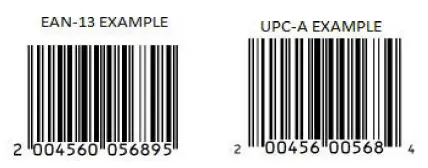
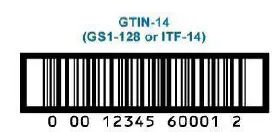
Minimum Height
- For UPC-A 22.85mm
- For EAN-13 22.85mm
- For GTIN-14 31.75mm
Backup All Data to USB Flash Disk
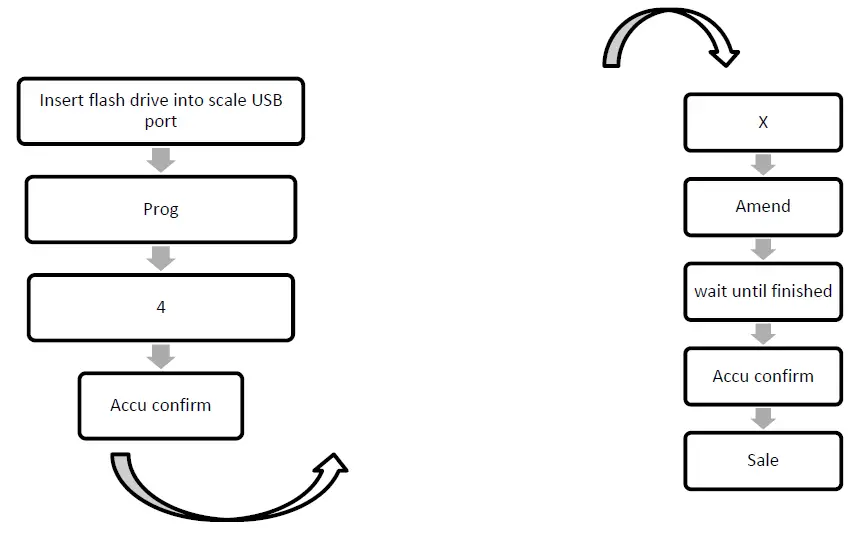
- Note 1 Exporting data to files to USB flash drive can sometimes take a lot of time.
- Note 2 Press any key to exit once completed. Press the cancel key to abort
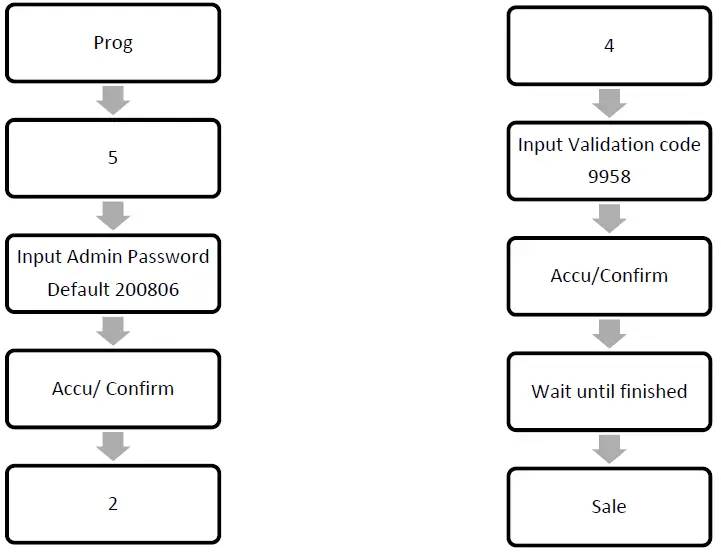
Factory Restore
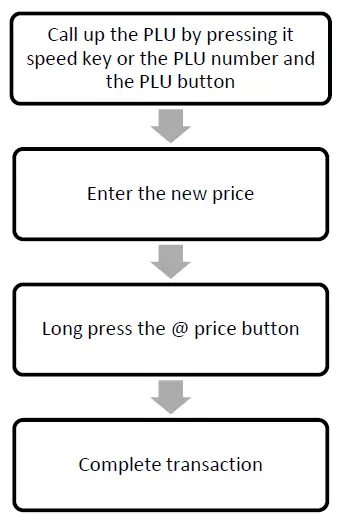
 Changing the Price of the PLU on the Scale
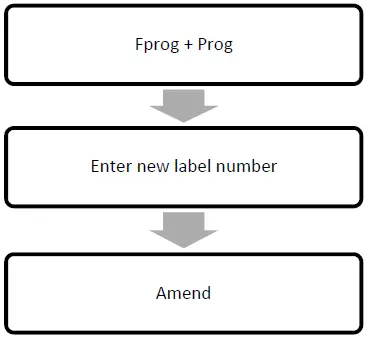
Label Formats
The LE.3k has multiple predefined labels barcodes. To choose a label format please do the following:
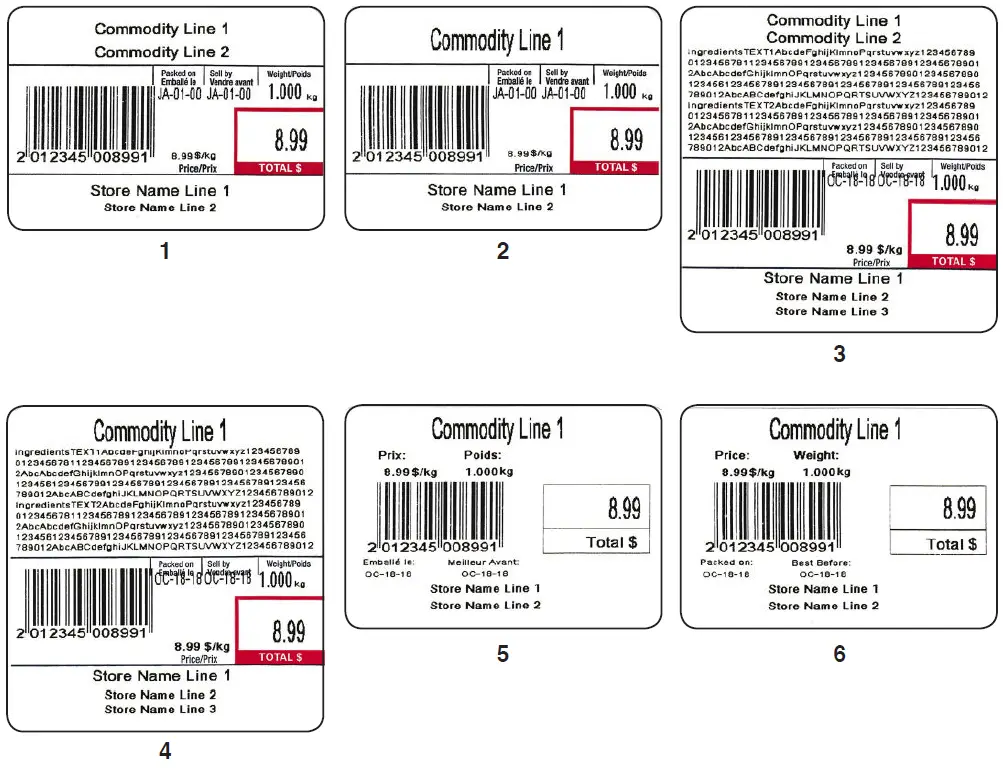
Labels
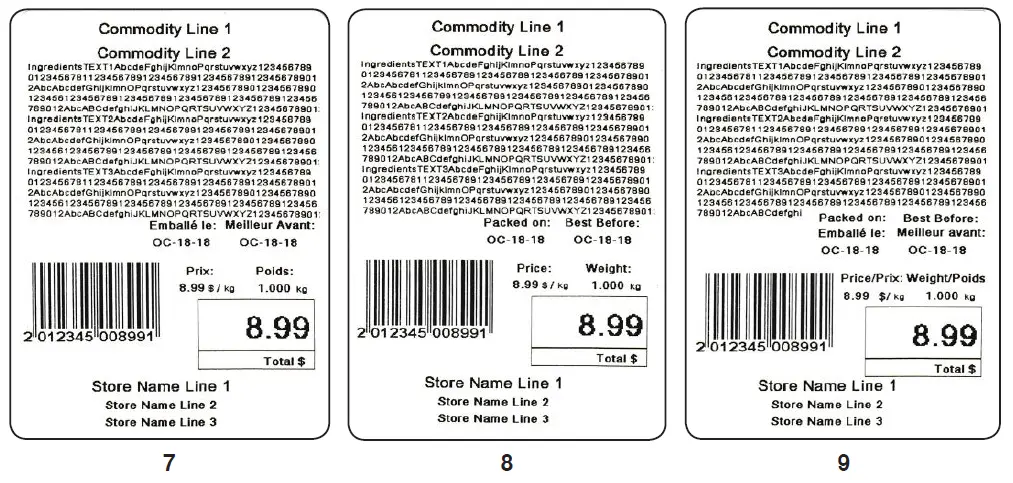
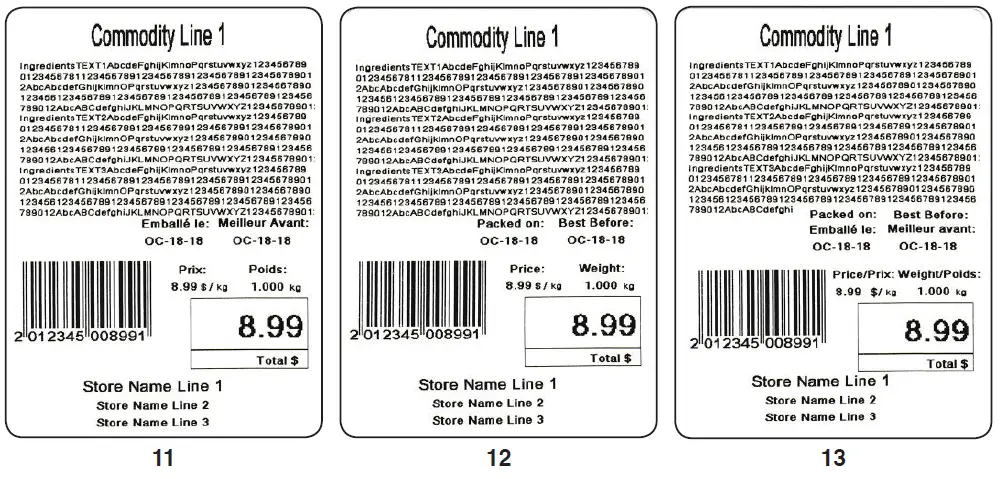
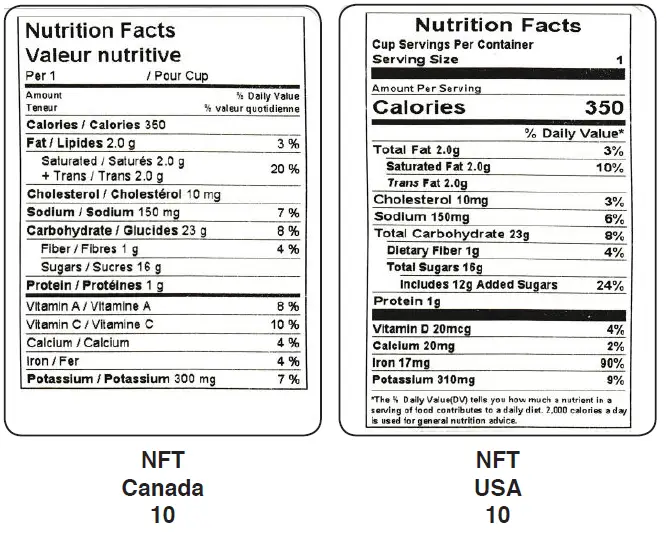
Print Adjust
To adjust the print height, please do the following:
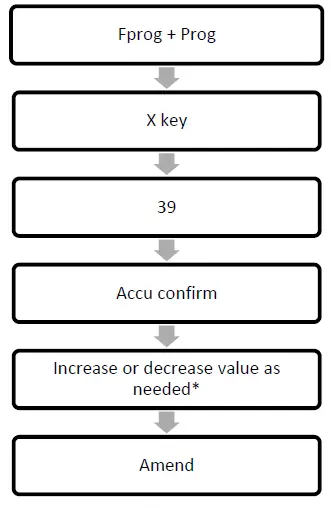
- 1 increment = 1 pixel
- 8 pixels = 1 mm
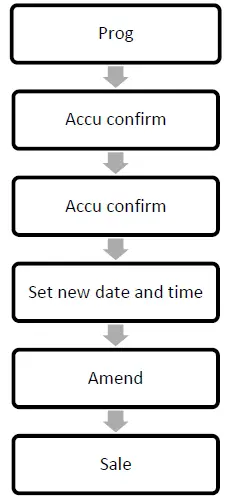
Set Time and Date
To adjust the date and time, please do the following:
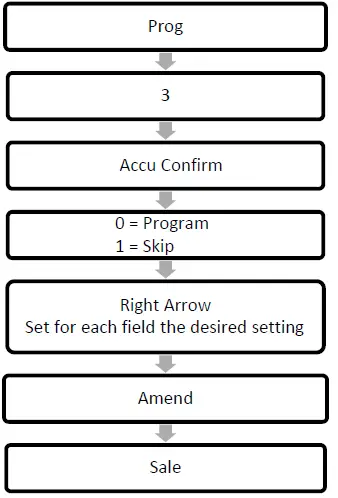
 Select Active PLU Fields
To select the fields used for PLU programming, please do the following
Error Codes
- Err01: The weight signal is too large.
- Err02: No proper data can be displayed.
- Err03: The weight signal is too small.
- Err04: Zero point is over the setting range.
- Err05: Zero point is below the setting range.
- Err06: Error in unit key operation.
- Err10: The EEPROM can’t be accessed.
- Err11: The parameters are not matching with the backup data.
- Err12: The setting parameter(s) is not in normal range.
- Err20: There is an error in calibration.
- Err30: ADC is over max. range.
- Err31: ADC is below min. range.
- Err40: Recall error, no content stored.
- CAP.: Capacity.
- UOL.: Voltage.
- St.PLU: To set and store the indirect unit price.
- ADDR. : PLU address.
- Unit: Weighing units.
- Rc.PLU: Recall indirect unit price.
- OUT.P.R: Data is out of printed barcode range.
- Data.ch: Data has been changed.
- Save: Data is being saved.
- O.RANGE: The data has been entered or the weight for tare weight is out of range.
Firmware Update
To update the firmware of your scale do as follows:
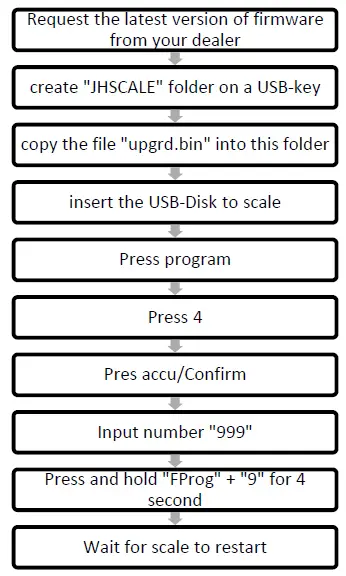
NB: Updating firmware will erase all data on the scale.
- Make sure the firmware is compatible with your scale
- Updating firmware is done at your own risk.
Spec Setting User Mode
| SpecID | Description | Note |
| 0 | Label: Item Print Format | Print formats. 0 = no print, 1~xxxx = selected print format |
| 1 | Label: Item Barcode Format | Barcode formats. 0 = no print, 1~xxxx = selected barcode format |
| 2 | Label: Item Barcode Flag | Default 2 |
| 3 | Label: Item Print Times | Default 1 |
| 4 | Label: Item Print Reversed | 0: Normal, 1: Print 180°Reversed |
| 39 | Gap Paper: Pre-feed Distance | Reverse feed if number > 1000 |
| 104 | Date Type | |0|:YYYY.MM.DD |1|:YY.MM.DD |2|:MM/DD/YY |3|:MM-DD-YY |4|:DD/MM/YY |5|:DD-MM-YY |
| 106 | Shelf Days | Number of days for global shelf life |
| 192 | Dot Matrix Screen: Idle Mode | |0|:Display Time |4|:Store Name |5|:Device Name |8|:Label text 1 |9|:Label text 2 |10|:Label text 3 |11|:Label text 4 |12|:Label text 5 |13|:Label text 6 |14|:Label text 7 |15|:Label text 8 |21|21:Special text 6 |22|:Special text 7 |23|:Special text 8 |
| 193 | Dot Matrix Screen: Idle Mode Source | |0|:Display Accumulation |1|:Display AD-Message |
| 256 | Pre-Print Function | |0|:Disable |1|:Enable |
| 265 | Date Print Mode:Month | |0|:Digits |1|:Two Characters |
| 266 | Date Display Mode | |0|:Default |1|1:Using Spec104 and 265 |
| 340 | Dot matrix LCD’s contrast(0~7) | |
| 341 | Dot matrix LCD’s brightness(0~31) |
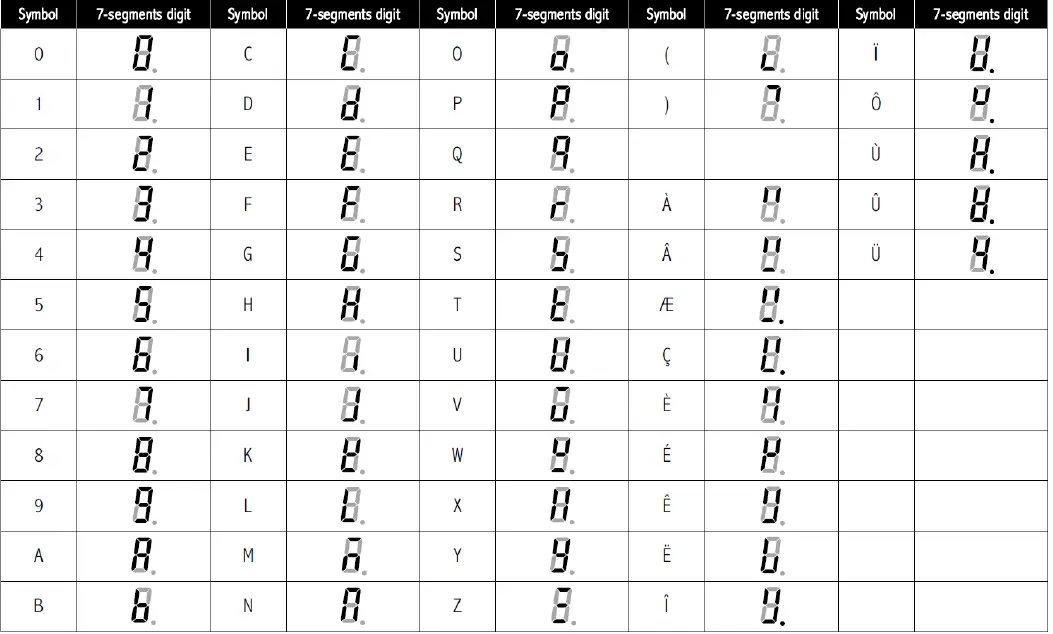
Display Character Reference
Troubleshooting
| Error code | Possible cause | Solution |
| E0.01 | Scale is not stable at start-up | Make sure the tray is empty and stable |
| E0.02 | Zero point signal is over or below the limitation | Make sure there are no goods on the platter and platter is correctly installed |
| E1.01 | Programmed data is invalid | Input valid data again |
| E1.03 | The selected print format does not exist | Set correct print format |
| E1.10 | Sale at 0 price is forbidden | The price cannot be 0 Refer to Spec070 |
| E1.11 | Exceeds the largest sale price | Total price or grand total price exceeds the largest sale price |
| E1.12 | Need to return to zero point | The weight must be at zero |
| E1.13 | Exceeds accumulative limit | The accumulative times are greater than the buffer’s accumulate limit |
| E1.14 | Printer buffer overflow | Print the data in the buffer first then print this sale or switch to other buffers |
| E1.18 | PLU is locked | The system needs to exit lock PLU (or auto mode) first |
| E1.21 | Less than smallest sale weight | Weight needs to be larger than the smallest sale weight |
| E1.22 | Larger than largest sale weight | Weight needs to be smaller than the largest sale weight |
| E1.23 | Discounted Unit Price has to be less than the discount lower limit | Set Discount within allowed range, or amend the allowed range |
| E1.24 | Discounted Unit Price has to be higher than the discount upper limit | Set Discount within allowed range, or amend the allowed range |
| E1.30 | Cannot enter special sale mode | The selected PLU has a conflict with the special sale mode, select again |
| E7.01 | Some keys are pressed when the scale starts | Check keyboard for obstruction |
| E7.01 | The label has not been removed | Take away the printed label paper |
| E7.12 | Print head is not closed tight | Install the paper and close the head |
| E7.13 | Printer is not working | Please wait for a few seconds and try again |
| E7.15 | Lack of gap paper | Reinstall the roll |
| E7.16 | The scale cannot find the gap intervals | Reinstall the roll |
| E7.17 | The scale cannot find gap alignment positions | Reinstall the roll |
| E7.18 | The printer is overheated and it needs to cool down | Please wait a few seconds and try again |
| E7.19 | There is no response from the printer | The printer may not be connected or in a state the printer could not print (Buffer overflow or error state) |
| E7.30 | Alarm for full storage of deals records | Enter Account interface. Calculate and clear the reports |
Contents subject to change without notice Version 01.02 LE.3k OPERATIONS MANUAL E 05082019 www.kilotech.com
 data.ch - Data Resources and Information.
 Kilotech: Welcome to Kilotech