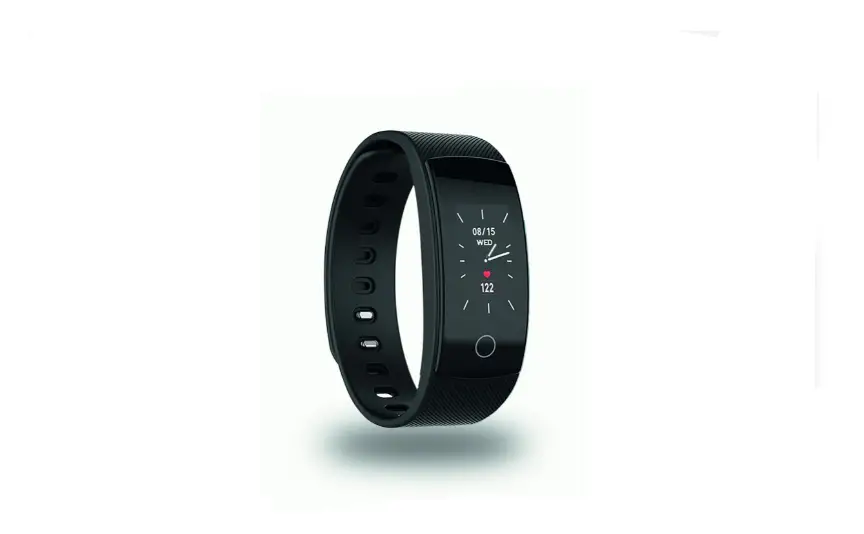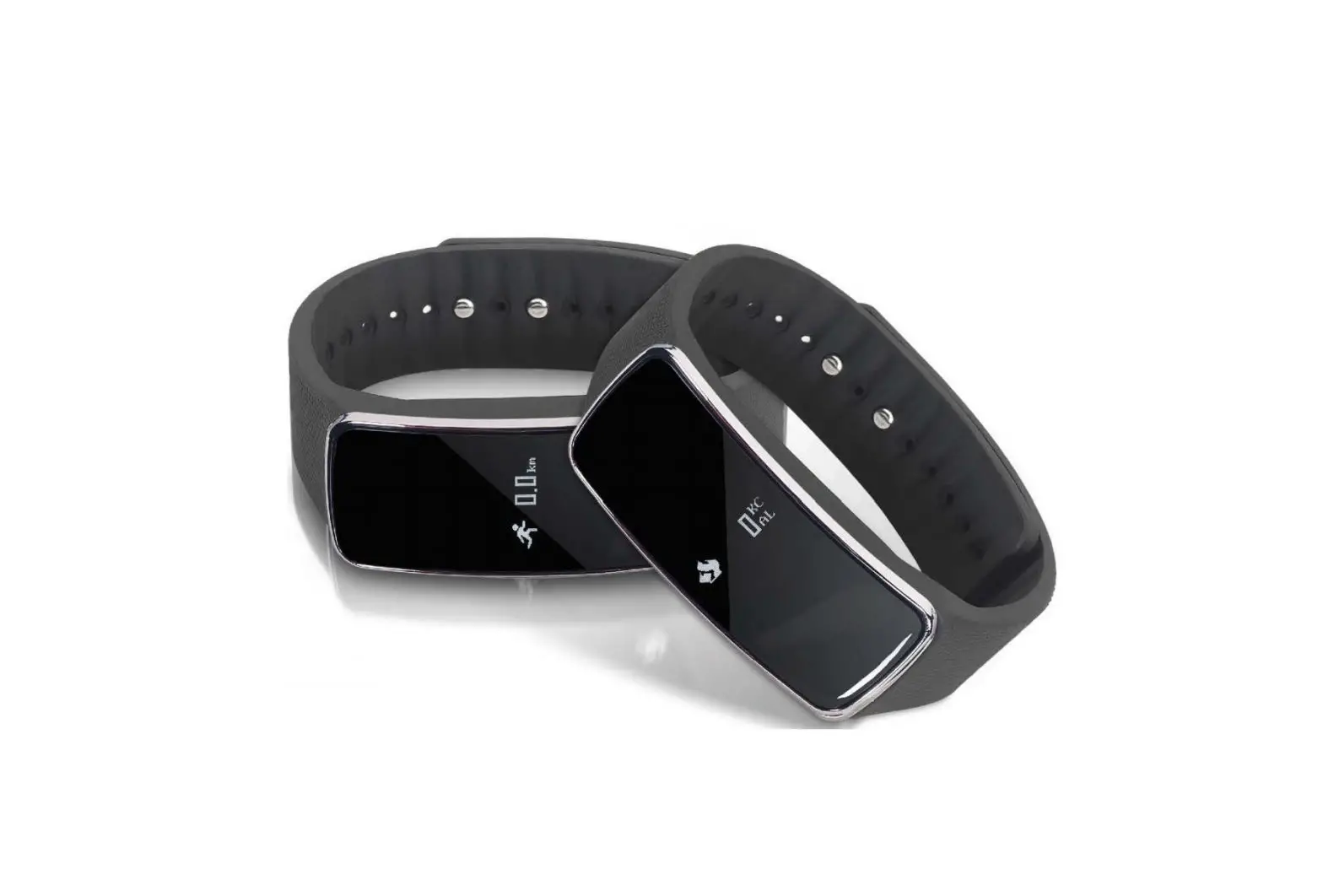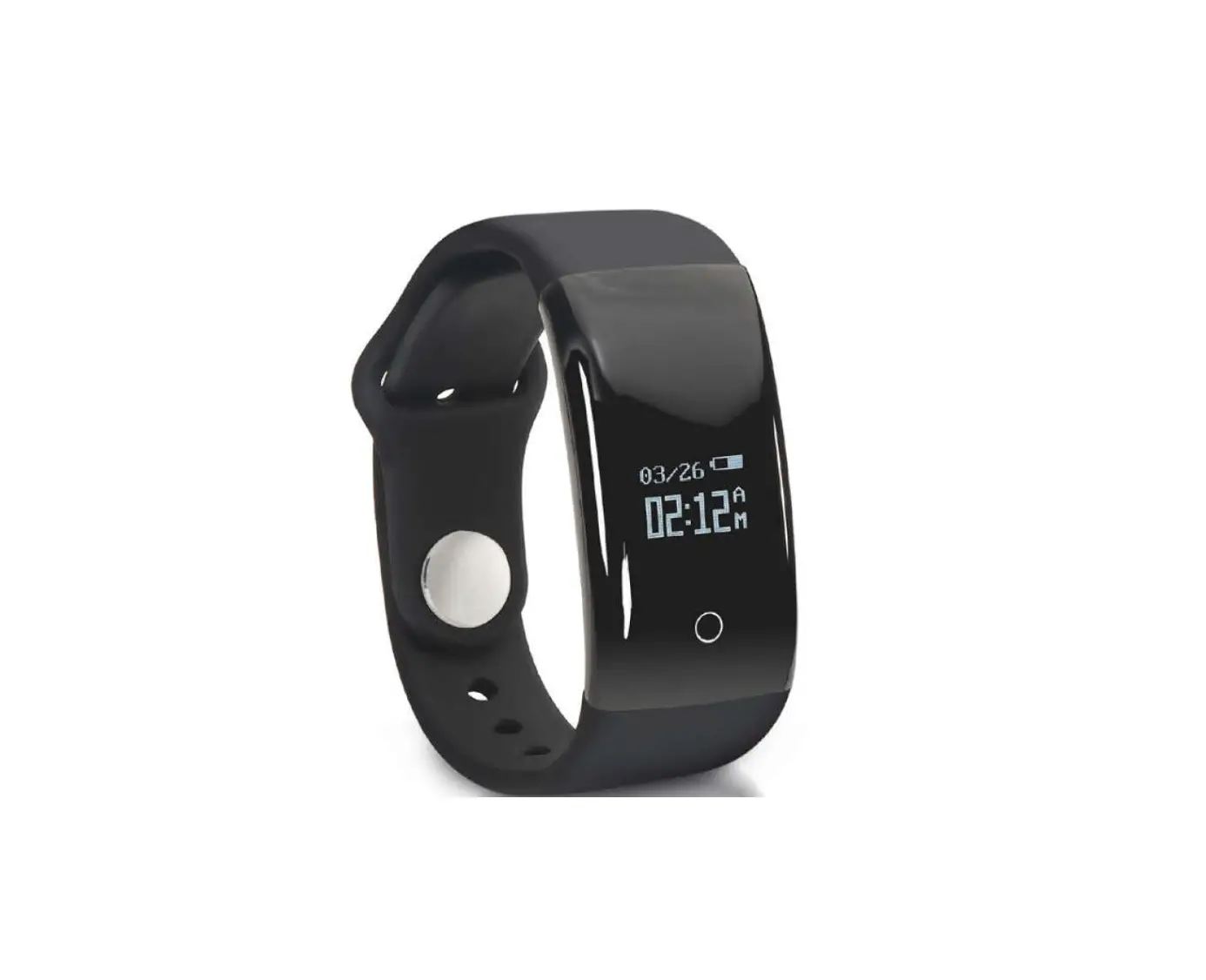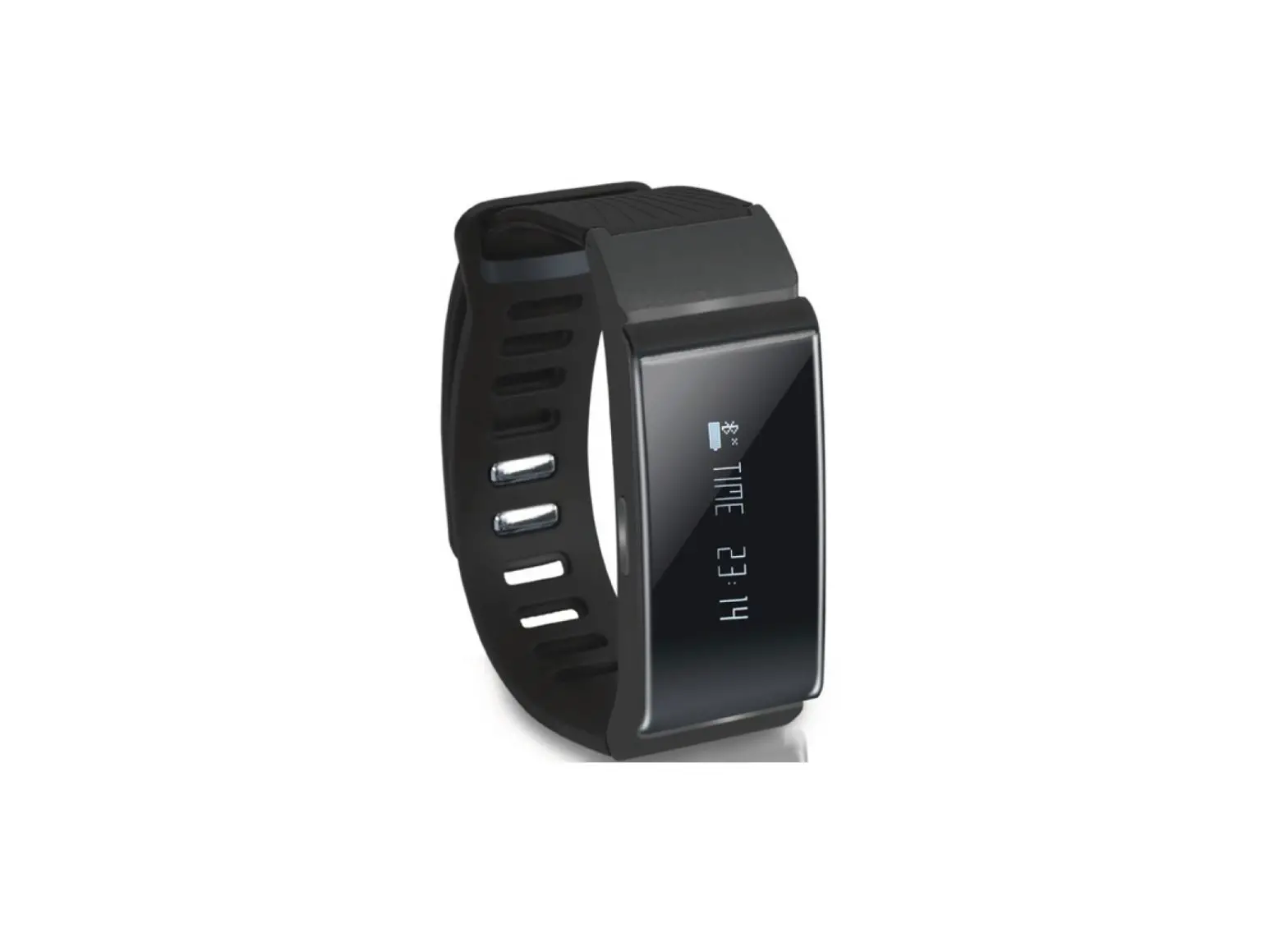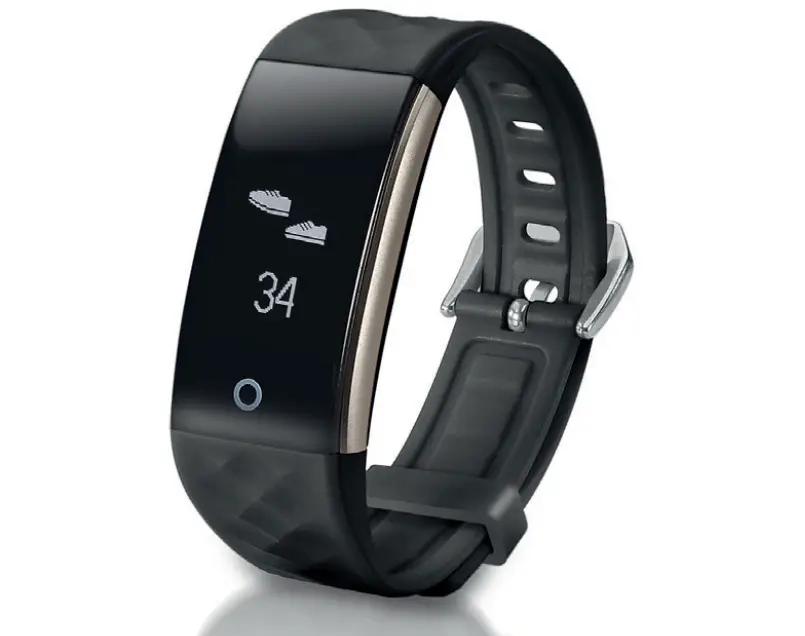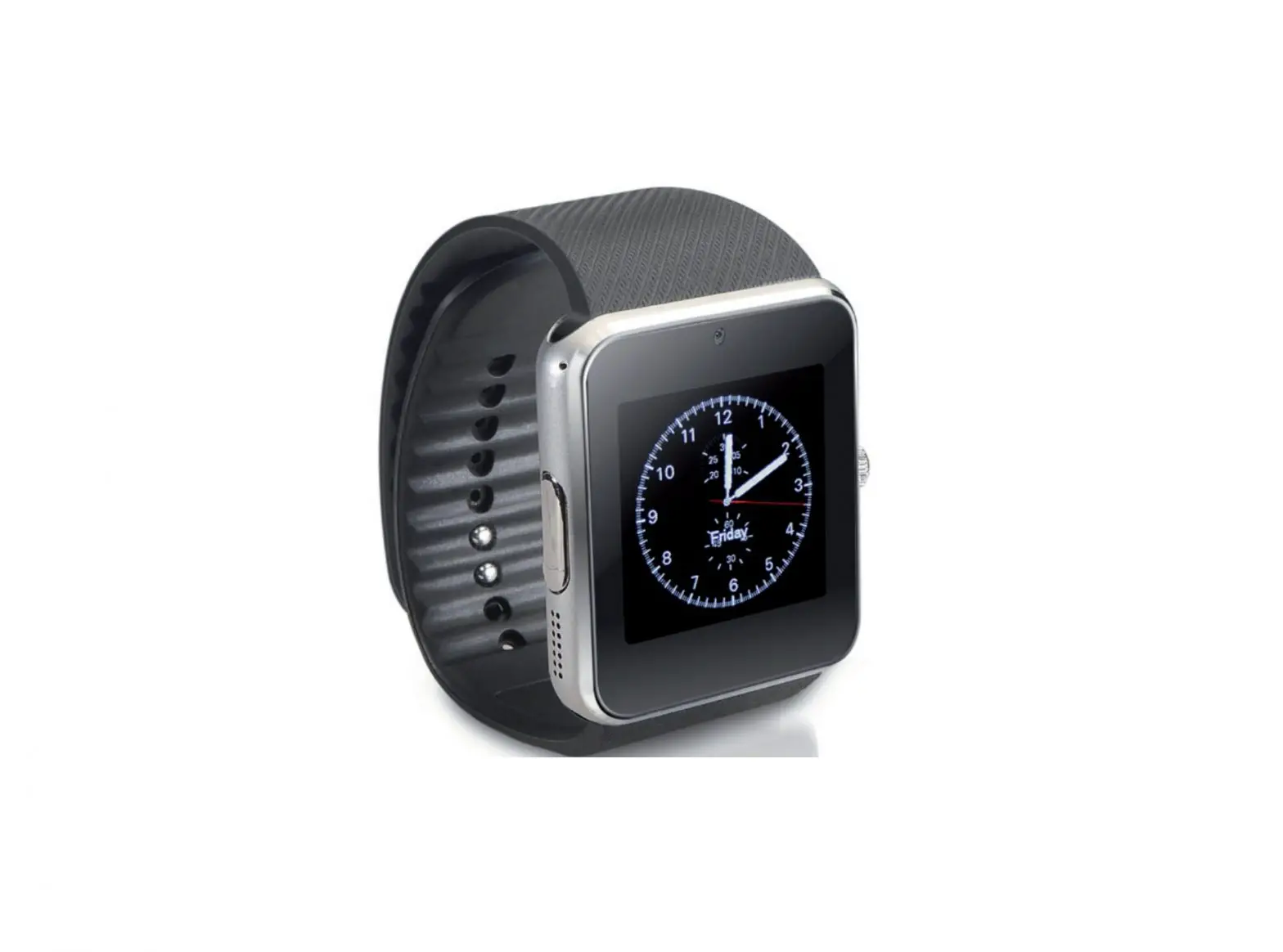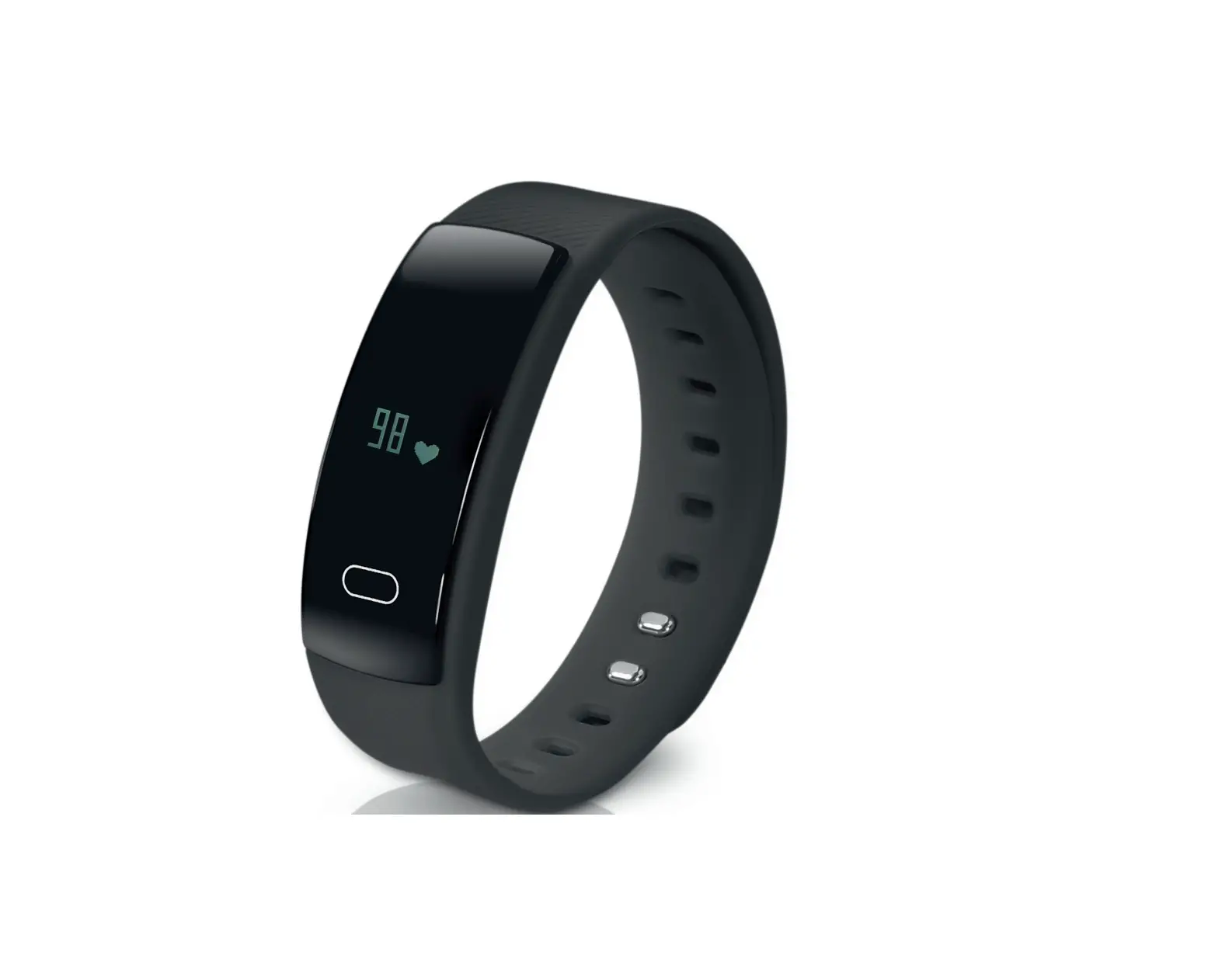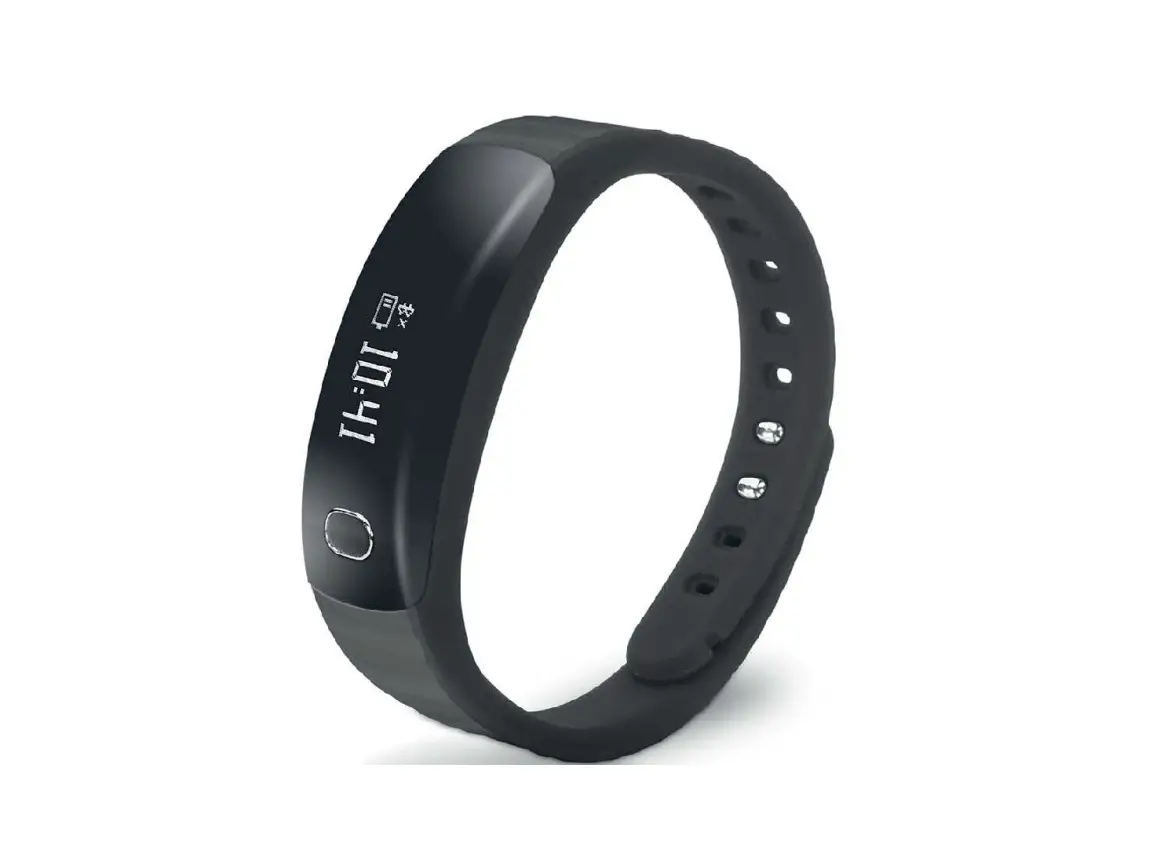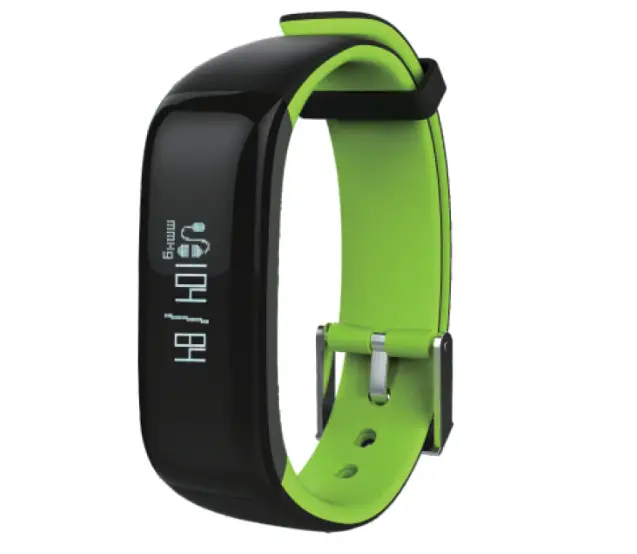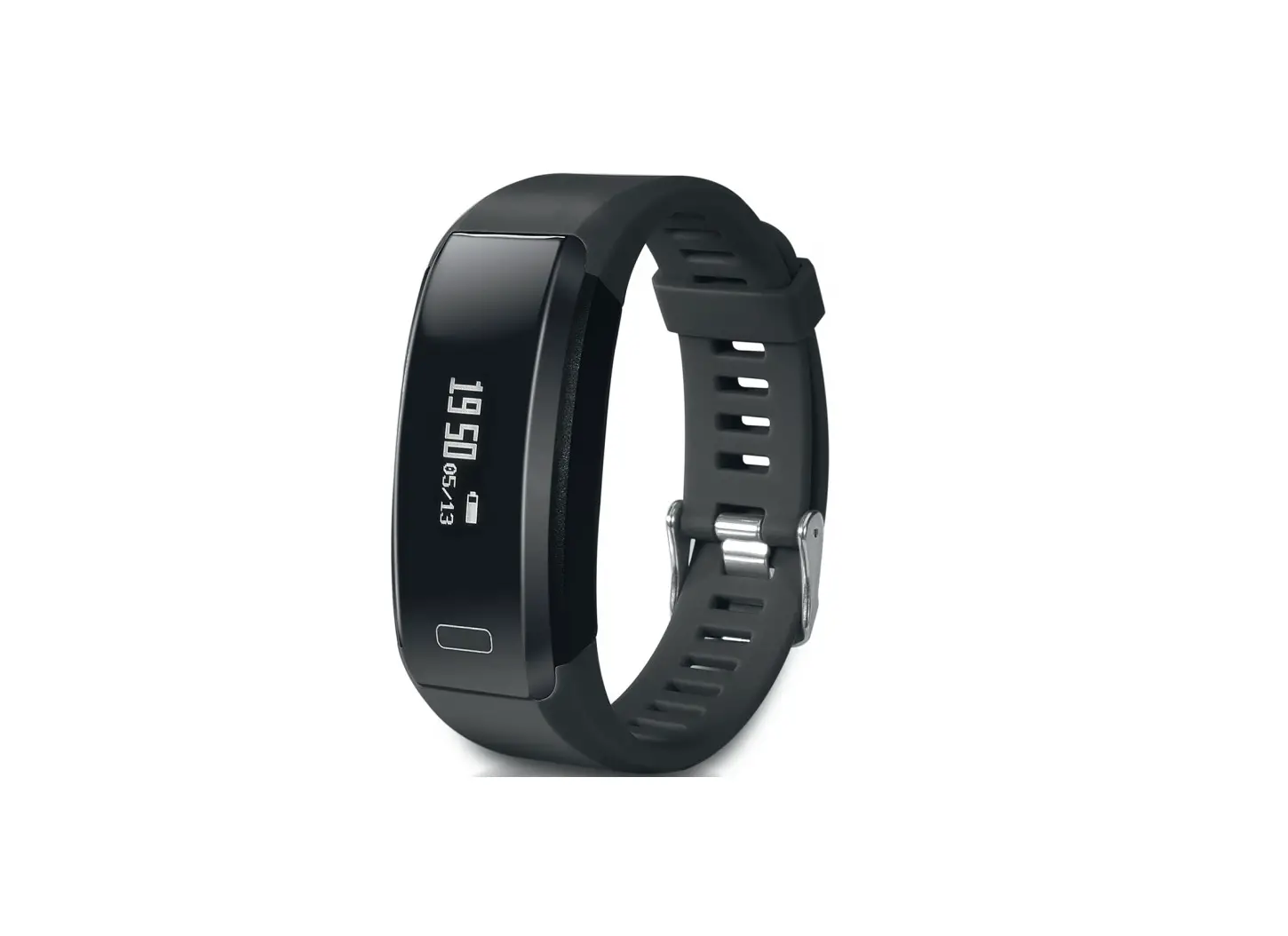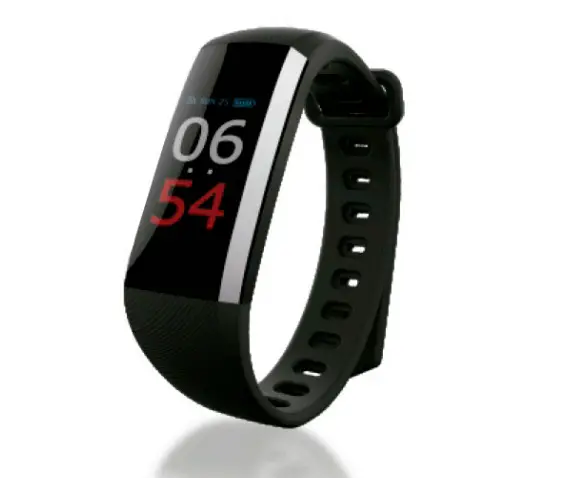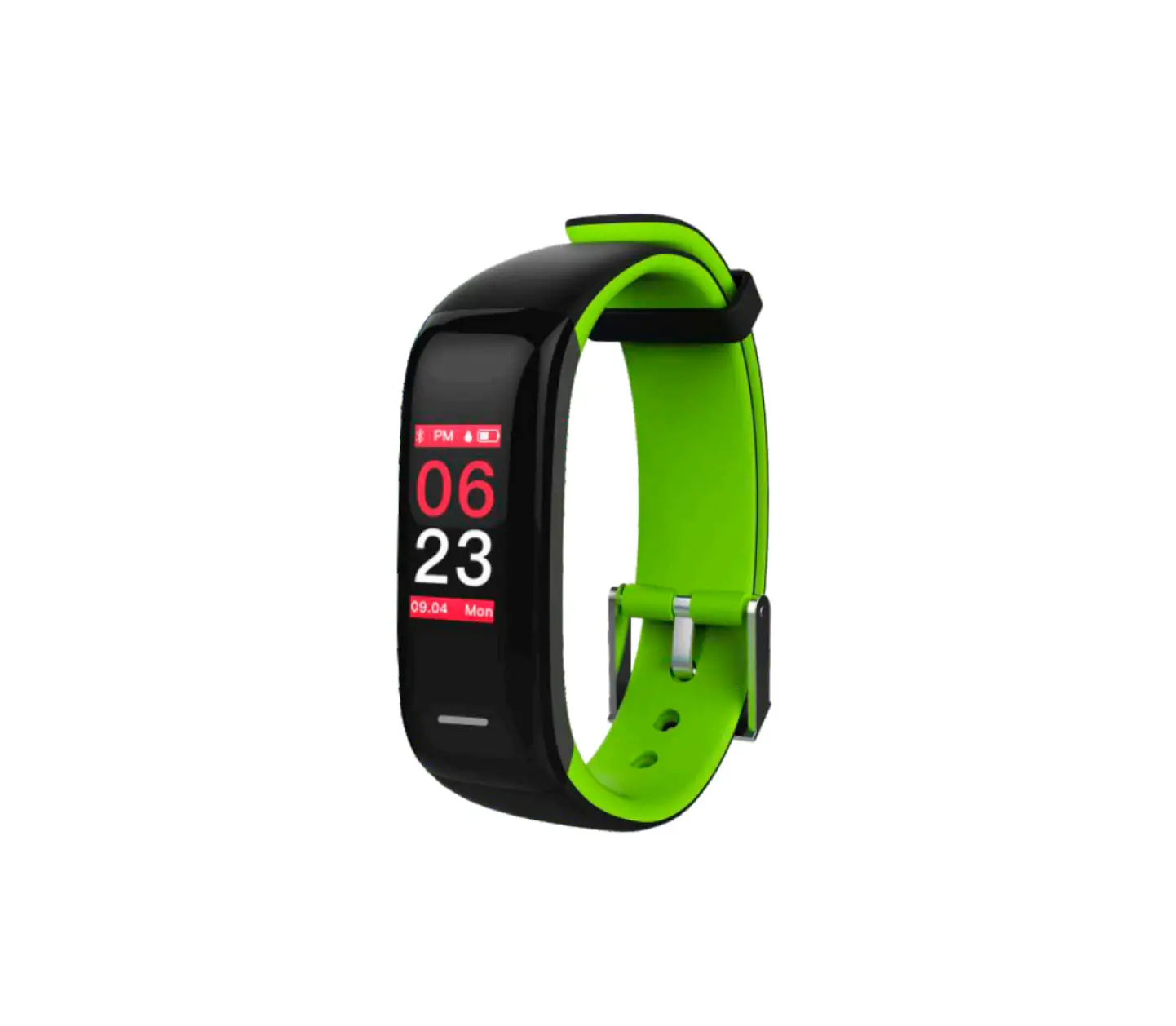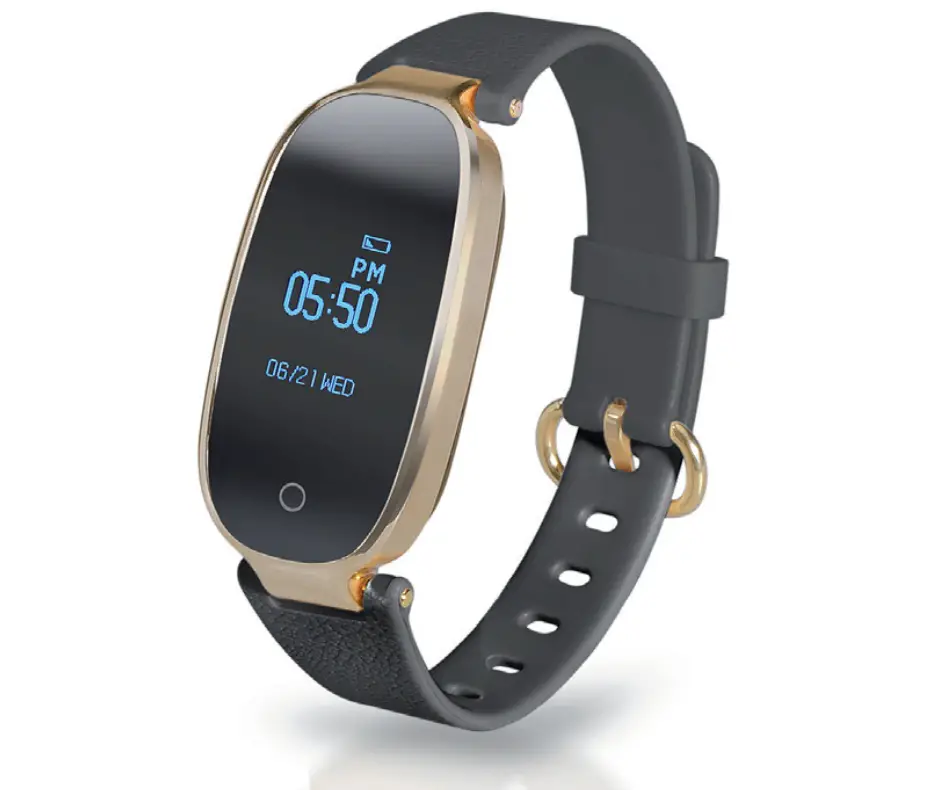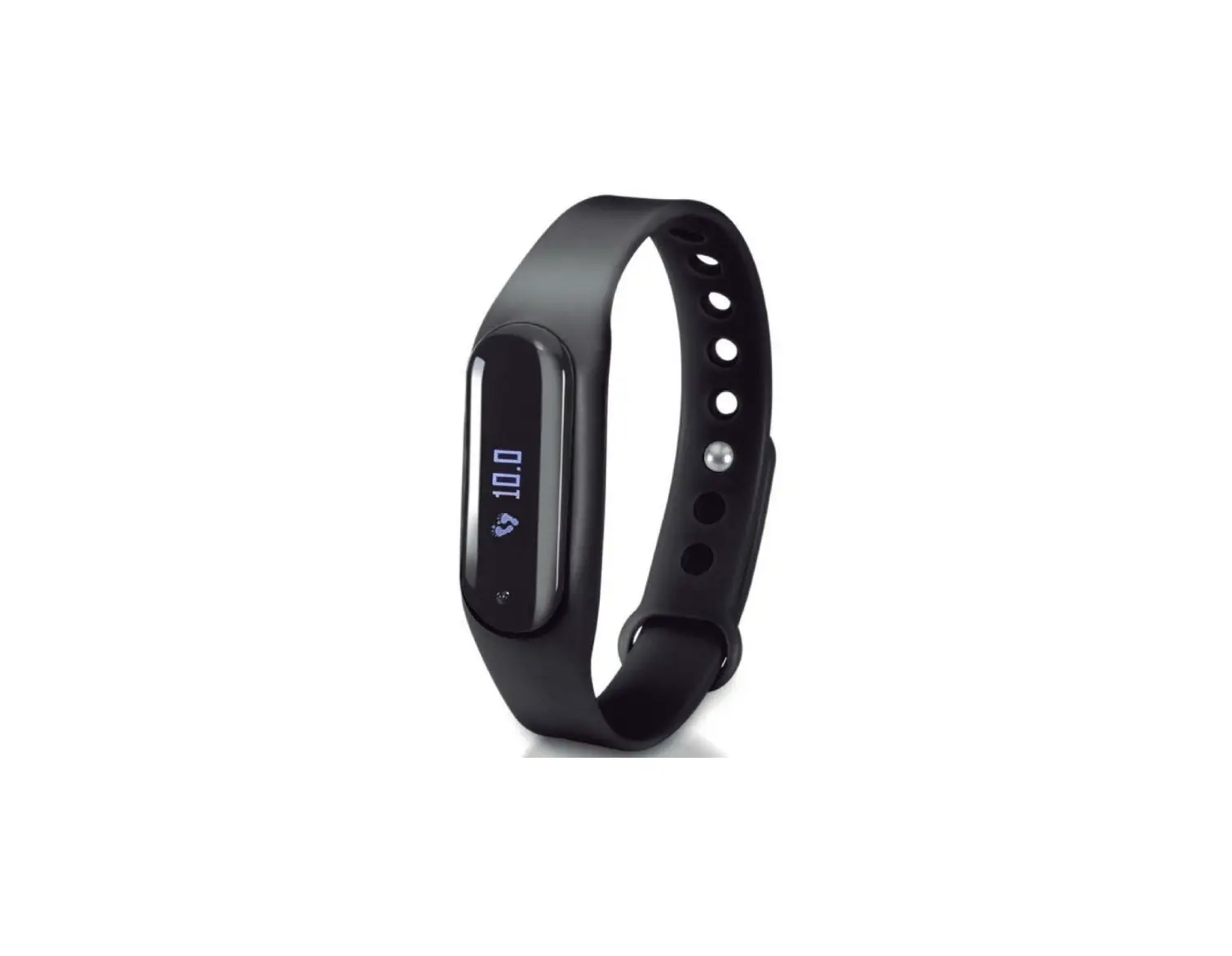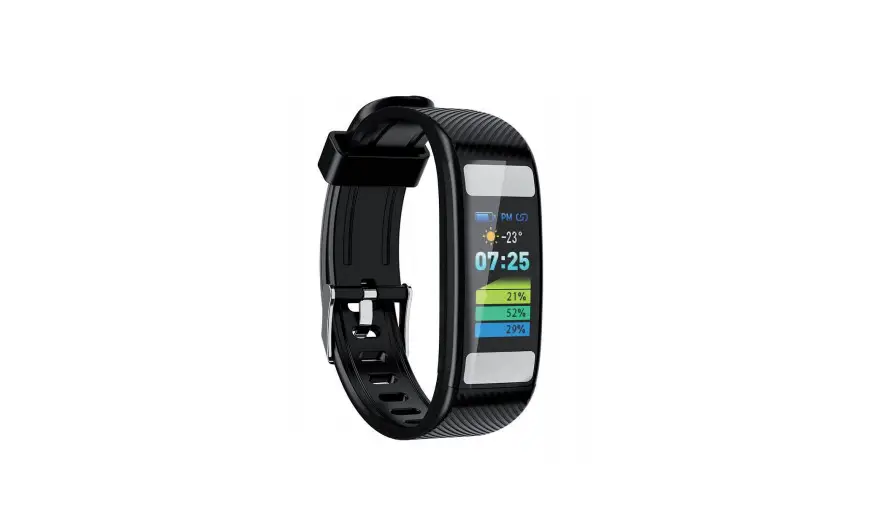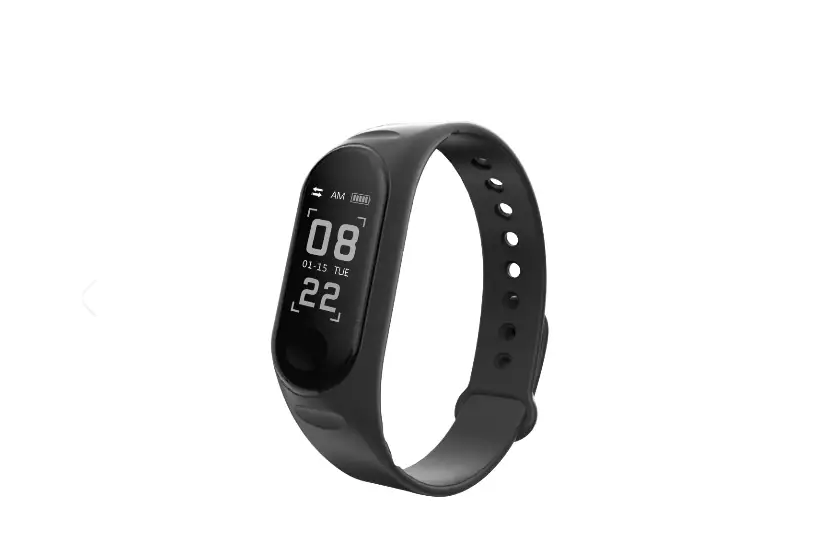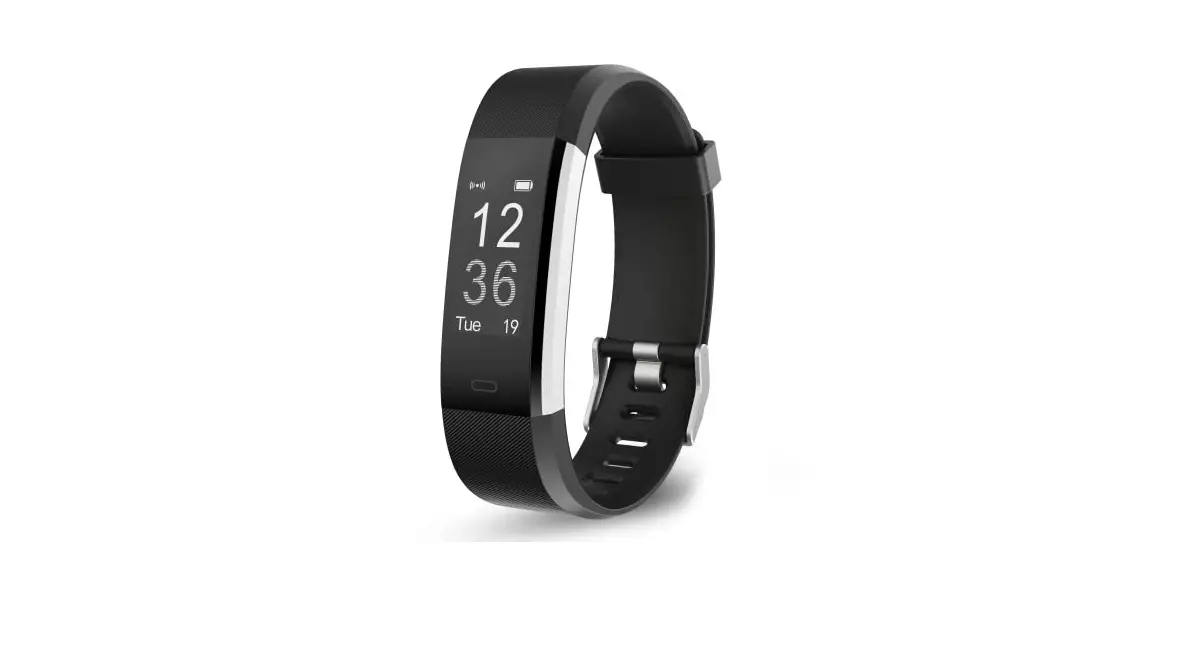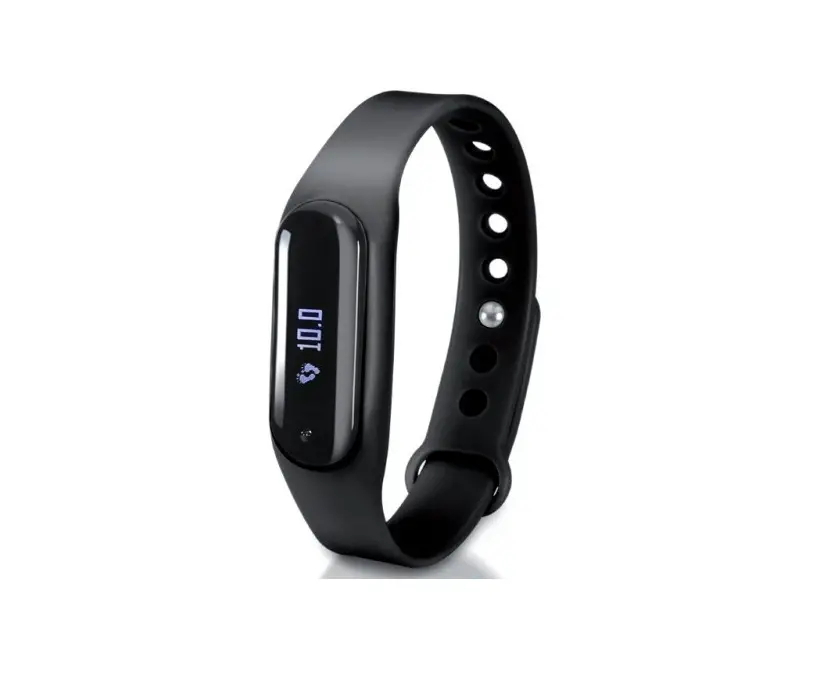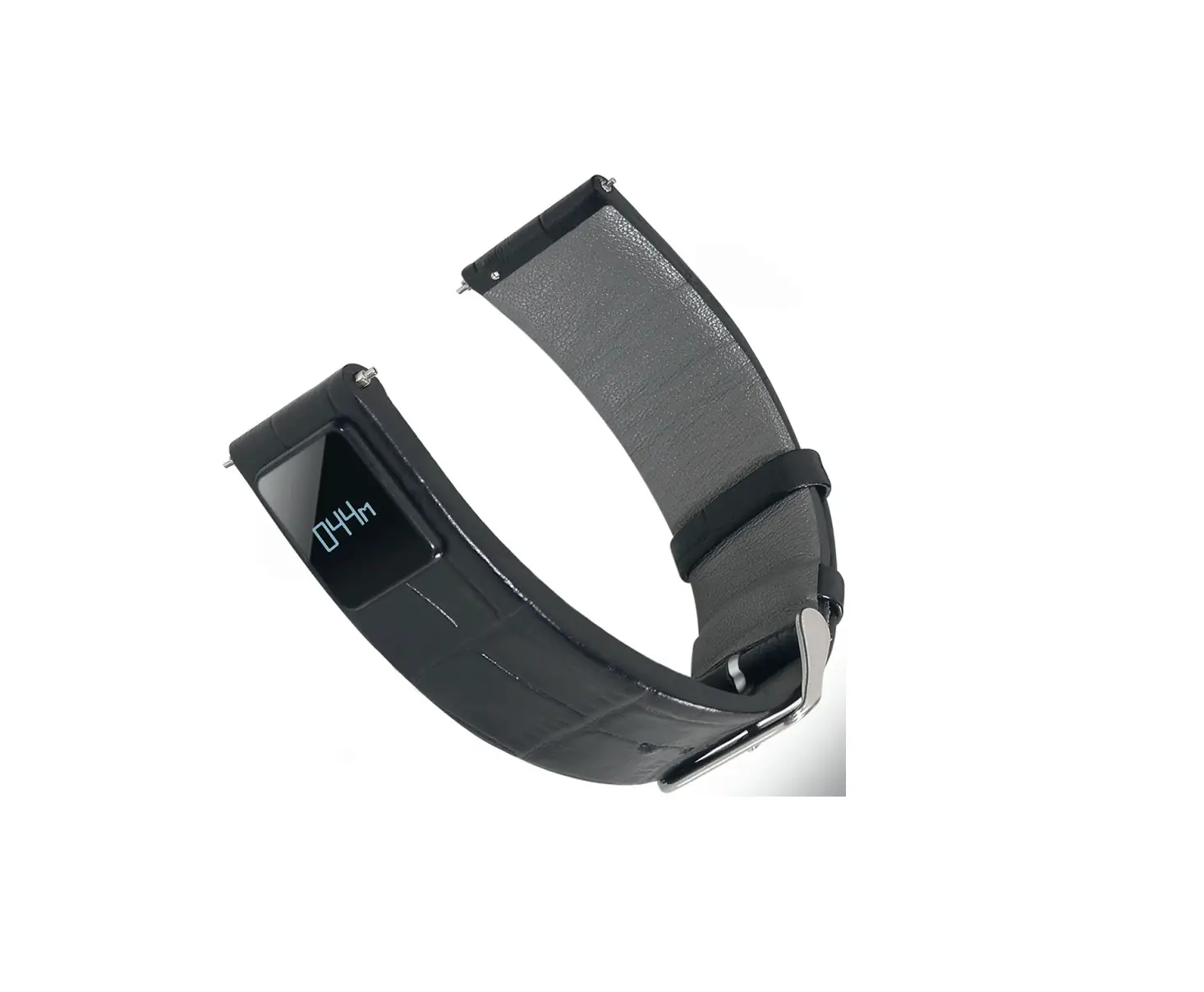
imperii RR Fierro SmartBand Madison Instruction Manual
Product Features
| Main Body | Compatible for | iOS system 7.0 version or above Compatible system: Android system 4.4 version or above ;Support with bluetooth 4.0 version Android mobile phone |
| Screen | Screen Size | 0.66 inches |
| Screen Material | OLED | |
| Key Type | Touch Key | |
| Operation | Palming bright screen | |
| Communication Functions | Calls to remind | Support |
| SMS Reminder | Support | |
| Third-party messaging reminder | Wechat/ QQ | |
| Monitoring functions (Only for reference, non-medical use) | Sports | Pedometer, Calorie Consumption Distance Calculation, Time |
| Sleep | Total Sleep time/ Deep sleep/ Light sleep; Health | |
| Health | Heart rate/ Blood Oxygen/ Blood pressure, Fatigur | |
| Anti-lost function | Smart Anti-lost | Support |
| Connected way | Bluetooth | BLE 4.0 |
| Battery Specification | Battery Size | Lithium Polymer |
| Product List | Smart bracelet* Charging cable* Package* Manual | |
How to use
1. Guide for first ti me using
a. First time to use bracelet ,needs Ions press touch key oft he screen to startup
b. If It Is fall to start up ,please make sure whether the bracelet needs to be charged or not.
c. If bracelet is out of batteries ,please charge it
d. When brace let is power on ,need bind it wit h “Hey Band” APP to male time synchronized
e. Complete to bind with APP, enjoy new experience comes from the bracelet .
Functions Introduction:
a. Sports Pedometer
Everyday it will record the data of steps, walking time, calorie consumption, distance calculation.
b. Sleep Monitor
Detect the sleep quality everyday, including deep time, light time
c. Health Detection
Detect information such as: heart rate/ blood oxygen, blood pressure, fatigue (Only for reference, non-medical use)
d. Clock alarm/SMS reminder
Clock alarm/ Calls/ SMS/ Wechat/ QQ/ Sedentary/ Drink water
e. Remote camera
Support remote control mobile camera to take photos.
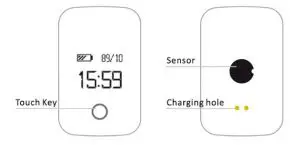
Appearance introduction:
Assembly and wear:
a. Remove the bracelet
b. Wear it on wristband, adust wristband to suitable size.
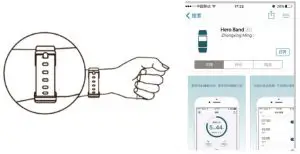
Download/Install bracelet’s Application:
Scan tho following QR code or download “HeyBand” form Android market or Apple Store.
Hero Band for IOS
Installation of the APP on Android:
Scan the Android code to be redirected to the web where you can download the application. Once on the web, we must press “Download APP” to start the download. You must access the “Downloads” folder on your phone to view the downloaded file in the folder we must click on it and give the option “Install”.
Hero Band for Android
Bracelet binding introduction:
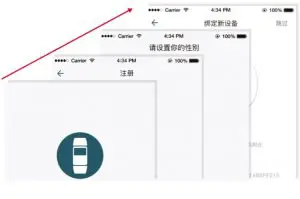
a. Open the APP then complete user’s register
b. The finish the blinding as the hints.
Bracelet operation guide:
Finished bracelet binding, bracelet begins to record and analysis the data of sports, sleep.
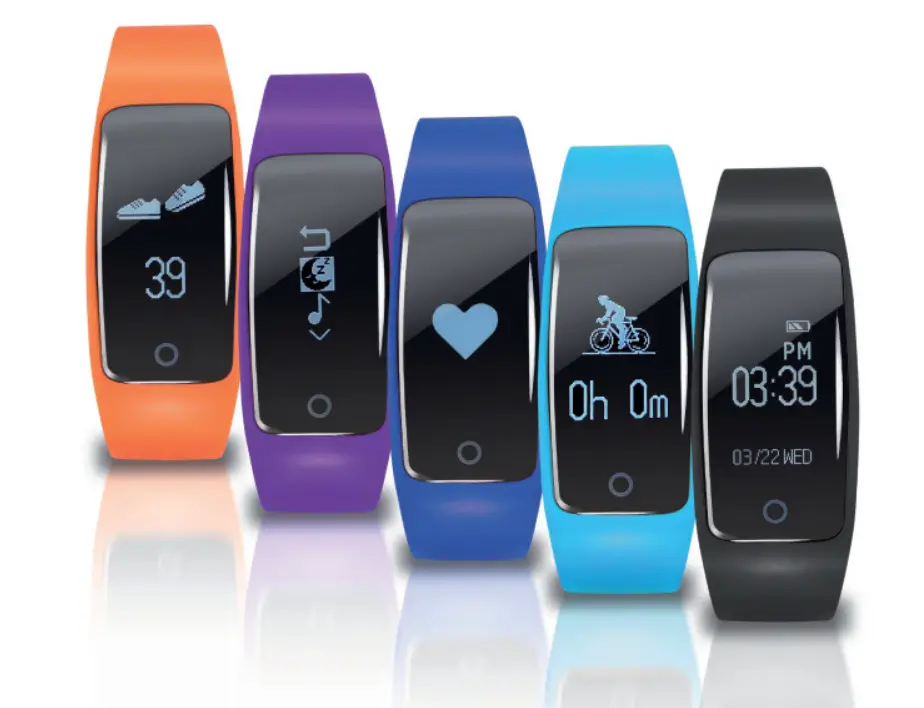
| Main screen: Date, time, battery capacity, Bluetooth status. | 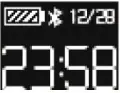 Short press key to enter into heart rate page |
| Hear rate page: It shows heart rate data | 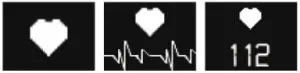 1. Short press key to enter into pedometer interface. 2. Long press key to detect the heart rate , 10 seconds later, it will show current data, long press key again could stop detection. |
| Pedometer page: It shows current day’s steps | 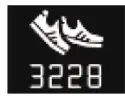 Short press key to enter into calorie page |
| Calorie page: It shows current calorie consumption | 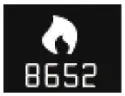 Short press key to enter into distance page |
| Distance pate: It shows distance for current day | 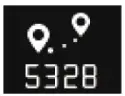 Short press key to enter into sleep page |
| Sleep page: It show the sleep time of yesterday | 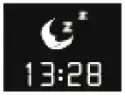 Short press key to enter into camera page |
| Camera Pate: App remote camera |  1. If app do not enter into the bracelet camera page, Long press bracelet’s key to remote control APP enter into camera page 2. If APP open camera page, Long press key could control APP (mobile phone) to take photos 3. Short press key to enter into the showdown page |
| Shut down page: Makes bracelet power on/ off | 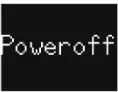 Long press key, bracelet will be power off, short press will enter into main screen |
APP operation instruction
- Open tile APP ,please register and fill up user’s information, binding the bracelet. (Finished register, users could login directly)

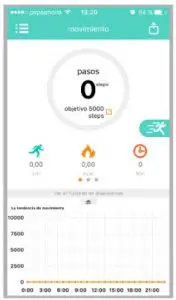
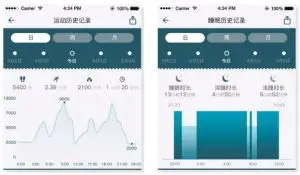
- Enter into the home page, pulling the page down to sync the new information with bracelet check the sport information of the current day, including steps, calorie, distance and time.

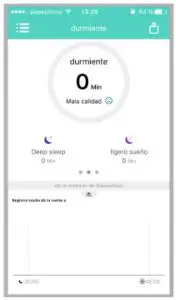
- Slid the page left, enter into sleep page, users could check the sleep history including total sleep time/ deep time/ light time.
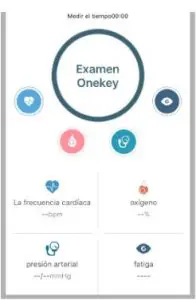
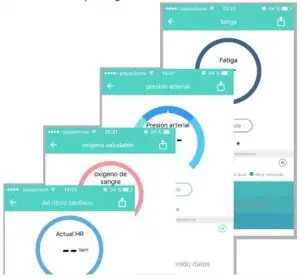
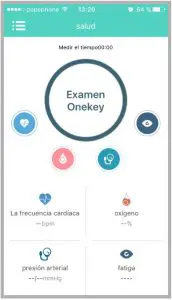
- Drag the interface to the left again to access the health interface. If you press One-key Examination, the app will detect your current heart rate, as well as blood oxygen level, blood pressure, and fatigue data.

- On health page, click heart rate/ blood oxygen/ blood pressure/ fatigue icon, users could check the corresponding health data.

- On health page, click start, users could check the corresponding health data.

- On home page/ sleep/ Health data page, Swipe sleep page up, users could check the sleep history.

- On home page of APP, Click the sidebar, or directly slid the screen from left side to right side to enter into the sidebar, click head portrait/ Health Goal/ Health Information/ Moments/ Connect Device/ Camera, to enter into corresponding fuctions.

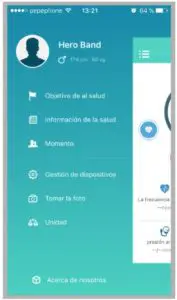
Device Connection Introduction
- Open “Hey band” APP, enter into the home page

- APP will detect whether user’s mobile phone Bluetooth is on or not automatically, if not please operate as the APP hints to open mobile phone blueooth.
- If bracelet bind with APP, enter into the home page of APP. When users pull home page down APP will connect with the bracelet automatically.
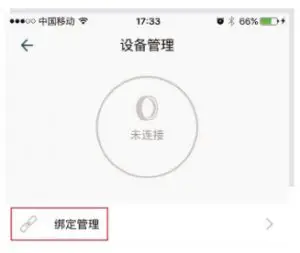
- If bracelet do not bind with APP, users need to enter into sidebar’s menu, then enter into “Connect Device” to bind bracelet, if it is completed, APP will connect with bracelet automatically.

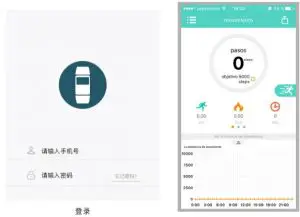
Palming bright screen function introduction
- Open “Hey band” APP and enter into home page, pull the home page down to connect the bracelet.
- Click menu at the top left corner to open the sidebar, or directly slid the screen from left side to right side to enter into sidebar.
- On the opened sidebar, click and enter into “Connect Device”
- On “Connect Device” click “Palming bright screen” to set the corresponding fuctions. Turn this function on, you will enjoy the brilliant experience.
- Support those following palming ways:
a. Left/ Right hand palming bright screen
b. Raising bright screen
c. Downward turning bright screen
d. Put hand down to shutdown screen

imperii RR Fierro SmartBand Madison Instruction Manual – Download [optimized]
imperii RR Fierro SmartBand Madison Instruction Manual – Download
imperii RR Fierro SmartBand Madison Instruction Manual – OCR PDF