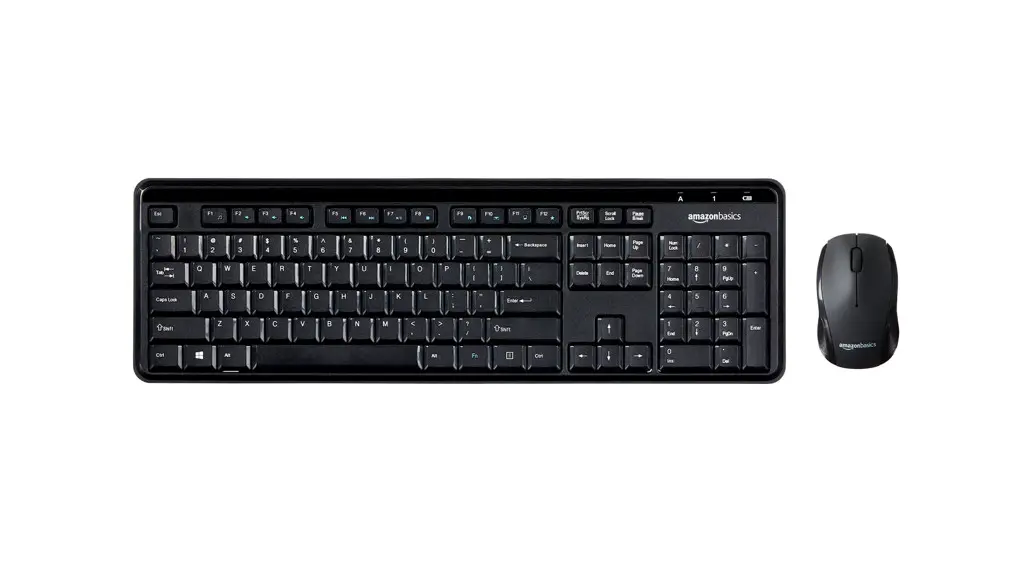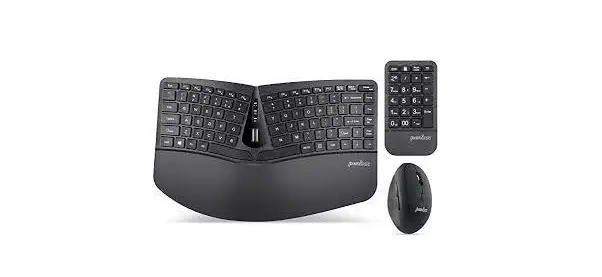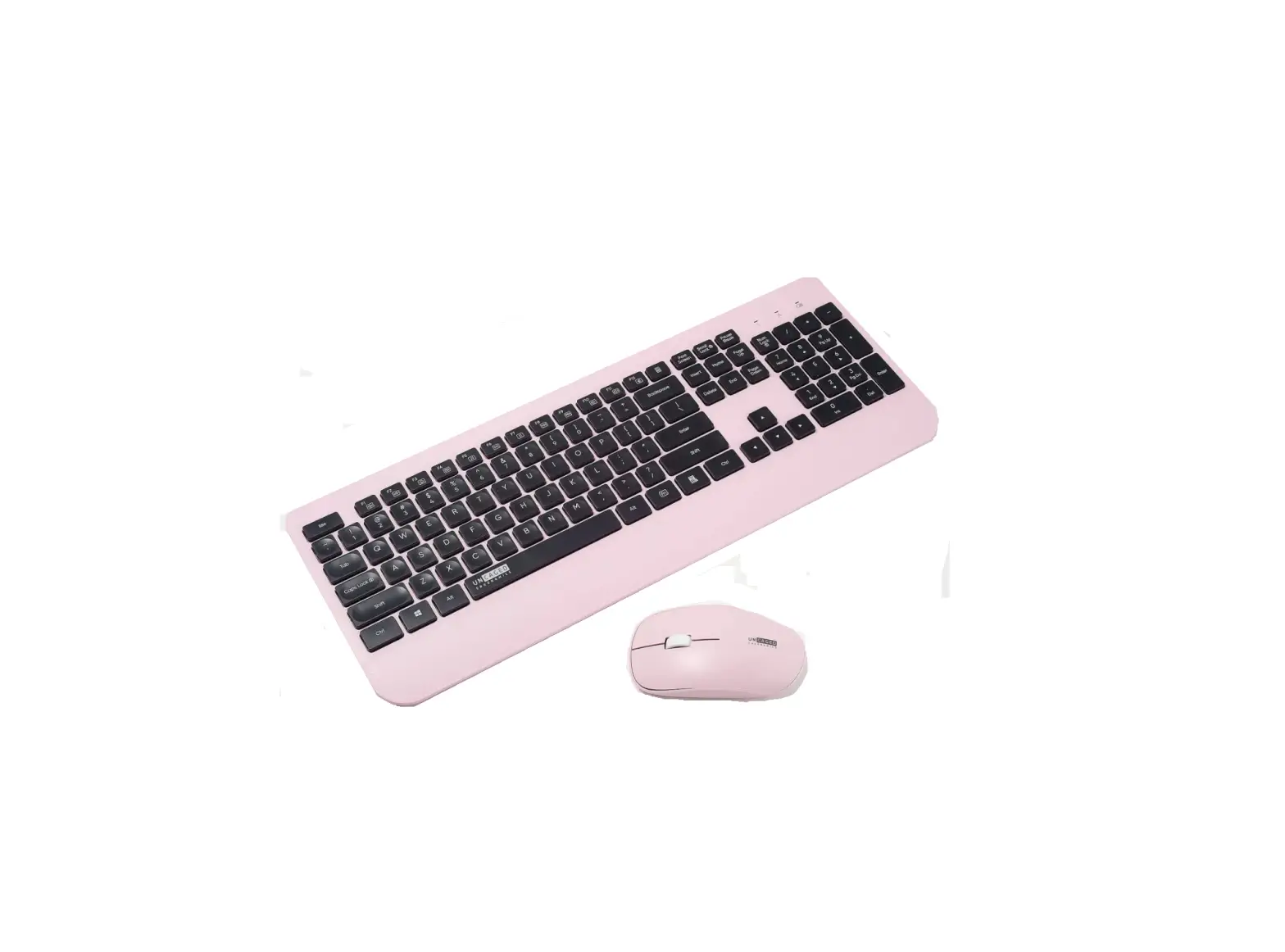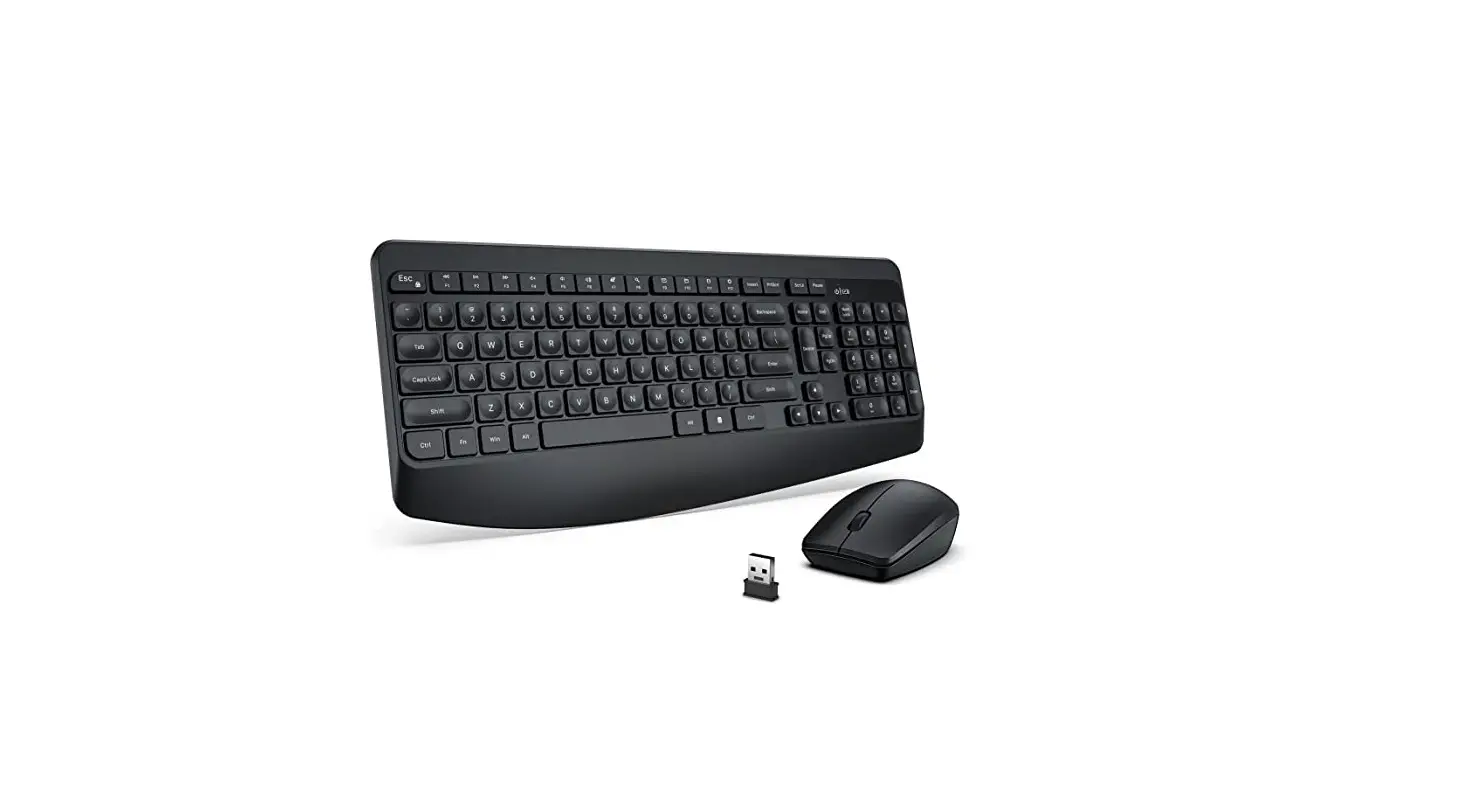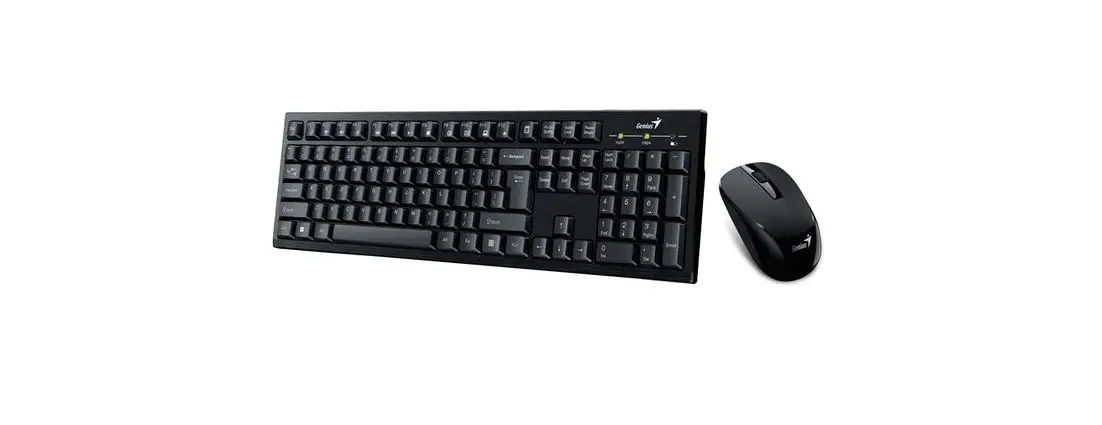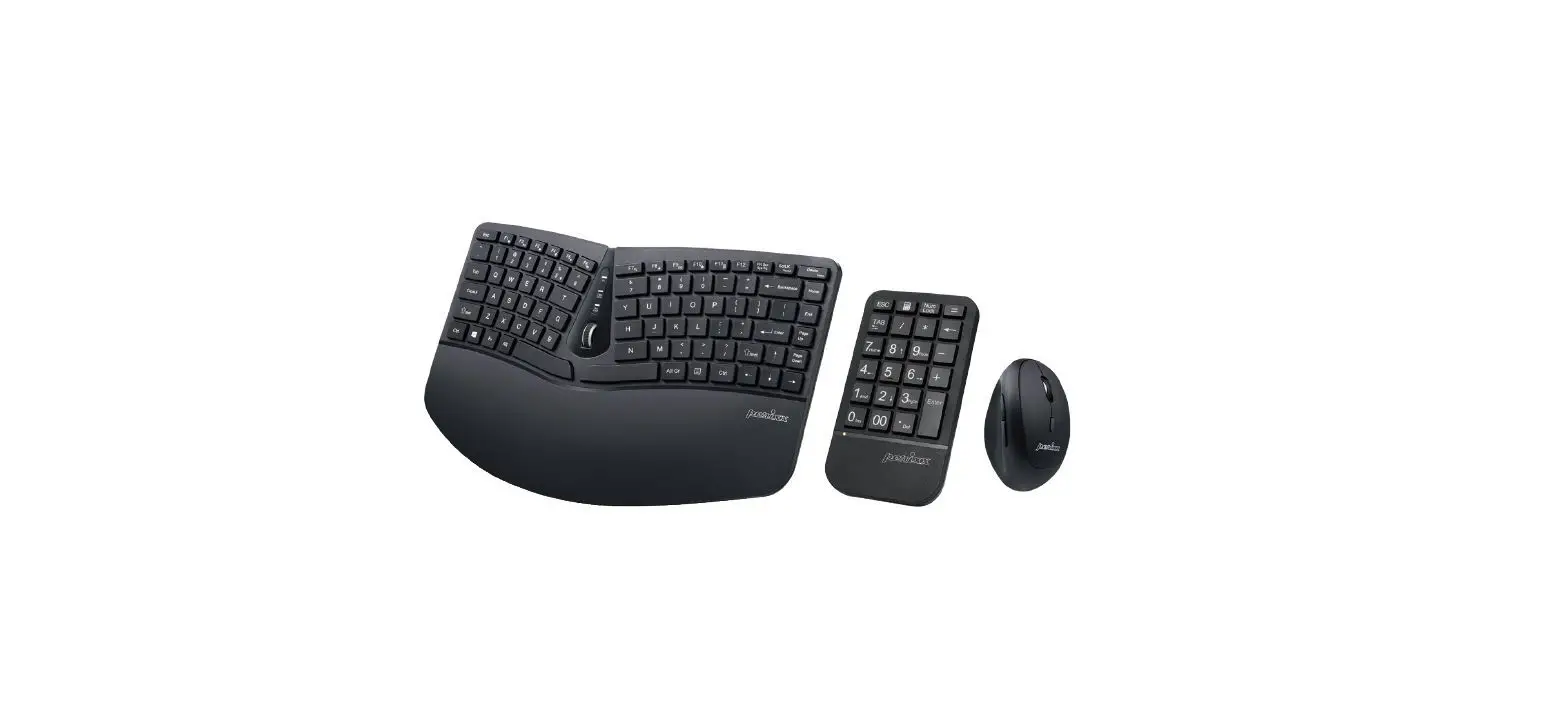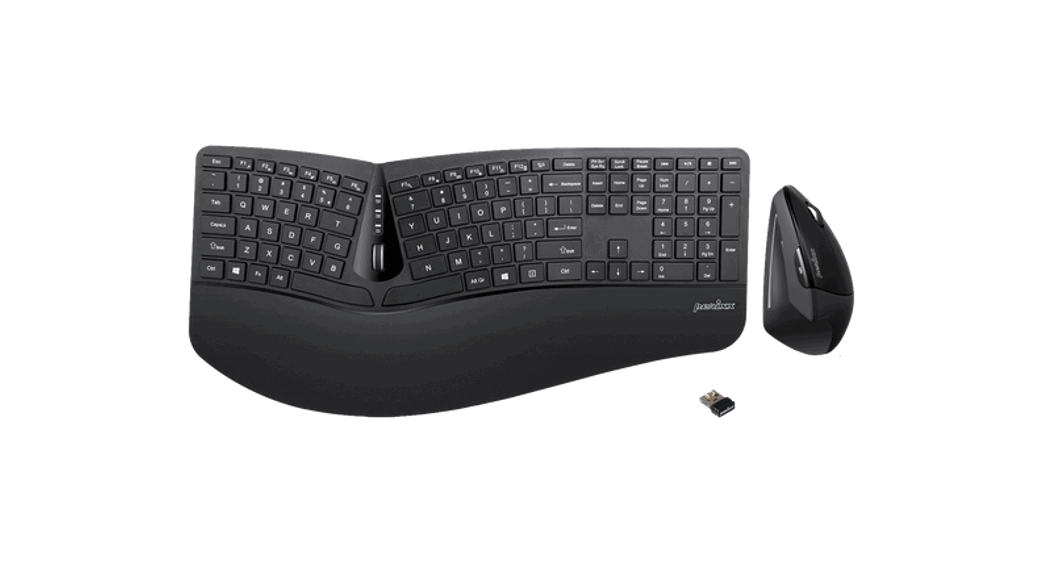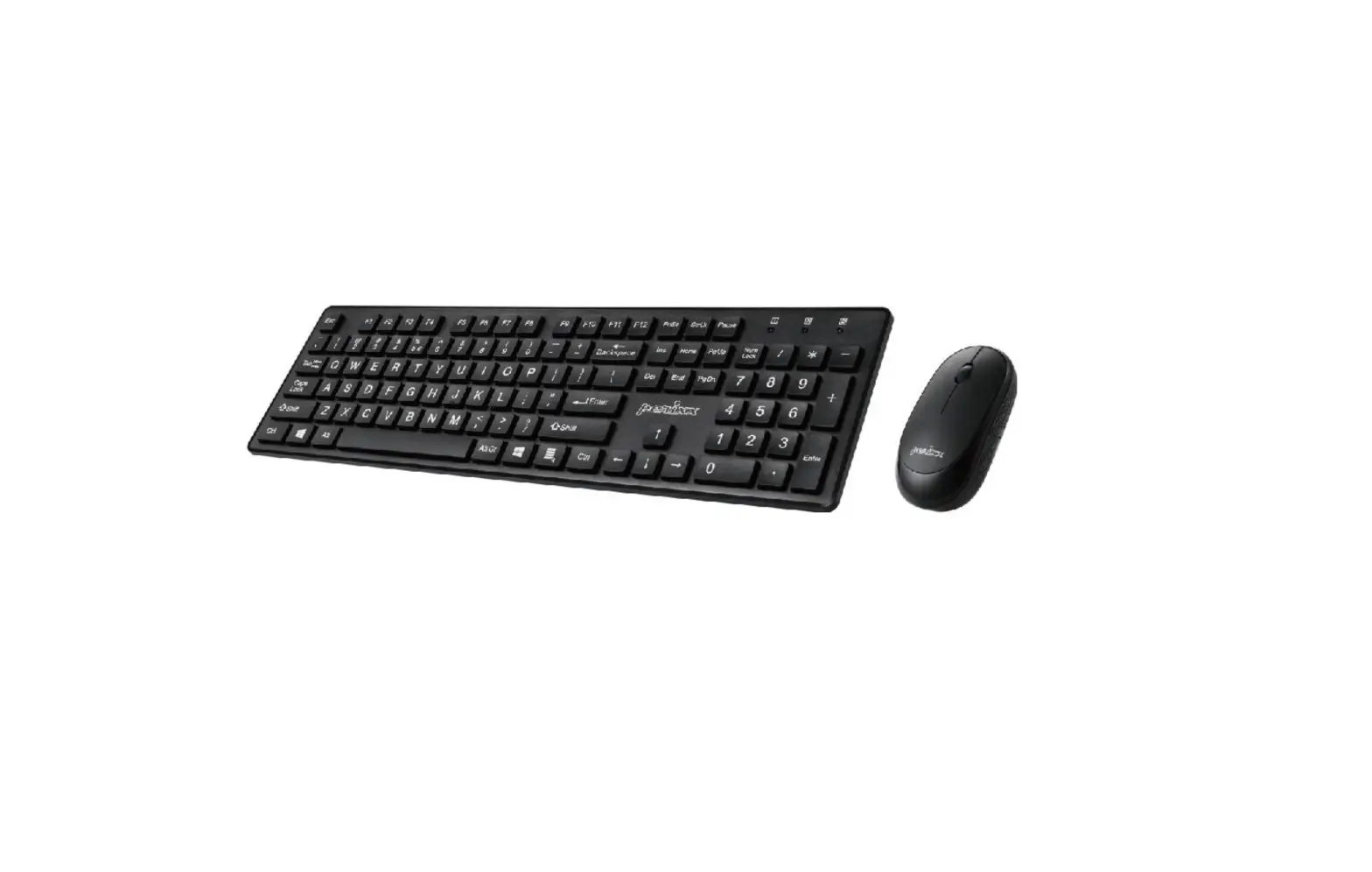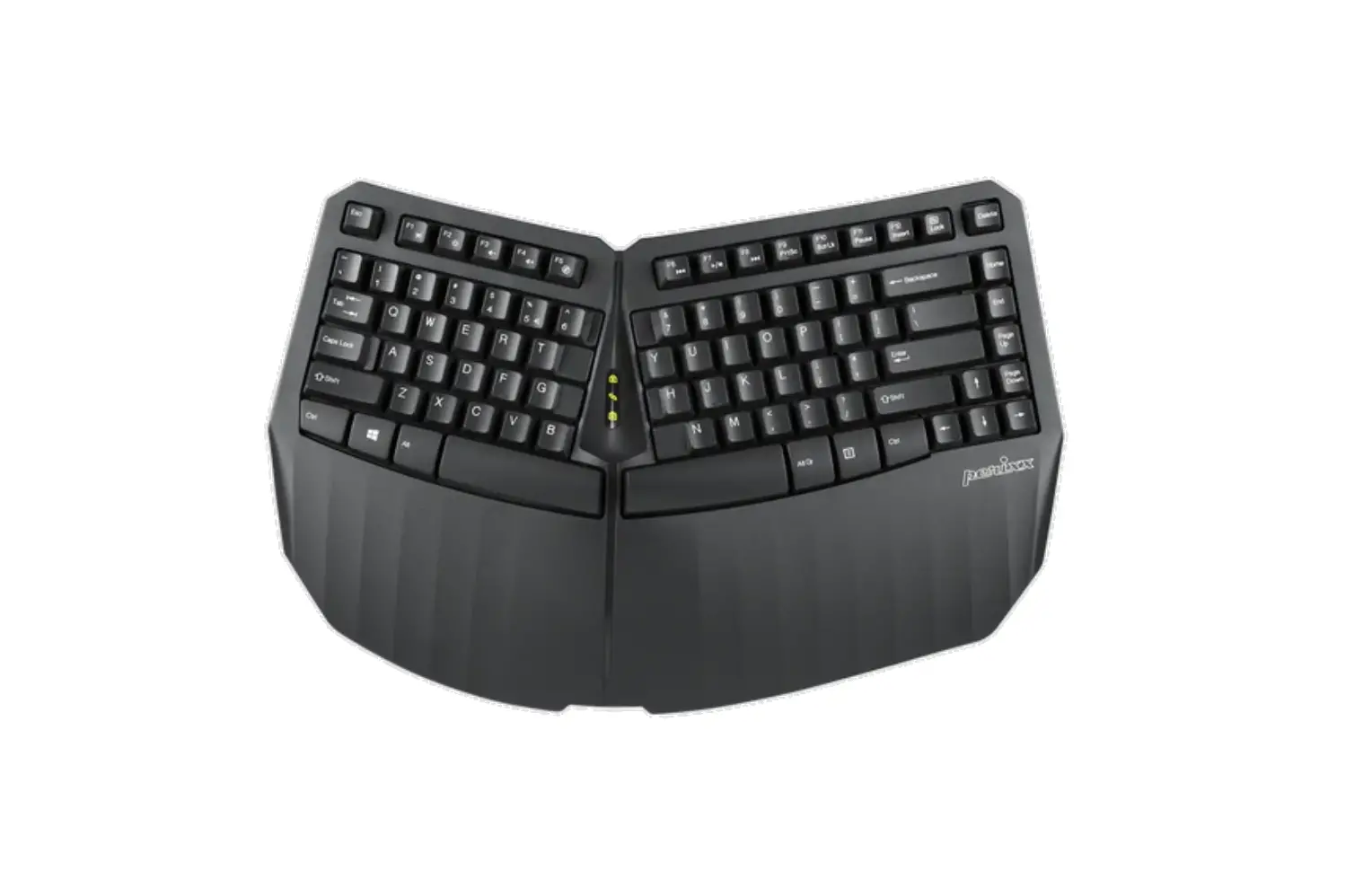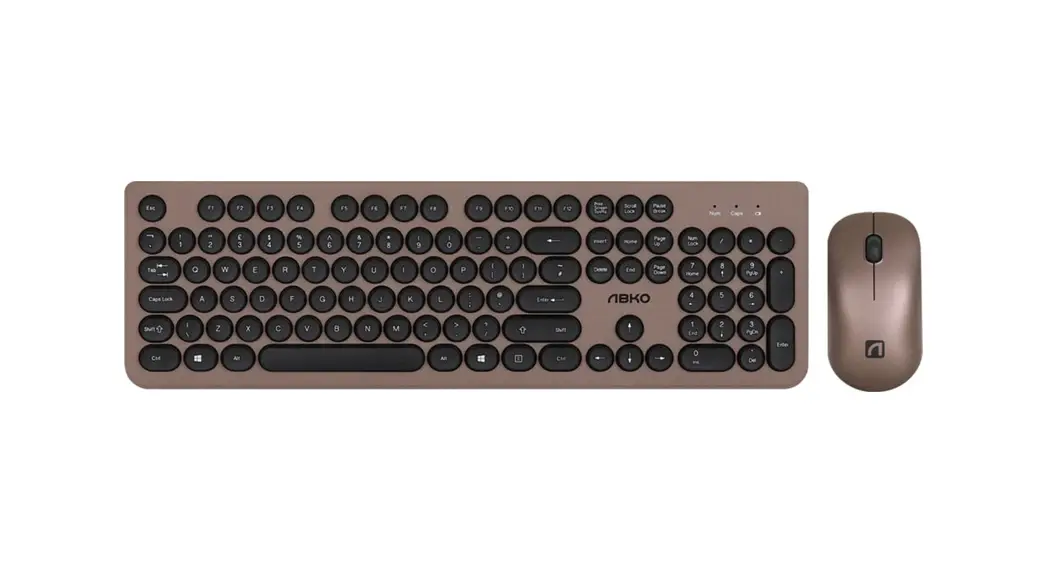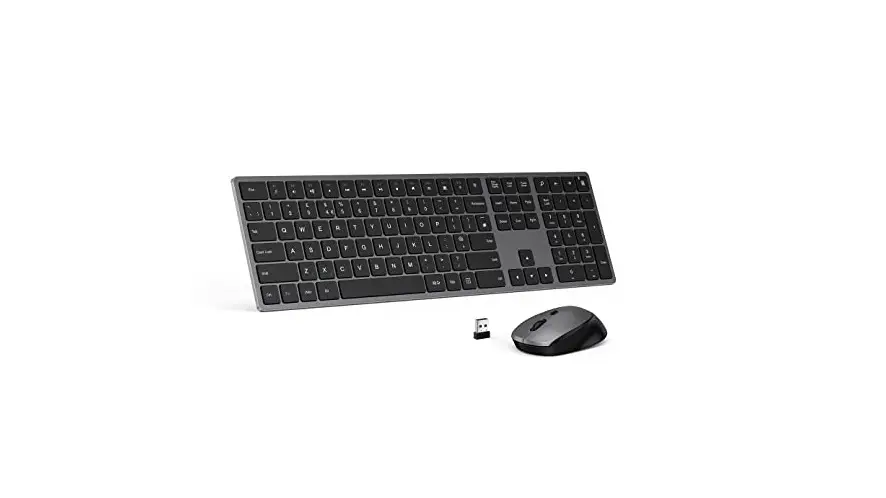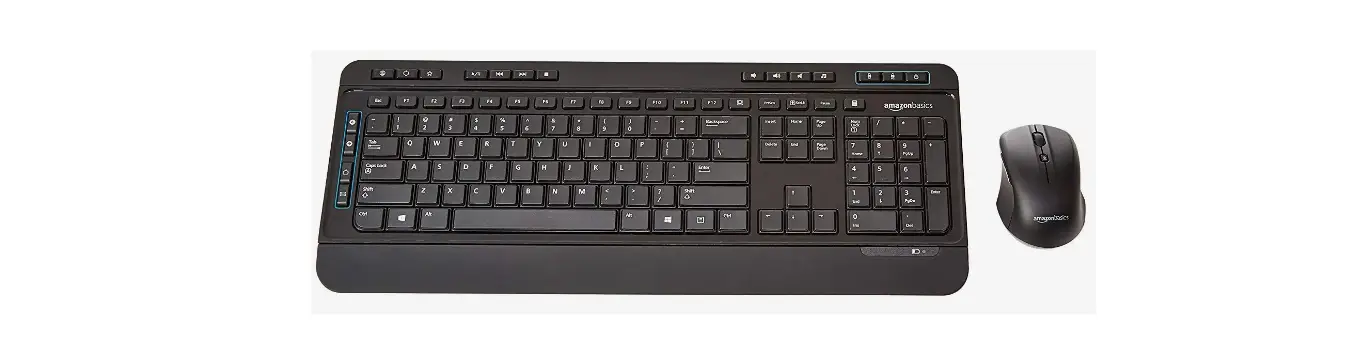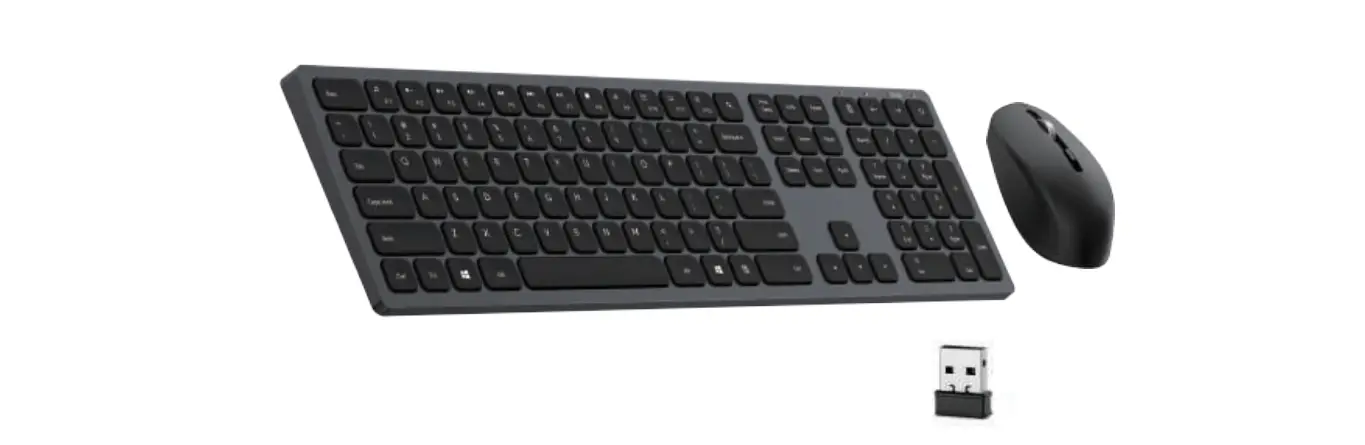

 HM8190US Ergonomic Wireless Keyboard and Mouse Combo
User Guide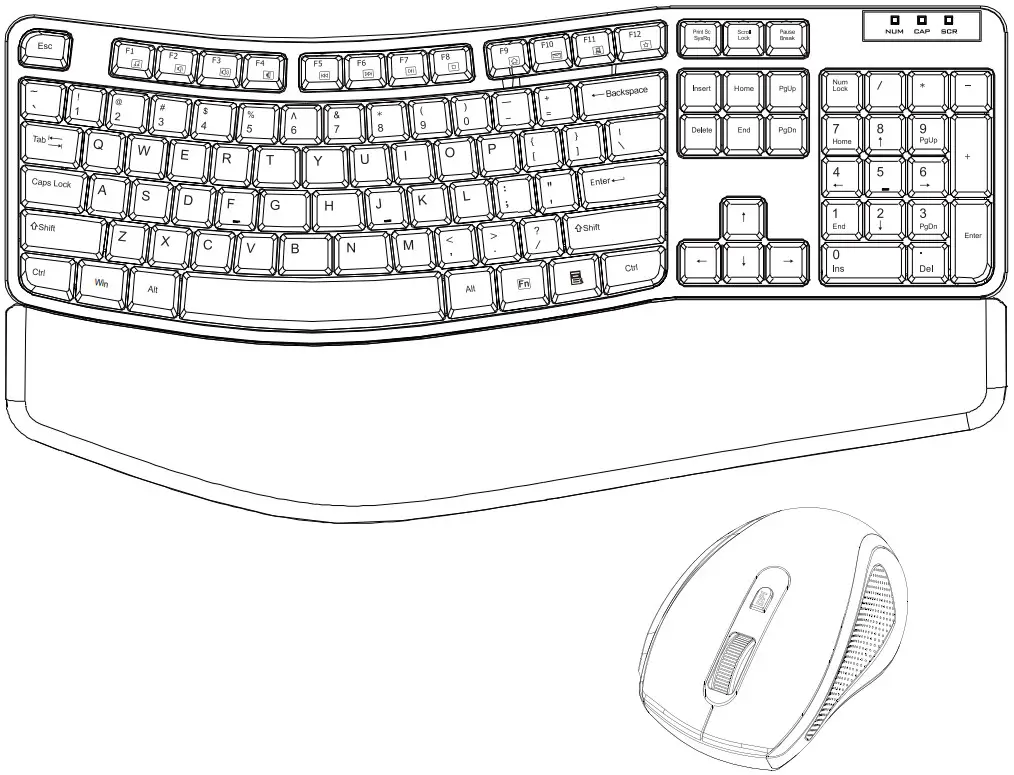
Parts List
Mouse
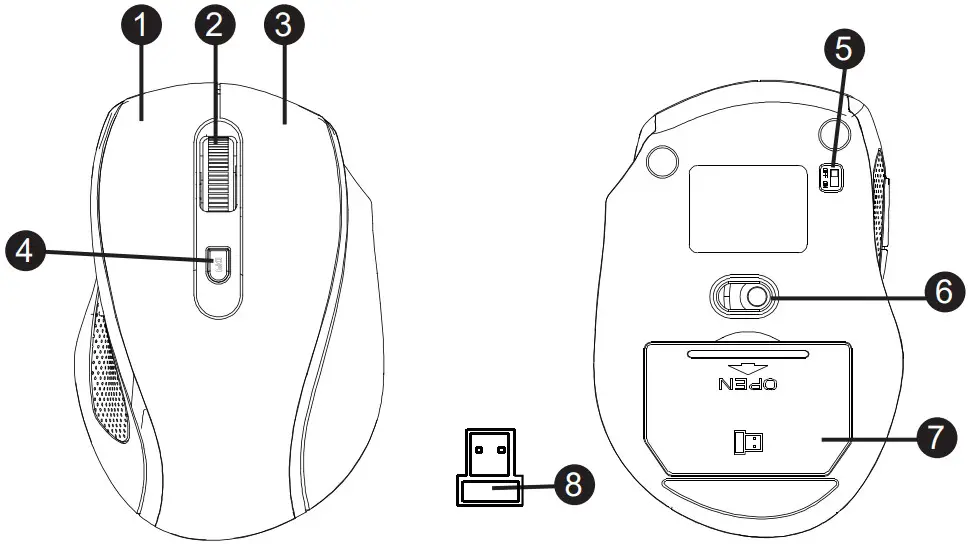
| 1 | Left Button |
| 2 | Scrolling Wheel |
| 3 | Right Button |
| 4 | DPI Button |
| 5 | ON/OFF Switch |
| 6 | Sensor |
| 7 | Battery Cover |
| 8 | Nano Receiver |
Parts List – Keyboard
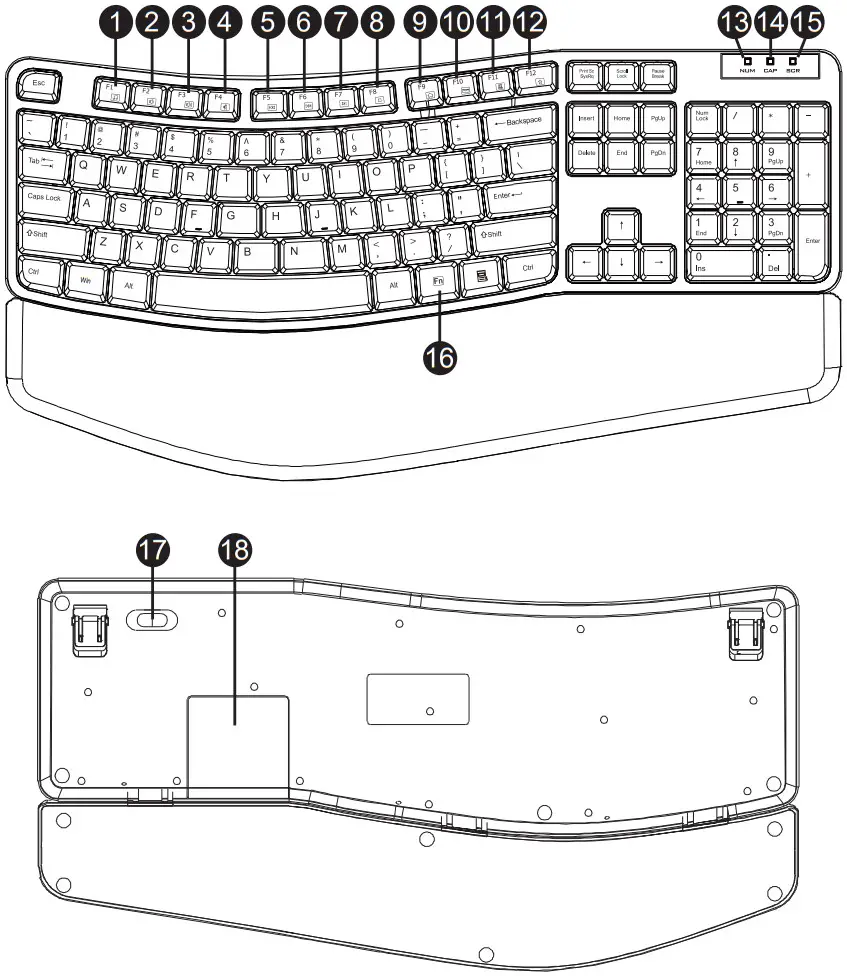
| 1 |  | To turn on the Media player program | |
| 2 |  | To decrease volume | |
| 3 |  | To increase volume | |
| 4 |  | To mute the sound | |
| 5 |  | Previous track | |
| 6 |  | Next track | |
| 7 |  | To play/pause media playback | |
| 8 |  | To stop media playback | |
| 9 |  | To start the default Web browser and load the home page | |
| 10 |  | To start the default e-mail client | |
| 11 |  | To open up the folder ‘My Computer’ | |
| 12 |  | To open ‘My favorite’ when inside the browser | |
| 13 |  | LED indicator | Number Lock on |
| 14 |  | LED indicator | Caps Lock on |
| 15 |  | LED indicator | Low battery and pairing indicator |
| 16 |  | To enable the second function of the Function keys | |
| 17 | CONNECT button | To establish pairing with the nano receiver | |
| 18 | Battery cover | ||
NOTE
Press Fn + any function key (1 through 12) to trigger the secondary function of each key.
Setup
lnstalling the Batteries
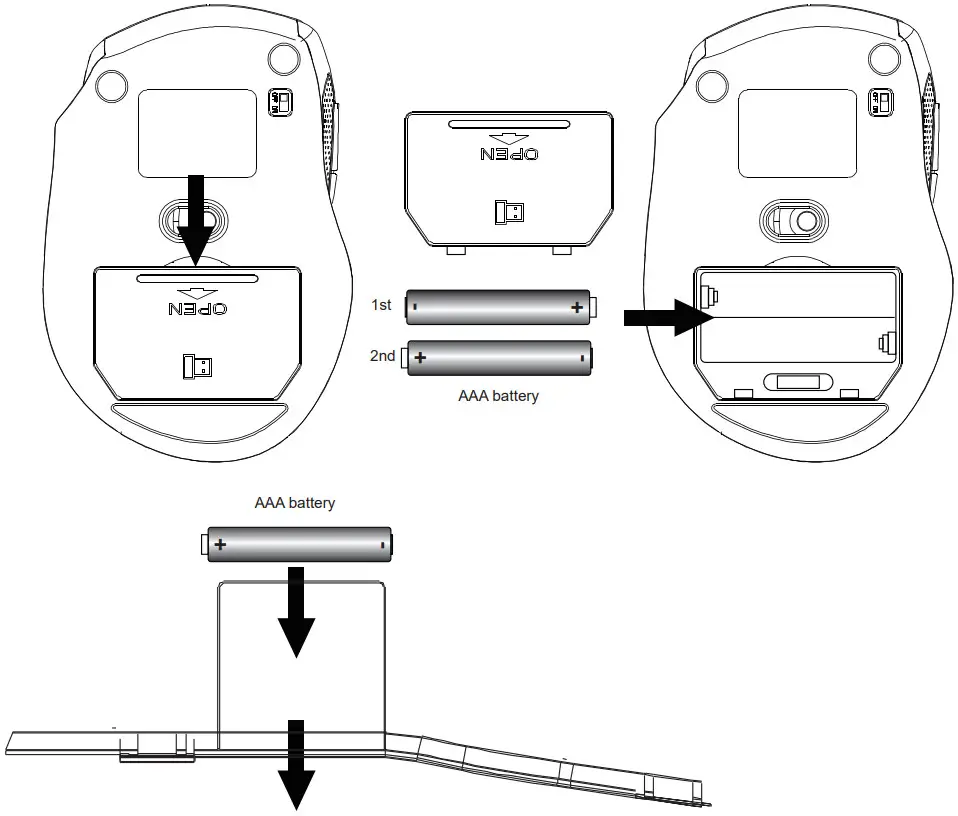
- Remove the battery cover.
- Insert the batteries correctly with regard to polarity (+ and -) marked on the battery and the product.
- Place the cover back over the battery compartment.
- Set the ON/OFF switch on the bottom side of the mouse to ON.
Pairing
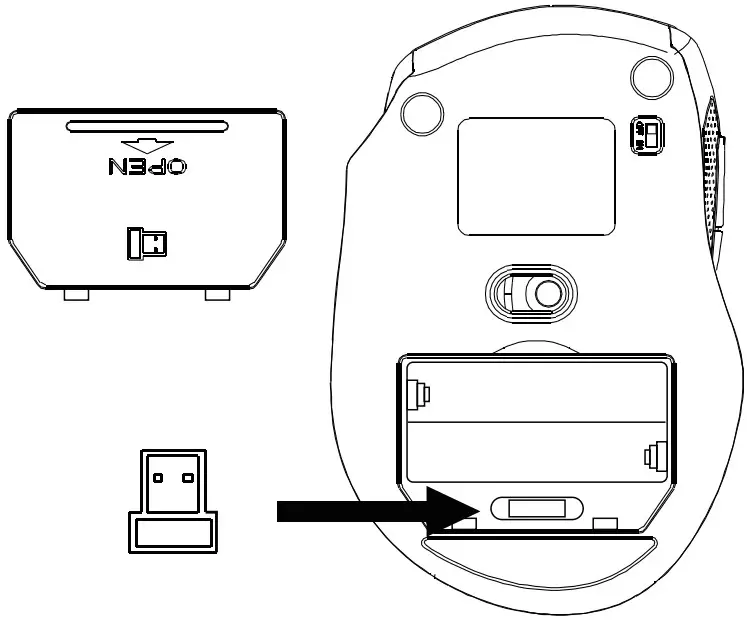
- Remove the battery cover of the mouse, and take the nano receiver out.
- Plug the nano receiver into a USB port of your computer.
If the connection between mouse and/or keyboard and the receiver fails or is interrupted, proceed as follows:
- Remove the nano receiver from the USB port and plug it back in
- Press the ESC+Q button of the keyboard.
NOTE
The LED indicator on the mouse and the keyboard blinks when it is in pairing mode and stops blinking when it is successfully paired with the receiver.
Keyboard & Mouse LED Indicator
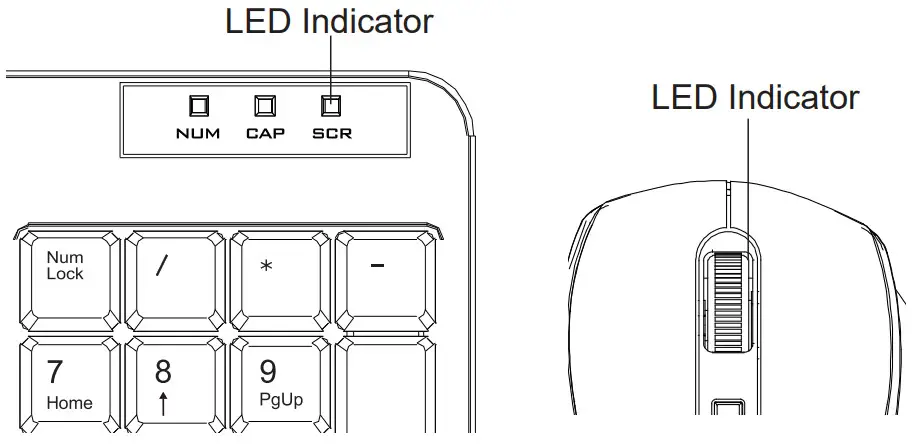
LED is on for 10 sec.
Power ON
LED blinking
During pairing (The LED goes off when pairing is successful or if it keeps failing for longer than 10 seconds.)
Low battery warning
Keyboard SCR LED blinks
Scrolling Wheel LED blinks
Cleaning and Maintenance
- Clean the product with a dry lint-free cloth. Do not allow any water or other liquids enter the product’s interior.
- Do not use abrasives, harsh cleaning solutions or hard brushes for cleaning.
- Clean the battery contacts and also those of the product prior to battery installation.
FCC -Supplier’s Declaration of Conformity
FCC Compliance Statement
- This device complies with Part 15 of the FCC rules. Operation is subject to the following two conditions:
(1) this device may not cause harmful interference, and
(2) this device must accept any interference received, including interference that may cause undesired operation. - Changes or modifications not expressly approved by the party responsible for compliance could void the user’s authority to operate the equipment.
RF Exposure Information
The device has been evaluated to meet general RF exposure requirement. The device can be used at 0m from your body condition without restriction.
FCC Interference Statement
This equipment has been tested and found to comply with the limits for a Class B digital device, pursuant to part 15 of the FCC Rules These limits are designed to provide reasonable protection against harmful interference in a residential installation.This equipment generates, uses and can radiate radio frequency energy and, if not installed and used in accordance with the instructions, may cause harmful interference to radio communications. However, there is no guarantee that interference will not occur in a particular installation. lf this equipment does cause harmful interference to radio or television reception, which can be determined by turning the equipment off and on, the user is encouraged to try to correct the interference by one or more of the following measures:
- Reorient or relocate the receiving antenna.
- Increase the separation between the equipment and receiver
- Connect the equipment into an outlet on a circuit different from that to which the receiver is connected.
- Consult the dealer or an experienced radio/TV technicianfor help.
Canada IC Notice
- This device complies with Industry Canada’s licence-exempt RSSs. Operation is subject to the following two conditions:
(1) this device may not cause interference, and
(2) this device must accept any interference, including interference that may cause undesired operation of the device.
RF Exposure Statement
This equipment complies with Canada radiation exposure limits set forth for an uncontrolled environment.
The device has been evaluated to meet general RF exposure requirement. The device can be used iat 0m from your body condition without restriction.
Simplified EU Declaration of Conformity
- Hereby, Amazon EU Sarl declares that the radio equipment type is in compliance with Directive 2014/53/EU.
- The full text of the EU declaration of conformity is available at the following internet address: https://www.amazon.co.uk/amazon_private_brand_EU_compliance
Intended Use
This product is a wireless computer peripheral intended for interacting with your desktop/laptop.
Safety and Compliance
Read this instruction manual carefully before using the product. It contains important information for your safety as well as operating and maintenance advice. Observe all safety instructions to avoid damage through improper use! Follow all warnings on the product. Keep this instruction manual for future use. Should this product be passed on to a third party, then this instruction manual must be included.
- Never use this product if damaged
- Do not insert any foreign objects into the inside of the casing
- Protect the product from extreme temperatures, hot surfaces open flames, direct sunlight, water, high humidity, moisture, strong jolts, flammable gases, vapours and solvents.
- Keep this product and its packaging out of the reach of children and pets.
WARNING
Do not look directly at the LED light.
Battery Warnings
- Keep batteries out of the reach of children.
- Do not dispose of batteries in fire.
- Store unused batteries in their original packaging away from metal objects. If already unpacked, do not mix or jumble batteries.
- Remove batteries from product if it is not to be used for an extended period of time unless it is for emergency purposes Exhausted batteries should be immediately removed from product and properly disposed
- lf the battery leaks avoid contact with skin and eyes. Rinse affected areas immediately with plenty of clean water, then consult a doctor
Disposal The Waste Electrical and Electronic Equipment (WEEE) Directive aims to minimise the impact of electrical and electronic goods on the environment, by increasing re-use and recycling and by reducing the amount of WEEE going to landfill. The symbol on this product or its packaging signifies that this product must be disposed separately from ordinary household wastes at its end of life. Be aware that this is your responsibility to dispose of electronic equipment at recycling centers in order to conserve natural resources. Each country should have its collection centers for electrical and electronic equipment recycling. For information about your recycling drop off area, please contact your related electrical and electronic equipment waste management authority, your local city office, or your household waste disposal service.
Battery Disposal Do not dispose of used batteries with your household waste. Take them to an appropriate disposal/collection site.
Specifications
| Power Supply – Mouse: | 3 V(2 x 1.5 V AAA battery) |
| Power Supply – Keyboard: | 3 V(1 x 1.5 V AAA battery) |
| Current consumption – Mouse: | 30mA |
| Current consumption – Keyboard: | 50mA |
| Weight – Mouse: | 60g (0.132 lbs) |
| Weight – Keyboard: | 710g (1.56 lbs) |
| Dimensions- Mouse: | 10.35×7.05×3.86 cm ( 4.07×2.77×1.52 in) |
| Dimensions- Keyboard: | 44.86 x 23.1 x 3.86 cm (17.66×9.09×1.51 in) |
| OS compatibility: | Windows XP; Windows VISTA / 7/8/10 |
| Frequency band: | 2.4 GHz (2.402 GHz – 2.479 GHz) |
amazon.com/AmazonBasics
MADE IN CHINA
Ergonomic Wireless Mouse
HM8190US/CA
FCC ID: 2BA78HM8190
IC: 8340A-HM8190
Ergonomic Wireless Keyboard
HK8013US/CA
FCC ID: 2BA78HK8013
IC: 8340A-HK8013
 Amazon.com: Amazon Basics
 Amazon.co.uk: Low Prices in Electronics, Books, Sports Equipment & more