cepassion
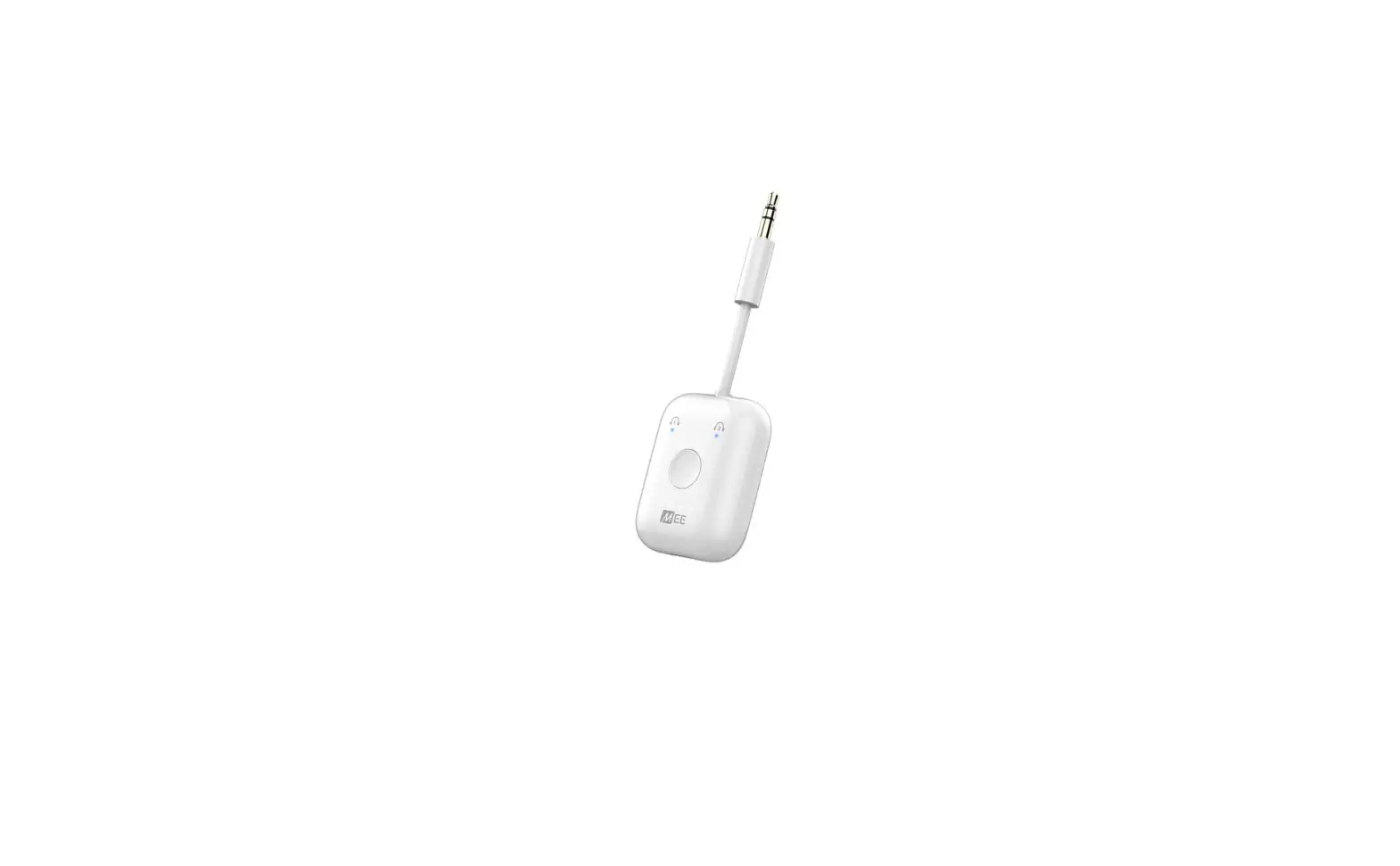
X1
FOR XB 1 XIS
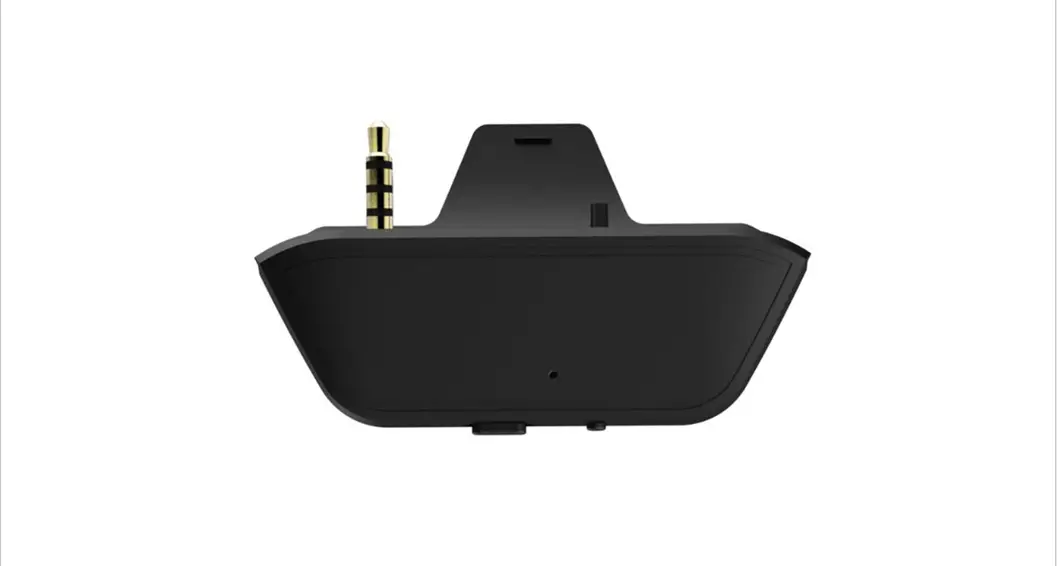
Wireless transmitter for Airpods
Wireless headset/adaptive 
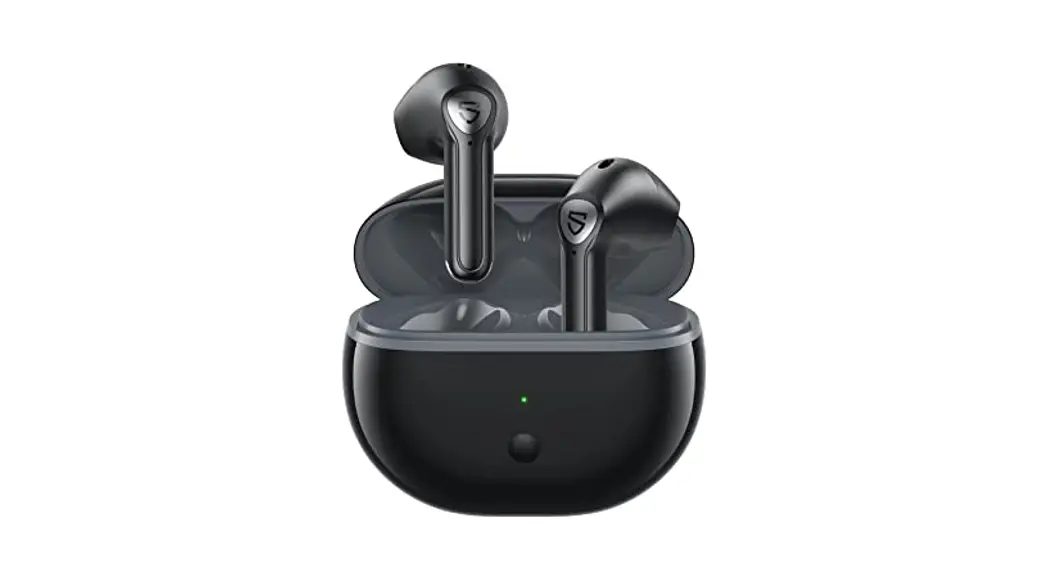
- Put X1 in Pairing Mode Press and hold the button for up to 10 seconds until X1 rapidly blinks Blue

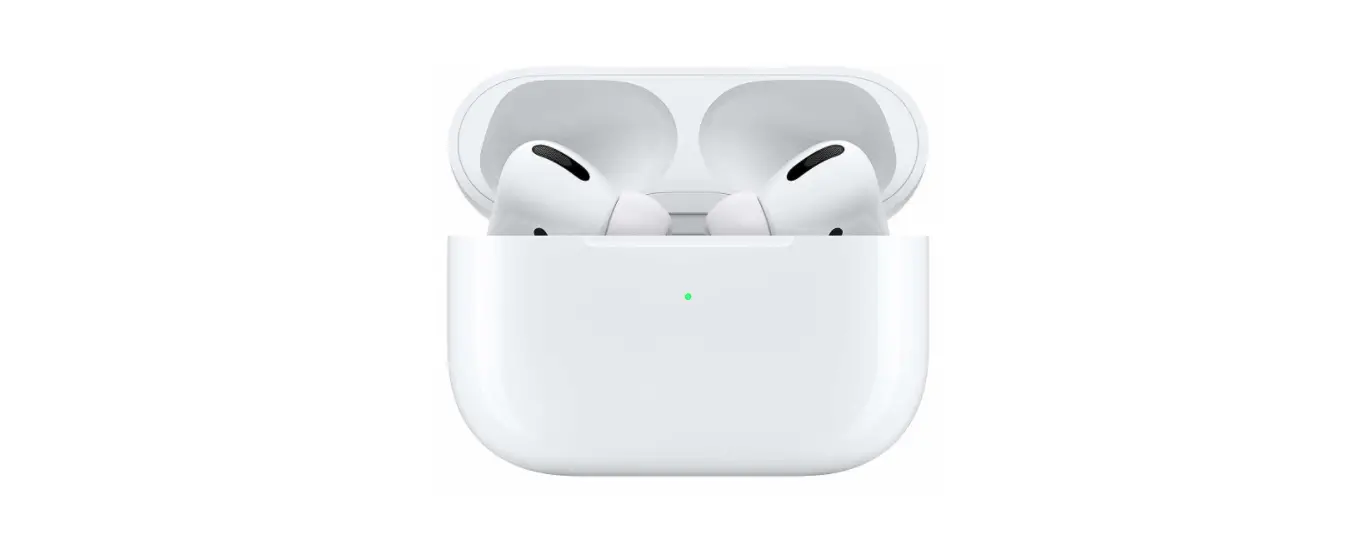
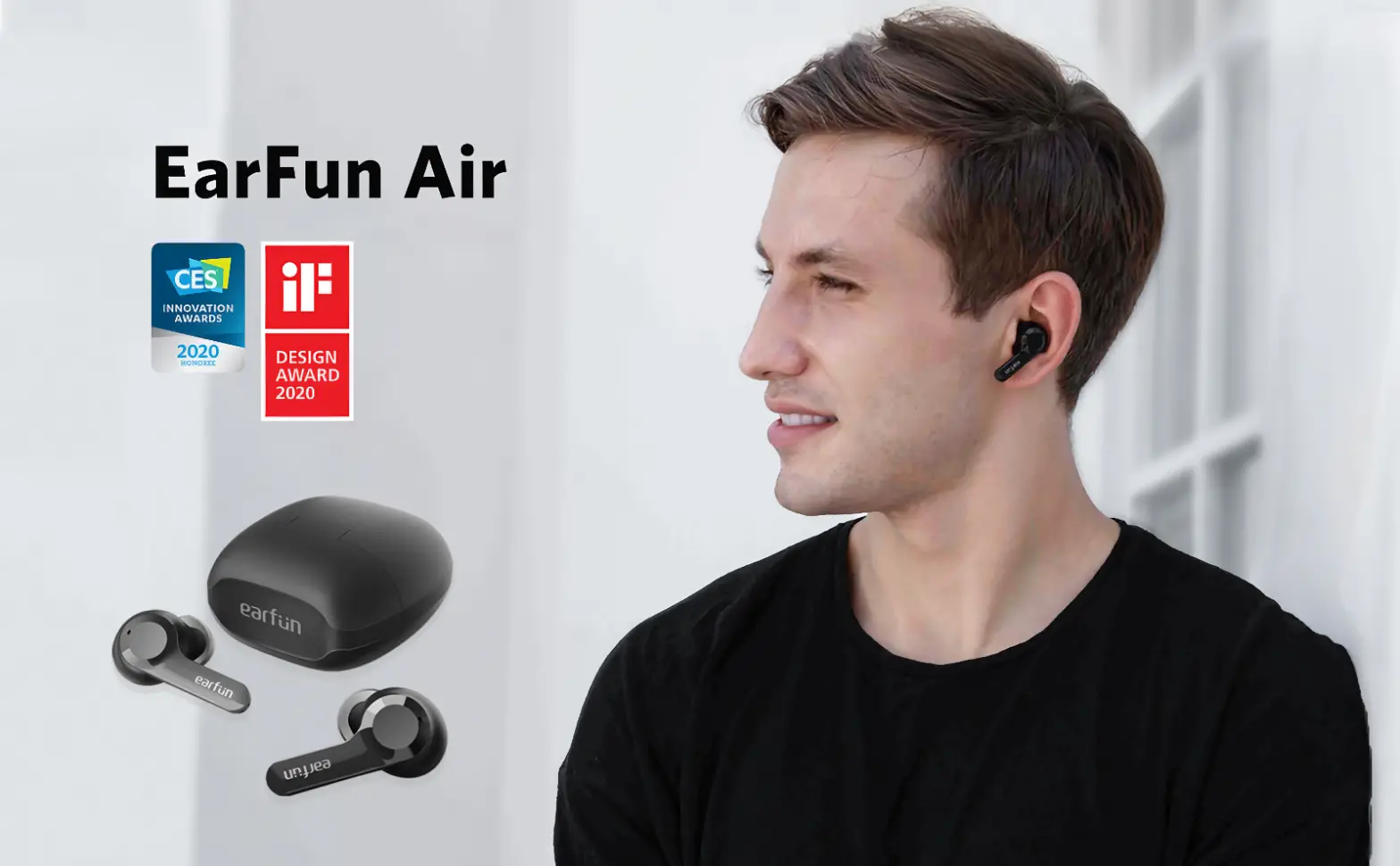
- Put Headphones in Pairing Mode If you have AirPods, put them into pairing mode by holding the button on the case until the light inside flashes

- Connect Once the light on X1 turns solid Blue, you are connected. Plug the X1 into the XB 1 X/S control handle.


Turning X1 On & Off
Pairing X1 With AirPods
Pairing X1 With Wireless Headphones
Reconnecting Headphones To XB 1 X /S
Charging
Tips & Tricks
Status Light Guide 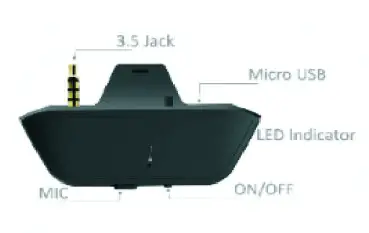
Turning X1 On & Off 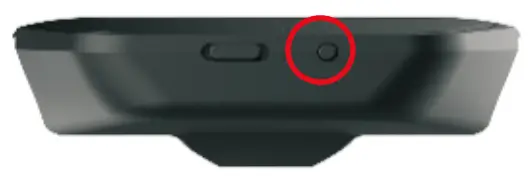
To turn XI On, hold down the button
To turn XI Of, hold down the button for 5seconds. for up to 5seconds until
XI lights up X1 will blink Blue twice and then power Off.
Play Xbox Oen S/X Games
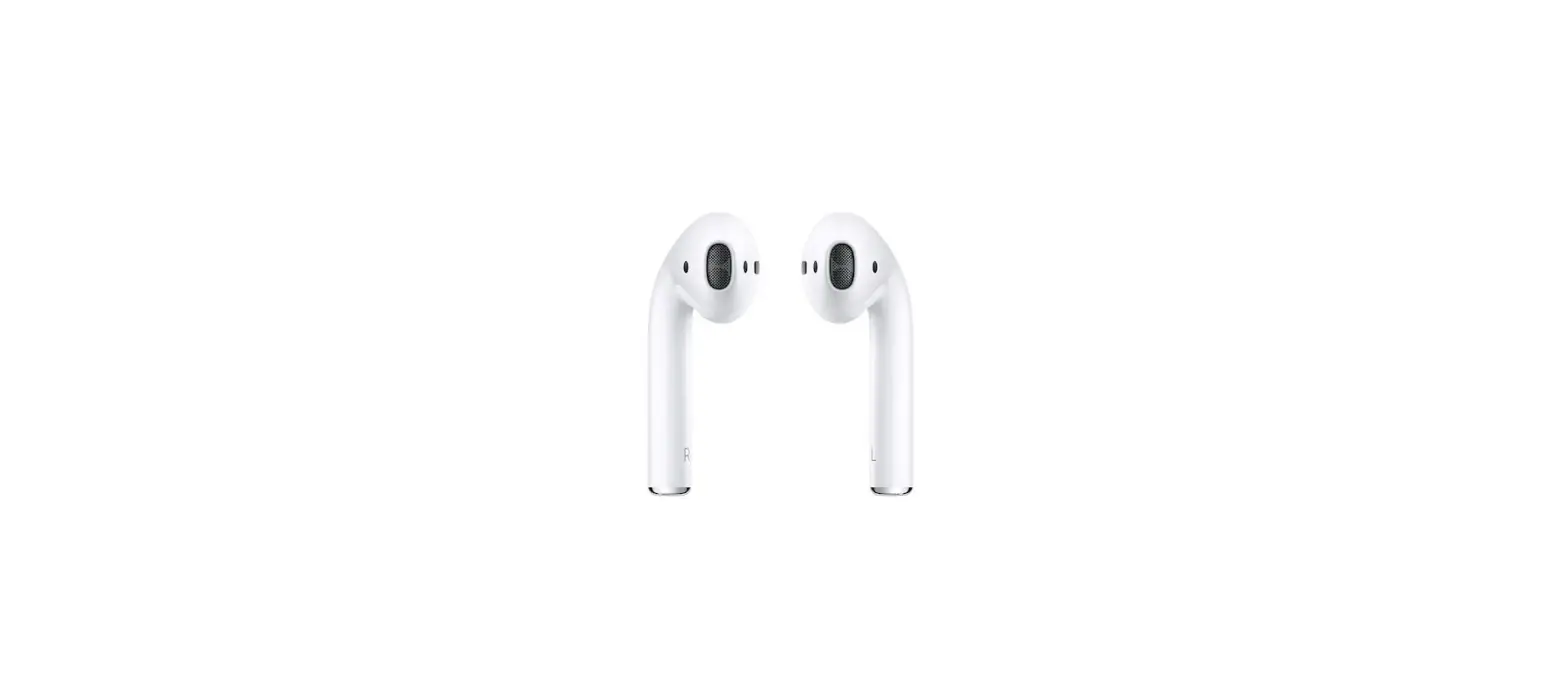
Pairing X1 with Airpods 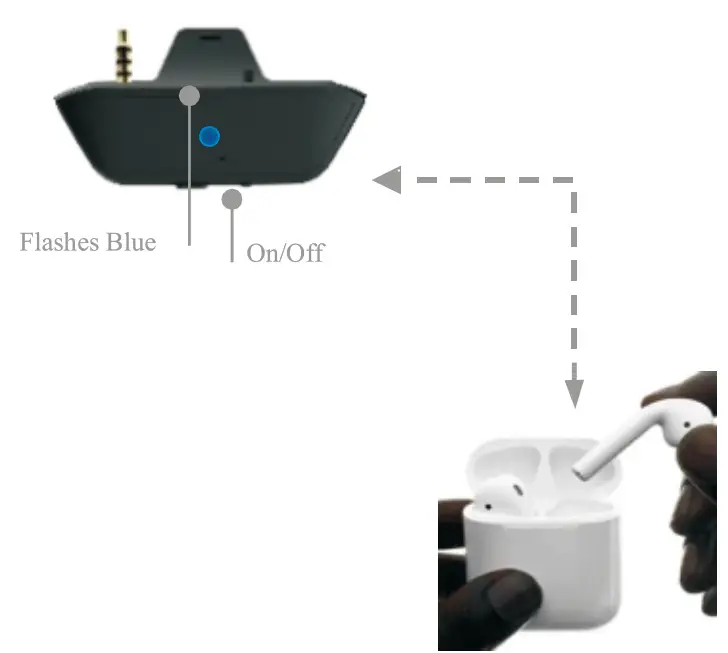
To enter pairing mode on P5X, Press and Hold the button for up to 10 seconds until P5X flashes Blue.
While in Pairing mode, other light Patterns may appear. X I will cycle back to the pairing mode light shortly after.
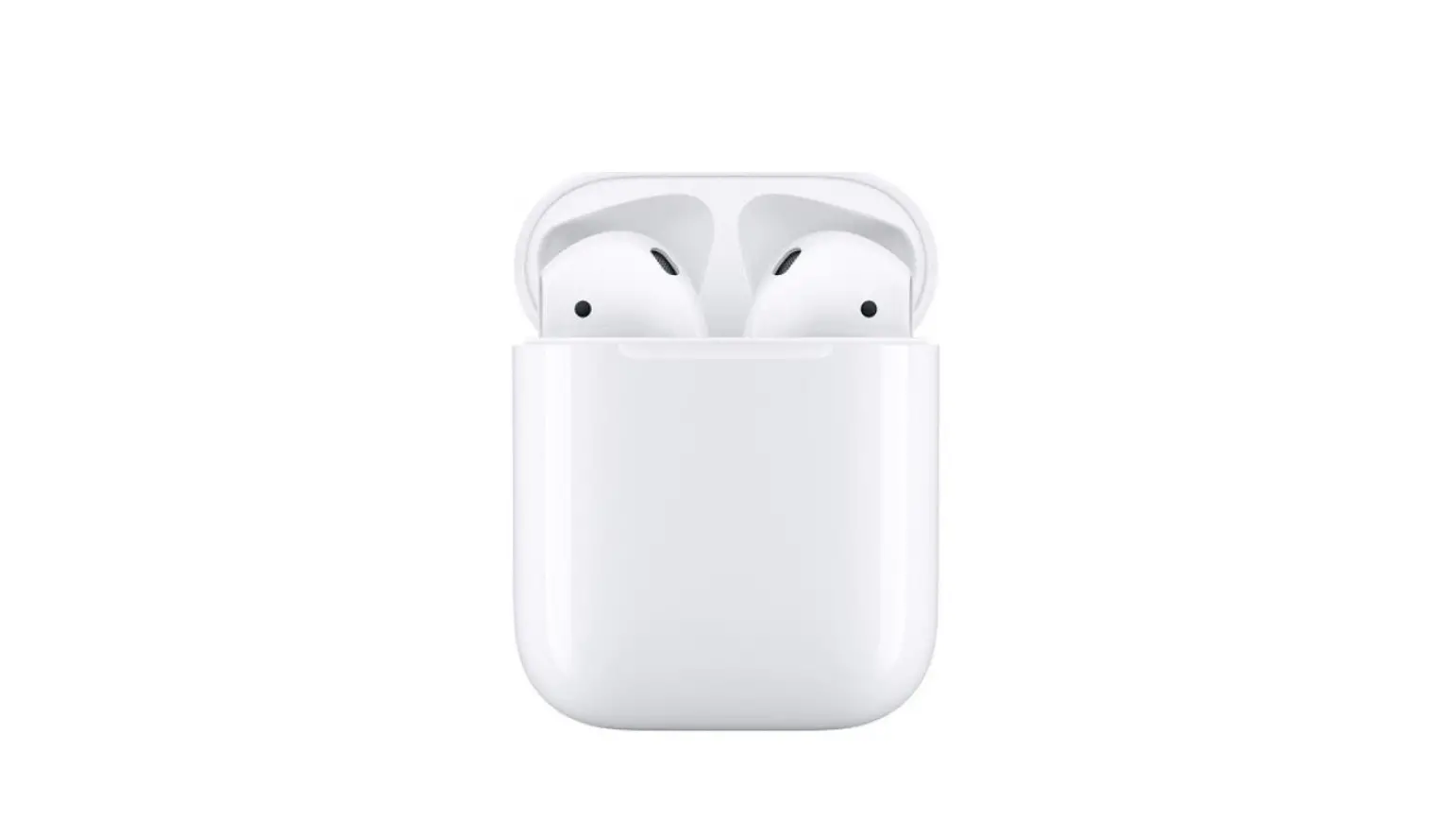
To enter pairing mode on AirPods, First Place AirPods charging case. With the lid open, Press and hold the button on the back of the Charging Case until the light between the AirPods flashes white.
Once successfully connected,the light on your AirPod case will turn green,and XI will illuminate in white and remain on for 10 seconds.
this can take up to 20 seconds for initial pairing, but XI will remember your AirPods when re-connecting in the future.
Insert XI into the Xbox handle, your favorite game
Pairing X1 With
Wireless Headphones
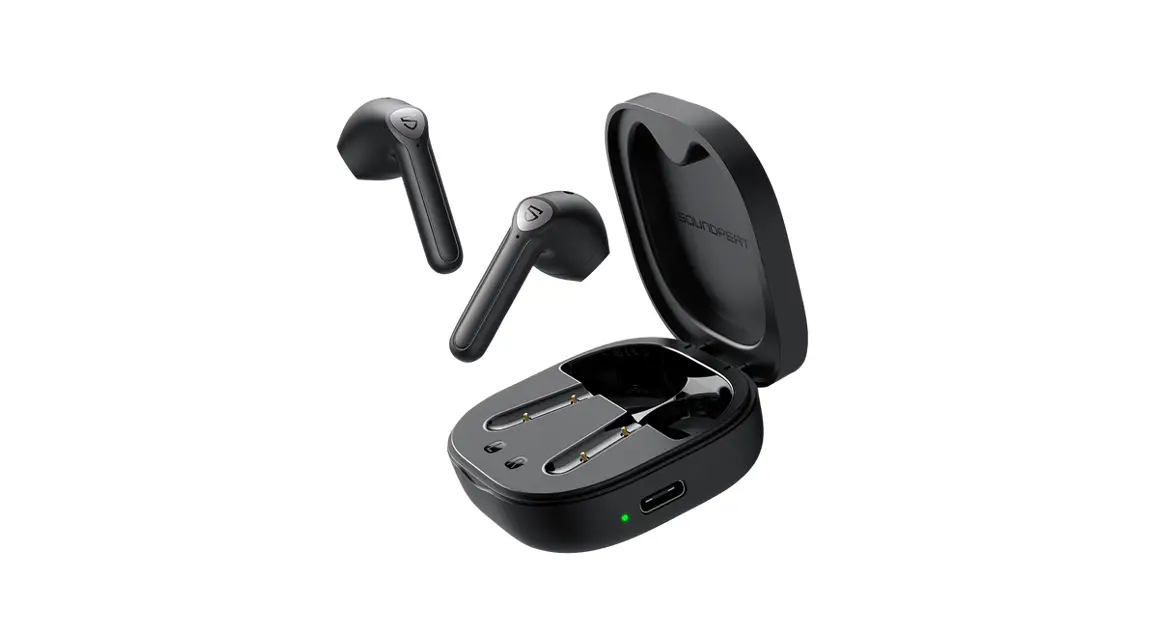
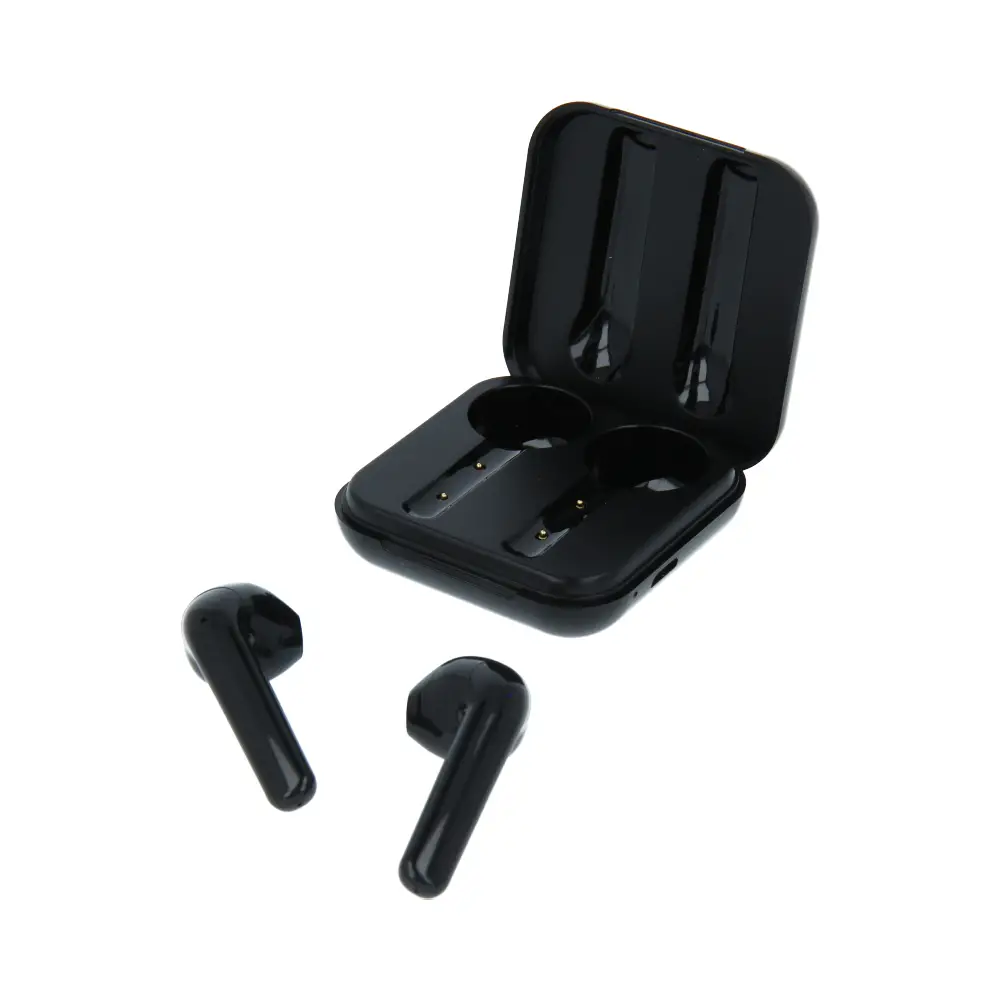
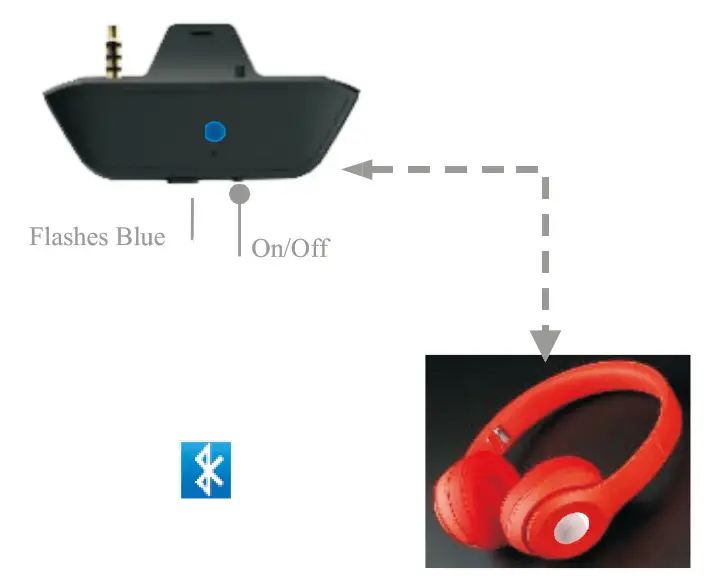 To enter pairing mode on P5X, Press and Hold the button for up to 10 seconds until P5X flashes Blue.
While in Pairing mode, other light Patterns may appear.XBI will cycle back to the pairing mode light shortly after.
Put your headphones into Bluetooth Pairing Mode (refer to you headphones manual for more details)
Once successfully connected•,X I will illuminate in Blue, and Flashing remain on for 3 seconds

Charging X1
The internal battery of XI lasts around 8Hours. We recommend fully charging XI before using it for the first time. If your X1 is low on power,it will flash Blue 3 times to alert you that it will need to be charged soon.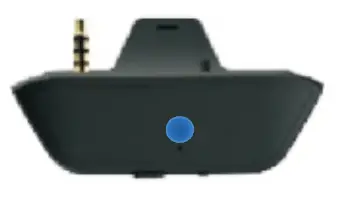
To recharge, simply plug the included USB cable into XI and any powered USB port. XI is fully charged within 2 hours.
While charging, the X1 will illuminate in amber and stay on. once fully charged, the Blue light will turn off.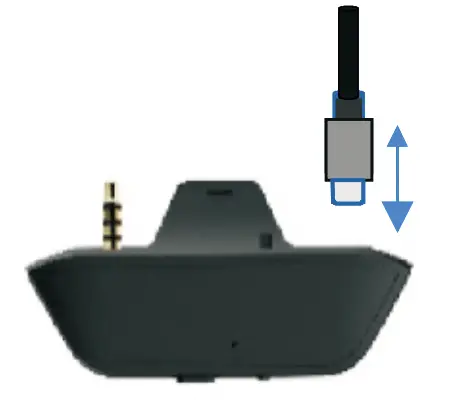
Tips & Tricks
If only one Airpod seems to be playing audio, turn XI Off, the On again. This will re-sync XI and should reconnect both Airpods.
If your having trouble successfully connecting XI to your headphones,try clearing the headphone pairing list Once cleared, XI will flash Blue and Will then be in pairing Mode.
Status Light Guide
Status Light Guide
Power On Blue LED flashes twice
Pairing Mode Blue LED flashes alternately
Unconnected Standby Mode Blue LED flashes twice every 5 seconds
Connected Standby Mode Solid Blue LED
Low Power Blue LED flashes 3 times
Charging Solid Blue
Fully Charged Blue LED turns Off
FCC STATEMENT
- This device complies with Part IS of the FCC Rules. Operation is subject to the following two conditions:
(1) This device may not cause harmful interference, and
(2) This device must accept any interference received, including interference that may cause undesired operation. - Changes or modifications not expressly approved by the party responsible for compliance could void the user’s authority to operate the equipment.
NOTE: This equipment has been tested and found to comply with the limits for a Class B digital device, pursuant to Part 15 of the FCC Rules. These limits are designed to provide reasonable protection against harmful interference in a residential installation. This equipment generates uses and can radiate radio frequency energy and, if not installed and used in accordance with the instructions, may cause harmful interference to radio communications. However, there is no guarantee that interference will not occur in a particular installation. If this equipment does cause harmful interference to radio or television reception, which can he determined by turning the equipment off and on. the user is encouraged to try to correct the interference by one or more of the following measures:
- Reorient or relocate the receiving antenna.
- Increase the separation between the equipment and receiver.
- Connect the equipment into an outlet on a circuit different from that to which the receiver is connected.
- Consult the dealer or an experienced radio technician for help.
Thank You