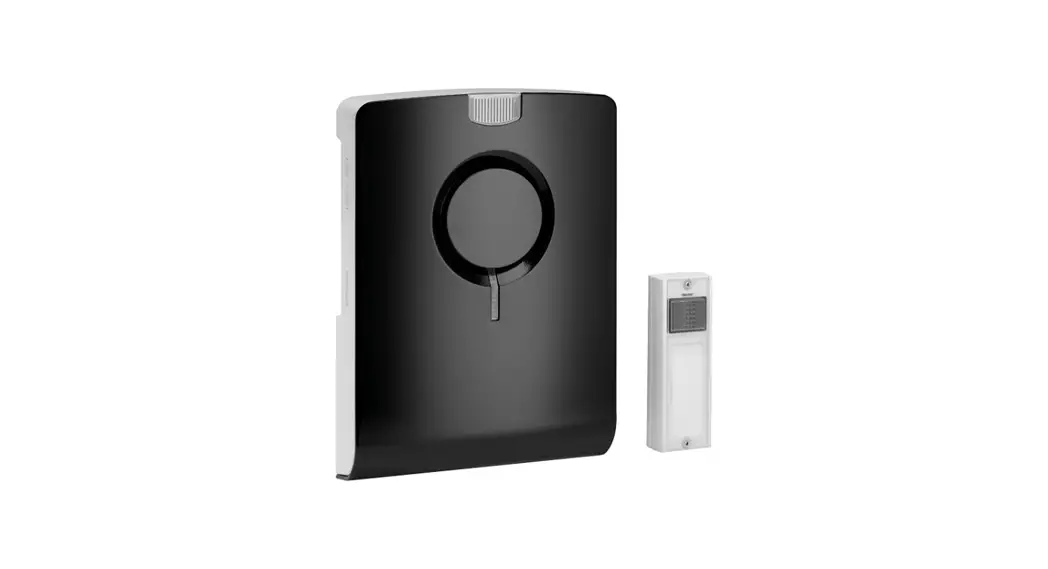
 43501 Funkgong-Set ECHO Schwarz ECHO M Schwarz
Instruction Manual
43501 Funkgong-Set ECHO Schwarz ECHO M Schwarz
PROGRAM GROTHE ECHO
 Engineered in GERMANY
Dear Customer
In purchasing this software you have acquired a quality product which we have developed for you with the greatest care and with the greatest possible precision.
 PRODUCT DESCRIPTION
Introduction
 Chimes of the Grothe Echo range can be loaded with ring tones. Ring tones are integrated to melody lists which can be loaded to the internal melody memory by means of a micro-SD card. After the transfer it is not necessary to leave the micro SD card in the chime. You can use the card for other applications e.g. in a smartphone. Grothe Echo chimes have a melody memory with a total playing time of 90 seconds. The playing time can be split in several ring tones. You can assign a dedicated ring tone to the bell pushbuttons and to the transmitters in the case of wireless chime versions.. Refer to the operating manual of the chime for details of the settings. The PC software “Grothe Echo” can be used to put together melody lists. Create a melody list using WAV or MP3 files and save it onto the micro SD card. The software has a cutting function, this enables you to cut individual sequences from longer pieces of music. In order to enjoy the high sound quality of the Grothe Echo chime, make sure you only use noiseless sequences with high resolution. If necessary, convert music from audio CDs to WAV files in order to use them. Free software for converting audio CDs to MP3 or WAV format can be found on the internet (e.g. Audiograbber).
System requirements Personal computer with Windows XP, Windows7 or compatible OS PC loudspeaker(s) Cardreader for microSD memory cards Micro SD card 2GB to 32GB (FAT or FAT32) Administrator rights for installation
INSTALLATION
Important note: You must have administrator rights to install the software. If you are not sure, contact your administrator. Insert the CD-ROM provided in the CD drive of your computer. After you insert the CDROM installation starts automatically unless the autorun function of your PC has been deactivated. To start the installation manually start the “setup.exe” program on the CD-ROM. A security warning appears Click the “Install” button.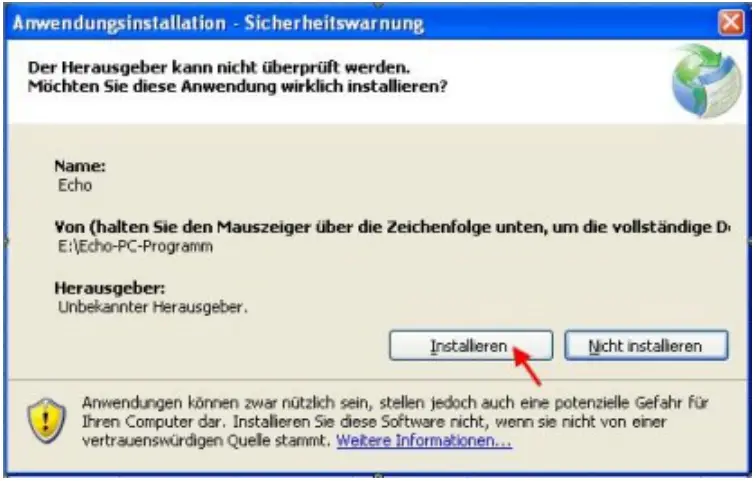
The Grothe Echo program use the NET framework of Microsoft.
This is part of Windows7 Windows XP does not have the NT framework as standard, it can be installed later. The NET framework is on the CDROM.and is installed automatically if it is not already available on the PC The following window appears. 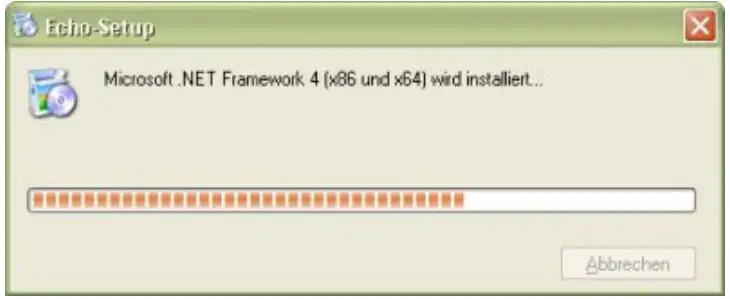 Installation of the NET framework takes a few minutes. Once installation has been completed, the Grothe Echo software starts automatically.
 STARTING THE SOFTWARE
You can also start the software via the start menu of your PC. For this, click “Start” -> “Programs” -> „Grothe GmbH -> „Echo“ The software window Fig. 1 appears.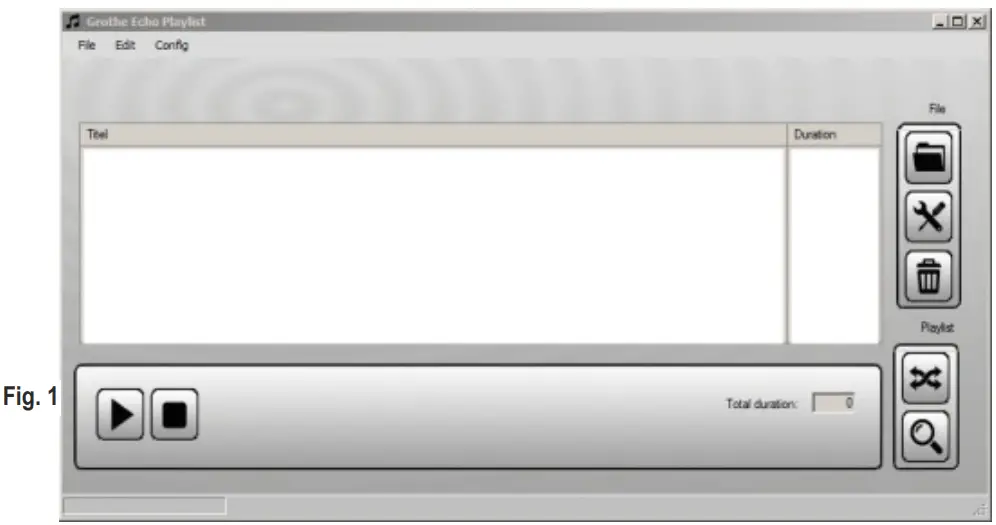
CREATE A MELODY LIST
 With the Grothe Echo software you can create, read and edit melody lists which you can then use to program the chimes of the Grothe Echo range. Fig. 1 shows the software window with an empty melody list. Click the button “Open file” in the top right-hand corner of the window to open a file selection window. (Fig. 2).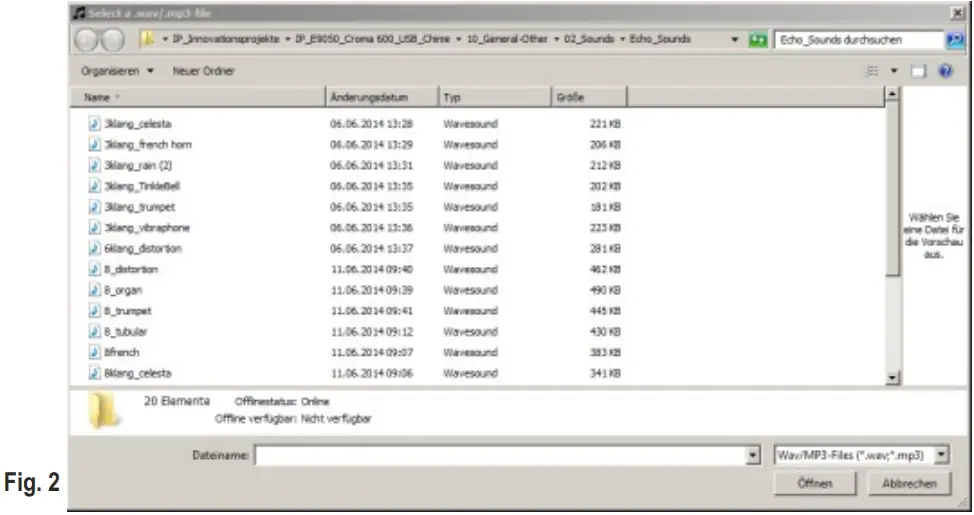
Choose one or several audio files to add these to the melody list. You can choose files in the format “WAV” or “Mp3”. Finish your choice with the pushbutton „Open“ Finish your choice by clicking the “Open” button. MP3 files are converted to WAV files automatically. The MP3 files are not changed by the conversion. Converted files are shown in the melody list by name and playing time. WAV files are displayed with the complete path, file extension and playing time (Fig. 3). 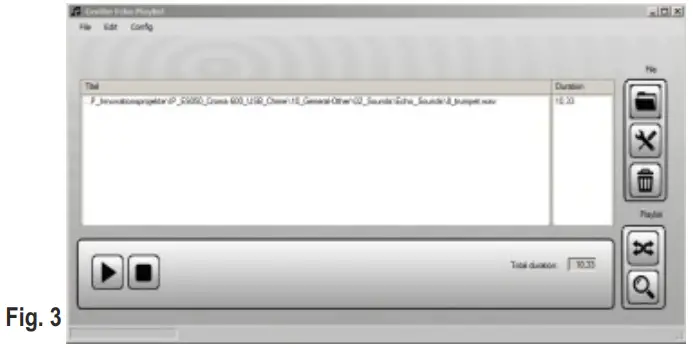
The total playing time is shown underneath the melody list. Chimes of the Grothe Echo range have a media memory with a total playing time of 90 seconds. The total playing time of the melody list is marked red if this period is exceeded. Reasonable durations for individual ring tones are 2 to 12 seconds.
 EDIT THE MELODY
 Choose the required part of the melody for each individual file. To do this, mark the file you wish to edit and then click the “Edit” button. A new window “Echo Waveeditor” opens. (Fig. 4)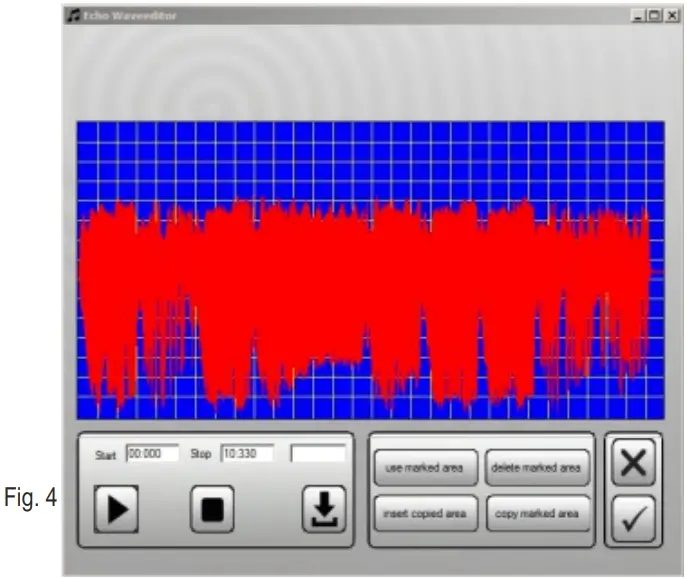
The Waveeditor shows the melody in the form of a graph. The “Play” button starts the melody. A mark shows the current position of the melody on the graph.
 Click the “Stop” button to interrupt the playback. You can set the mark using the mouse. To do this, simply click the mouse button in the required place. When you have identified the section you want, mark this with the mouse. To do this, click the mouse button at the beginning of this sequence and keep the mouse button pressed to mark the area. After the release of the mouse button the area is coloured. (Fig. 5)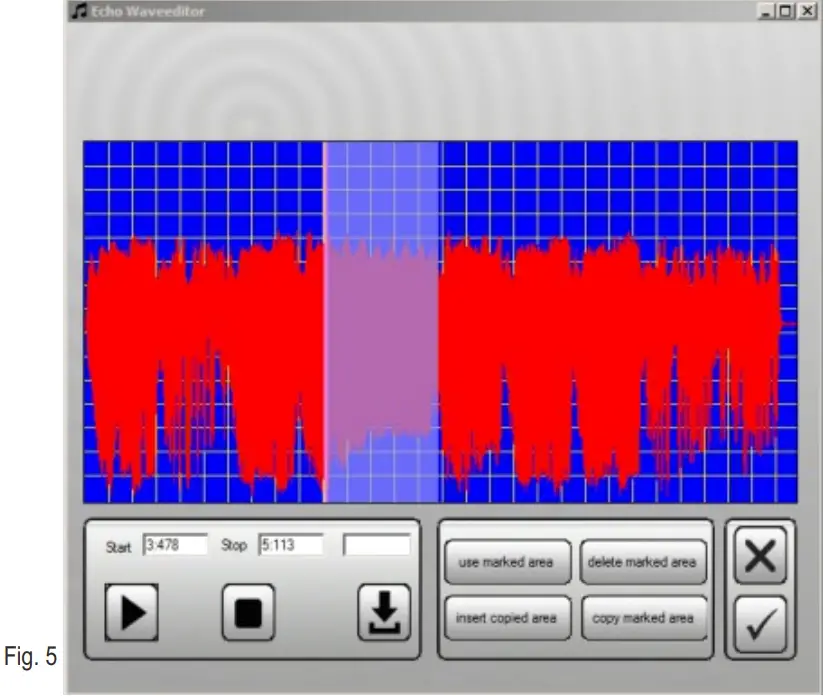
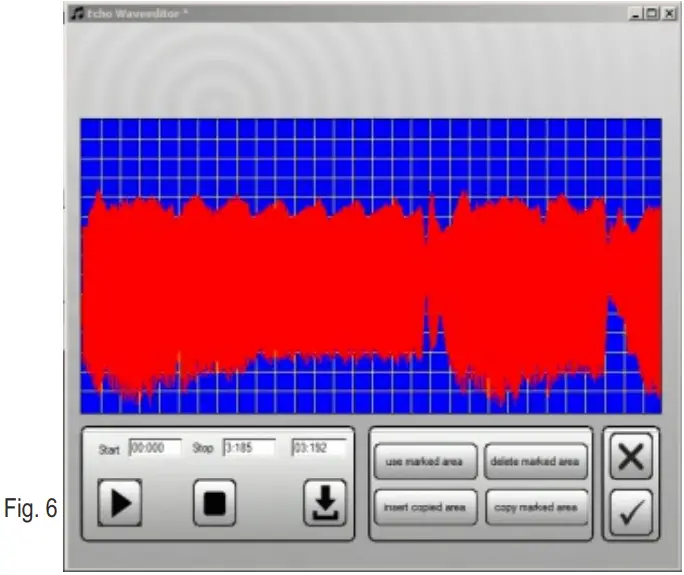
 Click the button “Use marked area” to delete all the non-marked areas. The original file is are not changed. The software creates a working copy instead. The marked area is now shown with a greater resolution. (Fig. 6) Click the “OK” button to leave the Waveeditor.
  The edited file appears with a path name and data extension on the melody list in the software window, since the original file has not been changed, rather a copy has been made. Edit all files accordingly until the total playing time no longer exceeds 90 seconds. (Fig. 7)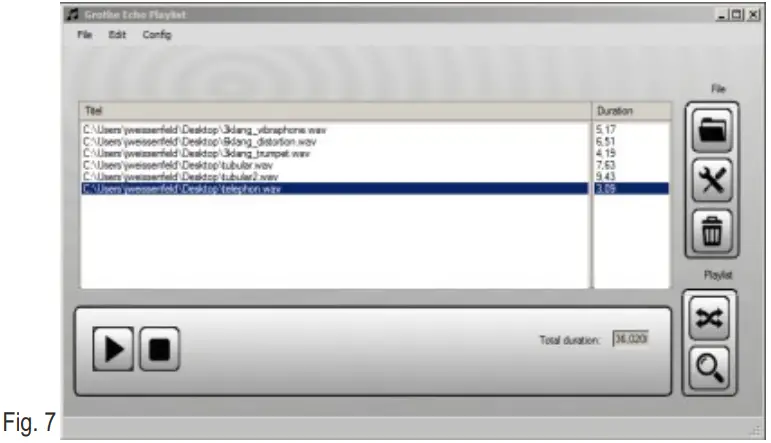
EDIT MELODY THE MEDIALIST
 With the “Open file” button you add more ring tones to the melody list. You can mark individual ring tones by clicking the mouse button on the melody name. To delete a marked ring tone from the melody list, click the “Delete” button. No files are deleted from the data medium.
 To play a marked ring tone click the “Play” button. To edit a marked ring tone click the “Edit” button. To change the order of the ring tones on the melody list, click on the ring tone and keep the mouse button pressed to move the ring tone.
PROGRAMMING THE MELODY LIST
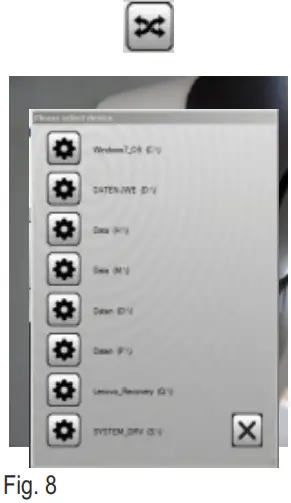
Insert a formatted micro-SD card into the connected card reader. Click the “Program” button. A window showing all the drives on your PC appears (Fig. 8). Select the inserted memory card from the list. The melody list is stored under the name “Echo.c6f” in the main directory of the memory card. If there is a file with this name already on the memory card, a security query will appear. The programming operation can last a few seconds. The software indicates that programming has finished. Note:
The chimes in the Grothe Echo range always expect to find the melody list under the name “Echo.c6f” in the main directory of the memory card. You can rename the file using the Windows Explorer and save it in a subdirectory. This allows you to create a collection of different melody lists. To import one of the melody lists to the chime, you have to rename the list back to “Echo.c6f” and copy the list to the main directory of the memory card.
READING THE MELODY LIST
You can load a melody list from your memory card or another memory to the program and then edit the list. To do this, click the “Read” button. Choose a melody list in the file selection window. If the melody list of the program is not empty, the program will ask you if the existing list is to be supplemented or replaced. After this query has been answered, the ring tones read in are listed in the melody list.
 TRANSFER MELODY LIST TO CHIME To transfer the melody list to the Grothe Echo chime, insert the microSD-card with the contacts facing forwards and upwards into the slot. Push forward until it locks. Now press the
  button until the red LED lights up. Release the button. Now the programming starts. This is indicated by the green and red LEDs flashing alternately. Caution:
During programming, the memory card must not be removed and the power supply must not be disconnected.
Otherwise this can lead to malfunctions during later operation. You can repeat the programming at any time. After the LEDs have stopped flashing, you can remove the memory card and use it in another device, for example. Some memory cards may cause a faster discharge of the batterie. therefore is it recommended to remove the memory card from the chime after programming. To remove the memory card, push it further into the chime until the lock opens. You can then remove the memory card. Notes —
 At the end of the product´s useful life, please dispose of it at appropriate collection points provided in your country.
 Contact
Mv343520
03 / 23
See packaging or attached “Service Information”!