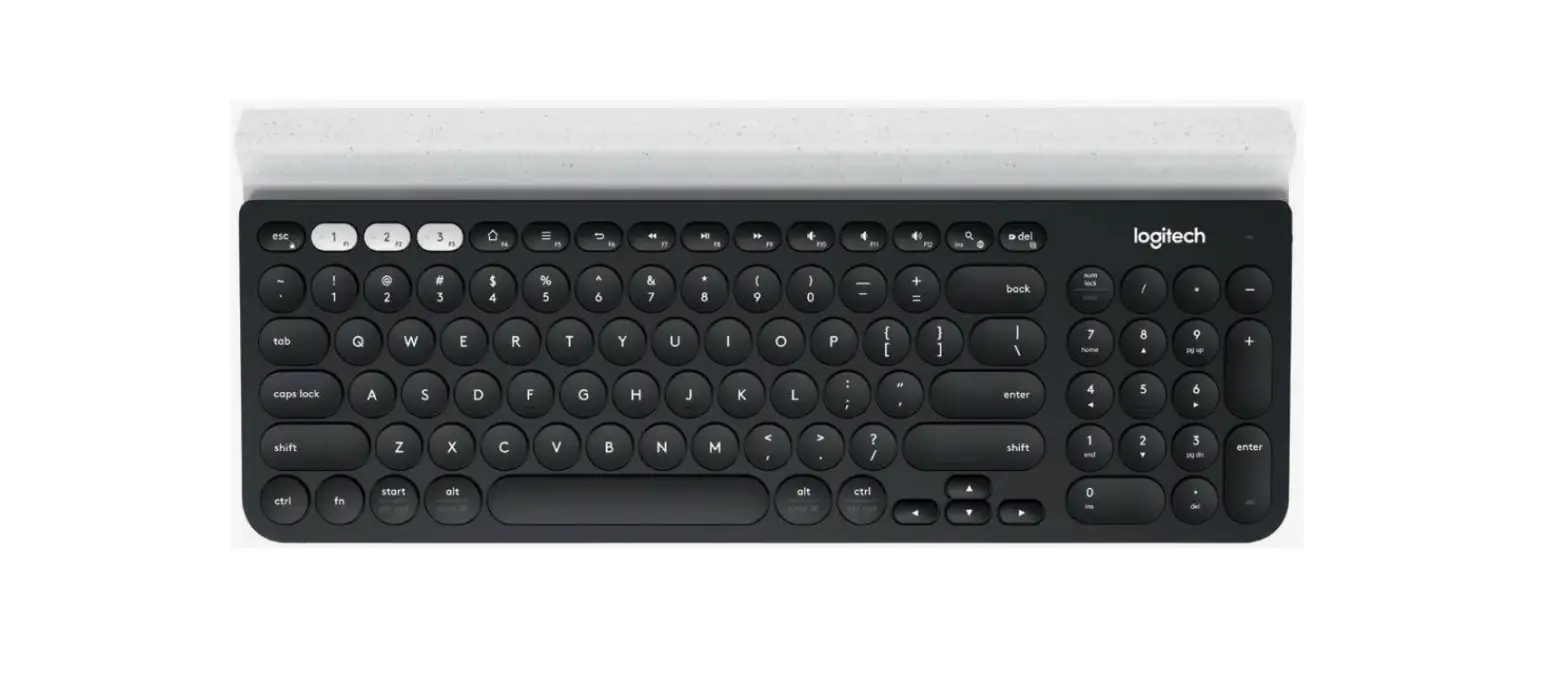
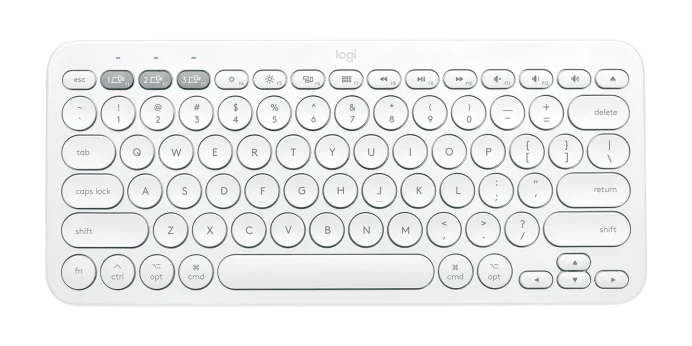
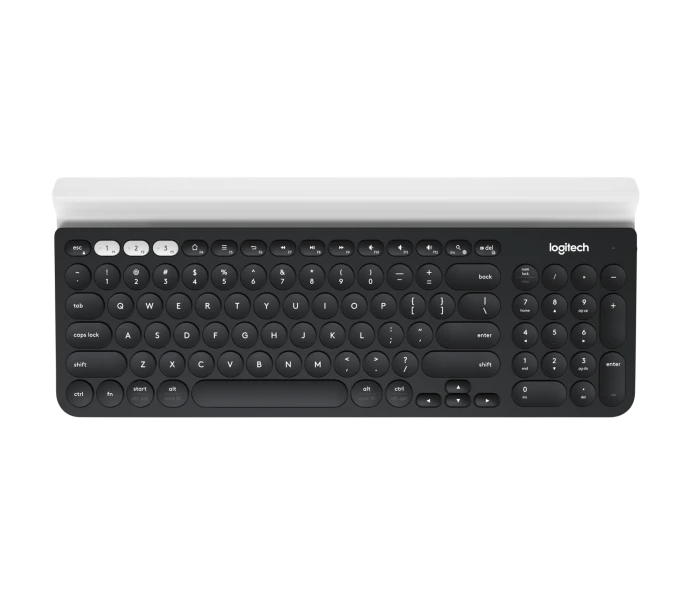
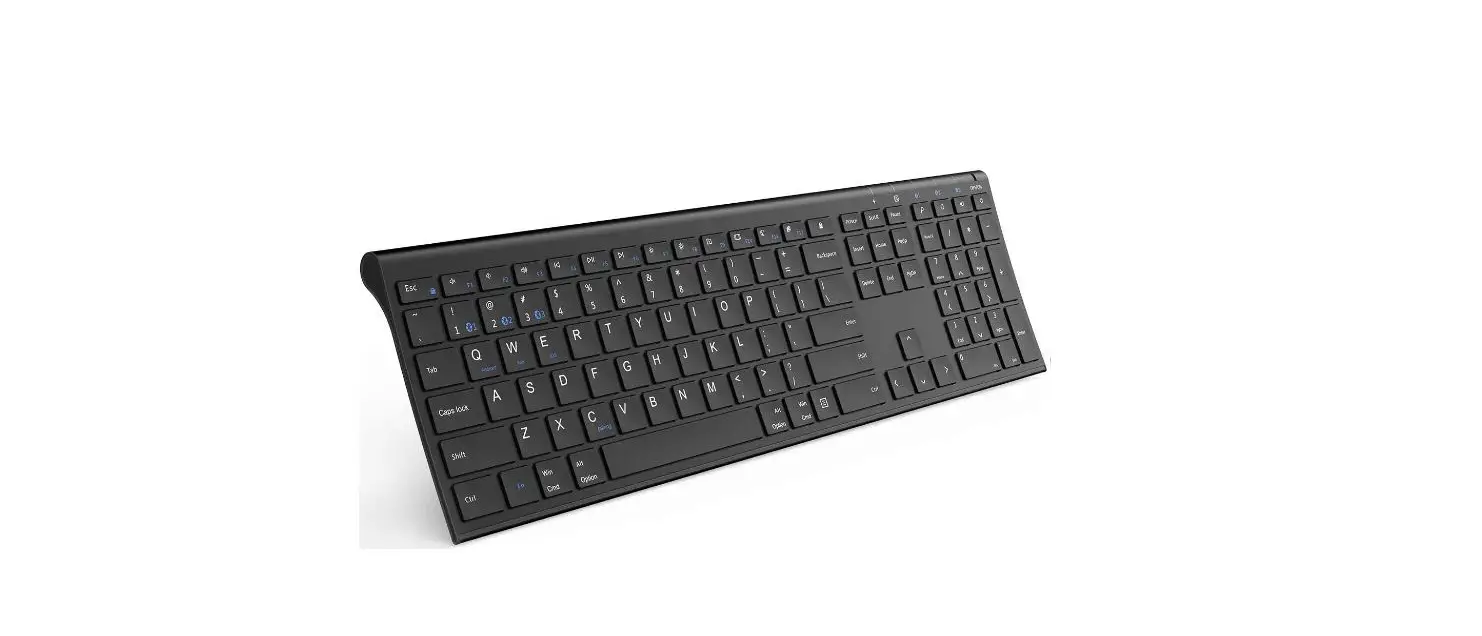
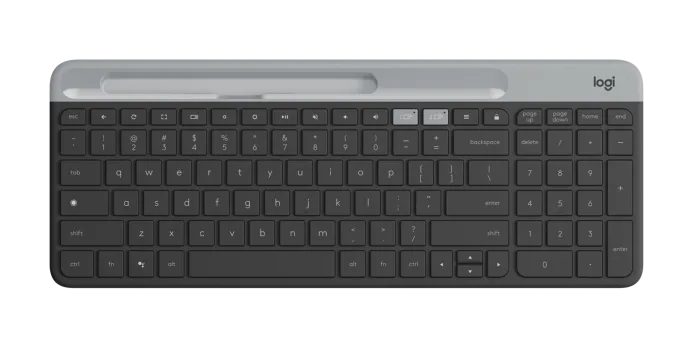
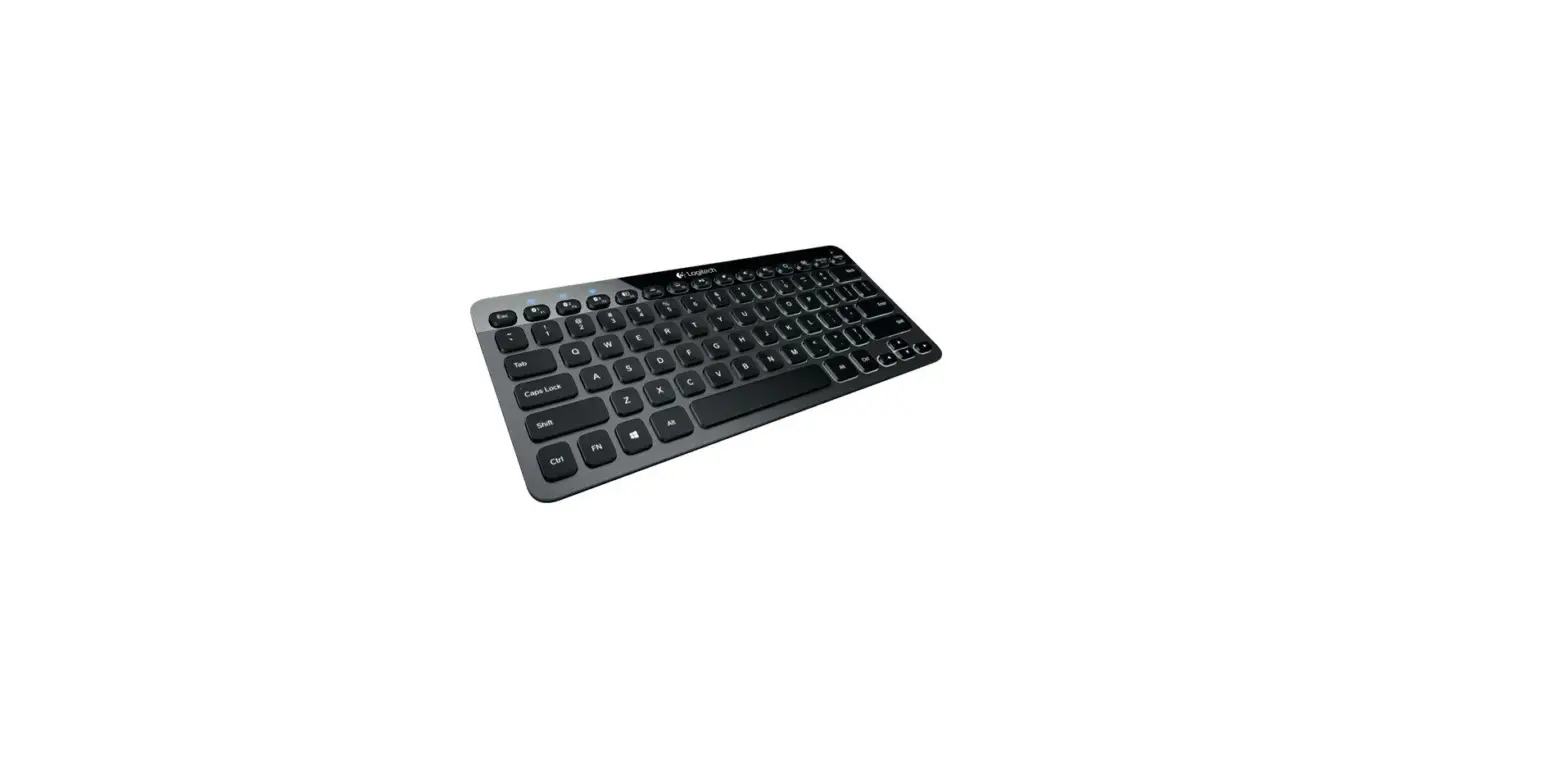
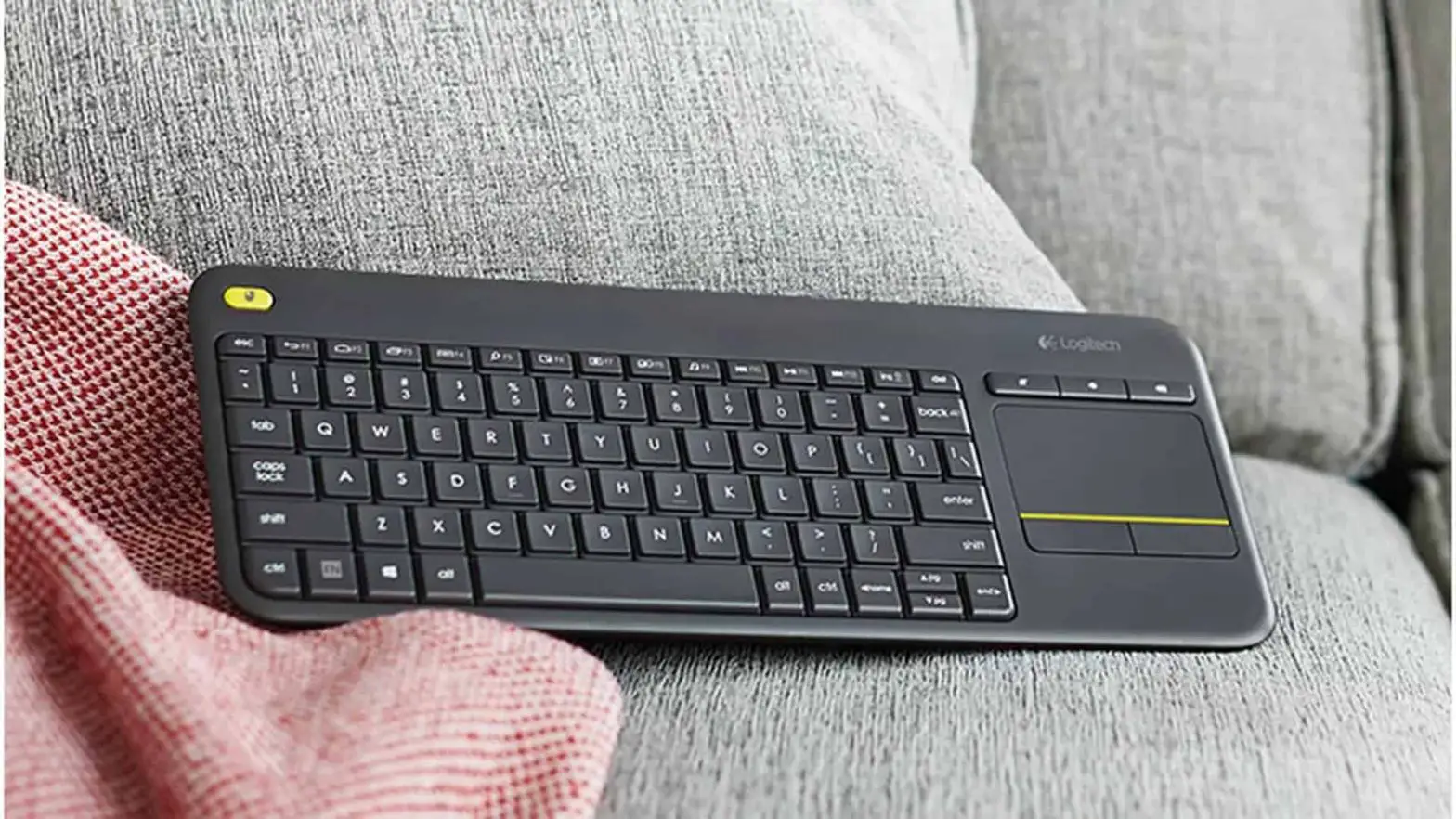
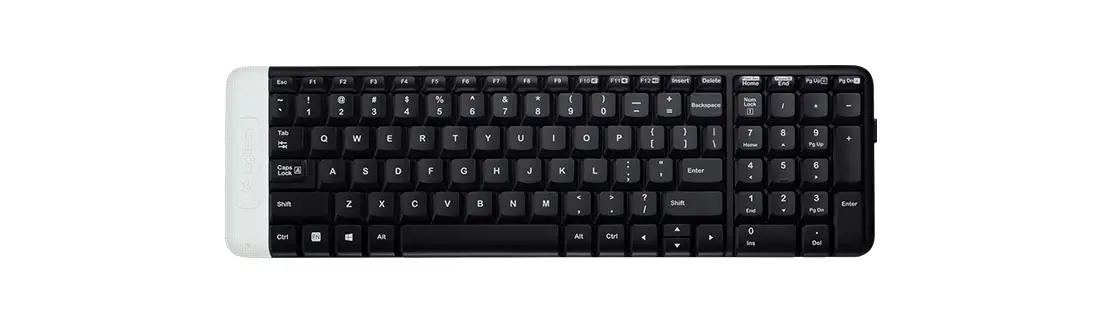
K380 Multi-Device Bluetooth Keyboard
Product Information – K380 Multi-Device Bluetooth Keyboard
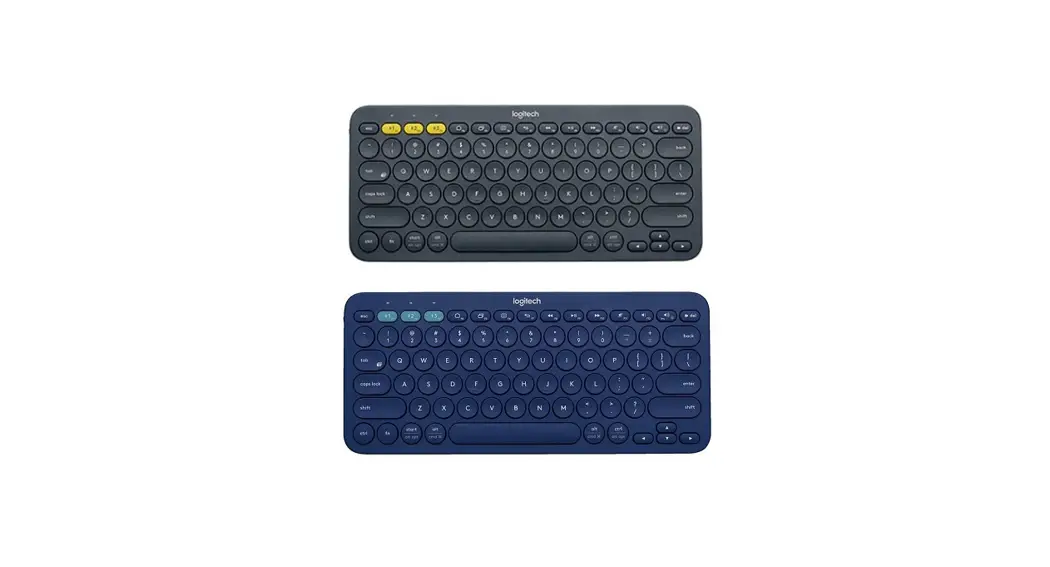
The K380 Multi-Device Bluetooth Keyboard is a versatile keyboard
that is compatible with multiple devices. It features an
OS-adaptive design that automatically remaps keys for the selected
device, providing a familiar typing experience with favorite
hotkeys in their expected locations. The keyboard can be customized
using Logi Options+ software to suit individual needs and personal
style.
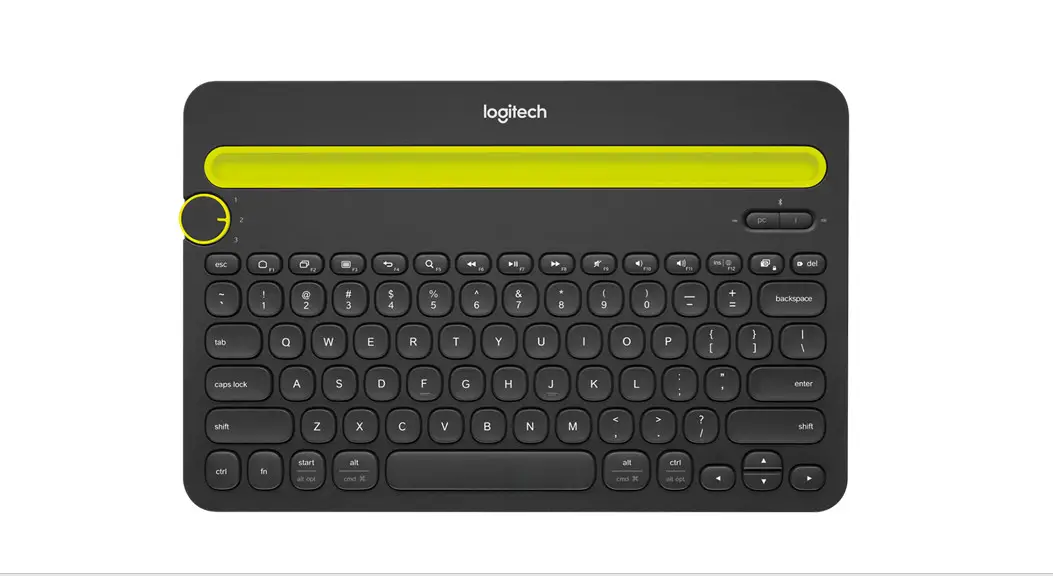
K380 at a Glance:
- Easy-Switch keys – Press to connect and select devices
- Bluetooth status lights – Show state of Bluetooth
connection - 3 Split keys
- Battery compartment
- On/off switch
- Battery status light
Detailed Setup:
- Pull the tab on the back side of the keyboard to power it on.
The LED on the Easy-Switch button should blink rapidly. If not,
hold down the button for three seconds. - Connect your device using Bluetooth. A solid light for 5
seconds on the button indicates successful pairing. If the light
blinks slowly, hold down the button for three seconds and try
pairing via Bluetooth again. - If you experience issues with Bluetooth, refer to the Bluetooth
troubleshooting section. - Install Logi Options+ software to access additional
customization options. Download Logi Options+ from
logitech.com/optionsplus.
Pairing to a Second Computer with Easy-Switch:
- Select the desired channel using the Easy-Switch button. Press
and hold the same button for three seconds to put the keyboard in
discovery mode. The LED will start blinking rapidly. - Open the Bluetooth settings on your computer and complete the
pairing process. - Once paired, a short press on the Easy-Switch button allows you
to switch channels.
Re-pairing a Device:
- On the keyboard, follow the instructions to put it in pairing
mode. - On the device, follow the onscreen instructions to complete the
pairing. - Upon successful pairing, the status LED on the keyboard will
stop blinking and remain steady for 10 seconds.
Software Installation:
Download Logi Options+ software to unlock all the possibilities
offered by the K380 keyboard. The software optimizes the keyboard
for your operating system and allows customization such as creating
shortcuts, reassigning key functions, displaying battery warnings,
and more. Visit logitech.com/optionsplus to download and learn more
about Logi Options+.
Features:
The K380 Multi-Device Bluetooth Keyboard offers advanced
features including shortcuts and function keys. The available hot
keys and media keys vary depending on the operating system:
| Windows 7 | macOS Catalina | Windows 10 | macOS Big Sur | Windows 11 | macOS Monterey |
|---|---|---|---|---|---|
| Home (Launch Mission web browser) | Control* | iPadOS 13.4+ | iOS 13.4+ | Home (Go to Homescreen) | App Switch Launchpad Home Screen |
| Contextual menu | Does nothing | Does nothing | Back | Back | Back |
| Previous Track | Previous Track | Previous Track | – | – | – |
Getting started – K380 Multi-Device Bluetooth Keyboard
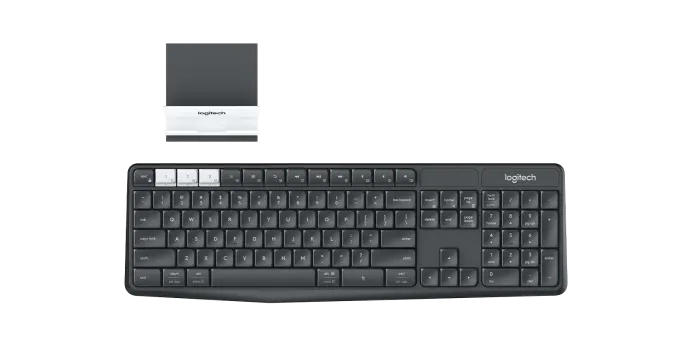
Enjoy the comfort and convenience of desktop typing on your desktop computer, laptop, smartphone, and tablet. The Logitech Bluetooth® Multi-Device Keyboard K380 is a compact and distinctive keyboard that lets you communicate and create on your personal devices, anywhere in the home.
Convenient Easy-SwitchTM buttons make it easy to simultaneously connect with up to three devices via Bluetooth® wireless technology and instantly switch among them.
The OS-adaptive keyboard automatically remaps keys for the selected device so you’re always typing on a familiar keyboard with favorite hotkeys where you expect them.
Logi Options+
In addition to optimizing the keyboard for your preferred operating system, the software lets you customize the K380 to fit your individual needs and personal style.
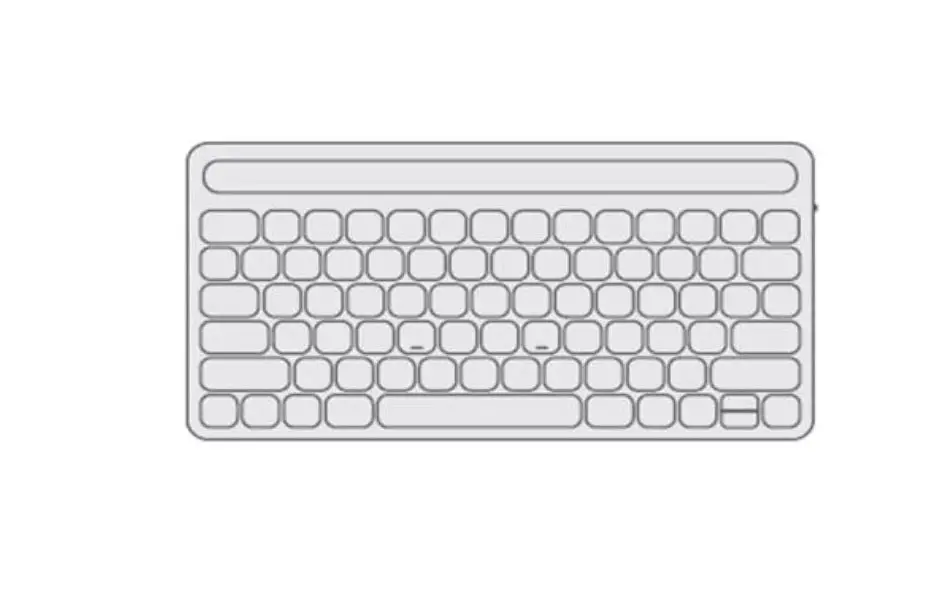
K380 AT A GLANCE
1 — Easy-Switch keys
Press to connect and select devices
2 — Bluetooth status lights
3 — 3 Split keys
Show state of Bluetooth connection
Modifier based on type of device connected to keyboard Above: Windows® and AndroidTM. Below: Mac OS® X and iOS®
4 — Battery compartment 5 — On/off switch 6 — Battery status light
DETAILED SETUP
1. Pull the tab on the back side of the keyboard to power it on.
The LED on the Easy-Switch button should blink rapidly. If not, hold down the button
for
three
seconds.
2. Connect your device using Bluetooth:
· Open the Bluetooth settings on your computer to complete the pairing. Steady
light for 5 seconds on the button indicates successful pairing. If the light blinks
slowly, hold down the button for three seconds and try pairing via Bluetooth
again.
· Click here for more details on how to do this on your computer. If you
experience issues with Bluetooth, click here for Bluetooth troubleshooting.
3. Install
Logi
Options+
Software.
Download Logi Options+ to use all the possibilities this keyboard has to offer. To
download and learn more, go to logitech.com/optionsplus.
PAIR TO A SECOND COMPUTER WITH EASY-SWITCH
Your keyboard can be paired with up to three different computers using the Easy-Switch button to change the channel.
1. Select the channel you want using the Easy-Switch button — press and hold the same button for three seconds. This will put the keyboard in discovery mode so it can be seen by your computer. The LED will start blinking rapidly.
2. Open the Bluetooth settings on your computer to complete the pairing. You can find more details here.
3. Once paired, a short press on the Easy-Switch button lets you switch channels.
Re-pairing a device
If a device becomes disconnected from the keyboard, you can easily re-pair the device with the keyboard. Here’s how:
On the keyboard
· Press and hold down an Easy-Switch button until the status light starts blinking rapidly. The keyboard is now in pairing mode for the next three minutes.
On the device
1. Go to Bluetooth settings on your device and select Logitech Bluetooth® Multi-Device Keyboard K380 when it appears in the list of available Bluetooth devices.
2. Follow the onscreen instructions to complete the pairing. 3. Upon pairing, the status LED on the keyboard stops blinking and remains steady for 10
seconds.
INSTALL
SOFTWARE
Download Logi Options+ to use all the possibilities this keyboard has to offer. In addition
to optimizing the K380 for your operating system, Logi Options+ lets you customize the
keyboard to fit your needs and personal style — create shortcuts, reassign key functions,
display battery warnings, and much more. To download and learn more, go
to logitech.com/optionsplus.
Click here for the list of supported OS versions for Options+.
FEATURES
Explore the advanced features your new keyboard offers:
· Shortcuts and function keys · OS-adaptive keyboard · Power management
SHORTCUTS AND FUNCTION KEYS
Hot keys and media keys
The table below shows hot keys and media keys available for Windows, Mac OS X, Android and iOS.
Windows 7
macOS Catalina
Keys Windows 10
macOS Big Sur
Windows 11
macOS Monterey
Home (Launch Mission web browser) Control*
iPadOS 13.4+ iOS 13.4+
Home (Go to Homescreen)
App Switch Launchpad Home Screen
Contextual menu Does nothing Does nothing
Back
Back
Back
Previous Track
Previous Track
Previous Track
Play / Pause Play / Pause Play / Pause
Next Track Next Track Next Track
Mute
Mute
Mute
Volume Down
Volume Down
Volume Down
Volume Up Volume Up Volume Up
Delete
Forward Delete
Forward Delete
*Requires installtion of Logitech Options software
Android
Home (Go to Homescreen) App SwitchApp
Switch Contextual menu
Back Previous Track
Play / Pause Next Track
Mute Volume Down
Volume Up Delete
Chrome OS
Home (Go to Homepage in web
browser) App Switch Contextual menu
Back Previous Track
Play / Pause Next Track
Mute Volume Down
Volume Up Delete
Shortcuts
To perform a shortcut hold down the fn (function) key while pressing the key associated
with
an
action.
The table below provides function key combinations for different operating systems.
Windows 7
Keys
Android
Windows 10
Mac OS X
iOS
Print screen
Windows 11 Print screen
Screen lock*
Capture screen
Cut
Cut
Cut
Cut
Copy
Copy
Copy
Copy
Paste
Paste
Home (when
Home (when
editing text)
editing text)
End (when editing End (when editing
text)
text)
Page up
Page up
Page down
Page down
*Requires installtion of Logitech Options software
Paste
Select previous word
Select next word Page up/Increase
brightness* Page down/Decrease
brightness*
Paste
Select previous word
Select next word
Logi
Options+
If you typically use function keys more often than shortcut keys, install Logi Options+
software and use it to set up shortcut keys as function keys and use the keys to perform
functions without having to hold down the Fn key.
OS-adaptive
keyboard
The Logitech Keyboard K380 includes OS-adaptive key that have different functions,
depending on the operating system of the device you’re typing on.
The keyboard automatically detects the operating system on the currently selected device
and remaps keys to provide functions and shortcuts where you expect them to be.
Manual
selection
If the keyboard fails to correctly detect the operating system of a device, you can manually
select the operating system by performing a long press (3 seconds) of a function key
combination.
To select an OS:
Hold down key combination for 3 seconds
Mac OS X / iOS
Windows / Android Chrome
Multi-function
keys
Unique multi-function keys makes the Logitech Keyboard K380 compatible with most
computers and mobile devices. Key label colors and split lines identify functions or
symbols reserved for different devices and operating systems.
Key label color
Gray labels indicate functions available on Apple devices running Mac OS X or iOS. White labels on gray circles identify symbols reserved for use with Alt Gr on Windows computers.*
Split keys
Modifier keys on either side of the space bar display two sets of labels separated by split lines. The label above the split line shows the modifier sent to a Windows, Android, or Chrome device. The label below the split line shows the modifier sent to an Apple Macintosh, iPhone, or iPad. The keyboard automatically uses modifiers associated with the currently selected device.
*The Alt Gr (or Alt Graph) key that appears on many international keyboards replaces the right Alt key normally found to the right of the spacebar. When pressed in combination with other keys, Alt Gr enables entry of special characters.
Reserved key labels Gray
Example (Mac OS X or iOS)
Reserved for use with Apple computers (Mac OS X) or iPhones and iPads (iOS)
White on gray circle
Example (Windows)
Symbol reserved for use with Alt Gr on computers using Windows
Split key labels
Above: Windows and Android Below: Mac OS X and iOS
Power management
· Check
battery
level
The status LED on the side of the keyboard turns red to indicate battery power is low
and it’s time to change batteries.
· Replace batteries
1. Lift the battery compartment up and off the base.
2. Replace the spent batteries with two new AAA batteries and reattach the
compartment
door.
TIP: Install Logi Options+ to set up and receive battery status notifications.
Compatibility BLUETOOTH Apple Mac Windows Windows Chrome
WIRELESS
TECHNOLOGY
OS
X
(10.10
7,
8,
10
ENABLED or or
DEVICES:
later)
later OS
Chrome Android Android 3.2 or later
OSTM
References
 Logi Options+ (Plus): Customization App for Logitech Devices
-
Download Logitech Options Customization Software
 Product Info & Specs – Logitech Support + Download
-
Bluetooth troubleshooting for Logitech Bluetooth Mice, Keyboards and Presentation remotes – Logitech Support + Download
-
Connect your Logitech Bluetooth device – Logitech Support + Download
 Logi Options+ (Plus): Customization App for Logitech Devices
 Product Info & Specs – Logitech Support + Download
 Connect your Logitech Bluetooth device – Logitech Support + Download