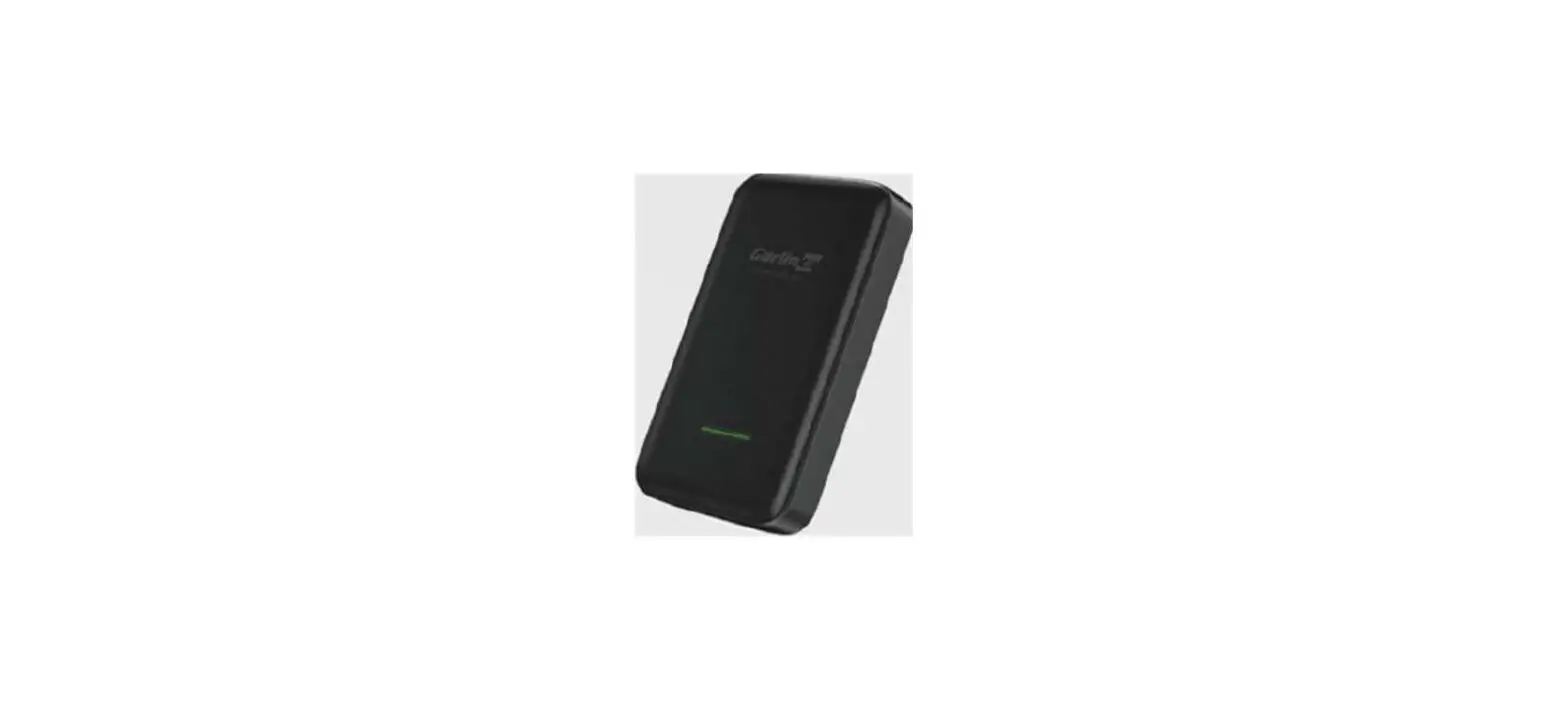
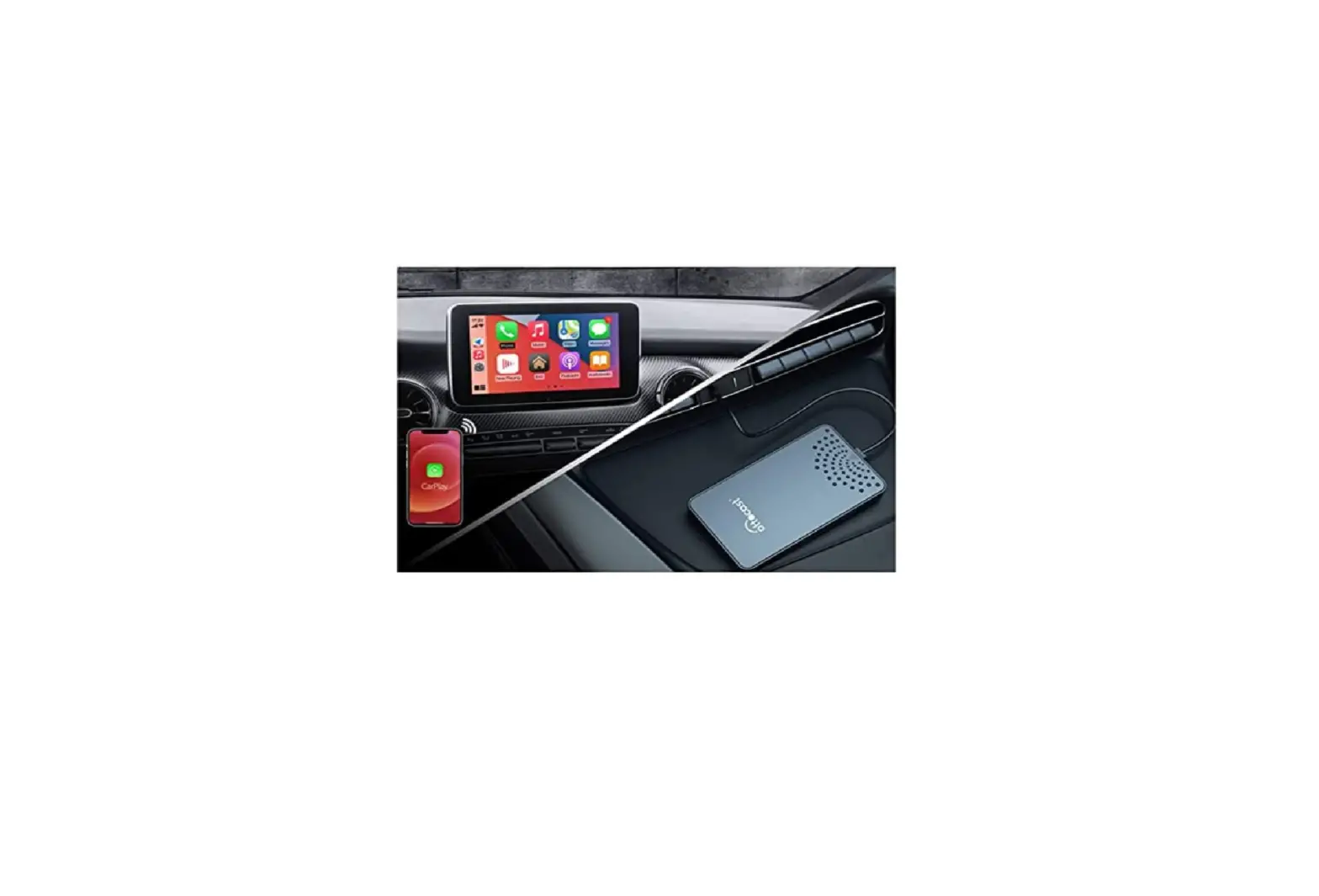
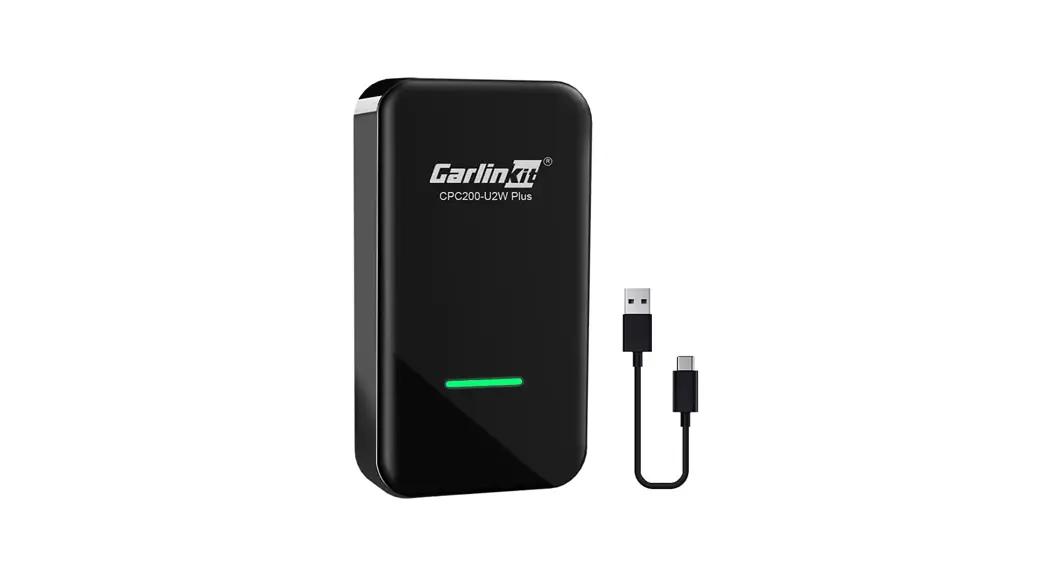
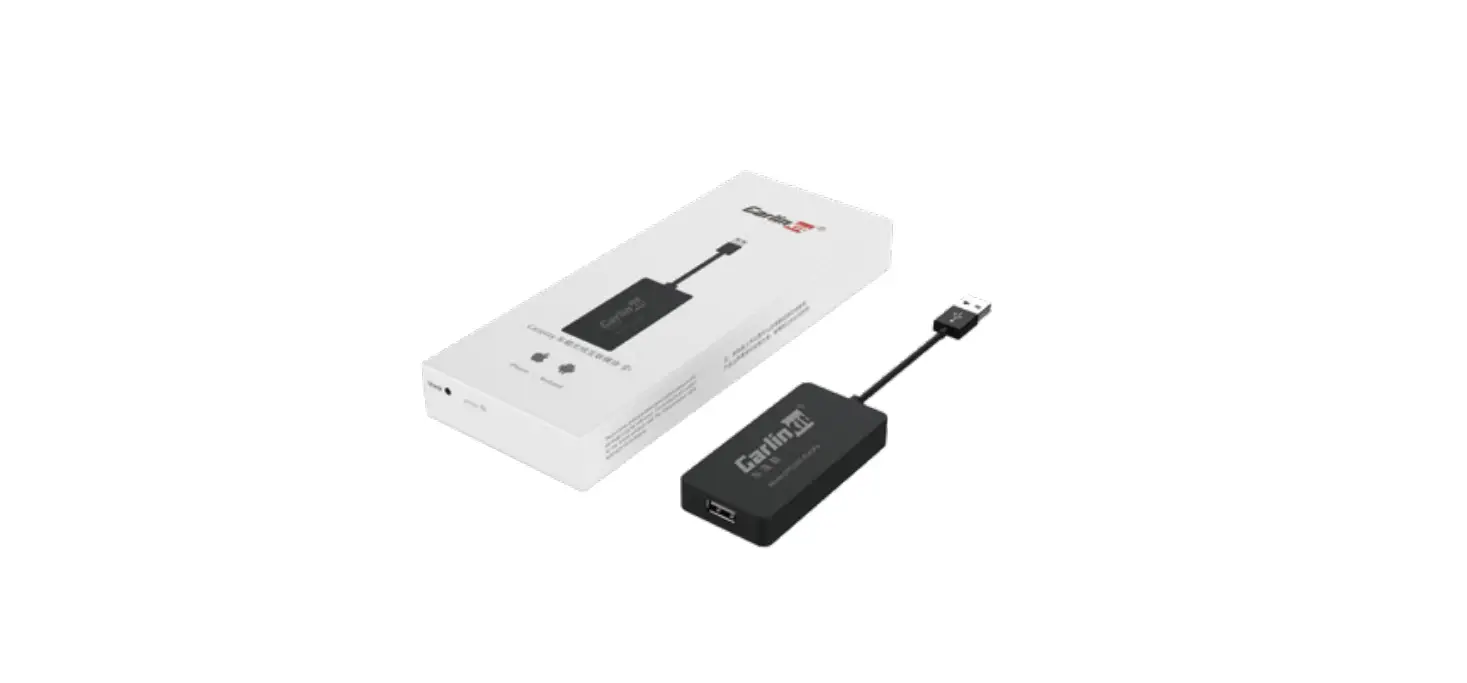
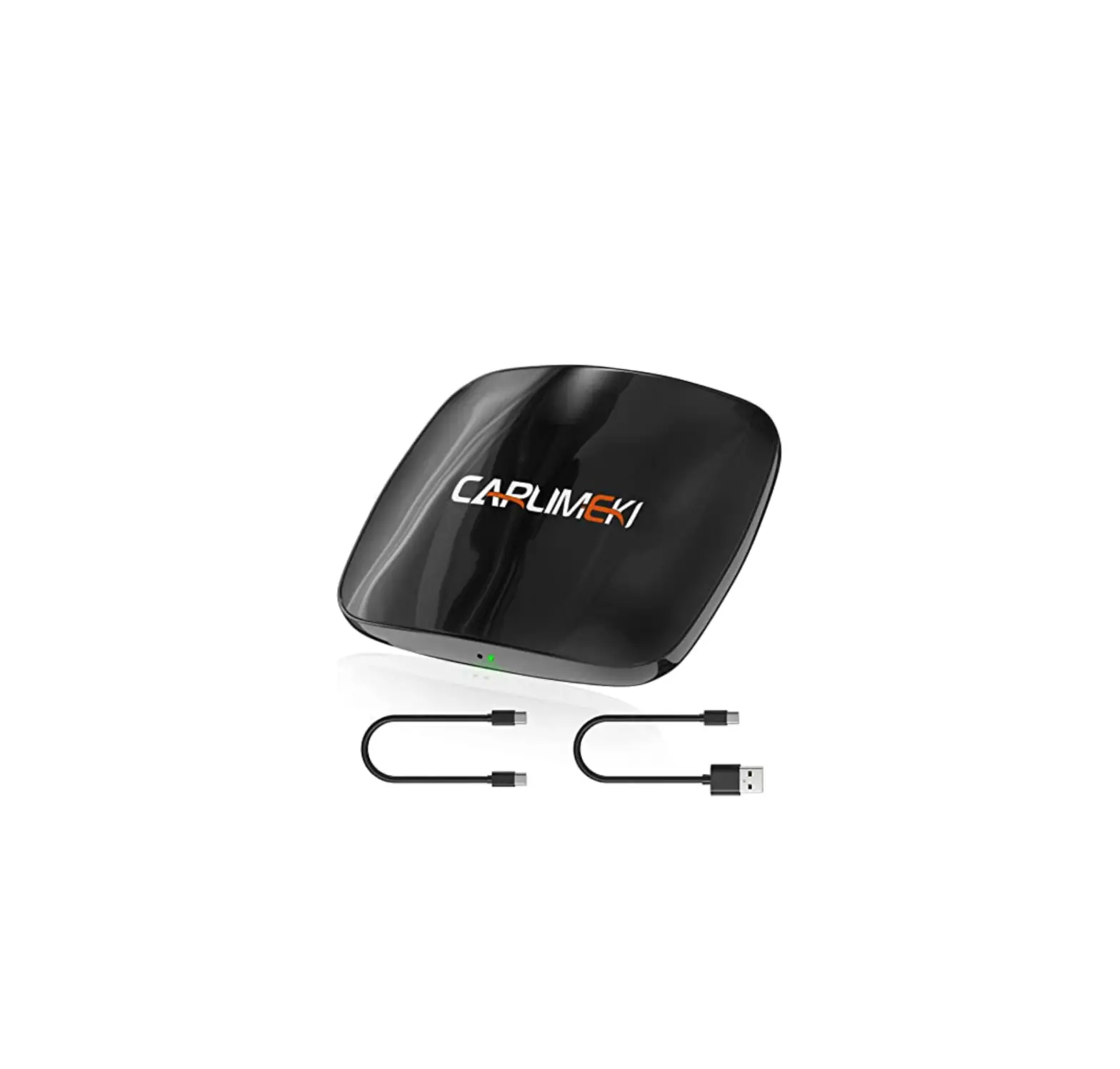
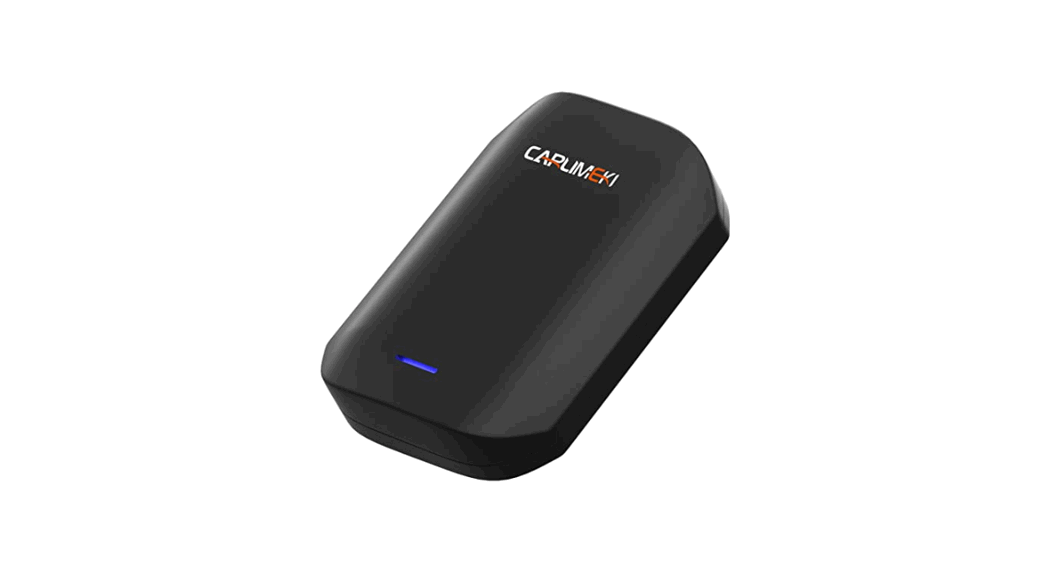
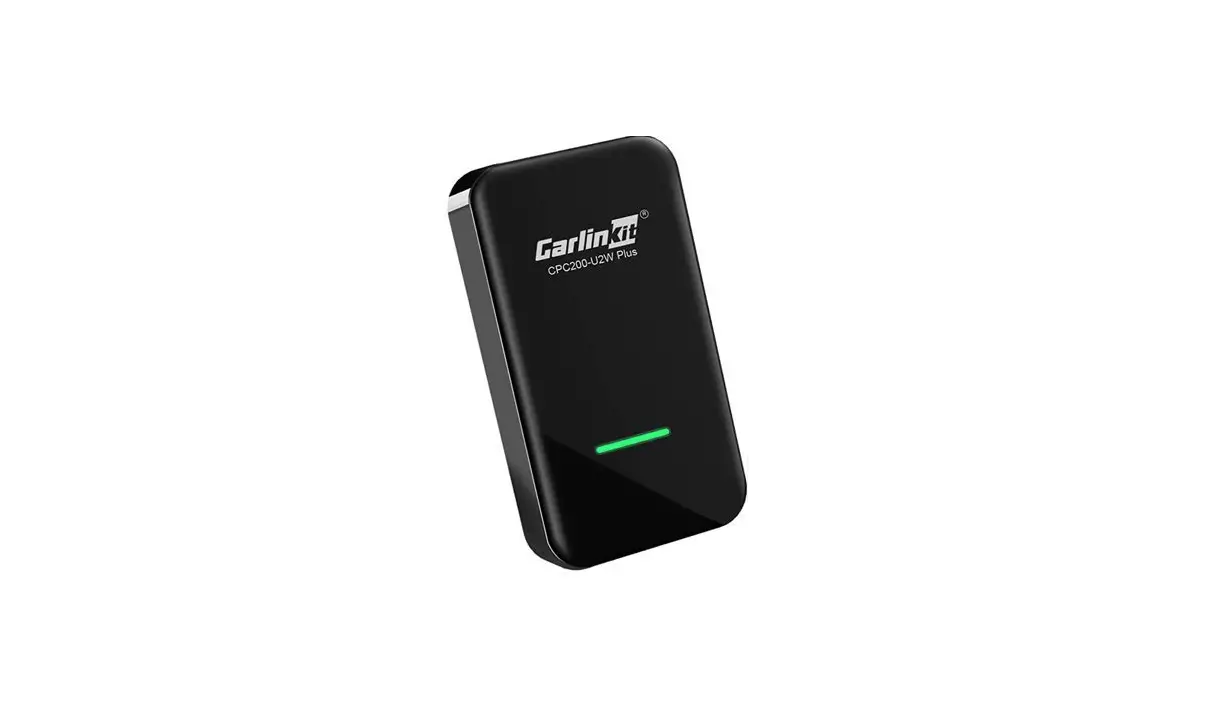
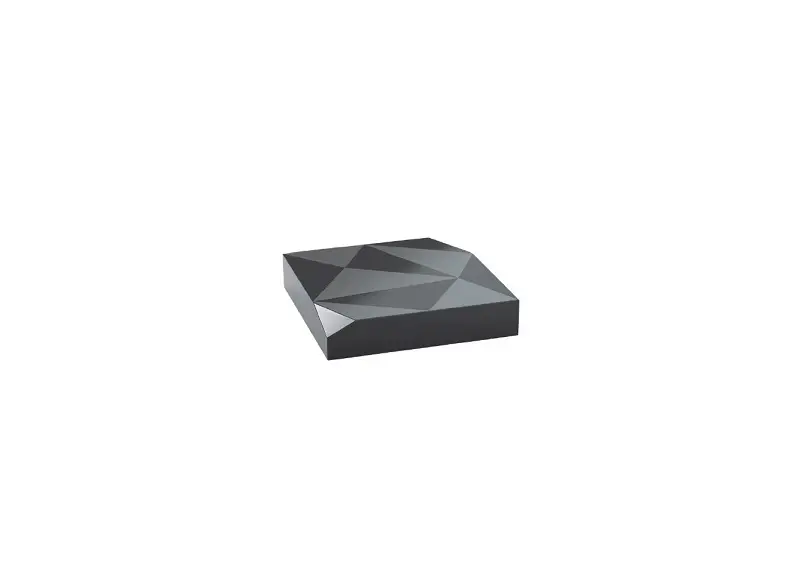
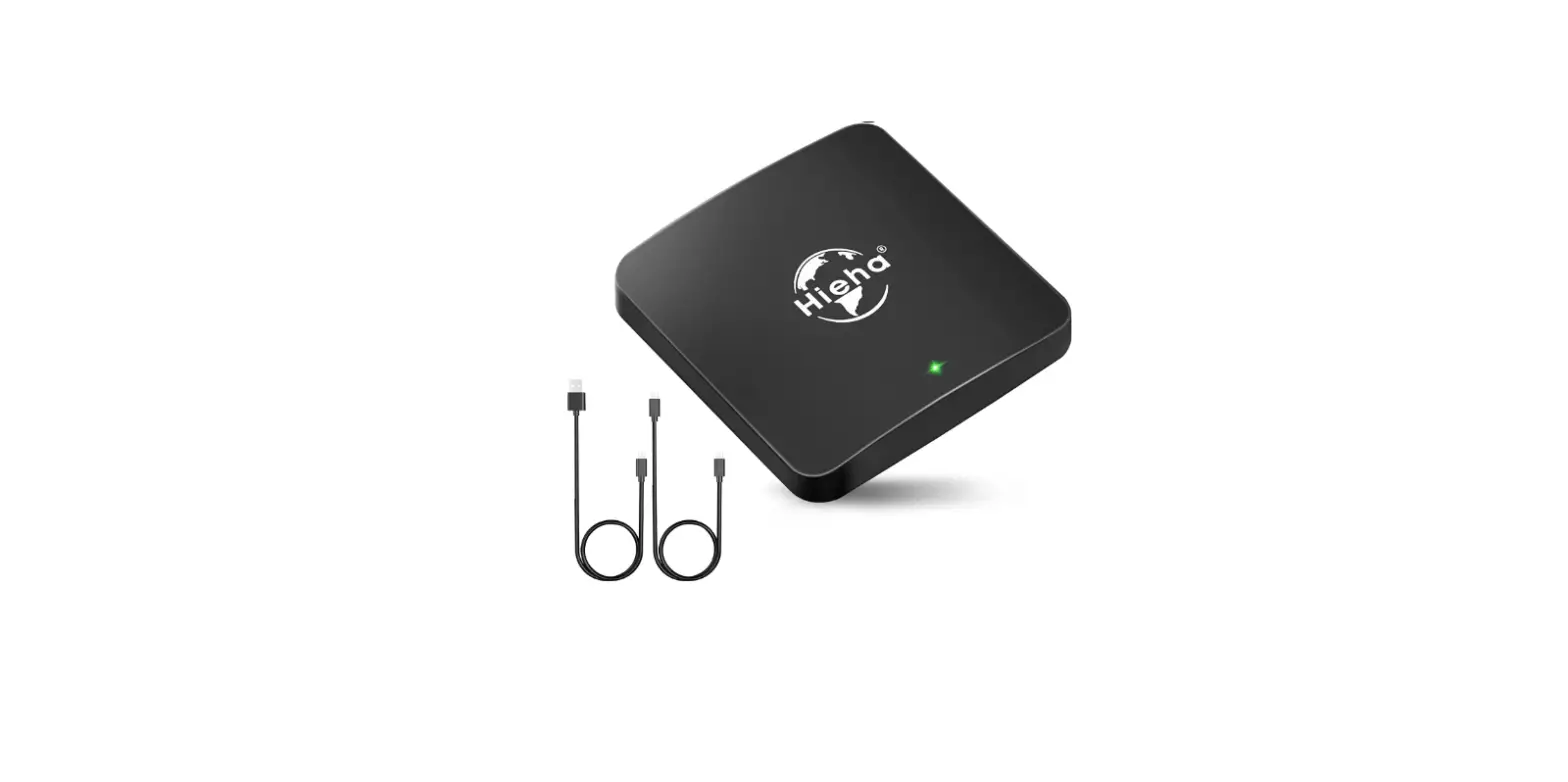
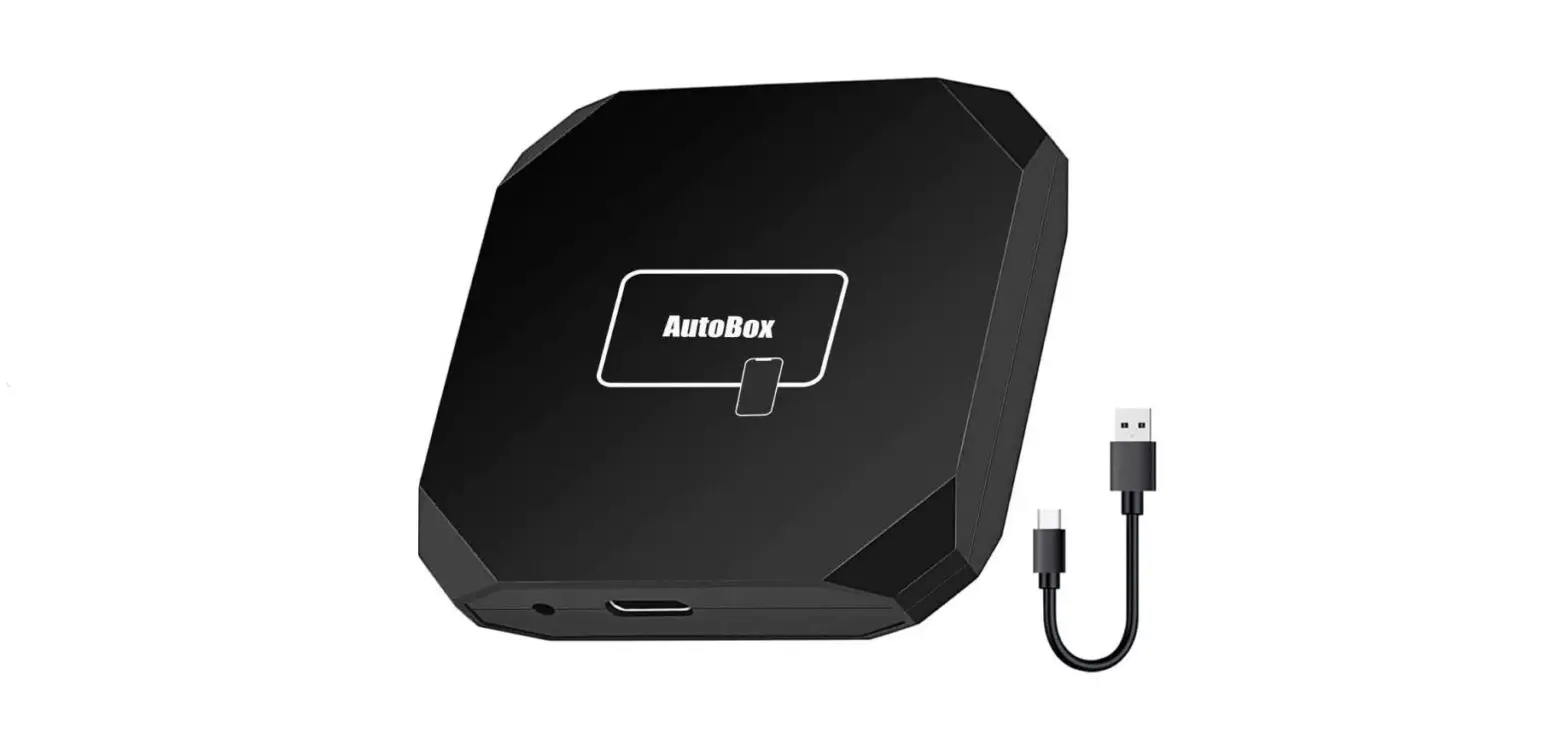
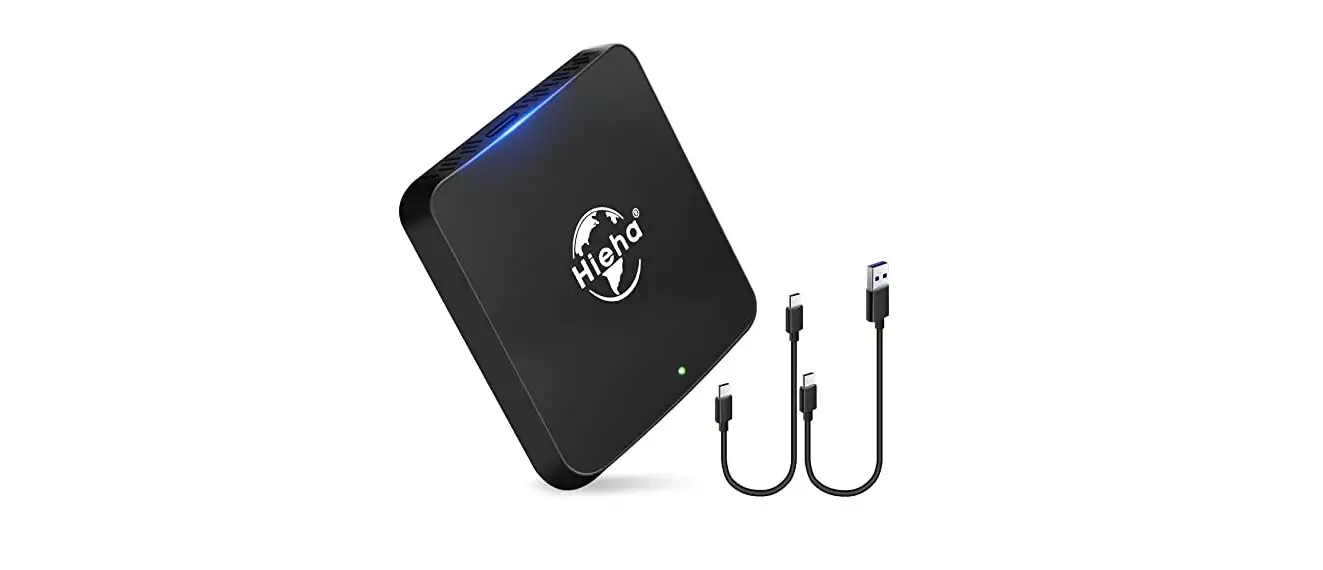
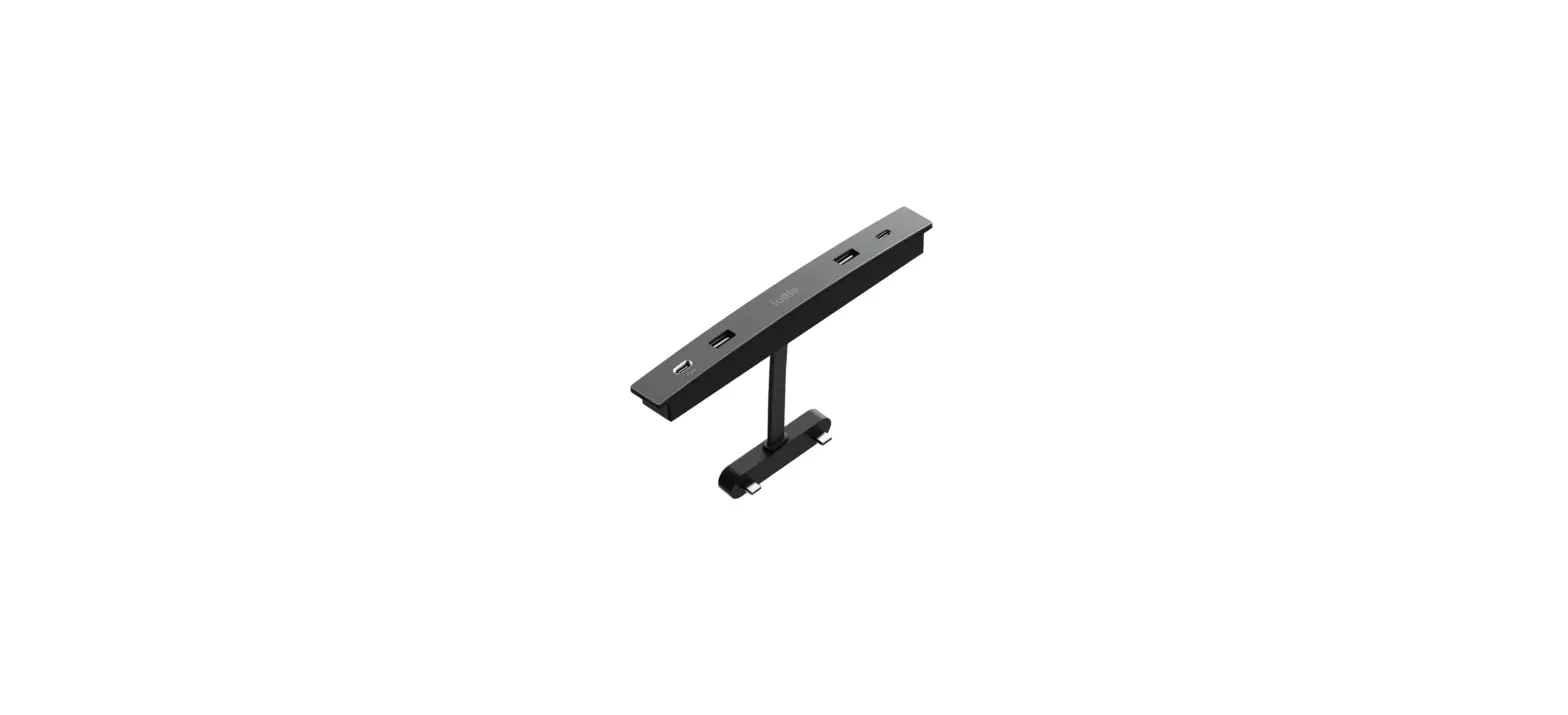
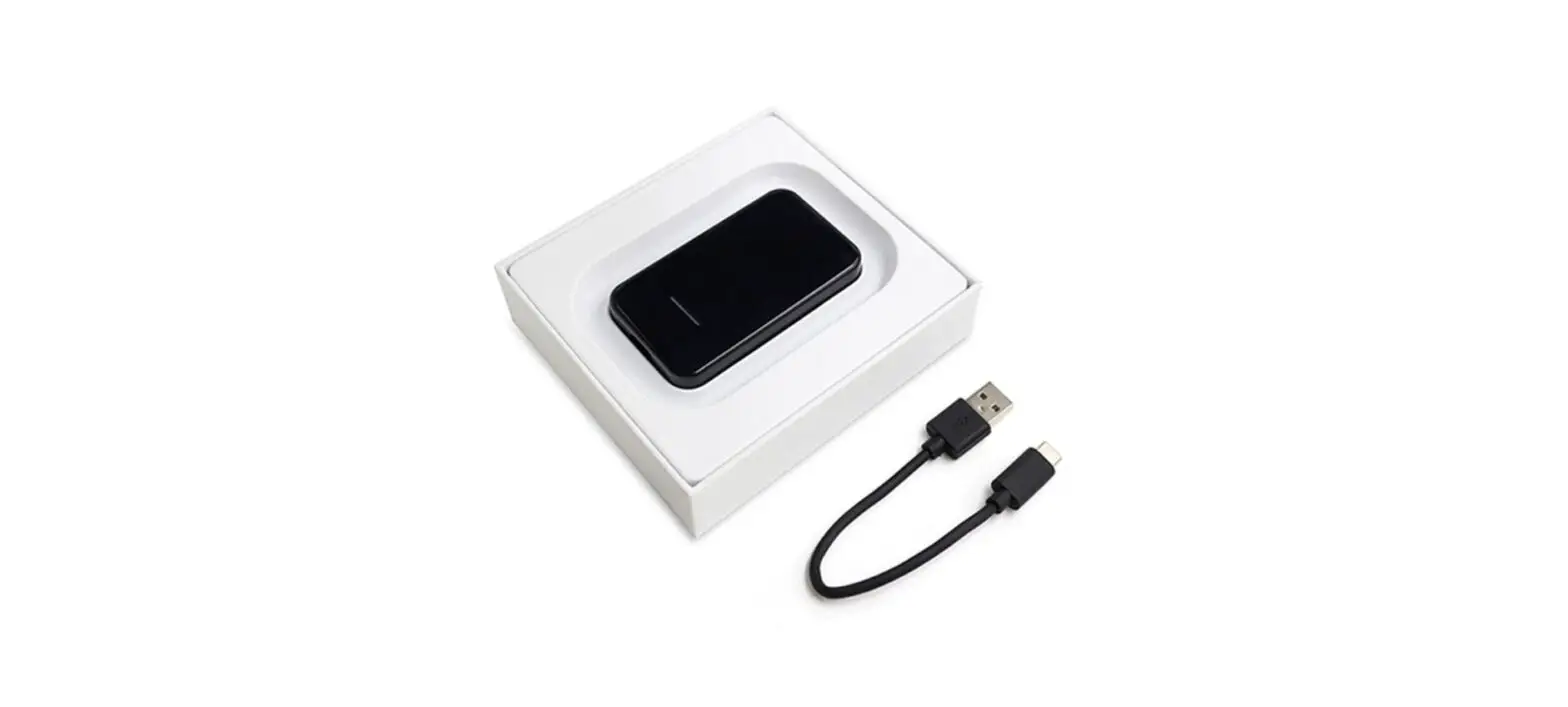
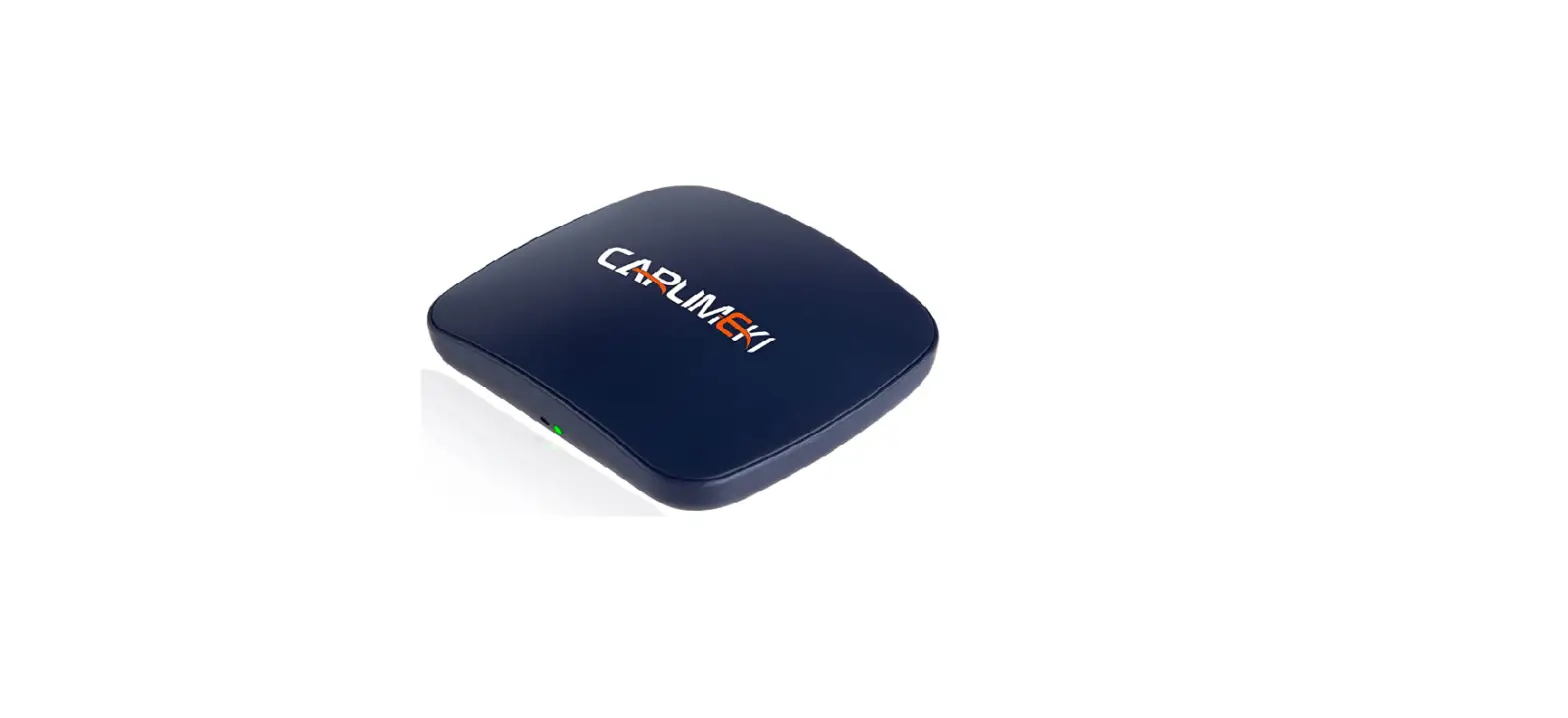
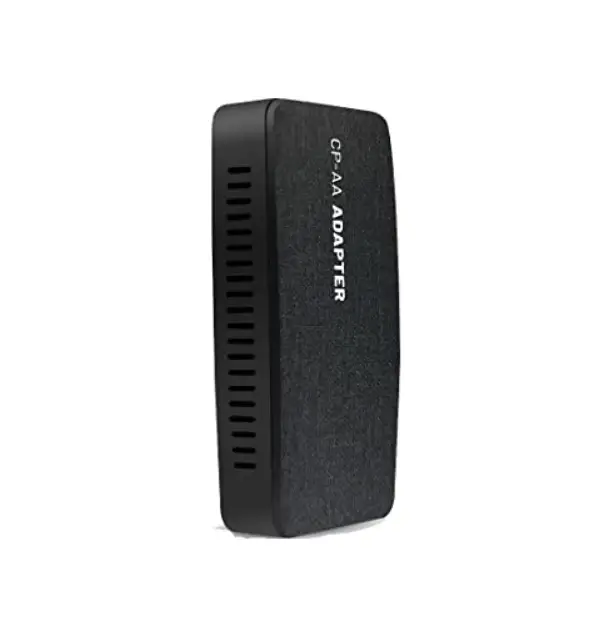
GPLINK2022 Wireless Ai CarPlay Dongle For Tesla
Product Information
The A i car Box is a product designed for Tesla cars that
support the browser function. It allows for wireless
Carplay/Android Auto (optional function) connectivity by simply
connecting the USB port of the original car. This product enhances
the driving experience by seamlessly integrating the online map,
phone, music, voice assistant, and center control screen of the
mobile phone, providing users with a safer driving experience.
Product Specification Parameters:
- Power input: 5V2A
- Power consumption: 5W
- Wifi band: 2.4G/5.2G/5.8G
- Bluetooth version: 5.0
- Mediation resolution: 1024 x 600
- Working environment: -20-60
- Product size: 67mm*104mm*22mm
Product Usage Instructions
Aicar Wireless Carplay Connection Instructions
- The Aicar box should be powered from the USB port of the
original car (or car charger) using the provided USB cable. - On the center control screen, click the Bluetooth icon and
search for Bluetooth. Find the Bluetooth name “Aicar–XXXX” and
make a pairing connection. - Follow the AI voice prompt of the box to establish the
connection. - Turn on the Wi-Fi and Bluetooth switches on your iPhone. In the
Bluetooth interface of the phone, find the Bluetooth name
“CPhoneXXX” and pair it to allow Carplay usage. - On the center control screen, click the car icon in the lower
left corner. In the setting menu, click the Wi-Fi icon in the upper
right corner. The box Wi-Fi name “AicarXXX” will be automatically
detected. Enter the password “68686688”. - Open Wi-Fi Settings and select the connected box’s Wi-Fi name.
Ensure “Remain connected in Drive” is checked. - Find the browser on the center screen, enter the URL
“https://aicarpush.com” in the address bar. - In your mobile terminal Settings, go to General > About >
Name and change the default name to “CPhoneHot”. - In your mobile terminal Settings, go to Personal Hotspot and
open “Allow Others to Join”. Change the WLAN Password to “68686688”
(iPhone 12 or above models must open “Maximize
Compatibility”).
Tips for Reconnecting Wireless Carplay
After getting on the bus, turn on the mobile phone hotspot again
and stay in the mobile phone hotspot interface. Ensure that the
mobile phone Wi-Fi and Bluetooth are turned on.
Aicar Android Auto Connection Instructions
- Before connecting to wireless Android Auto while already
connected to wireless Carplay, delete the paired Bluetooth
information in the settings – Bluetooth of the box.
EQ Setting Description
Carplay supports EQ sound quality adjustment to present perfect
sound quality and adjust different styles according to personal
preferences. In the Carplay interface, select the white rectangle
on the right, then select the setting icon, followed by the Audio
interface. Finally, select the EQ interface.


User Manual
A i car Box
Product Function Overview
This product is suitable for Tesla cars that support the browser function. It only needs to connect the USB port of the original car to realize the wireless Carplay/Android Auto (optional function) function, which can better seamlessly interact the online map, phone, music, voice assistant and center control screen of the mobile phone. To provide users with a safer driving experience
Product specification parameters
Power input: 5V2A Power consumption: 5W wifi band: 2.4G/5.2G/5.8G Bluetooth version: 5.0 Mediation resolution: 1024 x 600 Working environment: -20-60 Product size: 67mm*104mm*22mm
Box port description
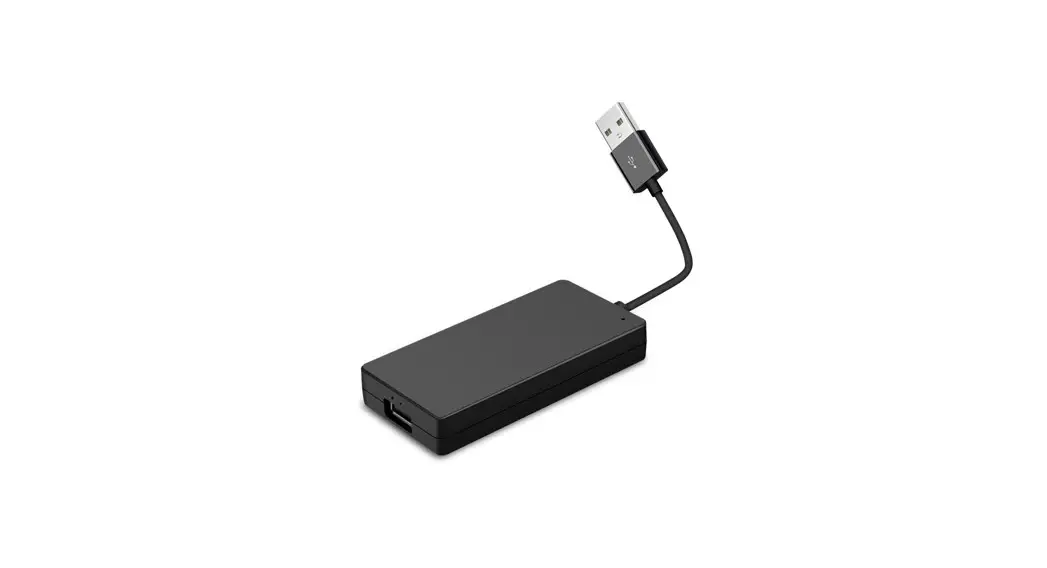
The USB port only applies to the local upgrade of the USB flash drive, and cannot be used for power supply
LED indicator description
LED1- System indicator: The indicator blinks slowly, it indicates that the system is in standby stateThe indicator is on all the time,it indicates that Carplay’s Bluetooth is connected LED2- Hotspot network indicator:The indicator blinks slowly, it indicates that the device is in standby state;The indicator is on all the time, it indicates that hotspot is connected LED3- Power indicator:The indicator is on all the time, it indicates that power supply is normal LED4- Bluetooth indicator: The indicator slowly blinks, indicating standby state;The indicator is on all the time, it indicates that Bluetooth connection is successful
Suitable for cars and mobile phones
Suitable for carsTesla with browser function iPhone: It supports iPhone8 and later models Android phoneAndroid phone with Android 11.0+
Aicar Wireless Carplay connection instructions
1. The Aicar box is powered from the usb port of the original car (or car charger) through the USB cable
2. Click the Bluetooth icon on the center control screen (Figure1), search for Bluetooth (Figure3), find the Bluetooth name is “Aicar–XXXX” (Carplay will have no sound if not connected to Bluetooth), and make a pairing connection (Figure4).
3.Follow the AI voice prompt of the box to connect
4.Turn on the wifi and Bluetooth switches of the iPhone, find the Bluetooth name of CPhoneXXX in the Bluetooth interface of the phone, and conduct pairing Allow use Carplay to check whether the wireless Carplay connection is successful (Figure5)
5. Click the car icon in the lower left corner of the center control screen (Figure1), the setting menu pops up, click the wifi icon in the upper right corner, and the box wifi name: AicarXXX will be found automatically, and the password: 68686688 will be entered
6.Open wi-Fi Settings (Figure1) Select wifi name of connected box (Figure 2) “Remain connected in Drive” must be checked (Figure2)
7.Find the browser on the center screen (Figure6), enter the browser, and enter the URL “https://aicarpush.com” in the address bar (Figure7).
8. Go to mobile terminal Settings General About Name, change the default name to “CPhoneHot”
9.Go to the mobile terminal Settings Personal Hotspot, open the “Allow Others to Join”, change the “WLAN Password” to “68686688”, (iPhone12 or above models must open the “Maximize Compatibility”)
Figure1 Figure3 Figure5
Figure 2 Figure4
Figure6
Figure7
Tips for reconnecting wireless Carplay: After getting on the bus, turn on the mobile phone hotspot again and stay in the mobile phone hotspot interface. The mobile phone wifi and Bluetooth should be turned on
Aicar Android Auto connection instructions
1. Use the USB port of the original car (or cigarette lighter) to power the Aicar box through the USB cable 2. Click the Bluetooth icon on the center control screen (Figure8), search for Bluetooth (Figure9), find the Bluetooth name is “Aicar–XXXX” (Carplay will have no sound if not connected to Bluetooth), and make a pairing connection (Figure10). 3. Through the box’s Ai voice to connect 4. Click the car icon in the lower left corner of the center control screen (Figure8), the setting menu pops up, click the wifi icon in the upper right corner, and the box wifi name: AicarXXX will be found automatically, and the password: 68686688 will be entered 5. Open wifi Settings (Figure8) Select wifi name of connected box (Figure11) “Keep connected during driving” must be checked (Figure 11).
6. Find the browser on the center screen (Figure12), enter the browser, and enter the URL “https://aicarpush.com” in the address bar (Figure13). 7. Select the switch button (the icon in the red box) on the connection interface of the box to switch to the Android Auto mode (Figure14). 8. Turn on the wifi and Bluetooth switches of the Android phone, find the Bluetooth name of CPhoneXXX on the Bluetooth interface of the phone, and connect the pair. Wait for the successful connection of Android Auto 9. Enter the Settings of the mobile terminal, change the name of the mobile phone hotspot to “CPhoneHot” , change the password of the mobile phone hotspot to “68686688” to open the mobile phone hotspot, the mobile terminal needs to ensure that the hotspot is always open
Figure8
Figure9
Figure 10
Figure 11
(Figure12)
(Figure13)
(Figure14)
Note:If you are connected to wireless Carplay and now connect to wireless Android auto, you need to delete the paired Bluetooth information in the setting – Bluetooth of the box before pairing and connecting
EQ Setting Description
Carplay supports EQ sound quality adjustment to present perfect sound quality and adjust different styles according to personal preferences. In the Carplay interface, select the white rectangle on the right (Figure15) Select the setting icon (Figure16) Select the Audio interface (Figure17) Select the EQ interface (Figure18)
Figure15
Figure16
Figure17
Figure18
Instructions on steering wheel keys
Carplay interface operation instructions (only the left roller of the steering wheel is supported – Figure19) Call button description: 1. Answer the phone (Press the Confirm button of the wheel once) 2. Screen the call (Quickly double click the Confirm button on the scroll wheel) Siri button function description: Double click the Confirm button quickly in the Carplay interface (except the call interface) Function description of the up and down button: 1. Previous (push the roller to the left) 2. Next (push the roller to the right) Music pause function description: 1. Play (press the “confirm” button in the music interface) 2. Pause (Tap the Confirm button in the music screen)
Figure19
Online Upgrade Description
1.Aicar box automatically connects to mobile phone hotspot (refer to carplay connection method) 2. The car connects to the wifi of the Aicar box 3. Open “https://aicarpush.com” in the car browser. 4. Enter the connection setting interface and select Enter the setting interface (Figure20). 5. On the Settings screen, select System and then select System Info (Figure21). 6. Manual point detection and upgrade, if there is a new system update, will automatically download and update, keep the network unblocked (Figure22)
Figure20 Figure22
Figure21
Common problems coping strategies
Q1: The car cannot connect to the Aicar wifi, indicating “unable to join AicarXXX-unable to obtain IP address. Please check the DHCP server. A: 1. Check that the mobile phone hotspot can access the Internet normally, and wait 30 seconds before the car connects to Aicar wifi Q2: You can’t use Carplay when the car starts A: 1. Open wifi Settings (Figure1) Select wifi name of connected box (Figure2) “Keep connected during driving” must be checked (Figure2) Q3: The Aicar box still fails to connect to the mobile hotspot A: 1. The phone hotspot name is not changed to CPhoneHot (case sensitive) 2. The phone hotspot password is not set to 68686688. 3. Switch on the phone hotspot 4. Stay on the mobile hotspot screen Q5: Wireless Carplay connection failed A: 1. Check whether wifi and Bluetooth of the mobile phone are turned on; 2. Check whether Carplay exists on the car in the general setting of the mobile phone (if not, open Carplay in the Settings of the mobile phone – screen Time – Content & privacy Restrictions – allowed Apps) Q6: No sound when playing music in the Carplay interface A:1. The car is not connected to the Bluetooth of the Aicar box 2. If the mobile phone is connected to the Bluetooth of the original car, the connection needs to be disconnected (or select the Bluetooth channel of the original car on the mobile phone) 3. Wake up Siri Q7: The car cannot connect to the wifi of Aicar all the time, and the message “cannot join the wifi of AicarXXX, please check the password” is always displayed. A:1. Check that the mobile phone hotspot can access the Internet normally. It is better to switch on the mobile phone hotspot 2. Click the left button of the wheel roller to reset the box wifi 3. Quickly double-click the left button of the wheel roller to restart the box
Q8: The car can’t find the Aicar wifi or any other wifi A: The center control screen of the car needs to be restarted (long press the left and right rollers of the steering wheel at the same time for 3 seconds to restart). Q9:After Carplay is successfully connected to the mobile phone, the wireless Carplay cannot be automatically connected after the mobile phone wifi is turned off A: You have to reconnect the Bluetooth on your phone Q10: When the box updates the system, the web address of the history cannot be accessed in the browser A: After the box is updated, you need to delete the history in the browser and enter the URL “https://aicarpush.com” again. Q11: When the box operation is very slow, the operation delay is very large A: Check whether the original car system is downloading and updating, or switch gears at this time, it is easy to have the above problems. You need to wait patiently for the original car system to download and update, and the problems will disappear automatically
Warranty Card
Product Purchase Date Distributor Name
Name Phone Problem Description
Product Information Customer Information
Warranty Description (The warranty scope is only for the main engine without accessories)
Dear customer, thank you very much for your purchase of our products, which have passed strict quality testing. According to the warranty description of this warranty card, you can enjoy one-year warranty service within one year since you purchase this product. Under normal use, if you encounter product quality problems, you will be provided with warranty service within the warranty period
FCC Caution: This device complies with part 15 of the FCC Rules. Operation is subject to the following two conditions: (1) this device may not cause harmful interference, and (2) this device must accept any interference received, including interference that may cause undesired operation.. Any changes or modifications not expressly approved by the party responsible for compliance could void the user’s authority to operate the equipment. NOTE: This equipment has been tested and found to comply with the limits for a Class B digital device, pursuant to Part 15 of the FCC Rules. These limits are designed to provide reasonable protection against harmful interference in a residential installation. This equipment generates, uses and can radiate radio frequency energy and, if not installed and used in accordance with the instructions, may cause harmful interference to radio communications. However, there is no guarantee that interference will not occur in a particular installation. If this equipment does cause harmful interference to radio or television reception,which can be determined by turning the equipment off and on, the user is encouraged to try to correct the interference by one or more of the following measures: — Reorient or relocate the receiving antenna. — Increase the separation between the equipment and receiver. — Connect the equipment into an outlet on a circuit different from that to which the receiver is connected. — Consult the dealer or an experienced radio/TV technician for help. To maintain compliance with FCC’s RF Exposure guidelines, This equipment should be installed and operated with minimum distance between 20cm the radiator your body: Use only the supplied antenna. FCC ID: 2BARD-GPLINK2022