 TRACcess eKEY App
Installation Guide
Choose a platform
How to Install the TRACcess® eKEY® Application
For Supra-Hosted Customers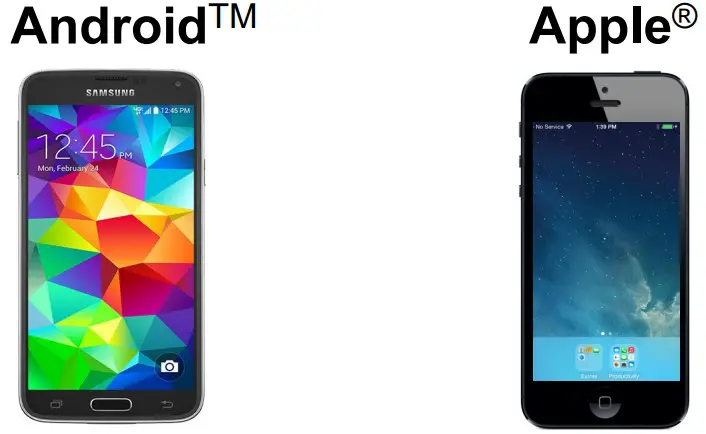
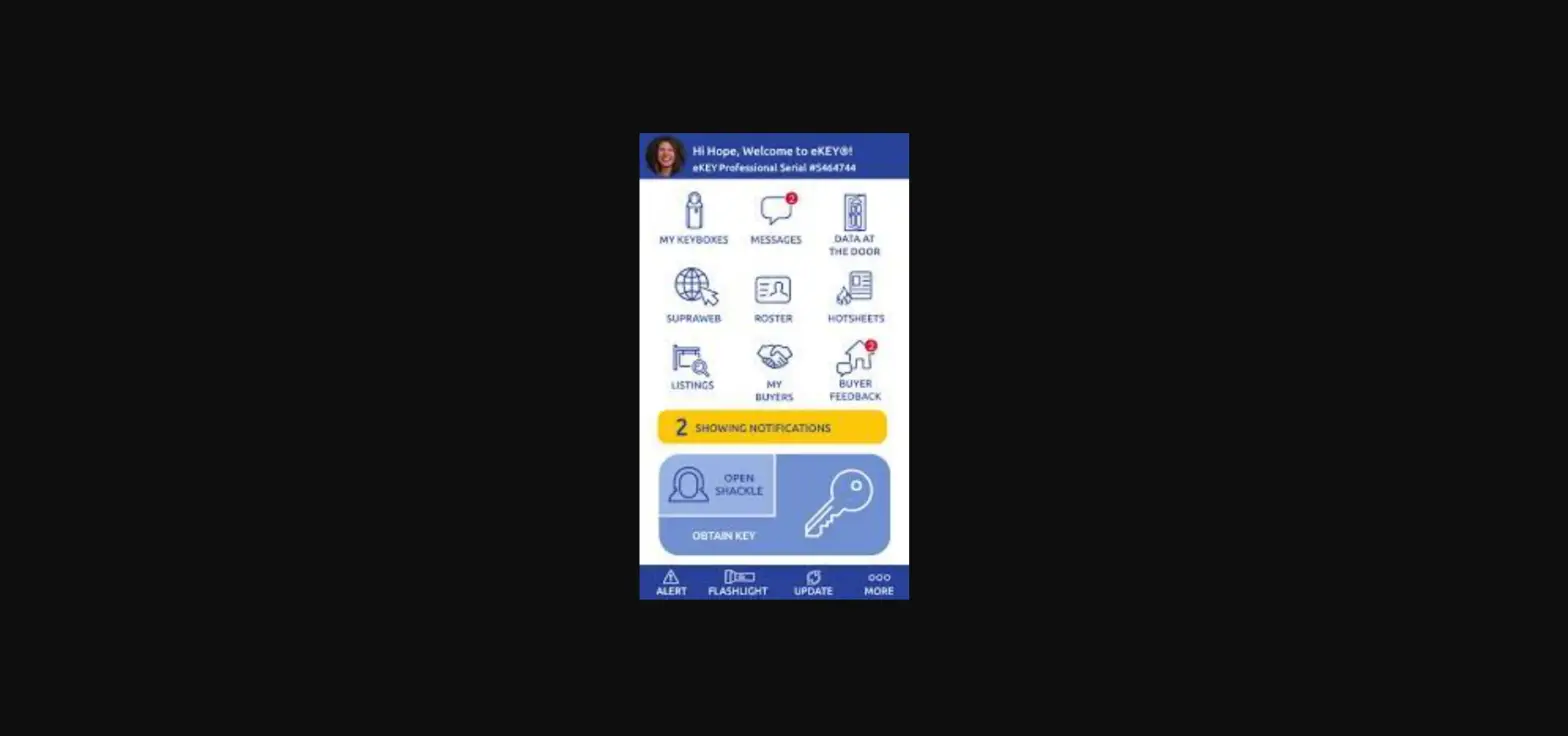
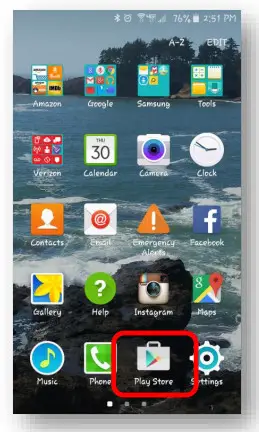
How to Install the TRACcess eKEY Application on an Android™
Android™
| 1 | Open the app store on your phone. |
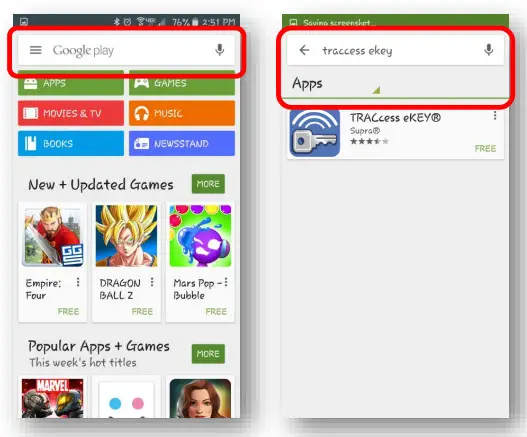
| 2 | In the search field type eKEY. |
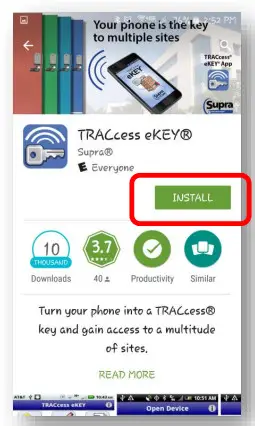
| 3 | Tap Install. |
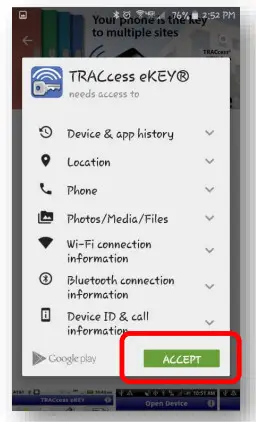
| 4 | Tap ACCEPT. |
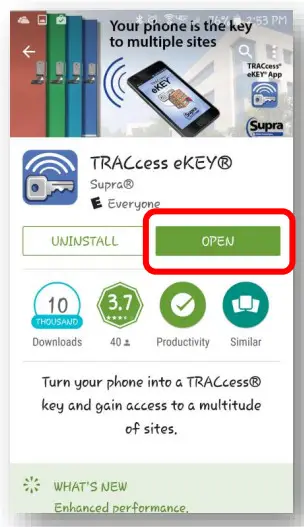
| 5 | Open the eKEY app. |
- Open the phone’s app store.

- Search for eKEY®.

- Tap Install.

- Tap ACCEPT.

- Open the eKEY app.

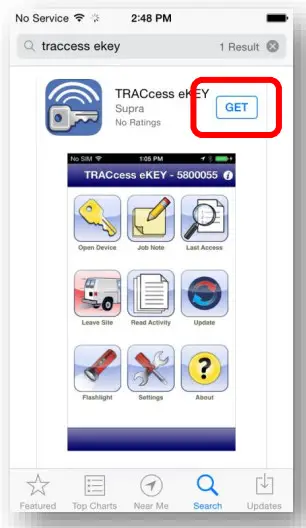
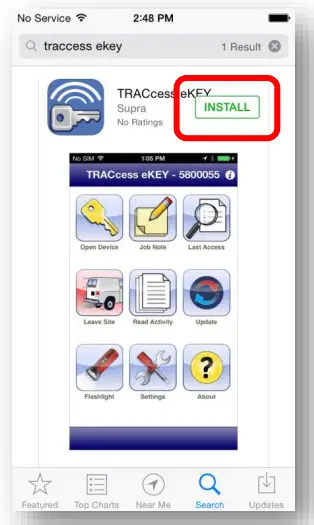
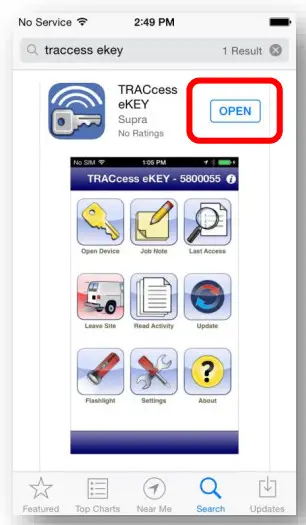
How to Install the TRACcess eKEY Application on an Apple® device
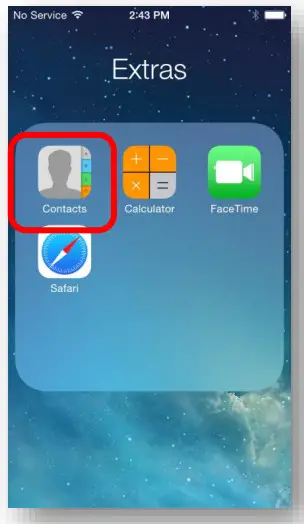
| 1 | Open the app store on your phone. |
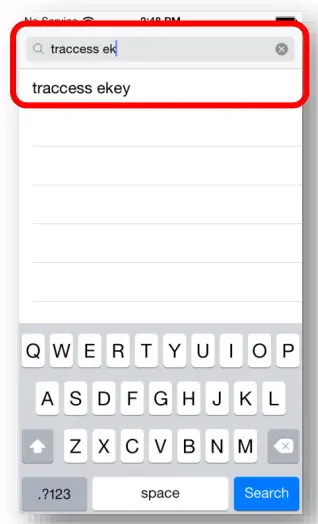
| 2 | In the search field type eKEY. |
| 3 | Tap Get. |
| 4 | Tap Install. |
| 5 | Open the eKEY app. |
- Open the phone’s app store.

- Search for eKEY®.

- Tap Get.

- Tap Install.

- Open the eKEY app.

For the latest information, visit us at
www.traccessmanager.com.
© 2022 Carrier. All rights reserved. Supra is a part of Carrier. TRACcess and eKEY are registered trademarks of Carrier. Other brand and product names are or may be the trademarks of, and are used to identify products or services of, their respective owners.
 TRACcess System Home | Supra