haptics Tactal DK2 Haptic Mask for
Face User Guide
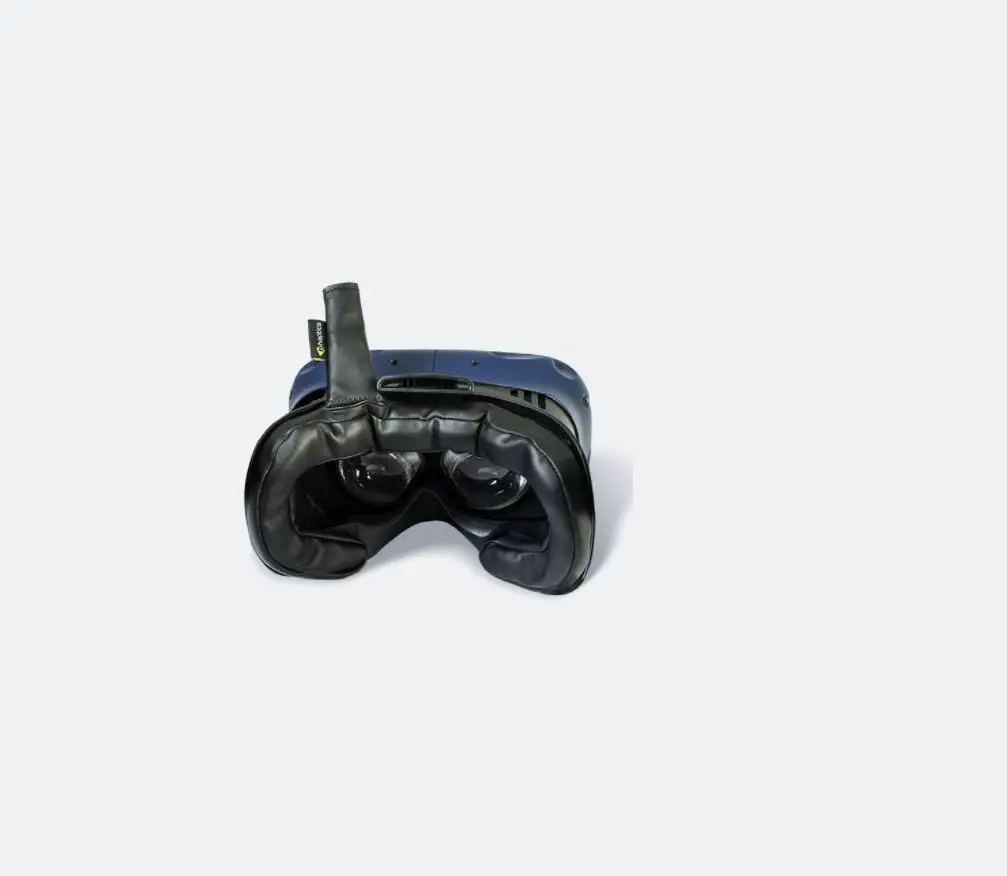
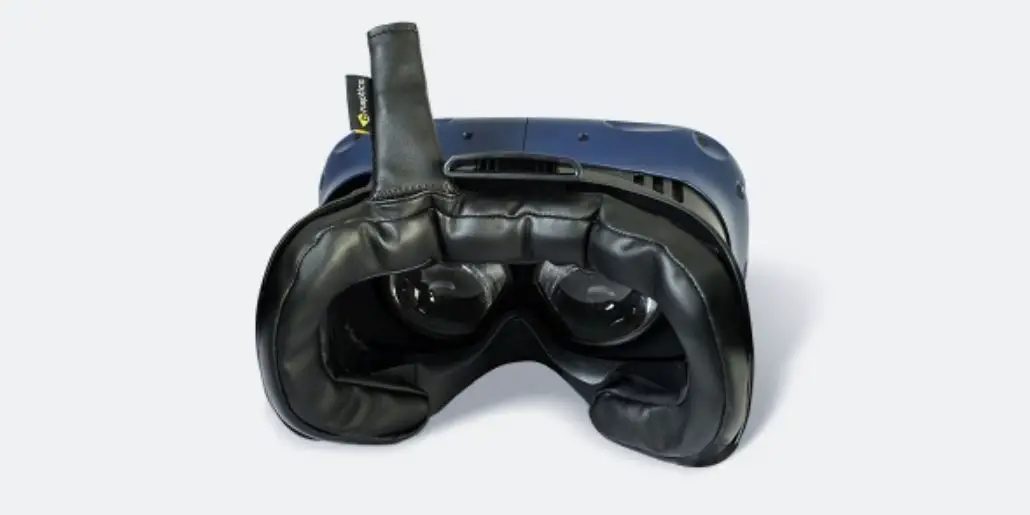
Tactal is a haptic cushion attachable to a HMD that provides haptic feedback on your forehead surface. Using a total of 6 discrete vibro-tactile motors, it creates a continuous form of tactile sensation. It aims to enhance the user’s experience in an audio-visually immersive environment.
Model Tactal DK2
Size Outer: 22 x 10.5 cm (8.7″ x 4.1″) / Inner: 17 x 5.5 cm (6.7″ x 2.1″)
Weight 91g
Connection Bluetooth Low Energy technology
Battery 3.7V, 400mAh, 1.5Wh
Charging 5V, 200mA max
UNBOXING
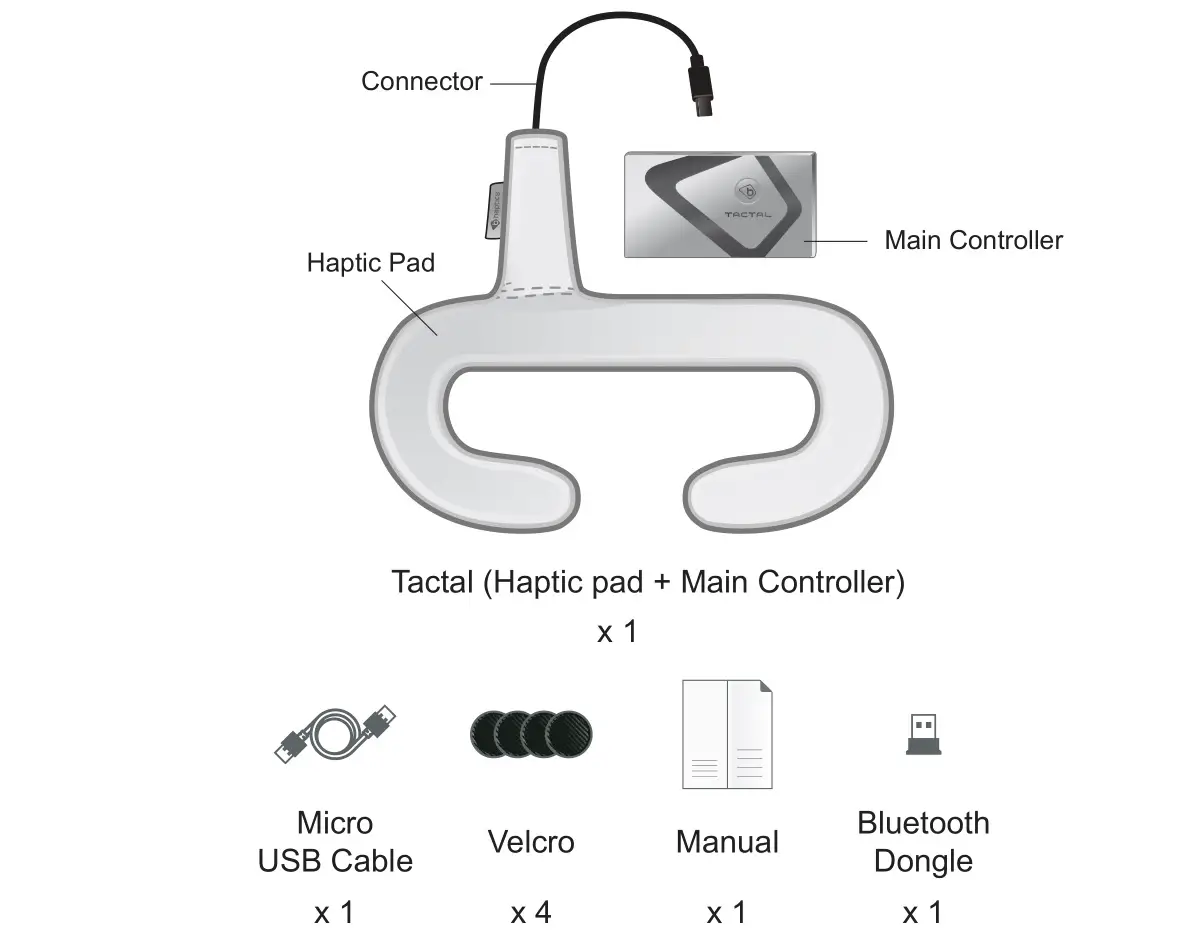
** The number of Bluetooth dongle and USB cables is subject to change once purchased.
Compatible devices

Tactal is optimized for the Vive model (Vive Vive Pro), Oculus, and Windows MR devices.
For other devices, it may be required to attach Velcro to the HMD face.
CONNECT
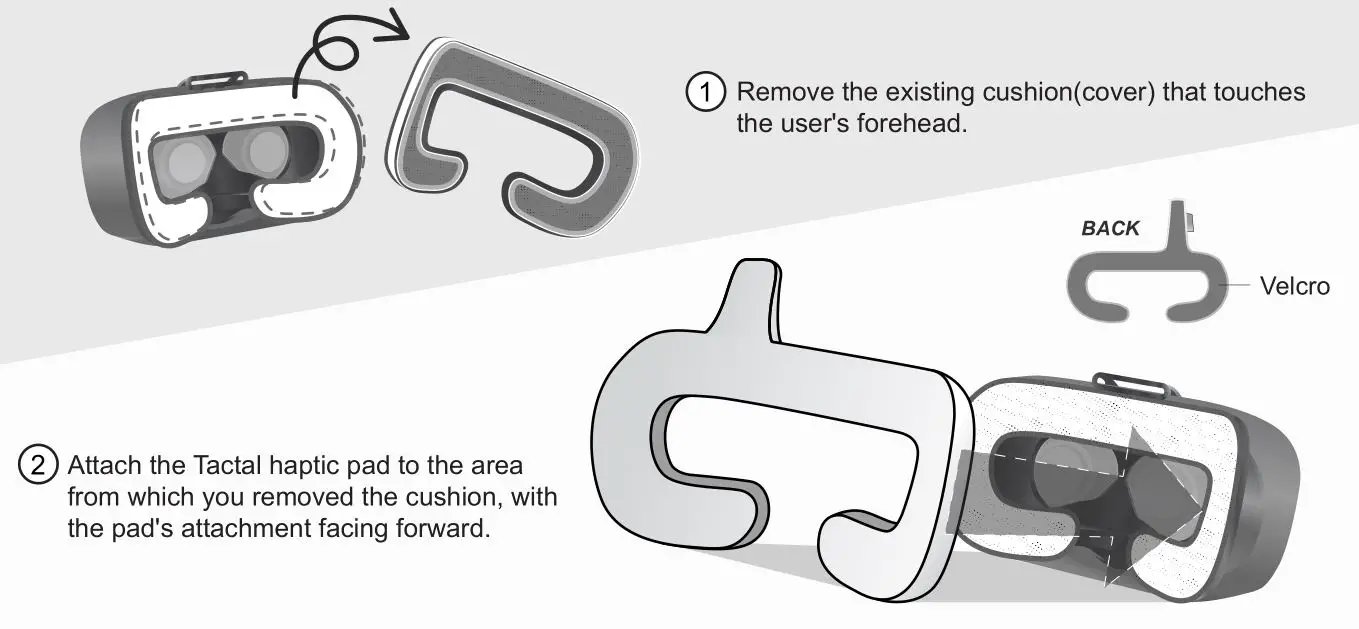
STEP 1 Attach Haptic pad to HMD
Remove the cushion (cover) inside the HMD unit and attach the Tactal haptic pad to the cushioned area.
STEP 2 Attach Main controller to HMD
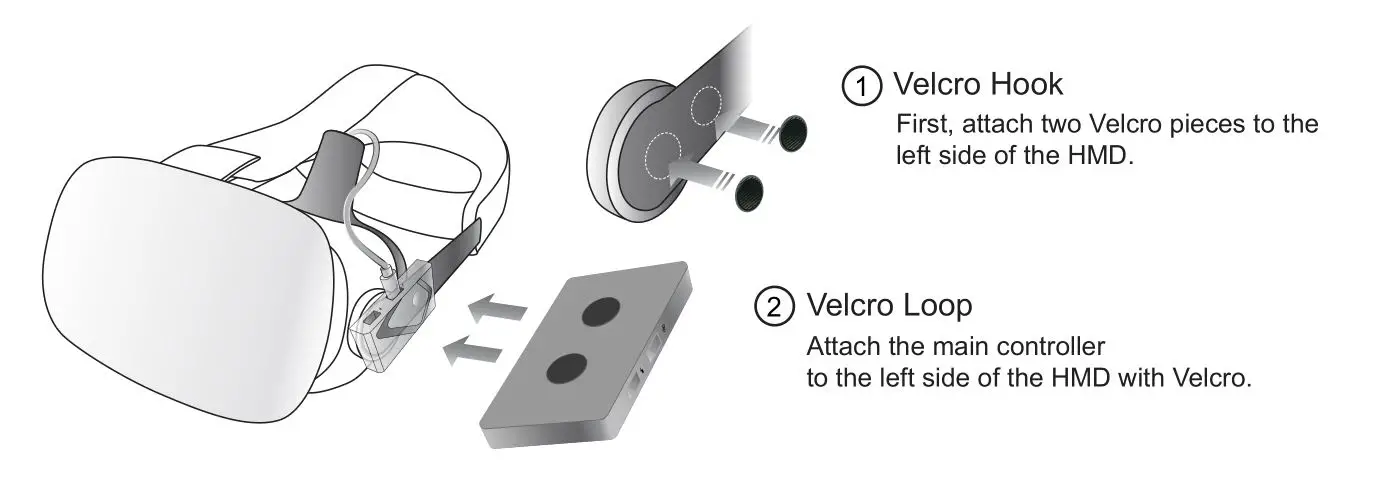
First, attach two Velcro hooks to the left side of the HMD. Then attach the main controller to the left side of the HMD using the two Velcro loops.
* Windows MR (Microsoft) attaches to the top of the front of the HMD device.
STEP 3 Connecting the device
Connect the connector of the haptic pad and the connection port of the main controller. Press the on / off button of the main controller to turn on the device. The device will blink to indicate it is ready for bluetooth connection.
* Vive’s HMD (available only in versions prior to Vive pro) has an extra USB port which can be used to maintain the device’s charge by connecting from the USB port in the headset to the Tactal’s main controller
section for charging.
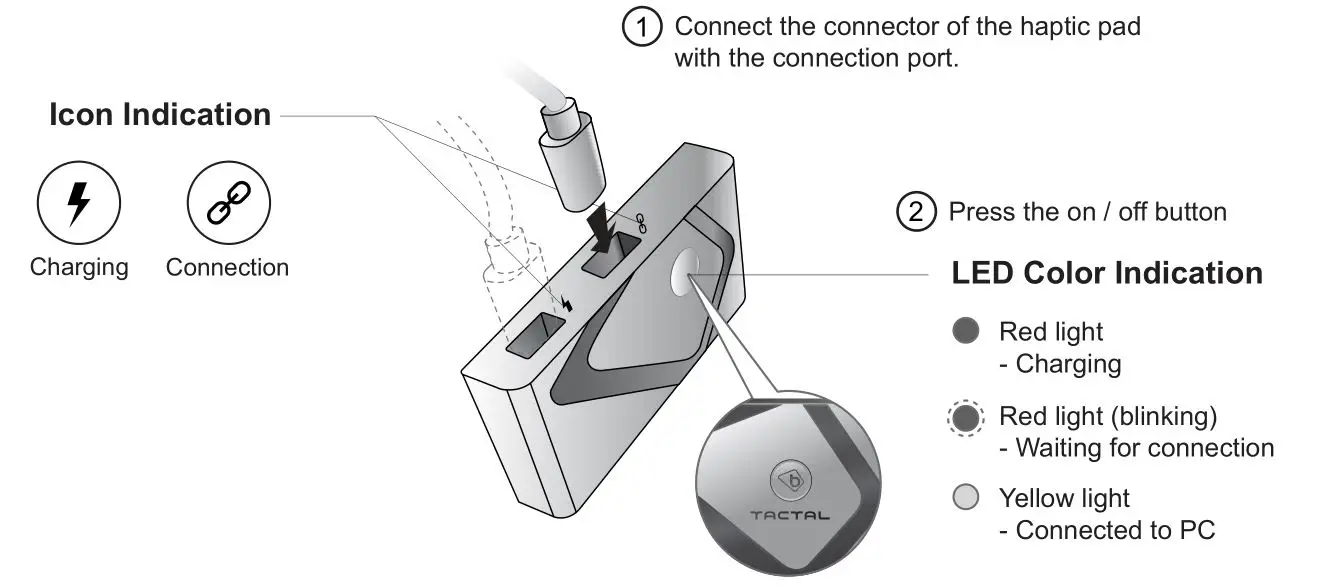
STEP 4 Wearing device
Wear the HMD the same as you would normally, being careful that the Tactal does not fall off the HMD and causing the connector to become taut.
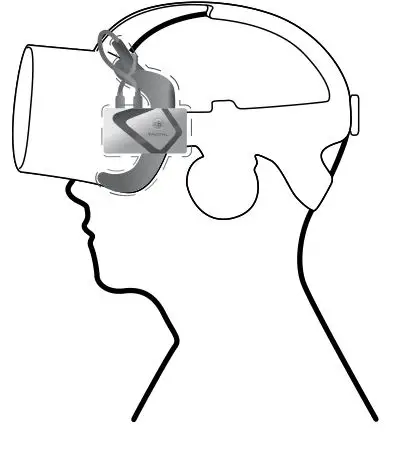
*Tips for use
– Using the bHaptics Player, users may test various vibration levels of vibro-tactile motors to optimize the Tactal experience.
– Keep track of the remaining battery through the bHaptics Player to prevent sudden shutdown of the Tactal.
PRECAUTIONS
Before using the Tactal, please read this manual carefully.
Safety and Warnings
- Keep this product out of reach of small children.
- Never disassemble or modify the product.
- Avoid tight connections of connectors.
- Do not apply excessive force to the button.
- Do not expose the device to extreme weather conditions.
- Put the device only on HMD units.
Care and Handling
- Do not throw, drop, or expose the device to physical impact.
- Keep the device from liquids, it is not water-resistant.
- Do not store the device in extreme cold or hot areas.
- Do not use chemicals or cleaning solvents on the device.
- Do not leave the device on charge when not in use, as overcharging may shorten the battery life.
CONNECTING THE DEVICE
 bHaptics Designer l Web-based haptic feedback editing tool. Utilizing this
tool, you can easily create a haptic feedback pattern without using a single line of code. Just like adding a subtitle to a video, you can add a haptic pattern to a video, a game, etc.
 bHaptics Player l Desktop software, used for the optimization and control of your experience with TactSuit. Acting as a link between the device, application, and the bHaptics Designer, it controls the bluetooth connections, device settings, and more.
 bHaptics Plugin l We support plugins for Unity3D and Unreal Engine, which can be found in the Asset Store and Marketplace. Please refer to the plugin manuals for how to use them. For any other SDKs, please contact us directly.
BHAPTICS PLAYER
- Downloading software
Downloads for the bHaptics Player software are available on our website www.bhaptics.com. - Pairing
With the device and PC bluetooth turned on, and with the BLE dongle plugged into the PC, if needed,
find the Tactal icon on the Player interface. Right-click on the icon and click on the ‘pair’ button to find and pair the device. *Unpairing
If a device has been paired before, it will connect automatically when turned on.
To unpair, right-click on the paired device’s icon and select the ‘unpair’ button.
*Firmware update
When an update is available, a notification will pop up on the settings button.
The update can be found in the settings tab. Keep the firmware updated to its latest version. For more information visit our site. - Testing haptic feedback
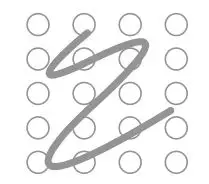
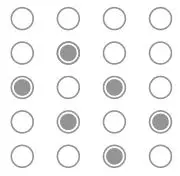
The draw function can be found in the settings tab.
Path Mode
Dot Mode
- Enjoy and feel the next-generation haptic suit.
*To use the Designer, enter the URL(https://designer.bhaptics.com) on your PC and Log-In.
(Sign-up is required)
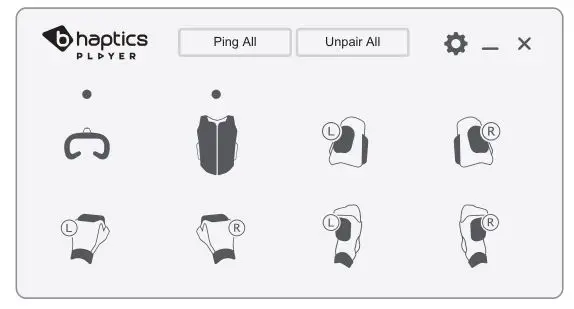 *Unpairing

Contact our email for customer support.
[email protected] / www.bhaptics.com
© 2018 bhaptics.Inc All rights reserved