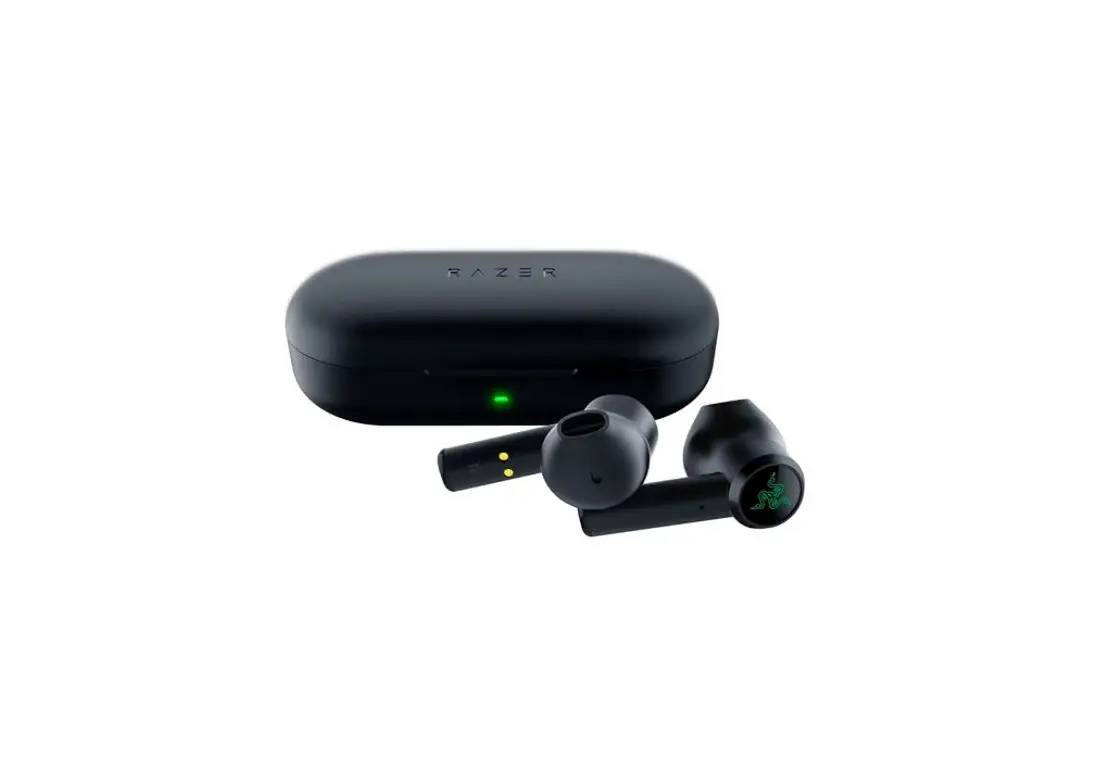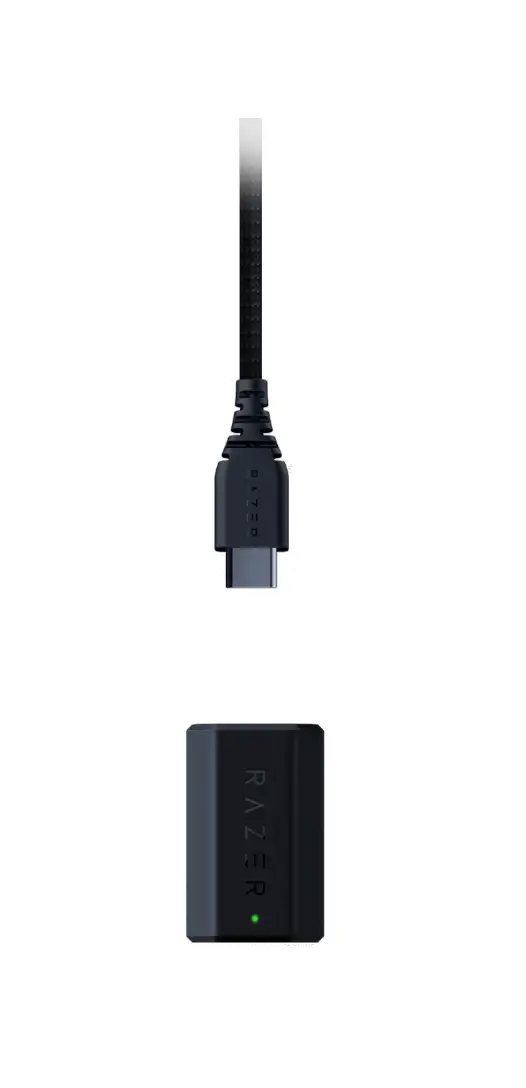
RAZER RC30-04410 HyperPolling Wireless Dongle

WHATS INSIDE
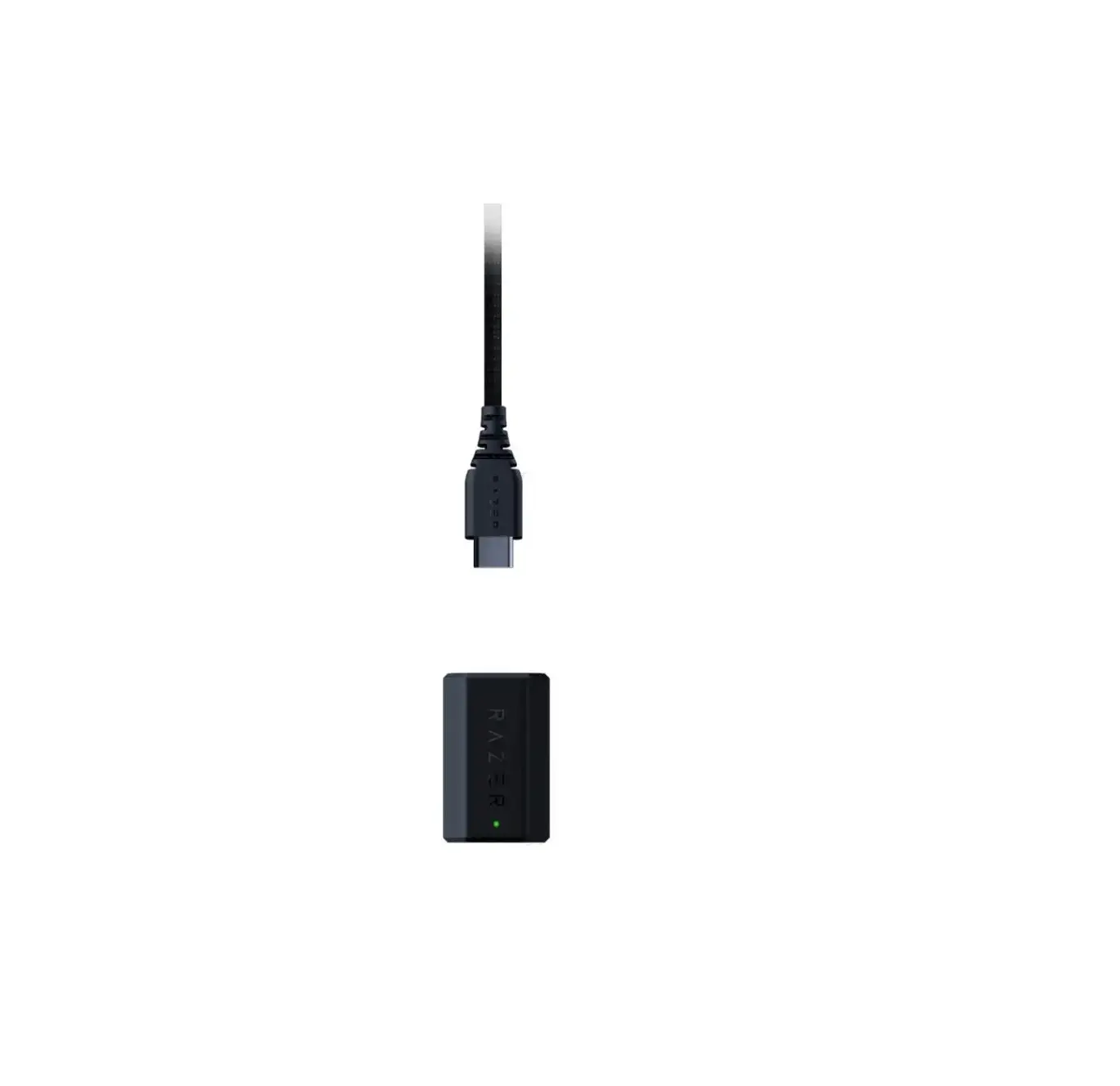
- Razer Hyper Polling Wireless Dongle

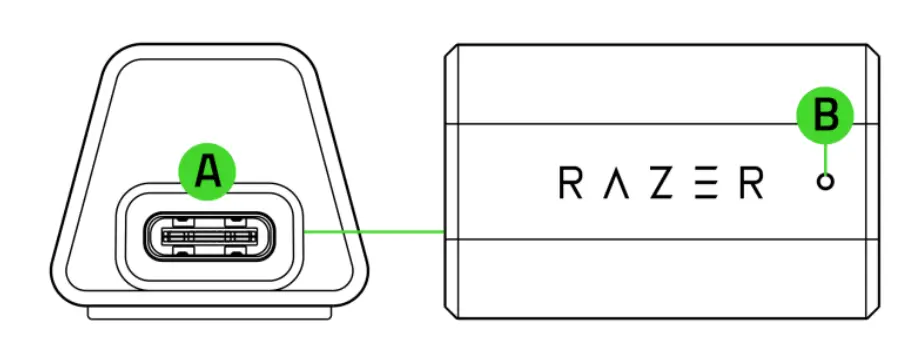
A. Type C port
B. Indicator LED*
*Indicator disptav can be customized to show connection status (default) or batterv status with a
low-batterv warning using the Razer Svnapse opp.
- Important product information guide
WHATS NEEDED
PRODUCT REQUIREMENTS
- Type A port
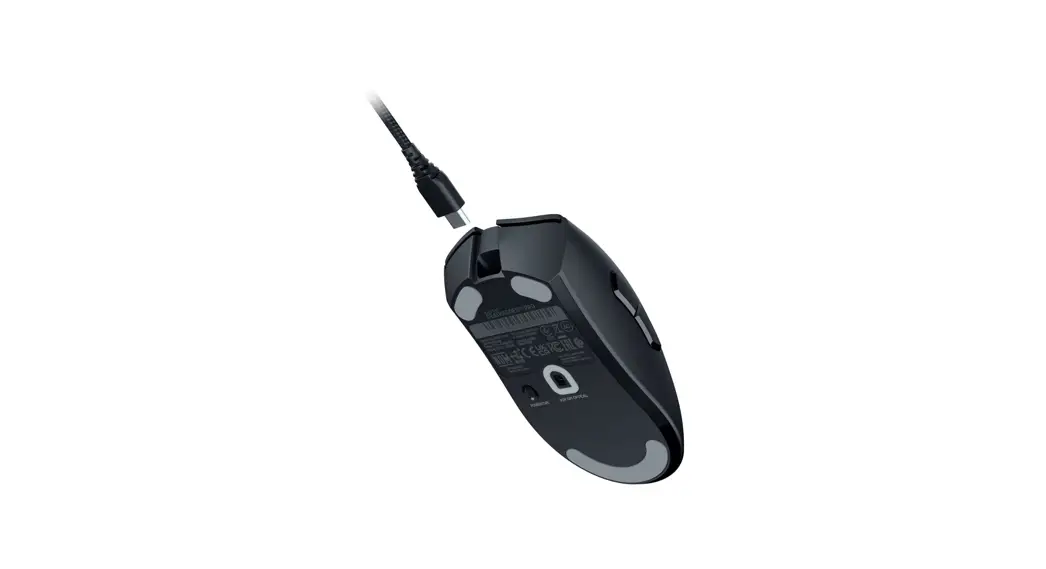
- Type A to Type C cable (included with your Razer mouse)
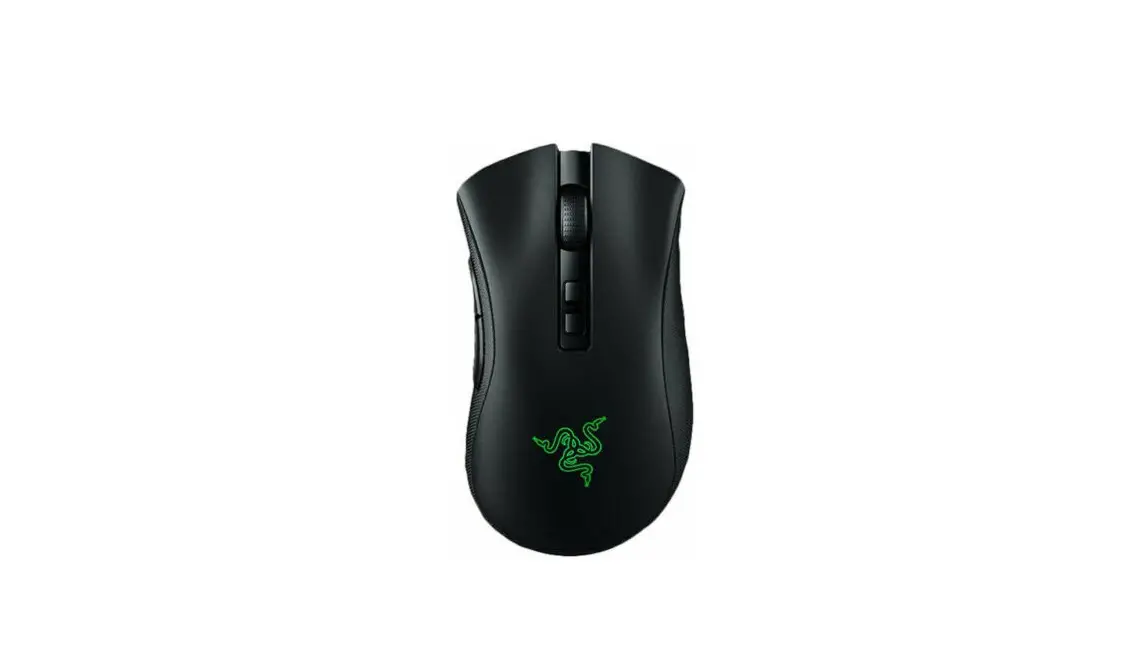
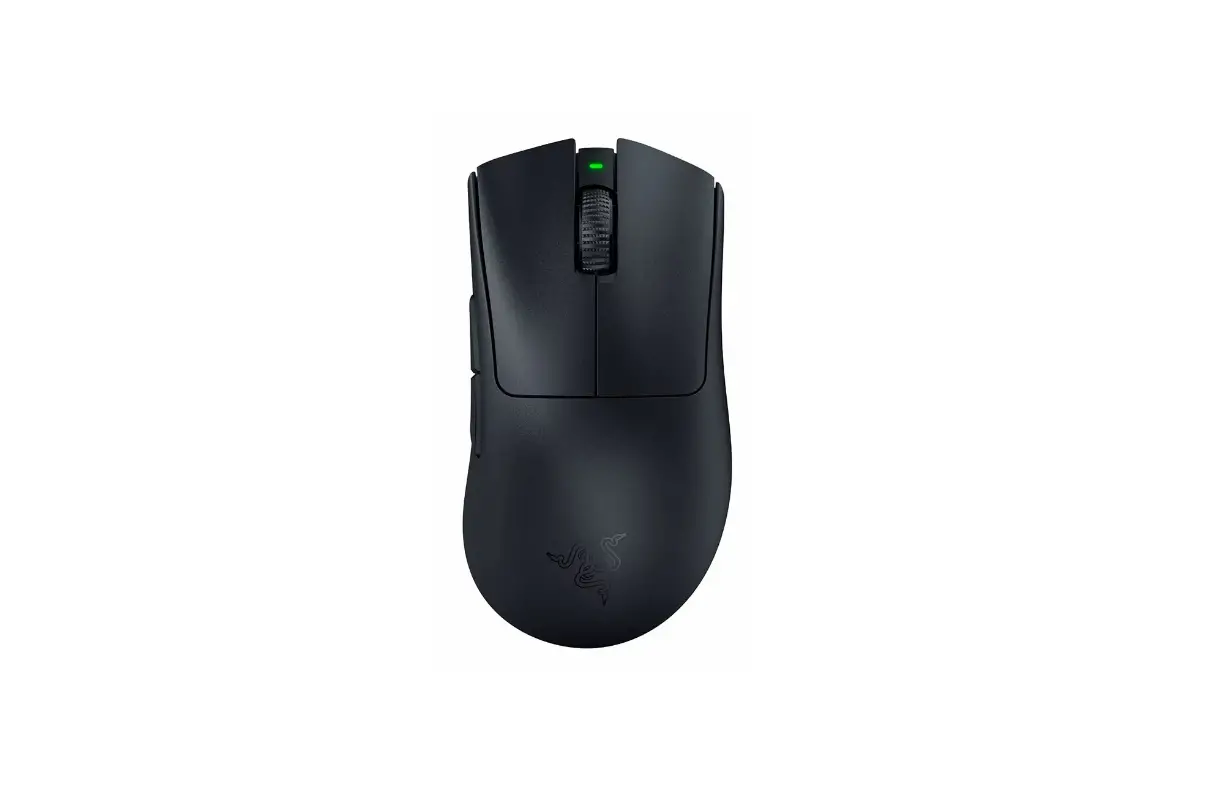
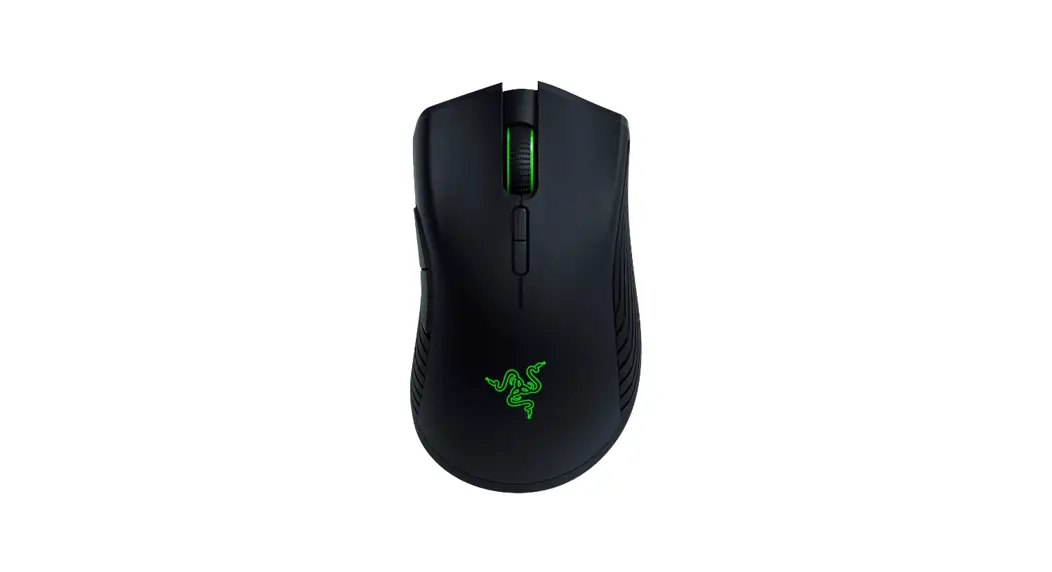
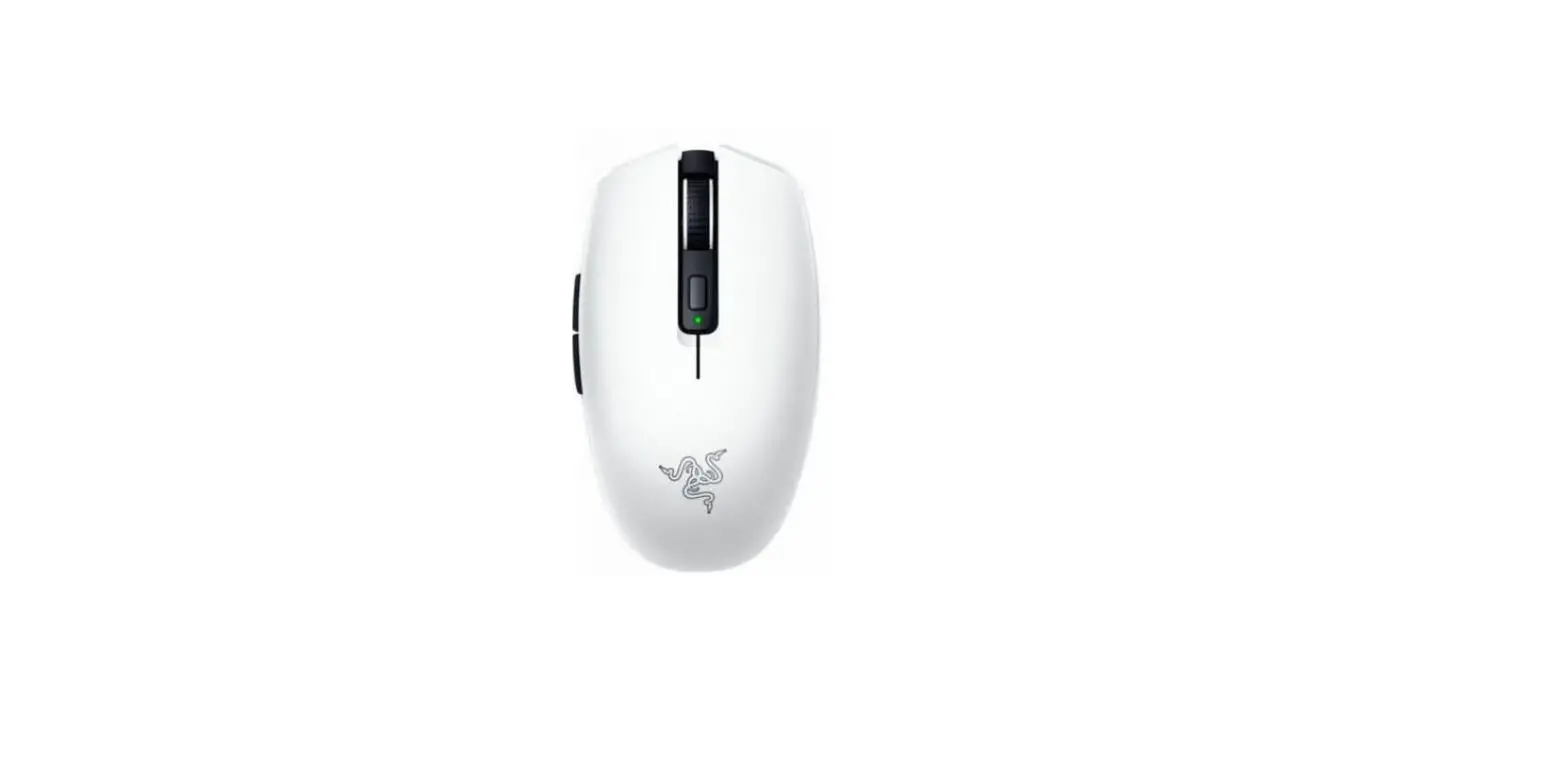
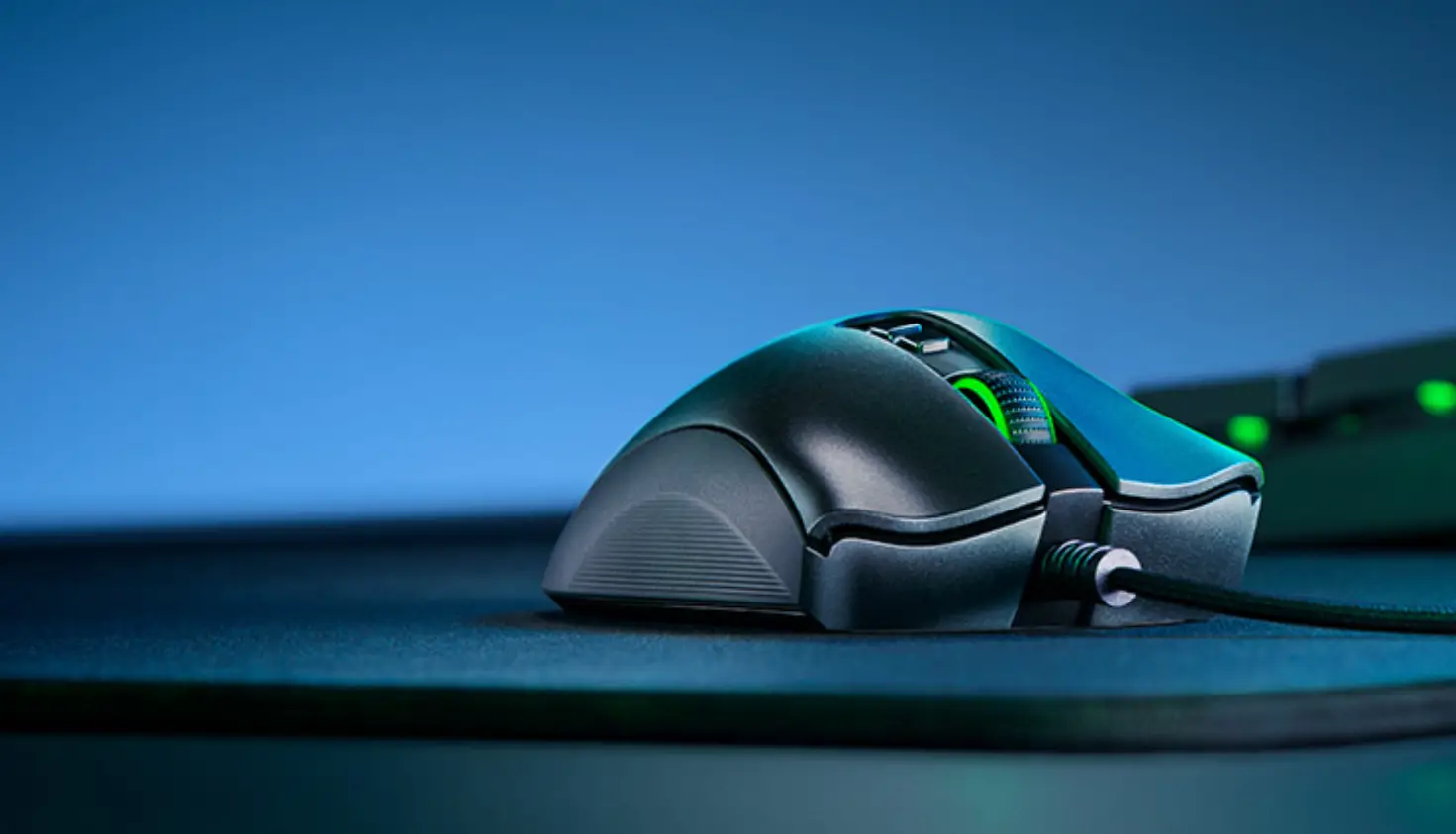
- Razer HyperPolling Wireless supported mouse*
RAZER SYNAPSE REQUIREMENTS
- Windows® 10 64-bit (or higher)
- Internet connection for software installation
**For an updated list of compatible Razer mice, visit rzr.to/hyperpolling
LETS GET YOU COVERED
 Register your product and score exclusive benefits raze rid. razer.com/warranty
SETTING UP YOUR RAZER HYPERPOLLING WIRELESS DONGLE

- Install Razer Synapse when prompted or download the installer from razer.com/synapse and update it to its latest version.
- Set device pairing via Razer Synapse pairing interface.
CONFIGURING YOUR RAZER HYPERPOLLING WIRELESS DONGLE VIA RAZER SYNAPSE
 Internet connection is required for installation, updates, and cloud-based features. Registering for a Razer ID account is recommended but optional. All listed features are subject to change based on the current software version, the connected device(s), and supported apps and software.
SYNAPSE TAB
The Synapse tab is your default tab when you first launch Razer Synapse. This tab allows you to navigate the Dashboard subtab.
Dashboard
The Dashboard subtab is an overview of your Razer Synapse, where you can access all your Razer devices, modules, and online services.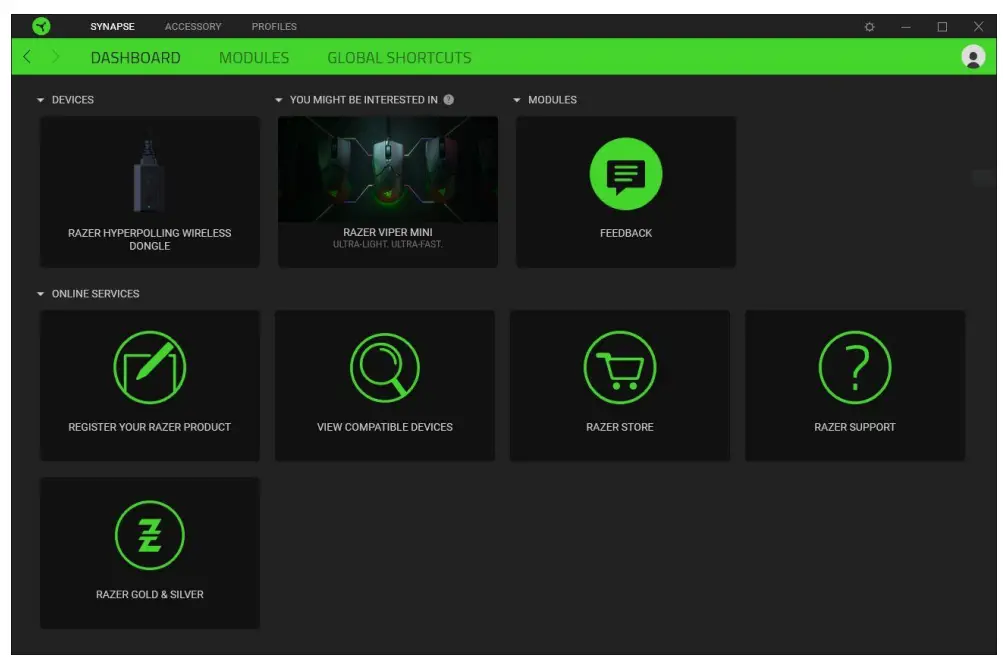 Modules
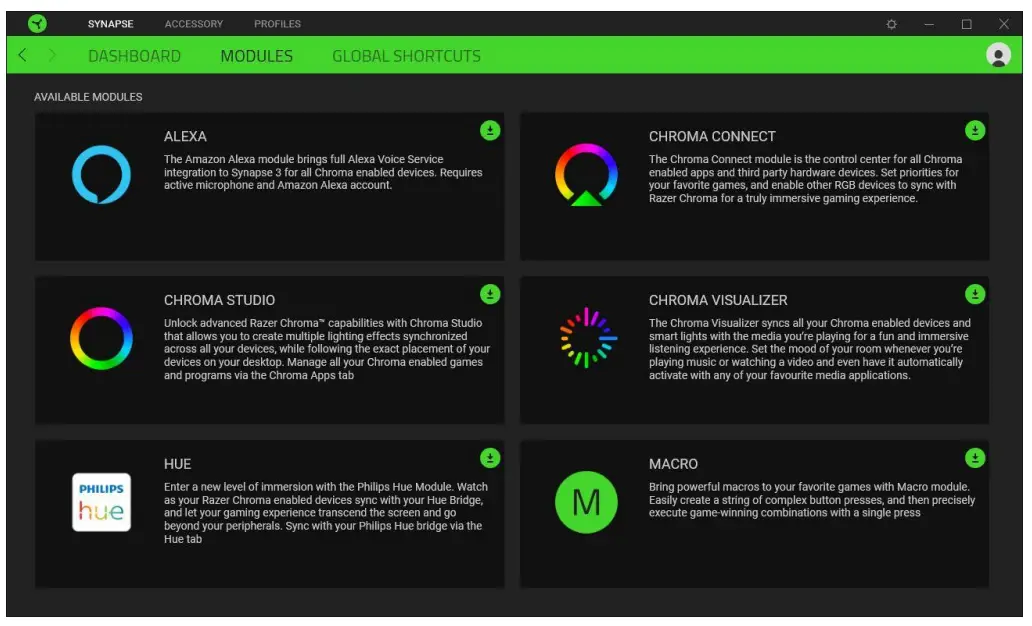
The Modules subtab displays all installed and available modules for installation. Global.
Global Shortcuts
Bind operations or Razer Synapse functions to custom key-combinations from any Razer Synapseenabled device inputs, which apply across all device profiles. Only Razer Synapse-enabled device inputs will be recognized.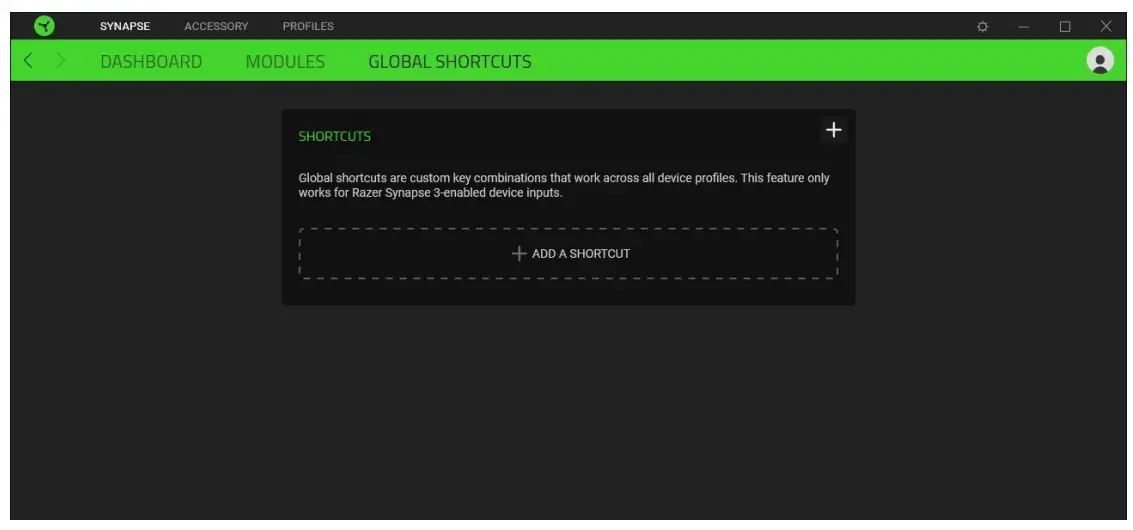
ACCESSORY TAB
The Accessory tab is the main tab for the Razer HyperPolling Wireless dongle. From here, you’d be able to pair the wireless dongle with your compatible Razer mouse and customize what the indicator LED of the wireless dongle shows.
Pairing
Use the Pairing tab to pair (or unpair) the wireless dongle with your compatible Razer mouse. To pair your compatible Razer mouse, launch the Pairing Utility and follow the on-screen instructions.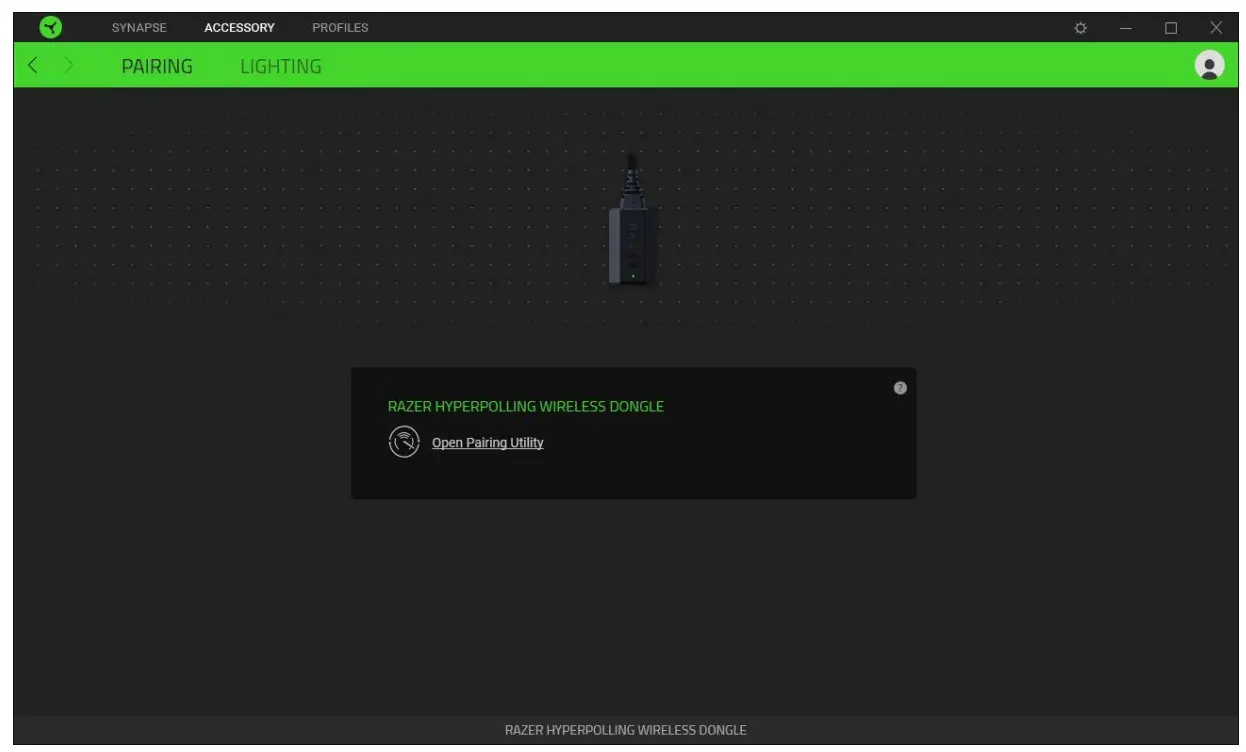
Upon pairing your wireless dongle with your Razer mouse, click on Configure Polling Rate to access the new polling rate options available in your Razer mouse. Alternatively, you can directly access your Razer mouse’s polling rate from its Performance subtab.
Lighting
Customize the wireless dongle to either indicate your Razer mouse’s connection or battery status or only indicate battery warnings when your Razer mouse needs charging.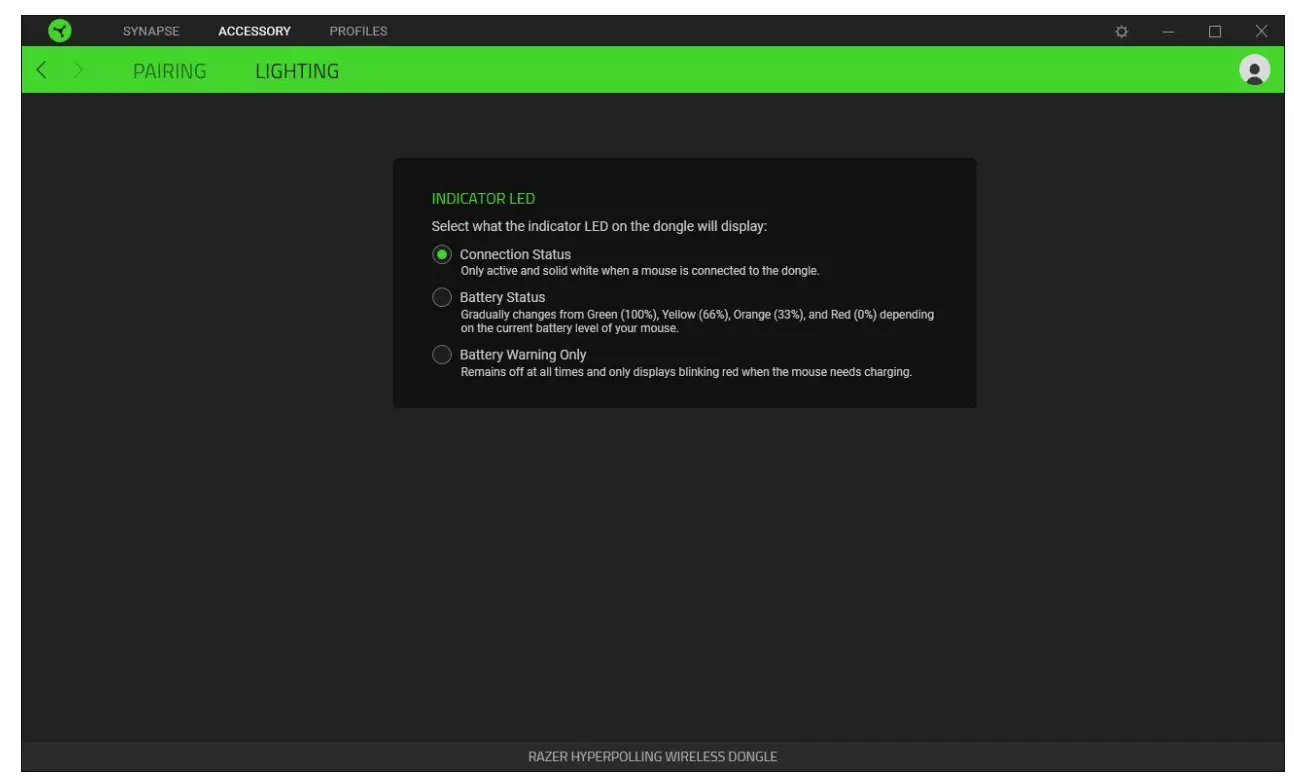
SETTINGS WINDOW
The Settings window, accessible by clicking the ( ◊ ) button on Razer Synapse, enables you to configure the startup behavior and display language of Razer Synapse, view the master guides of each connected Razer device or perform a factory reset on any connected Razer device.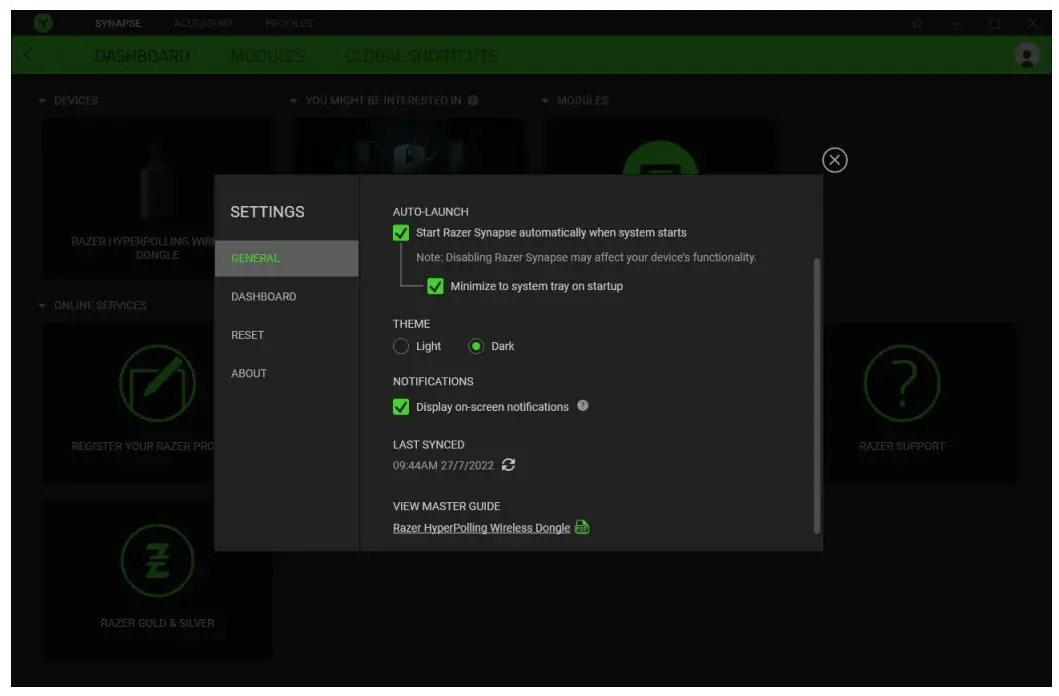
General tab
The General tab lets you change the software’s display language, startup behavior, theme, and onscreen notifications display. You may also manually sync your profiles to the cloud ( C ) or view the master guide of all connected Razer devices and installed modules.
Dashboard tab
Use the Dashboard tab to customize which Razer device recommendations based on your setup, and the games you play will appear on the Dashboard.
Reset tab
The Reset tab allows you to perform a factory reset on all connected Razer devices with on-board memory and/or reset Razer Synapse tutorials to acquaint yourself again with Razer Synapse’s new features on its next launch.
All profiles stored on the selected device’s on-board memory will be erased when you reset a Razer device.SAFETY AND MAINTENANCE
- Should you have trouble operating the device properly and troubleshooting does not work, unplug the device and contact the Razer hotline or go to support.razer.com for support.
- Don’t take apart the device, and don’t attempt to operate it under abnormal current loads. Doing so will void your warranty.
- Don’t use or place the device near water, moisture, or other wet surfaces.
- Don’t use or place the device near heat, naked flame, or other hot surfaces such as radiators, stoves, fireplaces, and candles.
- The device should only be used with compatible Razer wireless charging-enabled mice. Razer shall not be responsible for any damages incurred to any device when using the Razer HyperPolling Wireless Dongle.
- Keep the device away from liquid, humidity, or moisture. Operate the device only within the specific temperature range of 0°C (32 ° F) to 40°( (104 °F). Should the temperature exceed this range, unplug the device to let the temperature stabilize to an optimal level.
©2022 Razer Inc. All rights reserved. Razer, the triple-headed snake logo, Razer logo, “For Gamers. By Gamers.”, and “Razer Chroma” logo are trademarks or registered trademarks of Razer Inc. or affiliated companies in the United States and other countries. All other trademarks are the property of their respective owners.
LIMITATION OF LIABILITY
Razer shall in no event be liable for any lost profits, loss of information or data, special, incidental, indirect, punitive or consequential or incidental damages, arising in any way out of distribution of, sale of, resale of, use of, or inability to use the Product. In no event shall Razer’s liability exceed theretail purchase price of the Product.
GENERAL
These terms shall be governed by and construed under the laws of the jurisdiction in which the Product was purchased. If any term herein is held to be invalid or unenforceable, then such term (in so far as it is invalid or unenforceable) shall be given no effect and deemed to be excluded without invalidating any of the remaining terms. Razer reserves the right to amend any term at any time without notice
 Razer Warranty Policy
 Razer ID
 Razer HyperPolling Mouse Technology