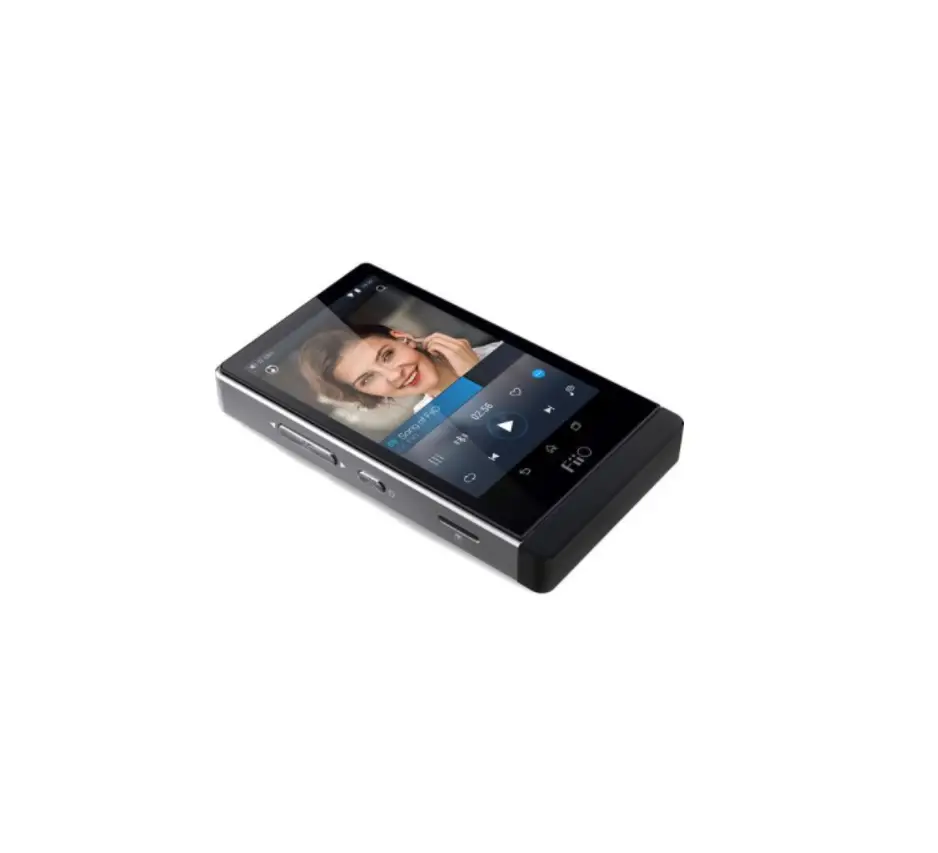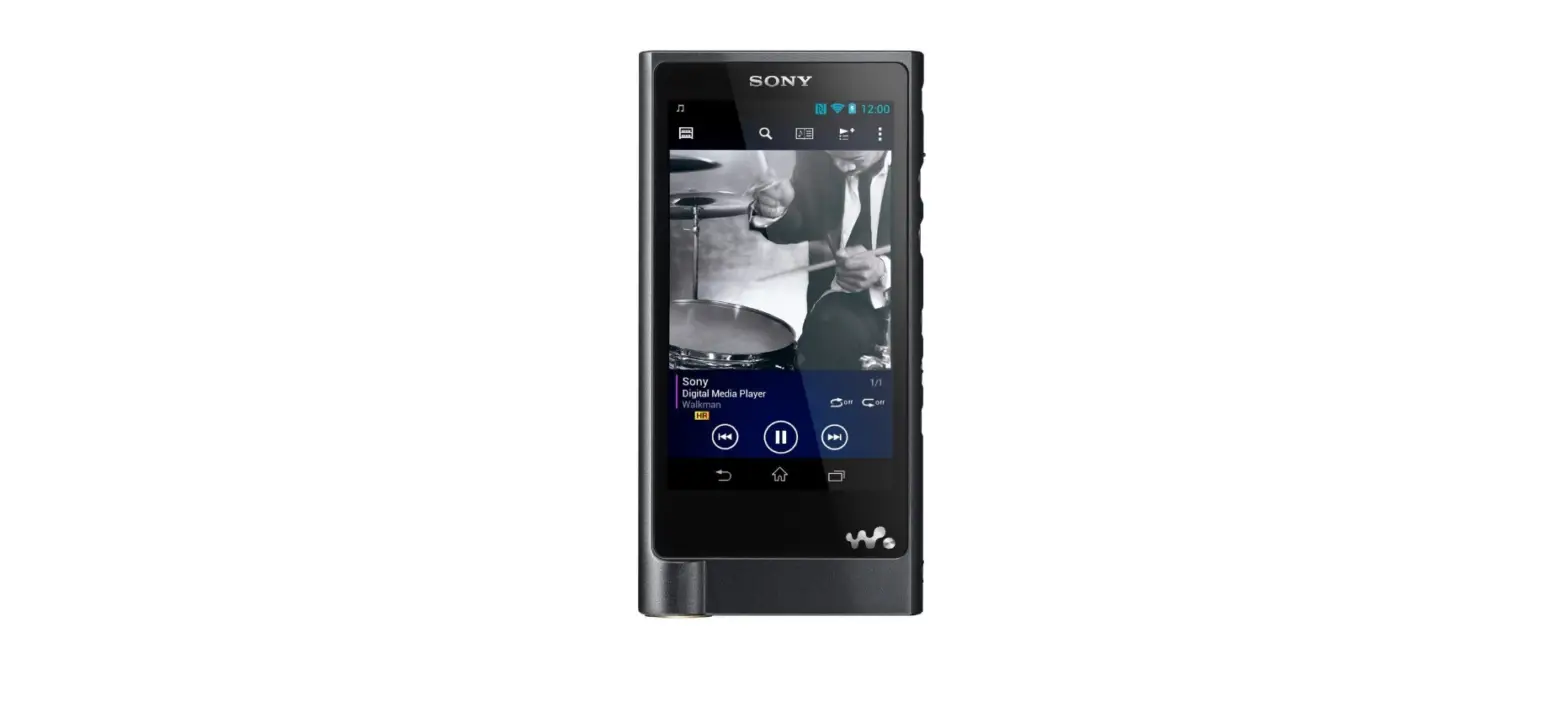
 Sony NW-ZX2 128GB ZX2 High-Resolution Audio Walkman
 Sony NW-ZX2 128GB ZX2 High-Resolution Audio Walkman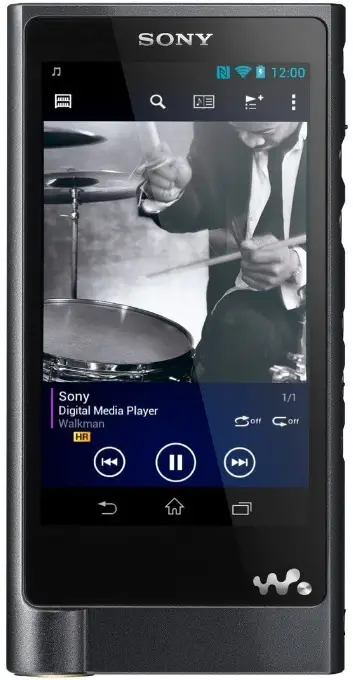
Contents
Please check the items in the package.
- Walkman (1)
- USB cable (1)
- Leather Carrying Case (1)
- Spacer (1)
- Quick Start Guide (this manual)
Headphones and microSD Card are not supplied with your Walkman.
About the genuine leather carrying case
- This product is made of genuine leather. Unlike artificial leather, genuine leather may have scratches, wrinkles, or vein marks on the surface. Every case has a unique appearance and color.
- Wrapping the headphone cord around the leather carrying case when storing may leave headphone cord marks as the leather is soft.
- When using cleaner, read the instructions carefully and try it on an inconspicuous part first.
- Do not use any type of solvents such as alcohol or thinner for cleaning.
Doing so will cause color fading, deformation or degradation which may damage the leather carrying case. - Moisture such as rain or sweat, or friction may cause discoloration or color migration to your clothes, etc.
- Do not use or store the leather carrying case in a location exposed to direct sunlight (such as in a car), extremely high/low temperatures, high humidity or dust.
- Be careful that your Walkman does not come in contact with the snap button of the leather carrying case when you put the Walkman in or remove it from the case. Otherwise, the Walkman may become scratched.
Parts and Controls
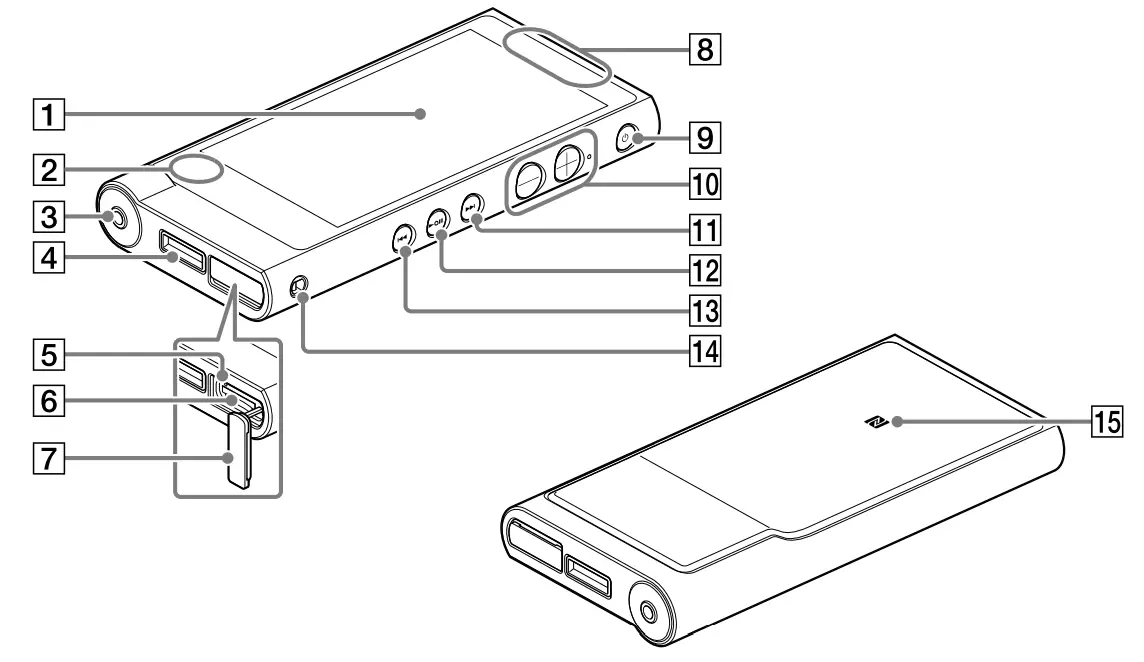
- Screen (touch screen)
Touch (tap) icons, items, etc., on the screen to operate your Walkman. - Built-in microphone
- Headphone jack
Push the headphone plug all the way in. If the headphones are connected improperly, the sound from the headphones will be impaired. Sound is not emitted from the headphones connected to the headphone jack when a Bluetooth connection is active. End the Bluetooth connection. - WM-PORT jack
Connect the USB cable (supplied) or other accessories that support WM-PORT (not supplied). - Access lamp
The access lamp is located under the microSD card slot cover. - microSD card slot
The microSD card slot is located under the microSD card slot cover. Open the cover before inserting a microSD card (not supplied). Insert a microSD card until it clicks into place to increase the available memory of your Walkman. - microSD card slot cover
- Built-in antenna
Wi-Fi, Bluetooth, and GPS antennas are built-in. - (Power)/Screen lock button
Press to turn the power on. Press and hold to turn the power off. Press to turn the screen on/off. Your Walkman will be reset if you press and hold the button for about 8 seconds. - Volume “+” and “–” buttons
Press the volume “+” button to turn up and the volume “–” button to turn down the volume.
There is a tactile dot beside the “+” button. Use it to help with button operations. - (Next) button
Skip to the next song, the next chapter of a video, or a scene playing 5 minutes later. If you press and hold the button, songs or videos are fast-forwarded. - (Play/Pause) button
Playback or pause songs or videos.
There is a tactile dot on the button. Use it to help with button operations. - (Previous) button
Skip to the previous (or current) song, the previous chapter of a video, or a scene that played 5 minutes ago. If you press and hold the button, songs or videos are fast-rewinded. - Strap hole
This is used to attach a strap (not supplied). - N mark
Touch a Bluetooth audio device equipped with the NFC function to this mark.
About volume operation (Only for countries/areas complying with European Directives)
An alarm (beep)* and warning [Check the volume level] are meant to protect your ears when you raise the volume setting beyond a specific level for the first time. You can cancel the alarm and warning by tapping [OK] on the alert dialog.
* The alarm (beep) does not sound when connecting a Bluetooth audio device.
Note
- You can turn up the volume beyond the specific level after canceling the alarm and warning.
- After the initial warning, the alarm and warning repeat for every 20 cumulative hours that the volume is set beyond the specific level; when this happens, the volume is changed to the initial setting automatically.
- If the volume is set beyond the specific level and you turn off your Walkman, the volume returns to the specific level automatically.
Initial Settings
- Use the supplied USB cable to connect your
Walkman to a running computer and charge the Walkman. Your Walkman turns on.
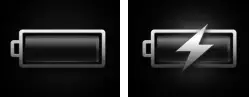
Note- If a large battery symbol is displayed while you are charging your Walkman, the remaining charge is still too low for the Walkman to operate. The Walkman will start automatically after being charged for about 10 minutes.
- It takes about 4.5 hours to fully charge the battery.
- To prevent battery deterioration, charge the battery at least once every six months or every year.
- If the USB-connected screen appears, tap to quit the screen, and then proceed to the initial settings.
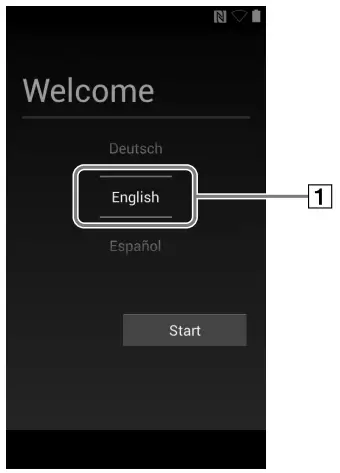
The language selection screen* appears.
* Depending on where you purchased your Walkman, the language selection screen may not appear. - Select the desired language to be used to display the End User License Agreement.
- Make sure that you understand the terms of the license agreement then tap [Agree].
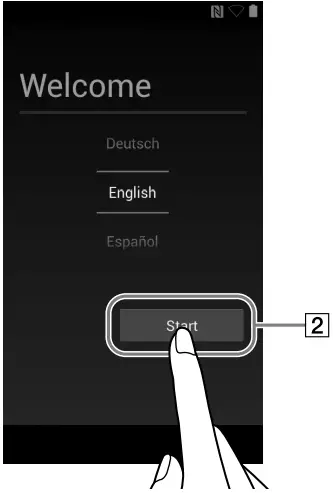
The initial setup screen appears. - Tap 1.

The screens and illustrations shown are for reference only and may differ from the actual product or screen. - Select the desired language.
- Tap 2 to begin using your Walkman.

- Set the Wi-Fi connection, Google account and date/time, etc., following the instructions shown on the screen.
Hint
Wi-Fi connection and Google account can also be set afterward.
How to Install and Read the Help Guide
Install the “Help Guide” on your computer. This contains basic operations of your Walkman, the customer support website URL, and how to transfer content such as music to the Walkman.
- Connect your Walkman to a running computer.
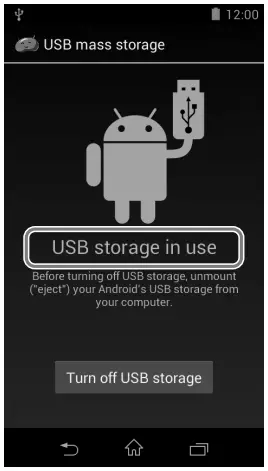
- Make sure that [USB storage in use] is displayed on the screen.

Hint- If [USB connected] is displayed, tap [Turn on USB storage].
- Open the following folders and double-click the executable file on your Walkman.
- Windows 7 or earlier: [Start] – [Computer] – [WALKMAN] – [FOR_ WINDOWS] – [Help_Guide_Installer(.exe)].
- Windows 8: [Start screen] – [Desktop] – [File Explorer] – [Computer]– [WALKMAN] – [FOR_WINDOWS] – [Help_Guide_Installer(.exe)].
- Windows 8.1: [Desktop] – [File Explorer] – [This PC] – [WALKMAN] – [FOR_WINDOWS] – [Help_Guide_Installer(.exe)].
- Mac: [Finder] – [WALKMAN] – [FOR_MAC] – [Help_Guide_Installer_ for_mac].
- Follow the on-screen instructions to complete the installation.
- To read the Help Guide, double-click the shortcut or the alias icon generated on your computer.
Turning On/Off Your Walkman
Turn off the power when not using your Walkman for an extended period of time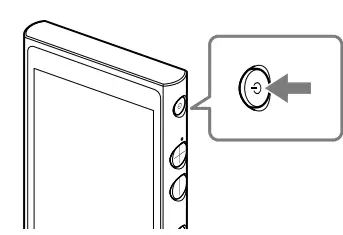 .
.
- Press the
 button to turn on your Walkman.
Press and hold the button to turn off your Walkman. - When turning off your Walkman, tap [Power off] – [OK].
 button to turn on your Walkman.
Turning On/Off the Screen
The screen will turn off if no operations are made for a certain period of time.
- Press the button.

The lock screen will be displayed. - Drag out of the circle.
Your Walkman is then unlocked, and the Home screen will be displayed.
Press the button again to turn off the screen.
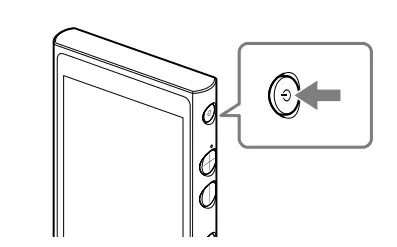
 button again to turn off the screen.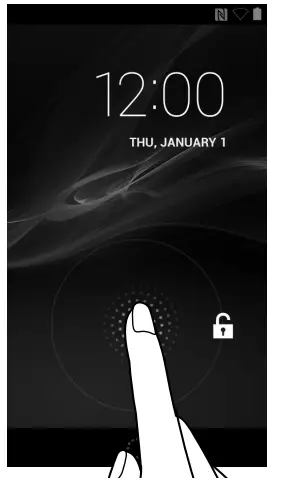
How to Use the Touch Screen
Your Walkman screen is touch-sensitive. You can operate your Walkman by gestures such as tapping, pressing, and flicking the screen. Refer to the Help Guide for details.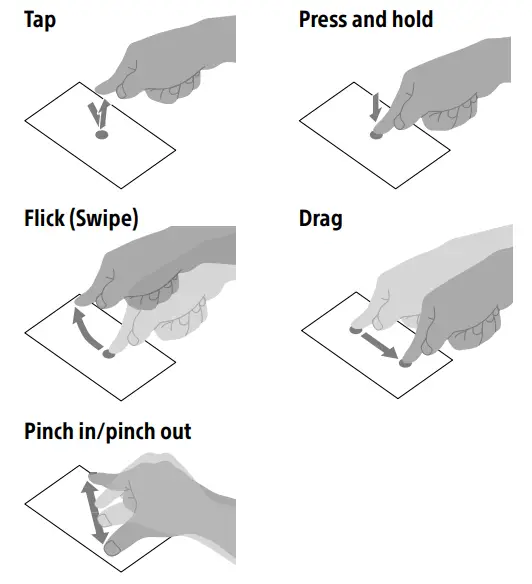
Home Screen
The Home screen is displayed by tapping  .
.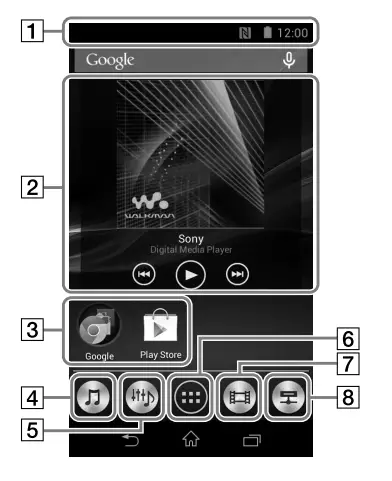
- Status bar
Displays the status of your Walkman and notifications. - [Music player] widget
Play back music. - Application shortcut
Starts application individually. - [Music player] shortcut
Play back music files transferred by Media Go or drag and drop. - [Sound adjustment] shortcut
Starts the sound adjustment application. - Apps
Displays all your applications and widgets. - [Video player] shortcut
Starts video player. - [DLNA] shortcut
Starts DLNA application.
How to Use the Help Guide on Your Walkman
When you access the Internet, you can view the full version of the Help
Guide on the web from your Walkman.
- Tap
 from the Home screen then tap
 [Help Guide].
 from the Home screen then tap
 [Help Guide].
Troubleshooting
If your Walkman does not function as expected, try the following steps to resolve the issue.
- Find the symptoms of the issue in “Troubleshooting” in the Help Guide (HTML document), and try any corrective actions listed.
- connect your Walkman to your computer to charge the battery.
- Press and hold the button for about 8 seconds.
Specifications
Starting up time from battery shortage condition
About 10 minutes
The temperature of battery use 5 °C to 35 °C (41 °F to 95 °F)
Precautions
You must accept the terms of the End User License Agreement when you use your Walkman for the first time. To read them again later, swipe the status bar  [ About device] – [Legalinformation] – [Sony EULA].
Information on laws and trademarks
- For information on laws, regulations and trademark rights, refer to
- Important Information” contained in the supplied software. To read it, install the supplied software on your computer.
- Google, Android and other marks are trademarks of Google Inc.
- The Android robot is reproduced or modified from work created and shared by Google and used according to terms described in the Creative Commons 3.0 Attribution License.
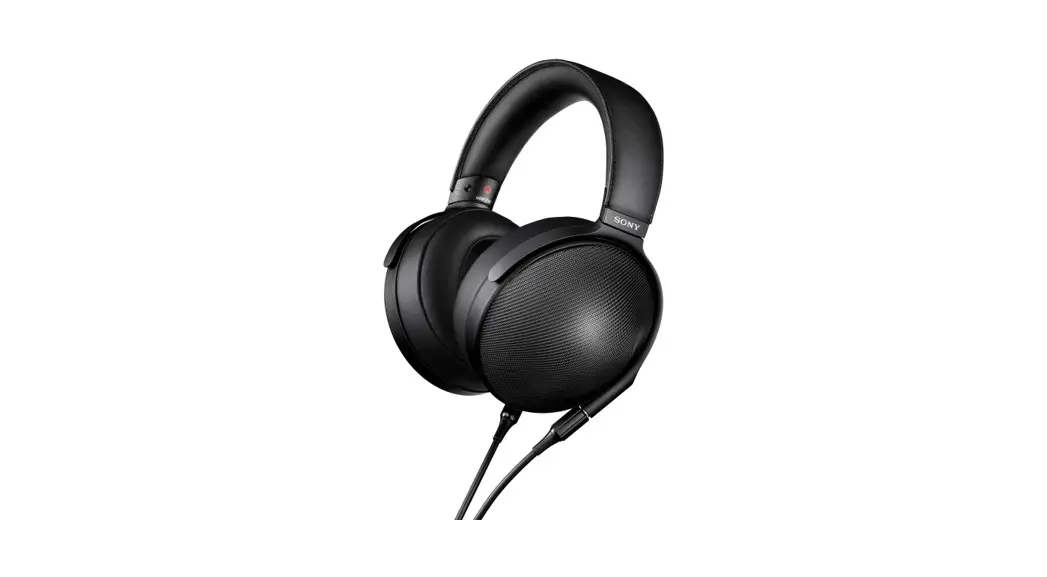
About the headphones
- Avoid playing the unit at so loud a volume that extended play might affect your hearing.
- At a high volume outside sounds may become inaudible. Avoid listening to the unit in situations where hearing must not be impaired, for example, while driving or cycling.
- As the headphones are of the open-air design, sounds go out through the headphones. Remember not to disturb those close to you.
Owner’s Record
The model and serial numbers are located on the back of the player. Record them in the space provided below. Refer to these numbers in the spaces whenever you call upon your Sony dealer regarding this product.
Model No. ________________________
Serial No._________________________
Please do not use the 5 GHz Wi-Fi function outdoors.
The use of this function is prohibited by law in some countries/areas.
Design and specifications are subject to change without notice.
FAQS
What is the difference between manufactured in Malaysia and manufactured in Japan?
As far as the NW-ZX2 is concerned, it is only made in Malaysia. There are no NW-ZX2 made in Japan.
do i have to download soft ware
No, you don’t need to download soft ware to listen to the music. If you need use this machine to do some other things except listening the music, you have to download soft ware.
Will it work with a sony pha1a headphone amplfier?
Yes
Will Sennheiser HD-700 work fine with this?
The Sony should drive the hd-700 (150ohm) just fine. I drive my hd-800 (300 ohm) with an OPPO HA-2 amp because these cans
needed a little extra umph.
Does it have built in speakers with alarm as great travel feature?
Speaker is not built, but the corresponding Speaker have been two types available.
Where NW-ZX2 manufactured? Japan or Malyasia?
NW-ZX2 is made in Japan.
Does it have vsts like matrix?
Yes it does
Does nw-zx2 have a microphone built-in?
The built-in microphone is included with the NW-ZX2 body.
does it have GPS?
No, but it has a drone control system built in if you don’t like your neighbors.
Is this laggy…is it fast going through the menu, etc.
It’s not lagging. I only use mine as a music player and for my Audible books and it works fine. If it takes 3 seconds to do something like
boot up my Audible app, so what. But my Tidal and Sony music app boot up fast.
Can I use Tidal with it?
Yes, Tidal streams and downloads to the device fine as long as your bandwidth can handle the increased rate.
Will this player handle DSD (.dsf extension) files?
DSD 2.8224 MHz / 1 bit: about 40 hours 00 minutes
DSD 5.6448 MHz / 1 bit: about 20 hours 00 minutes
You can handle the DSD file.