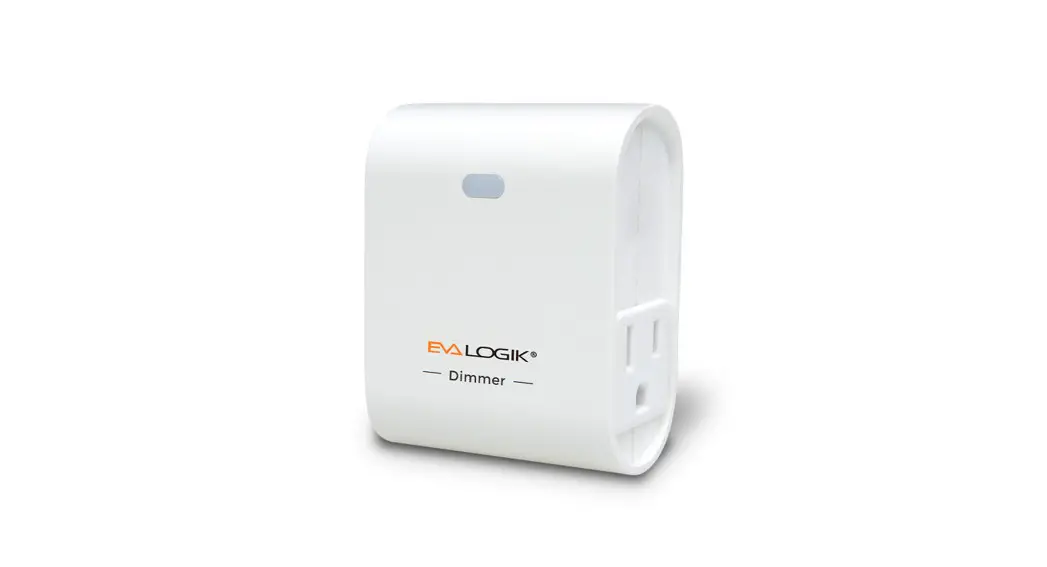
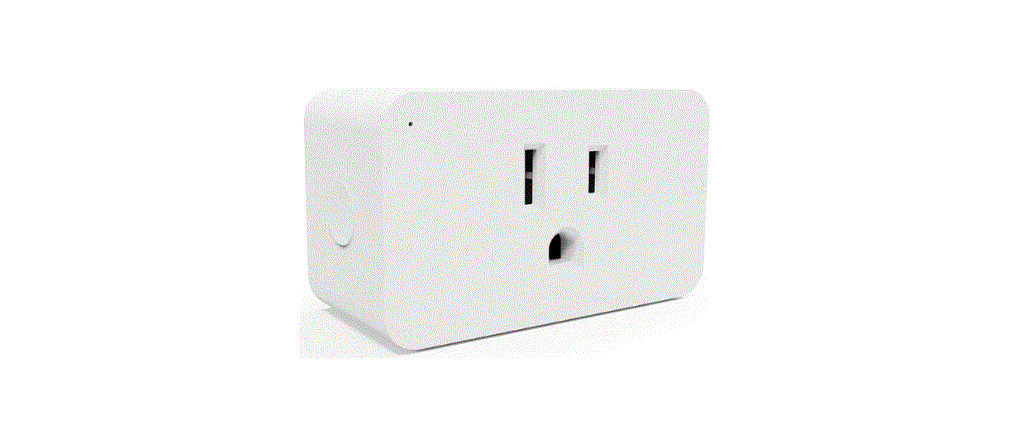
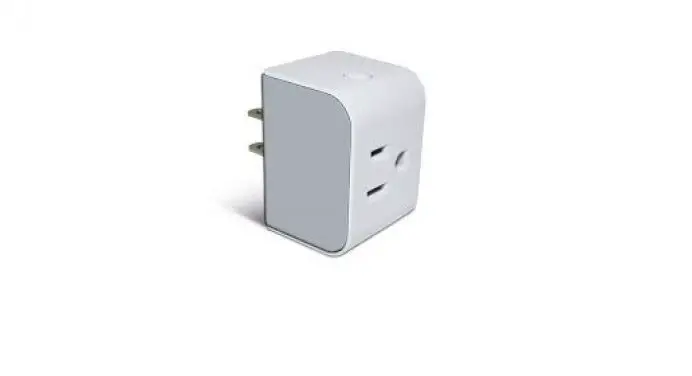
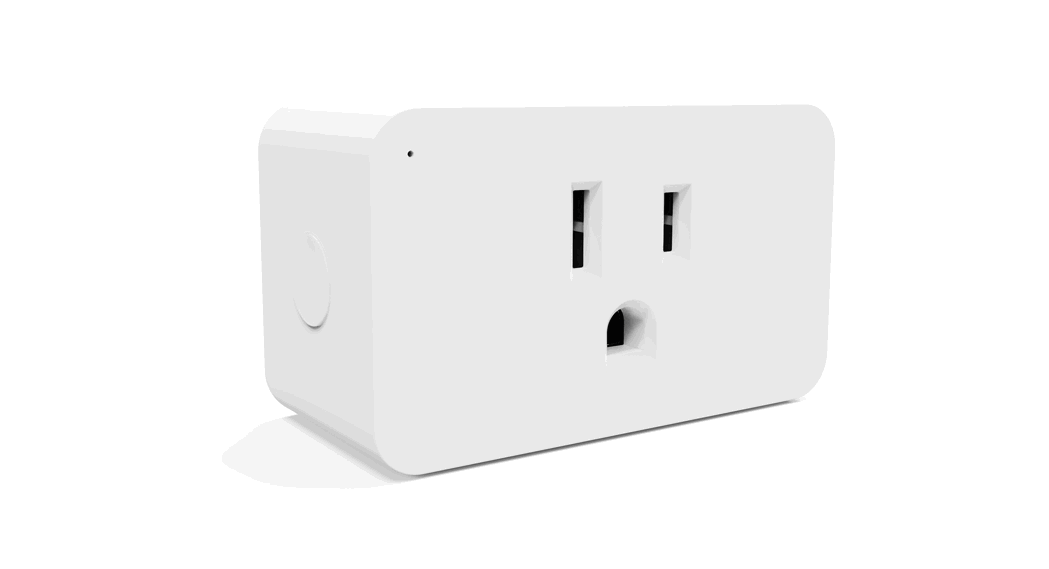
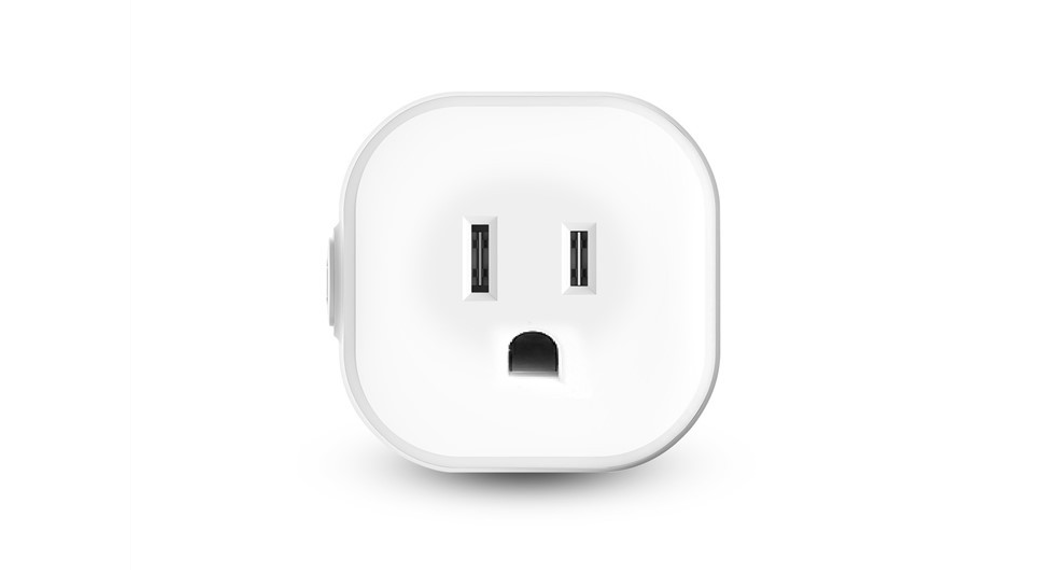
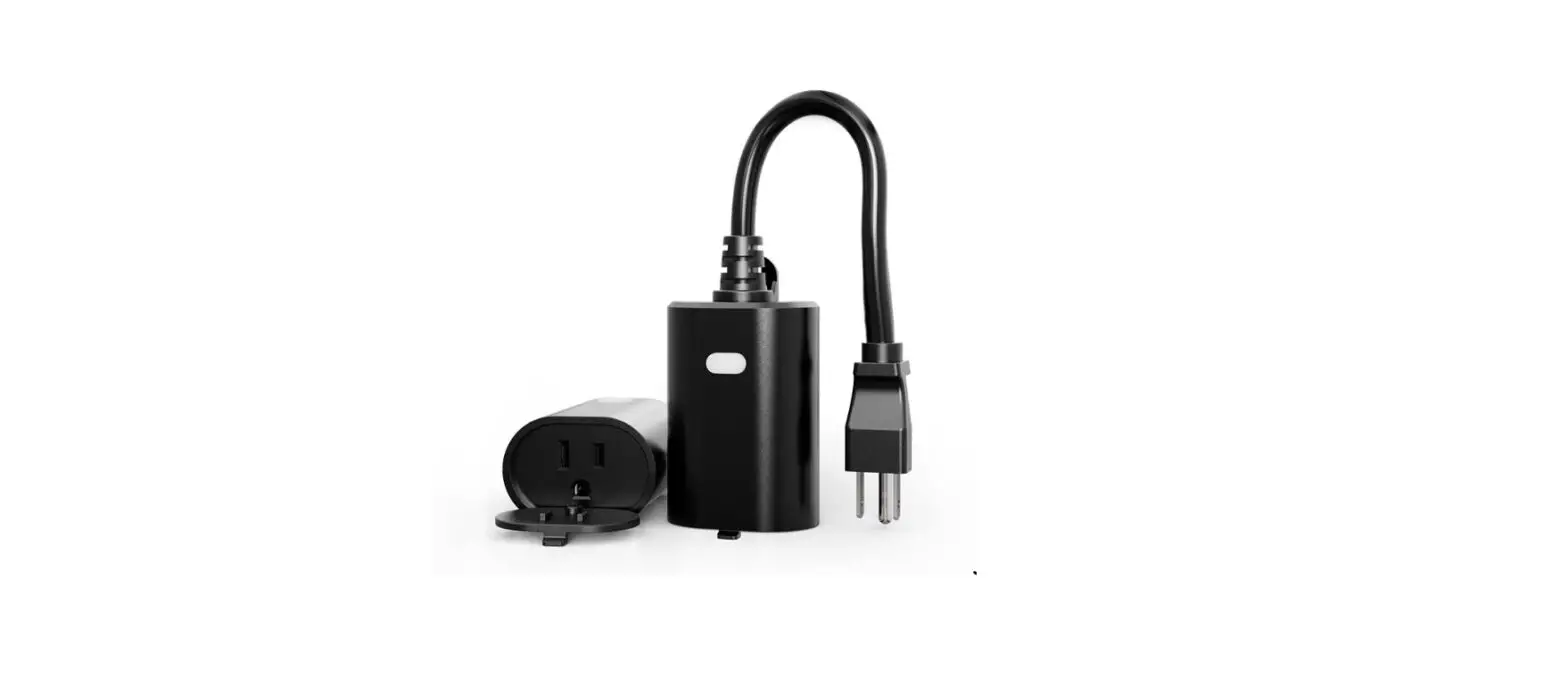
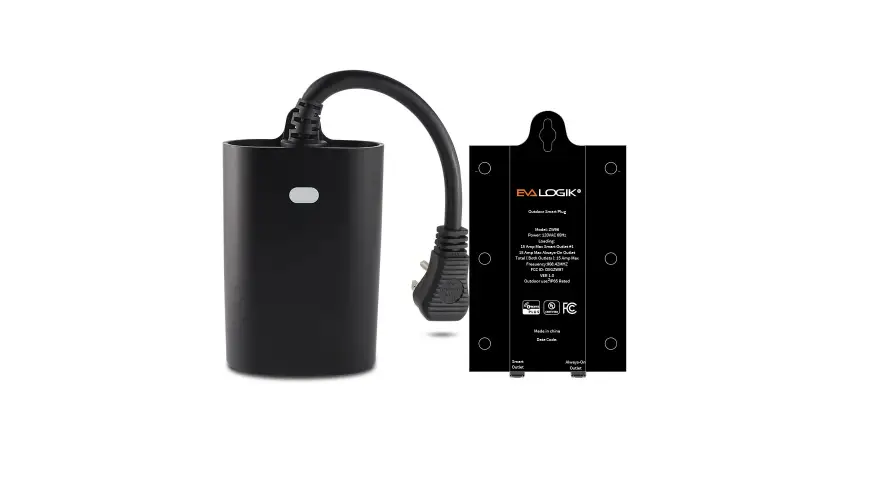
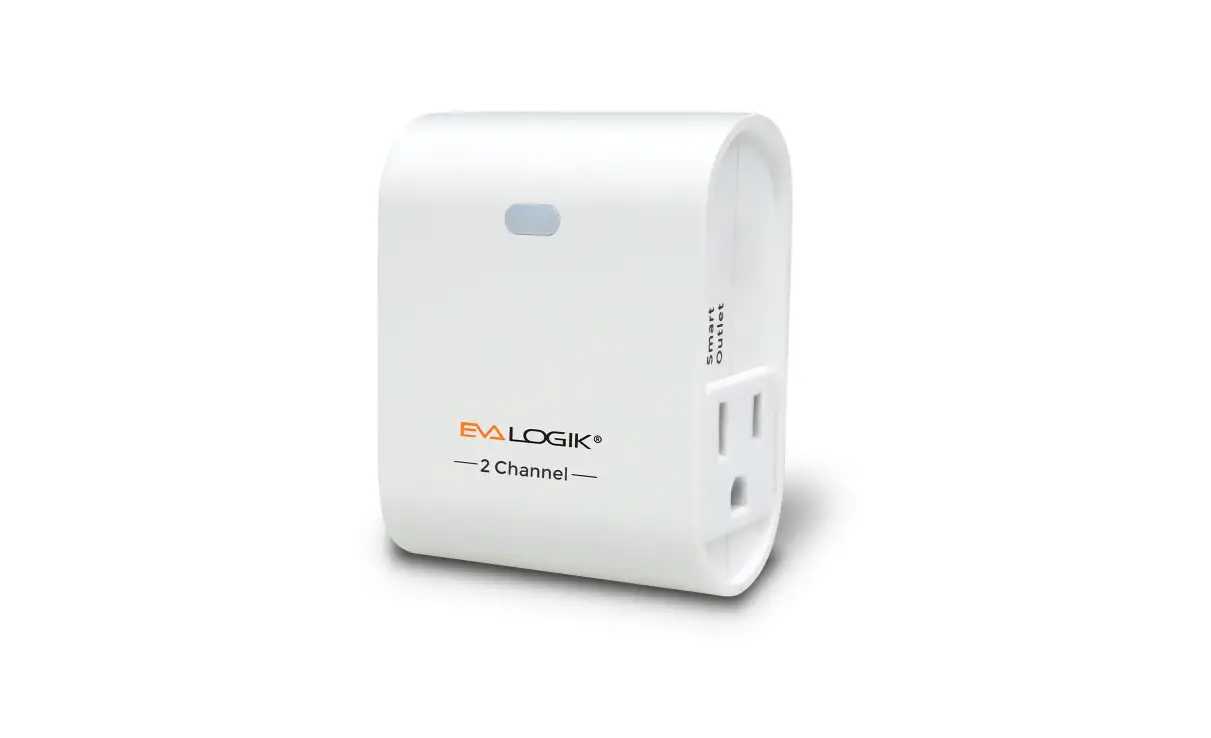
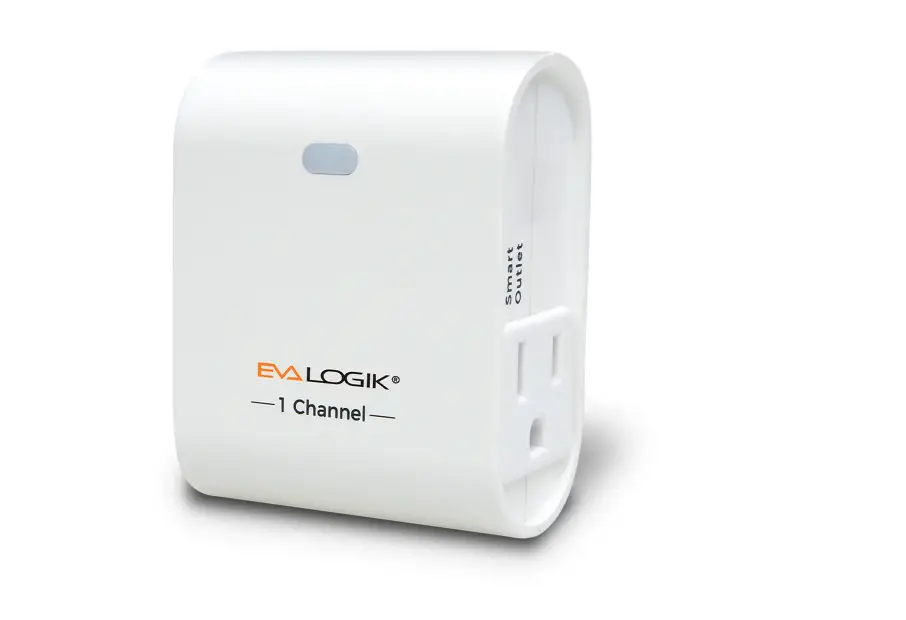
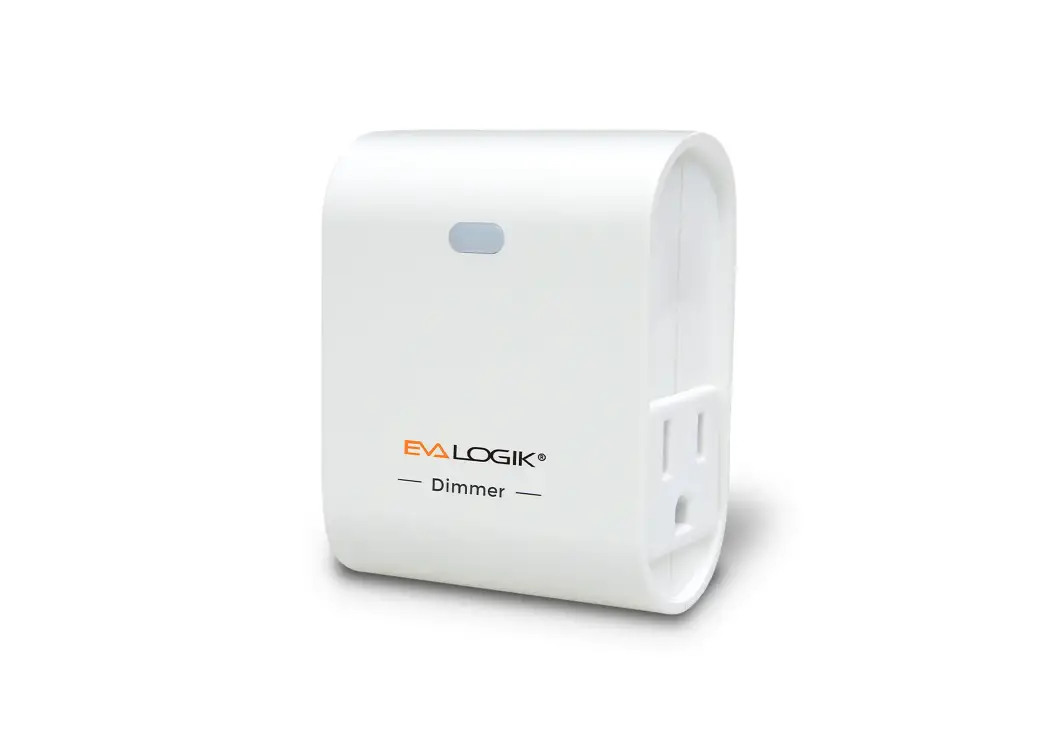
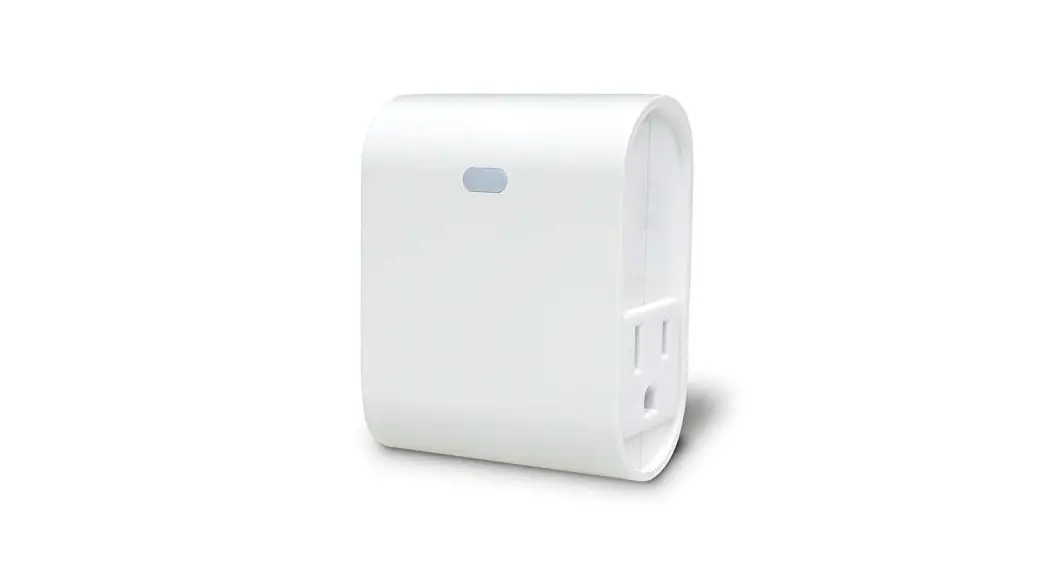
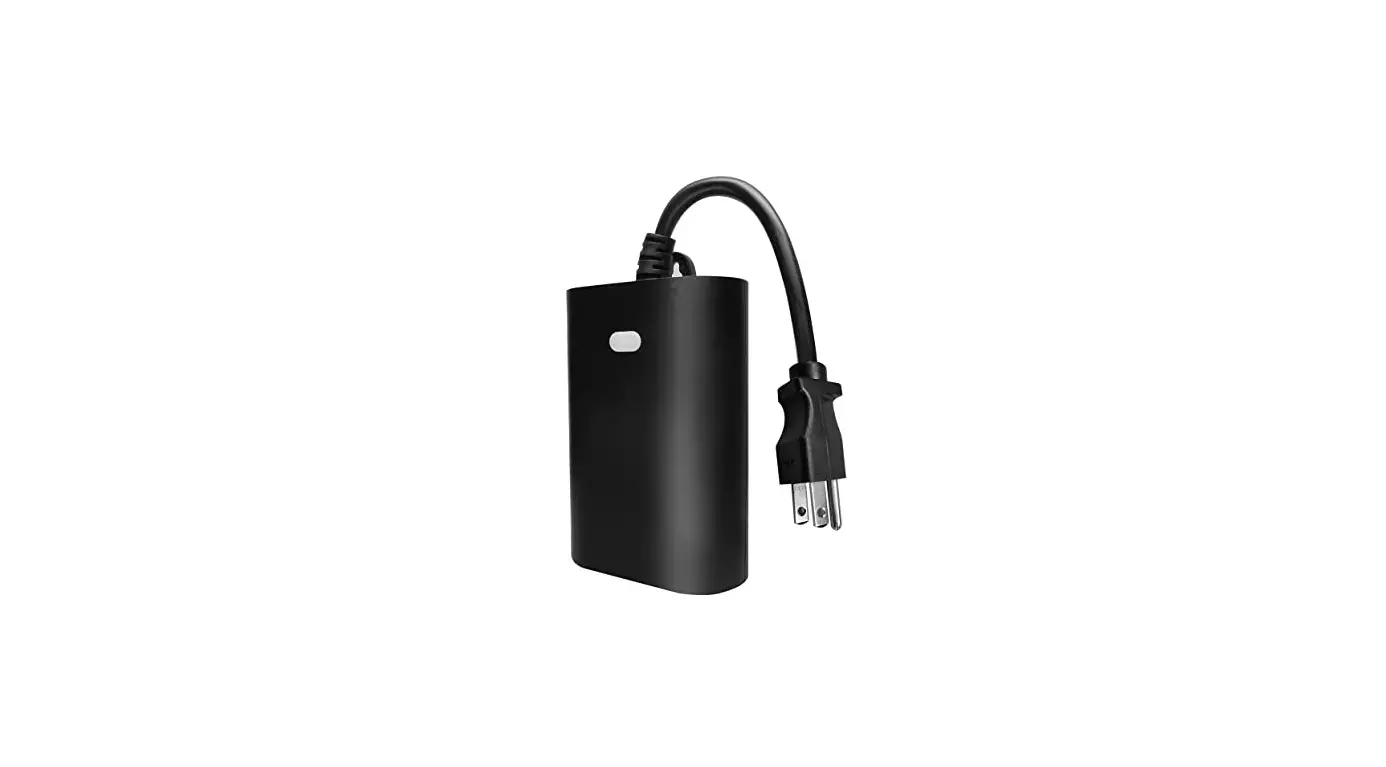
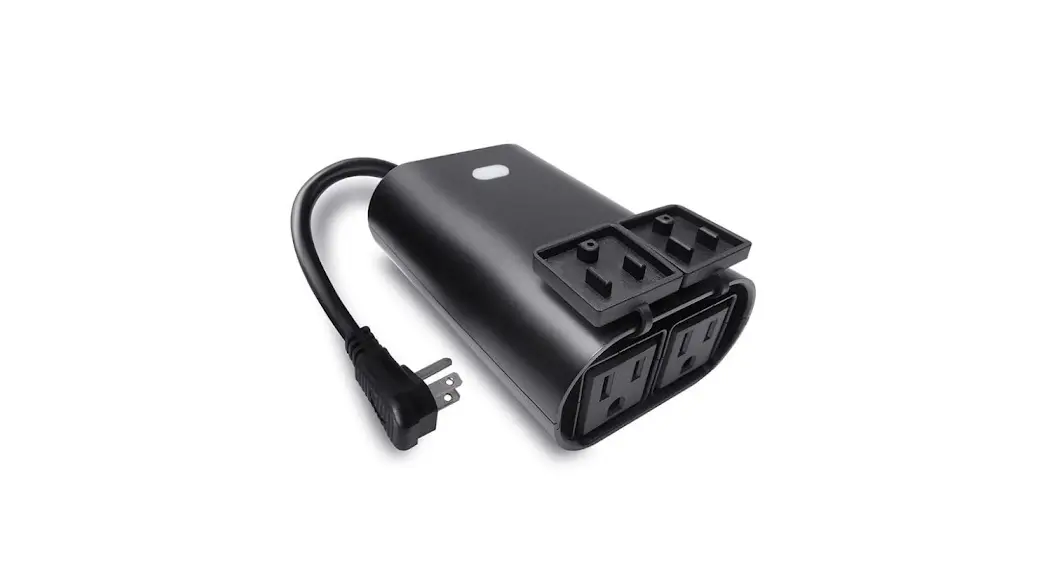
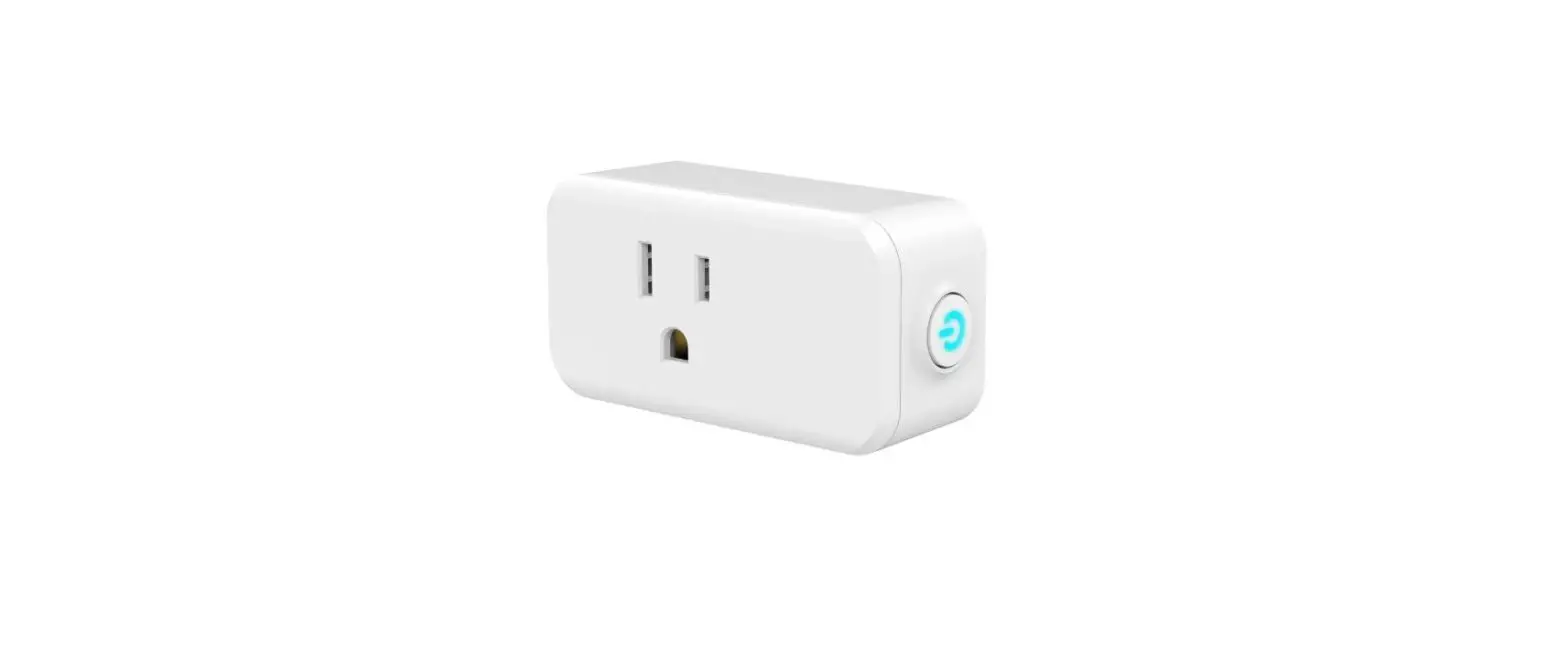
ZW39 Z-Wave Smart Plug
Product Information:
- Product Name: ZW39 Z-Wave Smart Plug
(Dimmer) - Specifications:
- Power: 120VAC, 60Hz
- Loading: 500W
- Frequency: 908.42MHz
- FCC ID: OXGZW36
- IC: 10460A-ZW36
- Compatibility: Compatible with LED, halogen,
incandescent bulbs. Works with Fibaro, Smartthings, Wink hub, and
other certified Z-Wave controllers.
Product Usage Instructions:
- Plug the light you want to control into the Z-Wave Smart Plug
controlled outlet. Note: Plug directly into the
outlet, do not use with extension cords. - Manual Control:
- Press the button once to manually turn the connected device
ON/OFF. - Press the button twice to activate Scene 1.
- Press the button three times to enter Add mode (blue light
blinking) or Remove mode (purple light blinking).
- Minimum brightness setting:
- Quickly press the button five times (blue indicator flashes
slowly) to automatically adjust the connected bulb to the minimum
brightness. - Hold the button to adjust the brightness of the connected bulb.
Select the appropriate brightness and set it to the minimum
brightness. - Quickly press the button five times to confirm the minimum
brightness. The setting will be completed (indicator flashes three
times).
- Quickly press the button ten times (blue indicator flashes
slowly) to automatically adjust the connected bulb to the maximum
brightness. - Hold the button to adjust the brightness of the connected bulb.
Select the appropriate brightness and set it to the maximum
brightness. - Quickly press the button ten times to confirm the maximum
brightness. The setting will be completed (indicator flashes three
times).
- Follow the instructions for your Z-Wave controller to add the
device to the network. - Scan the QR code on the device for SmartStar inclusion.
- The DSK Code can be found on the packaging box. Do not remove
or damage it.
- Follow the instructions for your Z-Wave controller to remove
the device from the network.
Installation Manual
Z-Wave Network Configuration
ZW39 Z-Wave Smart Plug
(Dimmer)
Specifications: Power: 120VAC, 60Hz Loading: 500W Frequency: 908.42MHz FCC ID: OXGZW36 IC: 10460A-ZW36 Adding Device To Z-Wave Network for QR CODE
Scan here for SmartStar inclusion Note: DSK Code can be found on the packaging box. Do not remove or damage them.
INTRODUCTION The EVA LOGIK ZW39 is a Z-Wave enabled 500W receptacle designed for most residential lighting and applications. It’s compatible with LED, halogen, incandescent.The ZW39 fully works with the Fibaro, Smartthings, Wink hub as well as all other certified Z-Wave controllers.
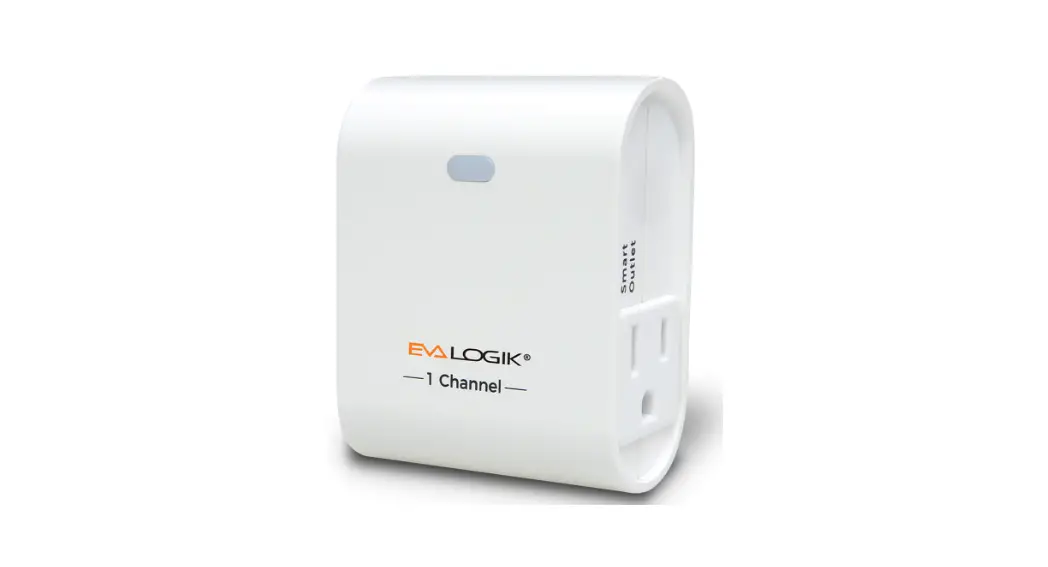
Manual / Program button Press 1x: Manual ON/OFF Press 2x: Scene 1 Press 3x: Add mode(bule light blinking)/Remove mode(purple light blinking). Smart Outlet This outlet can remotely turn On/Off the connected device.
Plug the light you want to control into the Z-Wave Smart plug controlled outlet . NOTE: Plug directly into outlet, do not use with extension cords.
Note: Your device may need to be within 100 feet of the controller to be included. If so, include the device to the network within 10 feet of the controller and relocate it to the desired position in your home. Be sure to refresh the network if the device is included in this manner.
Minimum brightness setting: 1. Quickly press the button 5 times (blue indicator flashes slowly), and the connected bulb is automatically
adjusted to the minimum brightness currently. 2. Hold the button to adjust the brightness of the connected bulb, select the appropriate brightness and set it to
the minimum brightness. 3. Quickly press the button 5 times to confirm the minimum brightness. Exit setting after the setting is
completed (indicator flashes 3 times).
Maximum brightness setting: 1. Quickly press the button 10 times(blue indicator flashes slowly), and the connected bulb automatically adjusts
to the maximum brightness currently. 2. Hold the button to adjust the brightness of the connected bulb, select the appropriate brightness and set it to
the maximum brightness. 3. Quickly press the button 10 times to confirm the maximum brightness. Exit setting after the setting is
completed (the indicator flashes 3 times). Note: If no confirm in step 3, the setting mode will be exited after 10s and the adjusted brightness value will not
be saved.
Adding Device To Z-Wave Network 1. Follow the instructions for your Z-Wave
certified controller to add a device to the Z-Wave network. 2. Once the controller is ready to add your device, press the manual/ program button(A) on the smart dimmer 3 times quickly. The white LED will blink quickly. Auto-add mode: LED will blink within 30 seconds after first plugged in. Now, you have complete control to turn your fixture ON/OFF or set dim levels according to groups, scenes, schedules and interactive automation programmed by your controller. If your Z-Wave certified controller features remote access, you can control your fixture from your mobile devices. Again: If you have issues with pairing/including, please move the device as close as possible to the hub and try again–you can move to your final location when completed. Note: If the manual button(A doesn’t light up after pressed 3 times, please reset the device: click the button 2 times quickly then hold for at least 10 seconds. This operation could be done when manual control is functional–single press can turn on/off the lamp.
To Remove The Device 1. Follow the instructions for your Z-Wave
certified controller to remove a device from the Z-Wave network. 2. Once the controller is ready to remove your device, press the manual/program button(A) on the smart dimmer 3 times quickly. To Return The Device To Factory Defaults: Manual: Click the button 2 times quickly then hold for at least 10 seconds Host reset: Remove it from the host connection and the device will factory reset Association Group: Group 1 supports 1 node ID. Group 2 Supports up to 5 node IDs. Association group_1: Z-Wave Plus Lifeline Association Group 2: Send Basic Set ON/OFF