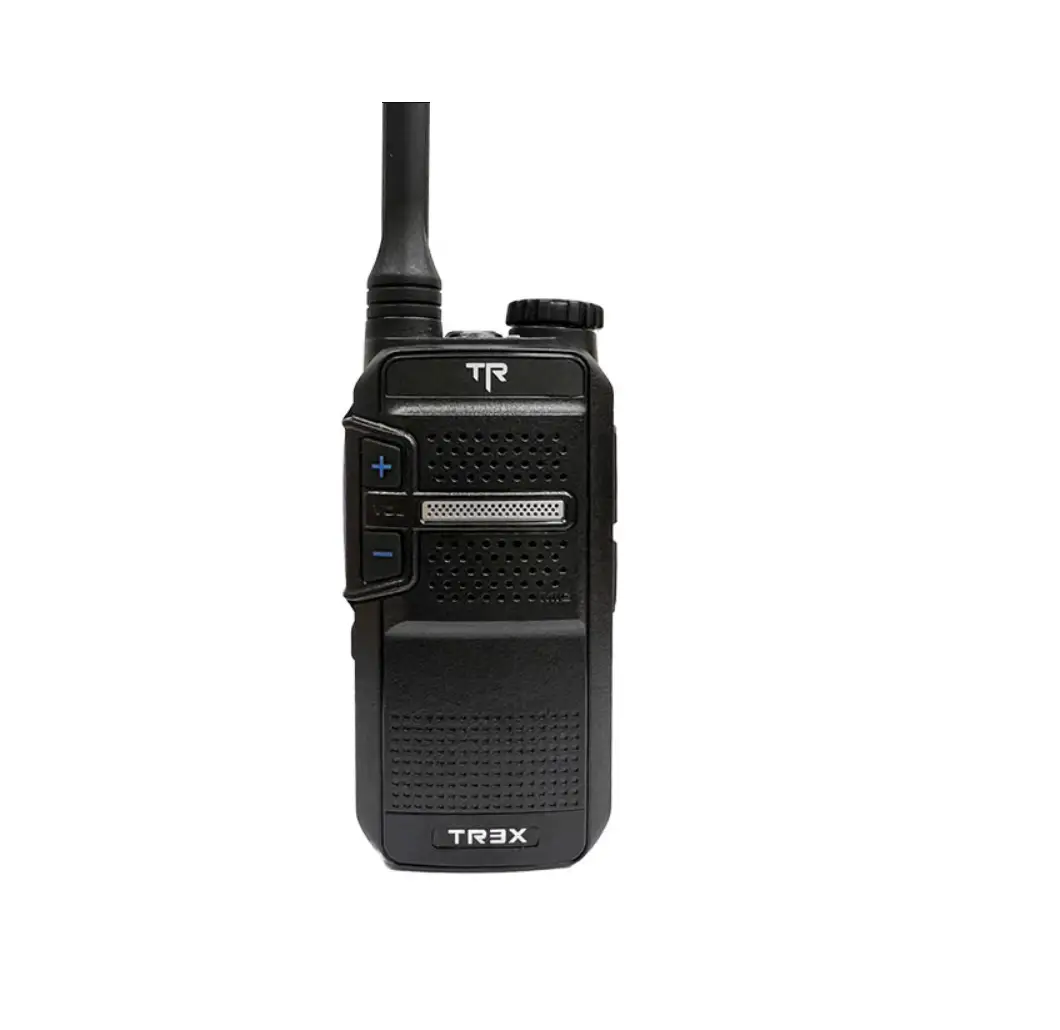
TD-682 Portable Digital Radio
Product Information
This is the user manual for the TD-682 Digital Radio Portable.
The functions of the product are subject to change without notice
due to technical improvements. All rights are reserved, and
spreading of this manual without TESUNHO permission is
prohibited.
Contents
The user manual includes information on checking the equipment
and getting acquainted with the TD-682 Digital Radio.
Checking Equipment
Before discarding the packing material, carefully unpack the
radio and check if all the following items are included:
- Antenna – 1
- Charger Cradle – 1
- Adapter – 1
- Battery – 1
- Belt Clip – 1
- User’s Manual – 1
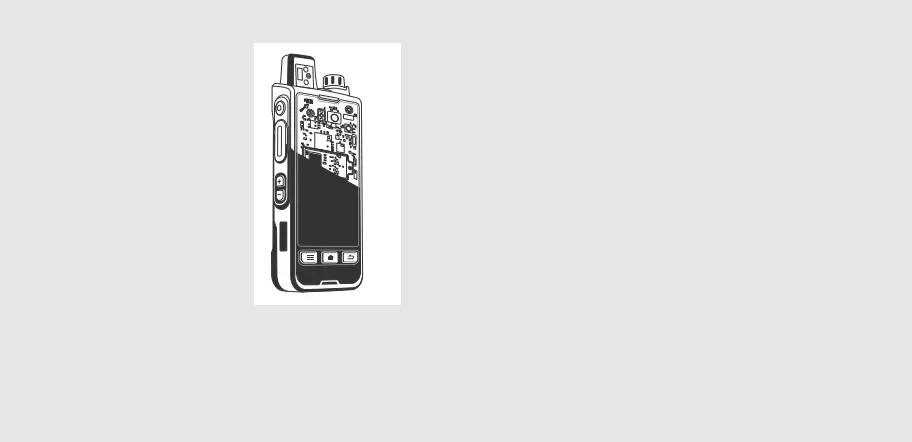
Getting Acquainted TD-682 Diagram
The TD-682 Digital Radio has the following features:
- Antenna
- Power/Volume Control Knob – Rotate clockwise to turn the radio
on, counterclockwise to turn it off. Rotate clockwise to increase
volume, counterclockwise to decrease volume. - PF4 Button
- LED Indicator – Lights red when transmitting, blue when
receiving. - Speaker
- Microphone
- Screen
- Menu Button – In the menu interface, short press to enter the
next menu or option. In the option interface, short press to
confirm. - UP/Down Button – In standby mode, short press to query call
records. - Back Button – In the menu interface, short press to return to
the previous menu or home screen. - P1-P6 Buttons – In standby mode, P1 button enters zone option,
P2 button enters contact list. In channel list, long press P1-P6
buttons to set selected option as quick call. Long press P1-P6
buttons in standby mode to make a quick call through preset
channel. - PF3 Button – In standby mode, short press to switch to another
standby interface. In any state, long press to scan channels in the
scan list. - PTT Button – Long press to transmit, release to receive. In any
state, short press to return to standby interface and talk. - PF1 Button – In standby mode, short press to enter the channel
list. - PF2 Button – In standby mode, short press to switch power
level. In standby mode, long press to lock/unlock keypad. - Programming/Earphone Port
- USB Charging Port
- Positive and Negative Electrode
- SIM Card Slot
Icon Display
The TD-682 Digital Radio has the following icons:
- Battery – The number of bars represents the battery power.
- Battery Charging – Indicates that the battery is charging.
- Keypad Lock – Indicates that the keypad is locked.
Product Usage Instructions
- Carefully unpack the radio and check if all the accessories
listed in the manual are included. - Rotate the Power/Volume Control Knob clockwise to turn the
radio on and counterclockwise to turn it off. - To adjust the volume, rotate the Power/Volume Control Knob
clockwise to increase it and counterclockwise to decrease it. - When transmitting, the LED Indicator will light up red. When
receiving, it will light up blue. - Use the Menu Button to navigate through menus and options. In
the menu interface, short press to move to the next menu or option.
In the option interface, short press to confirm. - Use the UP/Down Button to query call records in standby
mode. - Short press the Back Button to return to the previous menu or
home screen in the menu interface. - Use the P1-P6 Buttons to perform various functions depending on
the mode. In standby mode, P1 button enters the zone option, P2
button enters the contact list. In channel list, long press P1-P6
buttons to set selected option as quick call. Long press P1-P6
buttons in standby mode to make a quick call through preset
channel. - Short press the PF3 Button to switch to another standby
interface in standby mode. In any state, long press to scan
channels in the scan list. - Long press the PTT Button to transmit and release to receive.
In any state, short press to return to the standby interface and
talk. - Short press the PF1 Button to enter the channel list in standby
mode. - Short press the PF2 Button to switch the power level in standby
mode. Long press to lock/unlock the keypad. - Connect programming or earphones to the Programming/Earphone
Port and use the USB Charging Port for charging. - The Positive and Negative Electrodes are used for power
connection. - The SIM Card Slot is used for inserting a SIM card.
User’s Manual V1.0
TD-682
DIGITAL RADIO
PORTABLE
USER’S MANUAL
As a result of technical improvements, the functions are subject to change without notice
All Rights reserved, No Spreading without TESUNHO Permission.
CONTENTS
User’s Manual V1.0
Checking Equipment ………………………………………………………………………………..1 Getting Acquainted …………………………………………………………………………………..2
TD-682 Diagram ……………………………………………………………………………………..2 Icon Display ……………………………………………………………………………………………3 Basic Operations ……………………………………………………………………………………… 4 Power On ………………………………………………………………………………………………. 4 Power Off ……………………………………………………………………………………………….4 Transmitting ……………………………………………………………………………………………4 Receiving ………………………………………………………………………………………………. 4 Menu Operation ……………………………………………………………………………………… 4
All Rights reserved, No Spreading without TESUNHO Permission.
User’s Manual V1.0
Checking Equipment
Carefully unpack the radio. We recommend that you identify the items listed in the following table before discarding the packing material. If any items are missing or have been damaged during shipment, file a claim with the carrier immediately.
ACCESSORIES
ITEM
QUANTITY
Antenna
1
Charger Cradle
1
Adapter
1
Battery
1
Belt Clip
1
User’s Manual
1
Antenna
Charger Cradle
Adapter
Battery
Belt Clip
All Rights reserved, No Spreading without TESUNHO Permission.
User’s Manual
1
Getting Acquainted TD-682 Diagram
User’s Manual V1.0
1. Antenna 2. Power/Volume Control Knob
Rotate the knob clockwise to turn the radio on and counterclockwise to turn the radio off. Rotate the knob clockwise to increase the volume and counterclockwise to decrease the volume.
3. PF4 Button 4. LED Indicator
When transmitting, the indicator lights red. When receiving, the indicator lights blue.
5. Speaker 6. Microphone 7. Screen 8. Menu Button
In the menu interface, short press the Menu button to enter the next menu or option.
All Rights reserved, No Spreading without TESUNHO Permission.
2
User’s Manual V1.0
In the option interface, short press the Menu button to confirm.
9. UP/Down Button
In the standby mode, short press the UP/Down button to query call records.
10. Back Button
In the menu interface, short press the Back button to return to the previous menu or the home screen.
11. P1-P6 Buttons
In the standby mode, short press the P1 button to enter the zone option. In the standby mode, short press the P1 button to enter the contact list. In the channel list, long press one of the P1-P6 buttons to set the selected option as quick call.
In the standby mode, long press the P1-P6 buttons to make a quick call through the preset channel. 12. PF3 Button
In the standby mode, short press the PF3 button to switch to another standby interface. In any state, long press the PF3 button to scan the channels in the scan list.
13. PTT Button
Long press the PTT button to transmit, release to receive. In any state, short press the PPT button to return to the standby interface and to talk.
14. PF1 Button
In the standby mode, short press the PF1 button to enter the channel list.
15. PF2 Button
In the standby mode, short press the PF2 button to switch the power level. In the standby mode, long press the PF2 button to lock/unlock the keypad.
16. Programming/Earphone Port 17. USB Charging Port 18. Positive and Negative Electrode 19. SIM Card Slot
Icon Display
Icon
Name
Status
Battery
The number of bars represents the battery power
Battery Charging
The battery is charging
Keypad Lock
The keypad is locked
New Message
New incoming messages or unread messages
Received Signal Strength The number of bars represents the radio signal strength
All Rights reserved, No Spreading without TESUNHO Permission.
3
Basic Operations
User’s Manual V1.0
Power On Rotate the Power/Volume Control knob clockwise until it clicks.
Power Off
Rotate the Power/Volume Control knob counterclockwise until it clicks. Notice: Remove the battery after power off, otherwise it may cause data loss and radio damage.
Transmitting
Long press the PTT button to transmit. At least keep 5cm away from the microphone. Exception & Talking Priority: You will be forced to exit the transmission if an advanced user starts talking.
Receiving
When receiving, the LED indicator lights blue. And the screen displays the ID of the transmitter.
Menu Operation
Press the Menu button enter the menu. Press or to select the options. Press the Back button to return to the previous menu. Press the Menu button to confirm.
Main Menu Contact List Channel List Zone Scan
ADV Settings
Settings
Sub Menu
Setting
SQL TX Power DMR MSG
0-9 Low High
Open
Backlit Mode
Auto
Function Instruction View the contact information View the channel information Select the zone you need
Display the scanned channels
Adjust the squelch level
2W: display the L status icon 5W: display the H status icon Display DMR message Backlight always on Backlight automatically turns on when pressing buttons, transmitting or receiving. After 10s of no operation, backlight automatically turns off.
All Rights reserved, No Spreading without TESUNHO Permission.
4
Key
OFF
Auto lock ON
Languages ASCII Font Key Tone Version
CHS English Default Roman Arial OFF ON
User’s Manual V1.0
Backlight automatically turns on when pressing buttons, except for transmitting and receiving. After 10s of no operation, backlight automatically turns off. Long press the PF2 button to lock/unlock the keypad After 10s of no operation, the keypad automatically locked. Only the PTT button and side buttons can be used. Set as the Simplified Chinese
Set as the English
Set as the default font
Set as the Roman font
Set as the Arial font
Turn off the key tone
Turn on the key tone About the software version
5

.jpg "Radiolink T8s (fhss) User Manual")