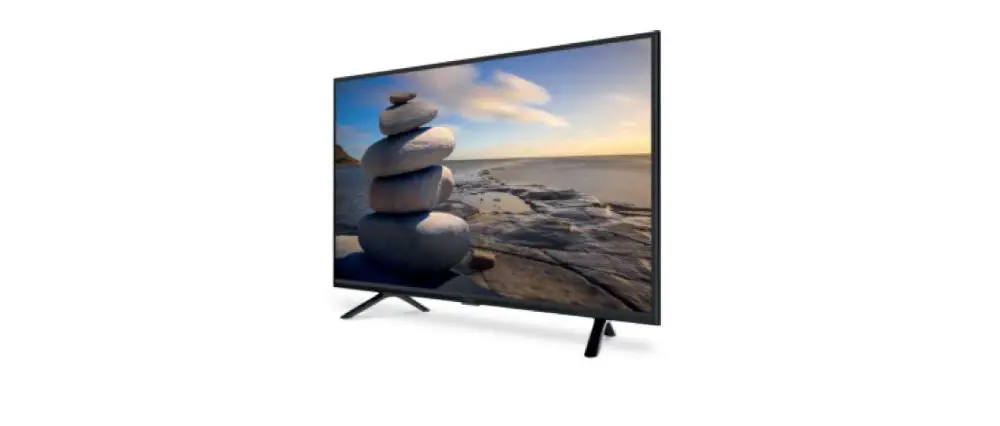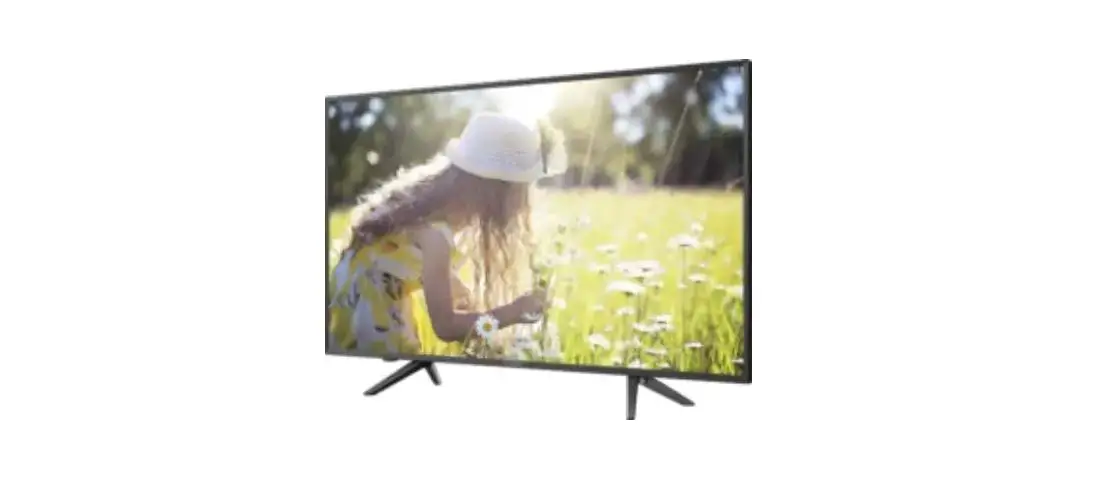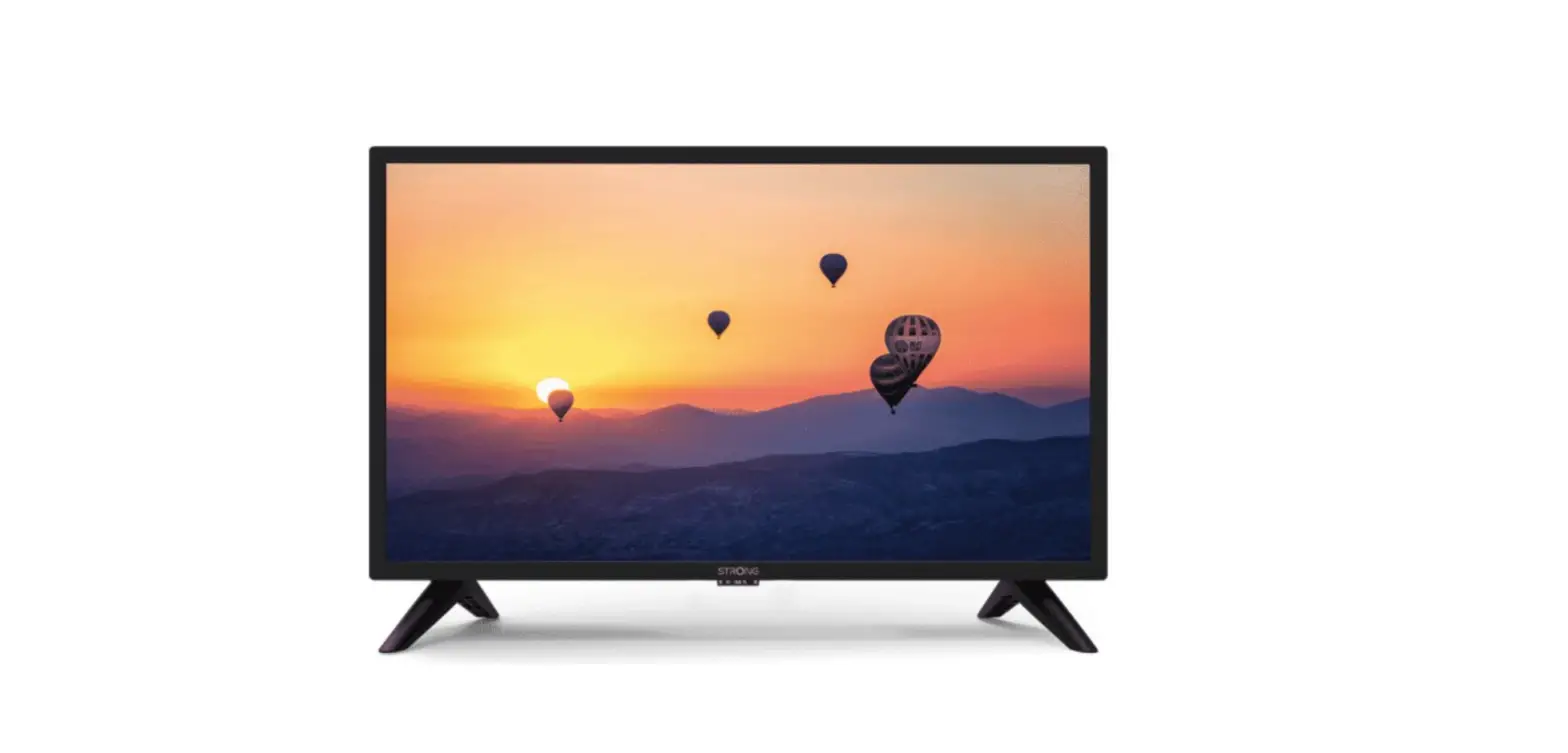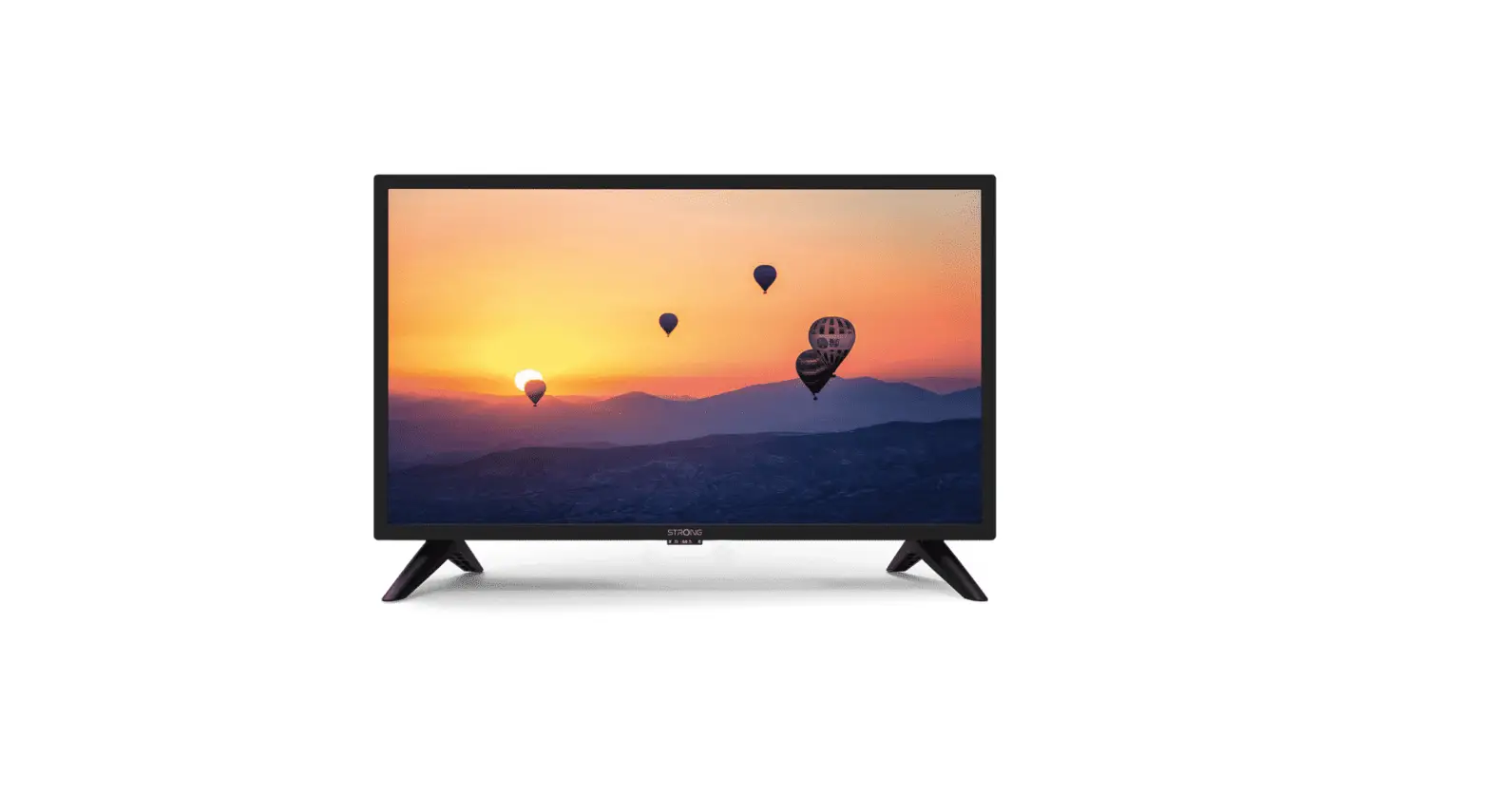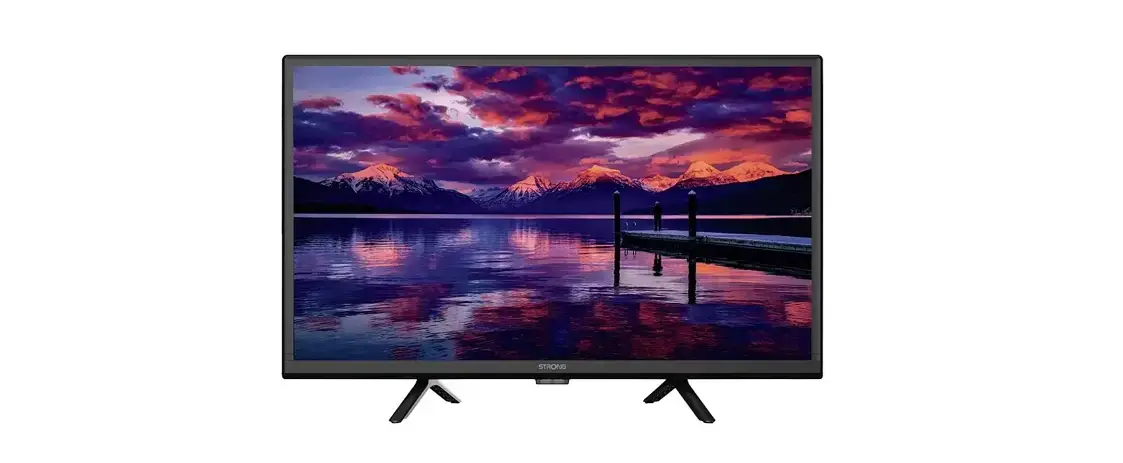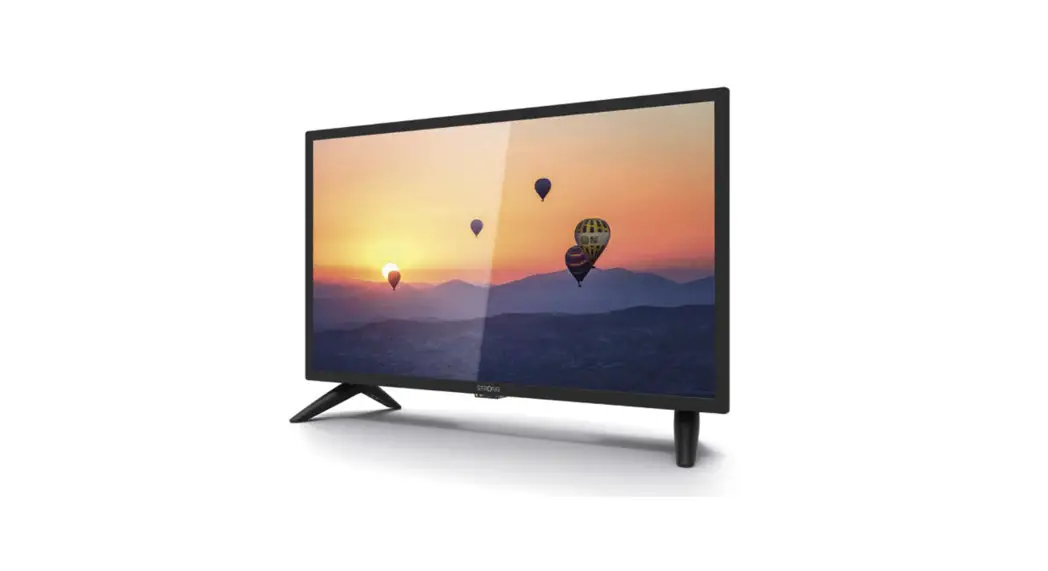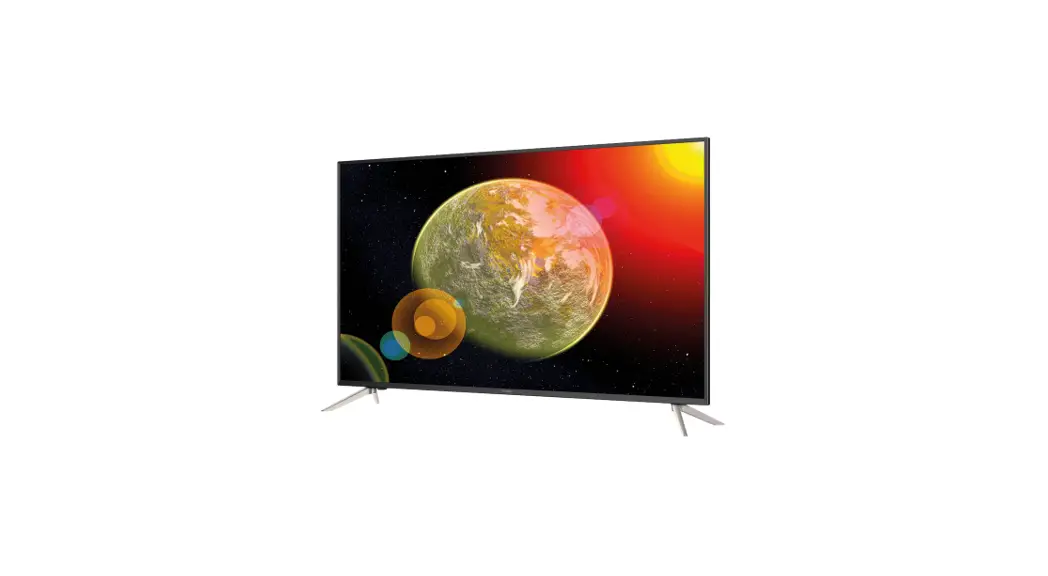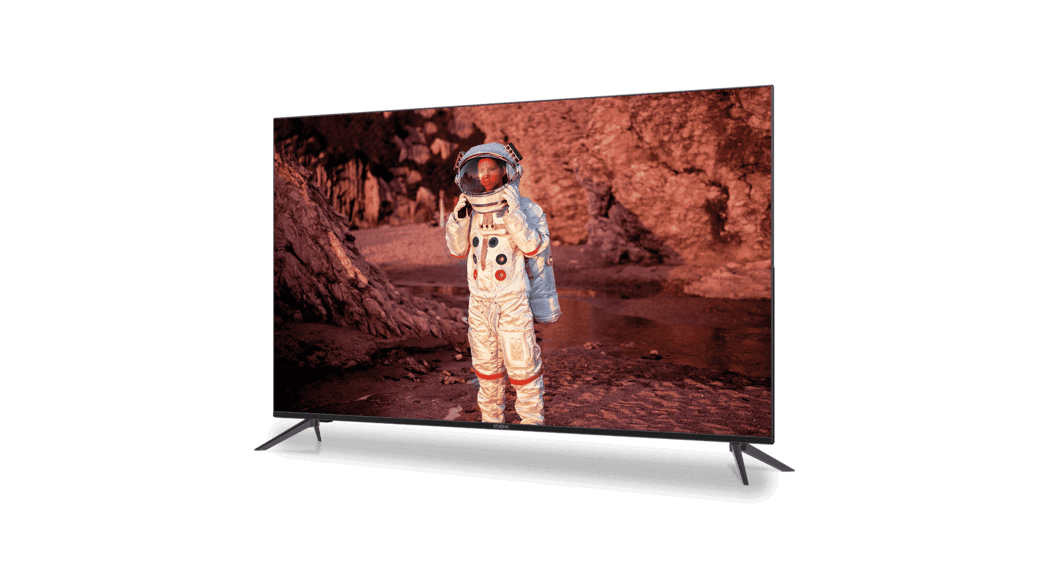
 SRT 43UC4013 43-Inch LED TV
User Manual
To obtain the best performance and safety, please read this manual carefully. Please keep this manual for future reference.
INSTRUCTION
1.1 Safety Instructions
Read all of the instructions before operating the set. Keep these instructions well for later use.
- Only use attachments/accessories specified or provided by the manufacturer (such as the exclusive supply adapter, battery, etc.).
- Please refer to the information on the exterior back enclosure for electrical and safety information before installing or operating the apparatus.
- To reduce the risk of fire or electric shock, do not expose this apparatus to rain or moisture.
- The ventilation should not be impeded by covering the ventilation openings with items, such as newspaper, tablecloths, curtains, etc.
- The apparatus shall not be exposed to dripping or splashing and no objects filled with liquids, such as vases, shall be placed on the apparatus.
- The mark
 indicates a risk of electric shock. The external wires must be installed by an instructed person or ready-made leads or cords must be used.
 - To prevent injury, this apparatus must be securely attached to the floor/wall in accordance with the installation instructions.
- The danger of explosion if the battery is incorrectly replaced. Replace only with the same or equivalent types.
- The battery (battery or battery or battery pack) shall not be exposed to excessive heat such as sunshine, fire, or the like.
- Excessive sound pressure from earphones and headphones can cause hearing loss.
- Listening to music at high volume levels and for extended durations can damage one’s hearing.
- In order to reduce the risk of damage to hearing, one should lower the volume to a safe, comfortable level, and reduce the amount of time listening to high levels.
- The mains plug or appliance coupler is used as a disconnect device, it shall remain readily operable. When not in use and during movement, please take care of the power cord set, e.g. tie up the power cord set with a cable tie or something like that. It shall be free from sharp edges or similar which can cause abrasion of the power cord set. When put into use again, please make sure the power cord is not damaged. In case of damages, please get the power cord replaced by a similar one with the same specifications. The absence of a light indicator on the apparatus does not mean that it is fully disconnected from the mains. To disconnect the apparatus completely, the main plug must be pulled out.
- Attention should be drawn to environmental aspects of battery disposal.
- No naked flame sources, such as lighted candles, should be placed on the apparatus.
 To prevent the spread of fire, keep candles or other open flames away from this product at all times.
- A USB terminal can provide a maximum of 500 mA.
 Equipment with this symbol is a Class II or double insulated electrical appliance. It has been designed in such a way that it does not require a safety connection to the electrical earth.
 To prevent the spread of fire, keep candles or other open flames away from this product at all times.
Operating Environment
- Do not install this equipment in a confined space such as a bookcase or similar unit.
- Do not use the set near damp, and cold areas, protect the set from overheating.
- Keep away from direct sunlight.
- Do not use the set near the dust place.
- Do not attach the candle to the access opening area, to avoid flammable foreign material from entering the TV.
WEEE Directive Correct Disposal of this product. This marking indicates that this product should not be disposed of with other household wastes throughout the EU. To prevent possible harm to the environment or human health from uncontrolled waste disposal, recycle it responsibly to promote the sustainable reuse of material resources. To return your used device, please use the return and collection systems or contact the retailer where the product was purchased. They can take this product for environmentally safe recycling.
1.2 Storage
Your device has been carefully checked and packed before shipping. When unpacking it, make sure that all the parts are included and keep the packaging away from children. We recommend that you keep the carton during the warranty period, to keep your device perfectly protected in the event of repair or warranty.
1.3 Accessories
- 1x installation instructions
- 1x safety instructions/warranty cards
- 1x remote control
- 2x DC1.5V batteries
1.4 Equipment set-up
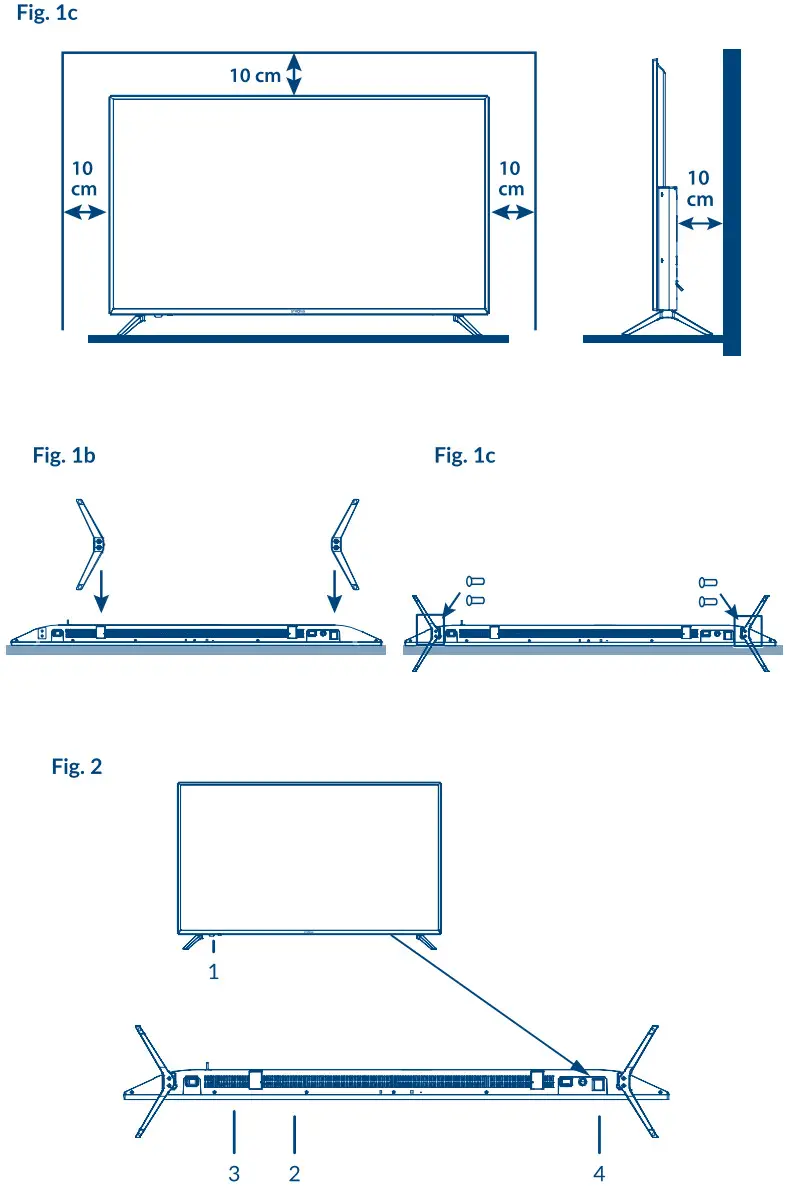
Fig.1a
Install the display on a solid horizontal surface such as a table or desk. For ventilation, leave a space of at least 10 cm free all around the set. To prevent any fault and unsafe situations, please do not place any objects on top of the set. This apparatus can be used in tropical and/or moderate climates.Stand assembly instructionFig.1b
Carefully place the TV with its front side facing down on a cushioned flat surface in order to protect the TV and the TV screen from damage.
Take out the stand and assemble it to the TV.
Fasten the feet to the bottom of the TV using 4X(14PM) (43’’), 4X (14PM) (50’’) screws, and 4X (18 PM) (55’’) screws.
Fig.1c
WARNING -Indicates warning information.
NOTE -Indicates any other additional important or helpful information.
MENU -Represents a button on the remote control or the TV.
(Bold characters)
Move to -Represents a menu item within a window.
(Italic characters)
INSTALLATION
2.1 Default PIN code: 0000
2.2 Front panel/underside
NOTE: The graphics are for representation only.
- Power indicator /remote sensor
- Speakers
- Buttons: Input source, Menu, V-/V+, CH-/CH+, Standby/ON.
- Power switch ON/OFF
2.3 Rear panel
NOTE: The graphics are for representation only.
2.3.1 43/50/55 inch
Fig.3b
- OPTICAL: Use an RCA cable to connect your TV to a compatible digital amplifier or Home theatre set.
- HDMI 3: Connect HDMI input signal from a signal source such as DVD, Blu-ray player, or game console.
- HDMI 2: Connect HDMI input signal from a signal source such as DVD, Blu-ray player, or game console.
- HDMI 1 (ARC): Connect HDMI input signal from a signal source such as DVD, Blu-ray player, or game console or directly to a Digital Amplifier that supports the
ARC function. This input is equipped with the ARC (Audio Return Channel) feature to implement audio connections and for a full Dolby audio support. - VIDEO/AUDIO L/R: Connect AUDIO and VIDEO input signals from a signal source such as a DVD.
2.4 Side panel
Fig.3a
NOTE: The graphics are for representation only.
- SATIN: Connect a satellite dish to the TV for searching programs.
- ANT/CABLE IN: Connect a terrestrial antenna or cable connection from your provider to the TV for searching programs.
- CI: Connect a Conditional Access Module (CAM).
- HEADPHONES; Speakers will be muted when the earphone is plugged in and headphone selected.
- USB: Connect a USB device for the playback of multimedia files
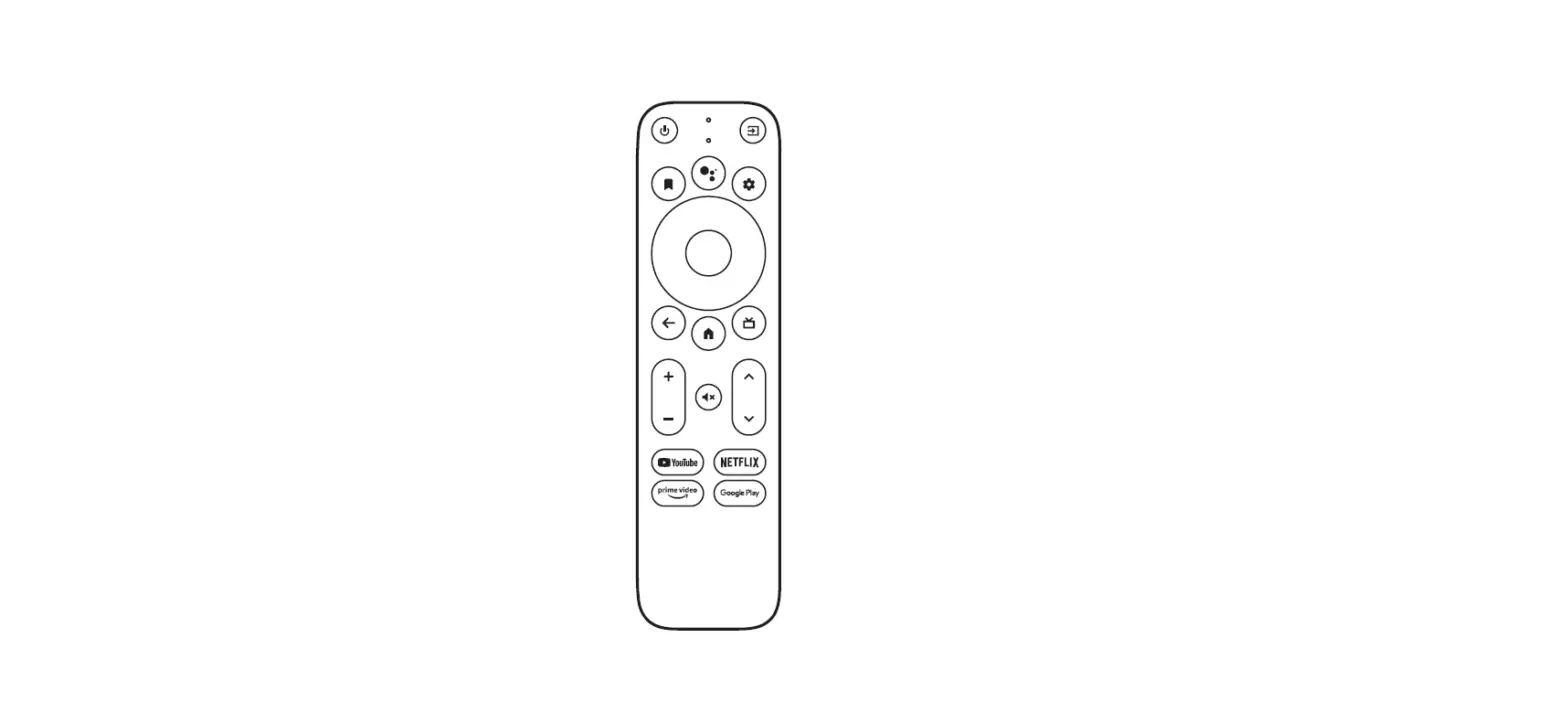
2.5 Remote control
| 1 |  | Press to mute or restore the volume. |
| 2 |  | Press to turn the TV on or standby. |
| 3 | (ASPECT)  | Change the aspect ratio. |
| 4 | SOUND | Change sound mode. |
| 5 | (PICTURE) PIC | Change picture mode. |
| 6 | EPG | Press to display the current EPG information in DT |
| 7 | 0 ~ 9 | Choose a channel directly. |
| 8 | LIST | Press to enter into the channel list. |
| 9 |  | Press to go back to the previously viewed channel. |
| 10 | SUB | Enable/disable subtitles in DTV/USB mode. |
| 11 | TEXT | Press to enter or exit the Teletext menu. |
| 12 | SIZE | Enlarge the Teletext display. Press this button once to enlarge the upper half of the screen. Press this button again to enlarge the lower half of the screen. Press this button again to resume to normal screen size. |
| 13 | MIX | Press this button to superimpose the Teletext over the TV program. Press again to return to normal Teletext mode. |
| 14 | HOLD | Press to hold the Teletext page on screen without updates and changes. Press again to release the hold state. |
| 15 | (REVEAL) TIP | In Teletext mode, press to reveal the hidden information. |
| 16 | INDEX | Press this button to display the index page. |
| 17 | (SUB.PAGE) SUB.P | Press this button to enter or exit subpage mode (if subpage is available}. Press the   buttons to select a subpage. buttons to select a subpage. |
| 18 | INFO | Display information about the current source. |
| 19 | FAV | Press to view your assigned favorite list or main list channels. Press   to cycle through your assigned favorite channels, and press OK to confirm. To open the selected list directly, you can press the LIST button. to cycle through your assigned favorite channels, and press OK to confirm. To open the selected list directly, you can press the LIST button. |
| 20 | AUDIO | Press to select available audio languages. Selecting audio description, a narrator will describe what is happening on the screen for blind or visually impaired viewers. Press again to turn it off (depending on the broadcast). |
| 21 | TV/R | Switch between TV and radio. |
| 22 | MENU | Open the menu options. Step back to some menu options. |
| 23 | INPUT | Select the input source mode. |
| 24 | | Navigate the menu. |
| 25 | OK | Confirm the selection. |
| 26 | BACK | Step back to some menu options |
| 27 |  | Exit the current menu. |
| 28 | SLEEP | Select the sleep time, such as 10 min, 20 min, etc. |
| 29 | VOL +/- | Adjust the volume up or down. |
| 30 | CH +/- | Change programs up or down. Big steps in Channel list. |
| 31 | PROG | Press to enter the Programme Edit menu. |
| 32 |  | Start/Pause playback and press again to continue playback. |
| 33 |  | Press to stop playback. |
| 34 | DTV | Press to go back to Digital TV. |
| 35 | HDMI | Press several times to select your HDMI input. |
| 36 |  | Press to play the previous file. |
| 37 |  | Press to play the next file. |
| 38 | | Press to fast forward. |
| 39 |  | Press to fast reverse. |
| 40 |  | Press to execute the prompt function in TV or DTV menu mode. |
2.6 Installing the batteries
Fig. 5
Place 2 x DC1.5V batteries in the battery compartment of the remote control. Make sure to match the polarity markings inside the compartment.
NOTE: Pictures are only for reference. Actual items may differ.
- Slide the cover horizontally.
- Put 2 x DC1.5V batteries in the compartment and make sure the polarity is correct.
- Slide horizontally to close the cover.
Precautions for using the battery
Improper use of the battery will cause leakage. Carefully follow these instructions.
- Please note the batteries’ polarity to avoid short circuits.
- When the battery’s voltage is insufficient which affects the use range, you should replace it with a new battery. Remove the batteries from the remote control unit if you do not intend to use them for a long time.
- Do not use different types of batteries (for example Manganese and Alkaline batteries) together.
- Do not put the battery on fire, and charge or decompose the battery.
- Please dispose of batteries and abide by relevant environmental protection regulations.
2.7 Using the remote control
- Use the remote control by pointing it towards the remote sensor. Items between the remote control and the remote sensor could block normal operation.
- Do not cause the remote control to vibrate violently. Also, do not splash liquid on the remote control, also do not put the remote control in a high humidity place.
- Do not place the remote control under direct sunlight which will cause deformation of the unit by heat.
- When the remote sensor is under direct sunlight or strong lighting, the remote control will not work. If so, please change the lighting or TV’s position, or operate the remote control closer to the remote sensor.
FIRST TIME INSTALLATION
After all, connections have been properly made, switch on your TV. The language selection will appear on the screen. Use to select the OSD Language of your preference. Confirm with OK on your remote control.
The next screen appears with the Mode Selection to select Home Mode or Shop Mode. Press OK and to confirm.
Then the next screen appears with the tuner selection. Choose the one you like to use.
Scan type: Select which input source you want to use: DVB-S to receive satellite broadcasts (and if you are equipped with a satellite dish), DVB-T to receive terrestrial broadcasts, or DVB-C to receive cable broadcasts.
3.1 DVB-S/S2 installation
Satellite Setting
First, select the region where you are using the TV. It this important to set the time zone correctly. Use the and confirm with OK.
Press to highlight the satellite your dish is aimed at. Confirm with OK to mark the satellite. Use the buttons to change settings for your satellite installation for each specific satellite. The signal quality bar on the bottom of the screen allows you to fine-tune the alignment of your antenna for optimum reception. Adjust your antenna for maximum possible signal quality. When the signal cannot be improved anymore, fix the dish in this position and press the BLUE Scan button to continue.
Channel Search
Press t u to highlight the options of choice and press OK to start the channel search.
Scan Mode: Choose between Default (recommended), Blind Scan, Network, and Preset Channel List.*
Crypted: Select FTA Channels to search Free-To-Air channels only or All Channels to search FTA and Encrypted channels
Service Type: Select DTV to search DTV channels only, RADIO to search radio channels only, or All for a complete search.
It is recommended to use the default settings.
3.2 DVB-T/T2 installation
Terrestrial Setting
First select the Tune Type by pressing to select DTV, ATV, or DTV+ATV (DTV to search digital broadcasts and ATV to search analog broadcasts). Press to continue. Press to select All Channels or FTA Channels. Press to highlight the country that you want to install, then press OK to start searching.
3.3 DVB-C installation
Cable Setting
Press to highlight your settings.
Scan type: You can select Network Scan or Full. (Default Network Scan for quick search advised)
NOTE: Full scan will have a duration of approximately 20 minutes, depending on your cable network.
Frequency: Please enter (with 0 ~ 9) the main frequency used by your provider in KHz.
Network ID: Please enter (with 0 ~ 9) the used Network ID from your provider.
Symbol: Please enter (with 0 ~ 9) the used Symbol from your provider. (Ks/s)
NOTE: Please check the settings for your cable system used by your provider!
Press OK to continue.
Crypted: Select FTA Channels to search Free-To-Air channels only or All Channels to search FTA and encrypted channels
Press to highlight the country that you want to install, then press OK to start searching.
ELECTRONIC PROGRAMME GUIDE (EPG)
EPG stands for Digital Electronic Programme Guide. It is supplied by the program providers and offers information on broadcasted programs. You can access it in digital mode by pressing EPG on the remote control. Press EPG to bring up the EPG interface. Use to select a program. Press EXIT to stop and return to viewing modes.
Then press the COLOUR BUTTONS for entering the required settings.
GREEN: Access extra info on the program
YELLOW: Open the reminder setting overview
BLUE: A set reminder of the selected program.
Below items depend if they are available from the select input source. Use INPUT to select another source.
5.1 Menu control (DTV mode)
Press MENU to enter the main menu. Press to select an item. Press and OK to select the submenus. Press MENU to exit the item.
5.2 Picture menu
Picture Mode: Select the automatic picture control mode. Available choices are Dynamic, Standard, Mild, and User.
Colour Temperature: Select the overall color tone of the picture. Available choices are Cool, Medium, Warm, and User.
Aspect Ratio: Select the aspect ratio (display proportions) according to your video signal type or preference. Available choices are Auto, 4:3,16:9, Zoom1, and Zoom2.
Note: Some options may not be available under some sources.
Noise Reduction: Eliminates noise in the picture. Available choices are Off Low, Middle, and High.
In the User mode, settings can be changed for Brightness, Contrast, Colour, and Sharpness.
5.2.1 Contrast/Brightness/Colour Tint/Sharpness
If Picture Mode is set to Personal you are able to change the following settings
Press to select an option, then press to adjust.
Contrast: Adjust the highlight intensity of the picture, but the shadow of the picture is invariable.
Brightness: Adjust the optical fiber output of the entire picture, it will affect the dark region of the picture.
Colour: Adjust the saturation of the color based on your own preference.
Tint: No function
Sharpness: Adjust the peaking in the detail of the picture.
5.2.2 Colour Temperature
In this menu, you can change the overall color cast of the picture.
Press to select Colour Temperature, then press OK to enter a sub-menu. Press to select the relevant picture effect (DEFAULT: Cold Normal Warm).
Cold: increase the blue tone for the white.
Normal: Increase the neutral colors for the white.
Warm: increase the red color for the white.
5.2.3 Noise Reduction
In this menu, you can filter out and reduce the image noise and improve picture quality. Press to select Noise Reduction, then press OK to enter a sub-menu.
Off: Select to turn off video noise detection.
Low: Detect and reduce low video noise.
Middle: Detect and reduce moderate video noise.
High: Detect and reduce enhanced video noise.
Default: Set as Default.
5.3 Sound menu
Sound Mode: Select your favorite sound mode for each input. Choices are Standard, Music, Movie, Sports, and User.
Bass: Adjusts the lower frequency of the sound.
Treble: Adjusts the higher frequency of the sound.
Balance: Control the sound balance between the right and left loudspeaker (earphone).
Auto Volume: Adjust the volume corresponding to the input audio level. Options are On and Off.
Surround Sound: Turn on the Sound Retrieval System.
AD Switch: Turn on the Audio description, you can activate the setting of AD volume. When turning on the audio description, a narrator will describe what is happening on the screen for blind or visually impaired viewers. (Only if available in DTV mode.)
S/PDIF Mode: If you have connected S/PDIF output to the digital home audio system. You can select “Auto” to output Dolby audio automatically. If the channel has this audio channel.
5.4 Channel
Press MENU to display the main menu. Press to select Channel in the main menu. Press to select the option you wish to adjust in the Channel menu.
Press OK to adjust. After finishing, your adjustment, press OK to save and return to the previous menu. Below items depend if they are available from a select input source. Use INPUT to select another source
5.4.1 Auto Tuning
Press to select Auto Tuning, select the Scan Type, and proceed with OK.
5.4.2 Dish Setup
If you use DVB-S/S2 as the input source, the Dish Setup menu allows you to set your satellite and belonging settings as DiSEqC port and LNB type. Afterward, you may start the Auto Tuning or Manual Tuning by selecting with the EPG button the wanted transponder.
5.4.3 DTV Manual Tuning (in DVB-T mode only)
Search and store programs manually. Press to select DTV Manual Tuning. Then press OK to enter the sub-menu.
Press to select Channel No., and then press OK to start the search. The search stops when a program is found and this program will be stored in the current channel position. If you want to stop the search, press MENU.
5.4.4 ATV Manual Tuning (in DVB-C mode only)
First, select the source type of ATV. Then in the Channel menu, select ATV Manual Tuning and press OK to access. Highlight and press to select Storage To 1 (maybe another number), Sound System, and Channel No. Then select search and press OK to start the search. Press for the unit to search towards a higher frequency. Press for the unit to search towards lower frequency. The search stops when a program is found and this program will be stored in the current channel position. If you want to stop the
search, press MENU.
Current CH: Set the channel number
Colour System: Select the color system (Available: AUTO, PAL, SECAM)
Sound System: Select the Sound system
Fine-Tune: Adjust the frequency of the channel
Search: Start the channel search
5.4.5 Channel extra settings
| Program Edit | Edit the programs. You can press the COLOUR BUTTONS on the remote control to skip programs, rename and delete programs or move programs, and add programs to the favorite list by pressing FAV. |
| Signal Information | Showing the information of the current DTV channel. Only available with a DTV signal. |
| Cl information | Enables the user to watch and change settings of CAM modules and check values from inserted smart card. |
| Channel list | Select which channel list you like to see if you press on LIST button. Select between Main List or Favorite List |
| Schedule List | Press in the Channel. Select Schedule List, then press OK to enter the submenu. Use the COLOUR BUTTONS to modify your settings. |
| Software Update (USB) | Press OK and use to select Yes if you want to update the software or No to go back to the main menu. For more information see also chapter 6.2.5. |
NOTE: To modify the order of the channels contained in the channel list do as follow: press Menu and OK to select Program Edit (it is also possible access this option by pressing the PROG button on the remote control).
To move a channel, select it by using or CH +/- button then press the YELLOW button. Now, there are two different ways to move the channel:
Enter the number of the new position by using the 0 ~ 9 buttons on the remote control and confirm with OK or YELLOW. The selected channel will be automatically moved to the new position.
Press button and move the channel in a position of your choice. Confirm with OK
5.5 Time menu
Press MENU to display the main menu. Press to select TIME in the main menu. Press to do further adjustments. Press OK to return to the previous menu.
| Clock | The time is automatically obtained from the channel transmission and doesn’t have to be set manually. Should this function not be provided by the broadcaster, it is possible to set it by pressing OK and set the date and time by pressing . |
| Time Zone | Press to select Time Zone. |
| Sleep Timer | Press to select Sleep Timer. Available Options: Off, 10 min., 20 min., 30 min., 60 min., 90min., 120 min.,180 min. and 240 min. |
| Auto Standby | This function allows you to set the automatic shutdown of your TV. Choose between 2H, 3H, 4H or Off to disable this function. |
| OSD Timer | This function allows you to choose how long the info banner is displayed. Choose between 5s, 15s, or 30s. |
5.6 Lock
Press MENU to display the main menu. Press to enter the Lock menu settings. Press to select the options. The following options are available:
System Lock: This option allows you to enable or disable the password protection. Press OK to set this function On or Off.
Set Password: The default password is 0000, to customize the password press OK and follow the instruction within the menu.
Channel Lock: This option allows you to prevent viewing of one or more channels. Press OK to display the channel list and select with the channel you want to be locked. PressGREEN to lock it. Consider the same procedure to lock other channels if needed.
Parental Guidance: Press OK to enter and set the age for suitable programs for children, then press .
5.7 Setup Menu
Language: Select the Menu language of your choice. The default setting is English. Press to select the menu language.
Audio Languages: Press t u to select Primary for the main audio track or Secondary next audio channel if first is not available. Press to select your chosen Audio Language, then press OK.
Subtitle Language: Press to select your chosen Subtitle Language, then press OK
Country: This item shows the region you have been selected for the first time you install the TV.
Restore Factory Default: Press to select this function, by pressing OK and entering the PIN code. You will reset all the settings contained in the main menu and delete all installed channels. TV will go back to First Time Installation See chapter 3.
Version Information: Your current software version is displayed.
HDMI CEC: See chapter 5.7.1.
Home /Shop: Switch between Home modes and Shop modes with default more brightness and Auto standby to off.
USB Clone: This option allows you to copy your channel list to a USB device as a backup. Insert USB device and select Back up. To load this later back into TV, select “Restore”.
5.7.1 HDMI CEC
CEC Control: Press to turn the HDMI CEC On or Off.
Audio Receiver: Press to turn the Audio Receiver On or Off.
Device Auto Power Off: Press to turn on this feature. When finished turn off your TV. The connected device will turn off automatically.
TV Auto Power On: Press to select this option. When finished, turn on the connected device. The TV will switch on automatically.
Device List: Press OK to open the main menu of the device.
Device Menu: Access the device menu.
USB
6.1 Reminder when using the USB player
Some USB storage devices may not be compatible to operate smoothly with this TV.
Back up all of the data in the USB storage device in case data is lost due to an unexpected accident. STRONG does not assume any liability for the losses by misuse or malfunction. Data backup is the consumer’s responsibility.
For large file sizes, the loading speed may be slightly longer.
The recognition speed of a USB storage device may depend on each device.
When connecting or disconnecting the USB storage device, make sure the TV is not in USB mode otherwise the USB storage device or the files stored in it may be damaged.
Please use only a USB storage device that is formatted in FAT16, FAT32, and NTFS (playback only) file system provided with the Windows operating system. In case of a storage device is formatted as a different utility program that is not supported by Windows, it may not be recognized.
When using a USB Hard Disk Drive that is not powered independently, ensure its power does not exceed 500 mA. Otherwise, the TV system will change into standby mode, and you must pull out the USB Hard Disk and restart the TV system.
An “Unsupported File” message will be displayed if the file format is unsupported or the file is corrupted.
FHD big picture needs a longer time to process, which is not caused by the TV. Please be patient.
This TV may not support some multimedia files changed and upgraded as the change of the encoding format or other technical aspects advance.
Please refer to chapter 9. Appendix for a list of supported file formats for USB playback.
6.2 USB menu
Press SOURCE and select USB. You can view movies, music, and photo files from your USB storage devices.
Connect a USB storage device to the USB input terminal and select the types of media on the home page: Movie, Music, Photo, and text. Press OK, the screen will show the connected USB device, press OK again to view the file folders and files. Press or to select a folder, press OK to open the folder, and select the files. Highlight the one you want to play or watch or press directly to start playing directly. Press to stop playing and return to the upper-level folder. Continuously press RETURN to go back to the upper-level folder. Repeat again to select and play another media type.
NOTE: By choosing one of the three media types, for example, Movie, the folders inside will display only video files and no other formats.
6.2.1 Play movies
Fig. 6
During playback, press INFO or OK to display/exit the menu bar (Fig. 6). Press the USB control buttons on the remote control to do relevant operations.
Play & Pause/Stop/Prev./Next: Press to play or pause the playback. Press to stop playing. Press to play the previous or the next video file. Press INFO and use to highlight the corresponding icon on the control bar, then press OK. The TV will respond accordingly.
Fast Reverse/Fast Forward: Press and hold for seconds to draw the playing progress as your desire, then press to start the playing from the new position.
Play Mode: Highlight the corresponding icon and press OK to switch to another play mode.
Information: Highlight the corresponding icon and press OK to view the information about the playing video.
Aspect Ratio: Highlight the button and press OK to select the display mode.
6.2.2 Play music
Fig. 7
Press INFO or OK to display/exit from the menu bar (Fig. 7). Press the USB control buttons on the remote control to do relevant operations.
Play & Pause/Stop/Previous/Next: Press to play or pause the playback. Press to stop playing. Press to play the previous or the next music file. Press to highlight the corresponding icon on the control bar, and then press OK. The TV will respond accordingly.
Fast Forward/Fast Reverse: Press and hold for seconds to draw the playing progress as you wish, then press on the remote control to start playing from the new position.
Repeat: Highlight the icon and press OK. You can select 3 different modes: None to disable the function, 1 to repeat one track only and All to repeat the entire list once it is finished.
Information; Highlight the icon and press OK to check the information of the playing music.
NOTE:
- If the one (or more) file(s) of the play list is selected, buttons will play only selected files.
- This menu only shows supported files.
- Files with other file extensions are not displayed, even if they are saved on the same USB storage device.
- An over-modulated mp3 file may cause some sound distortion during playback.
- This TV supports lyrics display (in English). The maximum number of characters per line is 48.
- The file name of music and lyrics must be the same in order to display lyrics while the music is playing.
- If you want to show the associated lyrics on the screen with the music, you must store these in the same folder using the same file name with “.Irc” file extensions.
6.2.3 Browse photos
Fig. 8
Press during viewing INFO or OK to display/exit from the menu bar (Fig.8). Press the USB control buttons on the remote control to do relevant operations.
Play & Pause/Stop/Previous/Next: Press to play or pause the playback. Press to stop playing. Press to show the previous or the next picture. Press to highlight the icon on the control bar, and then press OK. The TV will respond accordingly.
Repeat: Highlight the icon and press OK. You can select 3 different modes: None to disable the function, 1 to repeat one track only and All to repeat the entire list once it is finished.
Info: Highlight the button and press OK to check the information in the shown photo.
Rotate: Highlight the icon in the menu bar and press OK to rotate the picture 90 degrees clockwise or counterclockwise.
Zoom In/Zoom Out: Highlight the icon on the menu bar and press OK to zoom in or zoom out of the image.
Move View: When the image is magnified, use this function for a convenient check. Highlight this icon, press OK, then press to move the image.
NOTE: The move function  is only available when the image is enlarged.
6.2.4 Browse text documents
Press to select Text in the main menu. Then press to select the drive disk you choose to watch and OK to enter. Select the file you want to display by using and confirm with OK. Quit step by pressing OK. Press to select return and go back to the previous menu.
6.2.5 Software update via USB
From time to time you can check if there is an improved software version available. This can be viewed and downloaded from our website www.strong.tv. Search the model number on our website’s service support section. If there is an improved software version you can download the file and copy it to the root of a USB device. Then press button to select Software Update (USB) from the SETUP menu on your TV. Afterward, plug your USB device into the USB slot and press OK to update the respective software. Confirm with Yes using . When the update is completed, remove the USB stick, disconnect your device from the main power supply and plugin again.
TROUBLESHOOTING
Before calling a service technician, review the following information for possible causes and solutions for the problem you are experiencing. If the TV does not work properly after checking it, please contact your local service line or STRONG dealer. Alternatively, you can send a support mail via our website www.strong.tv.
| Problem | Possible cause and solution |
| No picture, no sound | 1. Check if the fuse or circuit breaker is working. 2. Plug another electrical device into the outlet to make sure it is working or tuned on. 3. The power plug is in bad contact with the outlet 4. Check the signal source. |
| No color | 1. Change the color system. 2. Adjust the saturation. 3. Try another channel. The black-white program may be received. |
| The remote control does not work | 1. Change the batteries. 2. The batteries are not installed correctly. 3. Main power is not connected. |
| No picture, normal sound | 4. Adjust the brightness and contrast 5. Broadcasting failure may happen. |
| Normal picture, no sound | 1. Press the volume up button to increase the volume. 2. The volume is set to mute, press to restore the sound.3. Change the sound system. 4. Broadcasting failure may happen. |
| Unorderly ripples on the picture | It is usually caused by local interference, such as cars, daylight lamps, and hair driers. Adjust the antenna to minimize the interference. |
| Snowy dots, blocking and interference | If the antenna is located in the fringe area of a television signal where the signal is weak, the picture may be marred by dots, showing blocking or break-ups. When the signal is extremely weak, it may be necessary to install a special antenna to improve the reception. 1. Adjust the position and orientation of the indoor/outdoor antenna. 2. Check the connection of the antenna. 3. Fine-tune the channel. 4. Try another channel. Broadcasting failure may happen. |
| Radiofrequency interference | This interference produces moving ripples or diagonal streaks, and in some cases, loss of contrast in the picture. Find out and remove the radio interference source. |
| Problem | Possible cause and solution |
| Playback of video is causing picture freeze/ macroblocks or similar distortion, especially on HD content. | The read/write speed of your USB device could be too low. Make sure to use a USB storage device with sufficient speed and space. Pen drives (USB sticks) may not support sufficient speed. |
| No signal or weak signal, intermittent reception. | a). Cables might have loosened; moisture might have entered into cables or connectors, heavy rain at present or heavy storm at present. Check the cable connections, LNB, and other equipment connected between the LNB and the receiver, or peak the dish. Wait for the rain/storm to subside. Ask a local satellite specialist for advice. b). The satellite dish is not pointing at the (correct) satellite(s). Adjust the dish. Ask a local satellite specialist for advice. c). Satellite dish is too small, trees or buildings in the path. Change to a larger dish or change the position of the dish. d). Signal is too strong, and the dish is oversized. Connect a signal attenuator to the LNB input. Ask a local satellite specialist for advice. |
| Bad picture/blocking error during heavy rain. | Heavy rain will attenuate satellite signals, below a certain level blocking will occur. Make sure your dish installation is up to standards to minimize rain effects. When in doubt, ask a local satellite specialist for advice. |
NOTE: If the problem persists after these solutions, please contact your local support center or send a support mail via our website www.strong.tv.
SPECIFICATIONS
| Audio | |
| Audio Output: | 2 * 10 W |
| Video | |
| Channel coverage: | DVB-T2: 174 MHz-230 MHz; 470 MHz-860 MHz DVB-C: 50-858 MHz DVB-S2: 950 MHz-2150 MHz DTV: DVB-T2, DVB-S2, DVB-C |
| System: | ATV: PAL/SECAM (BG/DK/1) AV: PAL, NTSC |
| Connectors 43” 50” 55” | 1x ANT/CABLE IN 1x SAT IN 1x CI 1x AUDIO L/R IN 1x VIDEO IN 3x HDMI 1x S/PDIF (optical) 1x USB 1x HEADPHONES |
| General Data | |
| Operating voltage: | 100 ~ 240 V AC 50/60 Hz |
| Power consumption: | 43” max. 88 W, typ. 68 W 50” max. 120 W, typ. 90 W 55” max. 150 W, typ. 108 W |
| Power consumption in standby: | 43”, 50”, 55”: <0.5 W |
| Operating temperature: | +2 °C ~ +35 °C |
| Storage temperature: | -15 °C ~ +45 °C |
| Operating humidity: | 25% ~ 70% RH |
| Storage humidity: | 10% ~ 50% RH |
| Dimensions (WxDxH) in mm: | 43“: 966 x 231 x 621.5 50“: 1123.4 x 230.5 x 710.7 55“: 1238 x 264 x 777 |
| Net-weight: | 43”: 7,65 kg 50”: 10,5 kg 55”: 13 kg |
SERVICE CENTER
| AT |  [email protected] [email protected] 0820 400 150 0820 400 150(∉0.12/Min. Osterr. Festnetz) | HU | [email protected] +36 1 445 26 10 |
| BG | [email protected] +359 32 634451 | IT | [email protected] 199 404 032 Da rete fissa 24$ cent. al min. 12,5 cent. scatto alla risposta Da rete mobile max 49 cent. al min. 15.6 cent. scatto alla risposta |
| CZ – | [email protected]844 44 44 90 | NL | [email protected] |
| DE | [email protected] 0180 501 49 91 (C 0,14/Min. deutsches Festnetz) (C 0,42/Min. max. Mobilfunknetze) | PT | [email protected]+351 2 100 06 125 |
| DK | [email protected] | PL | [email protected]801 702 017 |
| ES | [email protected] +34 91 119 61 76 | SK | [email protected] 0850 15 05 50 |
| FR | [email protected] | SL | 386 1 828 08 58 |
| HR | +385 1 344 57 66 | UA | [email protected] +380 (44) 238 61 50 |
Licenses
THIS PRODUCT IS LICENSED UNDER THE AVC PATENT PORTFOLIO LICENSE FOR THE PERSONAL AND NONCOMMERCIAL USE OF A CONSUMER TO (i) ENCODE VIDEO IN COMPLIANCE WITH THE AVC STANDARD (“AVC VIDEO”) AND/OR (ii) DECODE AVC VIDEO THAT WAS ENCODED BY A CONSUMER ENGAGED IN A PERSONAL AND NON-COMMERCIAL ACTIVITY AND/OR WAS OBTAINED FROM A VIDEO PROVIDER LICENSED TO PROVIDE AVC VIDEO. NO LICENSE IS GRANTED OR SHALL BE IMPLIED FOR ANY OTHER USE. ADDITIONAL INFORMATION MAY BE OBTAINED FROM MPEG LA, L.L.C. See http://WWW.MPEGLA.COM
This product contains one or more programs protected under international and U.S. copyright laws as unpublished works. They are confidential and proprietary to Dolby Laboratories. Their reproduction or disclosure, in whole or in part, or the production of derivative works therefrom without the express permission of Dolby Laboratories is prohibited. Copyright 2003-2009 by Dolby Laboratories. All rights reserved.
THIS PRODUCT IS SOLD WITH A LIMITED LICENSE AND IS AUTHORIZED TO BE USED ONLY IN CONNECTION WITH HEVC CONTENT THAT MEETS EACH OF THE THREE FOLLOWING QUALIFICATIONS:
- HEVC CONTENT ONLY FOR PERSONAL USE;
- HEVC CONTENT THAT IS NOT OFFERED FOR SALE; AND
- HEVC CONTENT IS CREATED BY THE OWNER OF THE PRODUCT. THIS PRODUCT MAY NOT BE
USED IN CONNECTION WITH HEVC ENCODED CONTENT CREATED BY A THIRD PARTY, WHICH THE USER HAS ORDERED OR PURCHASED FROM A THIRD PARTY UNLESS THE USER IS SEPARATELY GRANTED RIGHTS TO USE THE PRODUCT WITH SUCH CONTENT BY A LICENSED SELLER OF THE CONTENT. YOUR USE OF THIS PRODUCT IN CONNECTION WITH HEVC ENCODED CONTENT IS DEEMED ACCEPTANCE OF THE LIMITED AUTHORITY TO USE AS NOTED ABOVE.
SIMPLIFIED EU DECLARATION OF CONFORMITY
Hereby, STRONG declares that the devices SRT 43UC4013, 50UC4013, and 55UC4013 are in compliance with Directive 2014/53/EU.
The full text of the EU declaration of conformity is available at the following internet address: https://www.strong.tv/en/doc Subject to alterations. As a consequence of continuous research and development of technical specifications, the design and appearance of products may change. Manufactured under license from Dolby Laboratories. Dolby and the double-D symbol are trademarks of Dolby Laboratories. The terms HDMI and HDMI High-Definition Multimedia Interface, and the HDMI logo are trademarks or registered trademarks of HDMI Licensing Administrator, Inc in the United States and other countries. Wi-Fi is a registered trademark of Wi-Fi Alliance®. Netflix is a registered trademark of Netflix, Inc. YouTube is a trademark of Google Inc. All product names are trademarks or registered trademarks of their respective owners.
© STRONG 2021. All rights reserved.
Supplied by STRONG France
Represented by STRONG S.A.R.L.
54 rue de Billancourt,
92100 Boulogne-Billancourt, France
Email: [email protected]
 Home | Strong.tv
 Home - Strong.tv