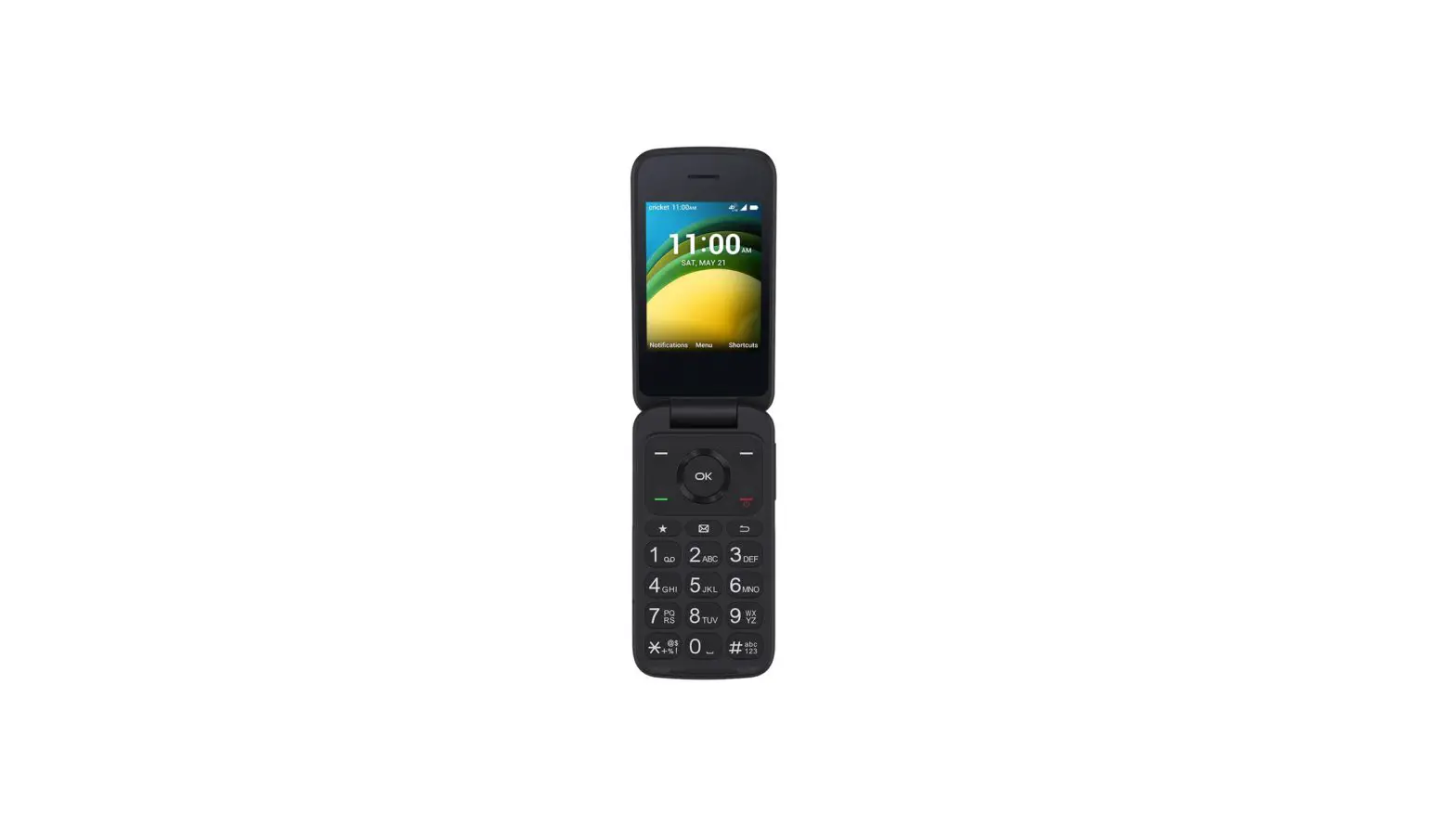
circket TCL Classic Folding Phone User Guide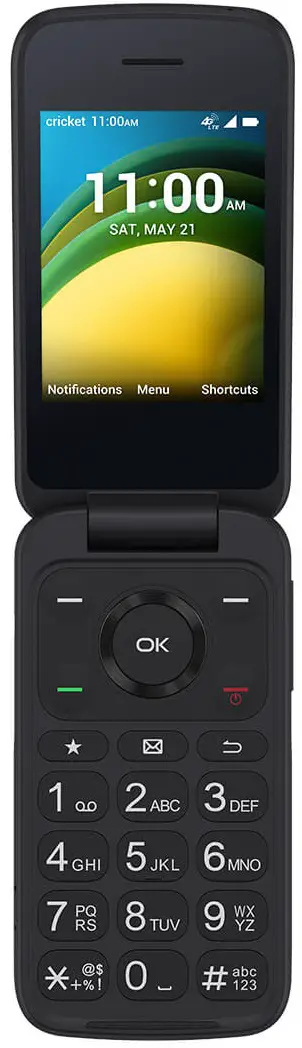
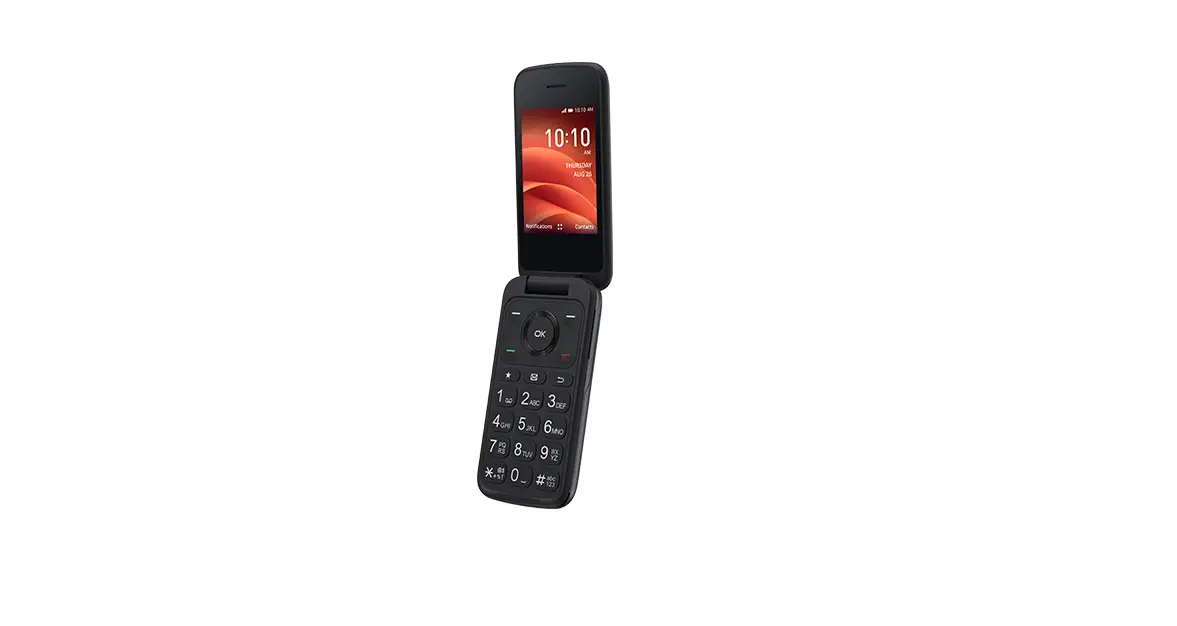
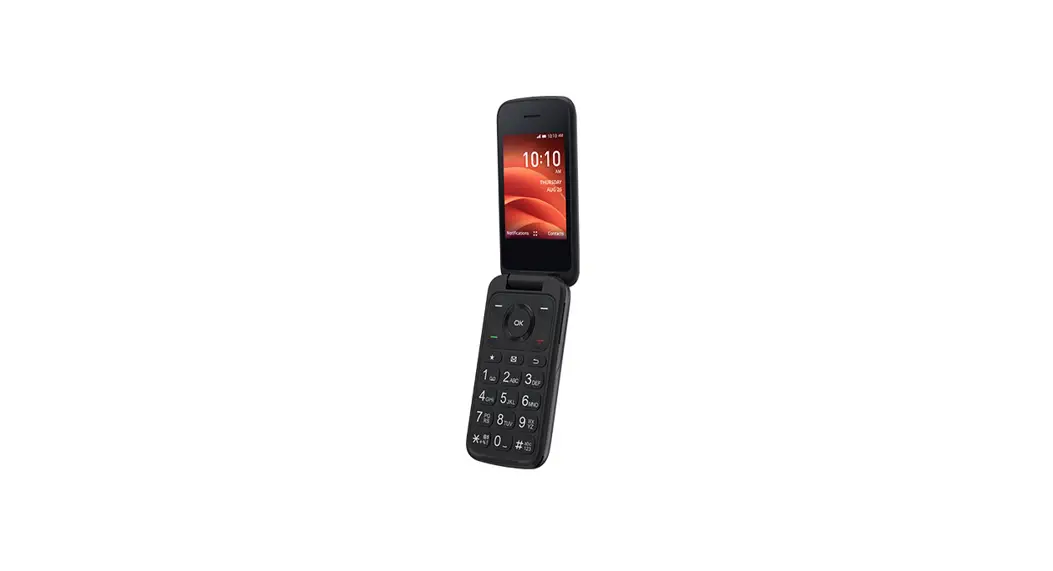
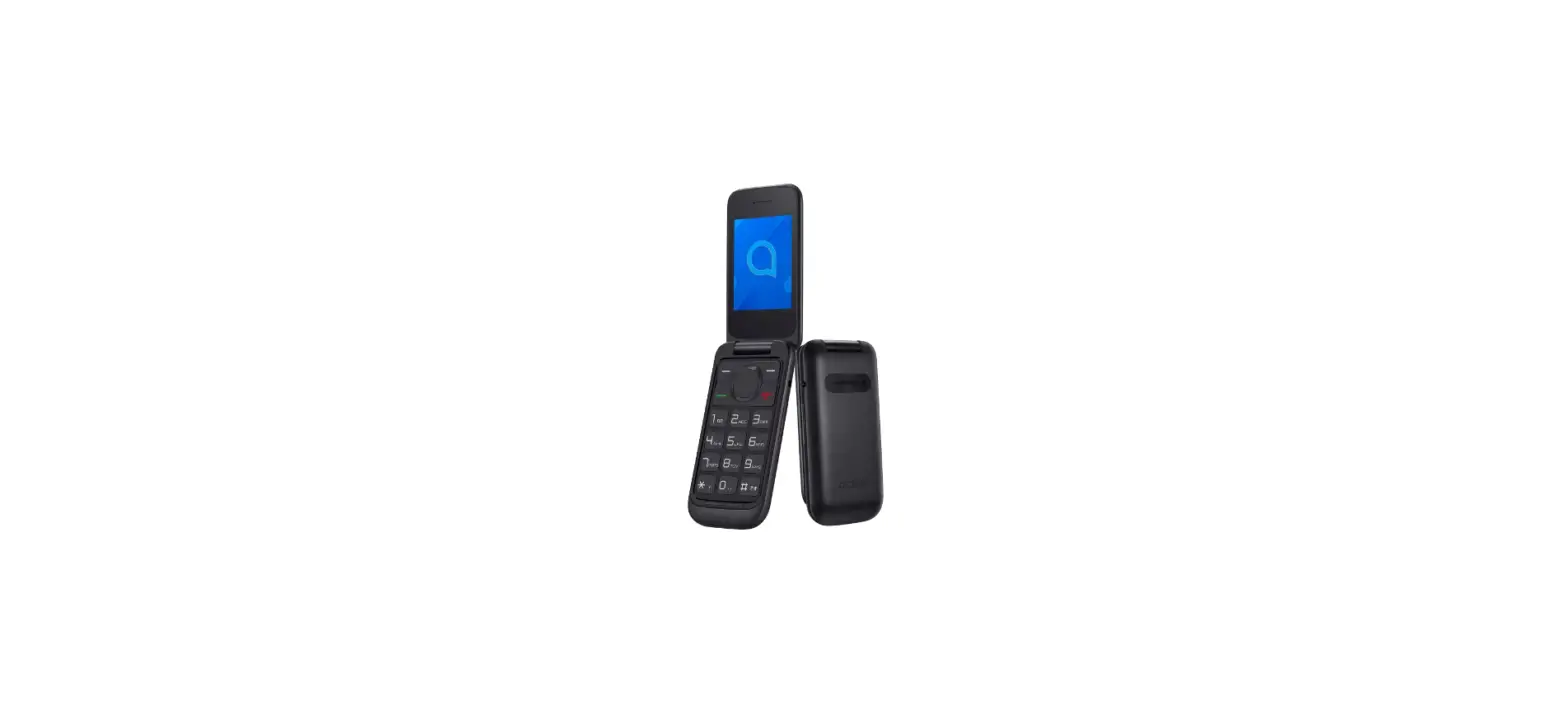
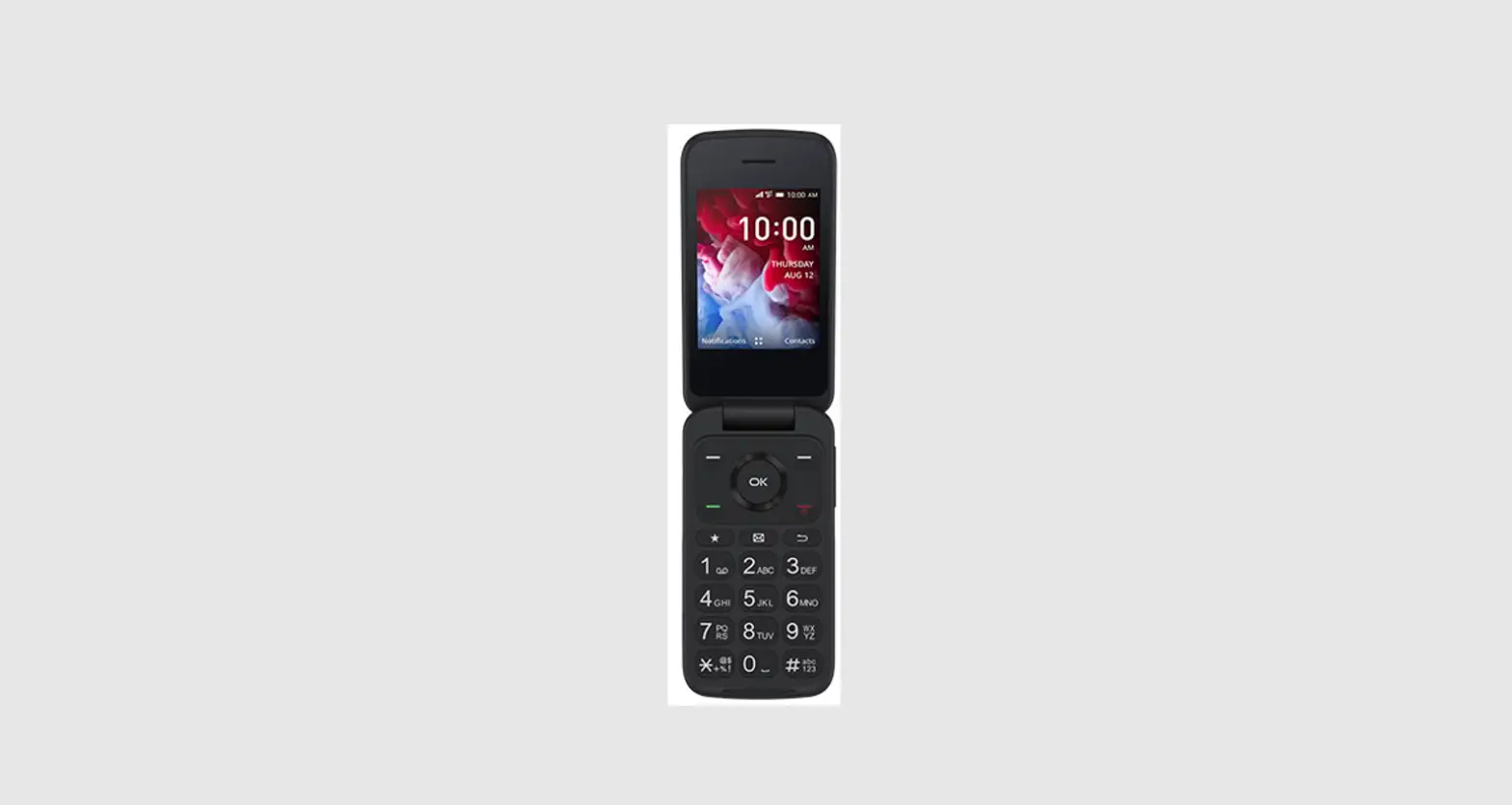
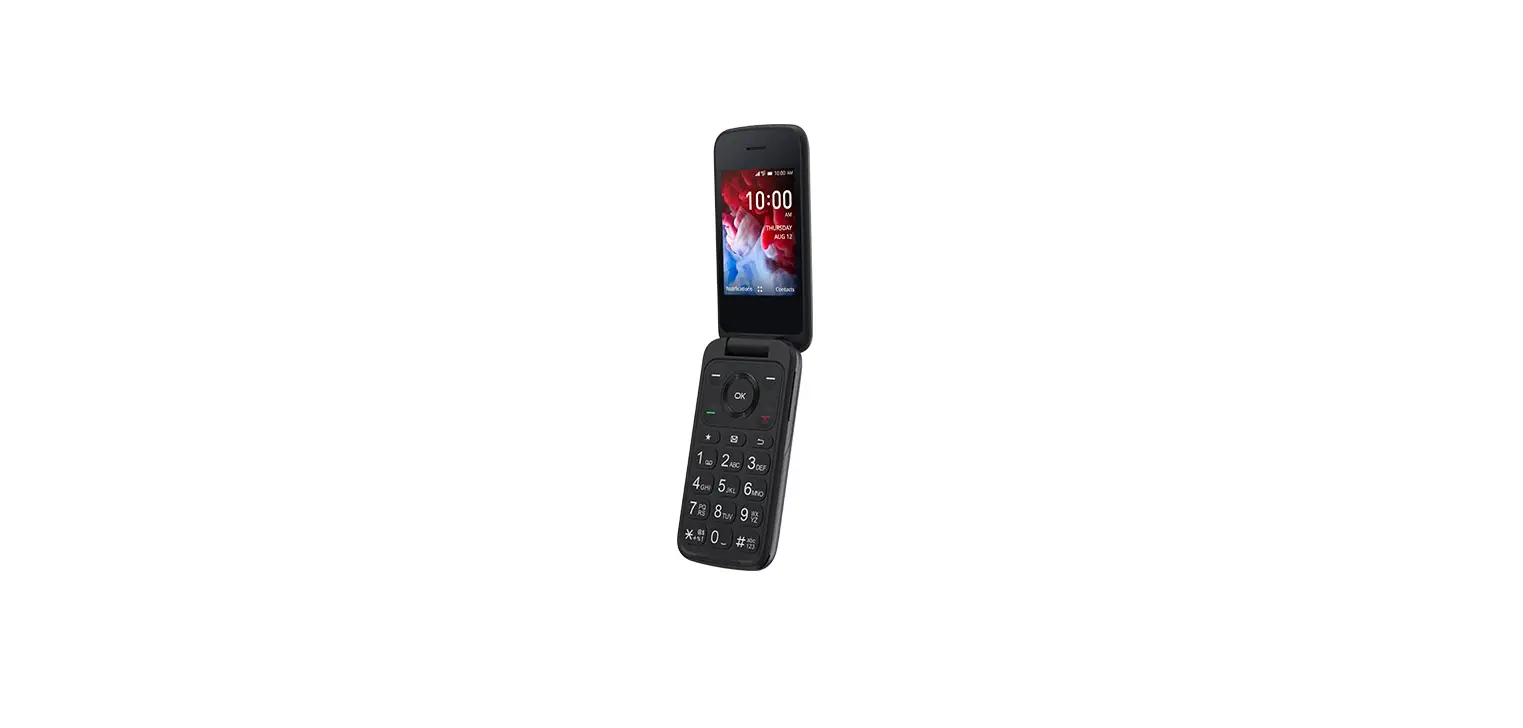
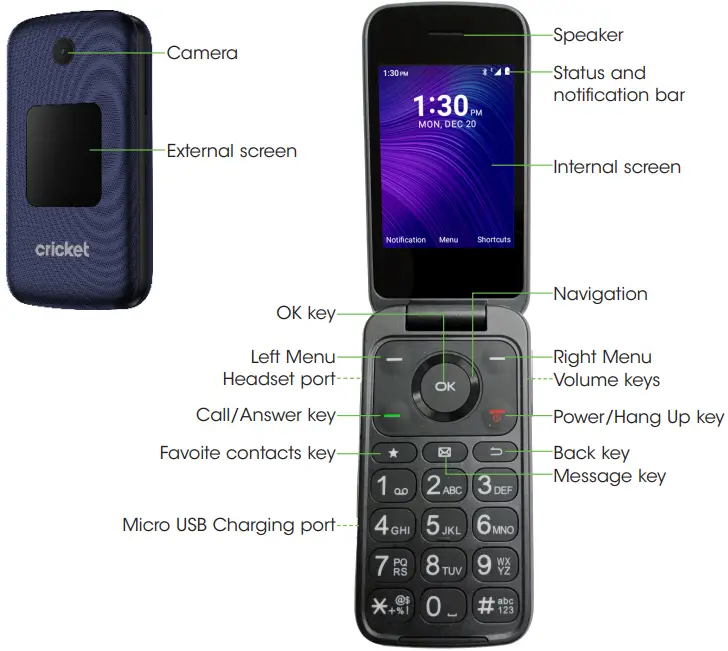
Getting to know your Alcatel SMARTFLIP
Phone setup
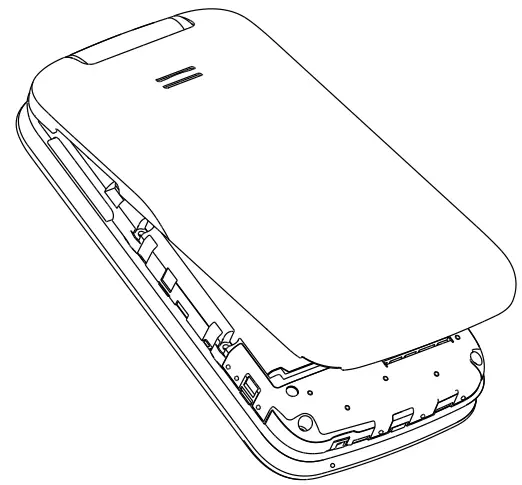
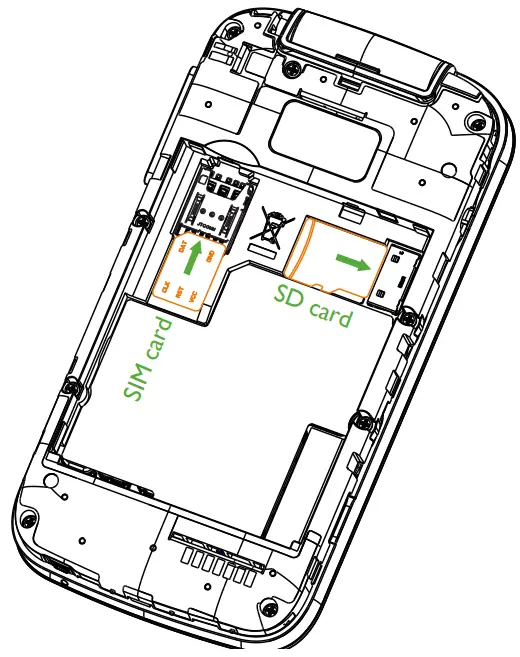
- Remove back cover by gently pulling up on the indentation on the bottom left of the cover.

- Insert the NANO SIM card by carefully sliding it into the SIM slot with the gold contacts facing down and the slanted corner to the left.

- Insert the optional microSDTM card into the microSD slot, ensuring that the gold contacts are facing down and the flat edge is facing up.
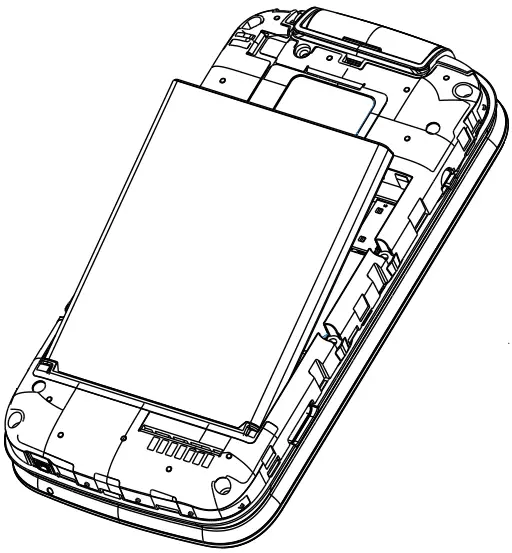
- Insert the battery, making sure the gold contacts align. Gently push down on the battery until it clicks into place.

- Replace the back cover, pressing firmly on the sides to ensure the cover snaps back into place.
Personalize
Set wallpaper
- From the Home screen, press OK
 to open app list.
 - Navigate
 to Settings
  , and press OK to select.
 - Navigate down
 to Display and press OK to select.
 - Navigate down to Wallpaper and press OK to select.
- Navigate to select one of the wallpaper, then press the Left Menu
 to view, or press OK to select.
 to open app list.
 to Settings
  , and press OK
 to Display and press OK
 to view, or press OK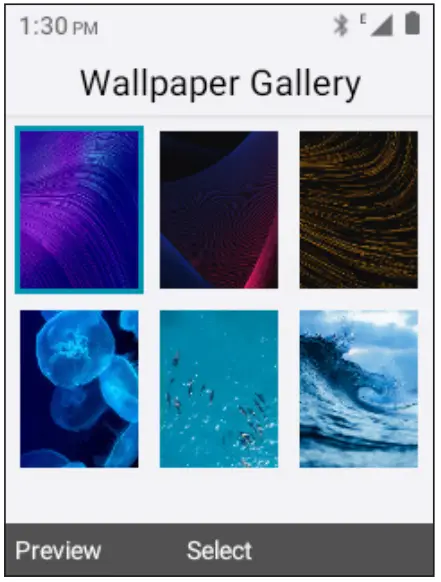
Lock and unlock your screen
To create a passcode
- From the Home screen, press OK to open app list.
- Navigate to Settings and press OK to select.
- Navigate down to Phone settings and press OK to select.
- Navigate down to Security > Screen Lock and press OK to select.
- Navigate to On, and press OK to enable lock screen with password.
- Create a 4 digit passcode using the dial pad, press OK to next.
- Enter this passcode once again and press OK to create. To lock the phone screen Closing the phone will lock the screen. To unlock the phone screen

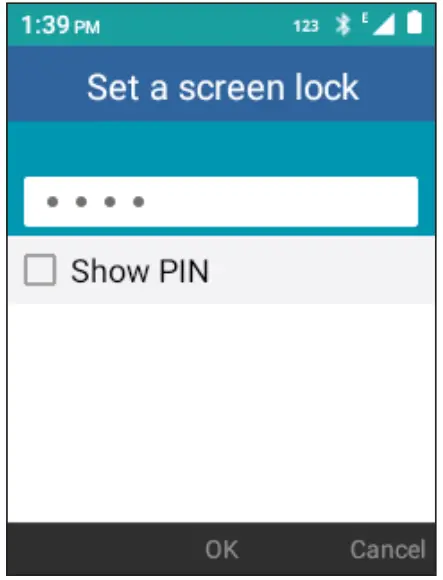
Open the phone and enter your password using the dial pad to unlock the screen.
Calls and Voicemail
HD Voice Capable
HD Voice means clearer conversations with reduced background noise when both participants are using HD Voice compatible phones and the call is made over Cricket’s LTE network or a compatible network.*
Make a Call
- From the Home screen, enter the phone number then press Call/Answer
 to place the call.
- If you make a mistake, press the Back key
 to delete the incorrect digits.
 - You can also press Call/Answer to access your Call log. Navigate down to scroll and select the desired number. Press Call/Answer to place the call.
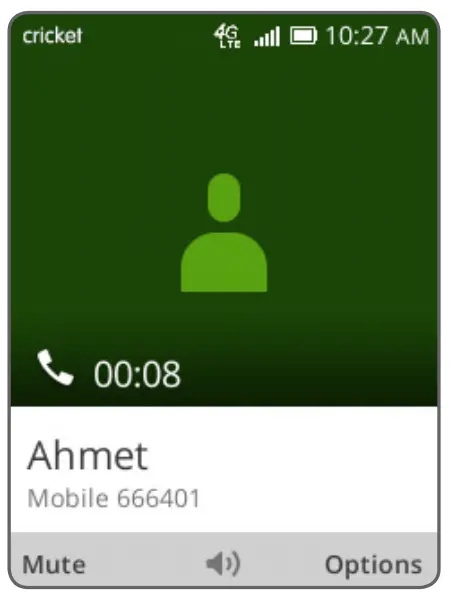
- During the call, you may press Left Menu to mute, Right Menu
 to open options, or OK to enable speaker.
 - To end the call, press Power/Hang Up key
 .
.
 to place the call.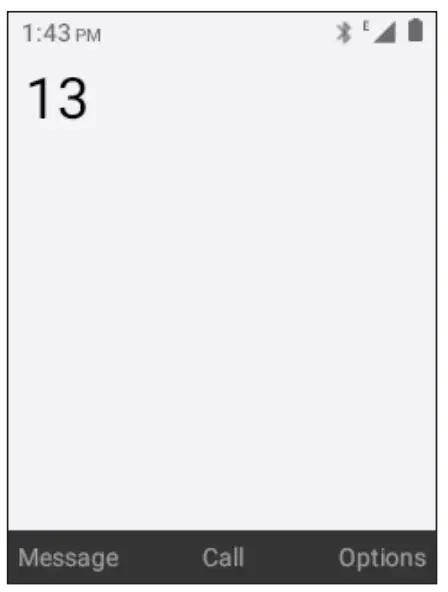
 to delete the incorrect digits.
 to open options, or OK
  .
.
Check voicemail
Press and hold  to call and listen to your voicemail
To experience Cricket HD Voice, both callers must have a compatible HD Voice capable device and make the call over Cricket’s LTE Network or a compatible network. Cricket’s LTE coverage is not equivalent to its overall network coverage. HD Voice calls made on a compatible device and on the LTE network may not experience an HD Voice connection at times of network congestion. Other carriers’ networks may interoperate with Cricket’s LTE network to support an HD Voice call.
Text and picture messaging
Send a Text Message
- From the Home screen, press OK to open app list.
- Navigate to Message
 and press OK to select.
- Press Left Menu to create a new message.
- Enter the phone number of the recipient in the To bar, or press Right Menu to Select from Contact or Select contact group.

- Navigate down to access SMS bar to type in the message.
- Press OK to send text message.

 and press OK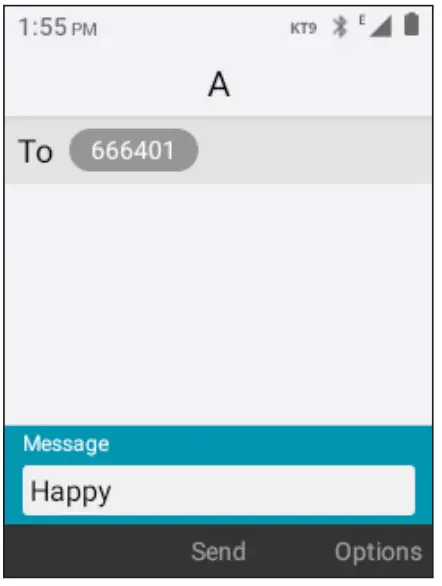
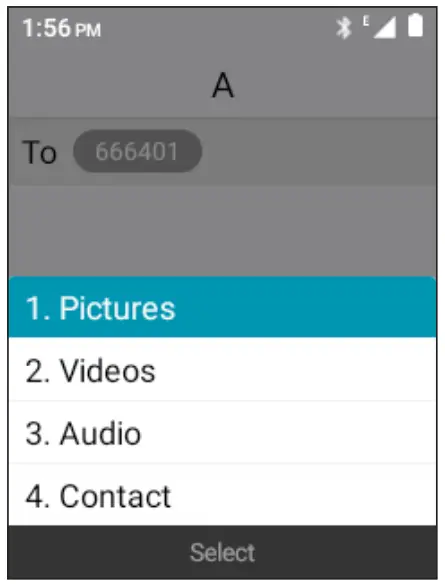
Send a Multimedia Message
- Repeat steps 1-4 above.
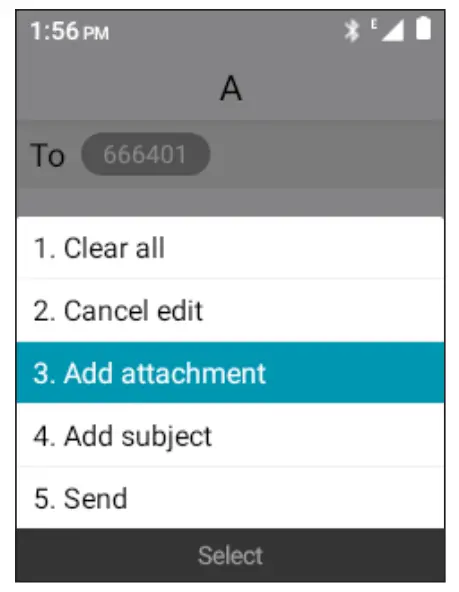
- Press Right Menu to access Options.
- Navigate down to Add Attachment and press OK to select.
- Select Pictures, Videos, Audio or Contact to attach.
- Once your image is attached, press OK to send.
More information
On the web
Detailed support information including a full user manual and device specifications are available at www.cricketwireless.com/support/devices
On the phone
- Call Customer Care at 1-855-246-2461 or
- Dial 611 from your cell phone
Accessories
- Battery
- Micro USB charger
- Cricket SIM card
- Quick start guide
- Safety information guide
- Terms of service
For more information about accessories, please visit your local Cricket store or go to www.cricketwireless.com/shop/accessories.
Note: Store and online inventories may vary.
Product meets FCC Radio Frequency Exposure Guidelines–FCC ID 2ACCJN059. This device complies with Part 15 of the FCC Rules. Operation is subject to the following two conditions: (1) this device may not cause harmful interference, and (2) this device must accept any interference received, including interference that may cause undesired operation. © 2022 Cricket Wireless LLC. All rights reserved. Cricket and the Cricket logo are registered trademarks under license to Cricket Wireless LLC. Alcatel is a trademark of Nokia used under license by TCL Communication Technology Holdings Limited. SMARTFLIP is a trademark of TCL Communication Technology Holdings Limited. © 2022 TCT Mobile Limited. All rights reserved.
Camera and video
Take a Picture
- From the Home screen, press OK to open app list.

- Navigate to Camera
 and press OK to select.
- Press OK to take a photo
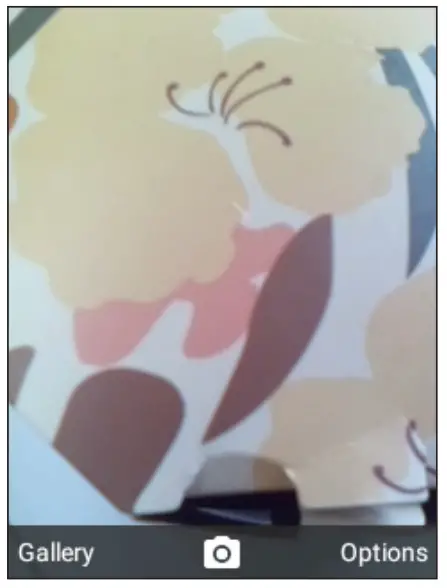
 and press OK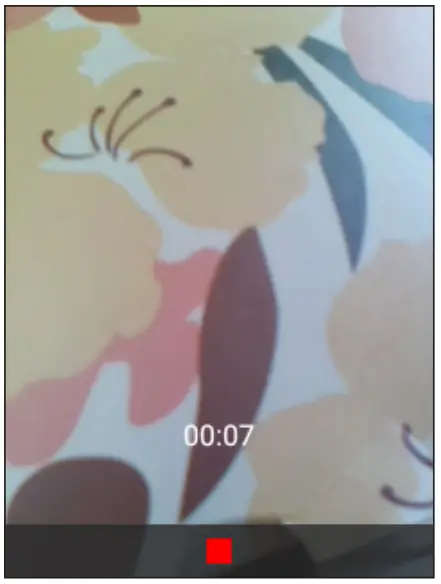
Record a Video
- With the Camera open, press Right Menu to access Options.
- Press OK to select Take video to switch to video mode.
- Press OK to start/stop recording.

Access Pictures or Videos
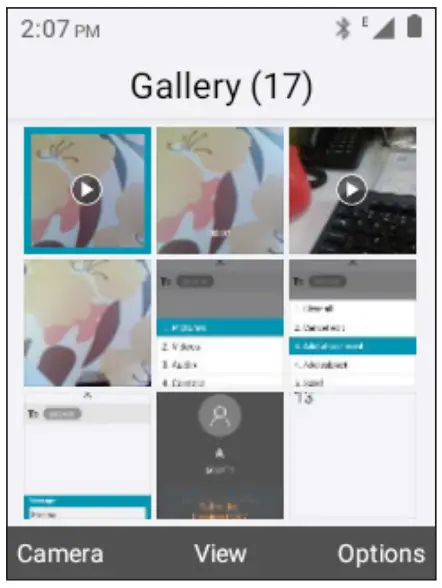
Pictures and videos are saved in the Gallery  app.
app.
- From the Home screen, press OK to access the app list.
- Navigate to Gallery
 , and press OK to select.
 - Select a picture or a video and press Right Menu to access options such as Delete, Edit, and Share.
Email setup (Gmail™, Yahoo!®, etc.)
- From the Home screen, press OK to open app list.
- Navigate to Tools > Email
 > one of the Email providers and press OK to select.
- Press Right Menu to select Next and set up your email account.
- Follow the required steps by entering your name, email address, password, and other fields. Once complete, you will be able to access your email account from this device.
 > one of the Email providers and press OK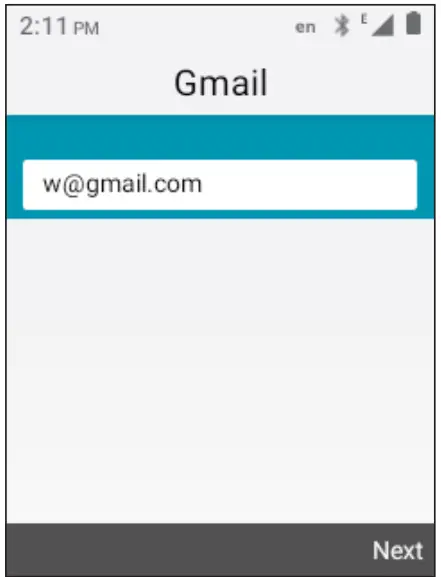
Note: Press 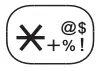 key to enter special characters like the @ symbol.
Create and send an email message
- Press Left Menu to compose a new email from the Inbox screen.
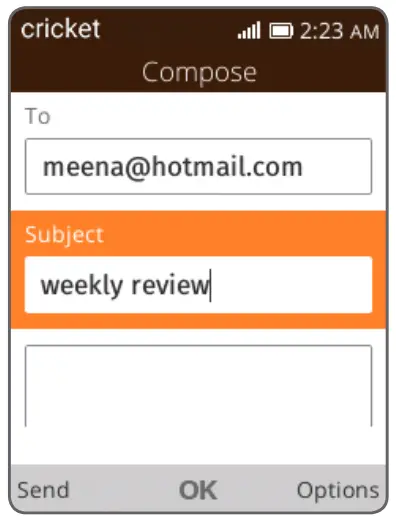
- Enter recipient(s) email address(es) in the To field, press OK to confirm and add new recipient(s).

- Type the subject and the content of the message.
- If necessary, press Right Menu to add Cc/Bcc or add attachment to the message.
- If you do not want to send the mail right away, press Right Menu and select Save as draft to save a copy.
- Press Left Menu to send.
Mobile Web
Browse the web
- From the Home screen, press OK to open app list.
- Navigate to Browser press OK to select.
- Navigate up
 to Search or type URL, then use the keypad to enter either search criteria or a website address. Press OK to search or load the website.
 - Use Navigation to scroll around the webpage, and use OK to select links when browsing.
- Press Back key to return to the previous page.

 to Search or type URL, then use the keypad to enter either search criteria or a website address. Press OK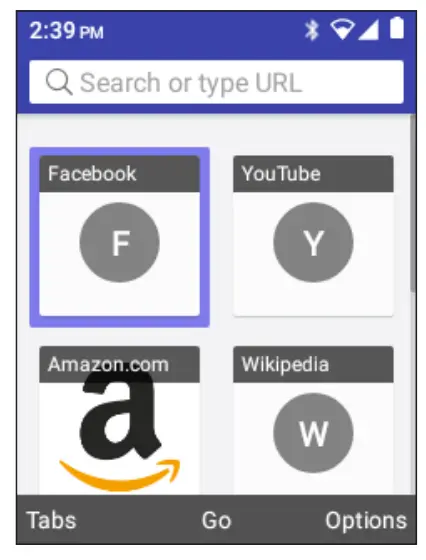
Connectivity
Connect your Bluetooth device
- From the Home screen, press OK to open app list.
- Navigate to Settings and press OK to select.
- Highlight Wireless & networks and press OK to select.
- Navigate down to Bluetooth and press OK to select.
- Press Left Menu to Turn on to enable Bluetooth.
- Once your desired Bluetooth device shows in the list, Navigate to the device and press OK to pair. If asked, confirm passkey to complete pairing.
- Once your device is paired, it will show up in PAIRED DEVICES list in the Bluetooth menu
Connect to a Wi-Fi network
- Follow steps 1-3 above.
- Navigate down to Wi-Fi and press OK to select.
- Press Left Menu to Turn on to enable Wi-Fi.
- Navigate to the desired Wi-Fi connection and press OK to select.
- Navigate to Password and use keypad to enter Wi-Fi password.
- Press OK to Connect.
Useful Tools
Use these tools to keep you organized and entertained.
Gallery: View photos and organize your photos. Recorder: Recording Voice.
 Calendar: Keep your schedule in your pocket. Track your events with notes and get schedule reminders.
 Clock: Set alarms, use the timer or stopwatch to keep you on track.
 Note: Add and view note list.
 Calculator: Figure out tips, add up your bills and other calculations.
 Music: Listen to music loaded on or downloaded to your phone.
 My Cricket: Sign in to view your account, features.
Getting Started
- Navigate is located above the number pad that frames OK .
- Press Up, Down, Left, or Right on the ring to navigate the screen.
- To make a selection, press OK .
- Shortcuts accessible from the Home screen:
- Navigate up to access Settings.
- Navigate down to access Recent apps list.
- Navigate left
 to access Email.
 - Navigate right
 to access Contacts list.
 - Press OK to access the App tray

- Navigate up
 to access Email.
 to access Contacts list.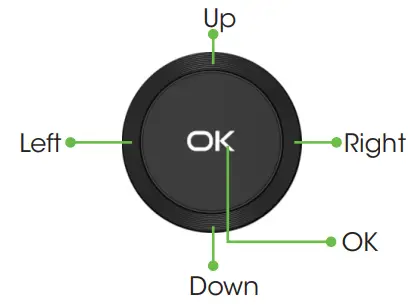

 Cell Phone Accessories: Cases, Chargers & More | Cricket Wireless