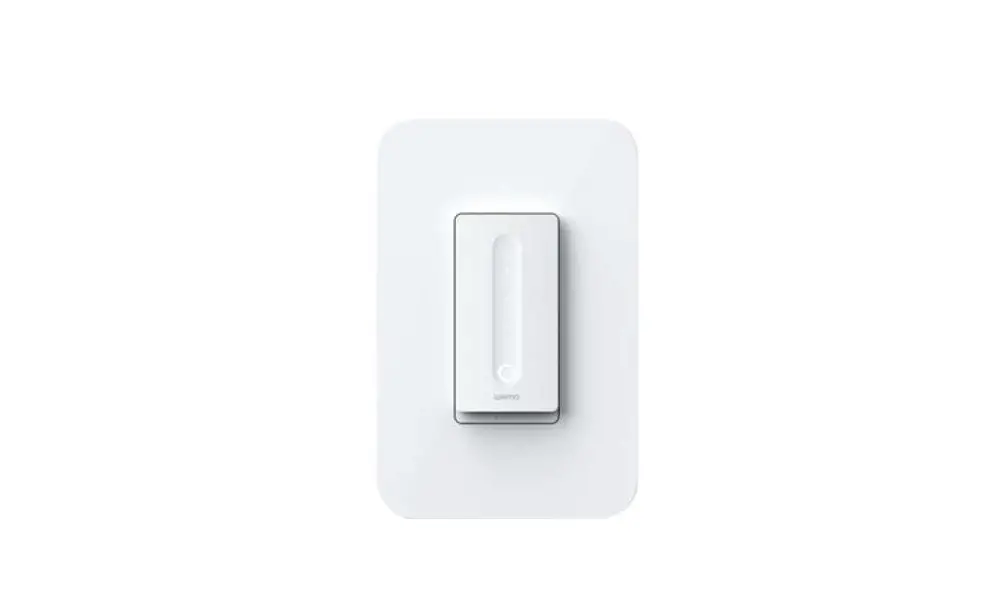
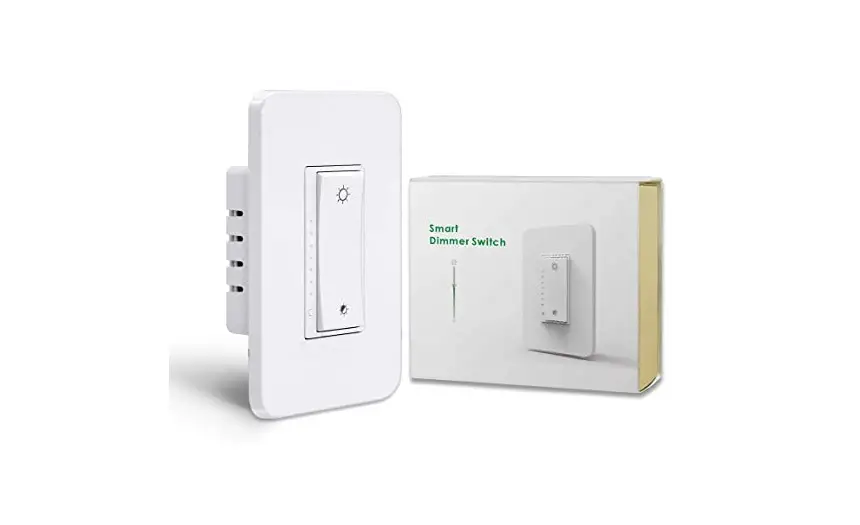
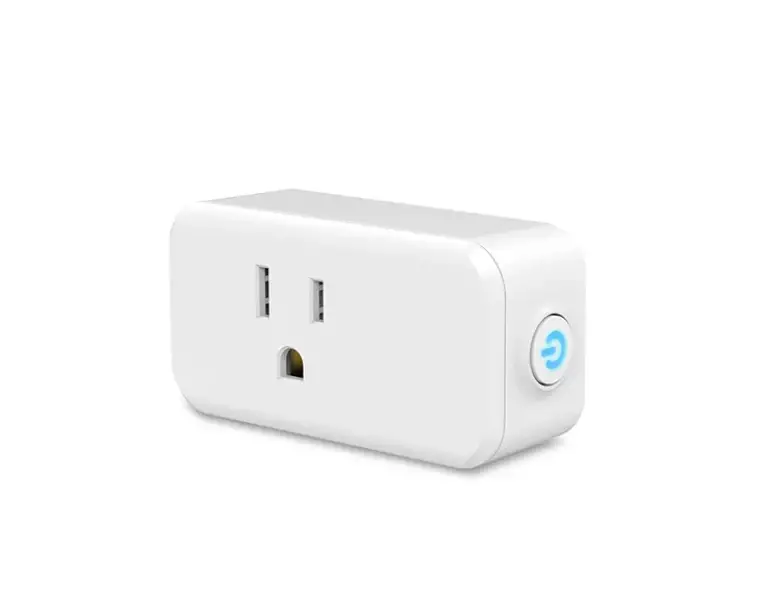
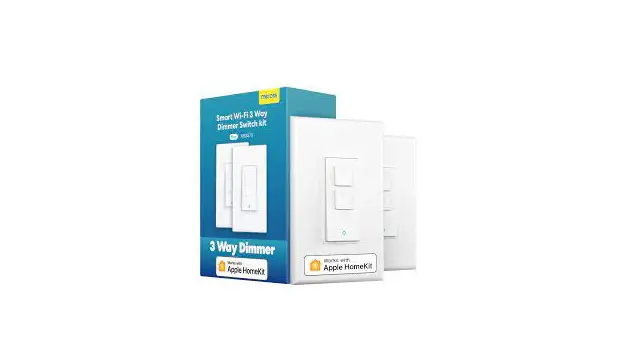
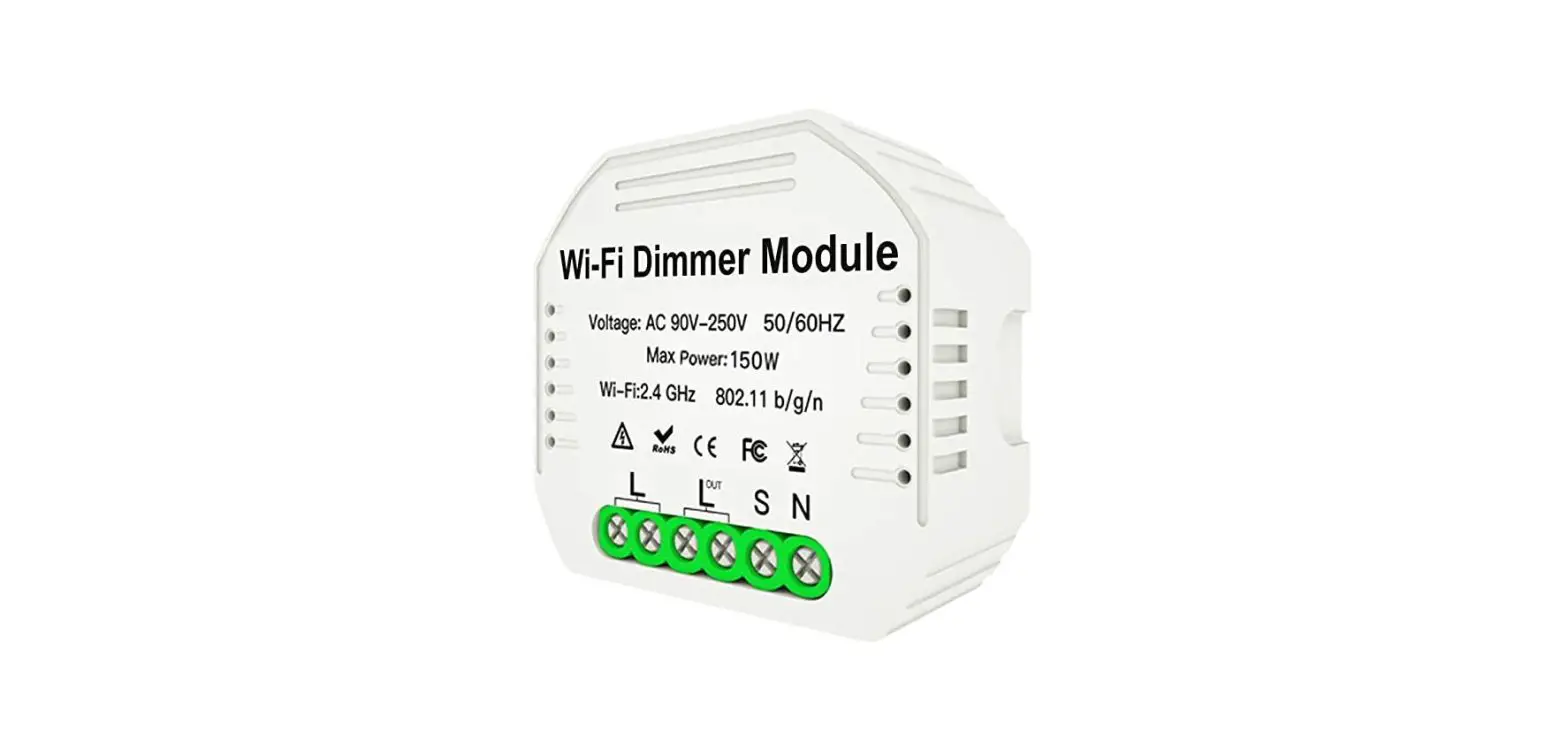
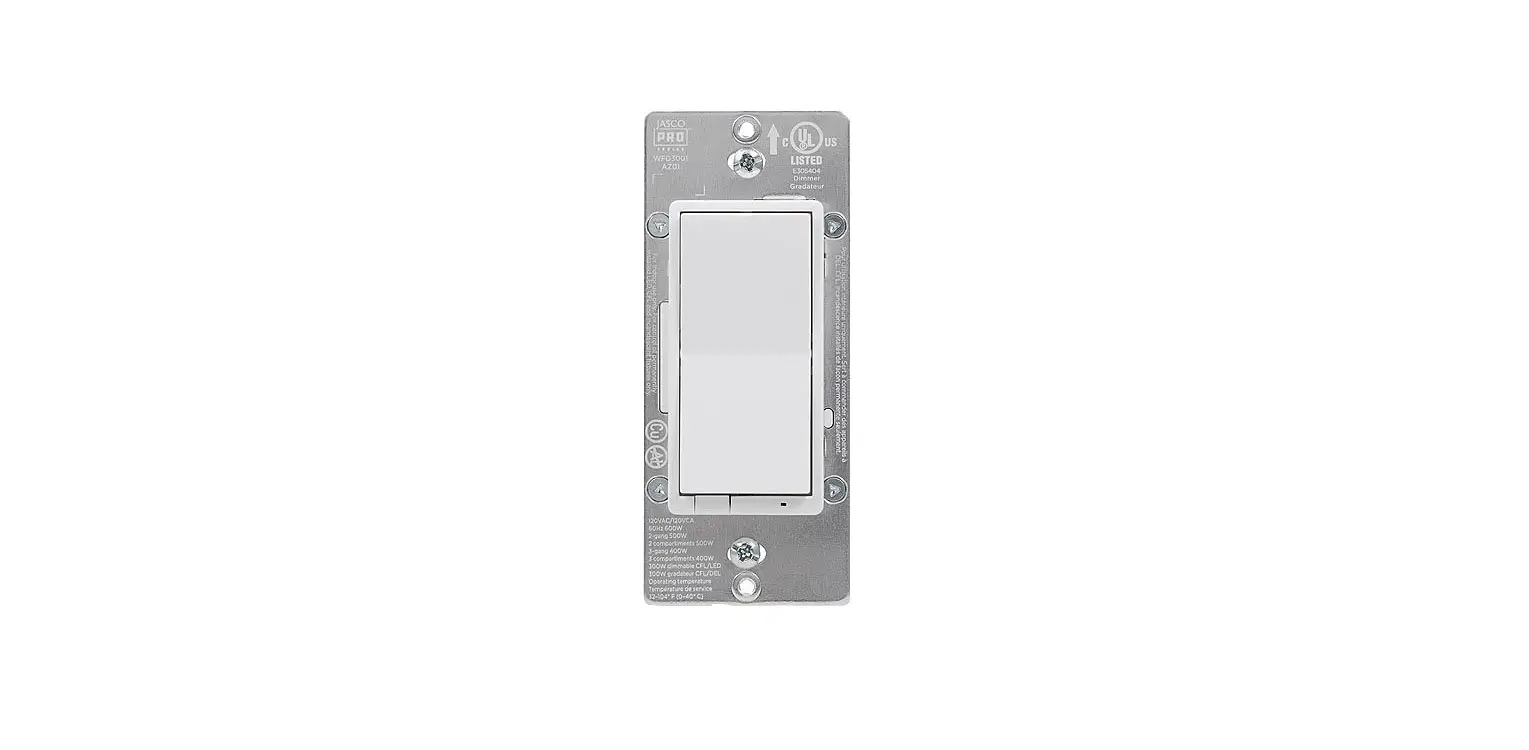
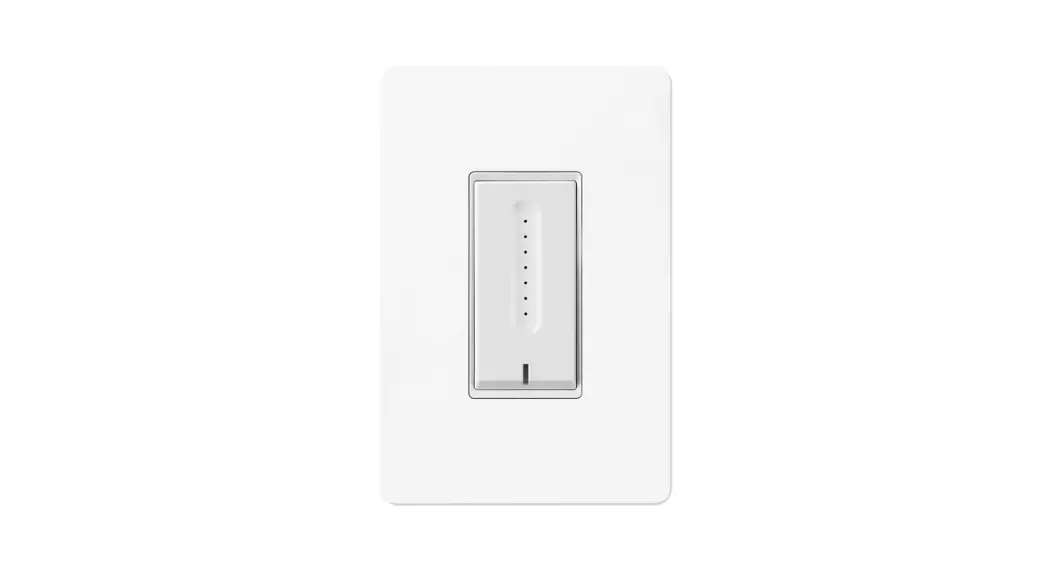
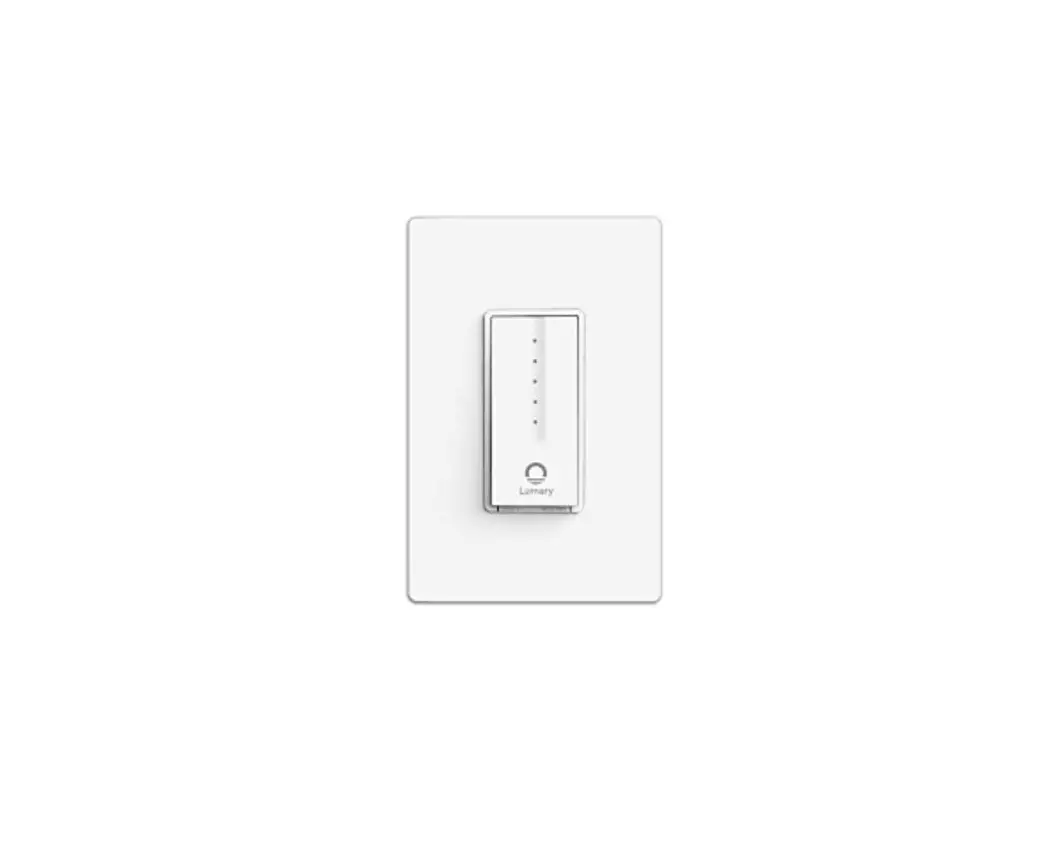
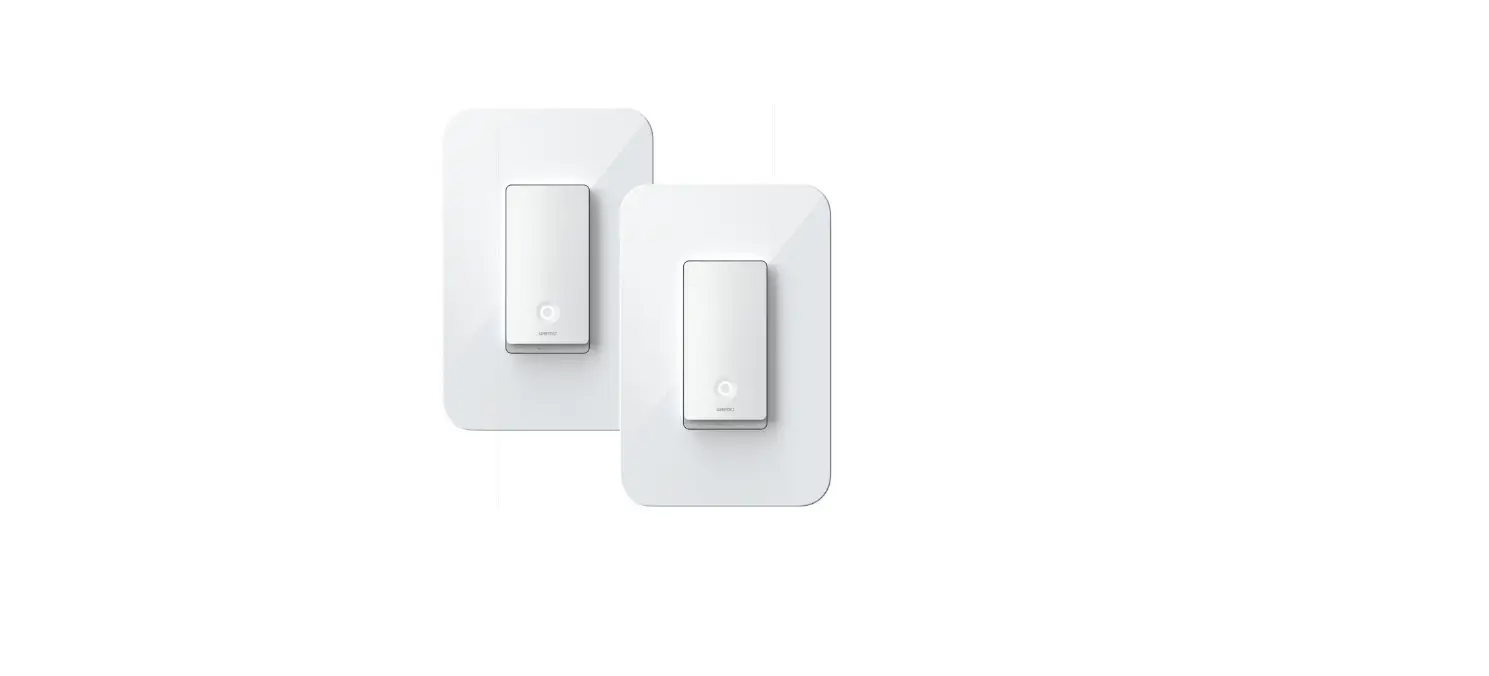
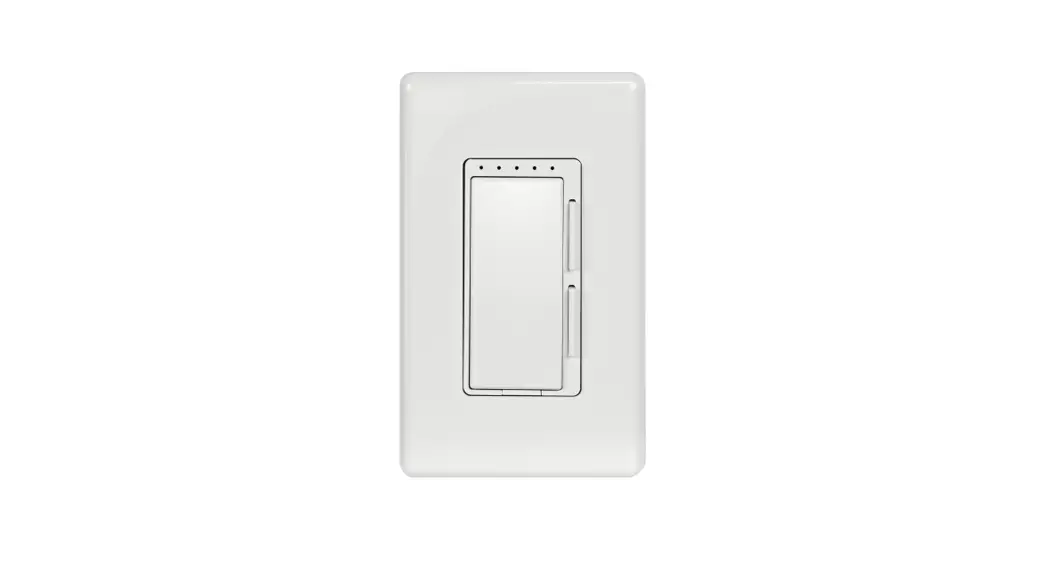
F7C059 WiFi Smart Dimmer
Wemo Smart Dimmer
Setup Guide
Important to know
- ! WARNING! Risk of electric shock: Incorrect
installation could be dangerous or illegal. Multiple breakers/fuses
may need to be turned off for safe installation. Please call a
professional electrician if you are unfamiliar or uncomfortable
with electrical work. - Wemo Smart Dimmer can only replace single-pole switches.
- If your light can be turned on from two different wall
switches, that’s a 3-way switch and Wemo Smart Dimmer is not
compatible. - Neutral wires are required for setup. These wires are typically
white and can be found in your electrical box.
What you’ll need:
- Cover Plate
- Dimmer and Screws (use the provided screws and don’t
over-tighten) - 4 Wire Nuts
Recommended tools:
- Compatible light bulbs: All incandescent light bulbs are
dimmable, but not all LEDs and CFLs are. Go to wemo.com/bulbs for
more information. - Maximum total wattage:
- Incandescent LED and CFL: 400 Watts
- 250 Watts for multi-gang
- 150 Watts (Actual Wattage rating, not equivalent)
- Install where your Wi-Fi signal is strong
- Use your mobile device to test the signal
- Keep your mobile device close to the Dimmer until you finish
setup
Installing your Dimmer:
Installation video: Scan this QR code to watch
a video walking through Dimmer installation.
- Turn power off: Shut off power to the switch you’re replacing
at your fuse panel or circuit breaker.- ! WARNING! Risk of electric shock: Incorrect
installation could be dangerous or illegal. Multiple breakers/fuses
may need to be turned off for safe installation. Please call a
professional electrician if you are unfamiliar or uncomfortable
with electrical work. - Confirm that power is off
- Remove the faceplate from the existing switch. Use a voltage
tester to test BOTH sides of the switch. You may need to turn off
more than one circuit breaker/fuse.
- ! WARNING! Risk of electric shock: Incorrect
- Identify the NEUTRAL wires:
- Pull out existing switch
- Unscrew the switch and gently pull it out of the wall. Do not
remove any of the wires yet. - Find the NEUTRAL wires: Look for NEUTRAL wires (usually white)
in the wall. You need these to set up the Dimmer. - NOTE: You may have a different number of
neutral wires than shown. - Test the NEUTRAL wires: Use a voltage tester to check that
there is no power in the NEUTRAL wires from neighboring circuits.
If necessary, shut off additional circuits until no voltage is
found. - Detach the NEUTRAL wires: Unscrew the wire nut connecting the
NEUTRAL wires.
- Identify and label LINE and LOAD wires:
- Peel off and apply the LINE and LOAD wire labels below. If
you’re unsure which wire is which, we’ll help you in the next
step. - NOTE: Your existing wires may be in different
locations than shown.
- LOAD
- LINE
- Peel off and apply the LINE and LOAD wire labels below. If
- Identify the GROUND wires:
- Look for the GROUND wires (usually green or solid copper) and
unscrew the wire nut connecting them. - NOTE: You may have a different number of
ground wires than shown.
- Look for the GROUND wires (usually green or solid copper) and
- Help with distinguishing LINE wire from LOAD wire:
- Remove existing switch
- Detach the remaining wires and remove the existing switch.
Once you have followed the above steps, you can proceed with
installing your Wemo Smart Dimmer. For more information, refer to
the product user manual.
Wemo Smart Dimmer SETUP GUIDE
UX ONLY, NOT FINAL VISUAL DESIGN
UX ONLY, NOT FINAL VISUAL DESIGN
Important to know
! WARNING! Risk of electric shock
Incorrect installation could be dangerous or illegal. Multiple breakers/fuses may need to be turned off for safe installation. Please call a professional electrician if you are unfamiliar or uncomfortable with electrical work.
Wemo Smart Dimmer can only replace single-pole switches.
If your light can be turned on from two different wall switches, that’s a 3-way switch and Wemo Smart Dimmer is not compatible.
Neutral wires are required for setup.
These wires are typically white and can be found in your electrical box.
Important to know
What you’ll need
What’s included
Cover Plate
Dimmer and Screws (use the provided screws and don’t over-tighten)
4 Wire Nuts
Recommended tools
Compatible light bulbs
All incandescent light bulbs are dimmable, but not all LEDs and CFLs are. Go to wemo.com/bulbs for more information.
Maximum total wattage
Incandescent LED and CFL
400 Watts
250 Watts for multi-gang
150 Watts
(Actual Wattage rating, not “equivalent”)
Install where your Wi-Fi signal is strong
Use your mobile device to test the signal
Keep your mobile device close to the Dimmer until you finish setup
What you’ll need
Installing your Dimmer
Installation video
Scan this QR code to watch a video walking through Dimmer installation.
1 Turn power off
Shut off power to the switch you’re replacing at your fuse panel or circuit breaker.
! WARNING! Risk of electric shock
Incorrect installation could be dangerous or illegal. Multiple breakers/fuses may need to be turned off for safe installation. Please call a professional electrician if you are unfamiliar or uncomfortable with electrical work.
Confirm that power is off
Remove the faceplate from the existing switch. Use a voltage tester to test BOTH sides of the switch. You may need to turn off more than one circuit breaker/fuse.
Installing your Dimmer
2 Identify the NEUTRAL wires
Pull out existing switch
Unscrew the switch and gently pull it out of the wall. Do not remove any of the wires yet.
Find the NEUTRAL wires
Look for NEUTRAL wires (usually white) in the wall. You need these to set up the Dimmer.
NOTE: You may have a different number of neutral wires than shown.
Test the NEUTRAL wires
Use a voltage tester to check that there is no power in the NEUTRAL wires from neighboring circuits. If necessary, shut off additional circuits until no voltage is found.
Detach the NEUTRAL wires
Unscrew the wire nut connecting the NEUTRAL wires.
4
Identify and label LINE and LOAD wires
Peel off and apply the LINE and LOAD wire labels below. If you’re unsure which wire is which, we’ll help you in the next step.
NOTE: Your existing wires may be in different locations than shown.
LOAD
3 Identify the GROUND wires
Look for the GROUND wires (usually green or solid copper) and unscrew the wire nut connecting them.
NOTE: You may have a different number of ground wires than shown.
Wire labels
LINE LIGNE
LOAD CHARGE
LINE LIGNE
LOAD CHARGE
LINE
Help with distinguishing LINE wire from LOAD wire
Remove existing switch
Detach the remaining wires and remove the existing switch.
Test to identify the wires
Now use a voltage tester to distinguish the wires: Line (typically black): This wire will be powered because it carries electricity to the switch. Load (also typically black): This wire will NOT be powered because it carries electricity from the switch to your lights.
Line / Load
Turn the power back ON !
Turn the power back OFF !
5 Connect Wemo Dimmer wires
!
Make sure the power is OFF before proceeding.
Remove cover plate
After detaching and removing the existing switch, snap the cover plate off of your Wemo Dimmer, and remove the sticker securing the wires.
Connect LINE and LOAD wires
Use a wire nut to connect the red LOAD wire on the Dimmer to the LOAD wire in the wall.
Use a wire nut to connect the black LINE wire on the Dimmer to the LINE wire in the wall.
LOAD LINE
NOTE: Your existing wires may be different colors than those shown.
Connect NEUTRAL and GROUND wires
Use a wire nut to connect the white NEUTRAL wire on the Dimmer to the NEUTRAL wires (usually white) in the wall.
Use a wire nut to connect the green GROUND wire on the Dimmer to the GROUND wires (usually green or bare copper) in the wall.
6 Install Dimmer into the wall
Almost done! Tug on each wire nut to make sure they are secure on the wires.
Carefully tuck wires behind the Dimmer and insert the Dimmer into the box. It could get crowded in there.
NOTE: Your existing wires may be different colors than those shown.
Screw the Dimmer into the wall. Be careful not to overtighten the screws.
NOTE: Before snapping on the cover plate, you’ll notice an 8-digit setup code on the dimmer. You may need this during app setup.
7 Turn on power
Turn on power to your Dimmer at your fuse panel or circuit breaker panel.
1234 5678
HomeKit Code
Finally, snap the face plate onto the Dimmer.
Physical installation is complete
The light ring on your Dimmer should blink WHITE while starting up and BLUE when ready for app setup.
BLINKING WHITE Starting up
BLINKING BLUE Ready for app setup
NOTE: If your Dimmer did not power up, then your load and line wires may be reversed and you need to switch them.
8 Go to the app for next steps
Download and launch the Wemo App
Create a Wemo account in the app, then add your Dimmer.
Use HomeKit Code if prompted
If prompted, scan or type your Wemo’s code below. The 8-digit number should match the code on your Dimmer (behind the faceplate).
1234 5678
1234 5678
Hang on to this guide. The code may come in handy if you ever need to set up this Wemo again.
Connecting to other services
Control your Wemos with voice, create groups, and more. Connect to these services in the Wemo App.
Got questions?
Visit wemo.com/support or call us at 1-844-745WEMO for support. For warranty information, go to wemo.com/ warranty.
You’re done!
What does the light tell me?
OFF Wemo is off.
SOLID WHITE Wemo is on and working normally.
BLINKING WHITE Wemo is starting up, updating firmware, or responding to your action.
BLINKING BLUE Your Wemo is ready for setup.
GREEN Wemo is running a rule or timer.
RED Error or low Wi-Fi connection.
WHITE/BLUE/RED: Reset your Dimmer Press and hold the bar below the power button for reset options. Release the button when the light is white to restart, blue to reset Wi-Fi, and red to restore to factory settings.
 WEMO
WEMO