Contents hide

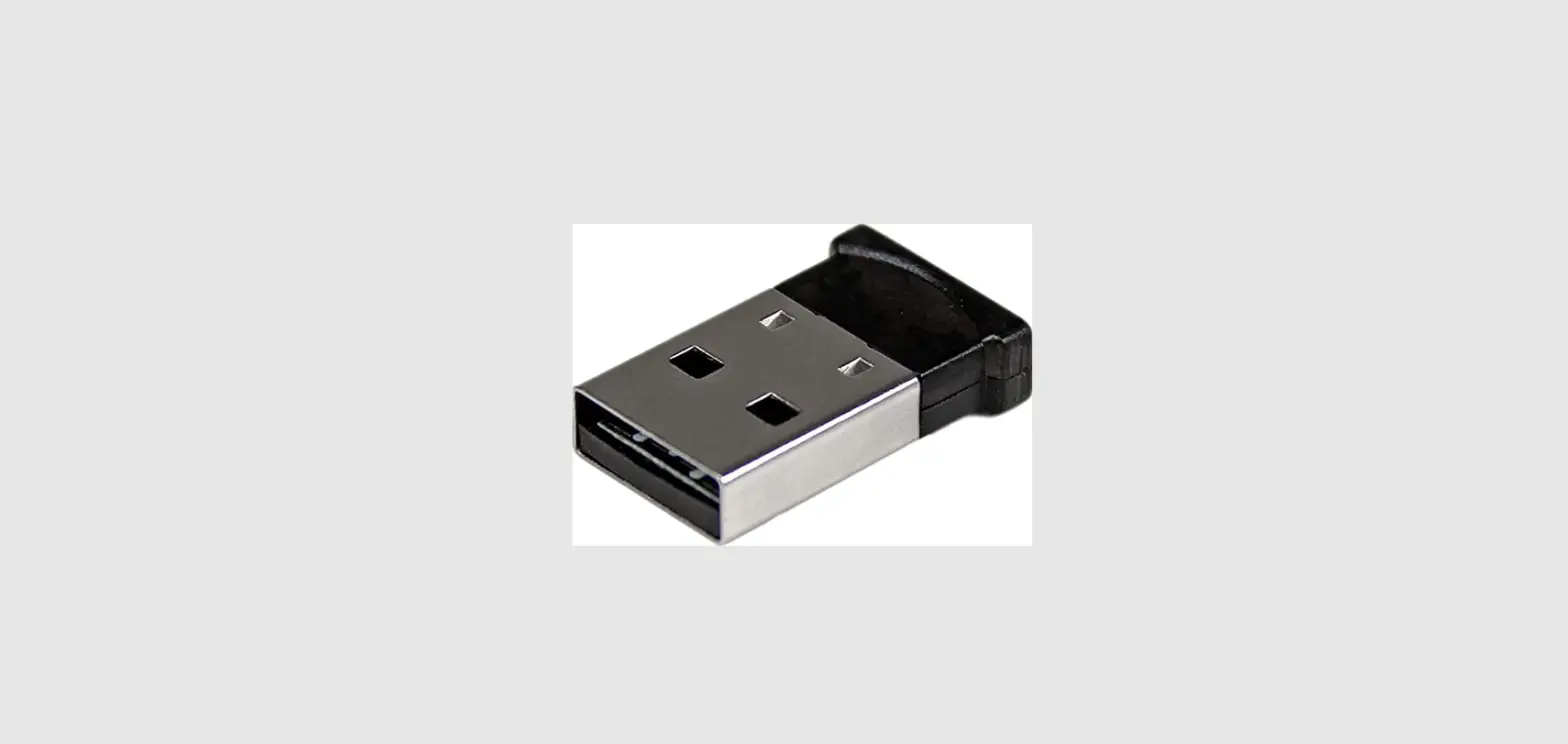
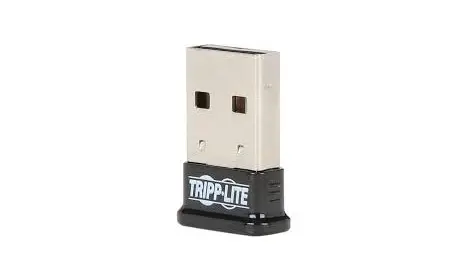
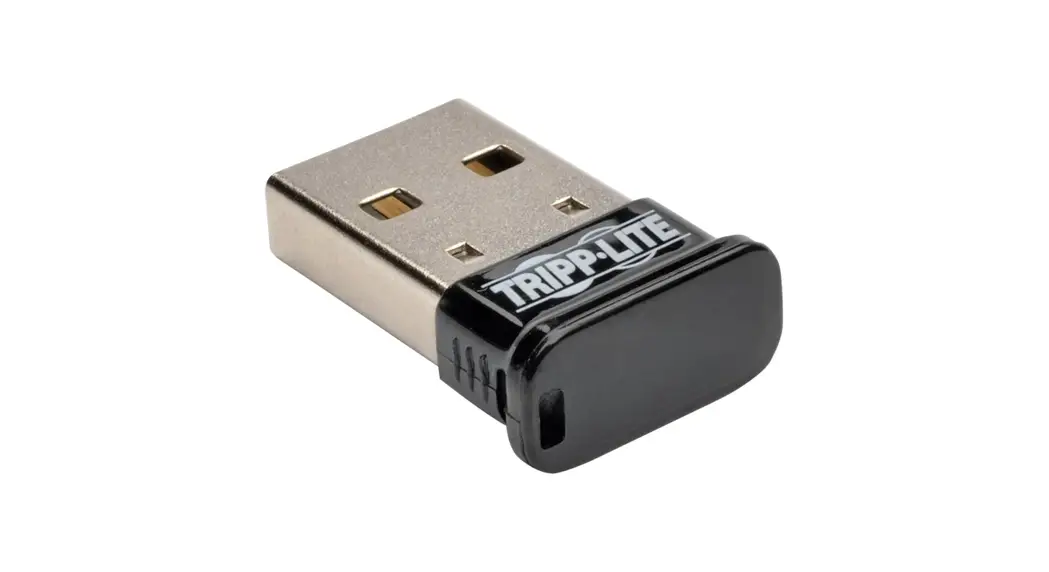
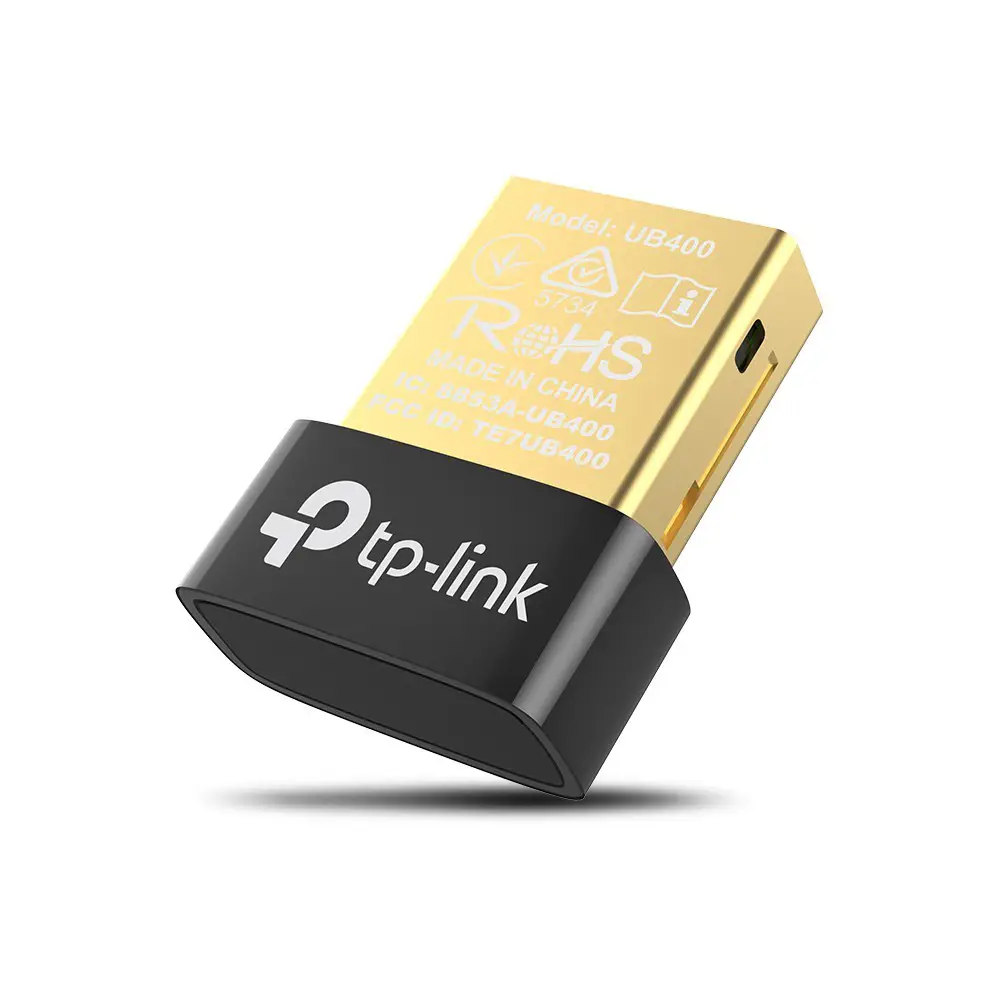
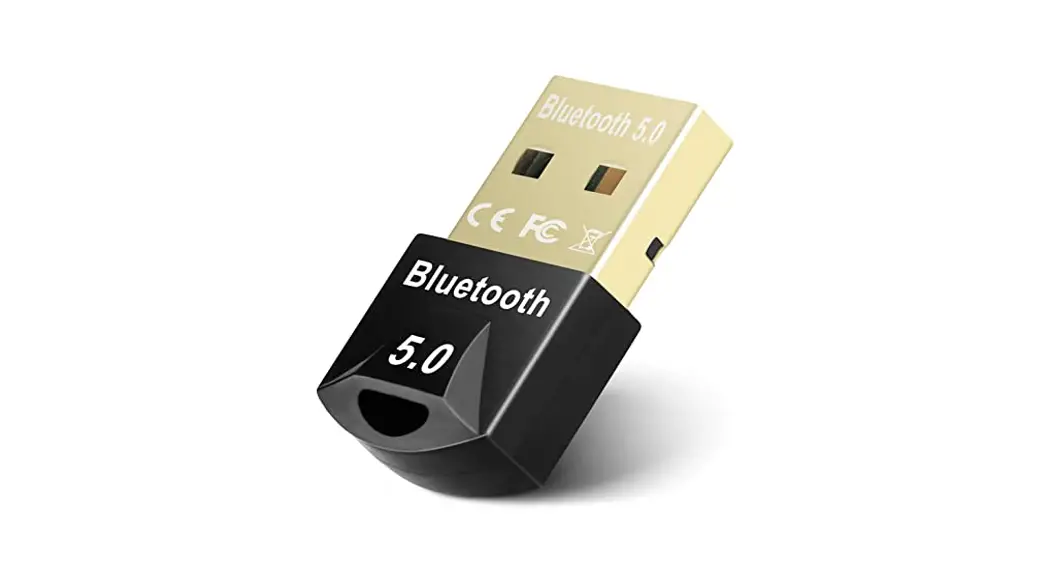
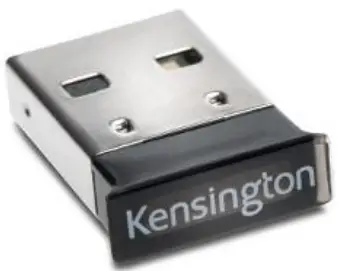
Kensington K33956AM Bluetooth 4.0 USB Adapter
Setup instructions
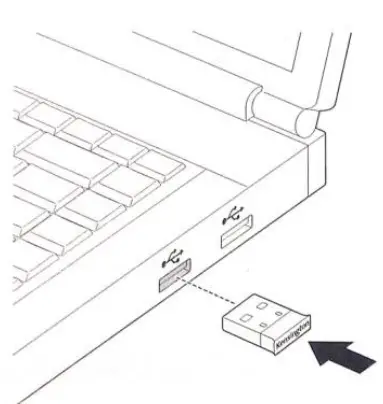
- Insert the Bluetooth adapter into a free USB port on your computer
- Your computer should automatically detect the device and install any drivers that are needed. Once the device is installed blue light on the Bluetooth adapter starts flashing
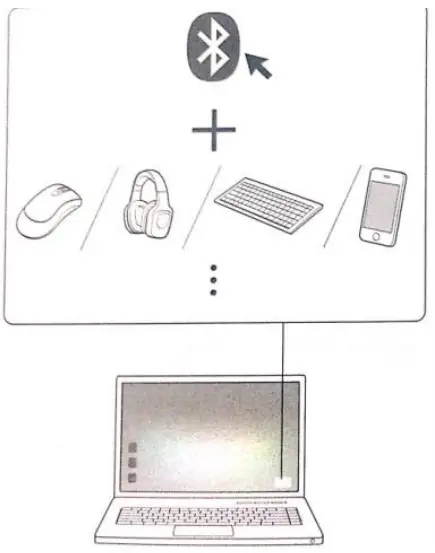
- Now you would find a Bluetooth icon in the system tray

- You can now connect a Bluetooth device from the Bluetooth interface in the system tray
How to connect a Bluetooth keyboard with the Bluetooth adapter?
- Click on the Bluetooth icon in the system tray and go to “Add a Device”
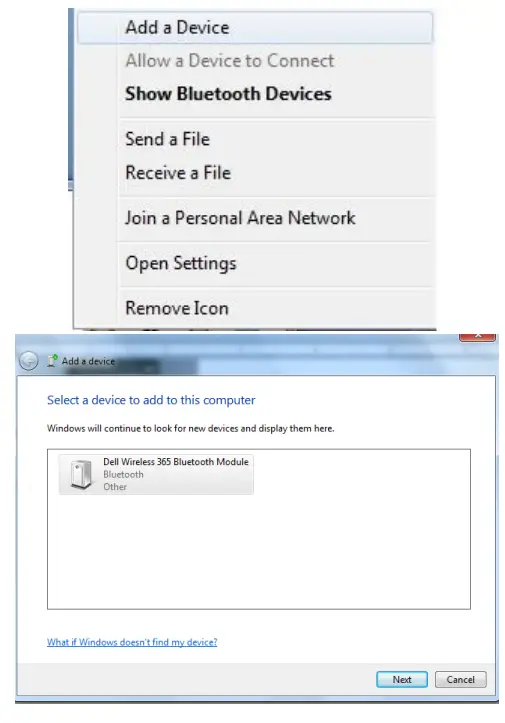
- Turn on the Bluetooth keyboard and put it to pairing mode
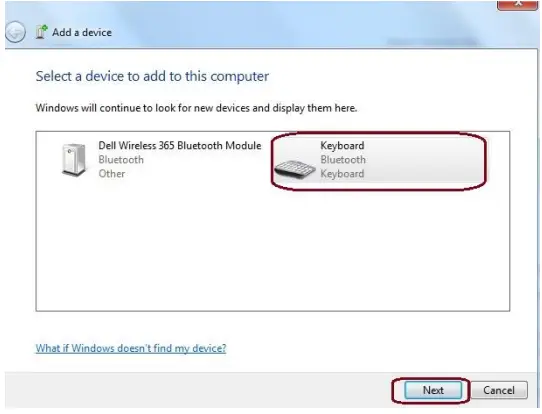
- Bluetooth adapter detects the Bluetooth keyboard. Click on Next
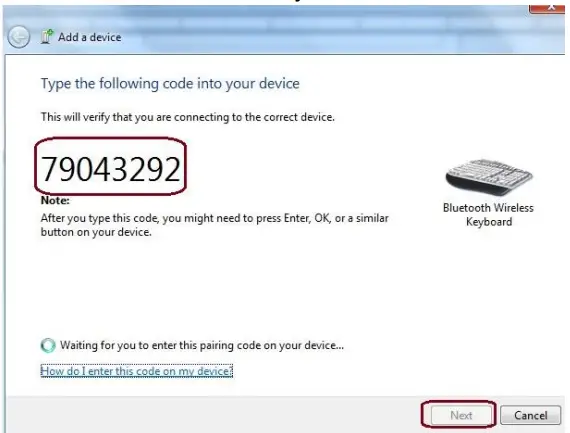
- Enter the pass code on the Bluetooth keyboard and press “Enter” key. If the pass code is not displayed enter 0000 as the pass code on both the devices and press enter
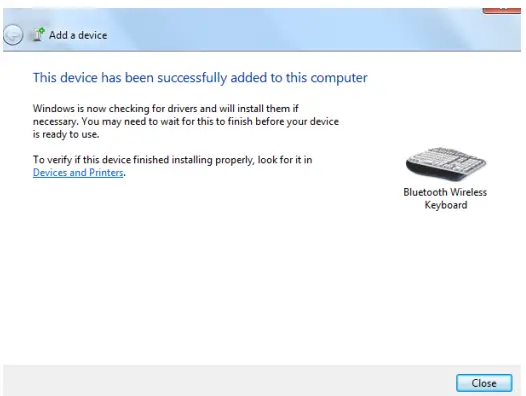
- Now the Bluetooth keyboard is connected
How to connect a Bluetooth mouse?
- Click on the Bluetooth icon in the system tray
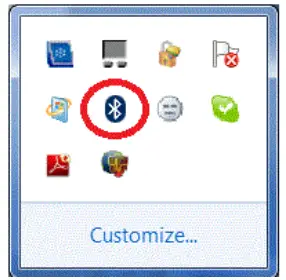
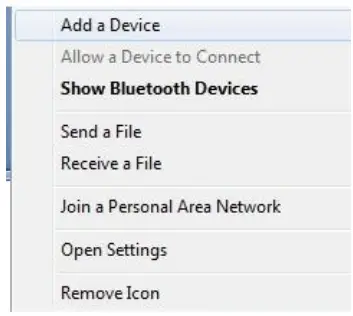
- Click on Add a Device
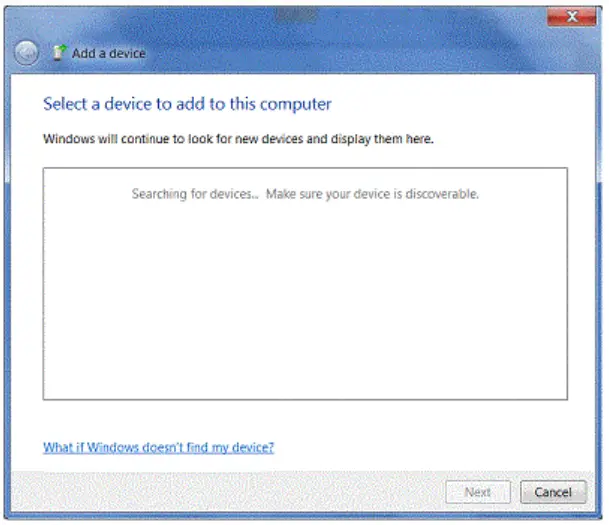
- Click the “connect” or “pair” button on the mouse
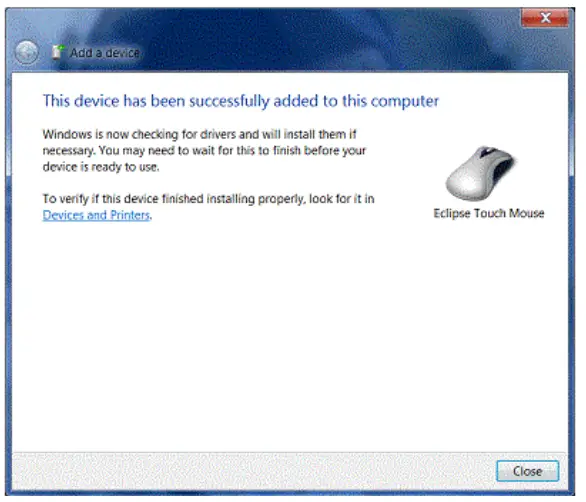
- Select the device once it appears and click “Next”
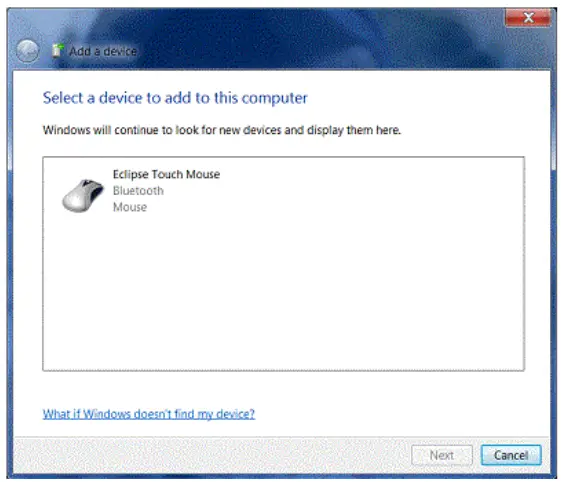
- The device should be properly installed
How to connect a Bluetooth phone?
- Make sure your phone is on and in “discoverable” mode. See the documentation that came with your phone
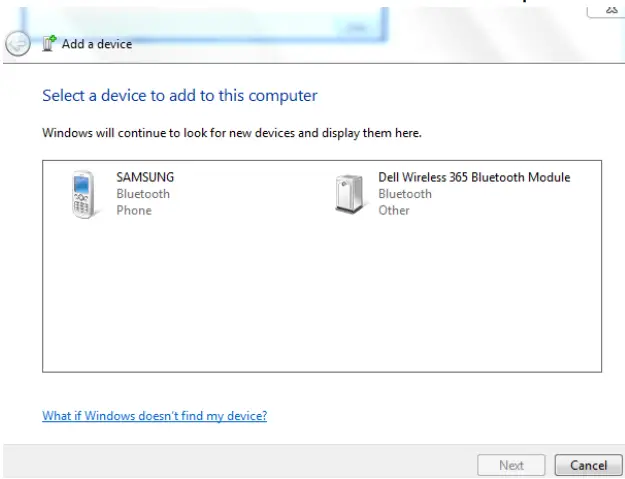
- Go to Bluetooth icon in the system tray and click on Add a Device
- Select your phone in the “Select a device to add to this computer’ and click on Next
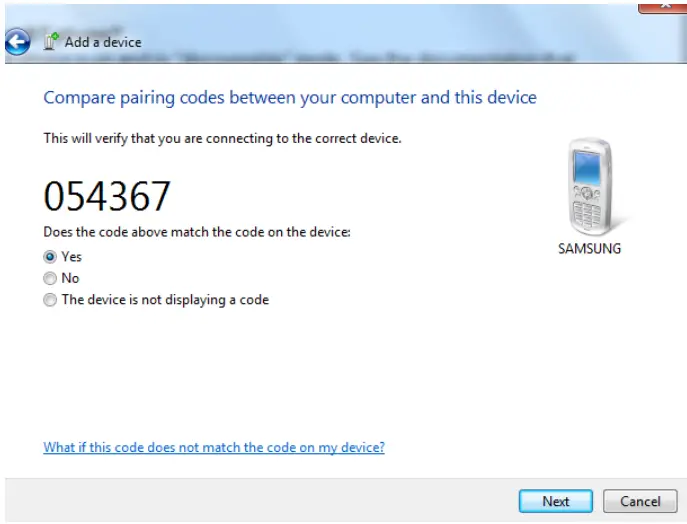
- Confirm the code displayed on the computer is matched with the code displayed on Bluetooth phone. Click on Pair on the Bluetooth phone
- Click on Close
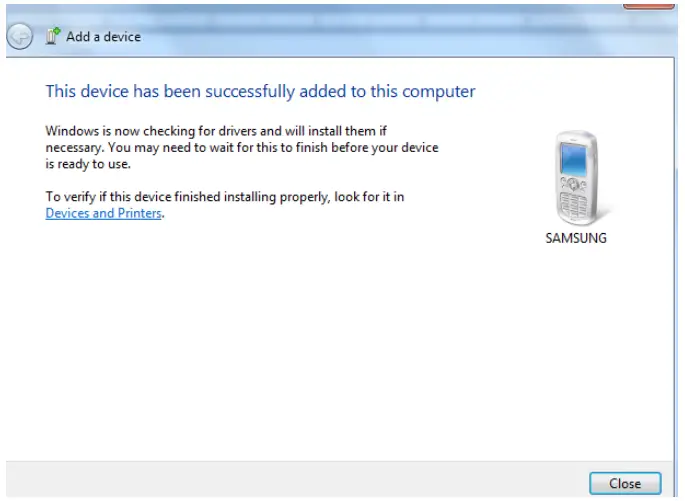
- Your computer is now paired with your phone
Bluetooth adapter not recognized
- Connect the Bluetooth adapter directly to the USB port of the computer without going through a hub
- Does the device work on a different port? Is the blue light flashing?
- If no, does the device work properly on a different USB port? If not, try the device on a different computer if one is available. Does the device work on this other computer?
- Perform the Device Manager Conflict Resolution process. Pay special attention to the Bluetooth Radios and Human Interface Devices sections.
- Look for and remove any conflicts in the Bluetooth Radios and Human Interface Devices sections. Go to File/Action/Scan For Hardware Changes to reinstall the basic drivers.
- Remember, DO NOT troubleshoot the device while it is attached to a hub
- If still no go verify warranty and replace the product
No Audio from the Bluetooth speakers
- Follow the instructions to connect the Bluetooth speakers with the Bluetooth adapter
- Go to Control Pane > Hardware and Sound > Sound > Set Bluetooth speakers as default play device under Playback tab. Click on Apply and Ok
- This should resolve the issue
How to transfer a file from the computer to a Bluetooth phone?
- Make sure Bluetooth phone is paired and connected with the Bluetooth adapter
- Click on the Bluetooth icon in the system tray and select “Send a File”
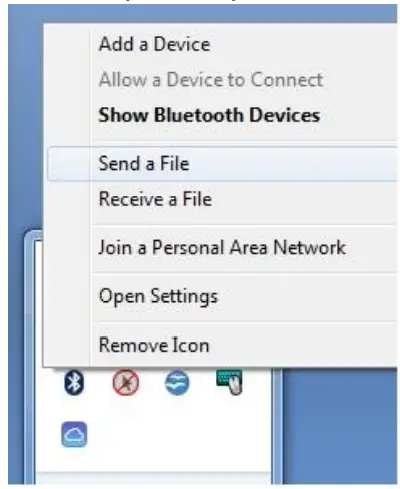
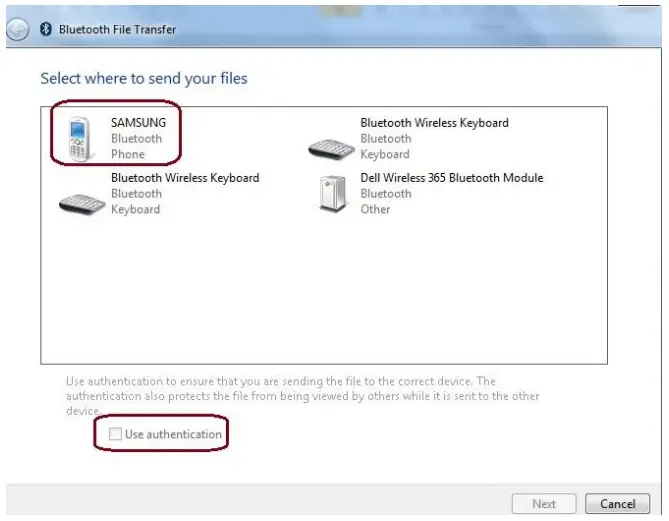
- Select the Bluetooth phone from the list of devices where you would like to send the files. Click on Next
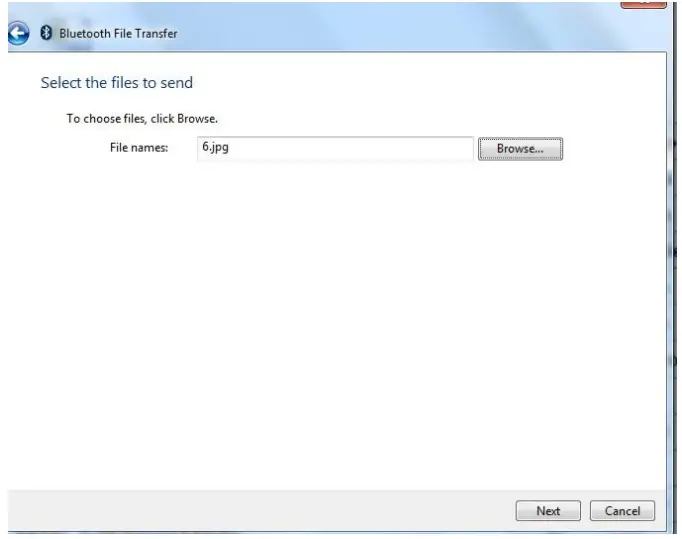
- Select the file which has to be transferred and click on Next
- File is transferred to the Bluetooth phone
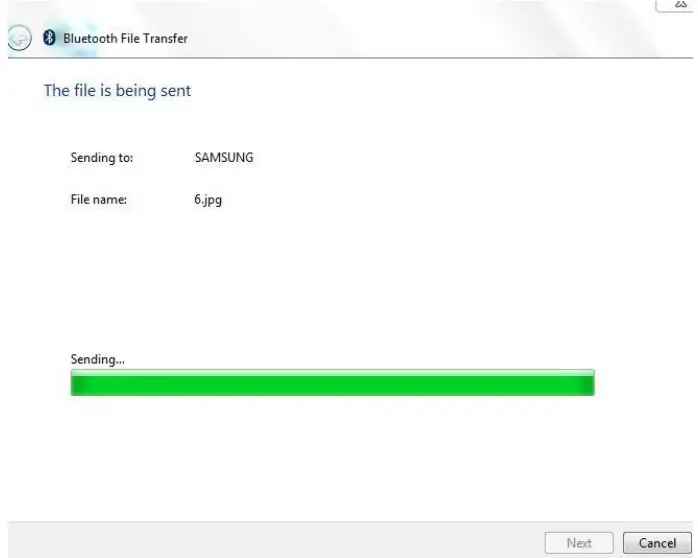
- Accept the file on the Bluetooth phone.
How to receive a file on the computer sent from a Bluetooth phone?
- Make sure Bluetooth phone is paired and connected with the Bluetooth adapter
- Select the file on the Bluetooth phone which has to be sent and go to Share via Bluetooth
- Click on the Bluetooth icon in the system tray and go to “Receive a File”. The file is received on the computer
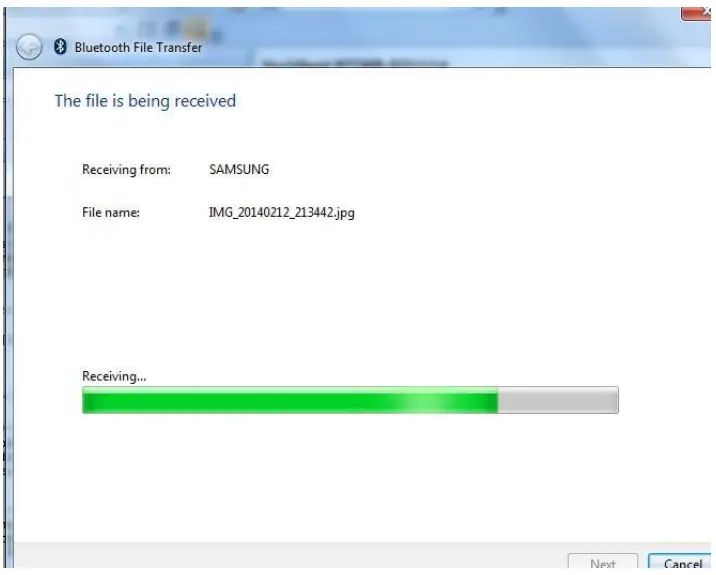
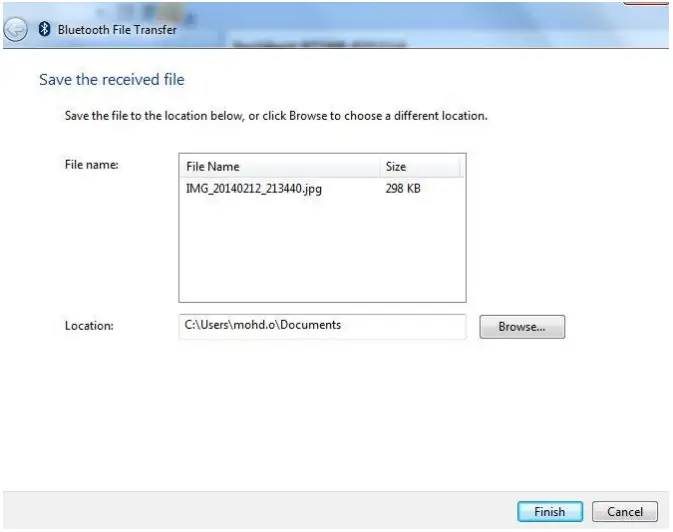
- Save the received file and click on Finish
Unable to connect a Bluetooth device with the Bluetooth adapter
- Check if the blue light on the Bluetooth adapter is flashing
- Make sure the Bluetooth device that is to be connected is in pairing / discoverable mode
- Try the Bluetooth adapter on a different USB port
- Try to connect a different Bluetooth device with the Bluetooth adapter
- Try the Bluetooth adapter on a different computer, if one is available
- If still no go verify warranty and replace the product
Q: Which Bluetooth protocols are supported by USB 4.0 Bluetooth Adapter model K33956?
A: The following Bluetooth protocols are supported:
| Windows XP | Windows Vista | Windows 7 | Windows 8 | |
| Generic Access Profile | Yes | Yes | Yes | Yes |
| Serial Port Profile | Yes | Yes | Yes | Yes |
| Service Discovery Application Profile | Yes | Yes | Yes | Yes |
| Dial-Up Networking Profile | Yes | Yes | Yes | Yes |
| Object Push Profile | Yes | Yes | Yes | Yes |
| Personal Area Networking Profile | Yes | Yes | Yes | Yes |
| Hardcopy Cable Replacement Profile | Yes | Yes | Yes | Yes |
| Human Interface Device (HID) | Yes | Yes | Yes | Yes |
| Hands-free Profile | No | Yes | Yes | Yes |
| Headset Profile | No | Yes | Yes | Yes |
| File Transfer Profile | No | Yes | Yes | Yes |
| Audio/Video Remote Control Profile | No | Yes | Yes | Yes |
| Advanced Audio Distribution Profile | No | Yes | Yes | Yes |
| Basic Imaging Profile | No | Yes | Yes | Yes |
| Generic Audio/Video Distribution Profile | No | Yes | Yes | Yes |
| HOGP (HID over GATT) | No | No | Need SW driver | Yes |
| Proximity | No | No | Need SW driver | Yes |
| Find me Profile | No | No | Need SW driver | Yes |
| Link Loss | No | No | Need SW driver | Yes |