The status icons
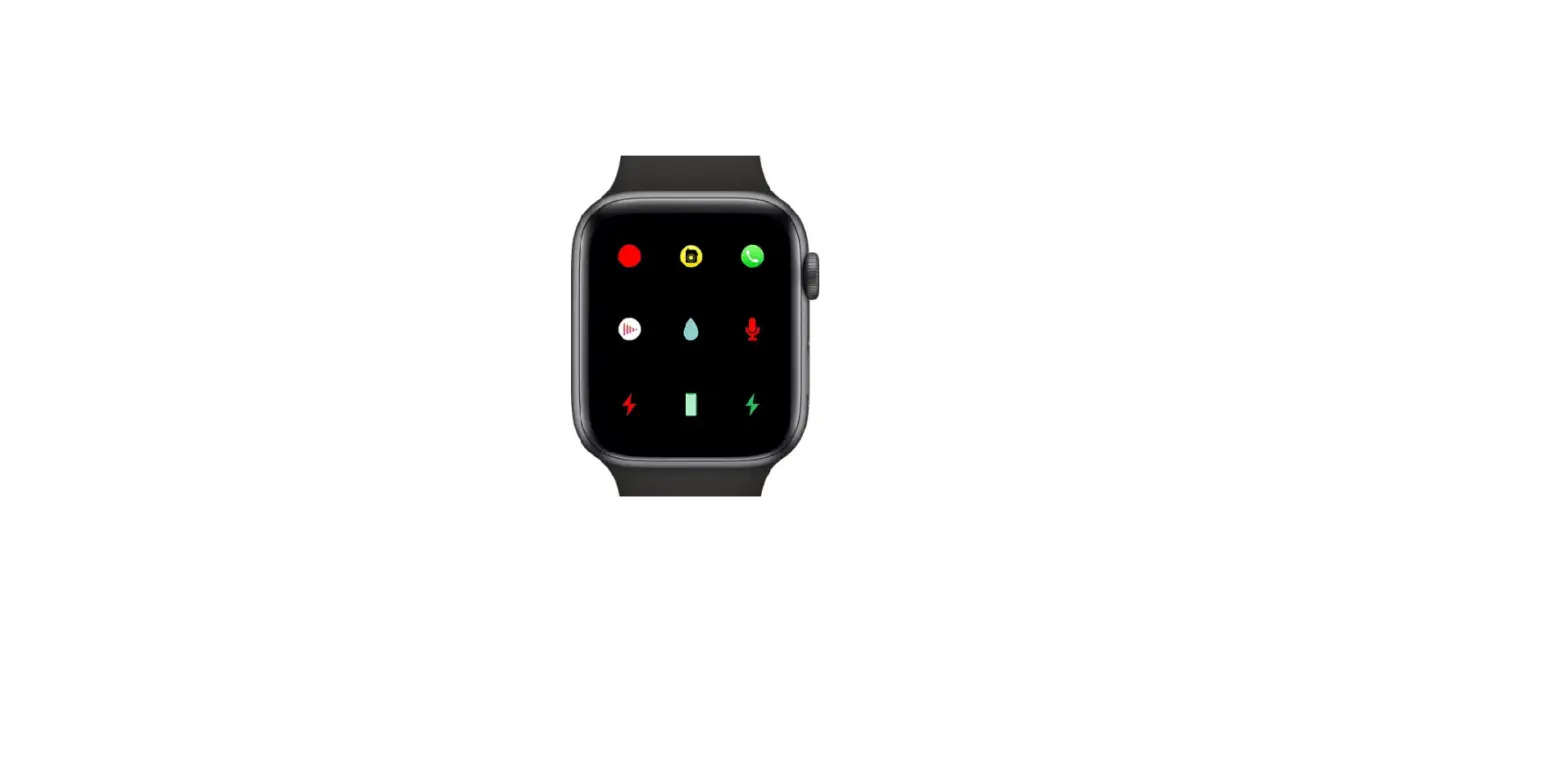
Status icons at the top of the screen give you information about Apple Watch:
 | You have an unread notification. Swipe down on the watch face to read it. | ||||||||||
 | Apple Watch is charging. | ||||||||||
 | Apple Watch battery is low. | ||||||||||
 | Apple Watch is locked. Tap to enter the passcode and unlock. | ||||||||||
 | Water Lock is on, and the screen doesn’t respond to taps. Turn the Digital Crown to unlock. (Water Lock is available for Apple Watch Series 2 and later only.) | ||||||||||
 | Do Not Disturb is turned on. Calls and alerts won’t sound or light up the screen, but alarms are still in effect. | ||||||||||
 | Airplane Mode is turned on. Wireless is turned off but non-wireless features are still available. | ||||||||||
 | Theater Mode is turned on. Apple Watch is silenced and its display won’t light up when you raise your wrist. | ||||||||||
 | You have a workout in progress. To end the workout, see Start your workout. | ||||||||||
 | Apple Watch Series 3 (GPS + Cellular) has lost the connection to a cellular network. See Use Apple Watch with a cellular network—Apple Watch Series 3 (GPS + Cellular) only. | ||||||||||
 | Apple Watch has lost the connection with its paired iPhone. This happens when Apple Watch isn’t close enough to iPhone, or when Airplane Mode is enabled on iPhone. For more information, see the Apple Support article If your Apple Watch isn’t connected to your iPhone. | ||||||||||
 | Apple Watch is connected to its paired iPhone. | ||||||||||
 | An app on Apple Watch is using location services. | ||||||||||
 | Apple Watch is connected to a known Wi-Fi network. | ||||||||||
 | There’s wireless activity or an active process happening. | ||||||||||
 | Audio is recording in the background. | ||||||||||
 | Apple Watch Series 3 (GPS + Cellular) is connected to a cellular network. The number of dots indicates signal strength. | ||||||||||



![Available Faces On The Apple Watch [+customization How To]](https://static-data1.manualsee.com/1/img/84/1199/2018/05/AppLanding_Watch.png "Available Faces On The Apple Watch [+customization How To]")