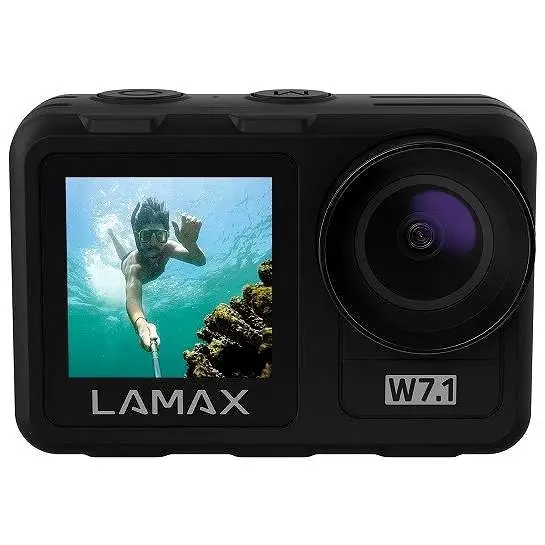
Dual Camera Digital Camera
Dual Camera Digital Camera
User Manual
This product is the newly developed front and back dual-camera
WiFi digital camera. The front camera is equipped with a new
version of the lens with an auto-focus function, and the back
camera with a wide-angle fixed lens. And this digital camera can
realize real-time screen and remote control with the mobile phone
through the WiFi signal (non-router WiFi) transmitted by the
machine.
Battery Installation/Removal/Charging
Battery Installation/Removal: This camera uses
a high-capacity rechargeable lithium-ion battery (NP-120). The
battery slot is at the bottom of the machine. Please put the
battery into the battery slot correctly (Please refer to the
picture), and ensure that the camera is turned off when removing
the battery.
Battery Charging:
- Put the battery in the camera, then connect the camera to the
power adapter by the provided Type-C data cable:
Green Light On: Charging
Green Light Off: Charging Complete - Put the battery in the dual charger, then connect the dual
charge to the adapter.
Red Light: Charging
Blue Light: Charging Complete
Note: The dual charger may not be included in the package.
Please get in touch with the seller if needed. - Battery charging time (estimated): The standard charging time
(from dead to fully charged) is about 3 hours. - Continuous working time (estimated): It can work for 1.5 hours
when all settings are factory default.
Battery Precautions:
- It is recommended that the battery be charged within the
temperature range specified in the user manual. - A fully charged battery will consume power even when not in
use. To ensure sufficient power, please charge the battery in
advance. - When the camera will not be used for a long time, please charge
the battery every 3 months and then discharge the battery to
maintain battery life.
Memory Card Installation/Format
Memory Card Installation: This camera uses a TF
memory card, up to 128G supported. The card slot is at the bottom
of the machine. Please follow the mark to insert the TF card into
the slot correctly. Putting the card incorrectly may damage the TF
card and the card slot. Press the memory card inwards to eject the
card.
Format: Please format the memory card for the
first time use, otherwise, there may be failures such as failed to
record, blue screen, etc. Press the MENU key > Press DISP button
to find SD [Format Memory Card] setting > Front/DEL button ()
> Select YES > Menu/OK > Front/DEL > Menu/OK
Camera Settings
Camera Starting Up: Press Power key, red
indicator light on, screen turns on, camera starts up.
Date/Time Settings: The time in the camera is
the default time set by the software rather than the current time.
Please follow the steps to set the time to the current time if
needed.
- Press the menu key MENU > DISP button > [Date/Time] >
WiFi/ > Date Setup > OK/MENU > WiFi/DEL to set the month
> DISP to choose > Press OK/MENU to confirm
Language setting: The available languages:
English/French/German/Spanish/Italian/Portuguese/Dutch/Polish/Czech/Hungarian/Turkish/Russian/Simplified
Chinese.
- Press MENU > DISP button > [Language] > DEL/WiFi to
choose > OK/MENU to confirm > MENU to return
Identifying the Parts
[Include identifying the parts information here]Dual Camera Digital Camera
User Manual
· Please read this instruction carefully before using the product · To ensure proper use of this camera, please read the safety instructions · Retain this manual for future reference
Preface
This product is the newly developed front and back dual-camera WiFi digital camera. The front camera is equipped with a new version of the lens with an auto-focus function, and the back camera with a wide-angle fixed lens. And this digital camera can realize real-time screen and remote control with the mobile phone through the WiFi signal (non-router WiFi) transmitted by the machine.
Battery Installation/Removal/Charging
Battery Installation/Removal This camera uses a high-capacity
rechargeable lithium-ion battery (NP-120). The battery slot is at the bottom of the machine. Please put the battery into the battery slot correctly(Please refer to the picture), and ensure that the camera is turned off when removing the battery.
Battery Charging 1. Put the battery in the camera, then
connect the camera to the power adapter by the provided Type-C data cable:
Green Light On: Charging Green Light Off: Charging Complete
2. Put the battery in the dual charger, then connect the dual charge to the adapter.
Red Light: Charging Blue Light: Charging Complete Note: The dual charger may not include in the package. Please get in touch with the seller if needed.
3. Battery charging time (estimated): The standard charging time (from the dead to fully charged) is about 3 hours.
4. Continuous working time (estimated): It can work for 1.5 hours when all settings are factory default.
Battery Precautions It is recommended that the battery be charged within the temperature
range of 10°C to 30°C. At lower temperatures, the battery may not be able to be charged or take more time to be fully charged. Charging at high temperatures may shorten battery life.
A fully charged battery will consume power even not in use. To ensure sufficient power, please charge the battery in advance.
When the camera will not be used for a long time, please charge the battery every 3 months and then discharge the battery to maintain battery life.
Memory Card Installation/Format
Memory Card Installation This camera uses a TF memory card,
up to 128G supported. The card slot is at the bottom of the machine. Please follow the mark to insert the TF card into the slot correctly. Putting the card incorrectly may damage the TF card and the card slot. Press the memory card inwards to eject the card.
Format Please format the memory card for the first time use, otherwise, there
may be failures such as failed to record, blue screen, etc. Press the MENU key > Press DISP button to find SD [Format Memory
Card] setting > Front/DEL button () > Select YES > Menu/OK > Front/DEL > Menu/OK
Camera Settings
Camera Starting Up Press Power key, red indicator light on, screen turns on, camera starts up.
Date/Time Settings The time in the camera is the default time set by the software rather than
the current time. Please follow the steps to set the time to the current time if needed.
Press the menu key MENU > DISP button > [Date/Time] > WiFi/ > Date Setup > OK/MENU > WiFi/DEL to set the month > DISP to choose > Press OK/MENU to confirm Language setting
The available languages: English/French/German/Spanish/Italian/Portuguese/Dutch/Polish/Czech/ Hungarian/Turkish/Russian/Simplified Chinese.
Press MENU > DISP button > [Language] > DEL/WiFi to choose > OK/MENU to confirm > MENU to return
Identifying the Parts
1. TFT Display 2. Back Camera 3. Microphone 4. Left Key/Camera Switch 5. Right Key/DISP Key 6. Power Indicator 7. Front/Delete Key 8. Back/WiFi Key 9. Playback/Mode Key 10. OK/Menu Key
11. T/W Key 12. Flashlight 13. Front Camera
14. Microphone Interface 15. USB Interface
16. Hot Shoe Interface 17. Power Key 18. Photo Key 19. Filter Turntable
20. Battery Cover 21. Screw Hole For Tripod 22. TF Card Slot
Key/Indicator Power Key
Photo Key
Hot Shoe Camera Filter
Turntable Flashlight T/W Button
Charging Indicator
Operating Indicator Left Key
Right Key
MENU Key
Front Button Back Button
MODE Key
Card Slot MIC USB
Function On/Off Shooting Recording Start/End For External Microphone/Fill Light
To switch the camera filter
For taking pictures in low light T: Zoom In W: Zoom Out Green light on when charging, Light off when charging completed Green light on when starting up Move menu to left/Camera Switch Move menu to right/DISP (Disable Screen Menu Display) Enter/Exit Menu Settings Confirm Key Move menu option Up/Delete Move menu option Down/WiFi Playback Mode Option TF Card Slot External Microphone Interface USB Cable Charging Interface
Camera Filter Turntable Rotate the filter turntable to select the corresponding photographing mode.
The description of the filter turntable is shown as followed:
Camera Shooting Function
Shooting Menu Settings
The menu in shooting mode
Sub Menu
Content
Photo Pixel
48M/30M/24M/20M/16M/12M/8M/ 7MHD/5M/3M/2MHD
Scene
Auto/Scenery/Portrait/Night Scenery/Night Portrait/High Sensitivity/Sport/Beach/Party
Image Quality
Normal/Fine/Super Fine
White Balance Auto/Daylight/Cloudy/Fluorescent/Incandescent
Image Sharpness Soft/Normal/Sharp
Light Exposure -3/-2/-1/0/1/2/3
ISO
Auto/ISO100/ISO200/ISO400
Metering
Center/Multi/Spot
The menu in recording mode
Sub Menu
Content
Video Resolution 4K/2.7K/FHD/HD
Scene
Auto/Scenery/Portrait/Night Scenery/Night Portrait/High Sensitivity/Sport/Beach/Party
Image Quality
Normal/Fine/Super Fine
White Balance Auto/Daylight/Cloudy/Fluorescent/Incandescent
Recording Effect
Standard/Negative/Mono/Vivid/IR/Negative/Lomo/ Binary/Dog Eye
Image Sharpness Soft/Normal/Sharp
Light Exposure -3/-2/-1/0/1/2/3
ISO
Auto/ISO100/ISO200/ISO400
Metering
Center/Multi/Spot
Shooting Press MODE Key to switch into photography mode, Focus your camera
on the target, hold the camera steadily. Halfway press the shutter key to focus, full press the shutter key to shooting after focusing.
Toggle the T/W zoom control knob to modify the composition. T: makes the field of view larger and the camera subject larger. W: makes the field of view smaller and the camera subject smaller.
Video Recording Press MODE Key to switch into recording mode, press shutter key to
start/stop recording.
Selfie Timer The selfie timer has 2 seconds, 5 seconds, and 10 seconds for selection.
Press MENU in shooting mode > Left/Right button to find Self Timer > UP/DOWN to select > OK.
Photo Playback Press the MODE key to switch to the playback mode, and press the Front/
Back keys to view the photos. Press the T to zoom in images, and press the W to enter Jiugongge mode. In Jiugongge mode, press the left/right or front/ back keys to choose the photos, and press OK/Menu to confirm.
Video Playback In playback mode, press the front/back keys to view the videos. Press the
shutter key to play the video, and press the Front/Back Key to amplify/reduce the sound. Press the Shutter key again to pause, and press the MODE key to exit. Press W to enter Jiugongge Playback mode. In Jiugongge mode, press the left/right or front/ back keys to choose the photos, and press OK/Menu to confirm.
Delete Files In playback mode, press the MENU key to open the delete menu, and
press the front/back keys to choose the option [Delete this photo/Delete all videos/Cancel], then press OK to confirm, press the front/back key to choose YES or NO, press OK to finish.
Files Transmission To PC/Camera 1. Turn on the camera, and use the provided Type-C data cable to
connect the camera to the computer. The camera screen will show [USB mode] – [Mass Storage/PC Camera]. Select the Mass Storage mode and click to confirm. (The camera will enter Mass Storage mode automatically in 5 seconds). Normally, your computer will recognize the camera as a U-disk. Then you can browse all files on the computer, or copy them to the computer.
Note: Do not disconnect the data cable during transmission in case data is lost or damaged.
2. Same as above, select the PC camera in USB mode within 5 seconds. Meanwhile, open the camera software on the computer and select the USB video device to display the real-time image of the camera.
Please select the camera as the video signal source in the live broadcast software if you want to live broadcast.
Note: When the camera is connected to your computer, the computer can also charge the battery but the speed is very very slow, and in some cases, the battery may not be charged. Please charge by the adapter if you want to charge the battery quickly.
WiFi Function
This camera supports APP DV Cam Plus control through the camera’s WiFi. The WiFi range is about 5 meters when no obstacles. Please scan the QR code to download the APP if you need to use the WiFi function.
Android iOS APP Note: This WiFi is not internet WiFi, it only supports connecting the camera and APP.
The Setup
1. Turn on the camera, and press the WiFi button, and the WiFi name and password will show on the camera screen.
2. Find the Setting on your phone or iPad, open WLAN, find the WiFi, enter the password and join in. Make sure it connects success (The QR code will hide once connected).
3. Open the APP (DV Cam Plus), allow it to use your location, allow it to access all photos, and allow the APP to find and connect to devices on your local network. Then the APP will show the camera connected already. Click the camera icon, you can use the APP control your camera then.
4. Press the WiFi button on the camera to exit.
Specifications
Sensor ISO
Media Type Front Lens Back Lens
Still Image
Video
Zoom Display Screen
Anti-Shake Face Detection
Fill Light Flash Light White Balance
Scene Light Exposure
Self Timer USB Type Auto Power Off Battery Type Dimensions
Language
CMOS 13MP Auto/ISO100/ISO200/ISO400 Micro SD Card (TF), Max support 128G (U3 transfer speed required) F/2.2 f=2.0mm, Auto-focus, 10cm ~ Infinity 50cm ~ infinity Image Formats: JPEG Resolution(interpolated): 48M(9344×5256),30M(7296×4104), 24M(6528×3672),20M(6144×3456), 16M(5376×3024), 12M(4608×2592), 8M(3840×2160),7MHD(3648×2048), 5M(3072×1728),3M(2304×1296), 2MHD(1920×1080) Video Formats: AVI Resolution(interpolated): 4K_3840X2160, 2.7K_ 2688X1520, FHD_1920X1080, HD_1280X720 18x Digital Zoom 3.0-inch HD Display Screen Digital Anti-Shake Support <1.5M Auto Flash/Forced Flash/Suppressed Flash Auto/Daylight/Cloudy/Fluorescent/Incandescent Auto/Scenery/Portrait/Night Scenery/Night Portrait/ High Sensitivity/Sport/Beach/Party -3.0EV ~ +3.0EV Off/2s/5s/10s Type-C USB2.0 Disable/1min/3mins/5mins NP-120 Lithium Ion 122(L) x 60(W) x 80(H)mm English/French/German/Spanish/Italian/Portuguese/ Dutch/Polish/Czech/Hungarian/Turkish / Russian/ Simplified Chinese
Read Before Use
For your safe 1. Please do not disassemble and modify this product. 2. If there is smoke or an unpleasant smell from any part, stop operating
the camera immediately, otherwise, it may cause fire or electric shock. Instantly turn off the camera and remove the camera’s battery or unplug the power cord from the electrical outlet, ensuring the camera has stopped smoking or emitting an unpleasant odor.
3. Do not let the camera come into contact with water or other liquids, or immerse the camera in water or other liquids. This camera is not waterproof. If the case gets on liquid, wipe it dry with a soft cloth. If water or other foreign objects get inside the camera, turn off the camera immediately, remove the camera’s battery or unplug the power cord from the power outlet.
4. When using the flash, please keep a distance from the eyes of people or animals. When the distance is too close, facing a strong light source may cause damage to the eyesight. Take special care to keep more than 1 meter (39 inches) away from infants when using the flash.
5. Please keep the camera and battery out of the reach of children. 6. Do not heat the battery or expose it to fire, otherwise, it may explode.
Maintenance 1. If the camera will not be used for a long time, please take out the
camera battery and place it in a dust-free, dry, and temperature not higher than 30°C environment.
2. To prolong the battery life, please fully discharge it before storing it. 3. Please fully charge and discharge the battery at least once every 3 months. 4. If there is dust or dirt on the lens or display, please wipe it gently with a clean and soft lens cleaning cloth. 5. Since this machine is a precision instrument, do not drop it or suffer strong impact or vibration.
Trouble Shooting 1. Unable to charge 1 If the charging indicator does not light up, please check whether the
charger is connected properly. 2 The battery is recommended to start charging within a temperature
range of 10°C to 30°C. 2. Battery life is too short 1 Check if the battery is fully charged.
2 If the ambient temperature is lower than 10°C, the battery will be drained quickly.
3 Battery life will vary depending on usage patterns. 3. The memory card cannot be recognized 1 Please check whether the memory card meets the requirement, the maximum is 128G. 2 Please check if the memory card is inserted incorrectly. 3 The memory card was used on the camera for the first time and was not formatted. 4. The memory card cannot be formatted 1 If the camera cannot be formatted, you can try to format the TF card on the computer first, and then insert it into the camera. Or try changing the memory card. 5. Inability to focus 1 Don’t shake the camera all the time, keep it steady and the camera will autofocus in 1-3 seconds. 2 When the shooting distance is less than 3.3 feet, you can manually half-press the camera button to focus, when shooting video, you need to keep pressing and holding. 6. Unable to connect to the computer 1 Please check if the USB data cable is connected correctly. 2 Please check whether the computer’s USB interface is working properly. 3 Please check computer system compatibility.
Others 1. Except for the memory card, do not insert other objects into the card
slot. 2. A few seconds after the power is turned on, the camera may display an
unstable image, it’s normal. 3. Due to the optical performance of the lens, color dispersion may occur
at the edge of the image (magnified chromatic aberration rate), which is not a camera malfunction.
4. It is normal for the memory card to become hot after being used for a long time.
5. The screen of the camera will heat up when used for a long time, which is a normal phenomenon.
Implementation standard: GB 8898-2011 Enterprise standard: Q/440307KRDZ001-2021 This product is only suitable for people over the age of 14