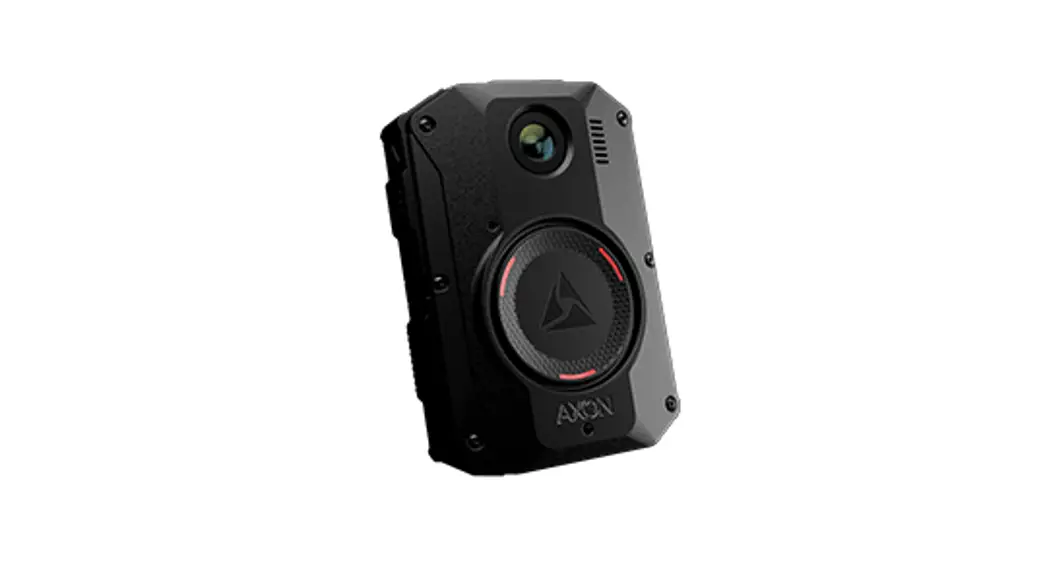

Axon Body 3 Function Guide
IMPORTANT: Before using an Axon Body 3 camera, ensure it is registered to your agency, assigned, and fully charged. Refer to the Axon Body 3 Registration Guide or online instructions for more information.
Camera Reference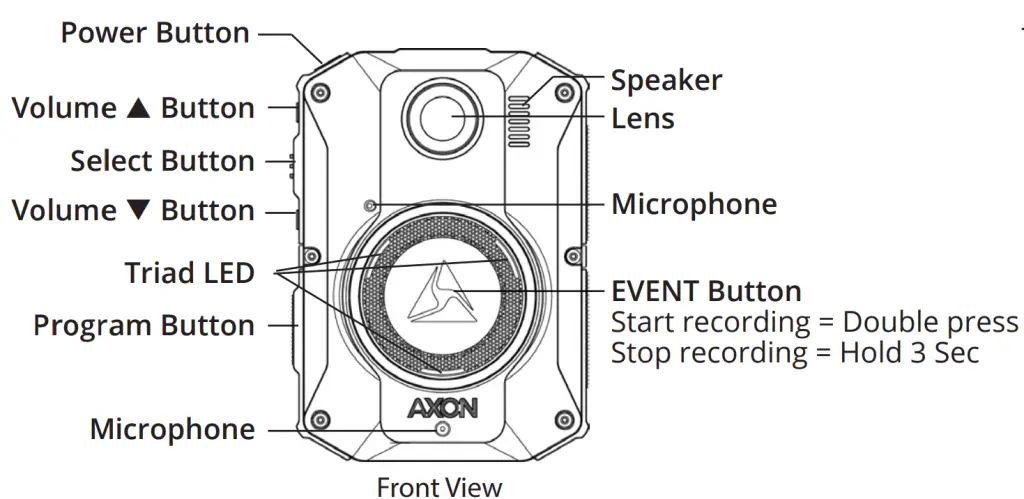
Read, understand, and follow all current instructions, warnings, and relevant Axon training materials before using any Axon system. The most up-to-date warnings and instructions are available at www.axon.com. See the Axon Help Center (www.axon.com/body3help) for registration information, operating instruction, training videos, and manuals for the Axon Body 3 camera.
Operating Button Actions
The Axon Body 3 camera button actions associated with each user action are described below.
| Action | Button Actions |
| Power On | Press the Power button until short vibration. The camera starts and enters Ready (Buffering) mode. |
| Power Off | Press and hold the Power button for 3 seconds. |
| Start recording | Double-press Event button. |
| End recording | Press and hold the Event button for 3 seconds. |
| Add marker to recording | While recording, press the Select button. |
| Increase speaker volume | Press the Volume A button. |
| Decrease speaker volume | Press the Volume V button. |
| Turn lights on or off | Press and hold the Volume A button for 3 seconds. |
| Enter Stealth mode | Press and hold the Volume • button for 3 seconds. |
| Exit Stealth mode | Press and hold Volume A or Volume • button for 3 seconds*. |
| Enter or exit Mute mode | While recording, press and hold the Select button for 3 seconds. |
| Enter Sleep mode | The press the Power button and then press the Select button |
| Exit Sleep mode | Press the Power button or double-press the Event Button |
| Activate display backlight | Double-press Select button. Display backlight turns on for 5 seconds. |
| Pairing | Simultaneously press Event and Program buttons, then release. |
Uploading Videos and Charging Axon Body 3 Cameras
Insert the Axon Body 3 camera into an Axon Body 3 Dock bay to upload videos and charge the camera’s battery.
DO NOT unplug the Axon Dock power supply while Axon devices are inserted in the bays. 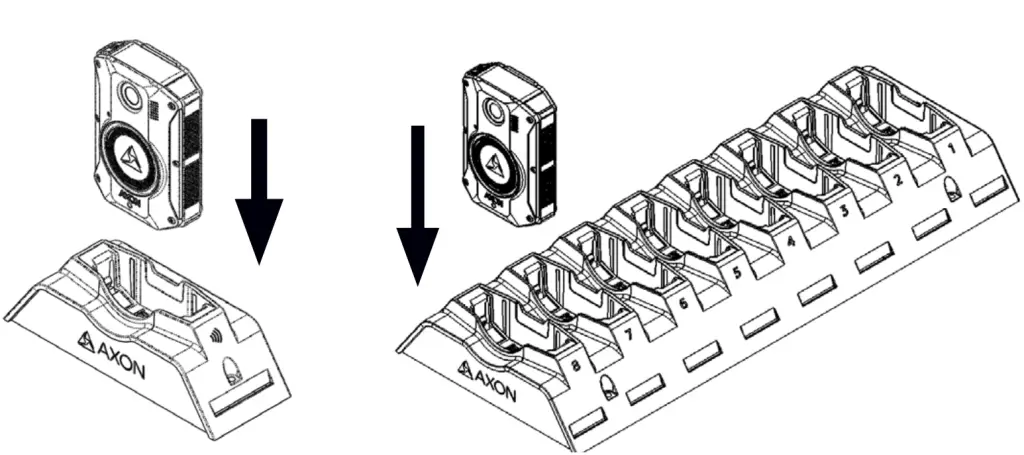
Examples: Axon Body 3 camera inserted into a 1-Bay dock (left) and an 8-Bay dock (right)
Using Axon View
The Axon View application enables you to replay video and add metadata (GPS, title, case ID, and category) to your videos using a smartphone or other smart device.
Note: Videos are not stored on your smart device
- Using your smart device, search for, download, and install the Axon View application from the Play Store or the App Store.
- Open Axon View, select an Axon Body 3 camera, and tap Initiate Pairing. You may need to sign in to your Axon Evidence.com account.
- Turn on your Axon Body 3 camera. On the Axon Body 3 camera, press the Program and Event buttons at the same time. You will hear three short rising-pitch tones, the Operation LED will blink blue, and PAIRING is shown on the display.
- Follow the Axon View on-screen instructions.
Camera Display
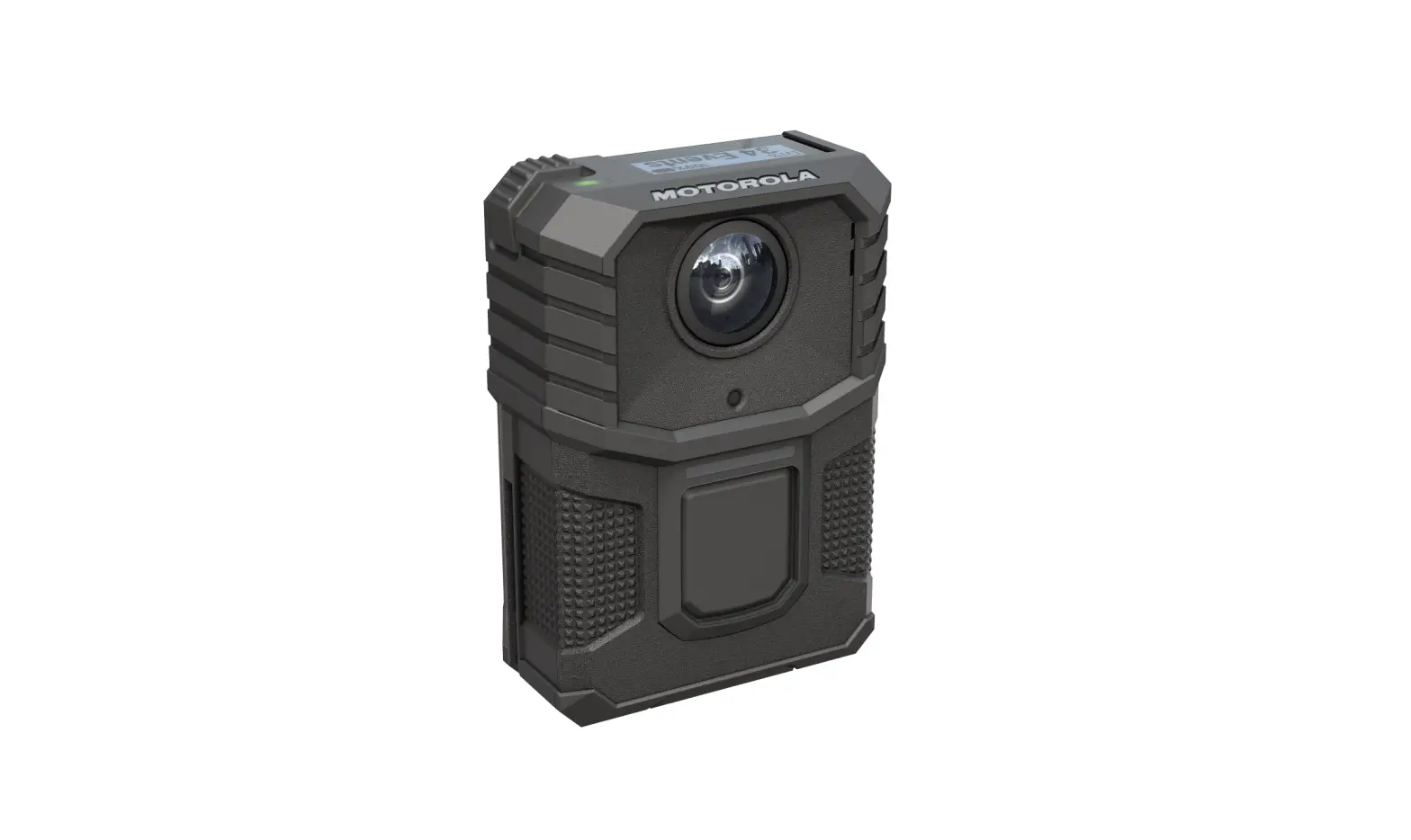
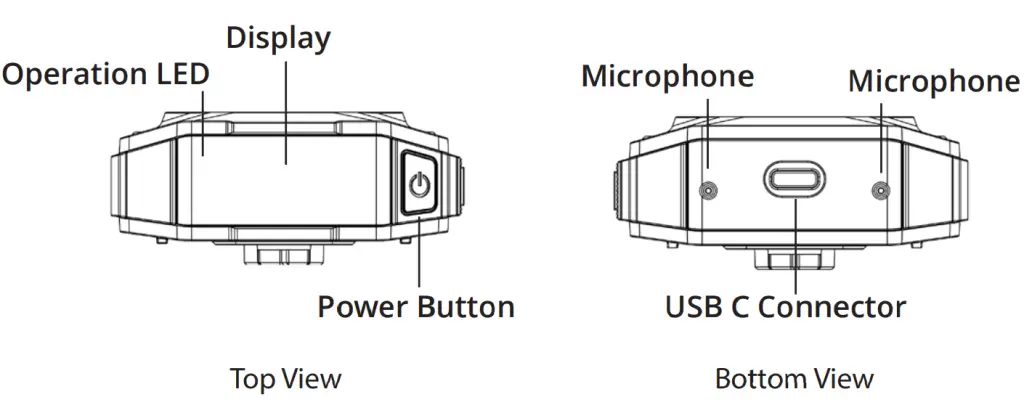
The Axon Body 3 camera display, on top of the camera, shows camera status and activity information. The display is divided into a Status Bar and Activity Area. Different information is shown in the field and dock. See the other side of this guide for additional camera display information.
Note: Some icons may not be active or displayed at your agency.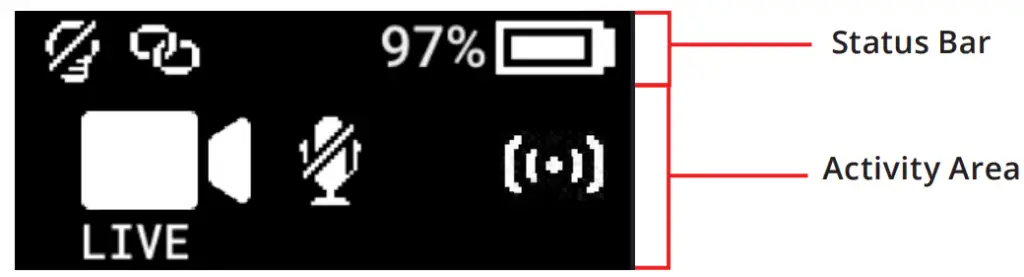
| Status Bar Icons | Description |
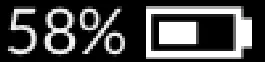 | Battery capacity |
 | Camera paired |
 | Lights off |
| S | Stealth mode on |
| I | Battery low warning (right of battery capacity) |
Axon Body 3 Camera Display and Notifications in the Field
The Axon Body 3 camera display, on top of the camera, shows information on camera status and activity. The camera also emits sounds called audio prompts to notify you of the device status or when you take an action. The audio prompts can be accompanied by a haptic notification (vibration) that matches the audio.
| Operating Mode or Action | Camera Display (Activity Area) | Operation LED | Audio Notification | Haptic Notification (Vibration) |
| Power on |  | Solid red | Two short rising-pitch tones | One – long duration |
| Power off |  | Solid red | Three short lowering-pitch tones | One – long duration |
| Recording started by Event button double- press | 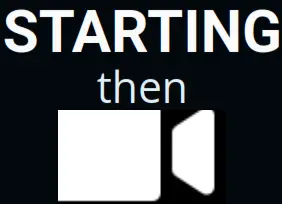 | Blinking red | Two short tones | Two – short duration |
| Recording started by Axon Signal |  | Blinking red | Two short tones | Two – short duration |
| Recording started by gunshot detection |  | Blinking red | Two short tones | Two – short duration |
| Recording reminder |  | Blinking red | Two short tones every 2 minutes | Two – short duration every 2 minutes |
| Stop recording, return to Ready | SAVING then READY | Blinking green | One long tone | One – long duration |
| Volume up or down |  | Blinking green or red | One short tone at the new volume level | One – short duration |
| Axon Respond Livestreaming | Live | Blinking purple | Three short rising-pitch tones | One – long duration |
| Enter or Exit Mute mode (microphone off) | 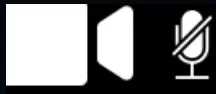 | Blinking blue in Mute mode | One short tone | Two – long duration |
| Enter Stealth mode | STEALTH | Off | None | None |
| Exit Stealth mode | No change | Blinking green or red | None | Two – short duration |
| Event marker captured | | Blinking red | None | One – short duration |
| Sleep mode |  | Enter = off, Exit = blinking | One short tone | One – long duration |
| Low battery notifications: 20% battery capacity and every 5% decrease OR any error | BATTERY LOW | Blinking yellow | Four quick high-pitch tones | Four – short duration |
| The camera enters Pairing mode | PAIRING | Blinking blue | Three short rising-pitch tones | None |
Axon Body 3 Camera Display and Triad LED Status Information in the Dock
When you plug an Axon Body 3 camera into an Axon Body 3 Dock, the Triad LED on the front of the camera shows the device status and battery capacity. The Axon Body 3 camera display, on top of the camera, shows the information on camera status and activity.
| Device Status | Camera Display | Triad LED | |
| Activity Area | Status Bar | ||
| Uploading data | UPLOADING 1/10 | Spinning yellow (cycling on each Triad LED) | |
| Downloading data or applying device settings | UPDATING | Spinning yellow (cycling on each Triad LED) | |
| Applying firmware update | UPDATING |  | Spinning white (cycling on each Triad LED) |
| Possible network error. Check the network connection and refer to the Troubleshooting section of the Axon Body 3 User Manual or go to help.axon.com | NETWORK ERROR | Blinking red and green | |
| Device error. Refer to device page in Axon Evidence. | DEVICE ERROR | Blinking red | |
| Assigned user ID – shown when no other activity, other than charging, and for 10 seconds after removing from dock | USERID123 | Battery capacity | |
| Battery capacity. The charge indicator () is shown to theright of battery capacity during the charge | Any of the above | 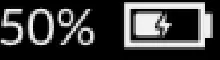 | Solid green (> 98%) |
| Solid yellow (33% to 97%) | |||
| Solid red (< 33%) | |||
Play Store is a trademark of Google, Inc.; App Store is a trademark of Apple, Inc.
AXON, Axon, Axon Body 3, Axon Dock, Axon View, and Axon Evidence are trademarks of Axon Enterprise, Inc., some of which are registered in the US and other countries. For more information, visit www.axon.com/legal. All rights reserved. © 2020 Axon Enterprise, Inc. MPC0288 Rev: C