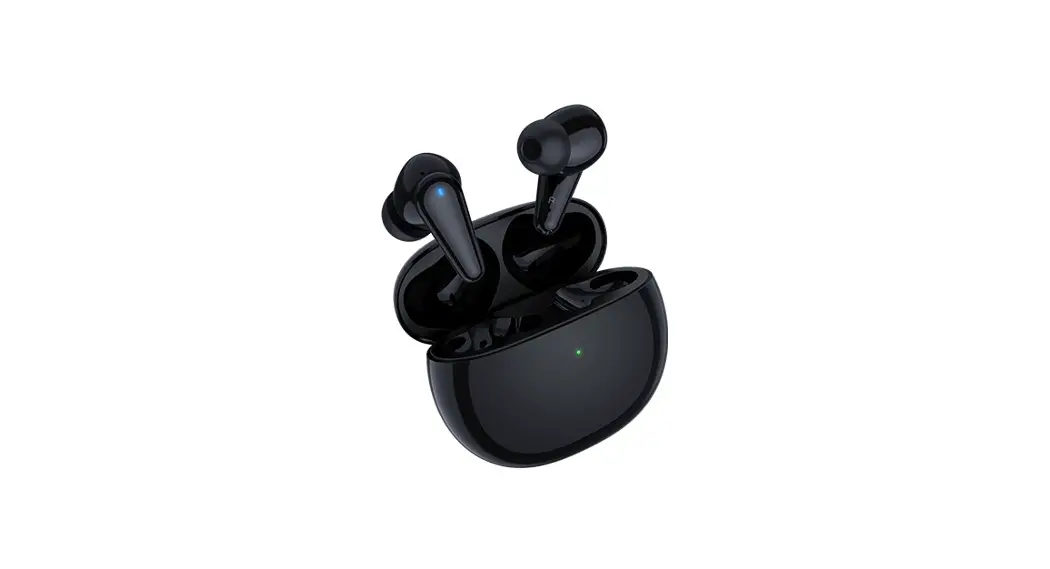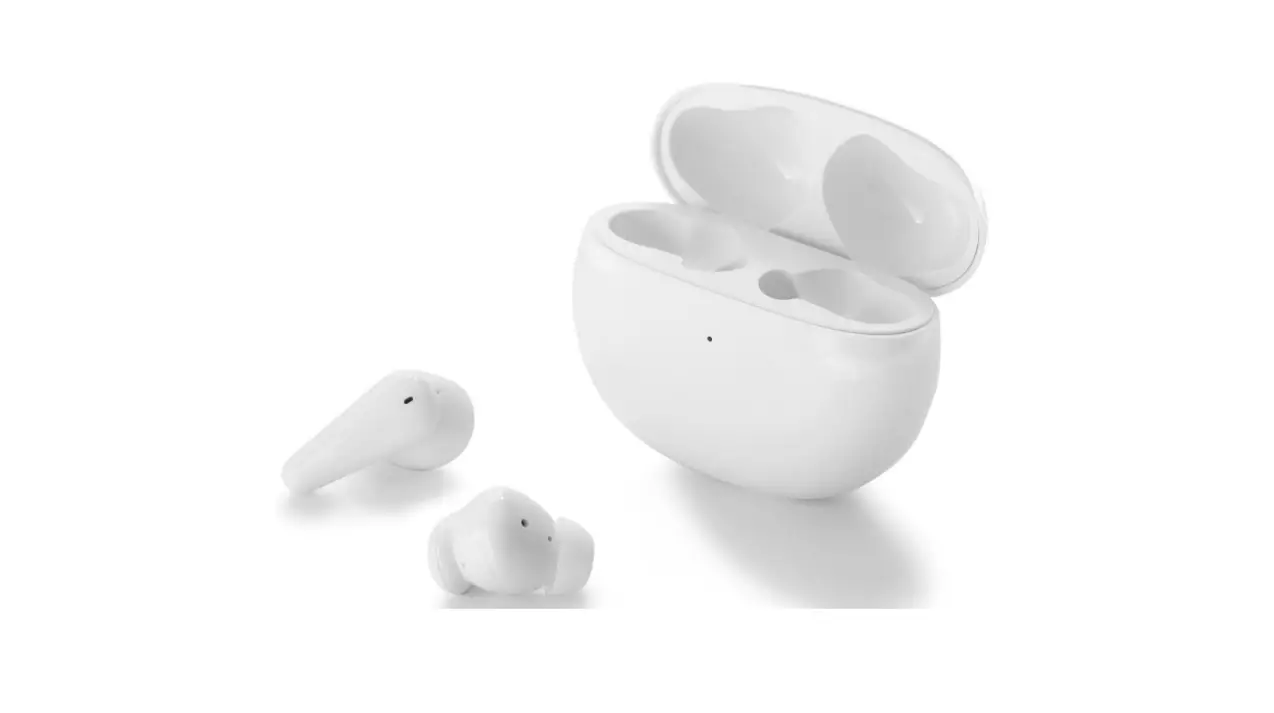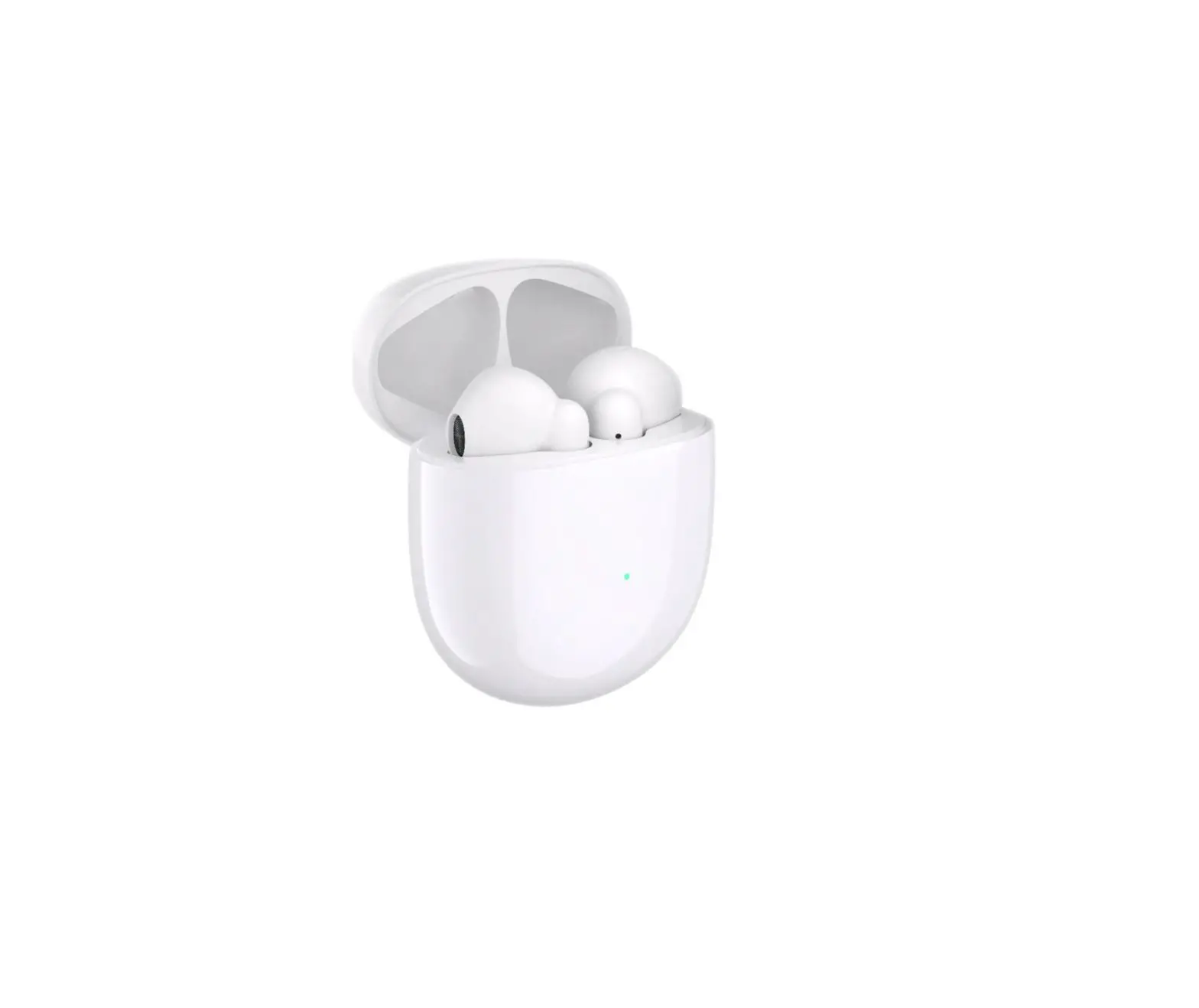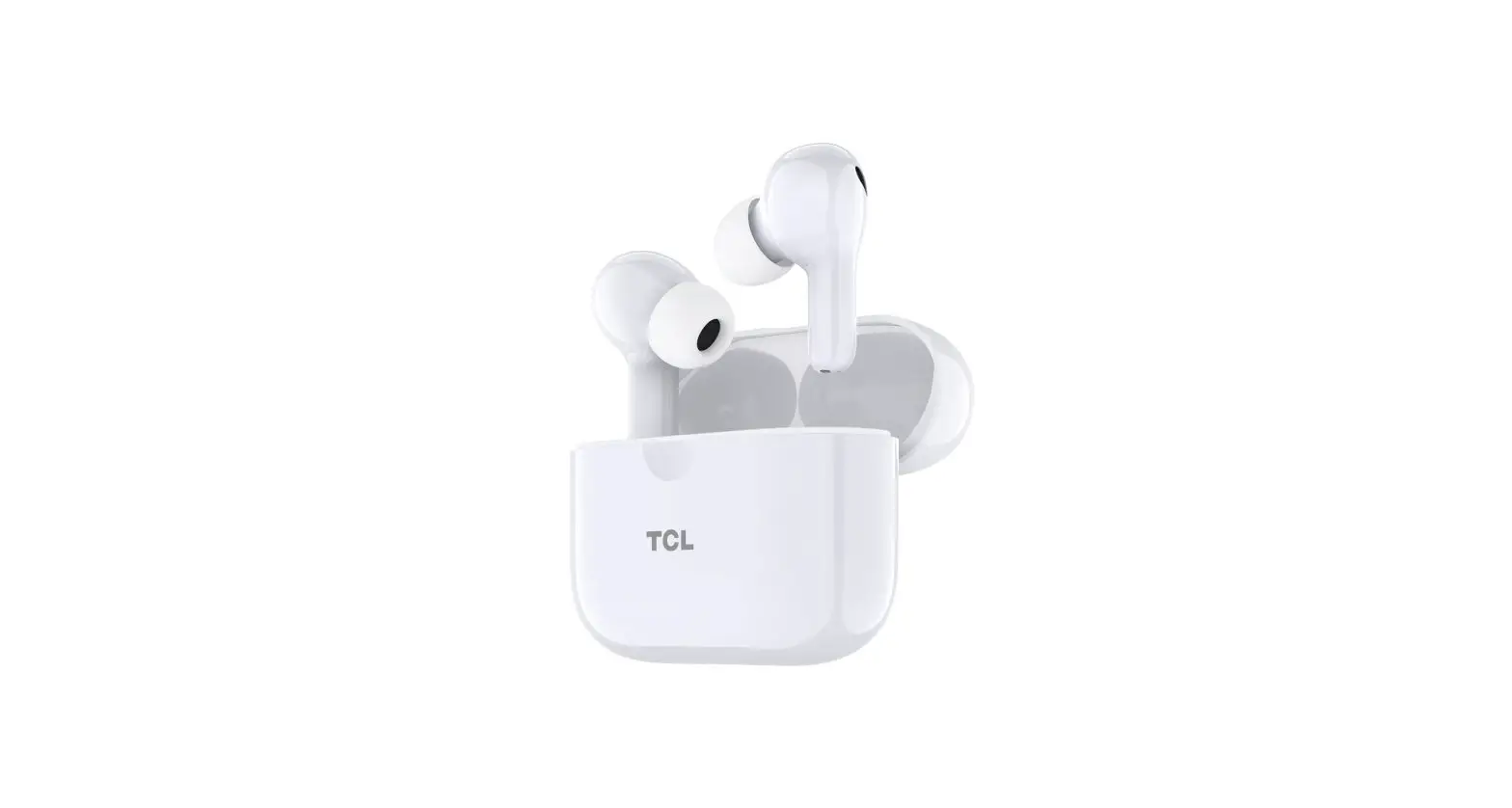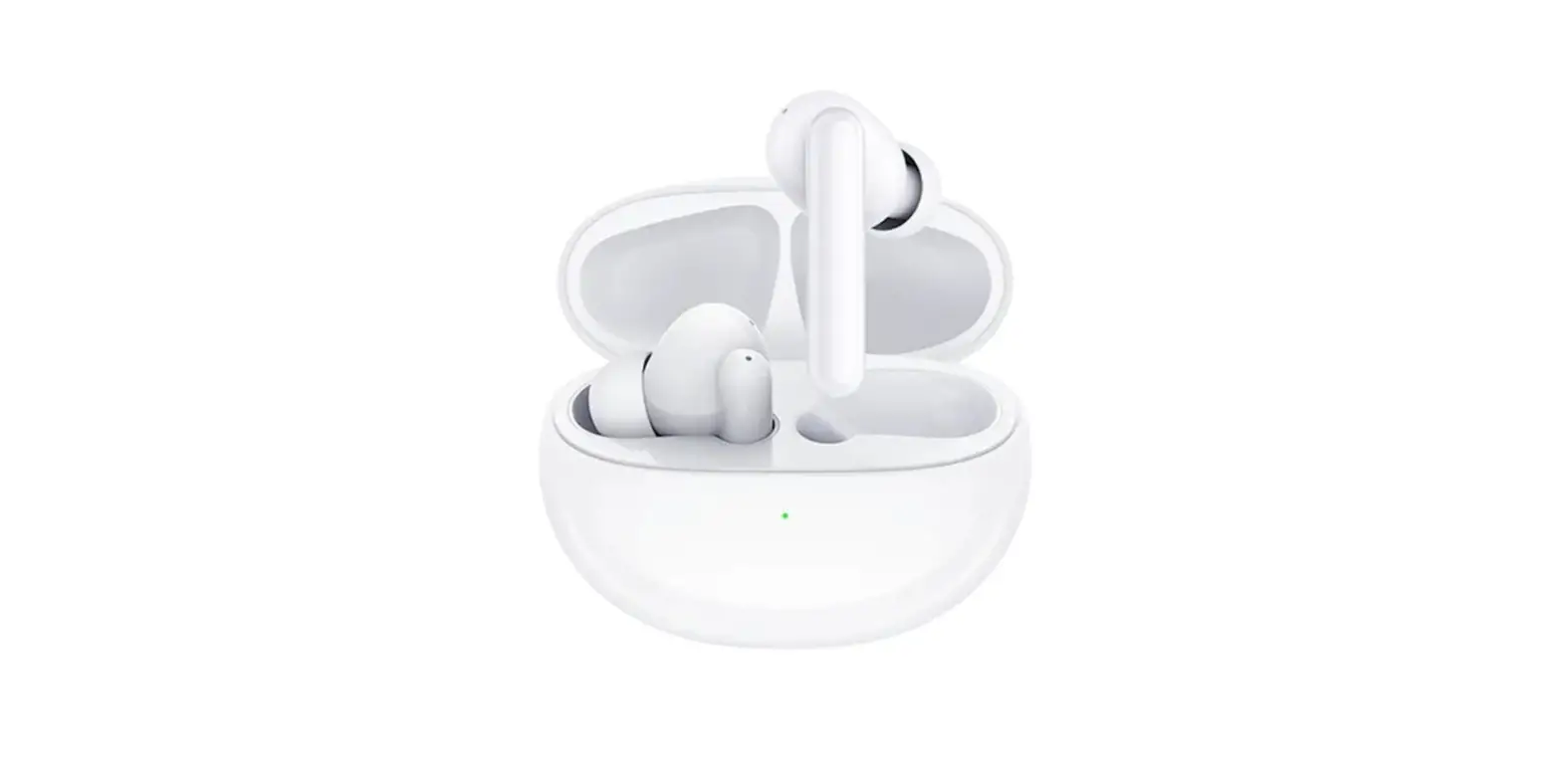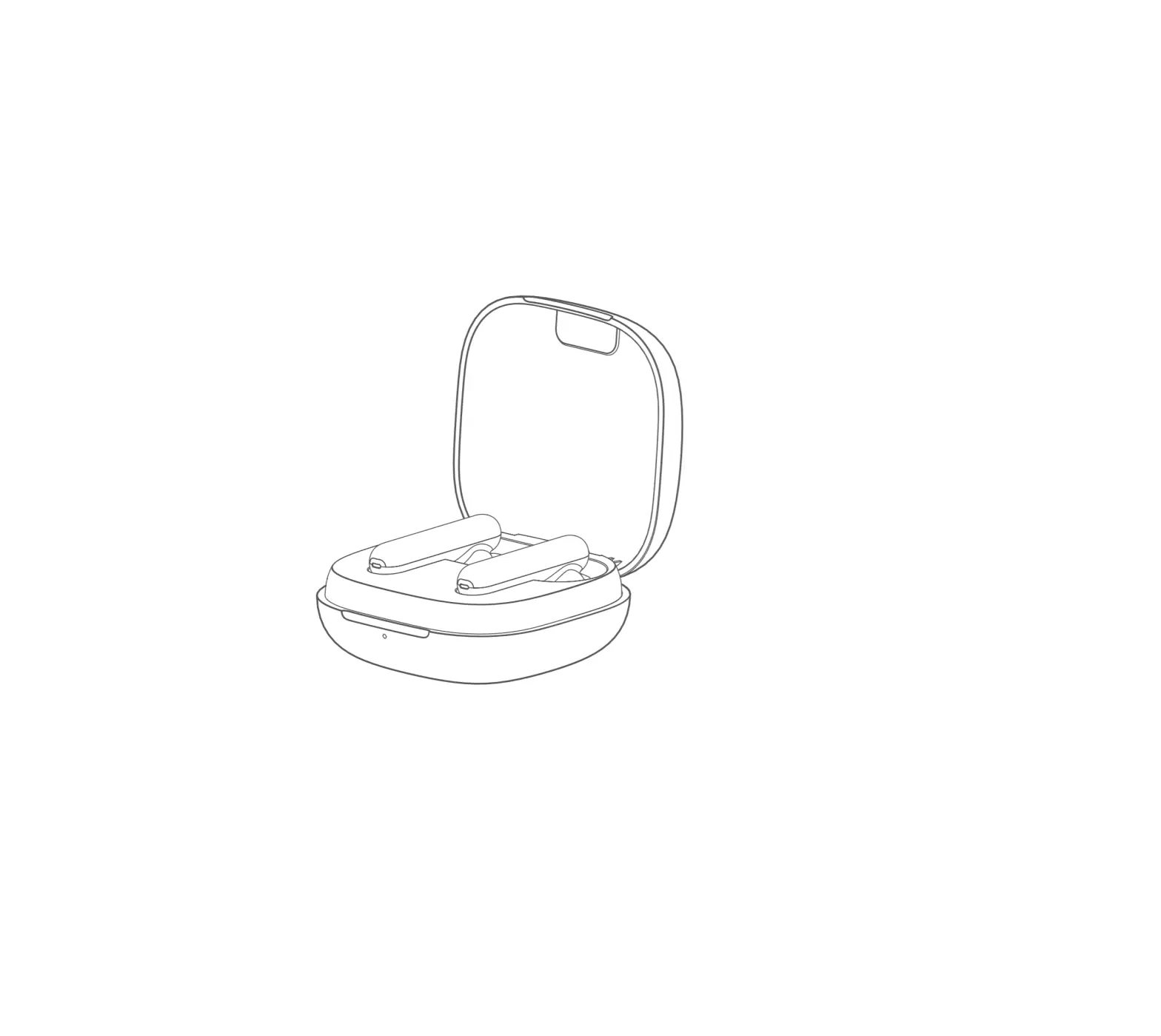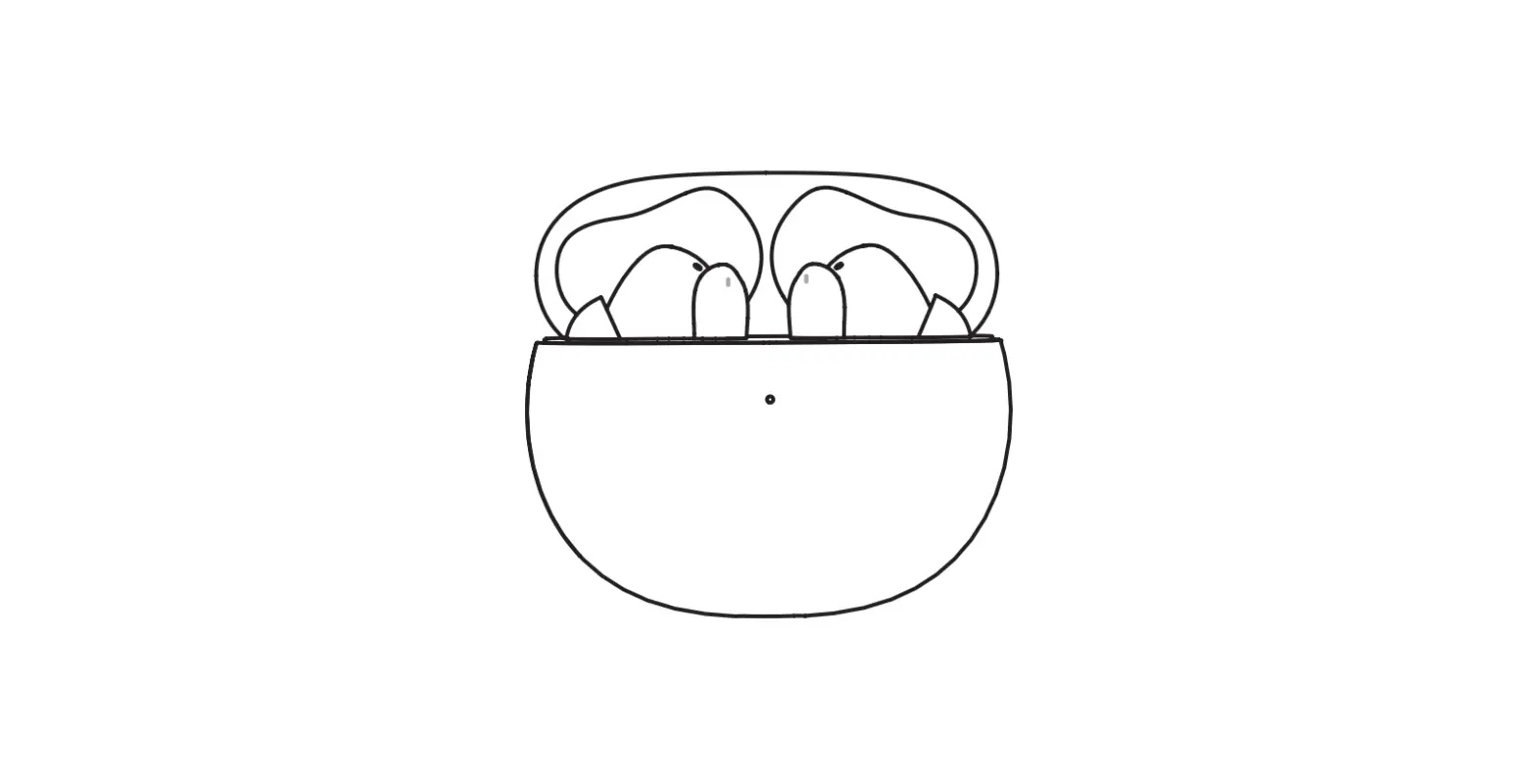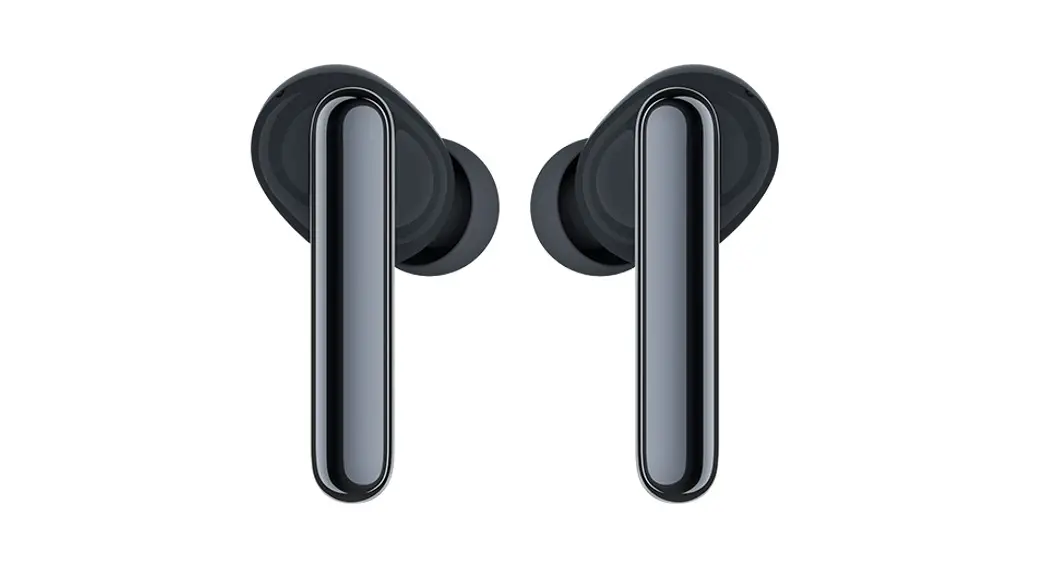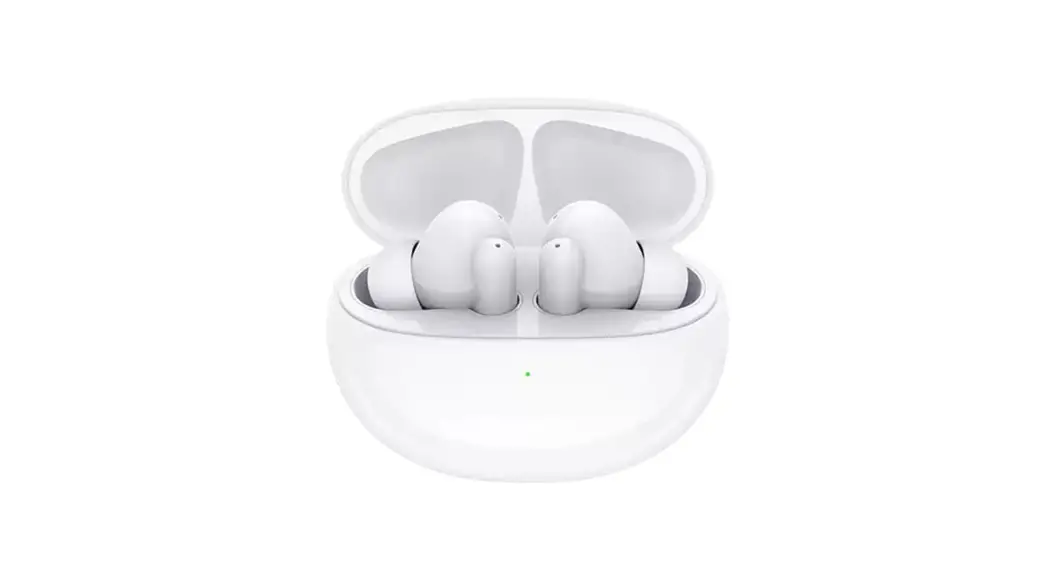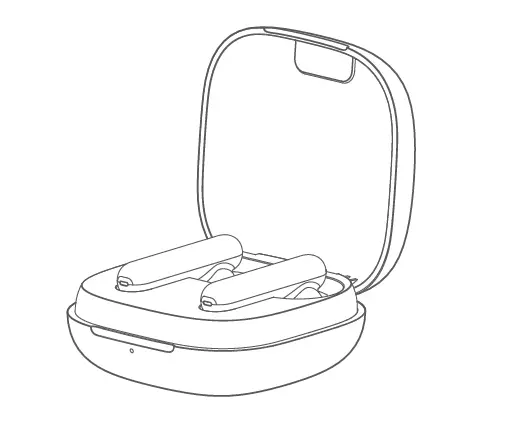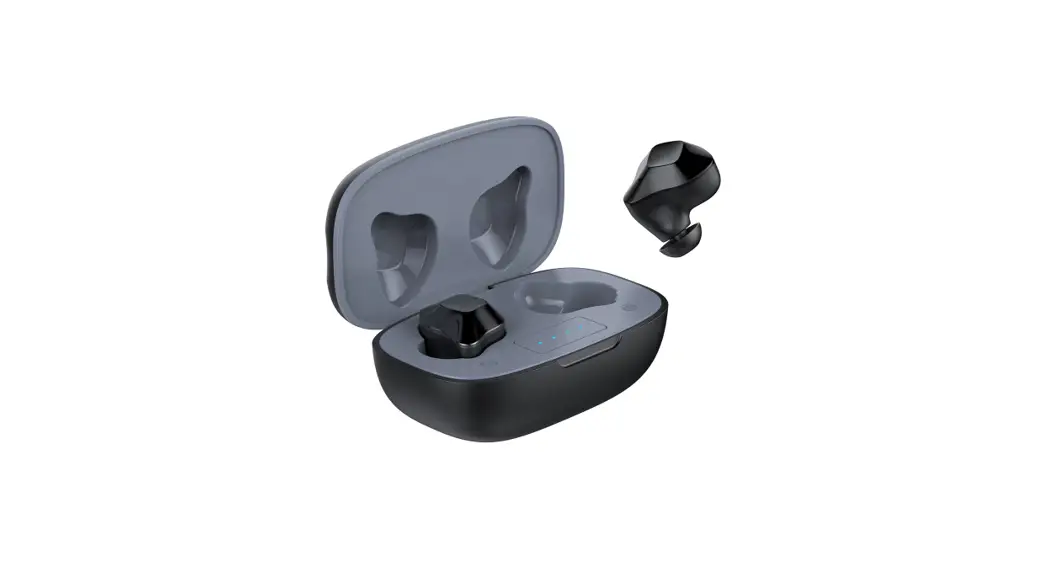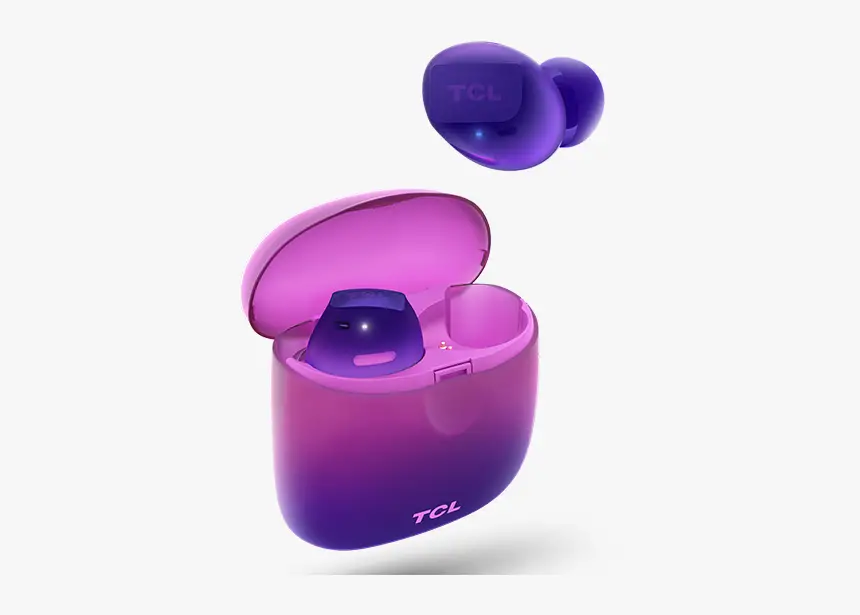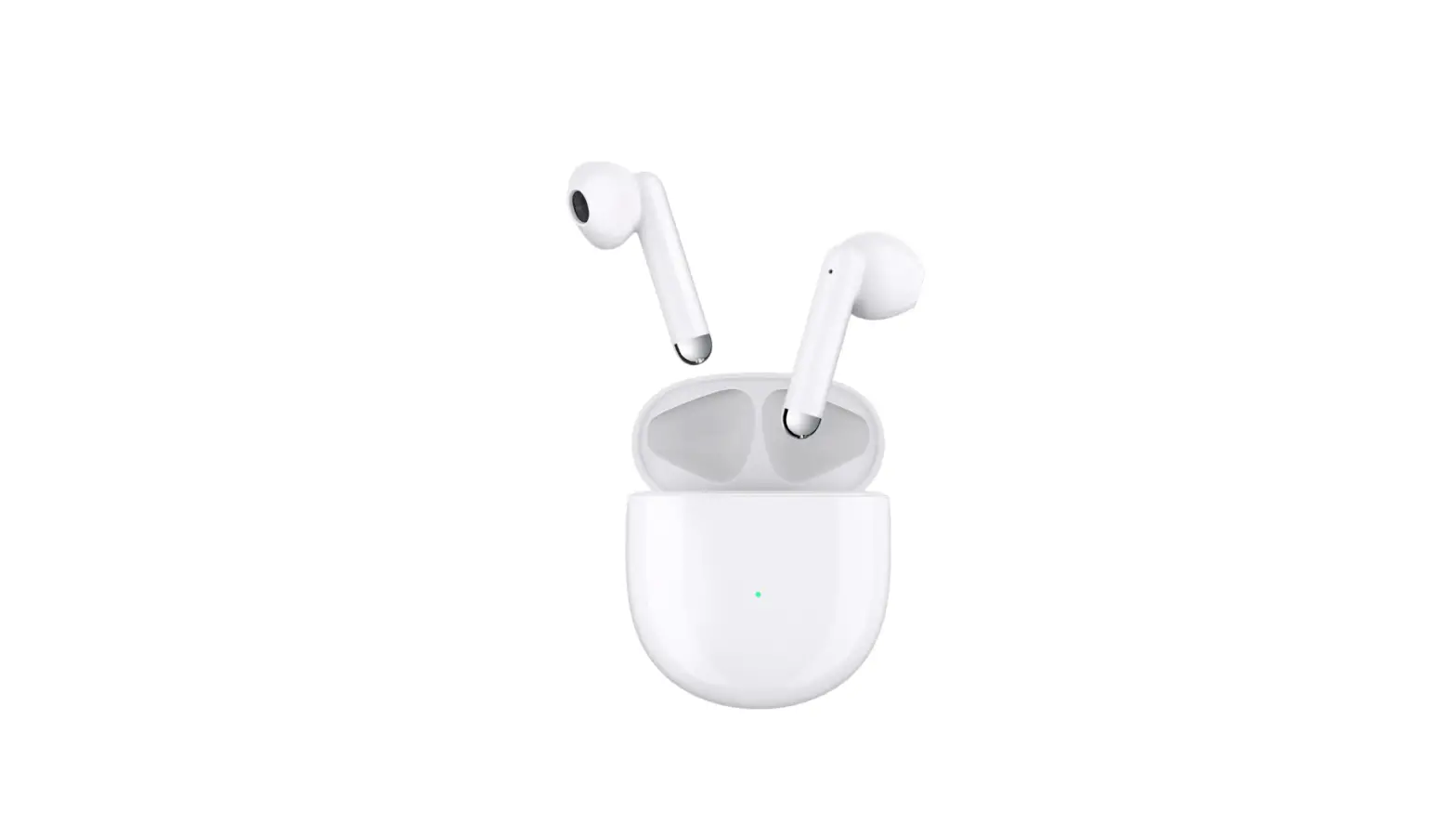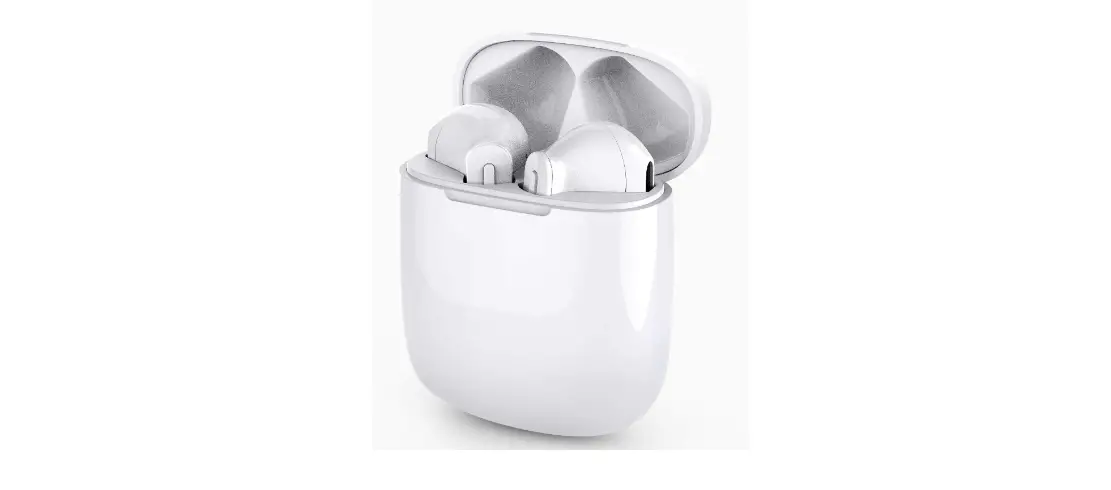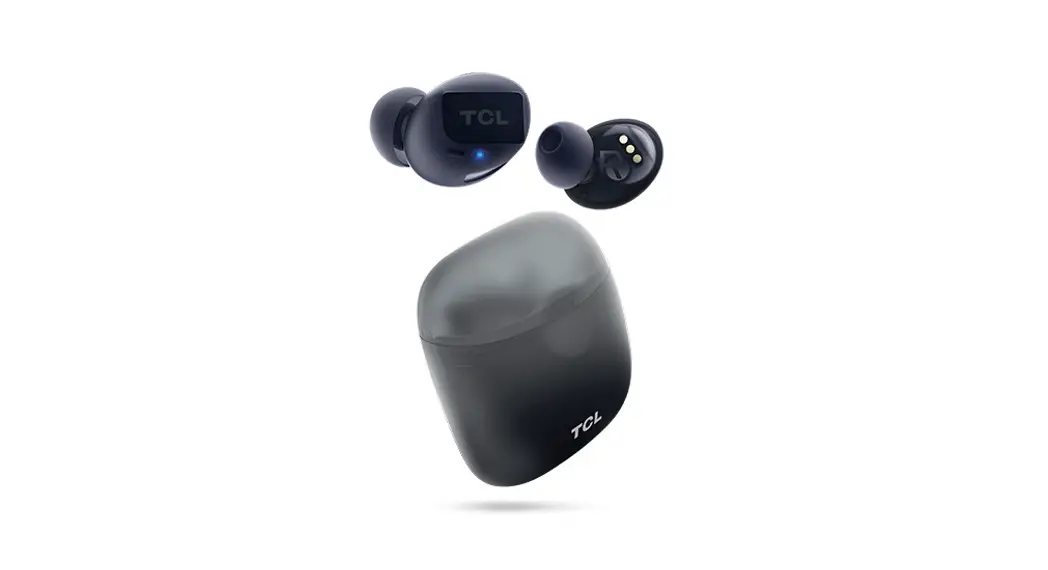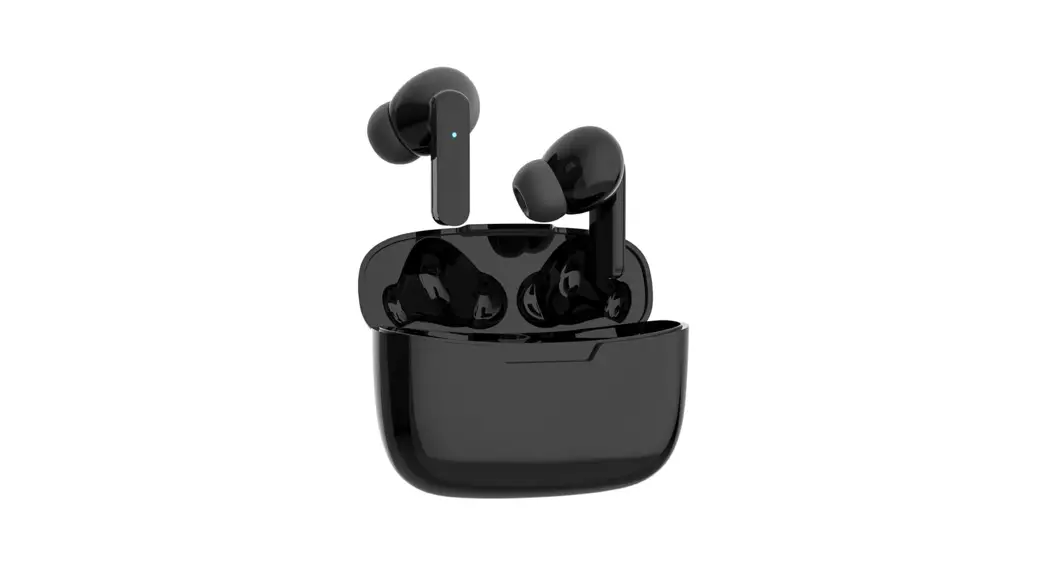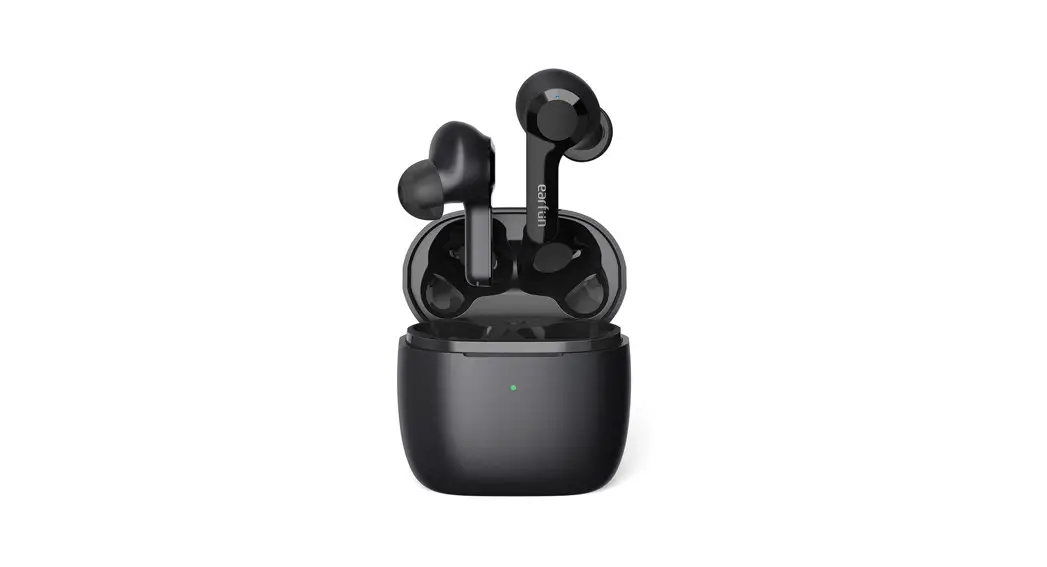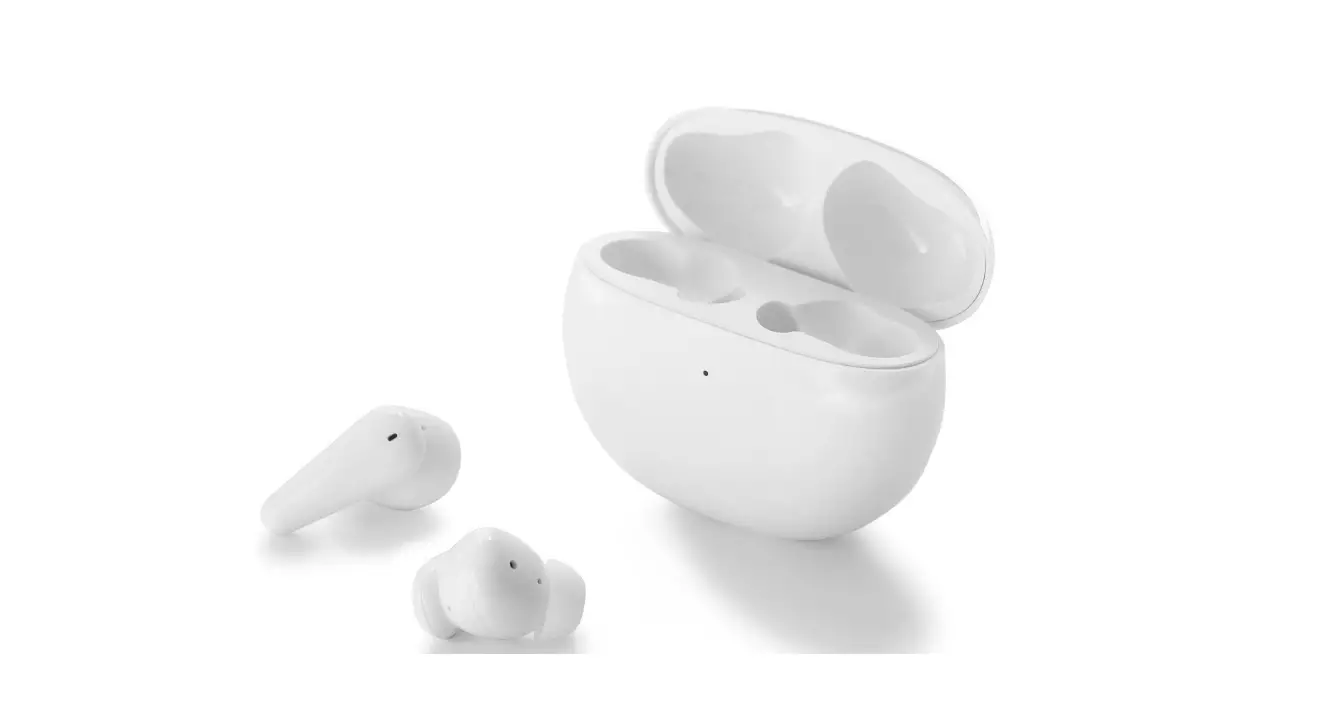
TCL MOVEAUDIO S180 TW18 Wireless Earbuds User Manual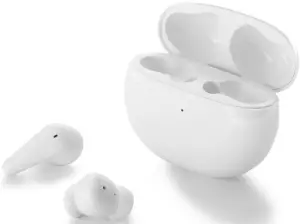
Important safety information
Read all safety information before using your product. Failure to follow these safety instructions could result in injury, or damage to your product or other property.
Important handling information
Handle your earbuds and the case with care. They contain sensitive electronic components, including batteries, and can be damaged if dropped, burned, punctured, crushed, disassembled, or if exposed to excessive heat or liquid.
Clean your device regularly with a dry and soft cloth. Do not use liquids or cleaning products.
NOTE: Before cleaning, remove earbuds from the case, and disconnect the USB cable from both the case and your computer or power adapter.
Hearing loss
Listening to sound at high volume may cause permanent hearing loss. Check the volume after inserting earbuds in your ears and before playing audio.
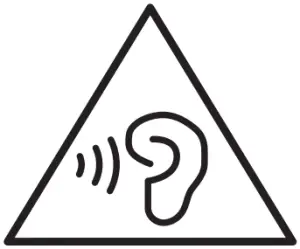 WARNING: To prevent possible hearing damage, do not listen at high volume levels for long periods.
Medical device interference
Your device contains magnets which may interfere with medical devices such as pacemakers, defibrillators, or other medical devices within the range of 15 cm (6 inches).
IF YOU ARE A USER OF ANY OF THESE MEDICAL DEVICES, PLEASE CONSULT WITH YOUR PHYSICIAN.
Choking hazard
Your device may present a choking hazard or cause other injury to small children. Keep them away from small children.
Charging
Charge the case with the supplied USB cable. Only charge with an adapter that is compliant with the applicable international and regional safety standards. Charging with other adapters could cause damage to the case or pose a risk of injury or death. It is important to keep your device and the power adapter in a well-ventilated area when charging. Don’t use damaged cables or chargers.
Battery
Do not attempt to replace the device batteries yourself. You may damage the batteries, which could cause overheating and injury. The batteries in your device should be serviced only by an authorized service provider.
Batteries must be recycled or disposed of separately from household waste. Don’t incinerate the batteries. Check your country’s local waste regulations for the proper disposal of electronic products.
Operating temperature
Your device is designed to work and be stored in ambient temperatures between 0 °C and 45 °C (32 °F and 113 °F). Your device can be damaged and battery life shortened if stored or operated outside of these temperature ranges.
Read this first
- Before using this documentation and the device it supports, ensure that you read and understand the “Important safety information”.
- Illustrations in this documentation might look different from your device.
- Instructions in this documentation may vary depending on your device model and software version.
- Documentation content is subject to change without notice. We make constant improvements on the documentation of your device, including this user manual.
- TCL Communication Ltd. does not assume any liability that may occur due to the use or application of the product described herein. Every effort has been made in the preparation
of this documentation to ensure accuracy of the contents, but all statements, information and recommendations in this documentation do not constitute the warranty of any kind, express or implied.
Get started
This manual describes everything you need to know about your TCL MOVEAUDIO S180. If you need more information, visit www.tcl.com.
Overview
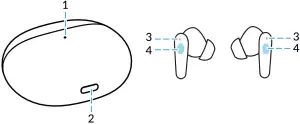
- Case LED indicator
The indicator flashes certain colors to indicate the charge or communication status of the earbuds or the charging case. - USB Type-CTM port
Connect the charging case to a computer or a compatible USB adapter with the supplied USB Type-C cable to simultaneously charge both the earbuds and the charging case. - Earbud LED indicator
The indicator flashes certain colors to indicate the charge or communication status of the earbud - Touch control area
Tap or press to operate earbuds.
Charge the battery
Earbuds
Your charging case is a charger. To charge your earbuds, place the earbuds in the case, then close the lid. The earbud LED indicators flash in solid blue for 1 second when charging starts.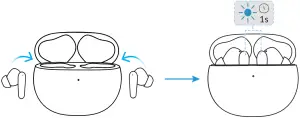
 NOTE
NOTE
For best results, do not insert your earbuds in the charging case if they are wet or dirty.
Charging case
To charge the charging case, connect the case to a computer or a compatible USB adapter with the supplied USB Type-C cable.
The case LED indicator flashes in solid red when charging starts, and flashes in solid green when charging is complete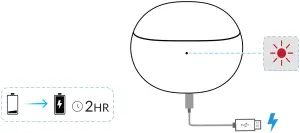
NOTES
- It takes approximately 2 hours to fully charge the case using the supplied USB Type-C cable. The charging time may vary depending on the battery usage conditions.
- Use only the supplied or a certified USB charging cable for charging to prevent product damage.
Check the charge status
Earbuds
When the battery level for the earbuds is less than 10%, you will hear the low battery prompt via the earbuds, and need to charge the earbuds by placing them in the case.
Charging case
Open or close the charging case to check the battery level for the case from the case LED indicator lights.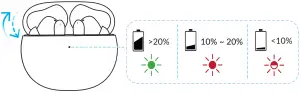
- Solid green: >20%
- Solid red: 10%~20%
- Blinking red: <10%
NOTES
- When the case LED indicator flashes in solid red, you can still put your earbuds in the case to charge them, but need to charge the case as soon as possible.
- When the case LED indicator flashes in blinking red, you need to charge both the case and earbuds as soon as possible.
Replace ear tips
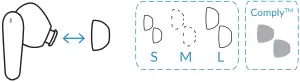
To get the most use and enjoyment out of your earbuds, select the most comfortable tips for your ears.
To replace an ear tip, follow these steps:
- Pull firmly to remove the tip.
- Choose a new tip.
- Align the new tip with the earbud, then push until it clicks.
NOTE
The Comply foam ear tips are for premium model only
Make connections
Enjoy music and hands-free calling with your earbuds by using the Bluetooth function of your device.
Connect with a Bluetooth device
Pair your Bluetooth device to use it with the earbuds for the first time. Before you make the pairing operation, make sure your earbuds and the charging case are charged sufficiently.
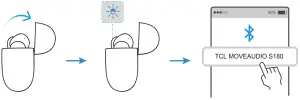
To pair the earbuds with your device for the first time after purchase or after resetting the earbuds, follow these steps:
- Open the charging case, and keep it next to your device. The earbud LED indicators flash in blinking blue.
- Unlock your device, and turn on the Bluetooth function on your device.
- Select TCL MOVEAUDIO S180 from the list of available devices to complete the connection.

NOTES
- When you pair the earbuds with a device for the first time after purchase or after resetting the earbuds, the earbuds enter pairing mode automatically if you open the charging case.
- If pairing is not established within 5 minutes, the pairing mode will be cancelled and the earbuds will turn off
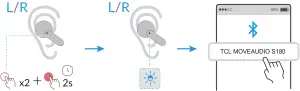
To pair the earbuds with your device manually, follow these steps:
- Remove both earbuds from the charging case, and wear the earbuds.
- Triple-press either earbud, and hold the third press for about 2 seconds.
- Unlock your device, and turn on the Bluetooth function on your device.
- Select TCL MOVEAUDIO S180 from the list of available devices to complete the connection.

NOTE
If pairing is not established within 5 minutes, the pairing mode will be cancelled and
the earbuds will turn off.
Disconnect from a Bluetooth device
Disconnect your earbuds from the Bluetooth device using these methods:
- Put both earbuds in the charging case, and close the case.
- Turn off the Bluetooth function on your device.
- Go to the Bluetooth setting on your device, tap your earbuds from the device list, and select disconnection option.
NOTE: The disconnection procedure may vary depending on your device model.
Reconnect with your devices
After successful pairing, the earbuds will automatically connect to the last paired device if taken
out of the charging case.
NOTES
- The earbuds and Bluetooth device must be turned on and within connection range.
- If the earbuds cannot find and connect to the last paired device, they will enter pairing mode after 15 seconds.
Use your earbuds
Tap or press the touch control area on the earbuds to control your music, phone calls, and other useful functions without getting out your phone.
Music feature
You can perform the playback controls by tapping and holding your right earbud.
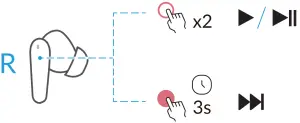
- Double tap: Play or pause
- Press and hold for 3 seconds: Next song
Call feature
Phone controls
Manage calls by tapping and holding either of your earbuds.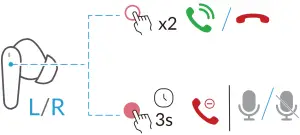
- Double tap: Answer or end a call
- Press and hold for 3 seconds:
- Reject an incoming call
- Mute or unmute your microphone during phone call
Call waiting
If you receive an incoming call while on a call, you can use either earbud to perform the following operations.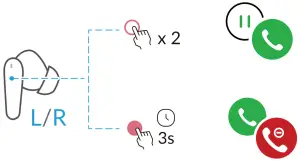
- Double tap: Answer the incoming call and place the current call on hold
- Press and hold for 3 seconds: Reject the incoming call and stay on the current call
Noise control feature
The noise cancelling control function is assigned to your left earbud by default. Press and hold your left earbud for 3 seconds to switch between Active Noise Cancellation (ANC), Transparency and OFF modes.
ANC mode reduces external sounds. With this mode activated, you can enjoy music or phone
calls without being disturbed by ambient noise.
Transparency mode lets external sounds in, so you can hear what’s going on around you. OFF mode turns off both ANC and Transparency modes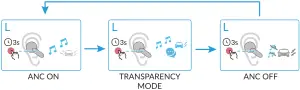
NOTE
To save battery, disable the noise cancelling control function when not in use.
Voice assist feature
Activate the voice assistant on your device by double tapping the left earbud.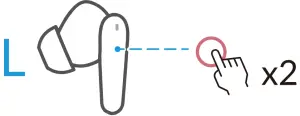
Bixby / Siri® / Google Assistant™
Restart the earbuds
If you encounter connection or pairing issues when using your earbuds, try restarting them
- by following these steps:
- Put both earbuds in the charging case, and close the case.
- Wait for more than 2 minutes.
- Take your earbuds out of the case. The earbuds have been restarted.
NOTE
The pairing information is retained even if the earbuds are restarted. The earbuds will automatically connect to the last paired device if taken out of the case.
Reset the earbuds
If connection or pairing issues persist after the earbuds are restarted, try resetting your earbuds by following these steps:
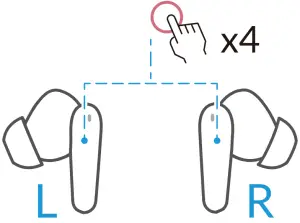
- Tap both earbuds 4 times at the same time.
- The earbud LED indicators flash in solid blue when the earbuds enter reset process.


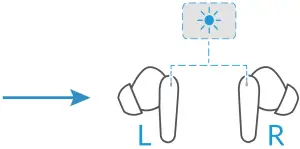
NOTE
All pairing information is deleted when the earbuds are reset to factory settings. After reset process, the earbuds will enter pairing mode automatically.
Troubleshooting
If you encounter problems while using the product, refer to the troubleshooting information to help determine the problem and find possible solutions.
General problems
| Problem | Solution |
| I can’t turn on the earbuds. | Your earbuds don’t have enough battery power. Charge your earbuds. |
| I lost one of the earbuds. | Contact the local contact center for further advice. |
| The charging time and battery life are different between the two earbuds. |
|
| How to dispose of my earbuds? | Check your country’s local waste regulations for the proper disposal of electronic products. For more information, visit www.tcl.com. |
Connection problems
Problem | Solution |
| I can’t pair the earbuds with my device. |
|
| The earbuds can’t connect to my device automatically | Make sure the Bluetooth function of your device is enabled before using your earbuds. |
| After putting my earbuds back in the charging case, I find they are still connected to my device. | To disconnect the earbuds from your device, close the lid after putting your earbuds back in the charging case. |
| Can I connect my earbuds to multiple devices at the same time? | You can’t connect your earbuds to multiple devices at the same time. |
| I can’t find my earbuds on the pairing list of my device to make connection for the first time. |
|
| The earbuds keep disconnecting from my device. |
|
Audio problems
| Problem | Solution |
| I can’t hear audio from one of the earbuds. |
|
| The sound output on earbuds don’t match what’s happening on the connected device’s screen. | You may experience sound lags on your earbuds when playing videos or games. To minimize the delay, move the devices closer together to help improve the connection. Make sure there aren’t any objects, metals, walls or people between the earbuds and other Bluetooth device. |
| The music plays through the device speaker and not through my earbuds. |
|
| The audio quality is poor, and crackling noise can be heard. |
|
| During a call using the earbuds, I can’t hear the voice of the caller. |
|
| During a call using the earbuds, others can’t hear me speaking over a call. |
|
Function problems
Problem | Solution |
| How to enable or disable the noise cancellation feature? | The earbuds have three noise control modes: Noise cancellation, Transparency, and OFF modes. You can switch between these three modes by pressing and holding your left earbud for 3 seconds. You will hear a prompt tone when the earbuds switch to a different mode. |
| The noise cancelling function doesn’t work well on my earbuds. |
|
Regulatory compliance information
This section introduces regulatory information, certification, and compliance information specific to your product.
Electromagnetic fields (EMF)
This product complies with all applicable standards and regulations regarding exposure to electromagnetic fields.
FCC compliance statement
This equipment has been tested and found to comply with the limits for a Class B digital device, pursuant to Part 15 of the FCC Rules. These limits are designed to provide reasonable protection against harmful interference in a residential installation.
This equipment generates, uses and can radiate radio frequency energy and, if not installed and used in accordance with the instructions, may cause harmful interference to radio communications. However, there is no guarantee that interference will not occur in a particular installation.
If this equipment does cause harmful interference to radio or television reception, which can be determined by turning the equipment off and on, the user is encouraged to try to correct the interference by one or more of the following measures:
- Reorient or relocate the receiving antenna.
Increase the separation between the equipment and receiver. - Connect the equipment into an outlet on a circuit different from that to which the receiver is connected.
- Consult the dealer or an experienced radio/TV technician for help.
This device complies with the FCC rules. Operation is subject to the following two conditions:
- This device may not cause harmful interference, and
- this device must accept any interference received, including interference that may cause undesired operation.

FCC Radiation Exposure Statement:
This equipment complies with FCC radiation exposure limits set forth for an uncontrolled environment. This transmitter must not be co-located or operated in conjunction with any other antenna or transmitter.
Canadian compliance statement
This device complies with Industry Canada licence-exempt RSS standard(s). Operation is subject to the following two conditions:
- this device may not cause harmful interference, and
- this device must accept any interference received, including interference that may cause undesired operation.
CAN ICES-3(B)/NMB-3(B)
IC Radiation Exposure Statement
This equipment complies with Canada radiation exposure limits set forth for uncontrolled environments. This transmitter must not be co-located or operating in conjunction with any other antenna or transmitter.
CAUTION: The user is cautioned that changes or modifications not expressly approved by the party responsible for compliance could void the user’s authority to operate the equipment.
European Union (EU) compliance

Hereby, TCL Communication Ltd. declares that the radio equipment type TW18 is in compliance with the essential requirements and other relevant provisions of Directive 2014/53/EU. You can find the Declaration of Conformity at https://www.tcl.com/global/en/service-support mobile/eu-doc.html.
Disposal and recycling information
At TCL, we continually strive to improve our operations and products, and minimize our impact
on the environment.
 Your product is designed and manufactured with high quality materials and components, which can be recycled and reused. Please observe the local regulations regarding the disposal of packaging materials, exhausted batteries and old equipment. For recycling information, please visit www.tcl.com.
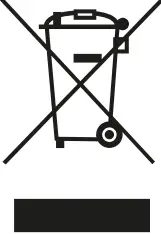 This symbol on your device and/or its accessories indicates that this device should not be disposed of with household waste. When this device reaches its end of life, take it to a collection point designated by local authorities. For more detailed information about device recycling, contact your local authorities, household waste disposal centers, or retail stores.
The separate collection and recycling of your device and/or its accessories at the time of disposal will help conserve natural resources and ensure that it is recycled in a manner that protects human health and the environment.
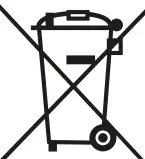 This symbol means that the product contains a built-in rechargeable battery covered by European Directive 2013/56/EU which cannot be disposed of with normal household waste. We advise you to take your product to an official collection point.
Trademarks
TCL and the TCL logo are trademarks of TCL Communication Ltd. The Bluetooth® word mark and logos are registered trademarks owned by Bluetooth SIG, Inc. and any use of such marks by TCL Communication Ltd. is under license. USB Type-C™ is a trademark of USB Implementers Forum. Google Assistant word mark and logo are trademarks or registered trademarks of Google Inc. Siri is a trademark or registered trademark of Apple Inc. registered in the U.S. and other countries. Comply is a registered trademark of Hearing Components, Inc. All other trademarks and trade names are the property of their respective owners.
© 2021 TCL Communication Ltd. All rights reserved.