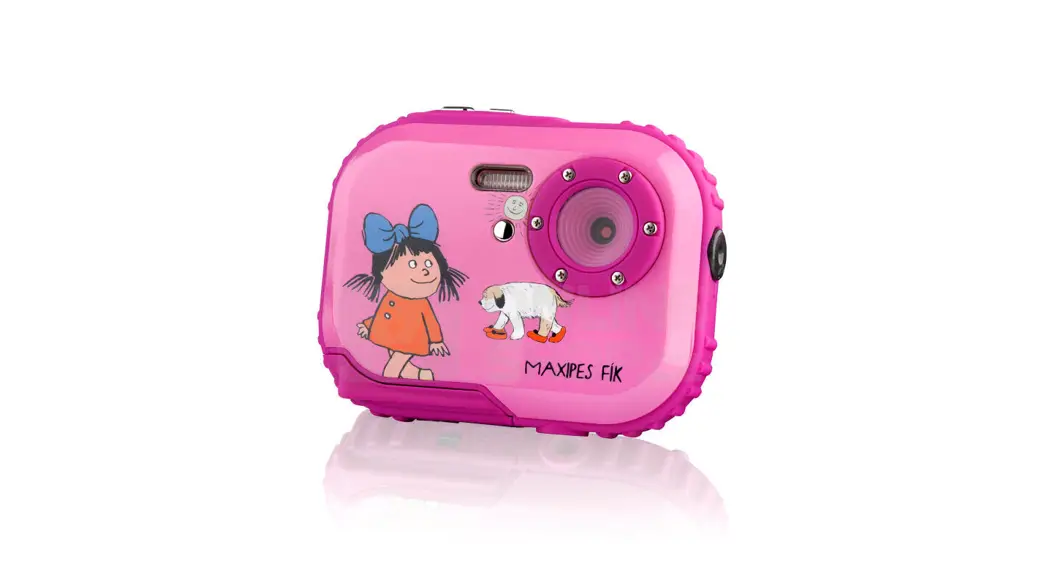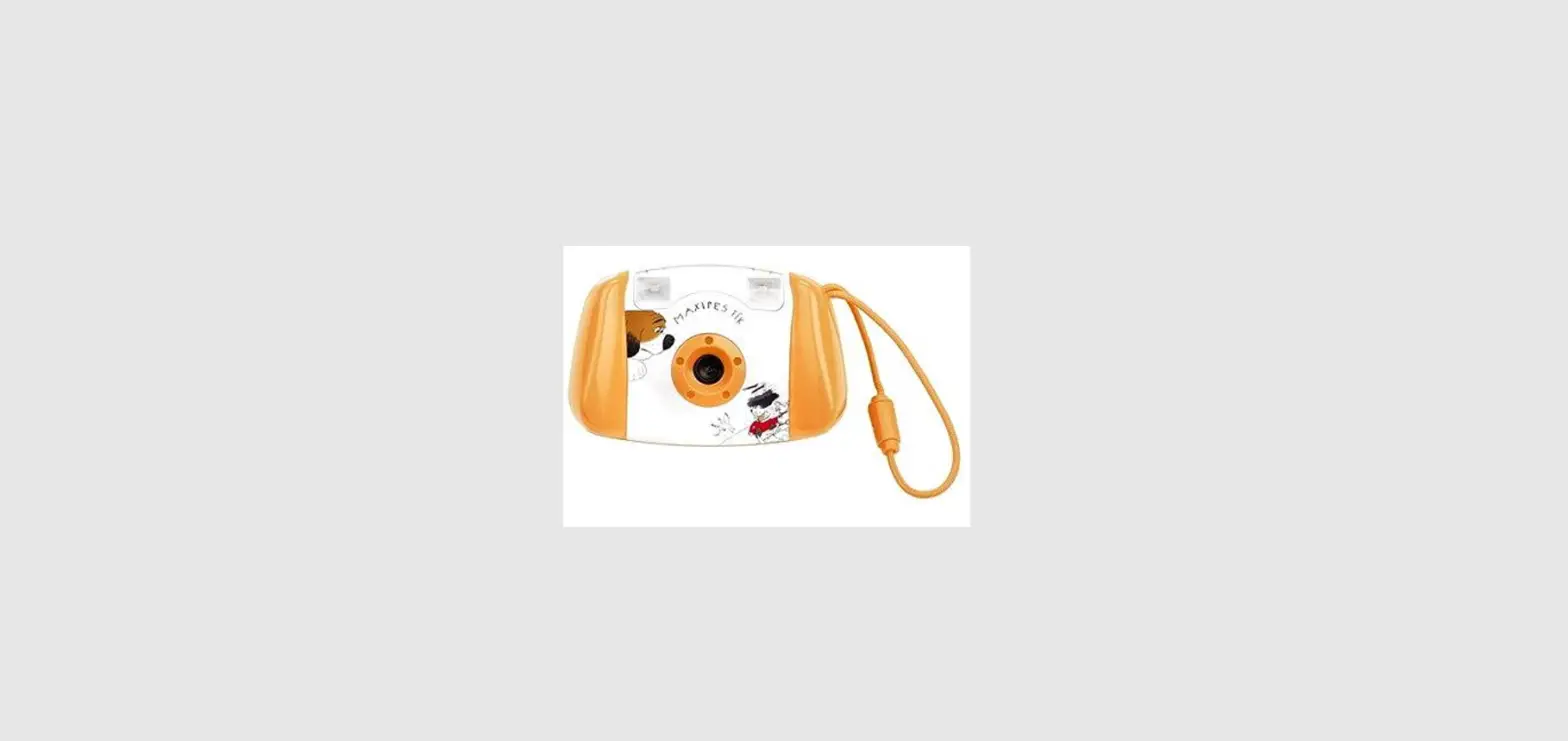
 GoGEN MAXIFOTO Digital Camera
 GoGEN MAXIFOTO Digital Camera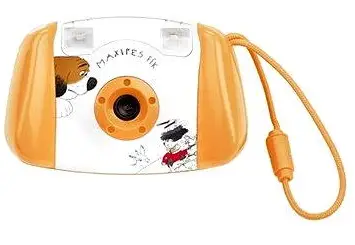
SYSTEM REQUIREMENT
Microsoft Windows 2000/XP/Vista/7 and Mac 0.S. 10.4/ Linux Ubuntu 8.04/Linux Ubuntu 9.0;
500 MB or above free hard disk space; 128 MB RAM; USB Interface;
800×600 Screen area, 16-bit color display (higher color setting recommended).
PRODUCT SPECIFICATION
| Image Sensor | 3.0 Mega Pixels CMOS |
| Display | 1.77 inch Color Screen |
| Interface | USB cable |
| Support Memory Card | SD/MMC cards up to 16 GB |
| File Type | JPEG, AVI |
| Power | 2 x 1.5 V AA size Alkaline or Energizer Lithium Batteries (Not included) |
Please refer to the following diagrams for various parts and buttons of your camera.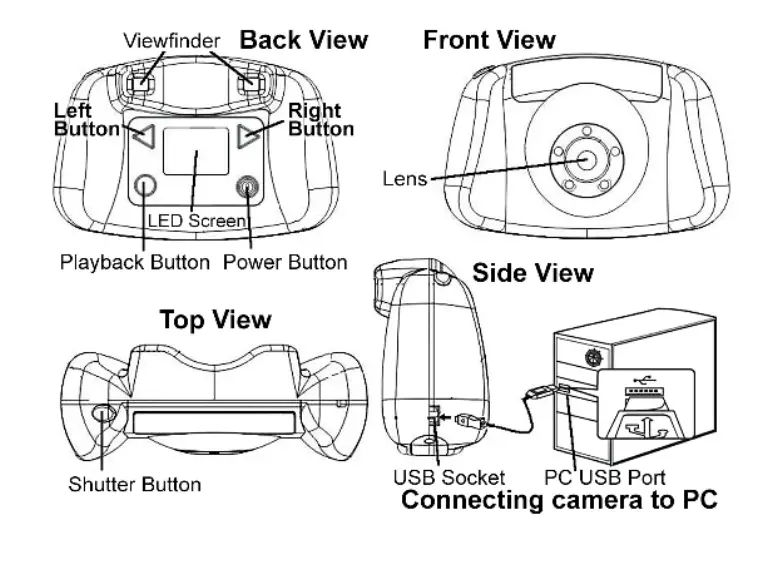
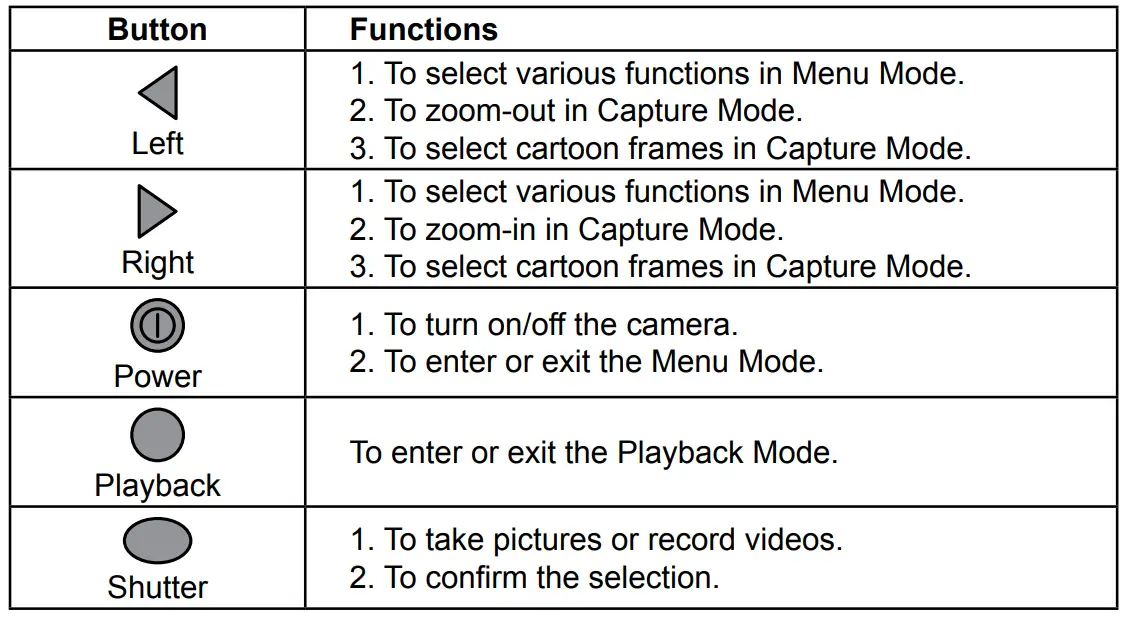
USAGE OF CONTROL BUTTONS
To remove the SD card, pull the SD card gently away from the card slot.
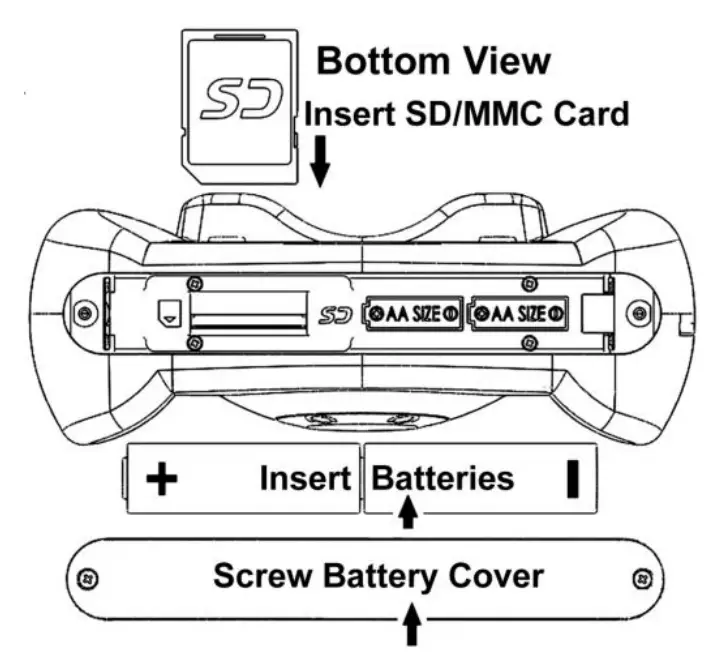
Battery iNStallatioN
the screwdriver properly.
Battery NotiCe
- The use of new alkaline or Energizer lithium batteries is recommended for maximum performance.
- Do not mix old and new batteries.
- Do not mix batteries of different types: alkaline, lithium, standard (carbon-zinc) or rechargeable (nickel-cadmium).
- Remove the batteries from the unit when the unit will not be used for an extended period of time.
- Always remove exhausted batteries from the unit.
- Do not dispose of batteries in fire.
- Do not attempt to recharge ordinary batteries.
- The supply terminals are not to be short-circuited.
- Only batteries of the same and equivalent type as recommended are to be used.
turNiNg oN/off tHe CaMera
Press Power Button to turn on the camera. You can see the startup screen on the LCD screen. Wait for a few seconds until the LCD screen shows the image captured by the lens.
If there is no memory card inserted in camera, the LCD screen will show “Insert a SD Memory Card” as a reminder.
To turn off your camera, press the Power Button again and hold it (3 seconds) until the LCD screen shows “Good Bye” and turns off.
The camera will automatically turn off if it is not used for about 60 seconds.
takiNg piCtureS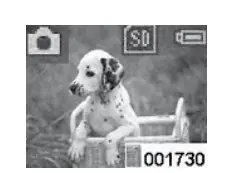
After turn on the camera, objects captured by the lens can be seen on the LCD screen. Your camera is in Capture Mode and ready to take picture. Aiming at the object and then press the Shutter Button once. The LCD screen will turn into dark and then shows the picture taken for ~ 1 second. The camera will return to capture mode and ready for taking next picture. On screen’s lower-right corner, it shows number (001730) of photos left to take.
In capture mode, you can zoom-in by pressing the Right Button continuously. The magnification (2.32x) will be shown on screen’s left-lower corner during zoom-in. Maximum magnification can be reached is 4x. By pressing the Left Button continuously, we can return to normal mode (1x).
CartooN fraMeS
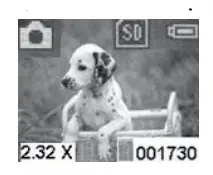
There are 10 built-in cartoon frames can be chosen as the background of your pictures. In the Capture Mode, press the Right (Left) Button once, the first cartoon frame will appear on the screen. Press the Left (Right) Button once removes the cartoon frame. You can continue to press the Right (Left) button 10 times to see all of the 10 cartoon frames. At the 11th time, the camera will go back to the Capture Mode without a cartoon frame. After you select the desired cartoon frame, press the Shutter Button to take pictures. Your pictures will then be framed by the cartoon frame.
takiNg videoS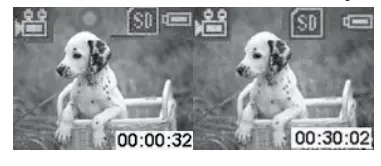
In Capture Mode, press the Power Button once and brings it to Menu Mode. Press Right Button three times until you see the “Video” icon . Then, press Shutter Button to return to the Capture Mode. Your camera is now ready to take video. Press Shutter Button and the camera will start to record videos.
During recording, you can see the recorded time (00:00:32) on the screen’s lower-right corner. Press Shutter Button again to stop video recording. Caution! When SD/MMC card is full, “Card full” message appears on the LCD screen. Please download or erase pictures/videos to free up memory space.
Battery iCoNS aNd power levelS
Caution! If the camera power is low (less than 5% according to battery icon), “low power” message will appear on the LCD screen and camera will automatically turn off. Please change batteries according to previous instructions.
Caution! Before formatting the Sd Card in camera, make sure that all important files are saved to pC properly.
In Capture Mode, press Power Button once brings to Menu Mode Press Left Button twice to see the “Blast icon” Then, press Shutter Button to return to the Capture Mode. You can see the “Blast’ icon stays on screen’s upper-left loo1730 Corner. Now your camera is ready to take three pictures in a row after pressing the Shutter button.
To save pictures/videos to PC, you need to connect camera to your PC by USB cable. The larger plug of the USB cable fits into the computer, and the smaller plug fits into the slot on the side of
the camera. Please note that the plugs fit only one way, do not force if they do not fit; try plugging in the other way.
appliances are collected, exist in the European Union and in other European COuntries as well. By proper disposal of the product you can prevent possible negative impact on environment and human health, which might otherwise occur as a consequence of improper manipulation with the product or battery/ accumulator. Recycling of materials contributes to protection of natural resources. Therefore, please, do not throw the old electrical appliances and batteries/ accumulators in the household waste. Intormation, where it is possible to leave the old electrical appliances tor free, is provided at your local authority, at the store where you have bought the product. Information, where you can leave the batteries and accumulators for free, is provided to you at the store, at your local authority.