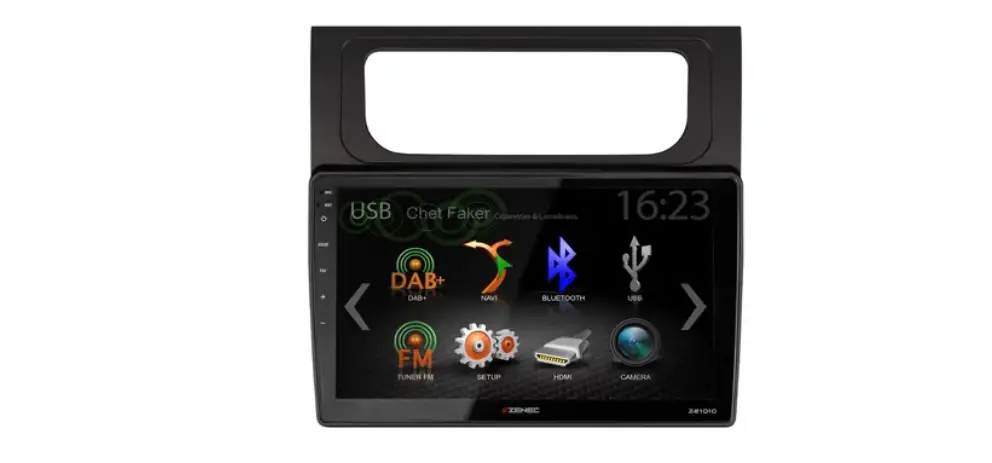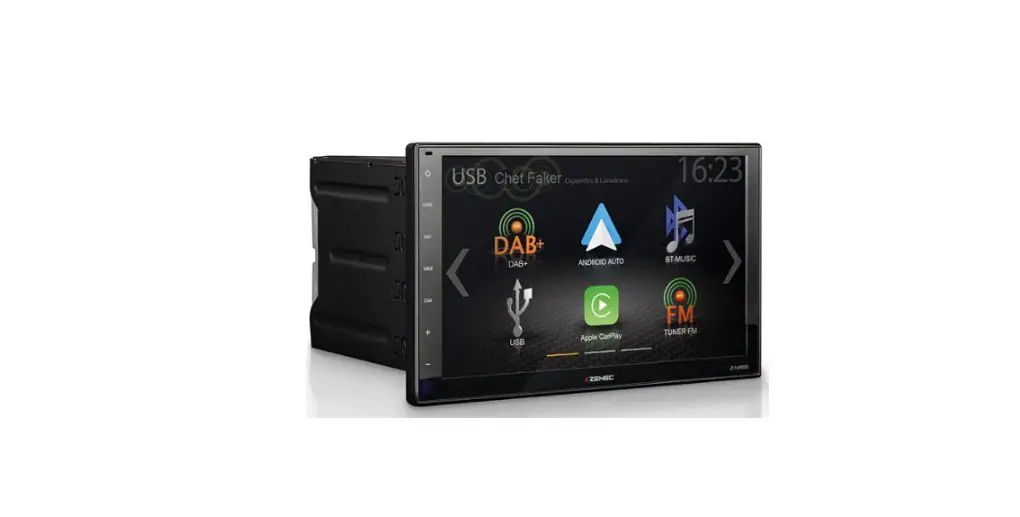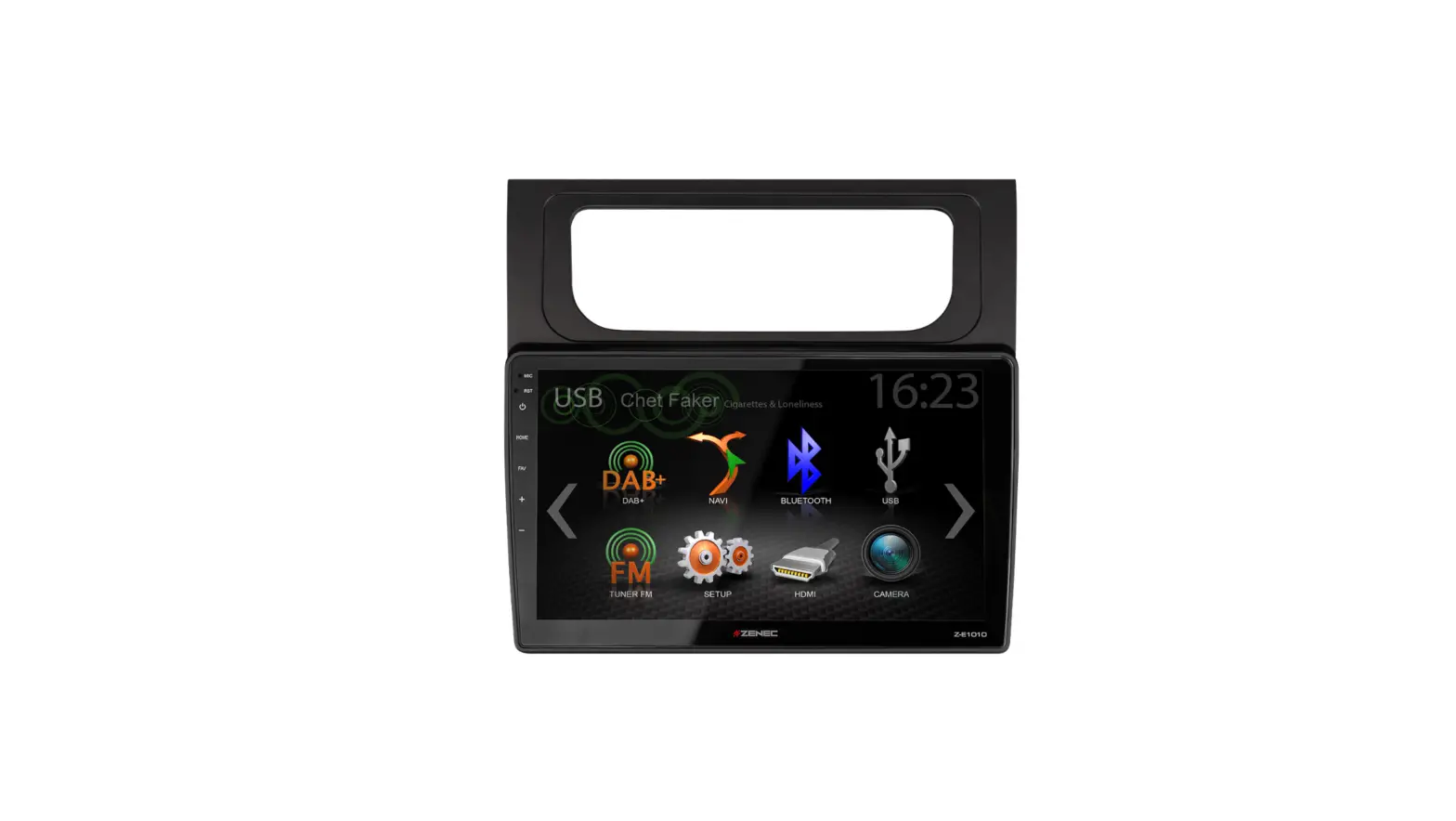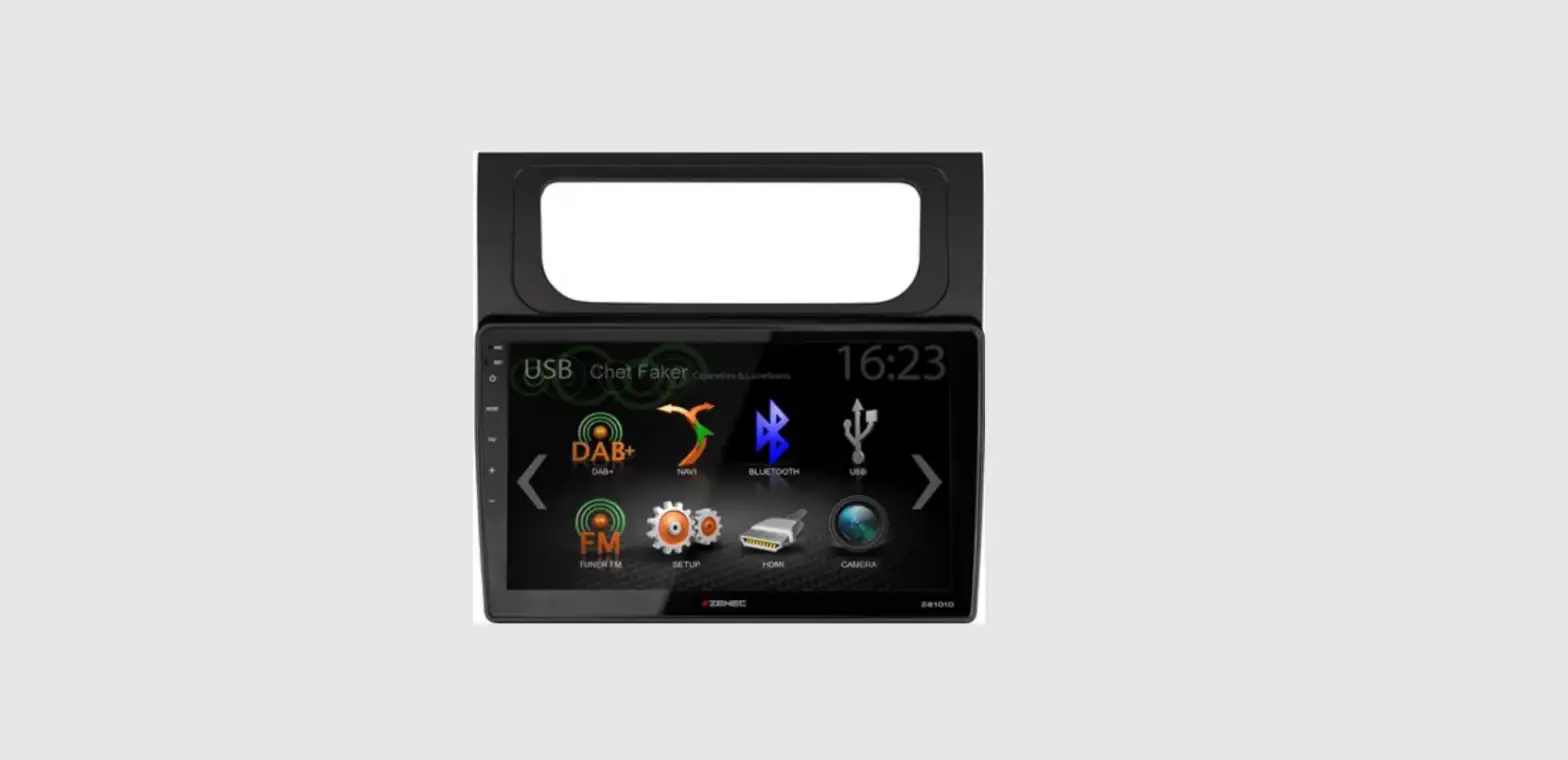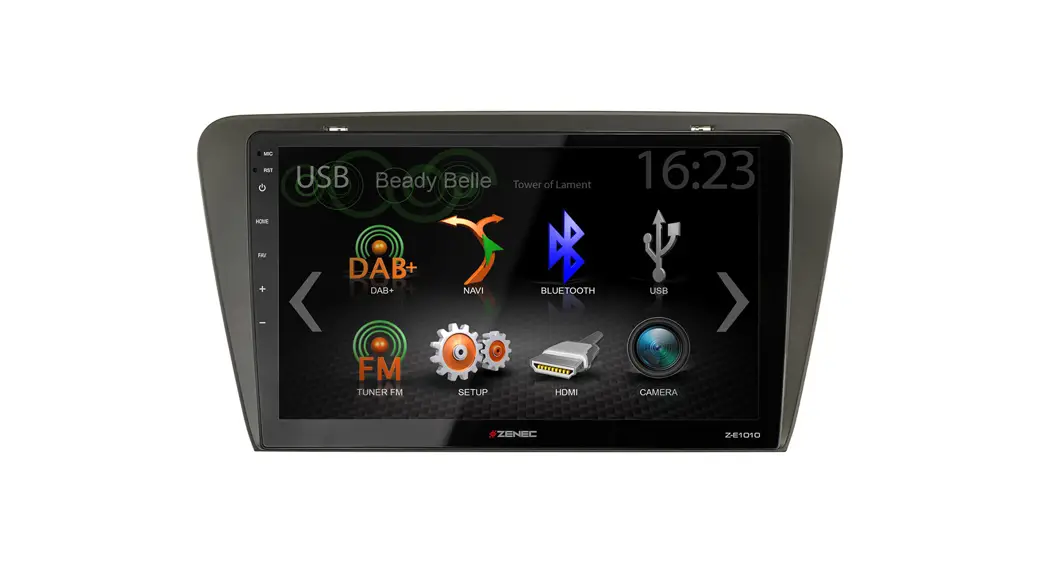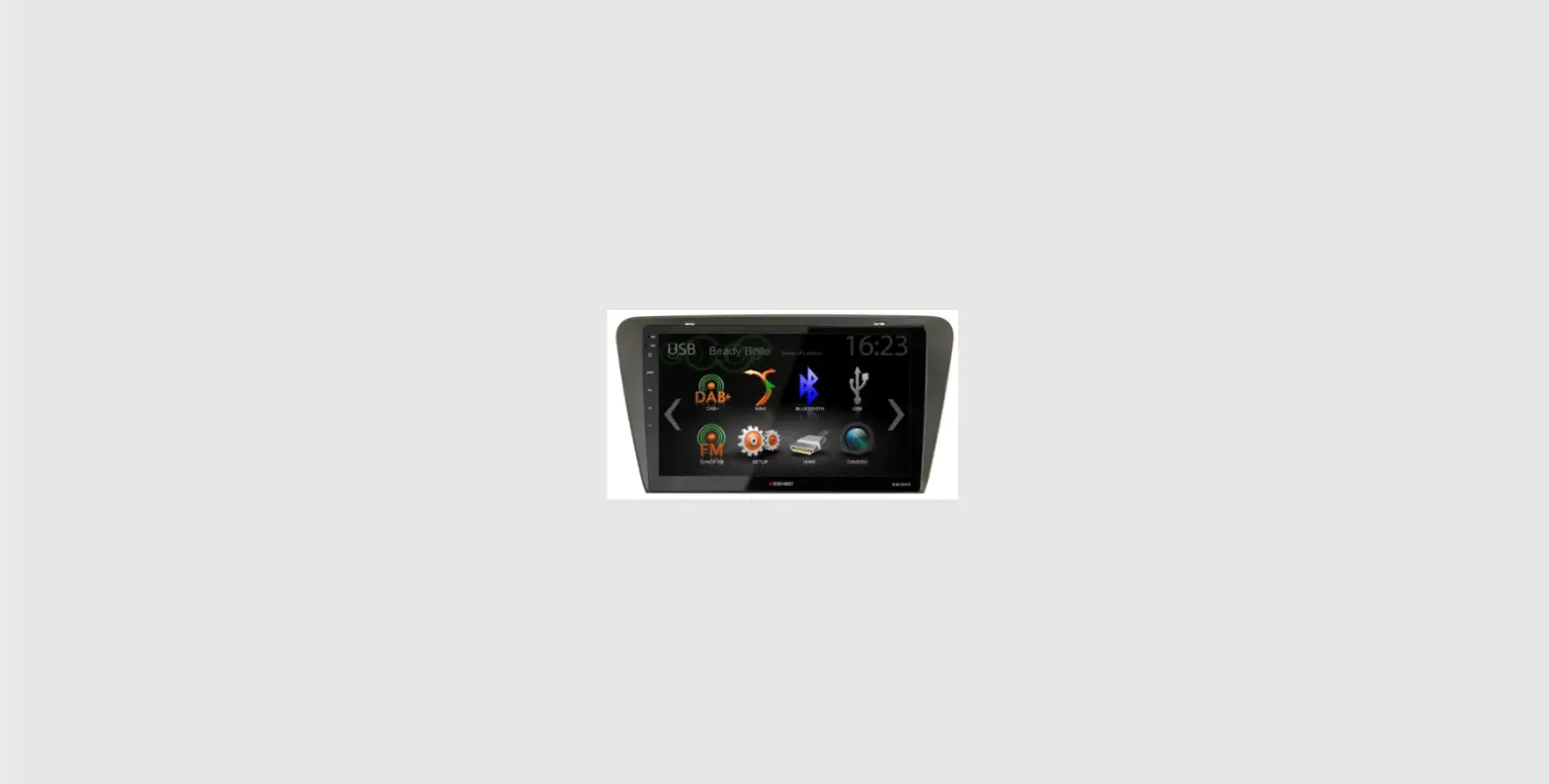

ZENEC Z-E1010 MIB2 Update Installation
Requirements
The update consists of a complete MainSystem software update, which is carried out using a USB data carrier got to. You need:
- USB removable storage device (USB stick) with at least 2 GB storage capacity.
- A PC or notebook with Windows operating system
The USB stick must be formatted with FAT 32 before use. (Right click on USB removable disk in Windows Explorer > select “Format” > FAT 32 > Start. The ZENEC Z-E1010 restarts several times during the software update and stays off for a few seconds, among other things (black screen for about 5~10 sec) before the device restarts. Please do not turn off the device during the update processoperate or turn off.
ATTENTION: After successful software installation, the Z-E1010 device must be used on MIB2 High-Speed CAN
data detection (!)
Installation of the MainSystem software update via USB:
The MainSystem software can be found at: www.zenec.com > Support > Software Updates > Z-E1010
Link: http://www.zenec.com/support/software-updates/software-update-e-go-core-z-e1010/
Download the software update "Z-E1010_Core_v3.0.exe".

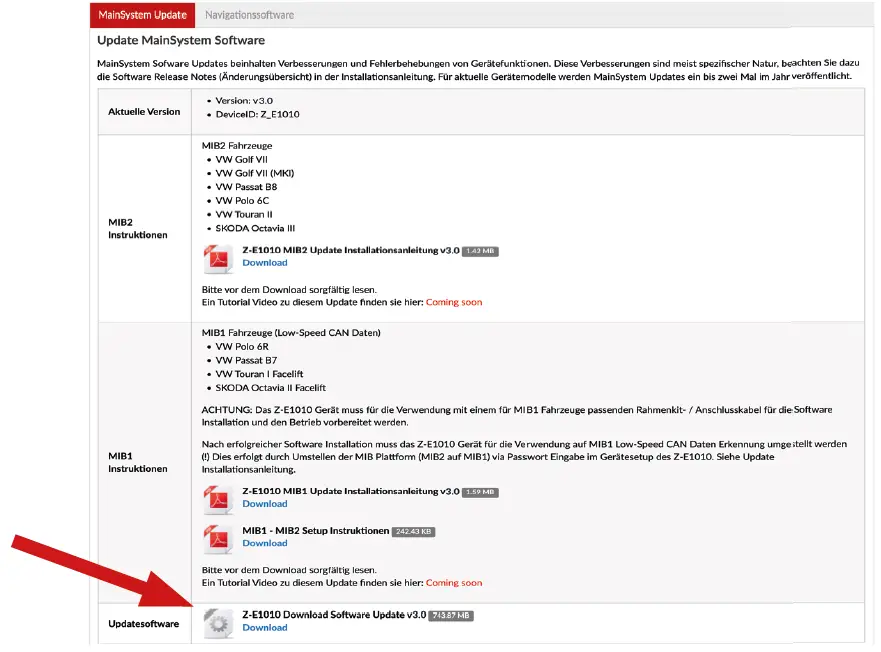
The software update is a self-extracting file. Select "Run" and then your target directory formatted USB removable drive and start the unpacking process with "Extract".You will receive the update file "Android7.1.2_20211019.1431_zenec_core.img" in the main directory of your USB removable medium


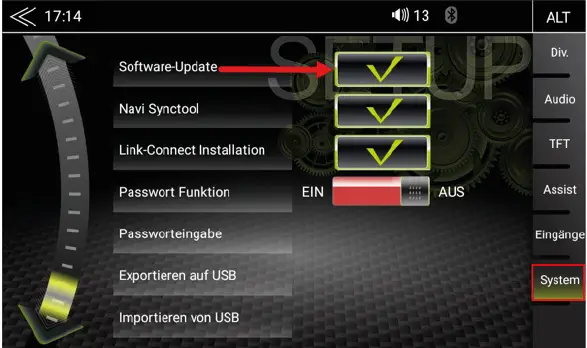
Connect the USB stick to the USB-1 connection cable of the Z-E1010. In the device menu, go to: Settings > System > Software Update and confirm this by tapping the green tick

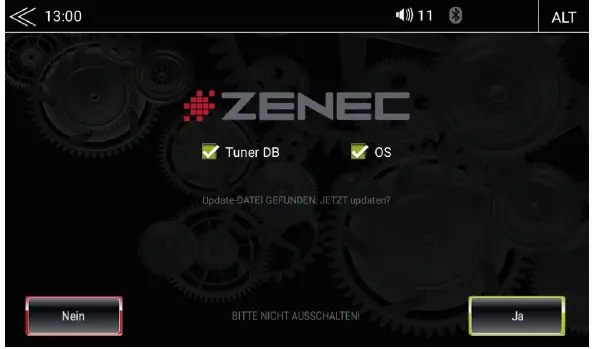
The update menu will appear automatically. Make sure that the radio buttons [TUNER DB] and [OS] are selected.Now tap on the "YES" field to start the update process
 The update will now be installed sequentially and the lower part of the screen provides information about the current progress. The software installation takes about 2~3 minutes. 9.

 The update will now be installed sequentially and the lower part of the screen provides information about the current progress. The software installation takes about 2~3 minutes. 9.
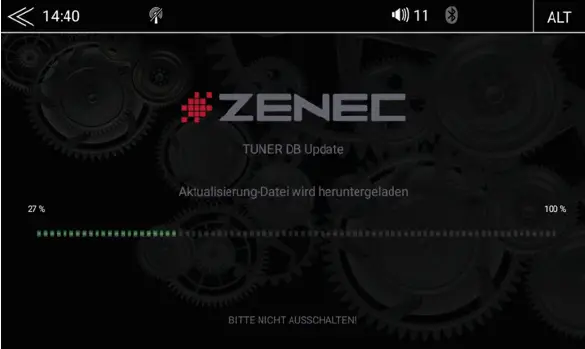
After successful software installation, the device reboots several times, then the Main Menu is displayed. Remove the USB stick.

Attention: The desired vehicle platform (MIB2) must be set. To set the MIB2 vehicle platform a password must be entered (to avoid unintentional conversion).

In the device main menu, tap on the "Settings" icon ► "Enter password" and enter 778166. Confirm your entry with "OK". And confirm with "YES" the query "MIB2 platform update" popup window.
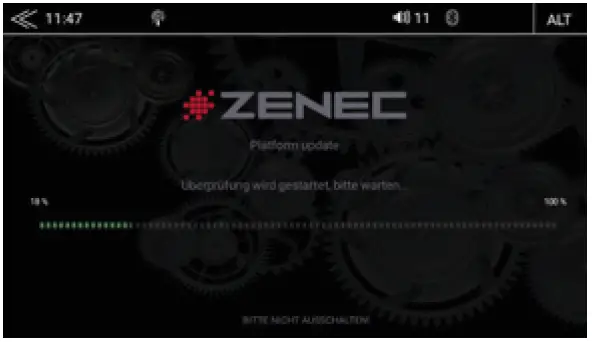
Please do not operate or switch off the device during the restart (duration approx. 3 minutes). After a successful restart, the main menu (MainMenu) is displayed
MAINSYSTEM
- Improved system stability and system performance
- iGO log update to fix roundabout exit number flickering in MFA
- In conjunction with the latest iGO navigation software. Update is available via Naviextras Toolbox www.naviextras.com
TUNER
Local tuner slideshow database update to v1.20

CAN-BUS / CAR MENU / MFA – (MIB-2 vehicle models)
- Headlight range control for VW Passat, Skoda Octavia and other VW/Skoda models, adjustable via Car Menu Setup
- Setting for the ambient interior lighting, adjustable via Car Menu Setup
- Improved driving mode, the button in the dashboard opens the driving mode profiles with the currently selected mode. Currently supported profiles: Eco, Comfort, Normal, Sport, Individual.
- Webasto parking heater integration, individual days can now also be programmed
- Setting for dynamic chassis (DDC) in Drive Mode, adjustable via Car Menu Setup
- Support for steering wheel heating
- Setting for vehicles with windscreen heating
- Seat ventilation setting
- Fatigue detection setting
- Rear Traffic Alert setting
- Lower mirror setting in reverse
- Support for lane departure warning
- Activation of the display of traffic signs on the instrument cluster (MFA) via the front camera
CAMERA
- Support for 360° / OE Birdview camera system MEDIA PLAYERS
- Bug fix for sometimes occurring last playback problem on USB-2 BLUETOOTH
- Font and brightness adjustment in the various Bluetooth displays
 Naviextras.com - Map updates for your navigation device and more...
 Auto Navigation Multimedia Kommunikation Integration - Auto Navi Multimedia Car Integration