myCardioMEMS App
Product Information: myCardioMEMSTM Application for the
CardioMEMSTM HF System
The myCardioMEMSTM Application is designed for use with the
CardioMEMSTM HF System. It allows patients and primary caregivers
to manage medications, receive notifications, and communicate with
their clinic. The application is available for download on mobile
phones.
Registration
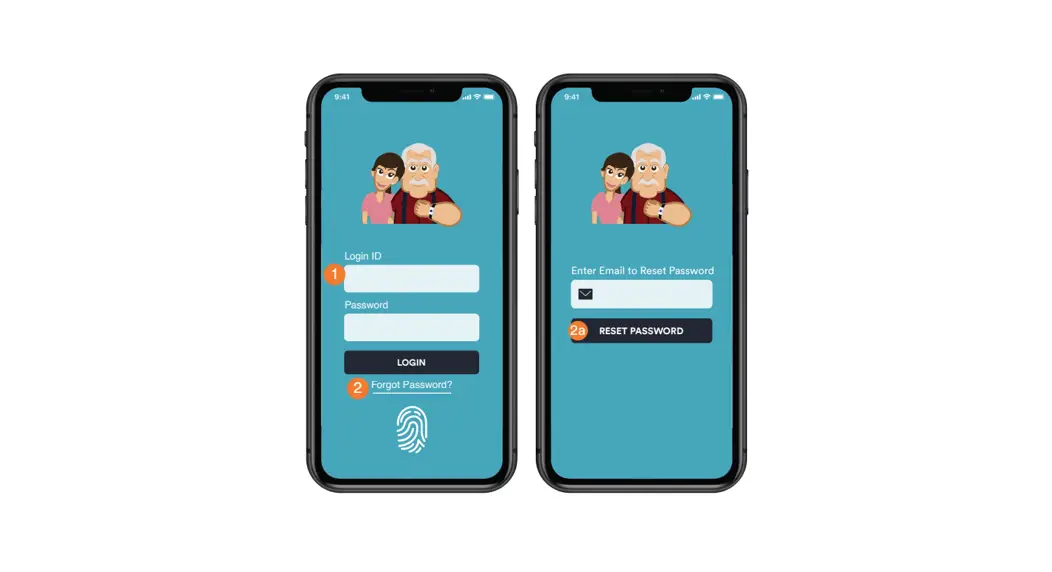
To register for the myCardioMEMSTM Application, follow these
steps:
- Download the app and look for the app icon on your phone’s
screen. - Tap the icon to launch the app.
- If the app icon is not available, you can obtain the sensor
serial number by calling Remote Care Technical Support at
1-844-MYCMEMS or 1-844-692-6367. - After launching the app, you will be prompted to allow
notifications. If Medication Management is being used, tap OK to
receive messages and medication change notifications from your
clinic. - Registration is available in two modes:
- One person can register as the patient or primary caregiver.
This role can acknowledge medication changes if enabled by the
clinic. - Multiple people can register as “other.” They can see messages
but cannot acknowledge them.
- One person can register as the patient or primary caregiver.
- We recommend choosing to stay logged in to the app to avoid
entering a password every time you access it.
Home Screen and History Calendar
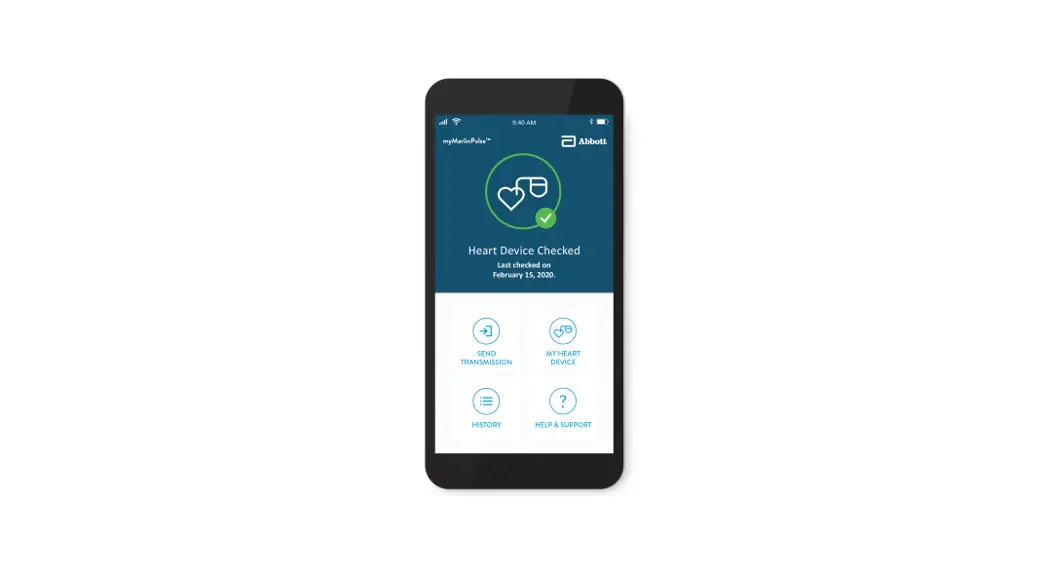
The home screen of the myCardioMEMSTM Application provides the
following features:
- Compliance of PA Pressure Reading and Daily Reminders
- Daily Medication Reminder
- Full Heart Failure Medication List (if enabled in Merlin.netTM
PCN) - Clinic Communications History and Patient Resources
The history calendar shows the days on which PA pressure
readings were received. A gray ‘X’ indicates a reading was not
received, while a blue check mark means the reading was received.
Orange and blue bubbles represent days on which messages were sent.
If you are registered in the “other” mode, messages will only be
visible after the patient or primary caregiver acknowledges
them.
Standard and Custom Messages
Messages received by the patient are displayed as cards and can
be reviewed in the history calendar. The following are examples of
standard messages:
- Message for Rising Pressures
- Request for Labs
- Positive Reinforcement for Optovolemic Status
- Reading Reminder
- Custom Message
Merlin.netTM PCN Patient Profile – Managing Medications
If a patient’s profile shows that they are registered on the
app, Medication Management must be turned on in Merlin.net PCN.
Medications need to be manually added and managed in Merlin.net
PCN. You can request acknowledgment from the patient when
medication changes have been reviewed in the app by clicking the
check box in Merlin.net PCN.
Medication Titration Screen Sequence
The medication titration screen sequence involves the following
steps:
- Notification: After enabling Medication Management, medication
changes made in Merlin.netTM PCN will be sent to the patient or
primary caregiver through the app. The patient will see a
Medication Adjustment card and should select “Begin” to indicate
they are taking their medications appropriately. - Reconciliation Confirmation: If the patient does not indicate
that they are taking their current medication appropriately, they
will be requested to contact their clinic for further
instructions.
INSTRUCTIONAL
VISUAL GUIDE
myCardioMEMSTM Application for the CardioMEMSTM HF System
REGISTRATION
APP ICON APPEARS ON THE PHONE AFTER DOWNLOAD
Tap the icon on the screen to launch the app
1 INFORMATION REQUIRED TO REGISTER INCLUDES: · A unique email address · The patient’s pulmonary artery (PA) sensor serial number · The patient’s date of birth
If not available, the sensor serial number can be obtained by calling Remote Care Technical Support at 1-844-MYCMEMS or 1-844-692-6367.
3 AFTER REGISTERING, THE APP USER WILL BE PROMPTED TO ALLOW NOTIFICATIONS. If Medication Management is being utilized, tap OK, as this is how the clinic will send messages and medication change notifications.
2 REGISTRATION IS AVAILABLE IN TWO MODES. There can only be one person registered as the patient or primary caregiver. This role is the only one that can acknowledge medication changes, if that feature is enabled by the clinic.
There can be multiple people registered as other. This role is able to see messages, but not acknowledge them.
4 IT IS SUGGESTED THAT THE USER CHOOSE TO STAY LOGGED IN. By making this selection, a password is not required each time the myCardioMEMSTM app is accessed.
IN MERLIN.NETTM PATIENT CARE NETWORK (PCN), the myCardioMEMSTM Medications column on the All Patients List indicates which patients are registered for use of the app.
PENDING: A medication change has been sent and is awaiting acknowledgment. CONFIRMED: The patient has acknowledged the medication change. REGISTERED: The patient is registered but a medication change has not been sent.
HOME SCREEN
HISTORY CALENDAR
Compliance of PA Pressure Reading and Daily Reminders
Select buttons for: Daily Medication Reminder
Full Heart Failure Medication List (if medication feature is enabled in Merlin.netTM PCN)
Clinic Communications History and Patient Resources
THE CALENDAR SCREEN SHOWS THE DAYS ON WHICH PA PRESSURE READINGS WERE RECEIVED.
x Gray `X’ means a reading was not received.
Blue check mark means the reading was received.
Orange and blue bubbles show days on which messages were sent.
Note: If the user is registered in the other mode, messages will not be visible until the patient or primary caregiver user acknowledges the message.
STANDARD AND CUSTOM MESSAGES
Messages are shown as cards to the patient when they are received. They can be reviewed in the history calendar.
MESSAGE FOR RISING PRESSURES
REQUEST FOR LABS
POSITIVE REINFORCEMENT FOR OPTOVOLEMIC
STATUS
READING REMINDER
CUSTOM MESSAGE
MERLIN.NETTM PCN PATIENT PROFILE — MANAGING MEDICATIONS
Once a patient’s profile shows that he or she is registered on the app, you must turn on Medication Management in Merlin.net PCN.
Medications will need to be manually added and managed in Merlin.net PCN.
Click check box in Merlin.net PCN to request acknowledgment from the patient when medication changes have been reviewed in the app.
MEDICATION TITRATION SCREEN SEQUENCE
1 NOTIFICATION: After a patient is enabled for Medication Management, medication changes made in Merlin.netTM PCN will be sent to the patient or primary caregiver user through the app.
The patient will see a Medication Adjustment card. The patient should select Begin to indicate they are taking their medications appropriately.
3 RECONCILIATION CONFIRMATION: If the patient does not indicate that they are taking their current medication appropriately, they will be requested to contact their clinic for further instructions.
2 VIRTUAL MEDICATION RECONCILIATION: Note: Not all medications will be displayed in the app. Only the heart failure medications that are entered and managed in Merlin.net PCN will be displayed.
4 TITRATION INSTRUCTION: If the patient indicates that they are taking their medication appropriately, they will receive details of the new update. At this point reminders may be set up if medication has a daily frequency.
DAILY MEDICATION REMINDER
(UP TO 4 REMINDERS/DAY)
Patients can receive reminder notifications when it is time to take their medication and can indicate that they have taken the medication.
The reminders have designated times associated with each time slot (i.e., wake, morning, mid-day, afternoon, evening and night). The times can be modified, but cannot be reordered or renamed.
MORNING
MID-DAY
MY ACCOUNT
In the My Account tab, under Profile, the user can manage their contact information, password and login preference.
Under Preferences, the patient user can only set hospitalization dates and manage medication reminders.
HELP SCREEN
LEARNING
FAQS
SELECT THE HELP BUTTON ON THE HOME SCREEN TO ACCESS: · Documents and videos explaining
the app features · List of Frequently Asked Questions · Contact information for:
Patient’s Merlin.netTM PCN heart failure clinic
Patient’s primary lab (information will need to be entered by patient)
Abbott Tech Support
CONTACT
Abbott 6101 Stoneridge Dr., Pleasanton, CA 94588 USA, Tel: 1 925 847 8600 Cardiovascular.Abbott/CardioMEMS
Rx Only Brief Summary: Prior to using these devices, please review the Instructions for Use for a complete listing of indications, contraindications, warnings, precautions, potential adverse events and directions for use.
CardioMEMSTM HF System Indications and Usage: The CardioMEMSTM HF System is indicated for wirelessly measuring and monitoring pulmonary artery pressure and heart rate in NYHA Class II or III heart failure patients who either have been hospitalized for heart failure in the previous year and/or have elevated natriuretic peptides. The hemodynamic data are used by physicians for heart failure management with the goal of controlling pulmonary artery pressures and reducing heart failure hospitalizations.
CardioMEMSTM HF System Contraindications: The CardioMEMS HF System is contraindicated for patients with an inability to take dual antiplatelet or anticoagulants for one month post implant.
CardioMEMSTM HF System Potential Adverse Events: Potential adverse events associated with the implantation procedure include, but are not limited to, the following: air embolism, allergic reaction, infection, delayed wound healing, arrhythmias, bleeding, hemoptysis, hematoma, nausea, cerebrovascular accident, thrombus, cardiovascular injury, myocardial infarction, death, embolization, thermal burn, cardiac perforation, pneumothorax, thoracic duct injury and hemothorax.
myCardioMEMSTM Mobile App Limitations: Patients must use their own Apple or Android mobile device to receive and transmit information to the myCardioMEMSTM Mobile App. To do so the device must be powered on, app must be installed and data coverage (cellular or Wi-Fi) available. The myCardioMEMSTM App can provide notification of medication adjustments and reminders, requests for lab work and acknowledgement that the PA pressure readings have been received. However there are many internal and external factors that can hinder, delay, or prevent acquisition and delivery of the notifications and patient information as intended by the clinician. These factors include: patient environment, data services, mobile device operating system and settings, clinic environment, schedule/configuration changes, or data processing.
TM Indicates a trademark of the Abbott group of companies. Indicates a third party trademark, which is property of its respective owner. © 2022 Abbott. All Rights Reserved. MAT-2209360 v1.0 | Item approved for U.S. use only.
 Merlin.net™ PCN