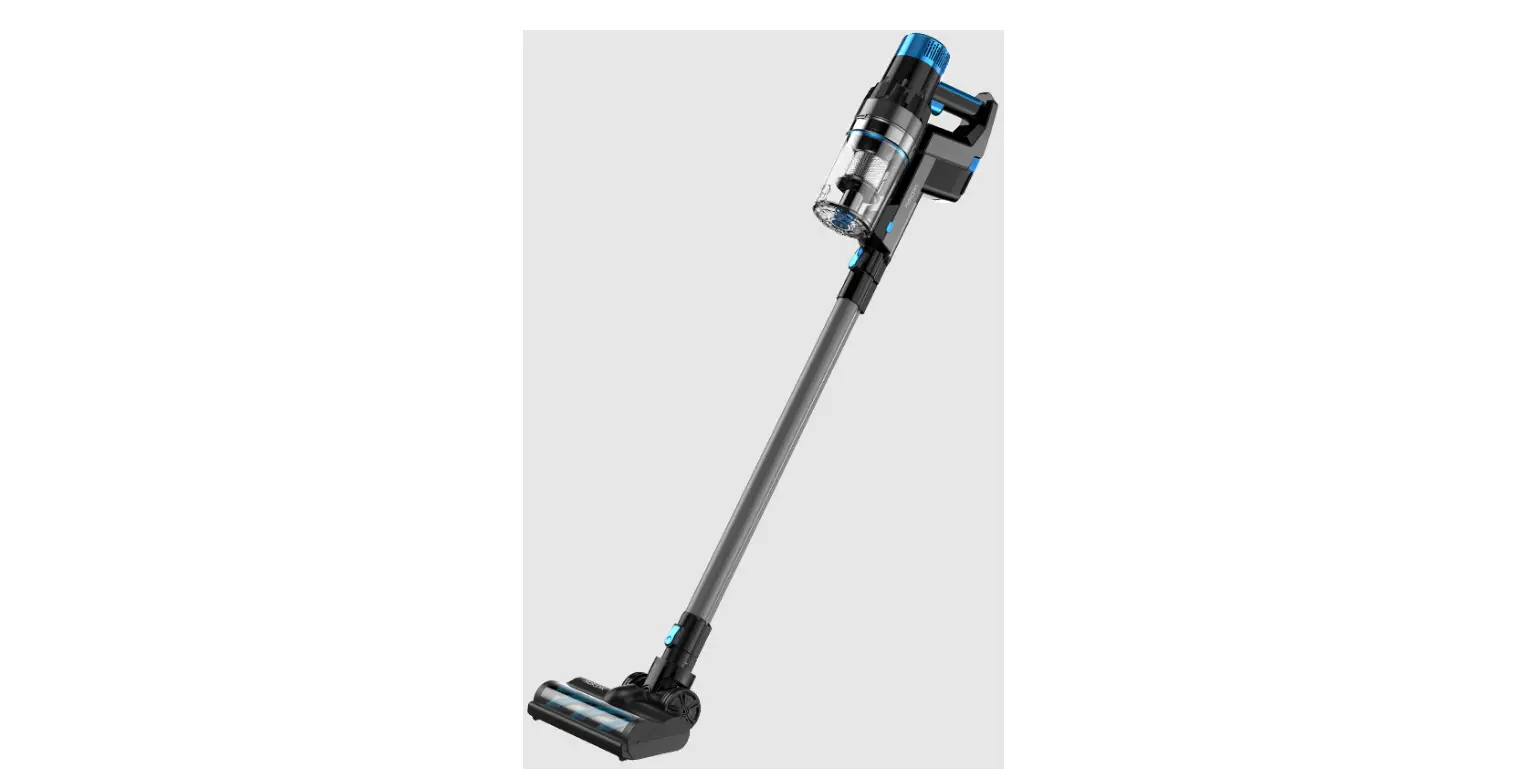
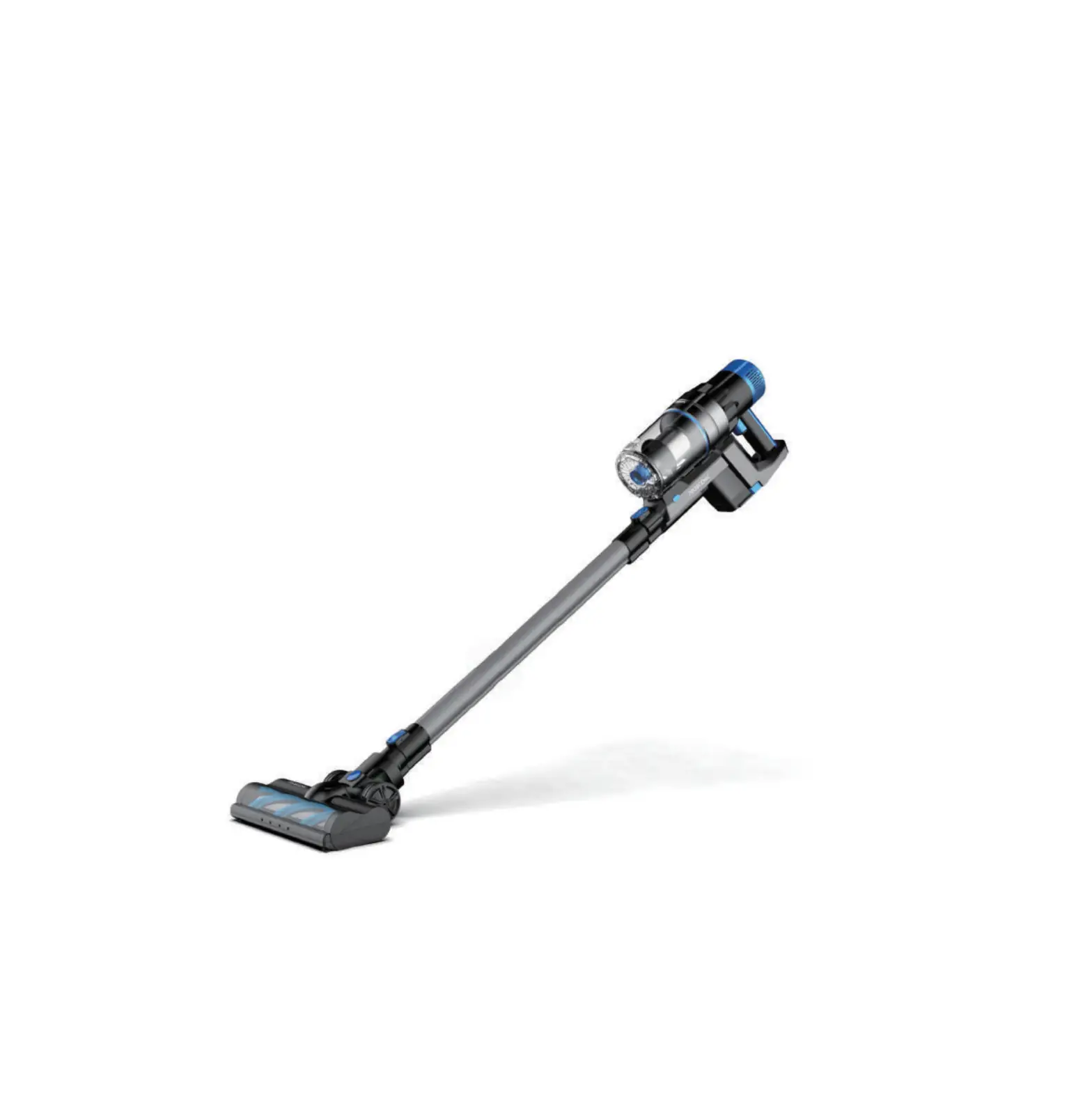
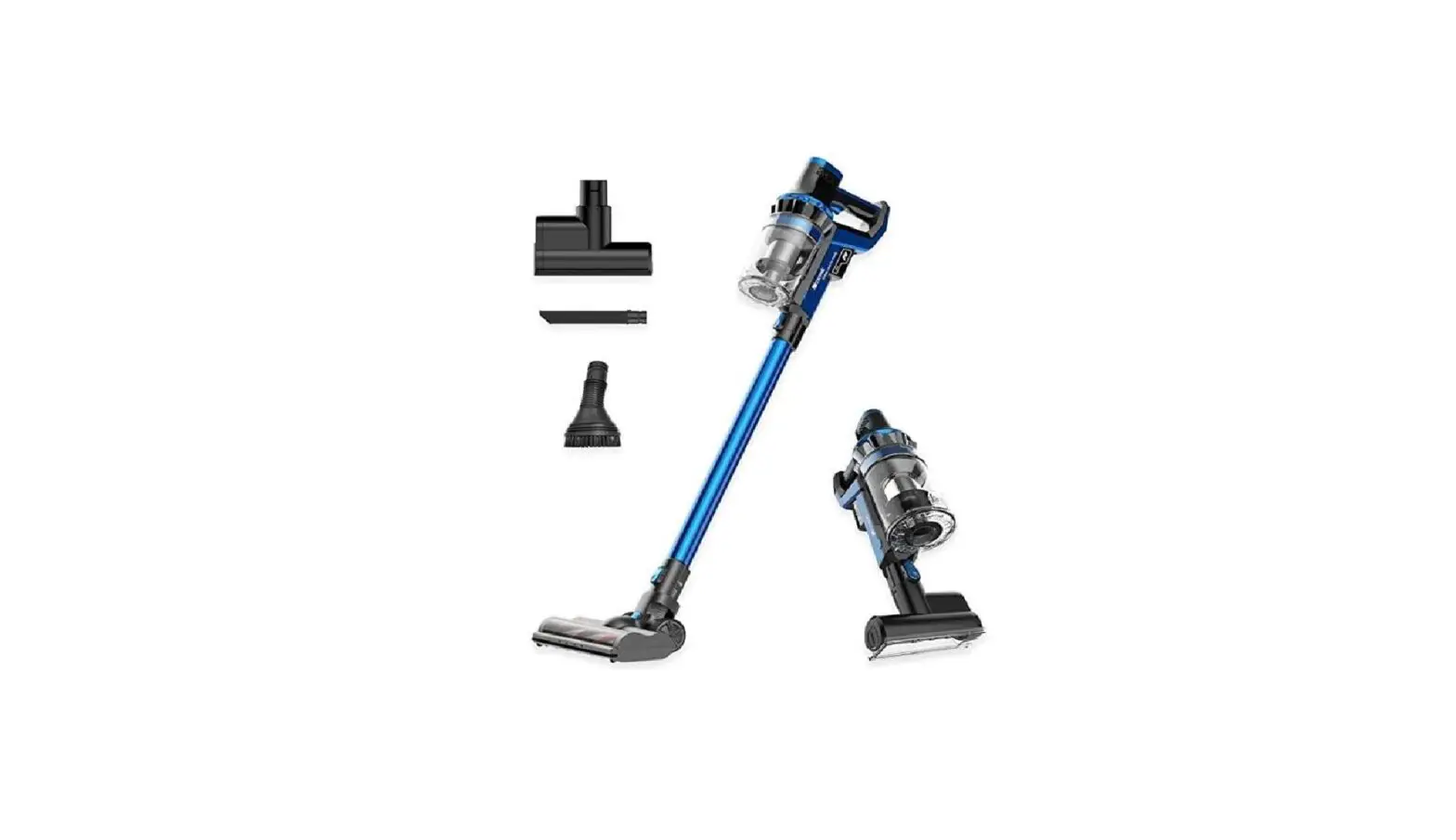
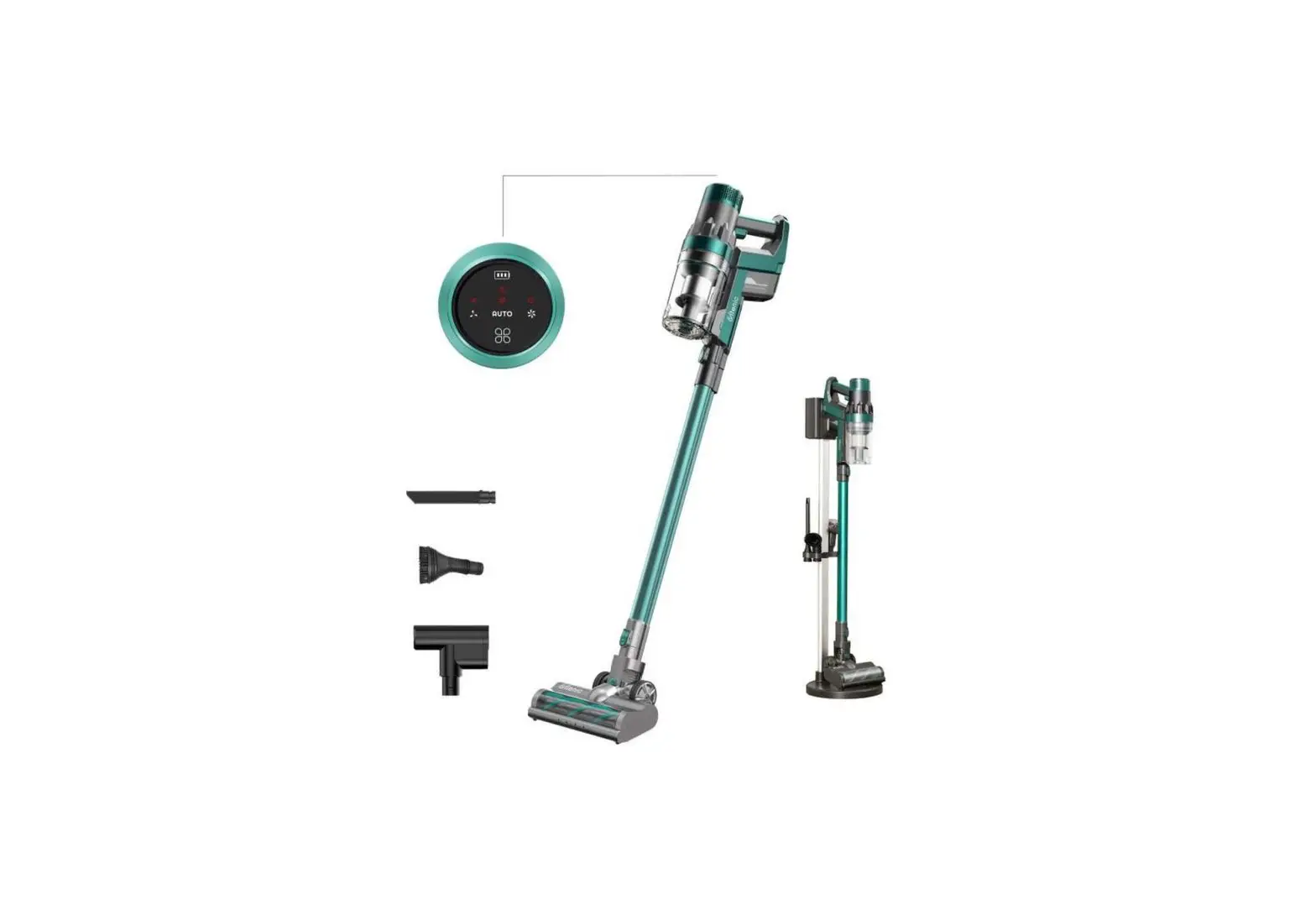
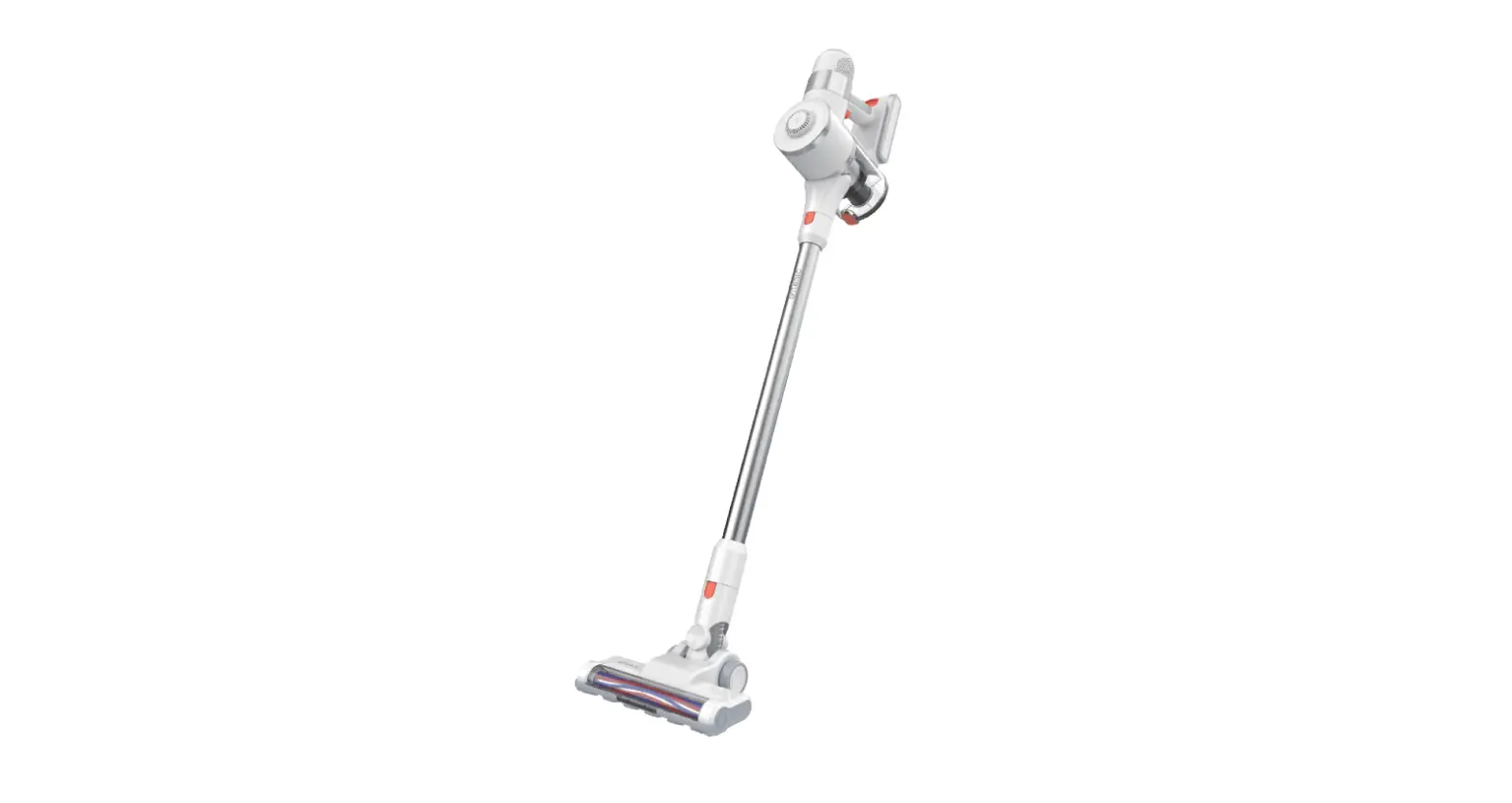
U11 Pro Vacuum Cleaner
Product Information:
The product is the Proscenic F20, a smart device that can be
controlled through a mobile application. It has the following
features:
- App Download and Connection Guide
- Bluetooth Connection
- Manual Connection
- Support for 2.4G Wi-Fi networks
- Multi-language support (English, German, French, Italian,
Spanish) - Power button for switching on/off
- Language/Mute button for language selection
- Wi-Fi light indicator
- Device initialization and registration to cloud
Product Usage Instructions:
App Download and Connection:
- Search for the Proscenic APP on the App Store (for iOS devices)
or Google Play (for Android devices). - Alternatively, scan the provided QR Code to download the
APP. - Once the app is downloaded, open it and enable Bluetooth and
Wi-Fi on your phone. - In the app, search for nearby devices.
Bluetooth Connection:
- Ensure that the device is fully charged and switched on by
pressing the power button. - Press the Language/Mute button to switch to your preferred
language (English, German, French, Italian, Spanish). - Note: The device can be connected to the internet while
charging. - Select a network to connect your device to. Only 2.4G Wi-Fi
networks are supported. - If the device cannot be scanned, add it manually.
- Press and hold the power button for 5 seconds to enter pairing
mode or reset Wi-Fi. - The Wi-Fi light will flash slowly in white two times per
second. - The Wi-Fi light will flash fast in white four times per second
during the connection process. - When the connection is completed, the Wi-Fi light will be
continuously on in white.
Manual Connection:
- Select a network to connect your device to. Only 2.4G Wi-Fi
networks are supported. - Go to your phone’s settings and connect to the device’s hotspot
named “Proscenic-XXX”. - Return to the Proscenic app after a successful connection.
- The Wi-Fi light will flash fast in white four times per second
during the connection process. - When the connection is completed, the Wi-Fi light will be
continuously on in white.
Please ensure that the router, phone, and device are placed as
close together as possible during the connection process.
For further assistance or troubleshooting, refer to the complete
user manual or contact customer support.
APP DOWNLOAD AND CONNECTION GUIDE
Search for Proscenic APP on App Store (IOS devices) or Google Play (Android devices). Or you could scan the QR Code below to download the APP.
Step : Once the unit has been assembled, ensure that it is fully charged and press the power button to switch it on. Then press the Language/Mute button to switch to the local language (switching order: English, German, French, Italian, Spanish). Note: The device can be connected to the internet when it’s charging.
BLUETOOTH CONNECTION
Step : Open the app, turn on Bluetooth and WiFi on your phone, search for the nearby devices.
Add manually
Add via Bluetooth
Step : Select a network to connect your device to. (Only 2.4G Wi-Fi networks are supported)
Add your Wi-Fi network
Scanning for nearby Bluetooth devices … Add the device manually when it cannot be scanned.
Why might the device fail to be scanned>>
Please select a network to connect to your device. (Only supports .G Wi-Fi network)
PDCN
F
Step : Press and hold the power button for 5 seconds to enter pairing mode or reset WiFi.
The Wi-Fi light flashes slowly in white two times/sec.
NEXT STEP
Step : Connecting. (The Wi-Fi light flashes fast in white four times/sec.)
Trying to connect with the device
Routers,phones,and devices should be put as close together as possble
Step : Connection is completed, start using the device. (The Wi-Fi light is always on in white.)
Trying to connect with the device
Routers,phones,and devices should be put as close together as possble
Searching for the device Device already registered to cloud Device initialization
Searching for the device Device already registered to cloud Device initialization
COMPELETED
MANUAL CONNECTION
Step : Select a network to connect your device to. (Only 2.4G Wi-Fi networks are supported)
Add your Wi-Fi network
Please select a network to connect to your device. (Only supports .G Wi-Fi network)
PDCN
Step : Go to Settings – WLAN list to connect to the device’s hotspot “Proscenic-XXX”.
Try to connect with device
Current WiFi PDCN
1. Go to the phone Setting-WLAN 2. Connect to WiFi Proscenic-XXXX 3. Return to Proscenic after successful connection
NEXT STEP
GO AND CONNECT
Step : Connecting. (The Wi-Fi light flashes fast in white four times/sec.)
Trying to connect with the device
Routers,phones,and devices should be put as close together as possble
Step : Connection is completed, start using the device. (The Wi-Fi light is always on in white.)
Trying to connect with the device
Routers,phones,and devices should be put as close together as possble
Searching for the device Device already registered to cloud Device initialization
Searching for the device Device already registered to cloud Device initialization
COMPELETED
F20 APP
Design Date: 2022-01-07 200*95mm / 128G 4C V1.11