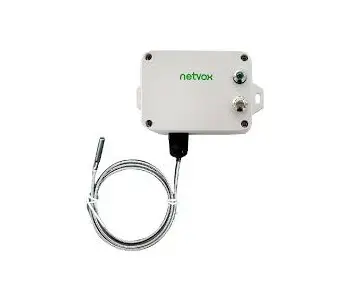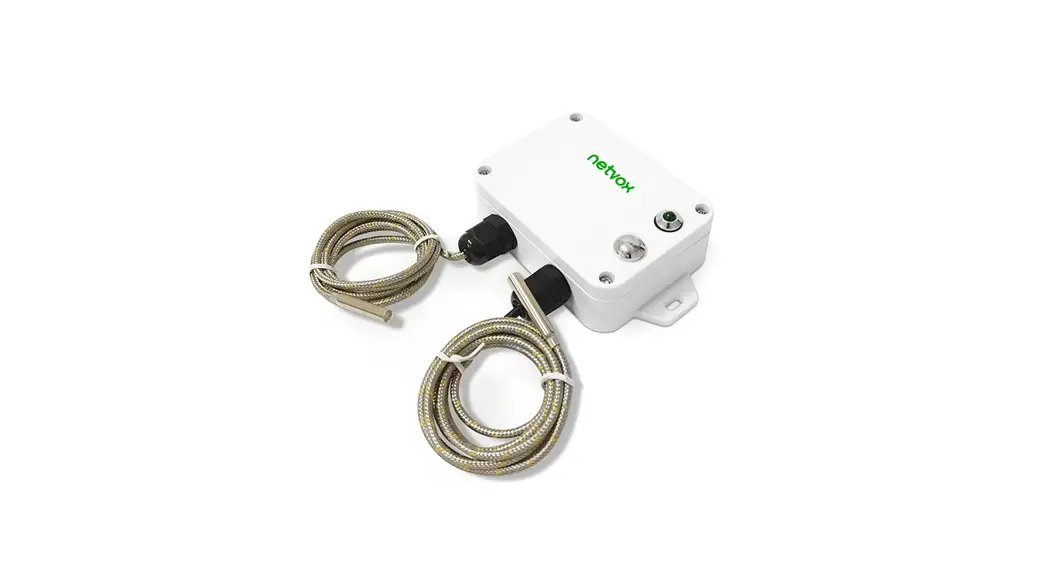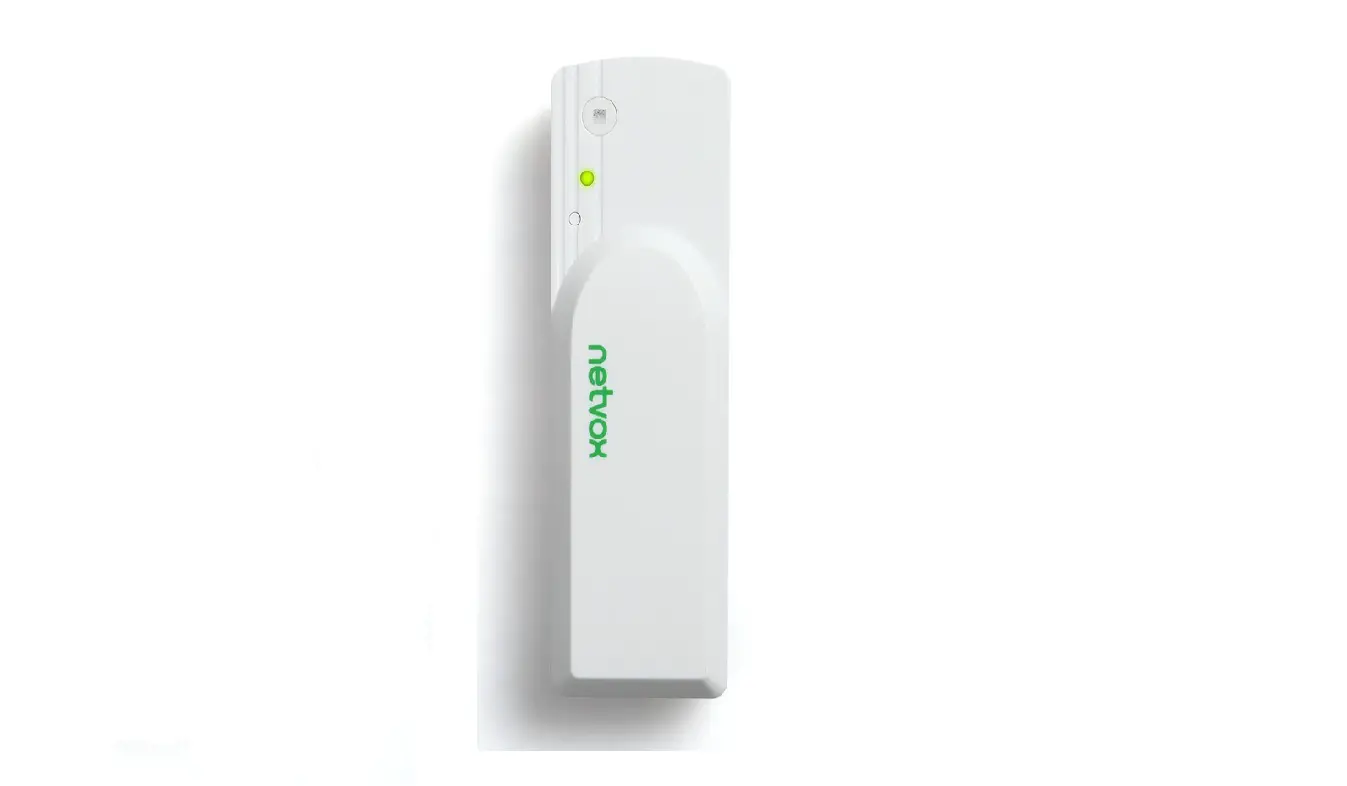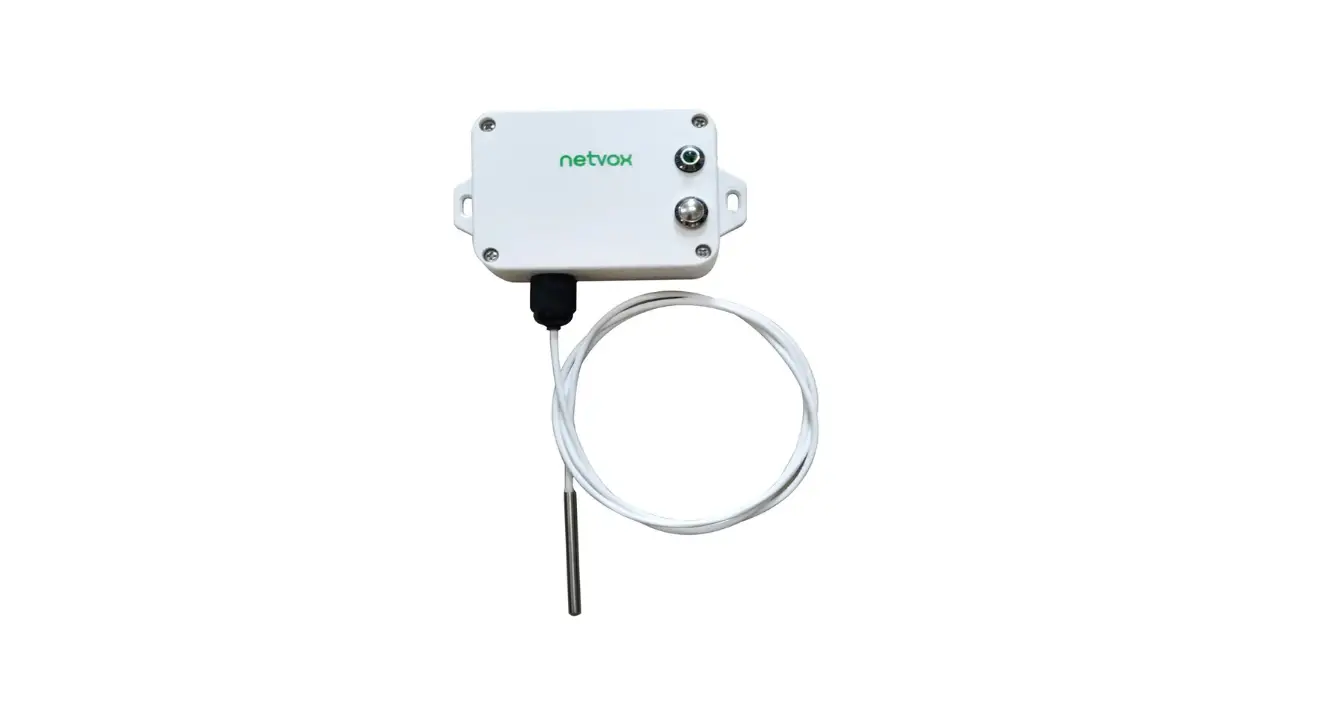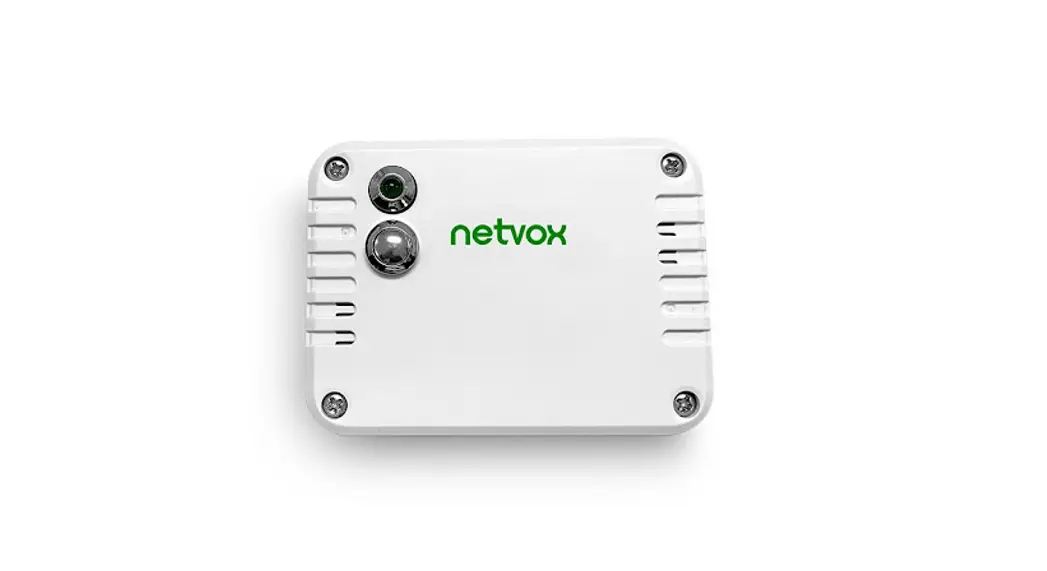
Wireless 2-Gang Thermocouple Sensor for K/T/N Type
Model: R718CK2/CT2/CN2
Wireless 2-Gang Thermocouple Sensor
for
K/T/N Type
R718CK2/CT2/CN2
User Manual
Copyright©Netvox Technology Co., Ltd.
This document contains proprietary technical information which is the property of NETVOX Technology. It shall be maintained in strict confidence and shall not be disclosed to other parties, in whole or in part, without written permission of NETVOX
Technology. The specifications are subject to change without prior notice.
Introduction
R718CK2 (nickel-chromium-nickel silicon thermocouple):
Its use temperature is -40 ~ +375℃, with good linearity, large term electromotive force, high sensitivity, stability, can not be used directly at high temperature for sulfur, reducing or reducing It is not recommended for use in weak oxidizing atmospheres in oxidizing alternating atmospheres and in a vacuum.
R718CT2 (copper-copper-nickel thermocouple):
Its use temperature is -40 ~ +125℃, it is used in the temperature range of -40~0℃, and the stability is better.
R718CN2 (nickel-chromium-silicon-nickel-silicon-magnesium thermocouple):
Its use temperature is -40 °C~ +800°C, the N-type thermocouple has good linearity, large term electromotive force, high sensitivity, and good stability and uniformity. It has strong oxidation resistance and is not affected by short-range ordering.
LoRa Wireless Technology:
Lora is a wireless communication technology dedicated to long-distance and low power consumption. Compared with other communication methods, the LoRa spread spectrum modulation method greatly increases to expand the communication distance. Widely used in long-distance, low-data wireless communications. For example, automatic meter reading, building automation equipment, wireless security systems, industrial monitoring. Main features include small size, low power consumption, transmission distance, anti-interference ability, and so on.
LoRaWAN:
LoRaWAN uses LoRa technology to define end-to-end standard specifications to ensure interoperability between devices and gateways from different manufacturers.
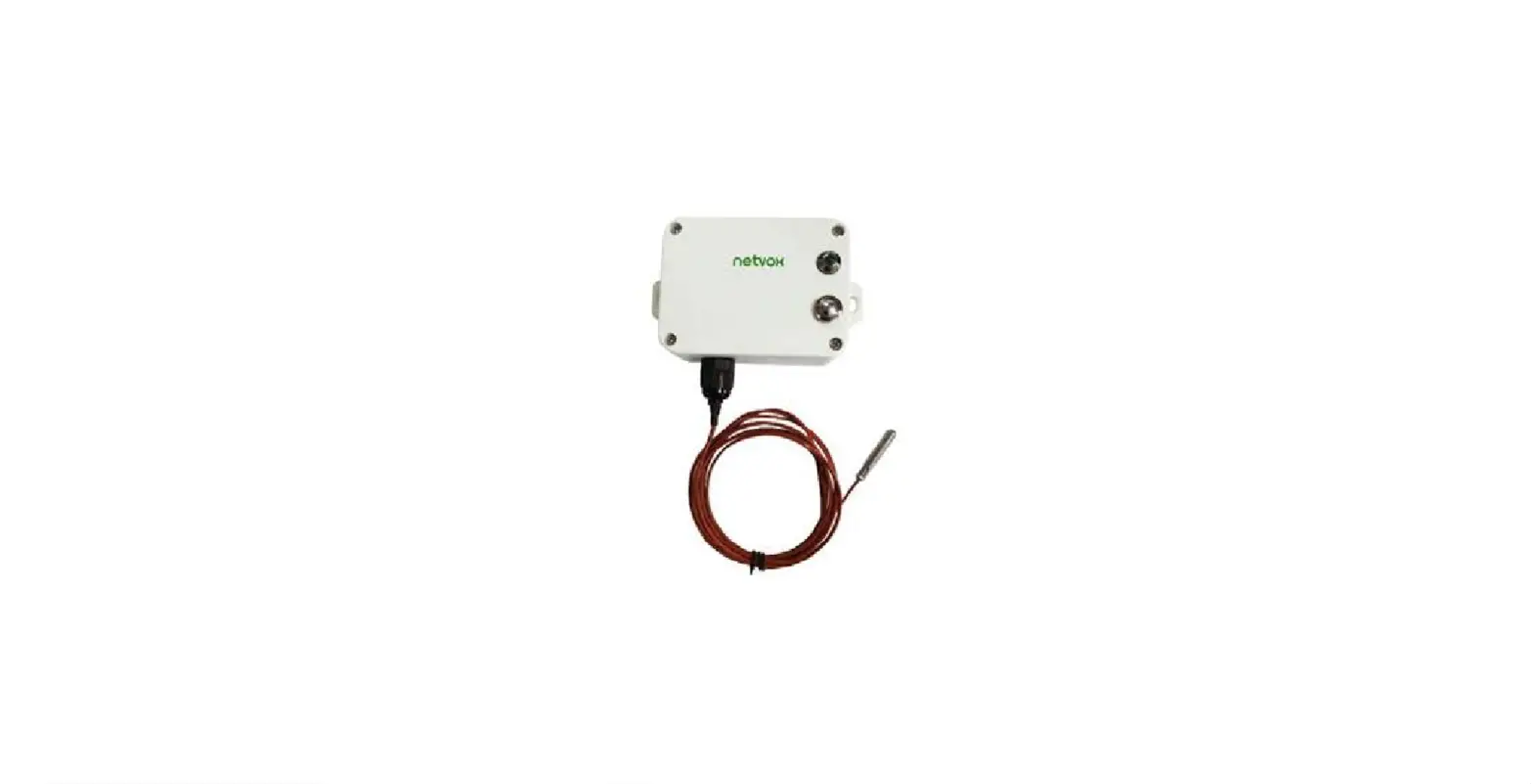
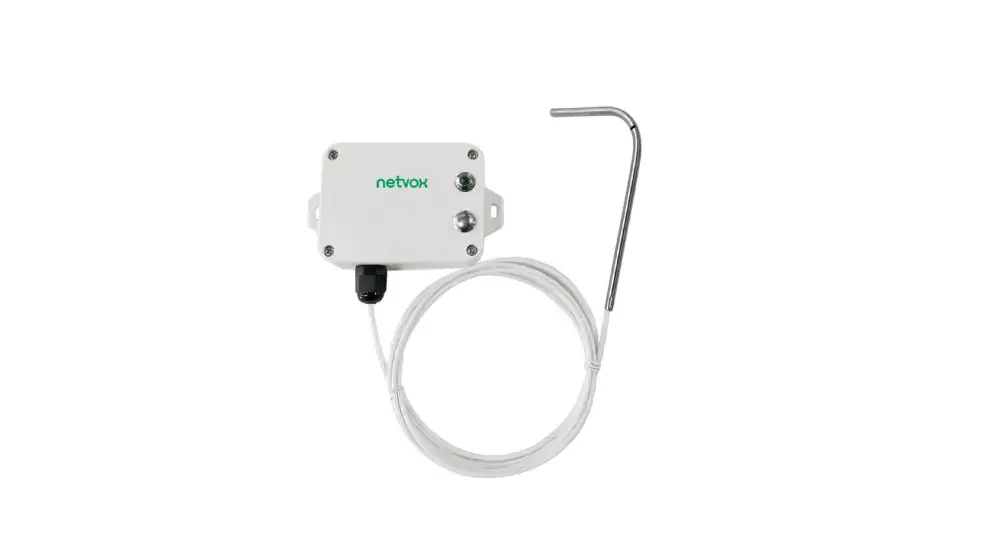
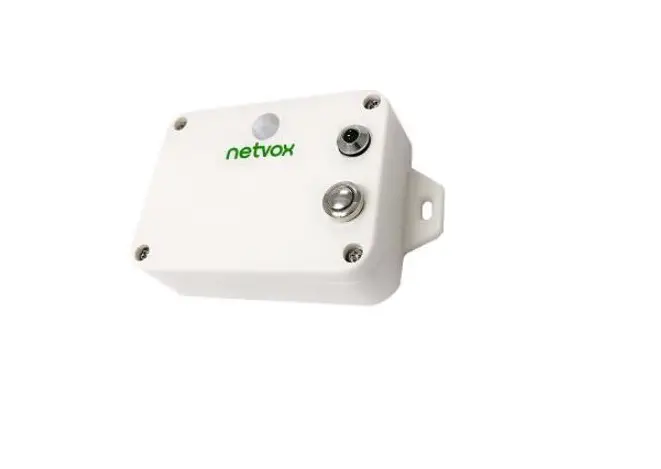
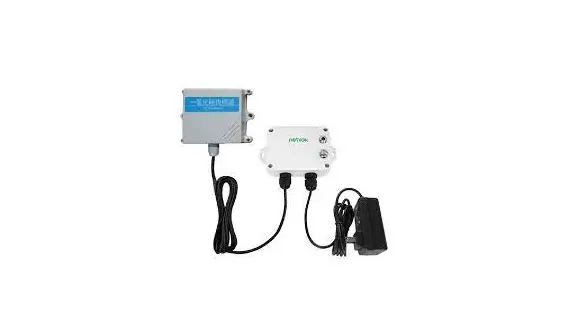
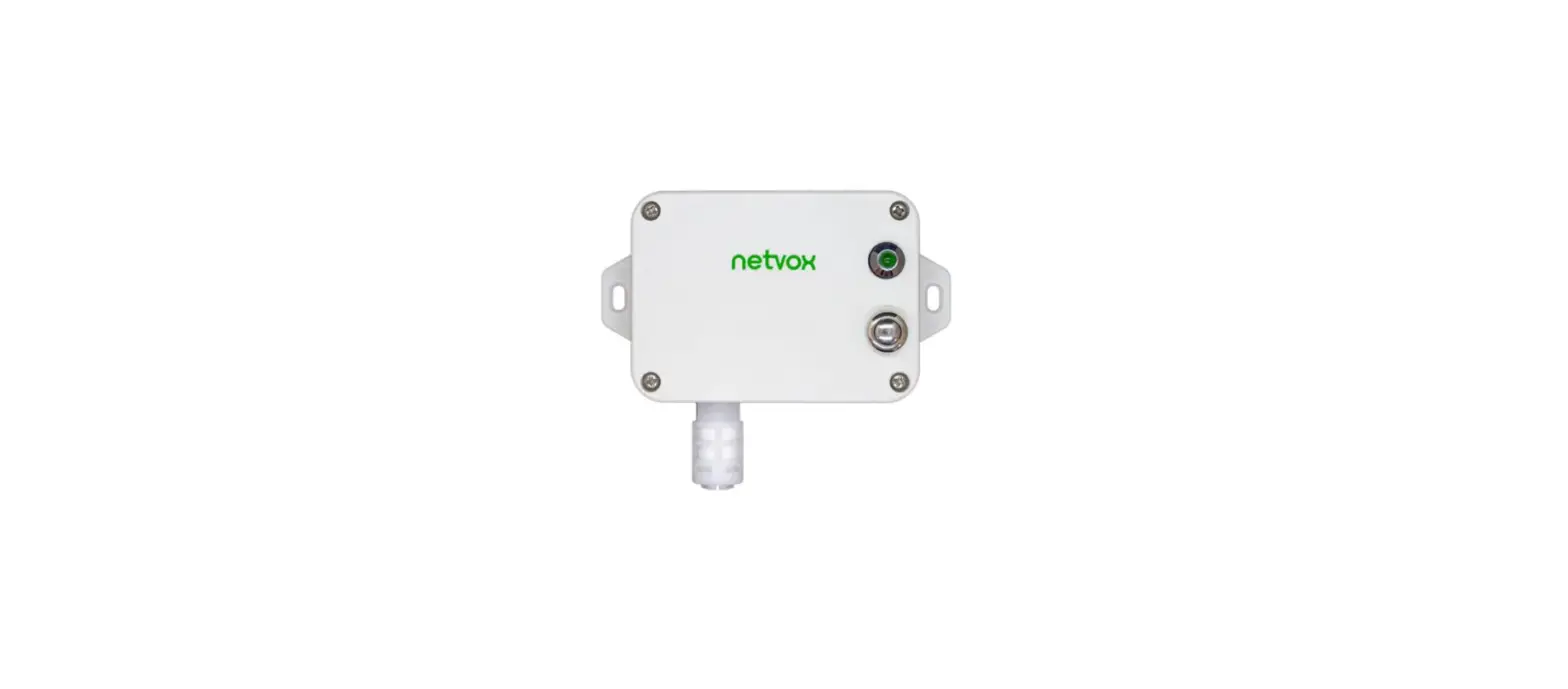
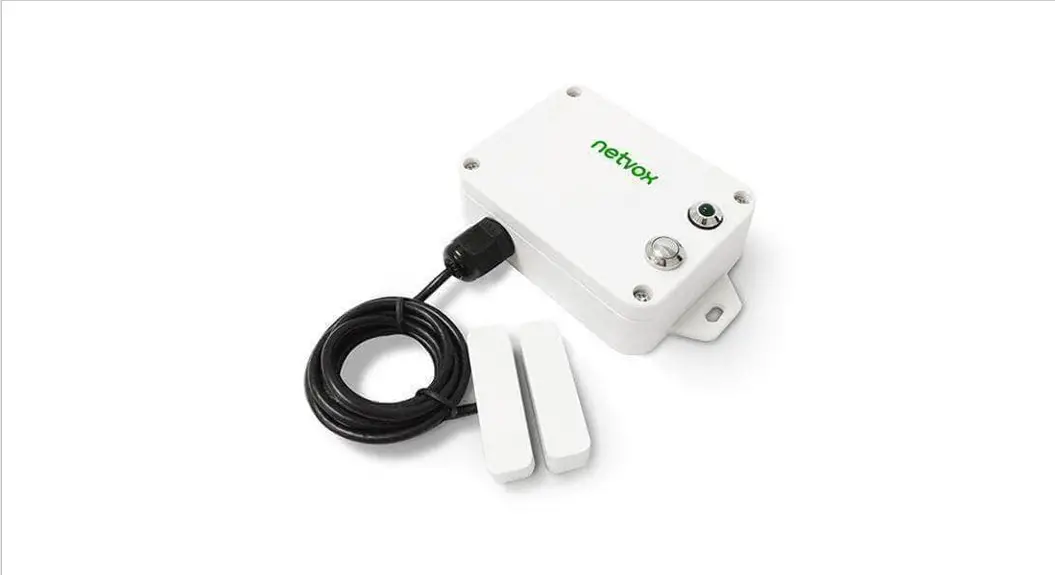
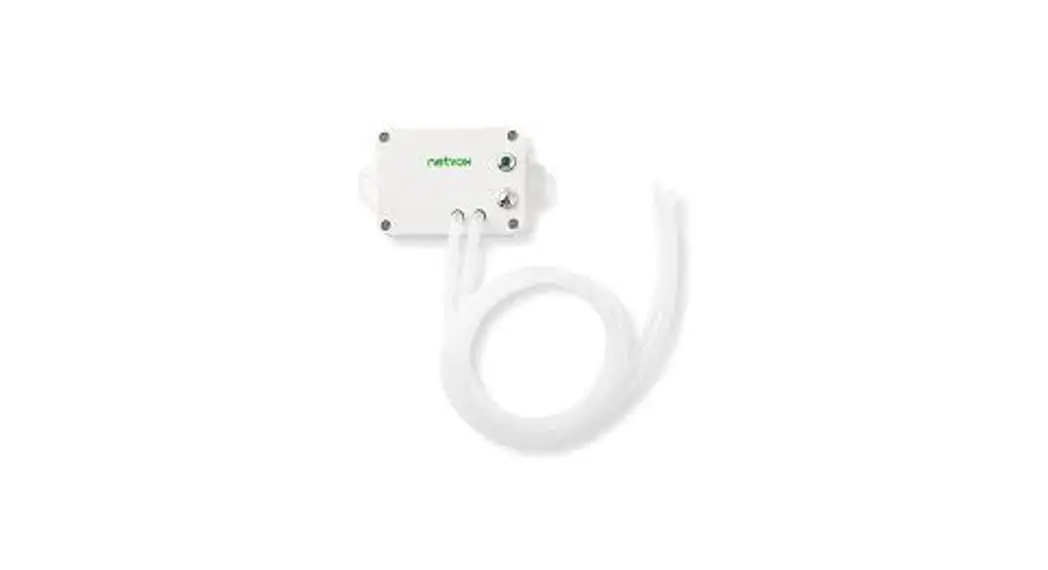
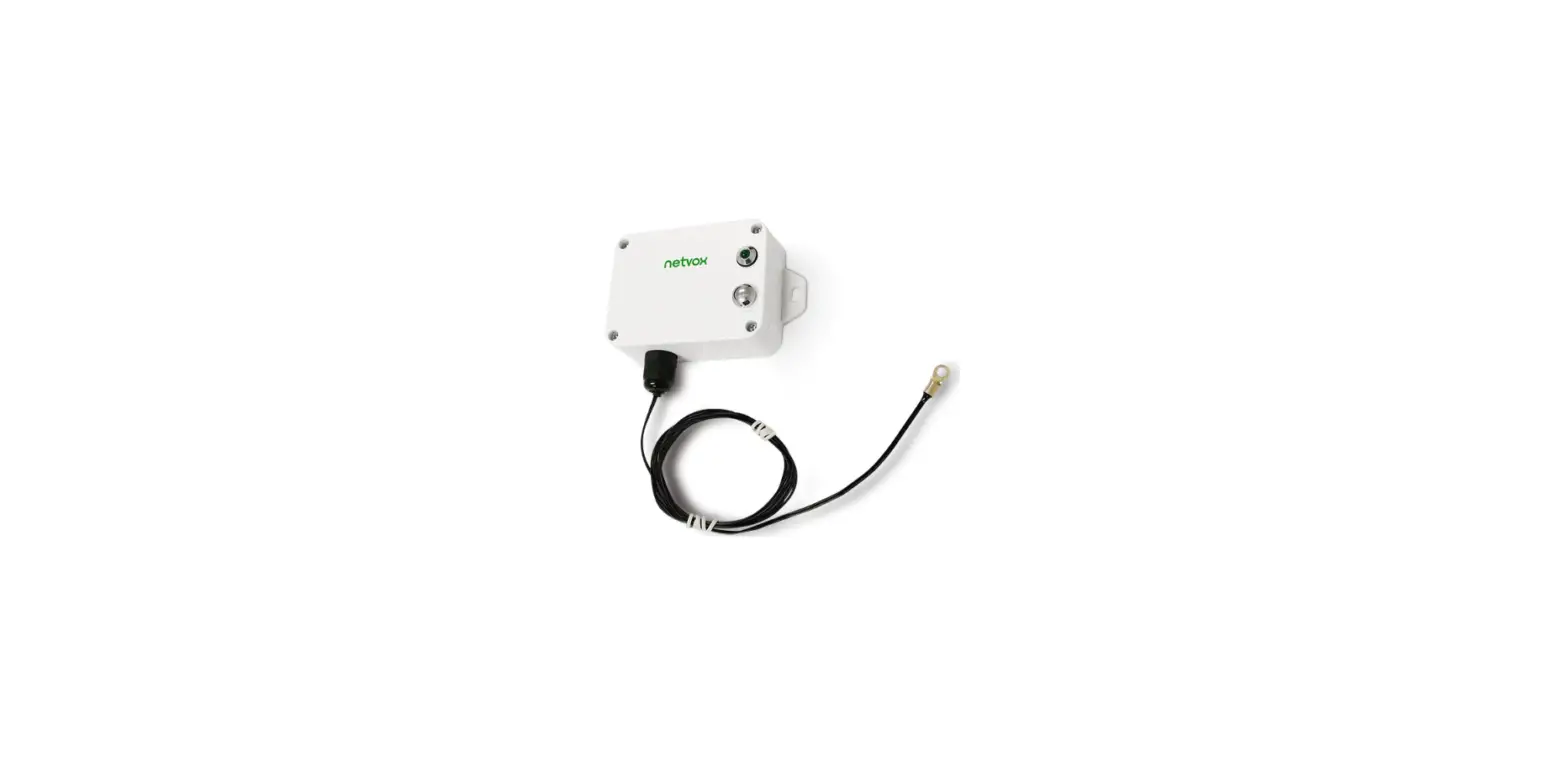
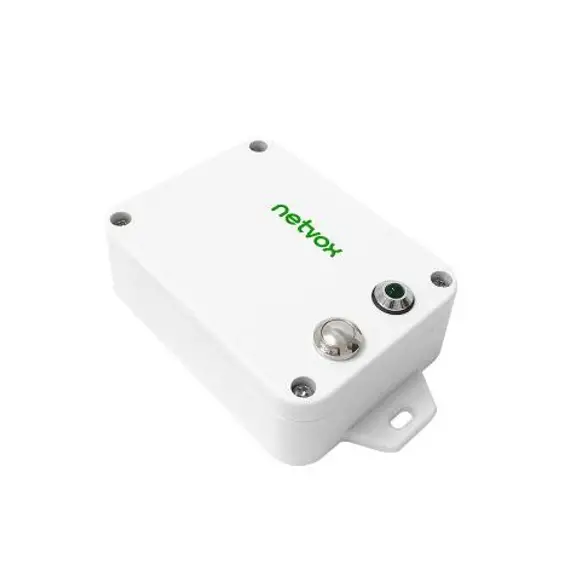
Appearance

Main Features
- Adopt SX1276 wireless communication module
- 2 ER14505 battery AA size (3.6V / section) parallel power supply
- Main body protection class IP65/IP67
- External thermocouple sensor protection class:
K-type thermocouple IP50
T-type thermocouple IP67
N-type thermocouple IP50 - The base is attached with a magnet that can be attached to a ferrous object
- 2-way thermocouple detection
- Compatible with LoRaWAN™ Class A
- Frequency-hopping spread spectrum
- Configuration parameters can be configured via a third-party software platform
- Applicable to third-party platforms: Actility/ThingPark, TTN, MyDevices/Cayenne
- Low power consumption, longer battery life support:
Battery life is determined by sensor reporting frequency and other variables, please refer to http://www.netvox.com.tw/electric/electric_calc.html
On the website, users can find the battery life of various models in different configurations.
Set up Instruction
On/Off
| Power on | Insert batteries. (the user may need a screwdriver to open) |
| Turn on | Press and hold the function key for 3 seconds till the green indicator flashes once. |
| Turn off (Restore to factory setting) | Press and hold the function key for 5 seconds till the green indicator flashes 20 times. |
| Power off | Remove Batteries. |
| Note: | 1. Remove and insert the battery; the device is at off state by default. 2. On/off interval is suggested to be about 10 seconds to avoid the interference of capacitor inductance and other energy storage components. 3. At 1st-5th second after power on, the device will be in engineering test mode. |
Network Joining
| Never joined the network | Turn on the device to search the network to join. The green indicator stays on for 5 seconds: success The green indicator remains off: fail |
| Had joined the network (Not at factory setting mode) | Turn on the device to search the previous network to join. The green indicator stays on for 5 seconds: success The green indicator remains off: fail |
| Fail to join the network (when the device is on) | Suggest checking the device verification information on the gateway or consulting your platform service provider. |
Function Key
| Press and hold for 5 seconds | Restore to factory setting / Turn off The green indicator flashes for 20 times: success The green indicator remains off: fail |
| Press once | The device is in the network: green indicator flashes once and sends a report The device is not in the network: the green indicator remains off |
Sleeping Mode
| The device is on and in the network | Sleeping period: Min Interval. When the report change exceeds the setting value or the state changes: send a data report according to Min Interval. |
Low Voltage Warning
| Low Voltage | 3.2V |
Data Report
The device will immediately send a version package report and report data with temperature and voltage values.
The device sends data in the default configuration before any configuration is done.
Default setting:
Maximum time: Max Interval = 900 seconds
Minimum time: Min Interval = 900 seconds
(by default, the current voltage value is detected per Min Interval)
Battery Change: 0x01 (0.1V)
Temperature Change: 0x00064 (10°C)
Note:
(1) The real data sending cycle will be programmed before shipment.
(2) The interval between two reports must be the minimum time
Please refer Netvox LoRaWAN Application Command document and Netvox Lora Command Resolver
http://loraresolver.netvoxcloud.com:8888/page/index to resolve uplink data.
Data report configuration and sending period are as follows:
| Min Interval (Unit: second) | Max Interval (Unit: second) | Reportable Change | Current Change≥ Reportable Change | Current Change< Reportable Change |
| Any number between 1~65535 | Any number between 1~65535 | Can not be 0. | Repor per Min Interval | Report per Max Interval |
Example of ReportDataCmd
port:0x06
| Bytes | 1 | 1 | 1 | Var (Fix=8 Bytes) |
| Version | DeviceType | ReportType | NetvoxPayLoadData |
Version– 1 byte –0x01——the Version of NetvoxLoRaWAN Application Command Version
DeviceType– 1 byte – Device Type of Device The device type is listed in the Netvox LoRaWAN Application Devicetype doc
ReportType – 1 byte –the presentation of the NetvoxPayLoadData, according to the device type
NetvoxPayLoadData– Fixed bytes (Fixed =8bytes)
| Device | DeviceType | ReportType | NetvoxPayLoadData | |||
| R718CK2 | 0x16 | |||||
| R718CT2 | 0x17 | 0x01 | Battery (1Byte, unit:0.1V) | Temperature1 (Signed2Bytes,unit:0.1°C) | Temperature2 (Signed2Bytes,unit:0.1°C) | Reserved (3Bytes,fixed 0x00) |
| R718CN2 | 0x18 | |||||
Example 1 of Uplink: 0116012400FD0109000000
1st byte (01): Version
2nd byte (16): DeviceType 0x16-R718CK2
3rd byte (01): ReportType
4th byte (24): Battery, 24Hex=36 Dec, 36×0.1v = 3.6v
5th6th byte (00FD): Temperature1, 00FD Hex=253 Dec, 253×0.1°C = 25.3°C
7th8th byte (0109): Temperature2, 0109 Hex=265 Dec, 265×0.1°C = 26.5°C
9th-11th byte (000000): Reserved
Example 2 of Uplink: 0117019FFF39FEC5000000
1st byte (01): Version
2nd byte (17): DeviceType 0x17-R718CT2
3rd byte (01): ReportType
4th byte (9F): Battery, 1F Hex = 31 Dec, 31×0.1v=3.1v // the bit7 is 1,represent low battery
5th6th byte (FF39): Temperature1, FF39 Hex= -199 Dec,-199 x 0.1°C = -19.9°C
7th8th byte (FEC5): Temperature2, FEC5 Hex= -315 Dec, -315 x 0.1°C = -31.5°C
//negative numbers represented in 2’s complement
9th-11th byte (000000): Reserved
Example of ConfigureCmd
FPort:0x07
| Bytes | 1 | 1 | Var (Fix =9 Bytes) |
| CmdID | DeviceType | NetvoxPayLoadData |
CmdID– 1 byte
DeviceType– 1 byte – Device Type of Device
NetvoxPayLoadData– var bytes (Max=9bytes)
| Description | Device | Cmd ID | Device Type | NetvoxPayLoadData | |||||
| ConfigReport Req | R718CK2 R718CT | 0x01 | 0x16 0x17 0x18 | MinTime (2bytes Unit:s) | MaxTime (2bytes Unit:s) | BatteryChange (1byte Unit:0.1v) | TemperatureChange (2byte Unit:0.1℃) | Reserved (2Bytes,Fixed 0x00) | |
| ConfigReport Rsp | 0x81 | Status (0x00_success) | Reserved (8Bytes,Fixed 0x00) | ||||||
| ReadConfig ReportReq | 0x02 | Reserved (9Bytes,Fixed 0x00) | |||||||
| ReadConfig ReportRsp | 0x82 | MinTime (2bytes Unit:s) | MaxTime (2bytes Unit:s) | BatteryChange (1byte Unit:0.1v) | TemperatureChange (2byte Unit:0.1℃) | Reserved (2Bytes,Fixed 0x00) | |||
(1) Configure R718CK2 report parameters:
MinTime = 1min 、MaxTime = 1min 、BatteryChange = 0.1v 、TemperatureChange = 1°C (10*0.1°C)
Downlink : 0116003C003C01000A0000 3C(Hex) =60(Dec) 0A(Hex) = 10(Dec)
Response:
8116000000000000000000 (Configuration success)
8116010000000000000000 (Configuration failure)
(2) Read Configuration:
Downlink : 0216000000000000000000
Response:
8216003C003C01000A0000 (Current configuration)
Example for MinTime/MaxTime logic:
Example#1 based on MinTime = 1 Hour, MaxTime= 1 Hour, Reportable Change i.e. BatteryVoltageChange=0.1V

Note: MaxTime=MinTime. Data will only be reported according to Maxime (MinTime) duration regardless BatteryVoltageChange value.
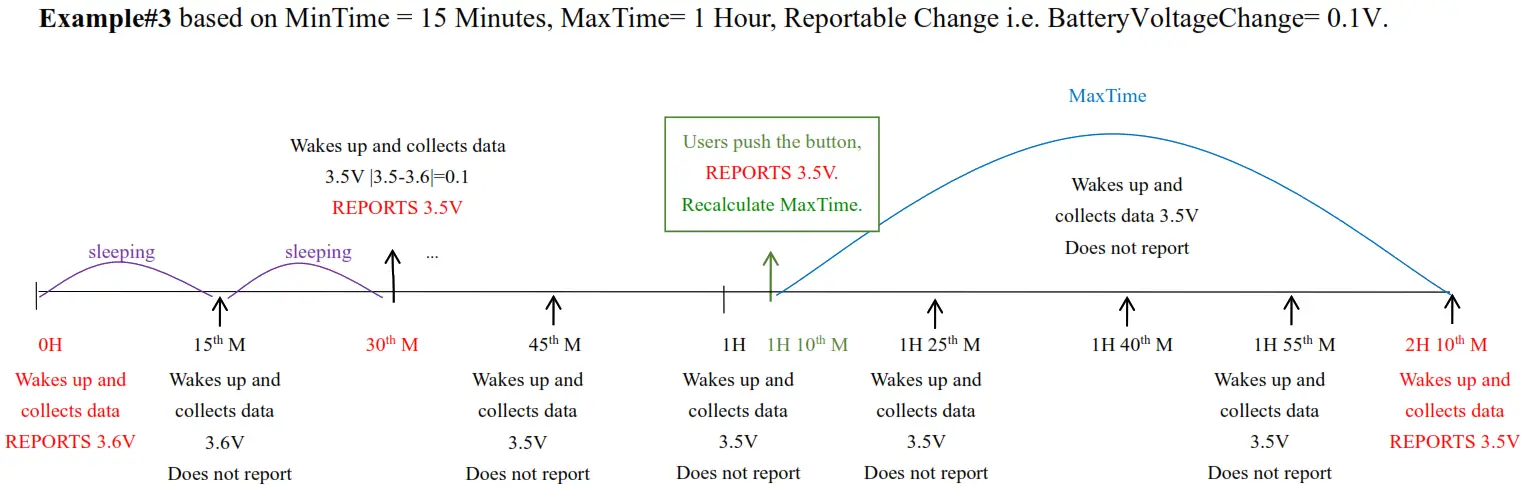
Example#2 based on MinTime = 15 Minutes, MaxTime= 1 Hour, Reportable Change i.e. BatteryVoltageChange= 0.1V.

Notes :
1) The device only wakes up and performs data sampling according to MinTime Interval. When it is sleeping, it does not collect data.
2) The data collected is compared with the last data reported. If the data variation is greater than the ReportableChange value, the device reports according to MinTime interval. If the data variation is not greater than the last data reported, the device reports according to Maxime interval.
3) We do not recommend setting the MinTime Interval value too low. If the MinTime Interval is too low, the device wakes up frequently and the battery will be drained soon.
4) Whenever the device sends a report, no matter resulting from data variation, button pushed, or Maxime interval, another cycle of MinTime/Maxime calculation is started.
Installation
- The Wireless Thermocouple Sensor has a built-in magnet. When installed, it can be attached to the surface of an object with iron which is convenient and quick. To make the installation more secure, use screws (purchased) to secure the unit to a wall or other surface.
Note:
Do not install the device in a metal shielded box or in an environment with other electrical equipment around it to avoid affecting the wireless transmission of the device.
- When the Wireless Thermocouple Sensor is compared with the last reported values, the temperature change is exceeded 10°C (default), it will report values at the MinTime interval.
It does not exceed 10°C (default), it will report values at the Maxime interval.

R718CK2/CT2/CN2 is suitable below scenarios:
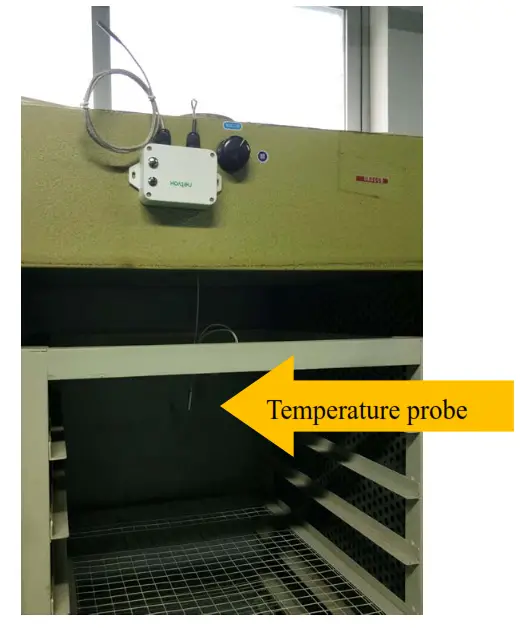
- Oven
- Industrial control equipment
- Semiconductor industry
Note:
Please do not disassemble the device unless it is required to replace the batteries.
Do not touch the waterproof gasket, LED indicator light, function keys when replacing the batteries. Please use a suitable screwdriver to tighten the screws (if using an electric screwdriver, it is recommended to set the torque as 4kgf) to ensure the device is impermeable.
Information about Battery Passivation
Many Netvox devices are powered by 3.6V ER14505 Li-SOCl2 (lithium-thionyl chloride) batteries that offer many advantages including low self-discharge rate and high energy density.
However, primary lithium batteries like Li-SOCl2 batteries will form a passivation layer as a reaction between the lithium anode and thionyl chloride if they are in storage for a long time or if the storage temperature is too high. This lithium chloride layer prevents rapid self-discharge caused by a continuous reaction between lithium and thionyl chloride, but battery passivation may also lead to voltage delay when the batteries are put into operation, and our devices may not work correctly in this situation.
As a result, please make sure to source batteries from reliable vendors, and the batteries should be produced within the last three months.
If encountering the situation of battery passivation, users can activate the battery to eliminate the battery hysteresis.
7.1 To determine whether a battery requires activation
Connect a new ER14505 battery to a 68ohm resistor in parallel, and check the voltage of the circuit.
If the voltage is below 3.3V, it means the battery requires activation.
7.2 How to activate the battery
a. Connect a battery to a 68ohm resistor in parallel
b. Keep the connection for 6~8 minutes
c. The voltage of the circuit should be ≧3.3V
Important Maintenance Instruction
Kindly pay attention to the following in order to achieve the best maintenance of the product:
- Keep the device dry. Rain, moisture, or any liquid, might contain minerals and thus corrode electronic circuits. If the device gets wet, please dry it completely.
- Do not use or store the device in a dusty or dirty environment. It might damage its detachable parts and electronic components.
- Do not store the device under excessive heat conditions. High temperature can shorten the life of electronic devices, destroy batteries, and deform or melt some plastic parts.
- Do not store the device in places that are too cold. Otherwise, when the temperature rises to normal temperature, moisture will form inside, which will destroy the board.
- Do not throw, knock or shake the device. Rough handling of equipment can destroy internal circuit boards and delicate structures.
- Do not clean the device with strong chemicals, detergents, or strong detergents.
- Do not apply the device with paint. Smudges might block the device and affect the operation.
- Do not throw the battery into the fire, or the battery will explode. Damaged batteries may also explode.
All of the above applies to your device, battery, and accessories. If any device is not working properly, please take it to the nearest authorized service facility for repair.
 ÉÔºò¡£¡£¡£