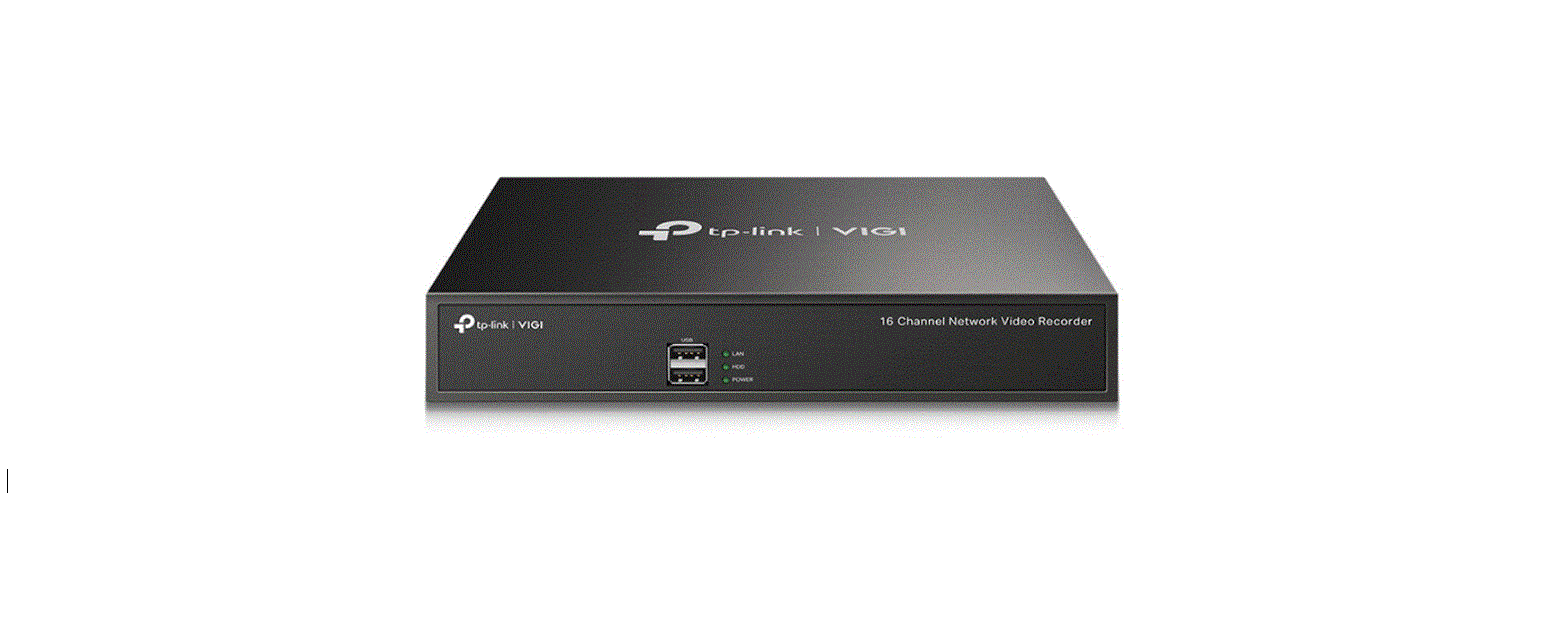
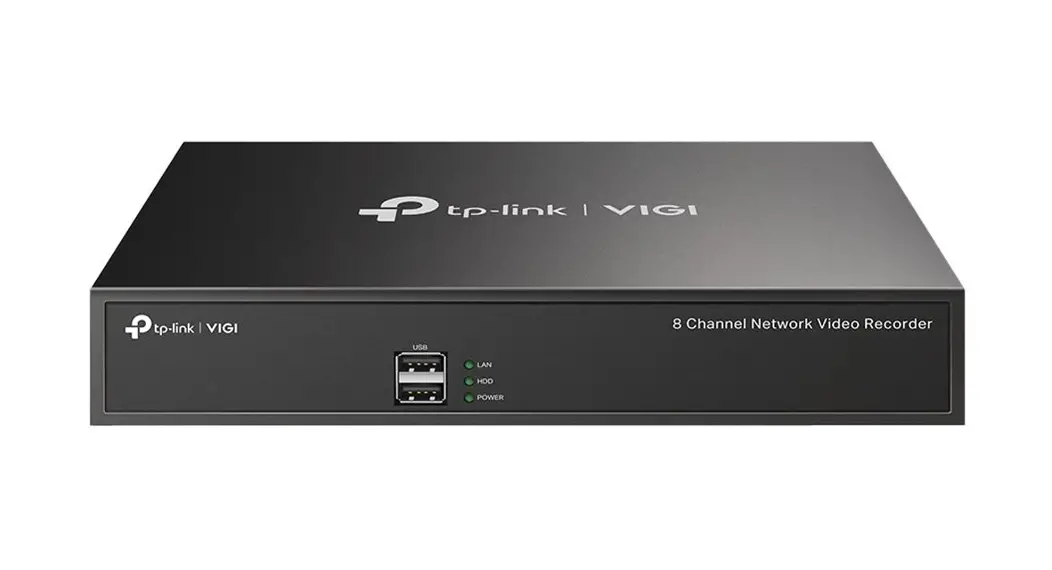
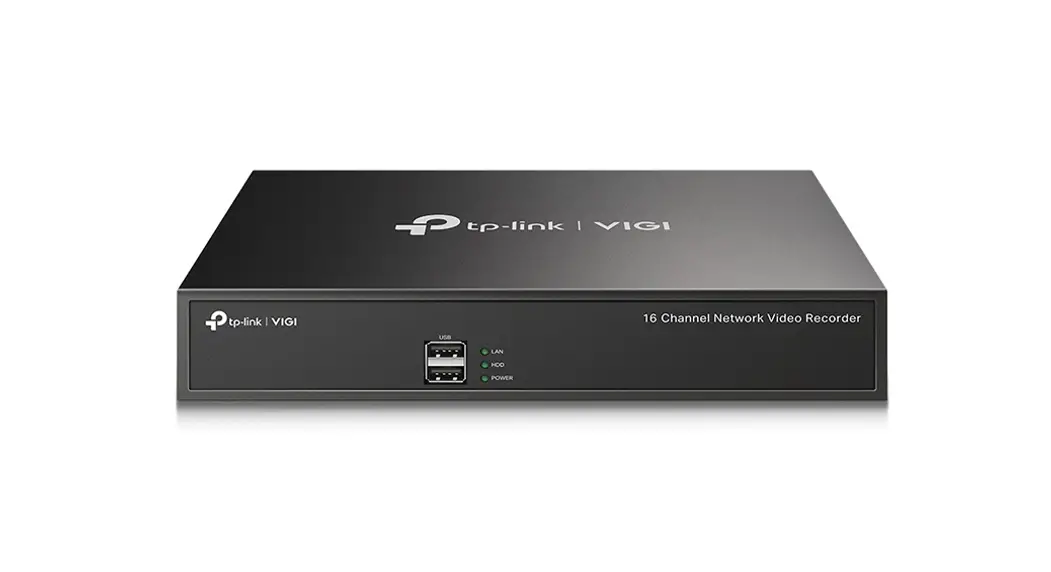
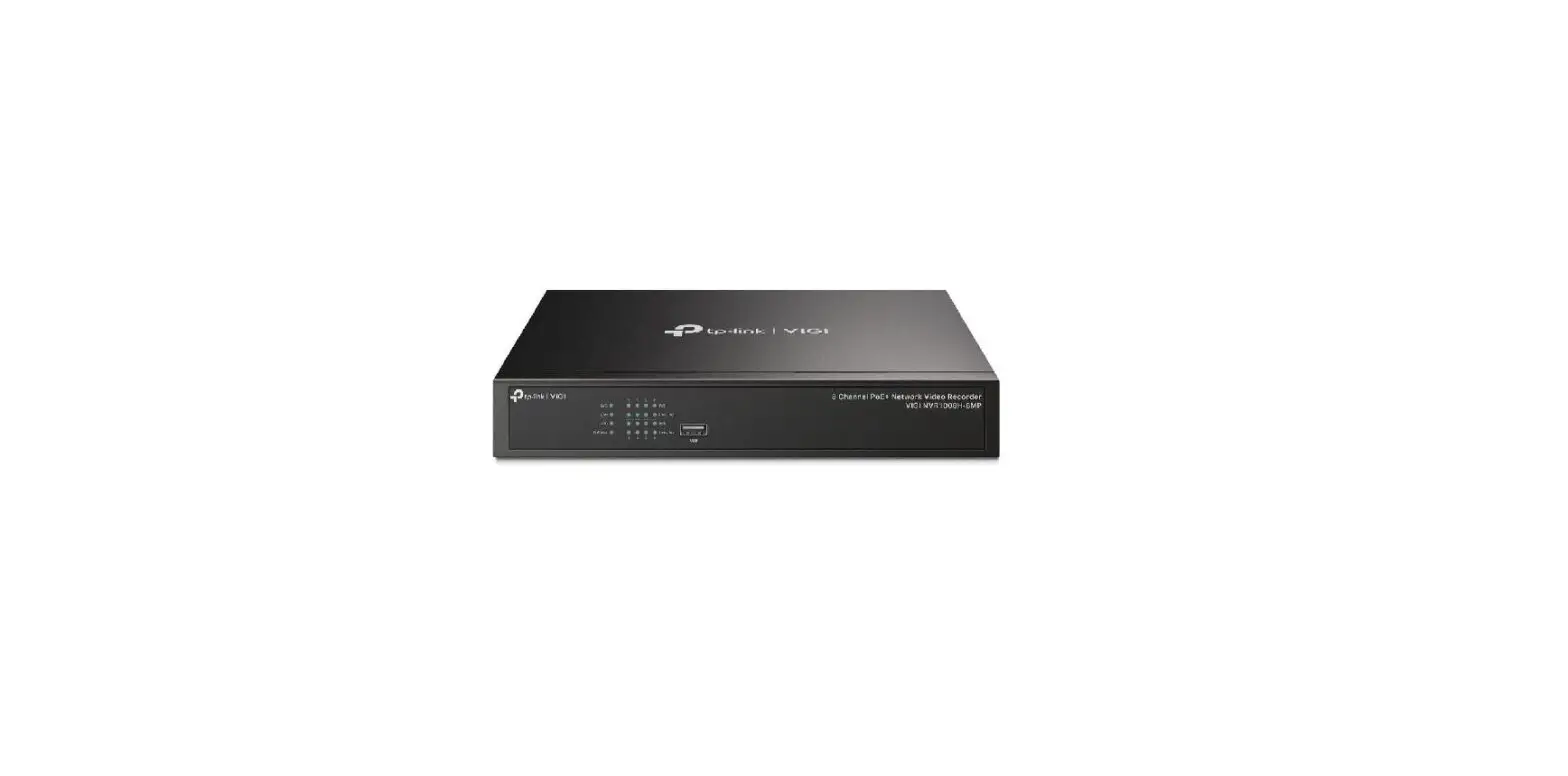
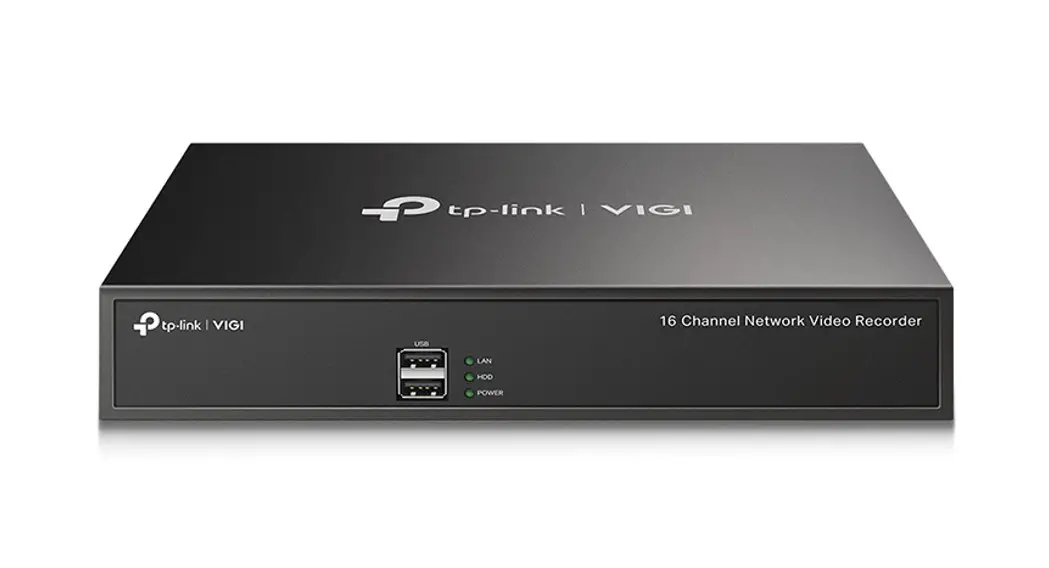
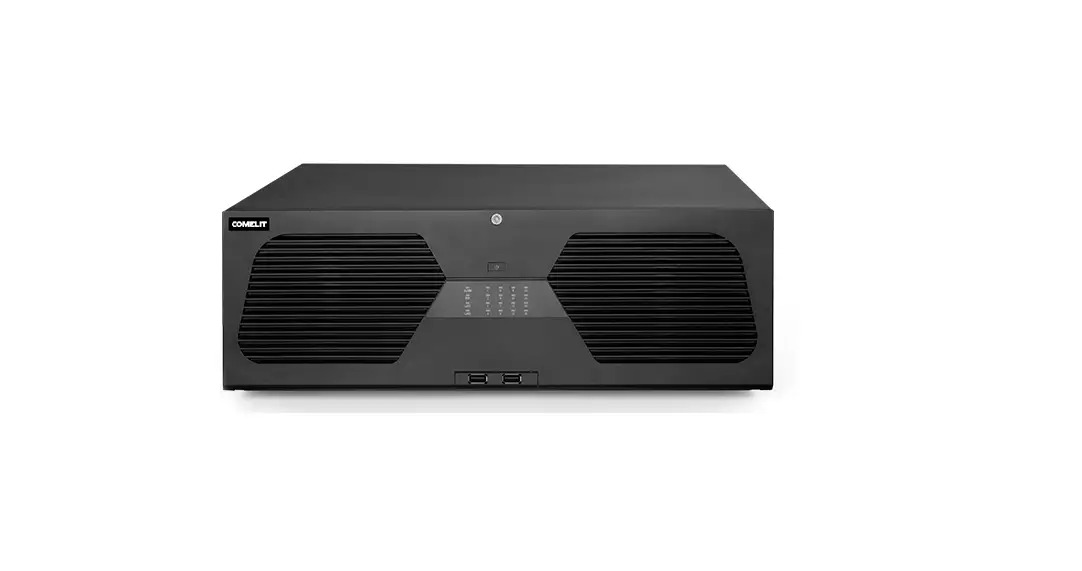
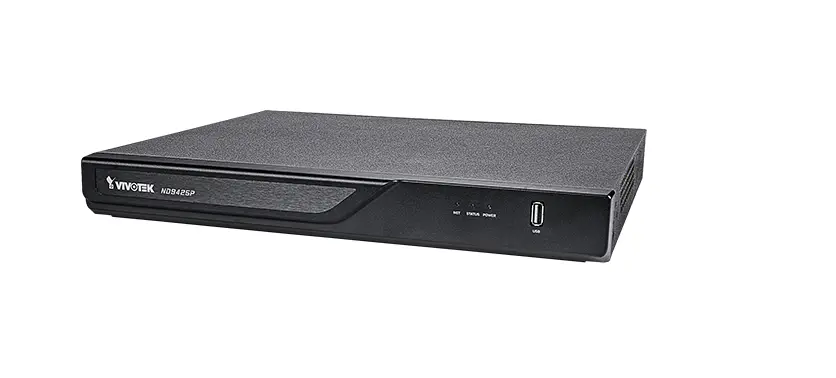
VIGI-NVR1016H VIGI 16 Channel Network Video Recorder
Product Information
The Network Video Recorder (NVR) is a device designed for video
surveillance systems. It allows you to record, store, and manage
video footage from connected cameras. The NVR comes with various
features, including network connectivity, USB ports for additional
devices, audio input/output connectors, and HDMI/VGA output ports
for connecting to monitors.
Package Contents
- Network Video Recorder
- Power Adapter
- Mouse
- Quick Installation Guide
- HDD Screws
Product Overview
The NVR has a front panel and back panel.
Front Panel
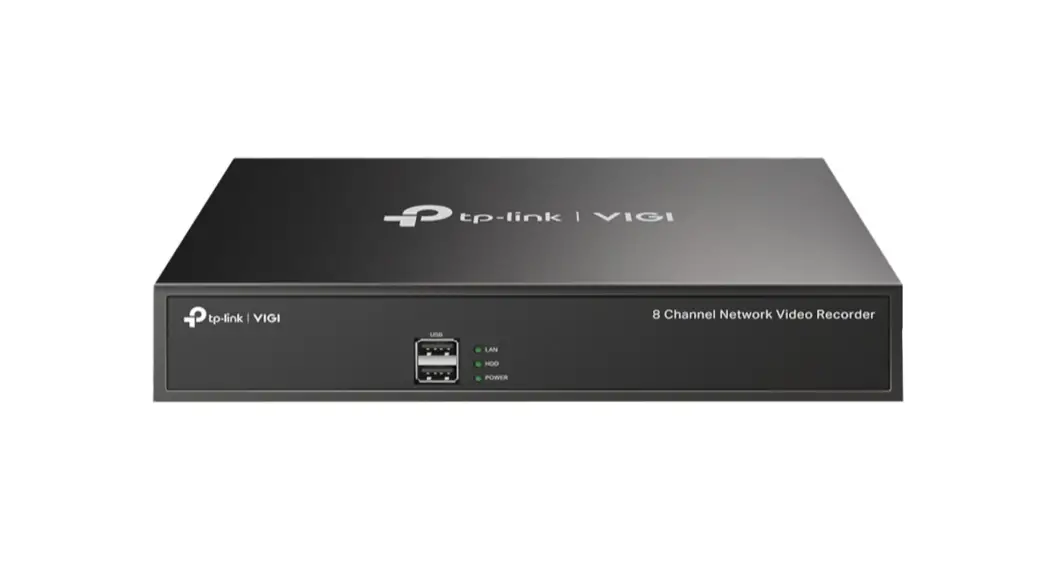
- USB ports: Two USB ports for connecting additional devices like
a mouse, storage device, or keyboard. - LAN port: RJ45 10/100Mbps Ethernet port for connecting to a
network device. - HDD power indicator: Indicates the status of the hard disk
drive. - Power status indicator: Indicates whether the NVR is powered on
or off.
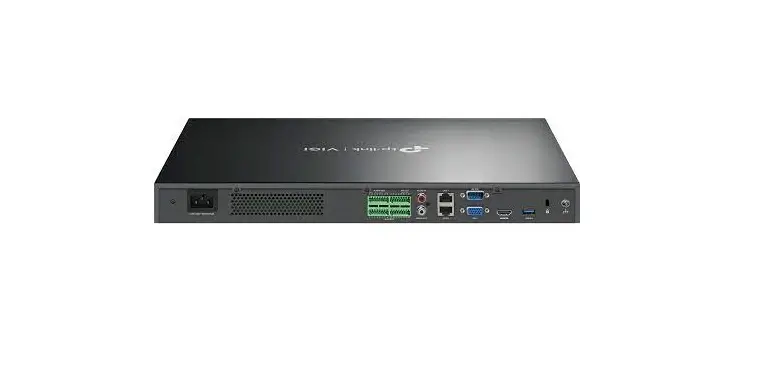
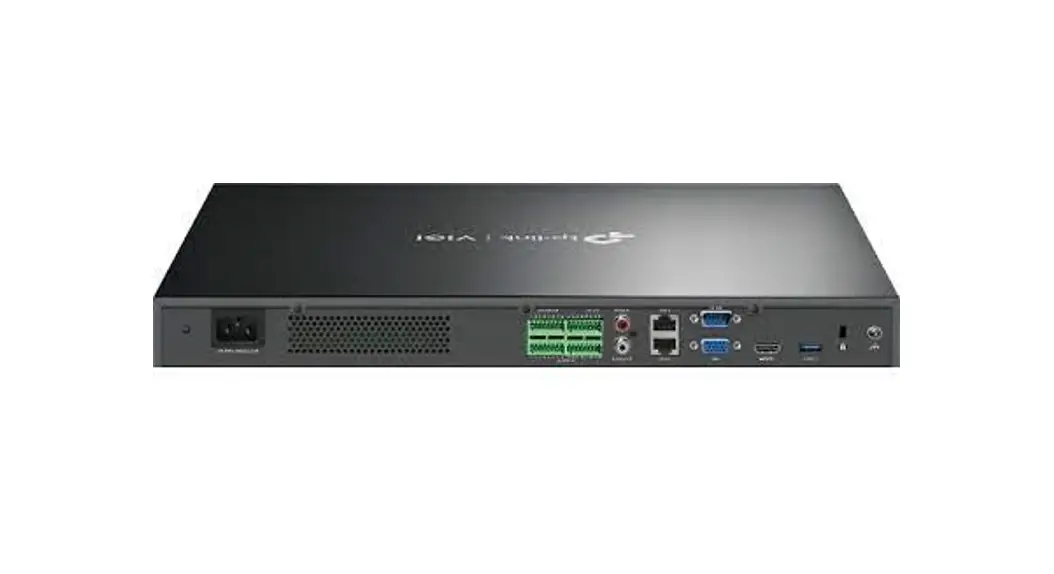
Back Panel
- AUDIO IN: Connector for audio input.
- VGA port: Output port for analog video signals using a VGA
connection. - HDMI port: Output port for high-definition audio and video
signals using an HDMI connection. - LAN port: RJ45 10/100Mbps Ethernet port for connecting to a
network device. - POWER: Connector for power input.
- AUDIO OUT: Connector for audio output.
Hard Drive Installation
Before installing the hard drive, make sure to disconnect the
power from the NVR.
- Remove the fixing screws on the side and back panels to open
the cover of the NVR. - Attach the 4 included HDD screws to your 3.5-inch hard disk
drive (HDD). Do not fasten them. - Match the 4 screws on the HDD with the 4 holes on the NVR, and
insert the HDD interface into the slot. - Flip the NVR upside down and fasten the HDD screws. Replace the
cover and fasten the screws of the NVR.
Hardware Connection
Follow these steps to complete the hardware connection:
- Connect your monitor to the HDMI or VGA port based on its
supported connection port. - Connect your monitor to a power source and turn it on.
- Connect the LAN port of the NVR to a network device using an
Ethernet cable. - Connect the provided USB Mouse to the USB Interface on the
front panel of the NVR. - Connect the power adapter to the NVR.
Configuration
To add and manage cameras, refer to the User Manuals of your
specific camera brand. The NVR supports batch camera addition and
management.
Cautions
- If you want to turn off the NVR after installing the hard
drive, right-click on the Live View screen and click the Power
button on the Main Menu of your monitor. Do not unplug it
directly. - Ensure that the input voltage matches the power requirements of
the NVR. - The buzzer on the NVR may be triggered when no hard drive is
installed or the hard drive in the NVR hasn’t been initialized. You
can turn it off in Event-Exception Detection-Disk Exception
settings.
Note: The images in this manual may differ from the actual
product.
©2022 TP-Link 7106509936 REV1.3.0
Quick Installation Guide
Network Video Recorder
*Images may differ from actual products.
1 Package Contents
Network Video Recorder
Network Video Recorder
Power Adapter
Mouse
Quick Installation Guide
HDD Screws
2 Product Overview
Front Panel
USB
LAN HDD POWER
Network Video Recorder
USB POWER HDD LAN
Indicator
Name
LAN
Network Status
Indicator
HDD POWER
Hard Disk Drive Indicator
Power Status Indicator
Status On
Flashing Off On Off On Off
Description Network is working properly. Data is being transmitted or received. The network is malfunctioning. The HDD is normal. No HDD or the HDD is malfunctioning. The NVR is powered on. The NVR is powered off.
Back Panel
AUDIO IN
VGA
LAN
AUDIO IN
POWER AUDIO OUT
VGA
LAN
POWER
AUDIO OUT
HDMI
Interface USB
(Front Panel) POWER
AUDIO IN / AUDIO OUT
VGA
HDMI
LAN
Description
2 USB ports for additional devices* such as USB mouse, USB storage device, and USB keyboard.
Connector for power input.
Connector for audio input and output. Note: Audio input only supports microphones with power supply.
Output port for analog video signals. Connect your monitor to this port if it uses VGA connection.
Output port for high-definition audio and video signals. Connect your monitor to this port if it uses HDMI connection.
RJ45 10/100Mbps self-adaptive Ethernet port. Connect to an Ethernet device (eg. router and switch).
3 Hard Drive Installation
For the first time installation, please prepare a 3.5-inch hard disk drive (HDD). It is recommended to use the HDD of surveillance or enterprise level. Before installation, please disconnect the power from the network video recorder (NVR).
1. Remove the fixing screws on the side and back panels to open the cover of the NVR.
3. Match the 4 screws on the HDD with the 4 holes on the NVR, and insert the HDD interface into the slot.
2. Attach the 4 included HDD screws to your hard drive. Do not fasten.
Hard Disk Drive (HDD)
4. Flip the NVR upside down and fasten the HDD screws. Replace the cover and fasten the screws of the NVR.
4 Hardware Connection
Follow the steps below to complete the hardware connection.
1. Connect your monitor to the HDMI or VGA port according to the connection port it supports.
2. Connect your monitor to a power source and turn it on. 3. Connect the LAN port of the NVR to a network device with an Ethernet cable. 4. Connect the provided USB Mouse to the USB Interface of the NVR (front panel). 5. Connect the power adapter to the NVR.
Cautions
If you want to turn off the NVR after installing the hard drive, right click on the Live View screen and click the Power button on Main Menu of your monitor. Do not unplug it directly. The input voltage should match the power requirements of the NVR. The buzzer on the NVR may be triggered when no hard drive is installed or the hard drive in the NVR hasn’t been initialized. You can turn it off in Event-Exception Detection-Disk Exception.
5 Configuration
Power Adapter
AUDIO IN
POWER AUDIO OUT
VGA
LAN
or
Mouse
Monitor
Network Device (e.g. Router, Switch)
NVR can add and manage cameras in batches. * Here we use TP-Link cameras as an example. For other camera brands, please refer to their User Manuals to add the cameras.
Step 1. Connect your cameras to the same network as your NVR.
Step 2. Follow the instructions to finish Quick Setup. 1. Create a login password for the NVR and a preset password for your unset cameras.
Note: Enter an email address for resetting the password of NVR or cameras.
2. Click Auto Initialize and the NVR will automatically find and add the cameras in your network. Note: If you don’t want to use Auto Initialize, click Manually Initialize and follow the Setup Wizard to add cameras in your network and complete the setup.
Step 3. Right click on the Live View screen to open the Main Menu for management.
(Optional) Step 4. Bind your NVR to a TP-Link ID for remote access and management. 1. Right click on the Live View screen and click Settings. 2. Click Cloud Services on the top, enter your TP-Link ID and password, and click
Bind.
Note: Make sure your NVR can get access to the internet before binding. If you don’t have a TP-Link ID, sign up first. If your NVR fails to connect to the Internet, please refer to FAQ-Q3. For more instructions, please refer to the NVR’s User Guide.
If you want to add a camera after Quick Setup, please follow the steps below: 1. Right click on the Live View screen and click Add Camera. 2. Select a camera and click + to add your camera directly. If you have disabled Plug
and Play on your NVR, please create a password or use the preset password for your unset camera. Note: The password preset for cameras in Quick Setup will be applied to your unset cameras. If your cameras have been activated, use the previous passwords to add and manage the cameras. If you can’t find your camera, refer to FAQ-Q2.
More Management Methods
You can add and manage your devices via any of the methods below.
Method 1: Via the VIGI Security Manager
Method 2: Via the TP-Link VIGI App
(Windows only)
Remotely view live video, manage NVR, and get instant
View live video and modify NVR settings on your
alerts.
computer. 1. Download and install the TP-Link VIGI app.
1. Download the VIGI Security Manager on your computer at
https://www.tp-link.com/support/download/vigi-security-
manager/.
or
2. Install the VIGI Security Manager and open it.
3. NVR on the same network as your computer can be automatically discovered. Go to Settings > Discovered Devices, click Add, and follow the instructions to add your NVR.
2. Open the app and log in with your TP-Link ID. If you don’t have an account, sign up first.
3. Tap the + button on the top right and follow the app instructions to add your NVR.
Method 3: Via a Web Browser
View live video and modify NVR settings via a web browser.
1. Find the NVR’s IP address on your router’s client page. 2. On your local computer, open a web browser and enter
https://NVR’s IP address (https://192.168.0.240 by default). 3. Select your Country/Region and Time Zone. 4. Set a password to activate the NVR. Done. You can manage and change NVR settings, and add cameras on the web management page.
Frequently Asked Questions
Q1. What should I do if I forget the login password of my NVR? A1. Click Forgot Password on the login page and then follow the instructions to reset the password. A2. Remove the cover, then press and hold the Reset button inside the NVR for over 3 seconds. The NVR will restore
to the factory settings. Then follow Quick Setup to create a login password.
Reset Button
Q2. What can I do if no cameras are found? A1. Refresh to discover your cameras again. A2. Make sure the cameras are powered on. A3. Make sure your cameras and NVR or computer are in the same network. A4. Try to add your cameras manually. Q3. What can I do if my NVR fails to connect to the Internet? A1. Check if the internet is working properly. A2. Make sure your NVR is in the same network segment as your network devices
or select Auto as the mode to
configure the NVR to obtain a dynamic IP address. For more details, please refer to the NVR’s User Guide. If you have more questions, please visit https://www.tp-link.com/support/faq/2850/. The terms HDMI, HDMI High-Definition Multimedia Interface, and the HDMI Logo are trademarks or registered trademarks of HDMI Licensing Administrator, Inc.
Safety Information
This device is restricted to indoor use only. Keep the device away from water, fire, humidity or hot environments. Do not attempt to disassemble, repair, or modify the device. Do not use damaged charger or USB cable to charge the device. Do not use any other chargers than those recommended. Adapter shall be installed near the equipment and shall be easily accessible. Use only power supplies which are provided by manufacturer and in the original packing of this product. If you have any questions, please don’t hesitate to contact us. Place the device with its bottom surface downward. Install it at stable places, and prevent it from falling. The power adapter must be used indoors. Make sure that the temperature of the power adapter is within 0-40°C. CAUTION: RISK OF EXPLOSION IF BATTERY IS REPLACED BY AN INCORRECT TYPE. DISPOSE OF USED BATTERIES ACCORDING TO THE INSTRUCTIONS. This equipment is not suitable for use in locations where children are likely to be present.
*Some devices may be incompatible, such as wireless mouse. Please read and follow the above safety information when operating the device. We cannot guarantee that no accidents or damage will occur due to improper use of the device. Please use this product with care and operate at your own risk.
CAUTION! Avoid replacement of a battery with an incorrect type that can defeat a safeguard. Avoid disposal of a battery into fire or a hot oven, or mechanically crushing or cutting of a battery, that can result in an explosion. Do not leave a battery in an extremely high temperature surrounding environment that can result in an explosion or the leakage of flammable liquid or gas Do not leave a battery subjected to extremely low air pressure that may result in an explosion or the leakage of flammable liquid or gas.
TP-Link hereby declares that the device is in compliance with the essential requirements and other relevant provisions of directives 2014/30/EU, 2014/35/EU, 2009/125/EC, 2011/65/EU and (EU)2015/863. The original EU Declaration of Conformity may be found at https://www.tp-link.com/en/support/ce/
TP-Link hereby declares that the device is in compliance with the essential requirements and other relevant provisions of the Electromagnetic Compatibility Regulations 2016 and Electrical Equipment (Safety) Regulations 2016. The original UK Declaration of Conformity may be found at https://www.tp-link.com/support/ukca/
For technical support, the user guide and other information, please visit https://www.tp-link.com/support, or simply scan the QR code.
To ask questions, find answers, and communicate with TP-Link users or engineers, please visit https://community.tp-link.com to join TP-Link Community.
 TP-Link Community
 CE Regulatory Compliance | TP-Link