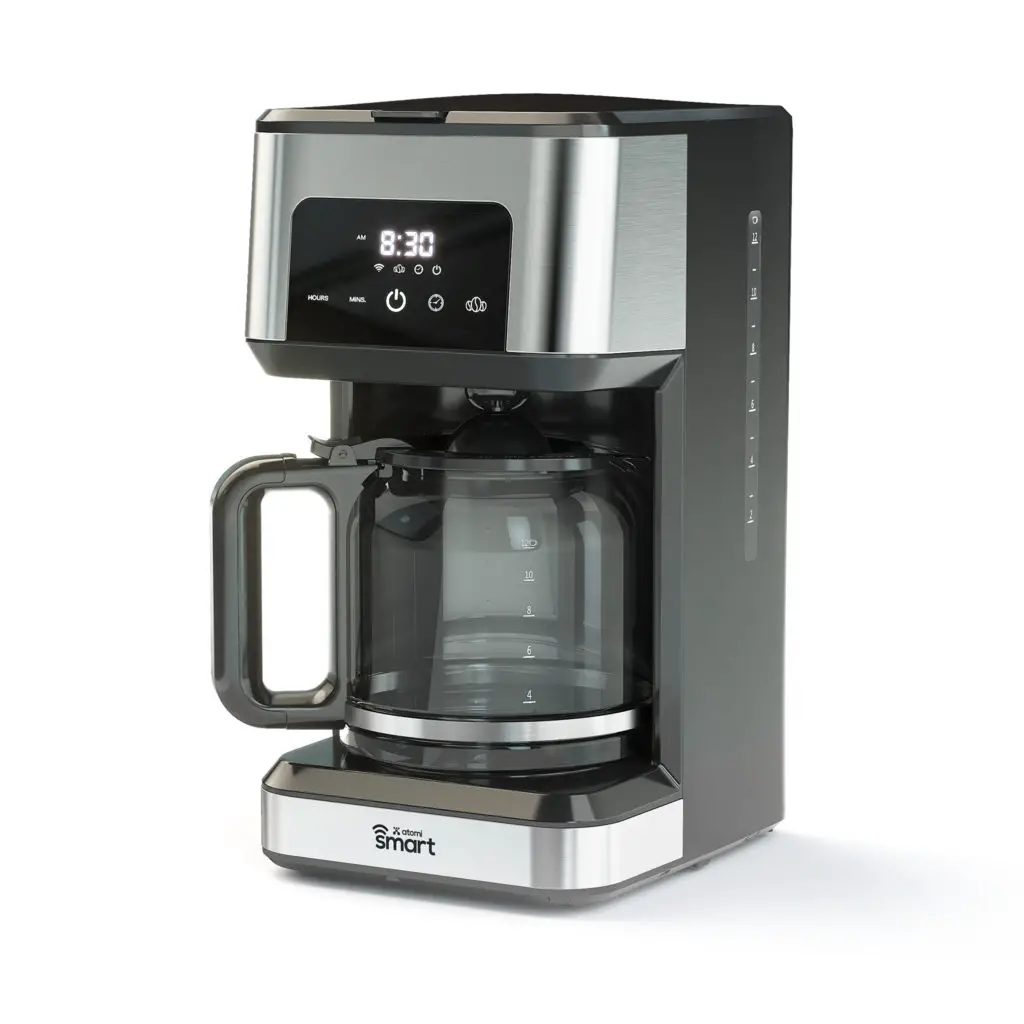
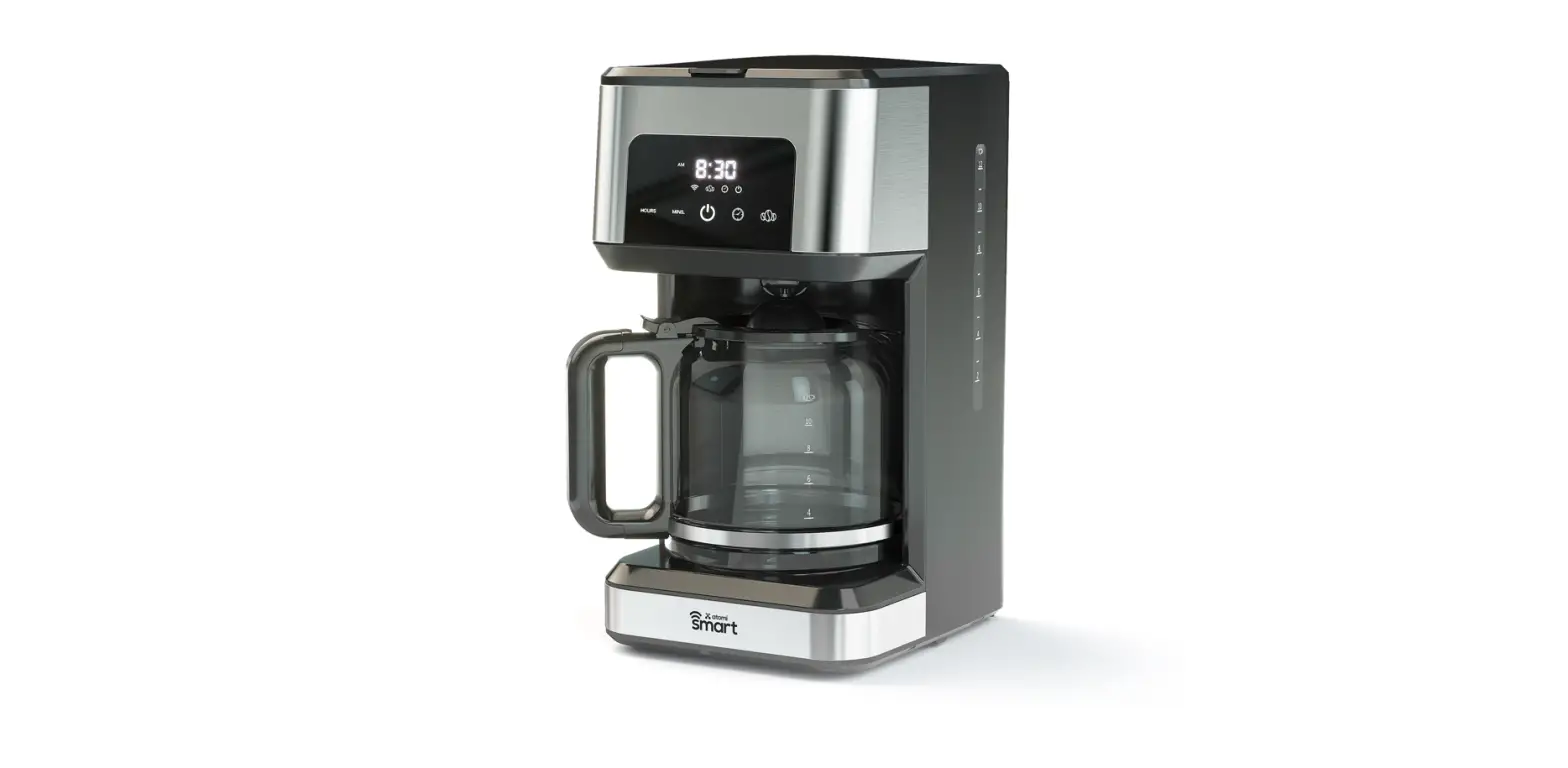
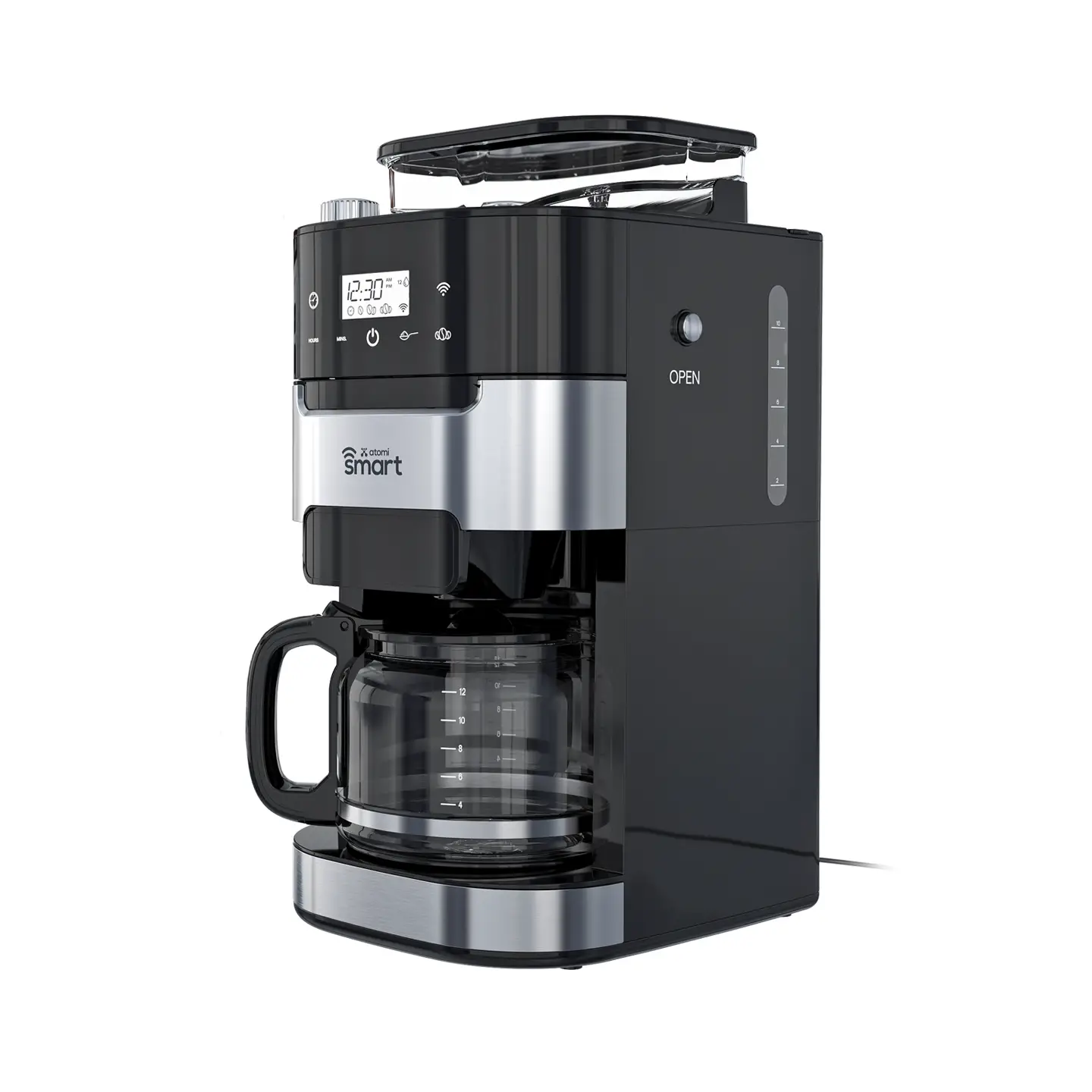
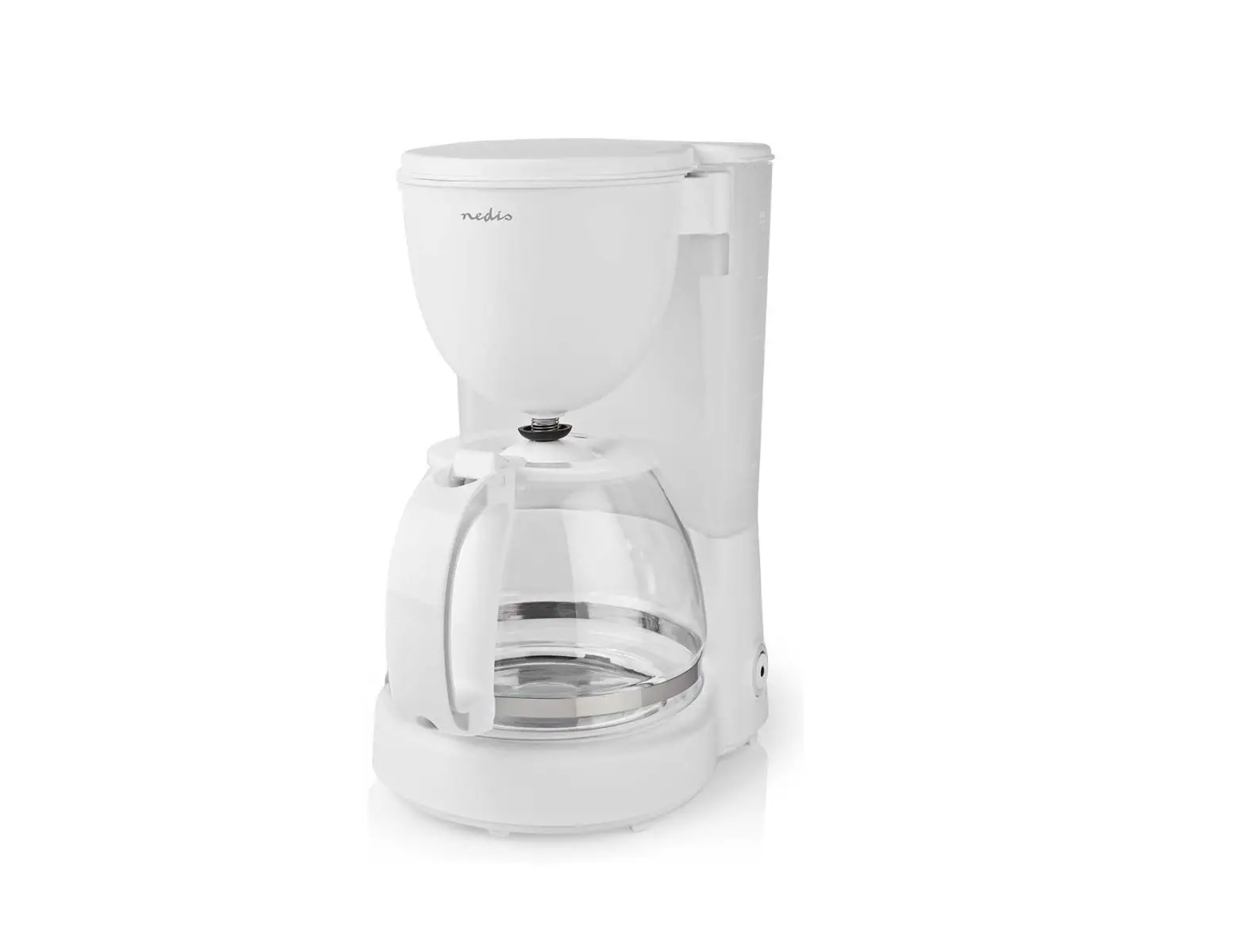
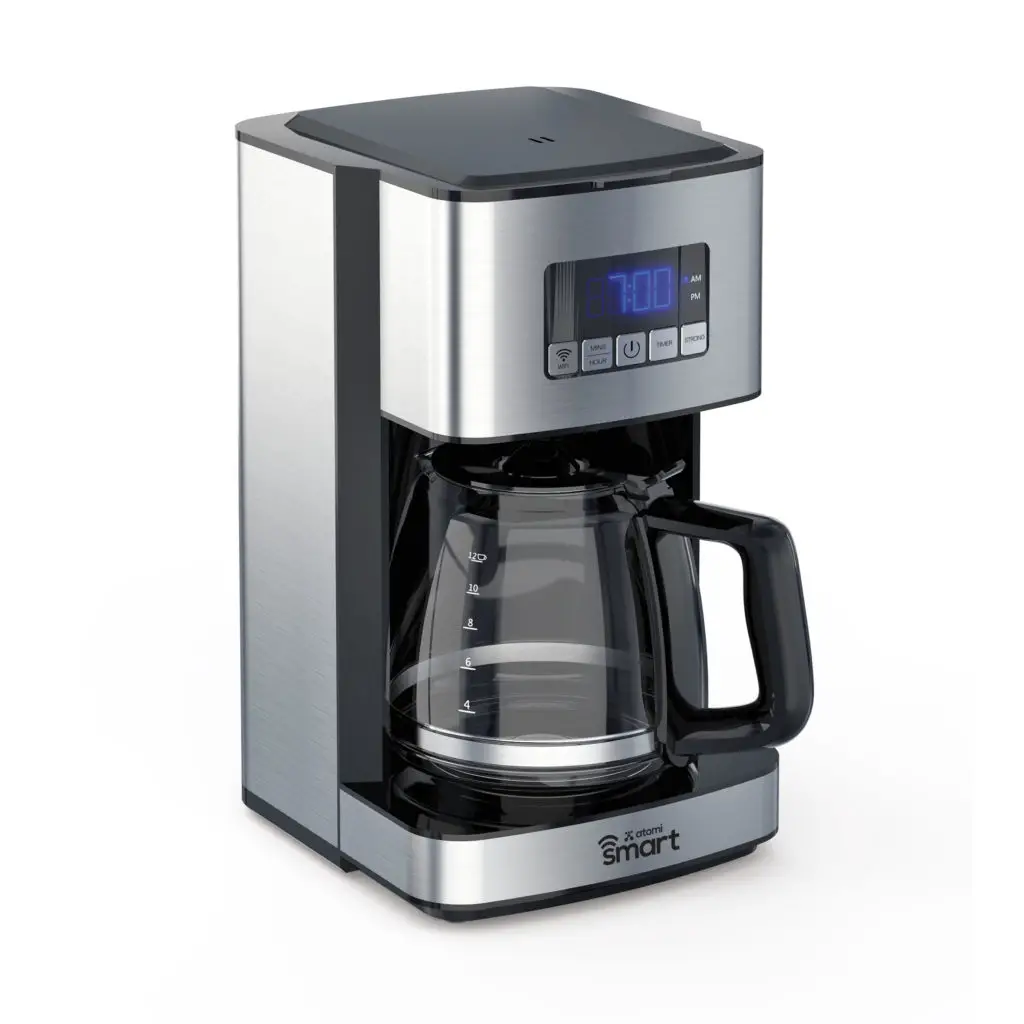
AT1317 Smart Coffee Maker
Introduction
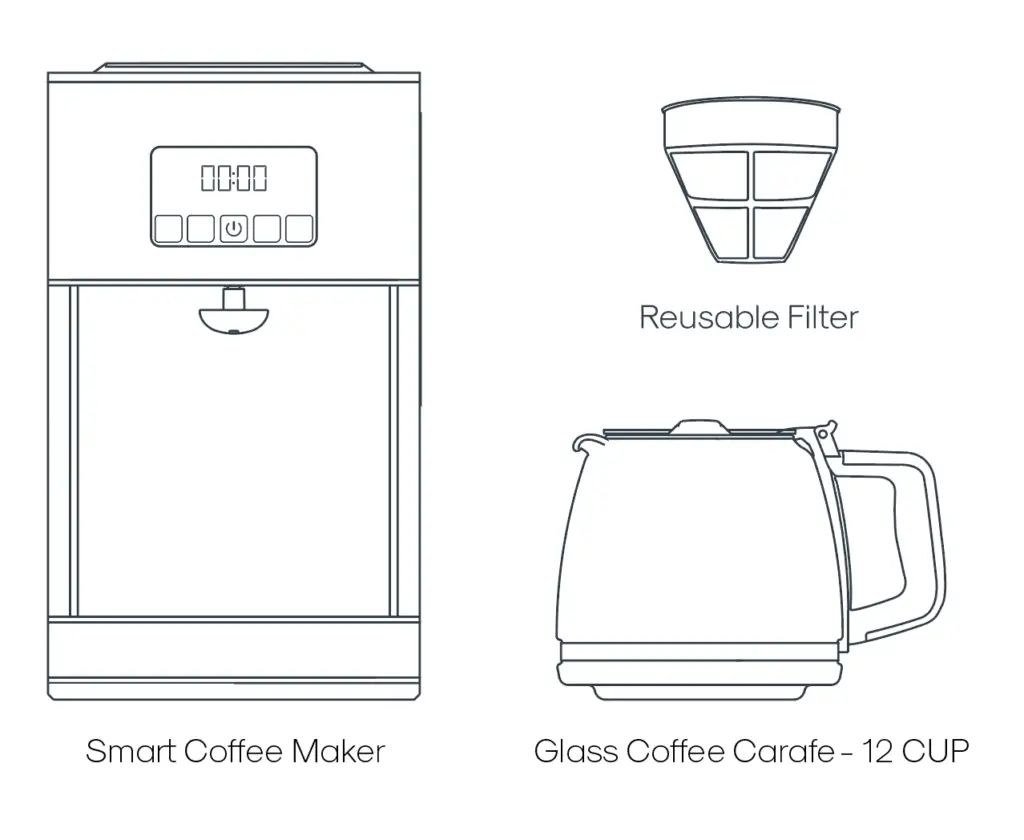
Inside the box you’ll find
Connecting Your Device
Step 1: Download App
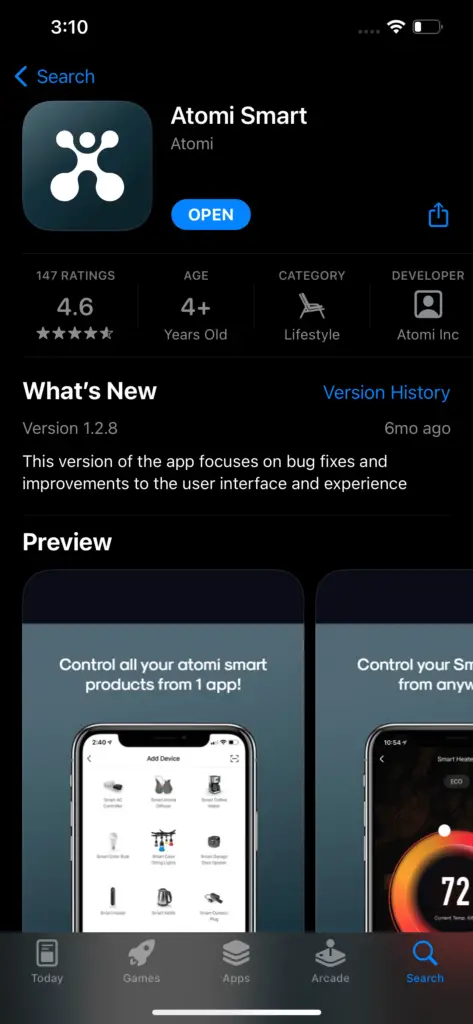
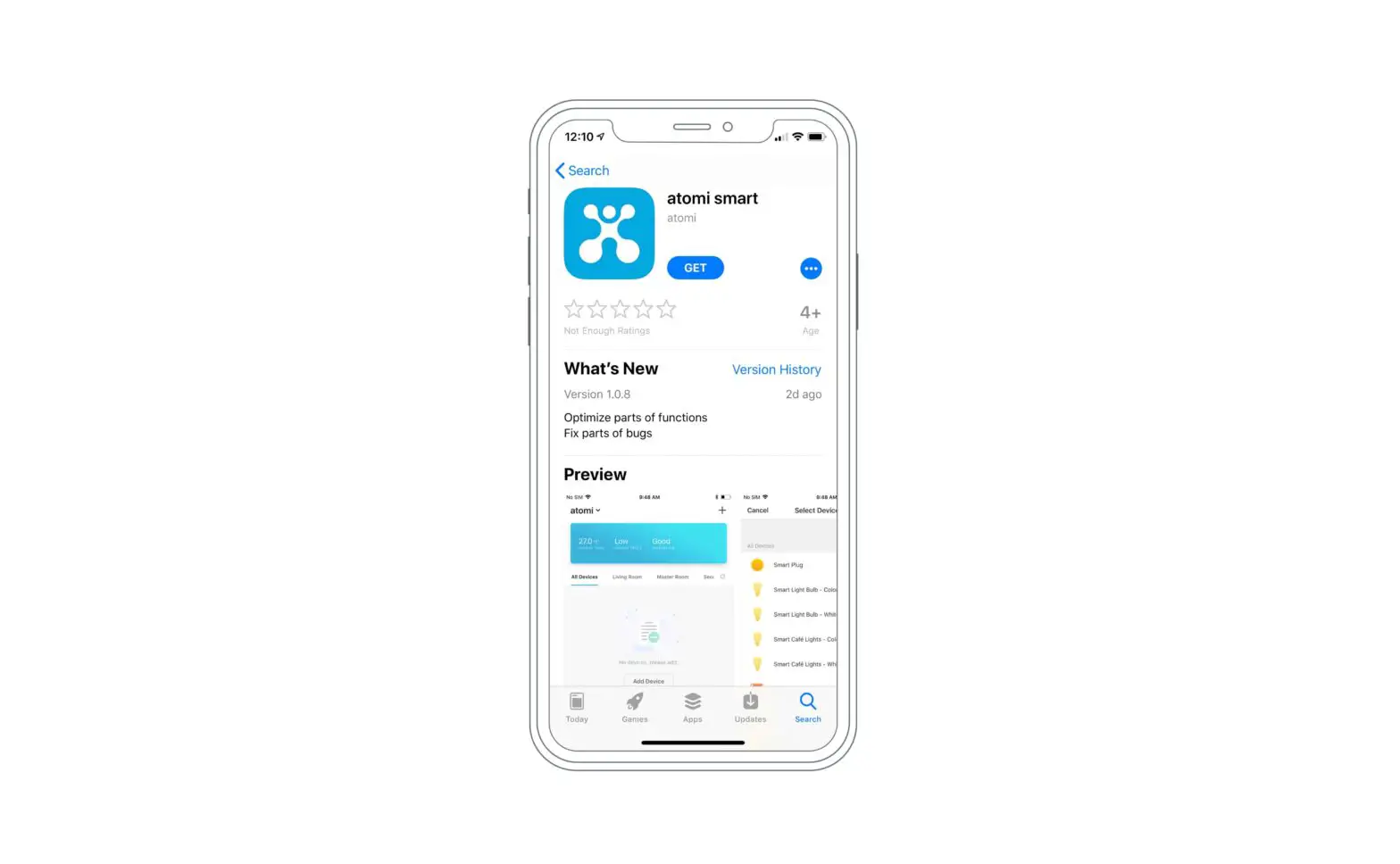
Download the Atomi Smart app from the App Store or Google Play and create an account. If you already have the app installed, please make sure to check for any updates as they will improve your experience with the Atomi Smart app.
Step 2: Plug In
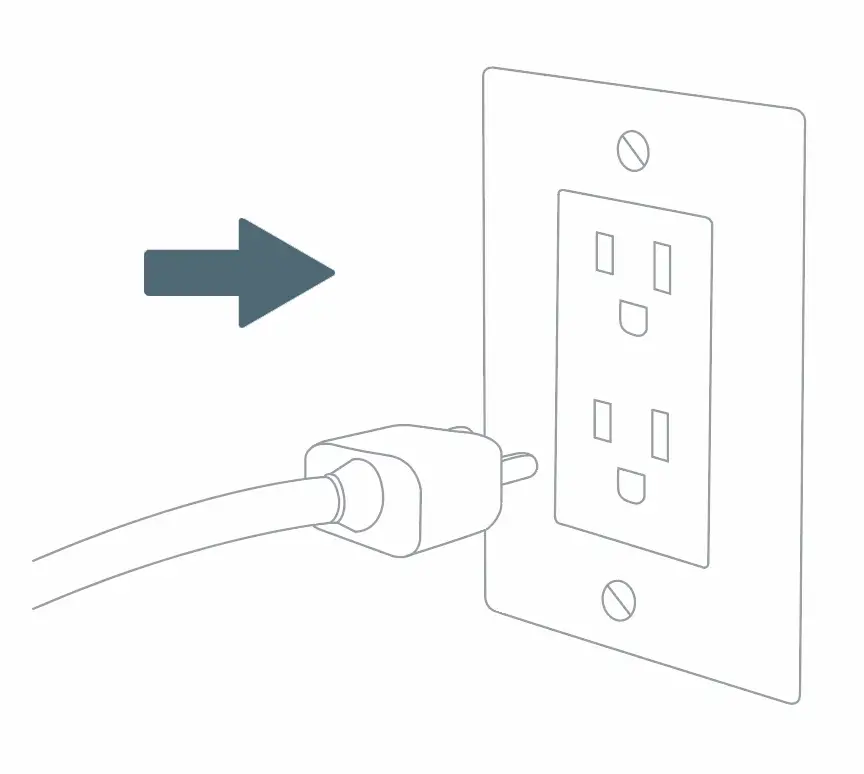
Plug your Atomi Smart Coffee Maker into any standard outlet.
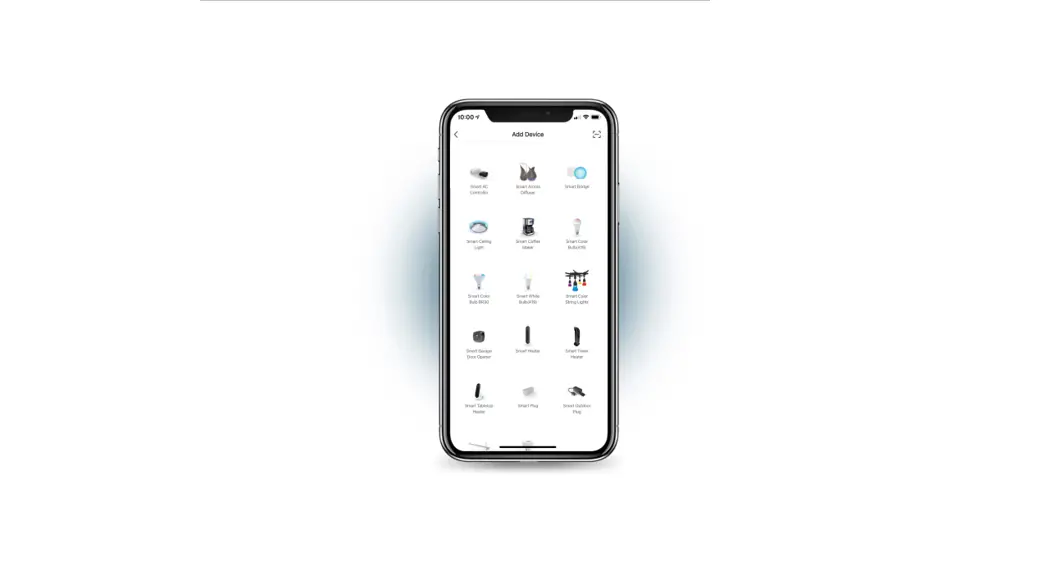
Step 3: Add Device
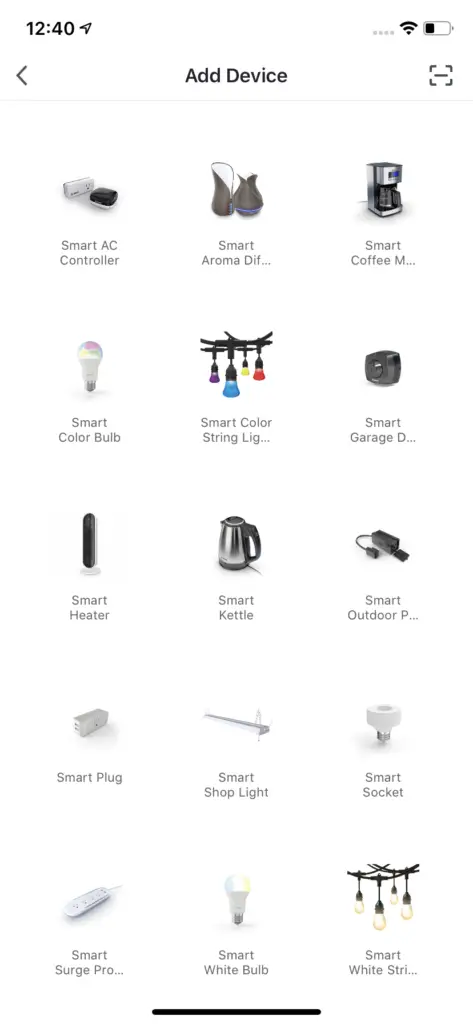
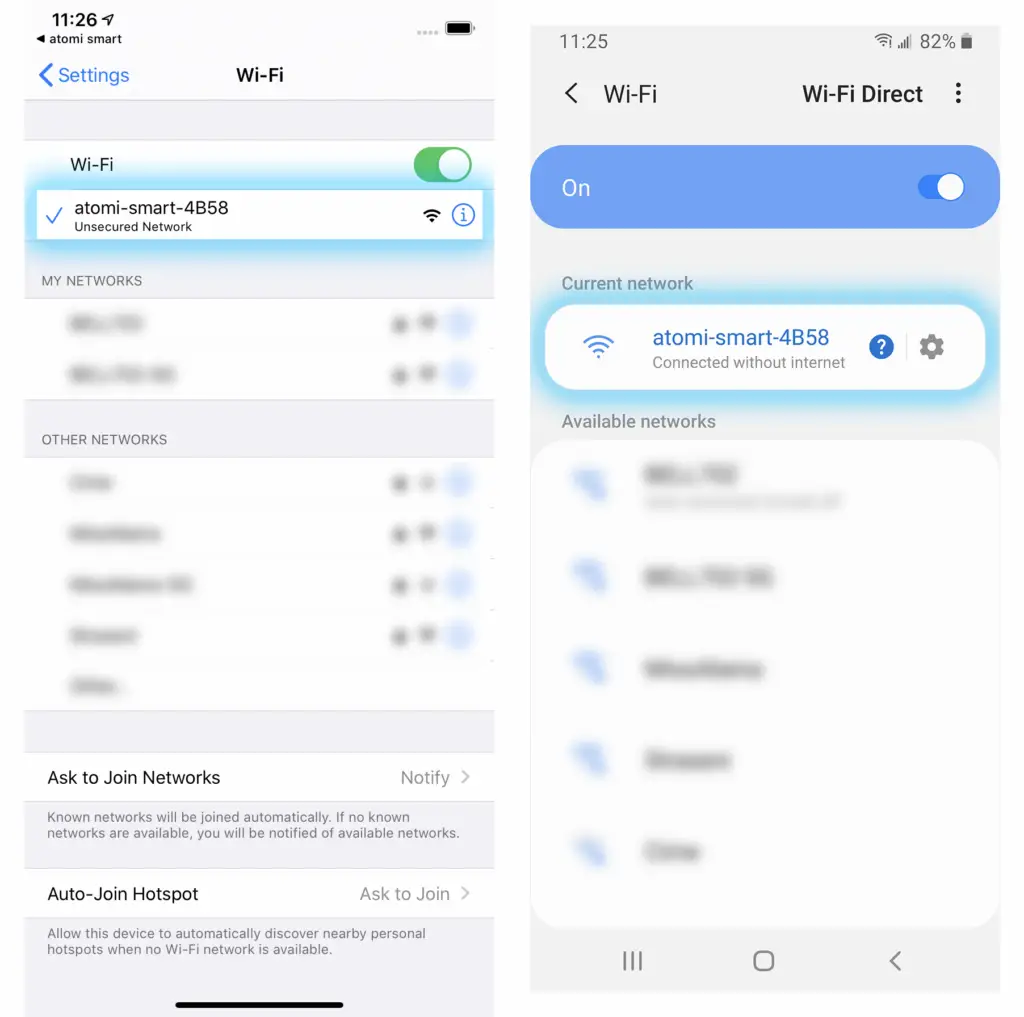
IMPORTANT: If you cannot see the ‘atomi-smart-xxxx’, press and hold the Wi-Fi button again for another 10 seconds and refresh your Wi-Fi list. The ‘atomi-smart-xxxx’ network should appear after a few seconds.
NOTE: If you still cannot see the atomi-smart-xxxx on your list, you may have an older model of our smart product that will require you to press and hold the Wi-Fi button another time until it starts blinking slowly.
Controlling your Smart Coffee Maker
General
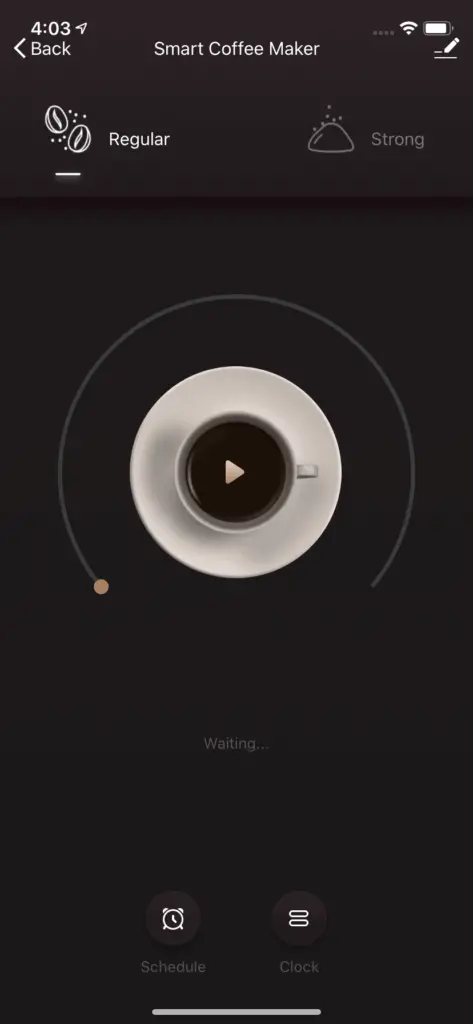
Brew ON/OFF – Start brewing and stop brew.
Regular – Brew in regular coffee mode
Strong – Brew in strong coffee mode
Schedule – Set a brewing schedule
Clock – Adjust and set the time
Schedule
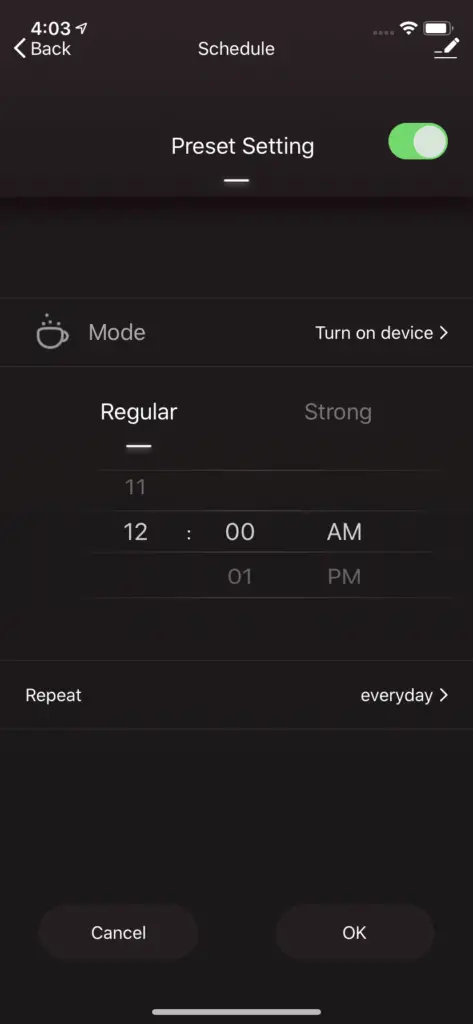
Preset Setting – Confirms that the schedule is enabled or not.
Mode – Set the schedule to turn On or Off the device.
Regular/Strong – Select between Regular or Strong mode.
Time – Set the desired time of the day to start brewing.
Repeat – Select the days of the week that this schedule should repeat.
Fore more scheduling options, you can use the ‘Smart Scenes’ feature which allows you to create additional schedules, triggers and automations.
- Open the Atomi Smart app
- Select the ‘Smart Scenes’ tab and press the ‘+’ button
- Select ‘Schedule’, enter the time/days of the week to repeat and ‘Continue’
- Press ‘Execute Device Action’ and select your Coffee Maker. Choose the actions for the schedule and press ‘Continue’
- Review your schedule, enter a name (optional) and press ‘Save’.
You can create additional schedules for your coffee maker by repeating the steps above.
For more ‘Smart Scenes’ instructions visit Triggers & Automations
Clock
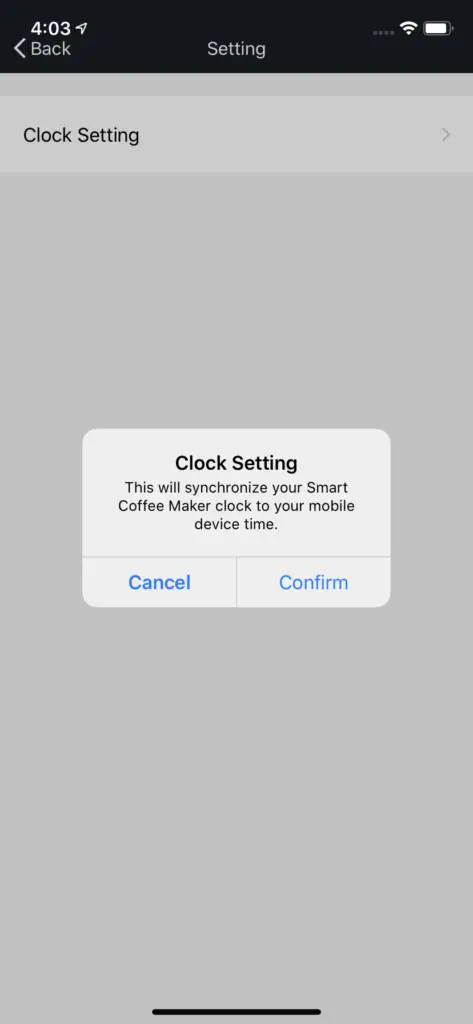
Synchronize your phone’s clock to the Coffee Maker
Measuring your Coffee
For best results, use a level tablespoon for ground coffee measurement. Make sure you use medium grind coffee for a perfect brew.
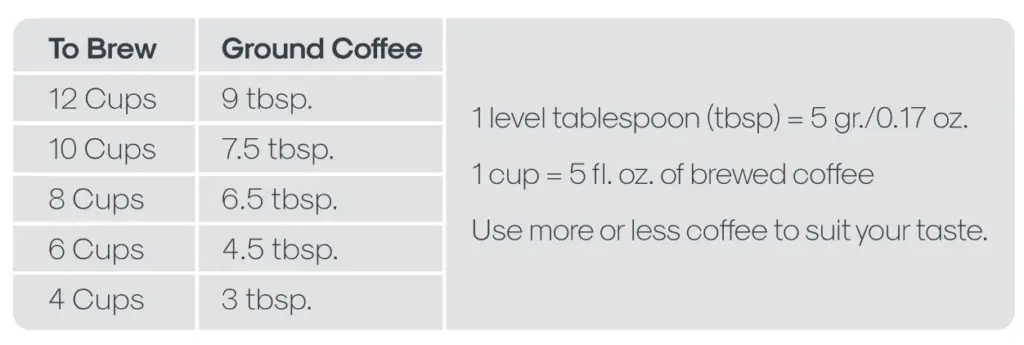
Adding Water and Ground Coffee:
1 – Open the top lid of the Smart Coffee Maker.
2 – Place a 10-12 cup paper basket-style filter or the included reusable filter into the removable filter basket.
Note: If using paper filters, it is important that the sides of the filter fit flush against the side of the filter basket. If filter collapse occurs, dampen the filter before placing in the filter basket. Add the desired amount of coffee and gently shake to level the coffee.
3 – Fill the water reservoir with cold, fresh water to the desired capacity (1 cup equals 5 ounces). For easy and accurate filling, the water markings on the water reservoir show the amount of water needed to make the corresponding desired number of cups. Do not fill past the “12 cup MAX line” or water will flow out of the Smart Coffee Maker.
Note: The amount of coffee brewed will always be slightly less than the amount of water poured in the water reservoir. This is due to the absorption of water by the coffee grounds.
Using your Smart Coffee Maker without the Atomi Smart app
Daily Cleaning – Always unplug the Smart Coffee Maker and allow to cool before cleaning.
- Remove and wash the filter basket, permanent filter, carafe and carafe lid in a solution of hot water and mild liquid soap.
- Never use abrasive cleansers, steel wool pads or other abrasive materials.
- CAUTION: Never immerse the Smart Coffee Maker itself in water, in any other liquid or place the machine in the dishwasher.
1 – Fill the carafe with a solution of equal parts water and vinegar and let the solution stand in the carafe for approximately 20 minutes.
2. Discard the solution, then wash and rinse the carafe. Do not use harsh abrasive cleaners that may scratch the carafe.
The glass carafe is dishwasher safe ✓
FAQ & Troubleshooting
What are the available voice commands?
Alexa
“Alexa, turn on [device name]”
“Alexa, turn off [device name]”
“Hey Google, turn on [device name]”
“Hey Google, turn off [device name]”
I’m having issues to connect. And why do I need to connect to 2.4GHz network?
In order to successfully connect Atomi Smart devices, a 2.4GHz connection is required.
The 2.4GHz frequency waves travel further than the 5GHz. This means that if your device is in another room or far from your phone, you will have a better signal reception (compared to 5Ghz) which is essential for your smart device to function correctly and stay online.
All modern routers come with 2.4GHz and 5GHz. Depending on your router type, these bands may appear as separate WiFi networks (Example: Name-2.4GHz and Name-5GHz) or combined. If you only have one WiFi network, you should still be able to connect since the Atomi Smart app automatically finds the 2.4GHz frequency when connecting to your router.
However, if you experience any issues, please follow the points below:
- Make sure that you are connecting to a 2.4GHz network
- Keep your mobile device close to the router during connection
- If you have two SSID for your WiFi (Example: Name-2.4GHz / Name-5GHz), please temporarily disable “Auto-Join” on your Name-5GHz network)
- If you have two SSID for your WiFi, make sure that your 2.4GHz and 5GHz WiFi have different names
- If your router gives the option to disable the 5GHz network, please disable it temporarily
- Disable any VPN apps/services in order to connect successfully
- If you are having issues to connect, turn on Airplane Mode (Keep only WiFi activated when connecting your smart device)
- Make sure that you’ve entered the correct password for your 2.4GHz WiFi on the “Select 2.4GHz Wi-Fi Network” screen (Case sensitive, and make sure that there are no extra spaces)
- If you have too many devices connected to your 2.4GHz (more than 10), please turn off some of them temporarily and retry connecting your smart device to the app
- If you have a Mesh router, you may not be able to manually switch to a 2.4GHz frequency. Since this frequency travels further than the 5GHz, you can force your device to connect to it by moving your phone far from the router
- If you are still experiencing issues to connect, delete the app and reinstall it
- If the issue persists, restart your router
I can’t find the atomi-smart-XXXX network in my Wi-Fi list
Make sure your Atomi Smartdevice is plugged in and the Wi-Fi light (or clock) is blinking. If not, unplug your Atomi Smart device and plug it back in to reboot. If you still cannot see the ‘atomi-smart-xxxx’, press and hold the Wi-Fi button for 10 seconds. Note: For older devices, you may be required to press and hold the Wi-Fi button again for another 10 seconds. The atomi-smart-XXXX should appear on your network list after a few seconds.
My Wi-Fi network doesn’t appear in the Atomi Smart app
Use your smartphone to confirm that you have at least two Wi-Fi bars in the vicinity of your Atomi Smart device. If not, move your Atomi Smart device closer to your router. (The list will refresh every 10 seconds).
Cannot connect to your WiFi network
Make sure you entered the correct WiFi password during the WiFi setup. Check if there are problems with your internet connection. If the WiFi signal is too weak, reset your WiFi router and try again.
Refresh the device list.
My Atomi Smart app is frozen
Force quit and re-launch the Atomi Smart app.
How to reset my device
Press and hold the Wi-Fi button for 10 seconds.
I’m still having trouble!
Wi-Fi networks come in a lot of shapes and sizes with many quirks of their own. It doesn’t mean your Atomi Smart device is malfunctioning.
If problems persist, please try these steps, in this order:
- Force quit and re-launch the Atomi Smart app. Check to see if this fixes the issue.
- Unplug your Atomi Smart device and plug it back in. Check to see if this fixes the issue.
- Unplug your router and plug it back in. Check to see if this fixes the issue.
- Delete and reinstall the Atomi Smart app. Check to see if this fixes the issue.
The “POWER” light does not light up
The Smart Coffee Maker is unplugged. Plug the Smart Coffee Maker back into the wall outlet.
Is this Smart Coffee Maker compatible with Alexa and Google Assistant?
Yes, the Atomi Smart Coffee Maker works with Alexa and Google Assistant.
The Coffee is not brewing
- The Smart Coffee Maker is unplugged; plug the Smart Coffee Maker back into the wall outlet.
- There’s a power outage; wait for power to be restored.
- The filter basket is not properly inserted; insert filter basket correctly.
- Carafe is not placed all the way on the warming plate; place carafe correctly on warming plate
The Smart Coffee Maker only brews water
There are no coffee grounds in the filter basket; add the desired amount of coffee to the filter.
There are grounds in the coffee
The filter is not properly placed in the basket. Seat the filter properly within the filter basket.
Download User Guide
The Atomi Smart Coffee Maker user guide -[ Download PDF ]