Razer Seiren Mini Support
FAQ
At a Glance: Razer Seiren Mini
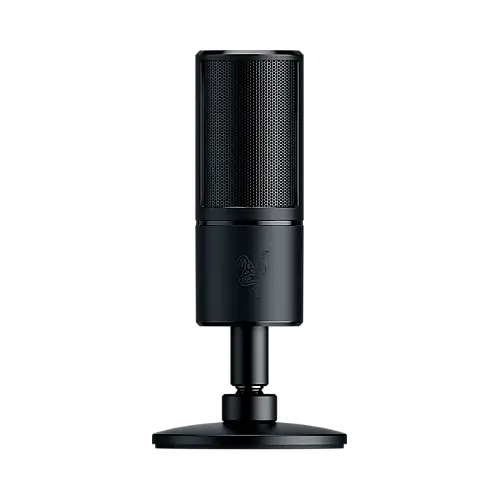
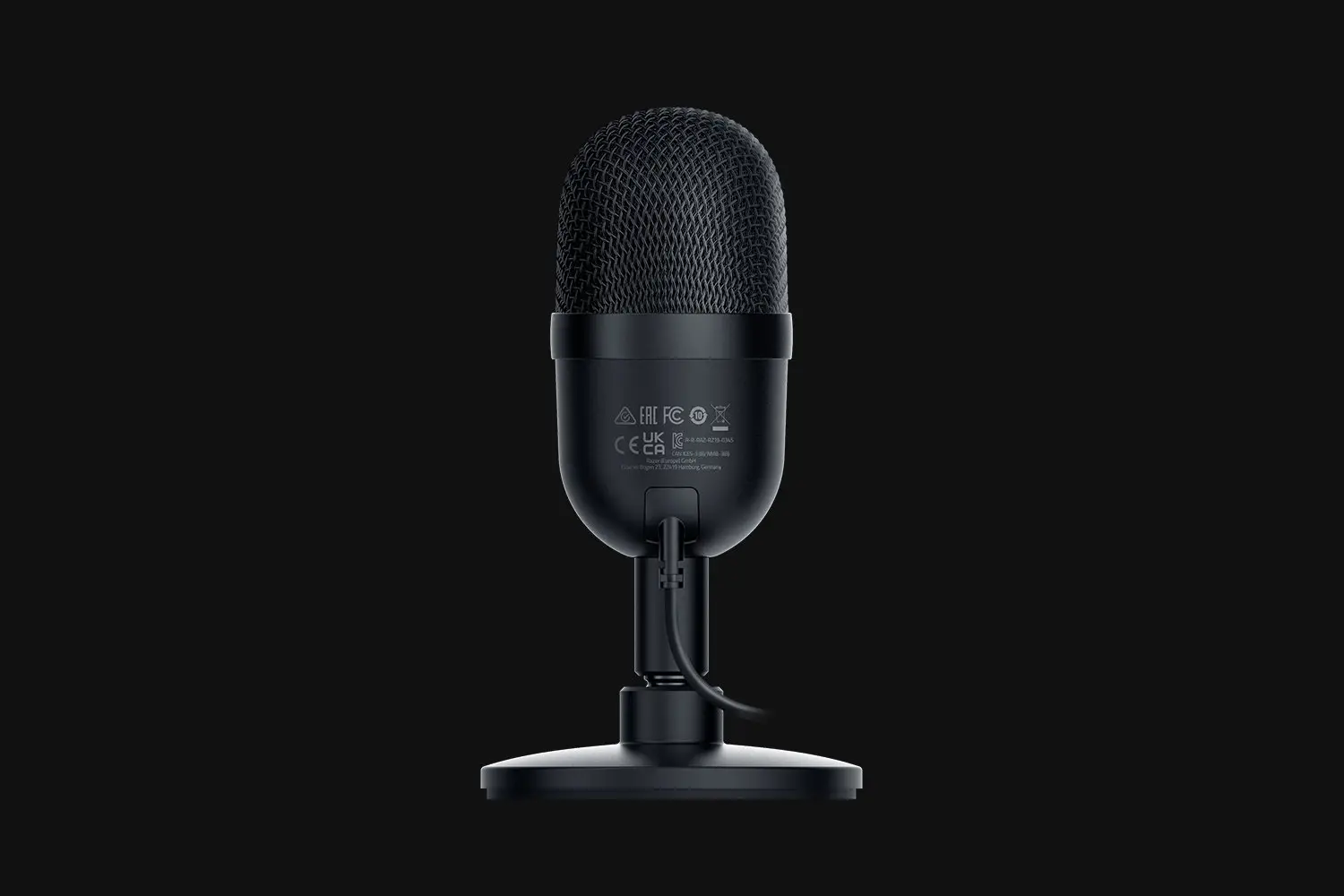
With the Razer Seiren Mini | RZ19-03450, big sounds can come in small packages. Introducing our ultra-compact condenser mic made for streaming with smaller or portable setups, and capable of producing professional-grade audio—thanks to a super cardioid pickup pattern and a 14mm condenser capsule.
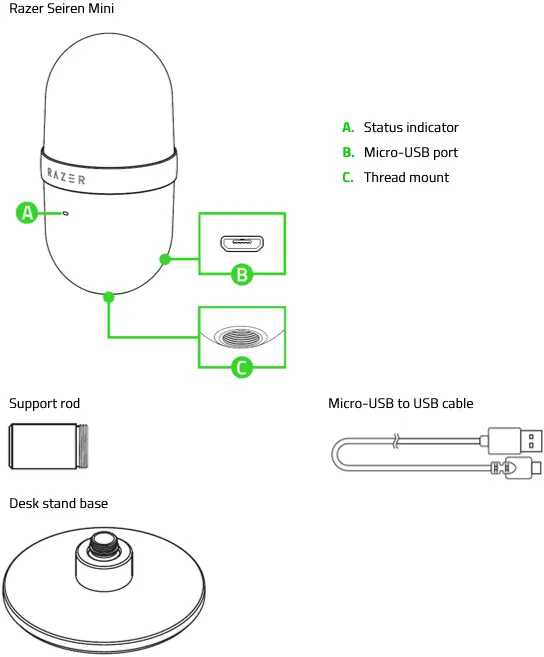
Device Layout
Full Technical Specifications
| MICROPHONE | |
| Frequency Response | 20Hz – 20kHz |
| Sensitivity | 17.8 mV/Pa (1kHz) |
| Max SPL | 120 dB(THD < 1% at 1kHz) |
| Power Required | 5V 500mA (USB) |
| Sample rate | 44.1 kHz / 48 kHz |
| Bit Rate | 16 bit |
| Capsules | Ø 14mm condenser capsules |
| Polar Patterns | Super cardioid |
| Connectivity | USB |
| USB Cable length | 1.8 m |
| Build | Plastic body and stand |
| Stand | Detachable tilting stand |
| Onboard controls | None |
Will my Seiren Mini work with consoles like Playstation, Xbox, or Nintendo Switch?
The Seiren series was designed to work with a PC. Seiren Mini is Playstation-compatible.
What programs can I use to broadcast gameplay using my Razer Seirēn Mini?
We recommend using Open Broadcaster Software (OBS) or XSplit.
Will I be able to use the Razer Seirēn Mini with my own microphone stand or arm?
Yes, the Razer Seiren Mini has an industry standard 5/8 inch thread mount.
What does the LED status indicator mean?
The LED status indicator will light up green when the USB cable is connected to the PC.
Do I need to install Razer Synapse to use the Razer Seiren Mini?
No, the Razer Seiren Mini works right out of the box without Razer Synapse. Just plug in, specify it in the microphone settings of your streaming or teleconferencing software, and you’re good to go.
I can’t mount my Razer Seirēn Mini on my microphone arm as the screw is too small. What should I do?
Ensure you are using a 5/8 thread screw to mount your Razer Seiren Mini. If your microphone arm does not fit, you may need to use a 3/8 to 5/8 adapter.
How To
How to set up my Razer Seiren Mini
To set up your Razer Seiren Mini, follow the steps below.
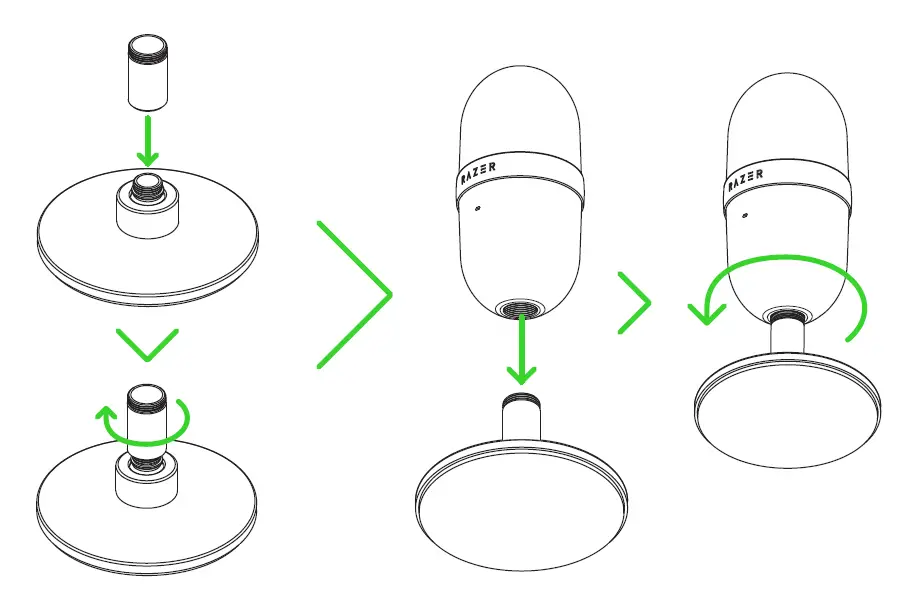
- Assemble the base and securely fasten it to the thread mount of your Razer Seiren Mini.
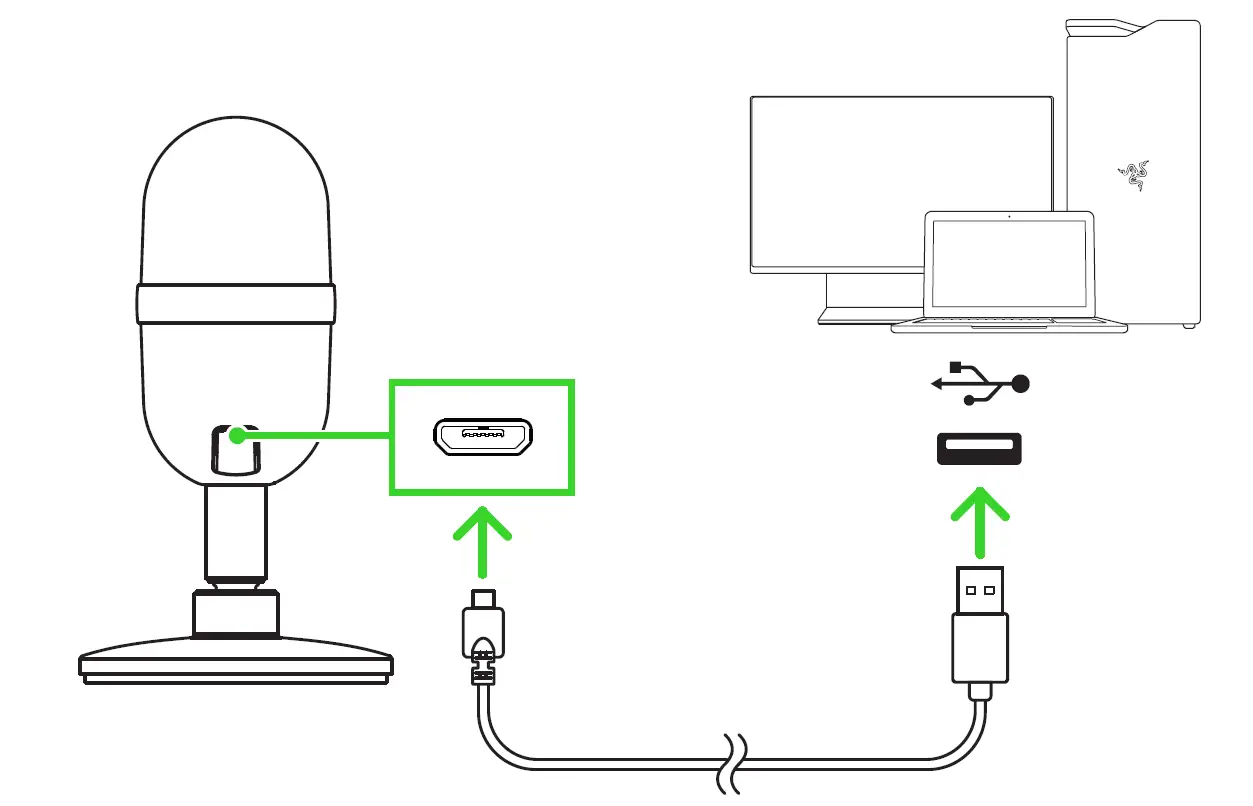
2. Connect the microphone to the USB port of your PC using the Micro-USB to USB cable.
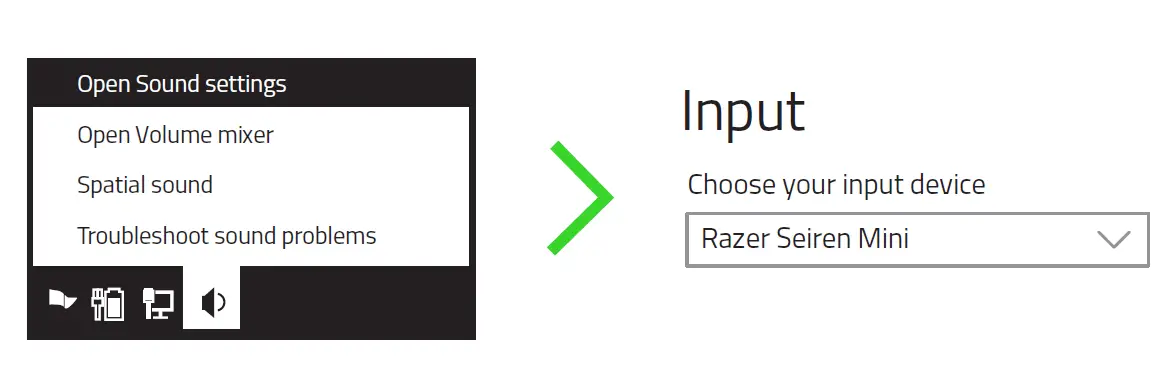
3. On your PC, right-click on the sound icon on the system tray, select Open Sound Settings, and set Razer Seiren Mini as the default Input device.
Troubleshooting
I’ve plugged in the Seiren Mini, but the people on the call still cannot hear me.
On your PC, right-click on the sound icon on the system tray, select Open Sound Settings and set Razer Seiren Mini as the default Input device.
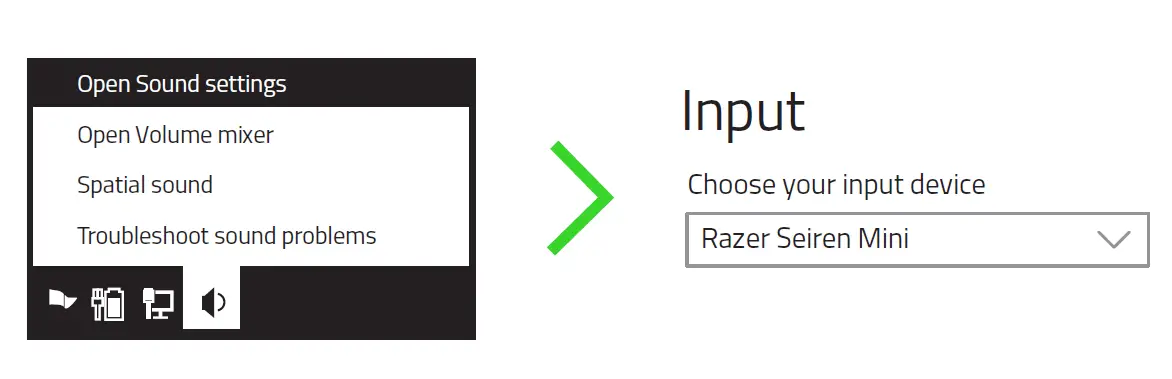
Some streaming and teleconferencing software require that you manually select the input device in the software settings. Make sure that the Razer Seiren Mini is selected as the microphone in the software device settings.
Downloads
Razer Seirēn Mini Master Guide (German) – Download
Razer Seirēn Mini Master Guide (English) – Download
Razer Seirēn Mini Master Guide (Spanish) – Download
Razer Seirēn Mini Master Guide (French) – Download
Razer Seirēn Mini Master Guide (Japanese) – Download
Razer Seirēn Mini Master Guide (Korean) – Download
Razer Seirēn Mini Master Guide (Portuguese Brazilian) – Download
Razer Seirēn Mini Master Guide (Russian) – Download
Razer Seirēn Mini Master Guide (Simplified Chinese) – Download
Razer Seirēn Mini Master Guide (Traditional Chinese) – Download