 Mercury Marine VesselView Mobile Connected Boat Engine System
 Mercury Marine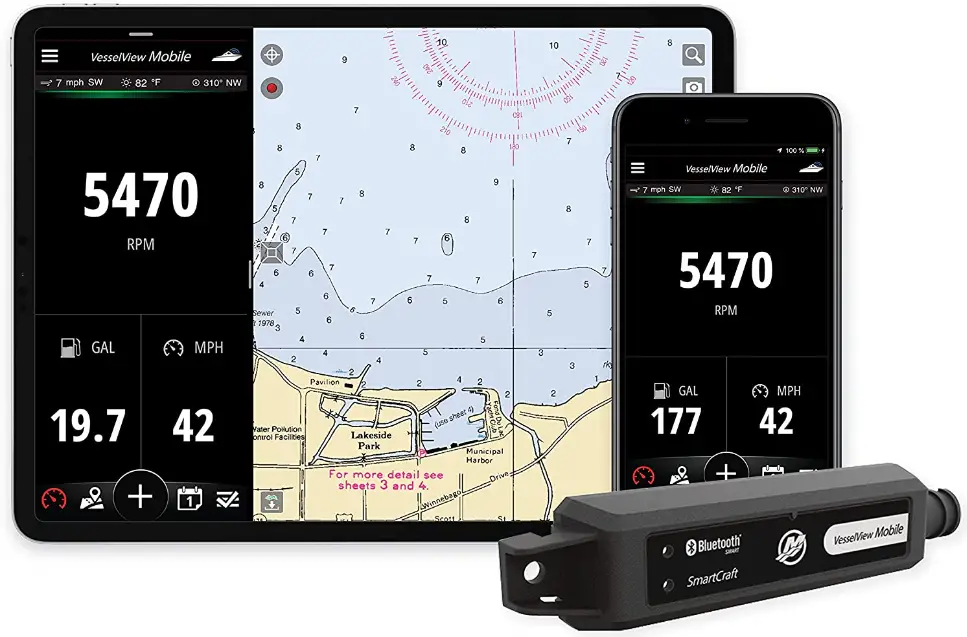
About VesselView Mobile
What Is VesselView Mobile?
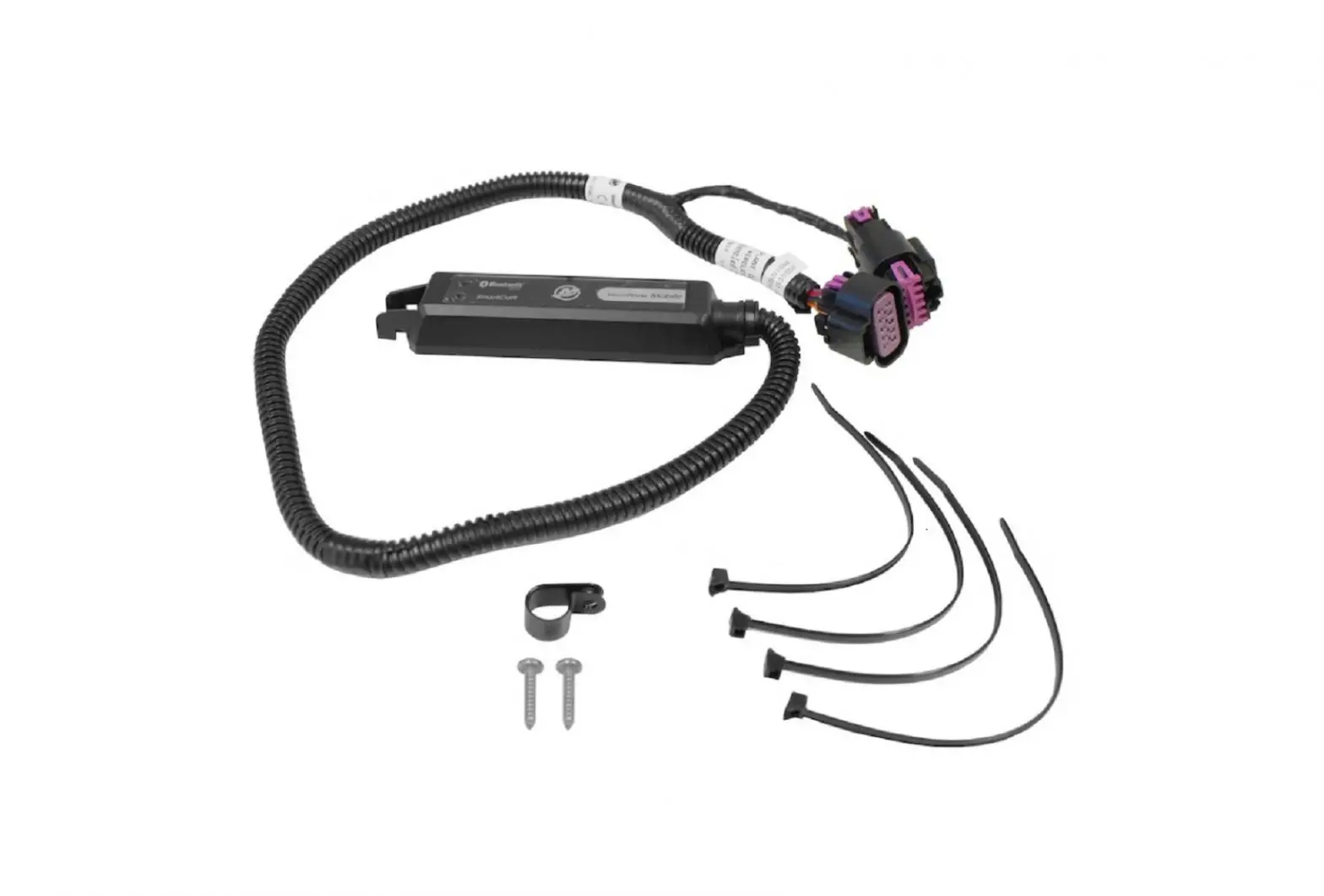
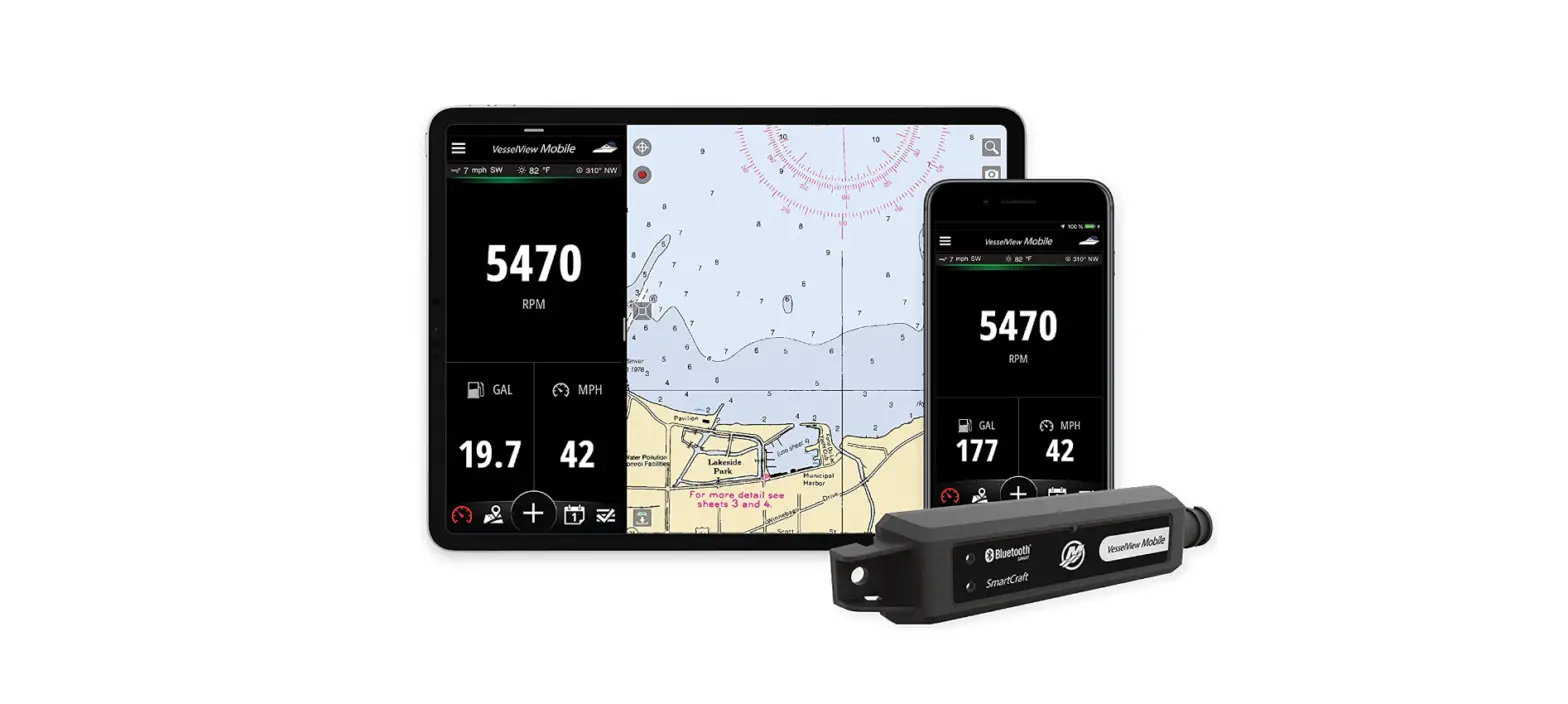
VesselView Mobile delivers your boat’s SmartCraft® digital data to the palm of your hand. VesselView Mobile is an onboard module, linking to your mobile device app and mobile account via Bluetooth® technology. The application is compatible with both iOS and Android™ mobile devices and is available for use with smartphones and tablets.
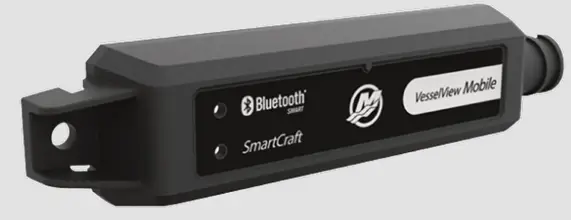
Module
How Can I Get the VesselView Mobile Module?
Purchase the VesselView Module at your local Mercury® dealer, part number 8M0115080. Purchase online by using your VesselView
The mobile app, via the Purchase Module link, or by visiting: VesselViewMobile.com.
How Do I Install the VesselView Mobile Module?
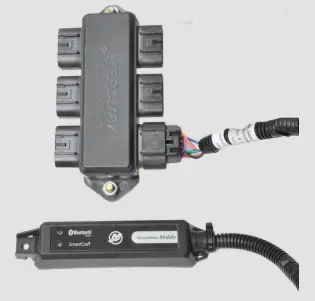
- If you already have existing SmartCraft gauges, modules can be installed by simply installing it as instructed. VesselView Mobile: How to Install On Single EngineVesselView Mobile: How to Install with Junction Box
- For more advanced setup, please see your local Mercury Marine dealer. You can find a dealer by using the Dealer Locator feature in the app.
How Do I Get the VesselView Mobile App?
You can download the app for free at the following locations:
- Apple mobile device:Apple App Store
- Android mobile device: Google Play Store
Can I Use the Module/App and Stream Music?
Yes, you can stream music while using VesselView Mobile.
Application
What Engine Configurations are Supported?
The VesselView Module will work in any of the following configurations:
- For single-engine applications that do not have SmartCraft architecture (an available junction box at the helm), you can install the module directly on the engine. This setup does require the ten-pin termination resistor, typically yellow and on the engine.
- For multi-engine applications that do not have SmartCraft architecture (available junction box under the helm), see your Mercury Marine dealer for assistance with architecture configuration and installation.
- For boats with SmartCraft architecture in place, use an open port (remove the weather cap) in a junction box or replace your junction box with a higher-capacity unit if all ports are already used.

What Engine Configurations are Supported?
| Outboard Engine Compatibility | |
| Model | Serial Range |
| 30-40 hp (3 cyl) EFI FourStroke | 0T409000 and above |
| 40-60 hp (4 cyl) EFI FourStroke | All |
| 75-115 hp EFI FourStroke | 1B366823 and above |
| 75-125 hp OptiMax | All |
| 150 hp FourStroke | All |
| V6 OptiMax | 0T178500 and above |
| V6 EFI TwoStroke | 0T409000 and above |
| Verado | All |
| NOTE: Some 2001 model year engines may require an ECM update. | |
| MerCruiser Engine Compatibility | |
| Model | Serial Range |
| 3.0L MPI | All |
| 4.3L MPI | All |
| 4.5L/6.2L – Mercury Built | All |
| 5.0L/350 MAG/5.7L/377 MAG/6.2L MPI – GM | 0M300000 and above |
| 496/8.1L | All |
| 8.2L | All |
| NOTE: 6.2L Black Scorpion SmartCraft compatible, 0M391777 and above. | |
| Mercury Diesel Engine Compatibility | |
| Model | Serial Range |
| 2.0L/2.8L I4 | All |
| 3.0L V6 TDI | All |
| 4.2L I6 | All |
| 4.2L V8 TDI | 0M300000 and above |
| QSB/QSC/QSM11/QSL Series Cummins | All |
| Mercury Racing Sterndrive Engine Compatibility | |
| Model | Serial Range |
| 520/525/540/565 EFI | All |
| 600/662/700 SCi | All |
| 850/1025/1075/1200 SCi | All |
| QC4V Models | All |
| Mercury Racing Outboard Engine Compatibility | |
| Model | Serial Range |
| 2.5 XS | All |
| 200/225/250/300 XS | All |
| 225/300 X Pro Max | All |
| 350Sci and 400R Verado | All |
What are the Requirements to Use the App?
To get the most from your app, you need the following:
- Mercury Marine SmartCraft-capable engine.
Typically from 2003 and newer, 40 HP and above, single to quad engine boat.
Please reference the chart above for compatibility. - Still unsure?
Your local Mercury Marine dealer is a great source for answers to all your boating needs.
Provide your engine serial number to the dealer to help verify if your boat is VesselView Mobile compatible. - The VesselView Mobile module.

- A compatible Smart Device with the VesselView Mobile app installed. Compatible devices are either iOS (Apple) or Android with BLE (Bluetooth Low Energy), versions 4.0 or later. GPS and cellular enabled devices will provide the most capability.

Why Do I Need a VesselView Mobile Log–in?
The basic functionality of VesselView Mobile does not require a valid log–in.
NOTE: Detailed fault information requires a valid log–in.
Why Do I Need a Profile to Log–in?
The profile created on the mobile device is used to keep track of engine-specific information (engine hours, maintenance history, engine software ID, etc.). The profile determines how many engines will be displayed. A profile name is required and is typically the name of your boat.
How Do I Connect to the VesselView Mobile Module?
IMPORTANT: Bluetooth must be on. Do not select “Pair” from the Settings/Bluetooth menu to connect to the device. All Bluetooth Low Energy modules detected will appear on the scan screen, sorted by signal strength.
NOTE: To confirm connectivity to the module, key off the engine. Data will display as dashes on your mobile device. To connect, key back on; the data should display promptly. You must reconnect to the module each time the engine has been keyed off for more than ten minutes.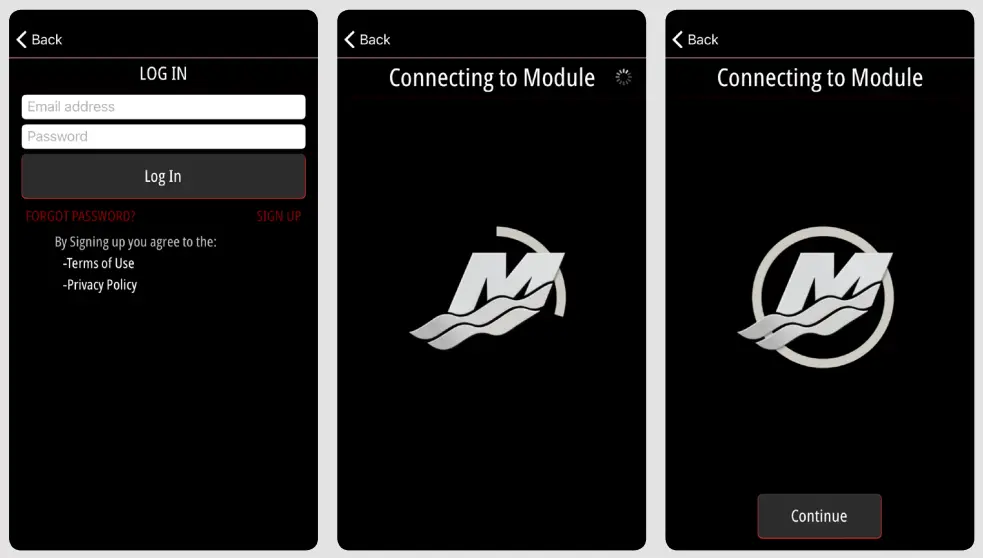
How Do I Get Started After Installation?
Sign up – Create a free VesselView Mobile account and boat profile for full access to the app.
Log–in – Once logged in, you will stay logged in until you log out, or uninstall the app.
Skip – Allows limited access.
NOTE: All app content will be available for use except for Fault Details, which requires a user account and internet access.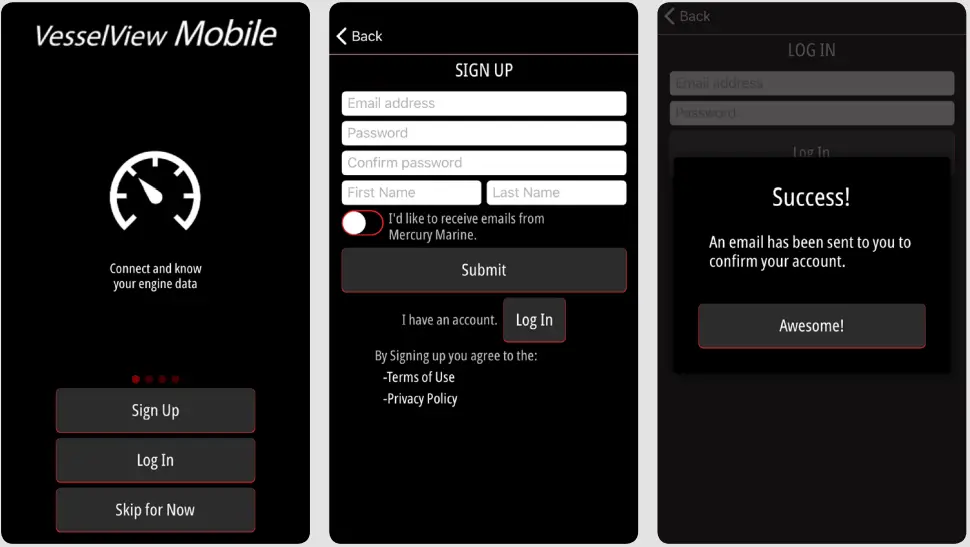
How Do I Connect to My VesselView Mobile App?
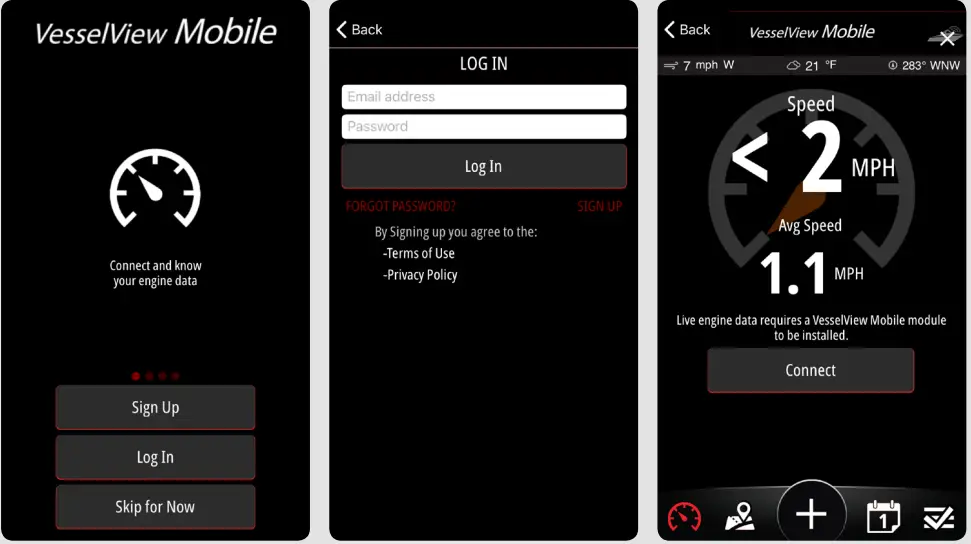
- First time users – Connect with or without a user profile. Access to the app will be limited without logging in with a profile.
- Returning users – Must manually connect to VesselView Mobile each day, or when the vessel has been keyed off for over ten minutes.

What Are the Features in the VesselView Mobile App?
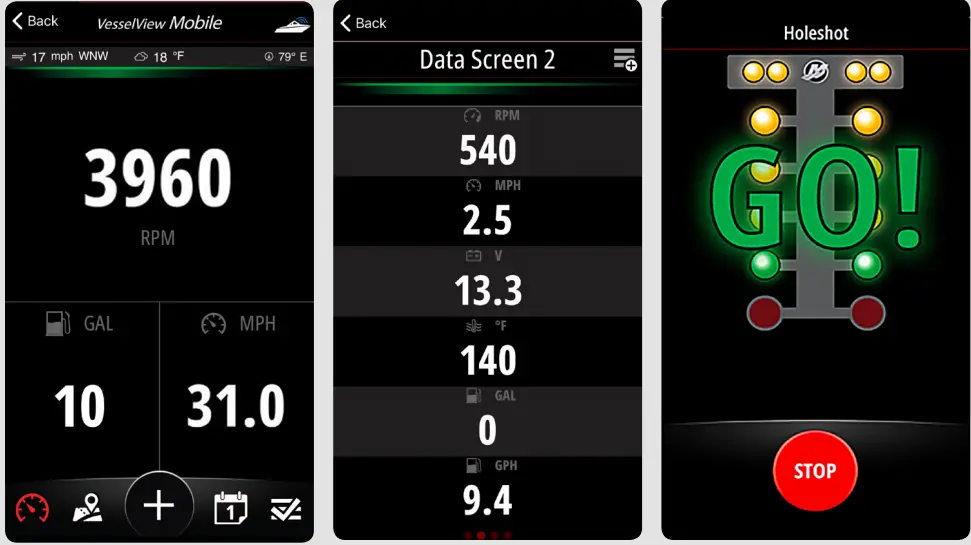
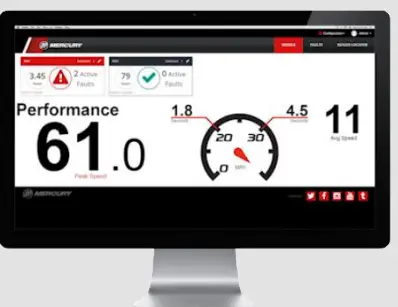
- View and customize up to five different screens of accurate SmartCraft digital engine data such as RPM, engine temperature, battery voltage, engine hours, fuel consumption, and more.
- View GPS Speed from the mobile device, which also captures top speed, and holeshot (0-20 mph) performance.


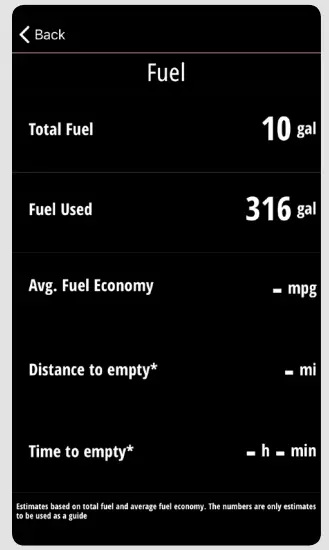
- View Fuel Management details such as Fuel Remaining (when you record fuel added using your app). Information displayed includes Fuel Used, and Distance to Empty.

What Are the Features in the VesselView Mobile App?
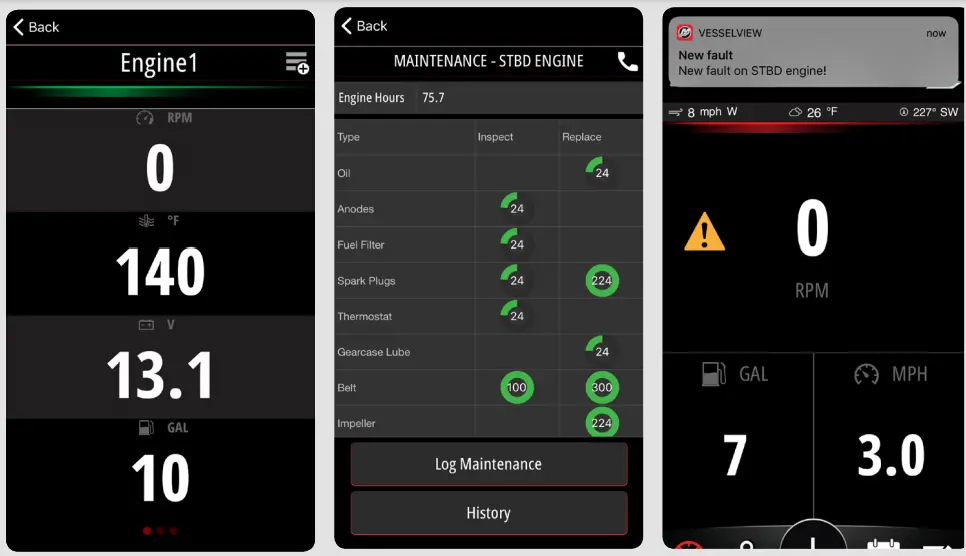
- Other features include: maintenance reminders, Engine Data Details, and engine fault code information.

How Do I Customize the View of the Engine Data Details?
Users can now add additional SmartCraft data into the Engine Data Detail screen. Select the RPM area to change the data and order seen . To customize the view touch the menu in the upper right corner of the screen.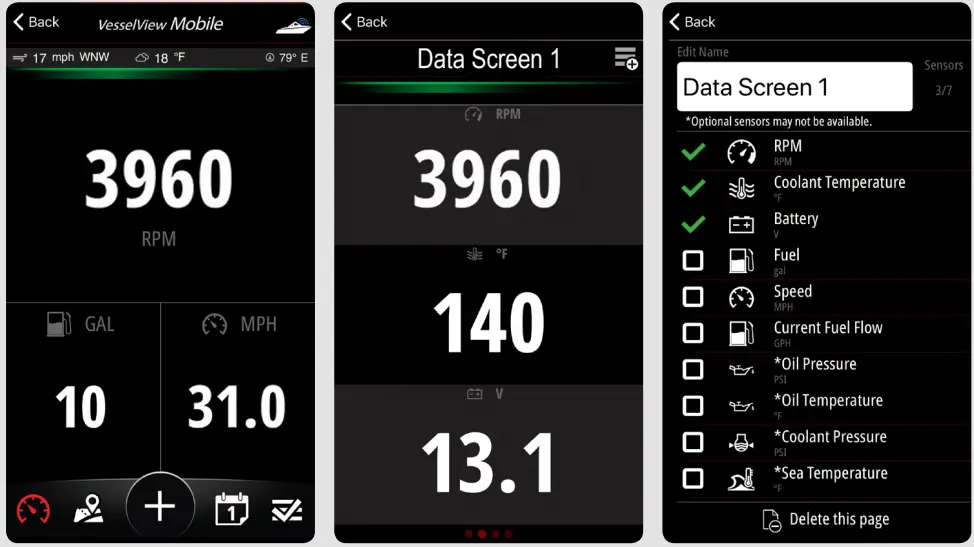
Note: Not all data will be available on all engines. Some data may require optional sensors even if that engine is capable of providing the data.
How Do I Customize the View of the Engine Data Details
Tap next to the data items to turn on or off. The checked data items will appear on the Engine Data Detail screen.
To reposition how the data is displayed. Tap the item you wish to reposition and swipe up or down to it’s new location. Data Items will be displayed from top to bottom as shown.
Users can uniquely name each page of data. To advance swipe from right to left to view all data pages. The red dots at the bottom of the screen indicate how many pages have been created. You can add up to three pages of data items.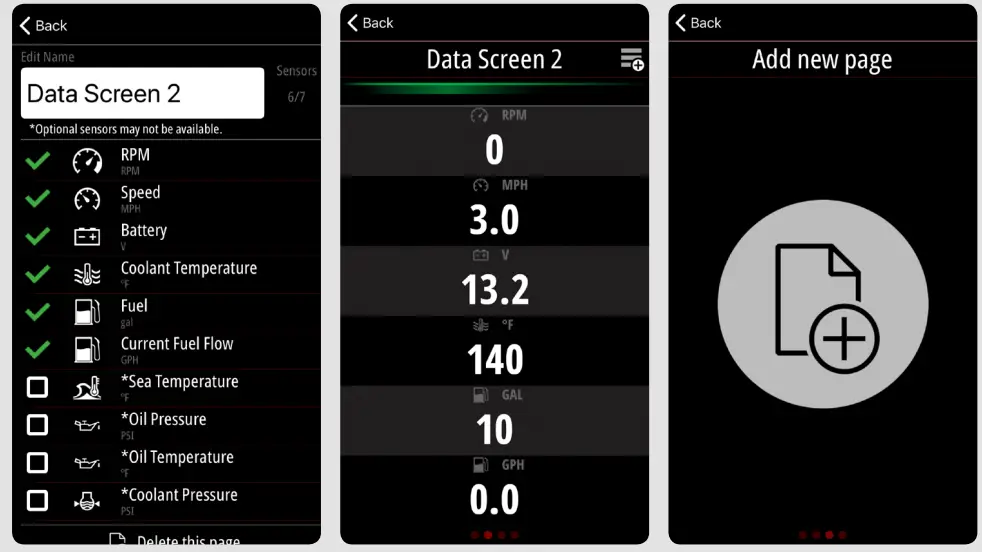
The last page has all the details regarding the Engine hours, serial number, software ID, calibration ID, and VVM module ID, useful if any troubleshooting is required.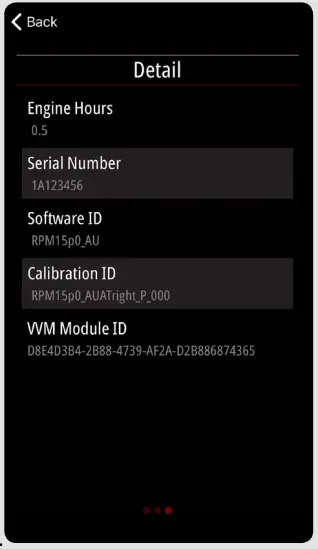
Why is My Speed Not Working?
Location Services must be enabled to view your speed data. Your mobile device must have GPS capability. The app consumes more battery power while using GPS.
The Peak Speed, and Add a Moment screens are static, they are updated only when the screens are not active.
Reset Peak will reset your Peak Speed data.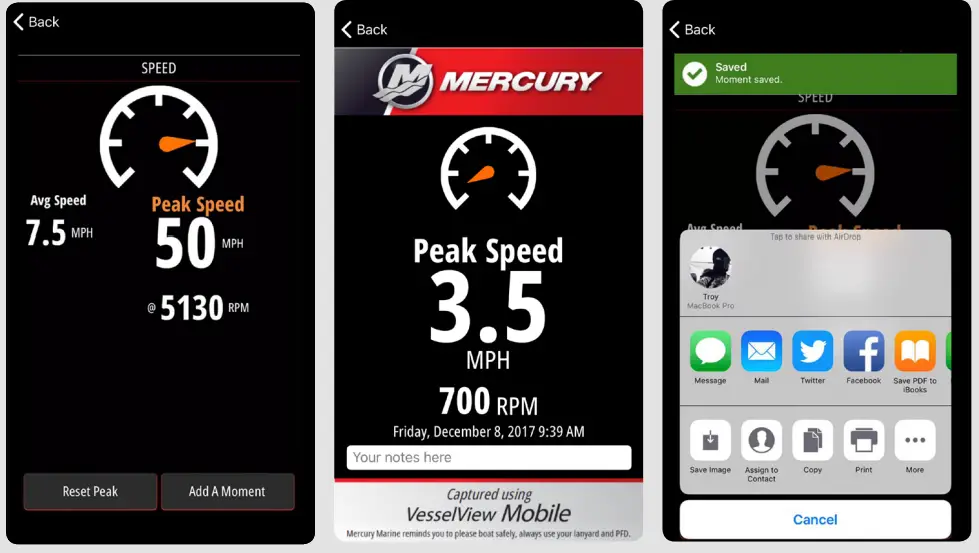
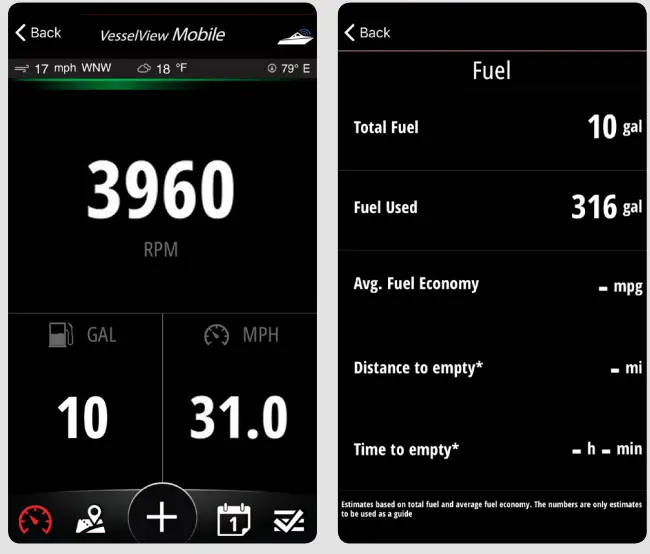
How Does Fuel Management Work?
- Select the Fuel Remaining value to get into the Fuel Management screen.
- You must make entries in Fuel Remaining to take advantage of the Fuel Management information.
- Adjust Total Fuel when the mobile device is connected to the VesselView Mobile module.

How Does Fuel Management Work?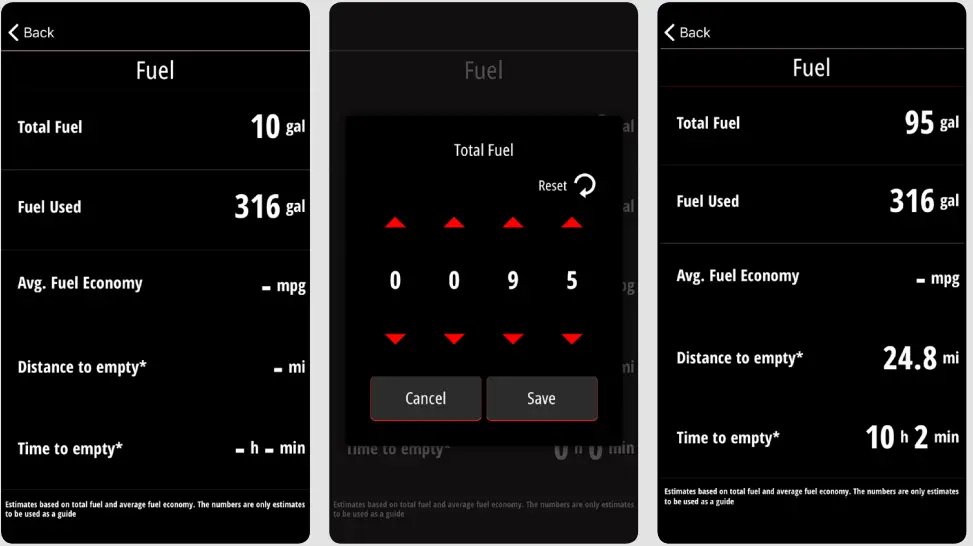
- The fuel data is averaged and is NOT reported mechanically through the fuel gauge or senders. Fuel data accuracy can vary.
- Time to Empty (TTE)
- Distance to Empty (DTE)
- Miles Per Gallon (MPG) displays fuel economy information.
- Miles Per Hour (MPH) and MPG averages reset at the same time.
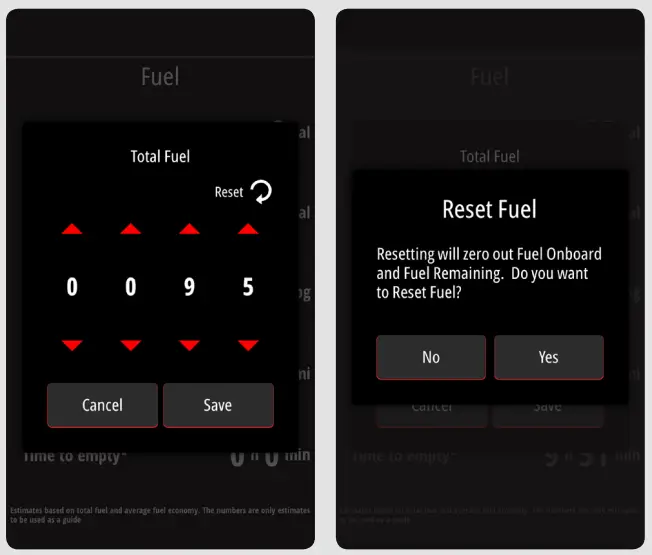
- Reset , resets fuel and all displayed averages.

NOTE: There are no warnings for fuel levels or the amount of fuel used. Calculations are averaged based on your usage and inputs on the Fuel Management screen.
How Does the Fault Code Information Work?
Detailed fault information requires the user to:
- Have access the internet through Wi-Fi or cellular data.
- Also be logged in to VesselView Mobile.

- Detailed fault information is cached on your mobile device. Should the same fault reoccur, the details will appear regardless of the status of your internet connection or current log In state.
- All faults that occur while the app is running are saved so detailed fault information can be retrieved later. This is useful if a fault occurred when internet access was unavailable. Faults can be accessed from the menu.
- Select the Active Fault notifications to turn off (set to silent) or turned back on (alert) at the users discretion. This is useful if your engine repeatedly gets the same fault, for example, an optional sensor is not installed.
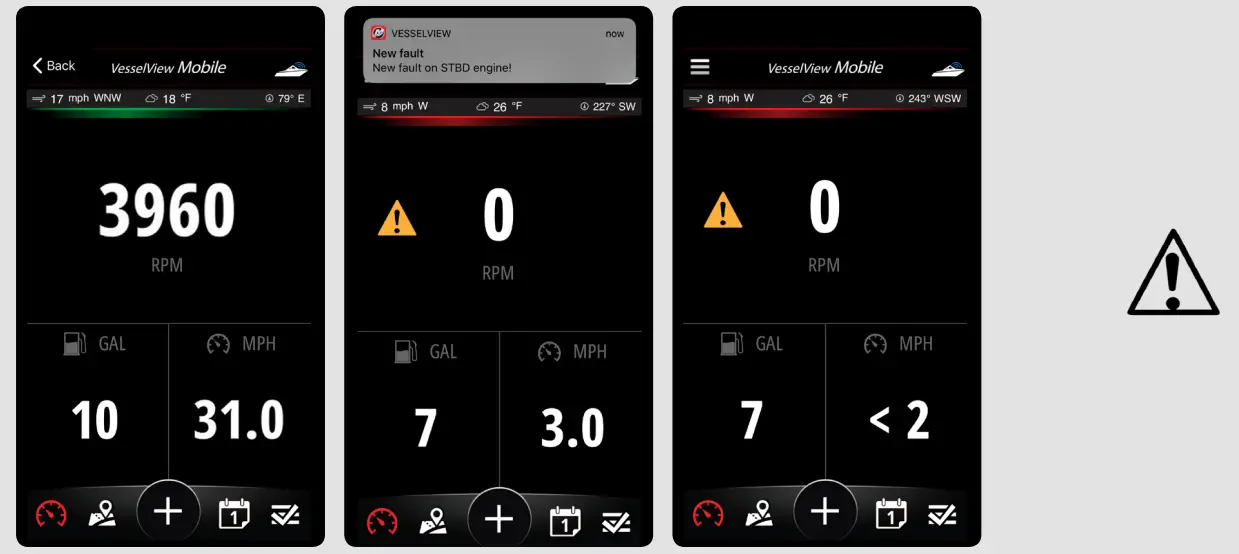
How Does the Fault Code Information Work?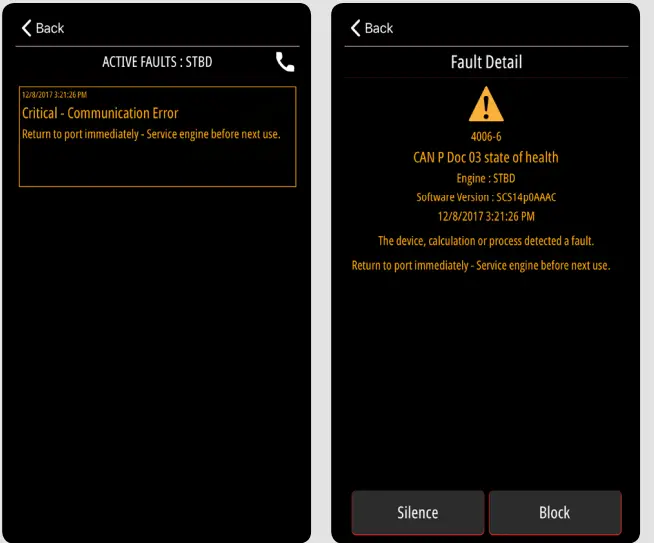
- The mobile device displays the fault state of the currently connected engines.
- Your vessel may be equipped with additional SmartCraft modules outside of the engine that issue faults, these faults are not yet reported on VesselView Mobile.
How Do the Maintenance Reminders and Logs Work?
- The Maintenance screen can be accessed via VesselView Mobile menu or the Engine Detail screen when connected to a module.
 NOTE: The Maintenance screen requires a connection to a module before it’s active. The module relies on engine hours to report (the keys must be in the on position in order to connect).
 - Maintenance reminder notifications occur ten hours before and when they are due. The icons change color when ten hours remain. The indicated number are the operating hours that remain until that particular maintenance is due.
NOTE: A number within green indicate operating hours left before that maintenance item is due. The number zero within red designate that the maintenance item is due. - To record maintenance previously performed you can edit your Maintenance History, including engine hours recorded. This will help you keep an accurate maintenance log when your app is connected to the module.
- Maintenance tracking features on the app are completely separate from the Maintenance Counter available on some SmartCraft gauges.
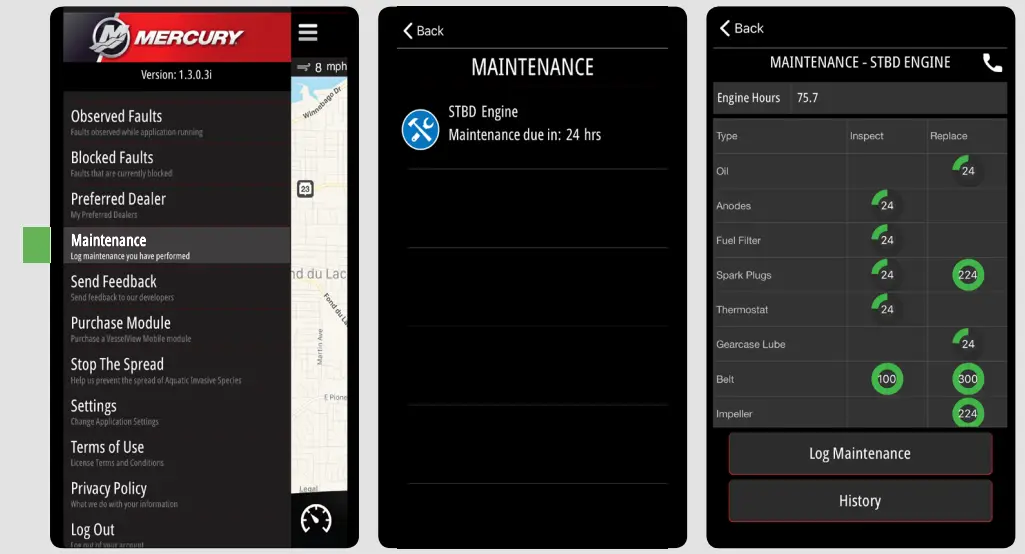 NOTE: The Maintenance screen requires a connection to a module before it’s active. The module relies on engine hours to report (the keys must be in the on position in order to connect).
Why Do My Maintenance Numbers Look Wrong?
Did you change boats without deleting and creating a new profile?
To add a profile select the boat icon in the upper right corner. Then select
Add Boat and enter the information.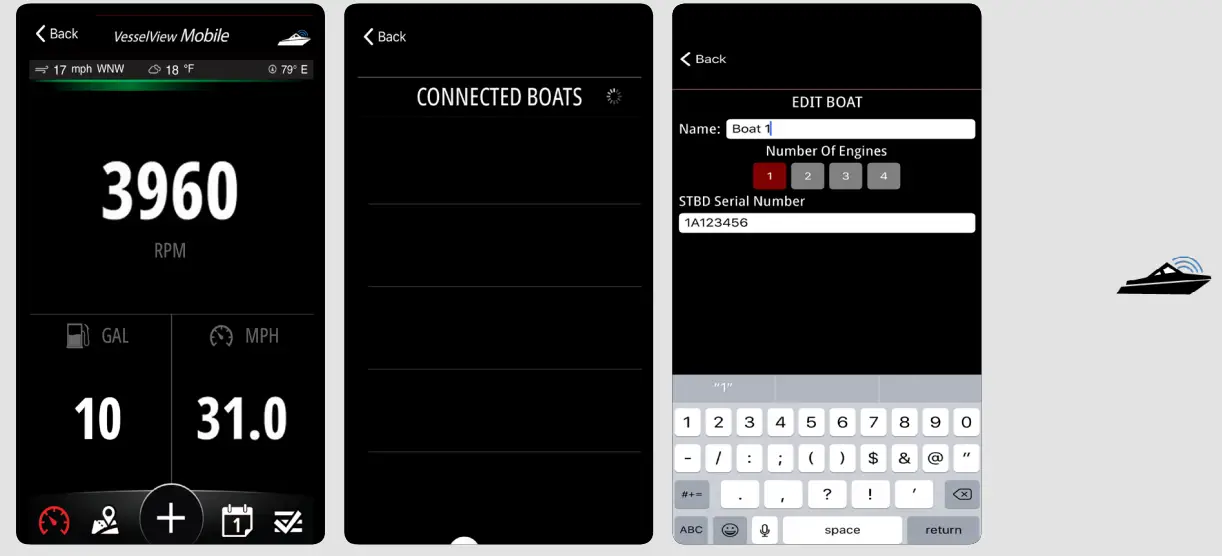
To delete a profile, tap and left swipe the profile you wish to remove. Then select the Delete button.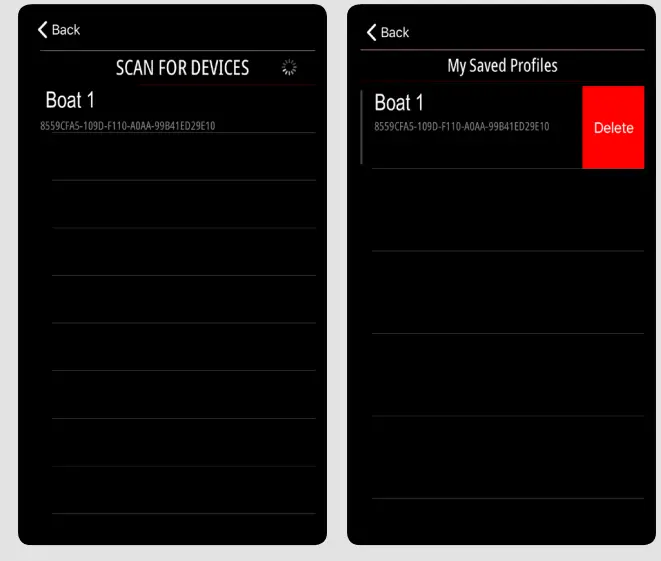
Why is My Map Not Working?
- A blank screen and other technical issues will result if Location Services are disabled on your mobile device. Enable your Location Services to correct the issue.
- Compass calibration is a mobile device requirement and is not controlled by the app. Sometimes this requirement will be set by the data carrier associated with your device.
- Points of interest are centered on your current location. They move when you get to the edge of the map.
- Points of interest requires Location Services to be on and an internet connection.
NOTE: iPhones® earlier than 6s will ask you to calibrate the compass and turn on Wi-Fi. Usually, this happens only the first time you open the app following installation.
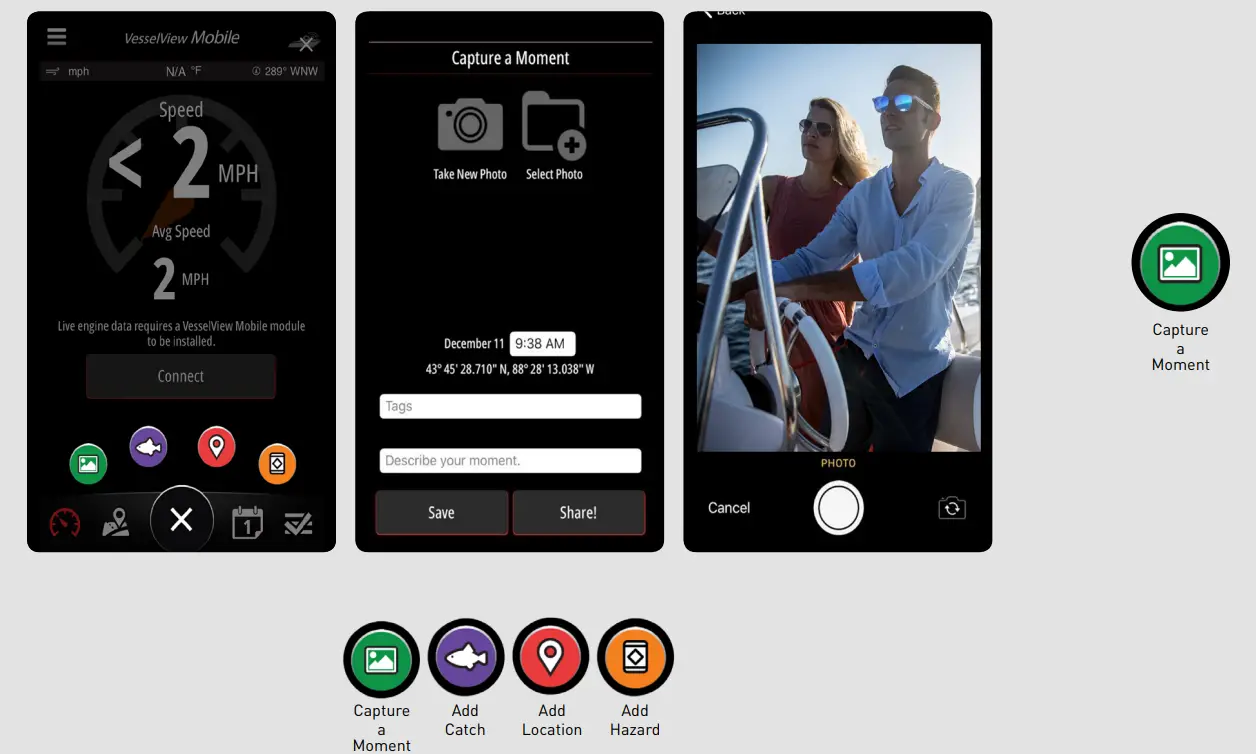
What is Capture a Moment?
- Photos saved using the Capture a Moment feature appear on the calendar in the app, as well as in your mobile device photo gallery.
- Saved Capture a Moment includes your location. Your location will not be shared with anyone unless you share that particular moment.

What is Add Catch?
The Add Catch feature lets you photograph, mark the location, and record the size of all the fish that you catch. Your location will not be shared with anyone unless you share your catch.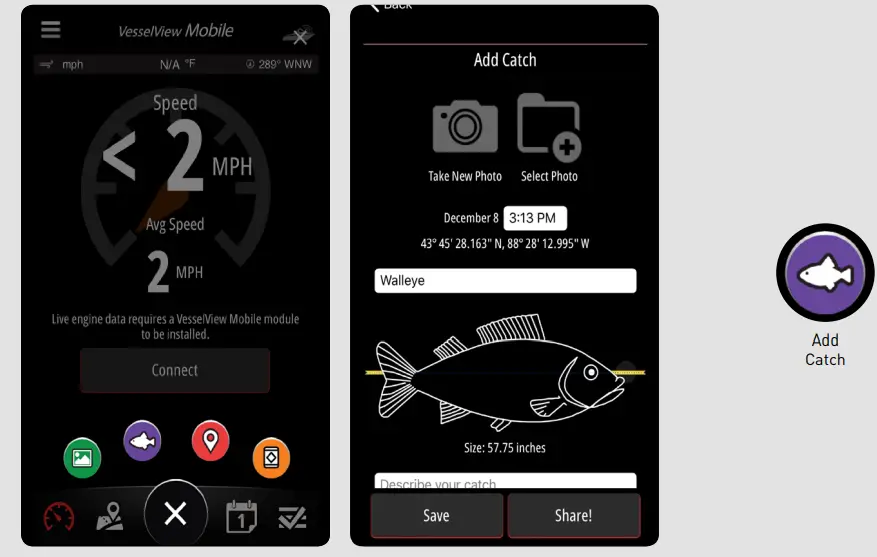
What is Add a Location?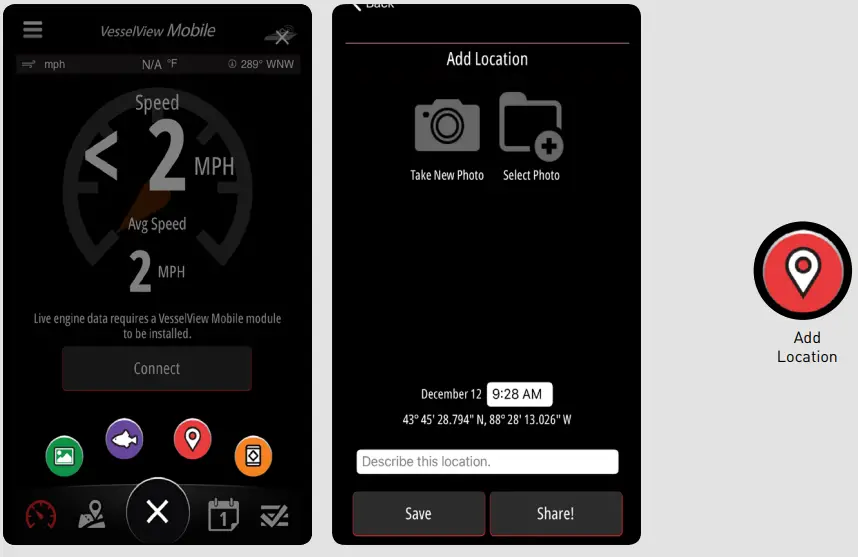
The Add Location feature captures the date, time, location through the use of your GPS tracking on your mobile device. You can add descriptions and pictures that you can reference or share on social media sites. Add Location is great way to help mark your favorite spots when on the water. Whether it be a location marker for docking, favorite store or restaurant, or perhaps your favorite fishing spot. There are many added benefits while using this feature.
What Is Add Hazard?
The Add Hazard feature allows you pin warnings and hazards by location through the use of your GPS tracking on your mobile device. You can Describe a Hazard and add pictures that you can reference or share on social media sites. The hazards that are added will be pinned on your location map and will be visible when your in the pinned location.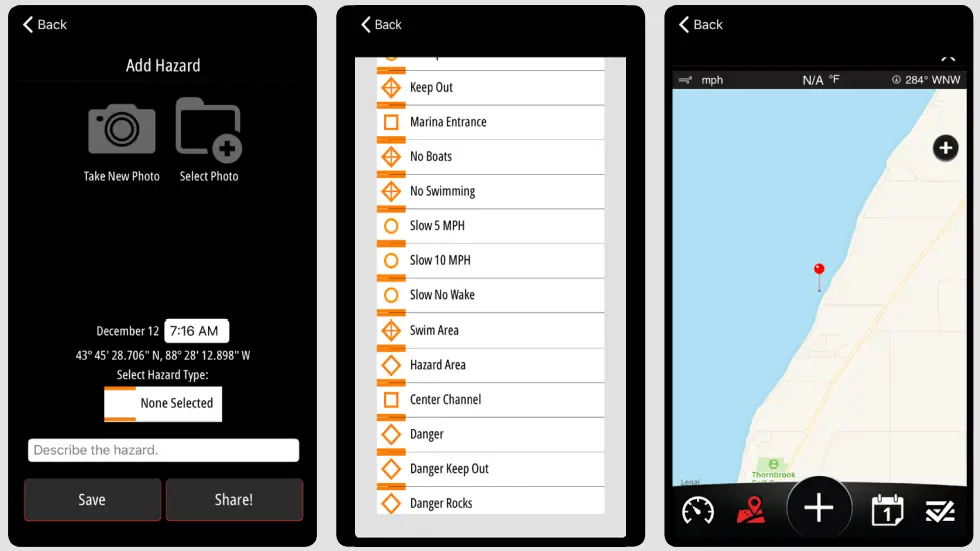
To locate added hazards they are listed in the Calendar feature in the app.
What is the Calendar Function?
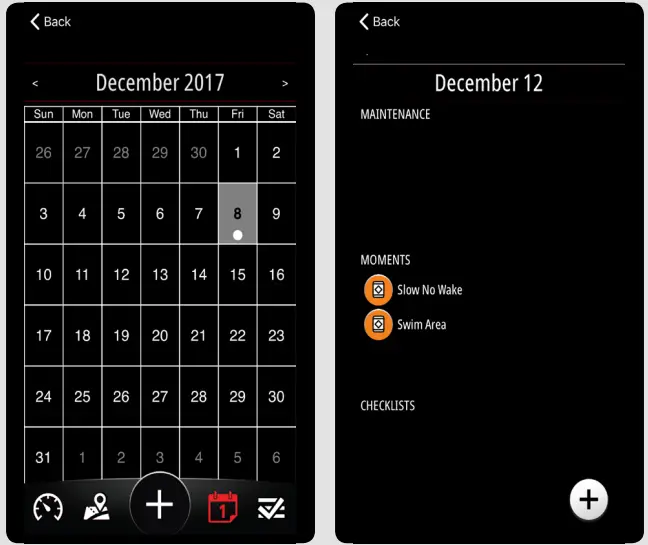
The Calendar displays a white circle on days that have an event or days that an event occurred. Tap the day to see the maintenance, moments, or checklists from that day. Tap any previous day to add a new entry for that day.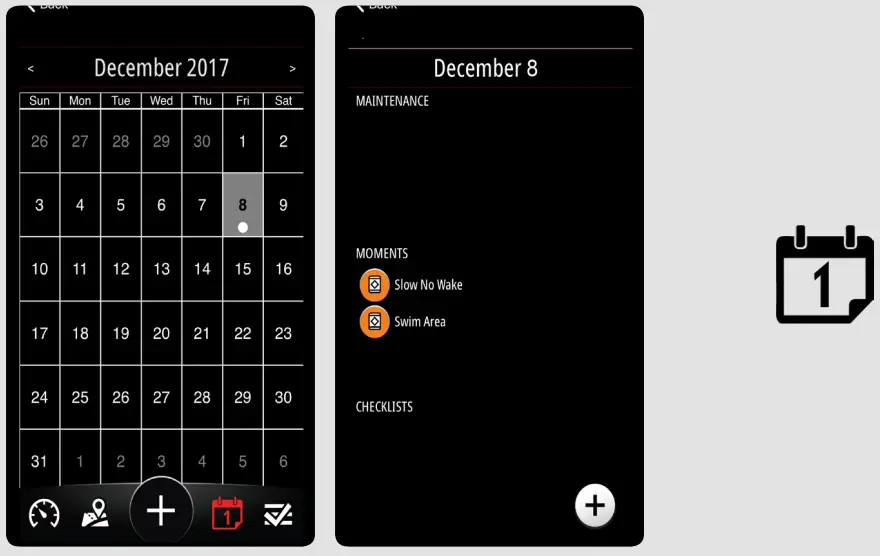
Why Am I Not Getting Notifications?
Are you no longer getting fault notifications on your device (phone status bar)? You may have “silenced” one or more faults that previously occurred.
- Outstanding notifications will show on the iPhone as a small number on the app icon. To clear these notifications, pull them down from the top of the screen while the app is open.
- Fault notifications are also cleared when you view the fault list for that engine.
- Android wearables will display notifications.
NOTE: The Apple Watch does not display notifications, because the app is set to always have the screen on.
Why is My Mobile Device Loosing Battery Power?
Things in the app that unavoidably contribute to battery consumption are:
- The screen is always ON
- Location Services are ON and at high precision
- Bluetooth Radio is ON
NOTE: If the engine data seems unusual, drops, or conflicts with SmartCraft gauges, it is possible there is a communication issue that causes by improper configuration. See your Mercury dealer for further information.
Where is My Data Saved?
Data is copied from your device to the cloud under these particular circumstances:
- The device location and device ID are saved for usage purposes when the app is opened or closed. No other data will transfer.
- Engine connection and Bluetooth disconnection supply the data and information needed to populate the websites. This data is engine and vessel specific.
- Preferred dealers are selected through VesselViewMobile.com. Every account is allowed up to five preferred dealers. Dealers will have access to your engine data such as: engine hours, fuel remaining, faults, and maintenance logs when these are added to the cloud.
NOTE: Pictures, moments, and travel locations will not be sent to the cloud.
Why Do Only Certain Things Work on My App?
The app relies on an internet connection for many functions. If you connect your phone to a Wi-Fi connection that does not have internet access, such as your chartplotter’s Wi-Fi connection, portions of the app will not function.
How Do I Connect to More Than One Boat?
The app allows the user to create and save a boat profile for each unique module encountered. For example, two boats with a module are installed on each vessel. See the Profile section. See the Profile section when connecting the VesselView module to a different engine on another boat.
IMPORTANT: Delete the existing profile and create a new profile to avoid data corruption.
What Do I Do If I Receive an Error During Setup?
What should I do when connecting to a module and I receive a message that says ERROR – Cannot complete the initial setup? Please key on all engines and try again.
- Make sure all keys are on.
- Make sure you selected the correct number of engines in the profile setup.
- Check for the correct termination resistor placement.
NOTE: On multiple engine applications, the engine controllers may need to be set up with different City IDs. A Mercury dealer will need to assist in verifying that the controllers and engines are configured properly. - Address and Password.
- See the Profile section when connecting the VesselView module to a different engine on another boat.
IMPORTANT: Delete the existing profile and create a new profile to avoid data corruption.
How Do I Access My Account from Any Computer?
- Visit VesselViewMobile.com

- Log in using your VesselView Mobile account Email Address and Password.
- See the Profile section when connecting the VesselView module to a different engine on another boat.
IMPORTANT: Delete the existing profile and create a new profile to avoid data corruption.
How Do I Use My Check Lists?
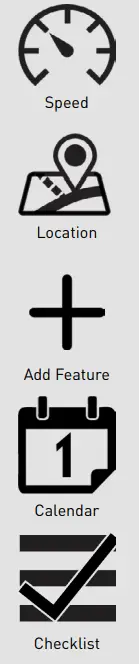
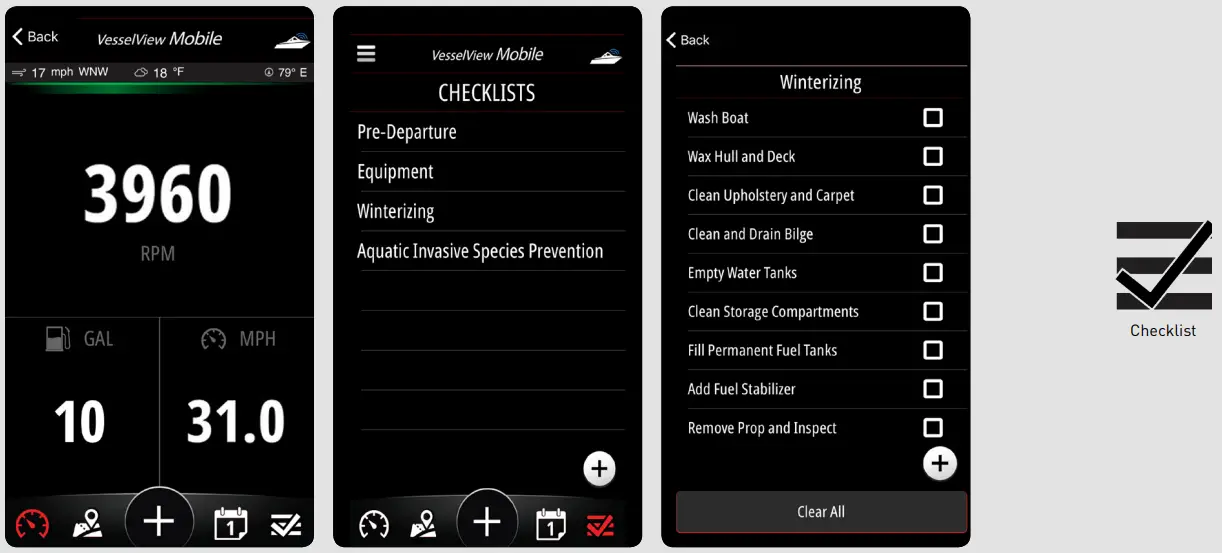
- The Checklist feature can help you prepare for your next boating experience. Select the Checklist icon found on the bottom of the screen. You can select a checklist from the available list or create a new checklist as you see fit. You also can customize each of the available or created checklists.

How Do I Select My Preferred Dealers?
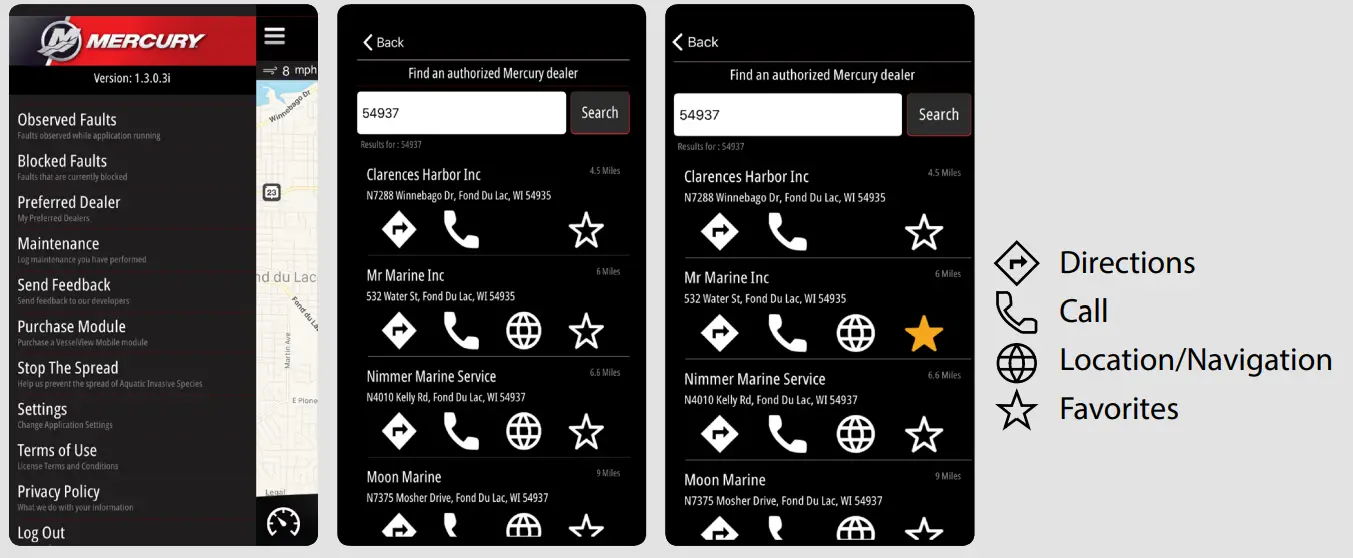
- Go to the menu in the upper left corner. Select Preferred Dealer. (The list is based on location. You can search based on city, zip code, or name.
- Once you found your Preferred Dealer add the to your list by tapping the star icon on the far right.

- Once you have a Dealer identified, select the star to make them a preferred dealer.
- You can select multiple preferred dealers per profile.
- To delete a preferred dealer tap dealer you wish to remove, swipe left and select the Delete button to remove a Preferred Dealer.
FAQS
Will it work on 04 f225 mercury yamaha motor and for it need Cellular for ipad
It will not work on a Yamaha motor. Only Mercury.
Have a 2003 350mag 555 computer and says smart craft on engine.Will it work?
Check out Mercury Vessel View online. It will show all compatible engines
Can this show an rpm/hours history, like a mechanics rig? where it sill display the hours spent at each rpm threshold? (ie 1k – 124h, 2k 94h, 3k 290h)
Unfortunately it will not. It will provide you with the engine hours to date, but not how long the engine stayed in a certain rpm bucket. You would need a Mercury Marine dealer diagnostic tool to provide you with this information.
Will this work on a 2016 Verado 225?
from what I have read it works on all Mercury 40HP & above from 2012 up Super product ! check with your dealer !
Does this unit fit the 2018 225 verodo
All motors made by Mercury from 2003 and after, have the Smartcraft connector on the engine. You may need a junction box and some additional cables, depending on what ‘s installed on the boat.
how long is the start up time? do you have to reconnect to the bluetooth everytime you restart the engine?
our VesselView Mobile app should load up within seconds. If you start the engine and open the app, the app should open and connect to the module on the engine within a minute. If the module stays powered up (key in ON position, engine can be running or off) the app will stay connected to the module the whole time it is powered up. When you key off the engine the module will broadcast a Bluetooth signal for 10 minutes to allow for faster reconnection times if you are leaving the boat for a short period of time such as a fuel dock.
Will this work on a 2017 pro xs 115hp 4 stroke
Yes. According to Mercury Marine, Vessel View can be installed in just a few minutes on any Mercury SmartCraft-capable engine: outboards and stern drives, 2004 and newer, 40hp and up.
Will this work on a 2004 sea islandia 250 opti?
We would suggest calling customer support at 920-929-5040 with your s/n for verification of compatibility.
Will this work on a 2002 seadoo challenger 2000 with a mercury m2 jet drive efi v6 serial # oe397459?
No. It’s Mercury Marine (and Mercruiser) 2003 and later only.
Will this work with my 2014 115 hp 4 stroke ?
Yes. It simply just plugs in.
Does it give you gallons per hour data?
As far as fuel data it will give you gallons per hour, miles per gallon, distance to empty and time to empty (changes depending on how fast you are moving). It is also helpful as you can enter your vessel fuel capacity and how much fuel you are starting with, and as the engine burns it the app will deduct it so you know exactly what is remaining.
Have a 2011 350 mag will it work and does it give codes for alarms and sensors causing them?
It will work on your engine and it will tell you what alarm is on like ( high oil temperature, shift alarm , overheating , low water pressure etc.) then its a technician work to find out why is causing the alarm to come on.