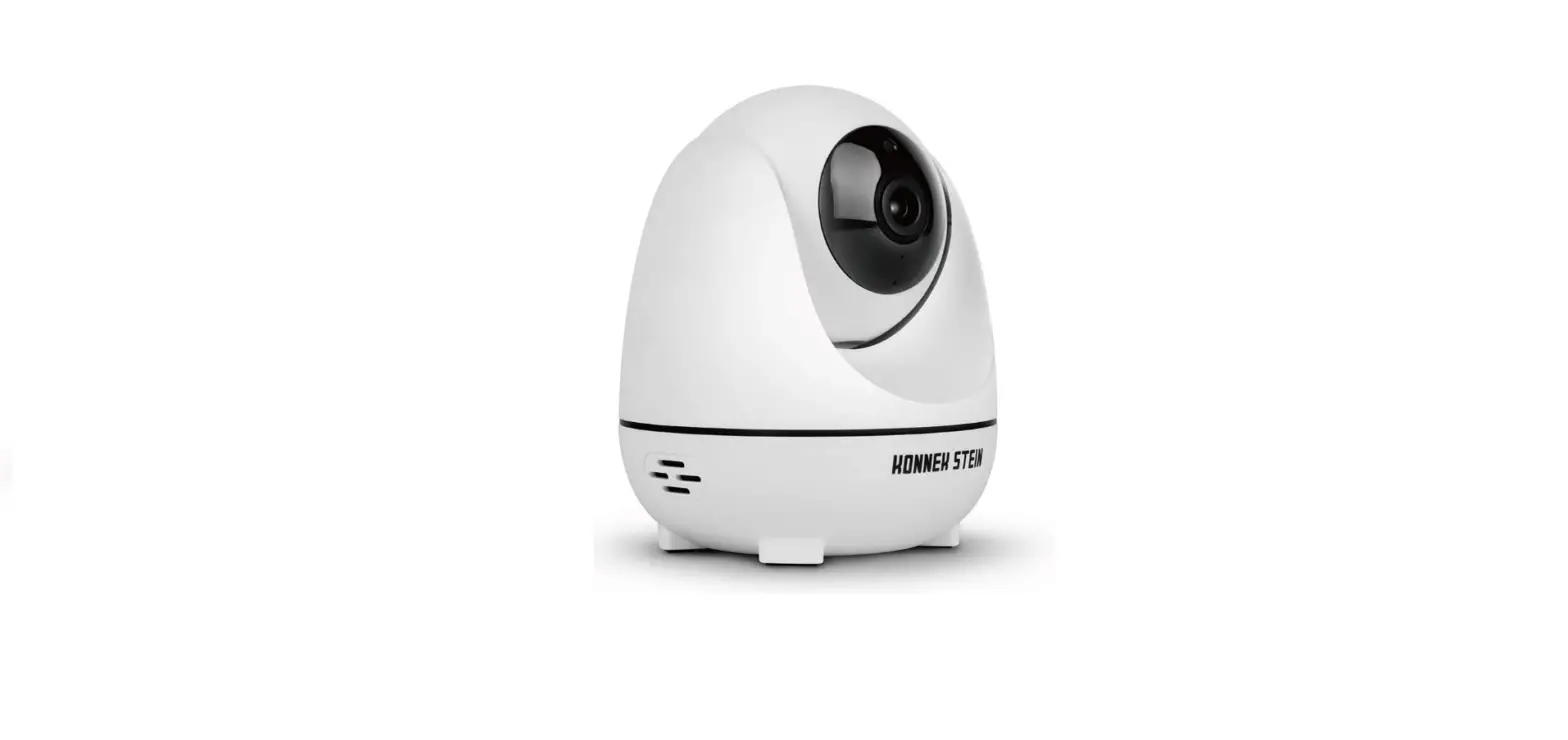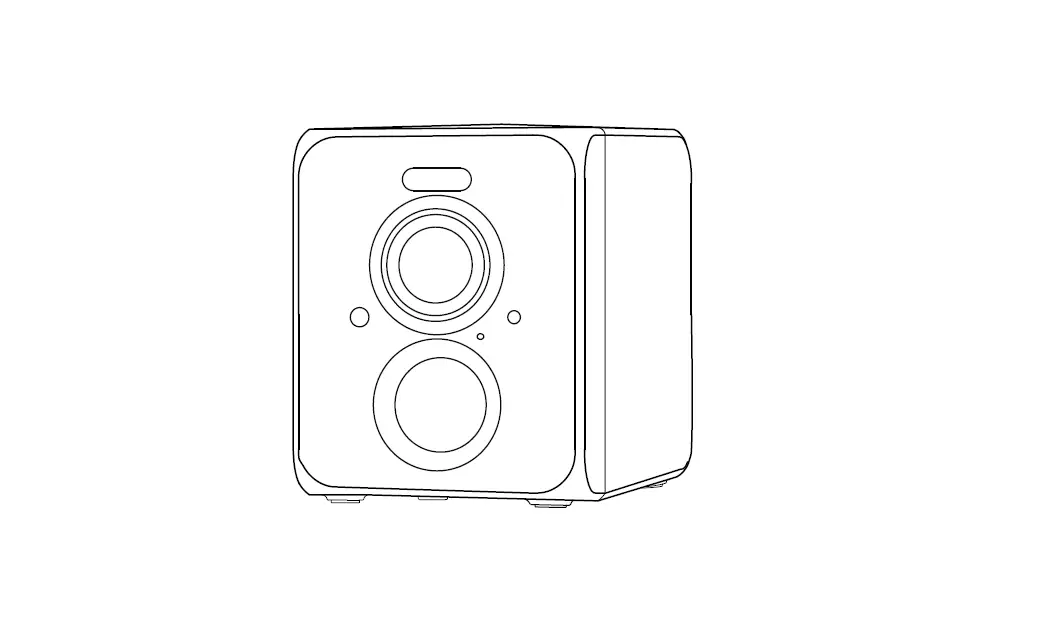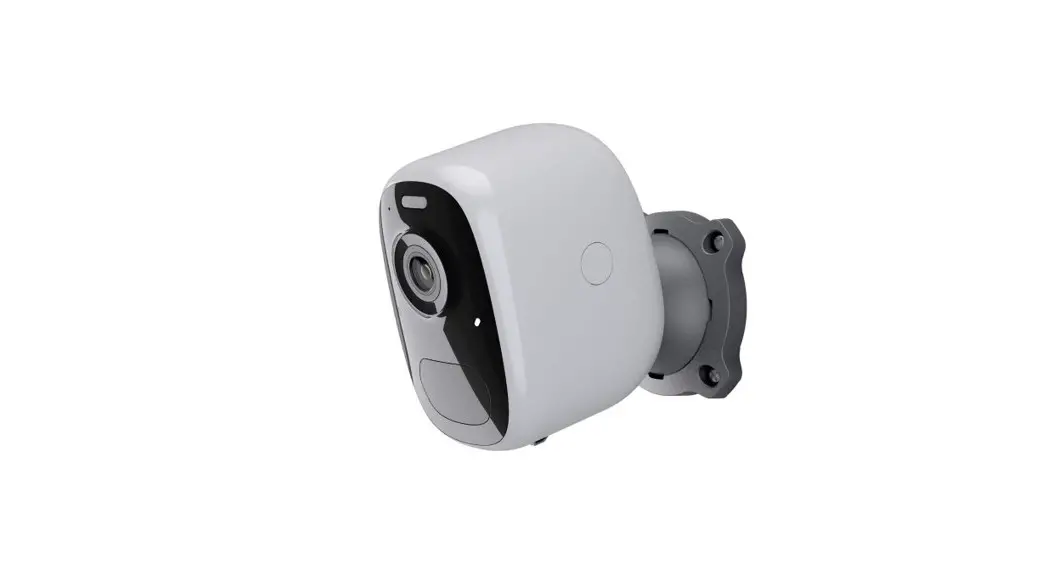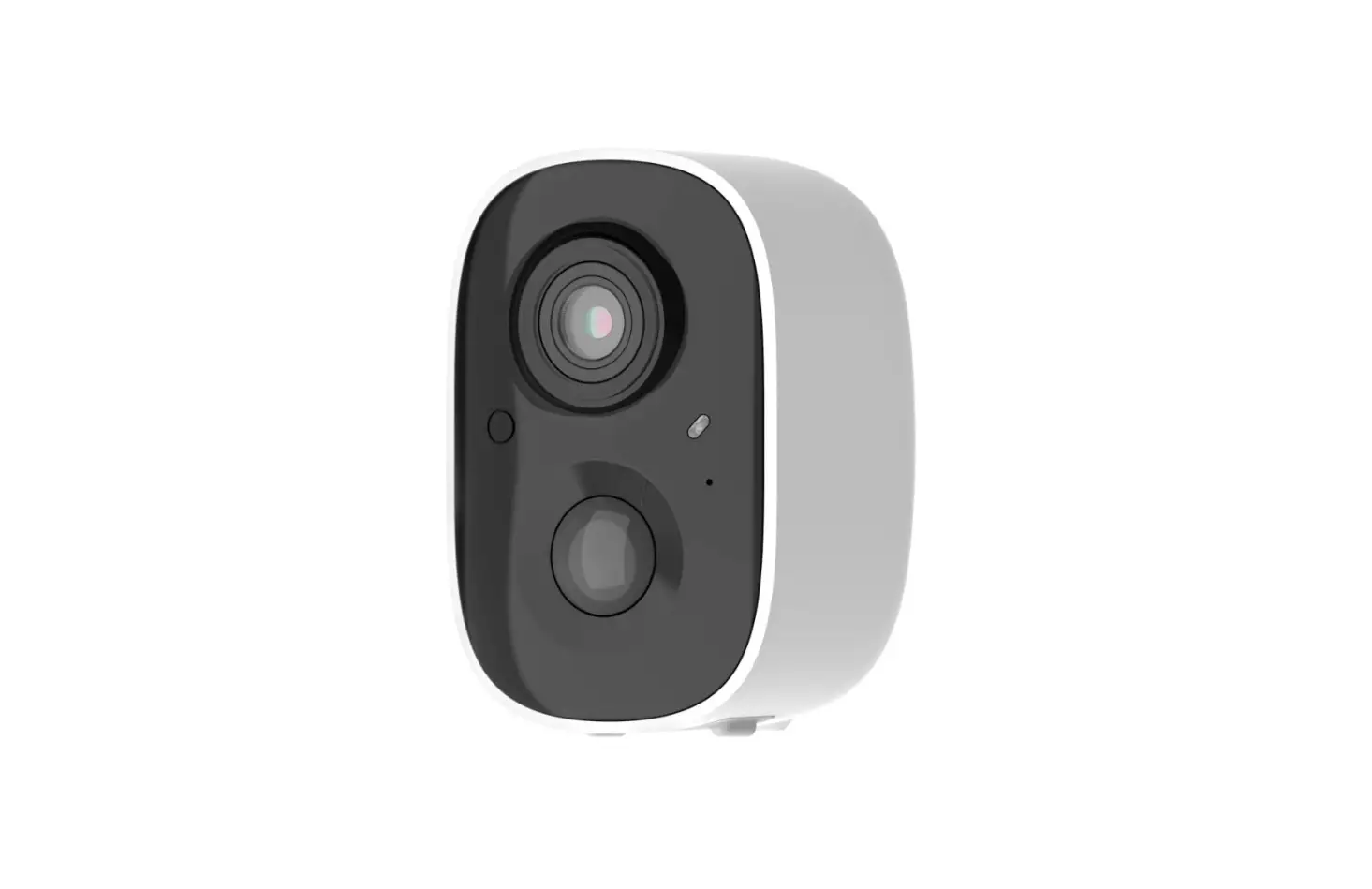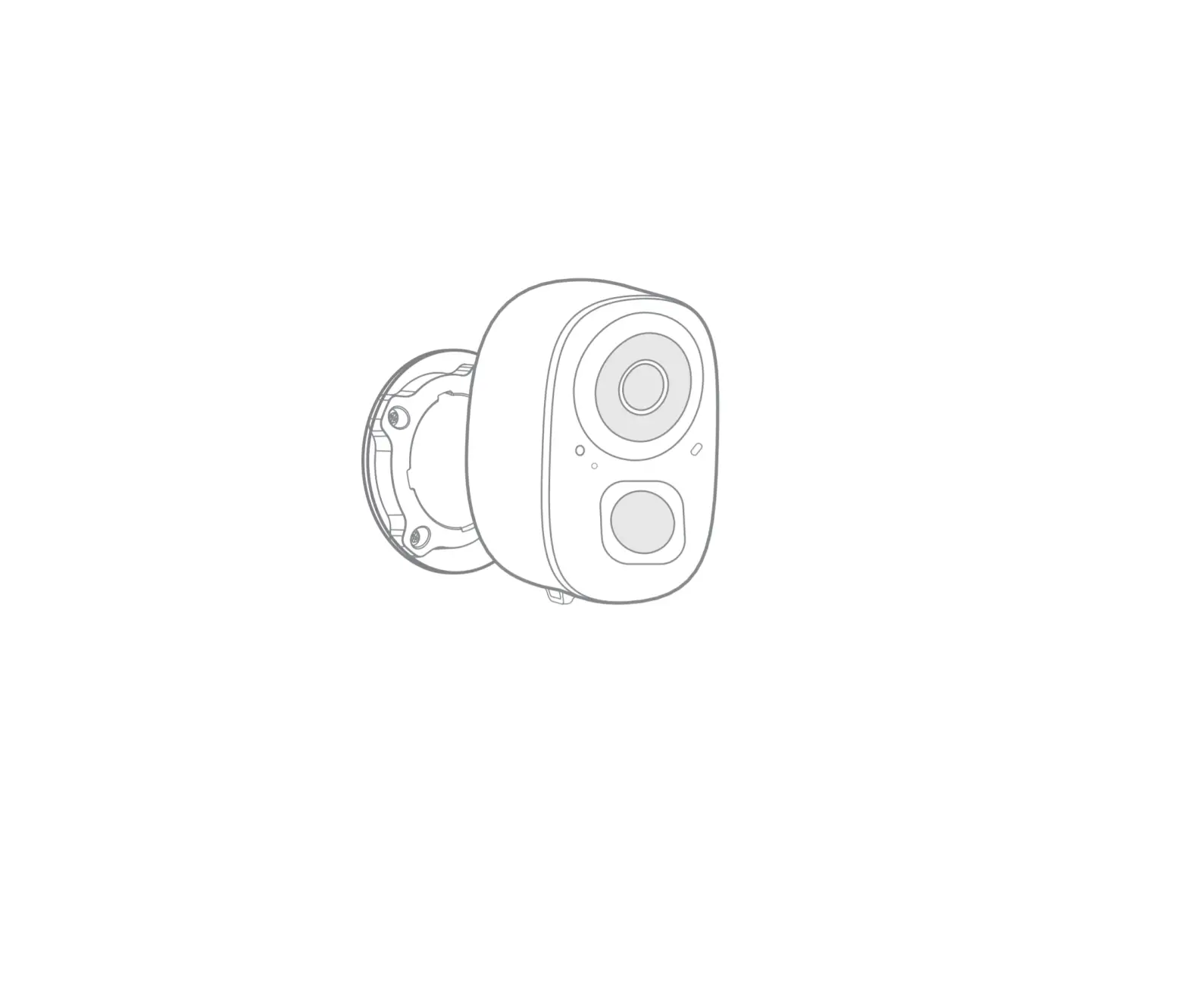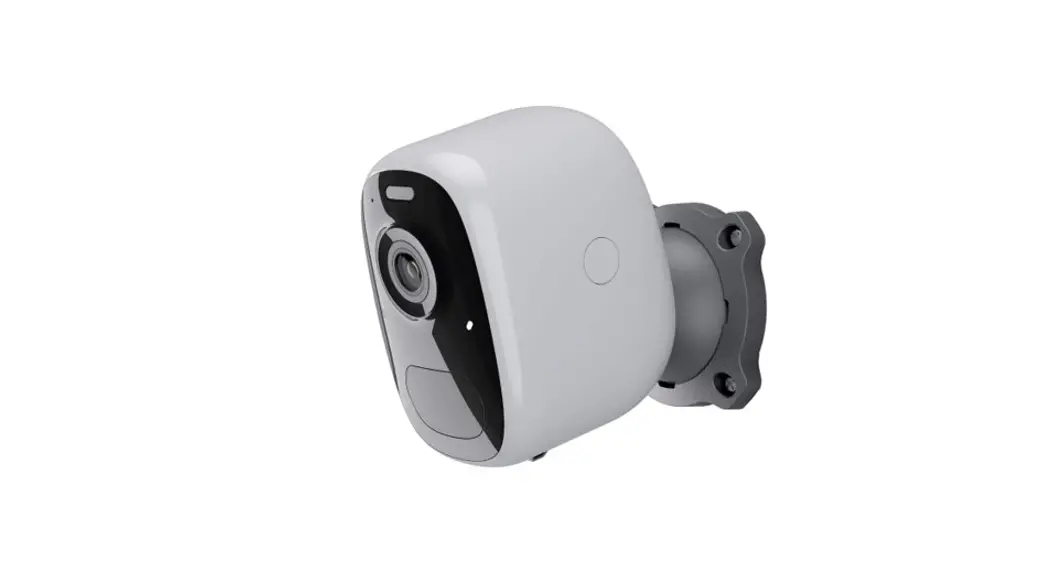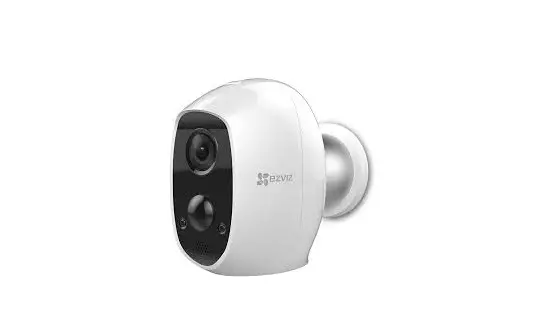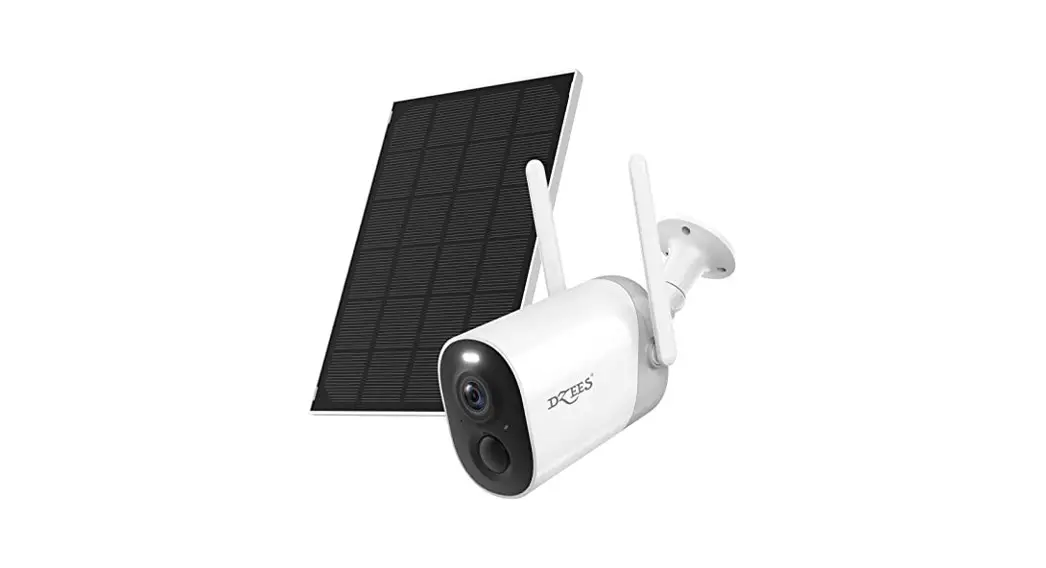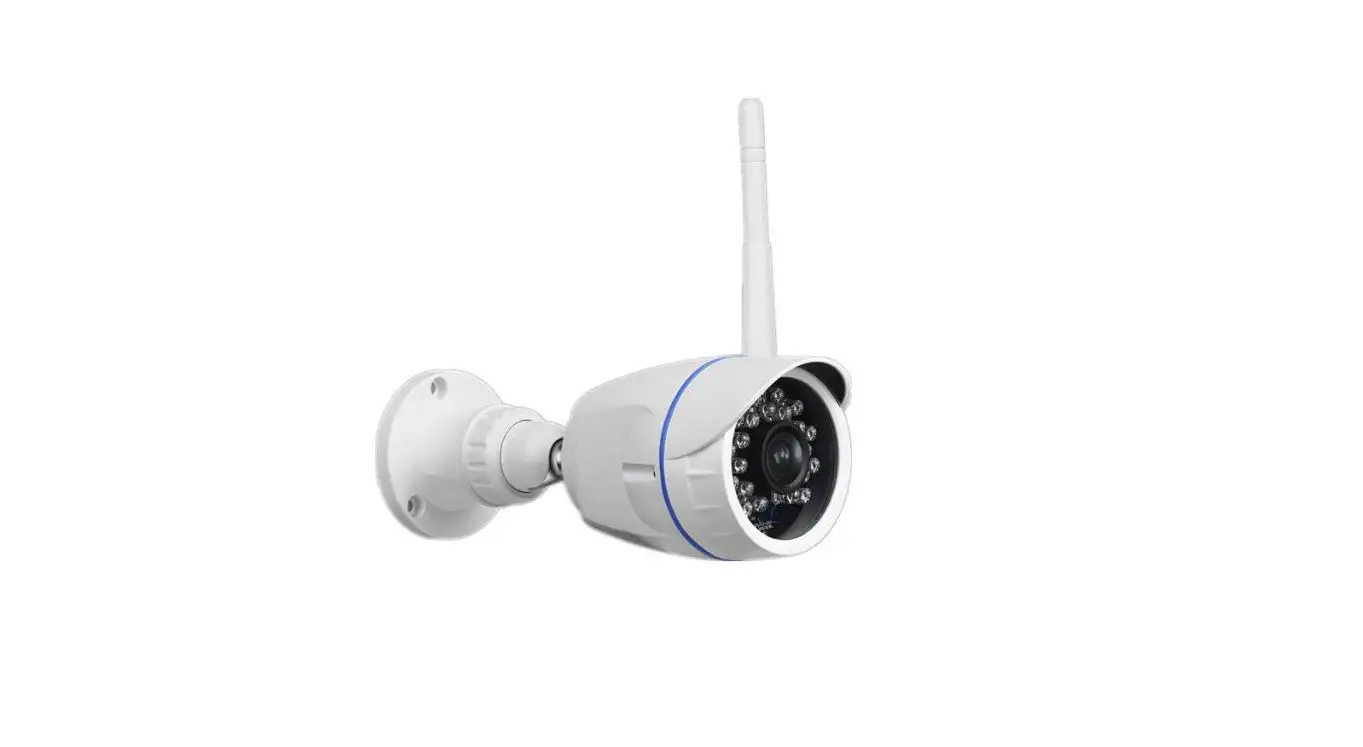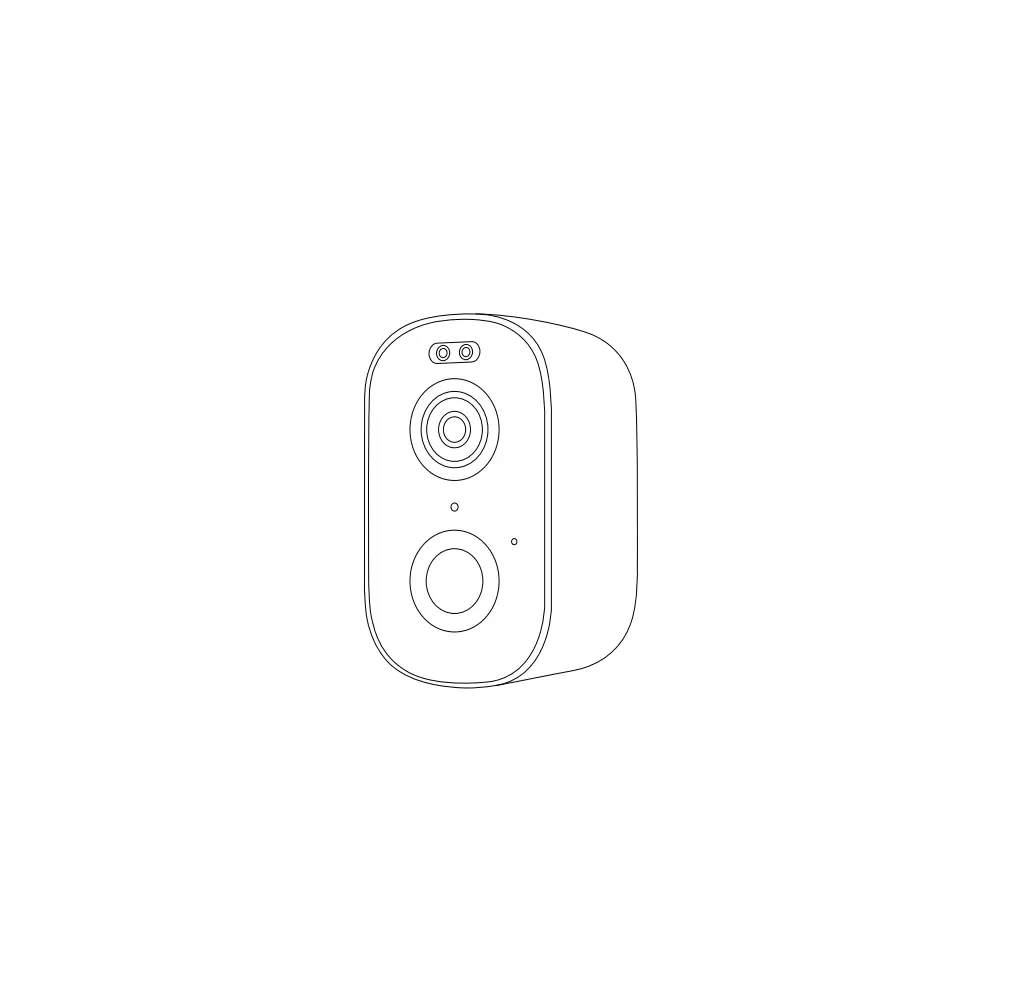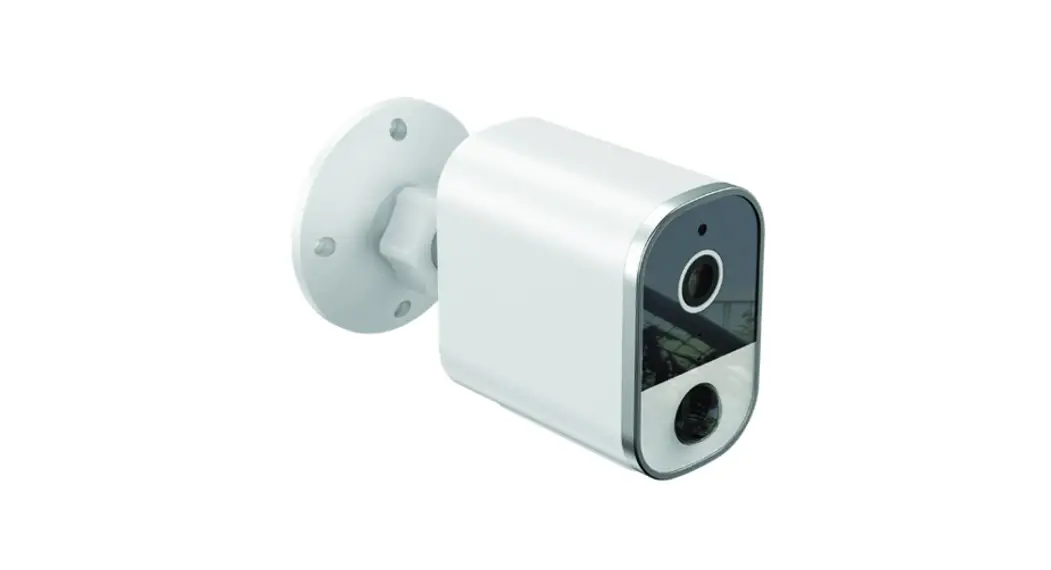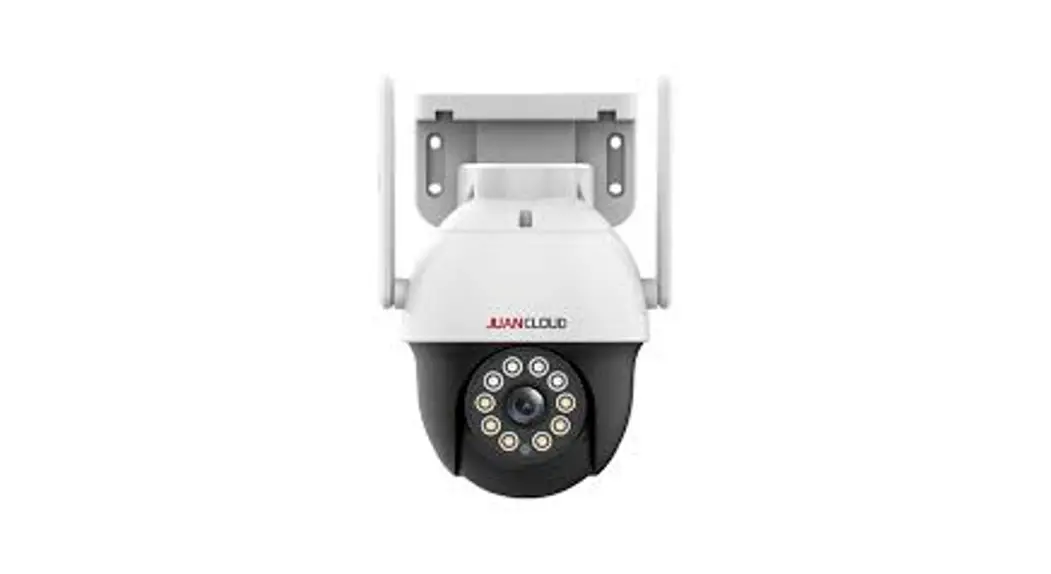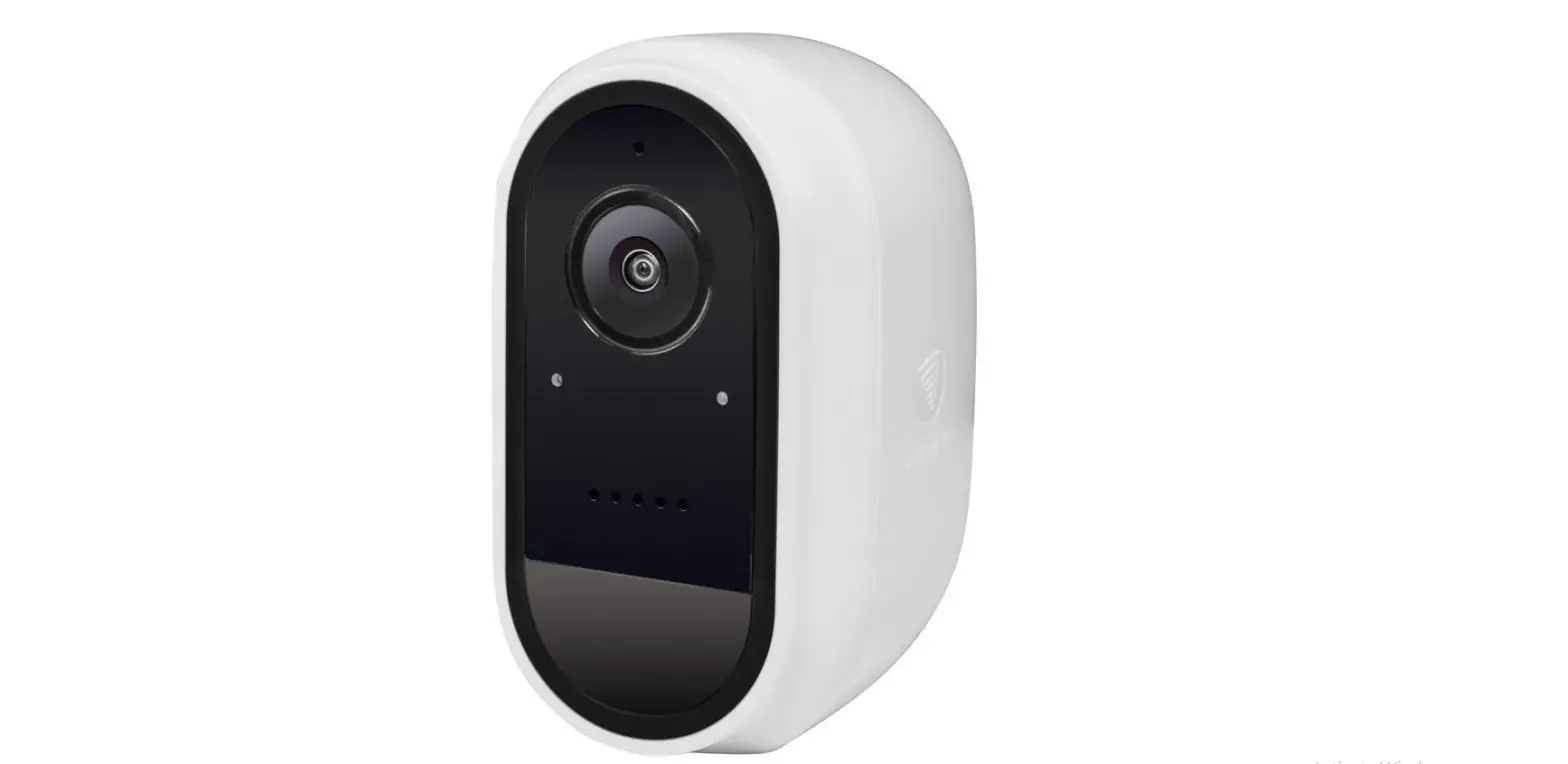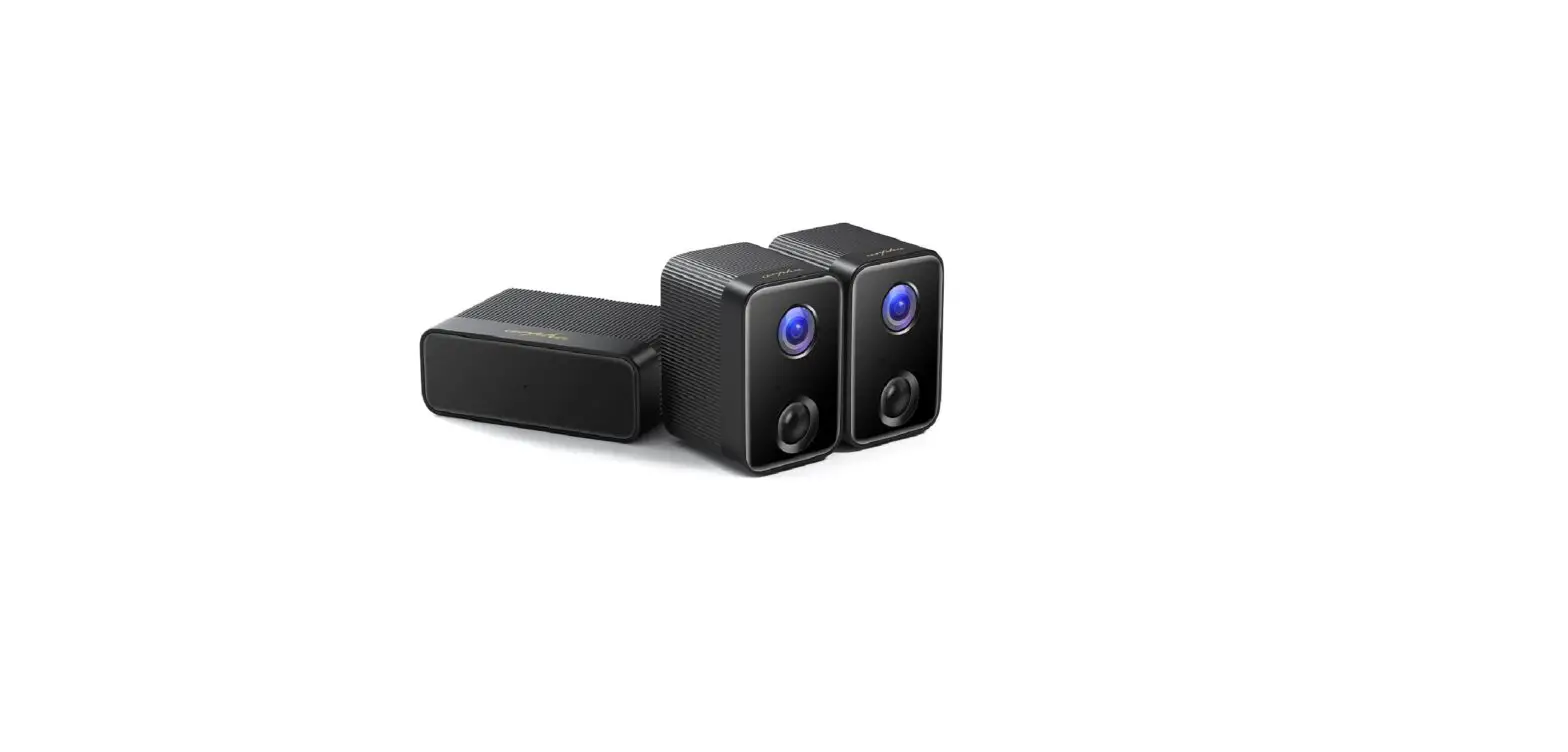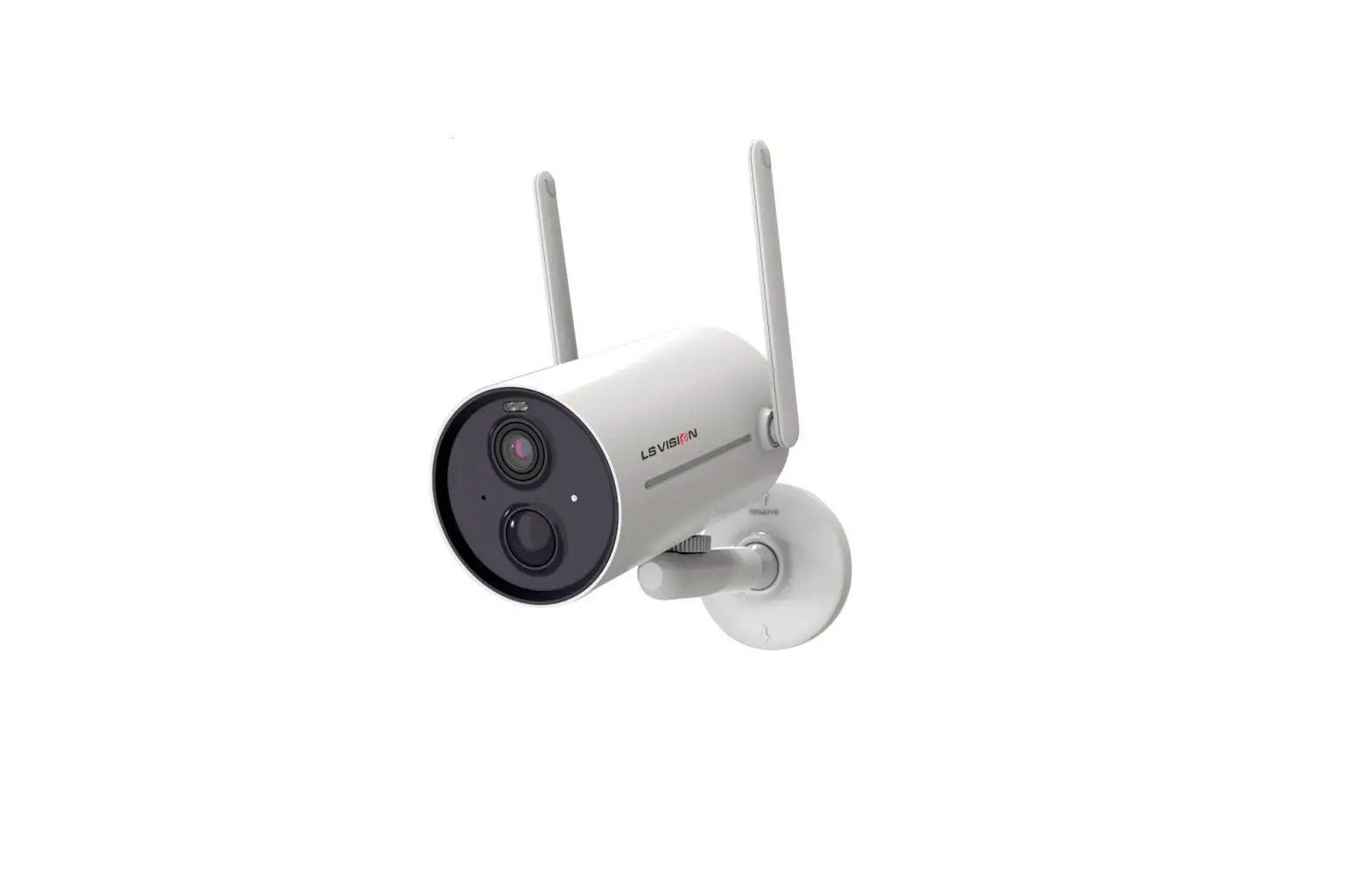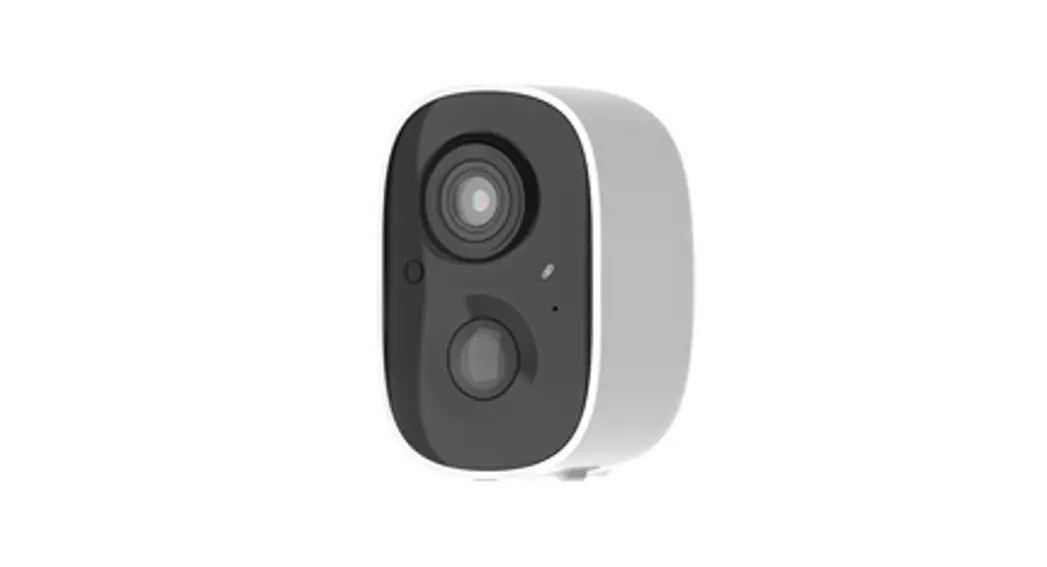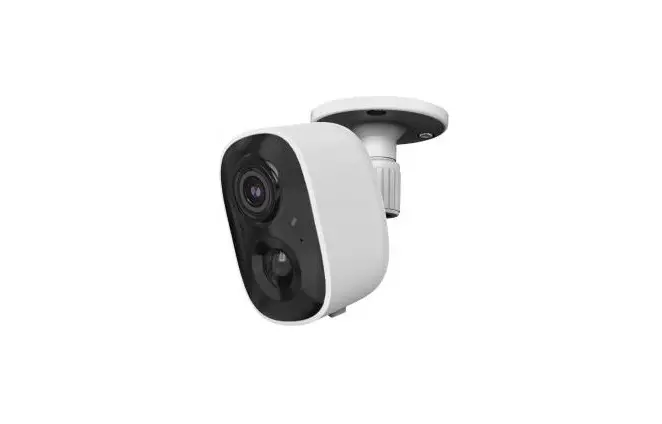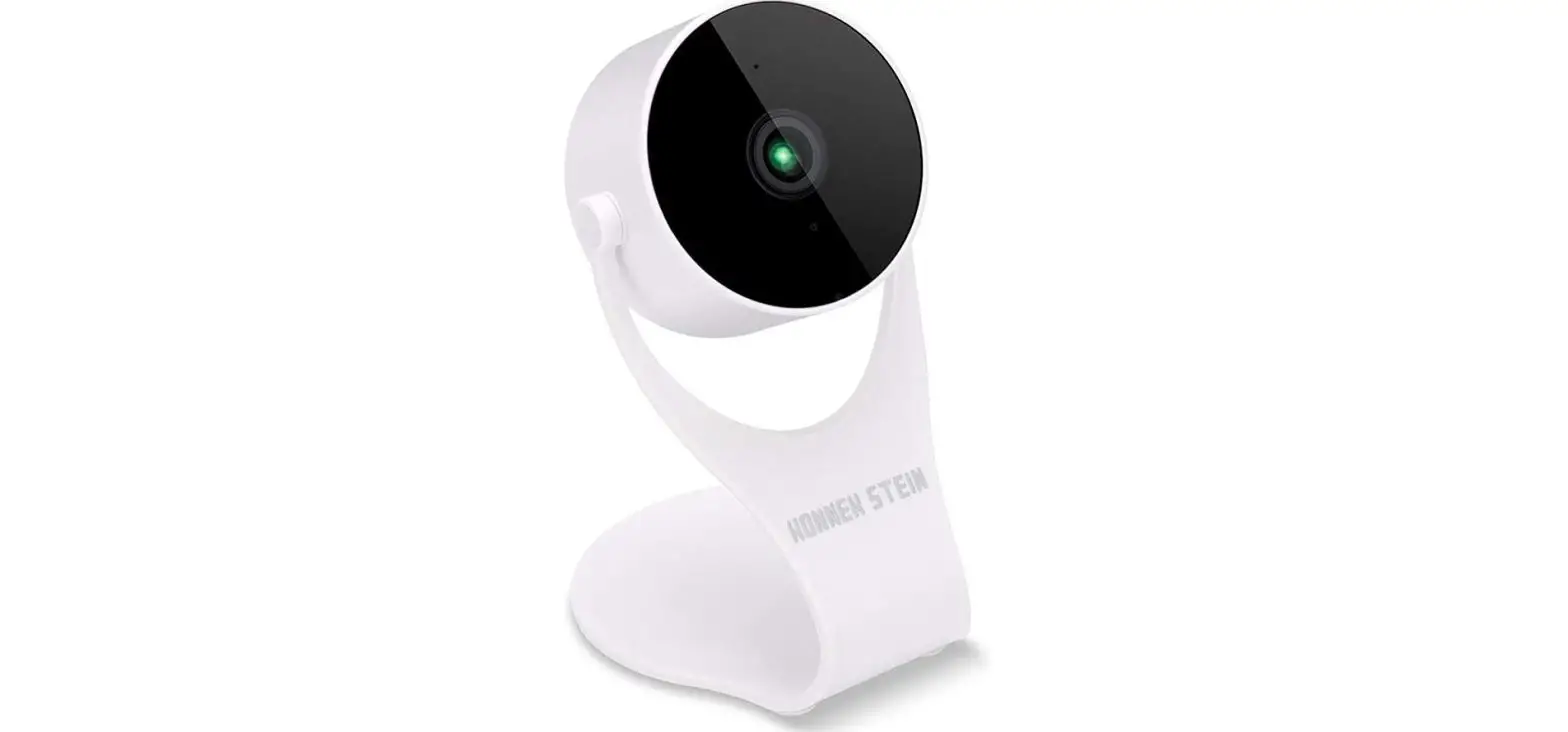

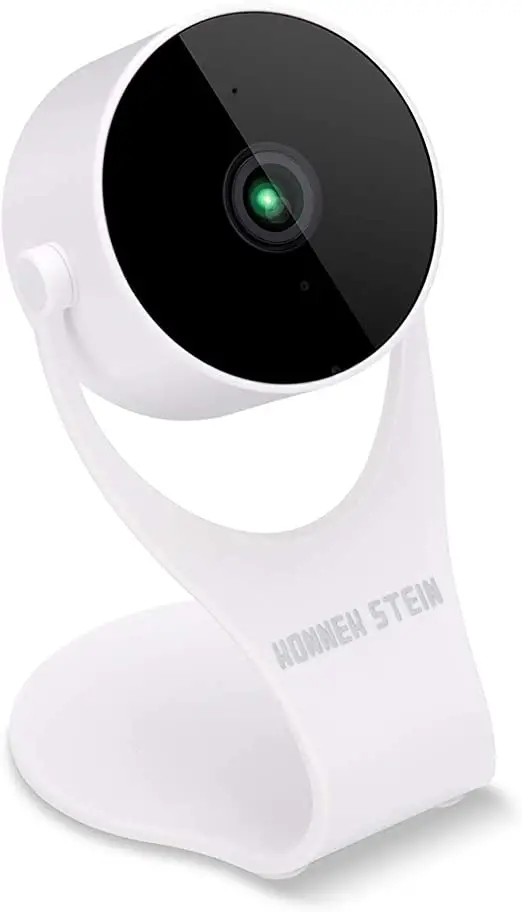
KONNEK STEIN BC21 Wireless Battery Camera
- Only support 24Ghz Wi-Fi
- The app only supports phones and tablets.
- The camera supports 8-1288 ( Class 1 0 or above ) SD card. Format the card into default mode on the computerThe memory card must be inserted or taken out before the camera powered on.
- When the SD card is fulfilled, new recordings shall cover old ones automatically.
- For more questions, you can click on the My->FAQ & Feedback to see more questions on the app or contact us directly.
Product Introduction
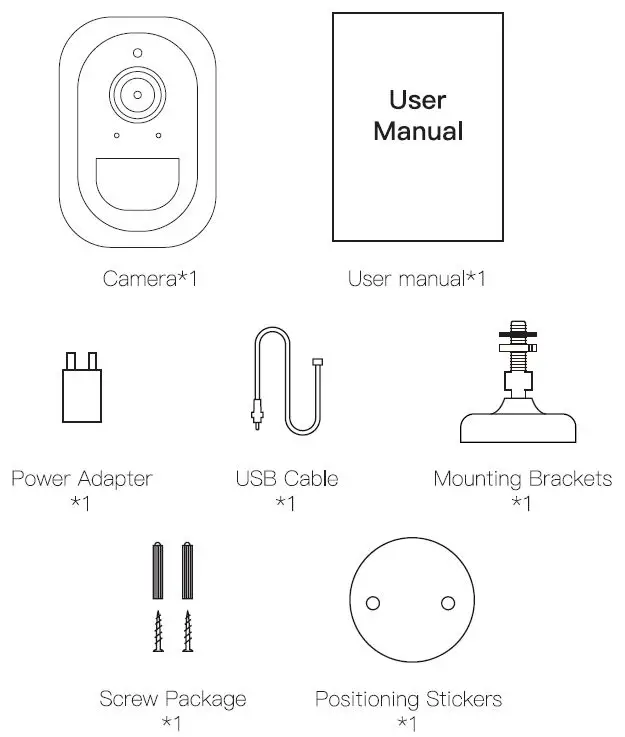
Package
Product Installation
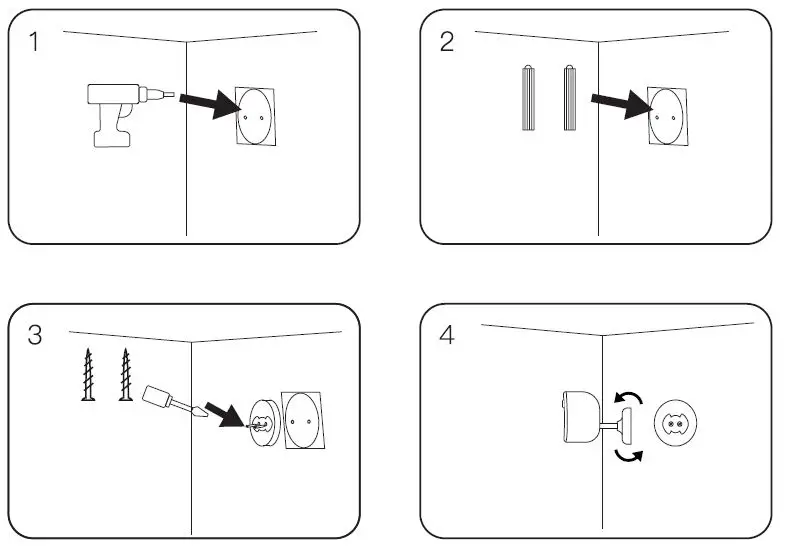
- Put the positioning stickers on the mounting position of the wall, and use a proper drilling tool to drill 2 holes at the position located.
- Put the plastic anchors into the holes.
- Insert the fixing screw into the base of the mounting bracket.
- After connecting the camera to the mounting bracket, fix the rotating mounting bracket on the bracket base.
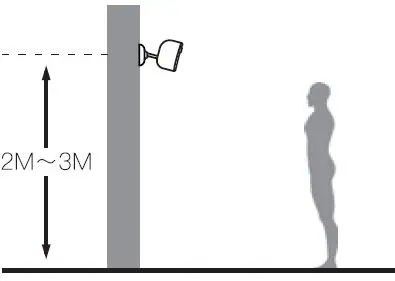
Tips:
It is recommended to install the camera at a height of two to three meters and tilt downward.
Specifications
| Model | BC21 |
| Resolution | 1920*1080 |
| Angle | 130° Diagonal |
| Wi-Fi | 2.4GHz |
| Storage | MicroSD (TF) card type, up to 128G |
| Reset button interface | Support |
| Network | 802.11b/g/n WEP, WPA, WPA2 |
| Power | USB 5V |
| Working environment | -10°C – 45°C,10% – 95% RH |
App download
- Scan QR Code to download the app Smart Life.
- Search “Smart Life”in App Store or Google Play and download.


Tips:
The app only supports phones and tablets. (Android & iOS System)
Instructions for the APP
Sign Up & Log in
Sign Up
 Click “Sign Up”.
- Select the country.
- Register with your email address.
- Enter the code received.
- Set Password.
 Click “Sign Up”.
Forgot Password
Enter your registered email address. Get and enter authorization code.
Log in
Enter your registered email and password .Click”Login with Existing Account”.
Warm Tips
Password format:6 to 18 characters or numbers.case-sensitive If you can not receive code when registering Smart Life account via email, please
- Confirm whether the email or phone number entered is correct.
- Try to use a new email or phone number.
- Check your spam emails.
Add camera
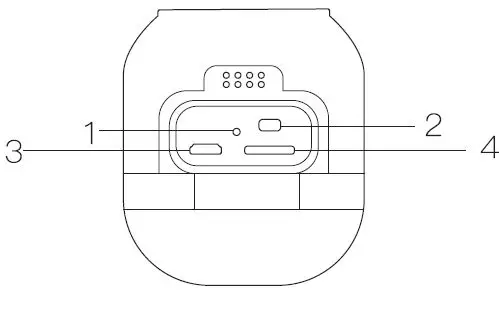
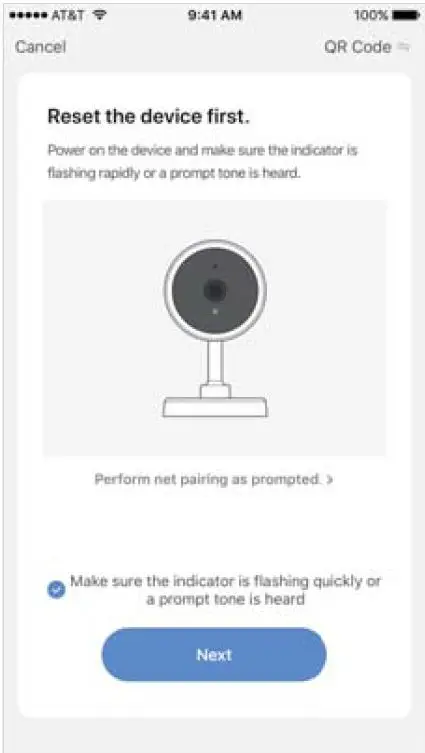
- Connect the camera to the power source, then press the reset button for about 5 seconds and then release it. After waiting for about 5 seconds, you wi 11 hear a tone.

- Add the camera by clicking “Add Device” or “+” in the upper right corner.then choose “Security & Video Surveillance” and find “Smart Camera”

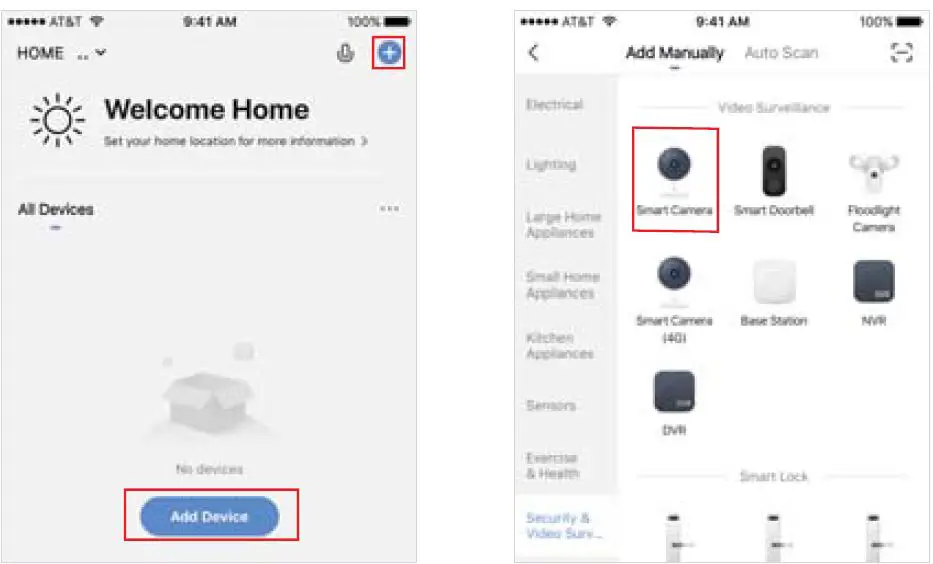
0nly support QR Code Net-pairing
- Click” Next”.

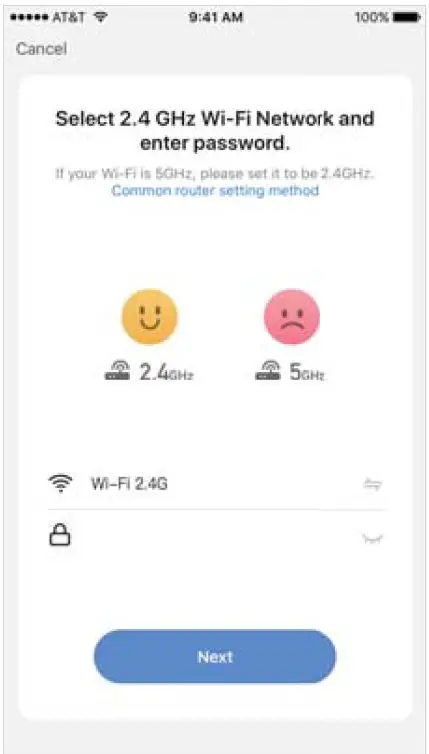
- choose your Wi-Fi and enter correct Wi-Fi password. (24Ghz Wi-Fi only)

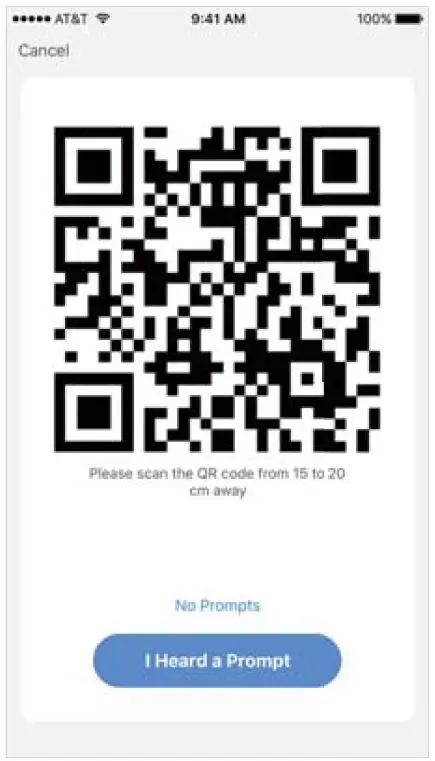
- Tap Continue.The mobile phone displays a QR code.Use the camera to scan to the QR code 1 5 cm to 20 cm away from the mobile phone.

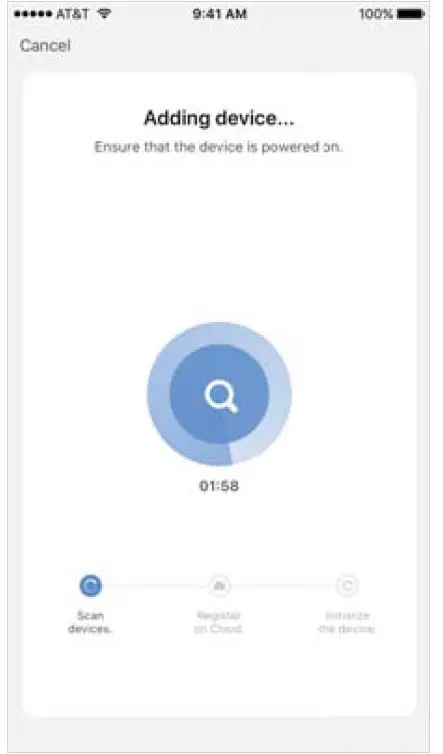
- Connecting.

- Name the camera and click “Done”.

- Bind success.

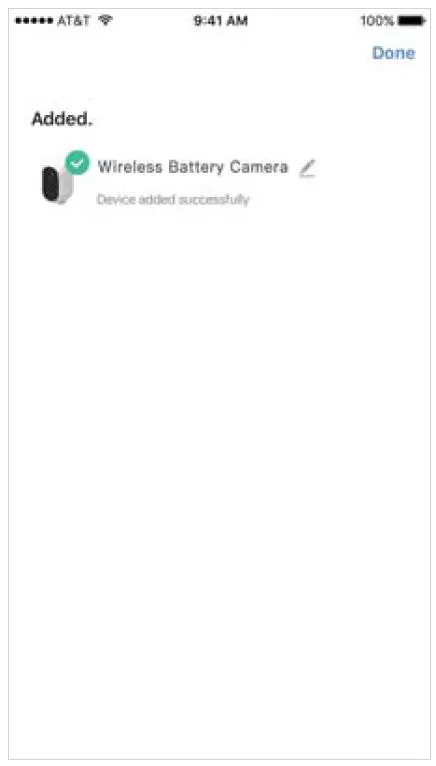
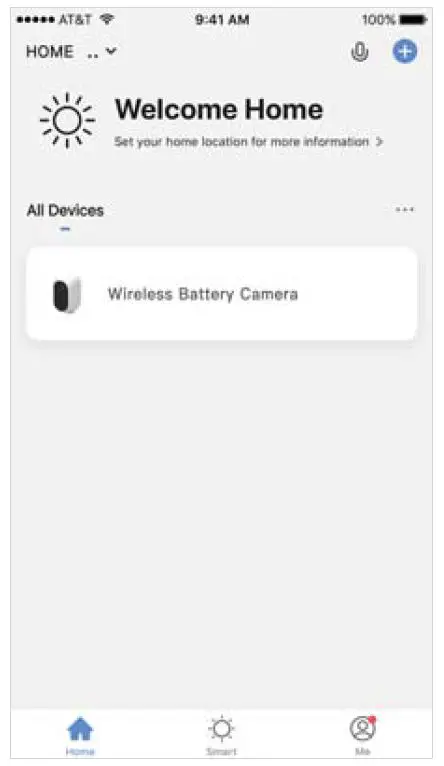
Function Instruction 
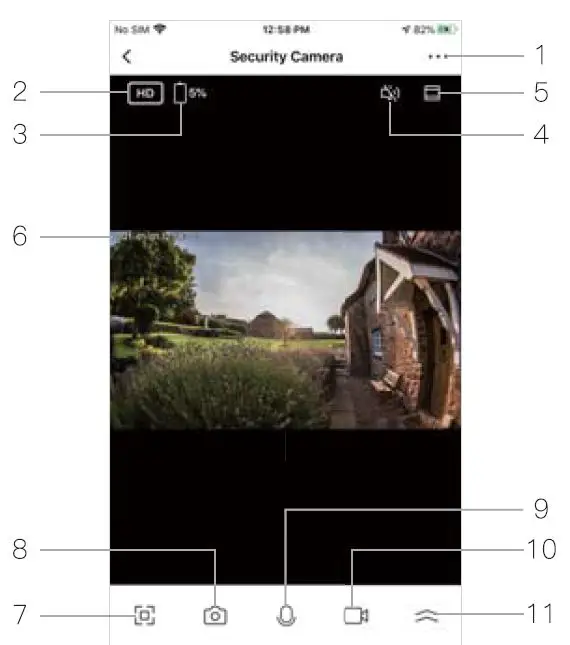
- Settings
- Resolution
- Remaining battery
- Sound
- Long Screen
- Time Stamp
- Full Screen
- Screenshot Picture
- Speak
- Record Video
- More
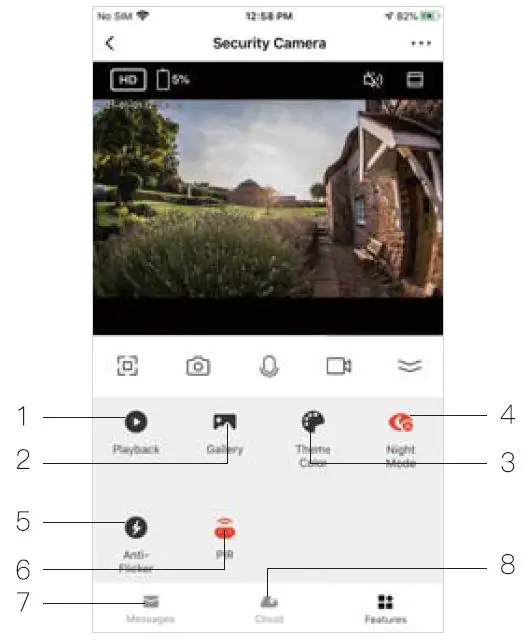
- Playback
- Gallery
- Theme Color
- Night Mode
- Anti-Flicker
- PIR
- Messages
- Cloud
Settings 
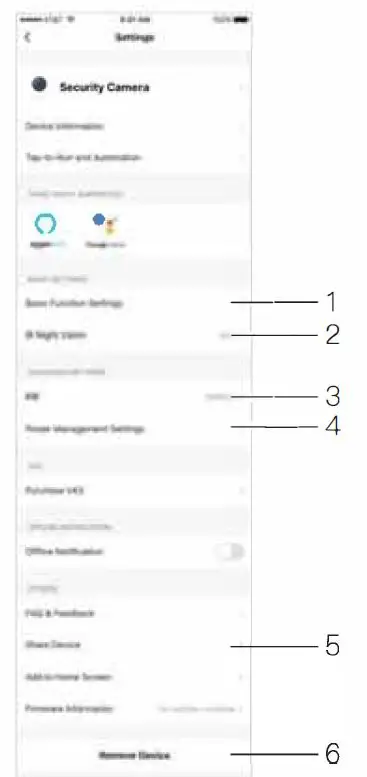
- Basic Function Settings
- IR Night Vision
- PIR
- Power Management Settings
- Share the device with others by entering their accounts
- Remove device if you want to re-connect the device
FAQ
Q: Is the camera waterproof?
A: Yes, we have better IP66 waterproof technology & strong full aluminium case, the camera is protected from water.
Q: Fail to bind the camera to APP ?
- A: Please make sure you input correct win password.
- (2) please double check the internet is available or not.
(3) 5GHz currently not supported, Our camera just only support 2.4GHz wireless spectrum. if your router connetion by 5GHz wireless spectrum,please change it to 2.4GHz.
Q: If my camera has other problems, how can I solve the problem?
A: For more questions, you can click on the My->FAQ & Feedback to see more questions on the app or contact us directly.
Customer Service Email: [email protected] Any support you need, anything you feel like to share, You are more than welcome to contact us.