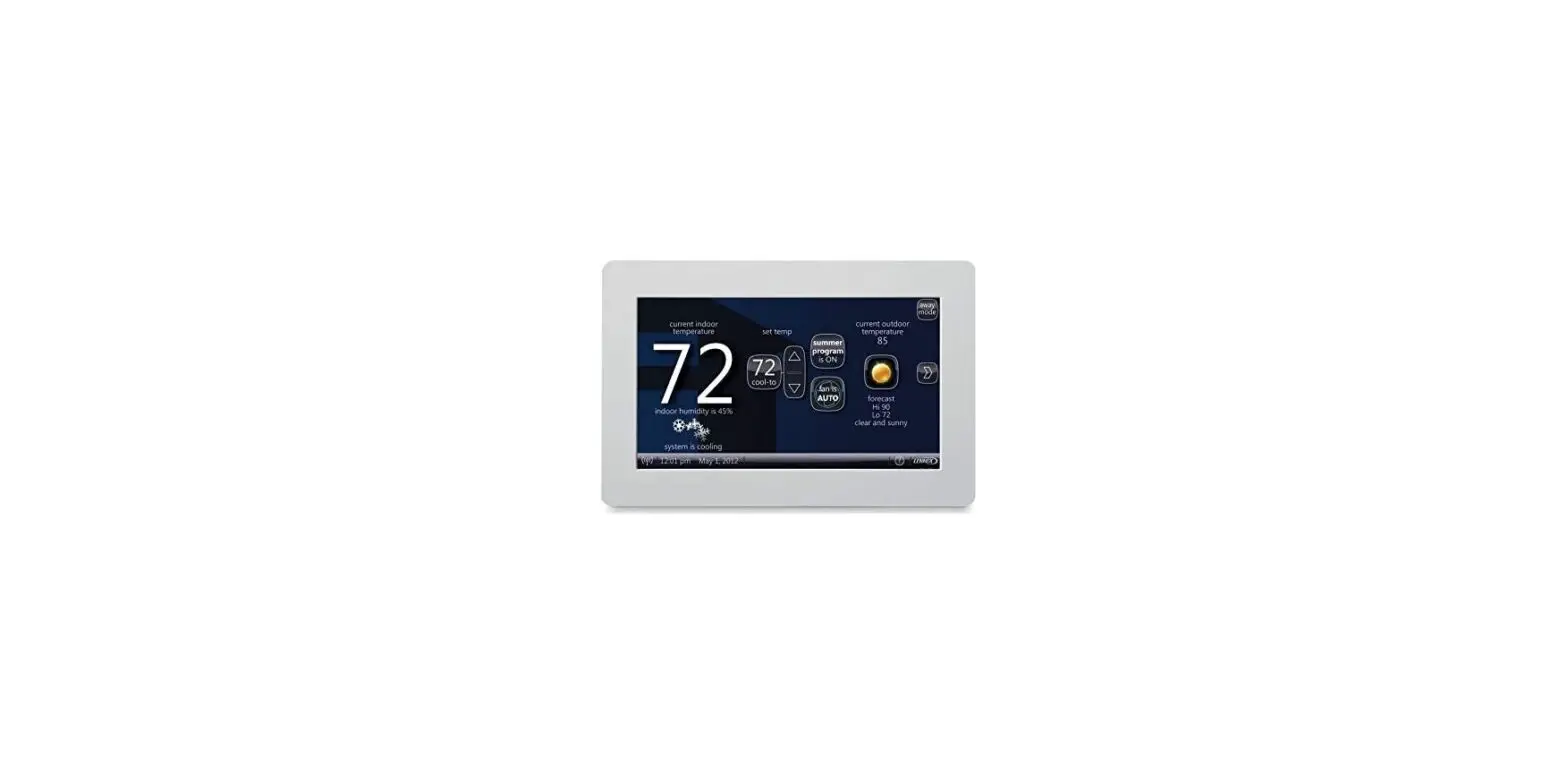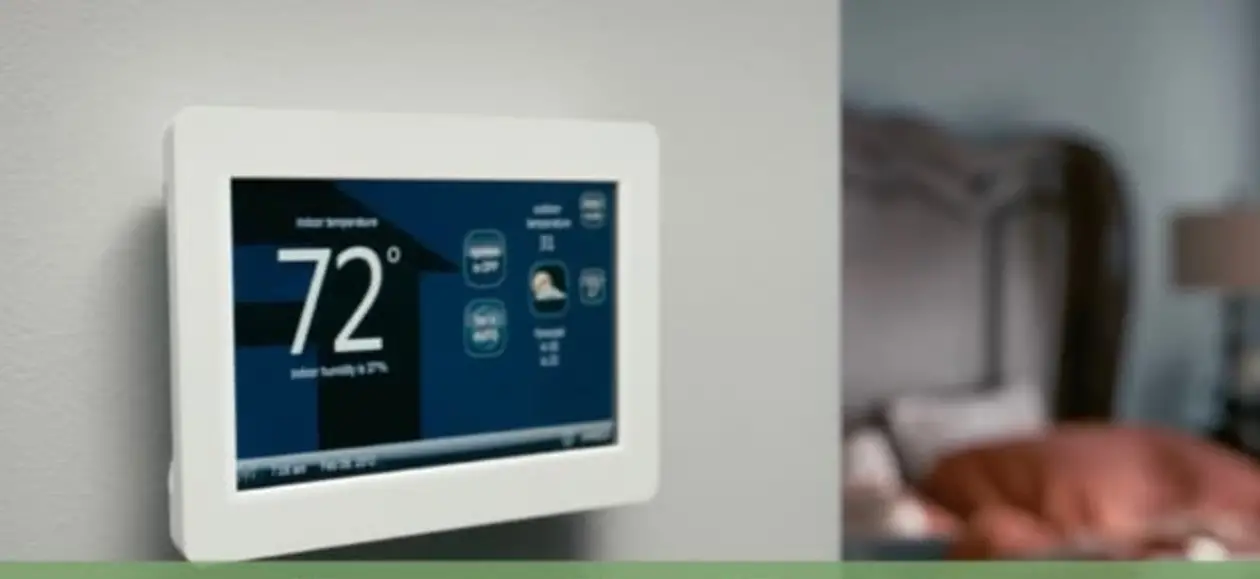

LENNOX F1943L-3P Touchscreen Wi-Fi Controller
Product Information
| Product Name | VARIABLE REFRIGERANT FLOW SYSTEMS (VRF) |
|---|---|
| Model Number | F1943L-3P |
| Description | Touchscreen Wi-Fi Controller 60 Hz |
| Bulletin Number | 210967 July 2023 |
| Supersedes | April 2022 |
Product Usage Instructions
Controller User Settings – Home Screen (Thermostat ON)
- Touch the blank screen to turn on the backlight if the brightness setting is set to 0%.
- Use the UP/DOWN arrows to adjust the temperature.
- The home screen displays the actual temperature, relative humidity, and mode (HEAT, COOL, OFF).
- To access the Main Menu screen, touch the MODE button on the upper-right of the home screen.
Controller User Settings – Main Menu Screen
- To access the Settings screen, touch the gear icon on the upper-right of the screen.
- On the Settings screen, you can switch the system mode (OFF, HEAT, COOL, AUTO, DRY) and adjust the fan operation (ALWAYS ON) and fan speed (LOW, MED, MAX, AUTO).
- You can also switch between Fahrenheit and Celsius temperature units and adjust the display brightness (0 to 100%).
- To set up the network connection, touch the “NETWORK” button and refer to the VRF Wi-Fi Controller Mobile App User Manual for complete instructions.
- To access additional settings, touch the “ADDITIONAL SETTINGS” button.
Controller User Settings – Additional Settings Screen
- To access the Service Menu screen, touch the “SERVICE MENU” button (passcode required).
- The Service Menu screen allows you to perform artificial calibration, view controller information, and reboot the controller.
- To adjust temperature, touch the “ARTIFICIAL CALIBRATION” button.
- To access the Aux Setup screen, touch the “AUXILIARY HEAT SETUP” button.
- To change the passcode, touch the “CHANGE PASSCODE” button and enter a new 4-digit passcode.
- To access the Indoor Unit Settings screen, touch the “INDOOR UNIT SETTINGS” button.
Controller User Settings – Aux/Alt Heat Options Screen
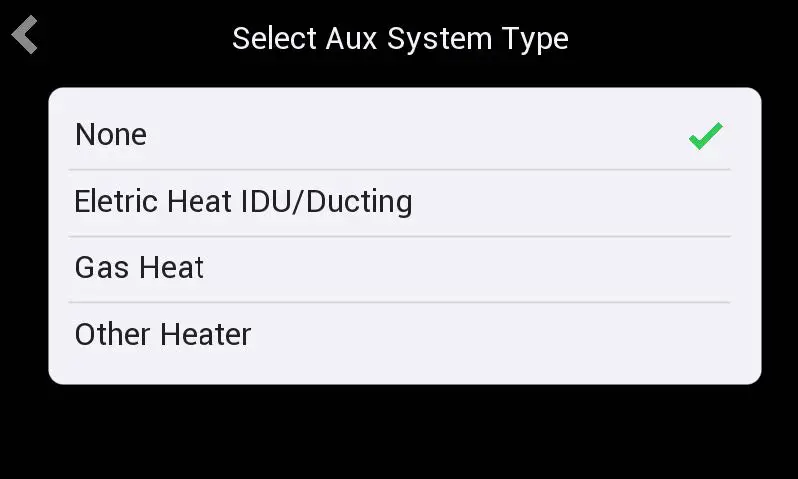
- To select the heating type, touch one of the options (NONE,
ELECTRIC HEAT, IDU/DUCTING, GAS HEAT, OTHER HEAT). - To set the switchover temperature, touch the “SET SWITCHOVER TEMPERATURES” button.
- The displayed options on the Aux Heat Fan Options screen depend on the heat type selected.
Aux Heat Fan Options Screen (for Electric Heat)
- To switch the fan operation, touch the corresponding button.
- To switch the fan speed, touch the corresponding button (LOW, MED, HIGH).
COMMERCI AL
PRODUCT SPECIFICATIONS
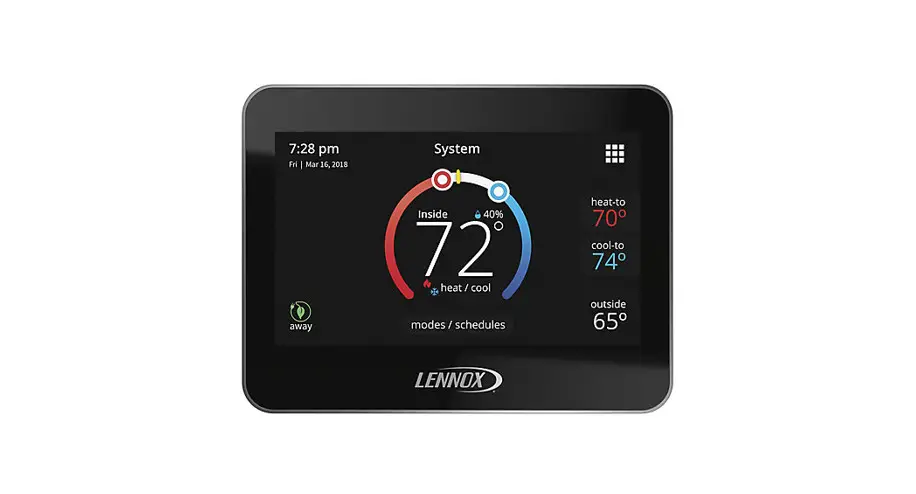
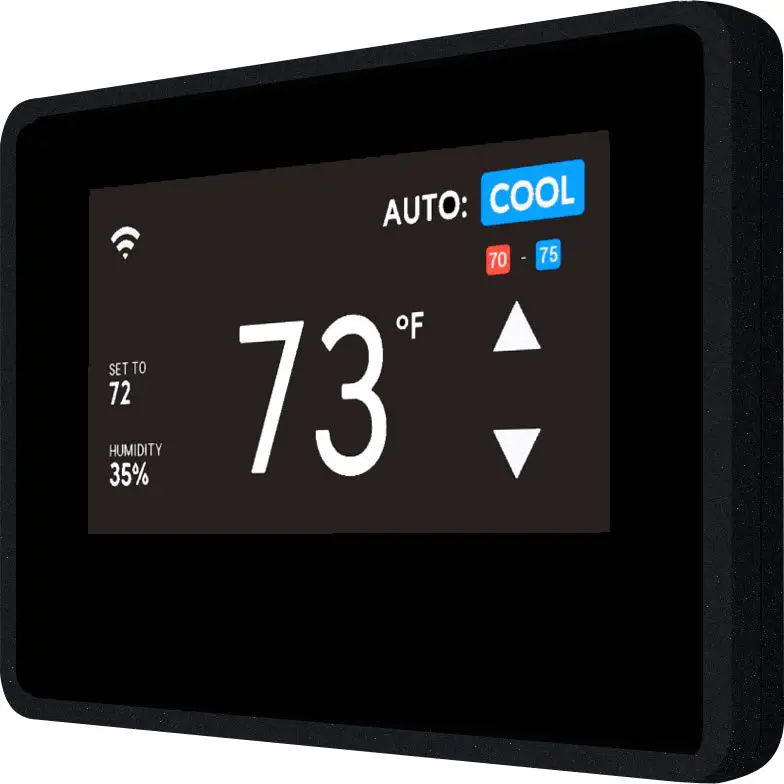
The F1943L-3P (19B16) is a wired local touchscreen controller for VRF Heat Recovery, VRF Heat Pump and Mini-VRF Systems.
Remote control via Wi-Fi is available with the free VRF Controller App.
NOTE – Refer to the Controller Installation Instructions and the App User Manual for additional information.
Touchscreen Display
- 4 in. capacitive touchscreen with full color LCD display and intuitive navigation
- Screen is illuminated when touched and remains lit during control access
Dimensions
- 3-5/8 x 5 x 7/8 in. (H x W x D)
- Wall plate and additional hardware is furnished for installation
Wiring
- Controller uses low voltage 4-wire 18AWG shielded cable (not furnished) for easy connection to the indoor unit
Grouping
- Controller can control up to 16 indoor units on the same system
| CONTROLLER USER SETTINGS | ||
| HOME SCREEN (Thermostat ON) | Notes | |
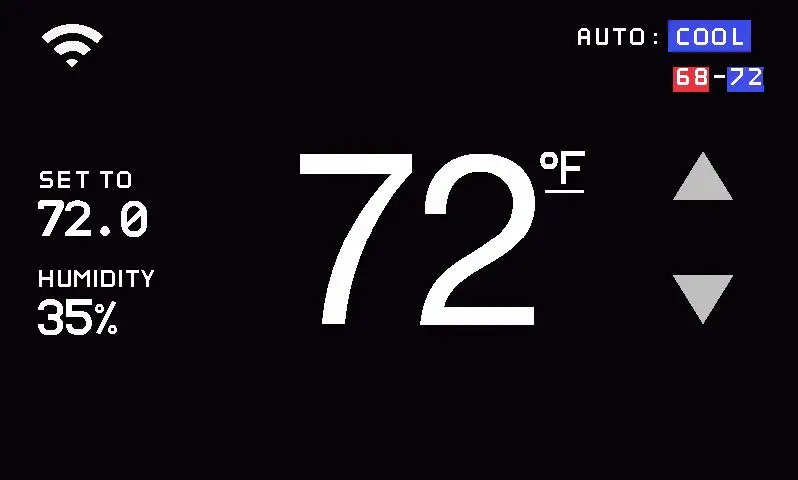 | Touch blank screen to turn on the backlight if brightness setting is set to 0%. | |
| ACTUAL TEMPERATURE DISPLAY | Touch the MODE button on the upper-right of the home screen to access the Main Menu screen. | |
| UP/DOWN ARROWS ADJUST TEMPERATURE | 62°F to 86°F | |
| TEMPERATURE “SET TO” DISPLAY | ||
| RELATIVE HUMIDITY DISPLAY | ||
| MODE | HEAT | |
| COOL | ||
| OFF | ||
| CONTROLLER USER SETTINGS | ||
| MAIN MENU SCREEN | Notes | |
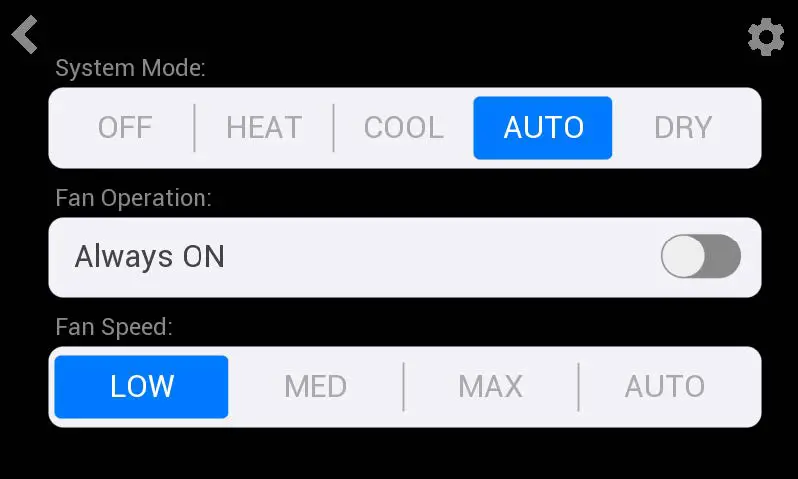 | ||
| SETTINGS (Gear Icon) | Touch the gear icon on the upper-right of the screen to access the Settings screen. | |
| SYSTEM MODE | OFF | Touch a button to switch unit operation. |
| HEAT | ||
| COOL | ||
| AUTO | ||
| DRY | ||
| FAN OPERATION (ALWAYS ON) | ON | |
| OFF | ||
| FAN SPEED | LOW | |
| MED | ||
| MAX | ||
| AUTO | ||
| SETTINGS SCREEN | Notes | |
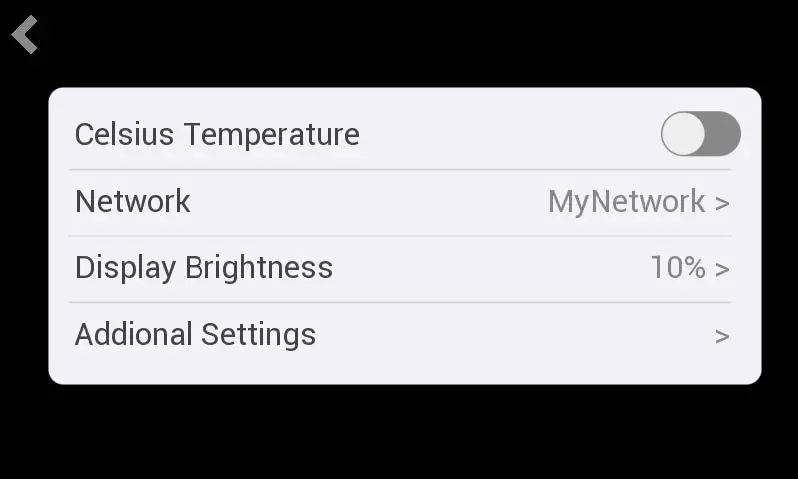 | ||
| FAHRENHEIT / CELSIUS TEMPERATURE | ON | Touch button to switch between Fahrenheit (default) and Celsius. |
| OFF | ||
| NETWORK | Touch to set up network connection. Refer to the VRF Wi-Fi Controller Mobile App User Manual for complete Wi-Fi setup instructions. | |
| DISPLAY BRIGHTNESS | 0 to 100% | Touch to adjust brightness. 0% setting turns off screen after 30 seconds. |
| ADDITIONAL SETTINGS | Touch to access Additional Setting screen. | |
| CONTROLLER USER SETTINGS | ||
| ADDITIONAL SETTINGS SCREEN | Notes | |
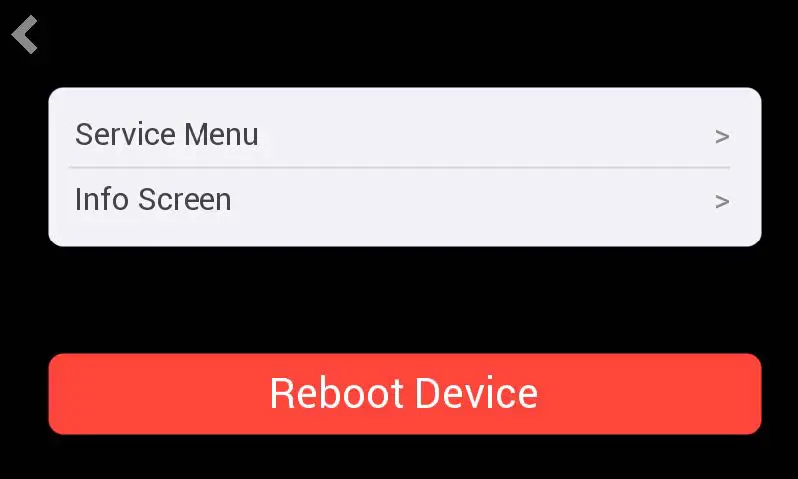 | ||
| SERVICE MENU | Touch to access Service Menu screen. Passcode protected. | |
| INFO SCREEN | Displays controller information (firmware, etc.). | |
| REBOOT DEVICE BUTTON | Reboots Controller | |
| SERVICE MENU SCREEN (Passcode Required) | Notes | |
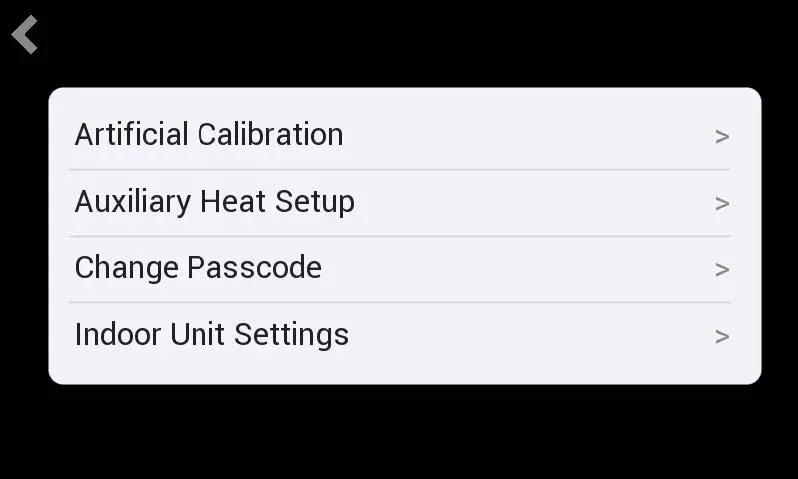 | ||
| ARTIFICIAL CALIBRATION | -5°F to 5°F | Touch to adjust temperature. |
| AUXILIARY HEAT SETUP | Touch for Aux Setup screen. | |
| CHANGE PASSCODE | Touch to change passcode. Enter a new passcode (4 digits). Touch Save to store. | |
| INDOOR UNIT SETTINGS | Touch for Indoor Unit Settings screen. | |
| AUXILIARY HEAT SETUP | Notes | |
| NONE | ||
| ELECTRIC HEAT IDU/DUCTING | Touch to select Heating type. Touch Next to go to the Aux/Alt Heat Options screen. | |
| GAS HEAT | ||
| OTHER HEAT | ||
| CONTROLLER USER SETTINGS | ||
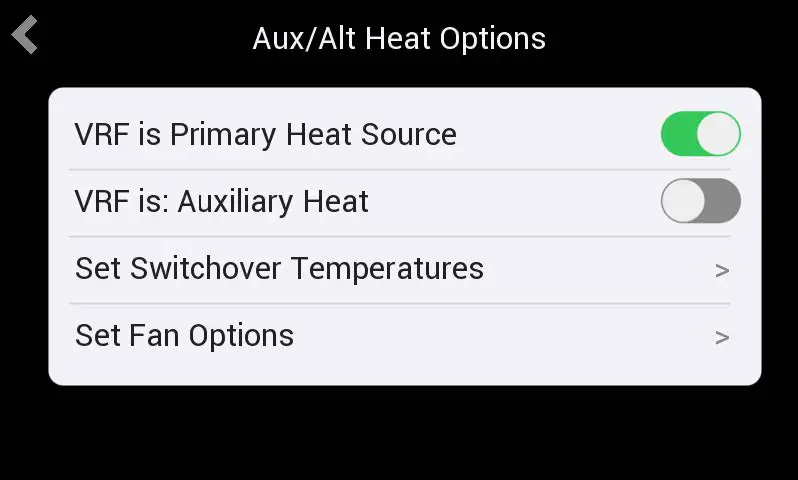
| AUX/ALT HEAT OPTIONS SCREEN | Notes | |
 | ||
| VRF is PRIMARY HEAT SOURCE | ON (default) | Touch button to switch. |
| OFF | ||
| VRF is AUXILIARY HEAT | ON | Touch button to switch. |
| OFF (default) | ||
| SET SWITCHOVER TEMPERATURE | Touch for Set Switchover Temperatures screen. | |
| SET FAN OPTIONS | The Set Fan Options screen displayed is dependent on the heat type selected. See Aux Heat Fan Options screen for Electric Heat See Alt Heat Fan Options screen for Gas Heat or Other | |
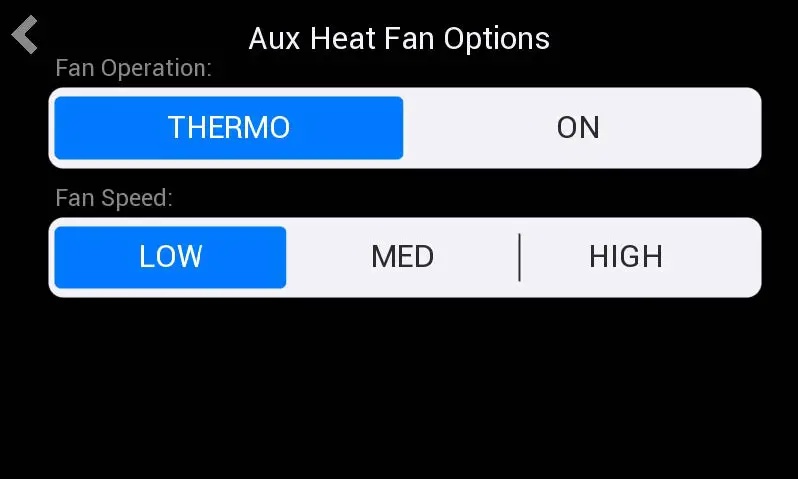
| AUX HEAT FAN OPTIONS SCREEN | Notes | |
 | This screen is for Electric Heat fan settings. | |
| FAN OPERATION | THERMO | Touch to switch. |
| ON | ||
| FAN SPEED | LOW | Touch to switch. |
| MED | ||
| HIGH | ||
| CONTROLLER USER SETTINGS | ||
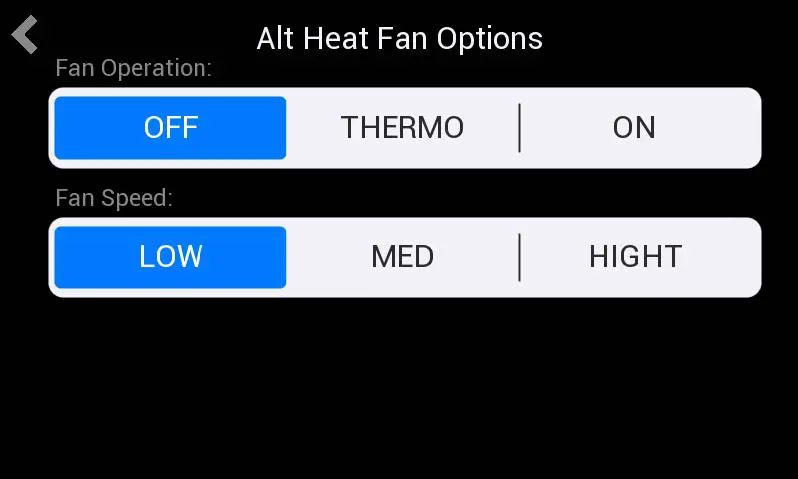
| ALT HEAT FAN OPTIONS SCREEN | Notes | |
 |
This screen is for Gas Heat or Other Heat source fan settings. | |
| FAN OPERATION | OFF | Touch to switch. |
| THERMO | ||
| ON | ||
| FAN SPEED | LOW | Touch to switch. |
| MED | ||
| HIGH | ||
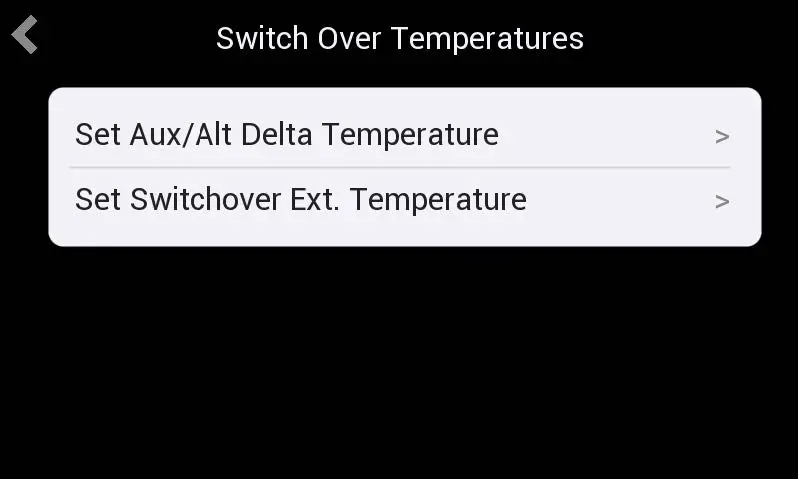
| SWITCHOVER TEMPERATURES SCREEN | Notes | |
 | ||
| SET AUX/ALT DELTA TEMPERATURE | –20°F to 0°F | Touch to adjust temperature. |
| SET SWITCHOVER TEMPERATURE | –8°F to 80°F | Touch to adjust temperature. |
| CONTROLLER USER SETTINGS | ||
| INDOOR UNIT SETTINGS SCREEN | Notes | |
 | ||
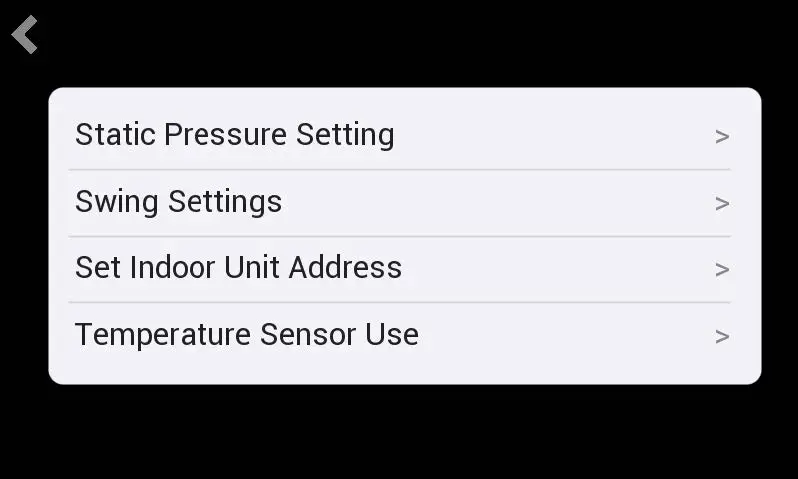
| STATIC PRESSURE SETTING | 0.00 to 1.00 in. w.g. | Touch up/down arrows to adjust. Touch Save button to store. |
| SWING SETTINGS | Vertical Swing Settings | Touch to set Swing Settings. |
| Horizontal Swing Settings | ||
| SET INDOOR UNIT ADDRESS | 1 to 16 | Touch up/down arrows to adjust. Touch Save button to store. |
| TEMPERATURE SENSOR USE | Controller (default) | Touch to switch. |
| Individual Indoor Unit | ||
| SWING SETTINGS SCREEN | Notes | |
 | ||
| VERTICAL SWING SETTINGS | Swing | Touch Swing to activate up/down louver operation. Louvers oscillate up and down automatically. Touch a Position number to set the louvers at one of five different fixed airflow angles. |
| Pos1 | ||
| Pos2 | ||
| Pos3 | ||
| Pos4 | ||
| Pos5 | ||
| HORIZONTAL SWING SETTINGS | ON | Touch to activate left/right louver operation. Louvers swing left and right automatically. |
| OFF | ||
Reset Button
- Reset button is hidden behind the first grill on the top right of the controller.
- Single Press – Reboots the controller without changes to the stored information.
- Long Press – Holding the switch down for more than Five Seconds enables a factory reset.
NOTE – Factory reset does not erase network connection information.
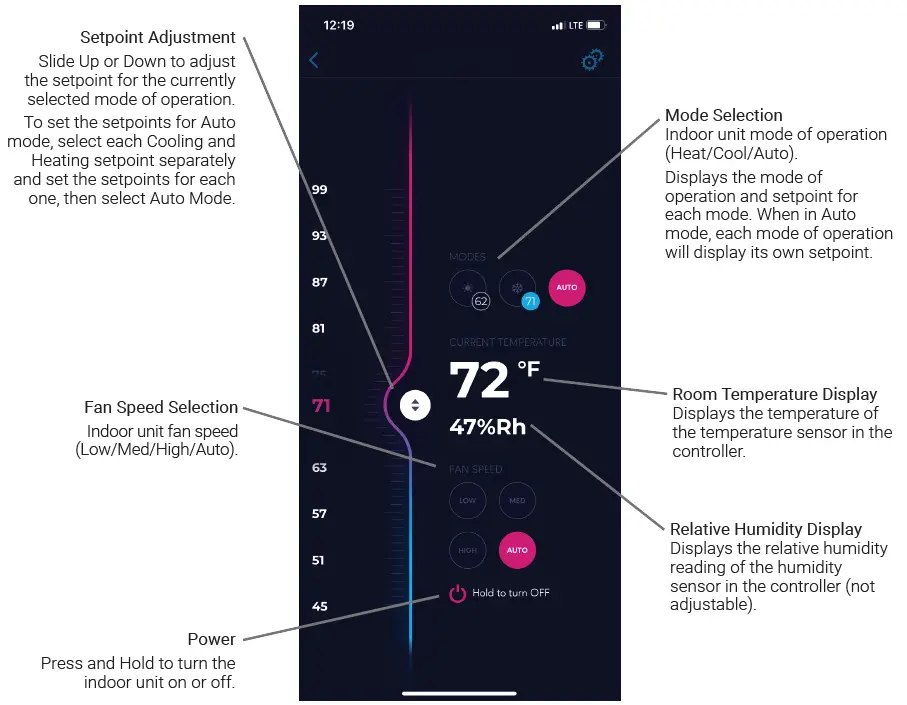
MOBILE APP
The free VRF Controller app is available for use on iPhone® and iPad®, Android™ devices.
Control cooling/heating temperatures, operating mode, fan operation and power for multiple units.
Allows remote control of VRF systems directly from a smartphone. The intuitive design gives you direct control over your system and comfort control, all in an easy-to-use layout.
NOTE – Refer to the VRF Wi-Fi Controller Mobile App User Manual for complete Wi-Fi setup instructions.

Apple, the Apple logo, iPhone and iPad are trademarks of Apple Inc. registered in the US and other countries.
Android is a trademark of Google Inc. Use of this trademark is subject to Google permission.
MOBILE APP CONTROLLER SCREEN SETTINGS
| REVISIONS | |
| Sections | Description of Change |
| Document | Additional features added. |
Visit us at www.Lennox.com
For the latest technical information, www.LennoxCommercial.com Contact us at 1-800-4-LENNOX
NOTE
- Due to Lennox’ ongoing commitment to quality, Specifications, Ratings and Dimensions subject to change without notice and without incurring liability. Improper installation, adjustment, alteration, service or maintenance can cause property damage or personal injury. Installation and service must be performed by a qualified installer and servicing agency.
 Lennox
 Commercial Air Conditioning & Heating Units | Lennox Commercial