
QUICK REFERENCE GUIDE
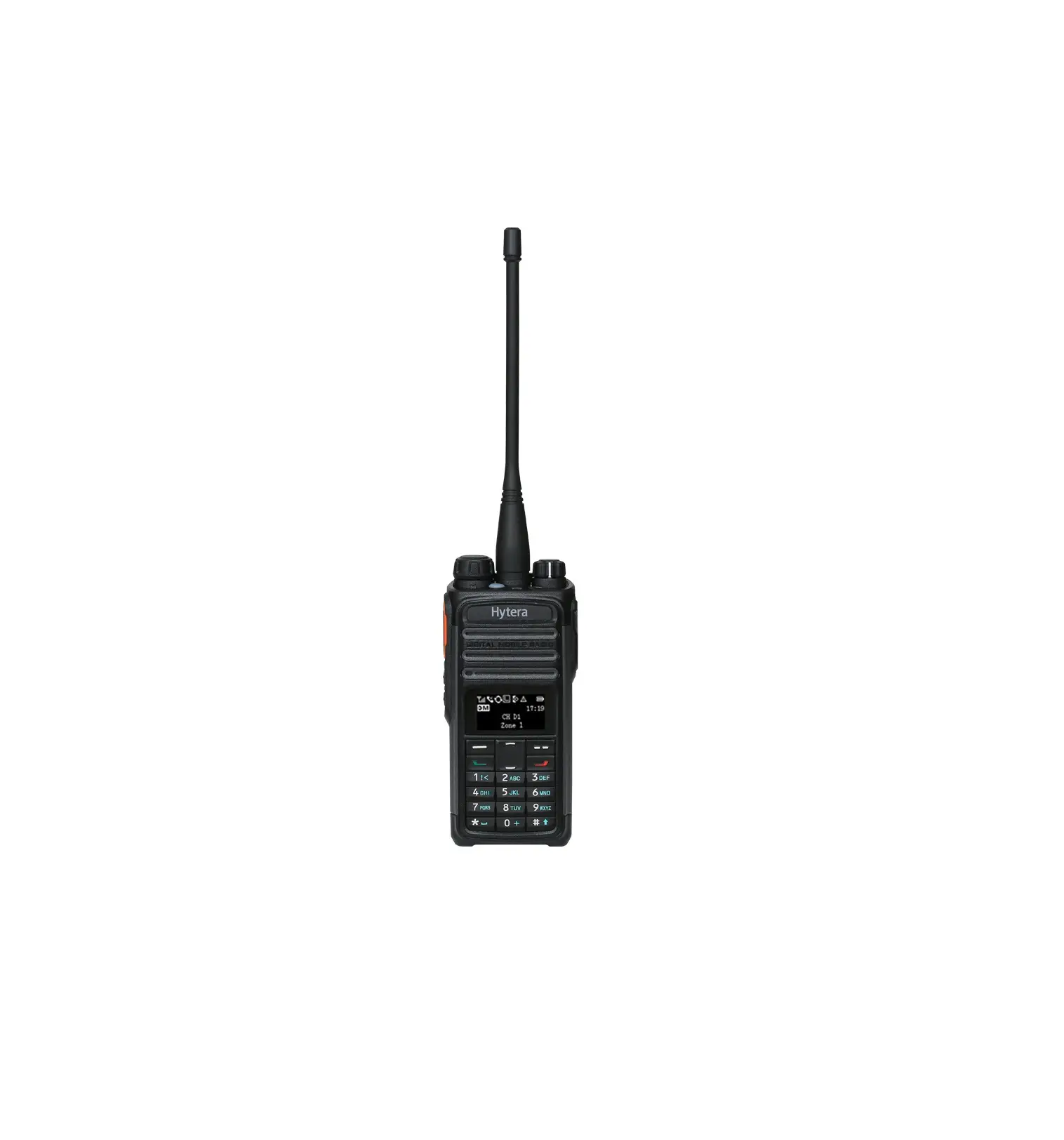
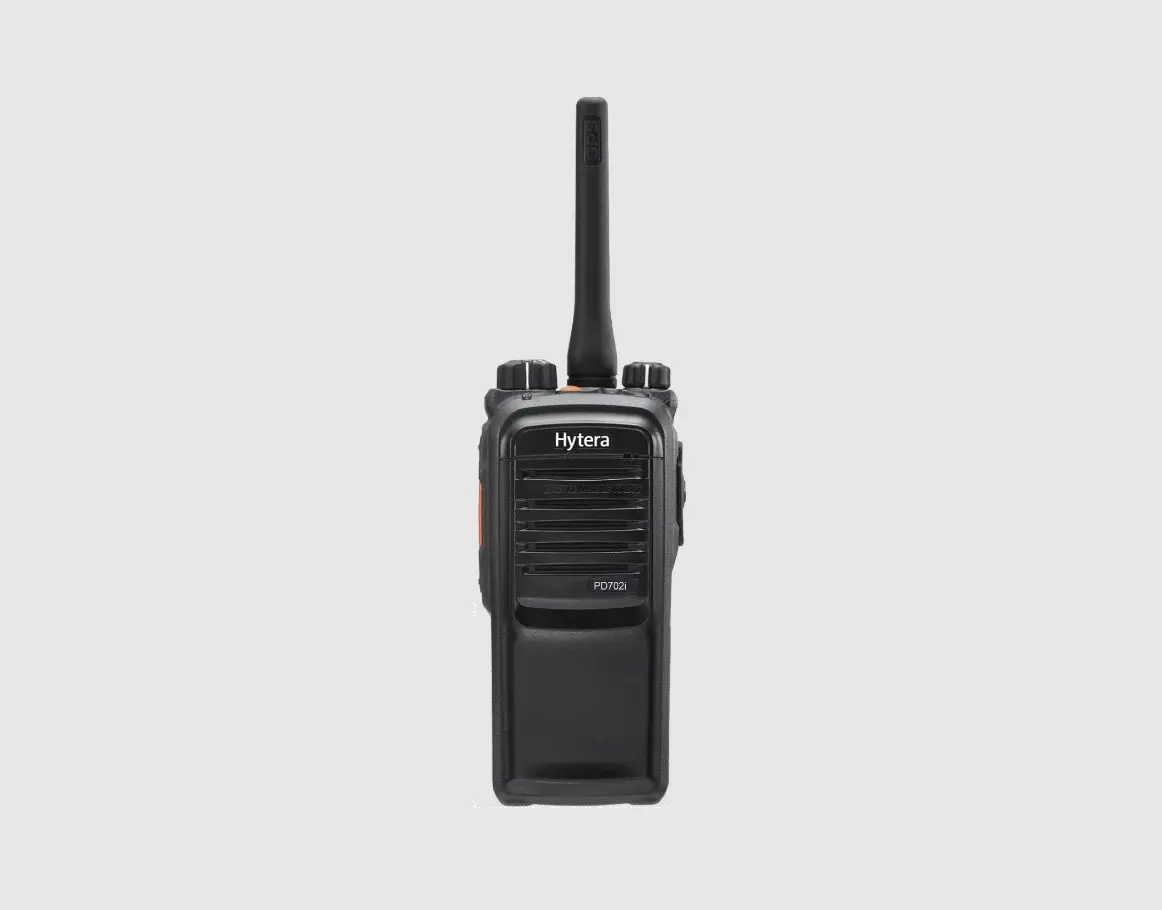
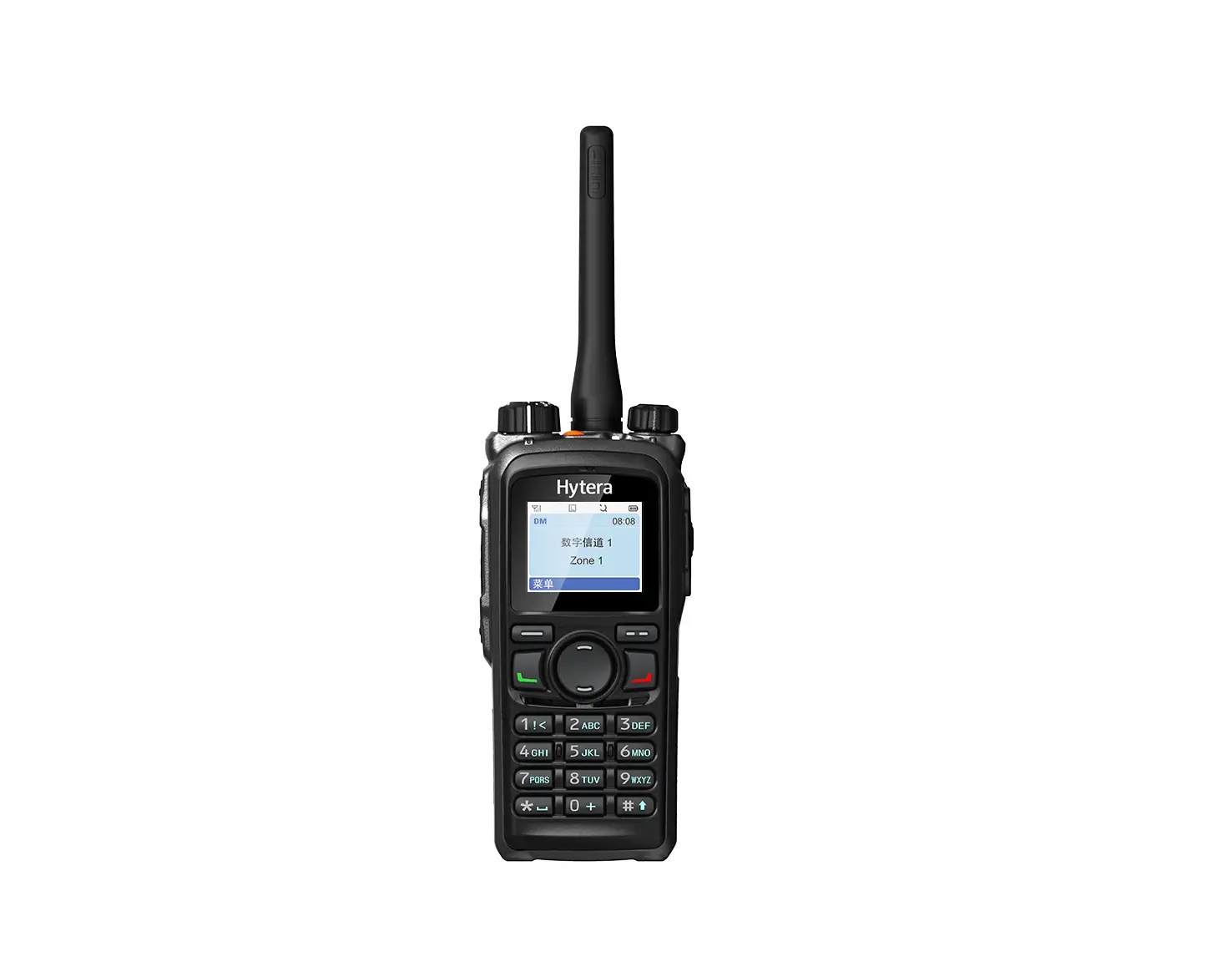
HP70X/78X Digital Portable Radio
Product Layout
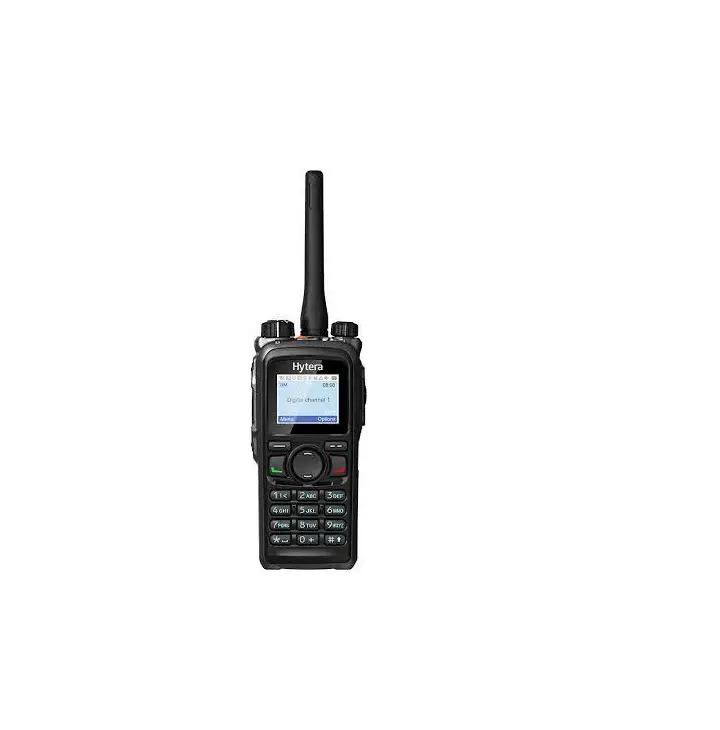
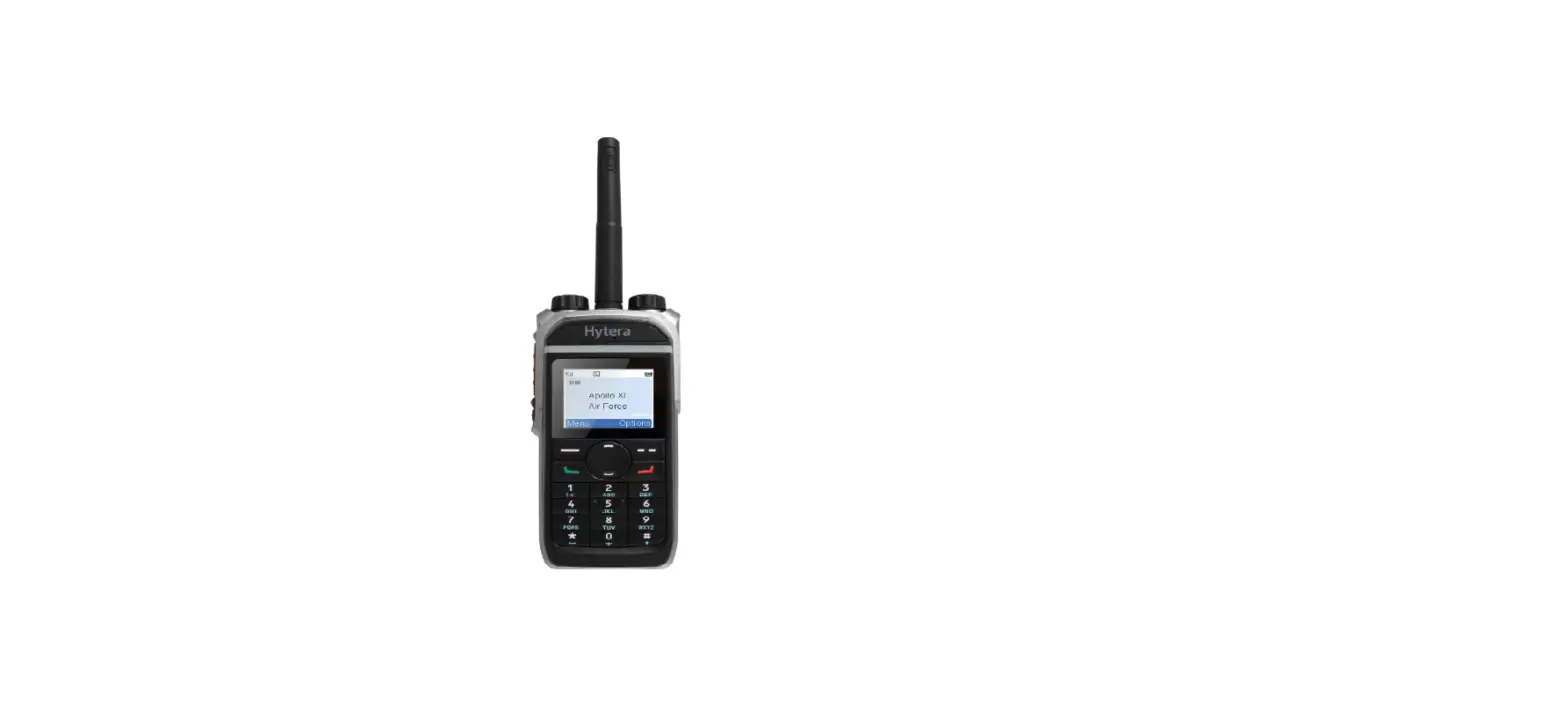
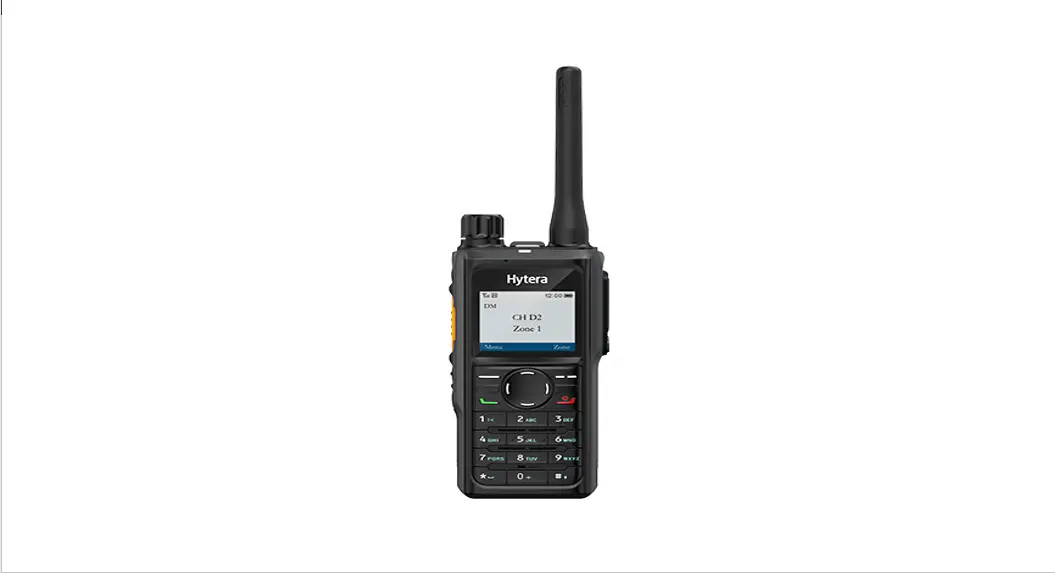
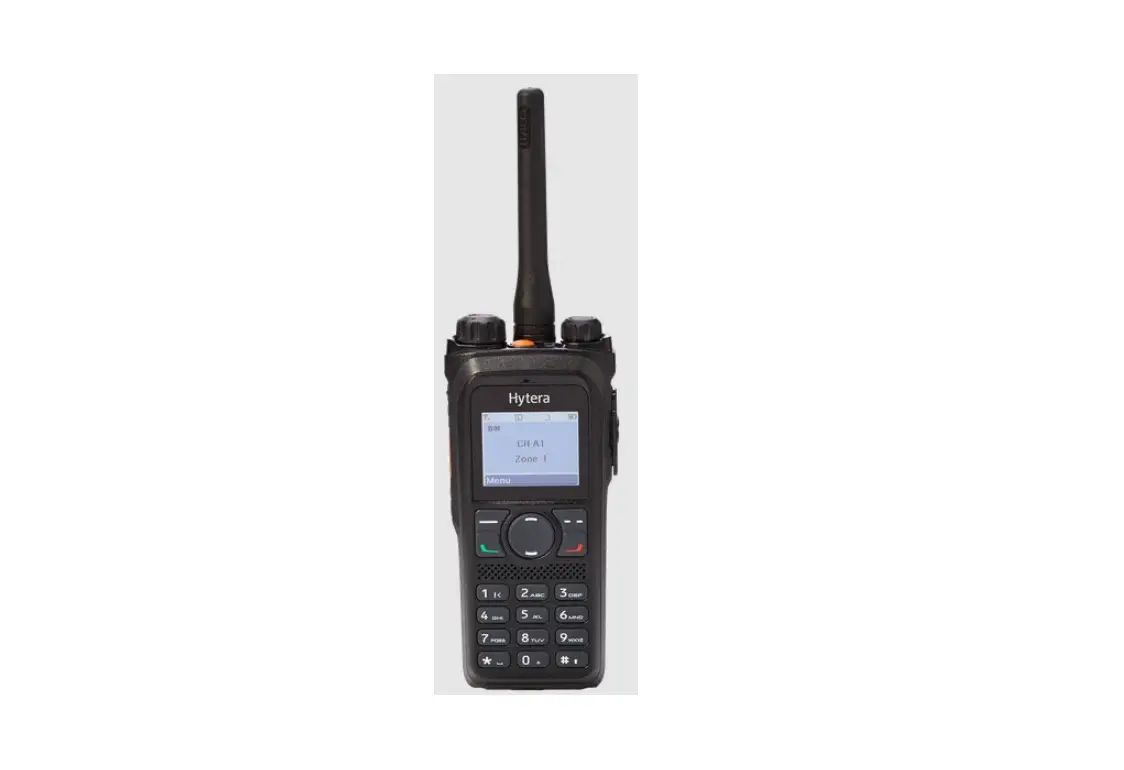
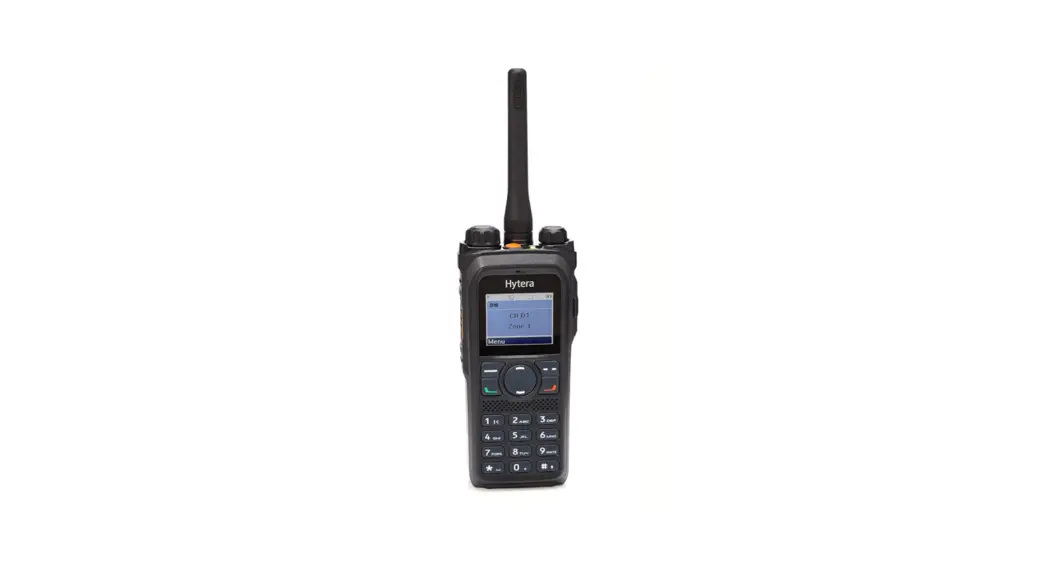
HP78X
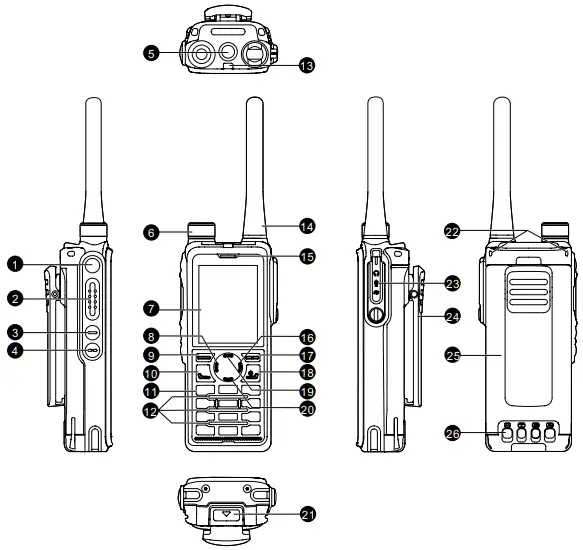
| No. | Part Name | No. | Part Name |
| 1 | Side Key 1 (SK1) (Programmable) | 14 | Antenna |
| 2 | Push-to-Talk (PTT) Ke y | 15 | Microphone |
| 3 | Side Key 2 (SK2) (Programmable) | 16 | Right Key |
| 4 | Side Key 3 (SK3) (Programmable) | 17 | Back/Subgroup Key |
| 5 | Top Key (TK) (Programmable) | 18 | On-Off/P2/End Key (Programmable) |
| No. | Part Name | No. | Part Name |
| 6 | Smart Knob | 19 | Up Key (Programmable) |
| 7 | LCD Display | 20 | Down Key (Programmable) |
| 8 | Left Key | 21 | Battery Latch |
| 9 | OK/Menu Key | 22 | Strap Hole |
| 10 | P1/Answer Key (Programmable) | 23 | Accessory Connector |
| 11 | Keypad | 24 | Belt Clip |
| 12 | Speaker | 25 | Battery |
| 13 | LED Indicator | 26 | Charging Contacts |
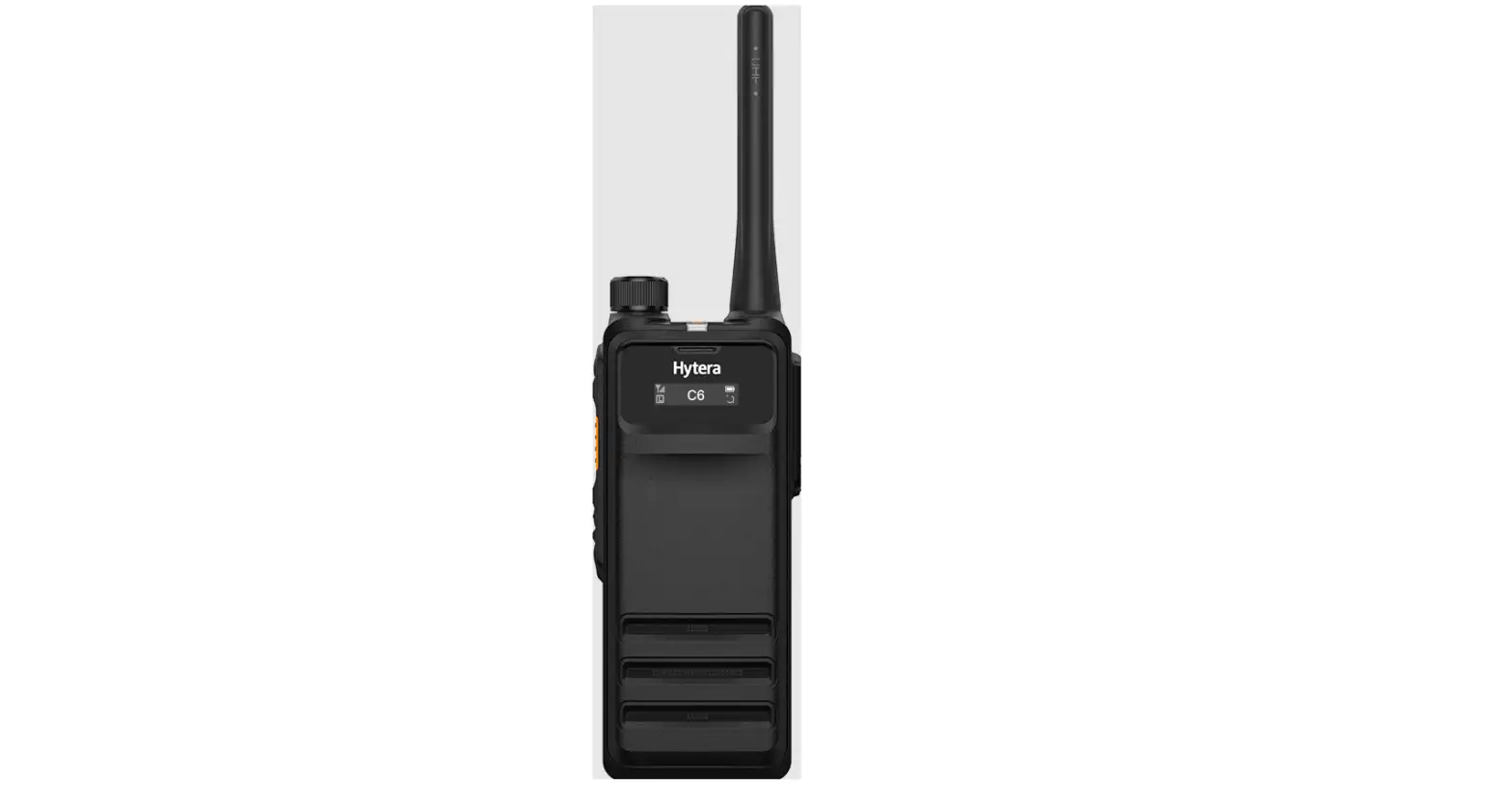
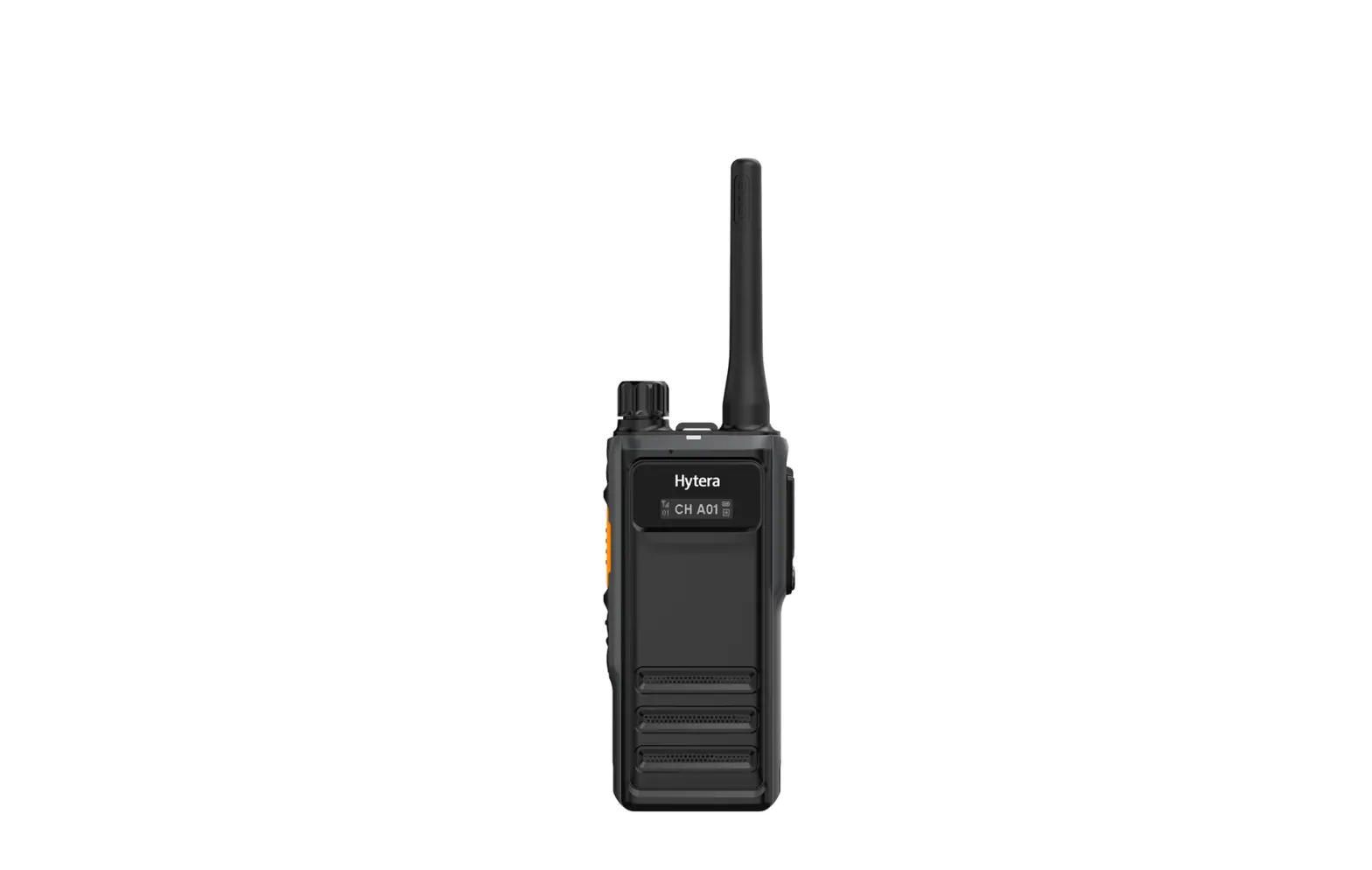
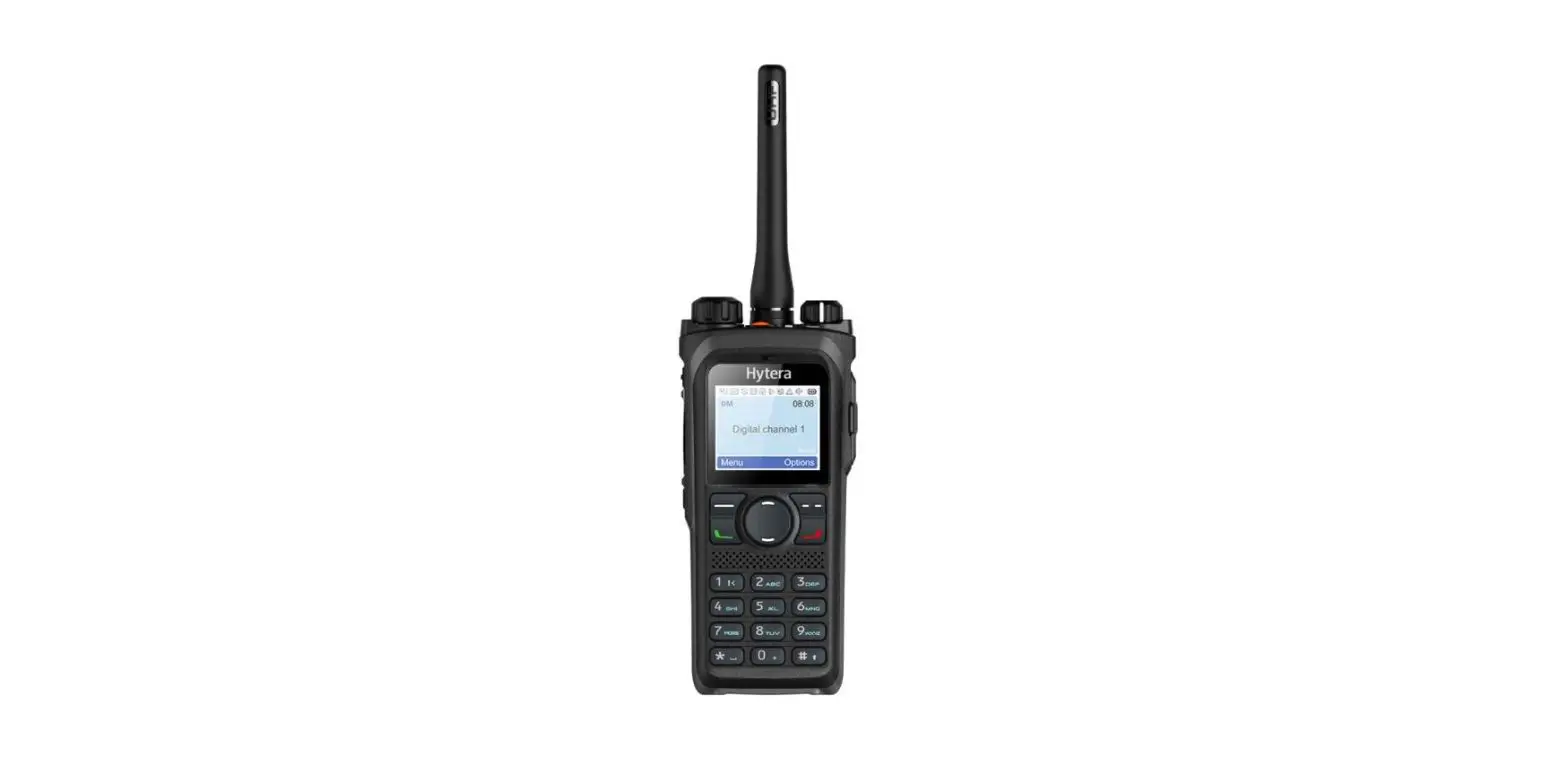
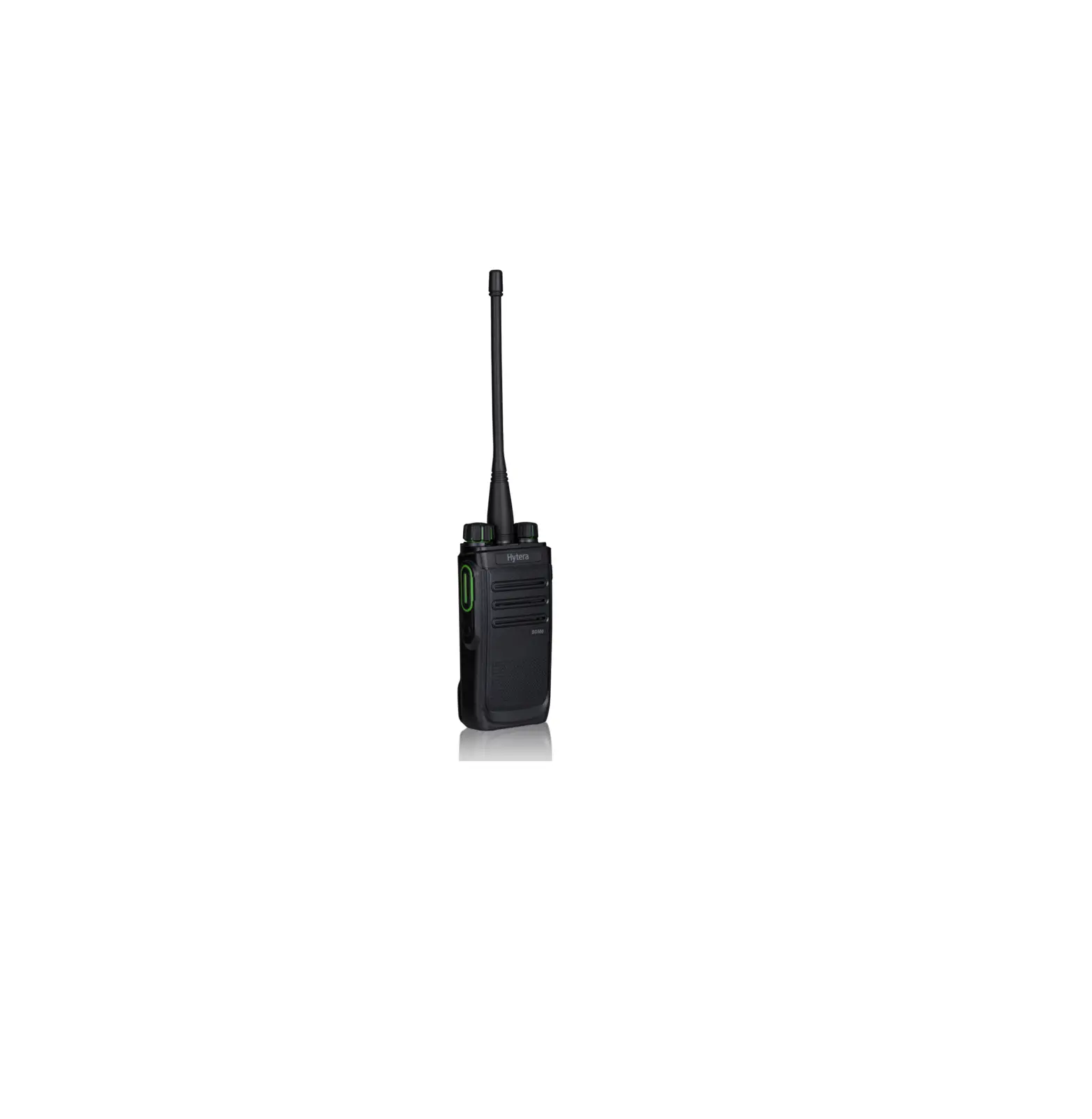
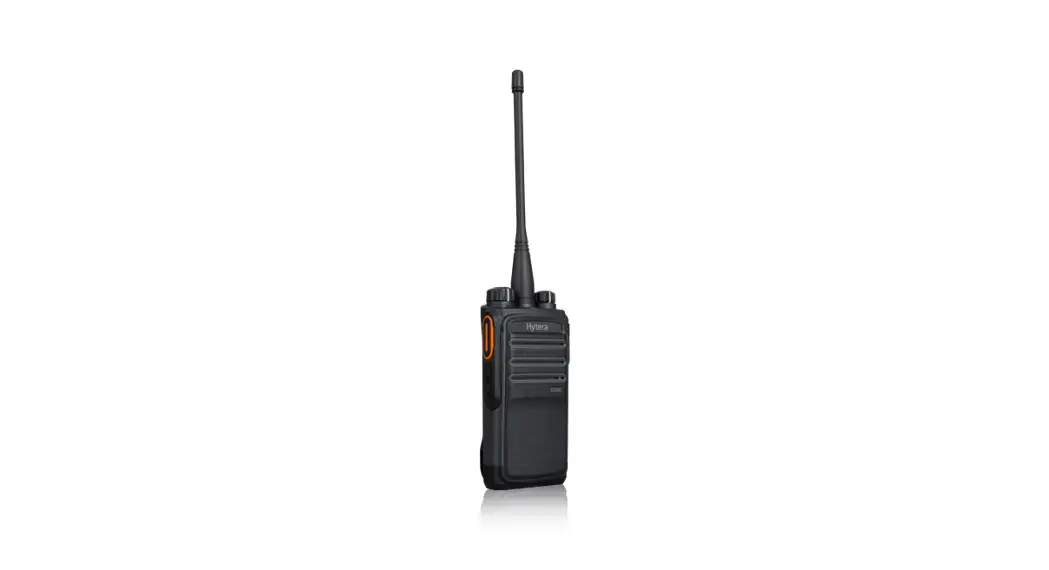
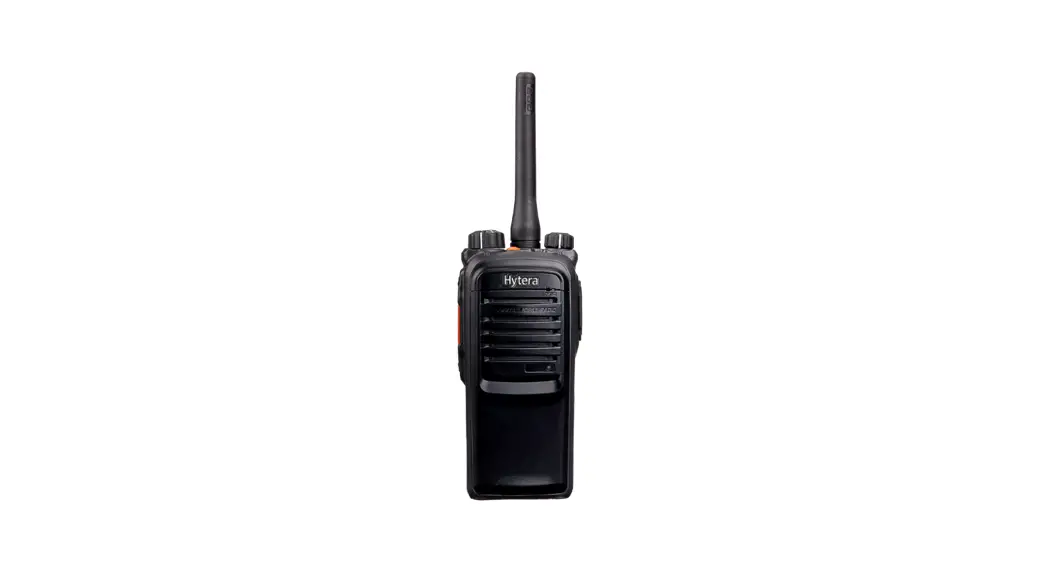
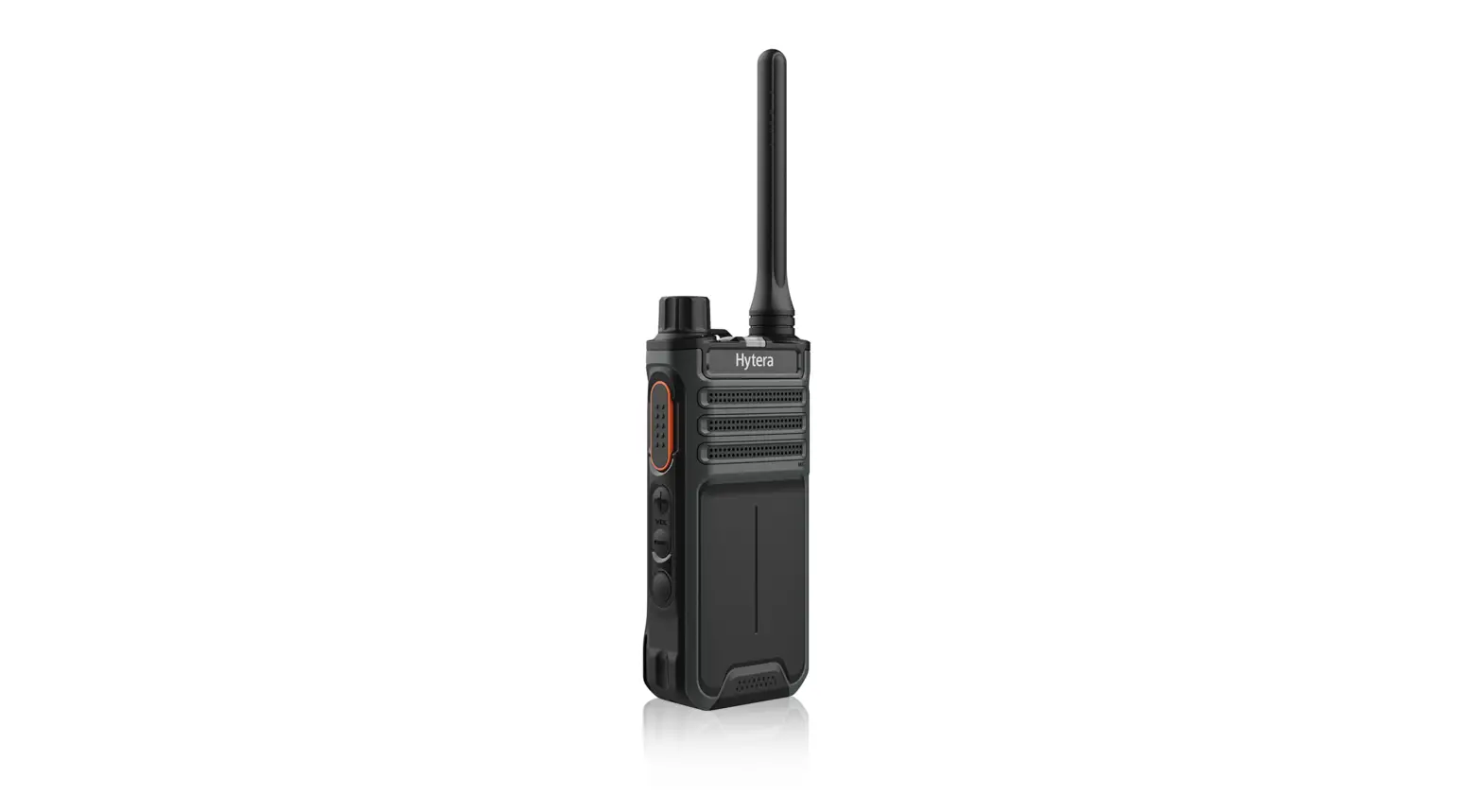
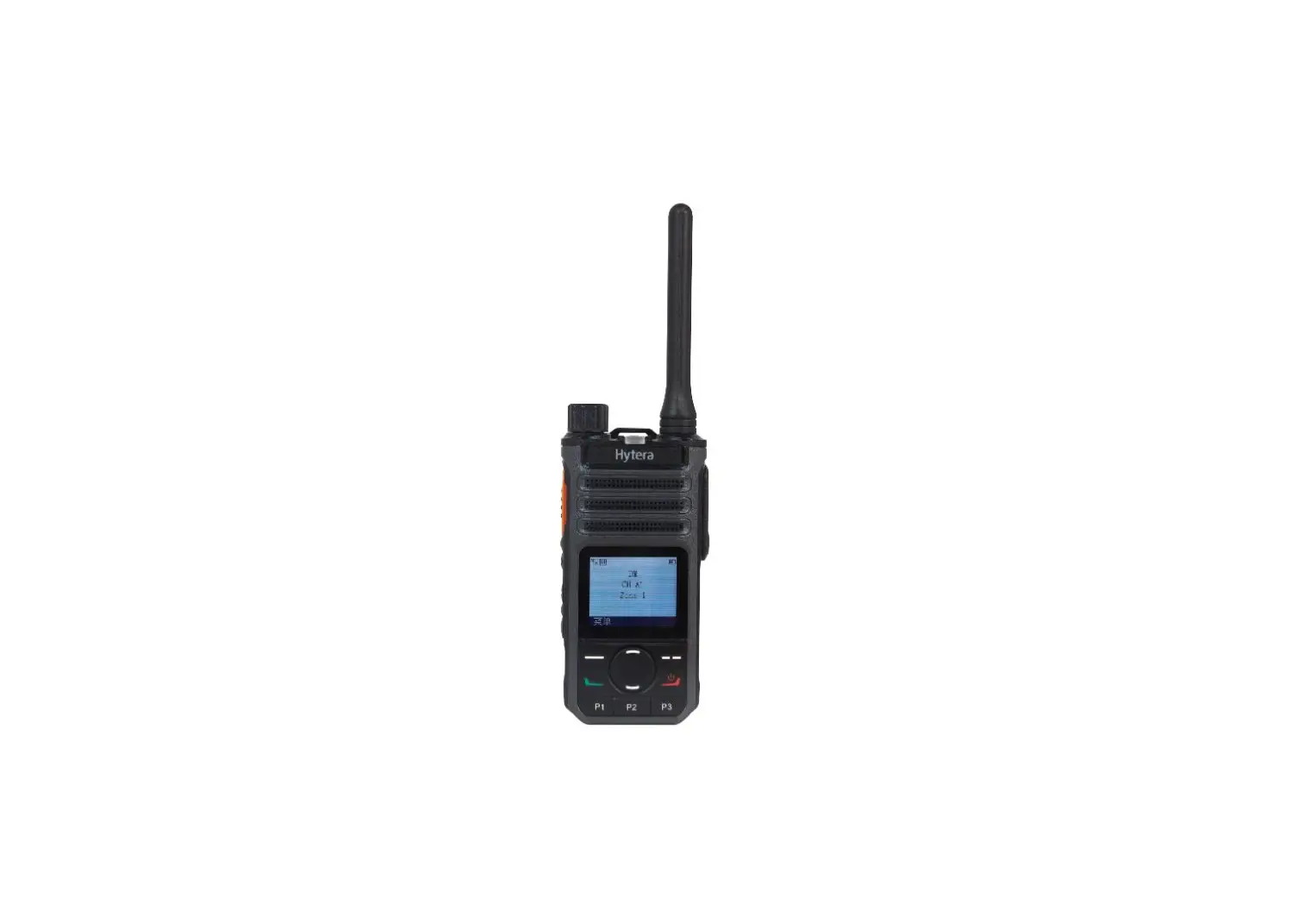
HP70X
| No. | Part Name | No. | Part Name |
| 1 | On-Off Key | 10 | Antenna |
| 2 | PTT Key | 11 | Microphone |
| 3 | SK1 (Programmable) | 12 | Battery Latch |
| 4 | SK2 (Programmable) | 13 | Strap Hole |
| 5 | TK (Programmable) | 14 | Accessory Connector |
| 6 | Smart Knob | 15 | Belt Clip |
| 7 | OLED Display | 16 | Battery |
| 8 ……………………Speaker | 17 | Charging Contacts | |
| 9 ……………………..LED Indicator | / | / | |
 NOTE
NOTE
- For details about the programmable keys, contact your dealer.
- Figures in this guide are only for reference.
Basic Operations
Charging the Battery CAUTION
- Use the approved charger to charge the battery.
- Read the Safety Information Booklet before charging.
- The remaining lithium-ion battery power is limited to 30% pursuant to the new lithium battery shipment regulation approved by the International Air Transport Association (IATA).
Before initial use, charge the battery alone or the battery attached to the radio. It is recommended to keep the radio turned off during charging.
The LED indicator on the charger shows the charging status, as described in the following table.
| Status | Description |
| Glows red | The battery is being charged. |
| Glows orange | The battery is charged to 90% or above. |
| Glows green | The battery is fully charged. |
| Flashes red slowly | No battery is placed on the charger. |
| Flashes red rapidly | The battery fails to be charged. |
Turning On or Off the Radio
- To turn on the radio, long-press the On-Off key or reattach the battery.
- To turn off the radio, long-press the On-Off key.
Adjusting the Volume
Rotate the Smart Knob clockwise to increase the volume, or counterclockwise to decrease the volume.
Using the Keypad
NOTEThis feature is available only for HP78X.
- To lock or unlock the keypad, on the home screen, press the OK/Menu key, and then press
 .
. - To enter the content or edit messages, do any of the following:
» To switch the input method between alphabetic mode and numeric mode, press .
.
» To enter special characters, press in alphabetic mode.
» To enter a space, press mode.in alphabetic
 .
. .
. in alphabetic mode.
Selecting a Zone
- Press the preprogrammed Zone Up or Zone Down key.
- Go to Menu > Zone to select a zone. This method applies only to HP78X.
Selecting a Channel
- Press the Smart Knob, and then rotate the knob within 5 seconds.
- Press the preprogrammed Channel Up or Channel Down key.
Call Services
To keep the audio quality, keep your mouth 2.5 centimeters to 5 centimeters away from the microphone.
Initiating a Call on Digital Channel
- Press and hold the PTT key. Go to Menu > Contact to select a contact, and then
- press and hold the PTT key. This method applies only to HP78X.
Initiating a Call on Analog Channel
- Call Without Signaling Press and hold the PTT key.
- Call with Signaling » Press and hold the PTT key.
» Press the preprogrammed One Touch Call key.
» Go to Menu > Contact to select a contact, and then press and hold the PTT key. This method applies only to HP78X.
Emergency
The Emergency feature is configured and enabled by your dealer. For details, refer to the User Manual.
Status Indications
LED Indicator
| Status | Description |
| Flashes green | The radio is being turned on. |
| Glows green | The radio is receiving. |
| Glows red | The radio is transmitting. |
| Flashes orange slowly | The radio is scanning or roaming. |
| Flashes orange rapidly | The radio is operating in emergency mode. |
| Glows orange | Call hang time: No voice is being transmitted or received during a call. Within such a period, you can press and hold the PTT key to speak. |
| Flashes blue once every 3 seconds | The BT feature is enabled, but no BT device is connected. |
| Flashes blue once every 1.5 seconds | A BT device is connected. |
| Flashes blue once every 0.1 second | The BT feature is being disabled. |
LCD Icons
| Icon | For Radio Status |
 | More bars indicate more remaining battery power. |
 | The battery power runs out. Recharge or replace the battery. |
 | The radio detects no signal. |
 | The number of bars indicates the signal strength. |
 | The radio operates in low power mode. |
 | The radio operates in high power mode. |
 | The radio is scanning. |
 | The radio is operating in emergency mode. |
 | The BT feature is enabled |
 | A BT device is connected. |
 | The Location feature is enabled, and valid positioning data has been received. |
 | The Location feature is enabled, but no valid positioning data has been received. |
other icons, refer to the User Manual.
| Hytera US Inc. 8 Whatney, Irvine, CA 92618 (949) 326-5742 1363 Shotgun Road, Sunrise, FL 33326 (954) 846-1011 www.hytera.us [email protected] (C) 2022 Hytera Communications Ltd. All rights reserved. | Hytera Canada 100 Leek Crescent, Unit 11 Richmond Hill, ON L4B 3E6 (905) 305-7545 www.hytera.ca [email protected] |