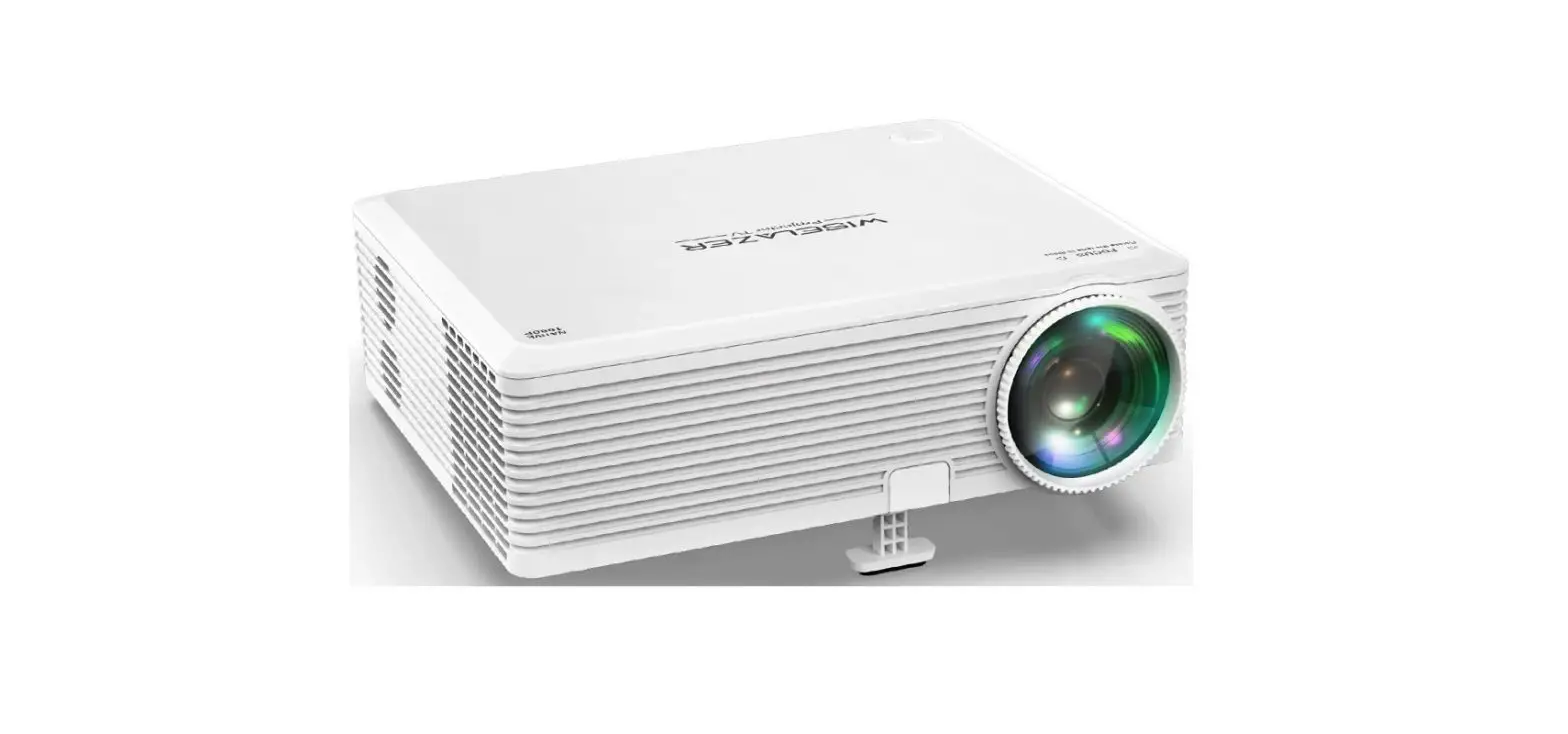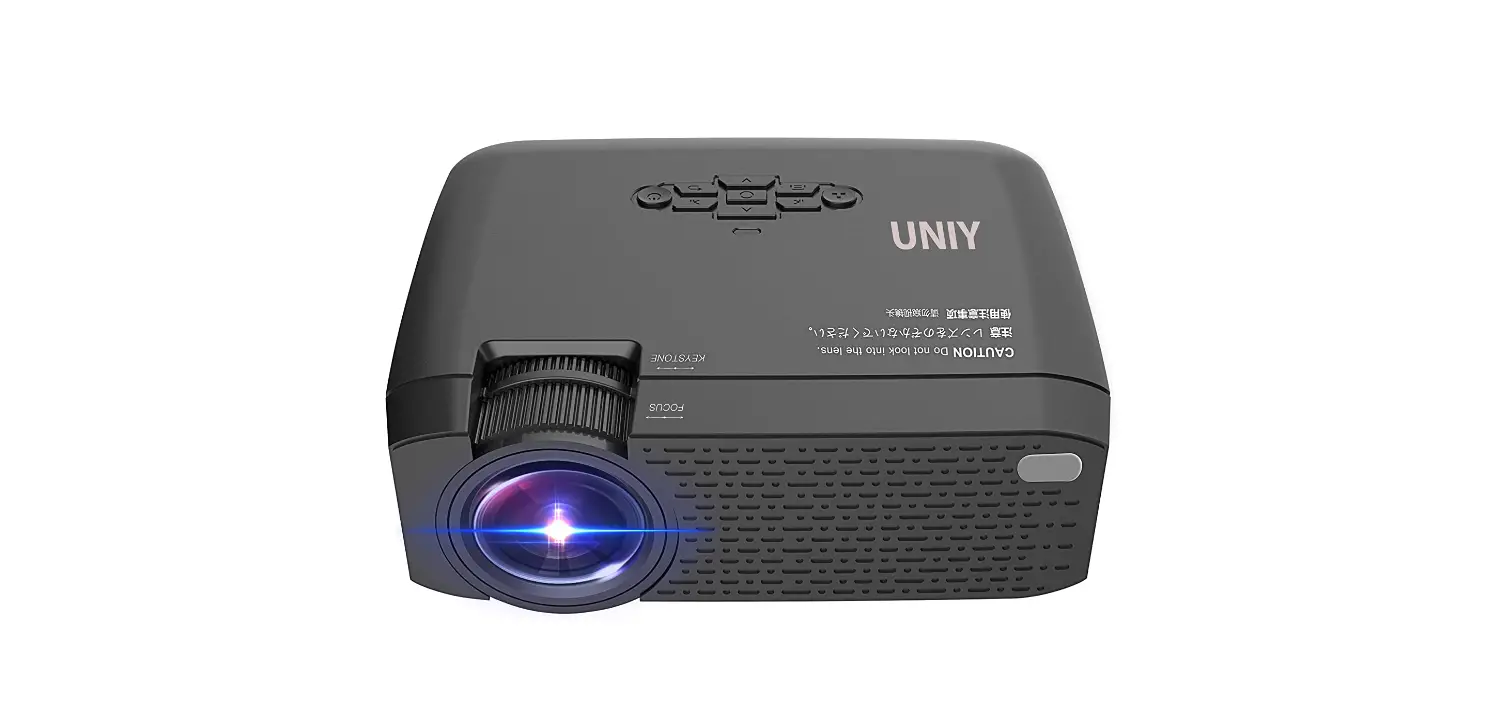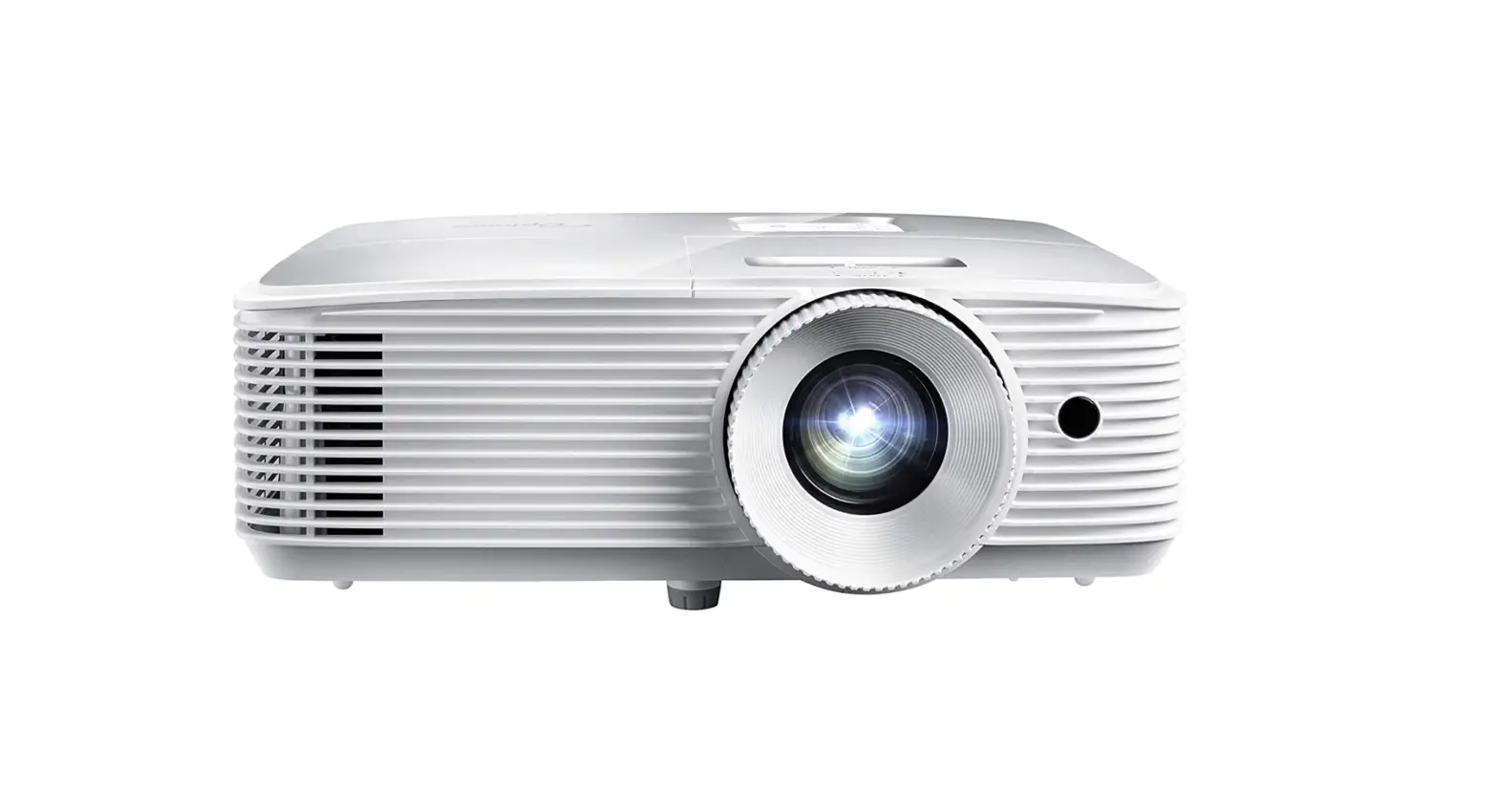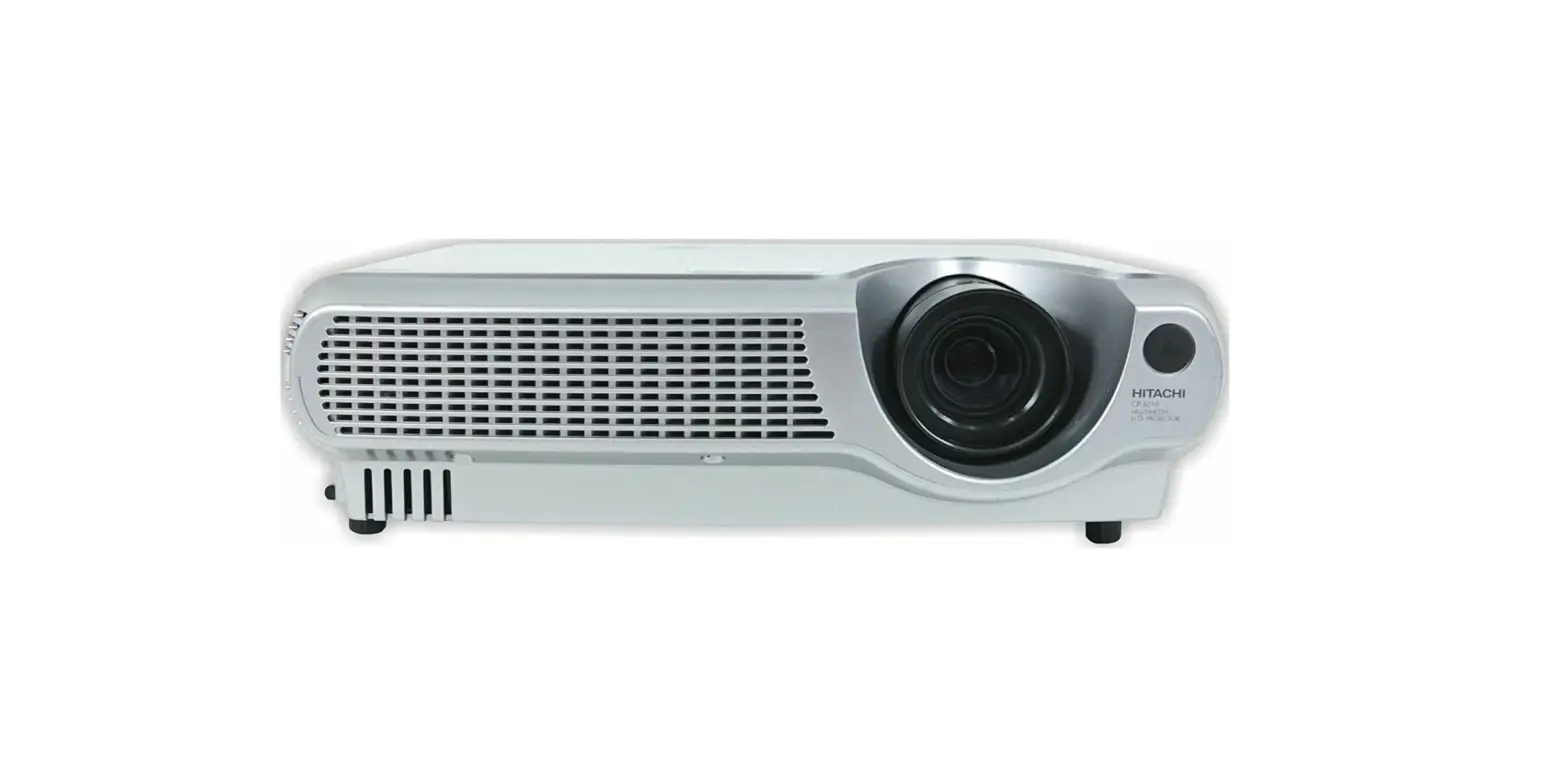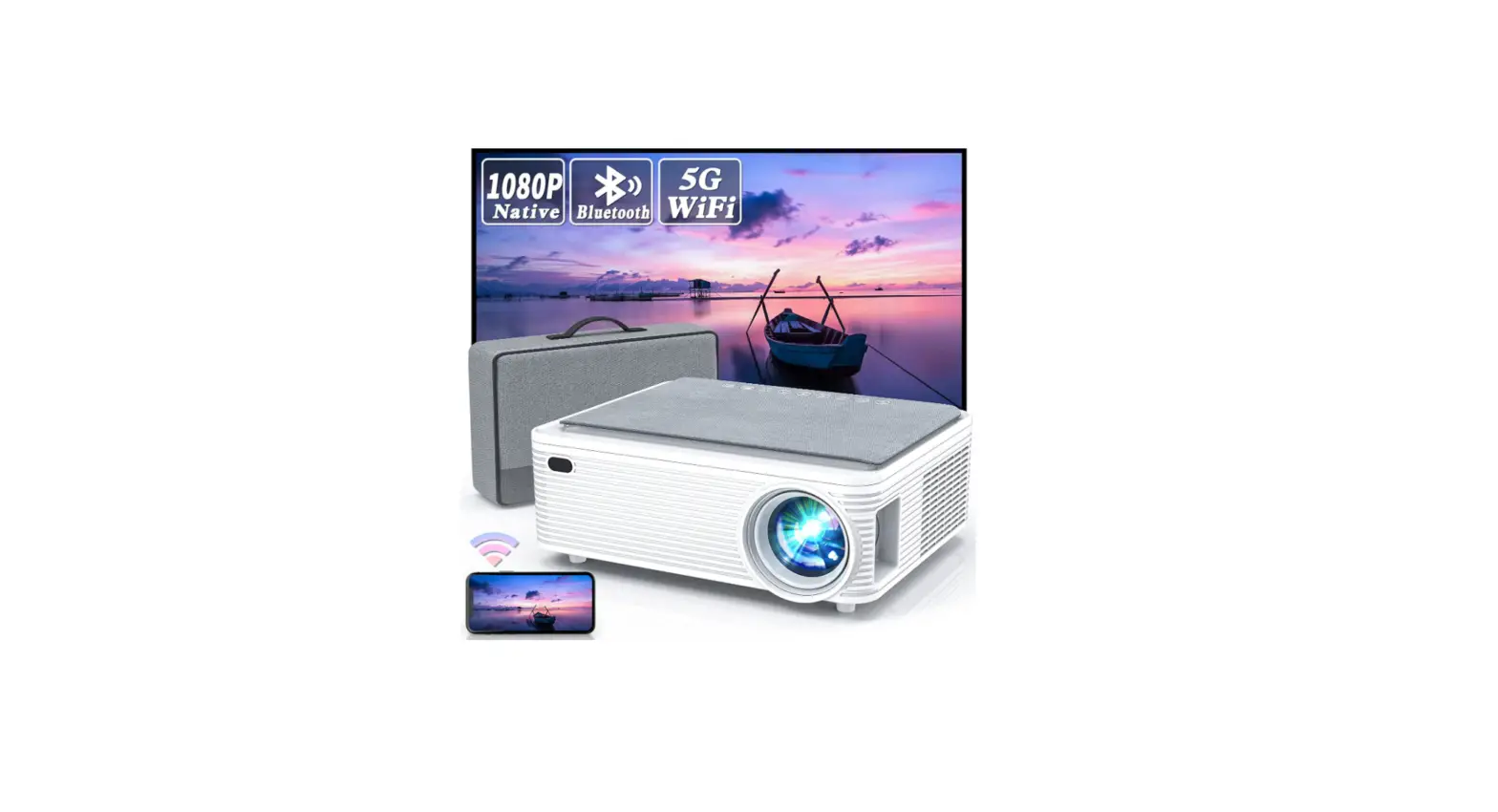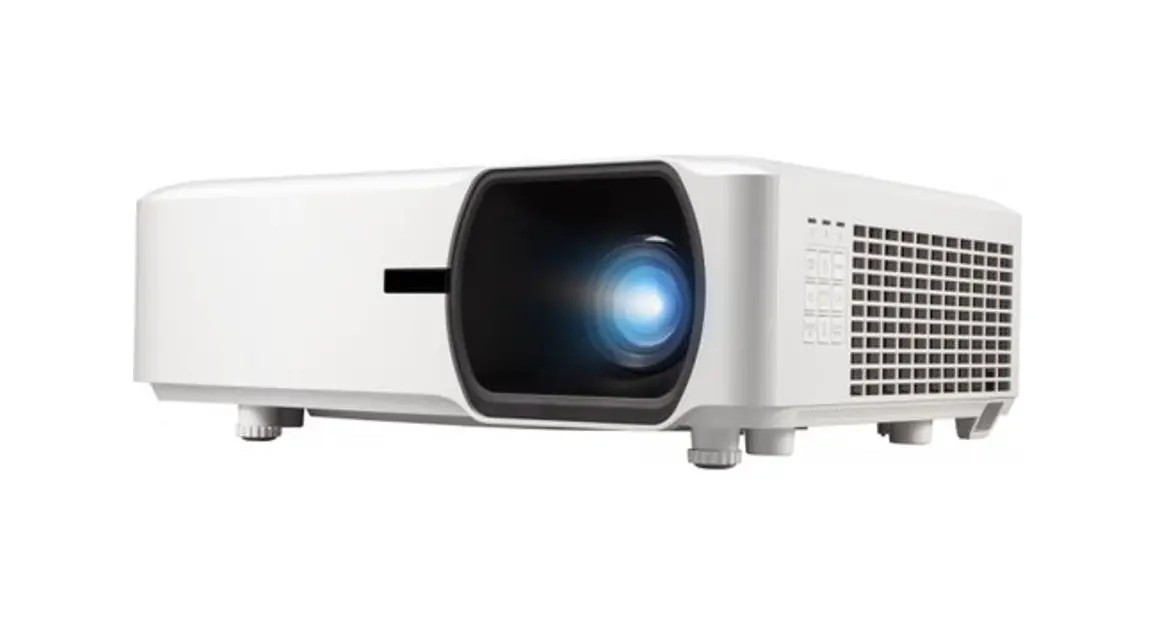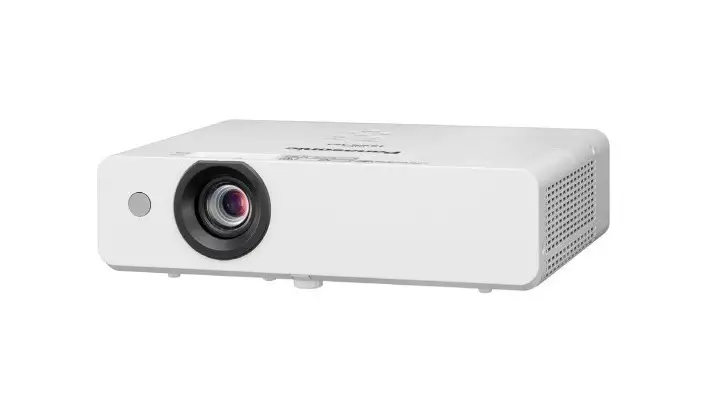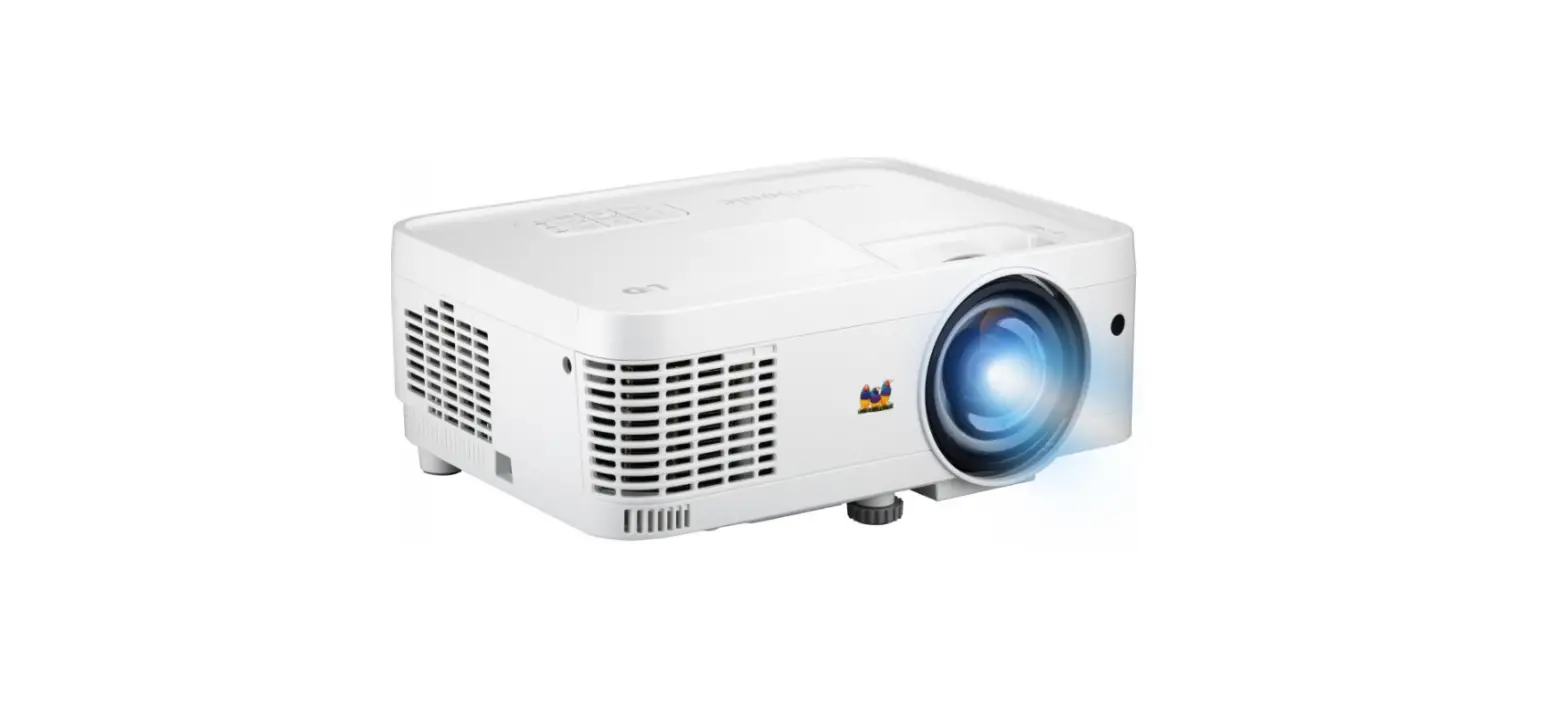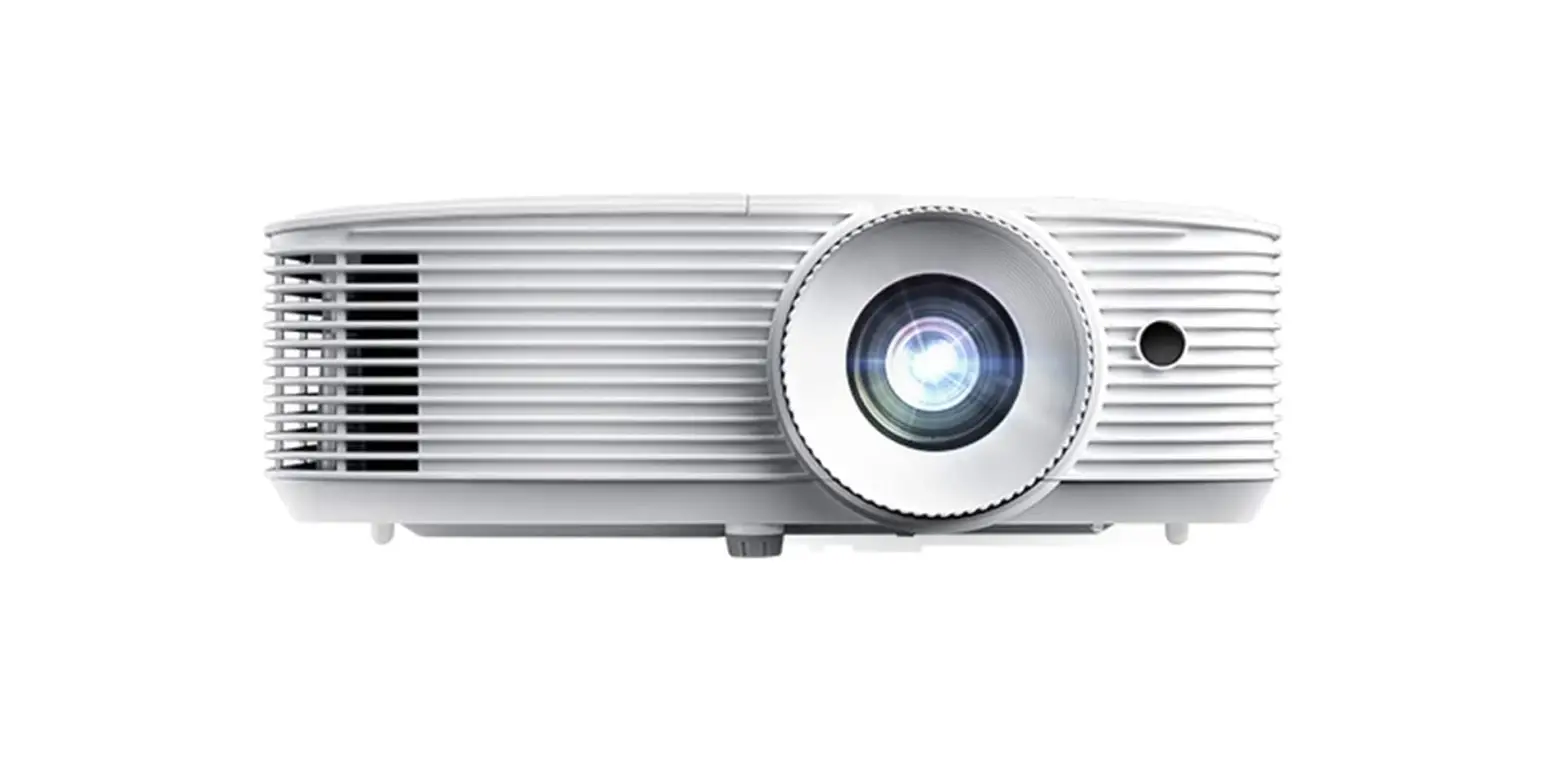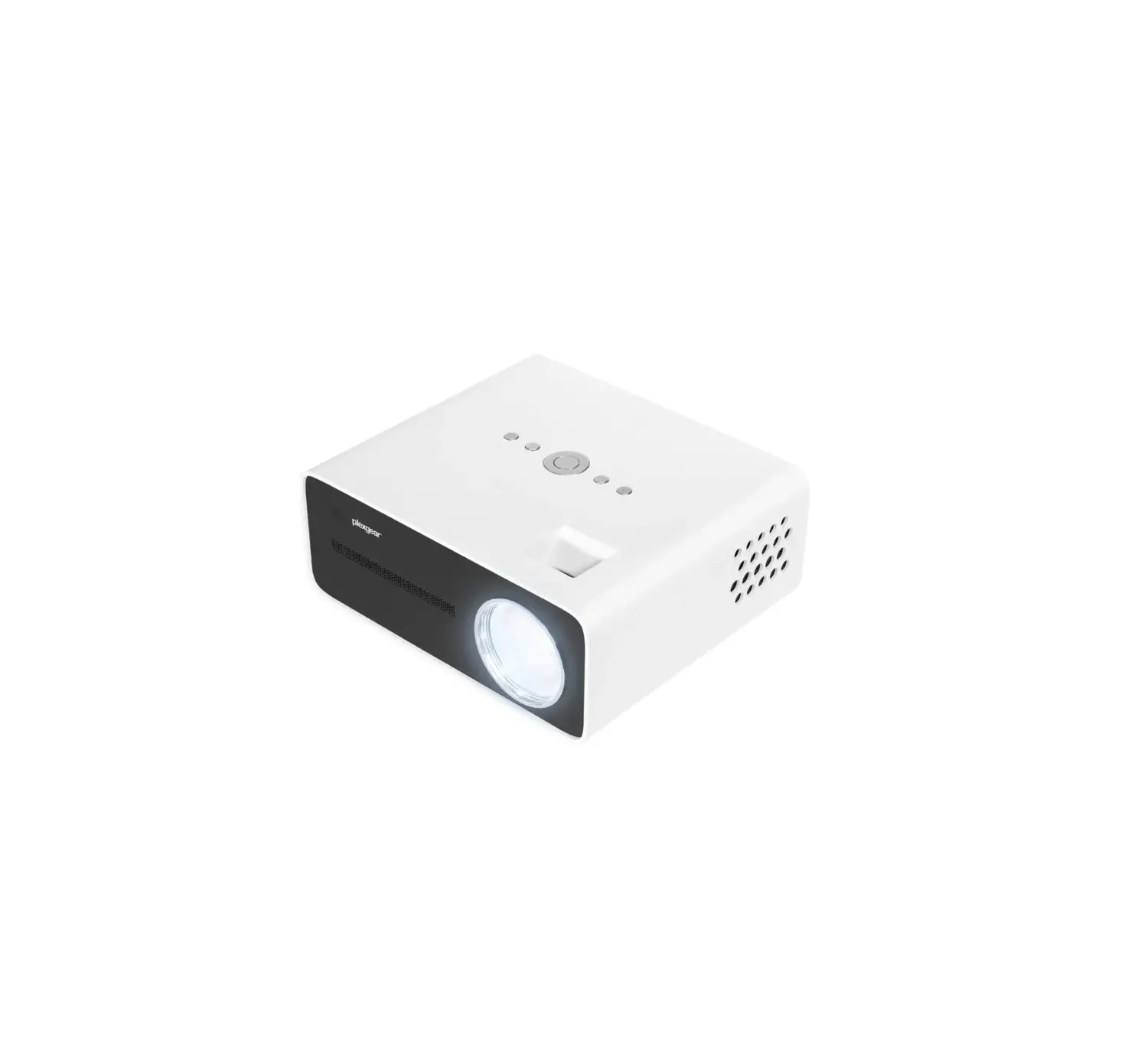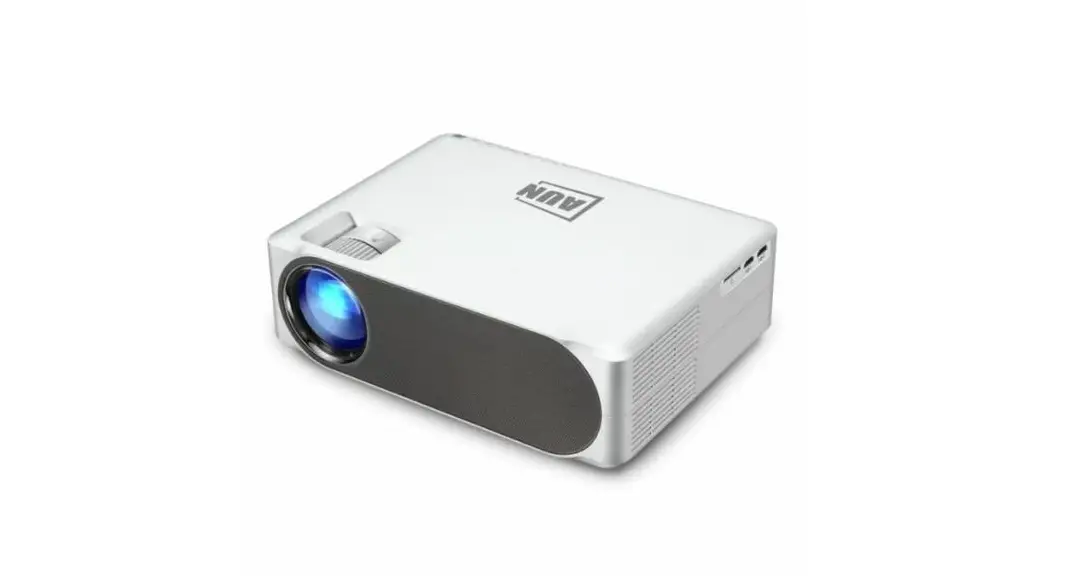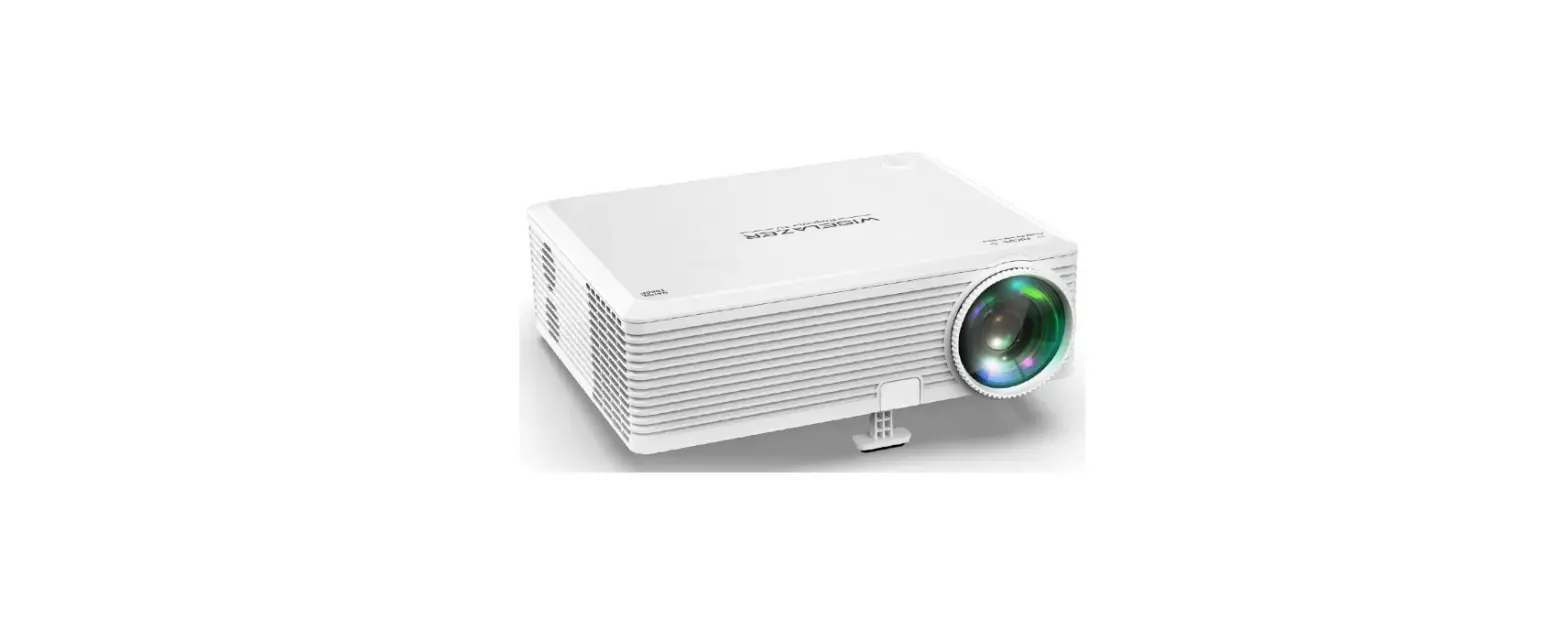

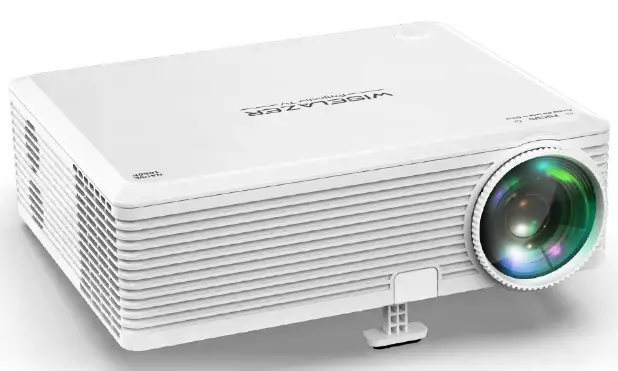
WISELAZER S20 Projector TV
 PACKING LIST
 PACKING LIST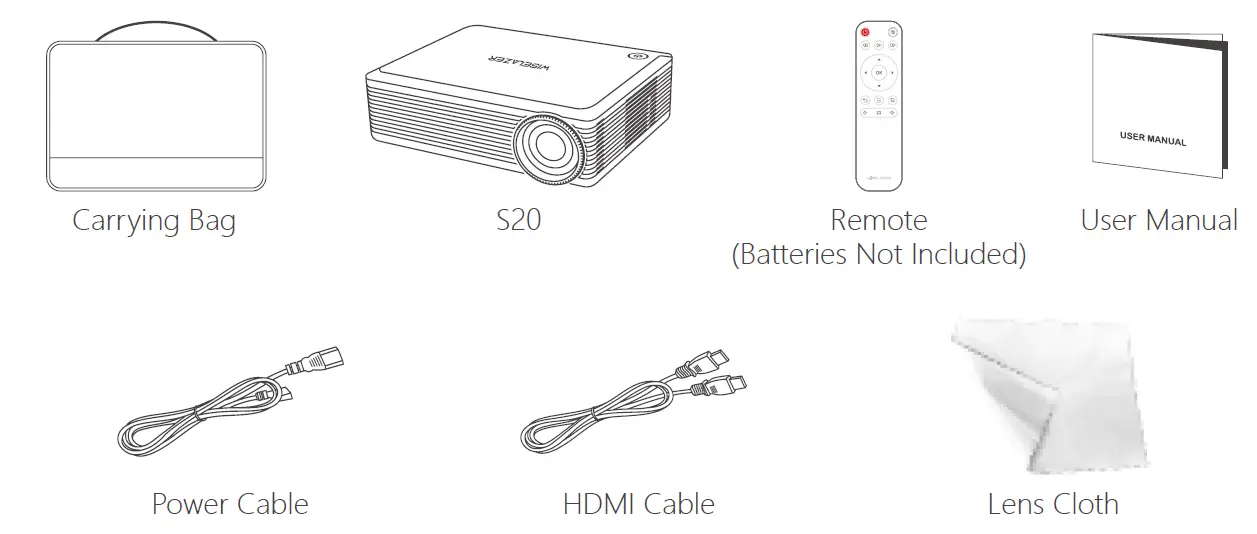
WARNING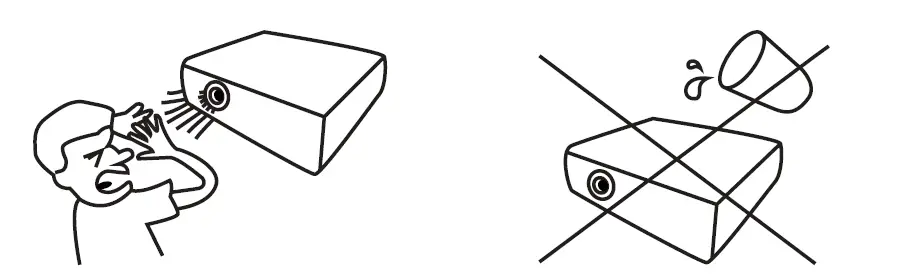
- Don’t look straight into the light from the projector lens.
- Don’t put projector in a damp, humid environment to avoid electrocution.
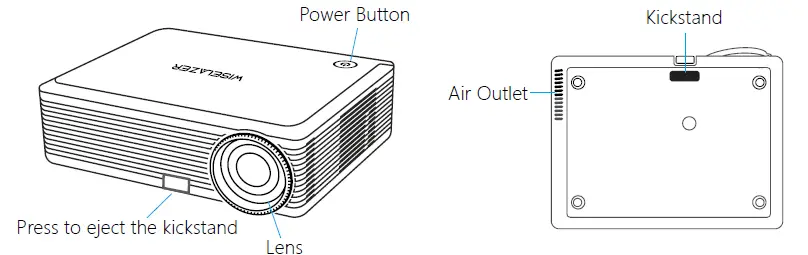
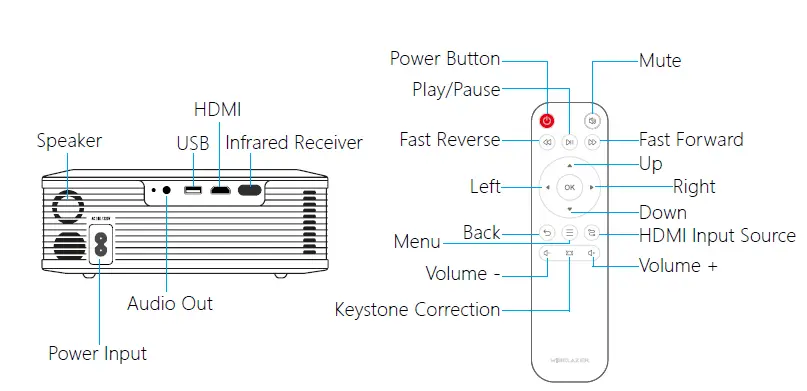
FUNCTION OVERVIEW
QUICK START
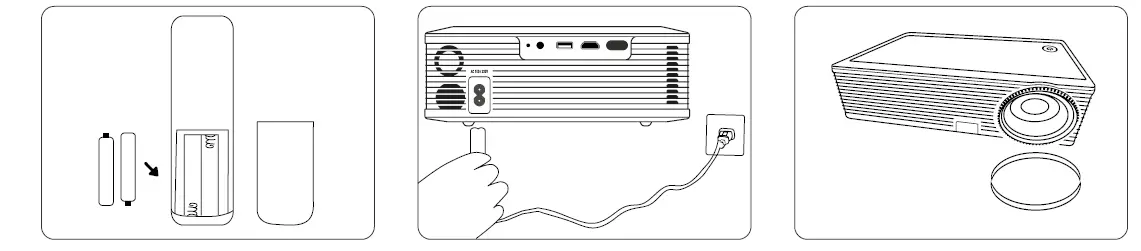
- Please install the batteries for the remote control.
- Plug the power cord into an outlet.
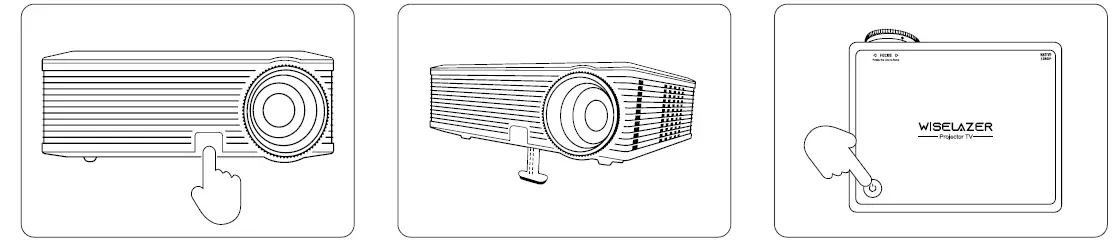
- Take off the lens cover.

- Press to eject the kickstand.
- Place the projector on a flat surface.
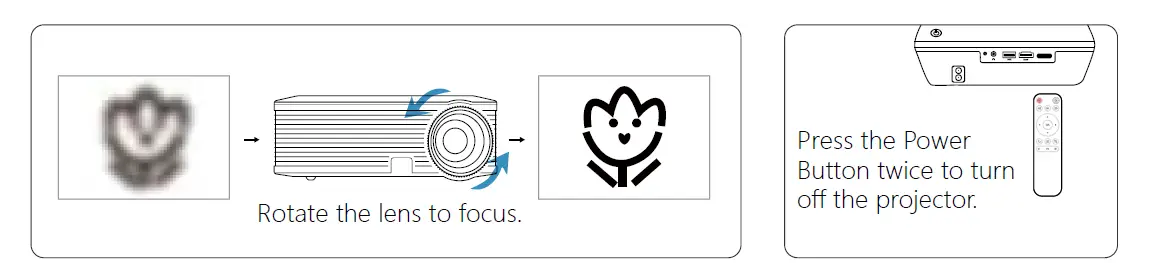
- Press the Power Button to turn on the projector.
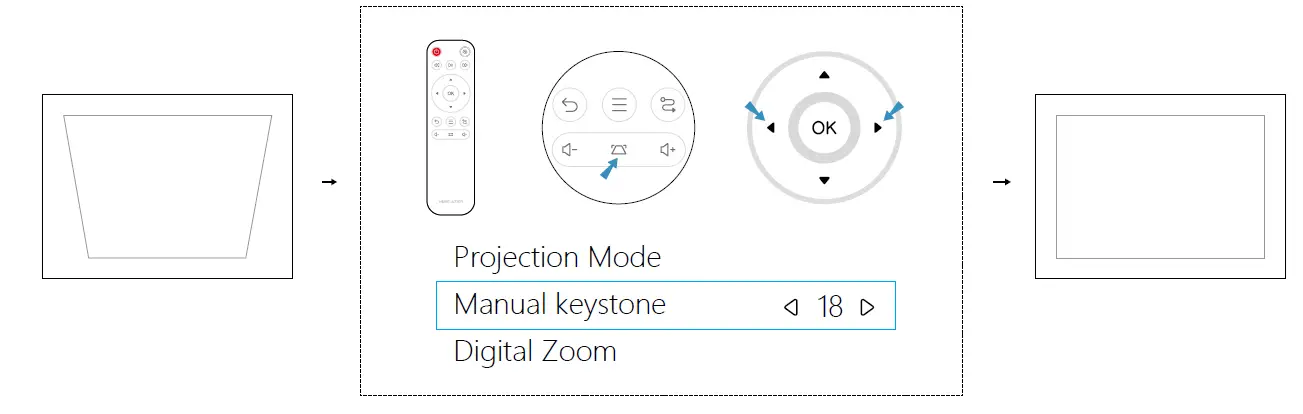
KEYSTONE CORRECTION
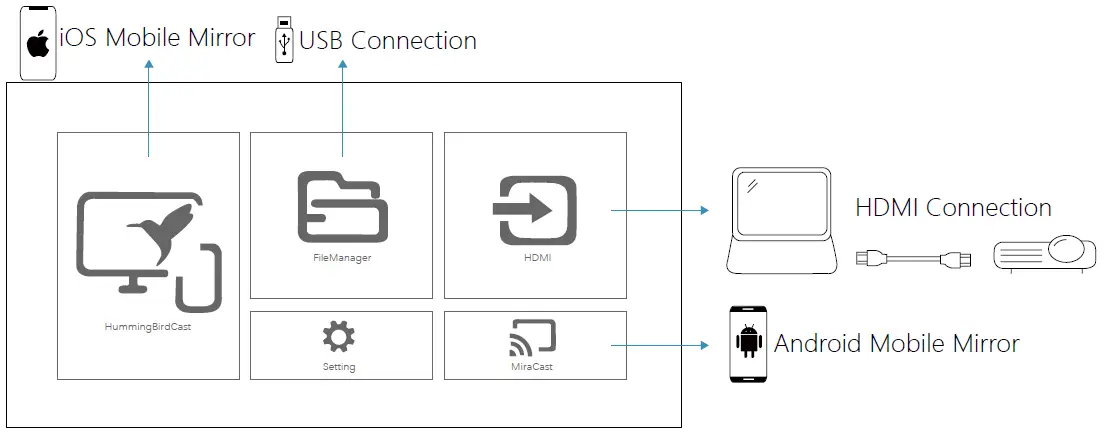
INPUT SOURCE
LANGUAGE SETTING
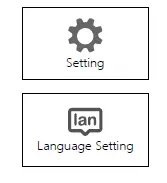
- Select “Setting” on the projection image.
- Select “Language Setting” on the projection image.
WIFI CONNECTION
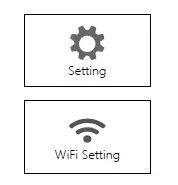
- Select “Setting” on the projection image.
- Select “WiFi Setting” on the projection image.
- Wait for the projector to search for available networks.
- Choose your network name and enter the password to connect.
PROJECTION DISTANCE & SIZE
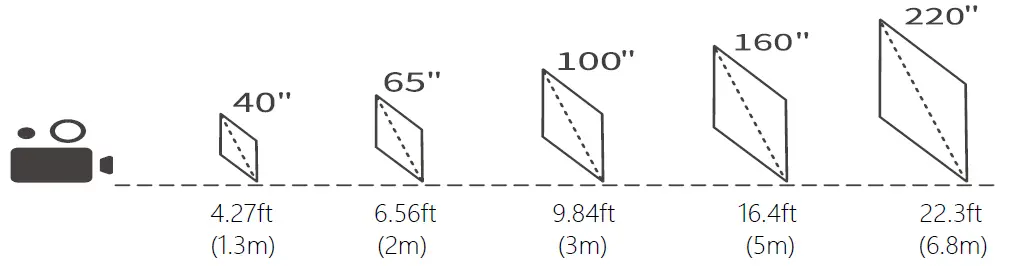
The recommended projection screen is around 100 inches with a distance of around 9.84ft. Ambient darkness will improve the clarity of the projected images.
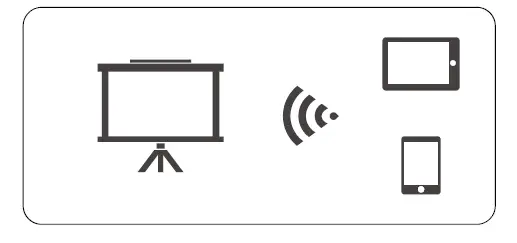
WIRELESS SCREEN MIRRORING
For iOS device
- Make sure that your iOS device is connected to the same network as your projector.
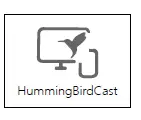
- Select “HummingBirdCast” on the projection image.

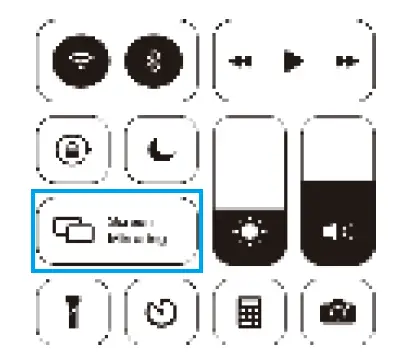
- On your iOS device, open “Control Center” and tap “Screen Mirroring”.

- . On your iOS device, Look for devices that can be mirrored on.

- Select “BirdCast-392b” from the list.

For Android device
- Make sure that your Android device is connected to the same network as your projector.
- Select “MiraCast” on the projection image.

- Turn on the wireless projection function of your Android phone.

- On your Android device, Look for devices that can be mirrored on.
- Select “NEWSLINK-392b” from the list.
SPECIFICATION
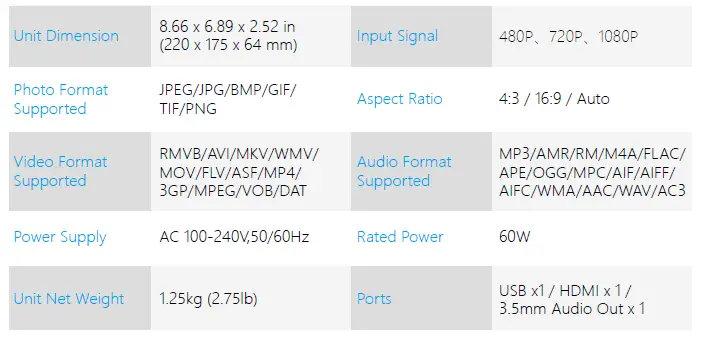
| Display Technology | LCD | Resolution | Native 1920 x 1080 |
| Light Source | LED | Installation Type | Front/Rear/Ceiling |
| Focus | Manual | Keystone | ±25° |
| Speaker | 3W 4Ω | Mounting Screw | 1/4” |
TROUBLESHOOTING GUIDE
Blurry Image
- Rotate the lens to focus.
- Use the remote control to achieve keystone correction.
- Projector and screen/wall must be an effective distance.
Remote Unresponsive
- Make sure remote points at Infrared Receiver directly.
- Do not cover Infrared Receiver.
- Try a new pair of AAA batteries.
UP Side Down Images
- Go to Setting > Projection Image Setting > Projection Mode to flip the projection image.
Adjust the Image Size
- Go to Setting > Projection Image Setting > Digital Zoom to adjust the image size.
WISELAZER SUPPORT
Technical Support: [email protected]
Customer Service: [email protected]

S20 Online Help