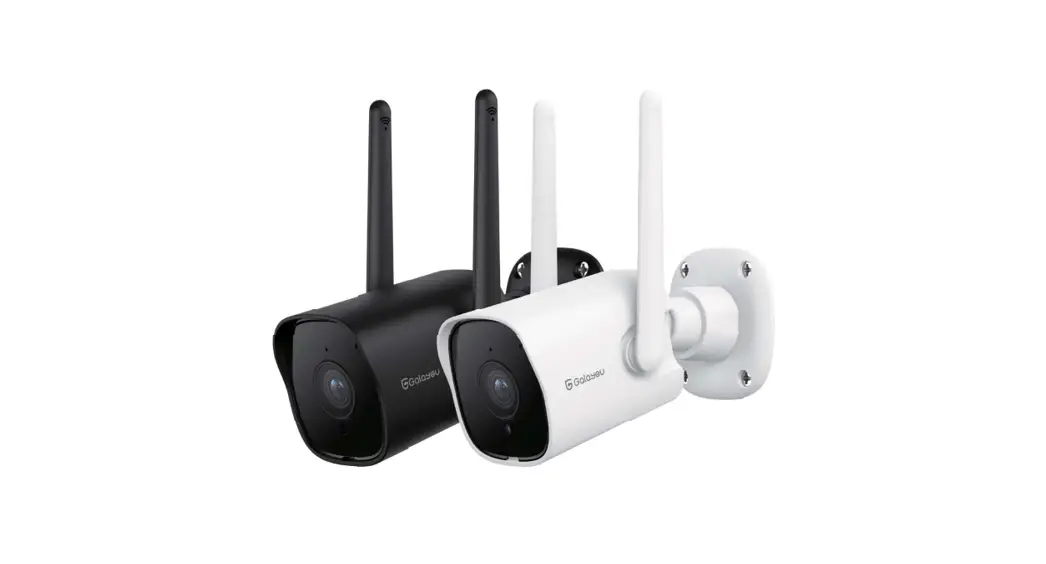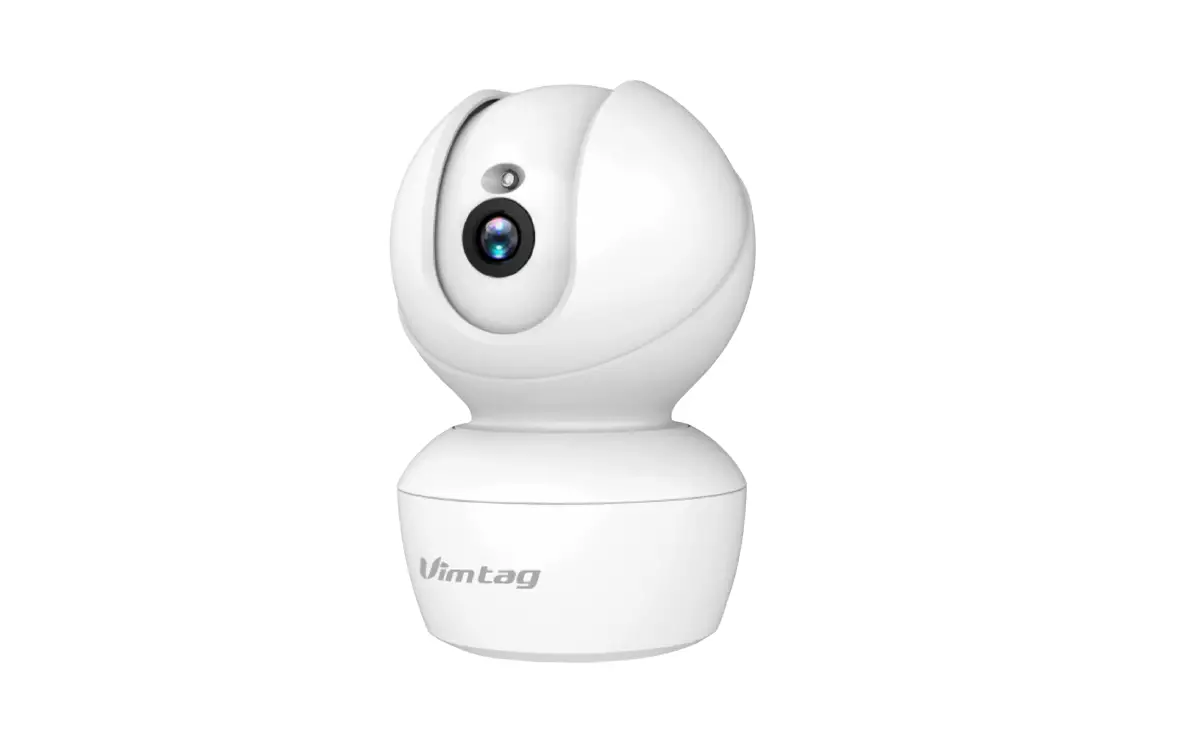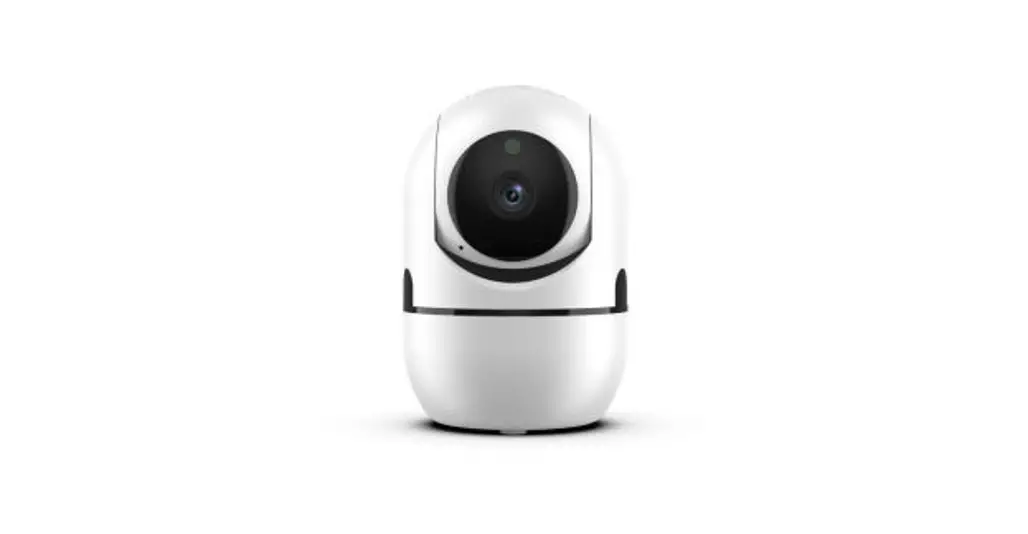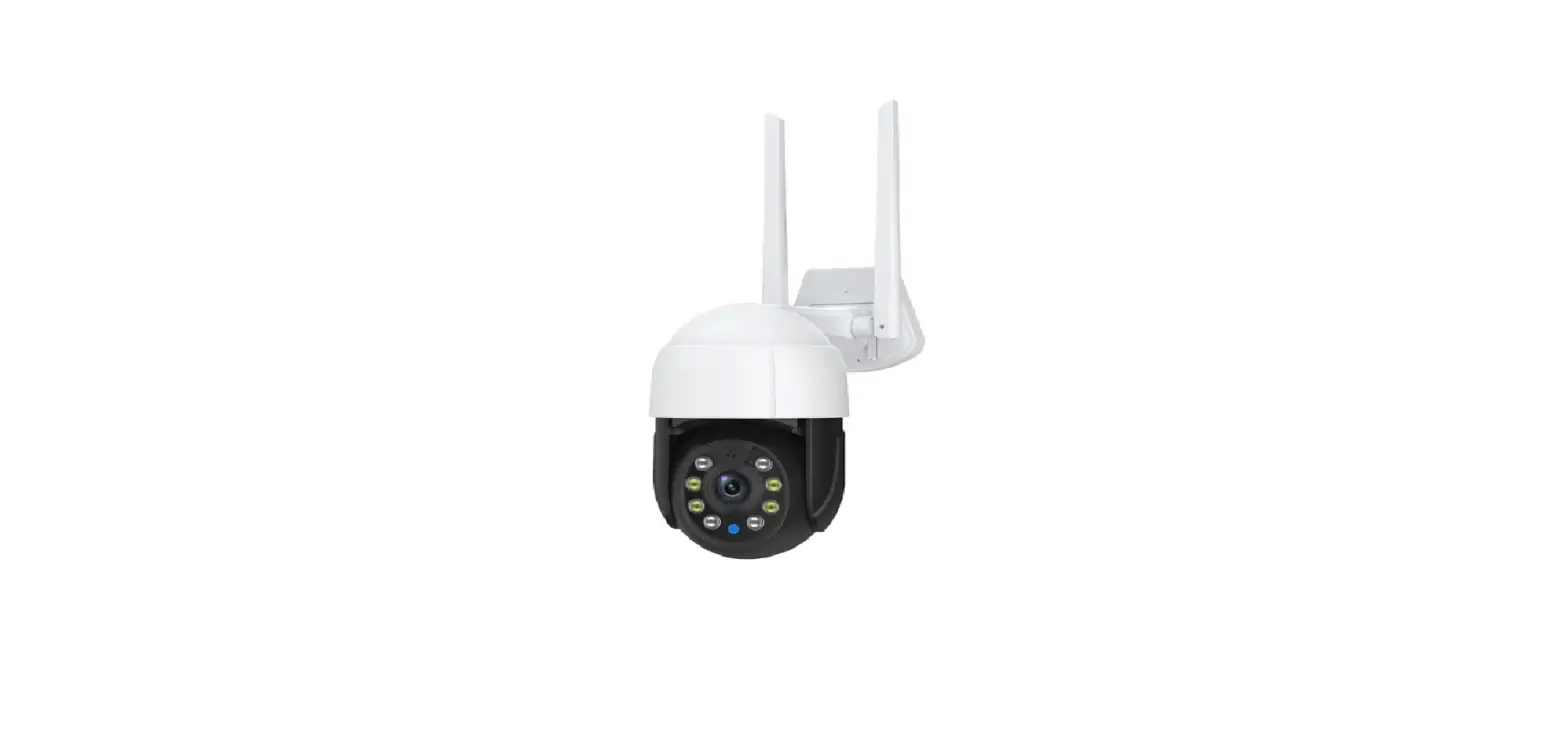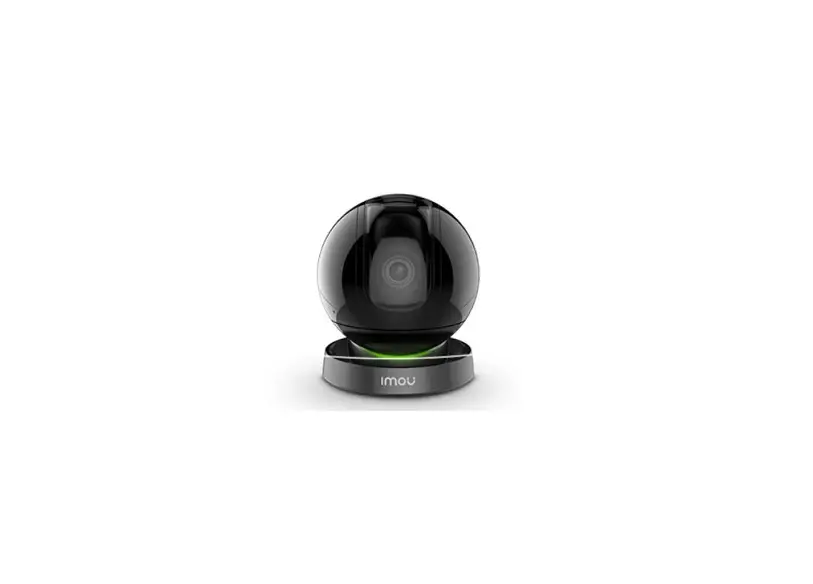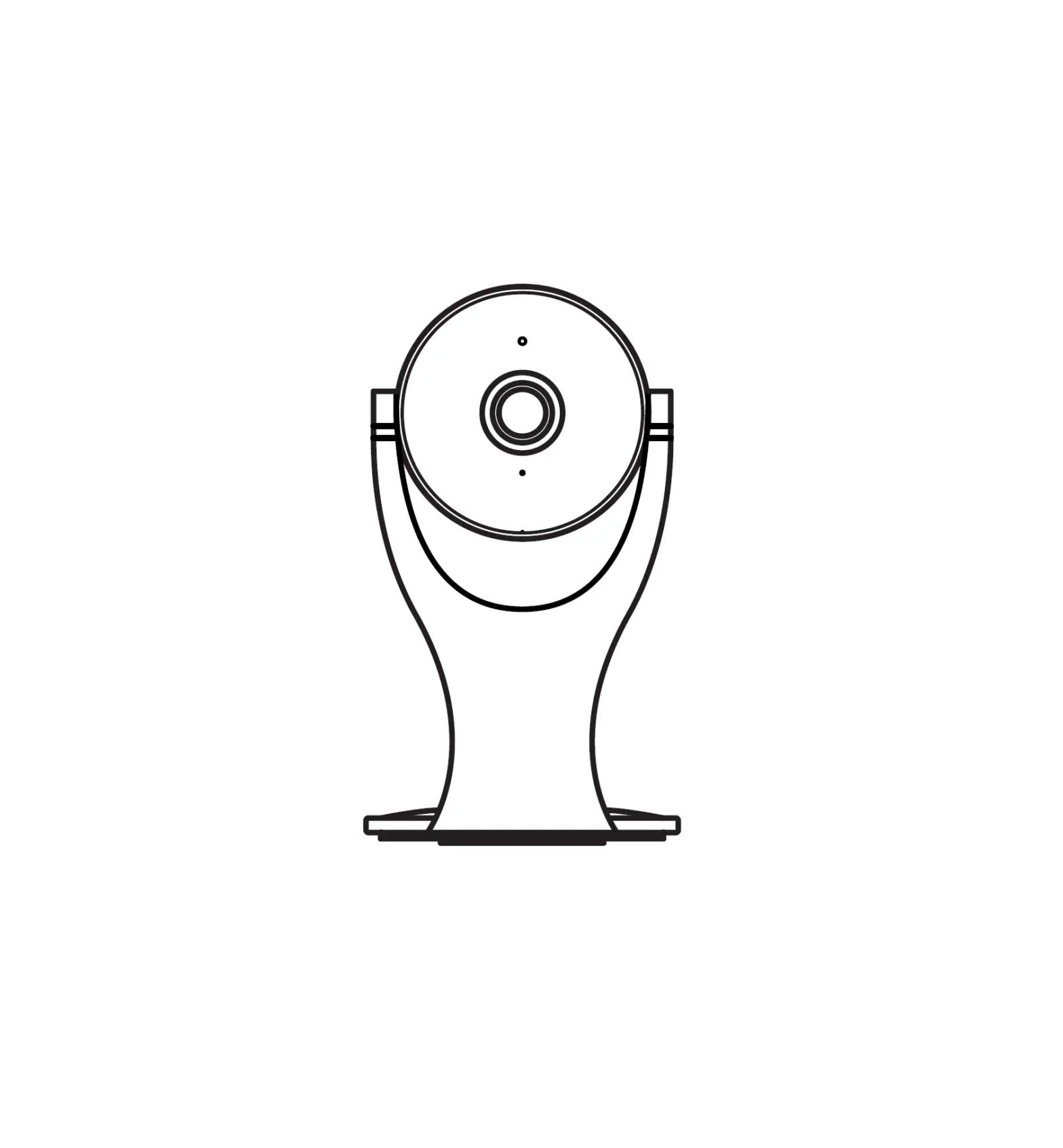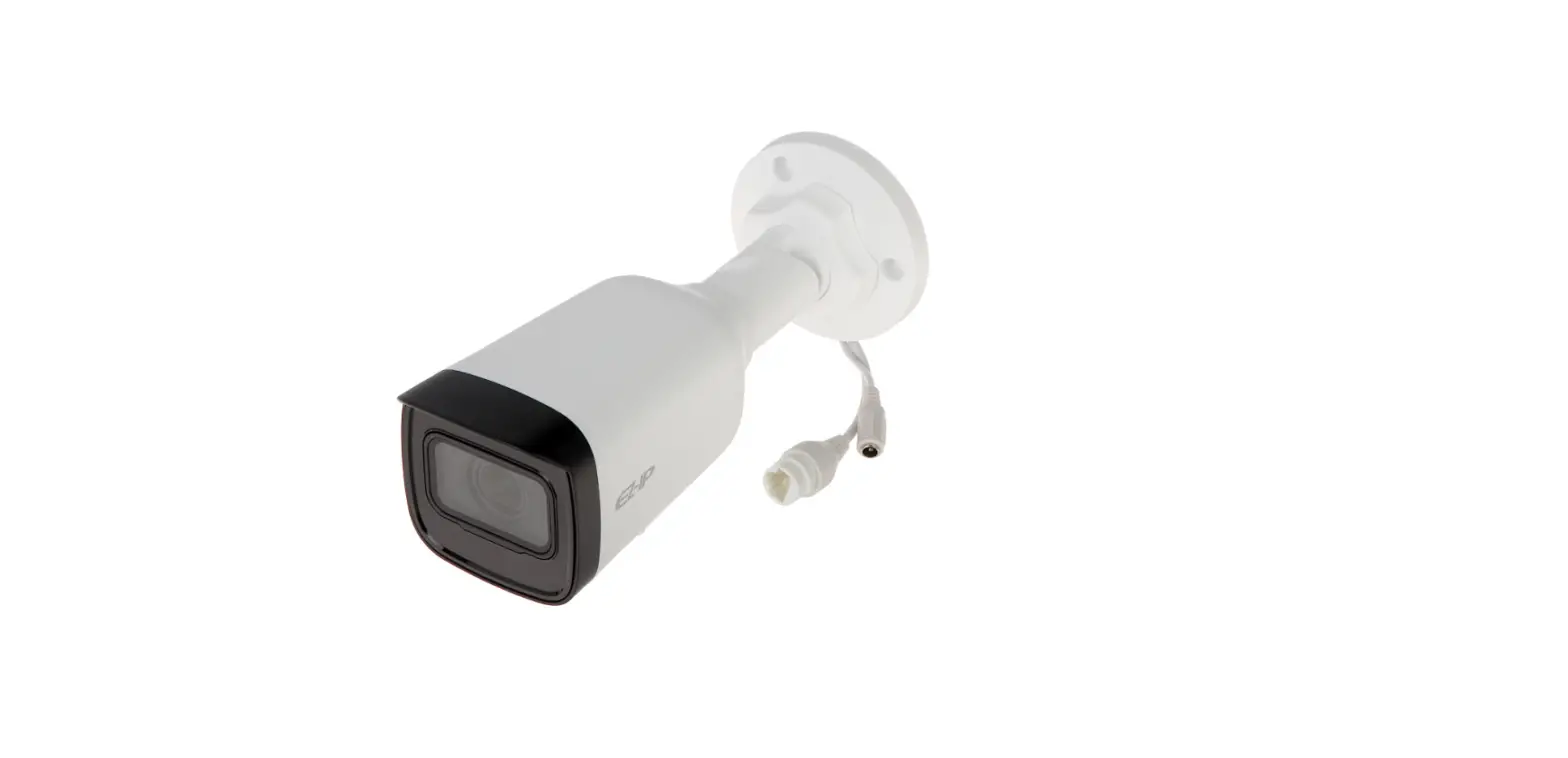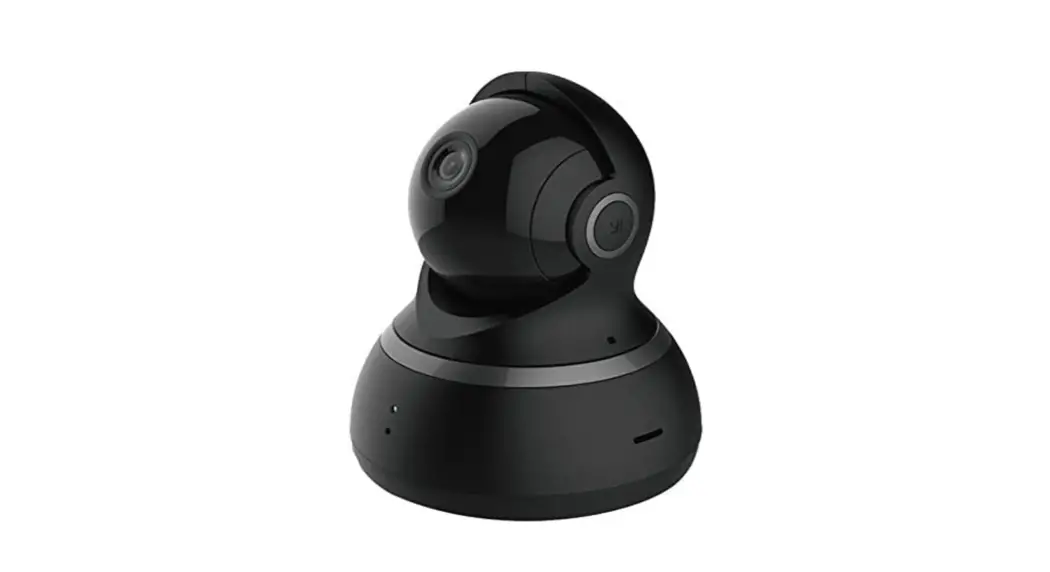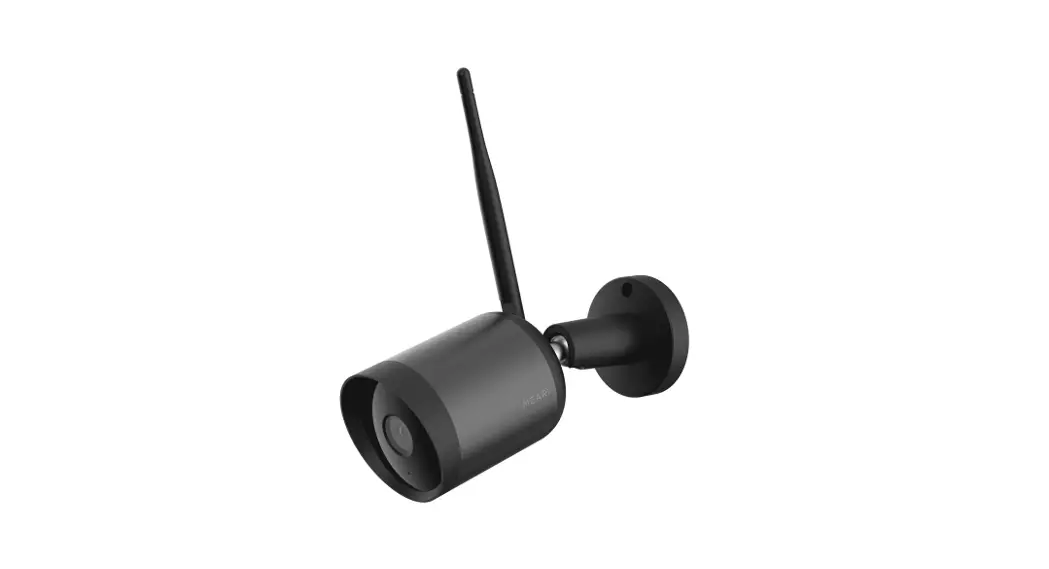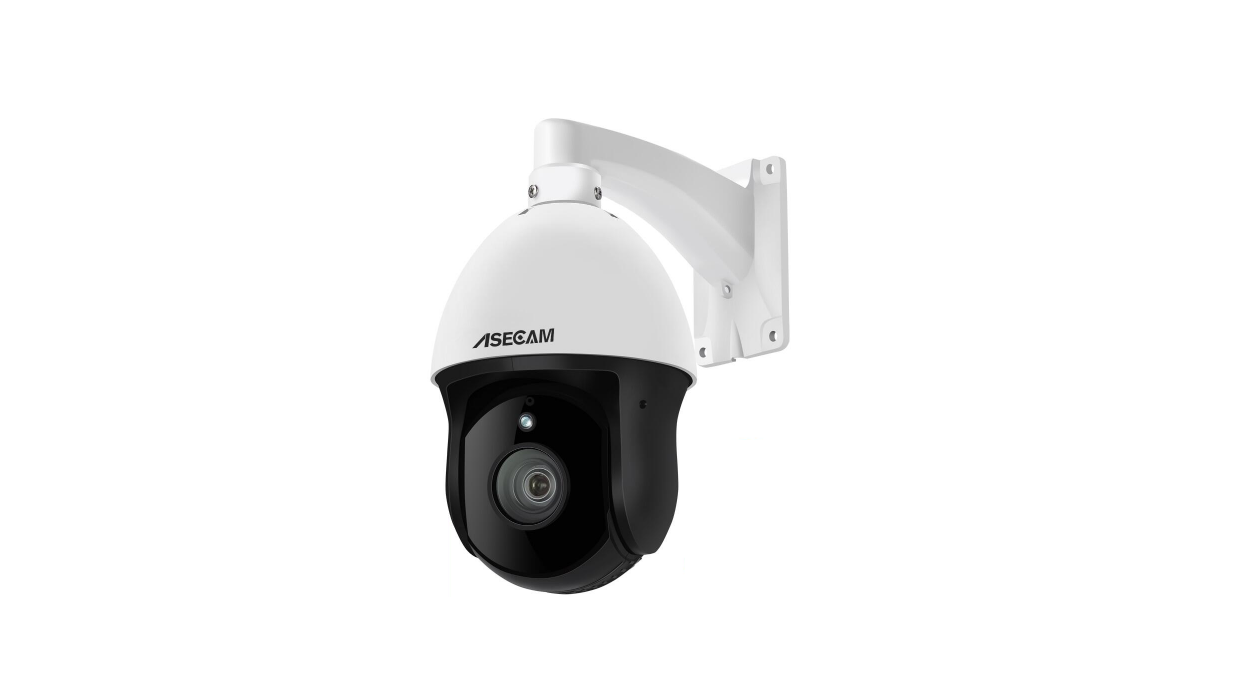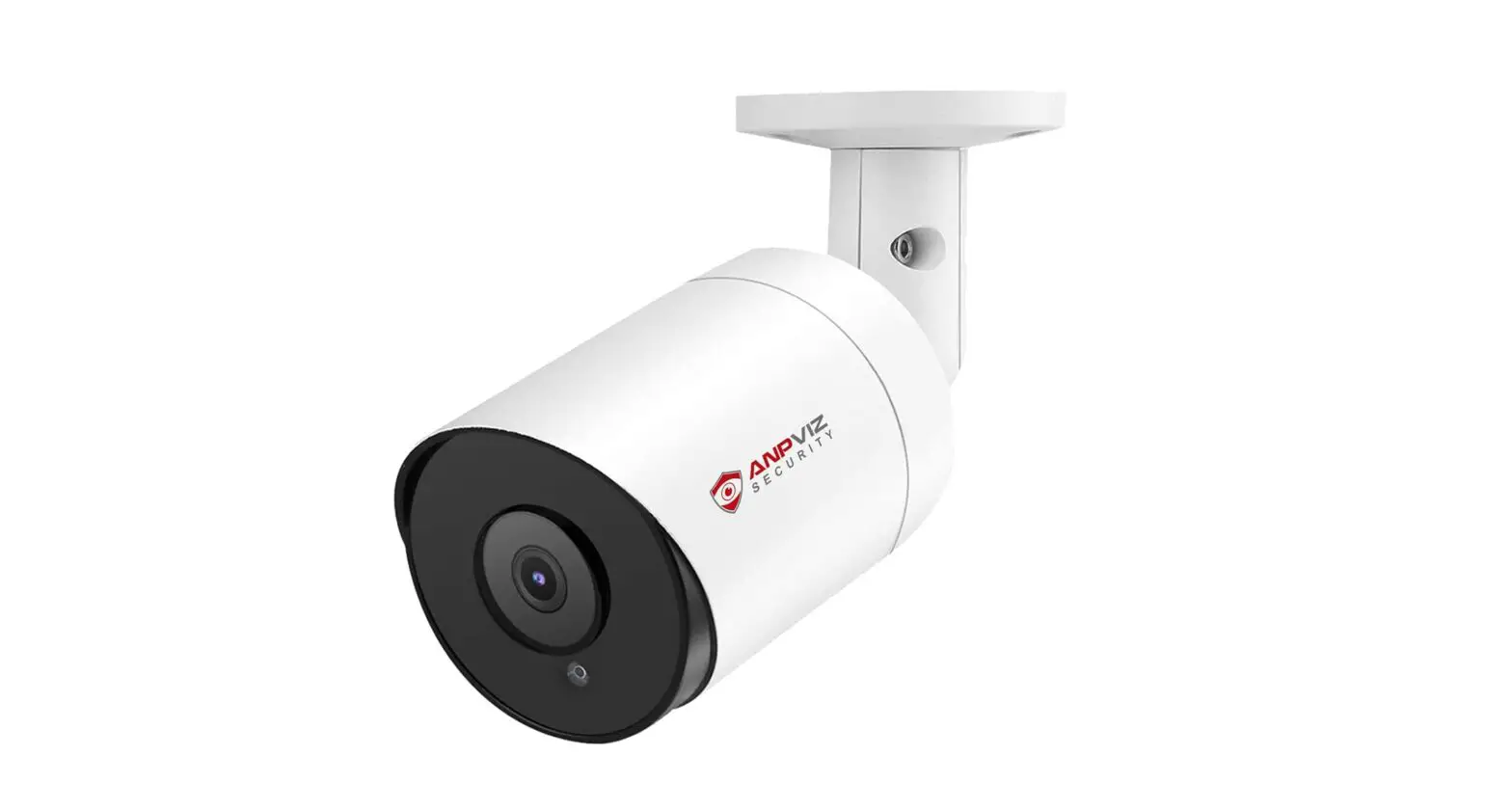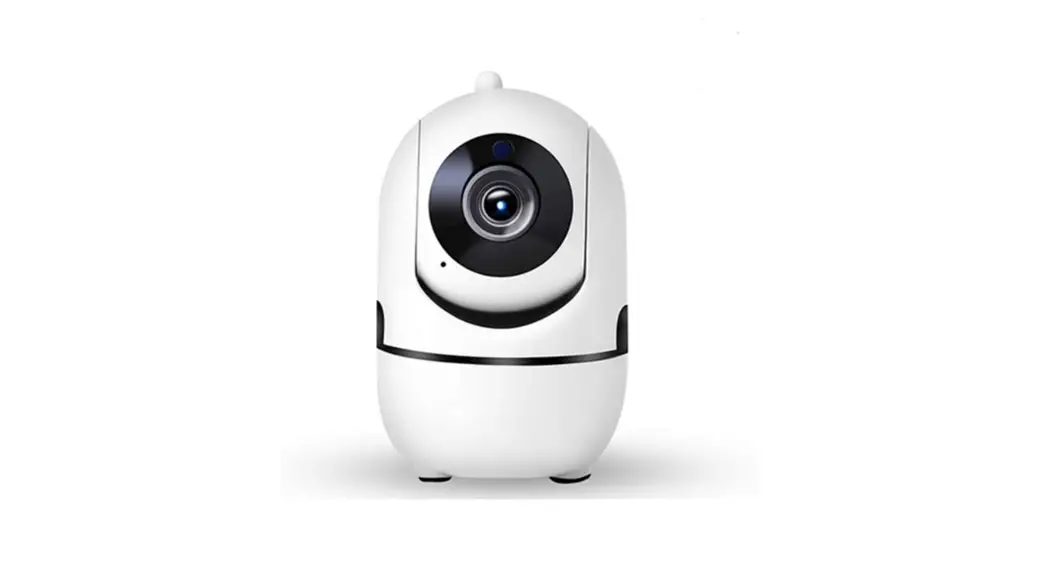

IP Camera
Quick Installation Guide
IP Camera Connection
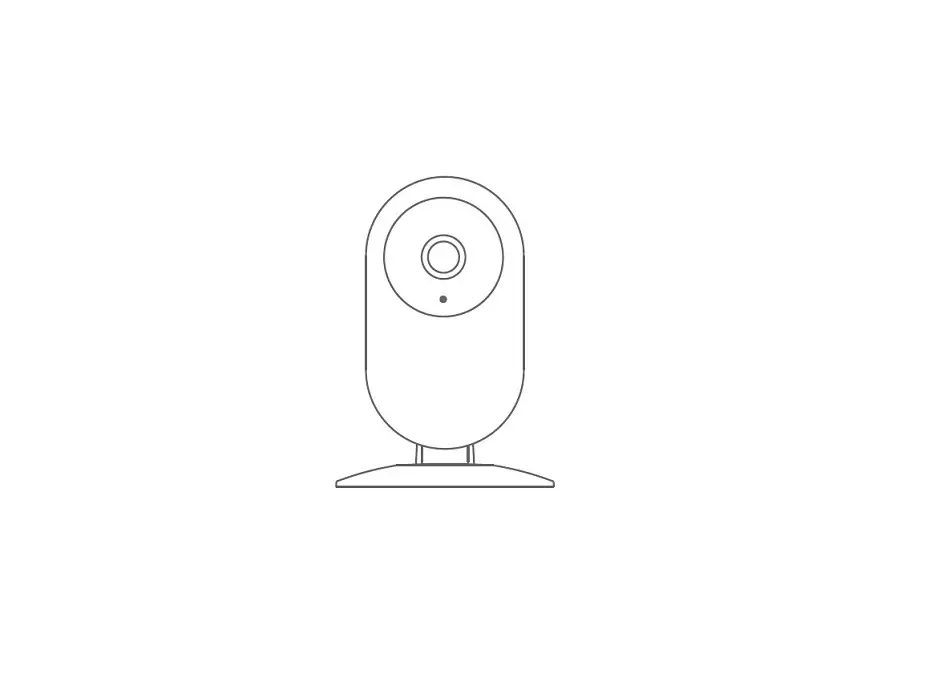
Plenteause. connect IP camera with power adapter, refer to the picture below. The start-up time is about 1 minute.
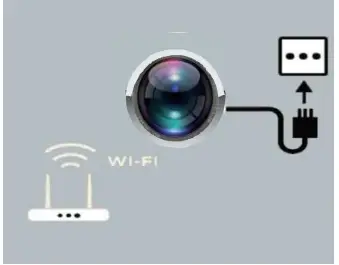
Notes: IP/Network 2.4GHz Wi Ft (Incompatible with GHz). If the router supports both bands, please switch off the 5GHz band. Set WPA2 PSK(AESy WPA-PSK(AES) as encryption.
App download & Wi_Fi setup
Download app
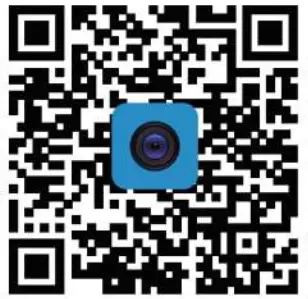
A: Scan below QR code to download the app.
Ysee | Ysee |
 |  |
| Android | IOS |
Note: If the QR code does not work, please search “Ysee” in Google Play (for android devices) or App Store (for IOS devices) to download it.
Wiri setup
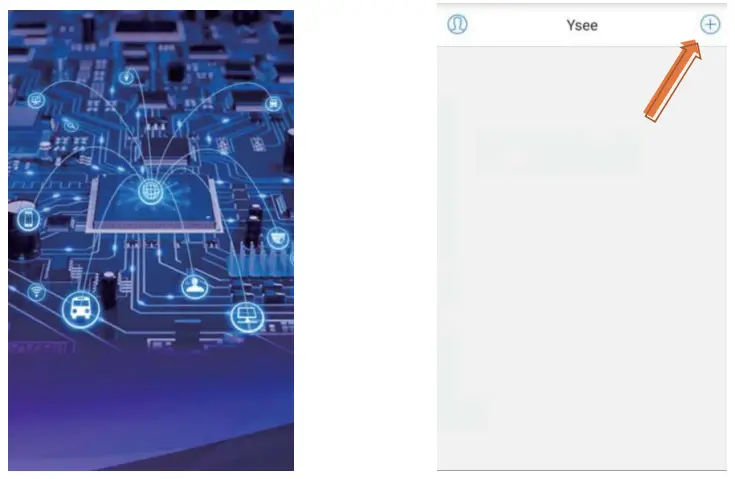
2.2.1 Launch the app
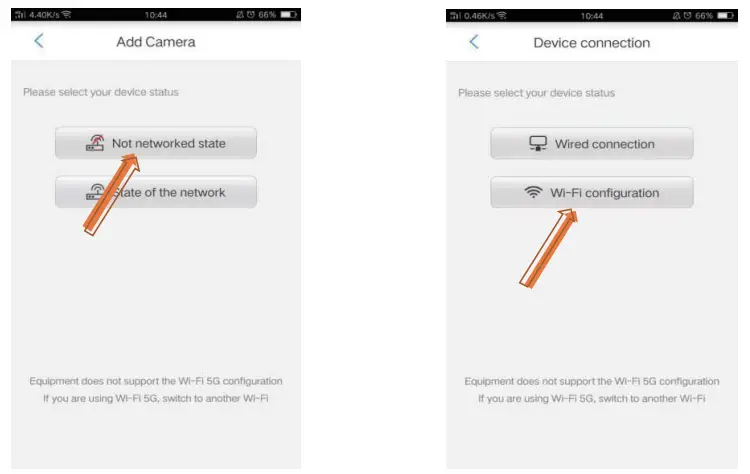
2.2.2 Click the symbol + to add a new device, select Not network state – Wi-Fi configuration please make sure your mobile has already connected to the local wifi.
 |  |
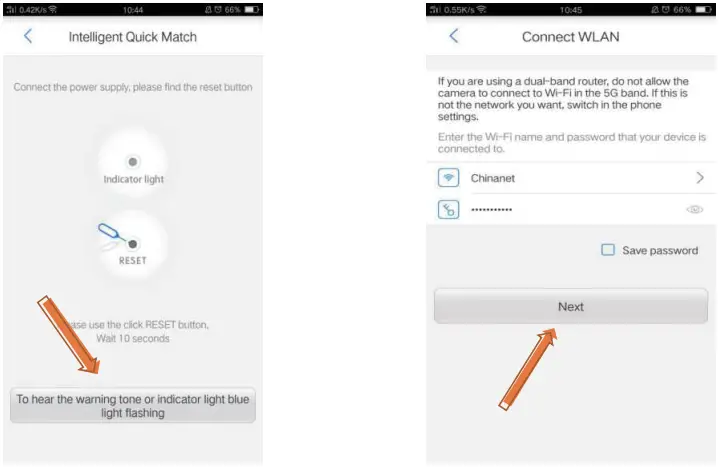
2.2.3 Make sure the device has been reset by hearing the warning tone or indicator light blue light flashing, then click the button, and input the correct Wi-Fi password, dick “Next”
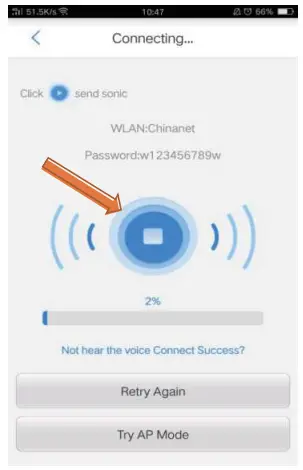
2.2.4 Turn up the mobile phone volume and get close to the device. then click  to start the configuration.
FCC Warning:
This equipment has been tested and found to comply with the limits for a Class B digital device, pursuant to part 15 of the FCC Rules. These limits are designed to provide reasonable protection against harmful interference in a residential installation. This equipment generates, uses, and can radiate radio frequency energy and, if not installed and used in accordance with the instructions, may cause harmful interference to radio communications. However, there is no guarantee that interference will not occur in a particular installation. If this equipment does cause harmful interference to radio or television reception, which can be determined by turning the equipment off and on, the user is encouraged to try to correct the interference by one or more of the following measures:
- Reorient or relocate the receiving antenna.
- Increase the separation between the equipment and receiver.
- Connect the equipment into an outlet on a circuit different from that to which the receiver is connected.
- Consult the dealer or an experienced radio/TV technician for help.
Caution: Any changes or modifications to this device not explicitly approved by the manufacturer could void your authority to operate this equipment.
This device complies with part 15 of the FCC Rules. Operation is subject to the following two conditions (1)
This device may not cause harmful interference, and (2) this device must accept any interference received, including interference that may cause undesired operation. This equipment complies with FCC radiation exposure limits set forth for an uncontrolled environment. This equipment should be installed and operated with a minimum distance of 20cm between the radiator and your body.
2.2.5 The device UID, Name, and password will be shown when the configuration is finished, click -The finish button to complete the configuration. Click the video button, then you can view the real-time images.
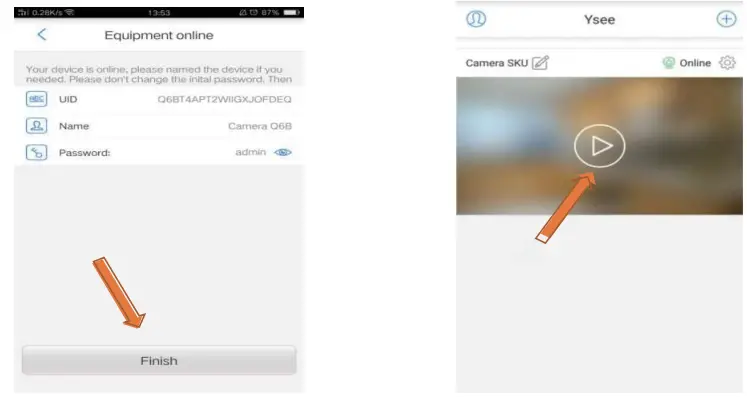
 Tips: The mobile phone must connect to the local Wi-Fi network. (The default password is admin For security reasons, please change the default password after configuration.)
Recording & Alarm setting
Insert SD card before powering on
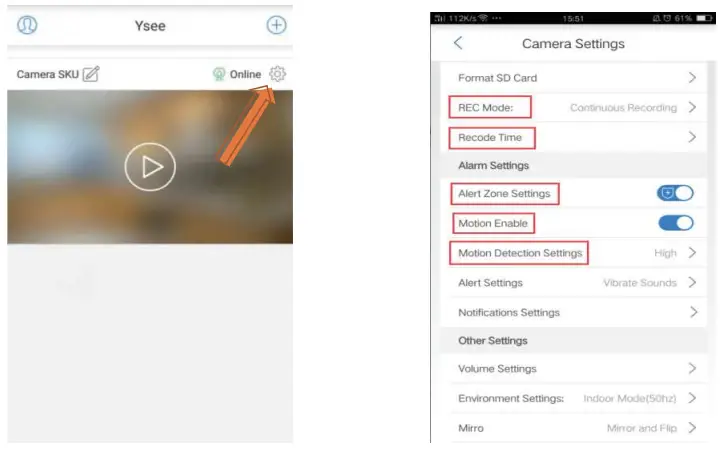
Click for settings, Setup Motion Detection Settings, Motion Enable, Alert Zone Settings, and REC mode as below.
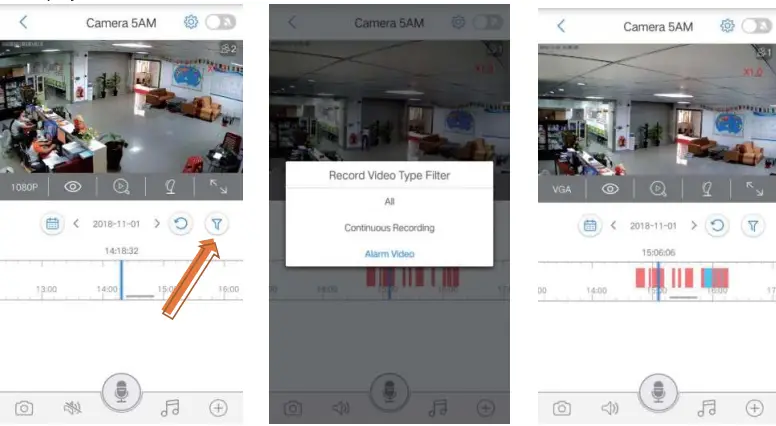
Select the alarm video through the timeline.
The red stripe area is the alarm video. Move the timeline to the red stripe area to watch the alarm video playback.
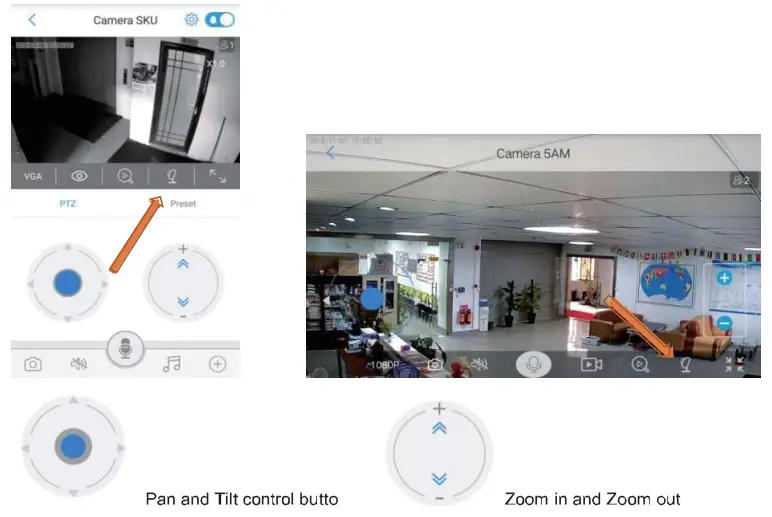
How to use the zoom function
Click the  to switch out the PTZ control button, also you can click
  to gel full-screen view.
FAQ
About TF card (Micro SD card)
This camera did not come with a TF card, you need to buy it. This camera supports most brands’ TF cards. We recommend you use a high-speed SanDisk TF card or Kingston TF card. Please format the TF card after Inserting it into the camera.
How to format TF card (Micro SD card)
- insert TF card into the slot
- Run Ysee app, and find the camera settings.
- Click -Format SD card” and confirm. It may take a longer time for a bigger capacity SD card.
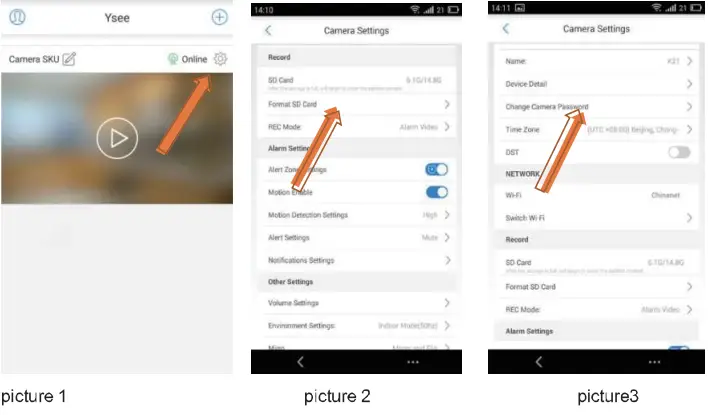
(If it shows TF card capacity is OGB, please format the SD card manually.) see below pictures 1& picture 2.
How to change camera password
Run Ysee APP, find the camera settings, and Click Change Camera Password, you will need to insert your current password and new password then dick Vi•to save settings. (If you forget your password, you can reset the camera by pressing the reset button for at least 5 seconds. After reset, the default password is admin.) See below picture l& picture 3.
How to close the face tracking function
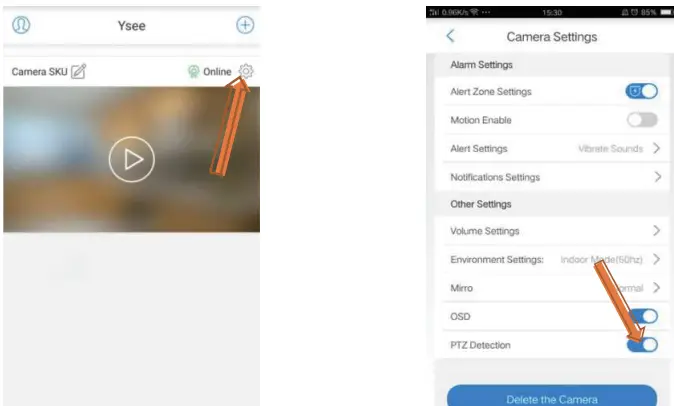
Run Ysee APP, find the camera settings, then rind the PTZ detection function, and turn it off.
Warranty Card
| Name | |||
| Address | |||
| Tel: | Postcode | ||
| Purchase address | |||
| Purchase price | Purchase No. | ||
| Issue description | Model | ||
| Seller | Signature | ||