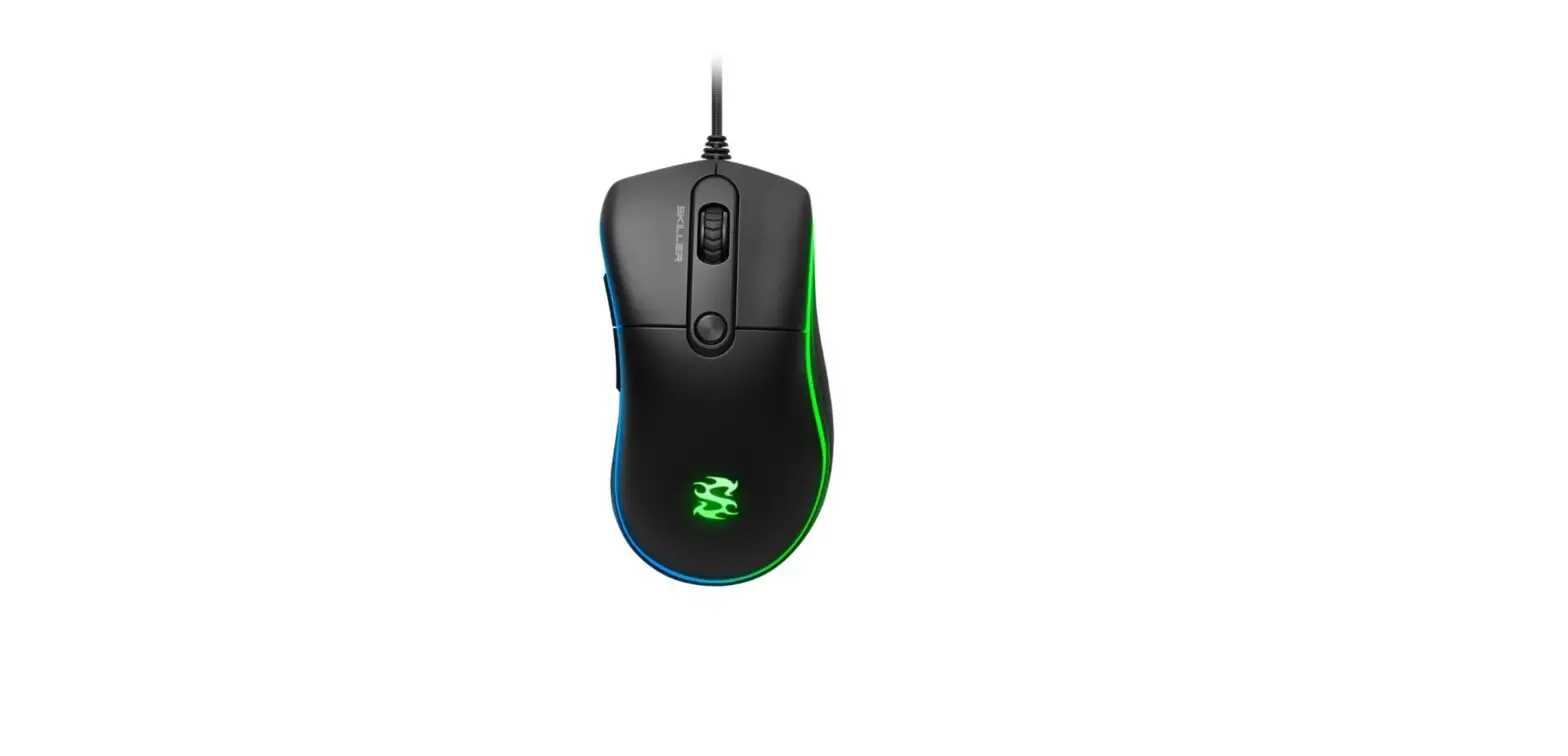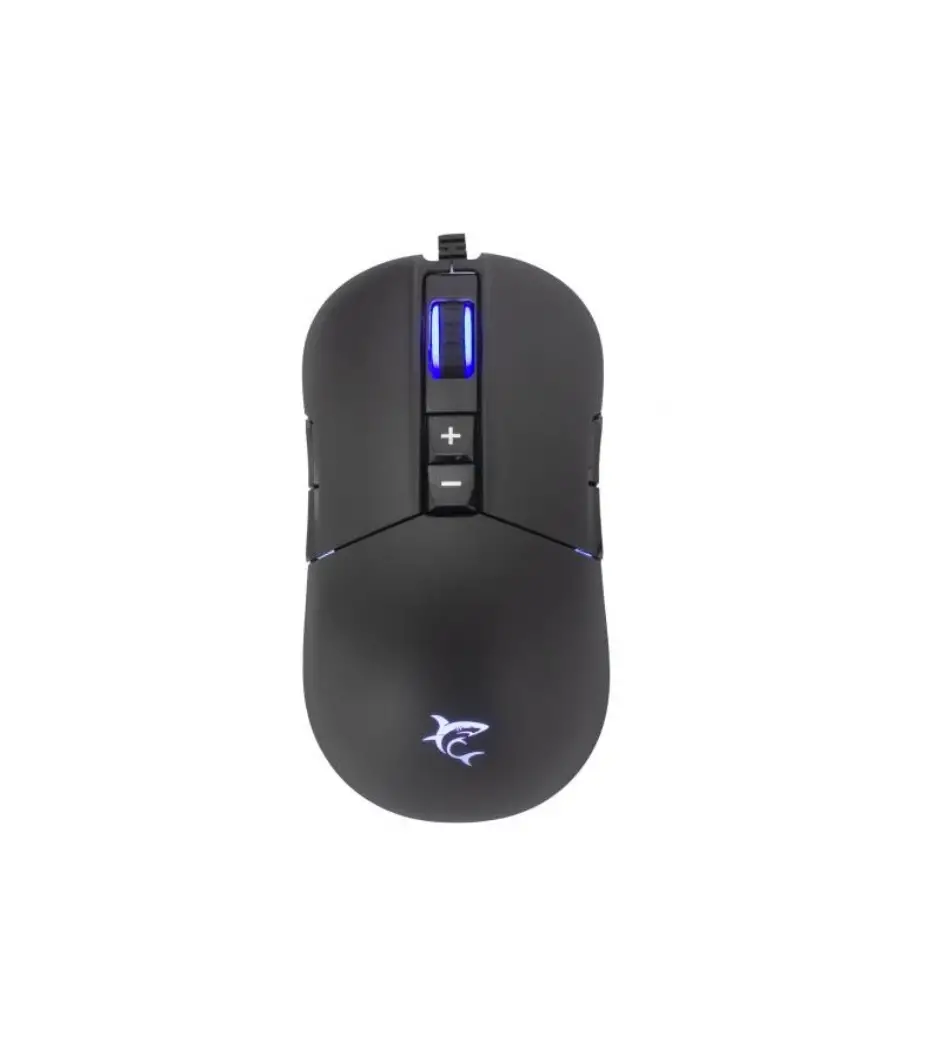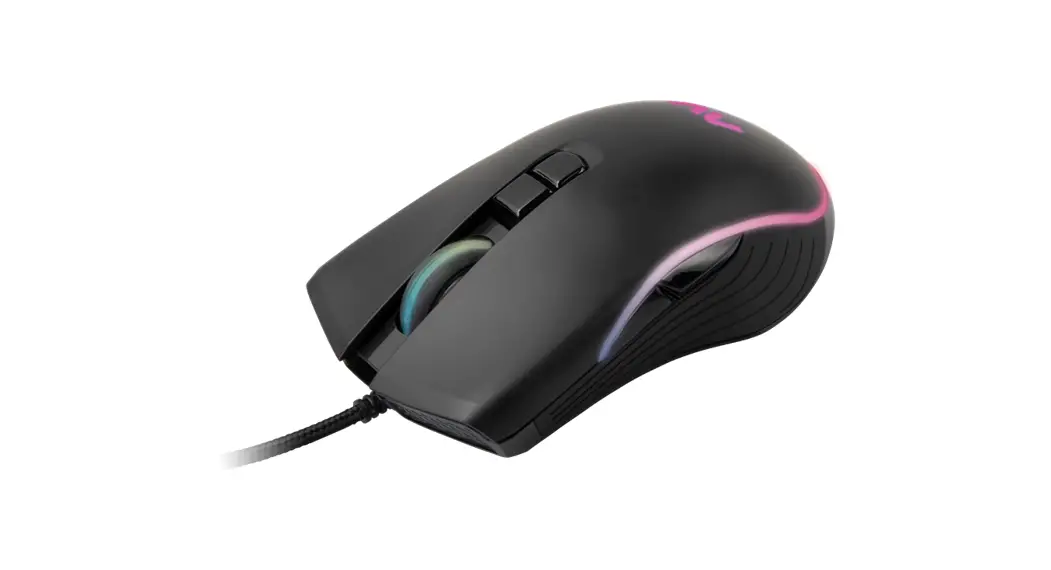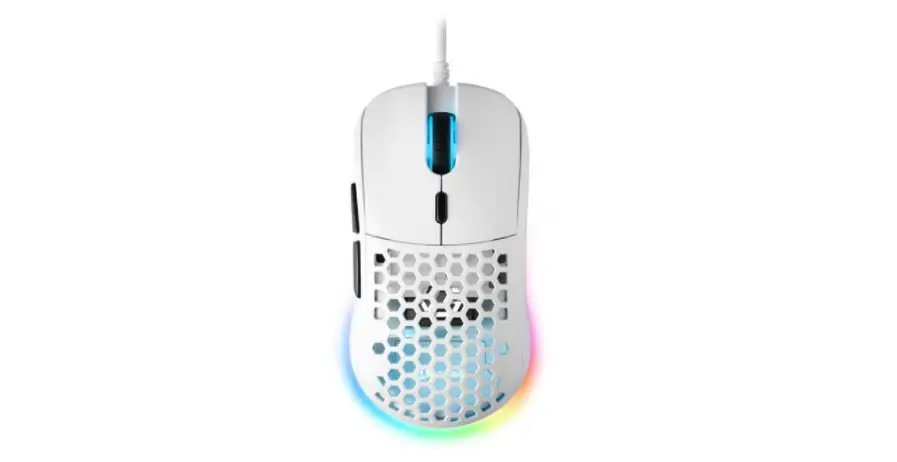

CAUTION! LASER! Avoid direct eye contact with the laser beam!
Dear customer!
Congratulations on purchasing one premium quality Sharkoon product. For a long lifetime and to take full advantage of this product, we recommend that you read this manual completely.
Have a good time with our product!
Sharkoon Technologies
Features
- Avago 9800 Laser sensor
- 11 programmable buttons
- 4-way scroll wheel
- LEDs for DPI indication
- Internal memory for user profiles
- Gold-plated USB connector
- Textile-braided cable
- Weight-Tuning System
- Ergonomic design
- Rubberized surface for maximum grip
- Configuration software included
Specifications
| Max. DPI/CPI | 8,200 |
| Max. Acceleration | 30 g |
| Weight without Cable | 150 g |
| Dimensions (L x W x H) | 126 x 88.1 x 41.8 mm |
| Sensor | Laser |
| Connector | USB 2.0 (gold-plated) |
| Cable length | 180 cm (textile braided) |
| Frames Per Second | 12,000 |
| Inches Per Second | 150 |
| Number of buttons | 11 (Click switches: Omron) |
| DPI indication | LEDs |
| Scroll wheel left/right | Yes |
| Mouse feet | 4, PTFE |
| Illumination | Yes, configurable via software |
| Chip | Avago ADNS-9800 |
| Lift-Off Distance | 1-5 mm |
| Weight-Tuning System | Yes (6x 5 g) |
Package contents
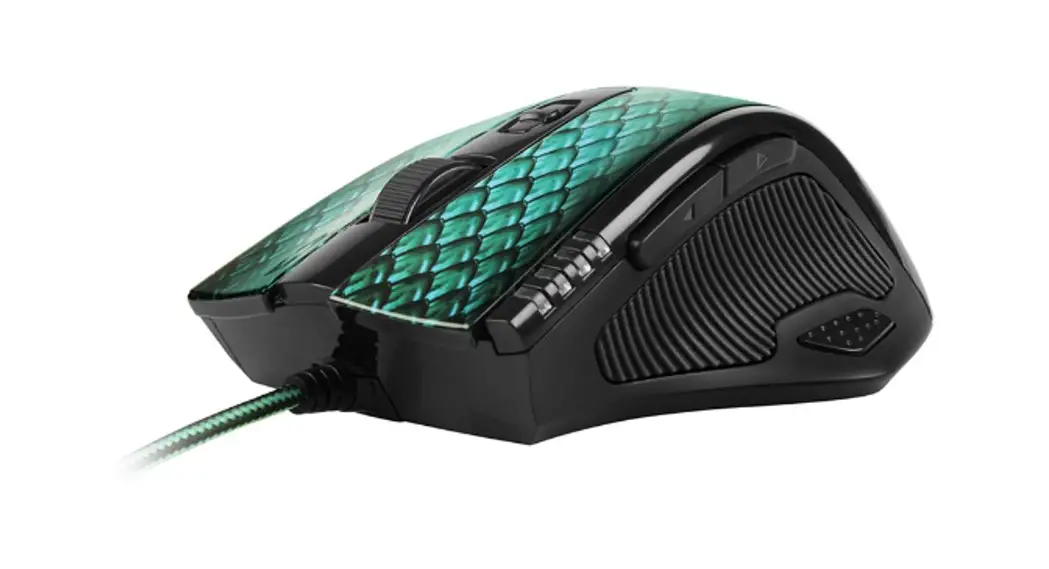
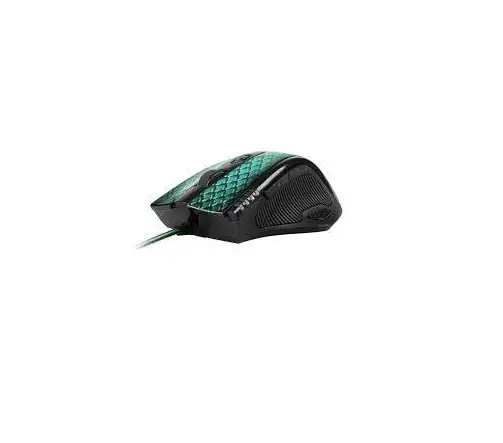
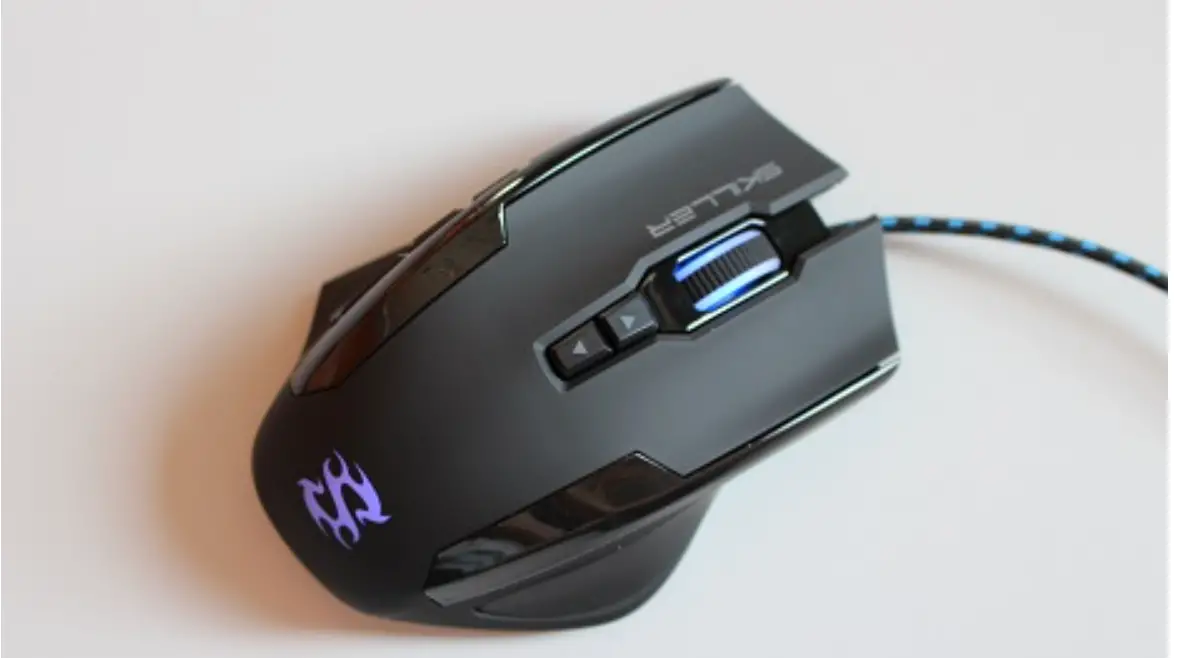
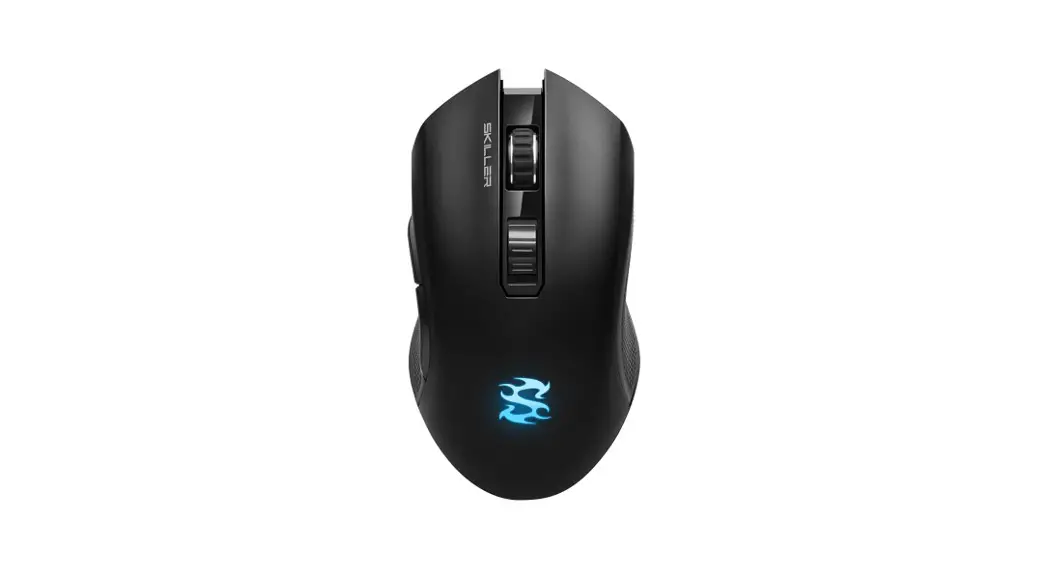
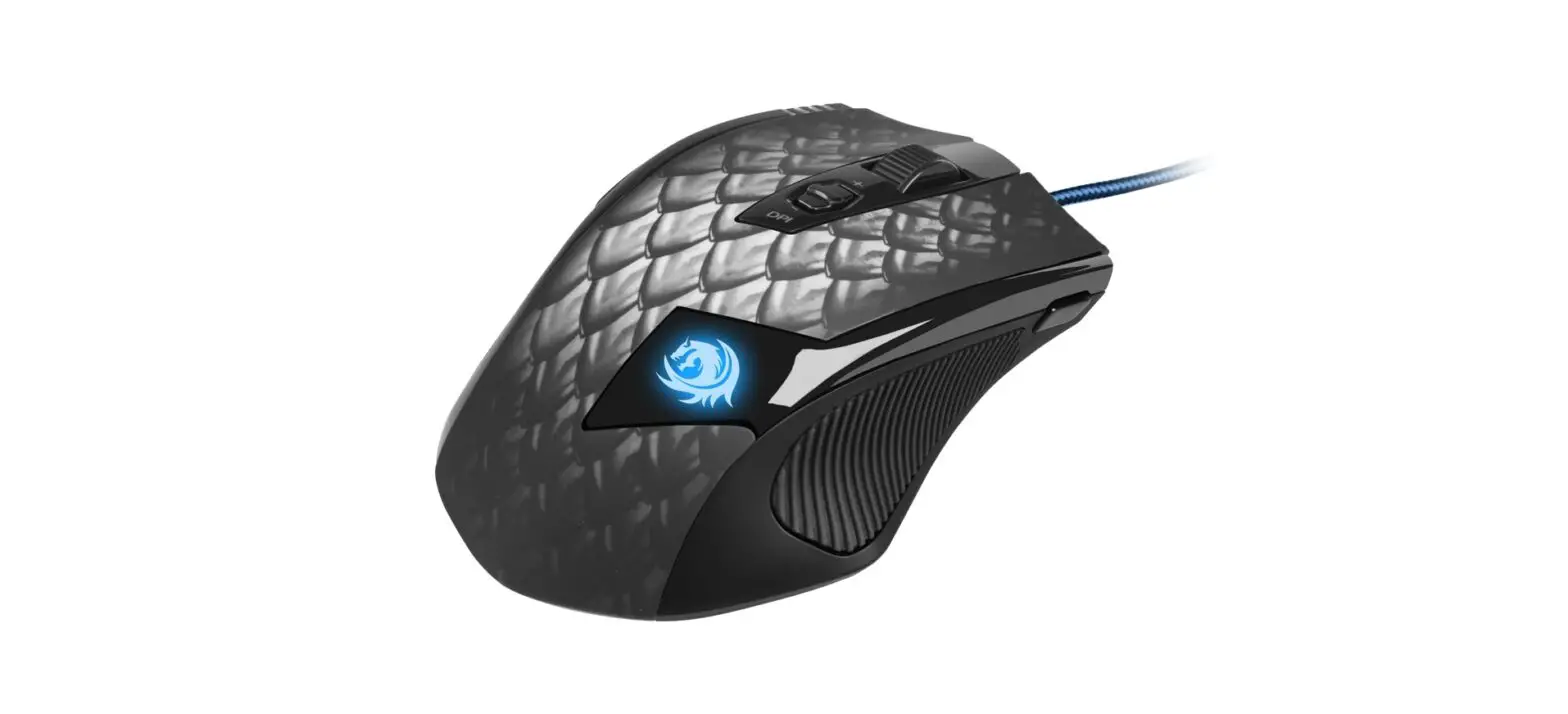
- Drakonia Black
- An additional set of mouse feet
- Manual
Note:
If you are missing any of the items listed above, please contact our customer service immediately:
- [email protected] (Germany and Europe)
- [email protected] (international).
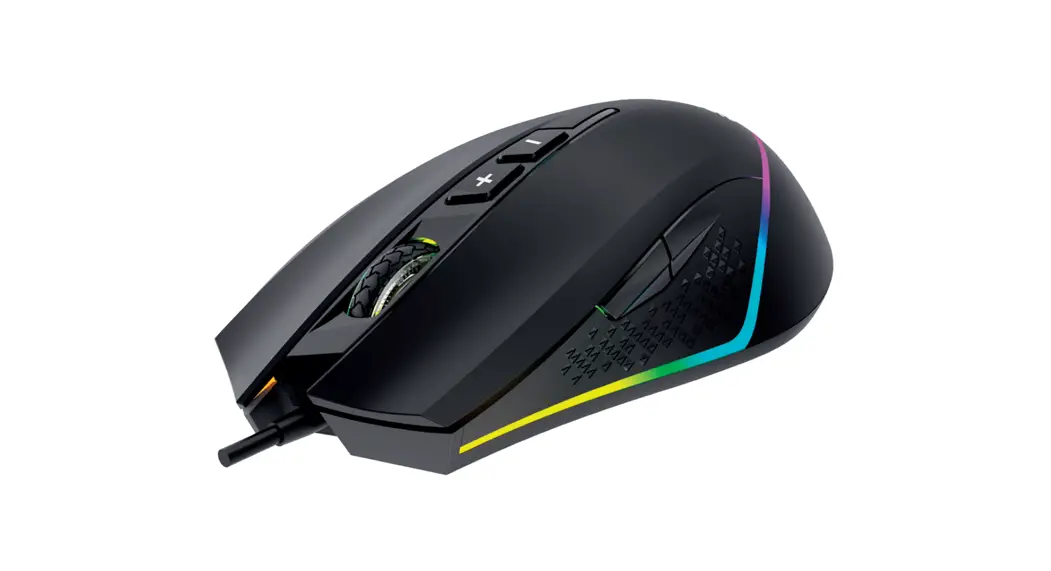
The mouse at a glance
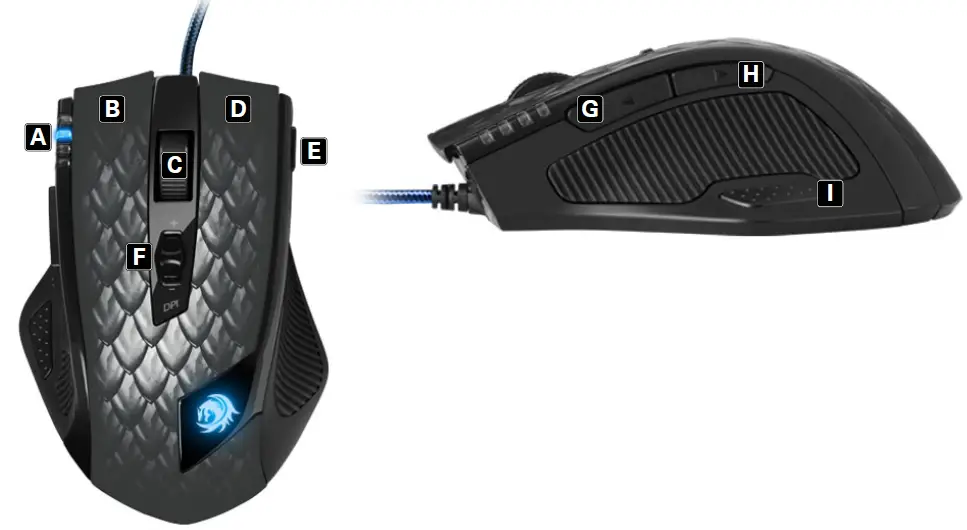
- A – DPI Display
- B – Left Mouse Button (freely programmable)
- C – 4-Way Scroll Wheel and Middle Mouse Button (freely programmable)
- D – Right Mouse Button (freely programmable)
- E – Illumination Key (freely programmable)
- F – DPI Switch (freely programmable)
- G – Thumb Button 1 (freely programmable)
- H – Thumb Button 2 (freely programmable)
- I – Thumb Button 3 (freely programmable)

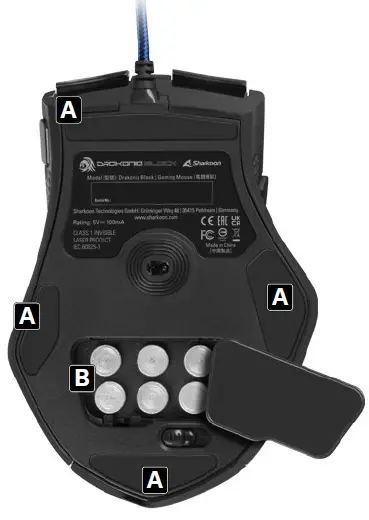
- A – Mouse Feet
- B – Weight-Tuning System
Connecting to the PC
- Plug the mouse’s USB connector into an available USB port on your PC.
- The operating system will automatically recognize the mouse and install all needed drivers.
- If your mouse is not recognized, disconnect it and try a different USB port on your PC.
Installing the software
- Before installing the included software, remove all other installed mouse software from your system.
- Download the gaming software for the Drakonia Black from the Sharkoon website at www.sharkoon.com.
- Unzip the ZIP file in a folder of your choice and start the “Drakonia Black.exe” application and follow the InstallShield Wizard instructions.
- Restart the PC once the installation is complete.
- After completing the installation process the following icon will appear in the taskbar:


The Editor
Starting the editor
Start the application via its Windows start menu entry or the symbol in the taskbar.
“Main Control” window
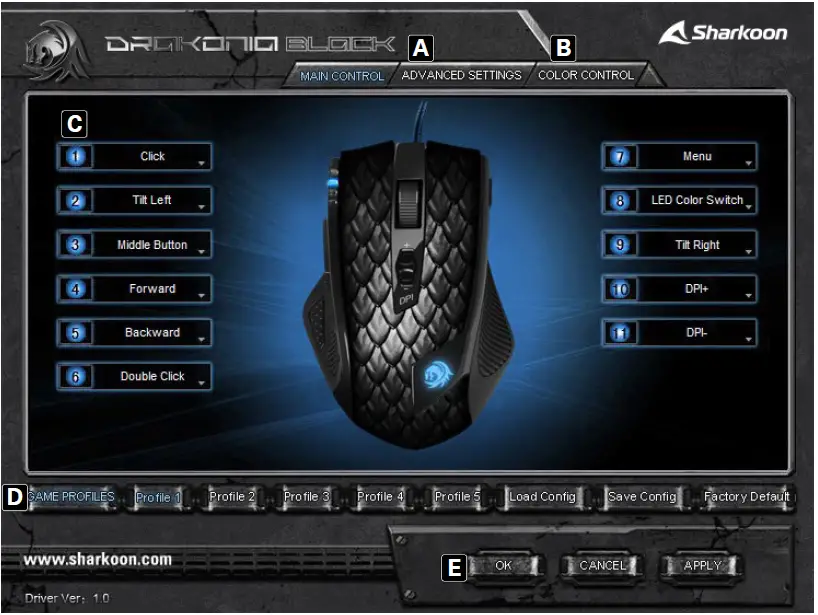
- A – Advanced Settings: see below.
- B – Color Control: see below.
- C – Button Assignment: Every mouse button and the scroll wheel can be assigned different functions, which you can select from the respective pull-down menu.
- D – Game Profiles: The Drakonia Black can be assigned up to five different user profiles. With “Load Config” an already defined profile is loaded, while “Save Config” stores the current settings as a new profile. “Factory Default” resets the selected profile.
- E – “OK“ transfers the settings to the mouse and closes the window; “Apply“ transfers the settings to the mouse, and leaves the window open; “Cancel“ discards the settings.
Pull down menus
The pull-down menus open up after the respective button is clicked. All pull-down menus are the same for all the mouse buttons:
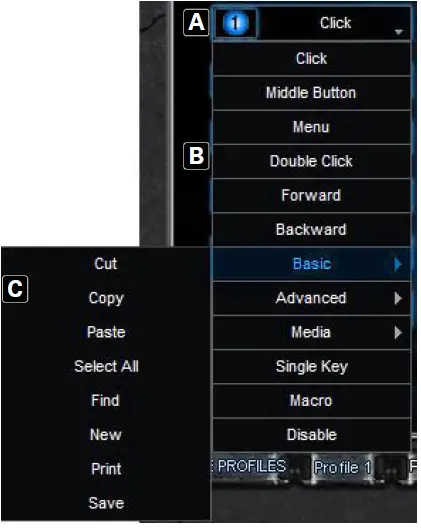
- A – Button
- B – Menu items
- C – Sub menus with further functions/options

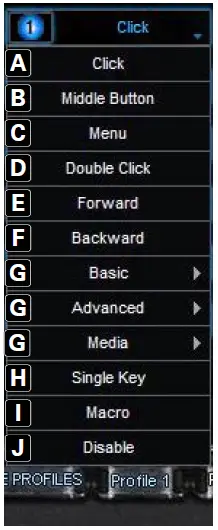
- A – Left-click
- B – Activates scrolling by mouse movement
- C – Right-click, opens the application context menu
- D – Double left-click
- E – Forward
- F – Backward
- G – Sub menus
- H – Assigns a keyboard letter to the mouse button
- I – Starts the macro manager. The Drakonia Black can record and execute macros:
To increase gaming speed and improve precision, commonly used orders and shortcuts can be created - J – Deactivates the button
“Basic” sub menu
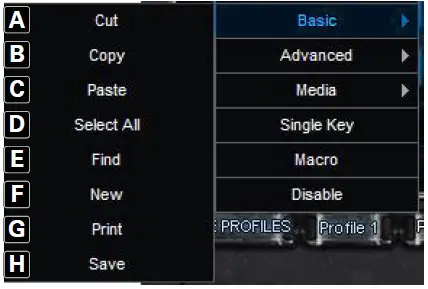
- A – Cut
- B – Copy
- C – Paste
- D – Select all
- E – Starts the search function
- F – Create a new document
- G – Open print dialog
- H – Save the document
“Advanced” sub-menu
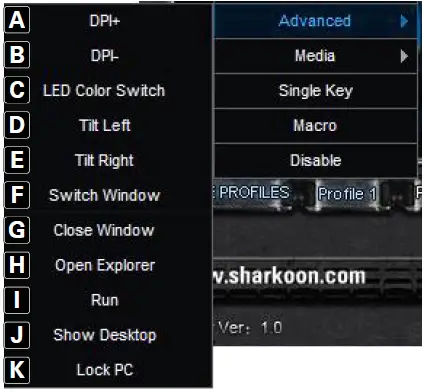
- A – Increase DPI
- B – Lower DPI
- C – Change LED color
- D – Scroll left/tilt the scroll wheel to the left
- E – Scroll right/tilt the scroll wheel to the right
- F – Swap window
- G – Close the window
- H – Open the Windows Explorer
- I – Execute the file
- J – Switch to desktop
- K – Lock PC
“Media” sub menu
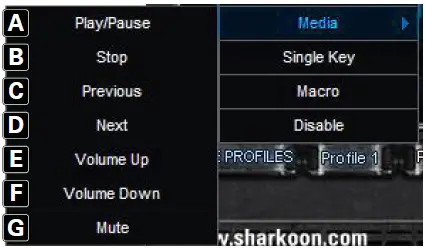
- A – Play/Pause
- B – Stop
- C – Previous track
- D – Next track
- E – Increase volume
- F – Decrease volume
- G – Mute
“Advanced Settings” window
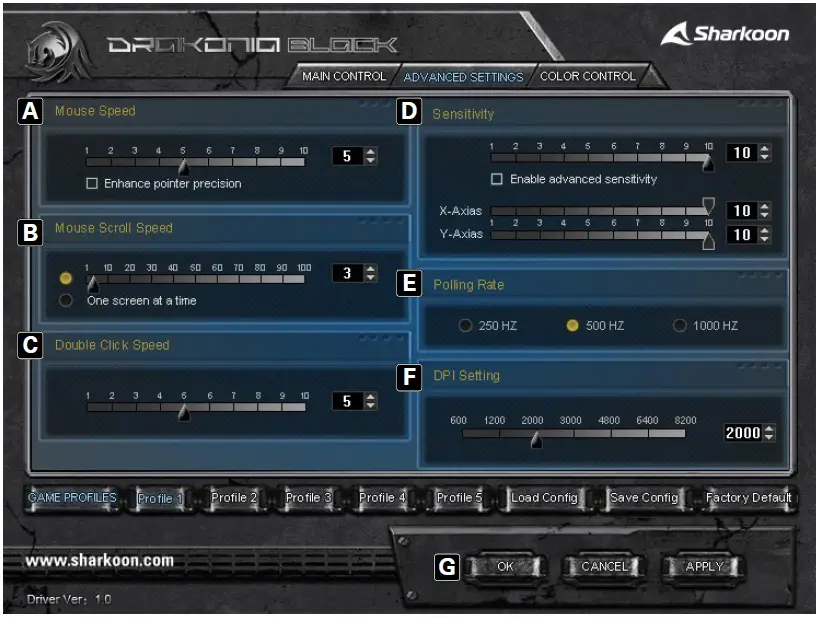
- A – Adjusts the mouse pointer speed
- B – Sets the vertical scroll speed
- C – Sets the double-click speed
- D – Sets the sensitivity (if required, also separately for the x-axis and y-axis)
- E – Sets the polling rate: This defines how often the computer polls the mouse information
- F – Sets the DPI level
- G – “OK“ transfers the settings to the mouse and closes the window; “Apply“ transfers the settings to the mouse, and leaves the window open; “Cancel“ discards the settings.
“Color Control” window
This dialogue allows you to define the LED color settings of the mouse.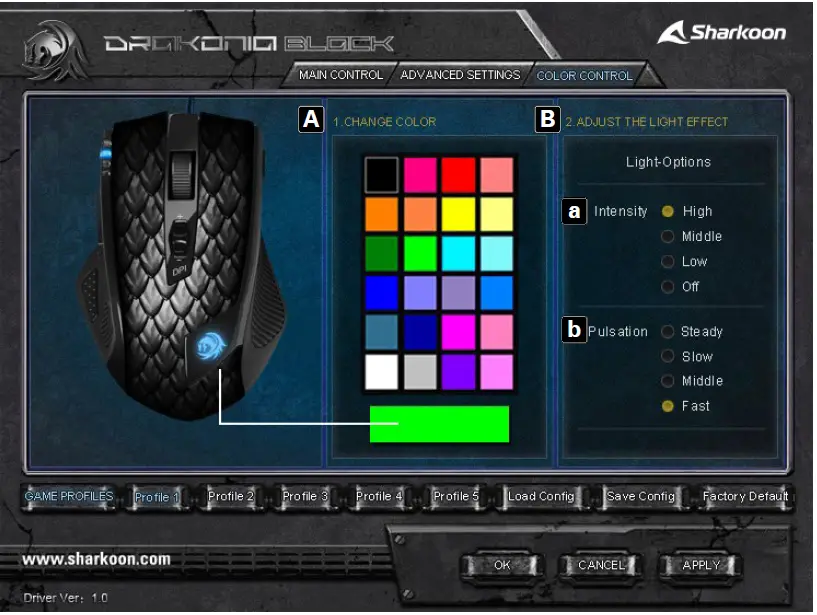
- A – Color palette with all selectable color options
- B – Settings for the illumination effect
- a – Illumination intensity
- b – Settings for the pulsation effect
Legal Disclaimer
- For potential loss of data, especially due to inappropriate handling, Sharkoon assumes no liability.
- All named products and descriptions are trademarks and/or registered trademarks of the respective manufacturers and are accepted as protected.
- As a continuing policy of product improvement at Sharkoon, the design, and specifications are subject to change without prior notice. National product specifications may vary.
- The legal rights of the downloadable software belong to the respective owner. Please observe the license terms of the manufacturer before using the software.
- All rights reserved especially (also in extracts) for translation, reprinting, reproduction by copying, or other technical means. Infringements will lead to compensation.
- All rights reserved especially in case of assignation of patent or utility patent. Means of delivery and technical modifications reserved.
Disposal of your old product
Your product is designed and manufactured with high-quality materials and components, which can be recycled and reused.
When this crossed-out wheeled bin symbol is attached to a product, it means the product is covered by the European Directive 2012/19/EU. Please be informed about the local separate collection system for electrical and electronic products. Please act according to your local rules and do not dispose of your old products with your normal household waste. The correct disposal of your old product will help prevent potential negative consequences to the environment and human health.
Sharkoon Technologies GmbH
Grüninger Weg 48 35415 Pohlheim Germany.
© Sharkoon Technologies 2019
 Sharkoon - Home
 Sharkoon - Drakonia Black