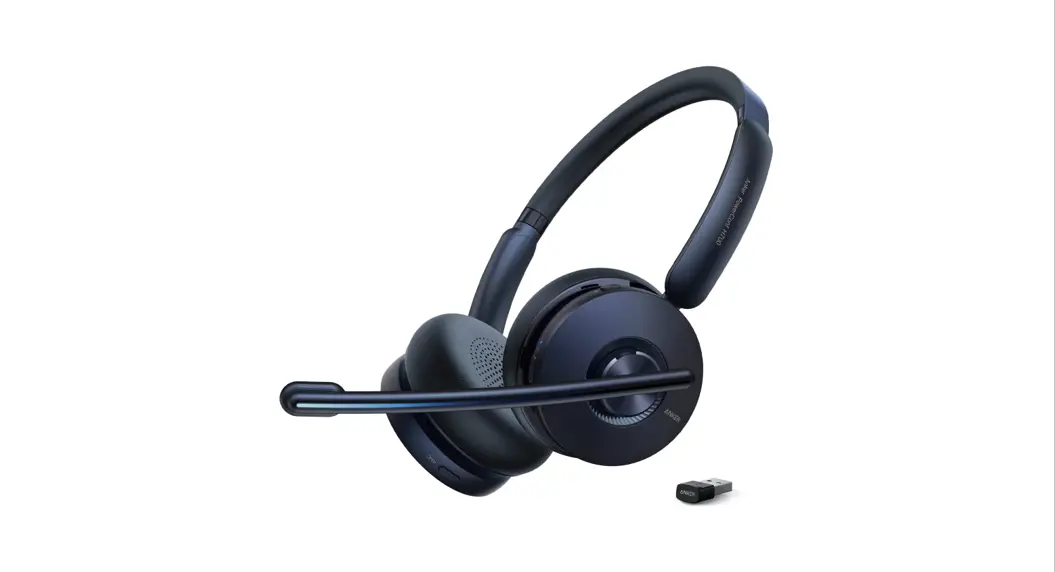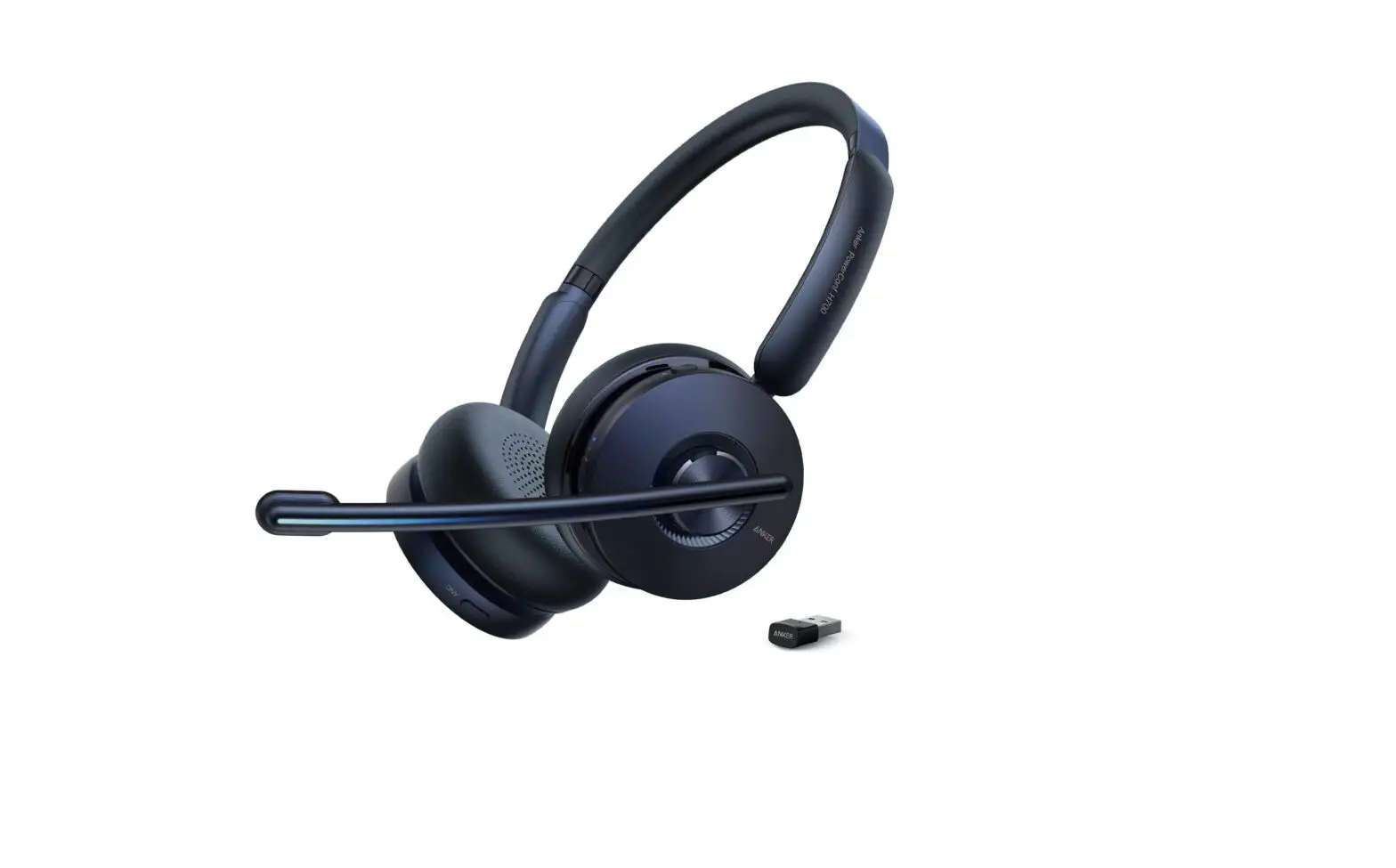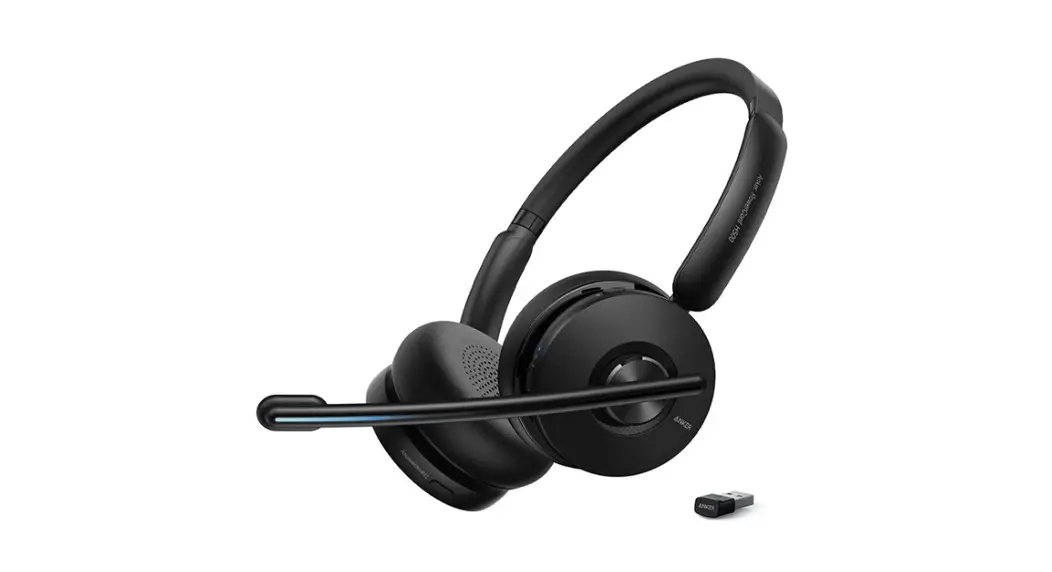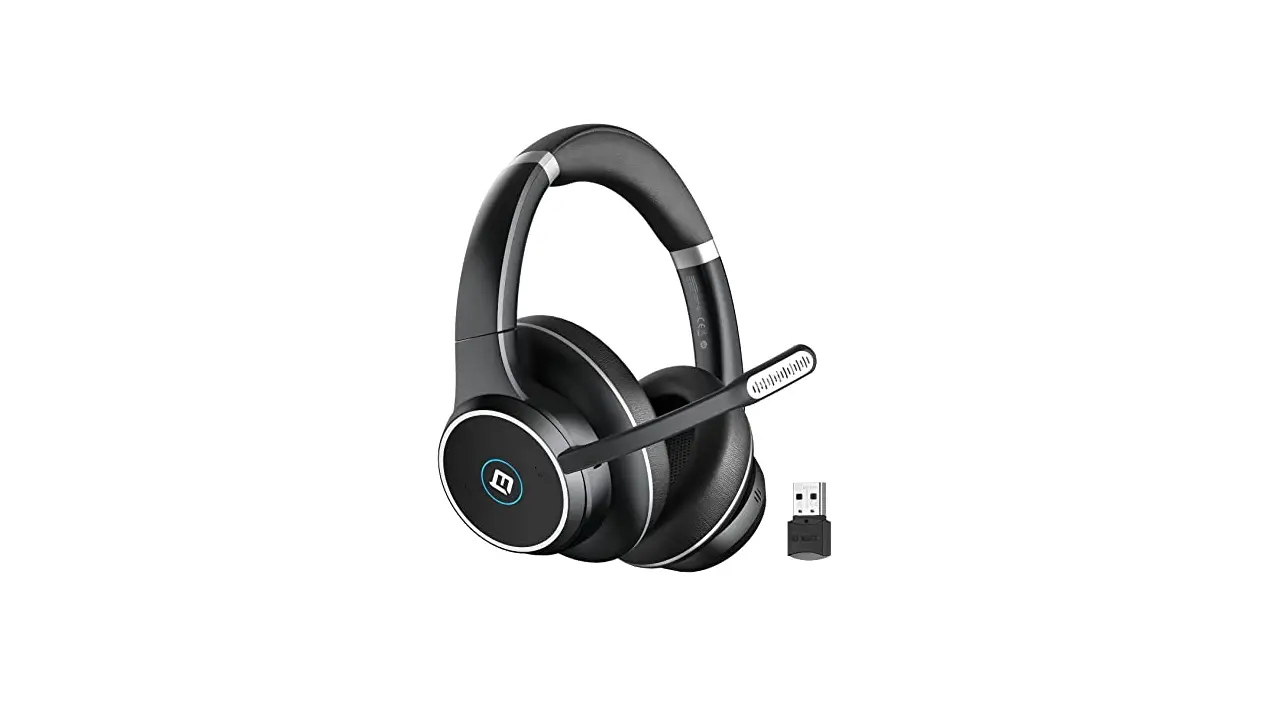

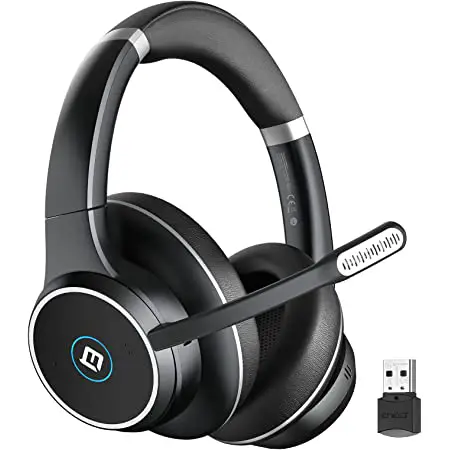
ANKER PowerConf H700 Wireless Headphone
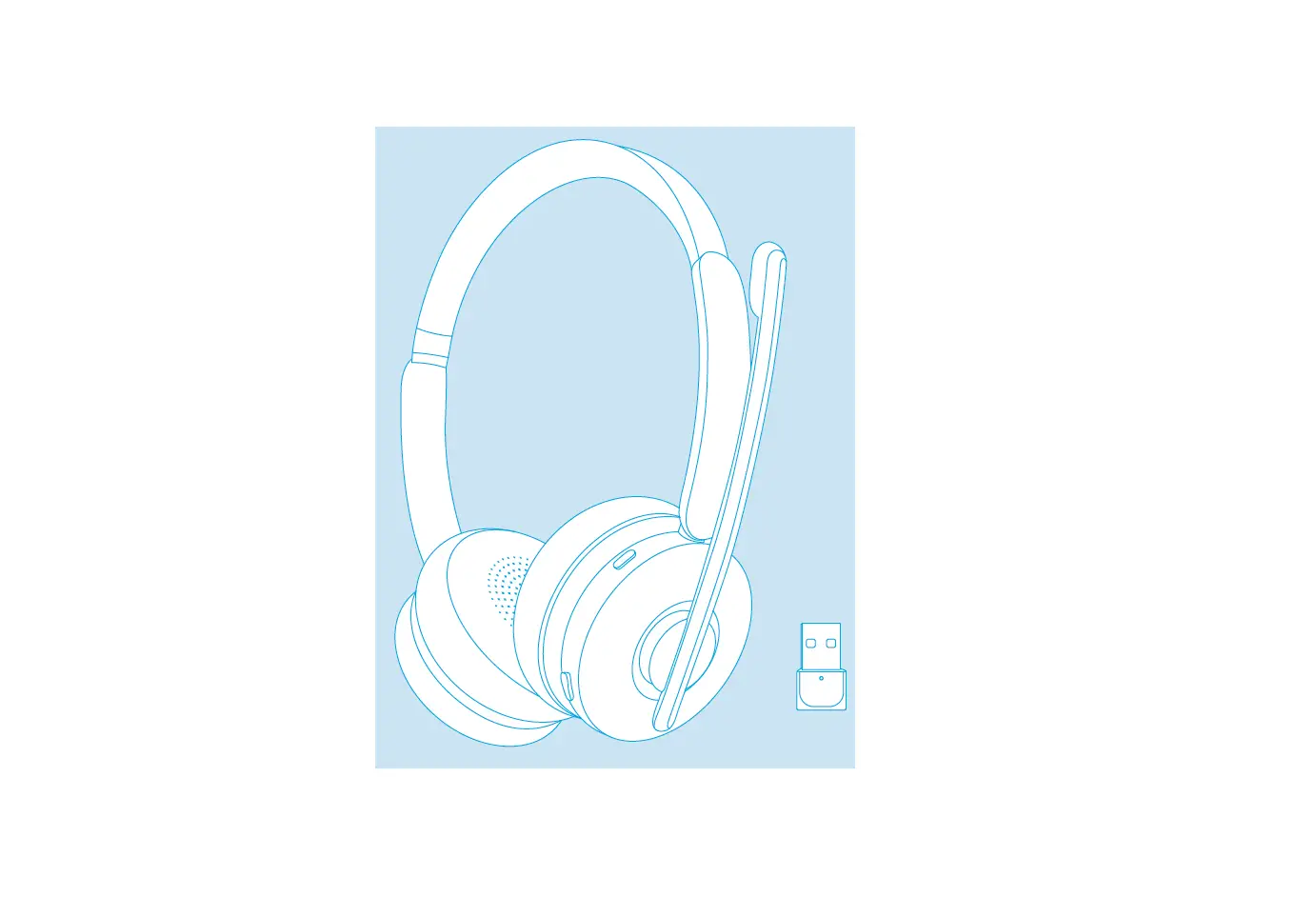
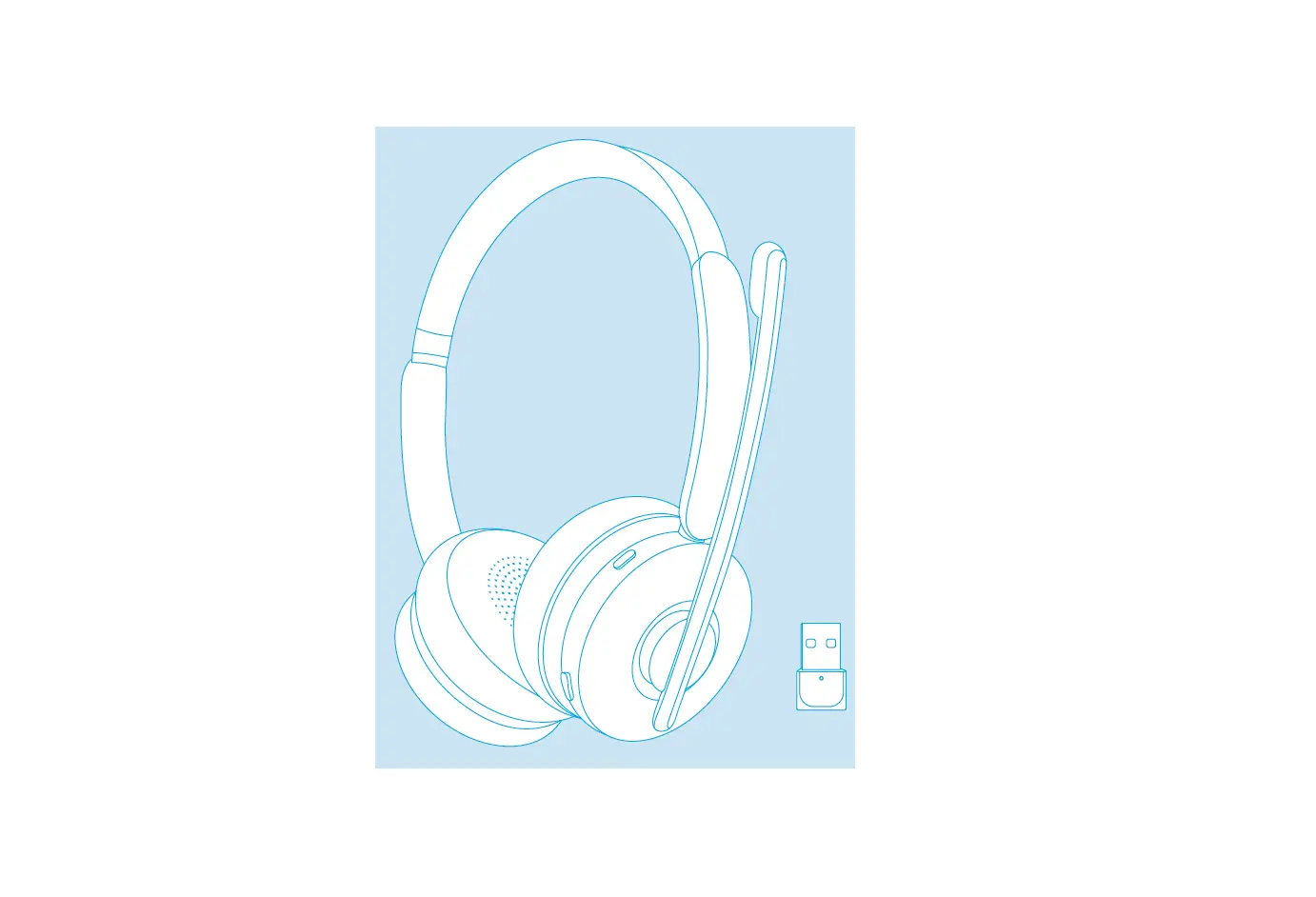
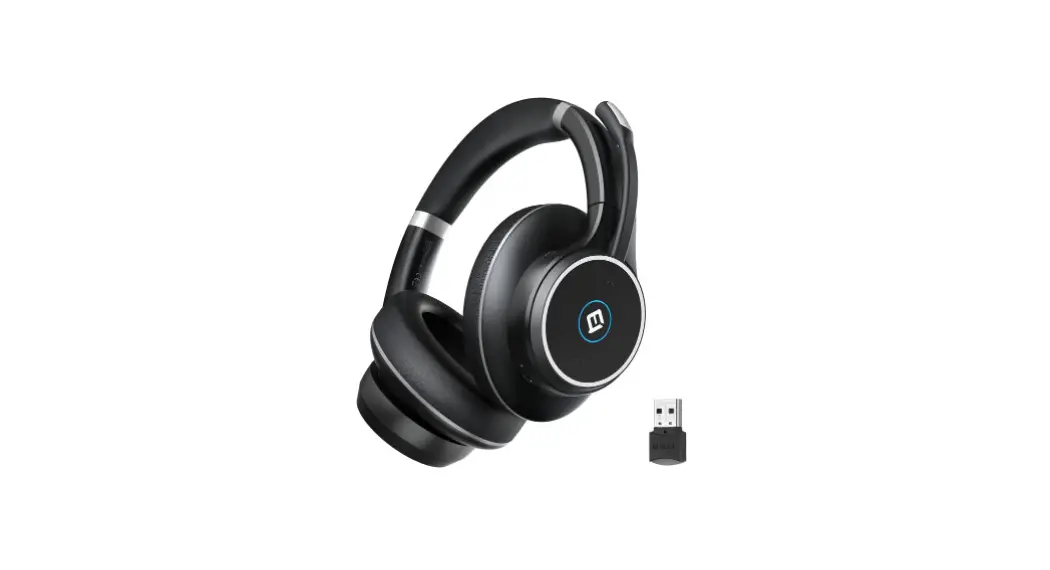
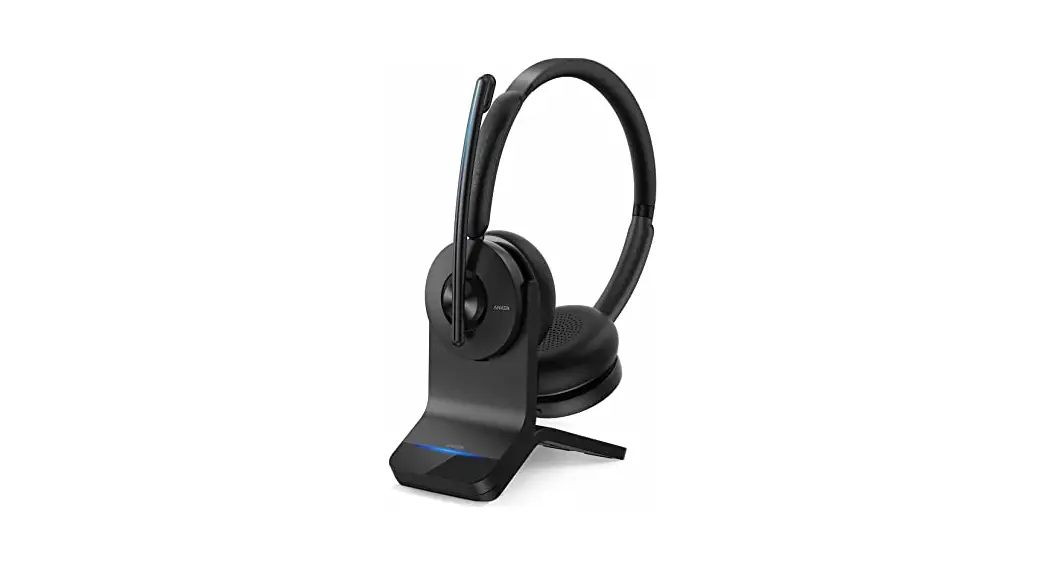
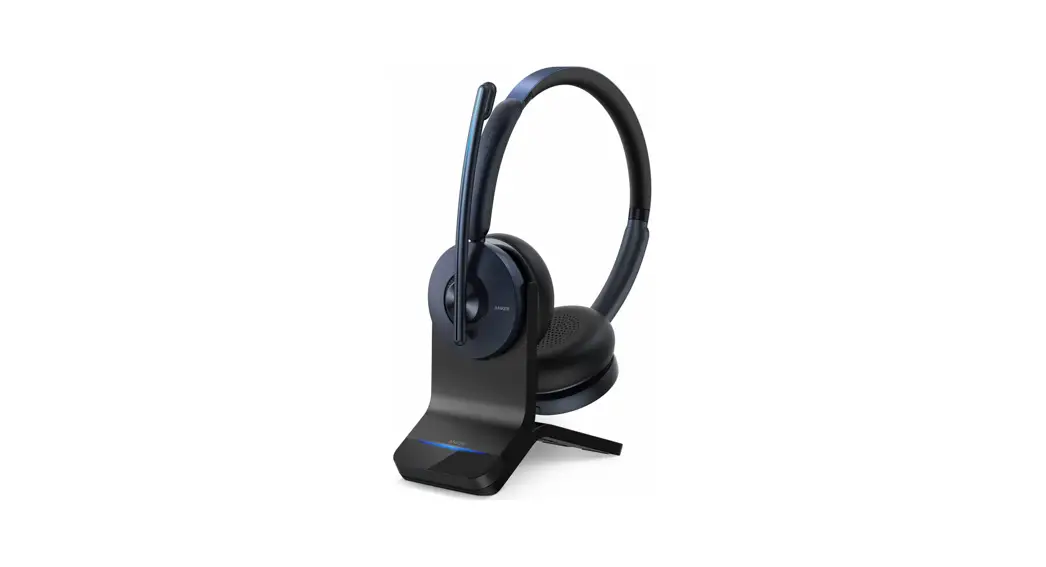
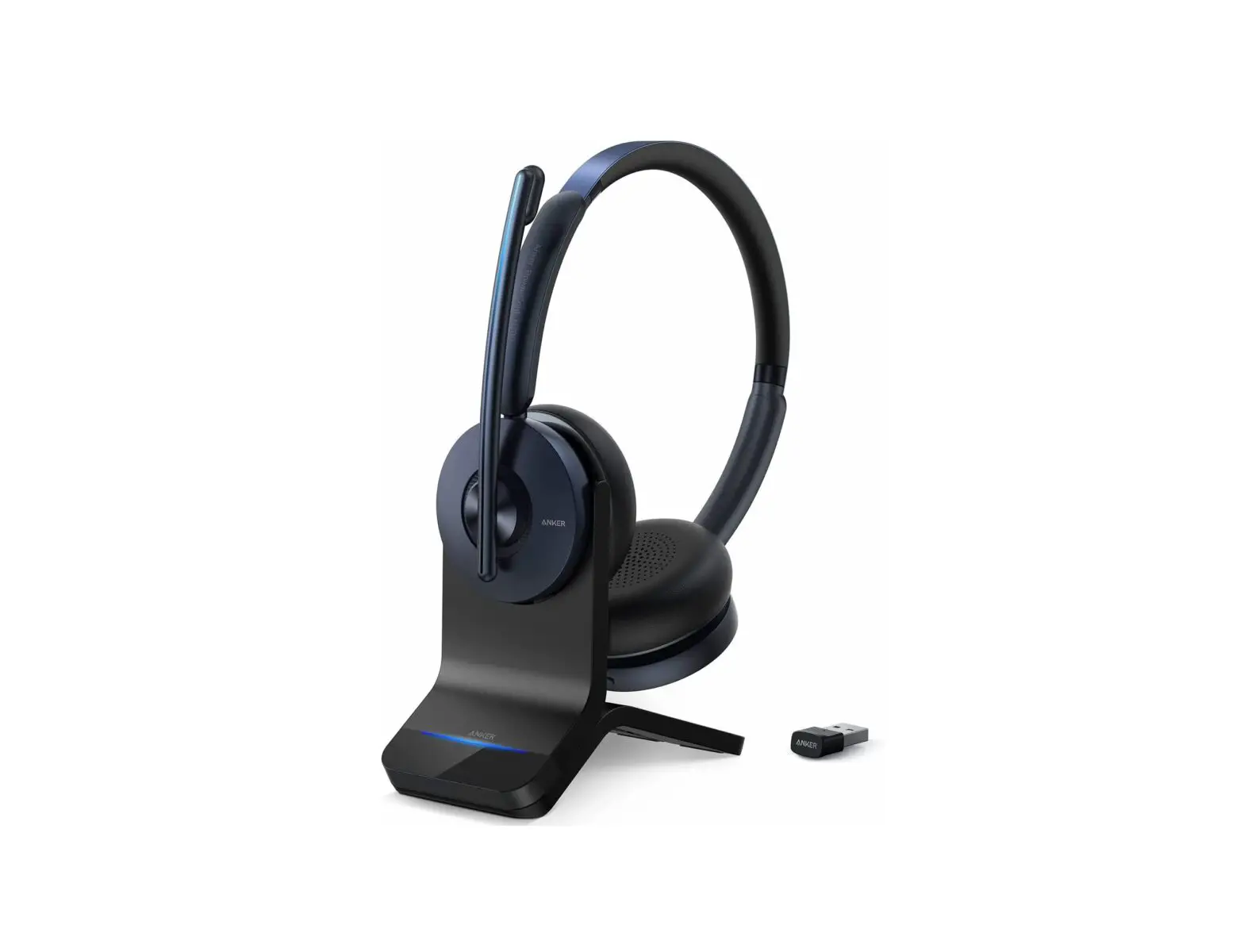
What’s Included
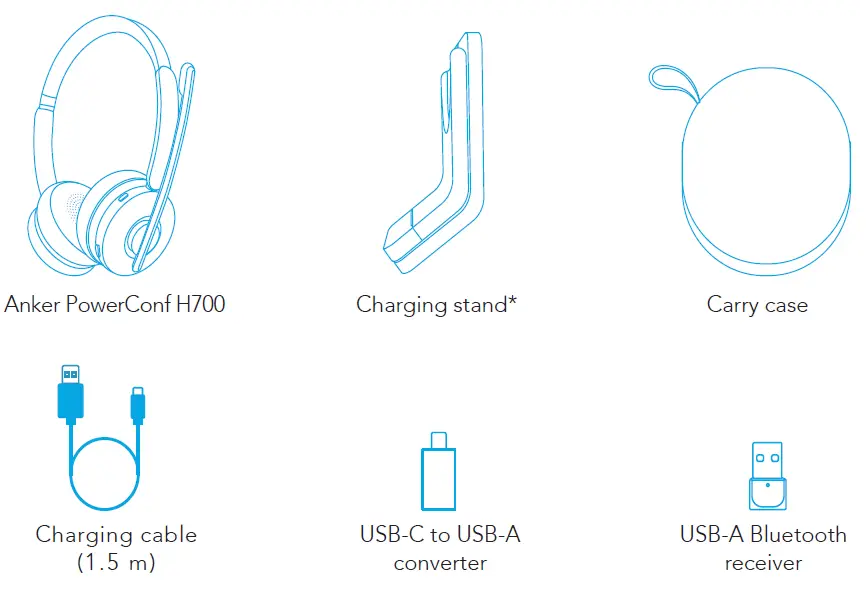
Only available for the version with the charging stand.
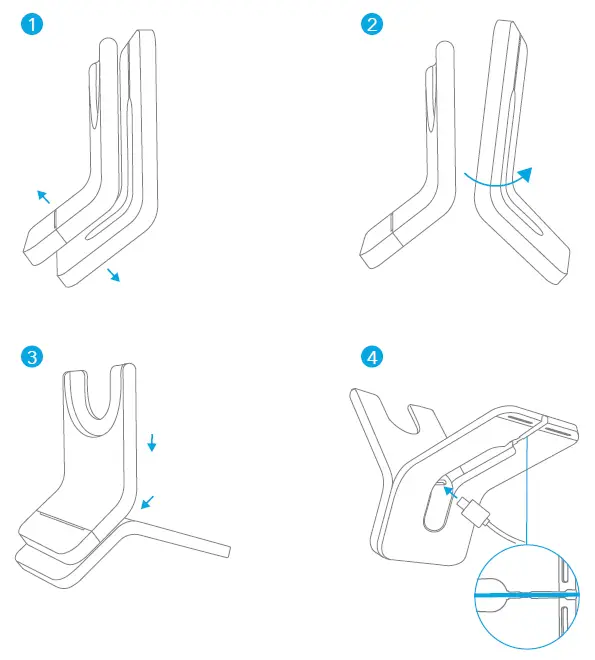
Assembling
- Separate the upper piece from the lower piece.
- Turn the lower piece upside down.
- Slide the upper piece into position to securely assemble the charging stand.
- Plug the USB-C cable into the USB-C port on the charging stand, and tuck the cable into the groove at the base.

Charging
- Fully dry off the USB-C charging port and the charging pins before charging.
- Use a certified USB-C charging cable and charger to prevent any damage.
- Fully charge the headset before the first use.
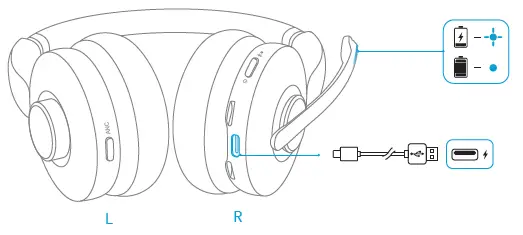
Using the Headset’s USB-C Port
Connect the headset to the power supply via the USB-C charging cable.
- The LED indicator on the mic boom will flash blue for charging, and turn steady blue when the headset is fully charged.

Using the Charging Stand
- Connect the charging stand to the power supply via the USB-C charging cable.
- The LED indicator on the charging stand will turn steady blue when powered.
- Align the charging pins on both the headset and the charging stand for successful charging.
- The LED indicator on the mic boom will flash blue for charging, and turn steady blue when the headset is fully charged.

- The LED indicator on the mic boom will flash blue for charging, and turn steady blue when the headset is fully charged.
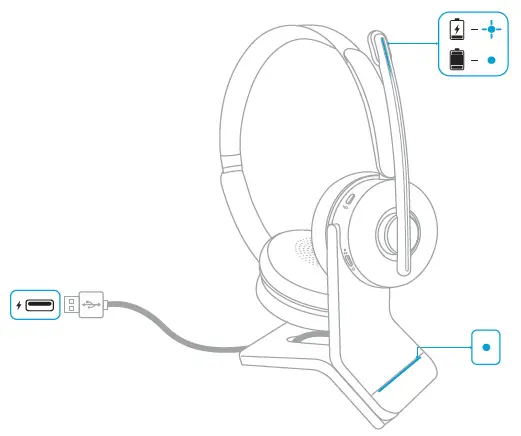
Only available for the version with the charging stand.
Battery Status
When the battery power is below 10%, the LED indicator on the headset will flash red once every 20 seconds.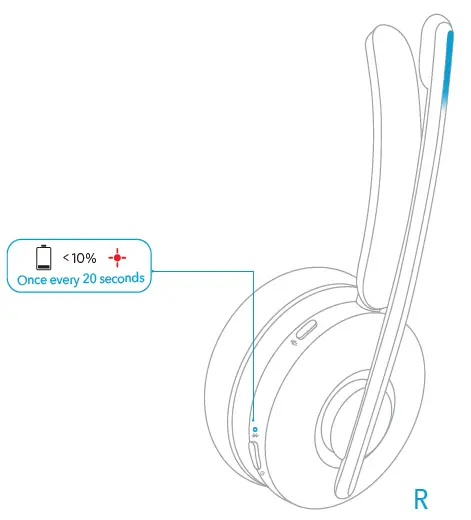
Wearing
- Wear the headset with the mic boom on either side.
- Adjust the mic boom close to your mouth.
When switching from one side to the other, the mic boom must be lowered all the way down and directed towards your mouth so that the volume adjustment direction and sound channels can be adjusted accordingly.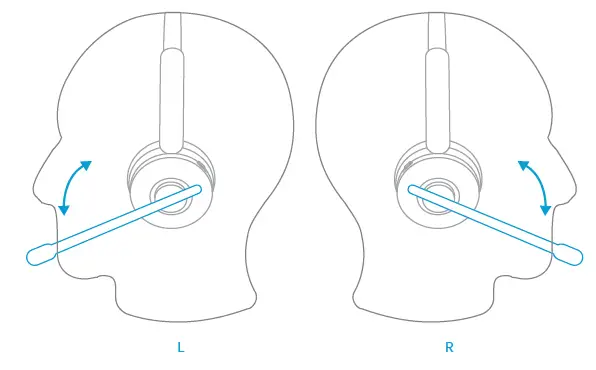
Powering On / Off
Press and hold the power button for 2 seconds to power on, or 5 seconds to power off.
- The LED indicator on the headset will turn blue for 1 second when powered on, and turn red for 1 second when powered off.
- When the headset is on, the LED indicator on the headset will flash blue once every 4 seconds.

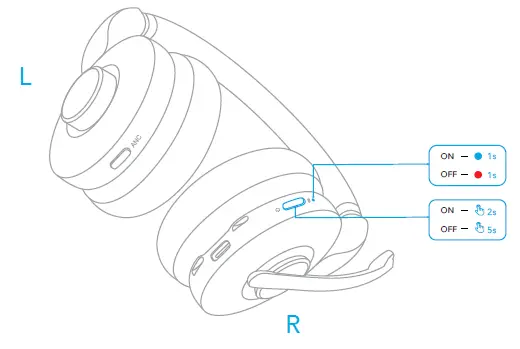
Pairing
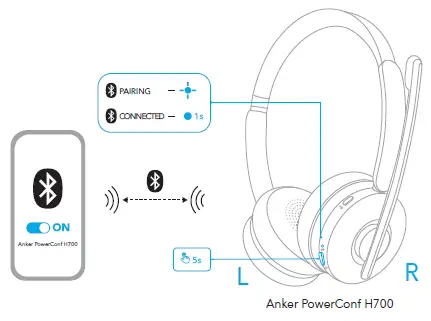
Bluetooth Pairing
- Press and hold the power button for 5 seconds to enter Bluetooth pairing mode when powered off.
- The LED indicator on the headset will flash blue during pairing.
- Select “Anker PowerConf H700” on your device’s Bluetooth list to connect.
- When successfully connected, the LED indicator on the headset will turn blue for 1 second.

- When successfully connected, the LED indicator on the headset will turn blue for 1 second.
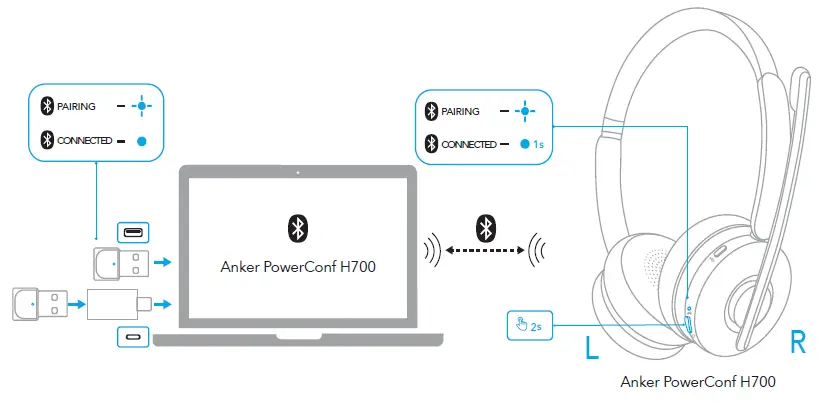
Pairing with USB Bluetooth Receiver
Plug the USB Bluetooth receiver (with the USB adapter, if necessary) into your PC’s USB port. PowerConf H700 will automatically connect to your PC when powered on.
- The LED indicator on the USB Bluetooth receiver will flash blue during pairing, and will be steady blue when connected.
- Make sure to select “Anker Soundsync” as the audio input and output device for your conferencing software and computer.

Dual Pairing
To pair with another device when already connected with one device, press the power button twice until the LED indicator on the headset flashes blue.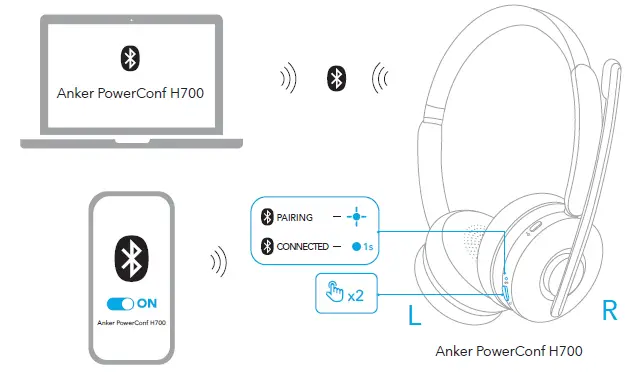
Controls
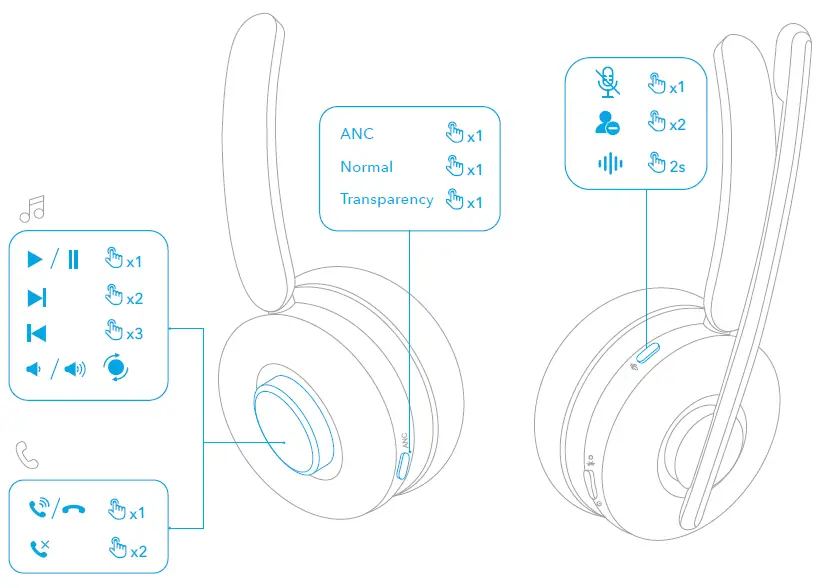
|
Rotation button | Play / Pause | Press once |
| Next track | Press twice | |
| Previous track | Press three times | |
| Volume up | Rotate counter-clockwise (mic boom on your right), or clockwise (mic boom on your left) | |
| Volume down | Rotate clockwise (mic boom on your right), or counter-clockwise (mic boom on your left) | |
| Answer / End a call | Press once | |
| Reject a call | Press twice | |
| ANC button | Switch ambient sound modes (ANC / Normal / Transparency) | Press once |
| Mute button | Mute microphone | Press once |
| Busy light on / off | Press twice | |
| Activate voice assistant software | Press and hold for 2 seconds |
Busy Light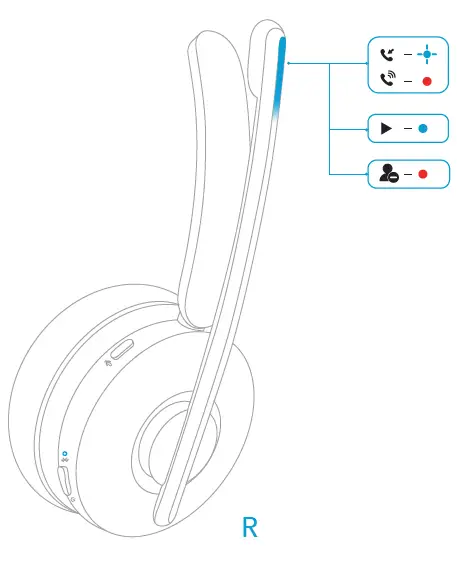
When on a call, the busy light on the mic boom will automatically turn red to indicate that you are busy and do not want to be bothered. To manually turn the busy light on / off, press the mute button twice.
| Steady red | On a call / Busy status | |
| Flashing blue | Incoming call / Being charged | |
| Steady blue | Listening to music / Fully charged |
Wearing Detection
When you take off PowerConf H700, the playback will auto-pause within 2 seconds, and ANC and transparency will turn off within 10 seconds. You can put on the headset to resume ANC and transparency or answer an incoming call. You can also enable the autoplay on wearing function in the AnkerWork app.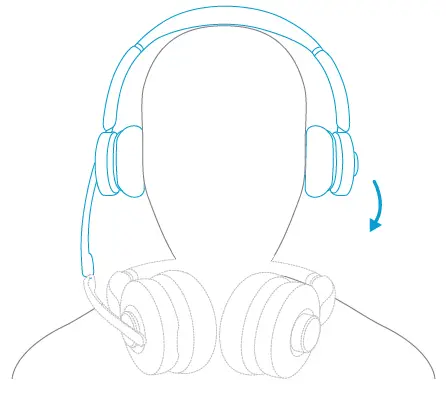
App / Software
Download the AnkerWork app or software to enhance your experience. Transcription of a call or an online meeting: Transcribing is only available when using the headset and USB Bluetooth receiver via the AnkerWork software on a PC. The transcription service includes a free trial. Further use requires a fee. To learn more, please visit: https://youtu.be/w2ntXAApE4s EQ settings: There are 8 EQ settings you can choose from in the app/software to optimize your experience while enjoying different music genres. You can also customize EQ settings in the app. Headset firmware upgrade: You will be informed once the new version of firmware is detected when you connect the headset with the app. Ensure the headset is powered and connected to a device until the firmware upgrade is completed. During the upgrade, avoid any operation and ensure normal access to the internet.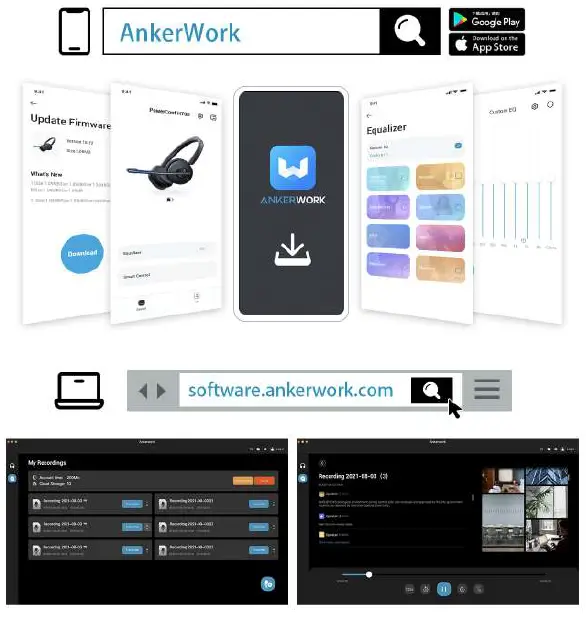
The AnkerWork PC software is only supported when the USB Bluetooth receiver is used for pairing.
Mute
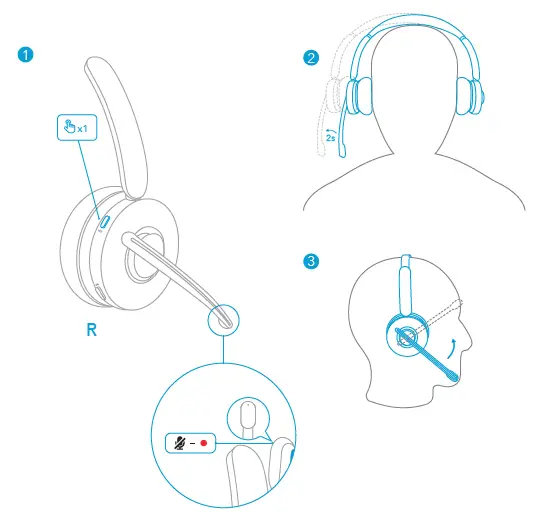
There are three ways to mute your headset: by pressing the mute button, by moving the earpiece with the mic boom outward for 2 seconds, or by lifting the mic boom.
- When the microphone is muted during a call or a meeting, the mute light will turn red.
- Enable Smart Mute in the AnkerWork app or PC software to automatically mute the microphone when moving the earpiece with the mic boom outward.

Reset
You might need to reset the headset if you experience any connectivity problems or function issues.
- Press and hold the power button for 2 seconds to turn the headset on.
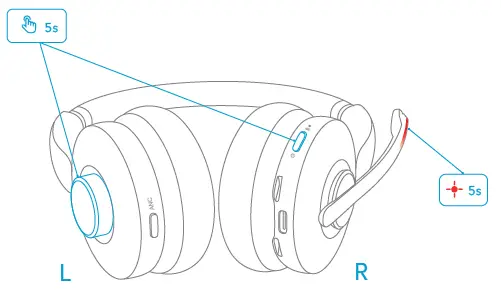
- Press the power button and the rotation button simultaneously for 5 seconds until the LED indicator on the mic boom flashes red for 5 seconds. This confirms that the reset was successful and your headset can be connected normally.

Specifications
Specifications are subject to change without notice.
| Input | 5V 0.75A |
| Rated output power | 5 mW |
| Battery capacity | 500 mAh |
| Charging time | < 2 hours |
| Talk time | Up to 24 hours (ANC off) |
| Playtime (varies by volume level and content) | Up to 35 hours (ANC off) |
| Driver size | 40 mm |
| Frequency response | 10 Hz – 20 kHz |
| Impedance | 16 Ω |
| Bluetooth version | 5.0 |
| Bluetooth range | 30 m / 100 ft |