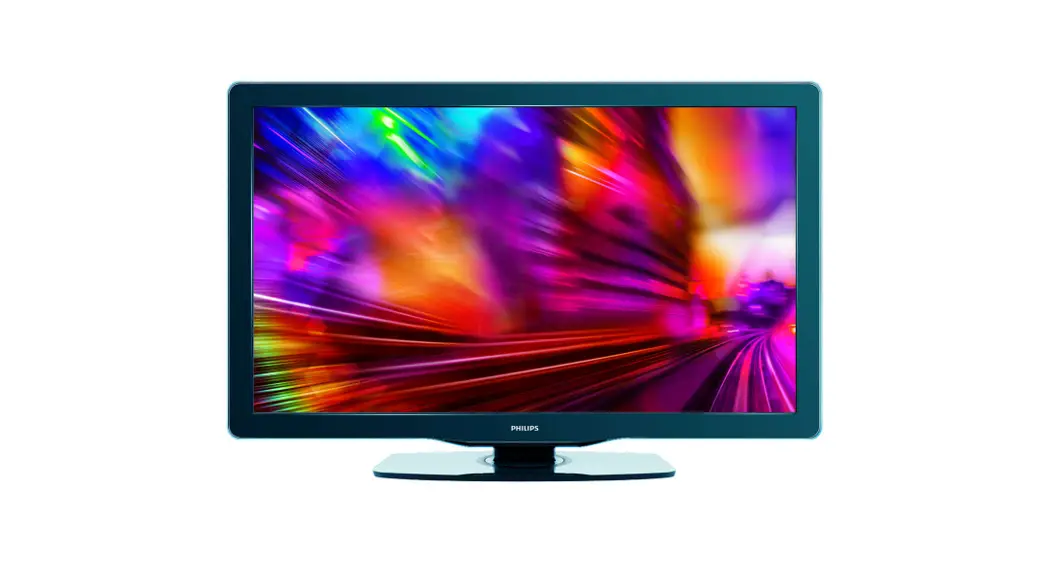

Series Televisions User Guide
Televisions
5000 series
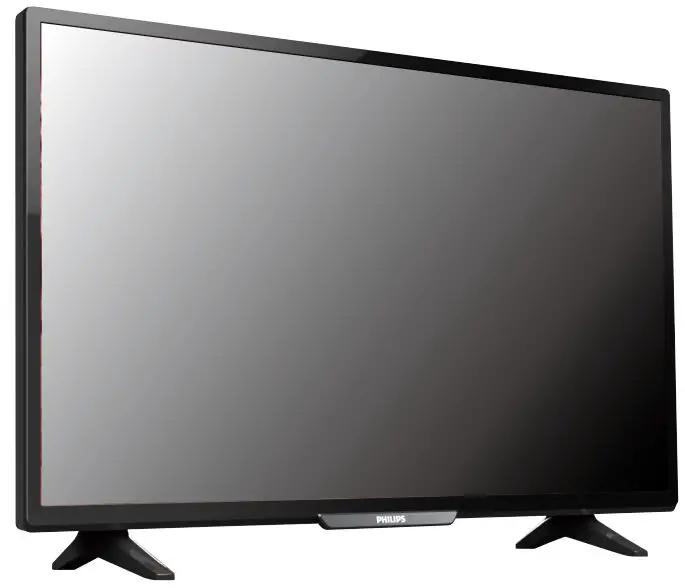
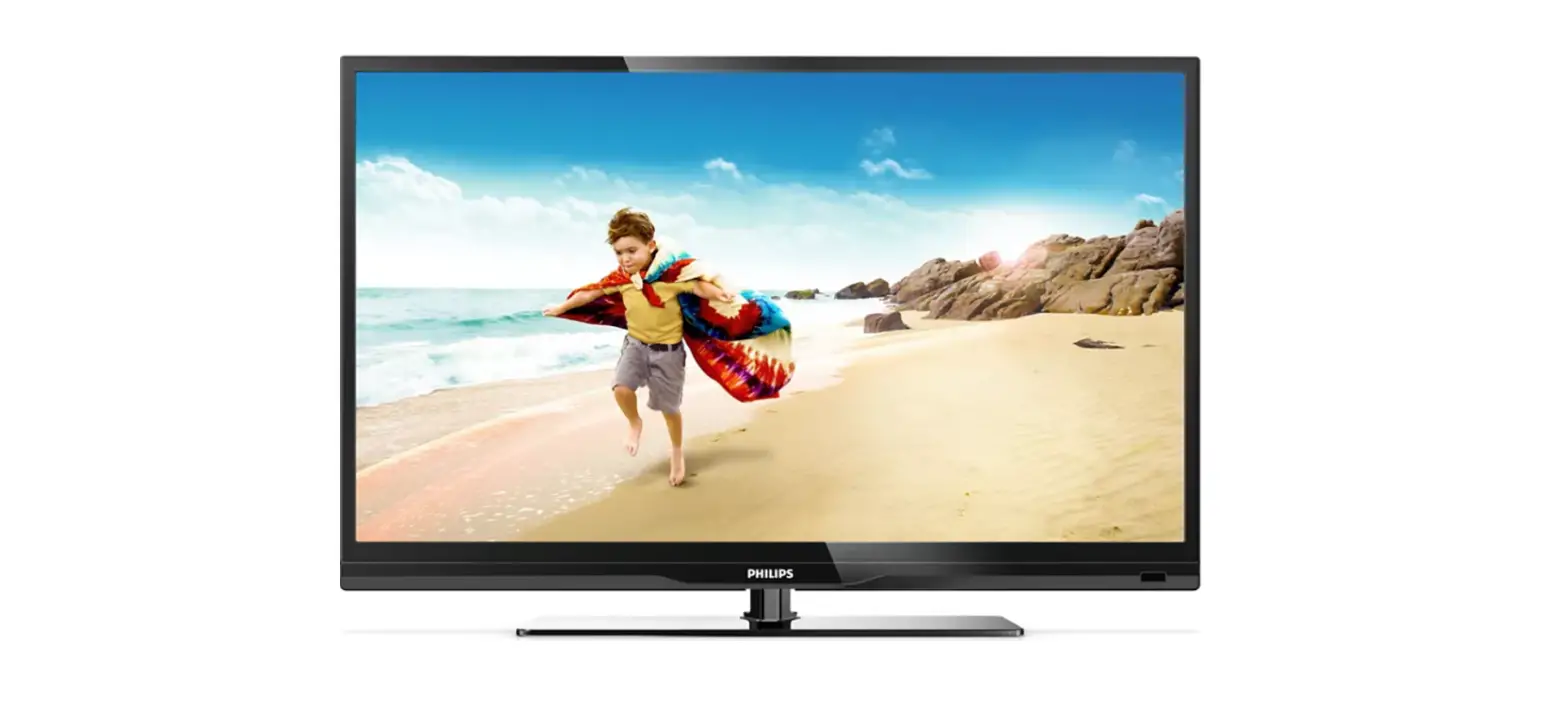
55PFL5901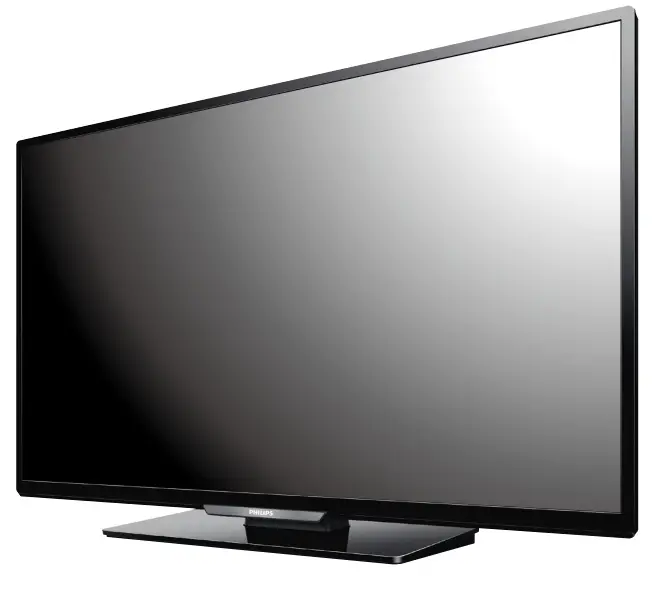
Quick Start Guide
If you have any questions or need a detailed Manual, please visit our Support Website at www.philips.com/support
What’s in the Box
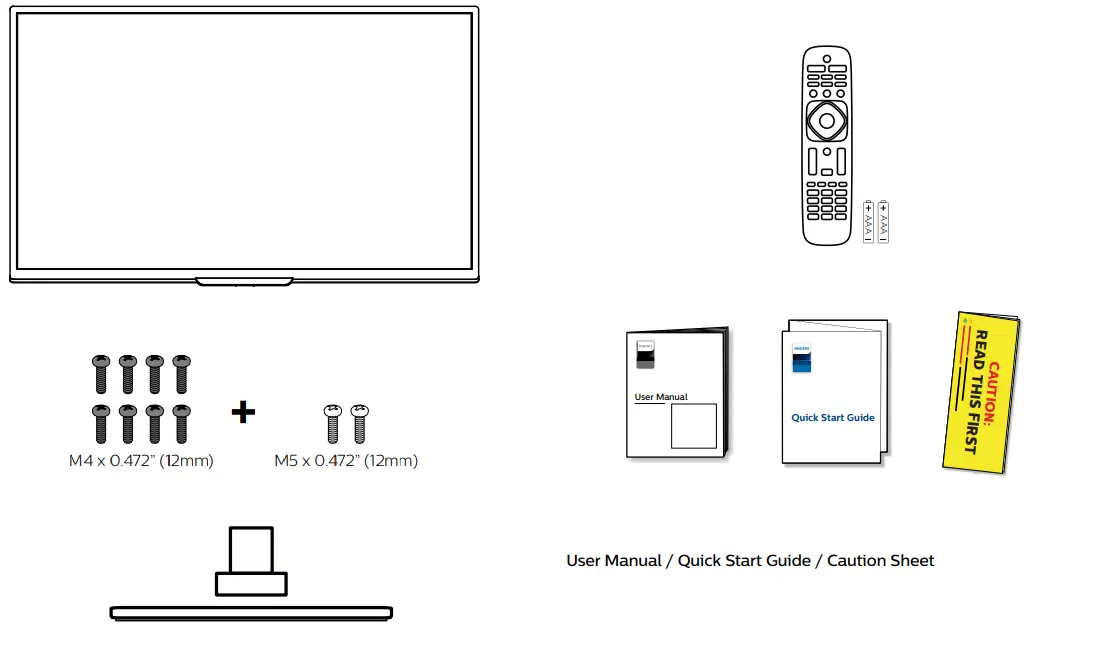
Connect the Power and Antenna, Cable or Satellite
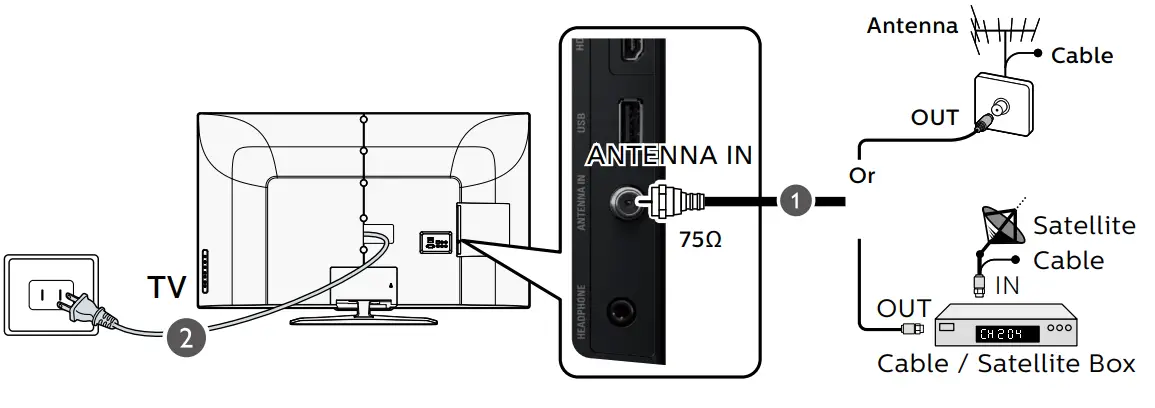
Connection Overview
 Caution
To ensure the highest possible display resolution and capabilities from your HDMI source device or if you face compatibility issues with HDMI connections, please select the appropriate HDMI mode in the setup menu if required. (Refer to page 14 in the User Manual for detailed instructions.)
Component / Composite (VIDEO) Video Input jacks
Philips continuously tries to improve its products and it wants you to benefit from them even after your purchase.
Software updates may be available for your TV. Please refer to the full User Manual for directions on how to complete the update or visit www.philips.com/support
Note: Software updates may add and/or remove apps or features on your TV. Please see the Firmware Upgrade Readme File at www.philips.com/support for more information.
Connect to External Devices
Best
Blu-ray Disc™ or DVD Player / Home Theater System / Cable,
Satellite or IPTV Box / Gaming Console / PC /
Digital Camera / Camcorder / Tablet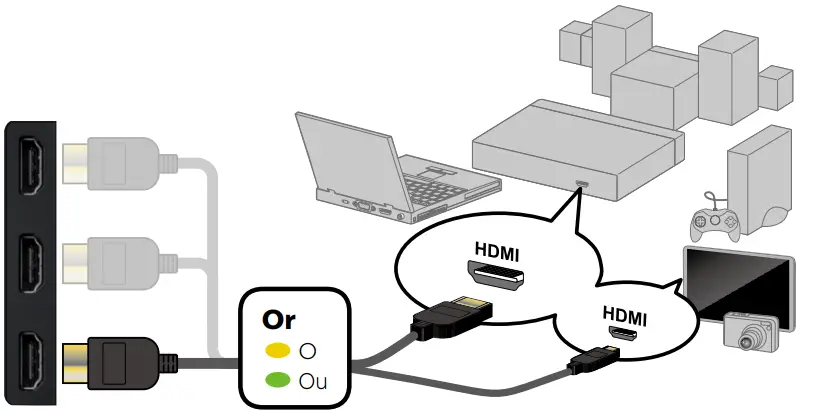 To ensure the highest possible display resolution and capabilities from your HDMI source device or if you face compatibility issues with HDMI connections, please select the appropriate HDMI mode in the setup menu if required. (Refer to page 14 in the User Manual for detailed instructions.)
Better
Blu-ray Disc™ or DVD Player / Home Theater System / Cable, Satellite or
IPTV Box / Gaming Console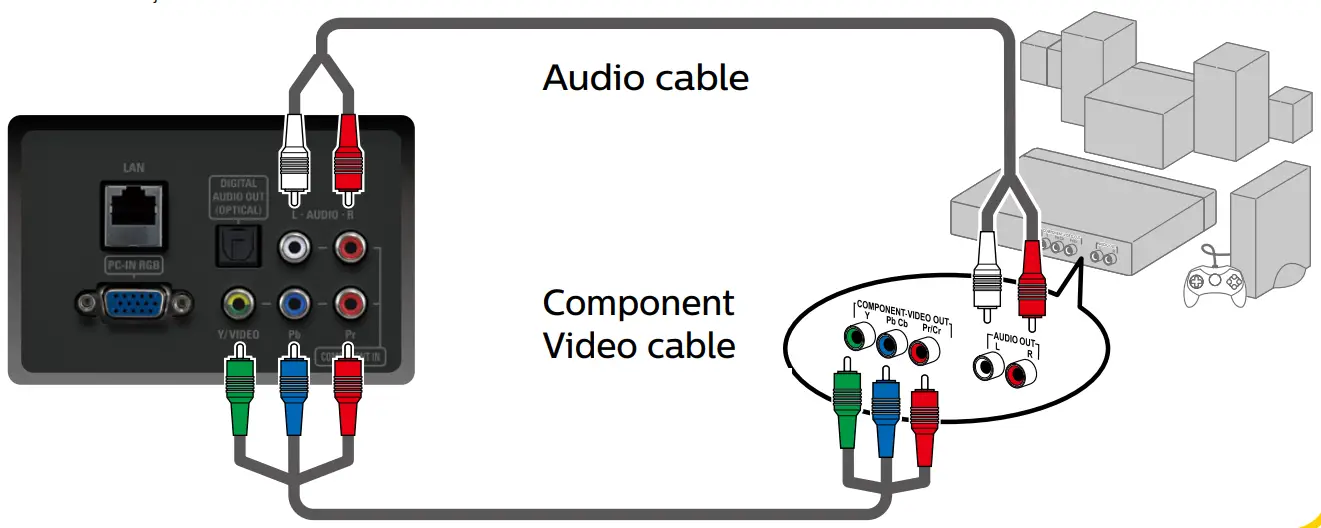
Good
DVD Player / Home Theater System / Cable, Satellite or IPTV Box /
Video Cassette Recorder / Gaming Console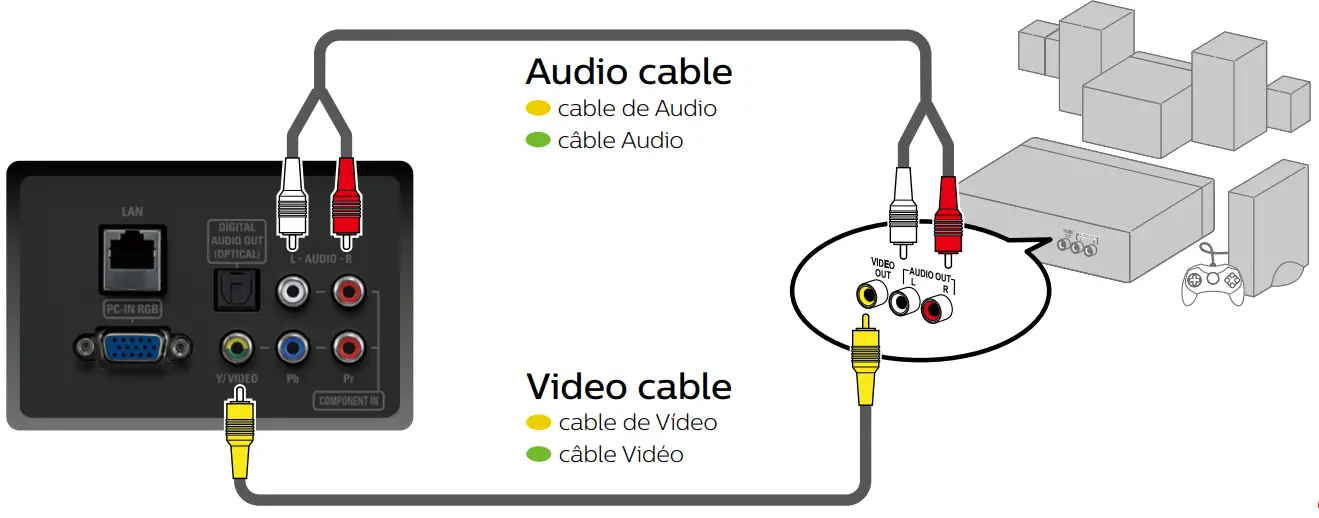 Caution
Disconnect the AC Power Cord before Connecting Devices.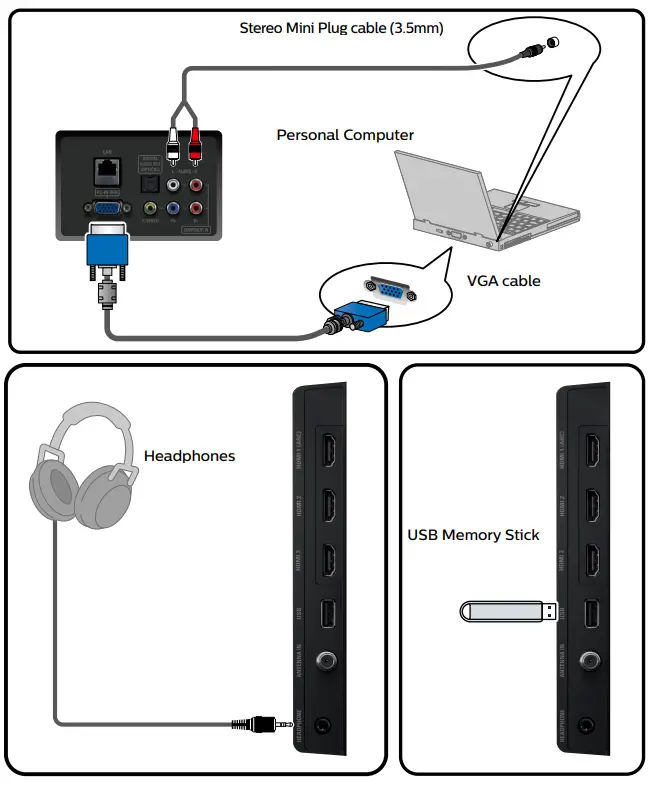
Control Panel
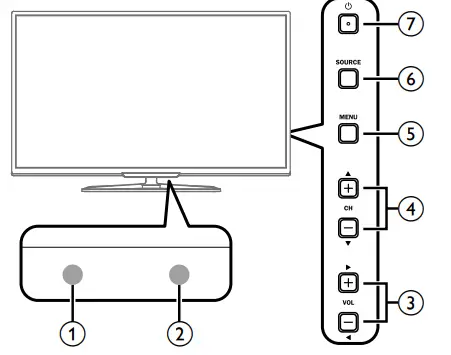
a Remote Control Sensor
b Power On/Standby Indicator
c Adjusts the Volume / Navigates Menu
d Selects a Channel / Navigates Menu
e Opens the Main On-screen Menu
f Selects Connected Devices / Determines Item
g Turns the TV On or switch the TV into Standby mode
Initial Setup

Follow the On-screen Instructions to Complete your TV Initial Setup.
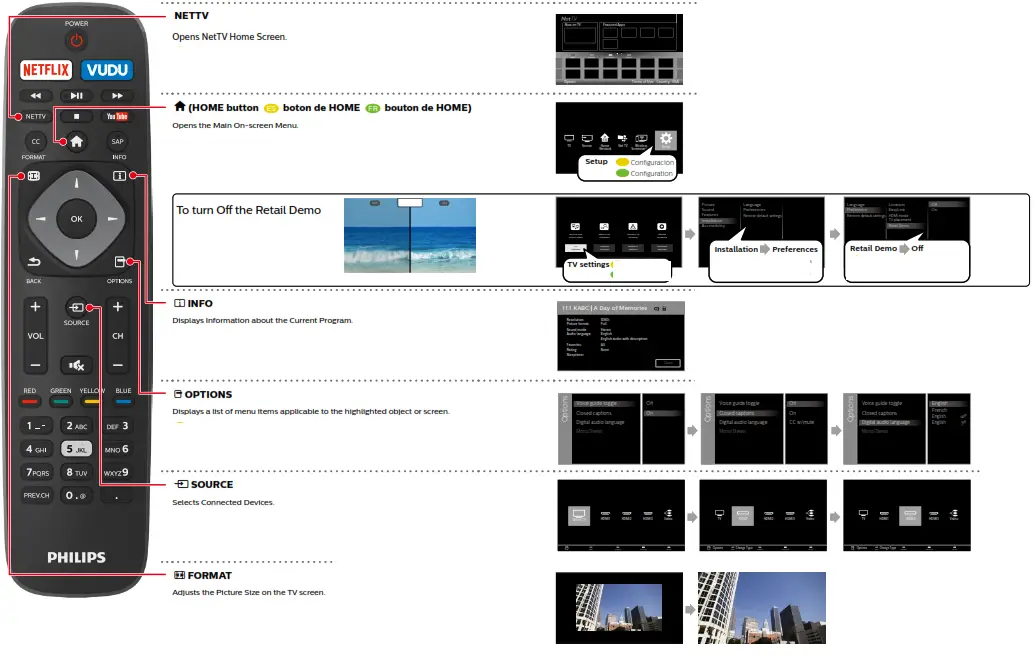
Selecting Location to Retail will display a Retail Demo on the Screen. Refer to Step “7 Using the Remote Control” and see “To turn Off the Retail Demo” on the next page.
For further assistance, call the customer support service in your country.
– To obtain assistance, contact Philips Customer Care Center;
In the U.S.A., Canada, Puerto Rico, or the U.S. Virgin Islands 1 866 309 5962
Enter below the model and serial numbers located on the left side and the rear of the TV cabinet.
For complete instructions, please visit www.philips.com/support to download the full version of the online user manual.
This product has been manufactured by and is sold under the responsibility of Fauna
Corporation, Inc. and Funai Corporation, Inc. is the warrantor in relation to this product.
The Philips trademark and the Philips shield emblem are registered trademarks of Koninklijke Philips N.V. used under license.
Using the Remote Control
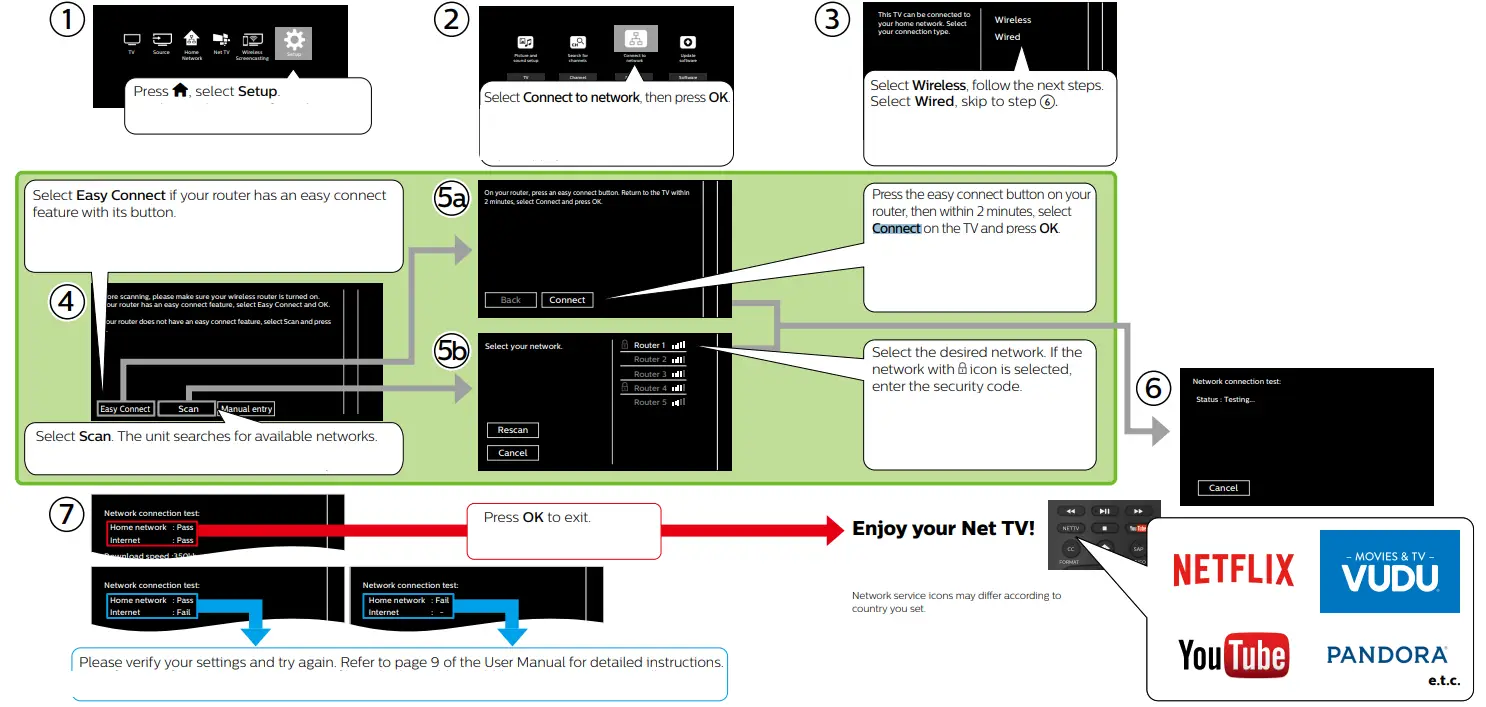
Network Setup
Wireless
Please note the name of your wireless network, security type, and security code of the wireless router before you go to Step 5b.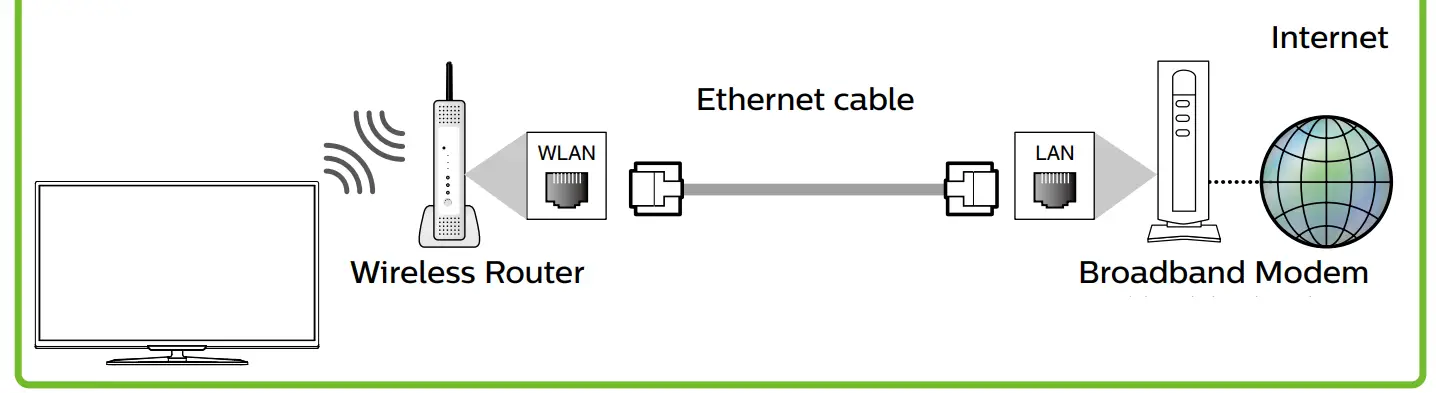
Wired
Please connect a live Ethernet cable from your modem to the back of this TV before proceeding with the setup below.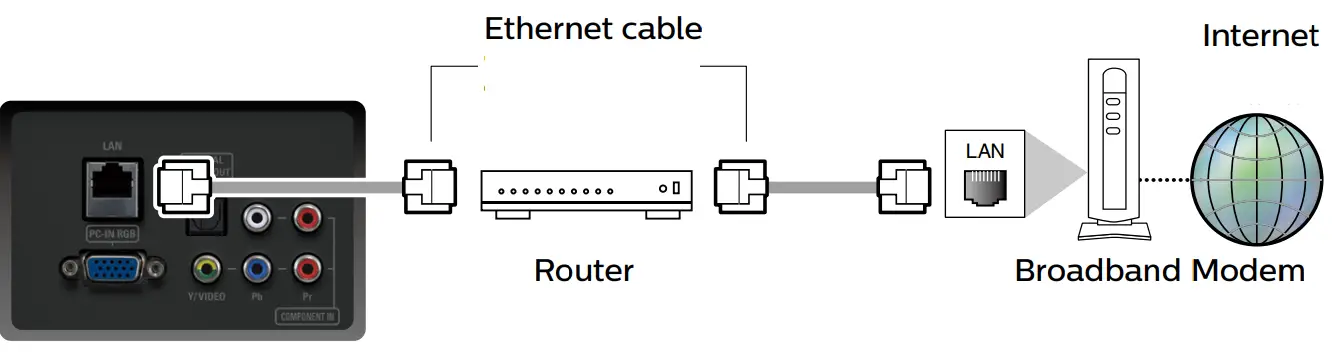
 Caution
Some features may require an always-on broadband internet connection, firmware update, and/or a minimum bandwidth. Internet services vary by location. Funai Corporation Inc. does not warrant access to the portal or to any of the services, content, software, and advertising. Funai Corporation Inc. may, in its sole discretion, add or remove access to any specific services, content, software, and advertising at any time. Although Funai Corporation Inc. will strive to provide a good selection of services, content, or software, Funai Corporation Inc. does not warrant continued access to any specific services, content, or software.

 Support Home | Philips