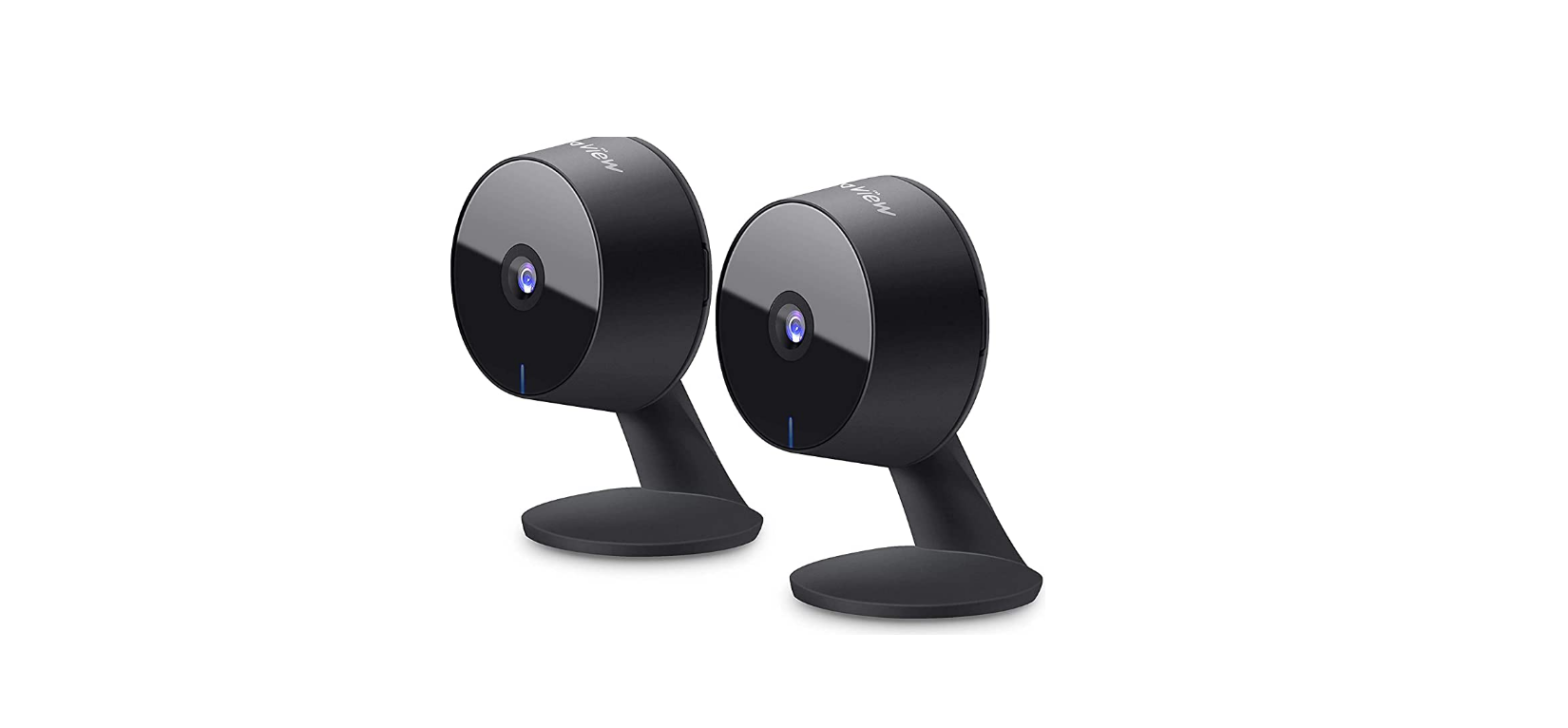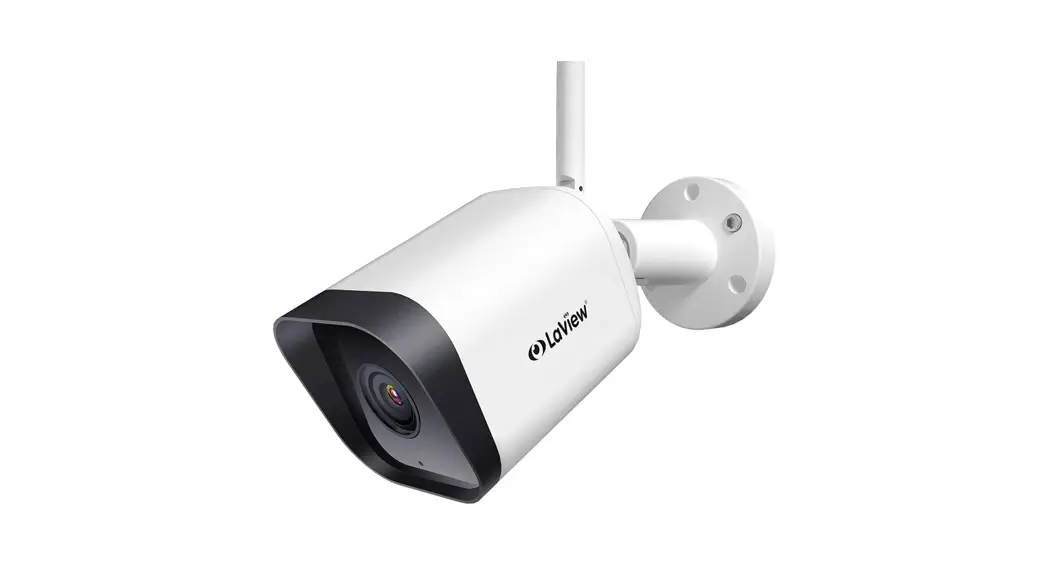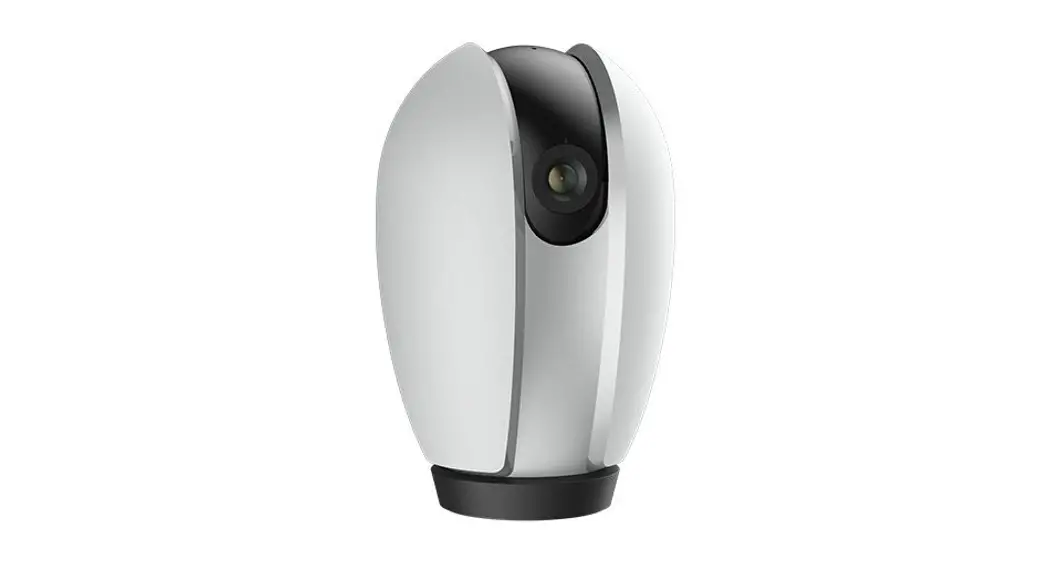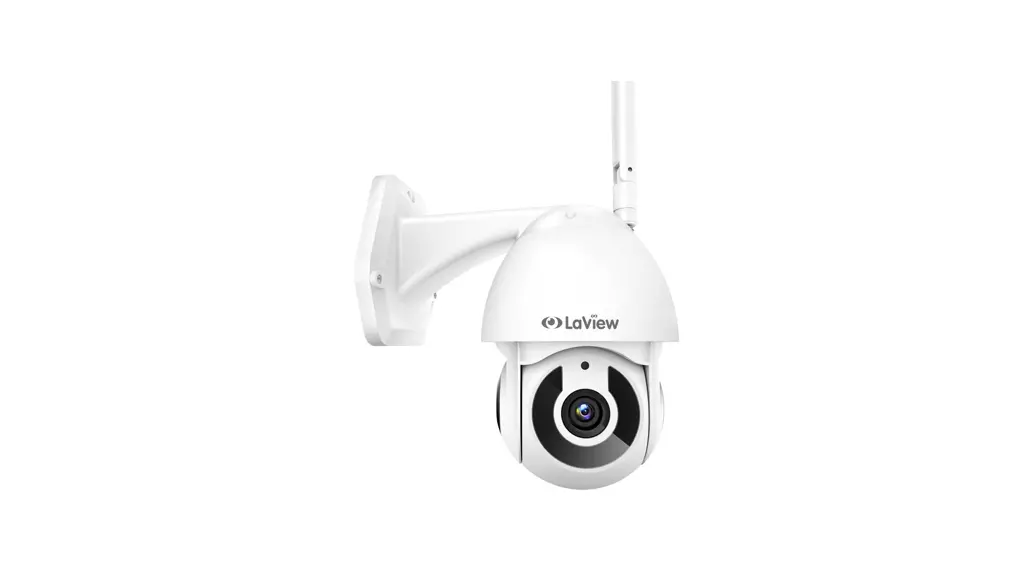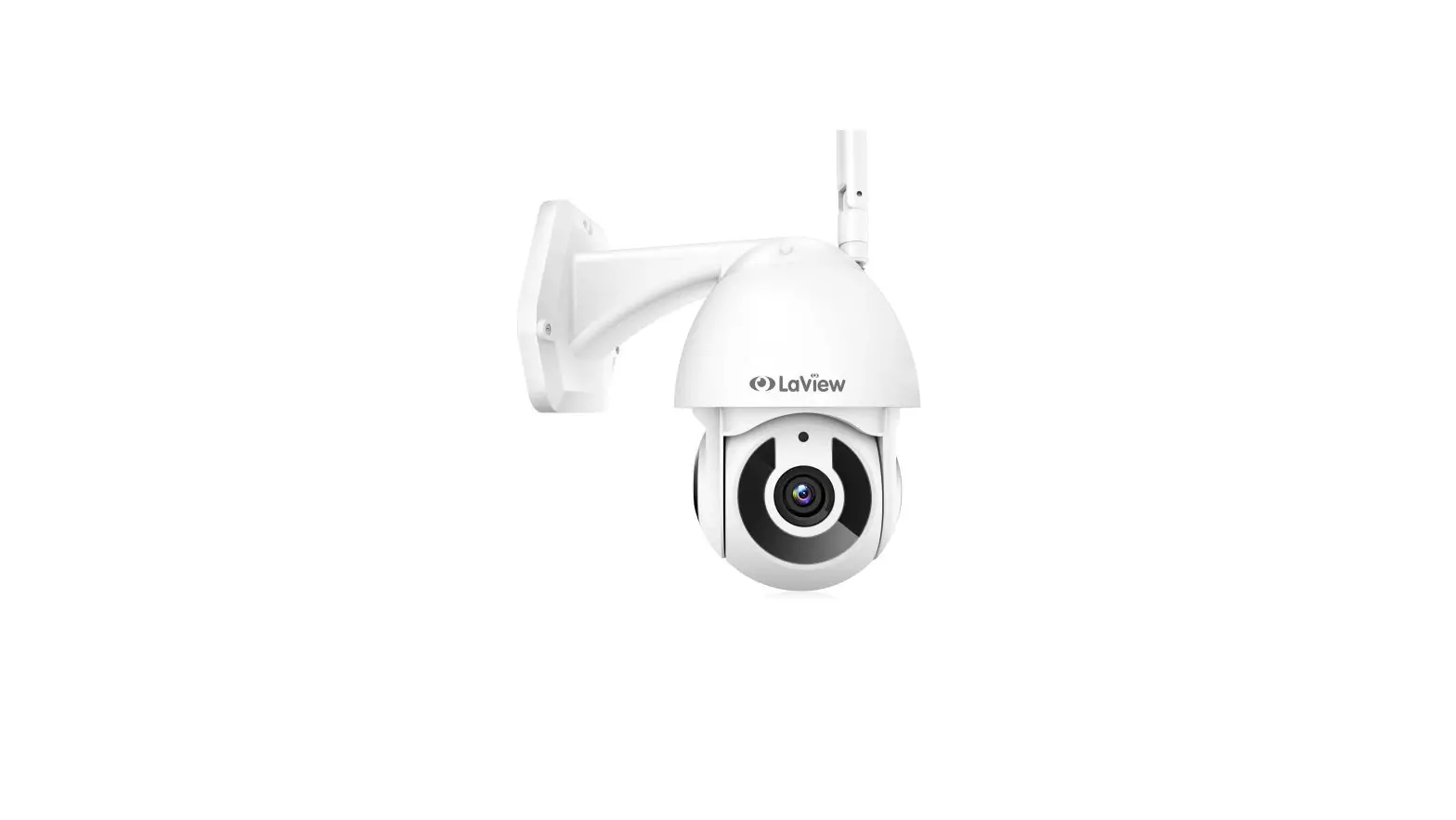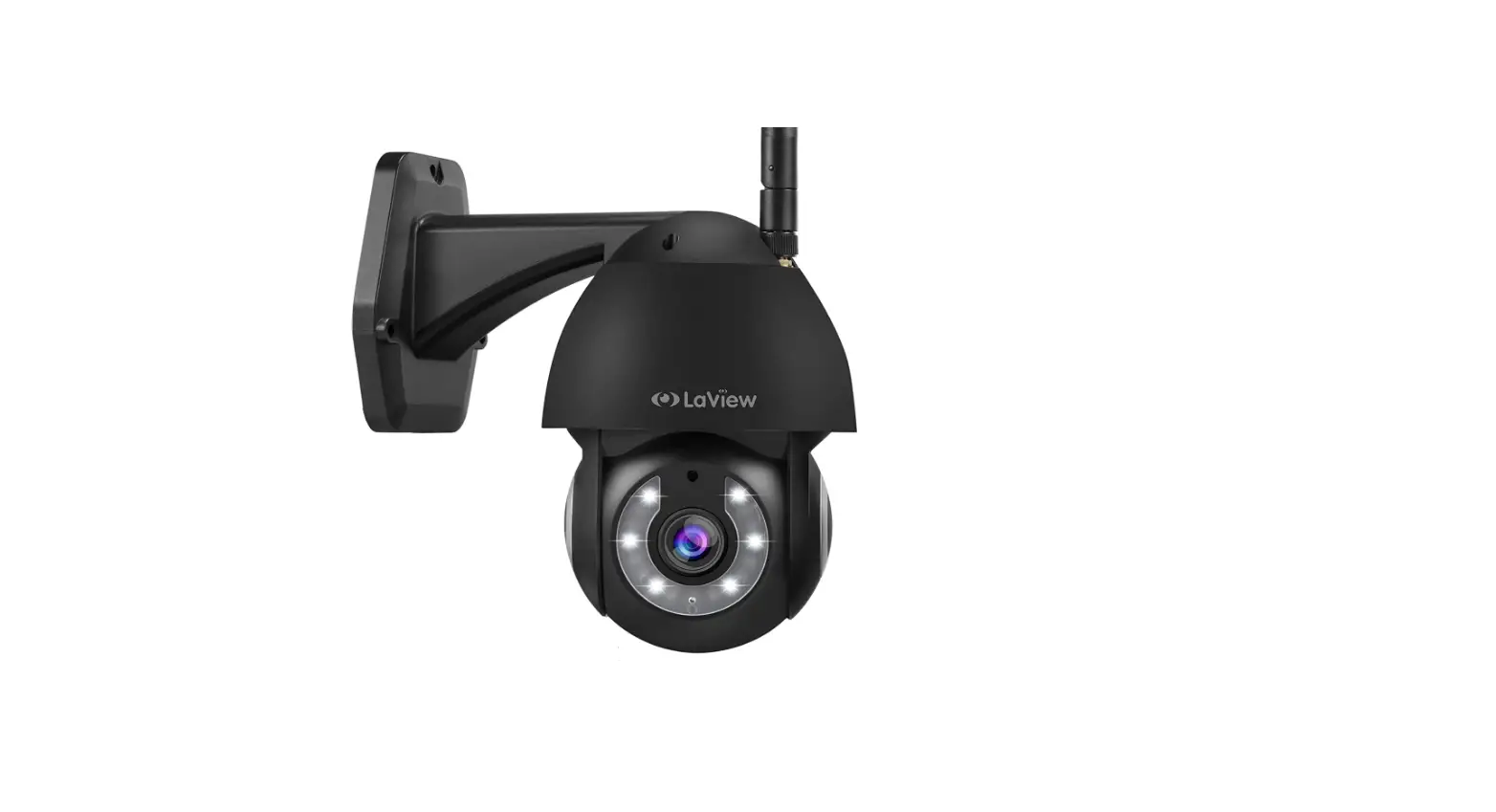
 LaView LV-PWR15B 4MP Security Camera
 LaView LV-PWR15B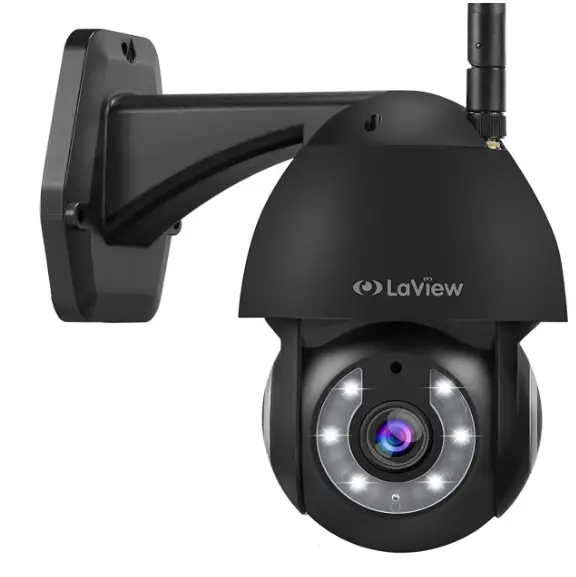
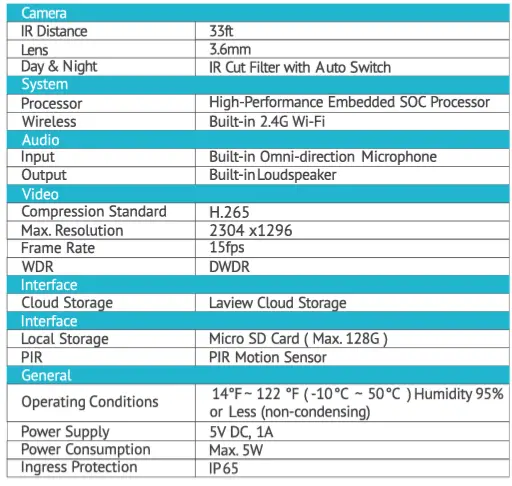
PARAMETER
 WHAT’S IN THE BOX
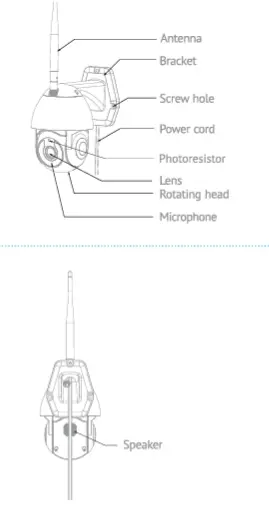 WHAT’S IN THE BOX
PLEASE CONSULT THIS CHECK FOR ALL PARTS.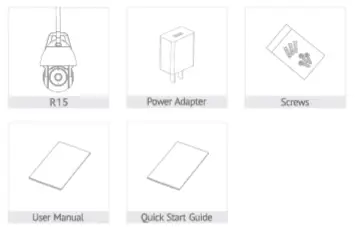
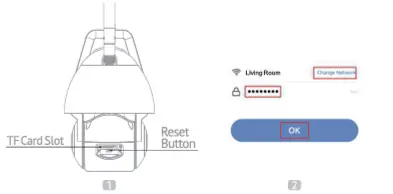
- RESET
- Press and hold the reset button for 5 seconds to reset the device (Camera will return to factory default settings followed by a welcome ringtone.) wait
until the camera is beeping every 15 seconds which means the camera is ready for pairing. If the camera is not beeping, reset the camera again. - AP MODE
After reset, press the reset button for one time to get the camera into AP mode. Then change QR Code to AP Mode in L.aView APP.
APP SET UP
DOWNIDADAND INSTALL APP
- LaView APP is available for both iOS and Android OS. Search the name ‘LaView’ in APP Store or Google Play. (The other LaView apps, such as LaView Connect, LaView ONE, LaView Life do Nar support R15camera)

- Please download the L.aView APP from the App Store or Scan the QR Code below.

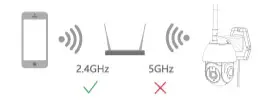
- MAKE SURE YOUR PHONE IS CONNECTED TO A 2.4GHz Wi-Fi NETWORK
- COMPLETE THE APP REGISTRATION PROCESS
- FOLD THE IN-APP INSTRUCTION TO PAIR THE CAMERA
- Click on the ‘+’ sign to add the camera. Continue to click “Video Surveillance” > “Smart Camera’
- Connect the camera to power via included USB Charger ( If you are not setting up the camera for the very first time, press the Reset button’ instead for 5 seconds until you hear a sound}

- Wait until the camera is beeping twice every 15 seconds, which means the camera is in stand-by status and ready for pairing
- Enter the Wi-Fi Password to generate a QR code that carries your Wi-Fi information.
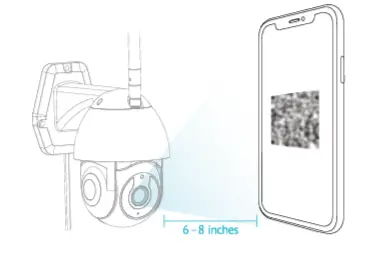
- Use camera 10 scan the QRcode on the phone ( keep the camera 6-8 inches away from the phone)

- Press ‘I Heard a Prompt’ after the camera receives the QR code and beeps. The camera will start pairing
- When connecting, you should make sure your router, mobile phone, and the camera is as close as possible
- Wait until the camera is connected online
- Customize the camera name to differentiate cameras in different locations and finish the paring process
- If the pairing is not successful press the Reset button for 5 seconds until you hear a beep and start again. Or check the FAQ section for more troubleshooting steps

INSTALLATION
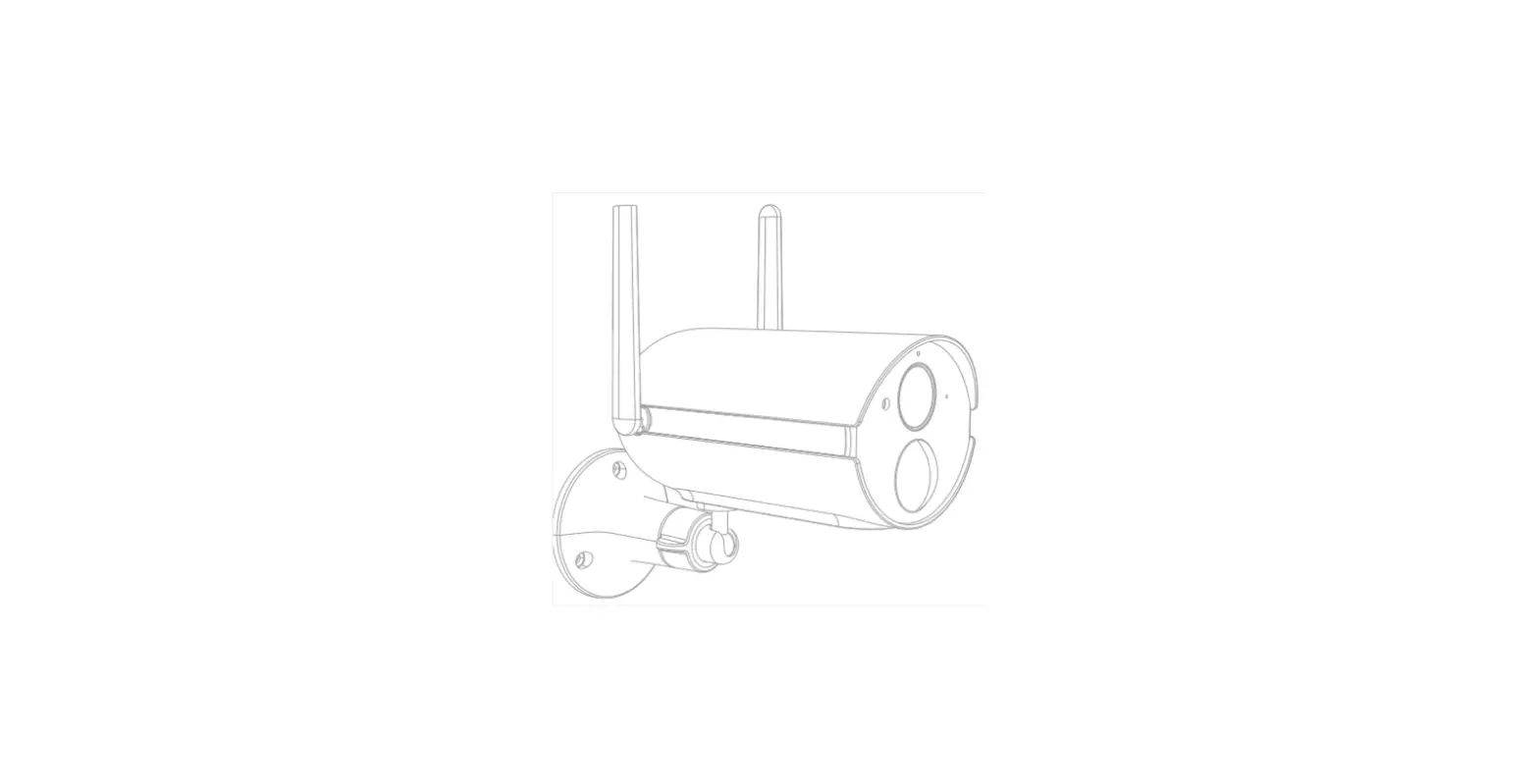
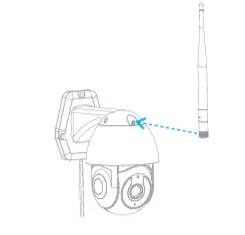
- ATTACH THE ANTENNA TO THE CAMERA

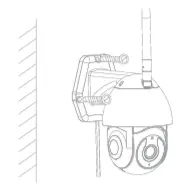
- MOUNT THE CAMERA TO THE WALL

TROUBLESHOOTING
- IF YOU CAN NOT CONNECT THE CAMERA TO THE INTERNET, CHECK THE FOLLOWING STEPS
- Ensure you are connecting to a 2.4GHz Wi-Fi not 5GHz

- Ensure the Wi-Fi password or SSID is correct
- Ensure the camera is placed as close to the router as possible
- Ensure the camera is powered on and is beeping twice Nery 15 seconds before scanning the QR code
- Ensure you are using the correct APP ( LaView)
- Ensure the camera is scanning the QR code on the phone in the correct way
- If the above doesn’t help, reset the camera and start pairing again
- Ensure you are connecting to a 2.4GHz Wi-Fi not 5GHz
- WHAT CAN I DO IF THE CAMERA STOPPED WORKING?
- Close and restart the APP
- Check if the Wi-Fi settings is changed. If so, please reset the camera
- Ensure the router is powered on and online
- Ensure the camera is powered on
- Ensure the router has decent network bandwidth
- Check the app is on the latest version
MOTION DETECTION
- HOW TO TURN ON AND OFF MOTION DETECTION?
To turn on or off motion detection and Human direction setting, go to the camera menu and click on Detection Alarm Settings - WHAT CAN I DO IF I CANNOT RECEIVE NOTIFICATIONS?
Ensure your phone notification setting is enabled for L.aView APP
Ensure the phone has decent networ1< Ensure the camera is online - WHAT CAN I DO IF I RECEIVE TOO MANY NOTIFICATIONS?
If the camera is placed at a location with heavy traffic, we recommend you relocate it to a place with less traffic to receive fewer alerts.
Objects with human body shape such as stuffed toys may be detected as human and trigger the alerts, remove those if they constantly show up in the camera
OTHERS
WHAT CAN I DO IF THE IMAGE IS NOT CLEAR?
- The camera is equipped with a 2K Full HD lens and sensor to produce a superior image, however, the image quality may be affected by the lighting condition
- Ensure the camera is NITT facing to the environment with poor lighting conditions or with extremely high contrast Ensure it is NOT facing directly to bright Lighting sources such as sunlight
- Ensure your phone and your router has enough bandwidth to stream HD video. A minimum of 2MBps is required to stream each 2K camera. If the network does not meet this requirement, the live-view stream will be downgraded to SD automatically
NIGHT VISION
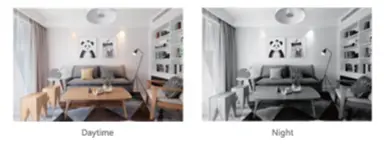
- The camera is equipped with infrared LED technology to capture black and white night vision images in detail at night, However, the night vision image quality may be affected by the following factor:
- There are high-contrast light sources such as car headlights pointing to the camera.

WATERPROOF AND OUTDOOR USE
- The camera is I P65 rated for totally dust-tight and protection against low-pressure jets of directed water from any angle. Tue camera can operate between 14° F – 122 °F for all weather use.W e recommend placing the camera under the eave and avoiding heavy rain or snow to maximize the camera life span
- For more technical questions or tutorials such as Alexa setup, Cloud Storage setting, please follow in-APP tutorial section in the LaView APP or visit our Youtube tutorial
- We proudly offer a 1-year warranty on all of our products. This warra nty extends to the original purchaser only and is non-transferable
- If you wish to return a product within the return period, please message us directly in your Amazon account or on our website.
FCC COMPLIANCE
This device complies with Part 15 of the FCC Rules. Operation is subject to the following two conditions:
- This device may not cause harmful interference,
- this device must accept any interference received, including interference that may cause undesired operation.
The manufacturer is not responsible for any radio or tv interference caused by unauthorized modifñications or changes to this equipment. Such modifications or changes could void the user’s authority to operate the equipment. This equipment has been tested and found to comply with the limits for a Class B digital device, pursuant to part 15 of the CC Rules. These limits are designed to provide reasonable protection against harmful interference in a residential installation. his equipment generates, uses, and can radiate radio frequency energy and, if not installed and used in accordance with the instructions may cause harmful interference to radio communications. However, there is no guarantee that interference will not occur in a particular installation. If this equipment does cause narrate interference to radio or television reception, which can be determined by turning the equipment off and on, the user s encouraged to try to correct the interference by one or more of the following measures:
- Reorient or relocate the receiving antenna. increase the separation between the equipment and the receiver.
- Connect the equipment to an outlet on a circuit different from that. which the receiver s connected.
- Consult the dealer or an experienced radio/TV technician for help.
RF warning statement
To maintain compliance with FCCs RF exposure guidelines, this equipment should be installed and operated with a minimum distance of 20 cm between the radiator and your body. which can be determined by turning the equipment off and on, the user is encouraged to try to correct the interference by one or more of the following measures:
- Reorient or relocate the receiving antenna
- Increase the separation between the equipment and the receiver
- Connect the equipment into an outlet on a draught different from that too.
- Consult the dealer or an experienced radio/TV technician for help.
RF warning statement
to maintain compliance with FCCs RF exposure guidelines, this equipment should be installed and operated with a minimum distance of 20 am between the radiator and your body.
FAQS
Can not enter Pairing Mode?
Please hold down the reset button for 5 seconds to reset the light and wait until the indicator blinks blue and follow the steps to add the right as mentioned previously.
Cannot receive the Verification Code?
- Make sure you have entered the correct Email address for registration
- Check if the Email address is blocked in the spam.
- If failed to acquire the verification code after several attempts, please contact LaView Customer Support.
Cannot connect Wi-Fi network/ Wi-Fi connection unstable.
- Make sure your light i5 is Connected to a 2.4oHz network iRE sure you have entered the correct W password.
- Place the light within the signal coverage of the router. Avoid obstacles such as metal objects or windows, multiple walls apart, etc.
Failed to light up after connecting.
- Make sure the light is connected to an appropriate electrical outlet.
- Check if the light is turned on.
Control panel is not responsive
- Operate with dry hands
- Disconnect the power adapter to restart the light.
will the magnetic mount hold in windy conditions? bad weather?
They have held up very nice so far. I live in the Phoenix metro area and the wind is no joke out here.
If it will use a 128g sd card, why don’t you include a 128g sd card?
Kindly note that this wireless outdoor camera supports cloud storage and built-in micro SD slot. We would suggest you purchase another memory card with a larger capacity to record videos if you feel that the 32GB memory card included in the package is not big enough. You can also subscribe the cloud service from LaView app if you prefer using cloud storage.
is this a standard 5v-10v to the battery?
The camera come with a USB charger cable when it goes dead plug the camera up to a USB port
How many cameras can be on one app?
In fact, you can add a hundred on LaView app, but it still depends on the router’s affordability.