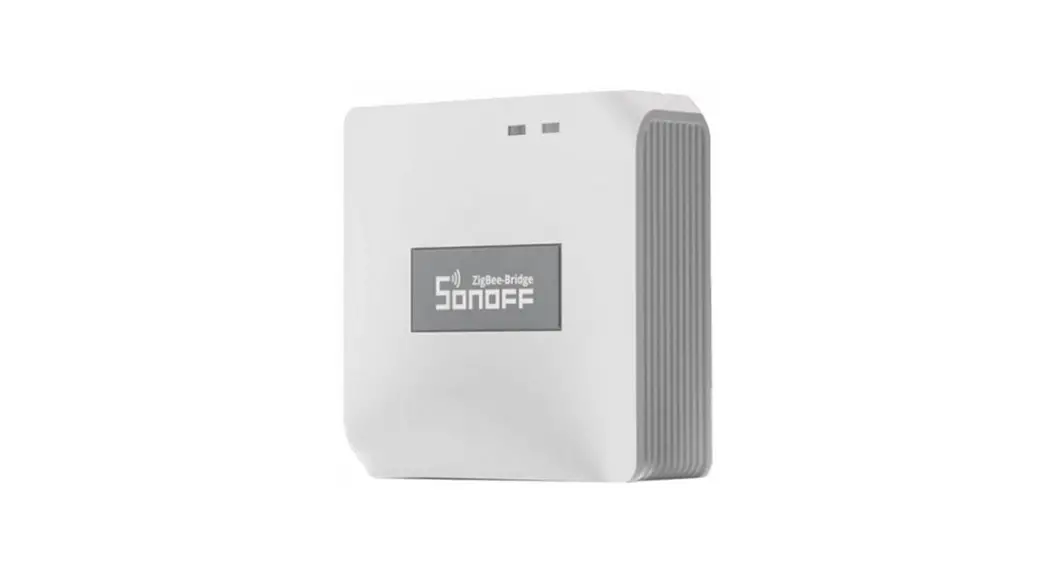
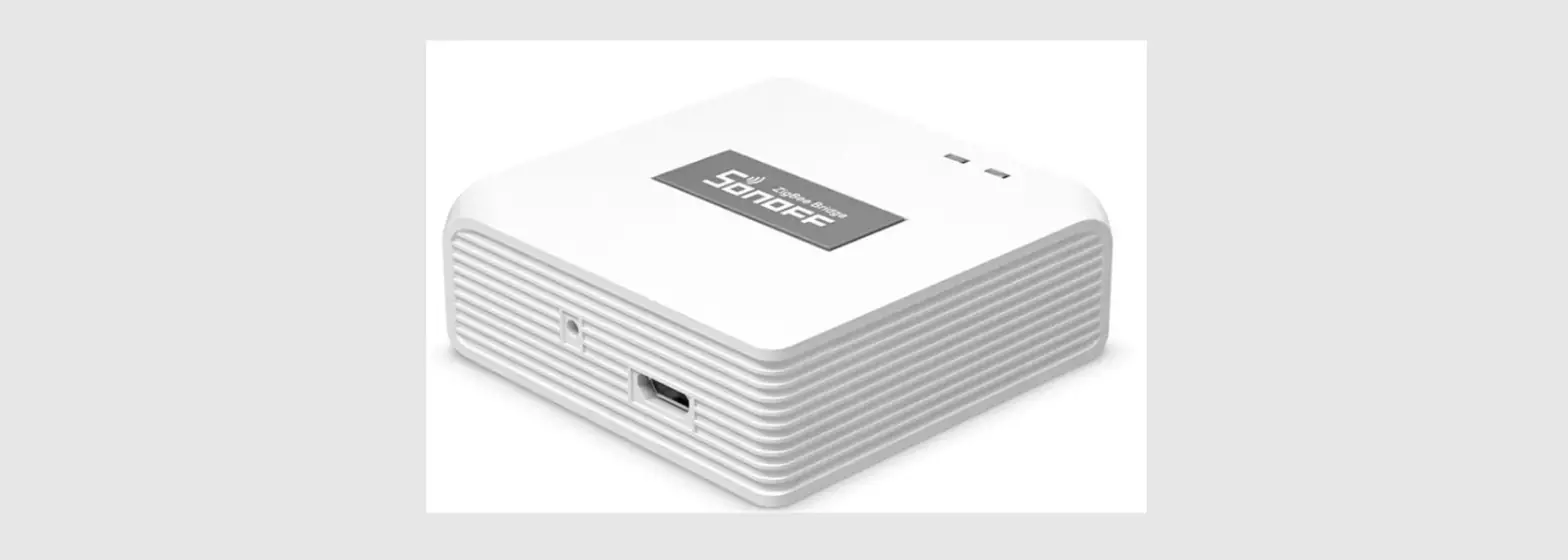
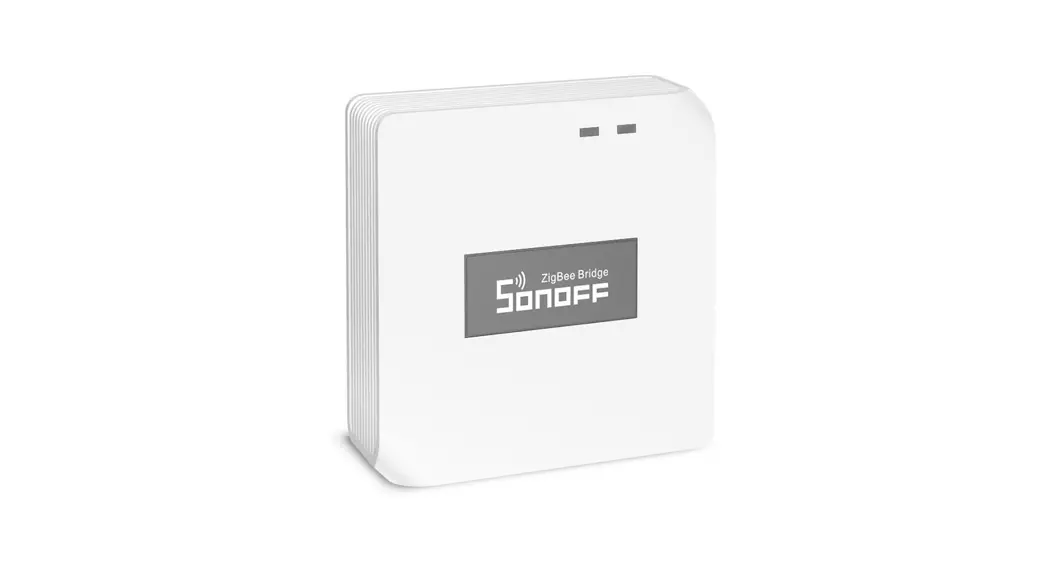
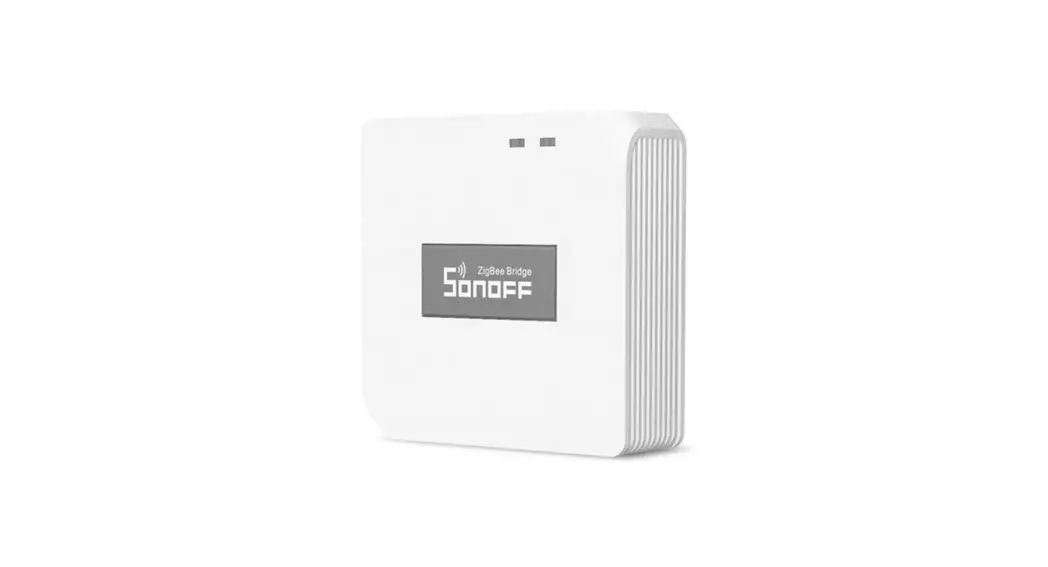
Zigbee Bridge Pro Hub
ZBBridge
User manual V1.1
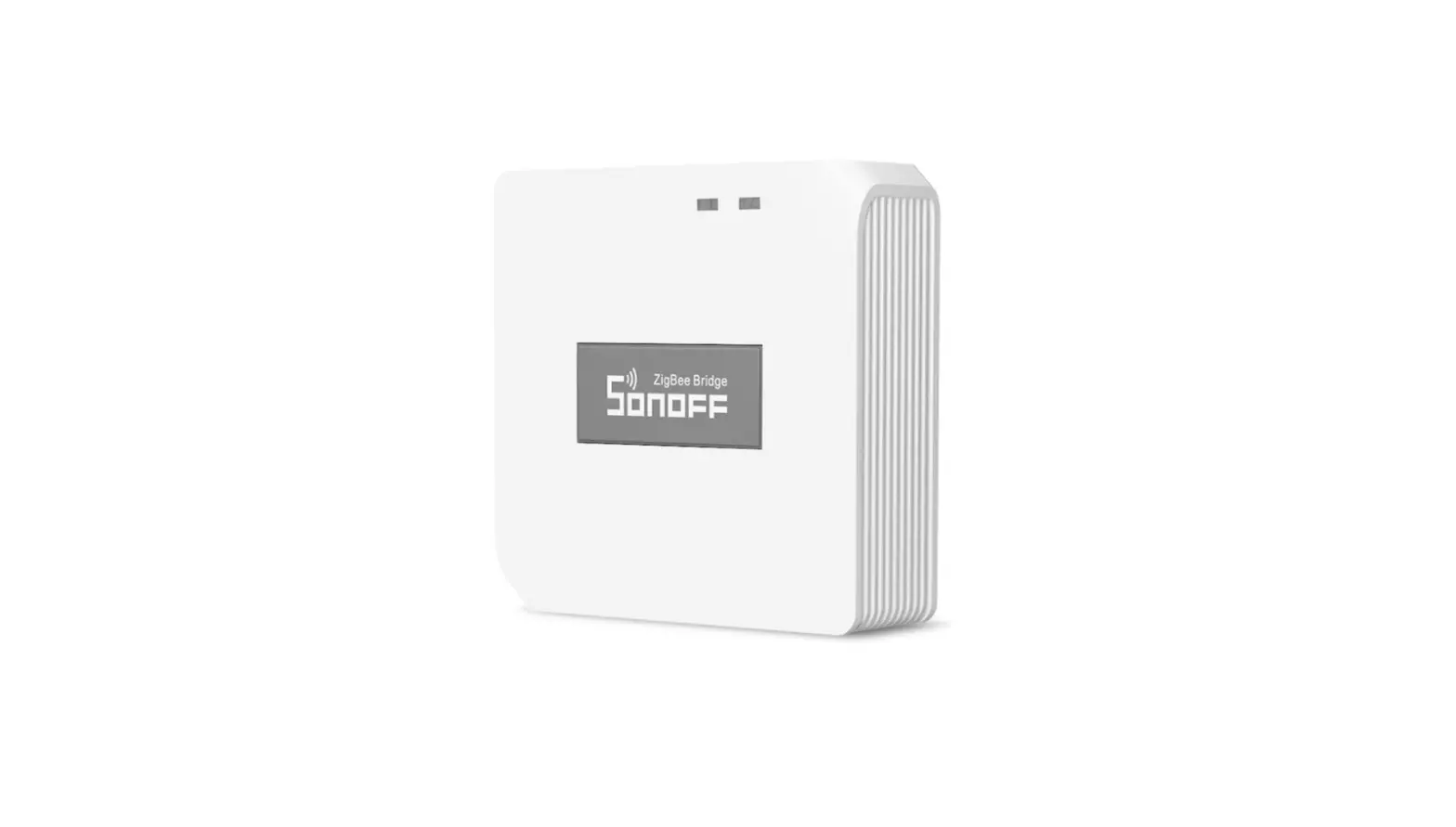
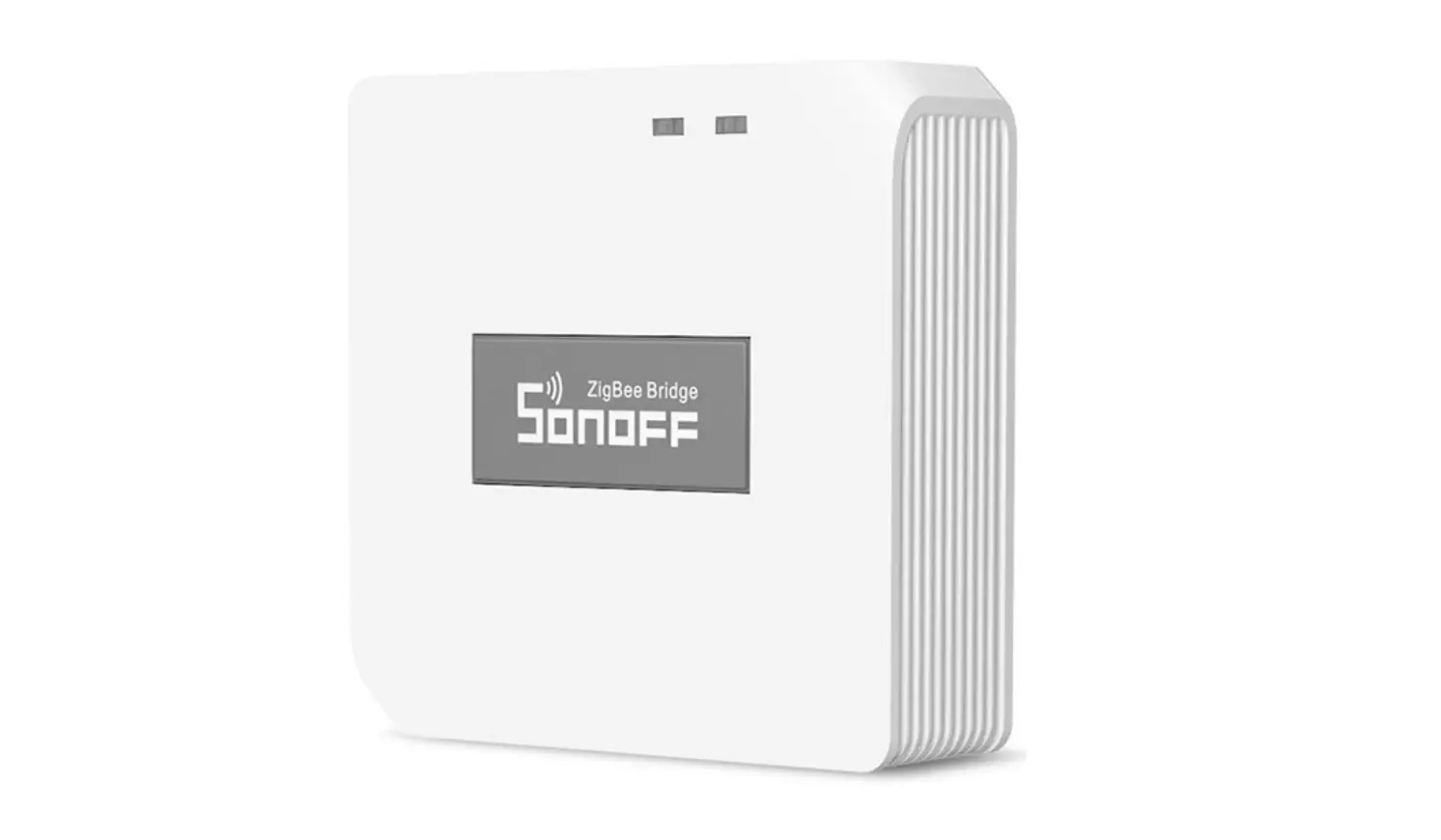
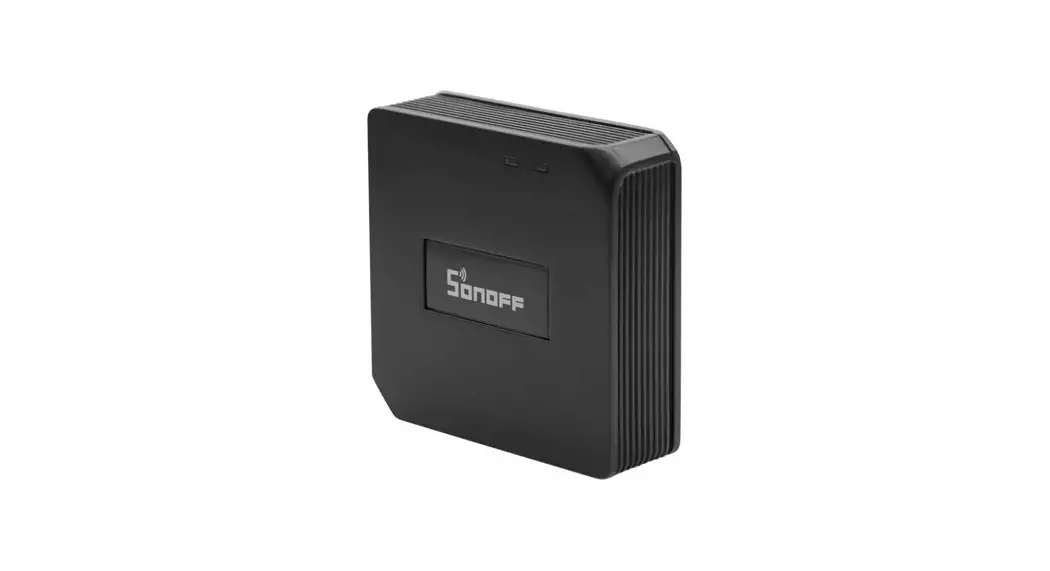
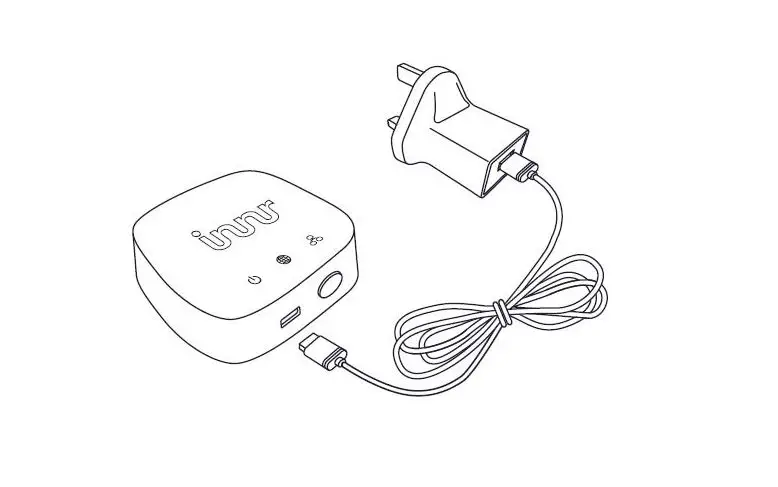
The ZBBridge is a ZigBee Bridge that allows you to control a
variety of ZigBee devices by transforming Wi-Fi into ZigBee. You
can remotely turn on/off or schedule on/off connected ZigBee
devices, or share it with your family to control them together.
Operating Instruction
- Download eWeLinkAPP eWeLink
- Power on
After powering on, the device will enter the quick pairing mode
(Touch) during the first use. The Wi-Fi LED indicator changes in a
cycle of two short and one long flash.
The device will exit the quick pairing mode (Touch) if not
paired within 3mins. If you want to enter this mode, please long
press the pairing button for about 5s until the Wi-Fi LED indicator
changes in a cycle of two short and one long flash and release.
- Add ZigBee Bridge
Add Device:
- Quick Pairing: WIFI devices can be added in this mode (make
sure the device is in pairing mode). - Scan QR code: GSM devices and devices with QR code can be added
in this mode. - Sound Pairing: Add device in this mode if your device supports
this feature.
Tap + and select Quick Pairing, then operate following the
prompt on the APP.
If you fail to enter Quick Pairing Mode (Touch), please try
Compatible Pairing Mode to pair:
- Long press Pairing button for 5s until the Wi-Fi LED indicator
changes in a cycle of two short flashes and one long flash and
release. - Long press Pairing button for 5s again until the Wi-Fi LED
indicator flashes quickly. Then, the device enters Compatible
Pairing Mode. - Tap + and select Compatible Pairing Mode on APP. Select Wi-Fi
SSID with ITEAD-****** and enter the password 12345678, and then go
back to eWeLink APP and tap Next. Be patient until pairing
completes.
To add a ZigBee sub-device to ZigBee Bridge, set the ZigBee
sub-device to the pairing mode and tap + on ZigBee Bridge to pair.
ZigBee Bridge can add up to 32 sub-devices now. It will support
adding more sub-devices soon.
Specifications
| Model | Input | ZigBee | Wi-Fi | Operating systems | Working temperature | Material | Dimension |
|---|---|---|---|---|---|---|---|
| ZBBridge | 5V 1A | ZigBee 3.0 | IEEE 802.11 b/g/n 2.4GHz | Android & iOS | -10~40°C | PC | 62x62x20mm |
The device weight is less than 1 kg. The installation height of
less than 2 m is recommended.
LED indicator status instruction:
| LED indicator status | Status instruction |
|---|---|
| Blue LED flashes (one long and two short) | Quick Pairing Mode |
| Blue LED flashes quickly | Compatible Pairing Mode (AP) |
| Blue LED keeps on | Device is connected successfully |
| Blue LED flashes quickly once | Unable to discover the router |
| Blue LED flashes quickly twice | Connect to the router but fail to connect to Wi-Fi |
| Blue LED flashes quickly three times | Upgrading |
| Green LED flashes slowly | Searching and adding … |
Currently supported ZigBee sub-devices
| Brands | Model |
|---|---|
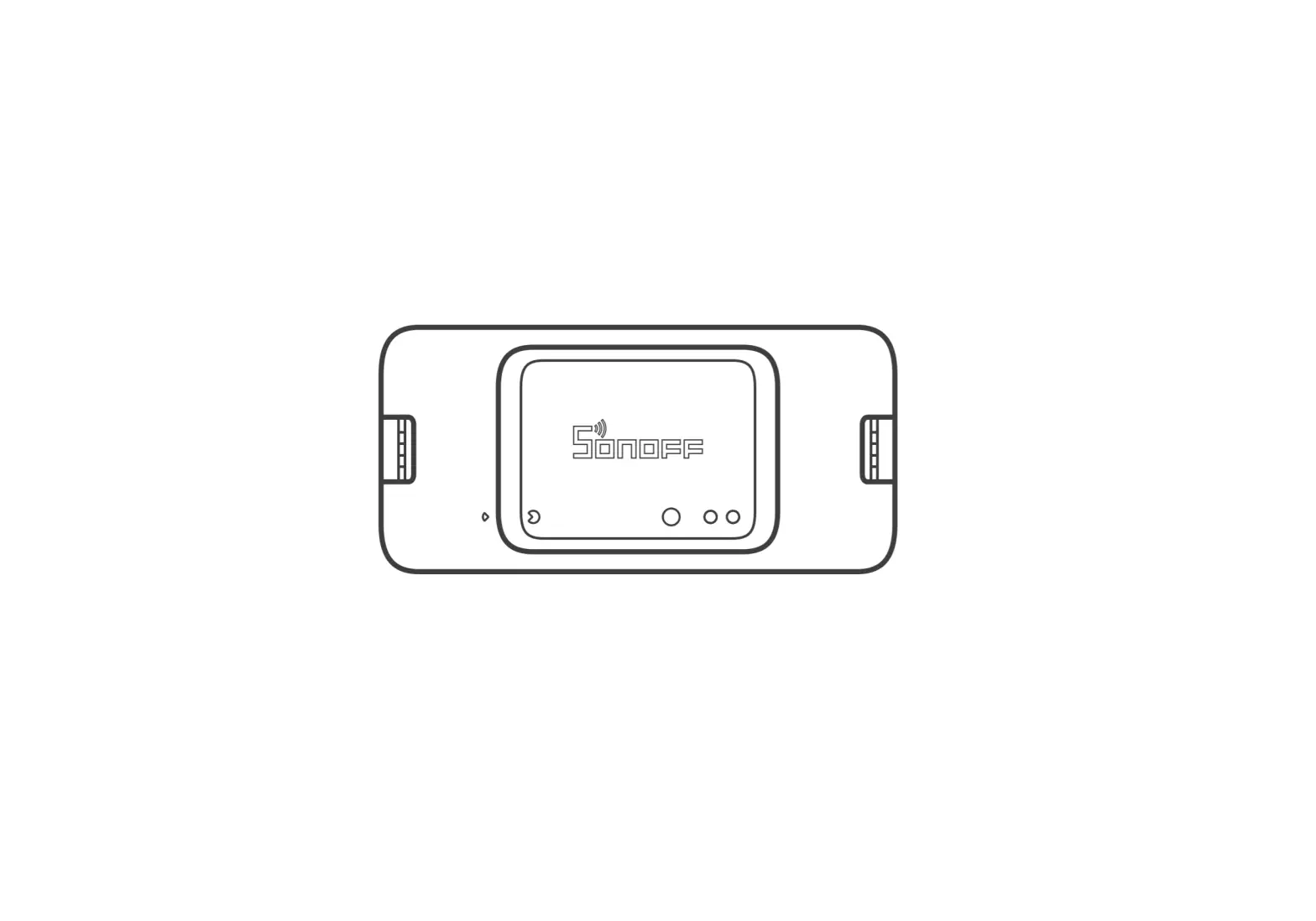
| SONOFF | BASICZBR3 |
| SONOFF | SNZB-01 |
| SONOFF | SNZB-04 |
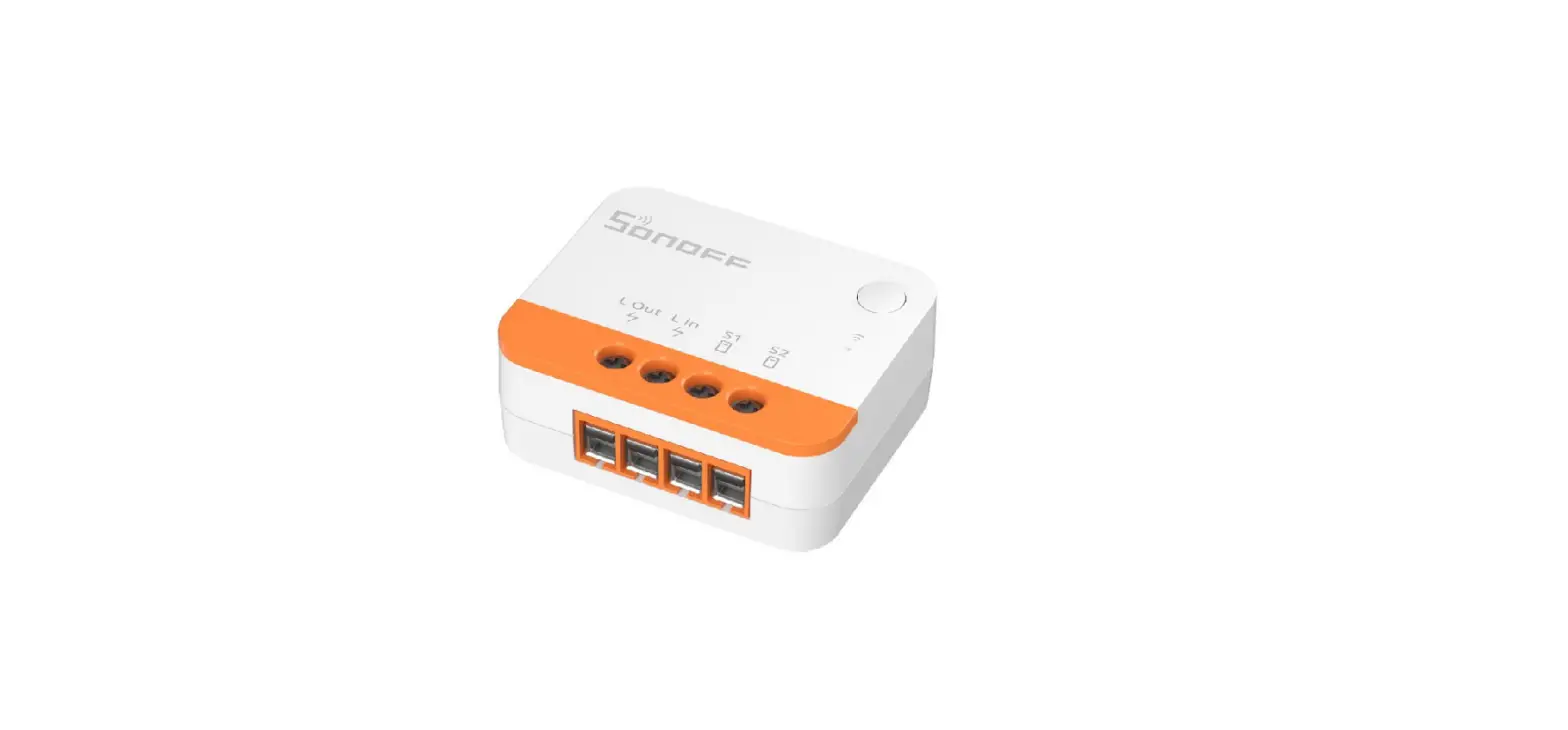
| SONOFF | ZBMINI |
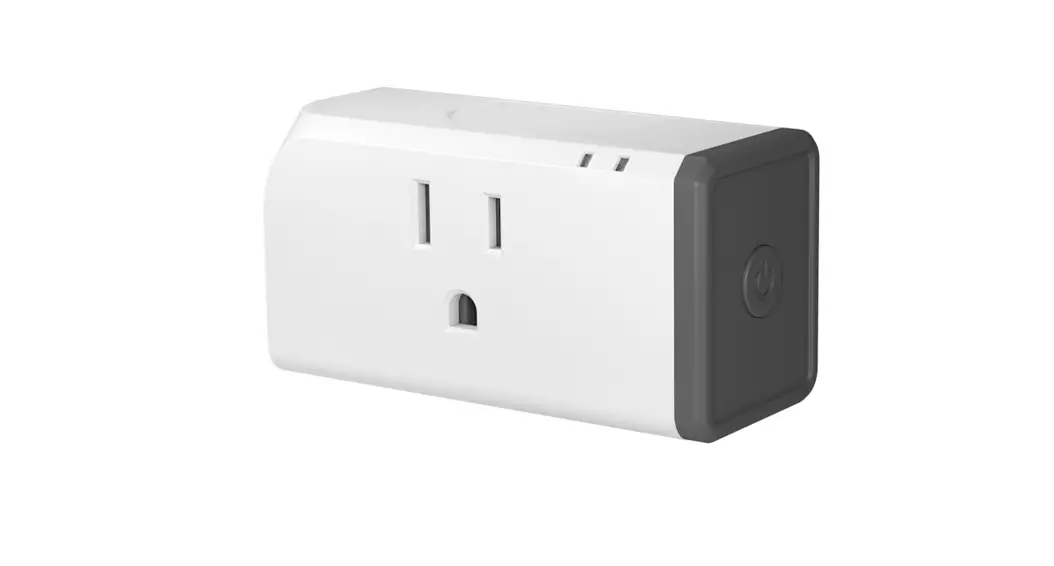
| SONOFF | S31 Lite zb |
| SONOFF | SNZB-02 |
| SONOFF | SNZB-03 |
| SONOFF | S26R2ZB (TPE/TPG/TPF) |
ZBBridge
User manual V1.1
ZigBee Bridge
SONOFF TECHNOLOGIES CO., LTD.
Operating Instruction
1. Download “eWeLink”APP eWeLink
2. Power on
English
eWeLink
AndroidTM & iOS
After powering on, the device will enter the quick pairing mode (Touch) during the first use. The Wi-Fi LED indicator changes in a cycle of two short and one long flash.
The device will exit the quick pairing mode (Touch) if not paired within 3mins. If you want to enter this mode, please long press the pairing button for about 5s until the Wi-Fi LED indicator changes in a cycle of two short and one long flash and release.
3. Add ZigBee Bridge
Add Device
Quick Pairing
WIFI devices can be added in this mo de(make sure the device is in pairing mode).
Scan QR code
GSM devices and devices with QR co de can be added in this mode.
Sound Pairing Add device in this mode if your devic e support this feature.
Tap “+” and select “Quick Pairing”, then operate following the prompt on the APP.
SONOFF TECHNOLOGIES CO., LTD.
English
Compatible Pairing Mode
If you fail to enter Quick Pairing Mode (Touch), please try “Compatible Pairing Mode ” to pair. 1 Long press Pairing button for 5s until the Wi-Fi LED indicator changes in a cycle of
two short flashes and one long flash and release. Long press Pairing button for 5s again until the Wi-Fi LED indicator flashes quickly. Then, the device enters Compatible Pairing Mode. 2 Tap “+” and select “Compatible Pairing Mode ” on APP. Select Wi-Fi SSID with ITEAD-****** and enter the password 12345678, and then go back to eWeLink APP and tap “Next”. Be patient until pairing completes.
Add a ZigBee sub-device to ZigBee Bridge
ZBBridge
ZBBridge
Set the ZigBee sub-device to the pairing mode and tap “+” on ZigBee Bridge to pair. ZigBee Bridge can add up to 32 sub-devices now. It will support adding more sub-devices soon.
Specifications
Model Input ZigBee Wi-Fi Operating systems Working temperature Material Dimension
ZBBridge 5V 1A ZigBee 3.0 IEEE 802.11 b/g/n 2.4GHz Android & iOS -10~40 PC 62x62x20mm
SONOFF TECHNOLOGIES CO., LTD.
Product Introduction
ZigBee LED indicator(Green) Wi-Fi LED indicator(Blue)
Input Pairing button
English
The device weight is less than 1 kg. The installation height of less than 2 m is recommended.
LED indicator status instruction
LED indicator status
Status instruction
Blue LED flashes (one long and two short) Quick Pairing Mode
Blue LED flashes quickly
Compatible Pairing Mode (AP)
Blue LED keeps on
Device is connected successfully
Blue LED flashes quickly once
Unable to discover the router
Blue LED flashes quickly twice
Connect to the router but fail to connect to Wi-Fi
Blue LED flashes quickly three times
Upgrading
Green LED flashes slowly
Searching and adding …
Features
This is a ZigBee Bridge that allows you to control a variety of ZigBee devices by transforming Wi-Fi into ZigBee. You can remotely turn on/off or schedule on/off connected ZigBee devices, or share it with your family to control them together.
SONOFF TECHNOLOGIES CO., LTD.
English
Currently supported ZigBee sub-devices
Brands Model
BASICZBR3 SNZB-01 SNZB-04
SONOFF
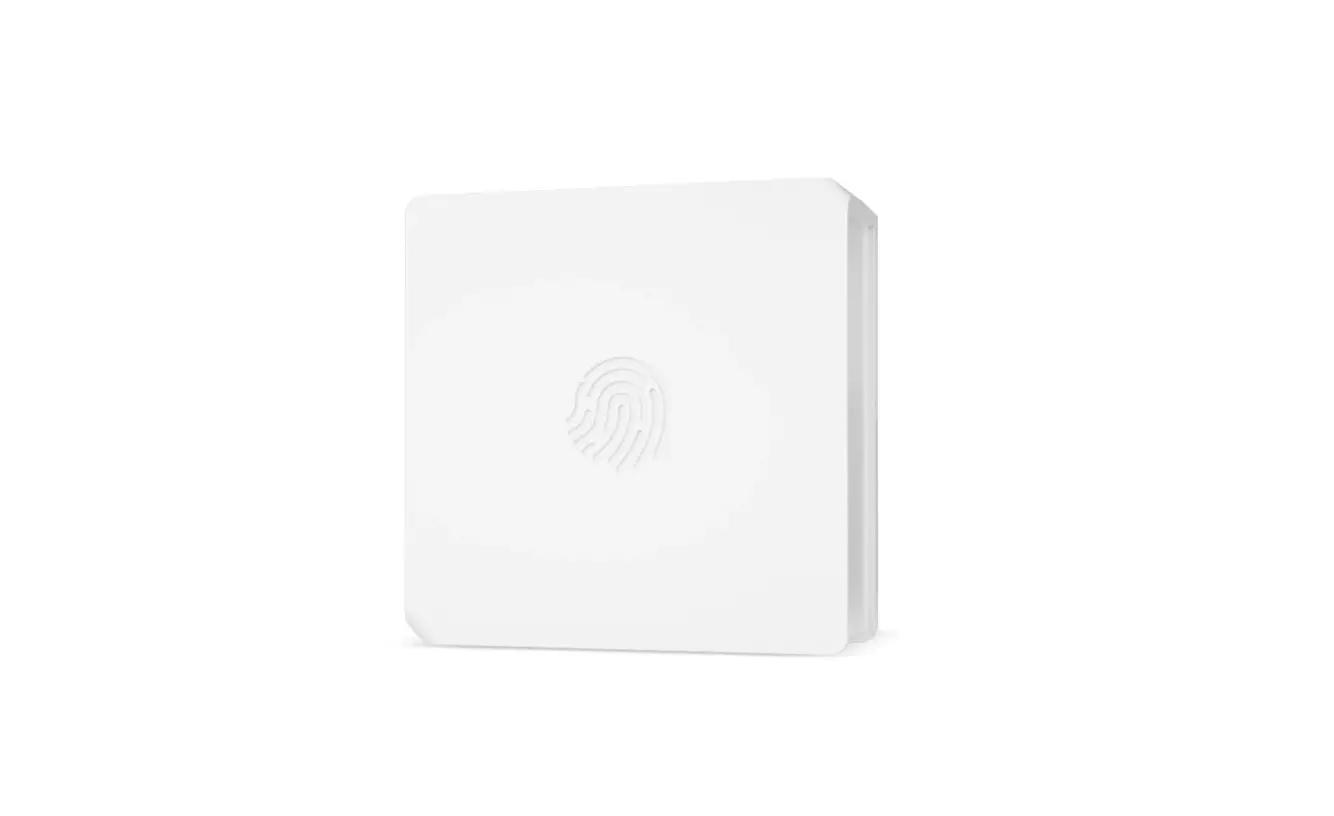
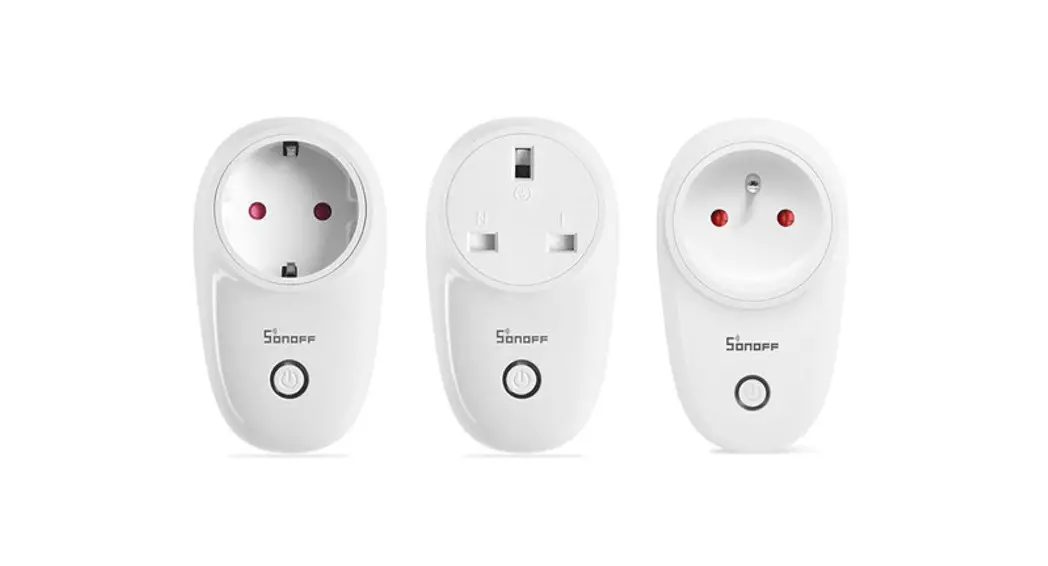
ZBMINI S31 Lite zb SNZB-02 SNZB-03 S26R2ZB (TPE/TPG/TPF)
eWeLink
SA-003-UK SA-003-US
The number of supported ZigBee sub-devices will continue to be increased.
The device also supports other ZigBee standard protocol products types, such as wireless door/window sensor, motion sensor, one-gang smart switch, water sensor and temperature & humidity sensor.
Delete ZigBee sub-devices
Long press the pairing button for 10s until ZigBee LED signal indicator “flashes twice”, then all paired sub-devices have been deleted.
Users can delete the single sub-device on eWeLink APP.
Factory Reset
Long press the pairing button for about 5s until the Wi-Fi LED indicator changes in a cycle of two short and one long flash and release, then the reset is successful. The device enters quick pairing mode (Touch).
Please reset the device to factory defaults if you want to change the Wi-Fi network, then reconnect the new network.
SONOFF TECHNOLOGIES CO., LTD.
English
Common Problems
Q: Why my device stays “Offline”? A: The newly added device needs 1 2mins to connect Wi-Fi and network. If it stays
offline for a long time, please judge these problems by the blue Wi-Fi indicator status:
1. The blue Wi-Fi indicator quickly flashes once per second, which means that the switch failed to connect your Wi-Fi: Maybe you have entered a wrong Wi-Fi password. Maybe there’s too much distance between the switch your router or the environment causes interference, consider getting close to the router. If failed, please add it again. The 5G Wi-Fi network is not supported and only supports the 2.4GHz wireless network. Maybe the MAC address filtering is open. Please turn it off. If none of the above methods solved the problem, you can open the mobile datanetwork on your phone to create a Wi-Fi hotspot, then add the device again.
2. Blue indicator quickly flashes twice per second, which means your device has connected to Wi-Fi but failed to connect to the server. Ensure steady enough network. If double flash occurs frequently, which means you access an unsteady network, not a product problem. If thenetwork is normal, try to turn off the power to restart the switch.
SONOFF TECHNOLOGIES CO., LTD.
FCC Warning
FCC Warning
Changes or modifications not expressly approved by the party responsible for compliance could avoid the user’s authority to operate the equipment.
This device complies with part 15 of the FCC Rules. Operation is subject to the following two conditions: (1) This device may not cause harmful interference, and (2) this device must accept any interference received, including interference that may cause undesired operation.
FCC Radiation Exposure Statement:
This equipment complies with FCC radiation exposure limits set forth for an uncontrolled environment. This equipment should be installed and operated with minimum distance20cm between the radiator & your body. This transmitter must not be co-located or operating in conjunction with any other antenna or transmitter.
Note:
This equipment has been tested and found to comply with the limits for a Class B digital device, pursuant to part 15 of the FCC Rules. These limits are designed to provide reasonable protection against harmful interference in a residential installation. This equipment generates, uses and can radiate radio frequency energy and, if not installed and used in accordance with the instructions, may cause harmful interference to radio communications. However, there is no guarantee that interference will not occur in a particular installation. If this equipment does cause harmful interference to radio or television reception, which can be determined by turning the equipment off and on, the user is encouraged to try to correct the interference by one or more of the following measures:
— Reorient or relocate the receiving antenna. — Increase the separation between the equipment and receiver. — Connect the equipment into an outlet on a circuit different from that to which the
receiver is connected. — Consult the dealer or an experienced radio/TV technician for help.
Hereby, Shenzhen Sonoff Technologies Co., Ltd. declares that the radio equipment type ZBBridge is in compliance with Directive 2014/53/EU.The full text of the EU declaration of conformity is available at the following internet address:
TX Frequency: WiFi2412-2472MHz
RX Frequency: WiFi2412-2472MHz
TX Frequency: ZigBee2405-2480MHz
RX Frequency: ZigBee2405-2480MHz
Output Power: 6.44dBm(802.11b), 1.63dBm(802.11g), 1.2dBm(802.11n20)
MAX PER 2.242405MHz2.162480MHz
Shenzhen Sonoff Technologies Co., Ltd.
1001, BLDG8, Lianhua Industrial Park, shenzhen, GD, China
ZIP code: 518000
Website: sonoff.tech
MADE IN CHINA